





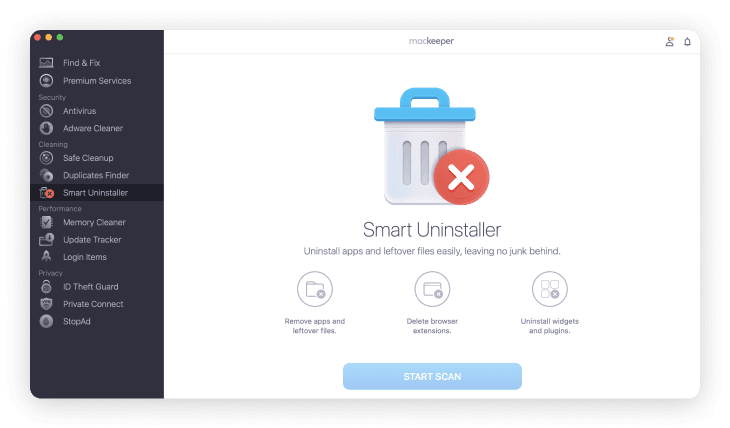
2. How to uninstall the app using Finder
Finder is a tool that displays folders, files, and apps on a Mac. It allows you to organize and manage all of your device’s files.
Also, you can use it to uninstall Mac apps. Using advanced search, you can locate the program that you want to delete and the files associated with it.
To uninstall an app using Finder, follow these steps:
-
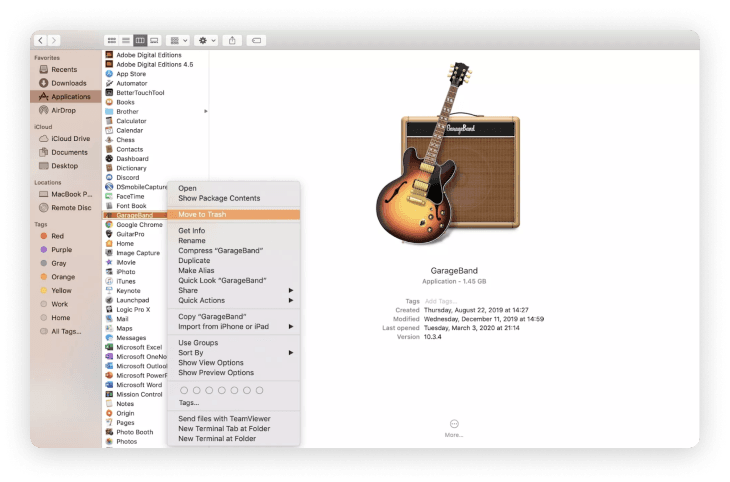
Go to Applications in Finder and Control-click an app you want to uninstall
-
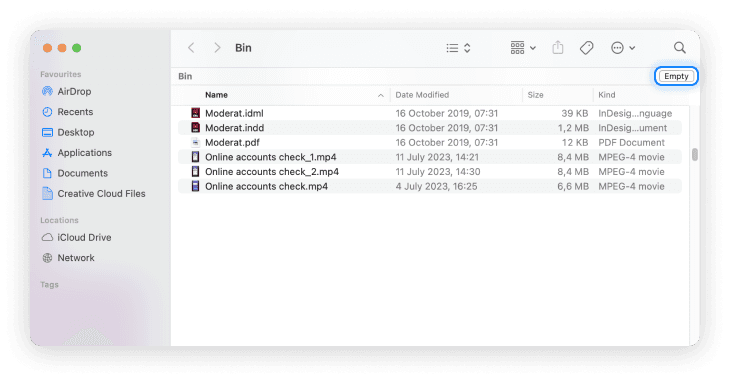
Send the app you want to uninstall to the Trash, then open Bin and empty it
-
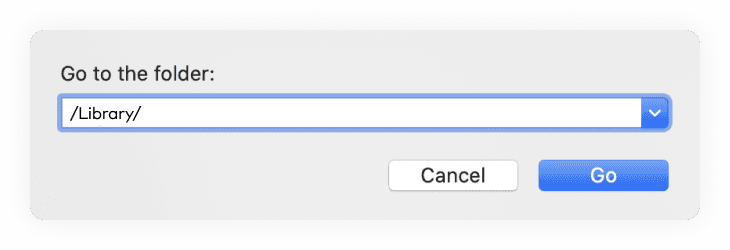
In Finder select Go > Go to Folder from the menu bar and type /Library/ and hit click Go. Search for any folders with the same name of the app you deleted
-
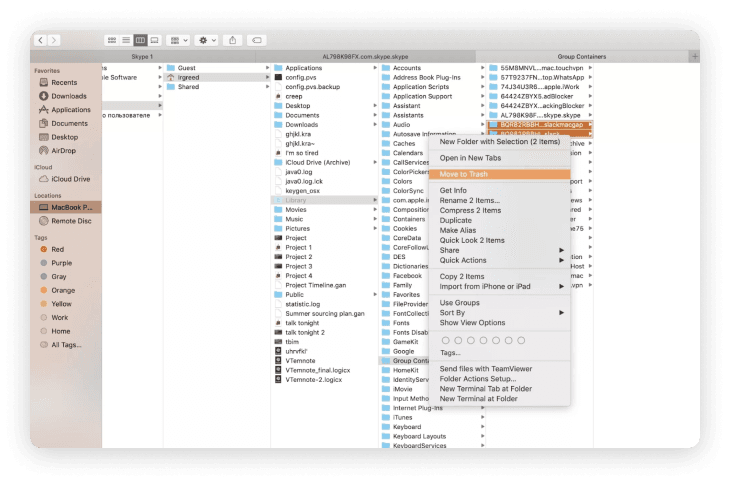
To delete the folder with leftovers, control-click on its name and select Move to Trash from the drop-down menu, then open Bin and empty it
PROS
Easy and most common way
CONS
Hard to find all the leftovers
Takes much time
3. How to uninstall the app using Launchpad
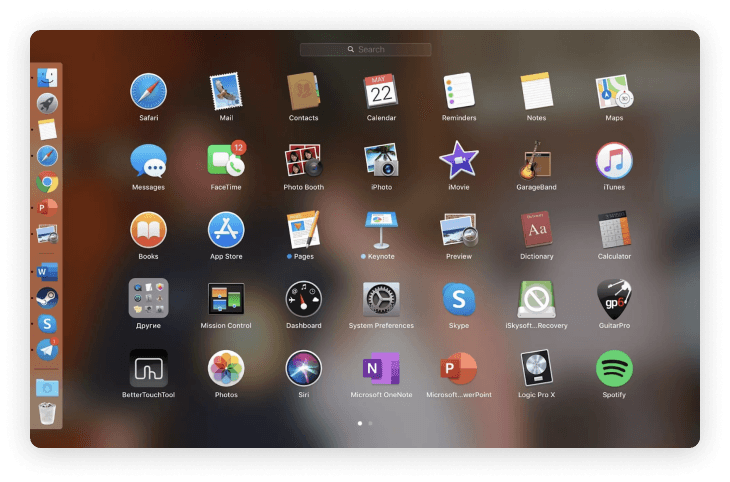
With Launchpad, you can find, organize, and open your Mac apps. You can access Launchpad through the Dock, through a Mac search, using the F4 key, or by pinching all your fingers together if you use a trackpad.
Uninstalling apps using Launchpad is handy, as it doesn’t only delete the app, but also detects their additional files and sends them to Trash as well.
Follow these instructions to delete the app using Launchpad:
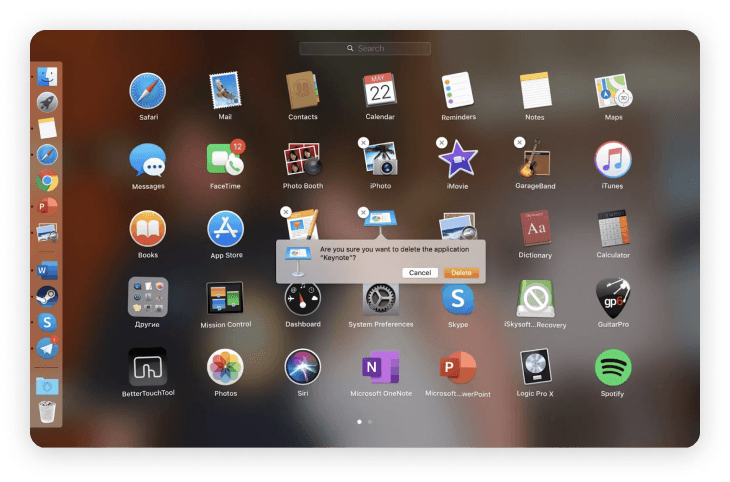
- Open Launchpad and hold the Option key
- When the icons start jiggling, a small cross may appear in the corner of some apps. If the cross is there, click on it to delete that app
- It works only for applications that were downloaded from the App Store—those which are officially recommended for installation on Mac devices
- To confirm, click Delete
PROS
The fastest manual way
Allows you to delete app leftovers
CONS
Works only for apps downloaded from
the
AppStore
4. How to uninstall the app using Terminal
Terminal can be also used to delete both apps and their leftovers. To do that, follow these steps:
- To open Terminal, go to Applications → Utilities → Terminal
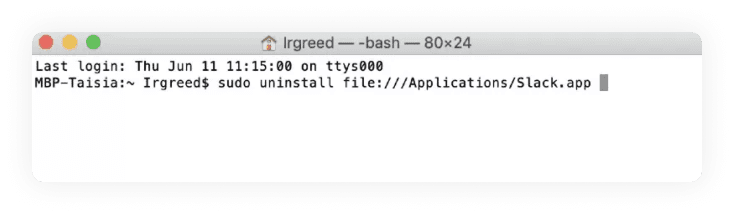
- Type uninstall file:// into the command line
- Then go to the Applications folder in Finder and drag the icon of the app that you wish to uninstall into the Terminal window — it'll automatically paste itself
- Hit Enter and type in your user password to remove the app and its leftover files from your Mac
PROS
Helps delete app leftovers
CONS
Requires knowledge of command line
tools
Conclusions
The manual methods will require you to precisely follow the above instructions. While doing this, you should be attentive not to miss anything and you’ll have to devote some time to this process.
Please also remember that there is always a probability of mistake, so be careful with vital system files—their accidental deletion may disrupt your Mac’s operation.
The fastest and most effective method is getting specified software. A professional tool, like MacKeeper, will do all the dirty jobs for you within seconds. Also, it can clean your Mac from junk, protect from malware (99.7% detection rate), remove annoying ads, secure your connection, and more.