

How to fix "your system has run out of application memory" on Mac?
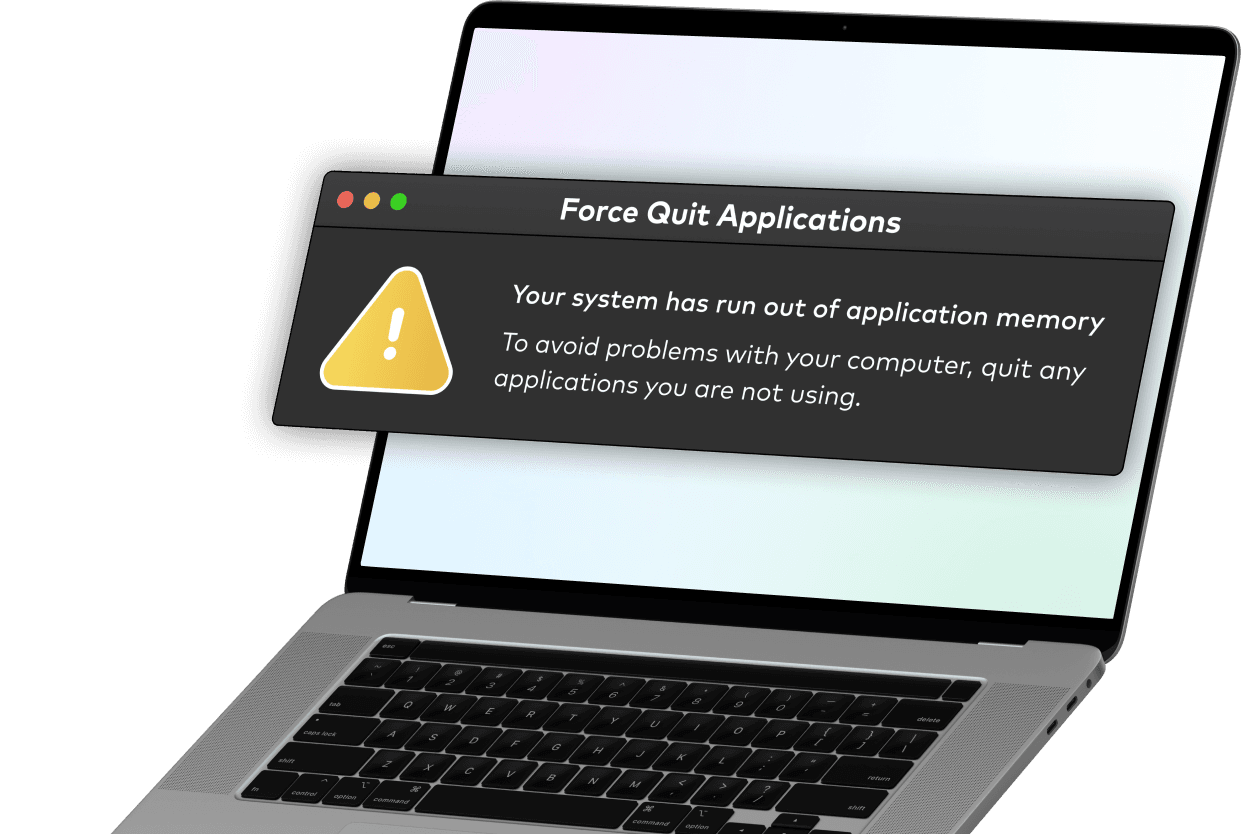
Have you ever seen a pop-up saying “your system has run out of application memory” on your Mac? Many Mac users face this issue every now and again.
The reasons for this error may be different—you can see it when you’ve got many apps open, when you upgrade to macOS, or if you have a full RAM, and more. Whatever the reason is, the fix is easier than you might think.
A quick way to get your Mac's memory back to normal is to force quit any unused apps and use a third-party software, such as MacKeeper’s Smart Uninstaller. That way, you’ll be able to delete apps and files safely without any effort.
Now, we’ll dive into the causes of the pop-up error in more detail and show you how to fix it when your Mac’s application memory is full.
Automatic
Manual
- 1. Restart your Mac
- 2. Force quit unused apps
- 3. Free up storage space
- 4. Manage browser extensions
- 5. Limit memory usage by Finder
- 6. Stop apps starting up automatically
- 7. Update your macOS
How to automatically clean a Mac’s application memory
Although it’s possible to manually clear your application memory, it’s much easier to let MacKeeper do it for you automatically. This way, you never need to worry about it again.
To do this, you need to install MacKeeper and enable the Auto-scan feature. This scan is not only able to clean app leftovers, plugins, widgets, and so on, but it can also help you remove junk files, duplicates and protect your Mac from viruses, malware, and other performance problems you might encounter.
To set up a MacKeeper Auto-scan:
- Click Find & Fix from the MacKeeper sidebar
- Select Auto-scan near the bottom-right corner, and click Manage Auto-scan
- Enable the option to Automatically scan my Mac every 24 hours
- Follow the cleaning hints suggested by MacKeeper in your scan report.

How to manually clean a Mac’s application memory
Below you’ll see different methods on how to solve an application memory problem—just choose what suits you and your Mac best!
Restart your Mac
Your first move after experiencing an application error should be a Mac restart. This will clear cache and some temporary files, which will free some of your disk space.
Note: Before you restart your Mac, save any unsaved projects, documents, etc.
Here’s how to restart your Mac:
- Click the Apple logo in the top left
- Select Restart
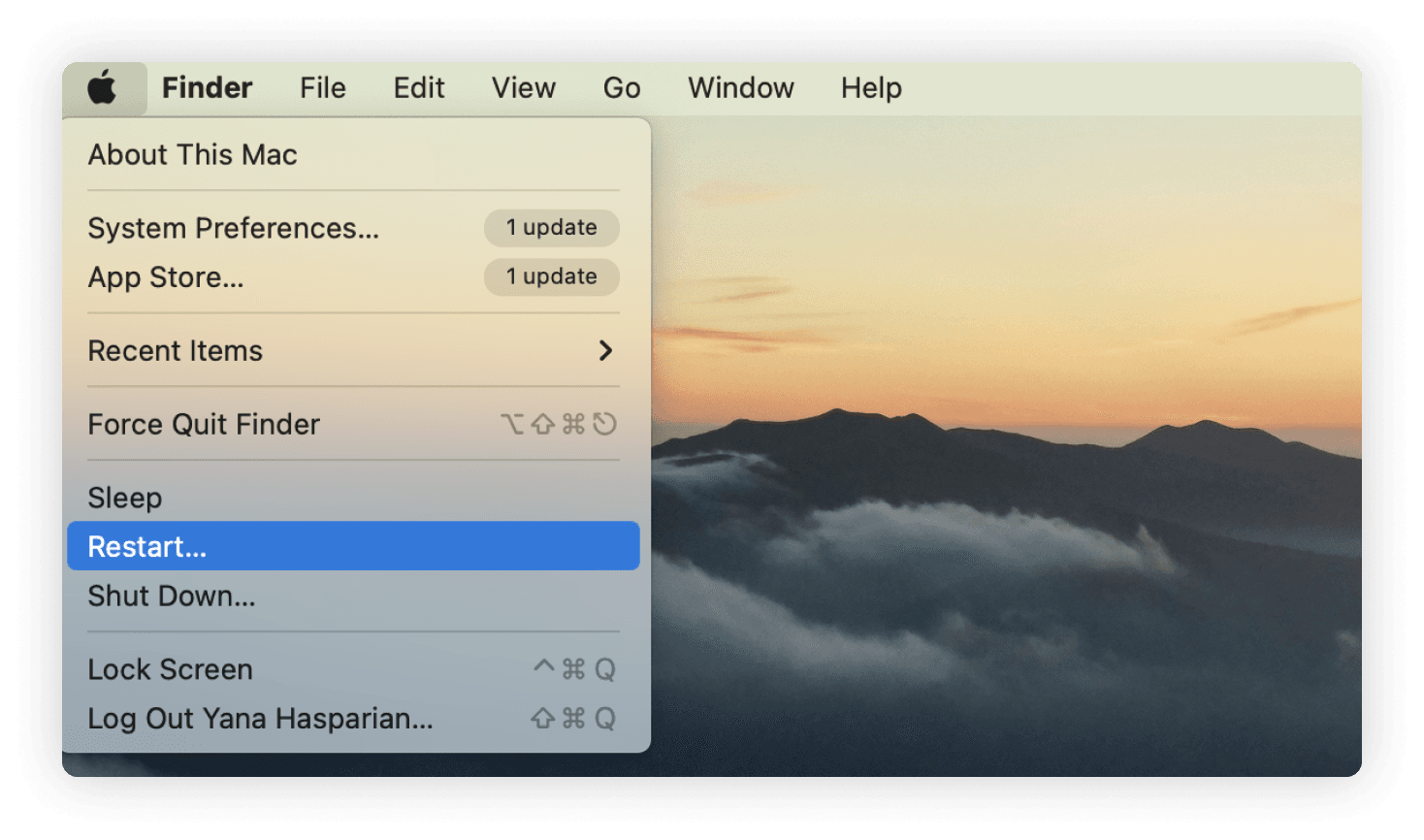
Hopefully, simply restarting your Mac does the trick. If not, try the other options you see below.
Force quit unused apps
Multiple apps running at the same time can be a reason for these annoying memory pop-up errors. All you have to do now is force quit unused apps—it will free your Mac’s memory, and hopefully solve the problem.
Follow these steps to force quit unused apps:
- Hold these three keys down Option (or Alt), Command, Esc (Escape)
- Alternatively, click the Apple logo and select Force Quit
- Select unused apps and click Force Quit.
Free up storage space
If the above options didn’t work, your next best step is to free up some disk space. There are a few ways to do this.
Here’s how to free up storage space:
- If you have an external hard drive or storage device, transfer files/apps to it to free storage
- Next, delete files in the Downloads folder. Go to Finder, select Downloads, and delete any unwanted media/files
- Delete junk emails from the Mailbox. Open Mailbox > Erase Junk Mail in the menu. Then, in Mailbox > Erase Deleted Items
- Remove previous backups if you use your Mac to back up your devices
- Uninstall unused applications
- If you have user accounts set up on your Mac, delete them. Also, check the Users folder on Macintosh HD for any deleted user account data
- Look in the Users folder on Macintosh HD for any unwanted shared files.
Manage browser extensions
As excessive extensions can cause application errors, let’s go into how to manage your browser extensions in Chrome.
Follow these steps to manage browser extensions:
- Launch Chrome
- Click More (the three vertical dots in the top right) > More tools > Extensions
- Turn off excessive extensions
- If you have a corrupted extension, fix it by clicking Repair > Repair extension.
Extensions do come in handy, but many people use poor or outdated ones that can lead to storage errors popping up.
Limit the memory usage by Finder
Finder is a common root cause for storage issues. You may have seen that Finder is taking up a lot of RAM when you checked in the Activity Monitor. If so, the fix is easy.
Here’s how to limit Finder’s memory usage:
- Open Finder
- In the menu bar, select Preferences
- Select the General tab. Under ‘New Finder windows show’, make sure the option in the drop-down menu isn’t All My Files
- Close Preferences
- Hold down Alt + Ctrl, and in the dock click the Finder icon
- Select Relaunch.
Stop apps starting up automatically
If you have too many apps opening every time you boot up your Mac, it could be the cause of your RAM issues. Luckily, there’s a feature within System Preferences that acts as a startup manager. You can view all startup apps there, and disable some of them.
Follow these steps to stop apps from automatically starting up:
-
Select the Apple logo in the top left and click System Preferences
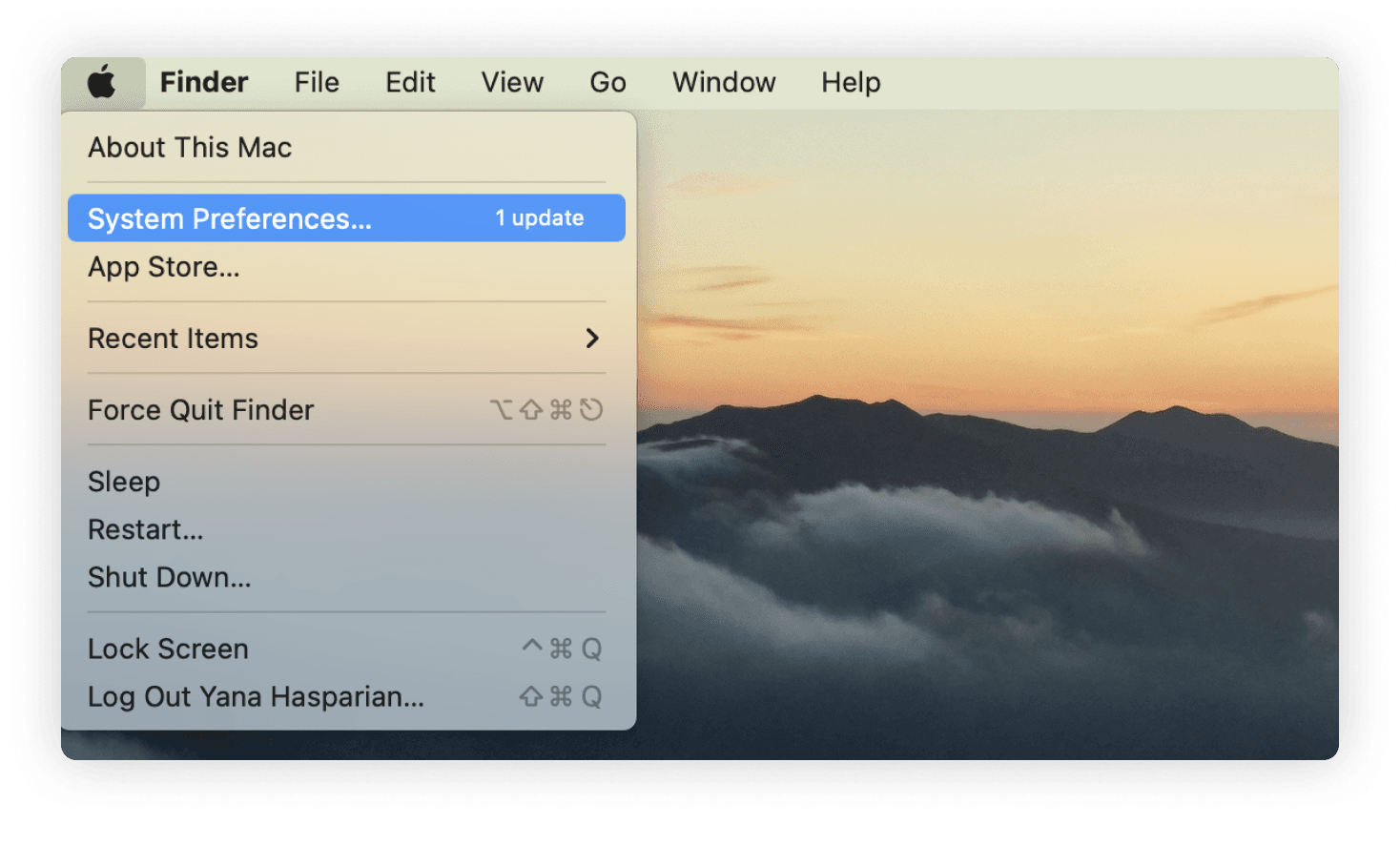
- Click Users & Groups
-
Select the Login Items tab
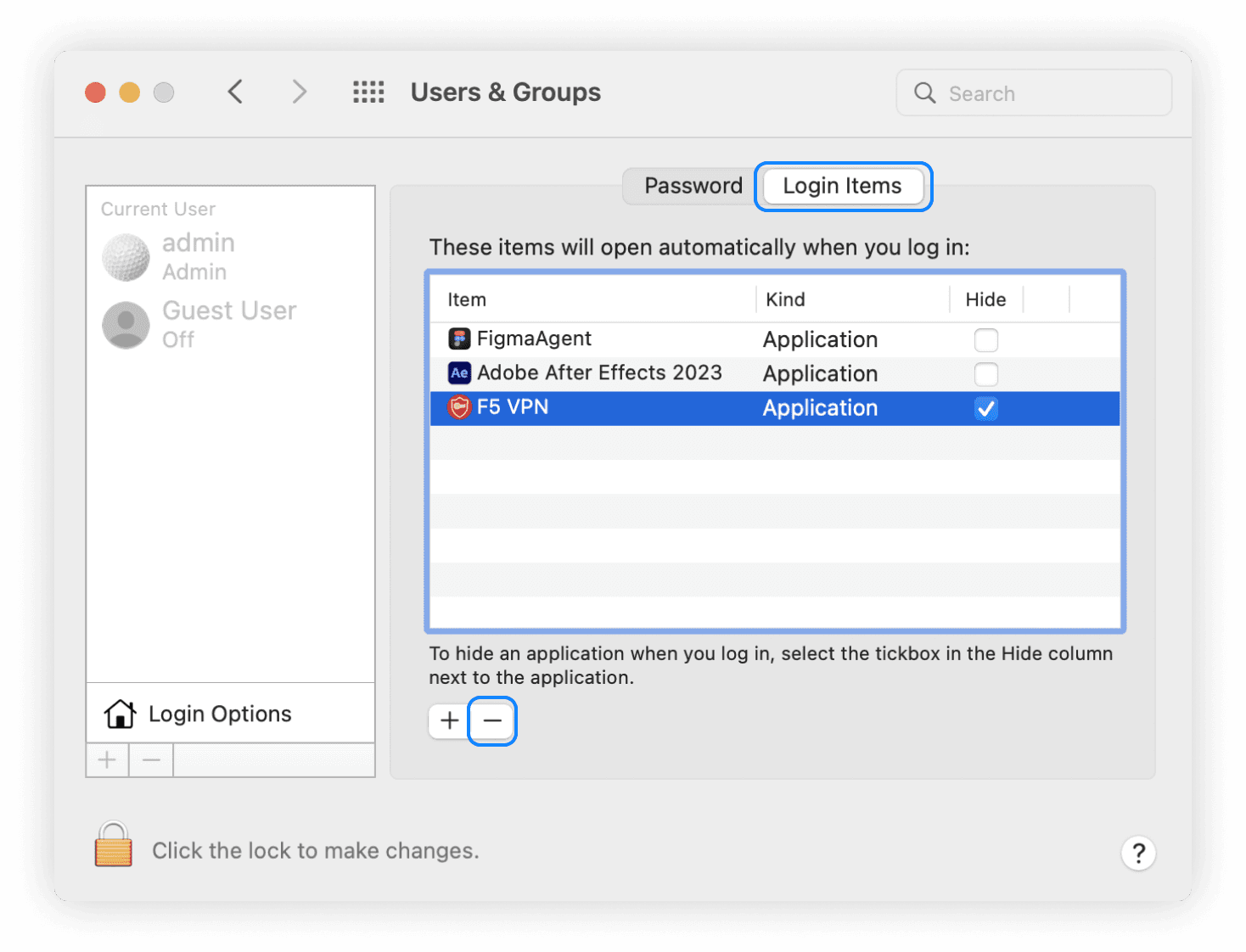
- Pick a startup app to delete and select the minus button to remove it from the list.
Update your macOS
Sometimes, using an outdated macOS can cause application memory errors to appear. Thus, updating your macOS is a safe bet. It’s easy to do with just a few steps.
Here’s how to update your macOS:
-
Click the Apple logo in the top left, and select System Preferences or System Settings
- For System Settings, choose General on the left. Now, on the left, click Software Update
- For System Preferences, select Software Update
-
If you have an update available, select Upgrade Now
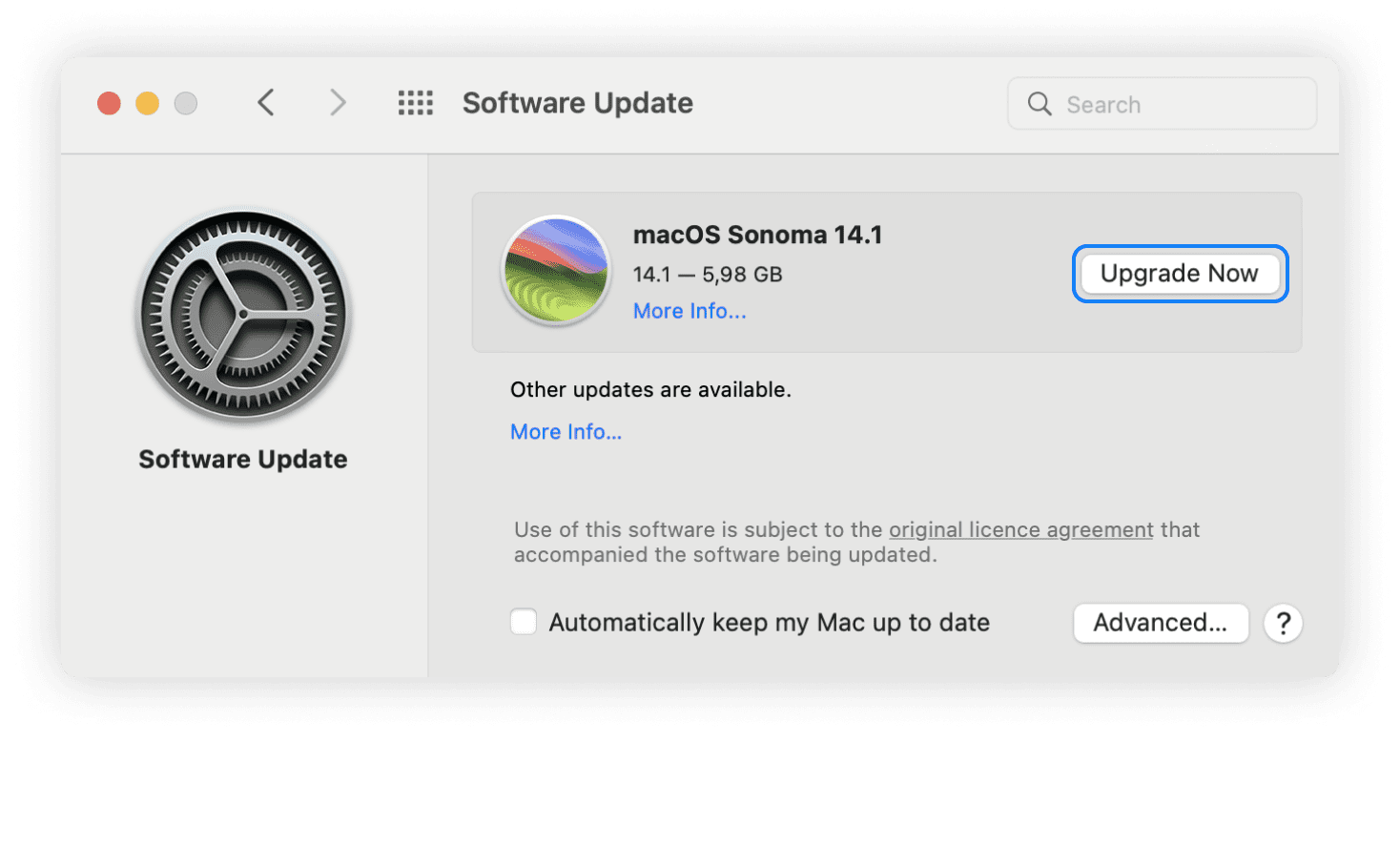
- Regularly check for updates to prevent further application memory issues.
As an alternative, you can get MacKeeper. This is able to keep your Mac clean and optimized with little-to-no effort on your side.
What is Mac’s application memory?
Mac’s Application Memory is the operational aspect of your system, tasked with managing applications. When you download and install programs, they usually get put in your hard drive, commonly known as disk space, where all your documents remain.
Why do Macs run out of application memory?
There’s no one-fits-all reason and each case should be investigated separately. Still, we can offer you some of the most common reasons.
- Boot disk has little space for running applications
- Too many apps running simultaneously
- Immoderate browser extensions
- Applications that hog memory
- Excessive open browser tabs.
Wrapping up
After reading this article, you should now know how to fix the error “your system has run out of application memory” and prevent it from happening again.
Though manual methods are pretty easy, keep in mind that frequency is a key. Only regular Mac checkups can make the solution long lasting. So if you decide to go with manual methods, make room in your schedule for regular memory cleaning and be ready to receive pop-ups in the middle of important work or while watching your favorite movie.
Another great way to keep your Mac’s application memory clean is by using MacKeeper’s Smart Uninstaller and Memory Cleaner. Removing leftovers, junk, and unused applications safely will help to prevent memory errors from reoccurring and save you a great deal of time. Moreover, MacKeeper can also help you get rid of viruses and malware for good, as according to AV-TEST, it features a 99.7% virus detection rate.