You may not see all the junk on your Mac, but you’ll definitely feel it! Finding out if your Mac needs cleaning is an easy task.
Do you always need to delete something before a new download? Does it take several seconds to open a new tab in the browser or create a new folder? Are you asking yourself how to make your Mac run faster? If you answered “yes” to any of these questions, just read this article and discover how to clear up disk space on a Mac!
First of all, you need to understand that you can clean your Mac manually or automatically—which one you choose is up to you. We’ll discuss both options.
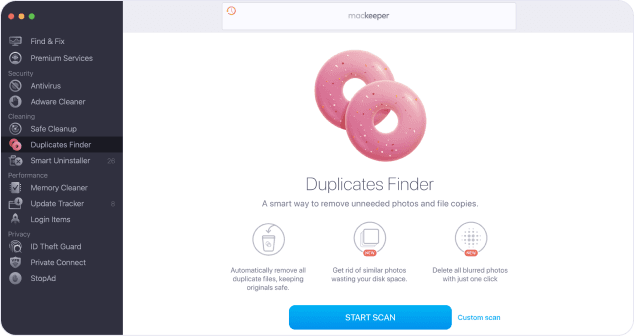
In other words, you need to remove the junk; the files that your Mac creates temporarily to perform a particular task—view an image, create a new file, and so on. Just imagine the number of files like this that can be created in just one month—they can take up gigabytes of space and leave you wondering how to free up space on your Mac.
This is a pretty hard task to do manually because your Mac can store junk wherever it wants. Actually, it can be almost impossible to find all the hidden places. But don’t worry! With a professional app like MacKeeper, junk removal takes seconds—just scan your Mac for junk and delete it in a click.
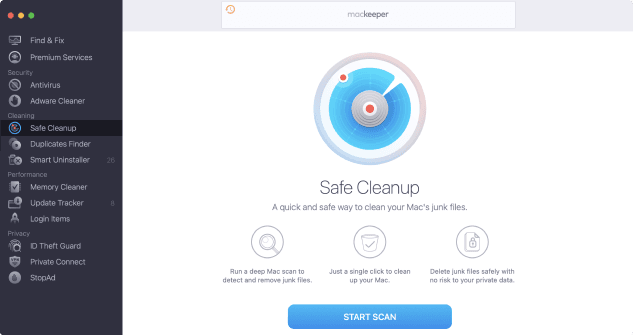
Sometimes we download an app accidentally, or we don’t like the way it works after we’ve tried it. And sometimes, we simply don’t need the app anymore, so we just forget about it! As well as taking up valuable space from the very beginning, unwanted apps can also download new updates automatically, consuming more and more megabytes every day.
You can inspect all your apps manually, of course, to decide if you need them. Following this, find the apps you want to delete in the Launchpad, click and hold, then press  , and confirm the deletion by clicking Delete. With apps like MacKeeper, however, it’s way easier—just let the cleaning app identify which apps you haven’t used for a long time and delete them in a couple of clicks, leaving no leftovers!
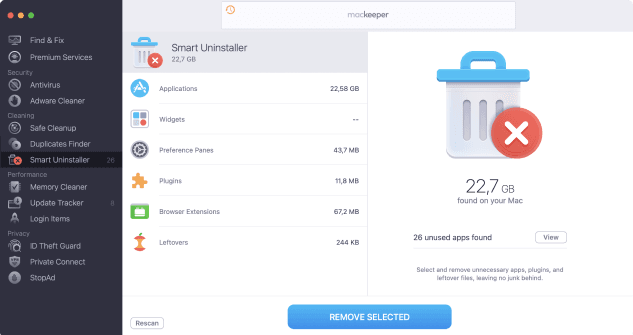
Duplicated files and similar photos may take up much more space than you realize. Do you really need all those vacation photos with you barely changing position? Keep it clean and uncluttered! Wanna know how to clean your storage easily?
This will take time to do manually. We mean it. You’ll need to check every file, one by one, to see if there are any duplicates. The same applies to cleaning up your photos. Our robust MacKeeper app can help you do that in seconds—just scan your Mac for duplicates and delete all of them in a single click.
Voila! Your Mac is clean and sound. However, you still need to decide if you’re going to devote days to this process, or clean your Mac with MacKeeper in a matter of minutes.
Your macOS version is lower than OS 10.11. We’d like to offer you MacKeeper 4 to solve the cleaning, privacy, and security issues of your macOS.