

Macs, like all computers, use caches to help them maintain performance. Quite simply, caches are areas where computers temporarily store any data that they’ll likely need again soon. Operating systems like macOS have caches, but so do individual apps.
Web browsers have caches, for example, where they store content from web pages, so when you return to these pages, your browser doesn’t have to load this content again. This makes browsing faster and reduces the load on websites.
Usually, caches are helpful, and most of the time, you shouldn’t need to touch them. But there are times when you’ll want to clear them out. In this guide, we’ll show you how to do just that.
What is cache?
In the computing world, cache (pronounced “cash”) is a temporary data storage location that fast tracks data retrieval.
Essentially, it allows your browser to speed up the load time of previously visited websites. It achieves this by storing data in hardware that can be accessed fast (like random access memory). As a result, cache eliminates the need to tap into the data’s core storage location, which speeds up the response time.
Why delete Mac caches?
Caches are generally good for your Mac, but, in our experience, they can cause issues too:
-
If they grow too large, they can negatively impact your Mac’s speed, particularly if you have an older, slower machine
-
They can also end up hogging disk space that could be put to better use
-
Cached data may also become corrupted, causing your Mac to behave unpredictably
-
Cached data may contain private information that you don’t want other people to see. This can include information you’ve entered into web forms, your browsing history, and so on.
If any of these things happen, then it can be a good idea to clear caches on your Mac.
Is it safe to delete Mac caches manually?
It’s sensible to be careful about deleting stuff from your Mac, but it’s generally safe to remove cached data. You shouldn’t run into any major issues if you delete cached files from system-level (/Library/Caches/) and user-level folders (~/Library/Caches/).
However, our advice is to be cautious when deleting cached files in apps as some developers store important files in the cache folders. Be wary of deleting cache files from apps you’re actively using, as you run the risk of deleting your work or other important data.
If you're in any doubt, use a cleaning tool like MacKeeper. It checks which files are safe to delete, so you don't accidentally remove anything essential.
How to delete cache using a Mac cache cleaner
As we’ve already mentioned, deleting Mac caches isn’t usually difficult, but there’s also a risk you might delete the wrong thing. Also, clearing caches is a fiddly, time-consuming process, especially if you have a lot of different apps and web browsers to consider; but if you use a professional Mac cleaning up, the whole process just takes a few seconds.
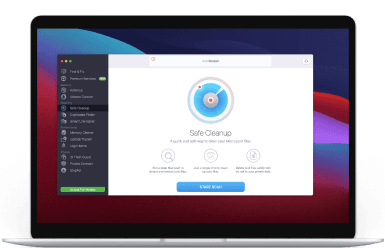
For example, the MacKeeper app features multiple tools to clean your Mac from junk on every level. In addition to its capability to delete any kind of cache—system, app, and browser files, the app also helps you get rid of duplicates, similar photos, and unused apps. And all of this happens without risking your important data.
With MacKeeper, you can delete all cached files from your Mac in just a few clicks:
-
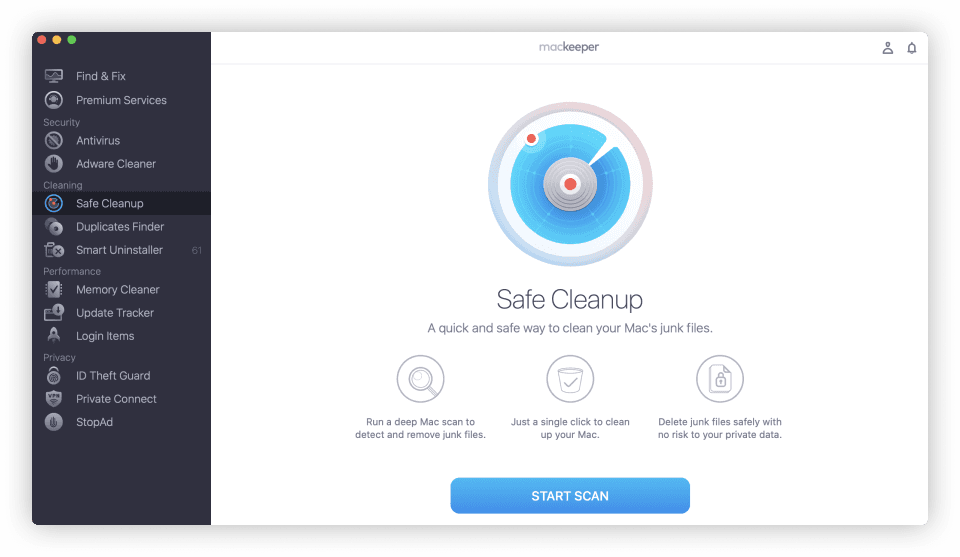
In MacKeeper, select Safe Cleanup
-
Click Start Scan
-
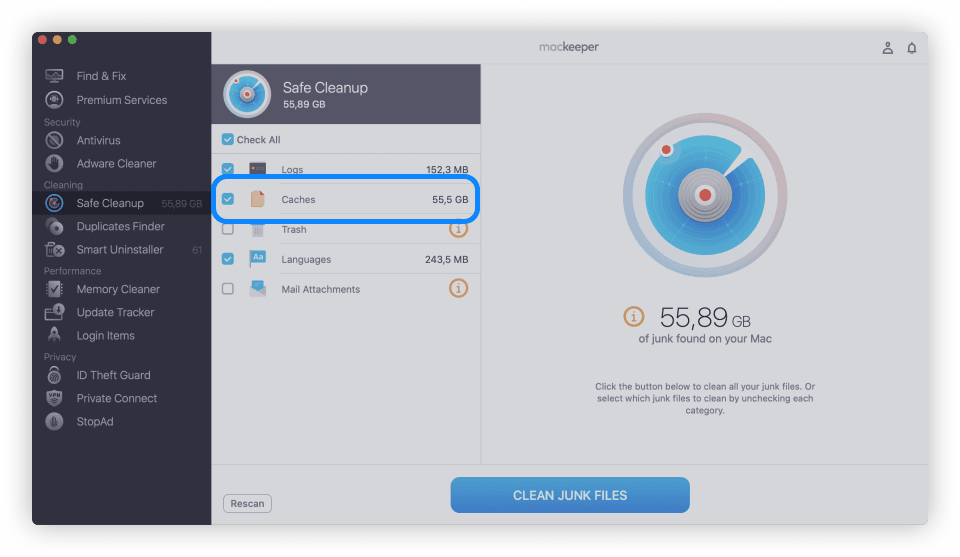
When the scan is finished, click Caches to see the different caches you can clean
-
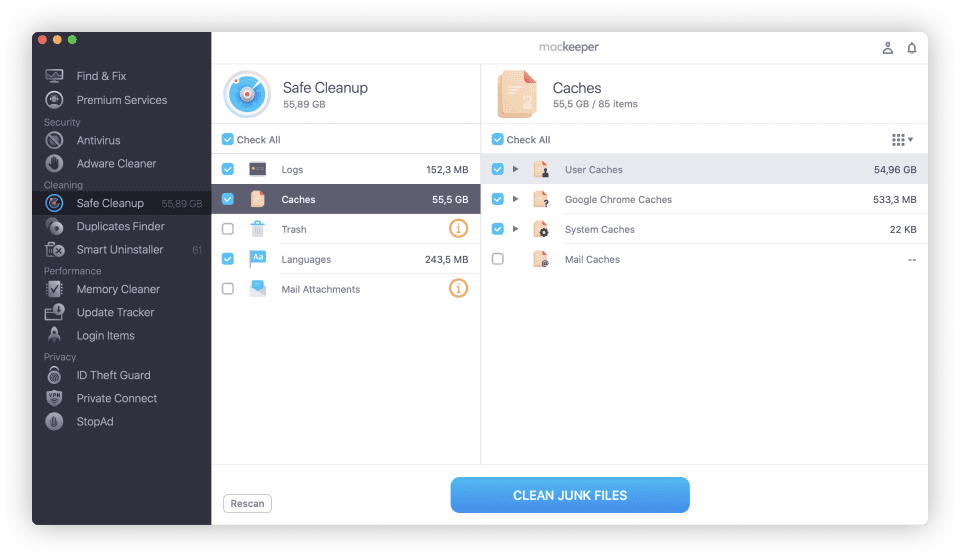
Review the results, select what you want to delete, then click Clean junk files.
MacKeeper is an Apple Notarized app, which means that Apple has validated it as an app safe from malware; so MacKeeper is secure to use. The app is compatible with all macOS versions, including the latest one.
Still, if you feel enthusiastic enough to do this manually—let’s discover how to do this together.
How to clear your Mac’s system cache
Most Mac apps create temporary cache data. These files can range from tiny to large files, depending on what they’re for and what app created them. In any case, these files can end up cluttering up your disk space and slowing down your Mac. For this reason, you might want to manually clear your Mac’s system cache every now and then.
Here’s how to delete your Mac’s system cache:
-
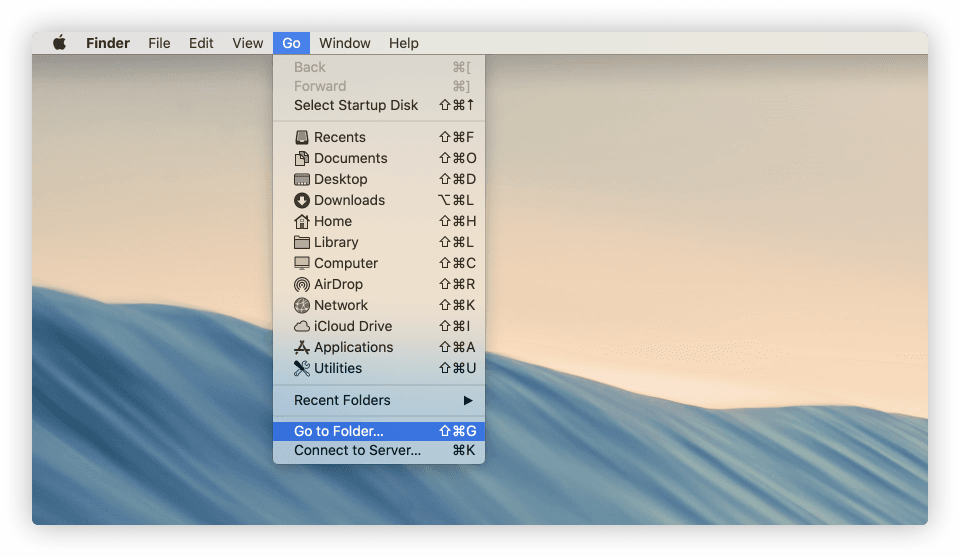
In Finder, select Go > Go to Folder
-
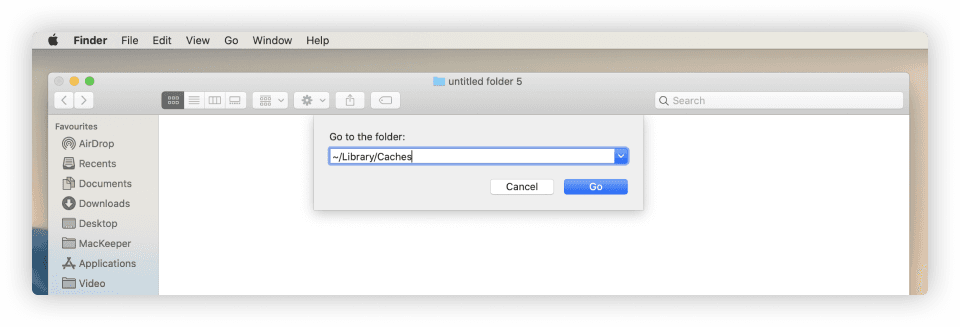
Enter ~/Library/Caches in the window that appears
-
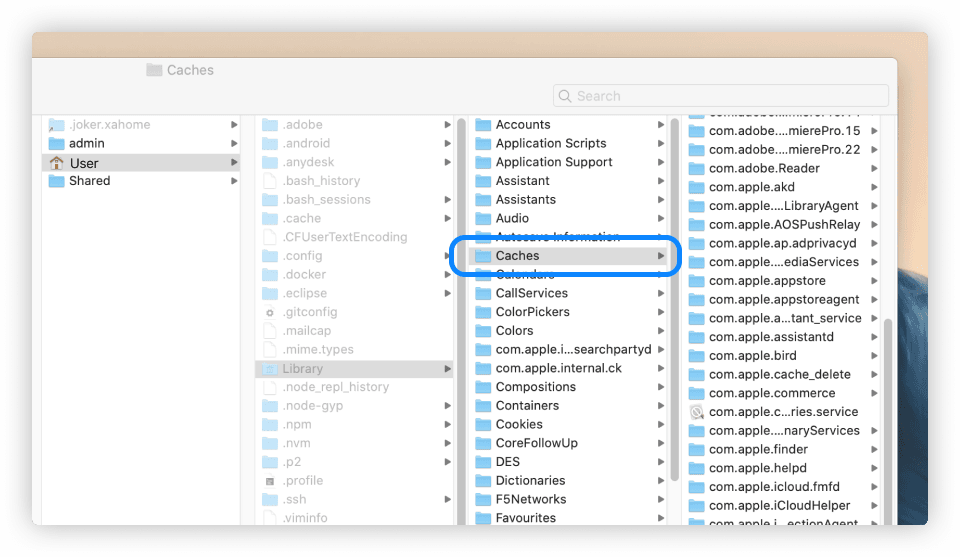
Click Go, and you’ll be taken to your Caches folder
-
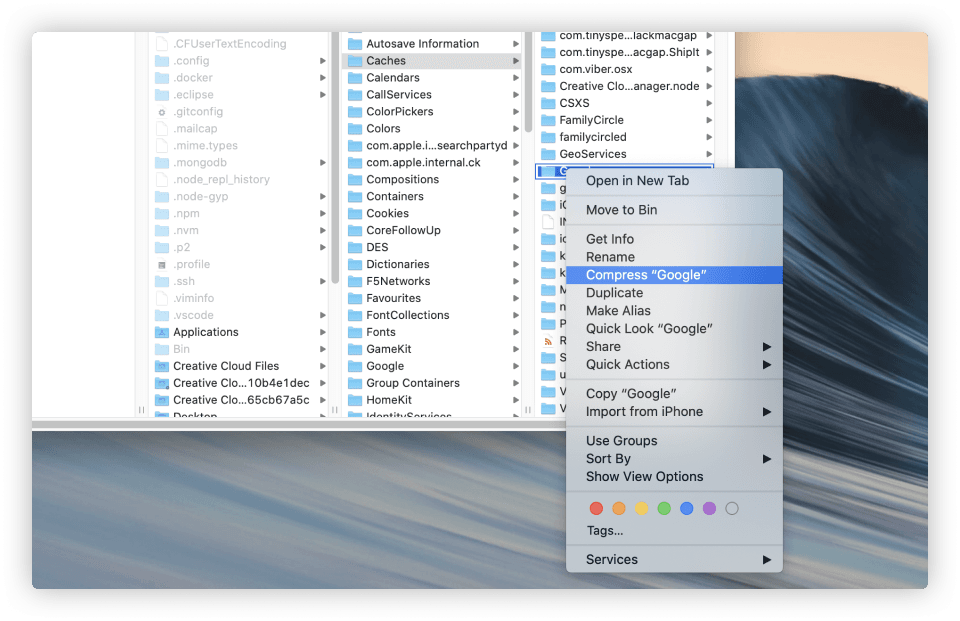
This takes you to the relevant folder. Now, just delete anything you don’t want.
How to clear app caches
Individual Mac apps may also have their own file caches. Depending on the app you’re discussing, these can potentially end up using a lot of disk space. Clearing these can be a good way to regain some storage.
-
In Finder, select Go > Go to Finder
-
Enter ~/Library/Caches
-
Click Go
-
Look for files that include the name of the app you’re looking for
-
Drag them to the Trash, then empty it.
How to delete Mac browser caches
Cached files usually speed up your web browsing experience, simultaneously saving you bandwidth. You may occasionally want to clear your Mac’s browser caches because they can end up using a lot of disk space unnecessarily. Deleting your browser’s cache will also hide your online activity, protecting your privacy.
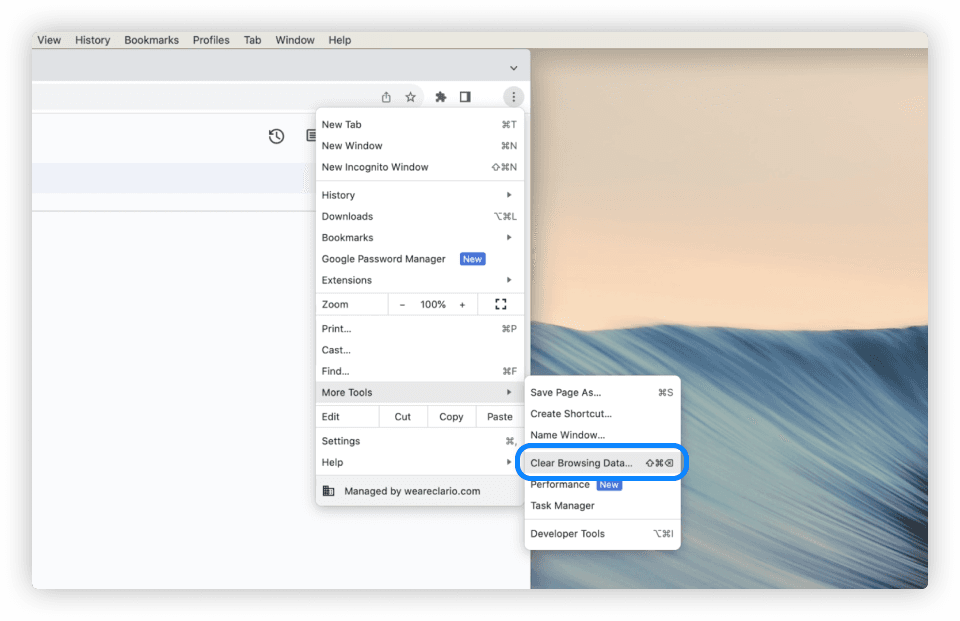
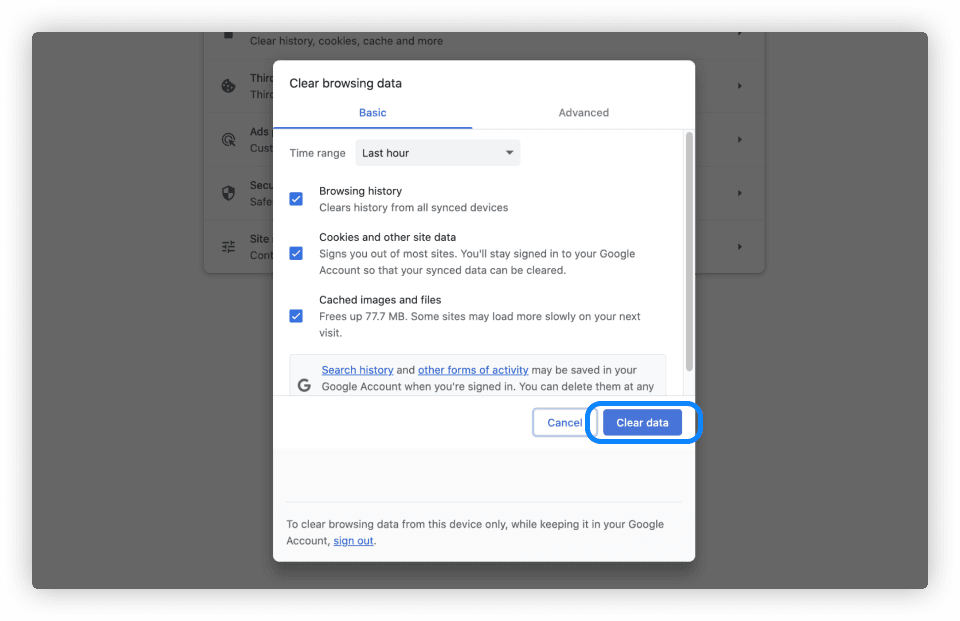
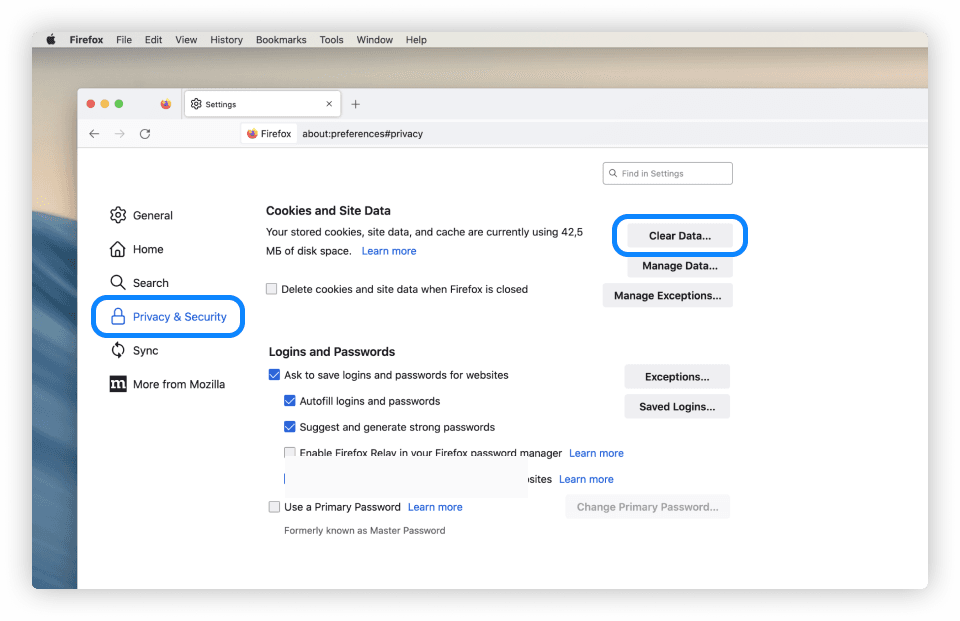
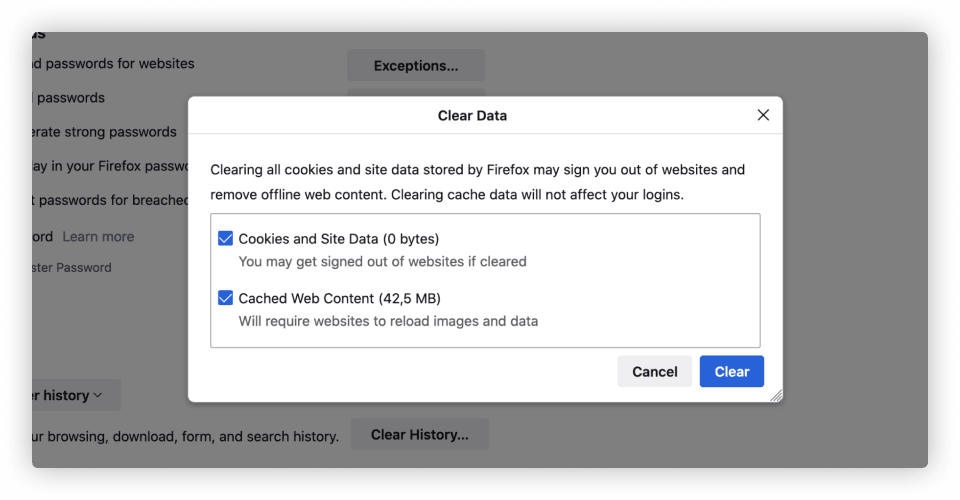
Clearing browser caches is usually easy. Here’s how it’s done in different web browsers: