Before you read how to find and edit passwords on your Mac, we need to remind you that it’s important to immediately change your password as soon as it’s been compromised in some kind of breach. To get instantly alerted on any breach of your passwords, please use MacKeeper’s ID Theft Guard.
In any discussion about passwords, there are two things that should always get a mention. First, use strong passwords that are difficult to guess, making sure they include a mixture of letters, numbers and special characters. Secondly, don’t reuse your passwords across websites or apps.
This is pretty standard password advice, but it also creates a problem: you can soon end up with more passwords than you can remember.
Thankfully, macOS can save passwords securely for you, so you don’t have to remember them all. They’ll be saved in your Mac’s Keychain and, if enabled, in the cloud in your iCloud Keychain.
Here, we’ll look at how to find these saved passwords on your Mac and how to edit them too.
A note from our experts:
Personal data that is kept on our Apple devices, including passwords, could be compromised at any time. To get an alert in case of a breach or data leakage, utilize MacKeeper’s ID Theft Guard.
Go to the Privacy section and select ID Theft Guard.
Click Scan new email, then add your address and click Start Scan.
Step 1. MacKeeper > ID Theft Guard > Scan new emailStep 2. Enter your email address > Start Scan
How to find Mac passwords in System Preferences
As of macOS Monterey, you can find passwords in your Mac’s System Preferences. From there, you can edit or delete saved login information.
Follow these steps to use the Passwords section of System Preferences:
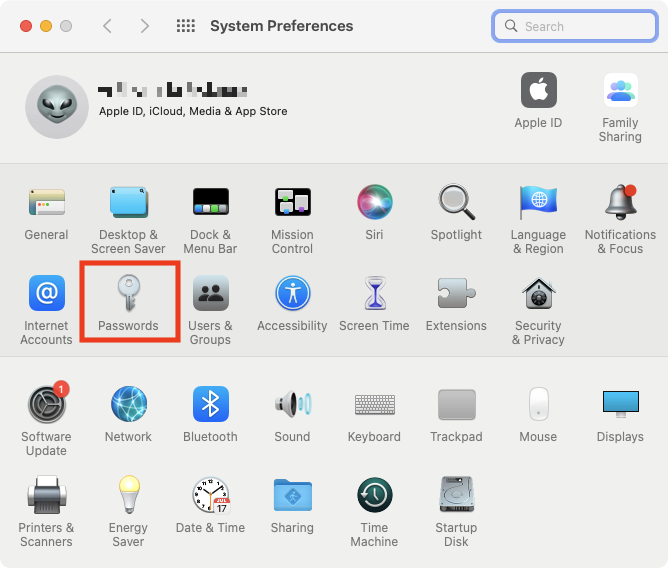
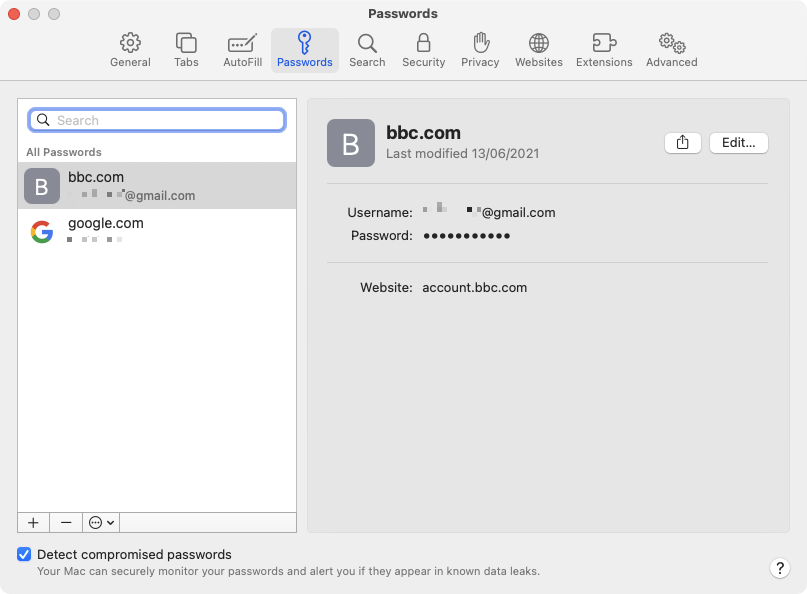
Open System Preferences, and select Passwords.
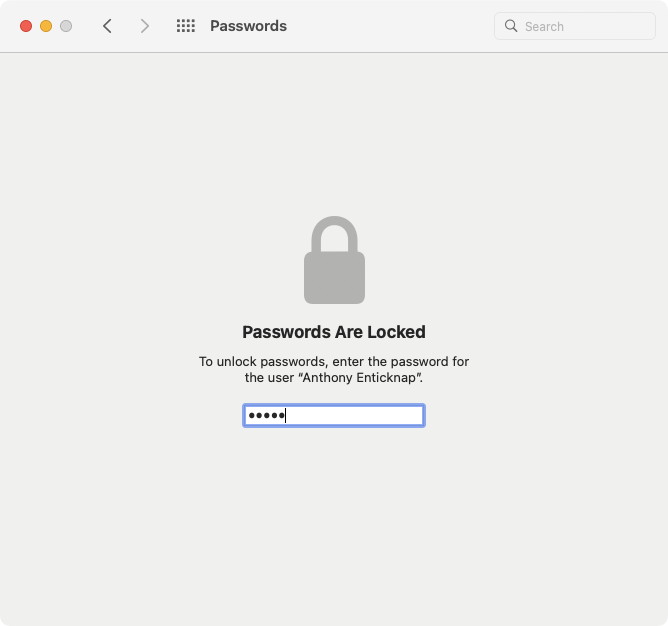
Enter your admin password.
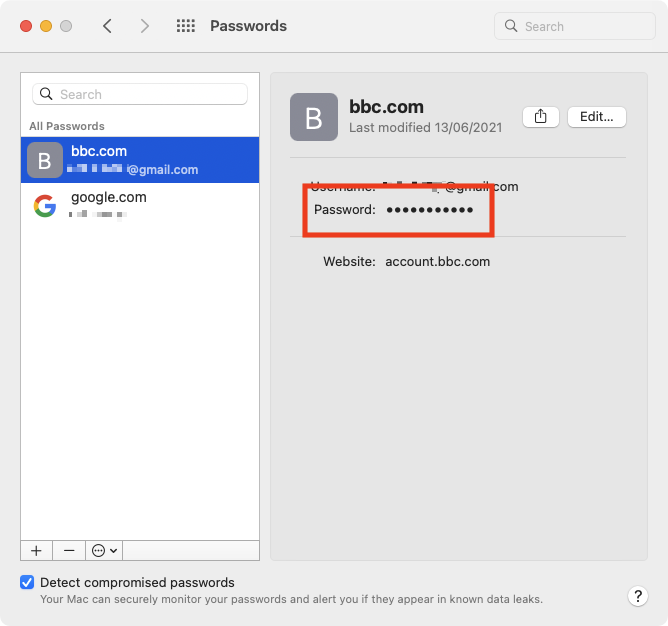
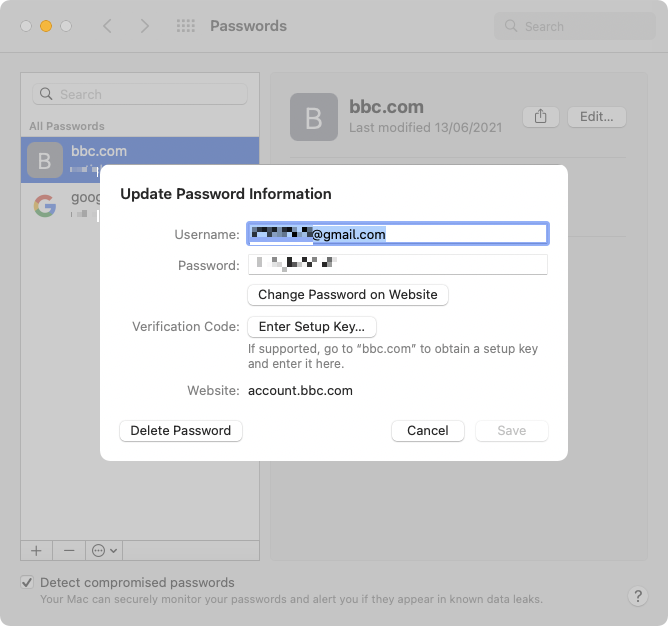
You can now see which passwords are saved on your Mac. To reveal a password, select an account from the left, and hover over Password.
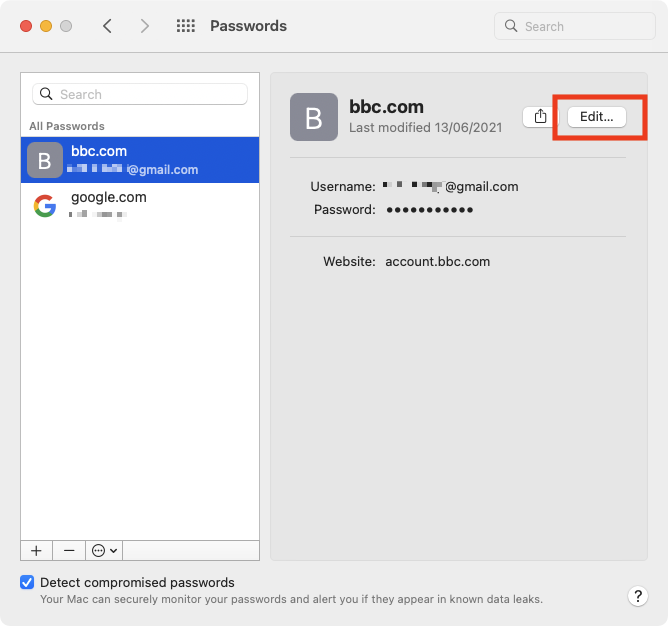
To edit a password, click the Editbutton.
You can now edit both Usernameand Passwordinformation. Note, however, this won’t change your password for that site. If you need to do that, click Change Passwordon Website.
Step 1. Open System Preferences, and click on PasswordsStep 2. Enter your admin password Step 3. Select an account click over Password to reveal itStep 4. Click on the Edit buttonStep 5. Edit username and password
How to find passwords in Safari
You can also access your saved passwords through Safari. From there, you can view and edit them in the same way as through System Preferences.
Here’s how to view saved passwords in Safari:
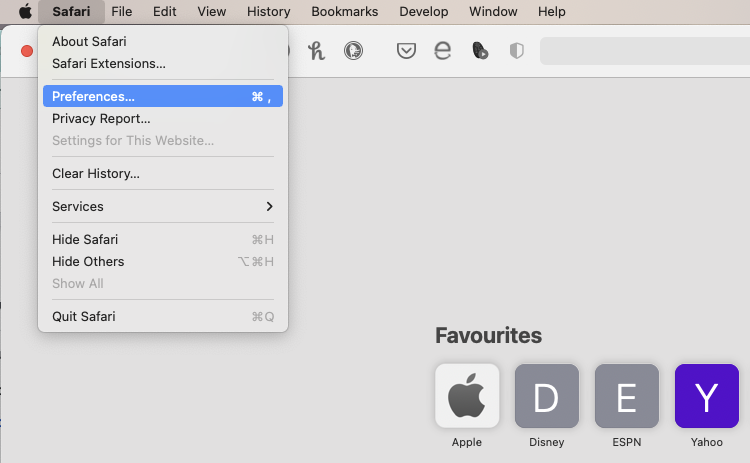
Open Safari, then select Safari > Preferences from the menu bar.
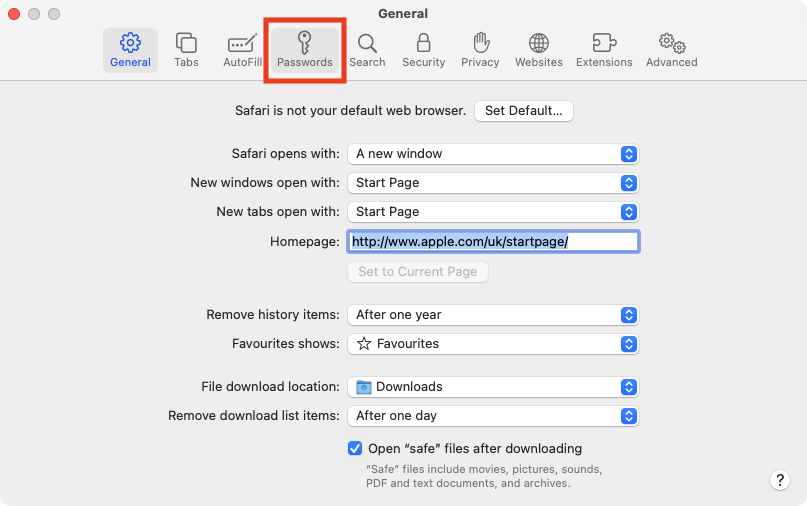
Select the Passwordstab.
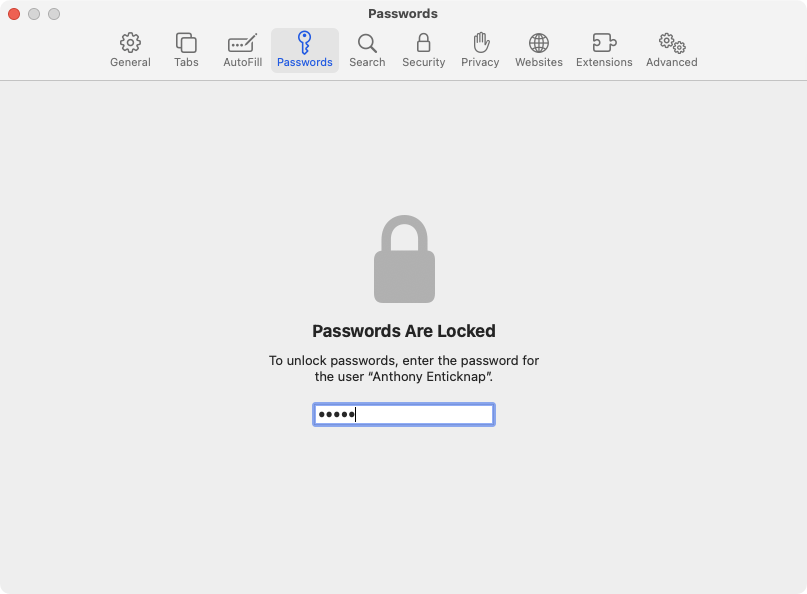
Enter your admin password.
From here, you can edit your saved passwords and usernames.
Step 1. Open Safari and go to Safari > PreferencesStep 2. Open the Passwords tabStep 3. Enter your admin passwordStep 4. Edit your saved passwords and usernames
How to find Mac passwords in Keychain Access
If you’re running a version of macOS before Monterey, you won’t have a Passwords section in System Preferences. Instead, you can manage your passwords through the Keychain Access app in Utilities. You’ll also still find this in Monterey, and it’s worth checking out, because it provides more information about passwords and other credentials stored on your Mac and in iCloud.
Use these steps to find passwords in Keychain Access:
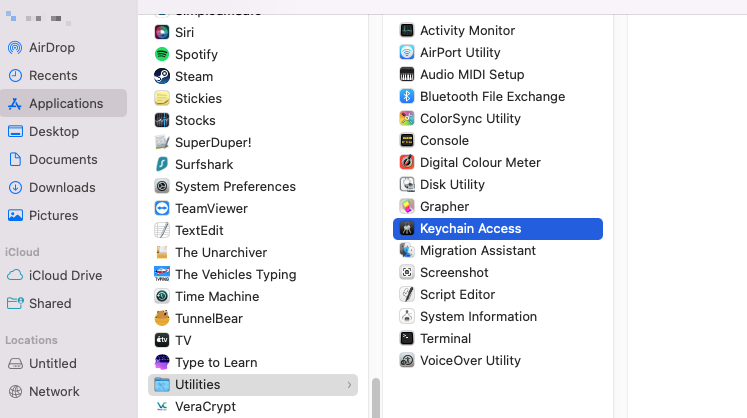
Open the Keychain Access app from Applications > Utilities.
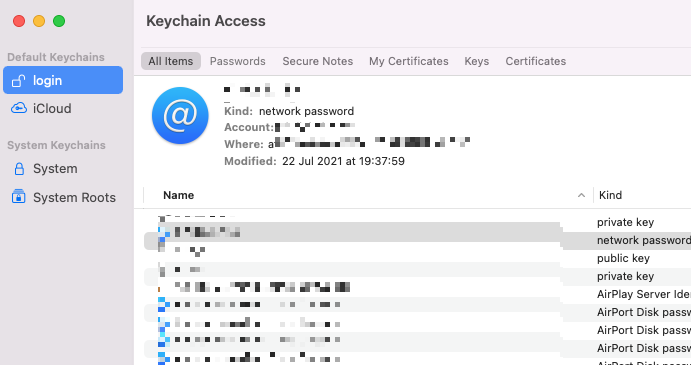
On the left, you’ll see the different keychains you can access, including iCloud.
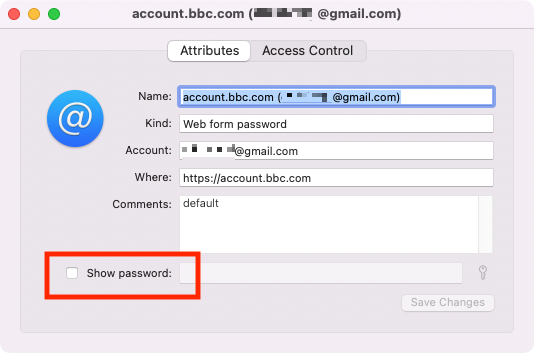
To view a saved password, find it in the list and double-click it, then click Show password.
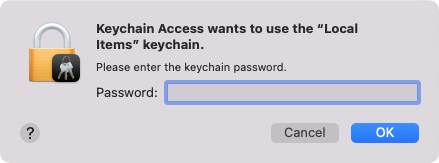
Enter your admin password, and click OK.
You can now make edits to the password. Click Save Changes when you’re done.
Step 1. Go to Applications > Utilities and open Keychain AccessStep 2. Find your saved password and click on itStep 3. Click Show passwordStep 4, Enter your admin password and click OKStep 5. Enter new password and click Save Changes
How to find passwords in Chrome for Mac
macOS is set up to remember passwords and usernames from Safari. If you’re using a different browser, you’ll have to look elsewhere for saved passwords. Google Chrome, for example, saves its own passwords, and they can be accessed through the Chrome browser or your Google account.
Do the following if you want to view and edit passwords in Chrome:
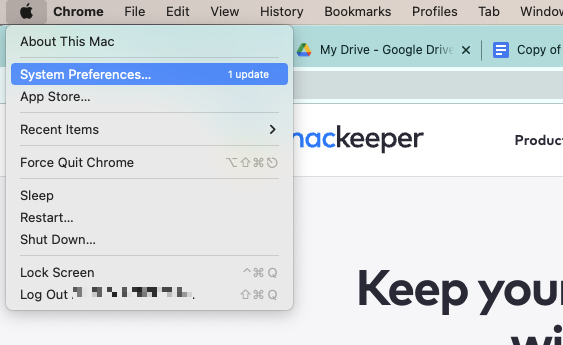
In Chrome, select Chrome > Preferences from the menu bar.
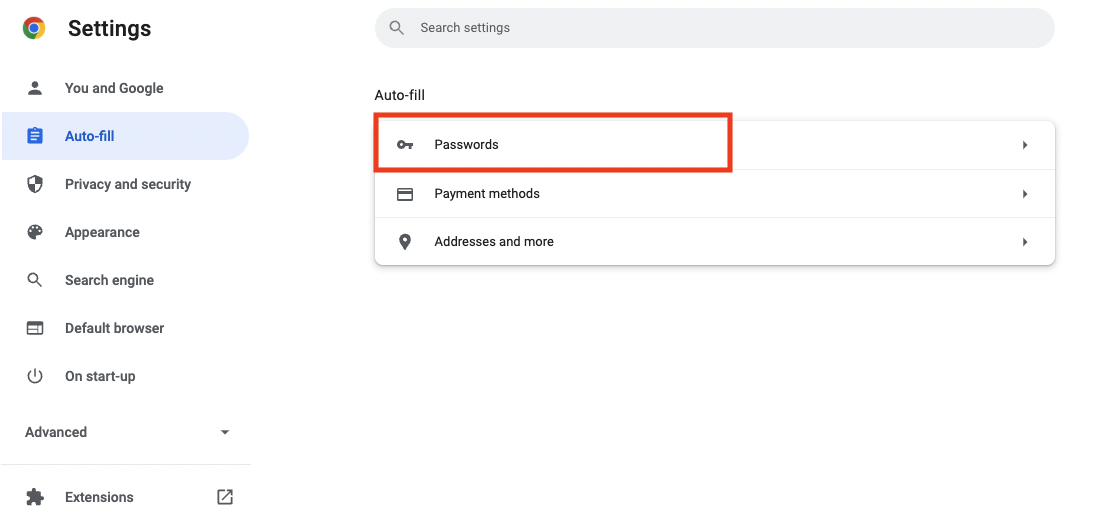
Select the Auto-fillsection, and click Passwords.
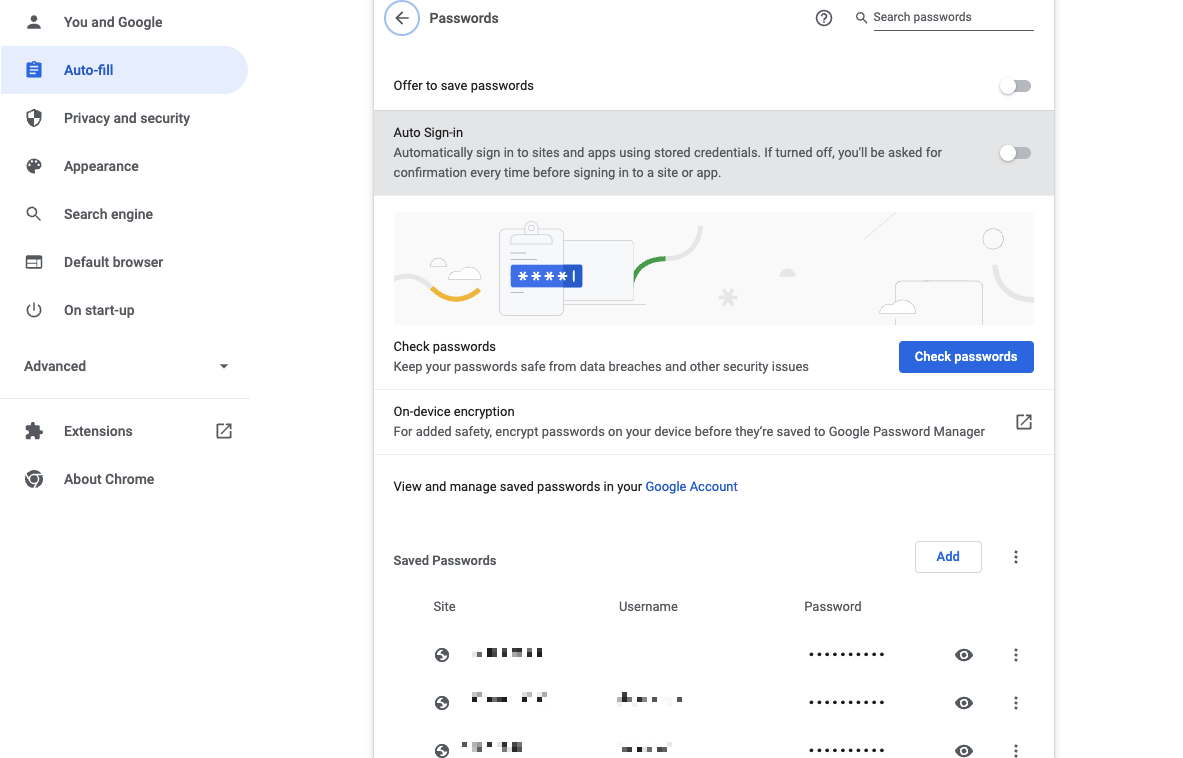
From here, you can view and edit all the logins saved in Chrome.
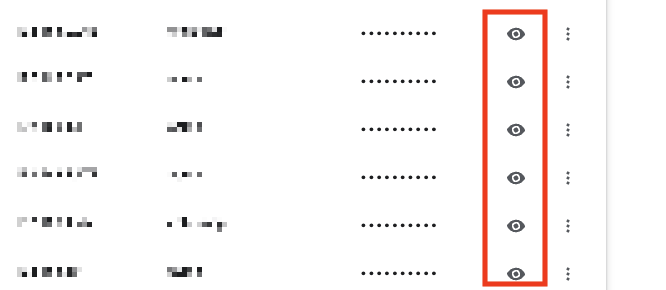
To view a password, click the eye icon. You’ll need to enter your Mac admin password.
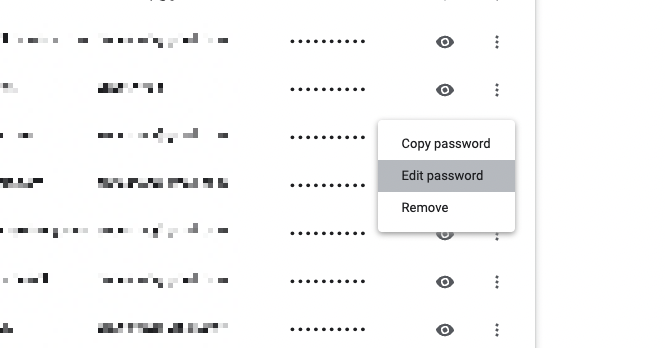
To edit a password, click the three dots at the end and select Edit password.
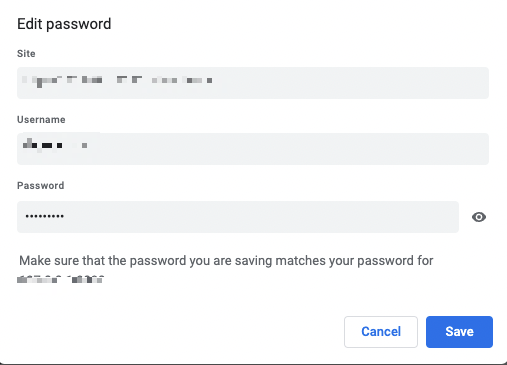
Enter your admin password, if prompted, then make your changes.
Step 1. Open Google Chrome and go to Chrome > PreferencesStep 2. Open Auto-fill and click PasswordsStep 3. Here you can edit and view passwordsStep 4. Click the eye icon to view a password Step 5. Click edit passwordStep 6. Enter new password and click Save
How to edit passwords using a third-party password manager
Between Keychain Access and iCloud Keychain, you have a decent password manager built right into your Mac. But there’s only so much it can do, and if you want more features and greater cross-platform support, then you might want to consider using a third-party password manager.
Some of the most popular Mac-compatible password managers:
We respect your privacy and
use cookies
for the best site experience.
Privacy Preferences Center
We use cookies along with other tools to give you the best possible experience while using the
MacKeeper website. Cookies are small text files that help the website load faster. The cookies we
use don’t contain any type of personal data meaning they never store information such as your
location, email address, or IP address.
Help us improve how you interact with our website by accepting the use of cookies. You can change
your privacy settings whenever you like.
Manage consent
All cookies
These cookies are strictly necessary for enabling basic website functionality (including page
navigation, form submission, language detection, post commenting), downloading and purchasing
software. The website might malfunction without these cookies.