Knowing how to search for keywords on a page means you’ll waste less time when you’re browsing documents and the web. And so will MacKeeper’s StopAd—a browser plugin that stops annoying ads and online trackers from getting in your way.
The standard keyboard shortcut to look for keywords on a Mac is Command+F. This works in most macOS apps, including web browsers like Safari and Chrome, and word processors like Apple Pages and Microsoft Word. Usually, pressing these keys will bring up a search box, with which you can customize your search parameters and flick through all the matching search results.
How to search keywords within a page or document on macOS?
The main way to search for keywords on a Mac is to press Cmd+F on your keyboard. Enter your search term, then press Enter. Most apps will highlight all the matching results and let you jump straight to each one.
If you’re looking for particular data, rather than words on a page, read our guide on how to access files on Mac.
A note from our team:
When you’re trying to find a word on a page on your MacBook or iMac, you don’t want ads popping up all the time. Thankfully, you don’t have to put up with irritating advertising, thanks to MacKeeper’s StopAd browser extension.
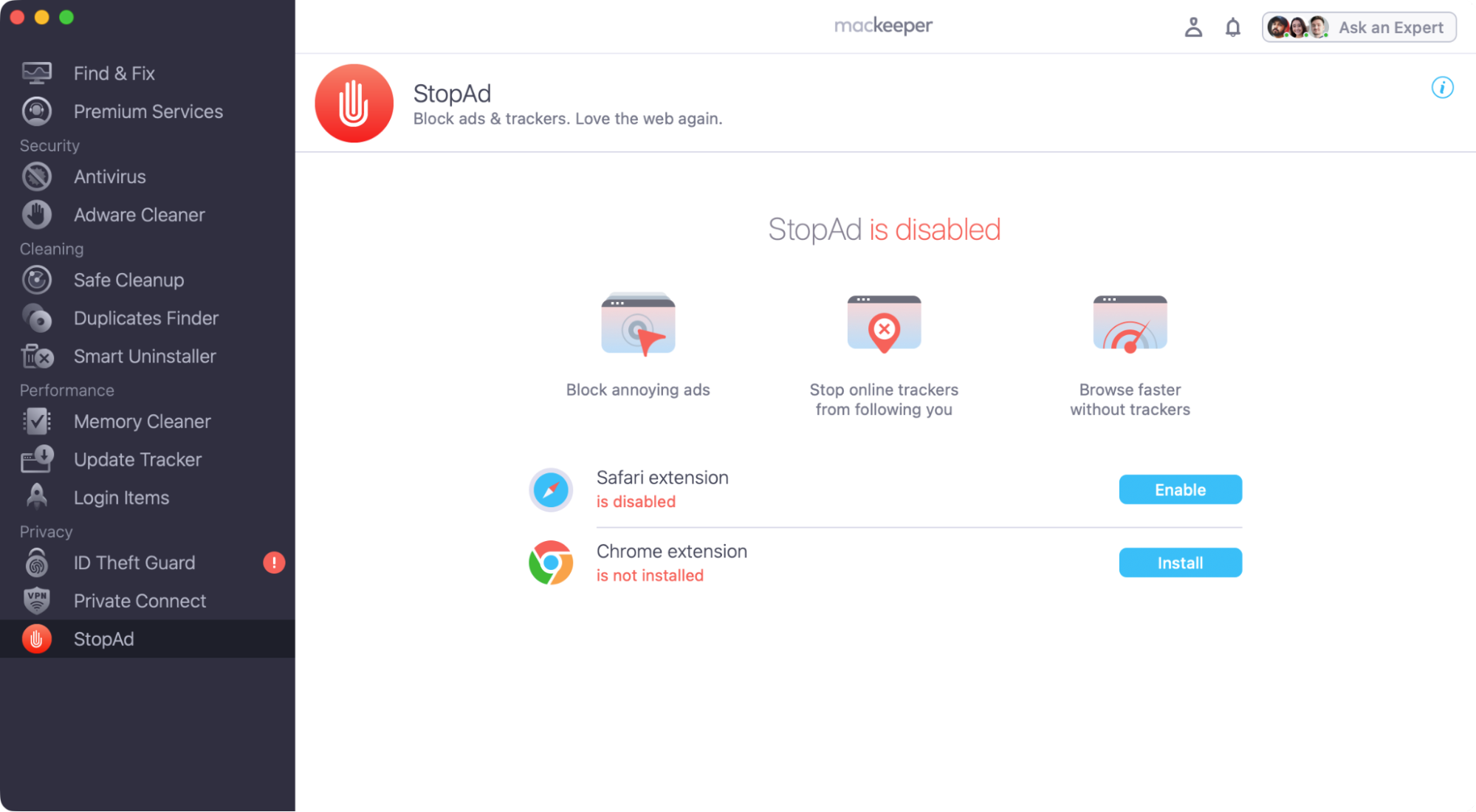
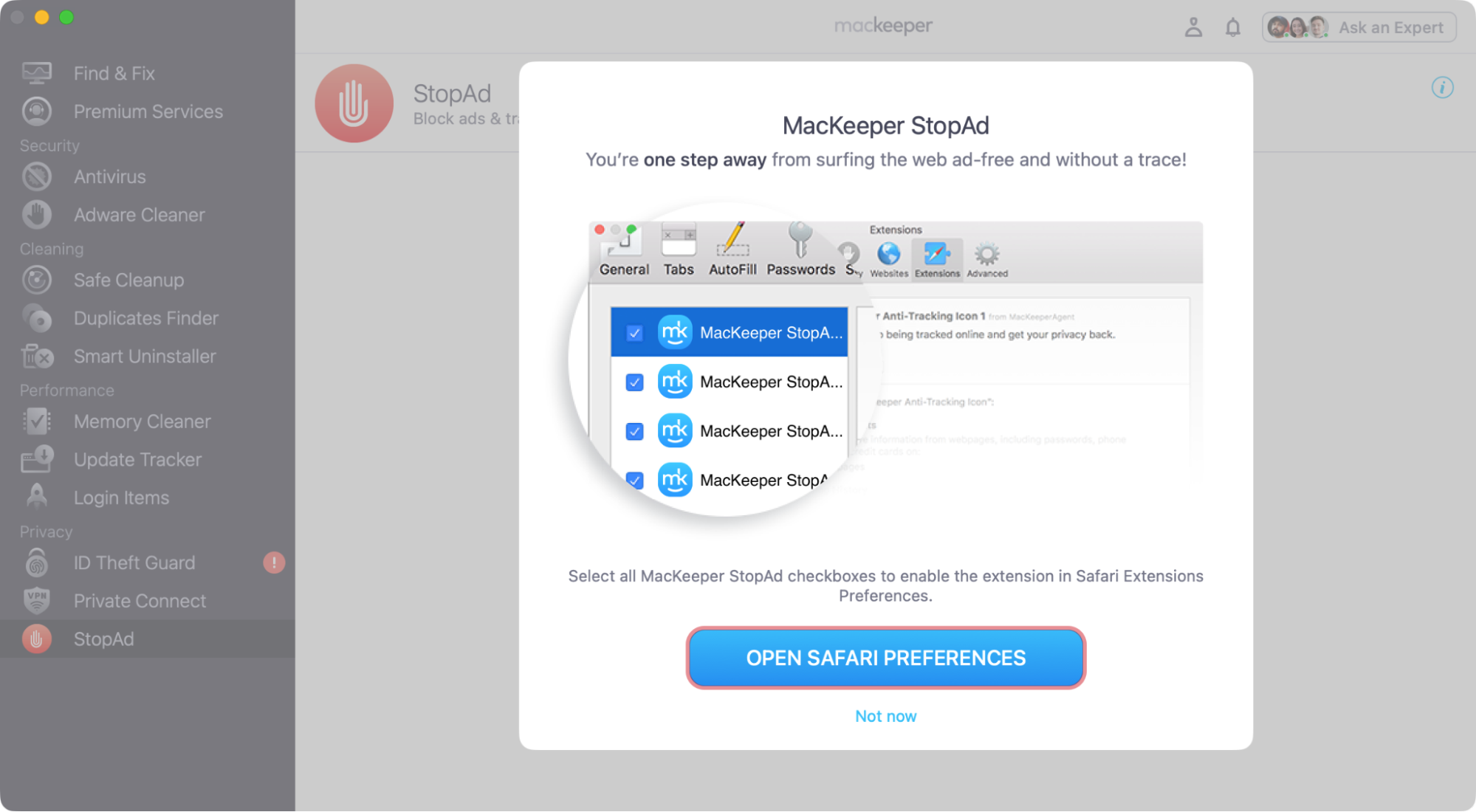
If you’re using Safari, click Enable > Open Safari Preferences.
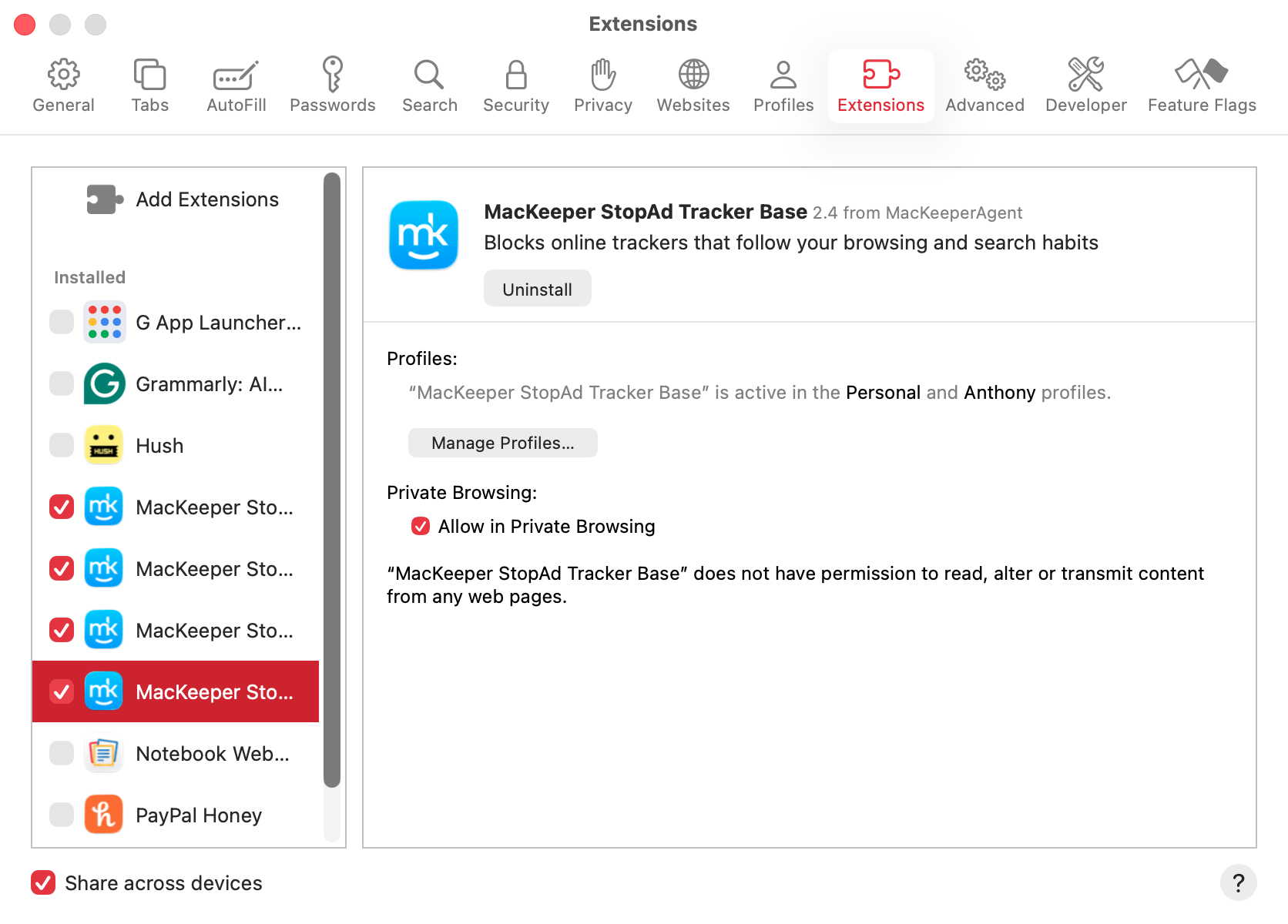
Tick all the MacKeeper StopAd boxes.
For Chrome, click Install, and install StopAd from the Chrome Web Store.
Step 1. Select StopAd from the side menu of MacKeeperStep 2. For Safari, click Enable > Open Safari PreferencesStep 3. Enable StopAd in SafariStep 4. For Chrome, install the extension from the web store
1. With keyboard shortcut (Command + F)
If there’s one thing you take from our article, make sure it’s this keyboard shortcut. We use this all the time to look up a word or phrase on our MacBooks and iMacs.
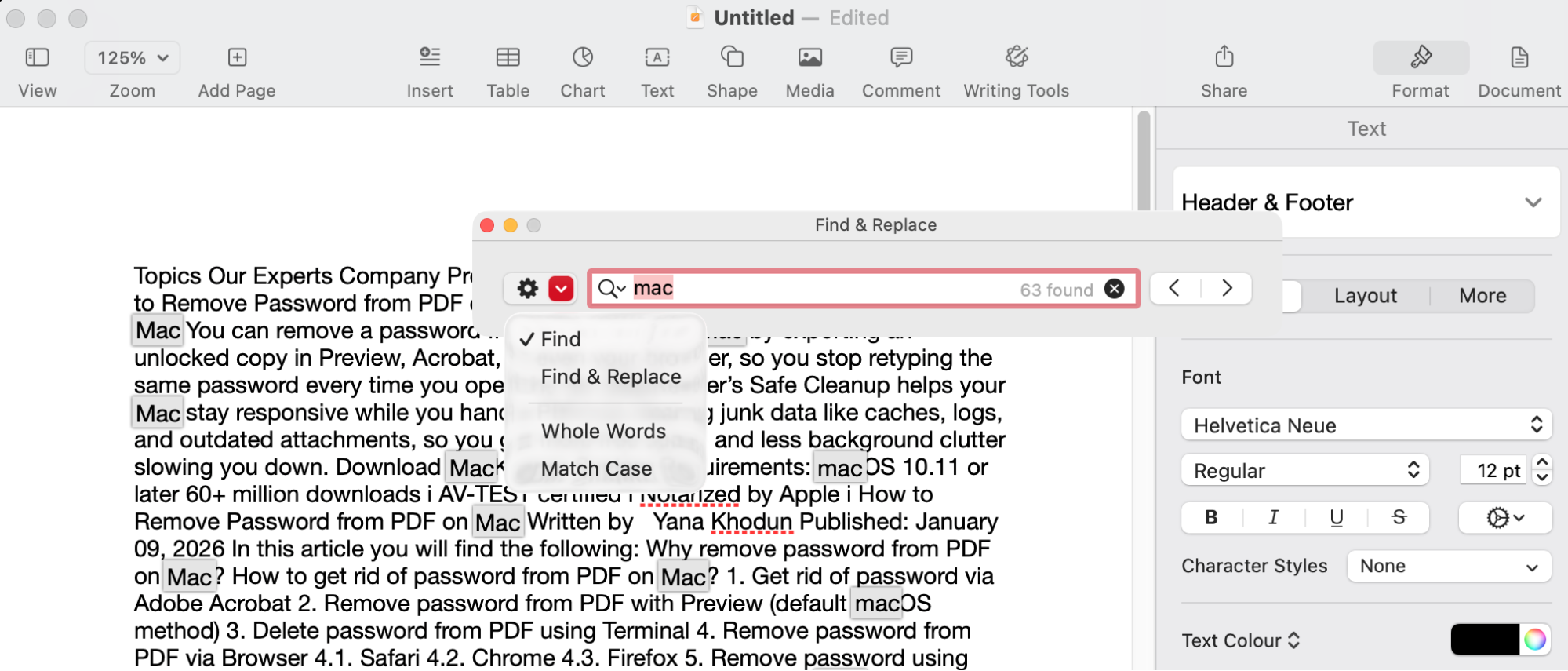
In Pages, for instance, Cmd+F will bring up a floating search bar. With this, we can also customize your search, looking for whole words, matching case, or replacing words in the document.
Apple Pages has a floating search bar
You’ll get something similar in other web processors, such as Microsoft Word, OpenOffice, and LibreOffice. The Cmd+F shortcut even works in cloud apps like Google Docs and PDF apps like Adobe Acrobat.
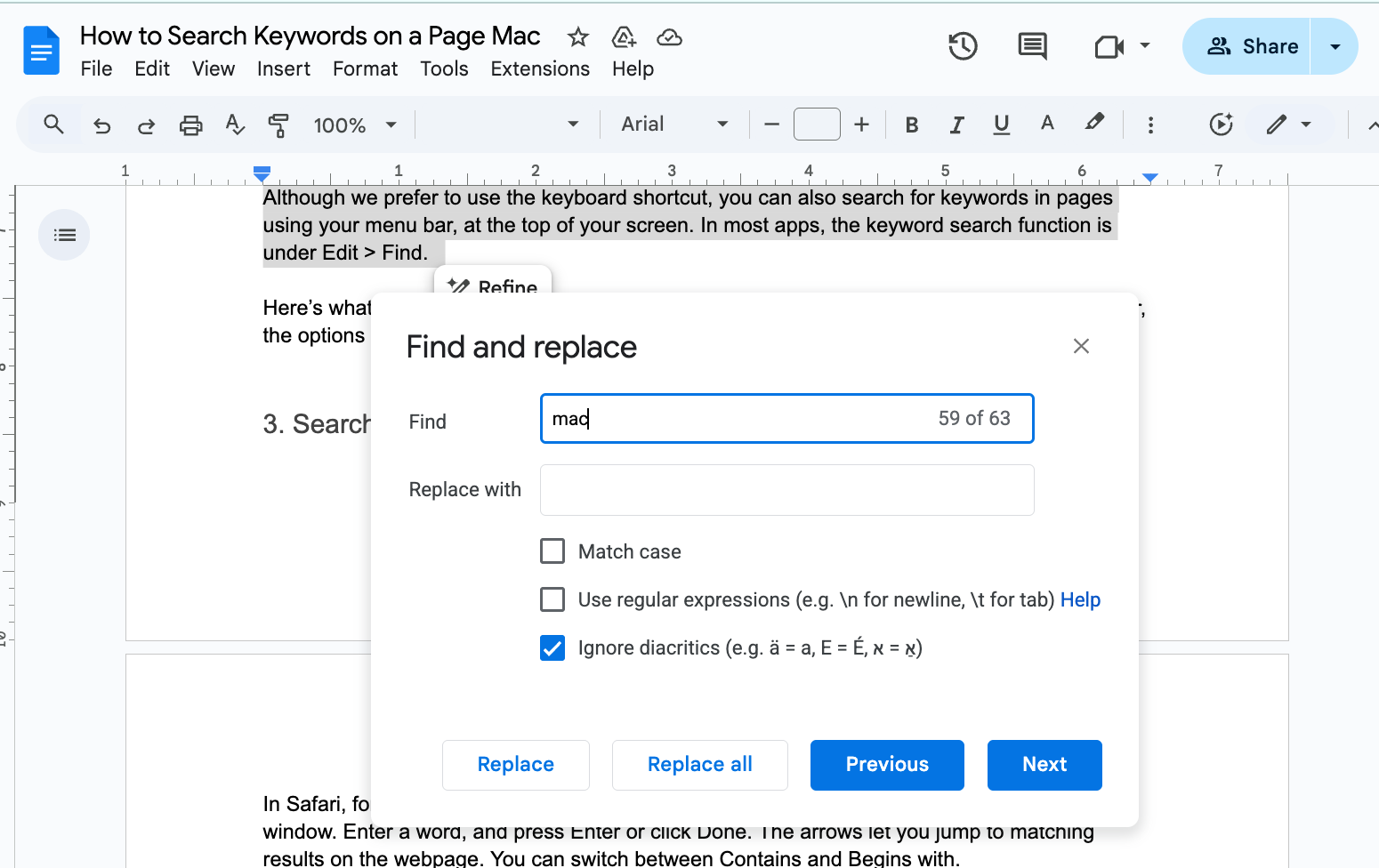
Cmd+F even works in cloud apps like Google Docs
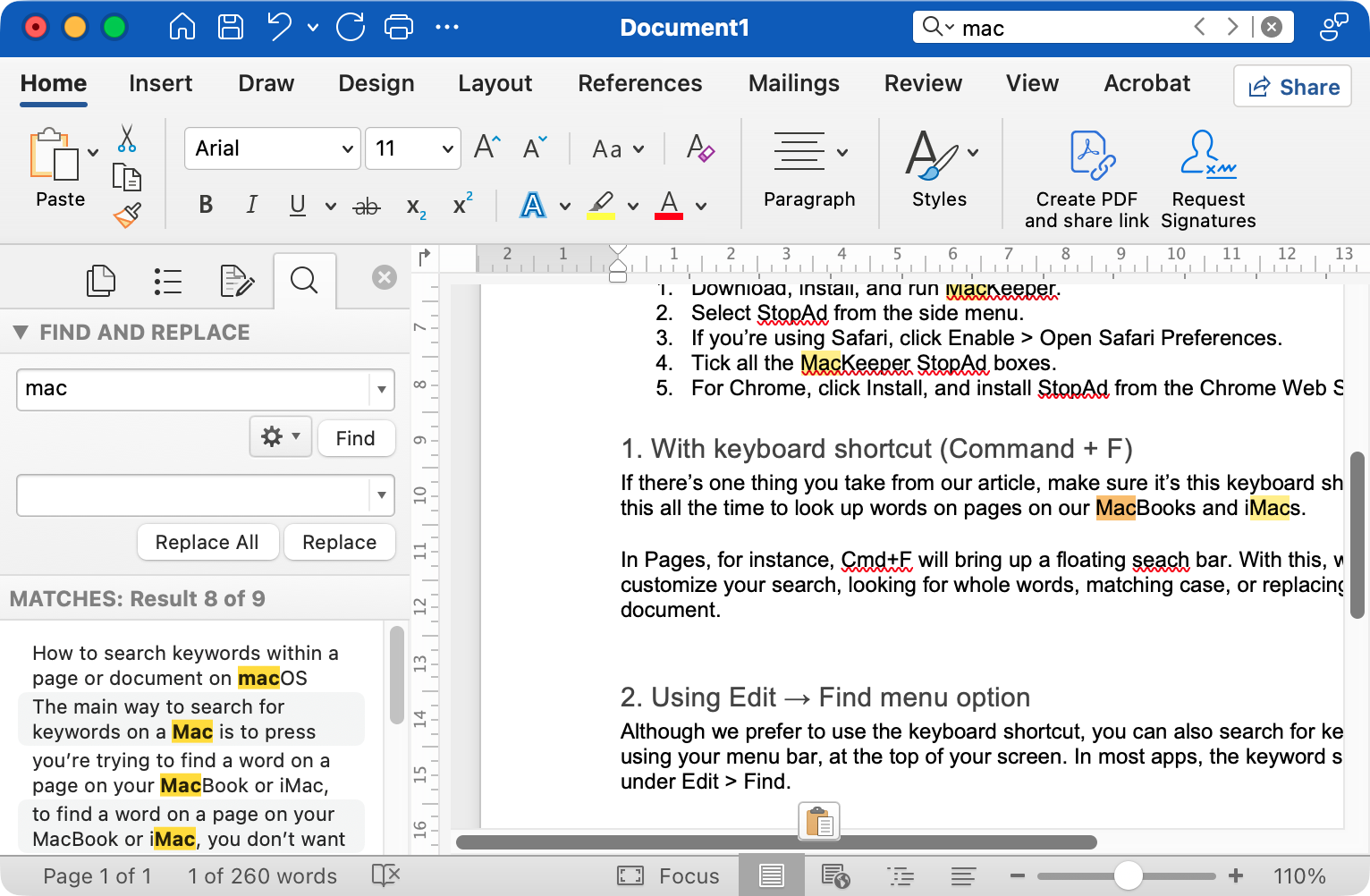
Note, however, that some apps don’t have a floating search bar. In our version of Word, for example, we get a search bar in the top right of the app, but we can open up the Find and Replace menu too.
Word for Mac has its word search bar in the top right
2. Using Edit → Find menu option
Although we prefer to use the keyboard shortcut, you can also search for keywords in pages using your menu bar, at the top of your screen. In most apps, the keyword search feature is located under Edit > Find. The menu bar method is useful if you prefer to use your mouse.
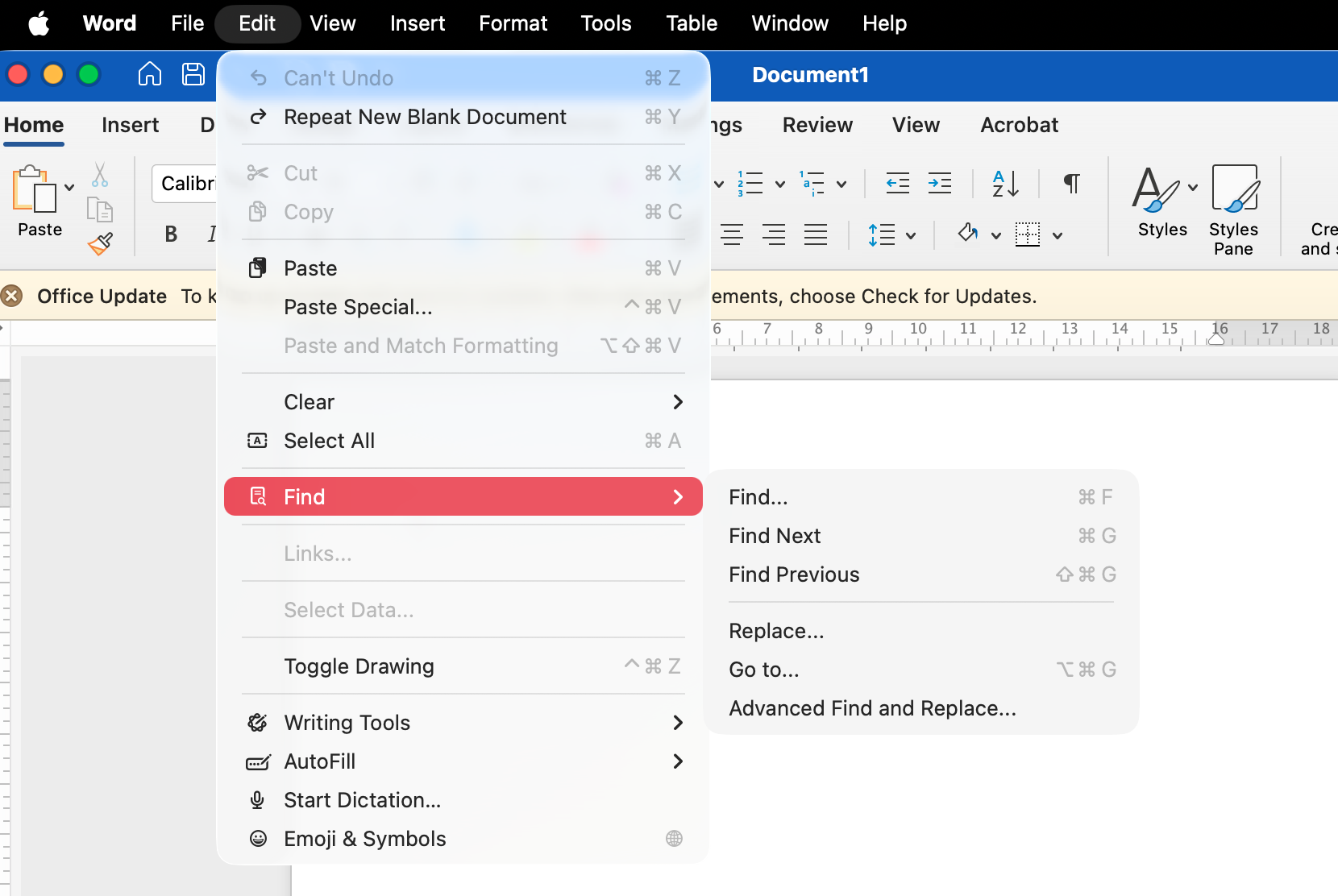
Here’s what the Edit > Find function looks like in Microsoft Word. Because it’s a word processor, the options include a Replace feature.
You can search for words in Microsoft Word using Edit > Find
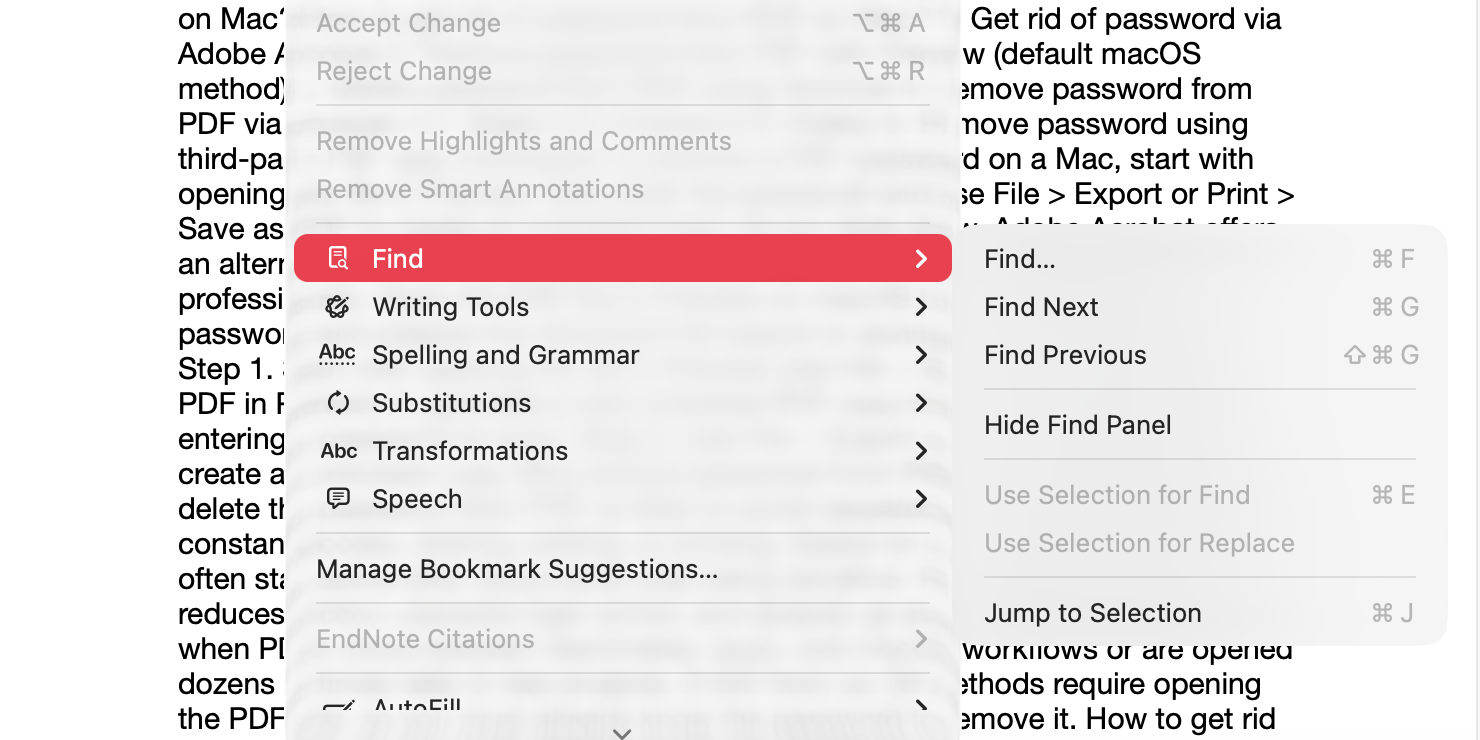
Some of the menu options look slightly different in Pages, but the main functionality is generally the same.
In other apps, like Pages, the Edit > Find menu looks slightly different
3. Searching inside web pages in browsers (Safari, Chrome, Firefox)
Both the search methods we’ve shown here can be used in web browsers as well as text documents.
That means you can press Cmd+F or select Edit > Find in your menu bar to look up words on any webpage on your MacBook.
The key difference is you won’t see a replace option, because obviously you can’t replace the copy on someone else's website.
You’ll also notice some differences between browsers.
In Safari, a search bar will appear near the top of your browser window. Enter a word, and press Enter or click Done. The arrows let you jump to matching results on the webpage, and you can switch between Contains and Begins with.
Safari's search function has some extra options
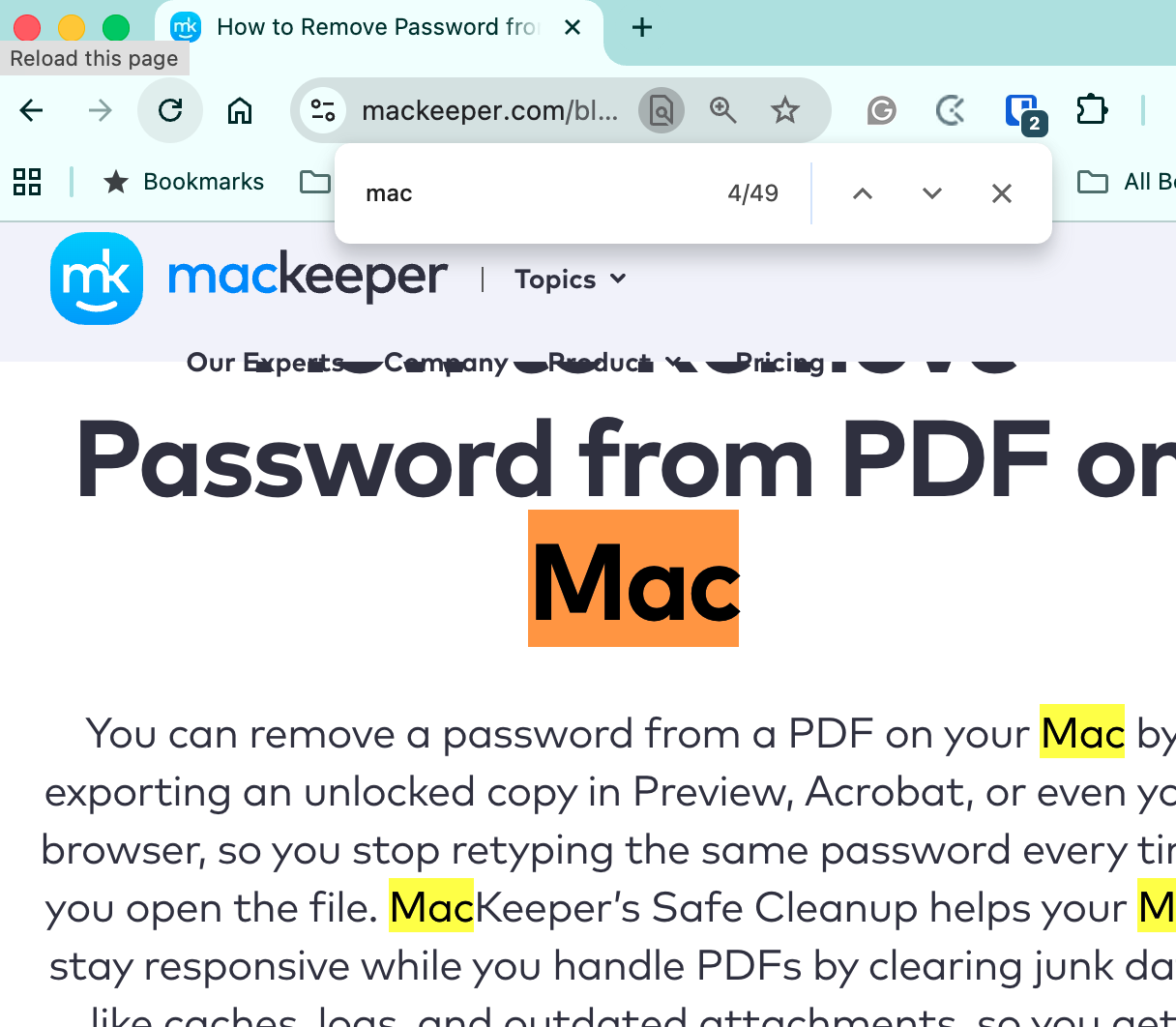
Google Chrome lets you jump to search results, but it doesn’t have any other options.
Chrome's ability to look up words is very basic
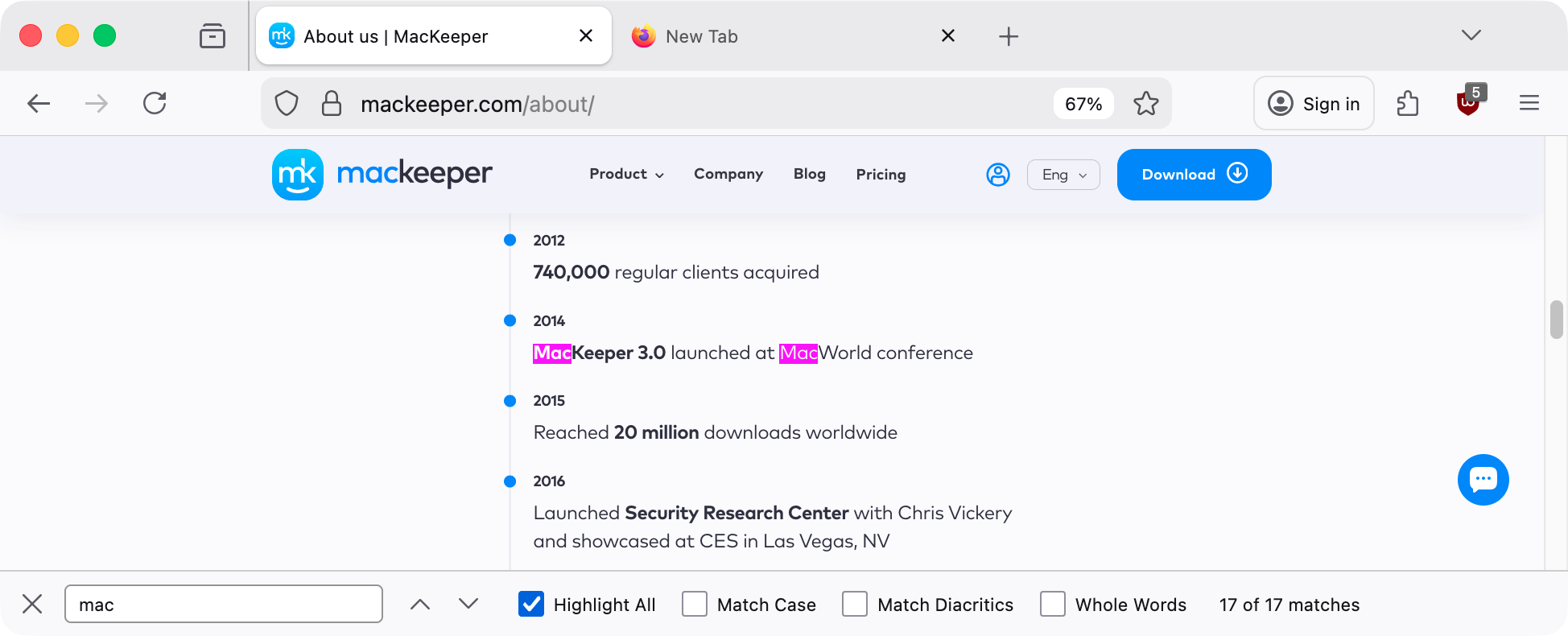
For our money, the Firefox search function offers the best performance. Search for keywords on a page, and Firefox will let you toggle four different controls: Highlight All, Match Case, Match Diacritics, and Whole Words.
Firefox offers more search options than other browsers
Common problems with keyword search on a page on Mac
We’ve shown you how to search on a Mac, and most of the time, it will work as you want. However, there are a few situations where you might not be able to look for words on your Mac. For example:
The words you’re looking for are part of an image, rather than being in a text format.
The app you’re searching through is using non-standard font formats.
Bugs in macOS and third-party apps can cause performance issues.
One of your apps or browser extensions is malfunctioning.
You’ve mistyped your search term, including extra punctuation, spaces, or hidden formatting.
Your Mac could be infected with malware, designed to stop you from searching for information.
You’ve enabled case sensitivity or whole words in your search parameters.
Find words fast
Using Cmd+F or Edit > Find, you can track down words in documents and webpages in most macOS apps. You can also look for part of a word or a complete phrase, if you want to. Some apps offer more powerful search functions than others—this is especially true of word processors like Pages and Word.
Unfortunately, intrusive ads can really slow you down when you’re looking for words in webpages. But you can take back control with MacKeeper’s StopAd browser extensions, built for Safari and Chrome. As well as stopping ads, StopAd will block online trackers that follow you around and invade your privacy. Download MacKeeper today and give it a try.
We respect your privacy and
use cookies
for the best site experience.
Privacy Preferences Center
We use cookies along with other tools to give you the best possible experience while using the
MacKeeper website. Cookies are small text files that help the website load faster. The cookies we
use don’t contain any type of personal data meaning they never store information such as your
location, email address, or IP address.
Help us improve how you interact with our website by accepting the use of cookies. You can change
your privacy settings whenever you like.
Manage consent
All cookies
These cookies are strictly necessary for enabling basic website functionality (including page
navigation, form submission, language detection, post commenting), downloading and purchasing
software. The website might malfunction without these cookies.