When you’re dealing with dozens of apps and windows at the same time, you can easily lose track of them, so they pile up, consuming lots of memory and slowing down your workflow. In this case, I suggest you use MacKeeper’s Memory Cleaner to clear redundant processes and help your Mac stay fast and responsive while managing many open windows.
To see all open windows on a Mac when working with multiple apps or documents simultaneously, use Mission Control. This feature helps to find a specific window quickly, switch between tasks without minimizing windows, and organize the workflow efficiently. Besides, it’s useful for avoiding cluttering, as you can find hidden processes and remove the unnecessary ones.
Reasons to view all open windows on Mac
Users need to view all open windows on Mac to optimize a busy workflow, fulfilling multiple tasks. It allows you to switch between windows, copy or move items, combine apps, find lost apps, or close unnecessary windows. This feature helps you quickly find a specific window without closing other apps and processes.
A note from our experts:
When working with multiple programs simultaneously, you will eventually notice that your system slows down, as some processes remain active after you close the window. The first idea coming to your mind is definitely to close all open windows on Mac. It seems easy, though quite time-consuming. Another problem is that you can’t trace all apps and background processes, as you have more essential tasks.
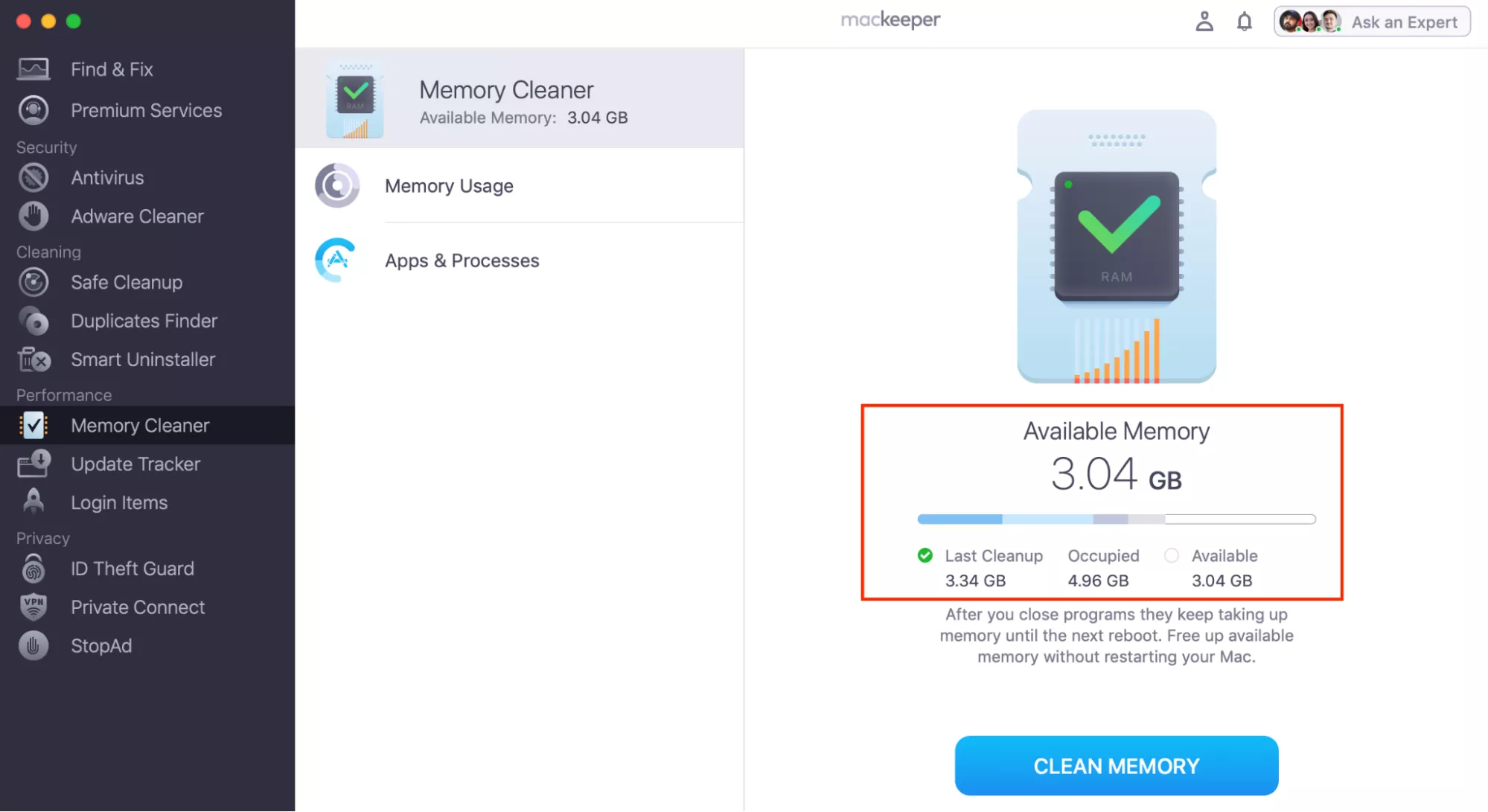
MacKeeper’s Memory Cleaner is an excellent solution in this regard. Our tool is optimized for macOS and offers quick identification of active windows and the removal of useless processes, helping your laptop perform smoothly even if you’re switching between a great number of active windows.
Use MacKeeper’s Memory Cleaner to delete redundant processes on your Mac:
Select the Memory Cleaner tool from the list of available features in the left sidebar ➙ click Open.
Wait for the search ➙ click the Clean Memory button.
Step 1. MacKeeper app > Memory Cleaner > OpenStep 2. Wait for the results > Clean Memory
How to show all open windows on Mac?
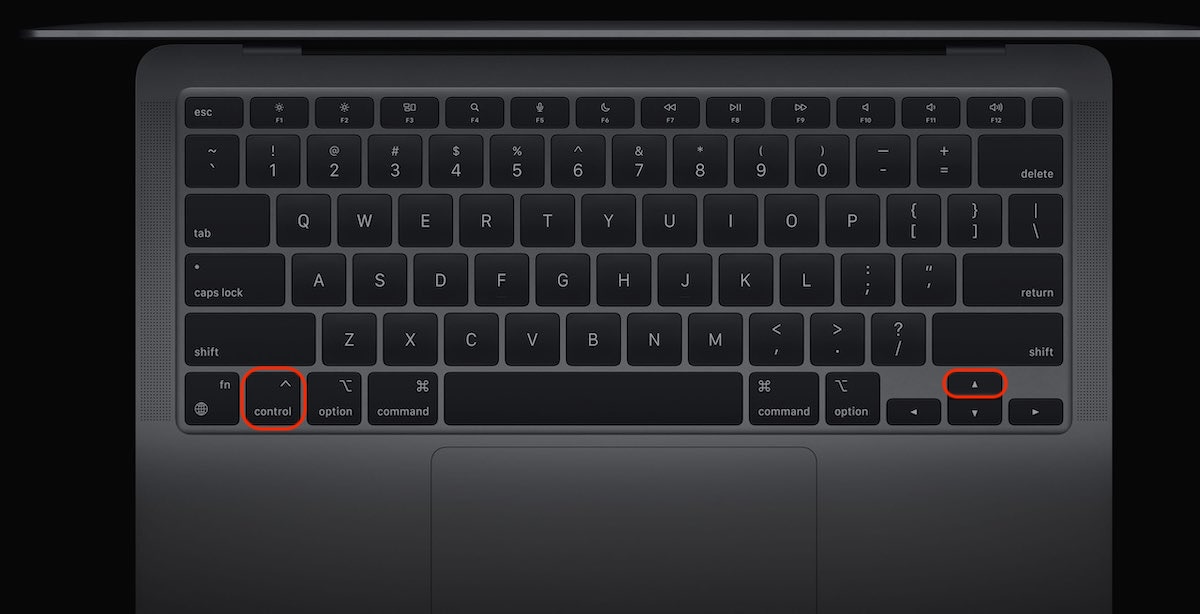
Use Mission Control on Mac to show all open Windows at once. If the gesture is enabled in System Settings, you can swipe up with three fingers on your trackpad or press the Control + Up Arrow combination for a full view. Mission Control displays all active windows, apps, and desktop spaces in one overview, which is easy to navigate. You can find a specific file quickly without minimizing anything. If you need to see the windows of the apps you’re currently using, try App Expose by pressing the Control + Down arrow combination.
1. Look at open windows on Mac with Mission Control
As I’m always combining multiple tasks, like writing an article for our blog, checking lots of sources, and participating in work chats, I’ve been wondering how to minimize all windows on Mac for quite a long time. According to my experience, one of the easiest ways to see all open windows on Mac is by using Mission Control. This built-in macOS feature places all open windows on one screen, making it easy to locate the app you’re looking for.
One of the peculiarities of the Mission Control is multiple ways to open it. You aren’t limited and can choose shortcuts, gestures, or the mouse. This flexibility makes Mission Control a universal tool that adapts to your preferences and work habits.
You can look at all open windows on Mac with an instant Control + Up Arrow combination or swipe up with three fingers on your trackpad.
Press the Control + Up Arrow combination
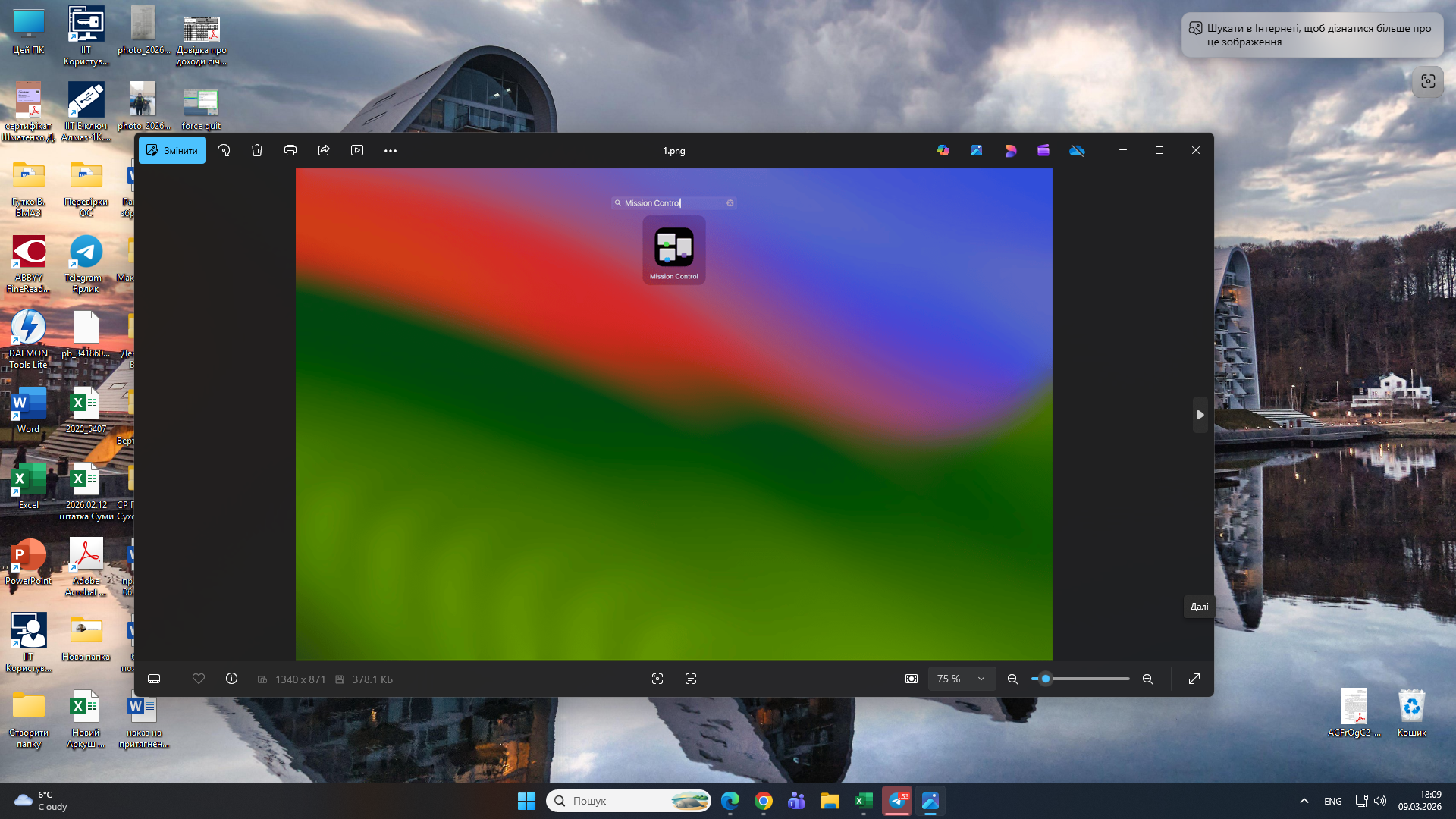
If you prefer extremely natural methods, take these easy steps to show all open windows on Mac from the Launchpad or Applications folder:
Launch Mission Control from the Launchpad or Applications folder.
You’ll see all active windows to navigate between them.
Step 1. Open Mission ControlStep 2. You’ll see all open windows
2. Use Command key to view windows on Mac
Another simple way to view all open windows on your Apple laptop involves using keyboard shortcuts. This approach is especially popular among advanced Mac users, as it saves time, helps to keep your workflow organized, and quickly becomes automatic after a few uses. Once you get used to it, switching between active windows is fast and more efficient.
Let's distinguish how to manage opening windows on your Mac with the command key:
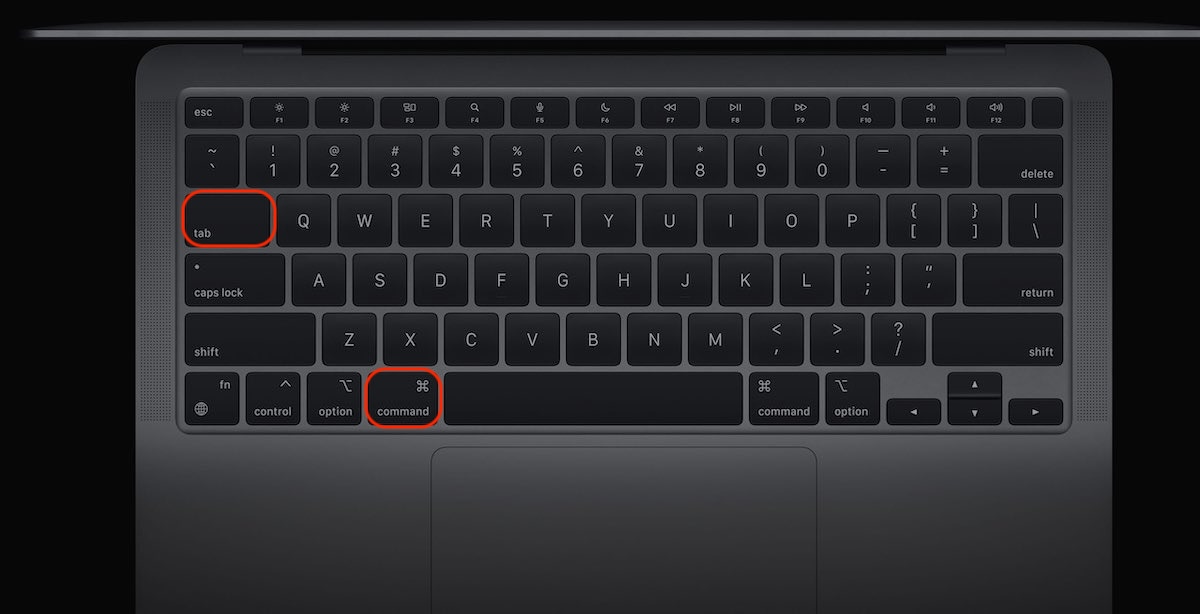
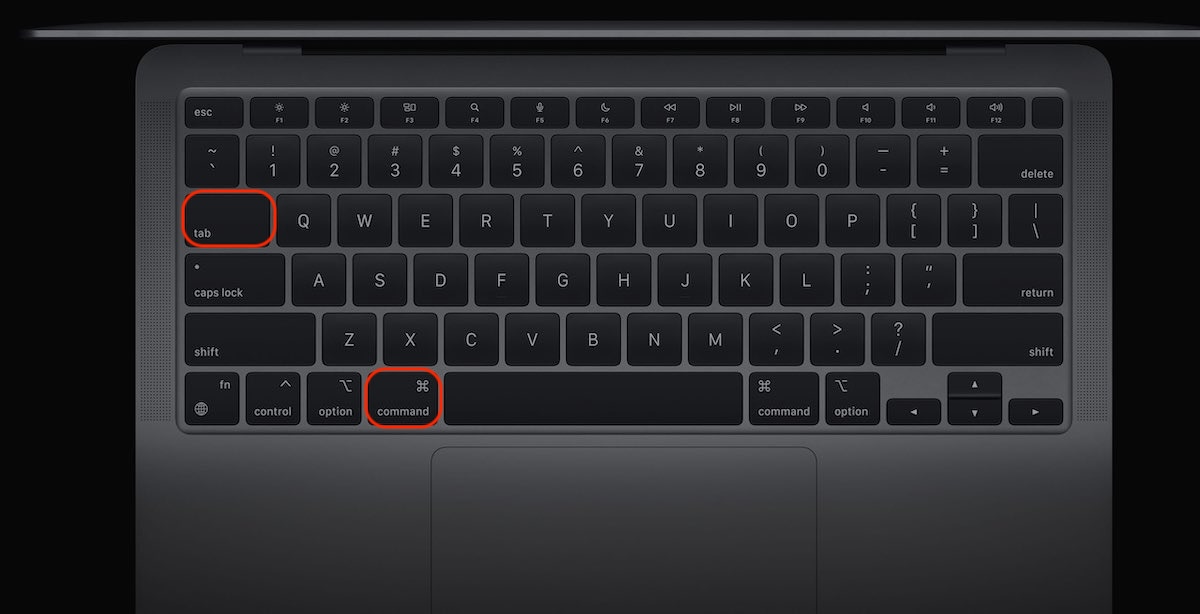
Try the Command + Tab combination to see and switch between apps.
Release the Tab key while holding out theCommand key to view all open windows.
To switch between windows, hold down the Command key and use the Tab key to navigate between apps.
Press the Command + Tab combination
3. Try Hot Corners to see open windows on Mac
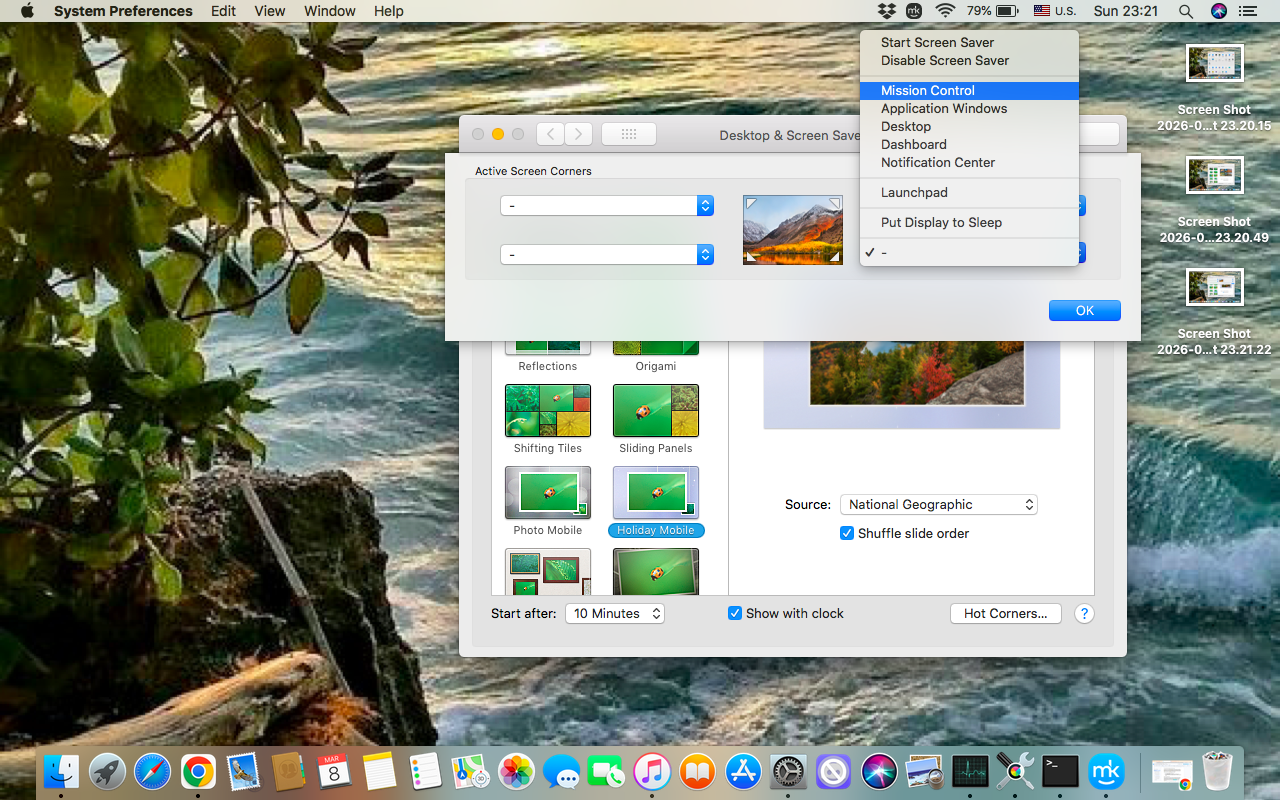
One more built-in tool for managing open windows on Mac is Hot Corners. This macOS feature allows you to launch specific processes by moving the pointer to screen corners. As an example, you can use hot corners to open Mission Control, show application windows, display the Desktop, or lock the screen. Though hot corners can’t show all open windows directly, you can use them to access Mission Control instantly.
Follow the instructions to set up Hot Corners on your Mac:
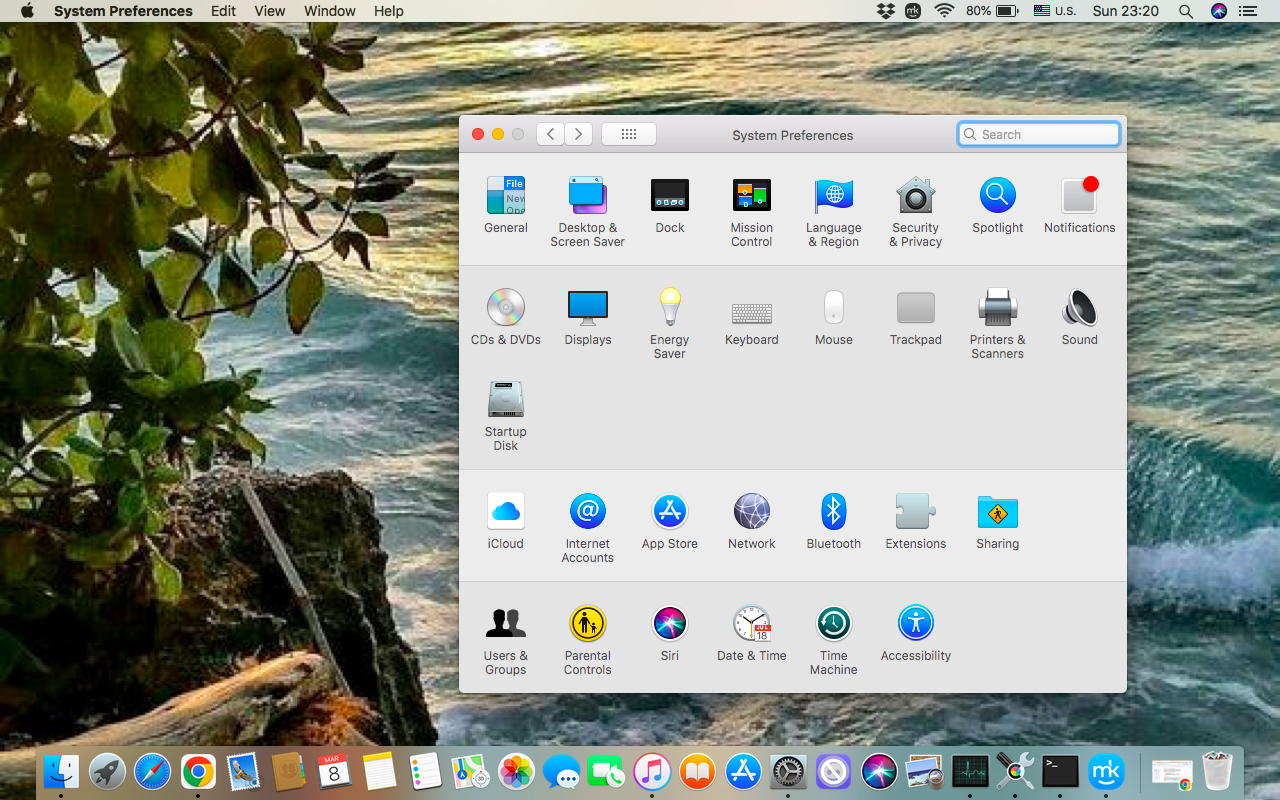
Open the System Settings in the Apple menu.
Choose Desktop & Dock ➙ scroll down, and click the Hot Corners button.
Choose the Screen Corner and add Mission Control ➙ click Done to complete the settings.
Step 1. System Settings (System Preferences) > DesktopStep 2. Hot Corners > Activate Screen Corner > Mission Control ➙ Confirm
4. Switching between apps
When you spend some time on your Mac, whether you're studying, working, shopping, or doing something else, you’ll definitely end up with several apps running at the same time. Fortunately, instead of multiple clicks around the screen, macOS offers a simple way to switch between open apps - App Switcher. But remember, if one app is running in full-screen mode, other windows are hidden, so you need to exit full screen on Mac before switching between apps.
Take the following steps to cycle through currently active apps on your Mac:
Press Command + Tab combination to display the list of running apps.
Keep holding Command while pressingTabrepeatedly to cycle through the list of active apps.
Select the app you need and release Command.
Step 1. Press the Command + Tab combinationStep 2. The Command + Tab combination displays the list of running apps
5. Open Force Quit menu to see open windows on Mac
When you notice your laptop becomes sluggish, you’ll probably try to remove open windows on Mac that you don’t use. Of course, you can easily do it with the Force Quit menu. However, Force Quit isn’t a tool for closing frozen apps only. You can use this menu for checking active windows on your Mac.
Here are my instructions on how to quickly see all running windows on your Mac with the Force Quit menu:
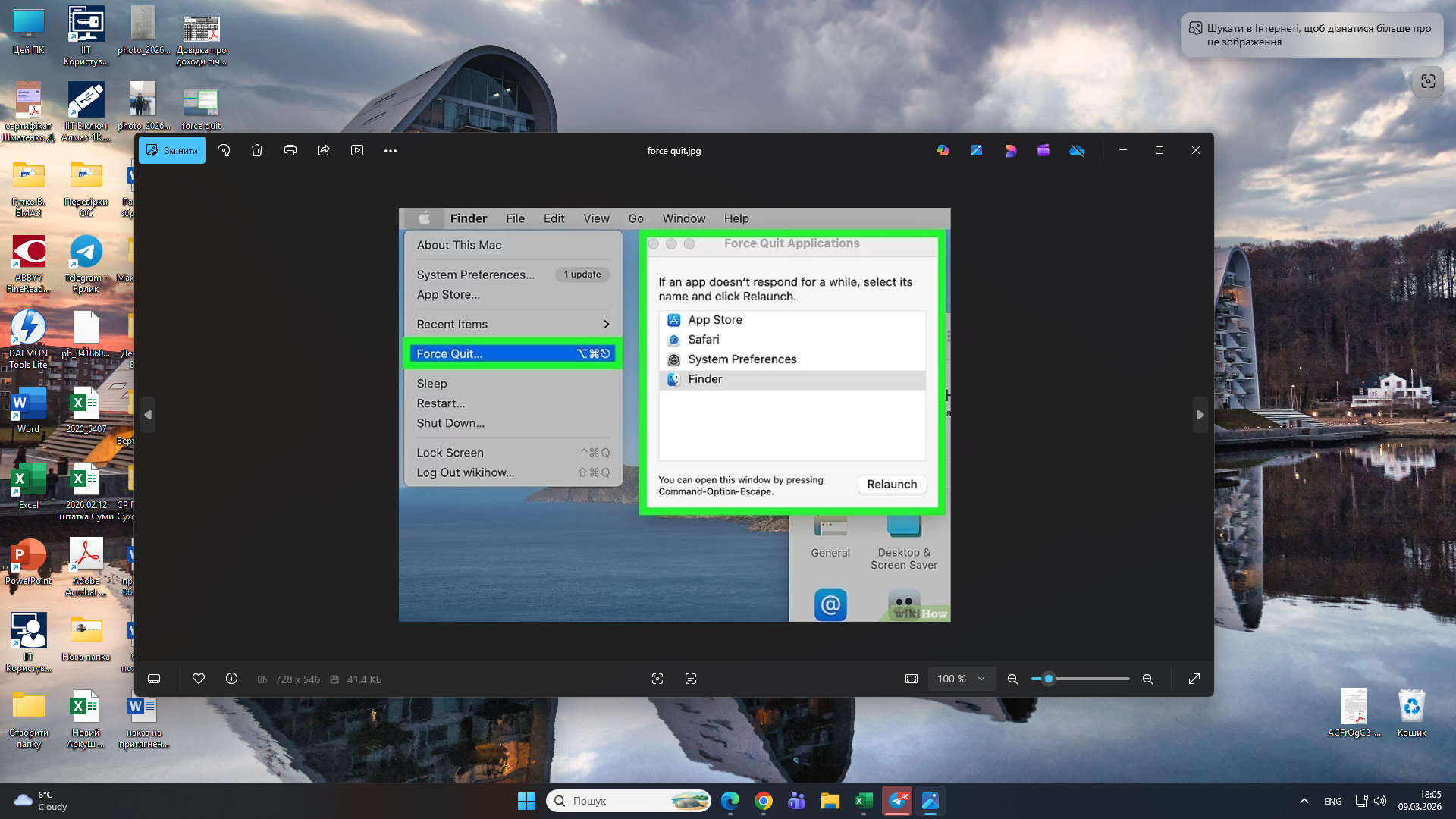
Press the Command + Option + Esc combination ➙ you’ll see the Force Quit Applications window.
Select the apps you want to close ➙ confirm.
Press Command + Option + Esc > Force Quit > Select the apps > Relaunch
6. Use Activity Monitor to view windows on Mac
If you used to work with lots of windows open at the same time, know best window manager on Mac, and are ready to deal with possible pitfalls, you can’t overlook Activity Monitor as a tool to view what apps and processes are currently active on your Mac. This method isn’t immediately obvious, as Activity Monitor appears to be designed for advanced Mac users, but it’s actually quite a practical tool.
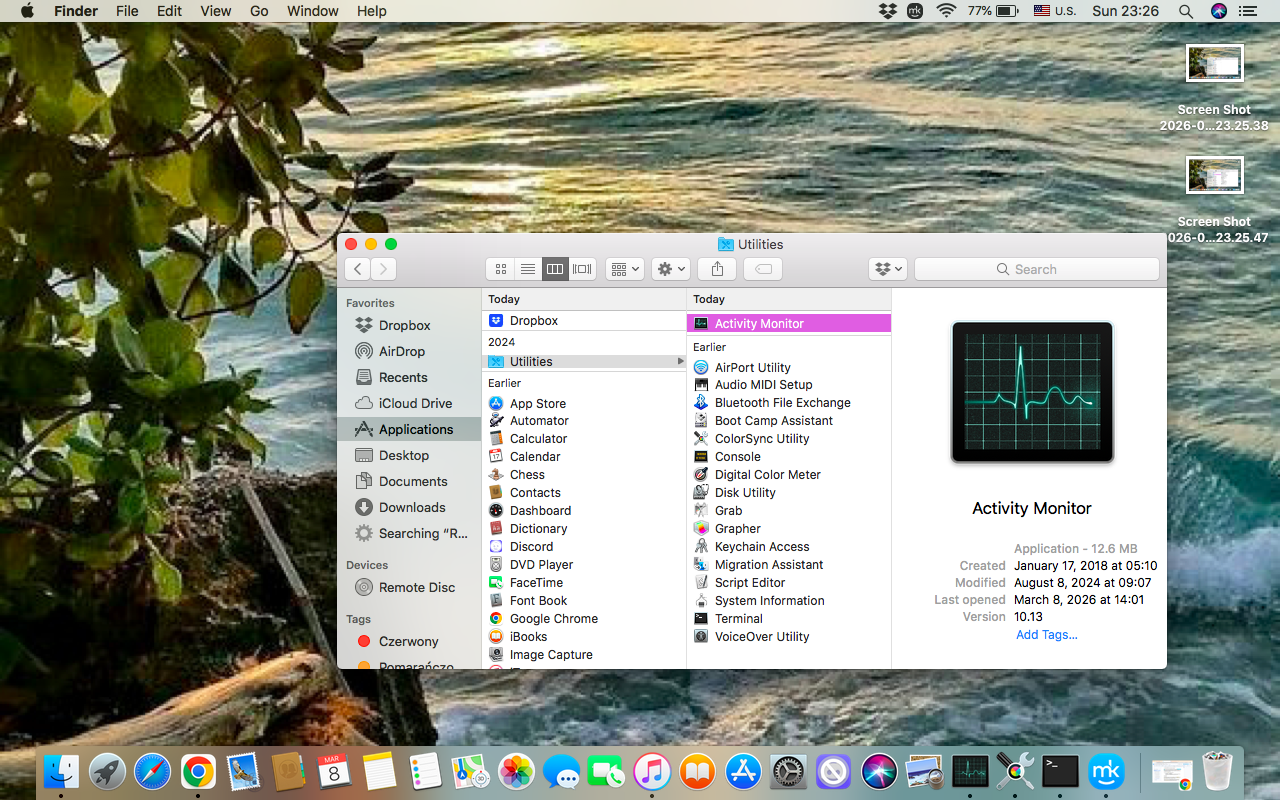
Do the following to show active windows on Mac:
Go to Finder ➙ open Applications.
Open Utilities ➙ select Activity Monitor ➙ you’ll see the list of open apps and processes running in the background, and resources they consume.
Finder ➙ Applications ➙ Utilities ➙ Activity Monitor
Conclusion
Controlling all open windows on your Mac is important for your work optimization. In this guide, I described possible ways to view all open windows on your Apple laptop, so you could switch between them easily and organize your workflow.
To keep your Mac running smoothly and efficiently, even when managing many apps and windows at the same time, use MacKeeper’s Memory Cleaner, which cleans unnecessary memory users, removing redundant processes quickly and accurately.
We respect your privacy and
use cookies
for the best site experience.
Privacy Preferences Center
We use cookies along with other tools to give you the best possible experience while using the
MacKeeper website. Cookies are small text files that help the website load faster. The cookies we
use don’t contain any type of personal data meaning they never store information such as your
location, email address, or IP address.
Help us improve how you interact with our website by accepting the use of cookies. You can change
your privacy settings whenever you like.
Manage consent
All cookies
These cookies are strictly necessary for enabling basic website functionality (including page
navigation, form submission, language detection, post commenting), downloading and purchasing
software. The website might malfunction without these cookies.