You’ll know when it’s time to update your current OS version to macOS Sonoma, as performing simple tasks like opening and closing your apps will be painful–that’s why staying on top of your macOS updates is so important. Before you check for any new updates, we recommend utilizing MacKeeper’s Safe Cleanup to first help you free up as much space on your device as possible to ensure a stress-free upgrade when you’re ready.
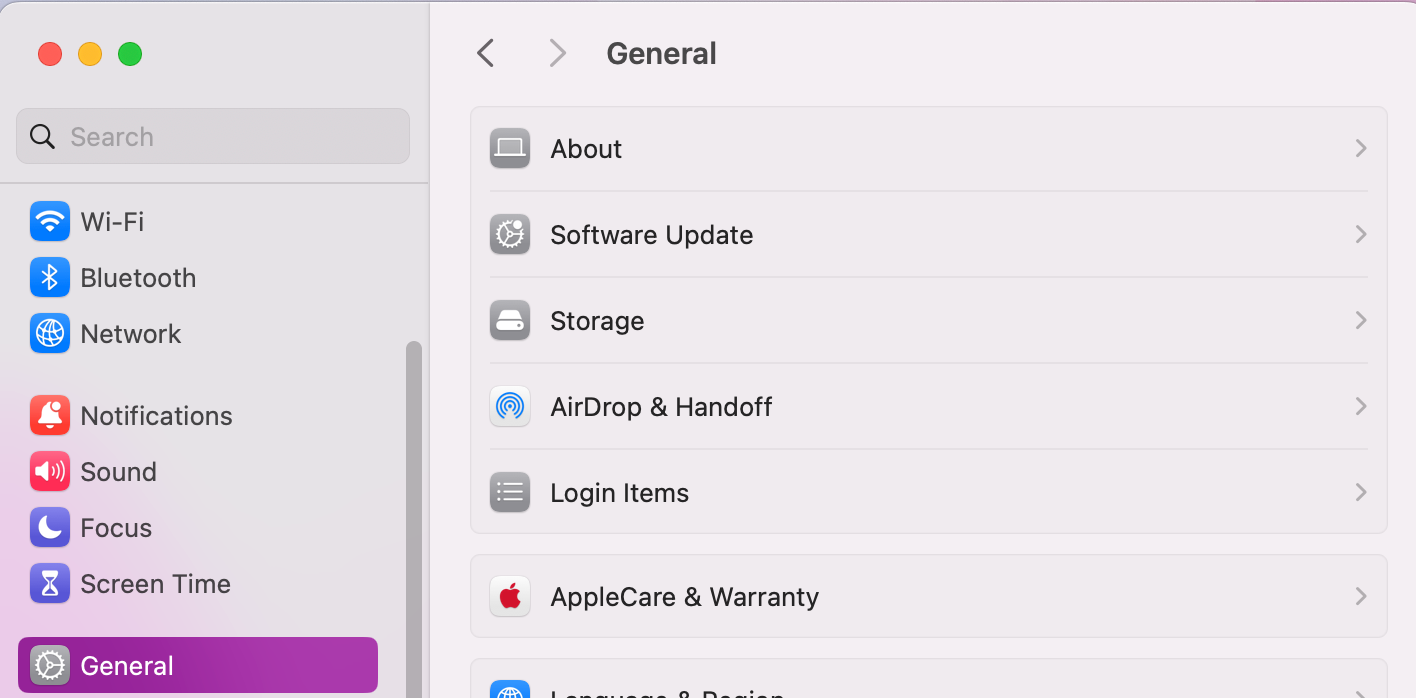
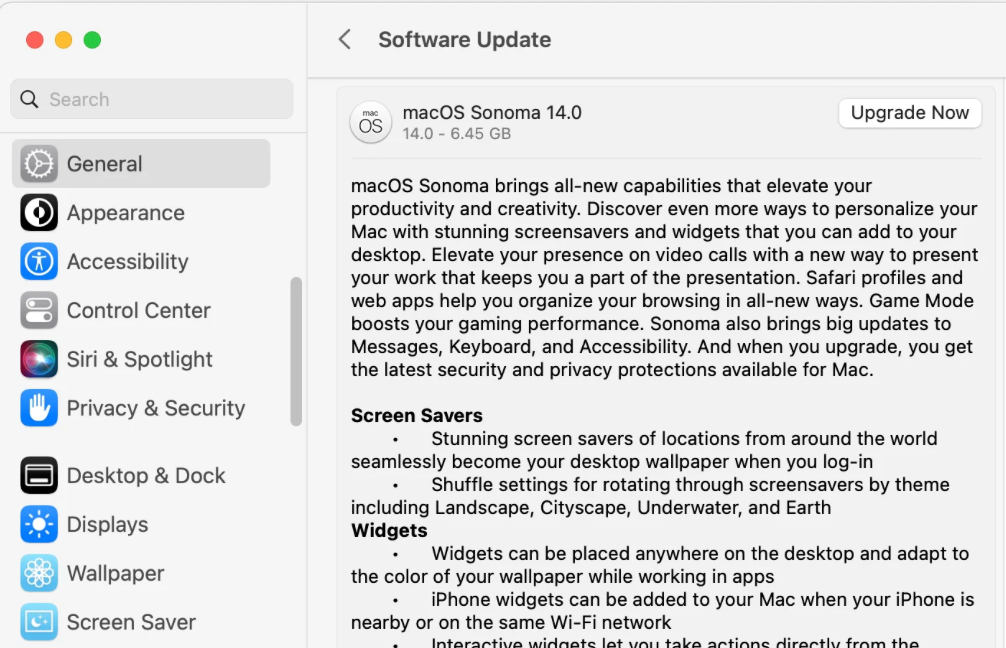
If you want to update to macOS Sonoma, you can easily check if there are any outstanding software patches or pending macOS versions, as they can be found via the Software Update tab in your System Settings. Open up your Settings, click on General >Software Updates. If any updates are available, press Upgrade Now.
What is macOS Sonoma?
If you’re wondering should you update to Sonoma on your Mac, the decision depends on your device’s compatibility and whether its features suit your needs. macOS Sonoma, Apple’s major 2023 update, introduced desktop widgets, improved video calling, and custom website shortcuts in the Dock. While newer versions like Sequoia and Tahoe are available, many users still prefer to stick with Sonoma over Ventura for its user-friendly performance and seamless functionality.
System requirements of macOS Sonoma
Are you ready to update to Sonoma? We first recommend you check the macOS Sonoma compatibility and system requirements to avoid running into issues. You’ll need a machine that is 2018 or newer (MacBook Pro or Air) with an M-series or 8th-gen Intel processor. A minimum of 25GB of storage space and 8GB RAM. The correct system, space, and processor are all essential to download Sonoma.
Preparation before updating to macOS Sonoma
Are you feeling ready to upgrade macOS Monterey or Ventura to Sonoma? You’ll first want to back up your Mac and then free up plenty of RAM. Preparing your MacBook or iMac device this way can make all the difference–it can prevent important work files from going missing and ensure you won't run into unexpected compatibility problems or macOS Sonoma issues.
A note from our experts:
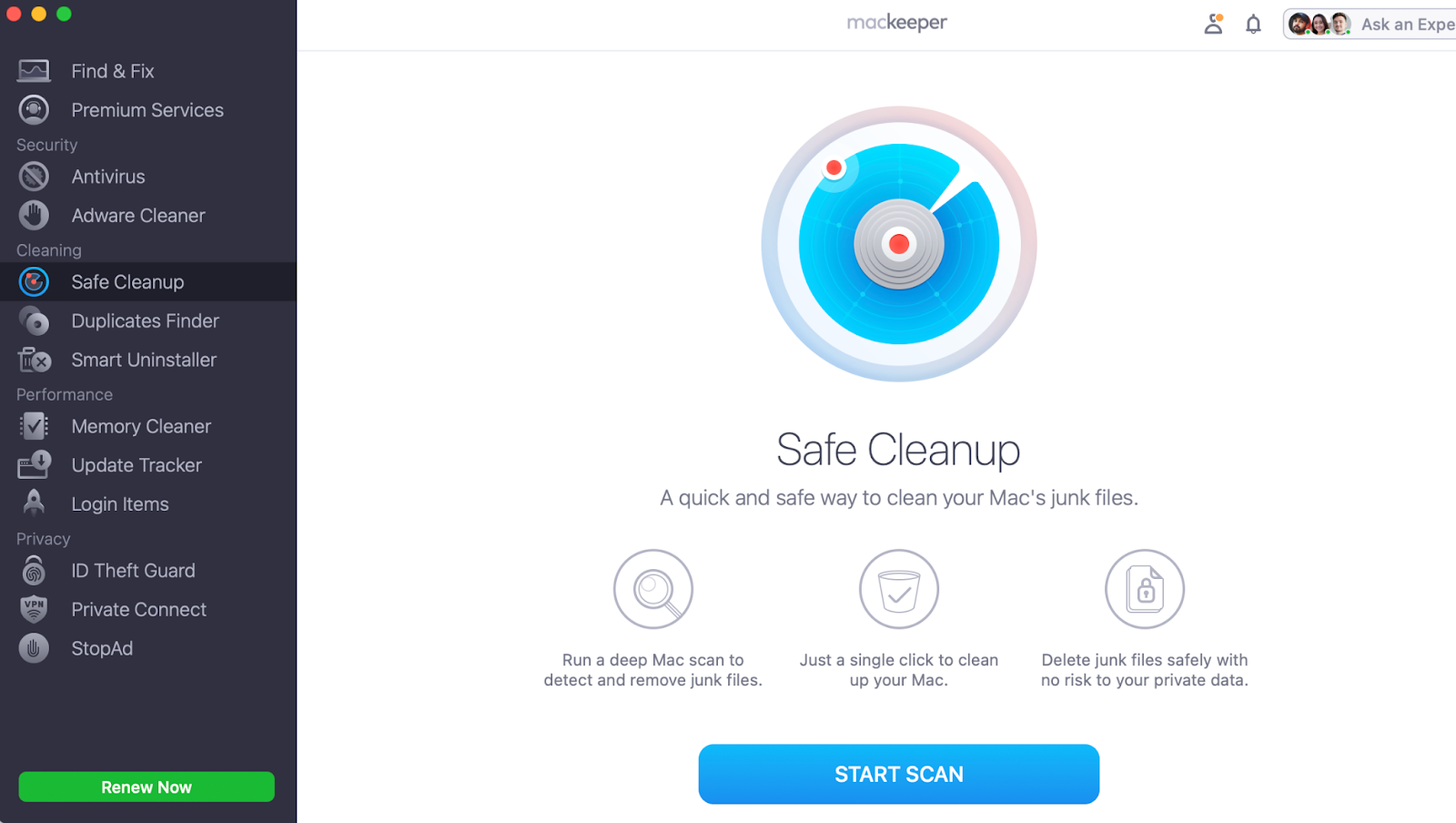
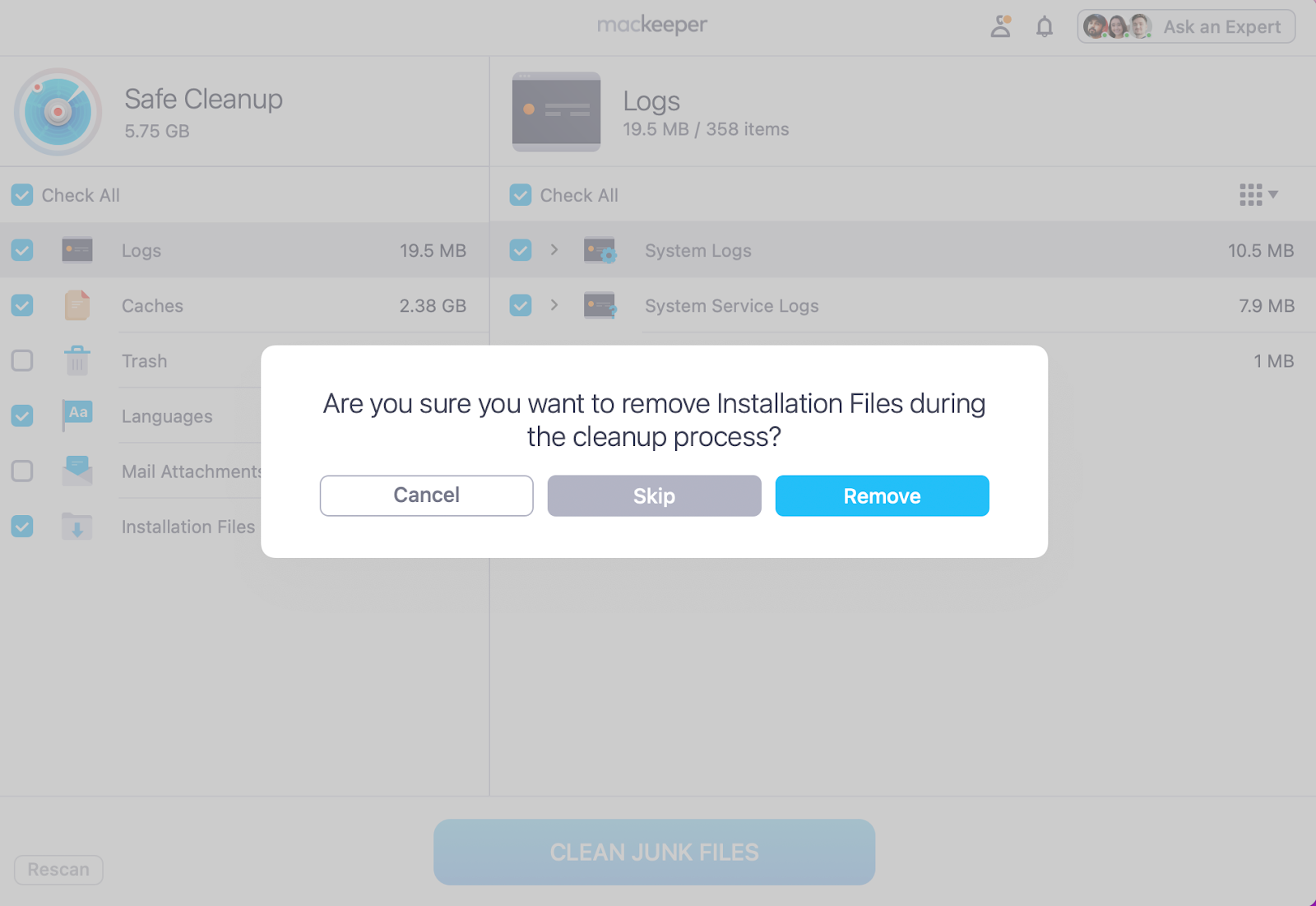
Manually purging your Mac of excessive clutter is a great way to improve the chances of updating macOS Sonoma successfully. Plenty of space is best for a smooth installation. However, deleting unwanted files yourself can be time-consuming; that’s where MacKeeper’s Safe Cleanup can come to your rescue–deep cleaning your device in seconds.
Step 1. Open MacKeeper, go to Safe Cleanup, and press Start ScanStep 2. Tick all the Junk you no longer need, press Clean Junk Files, and Remove
Why update to macOS Sonoma?
Are you still using macOS Ventura or an even older version of macOS? While you can continue running outdated software like macOS Monterey, it’s not always the safest choice. Newer updates are designed to patch bugs, fix performance issues, and strengthen your Mac’s security against potential malware threats.
Although sticking with the version you’re comfortable with might seem easier, delaying updates can leave your system more vulnerable over time. Upgrading from older versions like macOS Monterey to Sonoma can help your device feel more responsive and secure, but without compromising stability.
Methods to update to macOS Sonoma
Are you finally feeling ready to update to macOS Sonoma? Our team of Clario Tech experts always recommends that Apple users stay on top of their software updates, as falling behind can compromise your security and cause bugs within your system apps.
There are a couple of ways to update to macOS Sonoma, which include the following:
Update via system settings
Update via App Store
1. Update via system settings
Our preferred way to check for and download an update to macOS Sonoma is through the Software Update tab in your System Settings. We recommend this method because it’s the most direct way to see available upgrade options, review requirements, and ensure your device has enough storage before you proceed with your download. You can monitor the progress on your screen, spot potential issues early, and make sure the entire process runs smoothly from start to installation.
Here’s how to update macOS Sonoma via System Settings:
Open System Settings.
Navigate to General > Software Update.
Click on the Upgrade Now button.
Follow the onscreen instructions to install and update to macOS Sonoma.
Step 1. Go to Software Update in System SettingsStep 2. Click on Upgrade Now to update to macOS Sonoma
2. Update via App Store
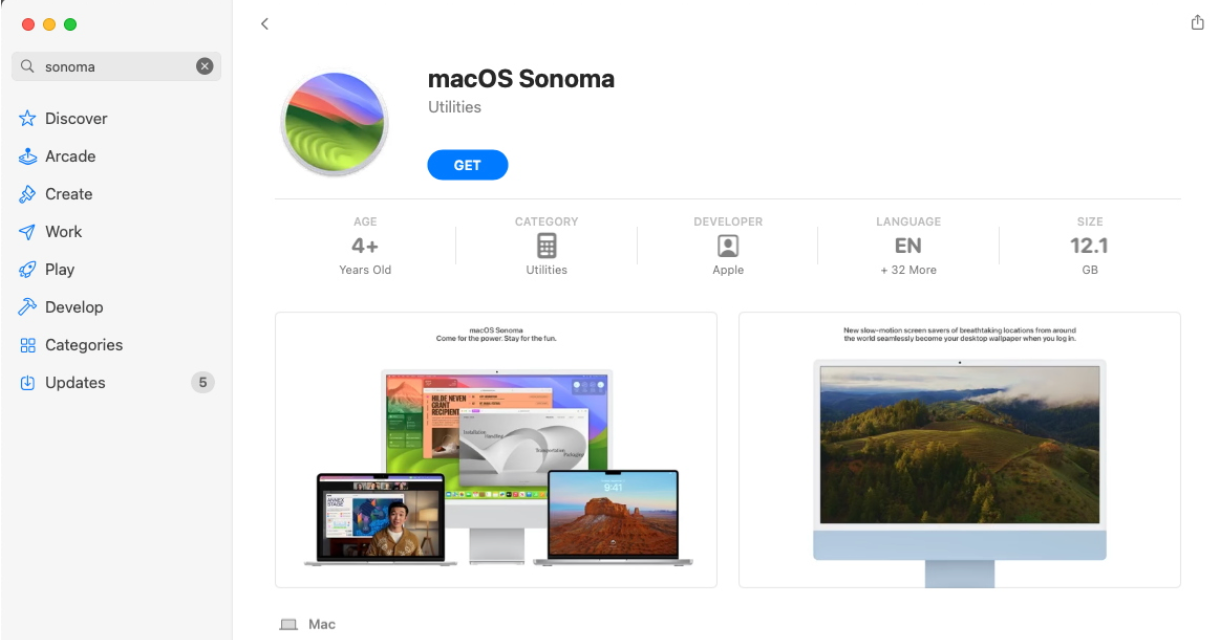
In case the macOS version you have in your Software Update tab is not macOS Sonoma, you can go to the App Store on your Mac and search for the download by name. This method is especially handy in case you’re downgrading from a newer version and want to go back to macOS Sonoma. You can also search this way if you’ve been using Venture or Monrerty for a while but can no longer update to Sonoma via your traditional settings.
Here’s how to update to macOS Sonoma via the App Store:
Open the App Store.
In the search bar, type in Sonoma.
If it’s available, click Get and follow the on-screen instructions.
In the App Store, look for macOS Sonoma and click Get to upgrade
Attention:
If your Mac doesn’t officially support macOS Sonoma, don’t panic, as you may still be able to download the software version. You can check out our blog on how to install macOS Sonoma on unsupported Mac, for tips on how to use a bootable installer and OpenCore–two ways to install Sonoma on an unsupported Mac.
Updating to macOS Sonoma stress-free with MacKeeper
It’s pretty simple to update to macOS Sonoma, as long as your Mac is compatible and has enough free storage to install the download files. If you follow our preparation advice before starting the process, you can safely free up space and ensure all your important data is backed up, helping you avoid unexpected issues later on. Once your files are secure and you’ve cleared sufficient storage, head to the Software Update tab in System Settings or visit the App Store to initiate your macOS Sonoma update.
As we mentioned, giving your device the best chance of a successful update is essential, but manually creating space can feel time-consuming. That’s where MacKeeper’s Safe Cleanup comes in. It removes junk files and unnecessary clutter to free up room for Sonoma to install properly. Decluttering your Mac ahead of time can help prevent frustrating installation problems and ensure a smooth, stress-free macOS Sonoma update.
We respect your privacy and
use cookies
for the best site experience.
Privacy Preferences Center
We use cookies along with other tools to give you the best possible experience while using the
MacKeeper website. Cookies are small text files that help the website load faster. The cookies we
use don’t contain any type of personal data meaning they never store information such as your
location, email address, or IP address.
Help us improve how you interact with our website by accepting the use of cookies. You can change
your privacy settings whenever you like.
Manage consent
All cookies
These cookies are strictly necessary for enabling basic website functionality (including page
navigation, form submission, language detection, post commenting), downloading and purchasing
software. The website might malfunction without these cookies.