FIXED: MacKeeper Scary Notifications, System Alerts, and Ads
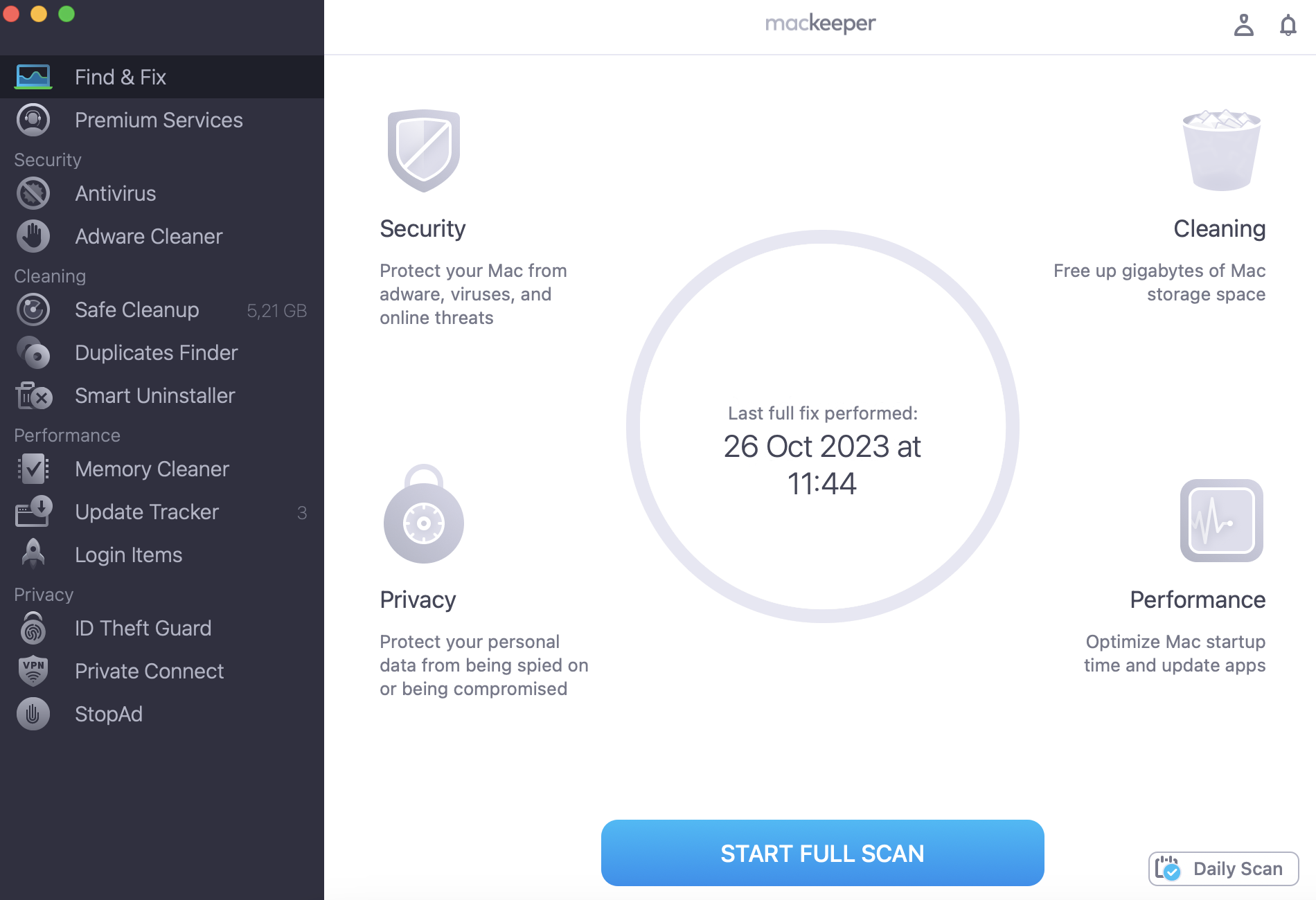
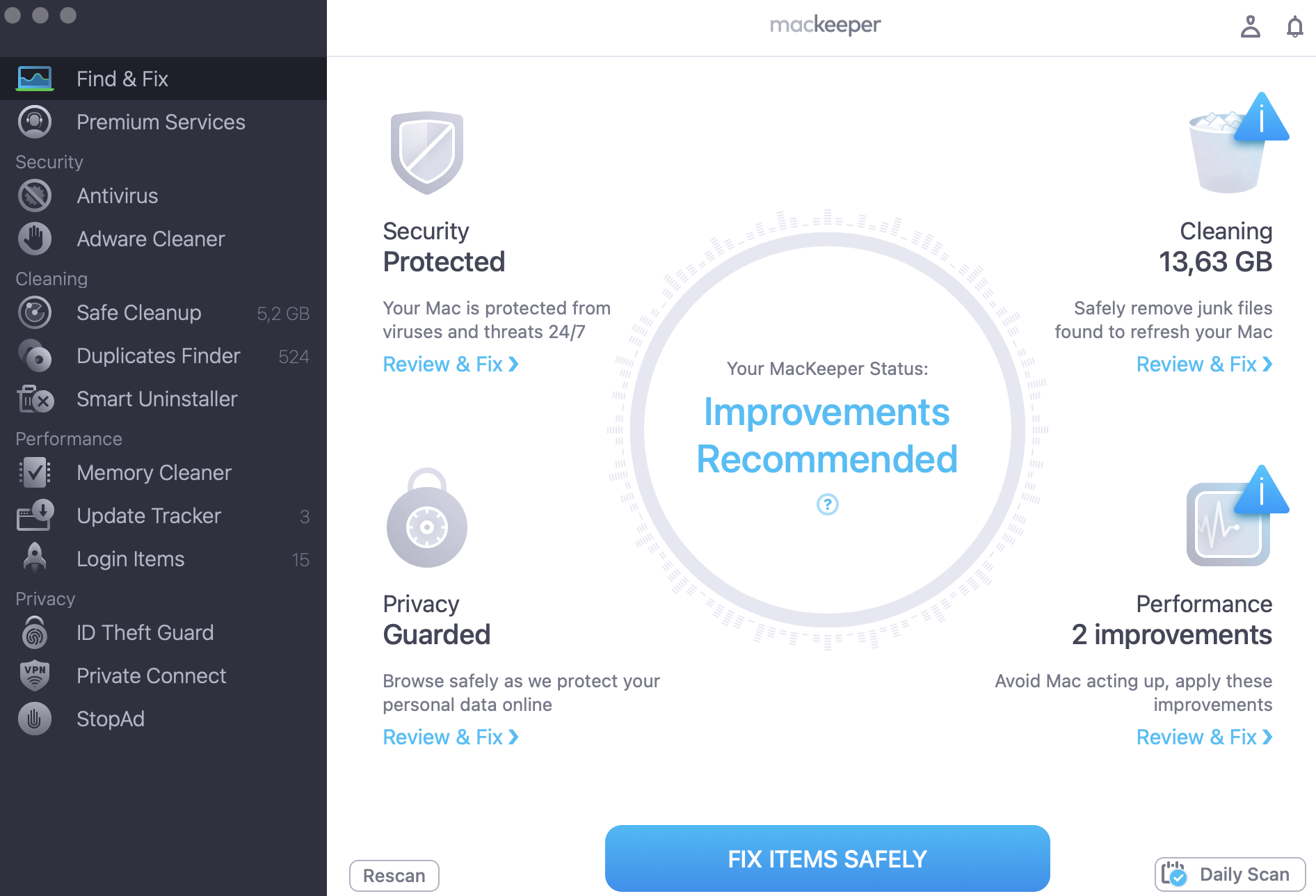
Experienced MacKeeper scary notifications, system alerts, and ads? Firstly—we’ve fixed that; secondly—we can explain. Run a quick scan with MacKeeper’s Find & Fix to detect your Mac vulnerabilities while reading our explanation below.
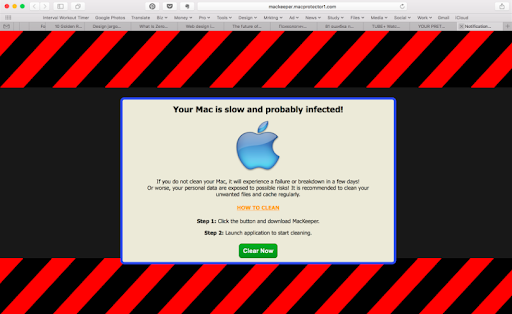
As you might have guessed, not only were those ads and alerts aggressive and annoying, they were also baseless. Everything from messages and color scheme to pictures on those ads was used for one purpose — to create the sense of threat and urgency.
We regret our partnerships got out of control in such a way, and we regret there was MacKeeper name on our partners’ misleading ads. Most significantly, we are sorry it has taken us so much time to clear out all the partners who used those scary notifications and ads.
Below are examples of misleading ads some our partners and affiliates distributed across the web.
A note from our experts:
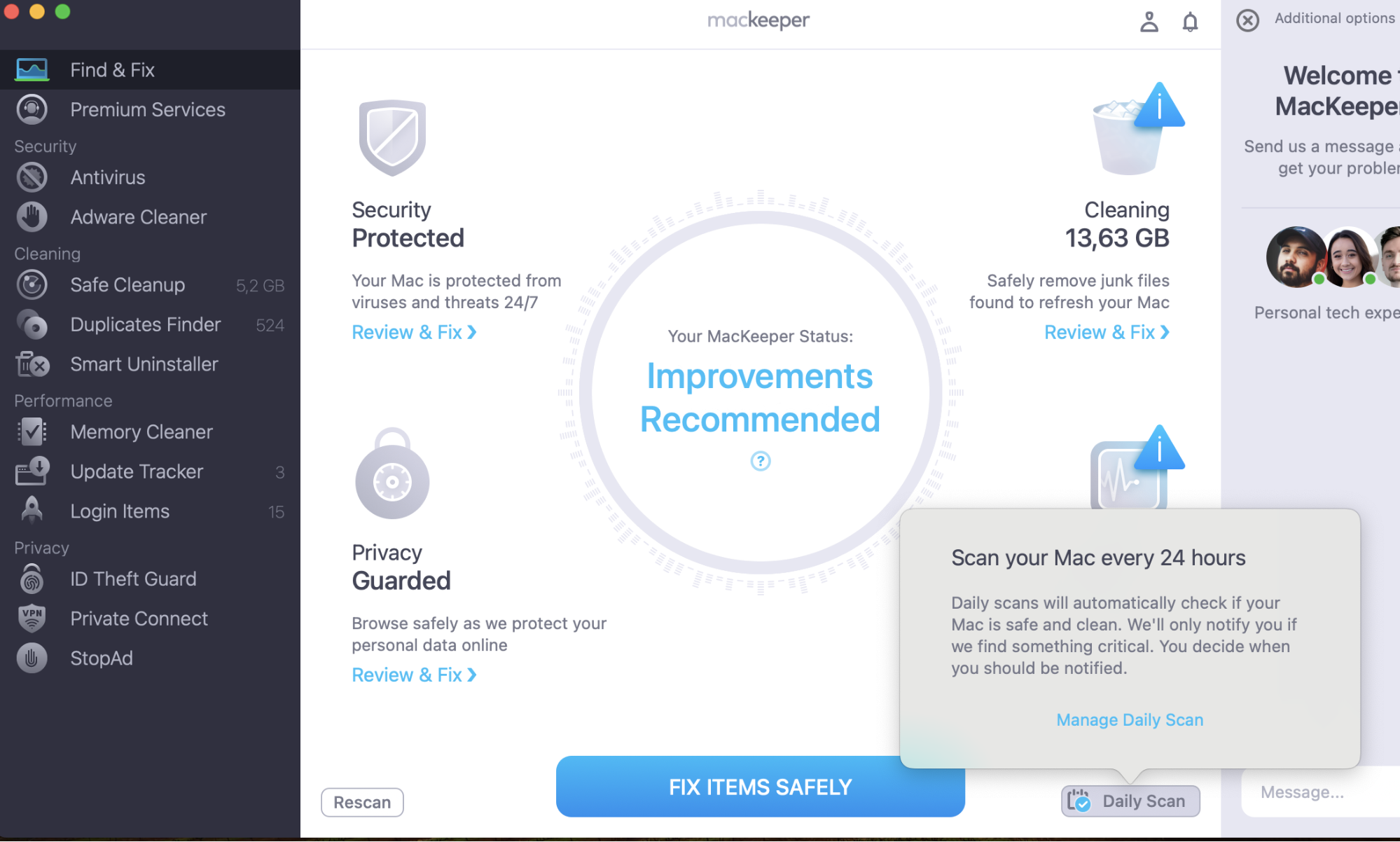
To rule out the possibility of vulnerabilities on your Mac that could cause annoying and scary pop-ups and ads, check your Apple device. The Find & Fix feature in MacKeeper scans your Mac for issues and safely resolves them. Give it a try today.
First off, we made it our number one goal to detect all partners responsible for distributing such misleading and aggressive "creatives" and terminate agreements with them.
To ensure that no case of scam remains unnoticed and unresolved, we hired a company specialized in scam detection to help us out.
We analyzed many of the scam cases we collected and noticed that most of them were coming from fake Apple domains designed to make people believe that the misleading ads were real system alerts.
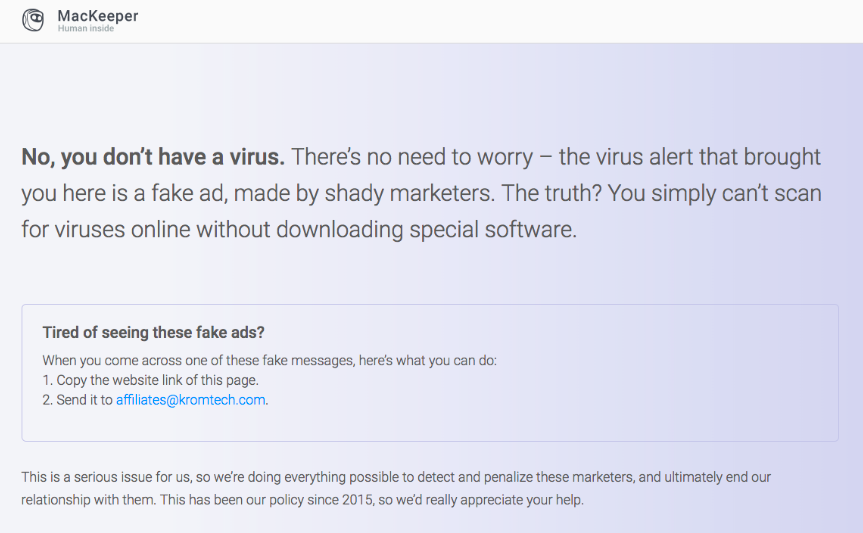
Since we see what domains people are coming from when they end up on MacKeeper's website, we realized it would be good to explain to people that there was no real threat. Now, when we see people coming from scam domains, we show them a message explaining that they've been hooked by dishonest distributors.
Here's what it looks like:
We realize that showing this message results in fewer sales, but we don't want people to buy MacKeeper as a result of someone's misleading marketing schemes. So, we tell the truth and hope it makes people feel safer.
We are glad the problem with misleading and scary ads is now fixed, but we harbor no illusions. We understand that although those ads were distributed by our partners, not us, a huge part of the responsibility lies on our shoulders. The least we can do now is to mark it as another lesson learned and do all we can to prevent things like that from happening in the future.
We respect your privacy and
use cookies
for the best site experience.
Privacy Preferences Center
We use cookies along with other tools to give you the best possible experience while using the
MacKeeper website. Cookies are small text files that help the website load faster. The cookies we
use don’t contain any type of personal data meaning they never store information such as your
location, email address, or IP address.
Help us improve how you interact with our website by accepting the use of cookies. You can change
your privacy settings whenever you like.
Manage consent
All cookies
These cookies are strictly necessary for enabling basic website functionality (including page
navigation, form submission, language detection, post commenting), downloading and purchasing
software. The website might malfunction without these cookies.