If your Spotify is slow, crashing or not working on a Mac, then there may be some errors in macOS. It’s often hard to define what’s exactly wrong, so it’s better to consult tech experts. MacKeeper’s Premium Services can help here—luckily they are available 24/7.
While the mobile client doesn’t generally cause any problems, the desktop app breaks down relatively easily. For a long time, it was not clear why that is the case, until someone realized that Spotify cache is extremely poorly managed. It adds up over time, growing into an intimidatingly-large segment that takes up your Mac’s memory and causes the app itself to load slowly.
Clear Spotify cache on Mac
Luckily, you can easily clear out Spotify cache yourself if you follow these steps:
Quit Spotify.
Open Finder.
In the top menu bar, click on Go and select Go to Folder from the drop-down menu.
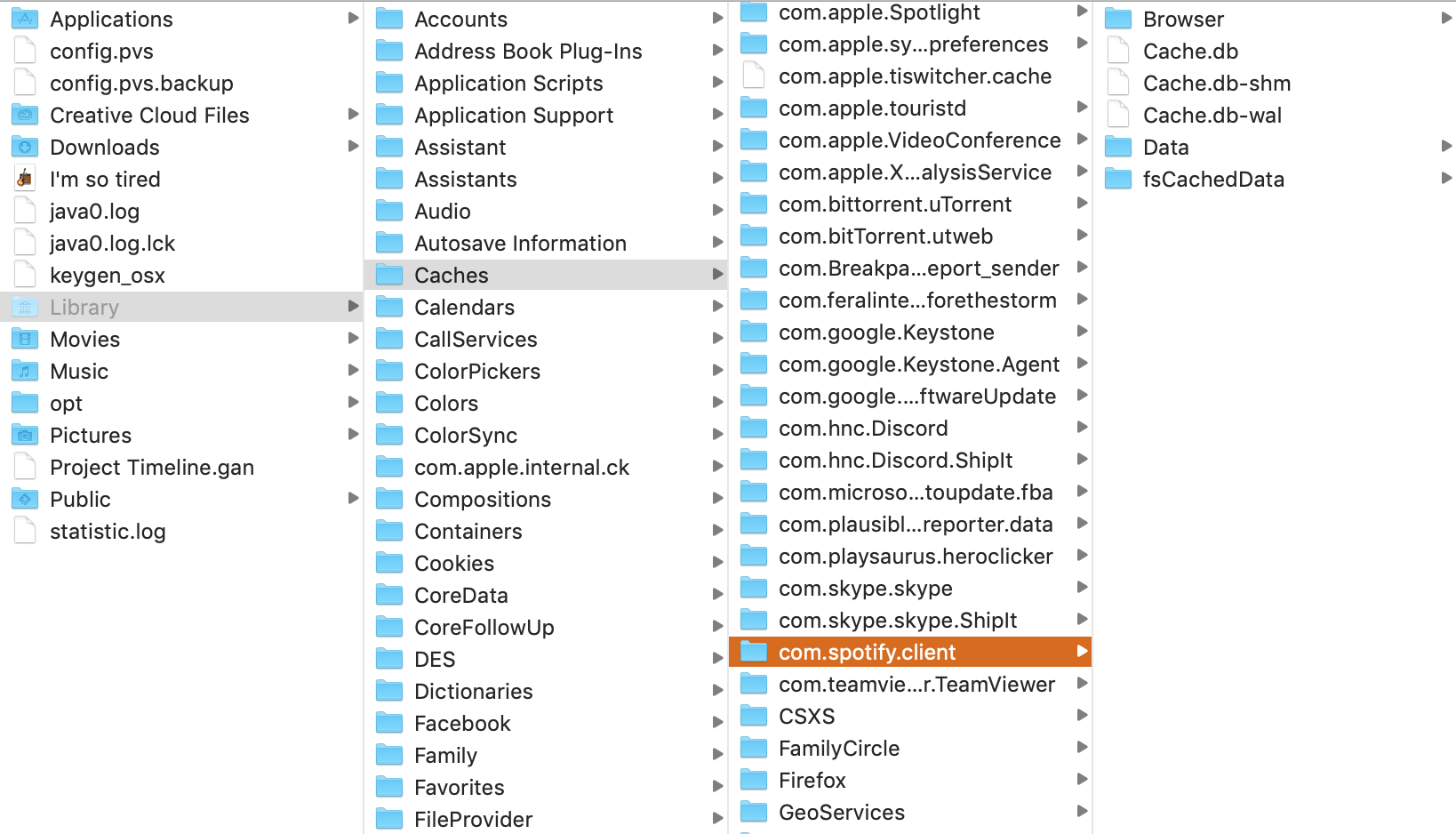
Type in ~/Library/Caches/ and hit Enter to be transferred to the hidden library folder.
Find the com.spotify.client folder. Open it and delete all the components.
Go back to the Library folder.
Locate the Application Support folder on the top of the list.
In that folder, scroll down to the folder named Spotify.
Open it and find a file called prefs.
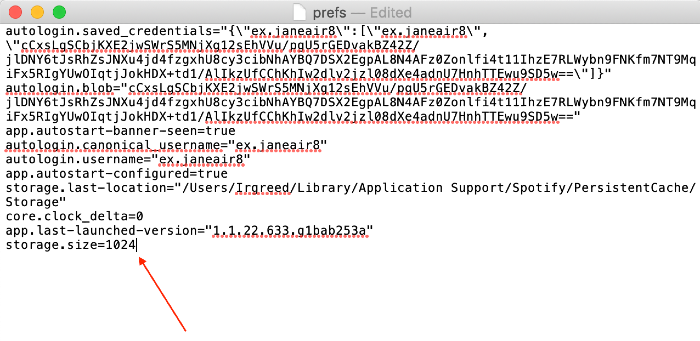
Open the file in the text editor. Scroll down to the end and add the following text to the very end of the file: storage.size=1024. This will limit the size of your cache and prevent it from bulking up in the future.
Save the file.
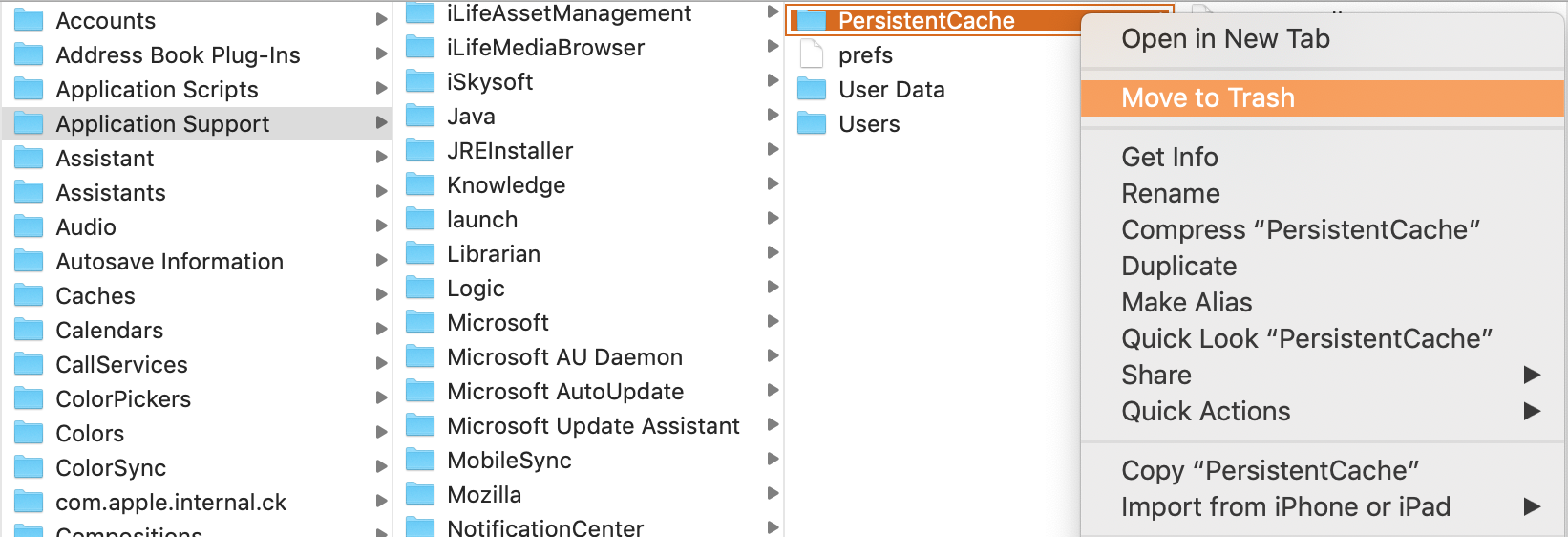
Back in the Spotify folder, locate the PersistentCache folder and delete it.
Empty trash.
Step 1. Open Finder, click Go > Go to Folder, type in ~/Library/Caches/ and find com.spotify.client and delete its contentStep 2. Open Appliication Support folder, open Spotify folder and then open prefs file, scroll to the bottom and add storage.size=1024Step 3. in the Spotify folder, locate the PersistentCache folder and delete it, then Empty Trash
Alternatively, you can use MacKeeper to clear cache automatically in a matter of seconds.
A note from our experts:
There are several reasons why Spotify keeps crashing on your Mac. You may try all the ways to fix Spotify described in our guidance. But to save your time, дet the professionals handle it. Utilize MacKeeper’s Premium Services, which are available 24/7. Describe your issue to the tech expert and get the instructions that fit your Spotify situation.
Select Premium Services from the left-hand menu and click Chat Now.
Share the details of your issue with the tech expert.
Step 1. MacKeeper > Premium Services > Chat NowStep 2. Type in the details in the live chat box
Why does Spotify keep crashing on Mac?
Desktop client crashes are not unusual, and the most common concern in these situations is an outdated macOS.
Before you start panicking, make sure that you’re running the latest version of the operating system on your computer — for MacBooks that have been released after mid-2012, it’s Catalina. Go to the Apple menu and select System Preferences → Software Update to check if anything is available. Make sure that your Spotify is up to date too.
Spotify keeps freezing
If you have updated your computer and Spotify keeps crashing regardless, try reinstalling the app. Follow these steps:
Quit Spotify.
Open Finder.
In the top menu bar, click on Go and select Go to Folderfrom the drop-down menu.
Type in ~/Library and hit Enter to go to the hidden Library folder.
Locate the Caches folder and the com.spotify.Client folder inside it.
Delete the folder or the local files.
Go back to the main Library folder. Find the Application Supportfolder on top of the list.
Scroll down until you see the Spotify folder — delete it.
Install Spotify again.
Spotify not working or won’t open on Mac
Sometimes when you try to open Spotify you see a black screen for a split second and then the app suddenly shuts itself down. In this case, the first thing you should do is attempt a clean reinstall as described above. If that doesn’t help, try disabling the Hardware Acceleration: click on the Spotify menu in the top left corner of the screen and find the option in the drop-down menu that appears.
Occasionally you might come across Spotify error code 3 or error code 17 on Mac. Both of these prevent you from accessing your account and may be followed by the application crashing. The error 3 code is caused by an incorrect password or interference by a VPN app - in this case, you can simply do a reset. In contrast, the error code 17 problem arises due to incomplete app installation or a virus infection. A reinstall and a malware check would be beneficial.
The Spotify application is not responding
If you experience a sudden glitch in Spotify followed by the “Application not responding” message, perform a clean reinstall of the client. It can be due to an overloaded cache.
Spotify web player not working
Despite the Spotify web player’s dazzling popularity, it’s still a deeply flawed website that frequently crashes and stops responding. One thing to do to prevent issues with it is to simply switch to one of the Spotify apps — problematic as they are, they’re not nearly as annoying as the web client.
However, if you prefer to stream music from your browser, there are a few things you can do if Spotify stops working:
Open Spotify in a private window. If that solves the problem, disable your browser extensions and clear cache.
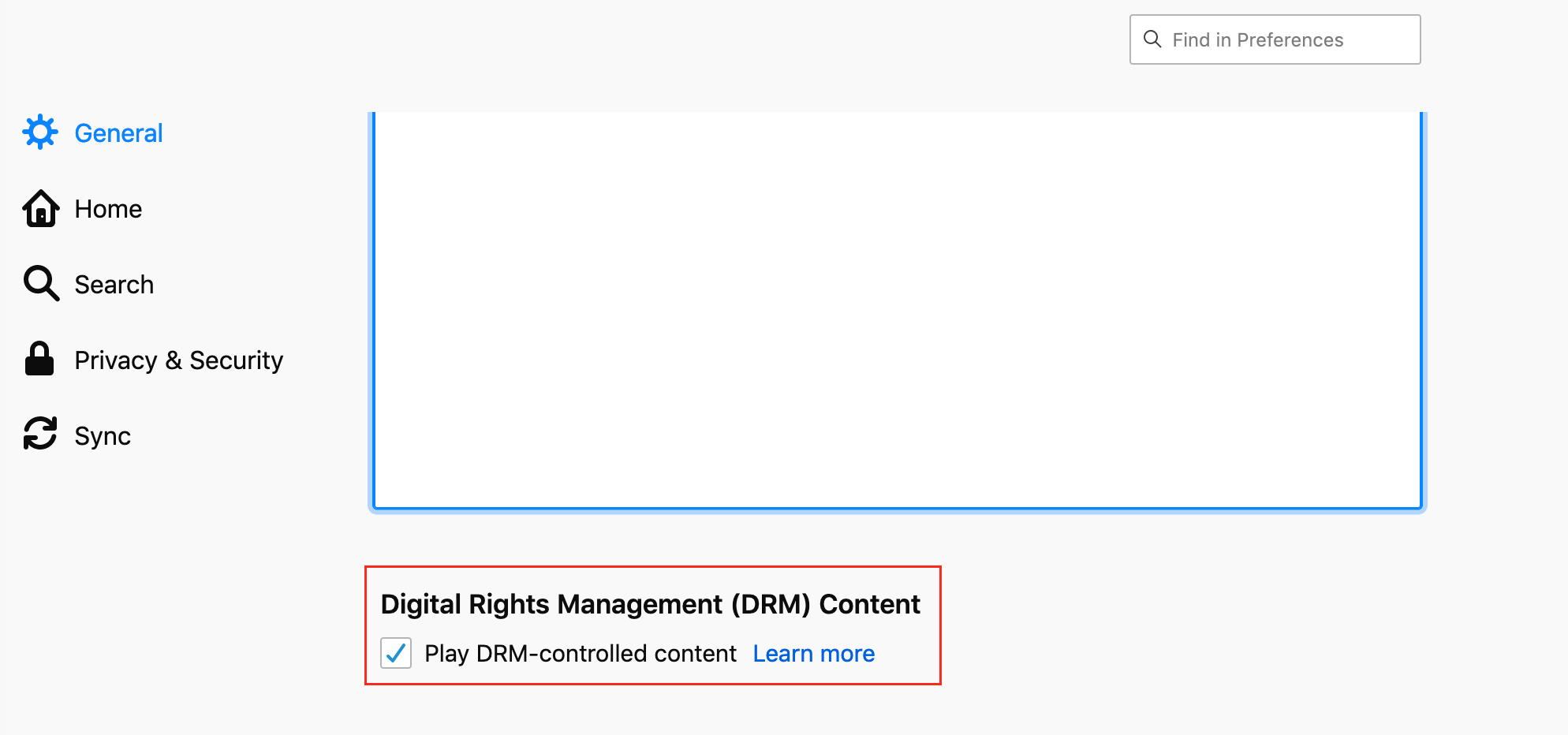
If you’re using Chrome or Firefox, playback of protected content may be disabled in your browser. Make sure you enable it in Settings. In Chrome, go to Privacy and Security → Site Settingsand scroll all the way down to find the required option. In Firefox, go to Preferences → General and scroll down to tick the box next to “Play DRM-controlled content”.
You cannot use Spotify on Safari! If you want to use the web client, switch to a different browser.
Spotify keeps pausing
If you’re tired of Spotify pausing randomly in the middle of your songs and playlists, simply reinstalling the app or clearing out cache won’t help. However, there is one trick that will help you out of this:
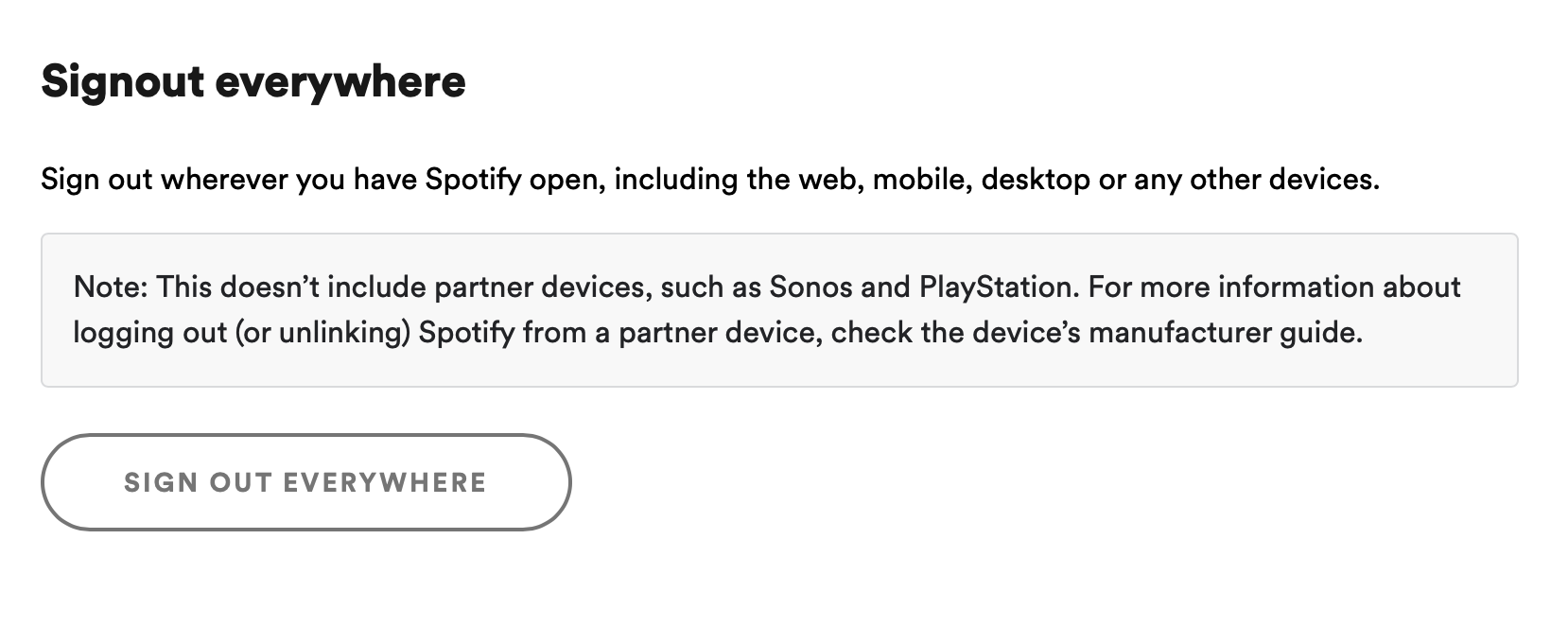
Go to your Account Overview page and click the “Sign Out Everywhere” button. This will sign you out of all of your accounts on all devices.
Open Spotify on your Mac and sign in.
Try using the app again. If it works, sync with other devices.
As brilliant as Spotify is, it’s not without its shortcomings. It’s easy enough to deal with the app occasionally freezing or crashing, but in the long term you will end up spending a lot of time sorting it out. Why not try MacKeeper? Whenever the issue stems from an overloaded cache, full storage, or malware infection, you can count on the cleaner to resolve it within moments. Download MacKeeper’s Premium Services today and start improving your Mac’s performance!
We respect your privacy and
use cookies
for the best site experience.
Privacy Preferences Center
We use cookies along with other tools to give you the best possible experience while using the
MacKeeper website. Cookies are small text files that help the website load faster. The cookies we
use don’t contain any type of personal data meaning they never store information such as your
location, email address, or IP address.
Help us improve how you interact with our website by accepting the use of cookies. You can change
your privacy settings whenever you like.
Manage consent
All cookies
These cookies are strictly necessary for enabling basic website functionality (including page
navigation, form submission, language detection, post commenting), downloading and purchasing
software. The website might malfunction without these cookies.