We developed Track My Mac to help meet the needs of our users as there were no similar services available back then. But today, we focus on other Mac privacy and security functions. Try out its ID Theft Guard tool. Download MacKeeper to check out what we’ve got for you today.
We always strive to provide you with the necessary tools to optimize and secure your Mac in one easy-to-use solution. And from analyzing today’s digital landscape and our users’ feedback, we can see new improvements and opportunities to focus on what Mac users need and value the most. For instance, we’ve enhanced virus protection for Mac built into MacKeeper by adding real-time protection and improved the number of locations for the VPN. Our users can expect new features to be added soon so stay tuned for updates!
However, we regret to announce the removal of Track My Mac from future versions of MacKeeper. In the long run, we will stop supporting trackmymac.com and the feature itself in all versions of MacKeeper from June 1, 2021.
Despite this, your Mac can still be protected from thieves in the form of a reliable alternative. Your Apple devices come with the free pre-installed Find My (or more commonly known as Find My Mac and Find My Phone) app. Let’s figure out how to enable it on your MacBook Air, MacBook Pro, or iMac. If you have questions or need help — contact us via the MacKeeper official website by using the Live Chat option.
Let’s explore the following:
How to uninstall TrackMyMac from iPhone
How to deactivate Track My Mac using MacKeeper account
How to Set up Find My Mac app
Use iCloud to access Find My Mac
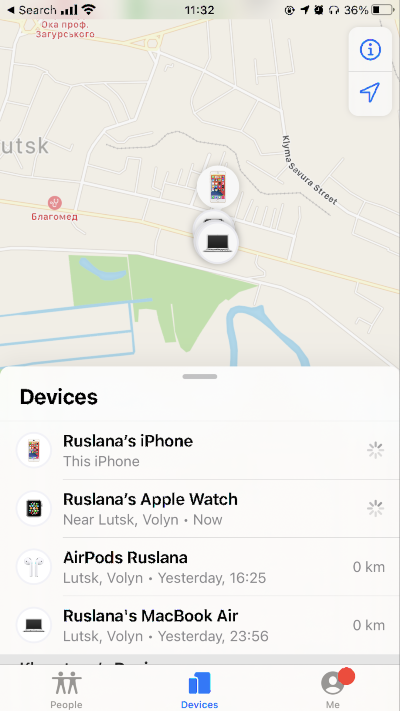
How to find my Mac with an iPhone
Locate a lost or stolen Mac with Find My
Lock and erase your MacBook
Find my Mac offline
Other ways to protect your Mac
How to uninstall TrackMyMac from iPhone
Uninstalling Track My Mac from your iPhone is the same as uninstalling any other app and takes just a few seconds. To delete TrackMyMac:
Find its icon—press and hold on the home screen of your device—tap that tiny X button Track My Mac from iPhone when the app starts jiggling
For the new iOS
Look for Track My Mac’s icon—long-press it—wait for the context menu to show up—tap the red marked Remove App option
Deactivate Track My Mac via MacKeeper account
Having uninstalled Track My Mac from your iPhone deactivate it on your MacKeeper account:
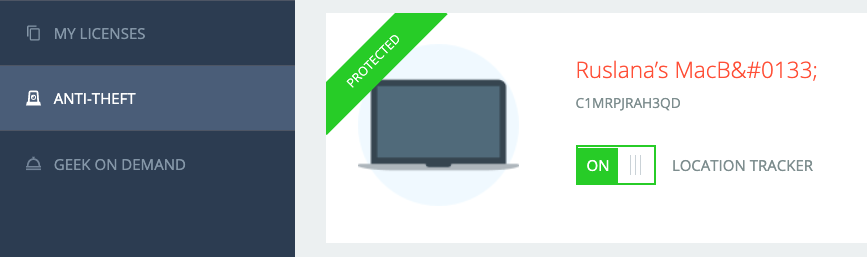
Go to your MacKeeper account—login—go to the Anti-Theft tab—turn off the location tracker tumbler next to your Mac’s name
A note from our experts:
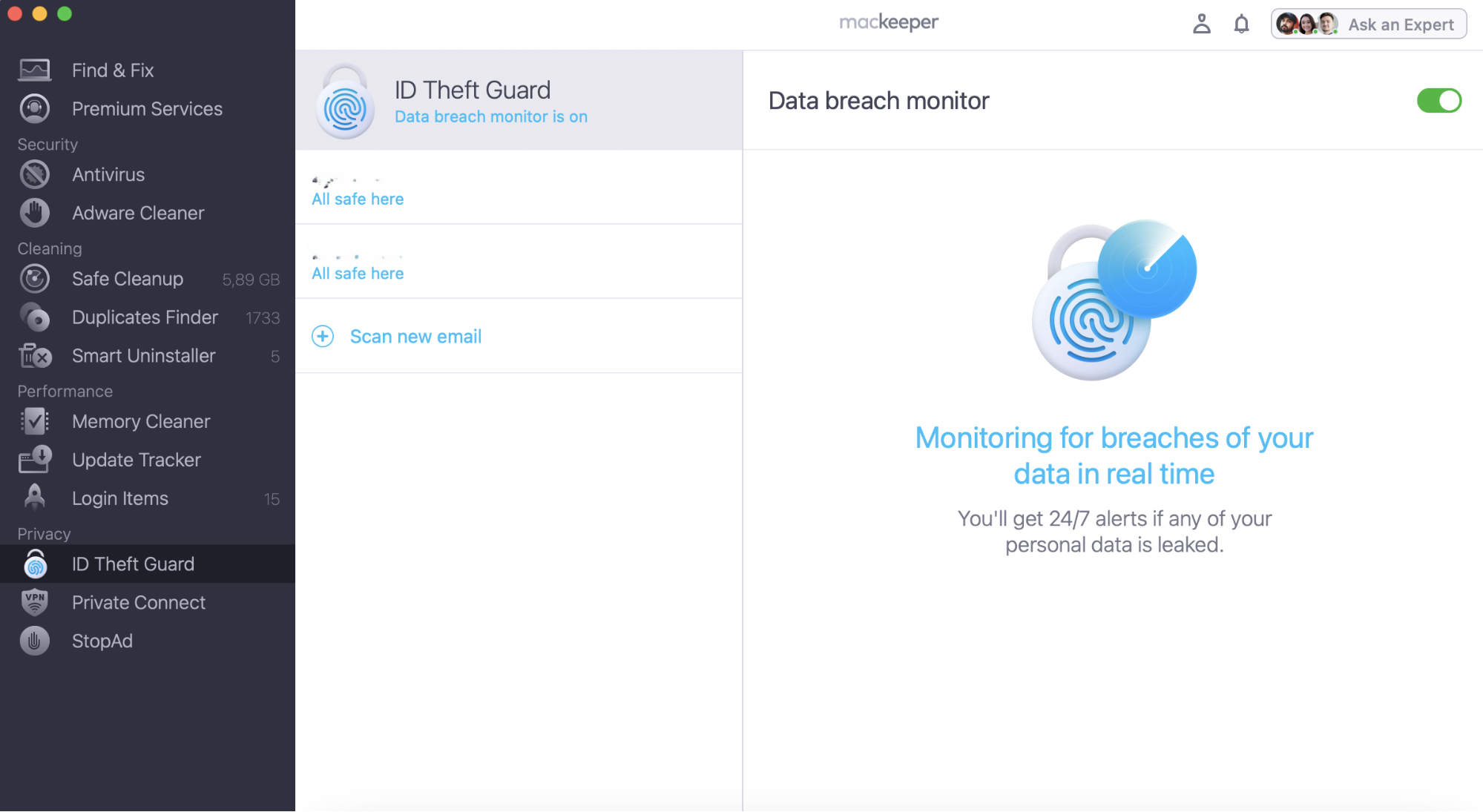
As time goes by, the users' needs change, and we change. So, Track My Mac doesn’t fit the demands of modern consumers anymore. MacKeeper is a new generation of Mac privacy, security and optimization tools. Try out MacKeeper’s ID Theft Guard to keep your personal data safe.
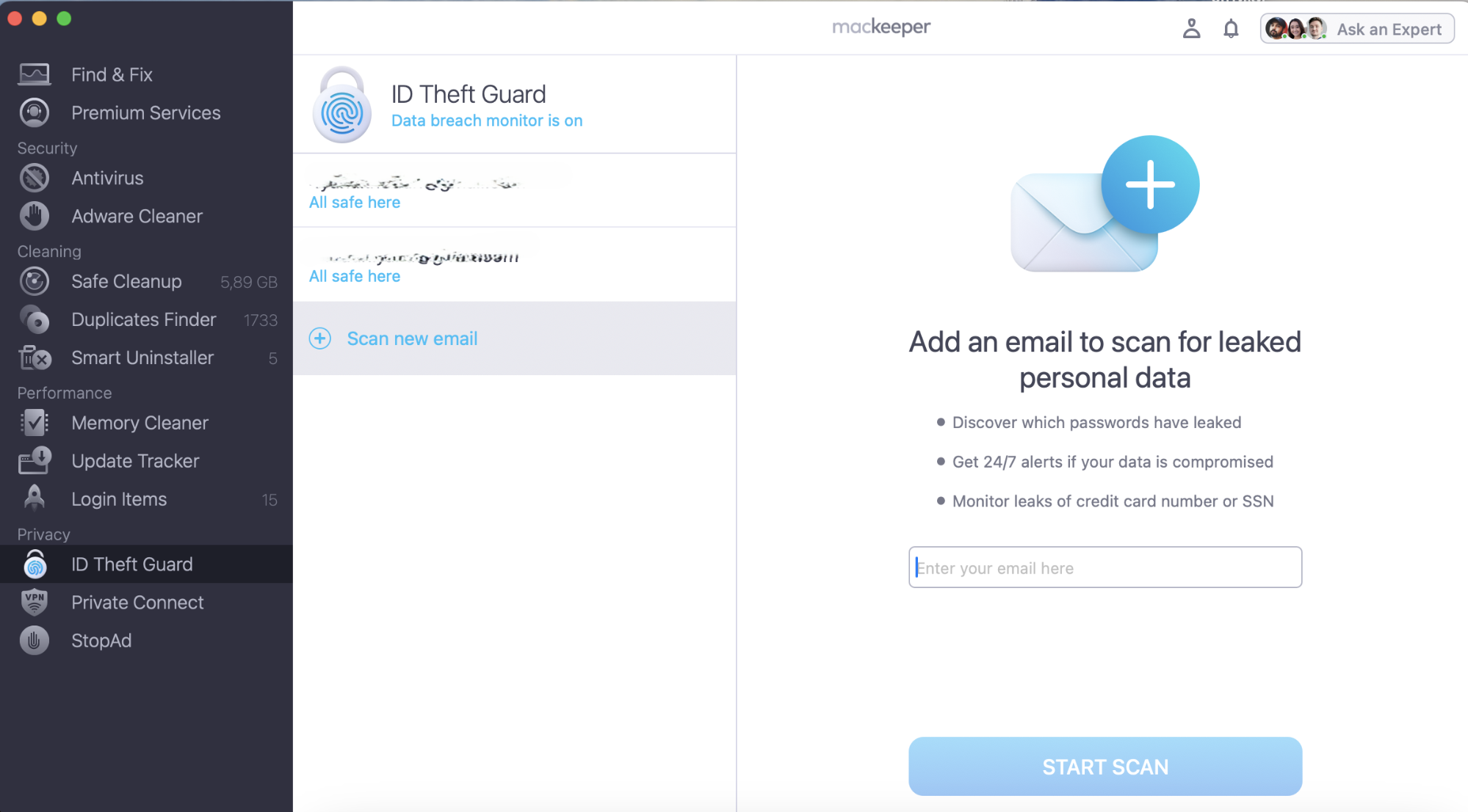
Click Scan new email and add your email address in the corresponding box.
Click Start Scan.
Step 1. MacKeeper > ID Theft Guard > Scan new emailStep 2. Enter your email address > Start Scan
How to Set up Find My Mac app
Once you read this or unpack a box with your new Mac— consider enabling and using Find My Mac. You can't be too careful when it comes to tracking, locking, or erasing your Mac. If left unattended—your MacBook can get stolen, or you can leave it in a cafe or a waiting lounge if in a hurry.
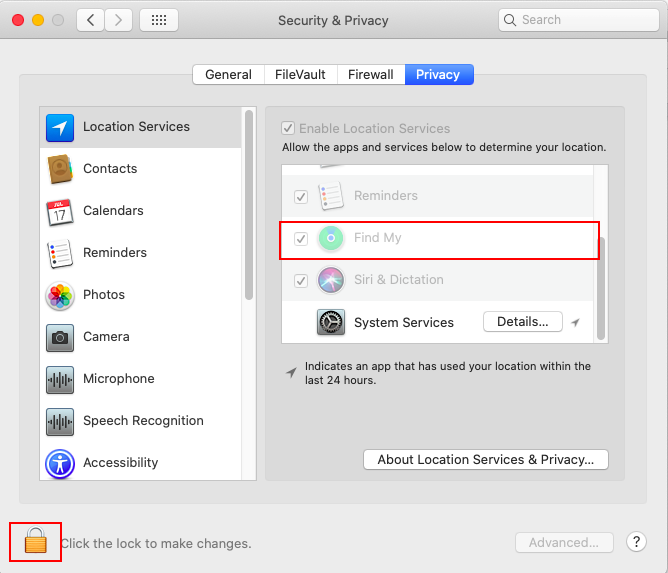
First things first, let’s activate Location Services:
Open System Preferences—click on the Security & Privacy tab.
Click on the small lock in the left bottom corner—type in your admin password when asked.
Tick the checkbox next to Find My.
Next, turn on Find My Mac:
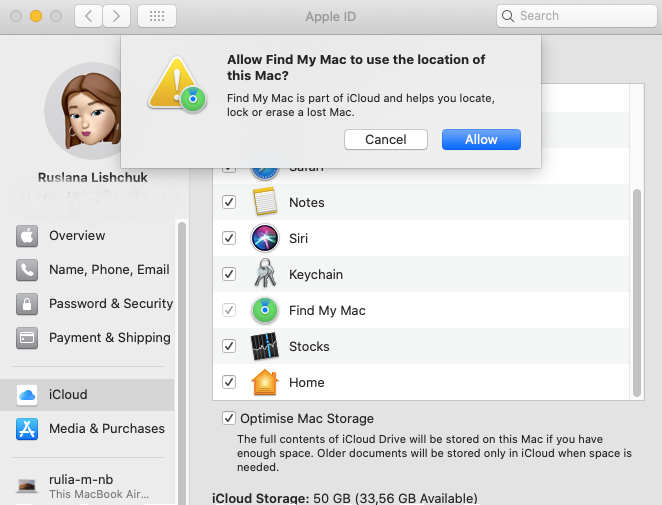
Open System Preferences—click on the Apple ID icon.
Locate and click iCloud in the left sidebar—scroll down for the Find My option—tick it.
Hit Allow—Use Password—enter your admin password in the popup window to allow changes.
Note: Disabling Find My can be done using the same instruction.
There you go, use Find My to keep an eye on the location of your MacBooks, iOS devices, and even AirPods.
Use iCloud to access Find My Mac
No other Mac at hand you could use to access your iCloud account? The good thing that there are no limitations from where to track your Apple device —use any Mac computer or Windows PC and any browser to locate your stolen or lost Mac:
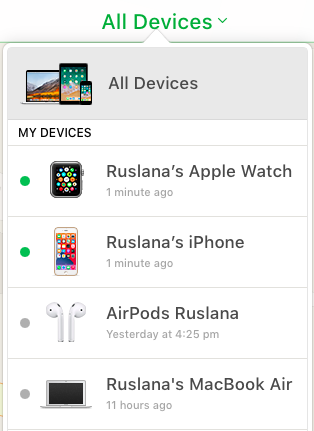
Click on the Devices button—look for your stolen or lost Mac.
Check its last location.
Lock and erase your MacBook
Your MacBook gone missing? Take action immediately. Lock and erase your Mac using Find My. Let’s figure out which option is the best for you at this point.
Lock your lost or stolen MacBook
If you think there’s even a small chance your MacBook will get back home—lock it. This would shut it down and enable a 4-digit code of your choice. The data will be kept and the Apple Pay option will be disabled.
Use your iPhone or iPad:
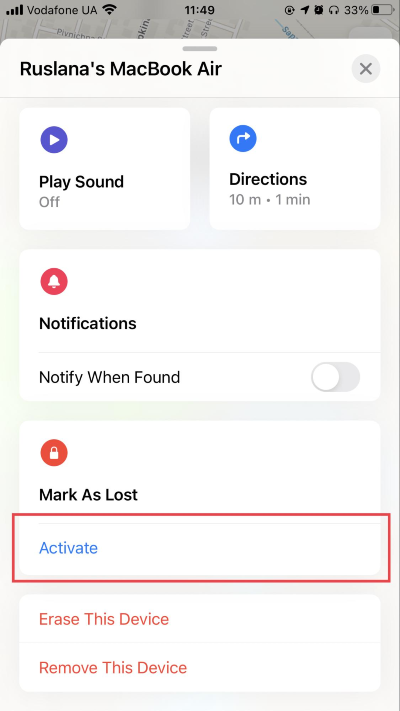
Open Find My app—Devices tab—select your missing Mac—go toMark As Lost section.
Click Activate—Continue—follow the next hints to activate the 4-digit-code.
Click on the Devices tab—select your missing device.
In the popup window on the right click on Lock—confirm locking your Mac—set up a 4-digit code.
Erase your missing MacBook
As a rule, wiping your Mac is done whenever you plan on selling it. However, when your MacBook got stolen, and you’re sure that there’s no chance of getting it back—erasing it comes into play:
Erase your missing Mac from iPhone or iPad:
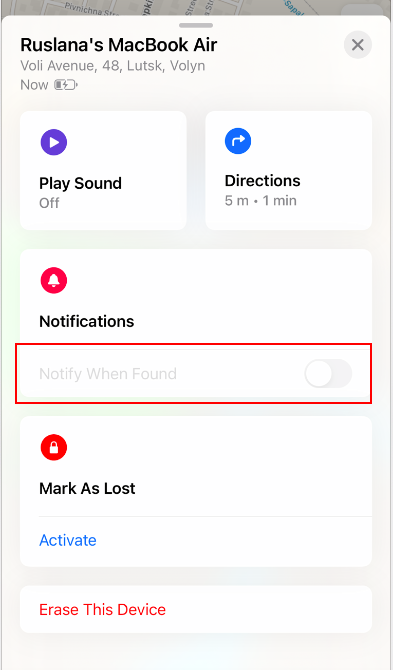
Open Find My app—go to the Devices tab—choose your missing Mac—go to Erase This Device—follow the suggested instructions.
Erase your missing Mac via your iCloud account:
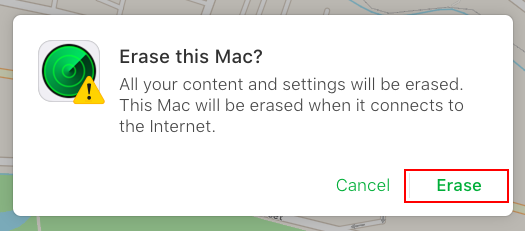
Sign in to youriCloud account—Find iPhone—choose the missing Mac in the Devices tab—click on Erase Mac—confirm by clicking Erase again.
Find my Mac offline
If your Mac is offline or shut down—don’t fall into despair yet. There’s another option we could resort to. With Find My can notify you whenever your Mac goes online and thus located by the app. How does this work?
On your iPhone or iPad:
Open Find My on your phone—Devices tab—choose your device—move the tumbler next to Notify When Found.
From any browser:
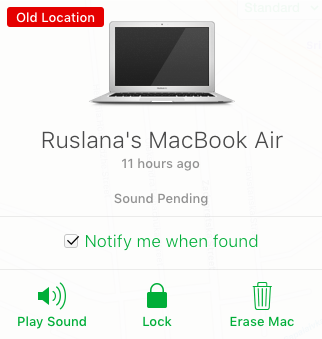
Sign in to your iCloud—Find iPhone—All Devices tab—choose your missing MacBook from the list—mark a checkbox next toNotify me when found.
Now you know all about Find My and can keep calm about your Mac’s location.
How to protect your Mac with MacKeeper
Real-life criminals can take advantage of your personal information when your MacBook gets stolen or goes missing. Cybercriminals don’t need to take it away—they can steal your data when you go online. Ransomware, phishing, data breaches are on the rise.
With cybercrime skyrocketing and coronavirus phishing attacks, 2020 has become the year of online safety awareness. Keeping up with the latest trends and installing an antivirus that will protect your Mac has become an essential part of the Mac routine.
MacKeeper and its Antivirus are there for you 24/7. Real-time virus protection, integrated VPN, ID Theft Guard, ad-free browsing makes it worth trying. Install MacKeeper and it’s protection tools to see it for yourself!
We respect your privacy and
use cookies
for the best site experience.
Privacy Preferences Center
We use cookies along with other tools to give you the best possible experience while using the
MacKeeper website. Cookies are small text files that help the website load faster. The cookies we
use don’t contain any type of personal data meaning they never store information such as your
location, email address, or IP address.
Help us improve how you interact with our website by accepting the use of cookies. You can change
your privacy settings whenever you like.
Manage consent
All cookies
These cookies are strictly necessary for enabling basic website functionality (including page
navigation, form submission, language detection, post commenting), downloading and purchasing
software. The website might malfunction without these cookies.