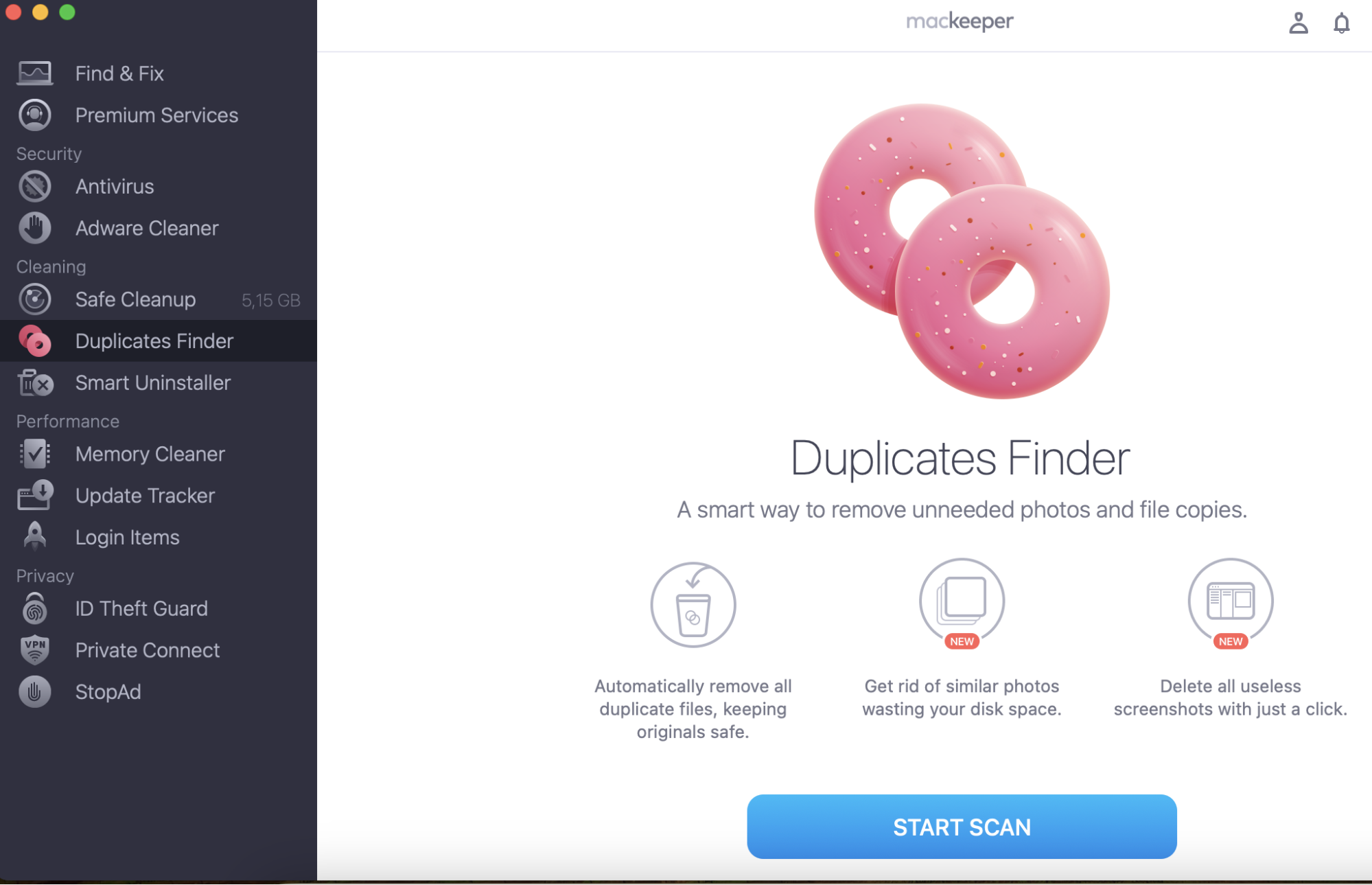
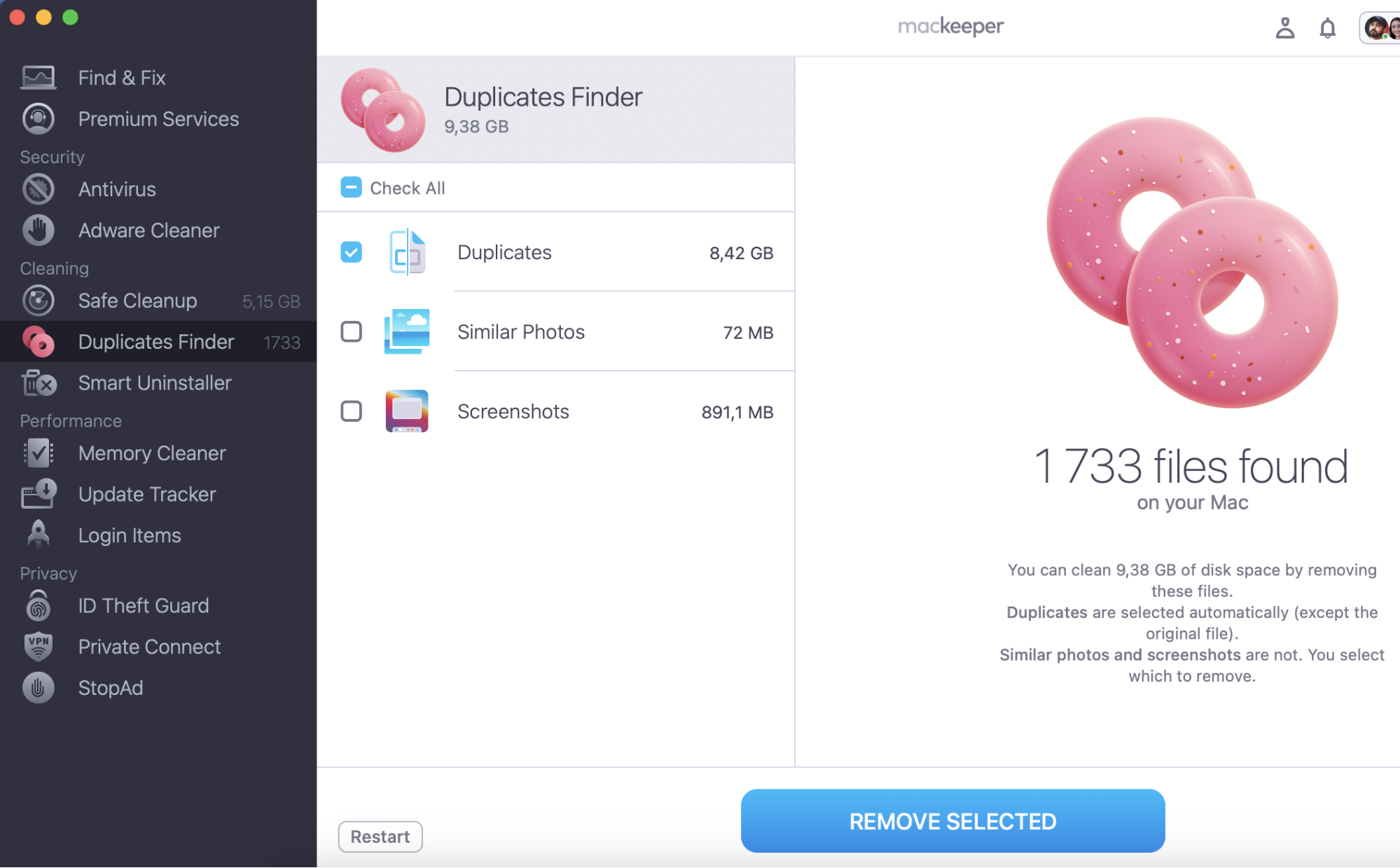
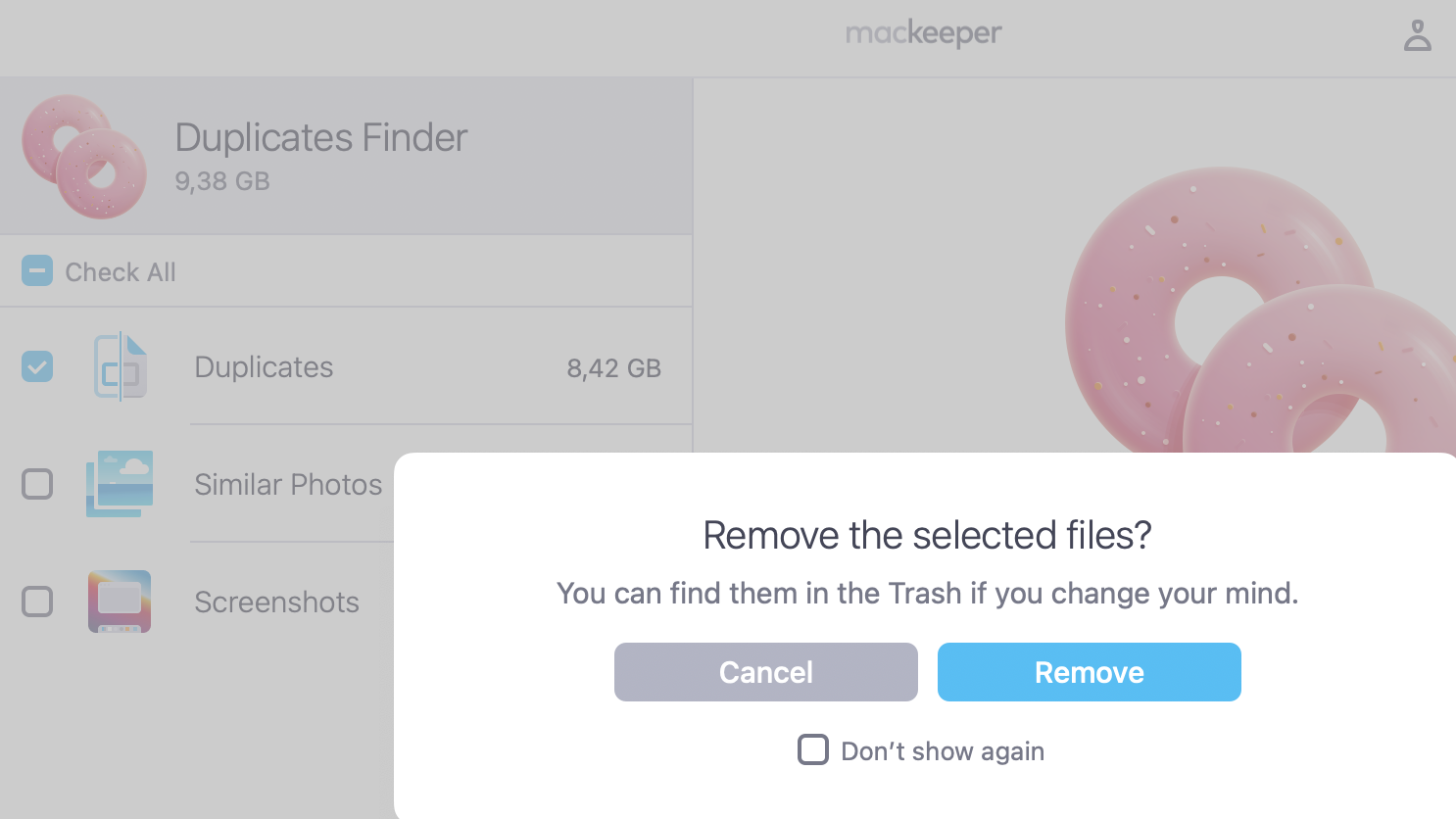
After testing all the 11 best snipping tools for your Mac, remember to get an app to keep your device clean from multiple screenshots, you’ll eventually clutter your Mac with. For instance, MacKeeper's Duplicates Finder can help you organize your files and remove everything unnecessary.
If you want to take a screenshot or record video of your Mac’s screen, you’ll need a snipping tool. These apps let you capture your entire screen or just a portion of it. You can then edit, annotate, or share the results.
As many Mac owners will know, OS X and macOS come equipped with a pretty good snipping tool. In earlier versions of the OS, it was called Grab, but now it goes by the name Screenshot.
For many people, the Screenshot app is all they’ll ever need to take a screenshot on Mac, but there are also third-party alternatives. These usually include additional features that aren’t in Screenshot. But what are the best snipping tools for Mac? Keep reading to find out our selection.
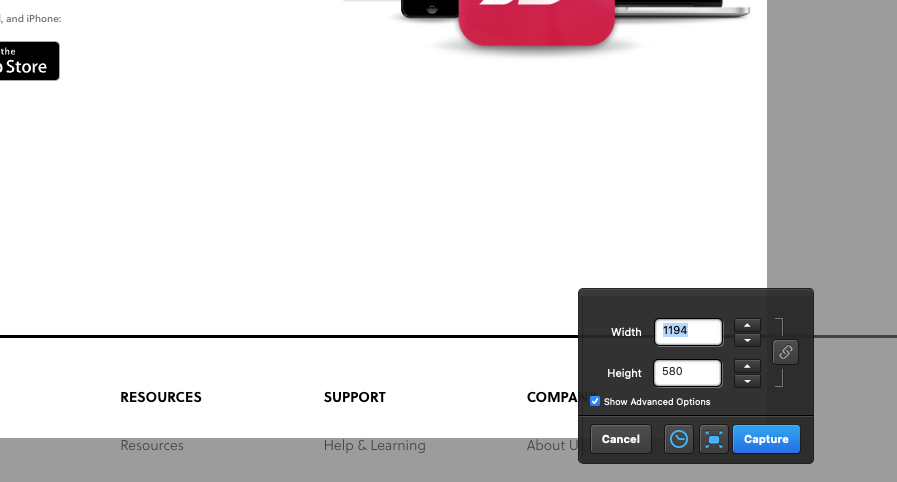
Lightshot
Loom Screen Recorder
Snagit
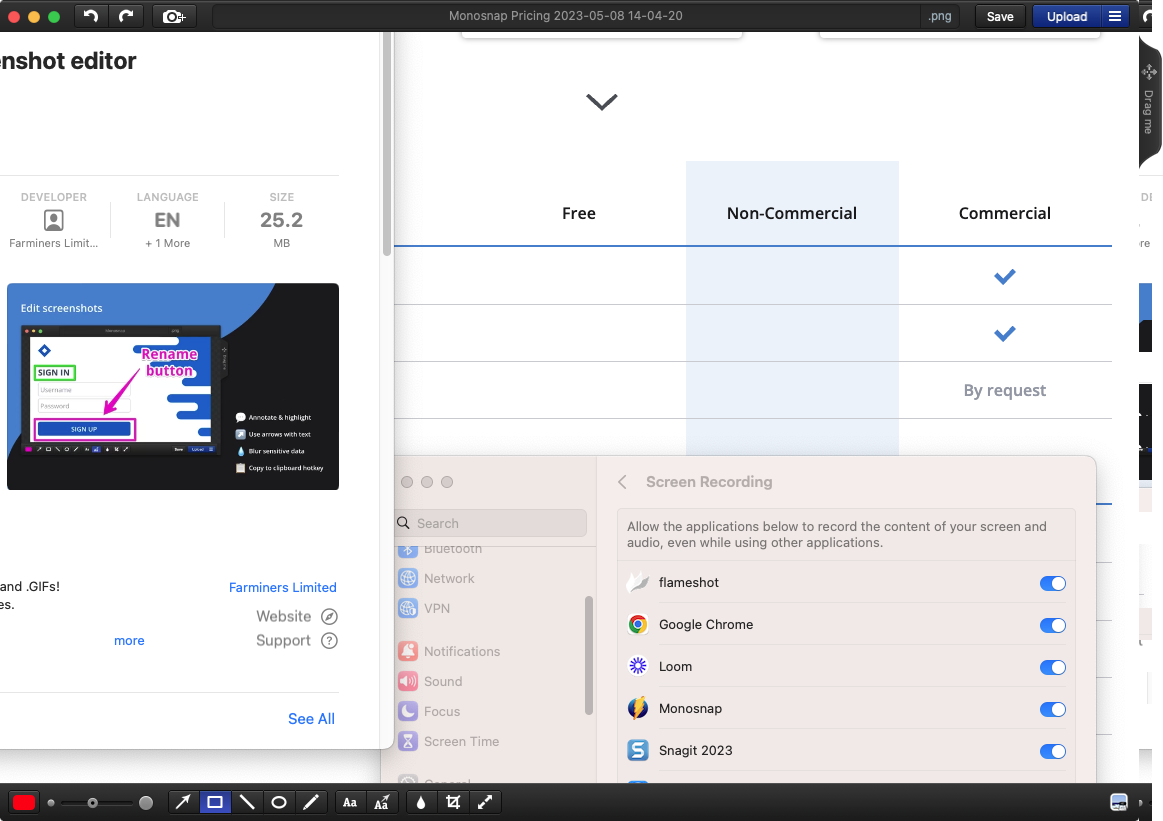
Flameshot
TextSniper
CleanShot X
Droplr
Skitch
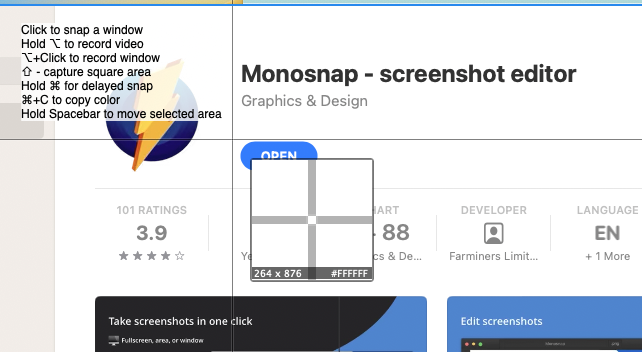
Monosnap
CloudApp
SnapNDrag.
A note from our experts:
The more screenshots and screen recordings you make, the more likely you’re to create duplicate files. Keep it under control with MacKeeper’s Duplicates Finder. It lets you quickly find and delete unneeded copies from your Mac.
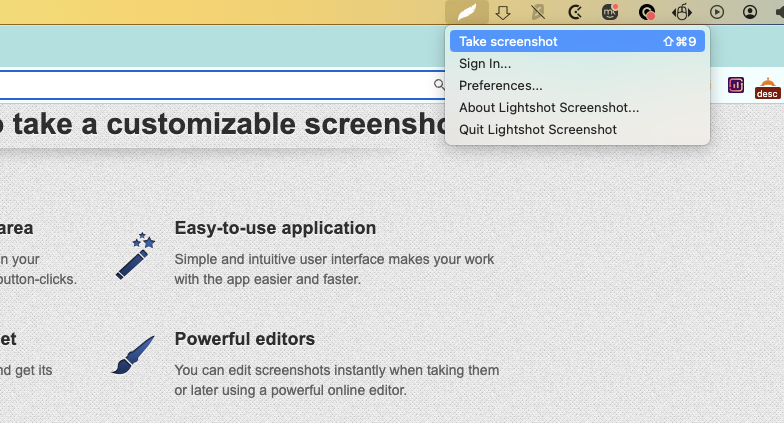
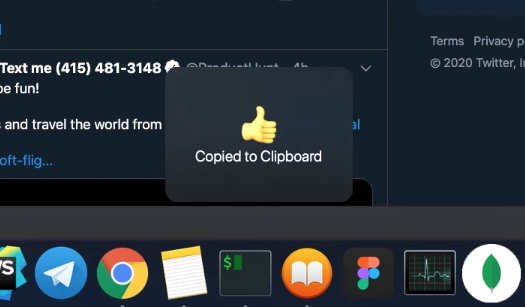
LightShot is available for free as an app or a browser extension. Either use the LightShot icon in your menu bar or the keyboard shortcut to bring up the snipping utility. You can also change the keyboard shortcut in the app’s preferences.
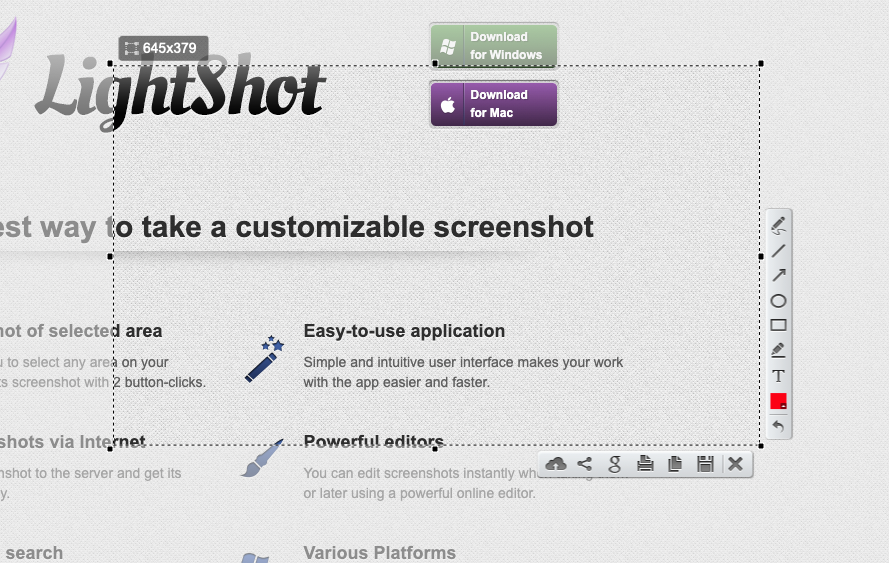
Rather than just saving a file or copying your selection to your clipboard, LightShot gives you a selection of options.
Upload your selection straight to LightShot’s cloud
Share on your social media accounts
Search on Google Images
Print
Copy to clipboard
Save as a file.
You also add annotations and highlights before you take the shot, rather than after.
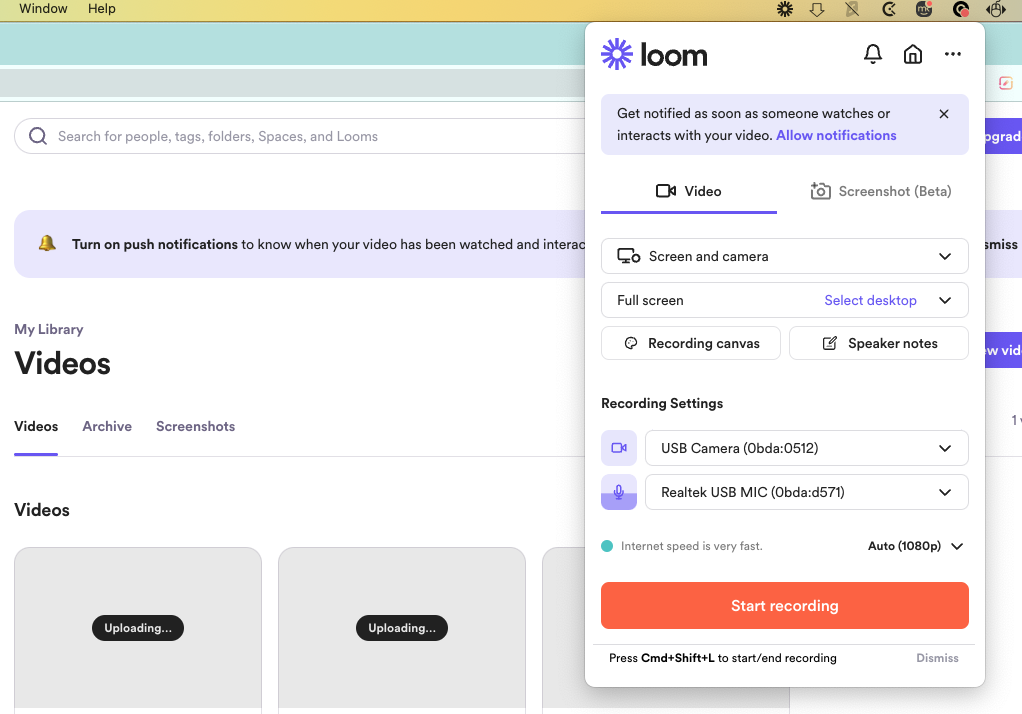
Loom Screen Recorder is primarily a screen recording program, meaning it’s designed mainly for capturing video and audio. However, it also has screengrabs as a beta function.
As well as recording your screen, Loom can capture your webcam and mic input. This makes it ideal for recording meetings, but you can use it however you want. Unlike other snipping programs, Loom functions as an online workspace tool, so you’ll need to create an account first.
Other useful features of Loom Screen Recorder include:
A preset background instead of your desktop in recordings
An ability to add notes that won’t be seen in your recording
A browser extension for capturing without the desktop app
Screenshots of your whole screen or a selection.
Pros
Cons
Records your screen, webcam, and mic
The sniptool is limited and doesn’t offer annotations
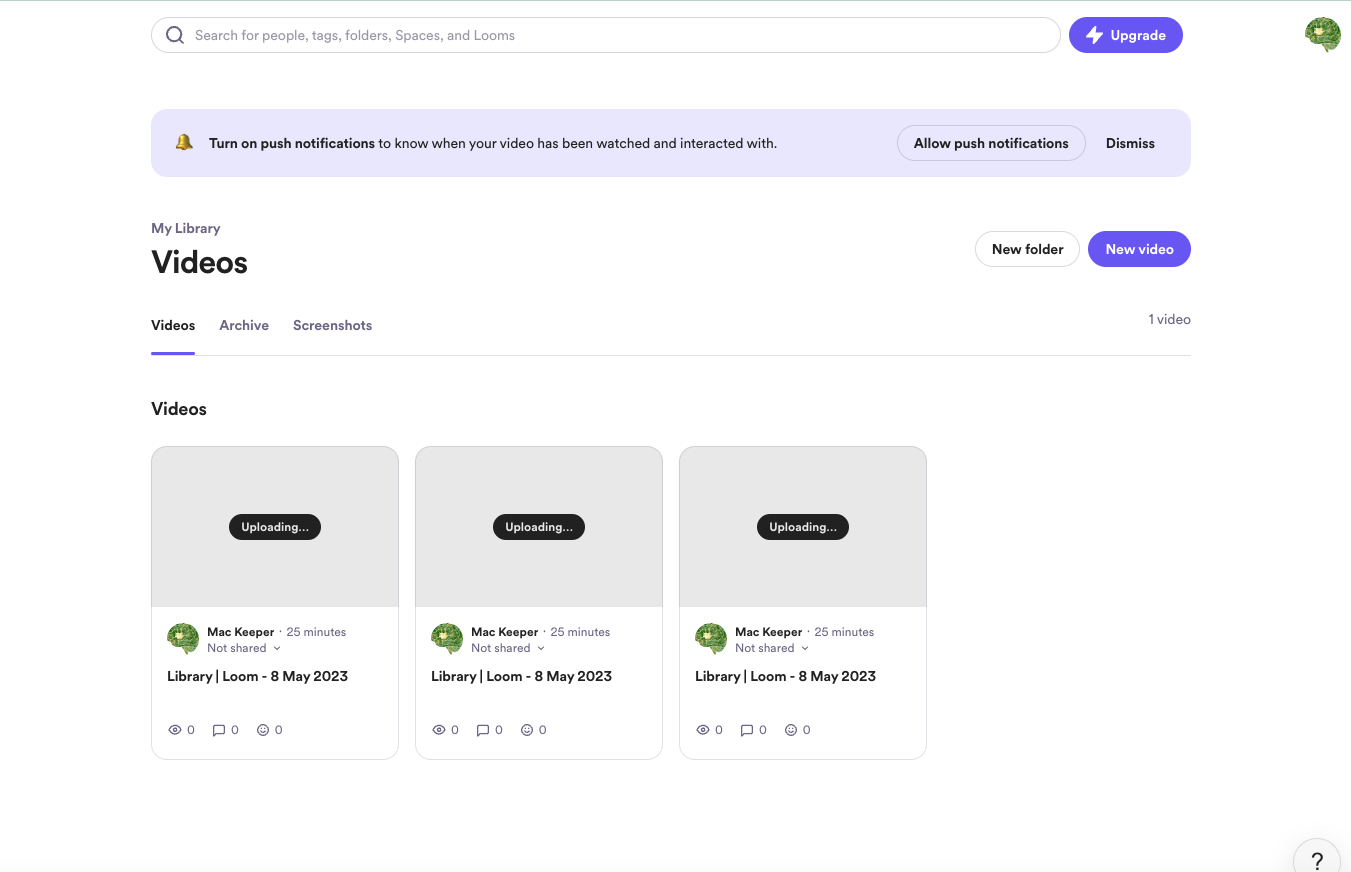
Recordings are automatically backed up online
No option to store recordings on your Mac instead of the cloud
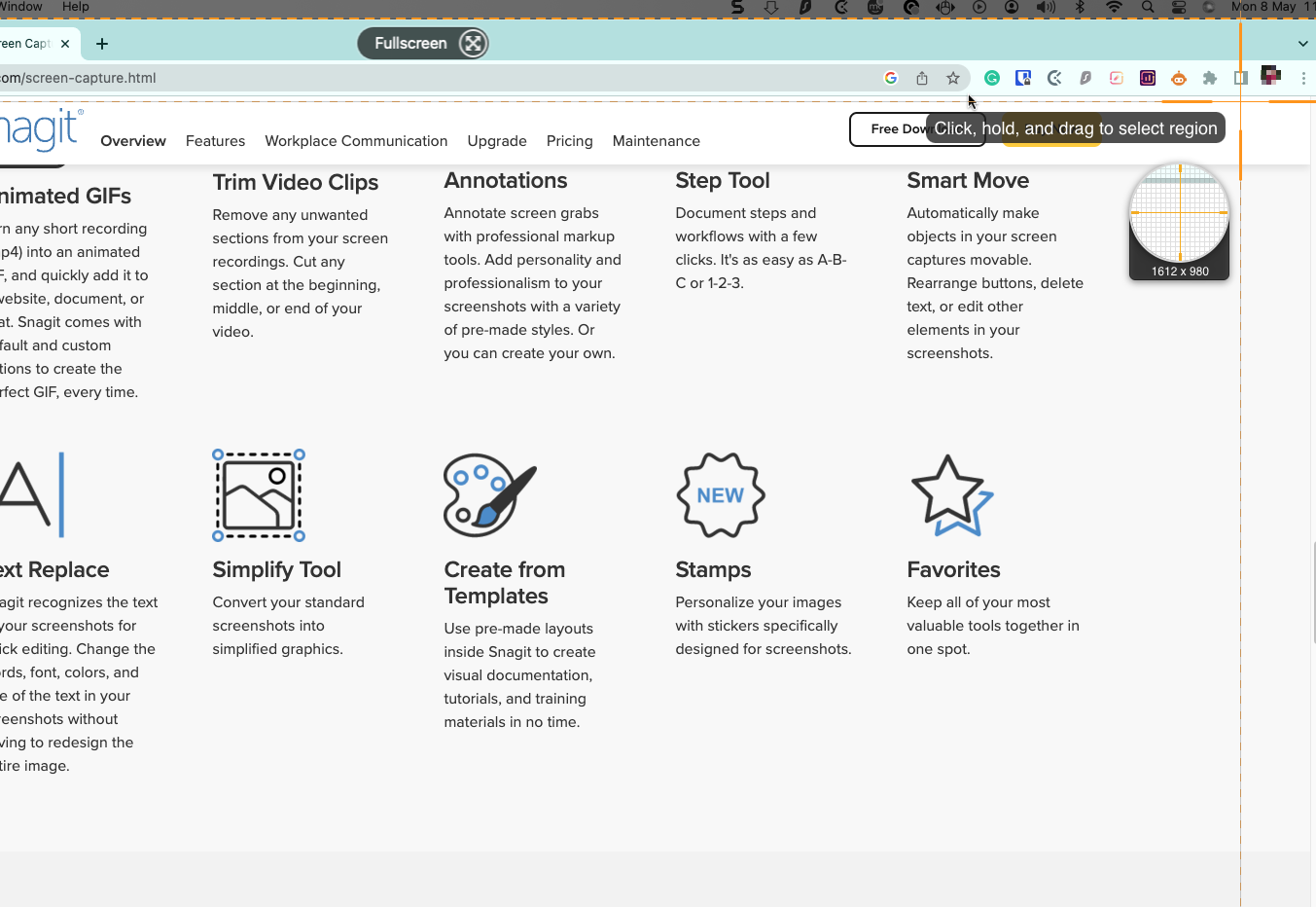
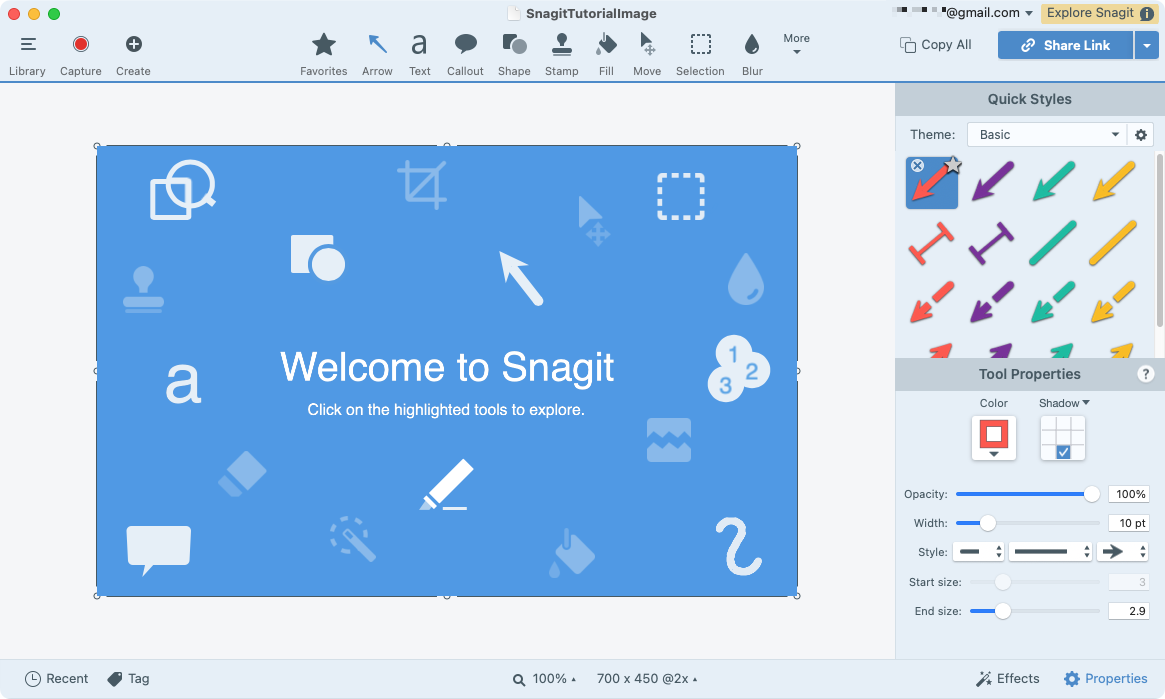
Snagit is a collaboration software aimed at business users. It lets you record video and take pictures of your screen.
However, it’s not only that. Snagit does a lot of other things for you:
Adds annotations and highlights as you record video
Makes panoramic, scrolling screenshots, letting you capture whole web pages
Extracts and pastes text from screen captures
Creates GIFs from photos and screenshots
Uploads files to the cloud
Records your webcam and mic input
Turns screenshots into simplified graphics.
You can access all these features from the menu bar or the Snagit widget. There are also keyboard shortcuts if you need to quickly whip out your digital scissors and cut something out.
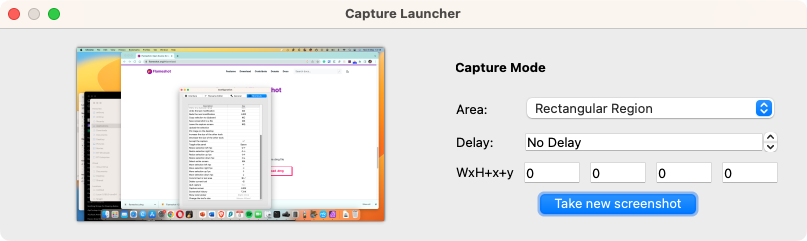
Flameshot is a free, open-source cutting tool focused on screenshots. But what makes it one of the top snipping tools for Mac?
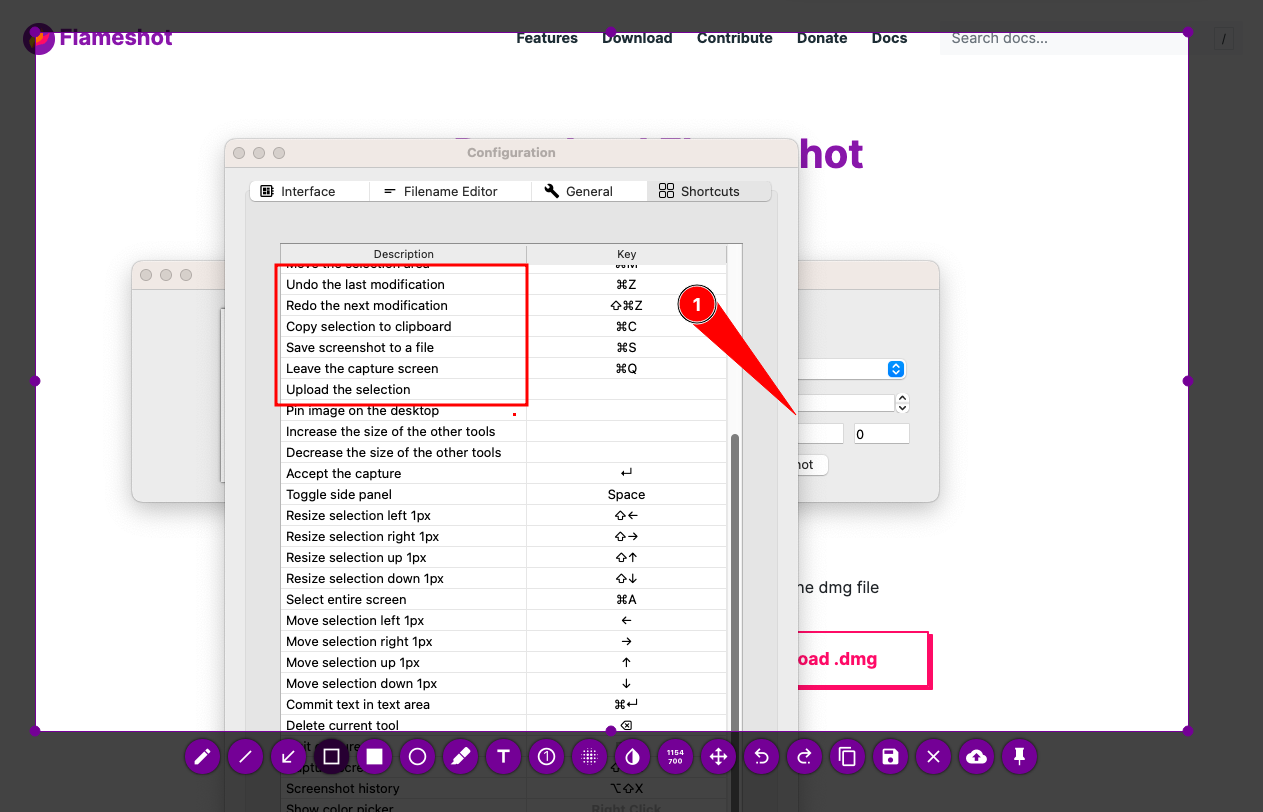
The real power of Flameshot comes from the edits you can do to screenshots before you take them. As well as capturing either your whole screen or a section, the app lets you:
Add shapes, lines, and text
Insert numbered annotations
Move the selection box
Upload images to the cloud
Pin an image to your desktop
Save to a file or copy to your clipboard
Pixelate portions of pictures
Command line options.
If you work with a lot of screenshots, Flameshot is a great addition to your toolbox.
Unlike most of the apps we’re looking at here, TextSniper doesn’t snip images. As its name suggests, it actually captures text, specifically non-selectable text. That could be captions in a YouTube video, for example, or in a still image, PDF, or presentation.
Once installed, you simply select a portion of your screen, and TextSniper will turn what it sees into text using optical character recognition (OCR). This is automatically copied to your clipboard, so you can paste it straight into another document.
Other helpful features of TextSniper include:
Read barcodes and QR codes
Text-to-speech
A customisable shortcut.
If you need to get a lot of text out of images and don’t want to type it out manually, TextSniper is ideal.
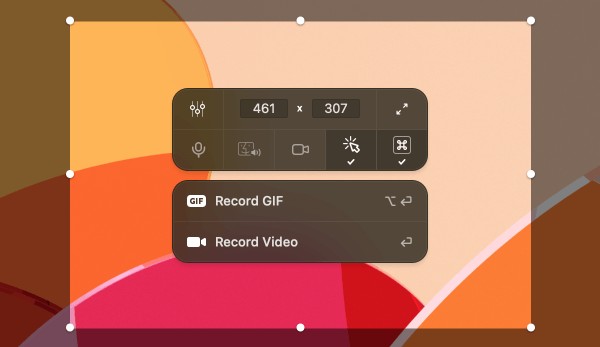
CleanShot X is a pro image clipping and screen recording app for Mac. As a premium program, it goes far beyond what the standard Apple equivalent offers, boasting more than 50 features.
CleanShot X’s core features allow you to:
Easily add annotations, shapes, and highlights
Pixelate or blur parts of your images
Combine multiple images without leaving the app
Add a custom background to screenshots
Instantly share or save your files
Make a scrolling capture for apps and websites
Record videos and GIFs
Edit video, including cutting and trimming
Upload to the cloud.
There are, of course, free alternatives, but CleanShot X offers a good balance between features and cost.
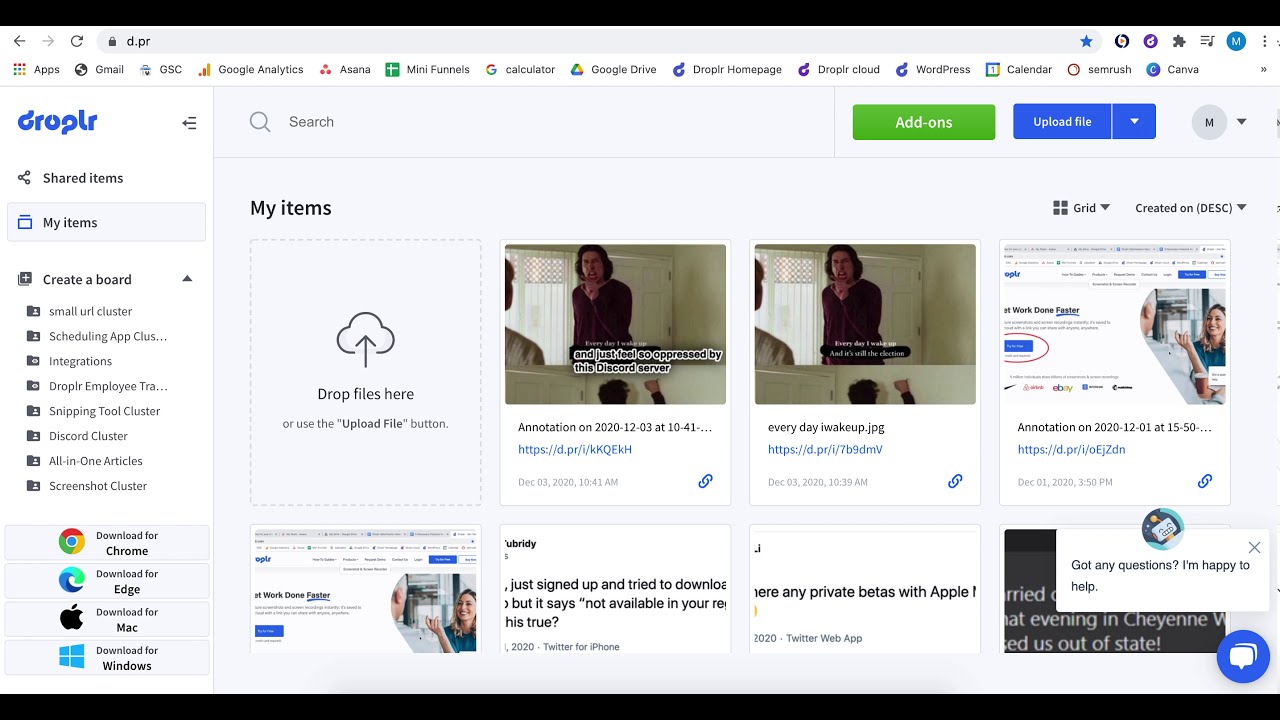
With so many cheap and free snipping tools for Mac, you might wonder why it’s worth paying for a Droplr subscription.
As with other premium solutions, Droplr lets you record not only screenshots and video, but also webcam and audio.
Other useful features include:
Creation of animated GIFs
Adding annotations and other elements to screenshots
Sending files to the cloud automatically
Download in a variety of formats
Sharing files and seeing online analytics
Integration with other software
Password-protected folders
Uploading files up to 10GB in size
Self-destructing files.
Your Droplr subscription also gets you access to 100GB of online storage, and a max bandwidth of 500GB per month. These kinds of features are why Droplr is worth considering for pro users.
Pros
Cons
Integrates well with other apps
You need to provide payment details to get the free trial
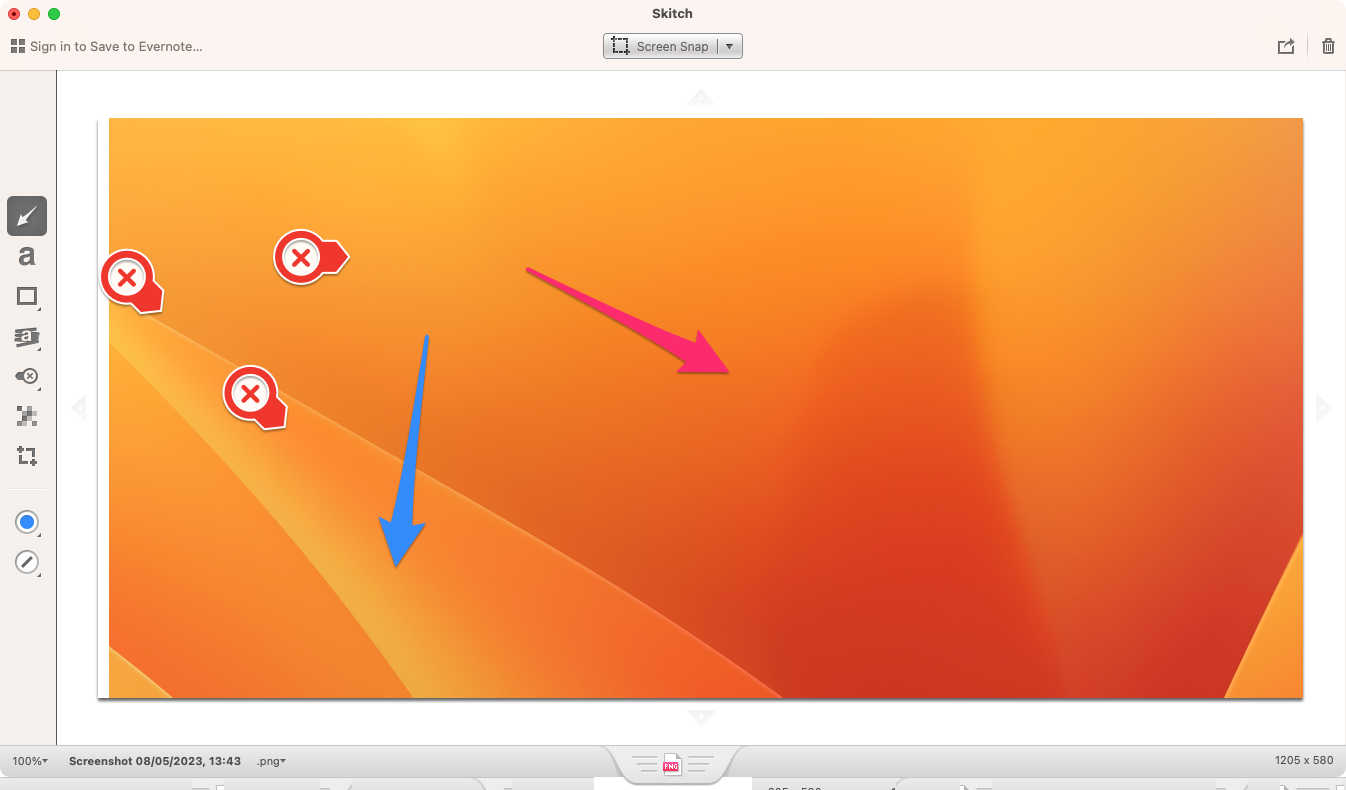
Skitch is a screenshot app from Evernote, and if you sign in with your Evernote account, you can save pictures to it.
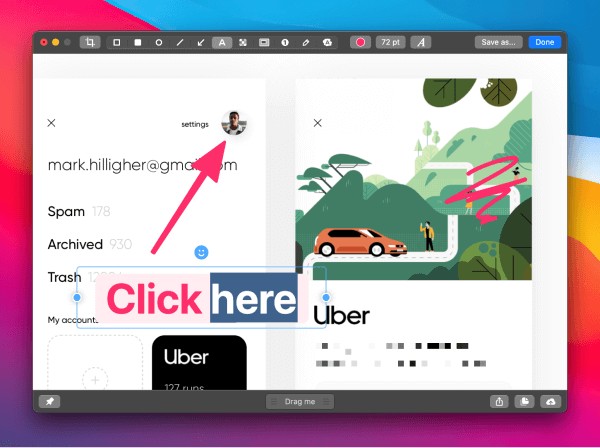
Like similar apps, Skitch lets you capture the whole screen or a selection, as well as timed shots. Once you’ve created a shot, you’re taken to the Skitch interface, where you can make edits, including:
Adding arrows, annotations, and shapes
Adding text
Pixelating parts of your image
Adding highlights
Changing the color of arrows
Sharing or pasting into other apps
Saving in a variety of formats.
Skitch is easy to use, but there are better clipping tools around. If you have an Evernote account, though, this Skitch might be something you want to consider using.
Monosnap is another snipping tool for Mac that’s meant for business users. In this case, though, there’s a free account, and the monthly subscriptions start from just $3 a month. If you choose the free version, you get:
2GB of cloud storage for screenshots and recordings
100MB file size limit
Blur parts of your images
Up to five minutes of recording time
Annotate images and add text
Short links to your files
Integration with Zoom and YouTube.
If you pay for a subscription, you get unlimited video recording time, more storage space, more features, and other benefits. Snipping tool itself works well, letting you save files to your computer or the cloud, and in a variety of formats.
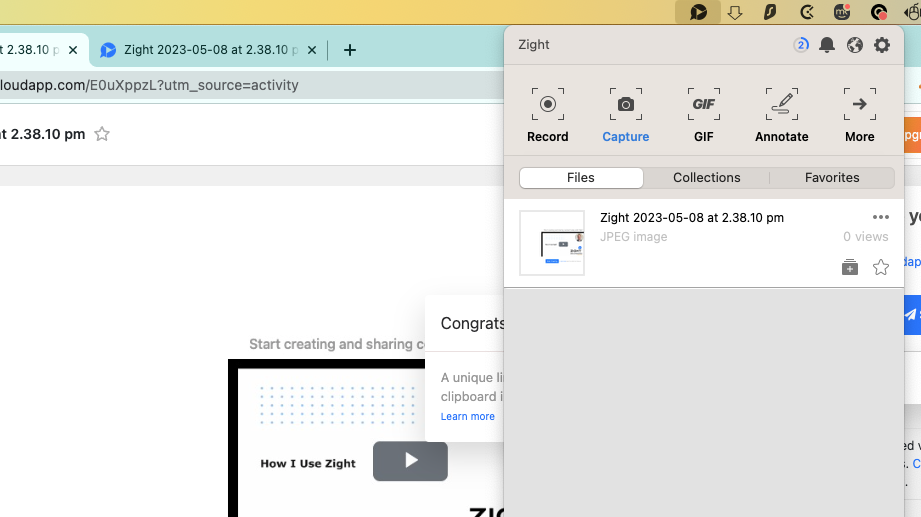
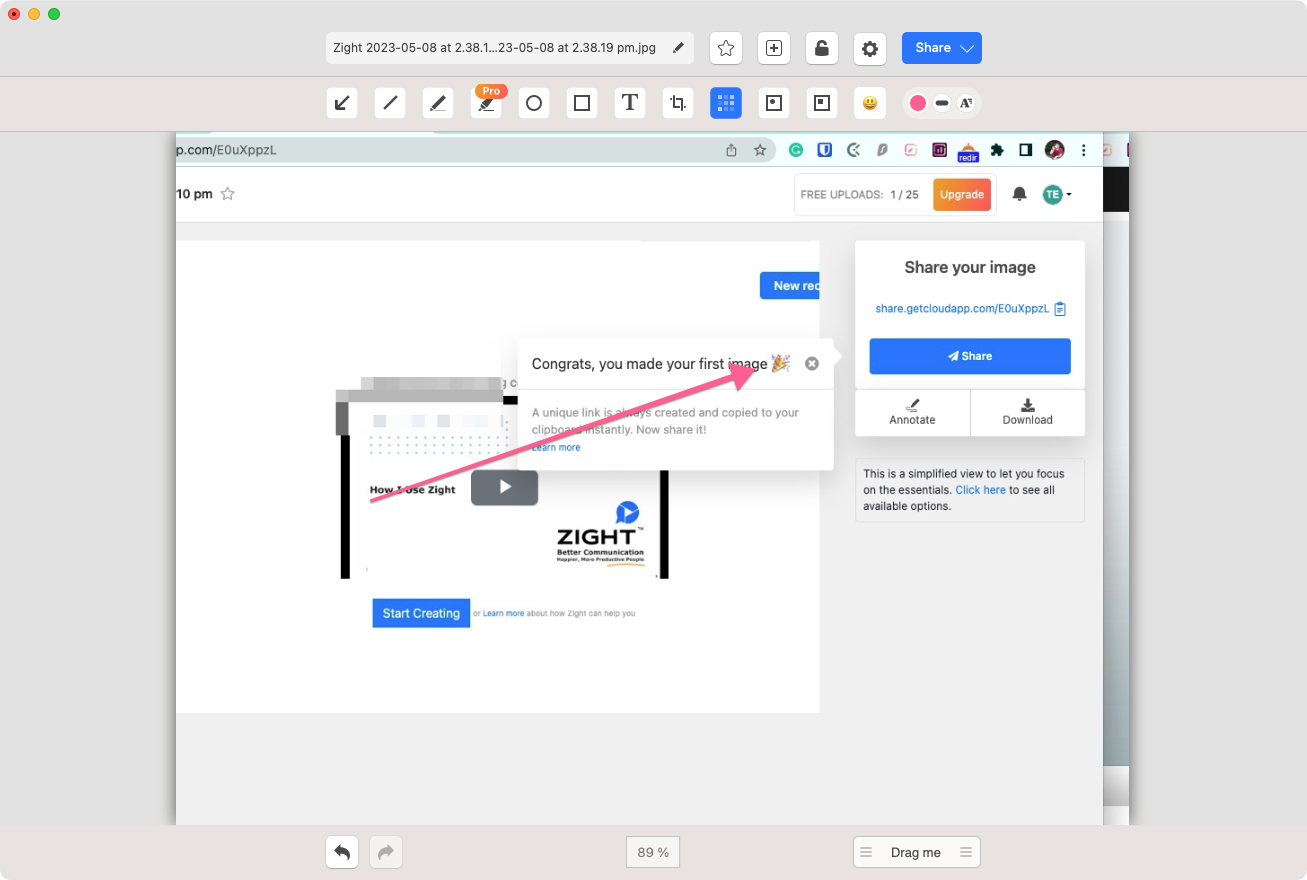
Formerly known as CloudApp, Zight is a snipping and collaboration tool with a focus on business users. It does have a free subscription, though, which gets you:
Up to 25 captures
Video recording up to 1min 30sec in length
Up to 720p video recording
Basic analytics
Add annotations, shapes, and text to images
Pixelate images on the fly
Auto-uploading to the Zight cloud.
Capturing pictures and video is simple using shortcuts and the Zight icon in the menu bar. Everything is automatically uploaded to the cloud, and from there you can share your content or continue to edit it.
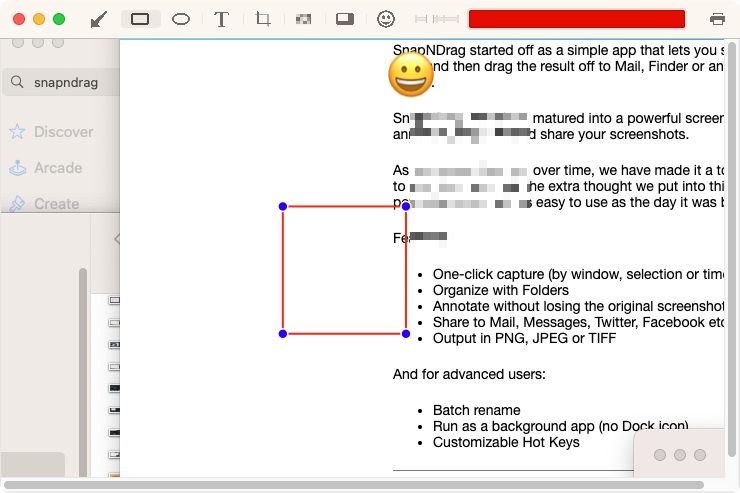
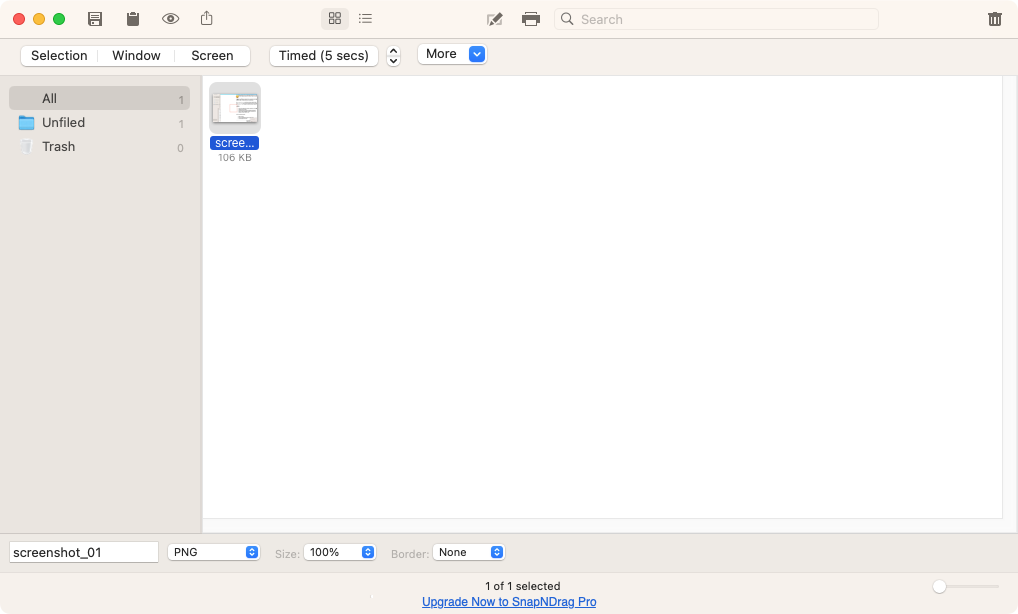
Although the SnapNDrag website mentions a free version, it only seems to link to SnapNDrag Pro. That costs $9.99 from the Mac App Store. If you search the web, it’s easy enough to find the free version, which offers these features:
Captures a selection, a whole screen, or a window
Offers timed capture
Adds annotations, text, and more
Pixelates parts of your images
Adds emoticons
Shares and imports into other apps
Saves in a variety of formats.
If you upgrade to the pro version of SnapNDrag, you get extra features, like batch renaming, keyboard shortcuts, a menu bar tool, and scaling options. These are still fairly basic functions, but the pro version only costs $9.99.
Pros
Cons
Simple and easy to use
Extra features feel like they should be free
Upgrade price is low
Free version is hard to find
You see all your screenshots in one place
Which snipping tools make the cut?
Whether you’re using an iMac, MacBook Air, or some other Apple system, third-party snipping tools make it easier to clip and share from your screen. Most can be controlled with keyboard shortcuts, some offer cloud storage, and nearly all of them make annotations easier.
If you need collaboration features, it’s worth trying some of the subscription tools. Otherwise, there are plenty of free options that will more than suffice. And of course, the snipping tool built into macOS is pretty good too. It lets you record video, view the Mac clipboard history, and more.
Whatever tool you choose for your Apple computers, just remember to use MacKeeper’s Duplicates Finder so you don’t swamp your storage with unneeded copies!
We respect your privacy and
use cookies
for the best site experience.
Privacy Preferences Center
We use cookies along with other tools to give you the best possible experience while using the
MacKeeper website. Cookies are small text files that help the website load faster. The cookies we
use don’t contain any type of personal data meaning they never store information such as your
location, email address, or IP address.
Help us improve how you interact with our website by accepting the use of cookies. You can change
your privacy settings whenever you like.
Manage consent
All cookies
These cookies are strictly necessary for enabling basic website functionality (including page
navigation, form submission, language detection, post commenting), downloading and purchasing
software. The website might malfunction without these cookies.