Reinstalling macOS from Recovery Mode is often an effective way to resolve software problems on a Mac. However, getting the “com.apple.buildinfo.preflight.error” message can quickly turn the process into a frustrating experience. While there are several potential solutions, the quickest and most reliable option is to contact MacKeeper’s Premium Services.
What does “com.apple.buildinfo.preflight.error error 21” mean?
The “com.apple.buildinfo.preflight.error error 21” is a Mac issue that may appear when you try to reinstall macOS from Recovery Mode. This message indicates a failure of the pre-installation check, which is often caused by connection issues, improper disk formatting, a corrupted hard drive, or other system glitches.
How to fix “com.apple.buildinfo.preflight.error error 21” on Mac?
To fix the “com.apple.buildinfo.preflight.error error 21,” you have several solutions at hand. Start by resetting your Mac, which often addresses common issues. Advanced users might also repair the startup disk, erase the Mac, or reset the SMC and NVRAM. As a last resort, consider reinstalling macOS through Internet Recovery Mode, which provides an online alternative.
A note from our experts:
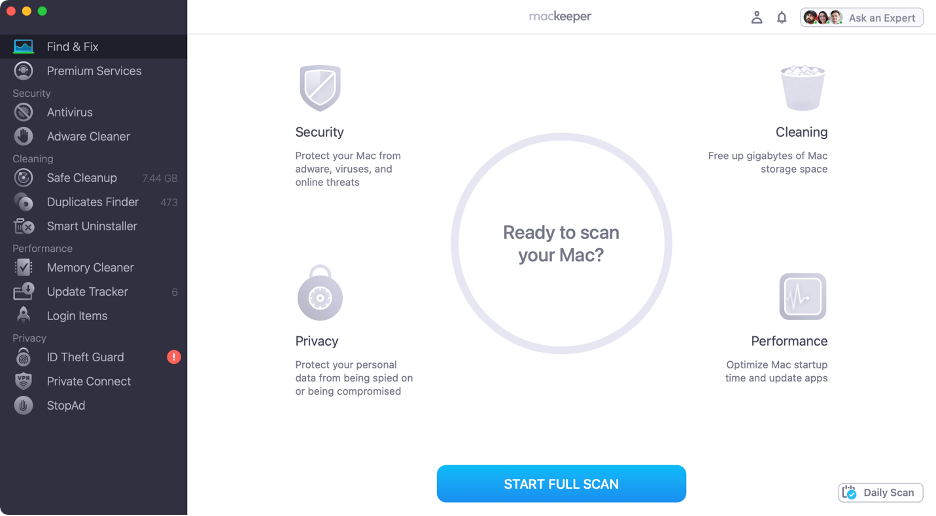
It can feel overwhelming when your Mac starts acting strange. Fortunately, MacKeeper’s Premium Services team offers 24/7 support, ensuring you’re never alone with tech issues. Developed by Clario Tech and notarized by Apple, MacKeeper is an industry-leading software solution supported by a dedicated team of technical experts ready to help you.
Follow these steps to start using MacKeeper’s Premium Services:
Type in your message and start chatting with our team.
Step 1. Launch MacKeeperStep 2. Select Premium Services from the sidebarStep 3. Click Chat NowStep 4. Type in your message
1. Restart your Mac
Whenever you experience a technical issue with your Mac, our top recommendation is to restart your device before attempting any advanced troubleshooting steps. This quick and easy action often resolves temporary glitches that might be preventing you from reinstalling macOS in Recovery Mode.
We explain how to restart your Mac or MacBook below:
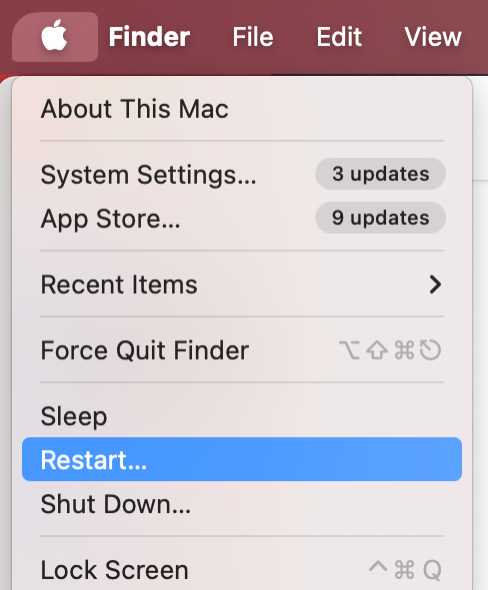
Go to the menu bar and click the Apple logo.
Choose Restart from the dropdown menu.
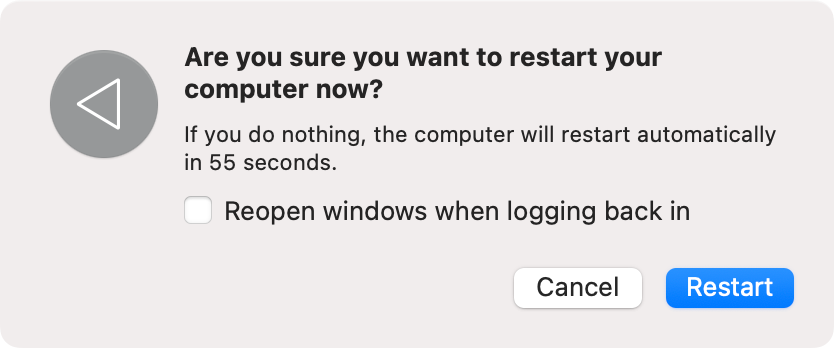
In the new window, click Restart again to confirm.
Step 1. Apple logo > RestartStep 2. Click Restart again to confirm
If your Mac becomes unresponsive and you’re unable to access the restart menu, press and hold the power button for several seconds until you hear the startup sound. This forces your Mac to shut down and restart, helping to resolve temporary freezes.
2. Check and repair startup disk
Let’s move on to the first advanced troubleshooting step: repairing the startup disk. Disk issues are a common cause of interruptions during macOS reinstallation from Recovery Mode. To address this, use Mac’s built-in Disk Utility app, specifically designed to diagnose and repair disk problems efficiently.
Here’s how to use Disk Utility to check and repair your startup disk:
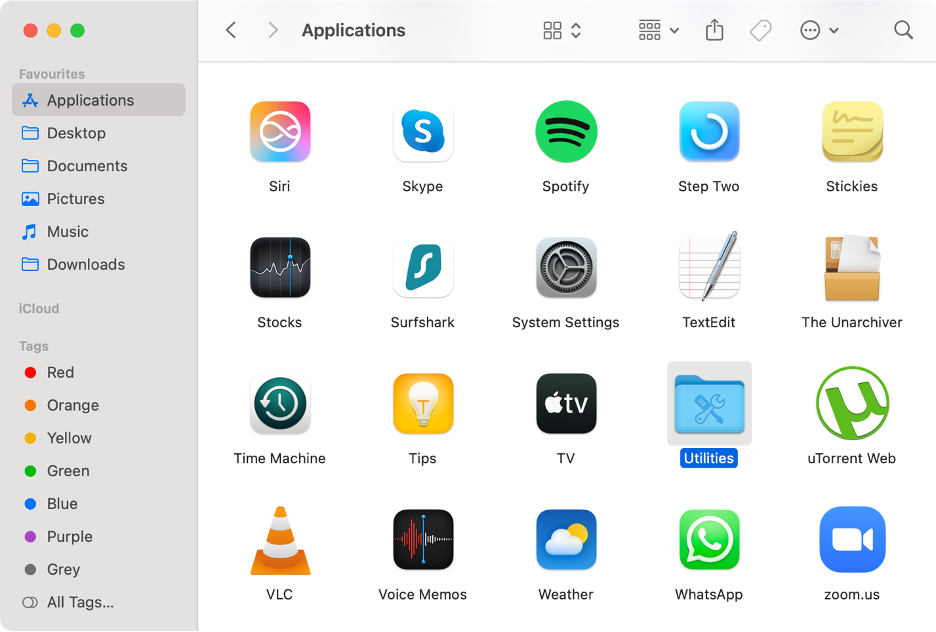
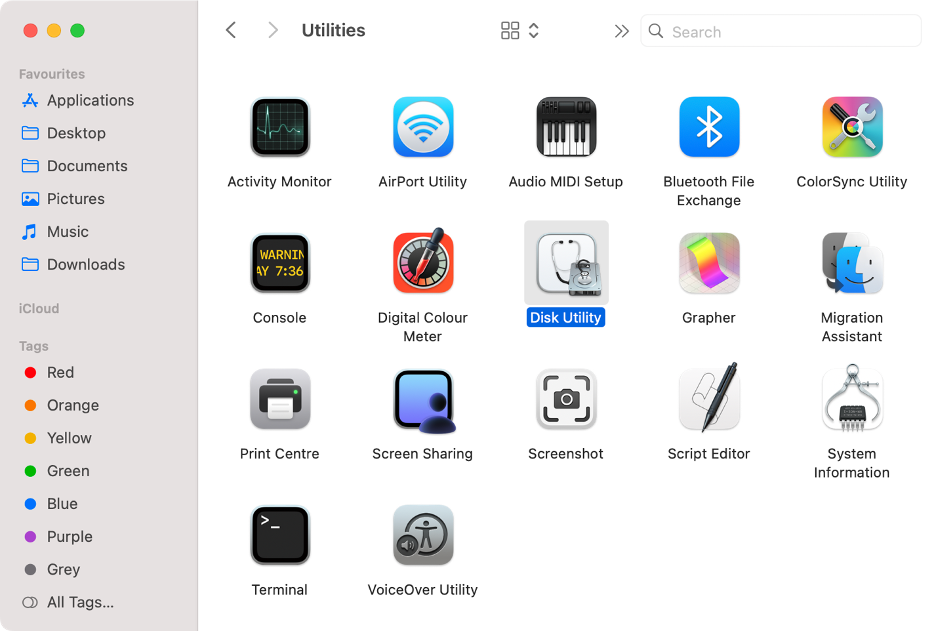
Open Finder, then go to Applications.
Open the Utilities folder.
Launch Disk Utility.
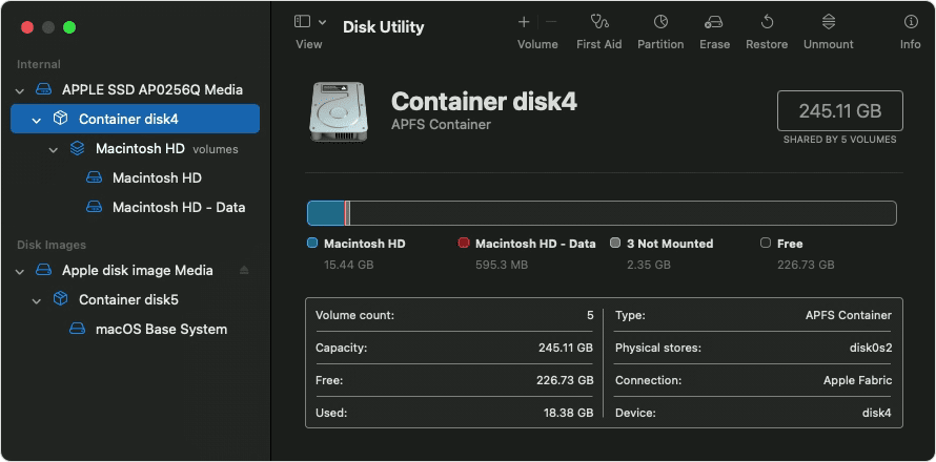
Select your disk from the left-hand menu.
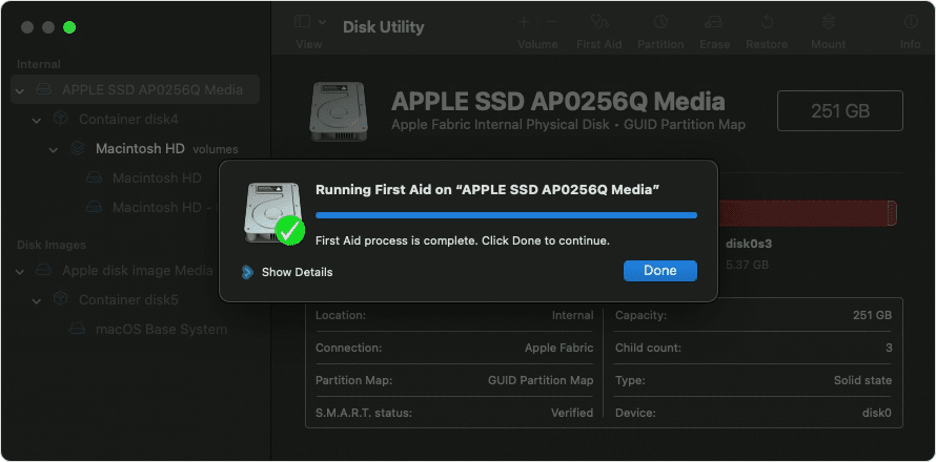
Click First Aid, then hit Run to confirm.
Click Done to finish the process.
Step 1. Finder > Applications > UtilitiesStep 2. Launch Disk UtilityStep 3. Select your disk from the left-hand menuStep 4. First Aid > RunStep 4. Click Done when the process is complete
3. Erase your Mac
This tip is intended for users who are willing to erase their Mac, along with any underlying issues that may be causing the “com.apple.buildinfo.preflight.error.” Before you proceed, we strongly advise you to back up all your data, as this process will permanently delete everything on your disk. Once your backup is complete, you can then perform a clean install of macOS.
Follow this step-by-step guide to securely erase your Mac:
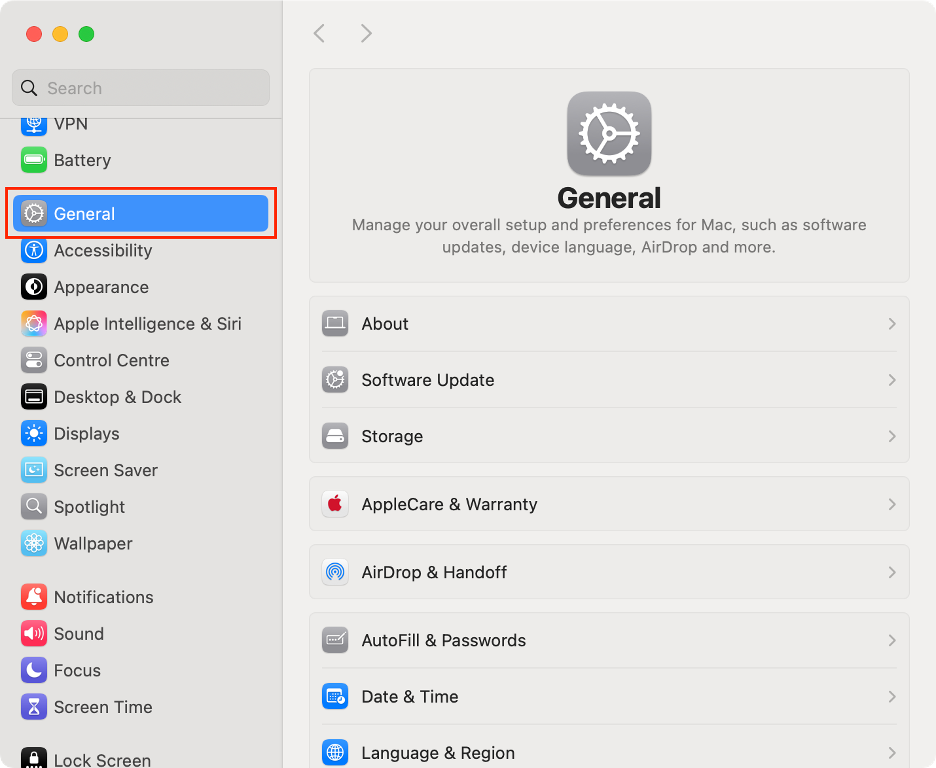
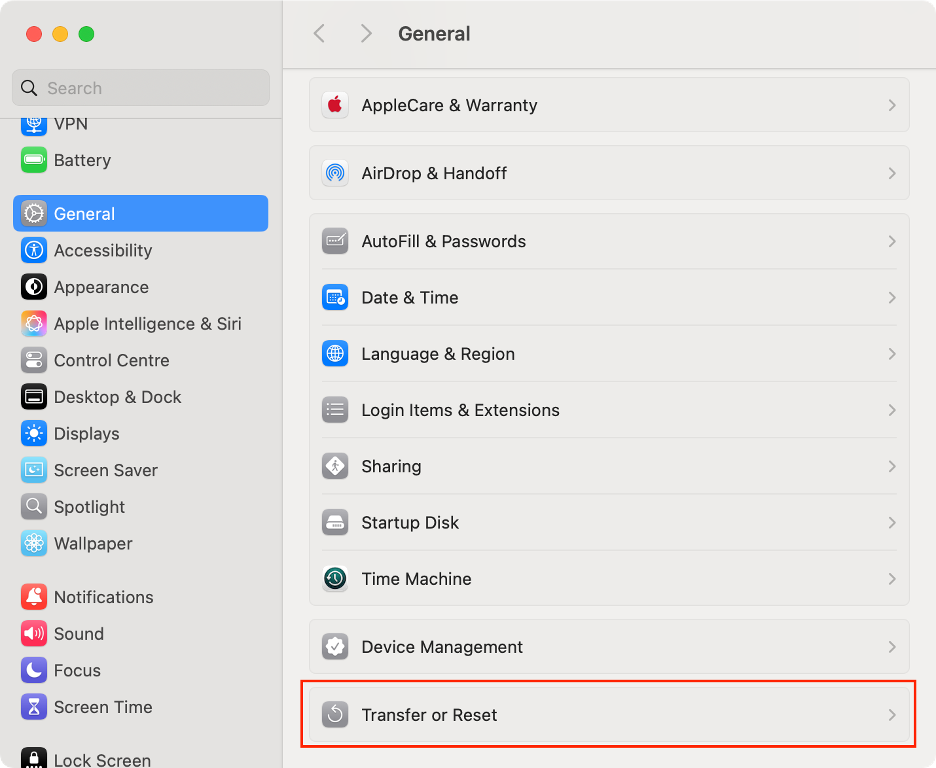
Open System Settings on your Mac.
Click General from the sidebar.
Scroll down and click Transfer or Reset.
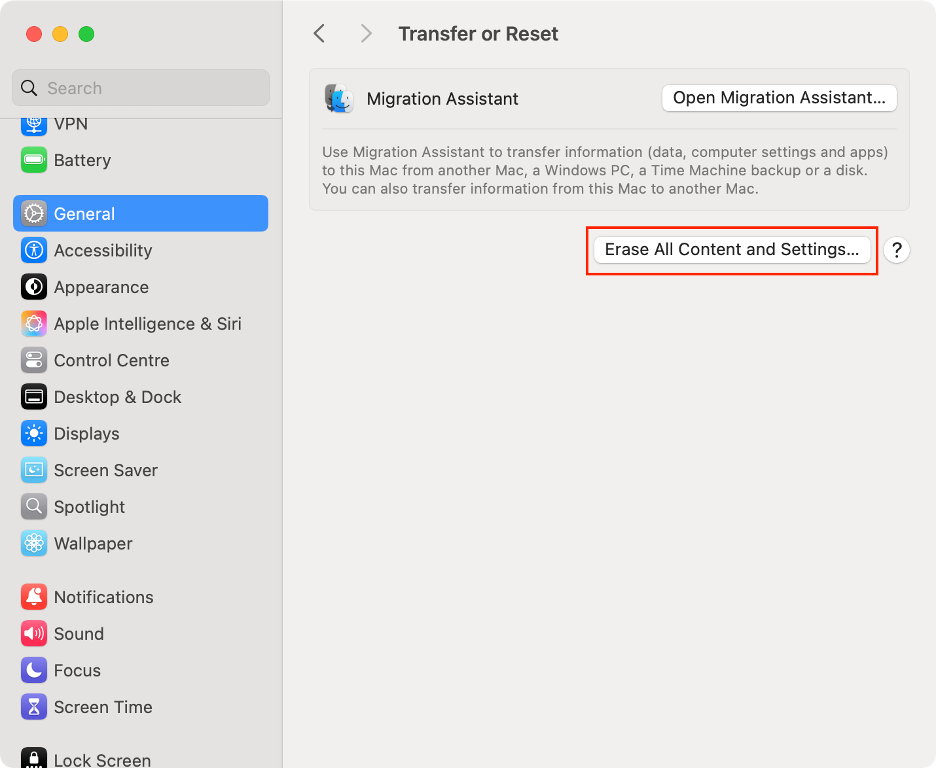
Click Erase All Content and Settings.
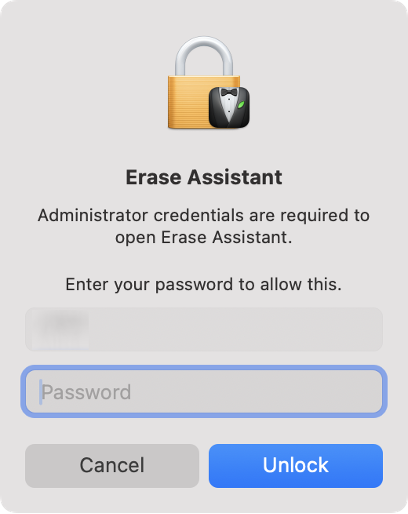
Enter your admin password and click Unlock.
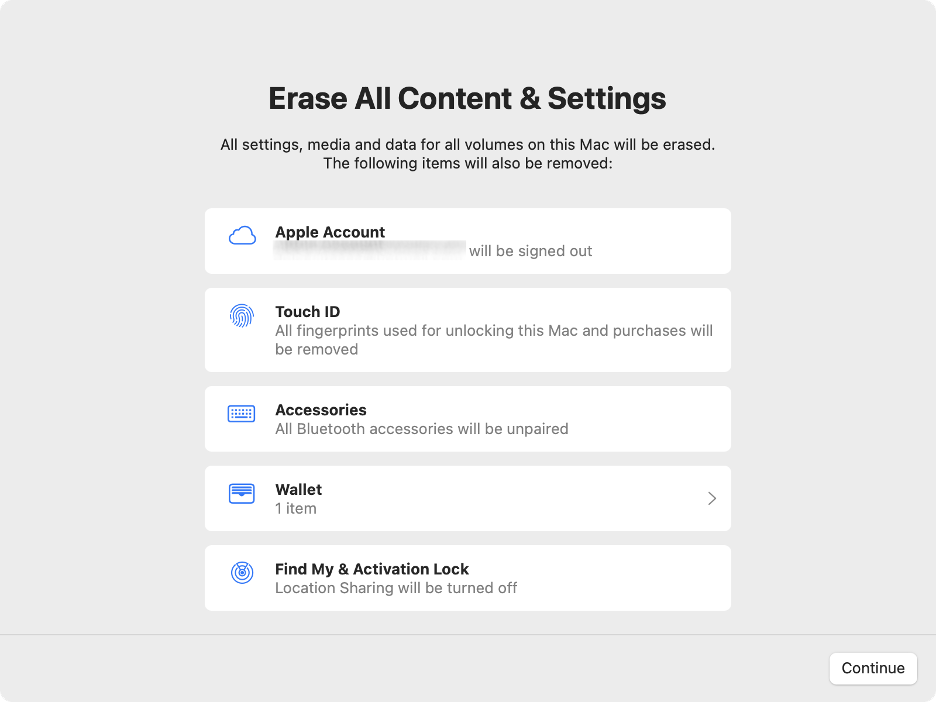
In the Erase Assistant, select the items to delete, then click Continue.
Wait until the process is complete.
Set up your Mac.
Step 1. System Settings > GeneralStep 2. Click Transfer or ResetStep 3. Click Erase All Content and SettingsStep 4. Enter your admin passwordStep 5. Select itemsStep 6. Set up your Mac
4. Reset SMC
The next two tips apply exclusively to users with Intel-based Macs. If you own a Mac with an Apple Silicon chip, you can skip these steps, as the reset process is handled automatically on newer models.
First, we’ll walk you through how to force an SMC reset. The SMC is a critical component that manages various hardware functions, so resetting it can help resolve formatting or corruption issues on your disk.
Here’s how to reset your SMC:
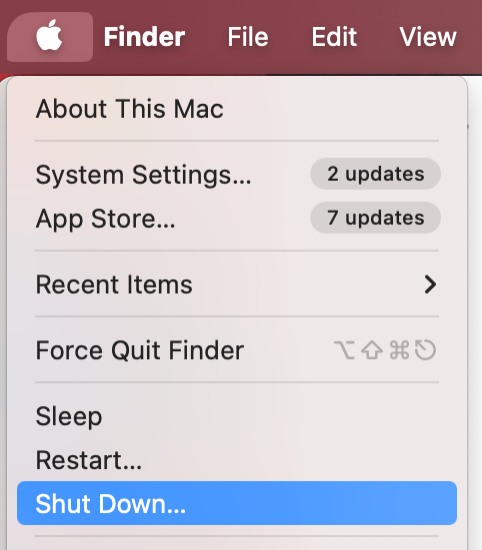
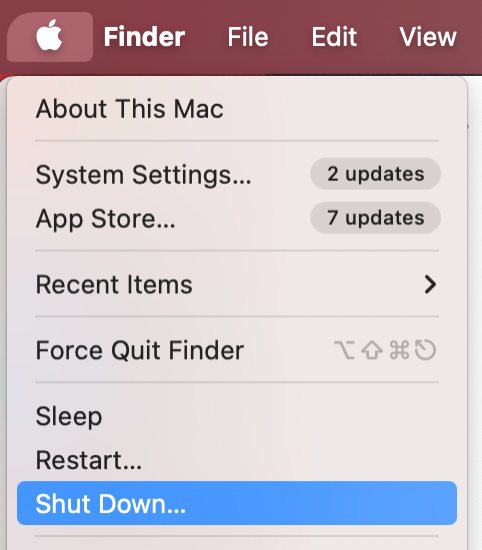
Go to the menu bar and click the Apple icon.
Select Shut Down.
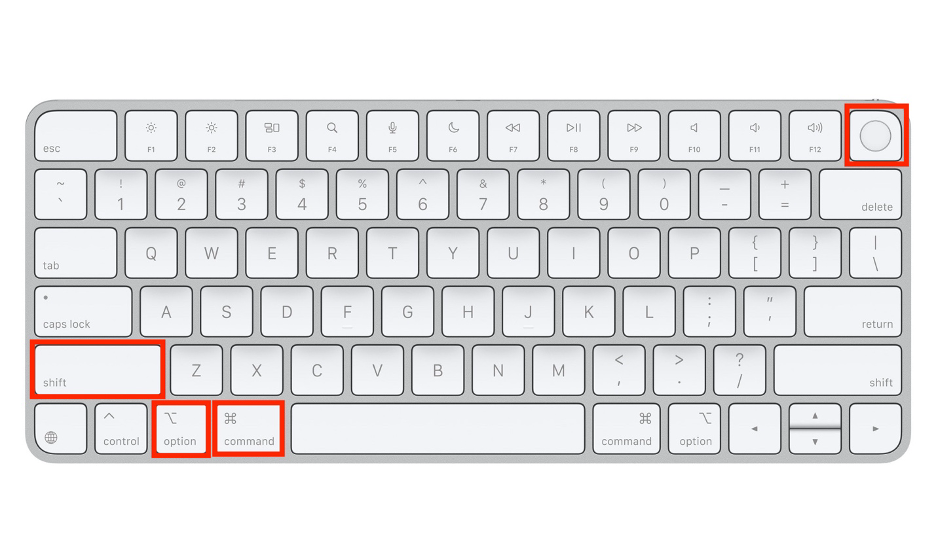
Press and hold the Shift + Option + Control keys for 7 seconds.
While holding the three keys, press and hold the Power button.
Let go of all keys after 7 seconds.
Wait a few seconds, then press the Powerbutton again.
Step 1. Apple logo > Shut DownStep 2. Power button + Shift + Option + Command
5. Reset NVRAM
If you’re using an Intel-based Mac, consider also resetting the NVRAM, which manages software settings. We believe this step is especially helpful if the “com.apple.buildinfo.preflight.error” is caused by underlying system errors.
Our steps below will help you reset your Mac’s NVRAM:
Go to the menu bar and click the Apple logo.
Select Shut Down.
Press the Power button to turn on your Mac again.
Immediately press and hold Command + Option + P + R.
Let go of all keys after 20 seconds.
Press the Power button again.
Step 1. Apple icon > Shut DownStep 2. Power button + Command + Option + P + R
6. Reinstall macOS in Internet Recovery Mode
Based on our experience, the final troubleshooting step before seeking expert assistance is to reinstall macOS using Internet Recovery Mode. As you might have guessed, this is the online alternative to the standard Recovery Mode and operates independently of your startup disk.
To boot your Mac into Internet Recovery Mode, follow these steps:
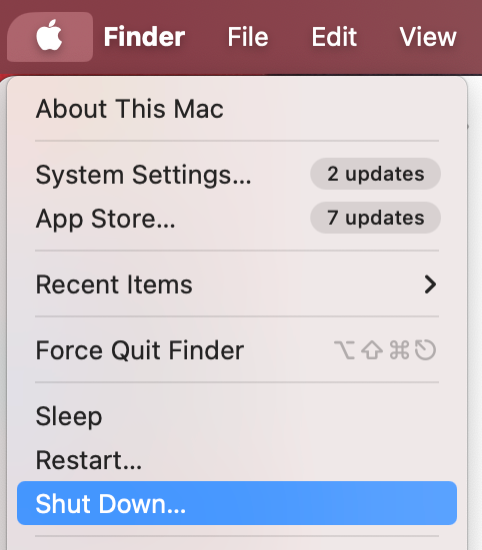
Go to the menu bar and click the Apple logo.
Click Shut Down.
Wait a few seconds.
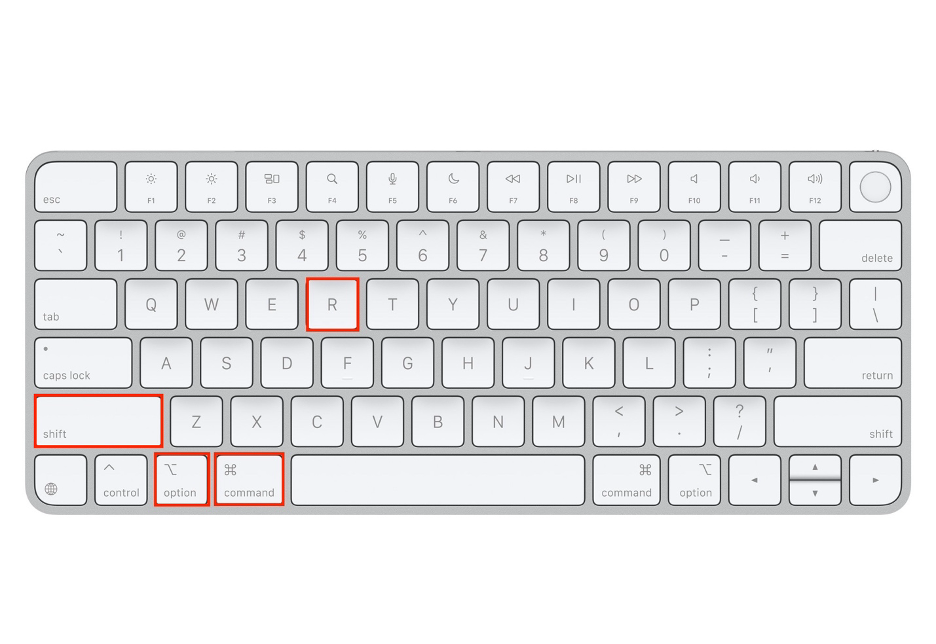
Hold down the Shift + Option + Command + R keys simultaneously.
Release the keys once you see the spinning globe icon.
Connect to your Wi-Fi network.
Follow the steps to reinstall macOS from Internet Recovery Mode.
Step 1. Apple icon > Shut DownStep 2. Shift + Option + Command + RStep 3. Wait until Internet Recovery Mode starts
Our final tips on fixing com.apple.buildinfo.preflight.error on Mac
Getting the “com.apple.buildinfo.preflight.error error 21” message during a macOS reinstallation from Recovery Mode can be both confusing and frustrating. In many cases, performing a simple reset of your Mac resolves the issue. As more advanced solutions, we suggest repairing the startup disk, resetting the SMC or NVRAM, or, as a last resort, erasing your Mac to start fresh.
If none of these steps fixes the problem, there’s no need to worry. More than 150 experts at MacKeeper’s Premium Services are available 24/7 to provide personalized assistance. With a track record of supporting over 1 million users, MacKeeper not only protects your Mac, but also delivers reliable solutions whenever technical issues arise.
We respect your privacy and
use cookies
for the best site experience.
Privacy Preferences Center
We use cookies along with other tools to give you the best possible experience while using the
MacKeeper website. Cookies are small text files that help the website load faster. The cookies we
use don’t contain any type of personal data meaning they never store information such as your
location, email address, or IP address.
Help us improve how you interact with our website by accepting the use of cookies. You can change
your privacy settings whenever you like.
Manage consent
All cookies
These cookies are strictly necessary for enabling basic website functionality (including page
navigation, form submission, language detection, post commenting), downloading and purchasing
software. The website might malfunction without these cookies.