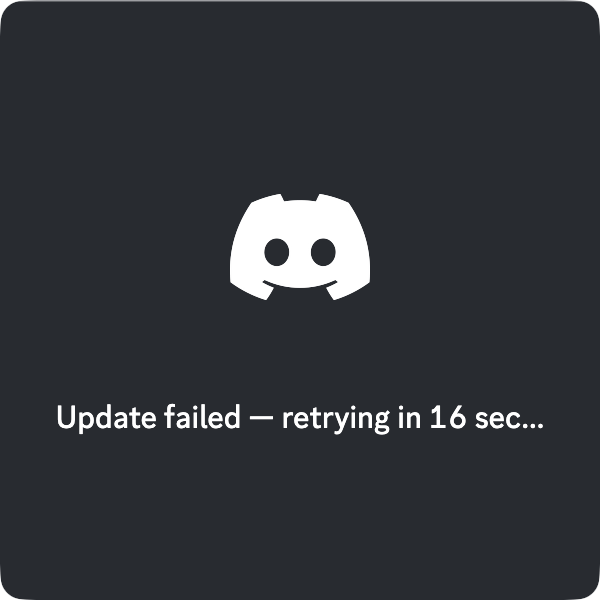
It’s important to keep all your Mac’s apps up to date, but if Discord is stuck on checking for updates, you won’t be able to use the program at all. Check out our guide for common solutions—but if you need more help, contact MacKeeper’s Premium Services for personalized, expert support.
When Discord won’t stop checking for updates, it’s often caused by problems with your internet connection. Discord checks for updates every time you start it up, so it needs to be online. This problem can also be caused by issues with the app itself, but reinstalling Discord can solve it.
If Discord can't get updates, it will get stuck
Why is Discord checking for updates forever?
Lots of different things can block Discord from accessing its update servers. If you have a firewall on your Mac, it could be blocking the IP addresses that Discord needs to contact to download updates. Misconfigured DNS settings can also prevent the app from getting online, as can issues with your router.
How to fix Discord won't stop checking for updates?
If Discord is checking updates forever, first try restarting the app completely, and use Activity Monitor to make sure it’s not running in the background. Also, check your firewall and internet settings, including IP address blocking and DNS. Turn off your VPN if you have one, and clear the app’s cache.
A note from our experts:
Do you want a quicker resolution to your Discord woes? No problem—reach out to MacKeeper’s Premium Services team, and they’ll get you back on track fast.
Select Premium Services from the menu on the left.
Click Chat Now, and explain your problem to the online agent and wait for a reply.
Reach out to MacKeeper's Premium Services for bespoke support
1. Restart the Discord app
First things first—we suggest restarting the Discord app completely. Often, that’s all it takes to get updates working properly. Simply do as follows:
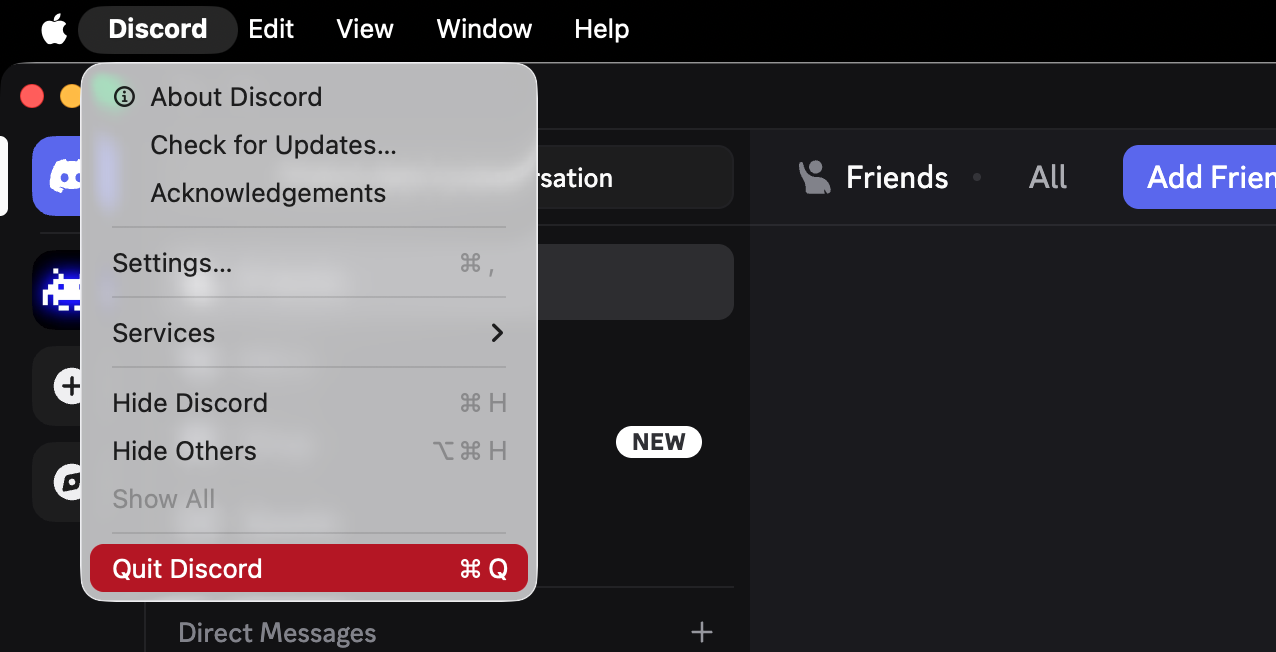
In Discord, select Discord > Quit Discord from the menu bar at the top of your screen.
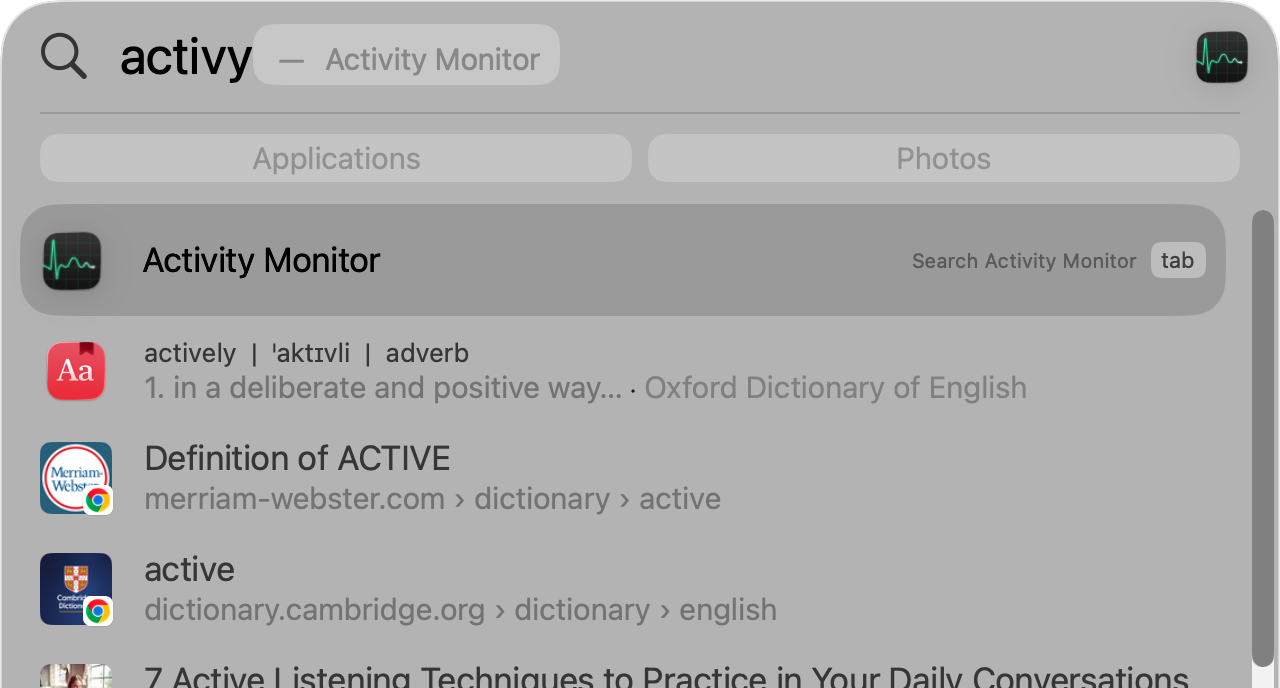
Use Spotlight to open Activity Monitor.
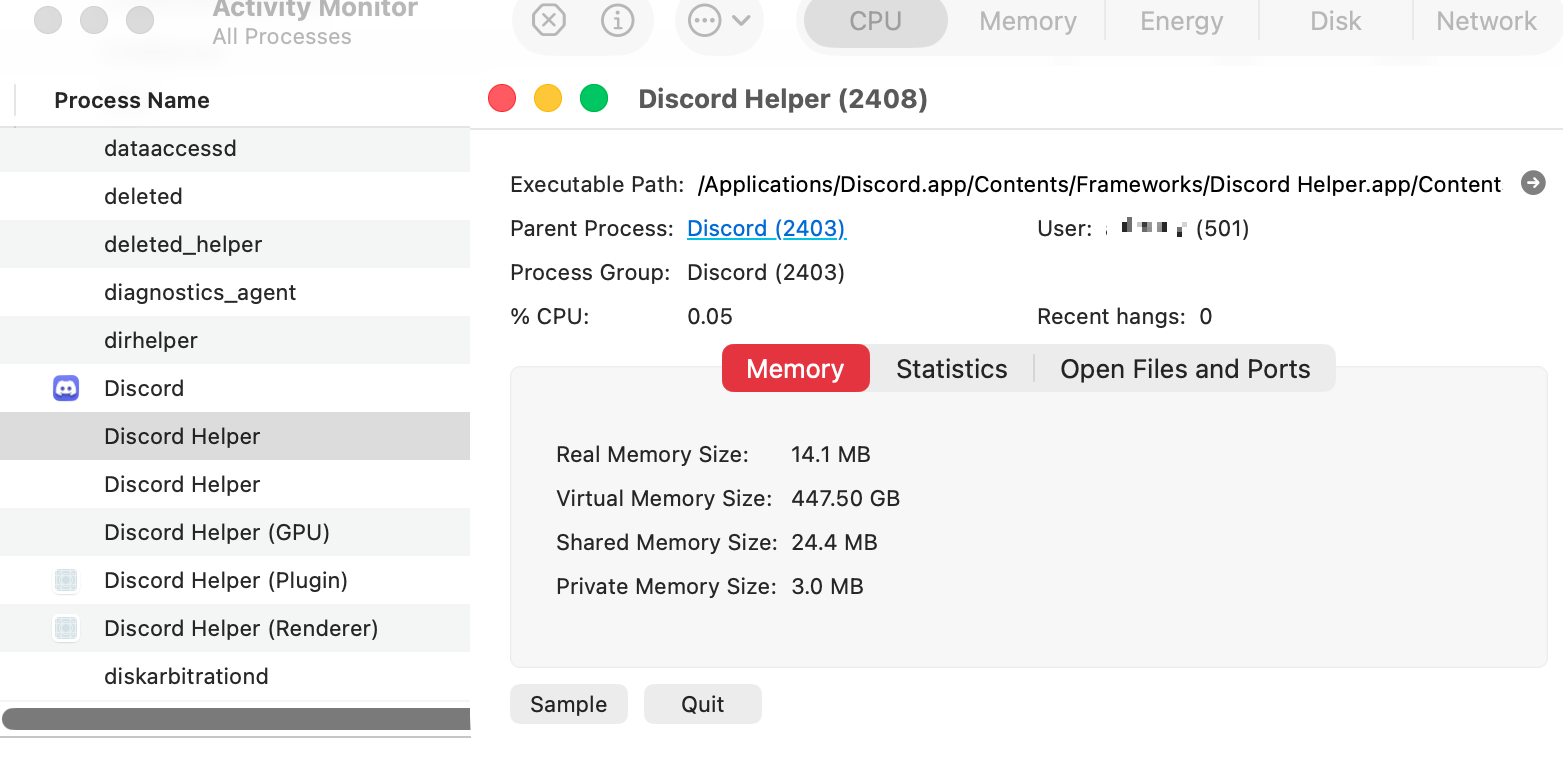
Check that Discord isn’t still running in the background. If it is, use Activity Monitor to force quit the app.
Restart Discord, and hopefully it should now update as normal.
Step 1. Quit the Discord appStep 2. Open Activity MonitorStep 3. If Discord is still running, force quit the app
If the app won’t run at all, that’s another problem entirely. Discord not opening on Mac probably means the app needs to be reinstalled completely.
2. Restart your Mac
Often, when we have an issue with an app, we just give our Mac a restart. This will clear out the computer’s RAM, which may be enough to get Discord’s update process working again. Restarting your Mac is easy:
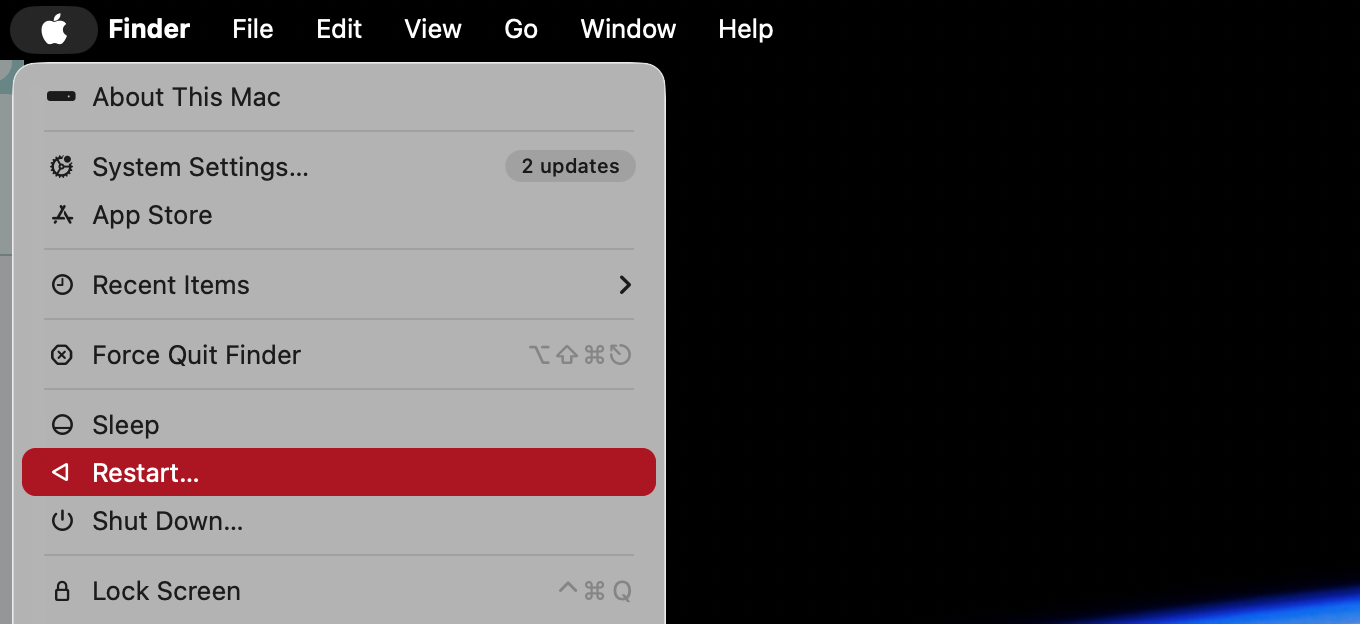
Click the Apple icon in the top left of your screen, and select Restart.
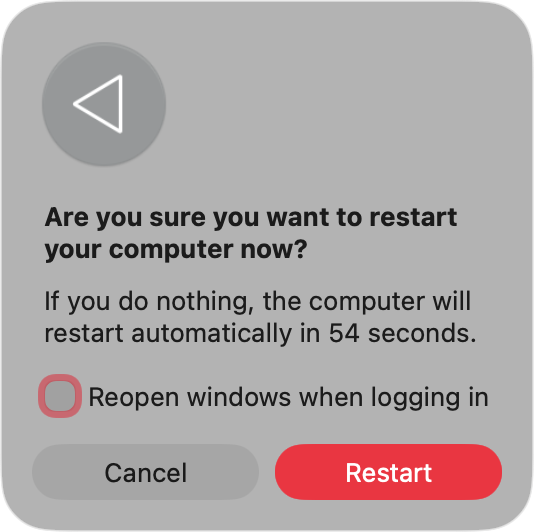
In the pop-up panel, make sure Reopen windows when logging back in isn’t selected.
Click the Restart button.
When your Mac has restarted, try Discord again.
Step 1. Select Apple > RestartStep 2. Restart your Mac and try Discord again
3. Remove Discord cache
Most apps on your Mac will store temporary data, helping them to run faster and remember your preferences. Unfortunately, this data can also become corrupted, causing issues. If a Discord update gets interrupted, the incomplete update data can sit in the program’s cache, preventing the process from completing. If you want to manually clear Discord’s cache files, do as follows:
Quit Discord.
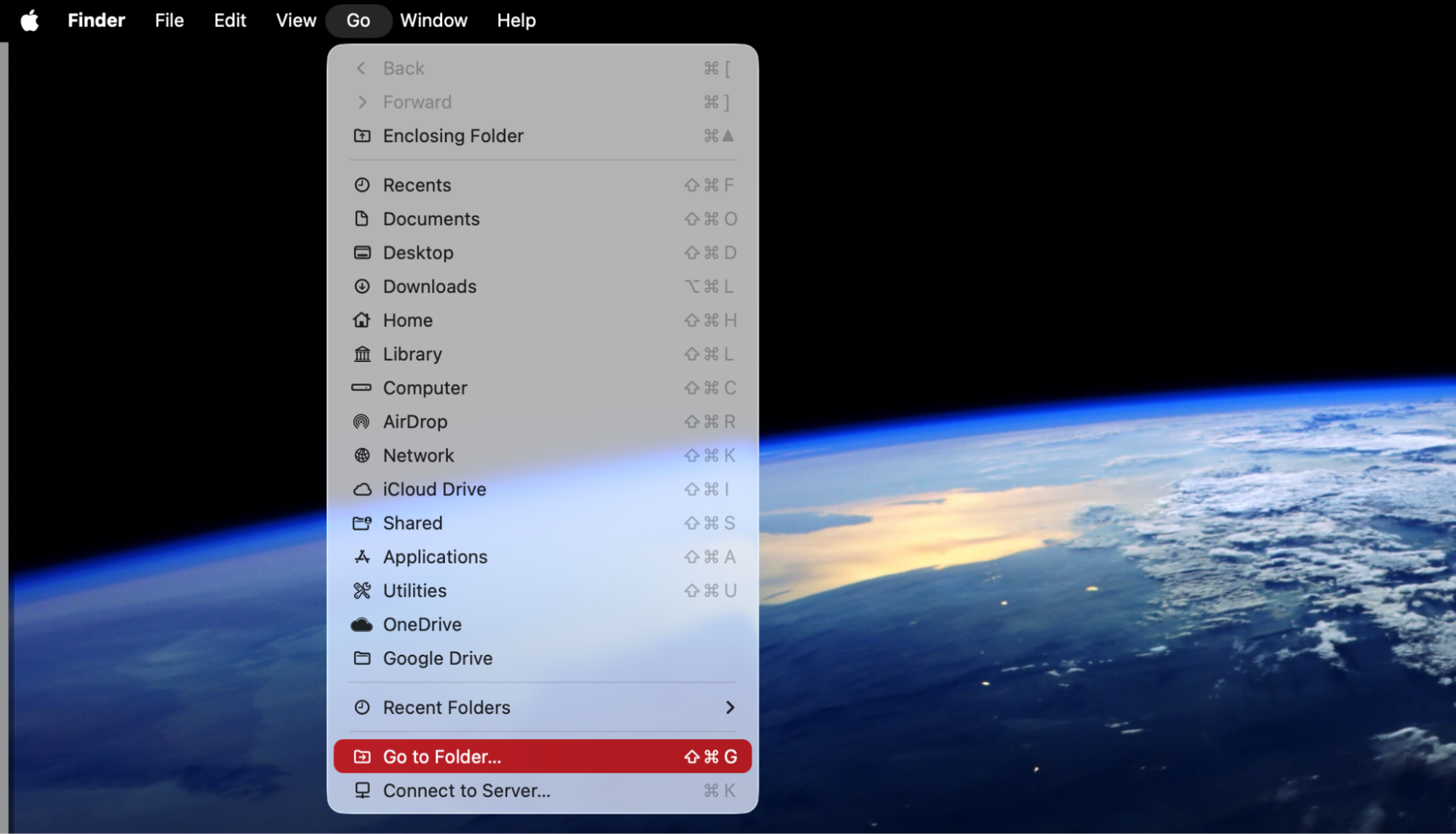
In Finder, select Go > Go to Folder from the menu bar.
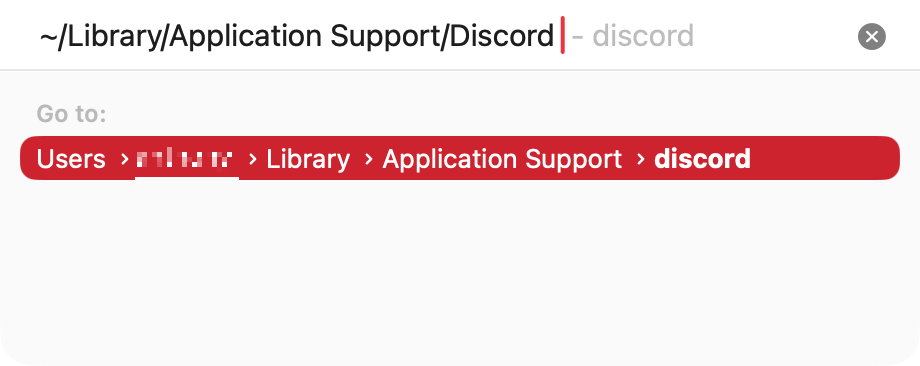
Type in ~/Library/Application Support/Discord, and press Enter.
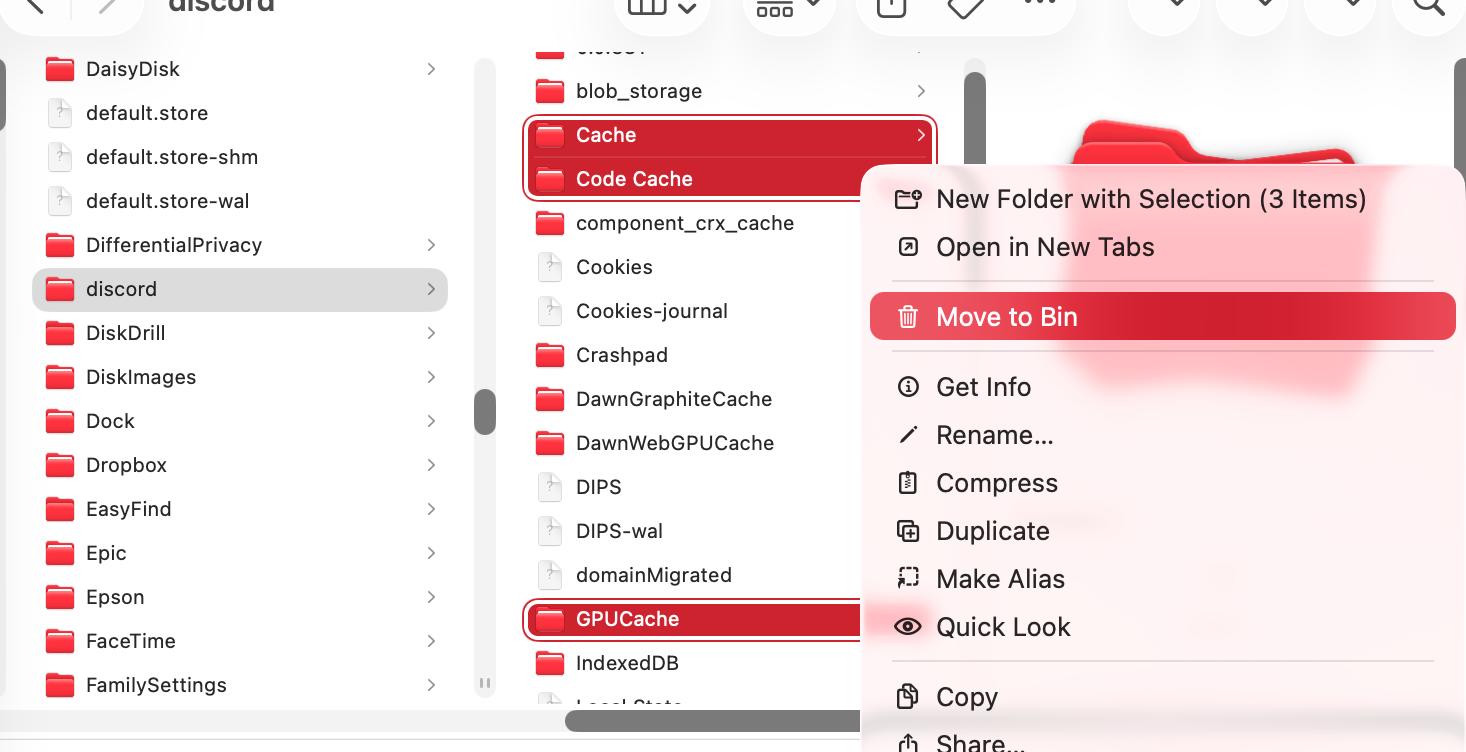
Delete the Cache, Code Cache, and GPUCache folders.
Open Discord, and see if it updates.
Step 1. Select Go > Go to FolderStep 2. Navigate to Discord's Application Support folderStep 3. Delete all the cache data
An extra hint from us:
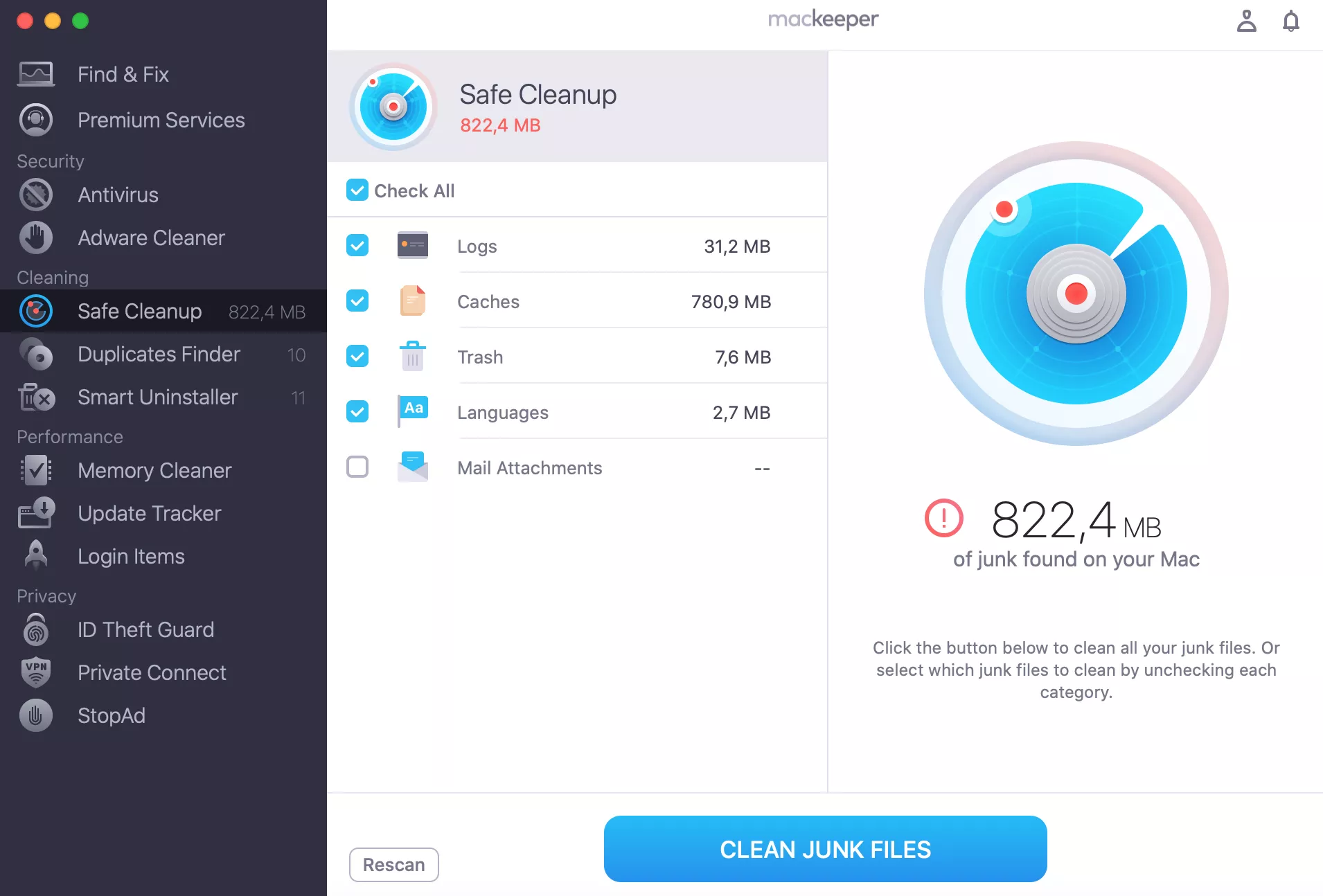
We don’t recommend deleting files manually like this if you don’t know what you’re doing. To safely clear out cached data, use MacKeeper’s Safe Cleanup tool, like this:
When the scan is done, select what to remove, and click Clean Junk Files.
MacKeeper's Safe Cleanup can find and delete cached data in seconds
4. Investigate your internet connection
Without an internet connection, Discord for Mac won’t work. You won’t be able to chat with your buddies, and you won’t be able to download any updates either. There are many, many reasons your internet connection might not work properly, but here are some things we suggest looking at first:
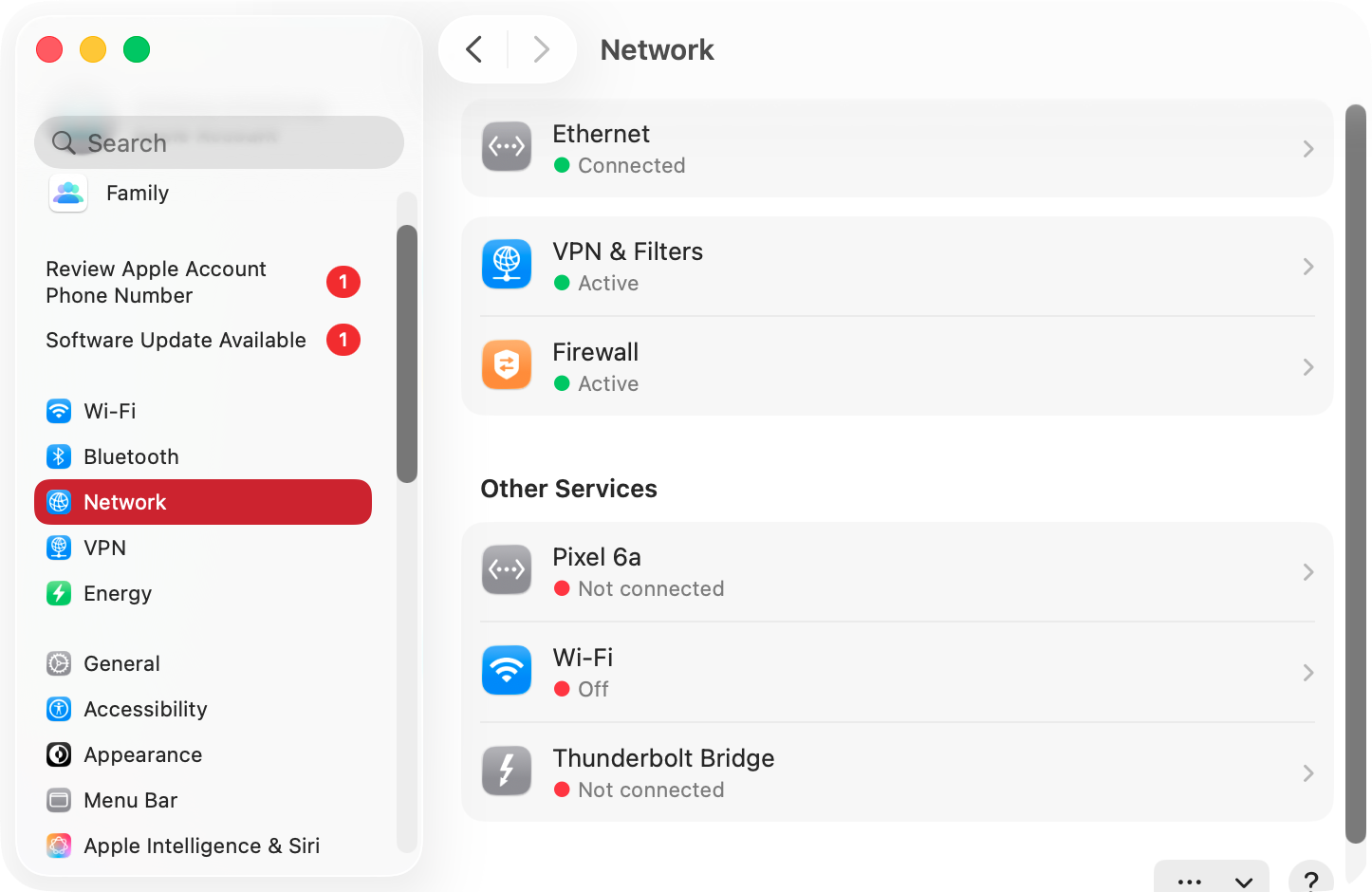
Open a web page on your iMac or MacBook to see if your computer is online. If it’s not, check the connection on another device to see if the problem is limited to your Mac. Also, in macOS, look under System Settings > Network, and make sure your Ethernet or Wi-Fi connection has a green dot.
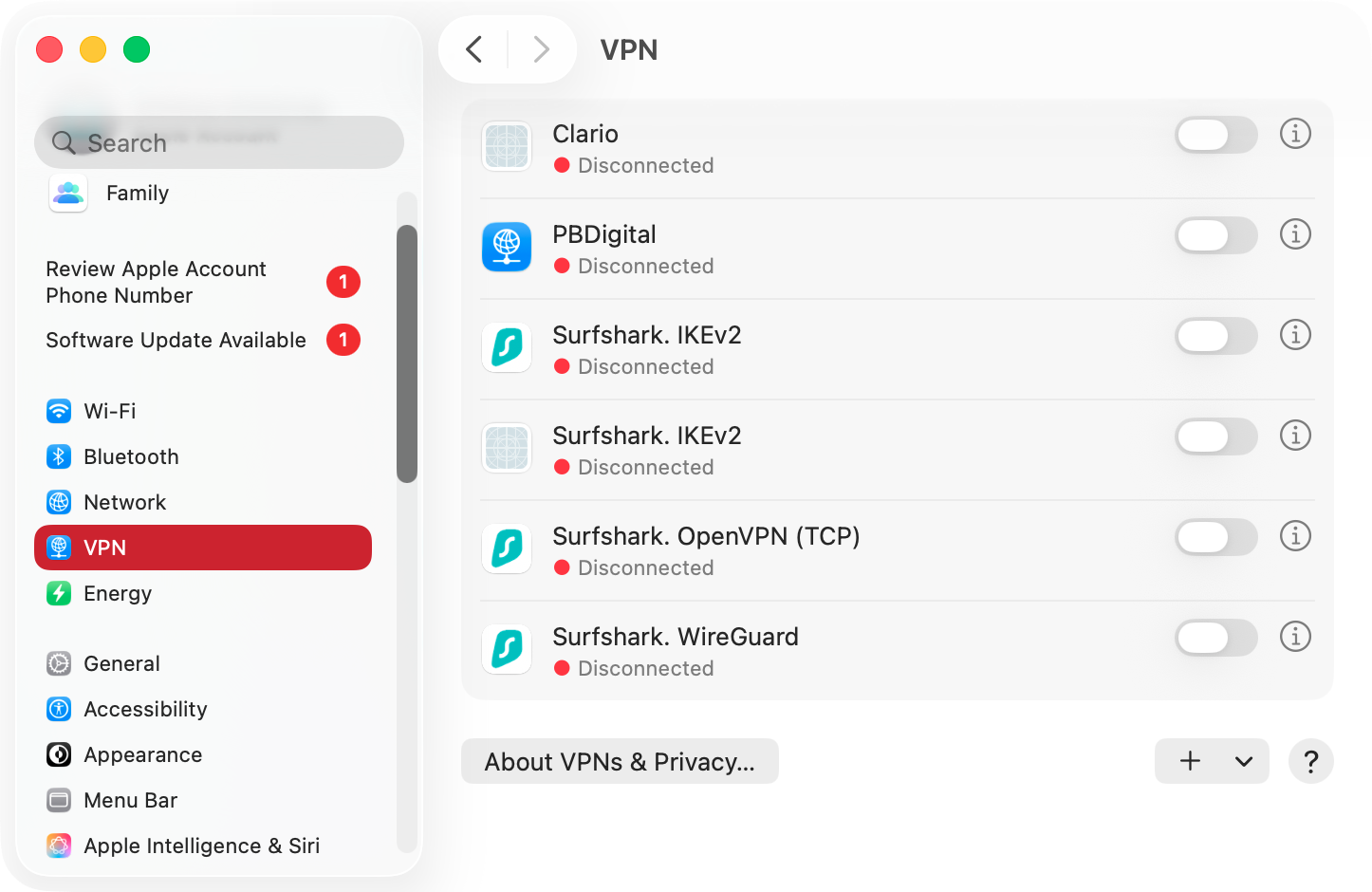
If you have a VPN running, turn it off. You can do this using the VPN app or in System Settings > VPN.
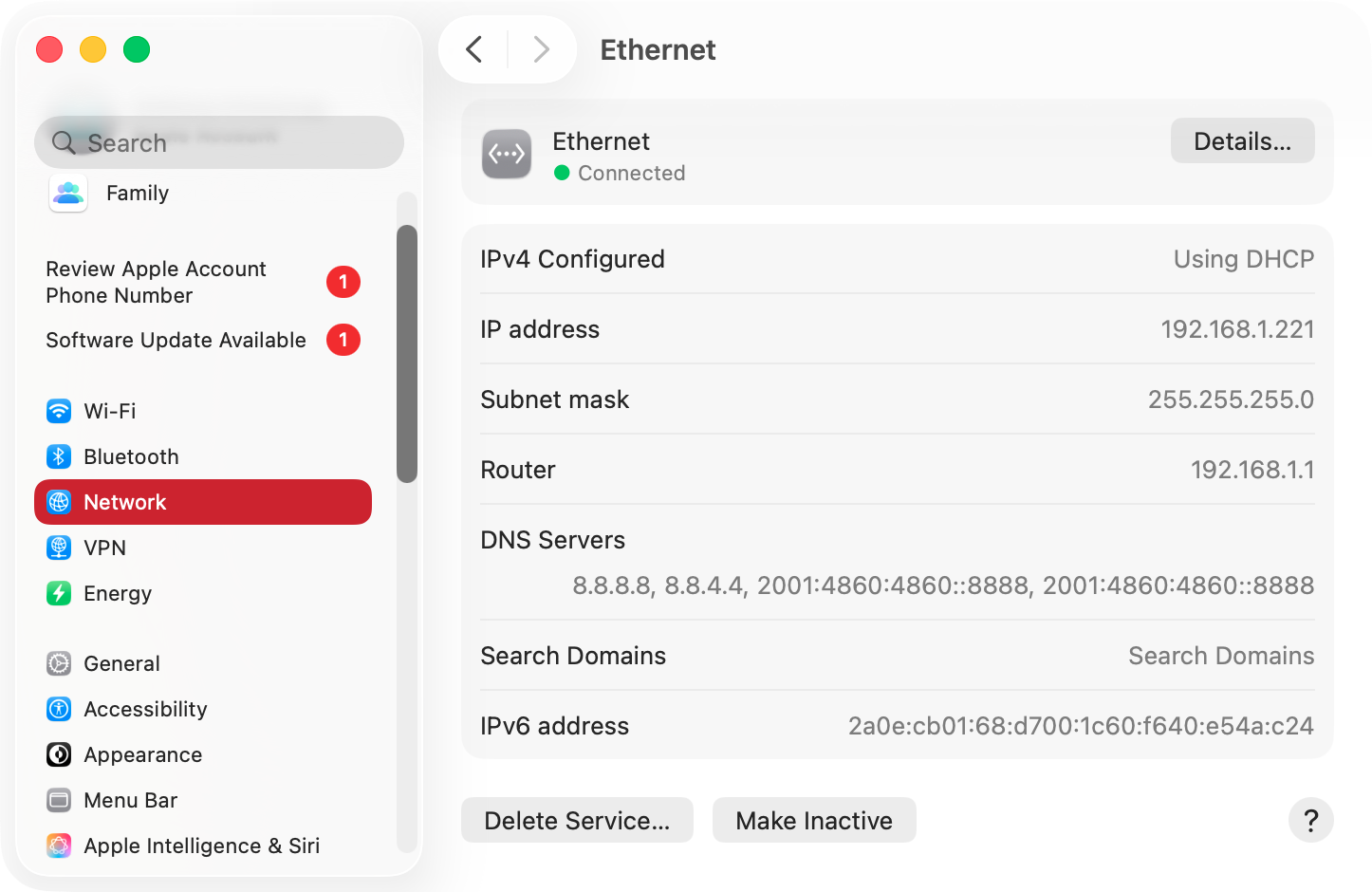
Check your DNS settings. Go to System Settings > Network, and select your internet connection, followed by Details. Try changing your DNS servers to Google DNS (8.8.8.8 and 8.8.4.4).
Reboot your router, in case it’s experiencing a temporary fault. Also, check your router’s settings to make sure it’s not blocking your Mac or the ports it needs to download Discord updates.
If you’re using a third-party firewall, ensure it’s configured to allow Discord updates. You can also try turning the firewall off completely or uninstalling it.
Step 1. Check your Mac's internet connectionStep 2. Turn off any VPNsStep 3. Try different DSN settings
5. Reinstall Discord
Our next tip is to reinstall Discord on your Mac. If the app is stuck on checking for updates, this may be exactly what you need to get it unstuck. Here’s how to install Discord again:
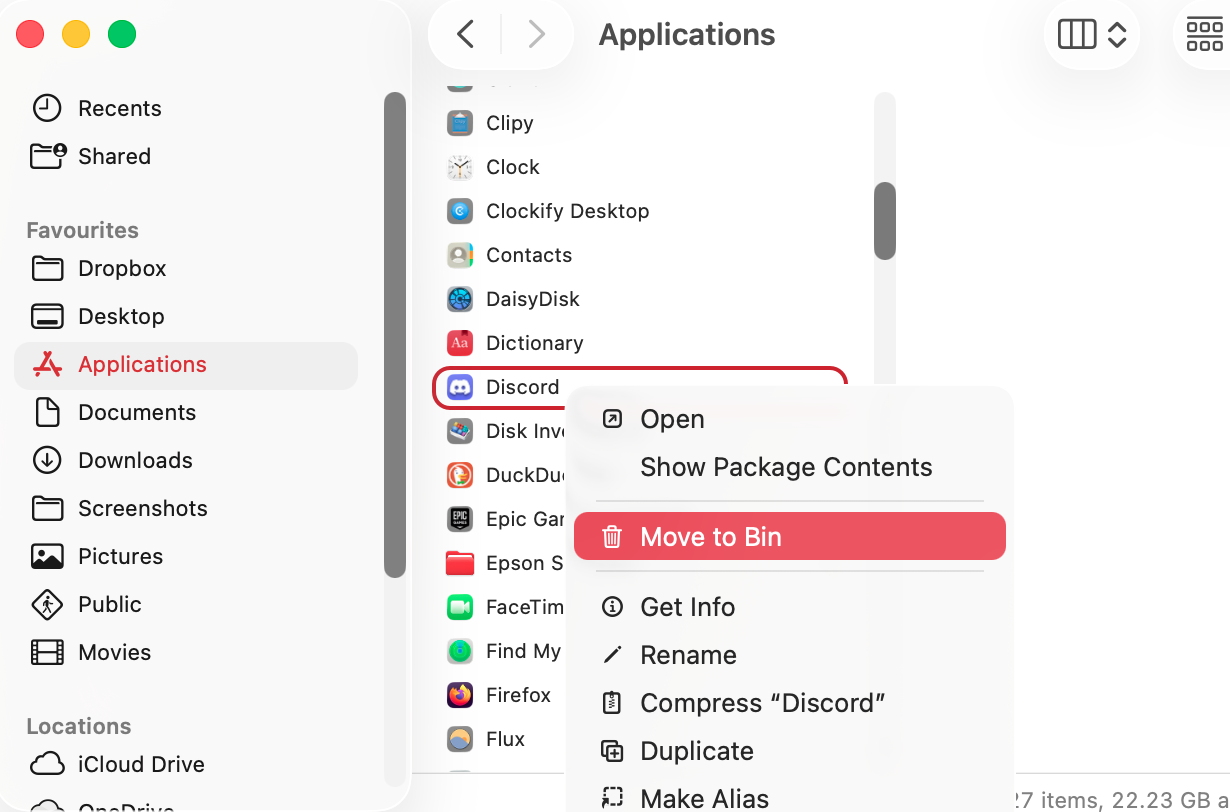
First, delete the Discord app from your Applications folder, and empty your Trash.
Download the Discord installer from the official website and open it.
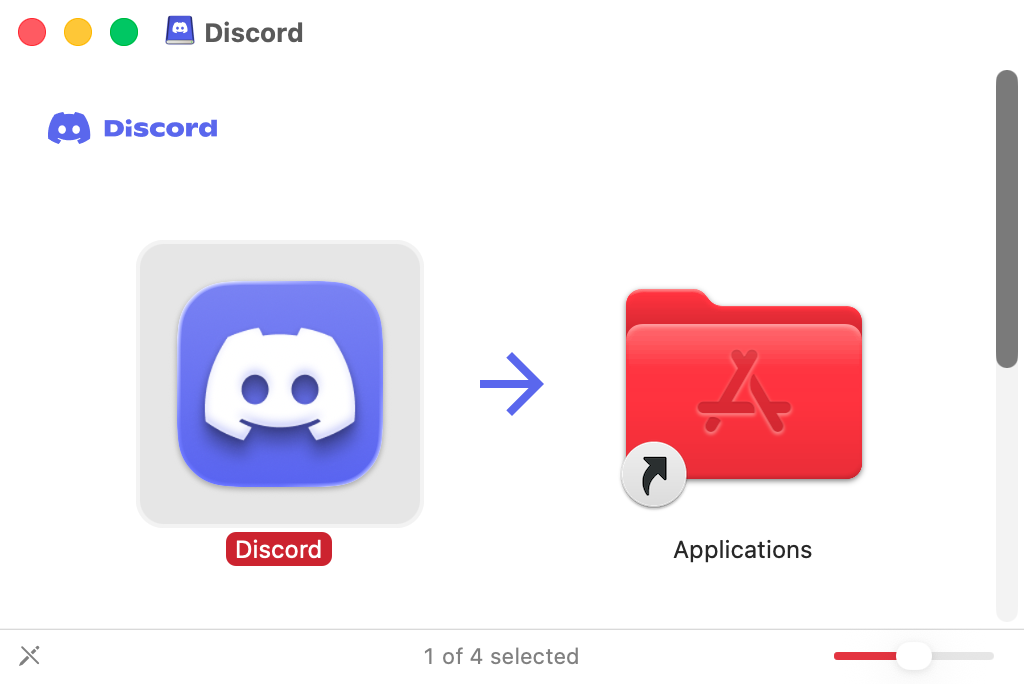
Drag the Discord icon into the Application folder icon.
Run Discord, and if it’s working, it’ll complete its updates as normal.
Step 1. Delete the existing Discord appStep 2. Download and reinstall Discord
If you run into problems at the verification stage of the installation, check out our guide on Mac Verifying App Stuck.
6. Investigate the Discord server
As with any app that relies on the internet, we can’t rule out issues with Discord’s own servers. If the problem is on Discord’s end, there’s nothing you can do but wait until the company has fixed it. To check Discord’s servers, do as follows:
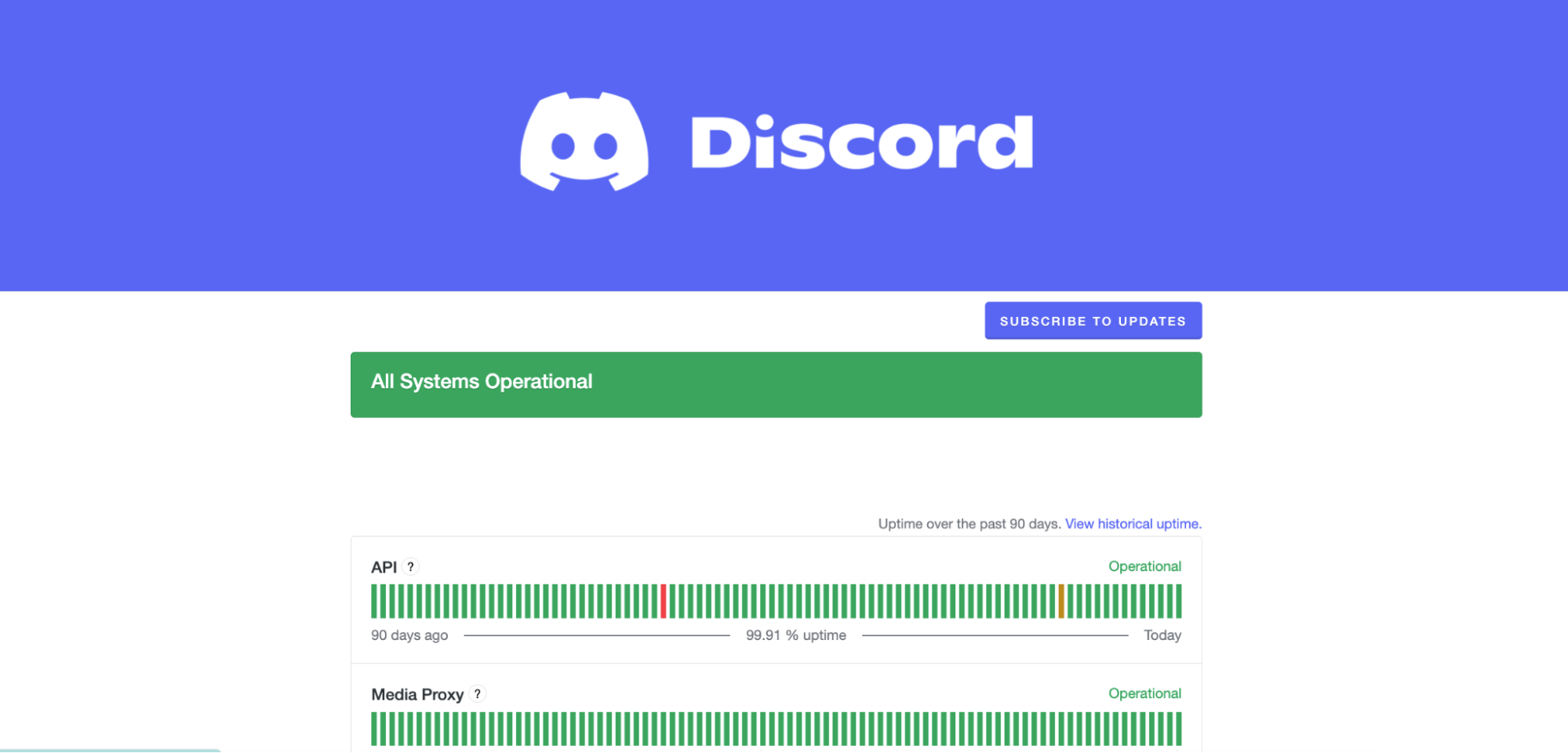
In your web browser of choice, navigate to the discordstatus.com web page.
If the page says All Systems Operational, then the Discord servers are okay.
If you see anything else, then look through the current reporting and see what’s going on.
Check Discord's status pages for server issues
Chat with an expert today
If you want to use Discord, it needs to be able to access the internet, and the app won’t start unless it can complete its update process. As we’ve seen here, there are several things you should investigate when Discord won’t stop checking for updates. In our experience, update issues are normally caused by internet connectivity faults, including interference from third-party firewalls and VPN software. However, file corruption can also prevent updates, so you may want to clear Discord's cached data, and if that doesn’t work, completely reinstall the app.
Hopefully, one of the tips we’ve explained here will get your Discord update working again, but if you need more help, try MacKeeper’s Premium Services. Available 24 hours a day, 365 days a year, this team of technical experts knows Macs and Mac software inside out, and they’ve successfully solved thousands of problems for users just like you.
We respect your privacy and
use cookies
for the best site experience.
Privacy Preferences Center
We use cookies along with other tools to give you the best possible experience while using the
MacKeeper website. Cookies are small text files that help the website load faster. The cookies we
use don’t contain any type of personal data meaning they never store information such as your
location, email address, or IP address.
Help us improve how you interact with our website by accepting the use of cookies. You can change
your privacy settings whenever you like.
Manage consent
All cookies
These cookies are strictly necessary for enabling basic website functionality (including page
navigation, form submission, language detection, post commenting), downloading and purchasing
software. The website might malfunction without these cookies.