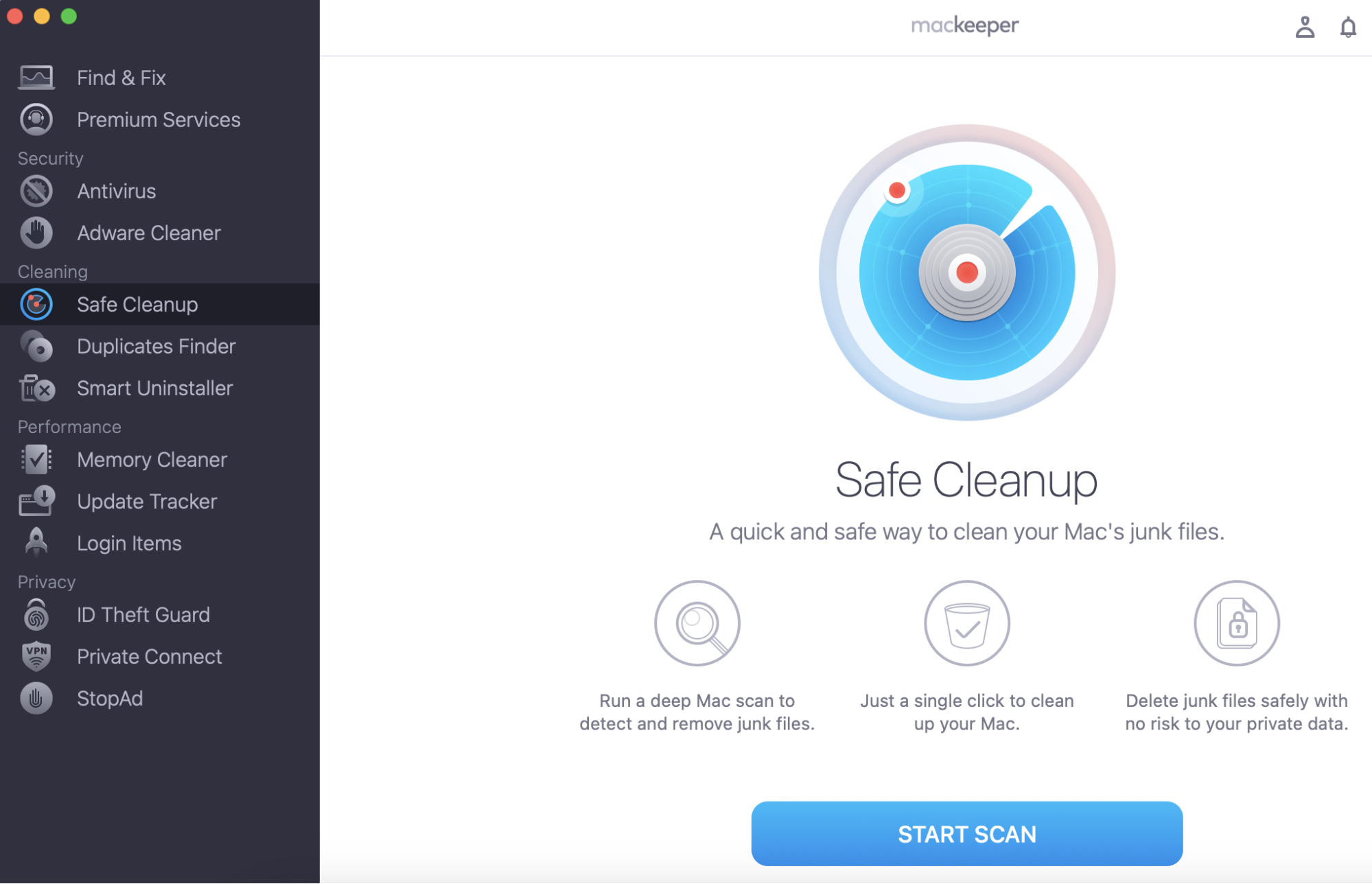
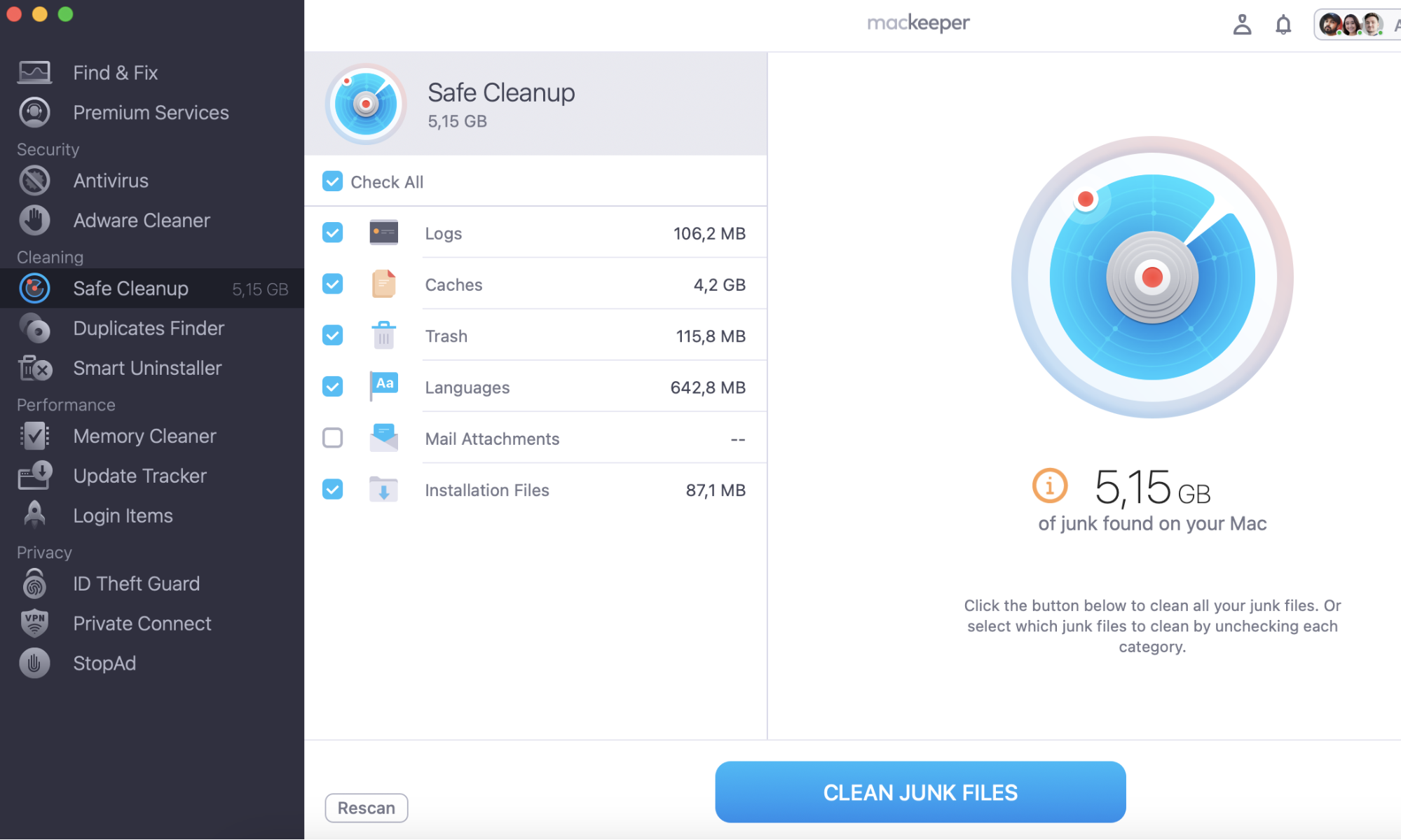
People who like to use AirPlay on their Mac often face the problem of Mac cluttering—they forget to delete programs that they’ve finished watching. MacKeeper’s Safe Cleanup tool helps optimize your storage by removing duplicate files and unnecessary folders.
AirPlay enables easy streaming between multiple devices, making it a great tool for helping you relax after a long day at work. And besides watching movies and TV programs, you can also use the feature to stream your favorite songs.
But if you’ve only recently purchased an Apple gadget or never used AirPlay before, setting everything up can become quite challenging. You might encounter problems pairing your Mac or iPhone with your other preferred device, for example.
Fortunately, it’s not too hard to turn on AirPlay on Mac once you know how to. And if you stick with me you’ll have the information you need to start using the feature by the end of this piece.
A note from our experts:
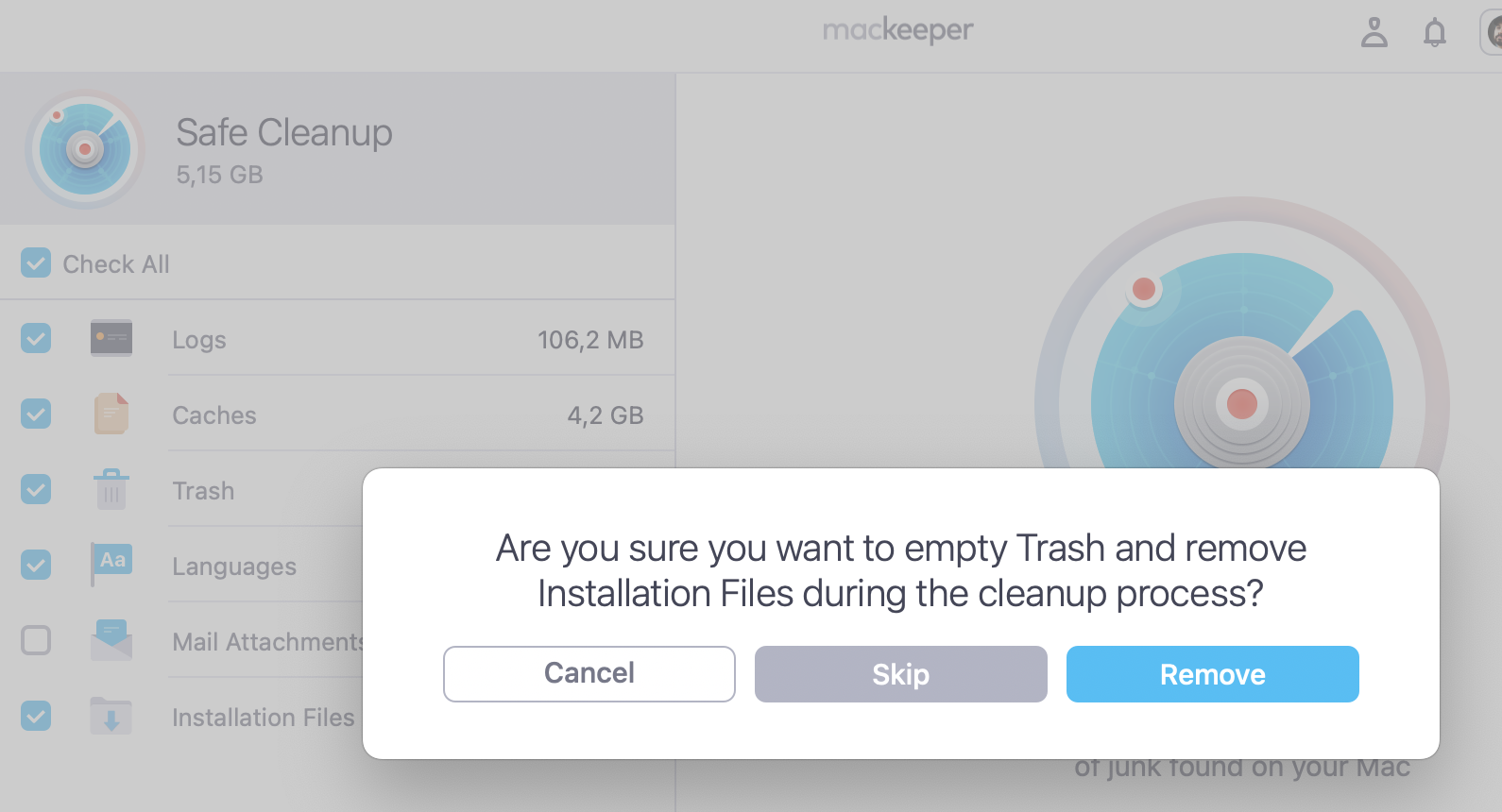
As you watch more shows and movies on your device, you might forget to delete programs that you’ve finished watching. And if you do that, you risk needlessly consuming large amounts of storage space. MacKeeper’s Safe Cleanup tool helps optimize your storage by removing junk files. As a result, you should—more often than not—have storage space for streaming your favorite movies, TV programs, and songs.
You can enable AirPlay on Mac in two different ways, and I’ll cover both options in more detail below.
Mac to Apple TV
Using AirPlay with an Apple TV is an easy way to ensure that everything works without too many difficulties. If you have an Apple TV, follow these instructions to pair your devices:
Connect your Mac and Apple TV to the same Wi-Fi network.
Tap on the Control Center icon, which you’ll find on the right-hand side of your Mac’s top toolbar.
Choose Screen Mirroring when the Control Center appears.
When you see your Apple TV in the dropdown menu, click on it.
Your Mac might ask you to enter a code; do that if you’re asked to.
Select what you want to stream, and start watching or listening.
As a bonus, find out how to share screen on Mac if you want to play different videos—and show what you’re doing on your computer—across other devices.
Mac to Smart TV
If you don’t have a Smart TV, you might still be able to use AirPlay on Mac. Follow these steps to connect your two devices together.
Like when using an Apple TV, you’ll need to connect your Mac and Smart TV to the same network. Do this before continuing
Go to the Control Center and select Screen Mirroring
Choose your TV from the dropdown list.
In situations where you can’t see your Smart TV appear in Screen Mirroring, you can always connect your Mac and TV with an HDMI cable. Once you’ve done that, you should be able to stream your songs and music straight away.
How to AirPlay from iOS to Mac?
iPhones and iPads also support AirPlay, and you can pair your two Apple devices if you don’t have a TV. Here’s how to do that:
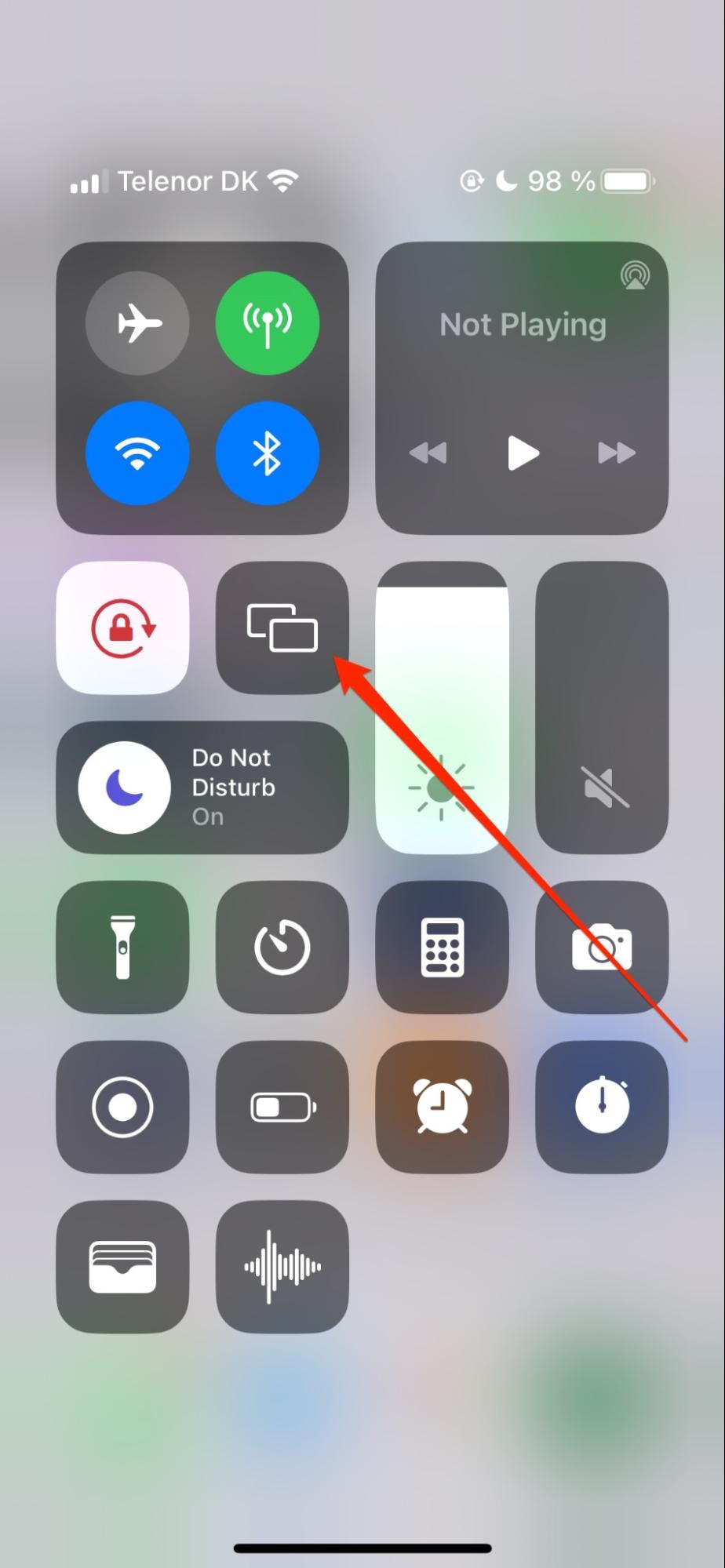
On your iPhone, swipe downwards from the top right-hand corner to reveal your Control Center
Tap on the Screen Mirroring icon
When your Mac appears, connect your two devices.
Step 1. Control Center > Screen MirroringStep 2. Choose your device in Screen Mirroring
What is AirPlay, and how does it work?
AirPlay is a tool that lets you stream various forms of entertainment from your Apple device to TVs, speakers, and other appliances. The feature is the newer version of AirTunes, which replaced it in 2010.
As you might get it already, to use AirPlay, you’ll need to connect your devices to the same network. You can then pair your two devices and begin streaming your content without too many challenges. AirPlay usually allows for around 3-6 devices to be connected simultaneously, but how many you can pair depends on many factors—such as how far away your devices are from each other.
The TV or speaker that you use must have AirPlay compatibility. Most modern Smart TVs are equipped with AirPlay capabilities, but you should still double-check before buying.
When learning how to get AirPlay on Mac, you’ll be pleased to know that it’s free.
Alternatives to AirPlaying from Mac to TV
AirPlay is better for connecting Apple devices together, but some modern TVs won’t support the feature. For instances when you can’t use AirPlay, try one of the alternatives I’ll cover here.
Platform
Pros
Cons
Chromecast
Free to use
Very similar to AirPlay in terms of functionality
Not very useful if you don’t have a Google device
Miracast
Play content in multiple file formats
User-friendly
Use with multiple kinds of devices
No multitasking capabilities
HDMI Cable
Little extra work beyond connecting the plug into both devices
Generally reliable technology
MacBooks might require an adapter to connect the cable
You need to buy the cable
Tubecast
Download YouTube videos easily
Affordable premium version
Connect to multiple devices
Only useful for YouTube videos
Learning more about playing Chromecast from Mac is a good idea if you opt for this alternative.
Use our top tips to stream music, movies, and TV shows via AirPlay on your Mac
AirPlay is an excellent tool for streaming your favorite movies and TV shows, and you can also use the feature to play music across different devices. If you have an Apple TV, you shouldn’t have too many problems pairing it with your Mac. And once you’ve done that, you’ll enjoy straightforward entertainment.
To maximize your experience, I recommend keeping your devices close together. Ideally, you should also pick a strong Wi-Fi connection. Ensuring that your computer storage is well-optimized is also a good idea, and you can do that with MacKeeper’s Safe Cleanup tool.
We respect your privacy and
use cookies
for the best site experience.
Privacy Preferences Center
We use cookies along with other tools to give you the best possible experience while using the
MacKeeper website. Cookies are small text files that help the website load faster. The cookies we
use don’t contain any type of personal data meaning they never store information such as your
location, email address, or IP address.
Help us improve how you interact with our website by accepting the use of cookies. You can change
your privacy settings whenever you like.
Manage consent
All cookies
These cookies are strictly necessary for enabling basic website functionality (including page
navigation, form submission, language detection, post commenting), downloading and purchasing
software. The website might malfunction without these cookies.