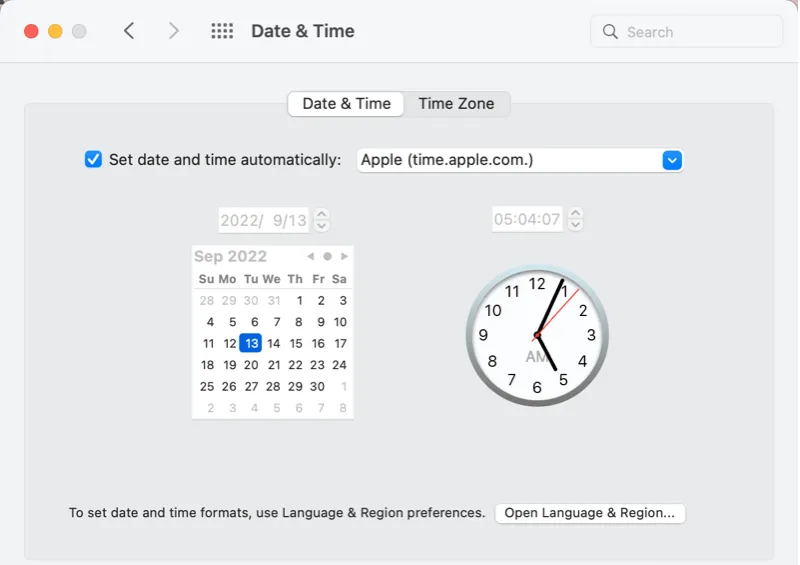
When your Mac displays the wrong time, it can cause Internet issues, websites may not load, apps may fail to synchronize, and system services may perform unexpectedly, interfering with even the simplest tasks. You can overcome this problem by using MacKeeper’s Safe Cleanup tool, which safely removes junk files and unnecessary clutter, helps to prevent incorrect system behavior, including time inconsistency, and keeps your Mac running smoothly.
To change time on MacBook, launch the Apple menu ➙ open System Settings ➙ go to General ➙ select the Date and Time option, then disable Set time and date automatically ➙ click Set ➙ input the correct time yourself or keep automatic settings by location.
Don’t panic if your MacBook date and time not updating, as there are several simple fixing methods to cope with this issue.
Why you might need to change time on Mac?
Changing the time on your Mac may be necessary when you travel across timezones, if your automatic settings fail due to a poor internet connection, or after your Mac has been off for an extended period (especially for older laptops with a dead PRAM battery). You may need to manually set the time when automatic time synchronization isn’t possible, or when a stable Internet connection is unavailable.
Why Change Timezone Settings on Mac?
Changing the time on your Mac seems like a minor thing, so it’s easy to underestimate its significance. In reality, your Mac’s clock supports system integrity and ensures access to various functions. For instance, your clock is ahead error Mac blocks your browser’s ability to access certain websites.
There are several situations I can advise when changing the time zones becomes crucial:
Traveling: If you aren’t tied to one place and often change location, the automatic time zone updates can be extremely helpful. They ensure your calendar events, meetings, and other scheduled activities are aligned with local time, reducing the risk of missing something essential.
Scheduling: Even if you don’t travel often, the correct time indication on your Mac makes your everyday planning easier and more predictable. It takes care of reminding you about the calendar events on time, so you don’t need to double-check every appointment. It’s extremely important if you have to coordinate a schedule with your colleagues or clients.
Security: Accurate time settings on your Apple laptop also help maintain secure Internet connections. Many websites and apps check your system time when verifying their security certificates. If the time on your device is incorrect, your Mac may treat a trusted website as unsafe, preventing it from loading properly.
How to set time automatically on MacBook?
To set time on MacBook automatically, launch the Apple menu ➙ go to System Settings ➙ open General ➙ choose Date and Time ➙ enable the Set time and date automatically option using your current location. You might need your password for such changes.
A note from our experts:
When I was dealing with issues with my Mac, I used to rely on the MacKeeper app, a leading solution for Mac optimization and cybersecurity. MacKeeper’s Safe Cleanup is extremely useful for your Apple laptop’s overall performance, as it eliminates outdated caches and other unnecessary files that affect your system and slow down productivity. By clearing this clutter, this tool frees up storage space, improves responsiveness, and helps prevent bugs, including issues related to incorrect time settings.
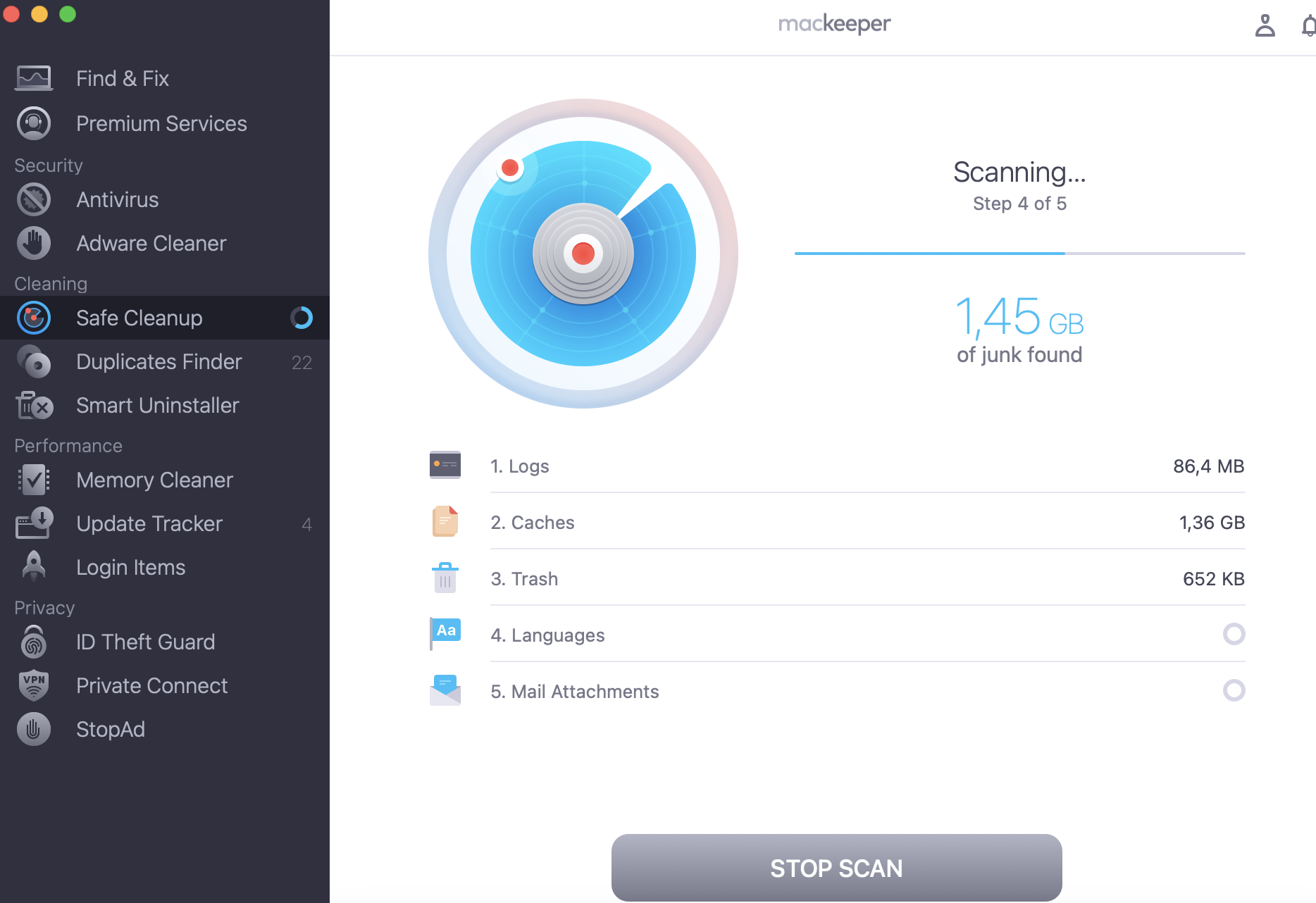
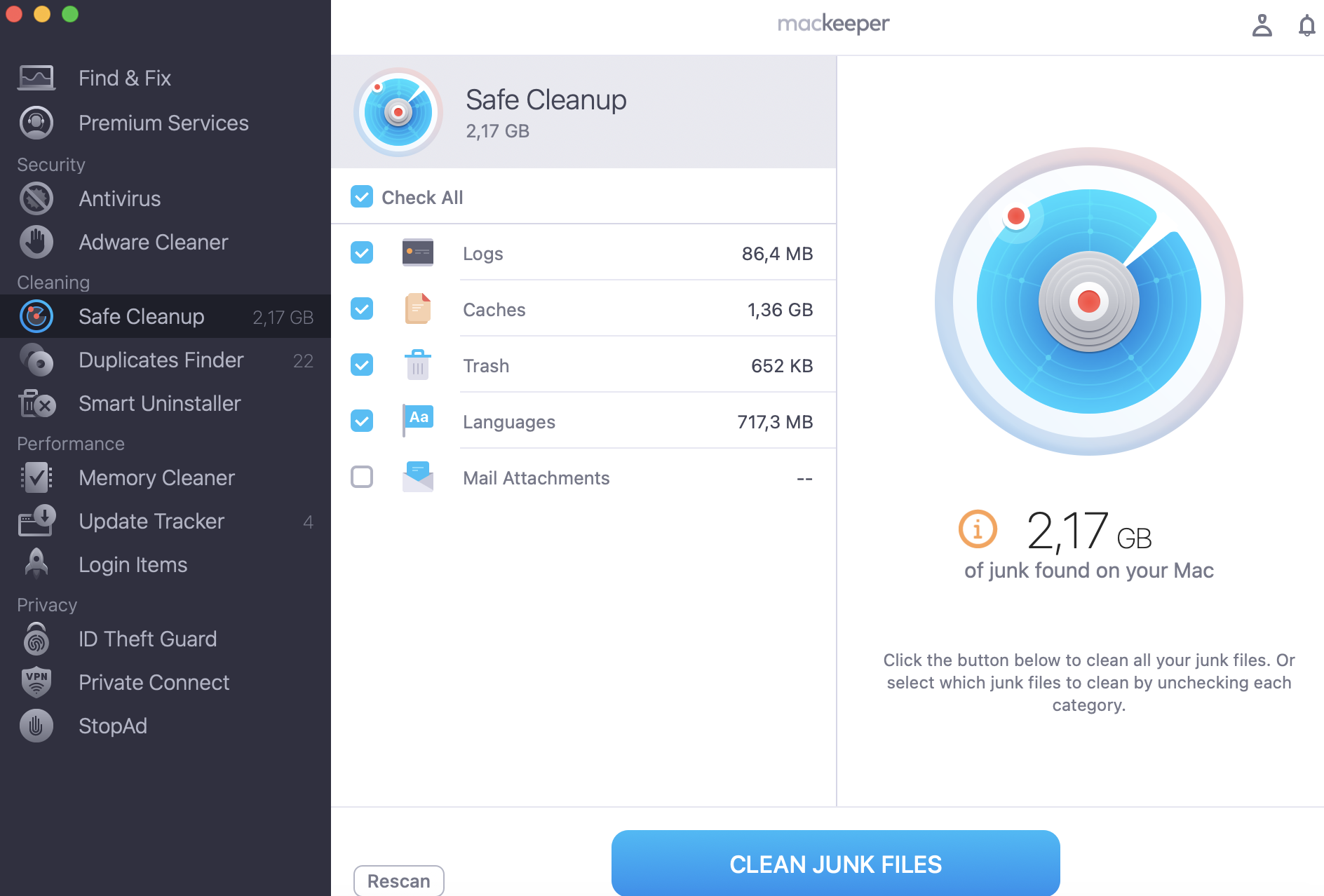
Take the following steps to clear your Mac of junk using MacKeeper’s Safe Cleanup:
Download and launch the MacKeeper app from the official site.
Find the Safe Cleanup tool from the left menu.
Click the Start Scan button.
After the scan is completed, review the results, select the files you need to eliminate, and click the Clean Junk Files button to delete them.
Step 1. MacKeeper > Safe Cleanup > Start ScanStep 2. Wait for the results > select the files you want to eliminate > Clean Junk Files
How to adjust time manually on MacBook?
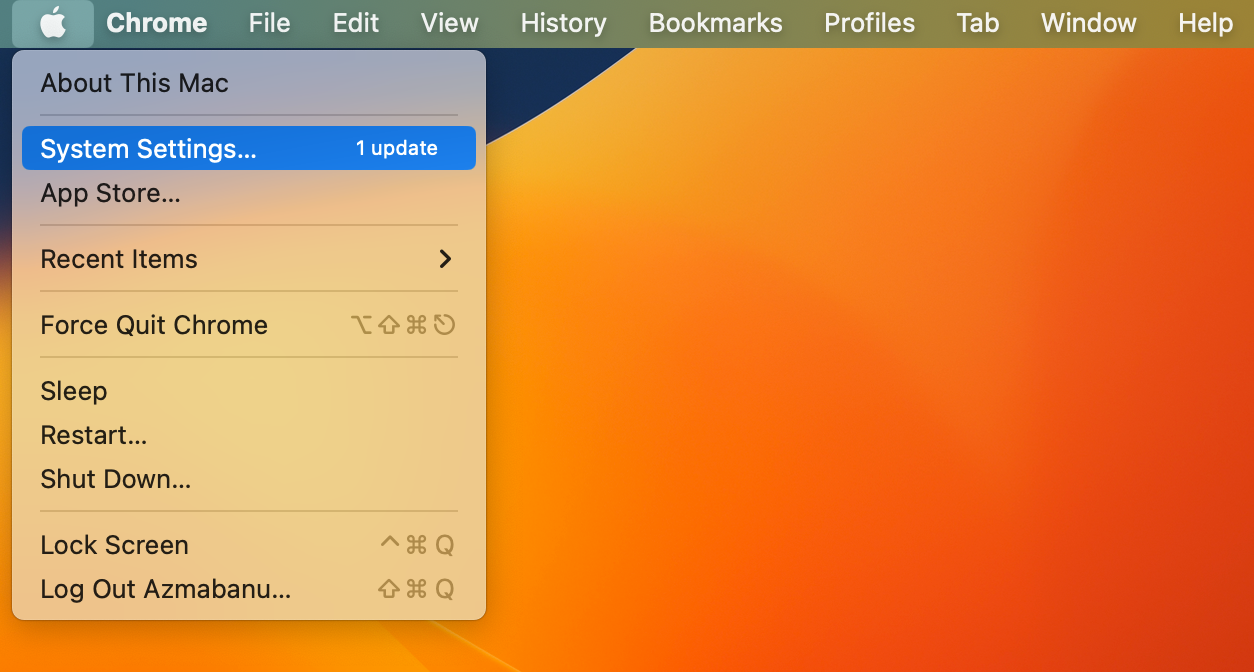
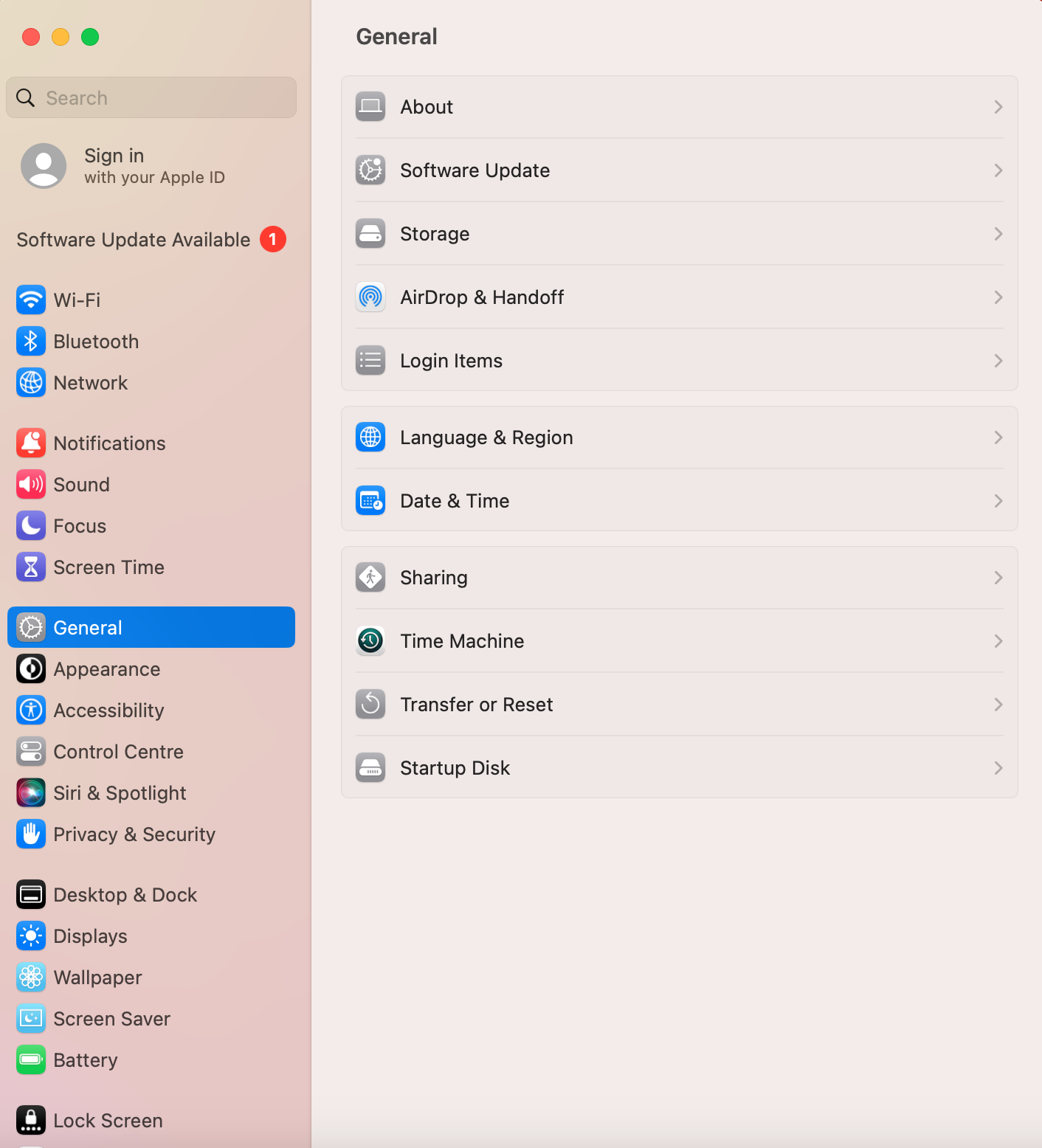
To manually adjust time on MacBook, launch System Settings ➙ go to General ➙ choose Date and Time ➙ disable Set time and date automatically ➙ click Set to input the correct date and time ➙ click the Set button again.
Step 1. Apple Menu > System SettingsStep 2. General > Date & TimeStep 3. Disable the Set date and time automatically option
If you’ve done everything described above but your Mac still displays the wrong time, don’t worry, as this can sometimes occur due to minor inaccuracies that are easy to fix.
From my experience, the most common reasons for time zone issues on your Mac include:
automatic settings
location permissions
temporary glitches
Start fixing the issue by verifying the automatic date and time settings. If your Mac updates the time automatically, try turning off this option and then enabling it again. This simple method refreshes the system and often corrects inaccuracies in time synchronization.
The next step is to check your location permissions. If automatic time zone detection is disabled, your Mac may not recognize your current region and continue using outdated information, leading to incorrect time indication.
Temporary glitches can also affect time-related options on your Mac, like any other system functions. As a rule, restarting your laptop resolves the problem. Rebooting your MacBook resets background services that are responsible for time and location synchronization.
Extra tips from me:
If restarting your Apple device doesn’t fix the incorrect time, ensure that your Mac has a stable Internet connection. MacOS synchronizes its clock with an online time server. This fixing method is especially useful after traveling or switching between networks.
You should also check your MacBook sleep settings. Long sleep mode may interfere with synchronization. If the Internet connection is disabled while the device is sleeping, the time may be displayed incorrectly. When your Mac wakes up, it needs some time for reconnection and time adjustments.
Conclusion
Changing the time on your Mac is a simple process that can be done automatically via Internet synchronization or manually in just a few moments. However, it’s extremely important for the correct performance of websites, proper app synchronization, and reliable system behavior.
While adjusting the time on your MacBook, it’s quite useful to keep the overall performance optimized. I suggest you use MacKeeper’s Safe Cleanup as an excellent tool for removing junk files, outdated caches, logs, and other unnecessary files that accumulate over time and affect the system’s processes, including time settings.
We respect your privacy and
use cookies
for the best site experience.
Privacy Preferences Center
We use cookies along with other tools to give you the best possible experience while using the
MacKeeper website. Cookies are small text files that help the website load faster. The cookies we
use don’t contain any type of personal data meaning they never store information such as your
location, email address, or IP address.
Help us improve how you interact with our website by accepting the use of cookies. You can change
your privacy settings whenever you like.
Manage consent
All cookies
These cookies are strictly necessary for enabling basic website functionality (including page
navigation, form submission, language detection, post commenting), downloading and purchasing
software. The website might malfunction without these cookies.