If you’re wondering how to delete Adobe Acrobat from Mac, there are a number of effective methods you can try, such as using the Creative Cloud uninstaller or manually deleting it. We’ve found that the best way to uninstall Adobe Acrobat from Mac is with MacKeeper’s Smart Uninstaller from Clario Tech, which makes removing any program incredibly easy and ensures no unnecessary files are left behind.
Alternatively, you can remove Adobe Acrobat from Mac by using its built-in uninstaller. First quit the app, then go to Adobe Acrobat inside the Applications folder. Run the Adobe Acrobat Uninstaller and follow the steps on screen. If you can’t find the Uninstaller, or it doesn’t work, you try the Adobe Acrobat Cleaner Tool instead.
Why you might want to uninstall Adobe Acrobat?
In our experience, users often want to remove Adobe Acrobat from Mac because they encounter performance issues and crashes, and they need to reinstall the app to fix them. Others want to free up space, while many macOS users simply don’t use Acrobat since they know how to edit a PDF on Mac using Apple Preview.
It’s also not uncommon to find that Adobe Acrobat gets installed alongside other Adobe applications for Mac, such as Photoshop and Lightroom, when we didn’t want it in the first place. Whatever the case may be, when you want to know how to uninstall programs on Mac like Acrobat, there are several easy ways.
A note from our experts:
When you want to delete Adobe Acrobat from Mac—or remove any other app you no longer want—we highly recommend using MacKeeper’s Smart Uninstaller. Developed by Clario Tech, the tool lets you select and uninstall software without having to delete anything manually, and it makes sure that all associated files are cleared so they don’t take up space or hog resources.
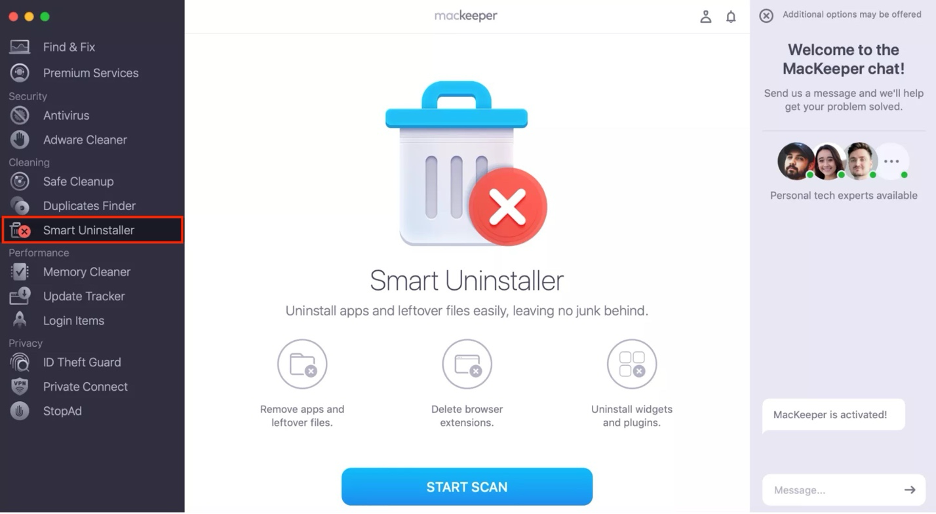
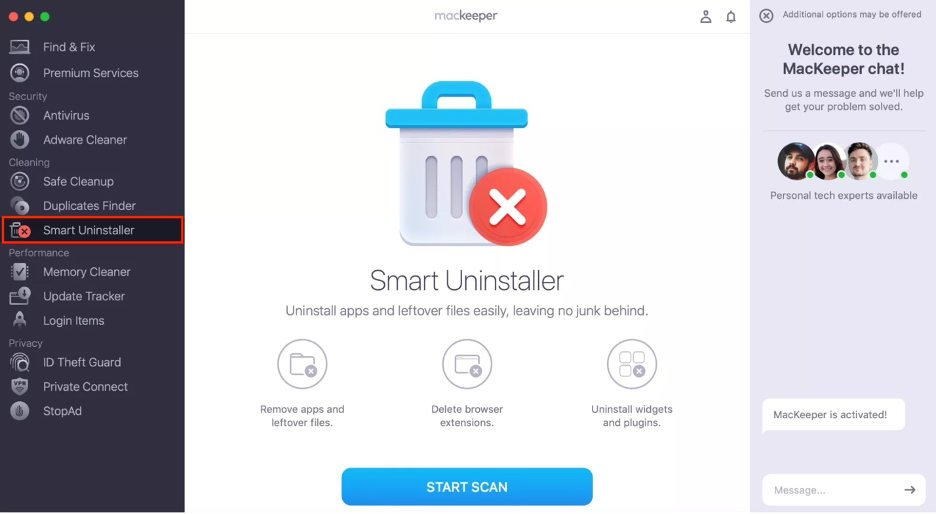
Select Smart Uninstaller in the MacKeeper sidebar, then click Start Scan.
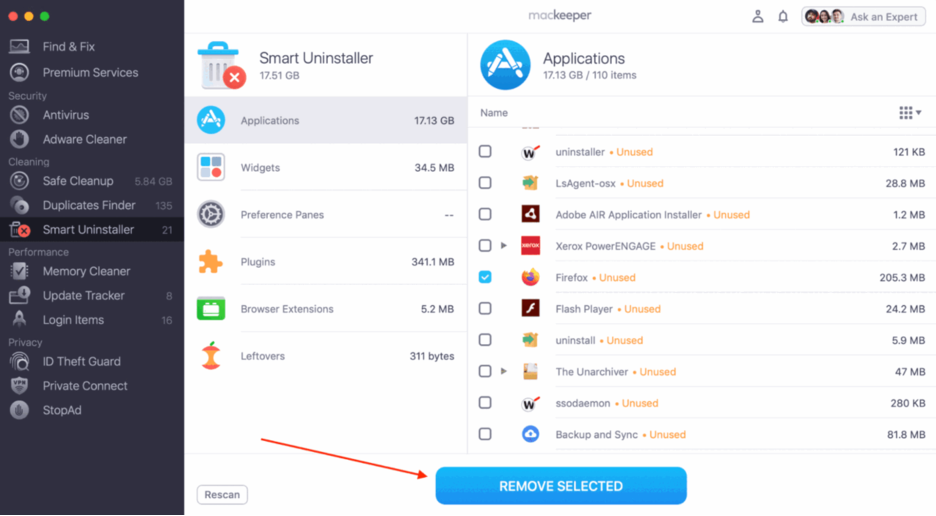
Choose Applications, then select Adobe Acrobat and any other apps you want to uninstall.
Click Remove Selected to safely get rid of all apps and associated files.
Step 1. Select Smart Uninstaller, then click Start ScanStep 2. Select apps you want to delete, then click Remove Selected
How to uninstall Adobe Acrobat on Mac?
One way to get rid of Adobe Acrobat on Mac is to go to Adobe Acrobat in the Applications folder on Mac, then run the Acrobat Uninstaller. Follow the prompts and the tool will take care of the uninstallation process for you. Once it’s done, there should be no trace of Acrobat on your Apple system.
Here are all the methods we recommend you to try to remove Adobe Acrobat from Mac:
Use built-in Adobe Acrobat uninstaller: Use Adobe’s dedicated removal tool that usually comes with Acrobat when you first install it.
Manual uninstallation via Finder: Prefer to do things manually? Uninstall Adobe Acrobat from Mac by deleting the software via Finder.
Remove Adobe Acrobat leftover files: If you choose to delete Adobe Acrobat manually, don’t forget to remove all associated files.
Use third-party uninstaller tools: Other software removal tools, like MacKeeper’s Smart Uninstaller, make it super easy to delete Adobe Acrobat from Mac.
Use Adobe Creative Cloud app: If you have the Creative Cloud app installed for other Adobe software, you can also remove Acrobat from here.
1. Use built-in Adobe Acrobat uninstaller
One of the simplest ways we’ve found to get rid of Adobe Acrobat on MacBook is to use the built-in uninstaller. This usually comes with Acrobat when it’s first installed, and you can use it like so:
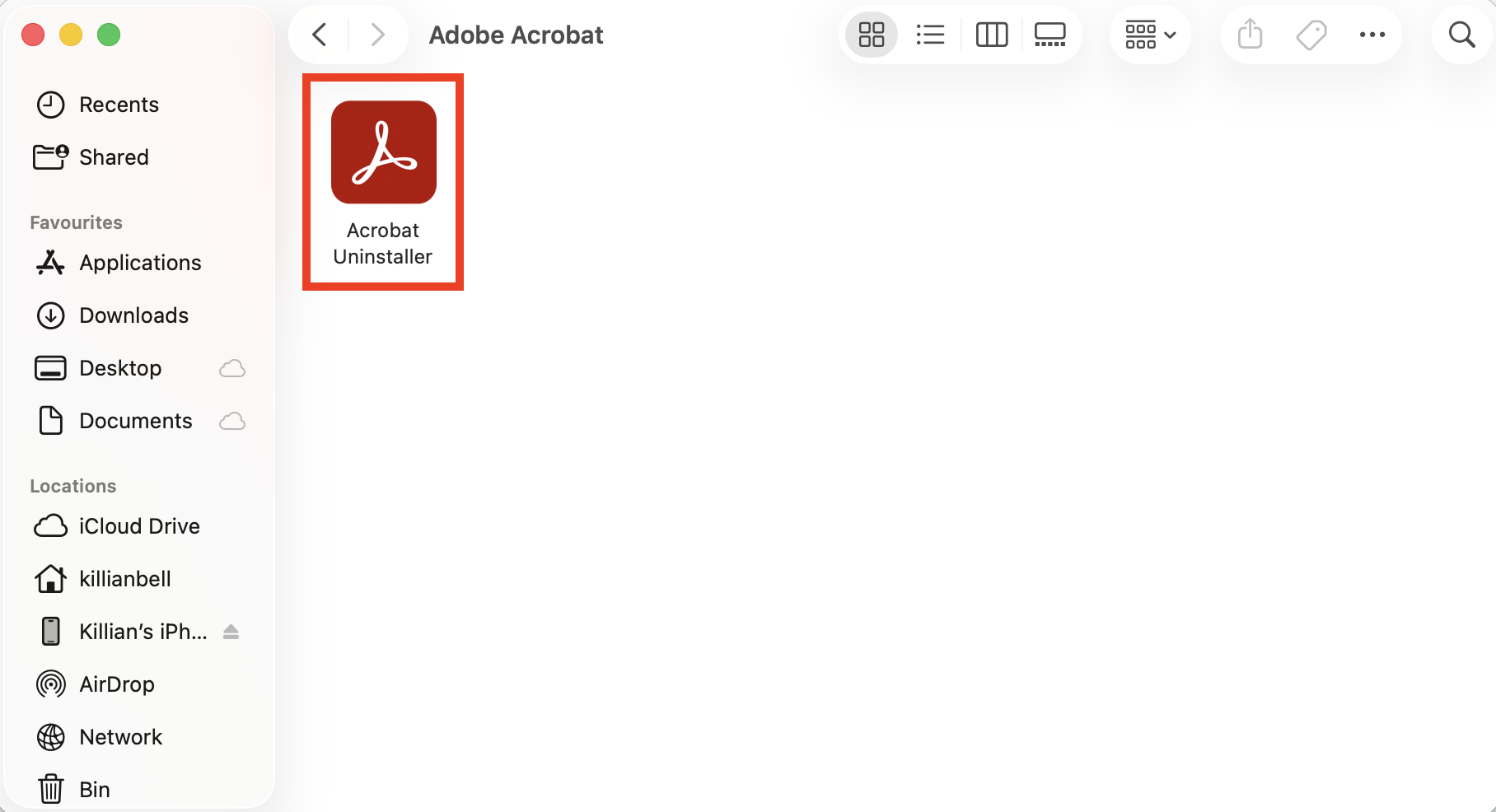
Open Finder on your Mac, then go to Applications > Adobe Acrobat.
Double-click the Acrobat Uninstaller to run it.
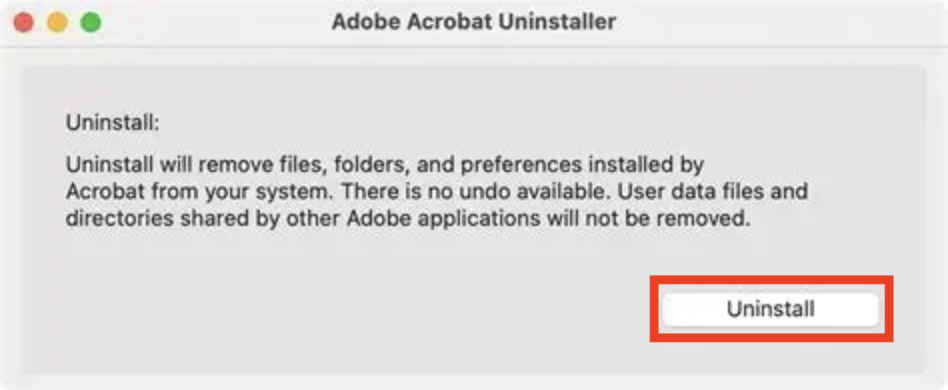
Follow the prompts until the uninstaller confirms that Acrobat has been uninstalled.
Step 1. Go to Adobe Acrobat in the Applications folderStep 2. Run the Acrobat UninstallerStep 3. Follow the prompts to continue
After removing Adobe Acrobat, you may find yourself wondering how you’ll view PDF documents or convert a PDF to JPG on Mac. Fortunately, Apple’s Preview app built into macOS allows you to do both of these things.
2. Manual uninstallation via Finder
We’ve noticed over the years that some macOS users like to do things manually, and if you’re one of them, these are the steps you need to follow to uninstall Adobe Acrobat via Finder:
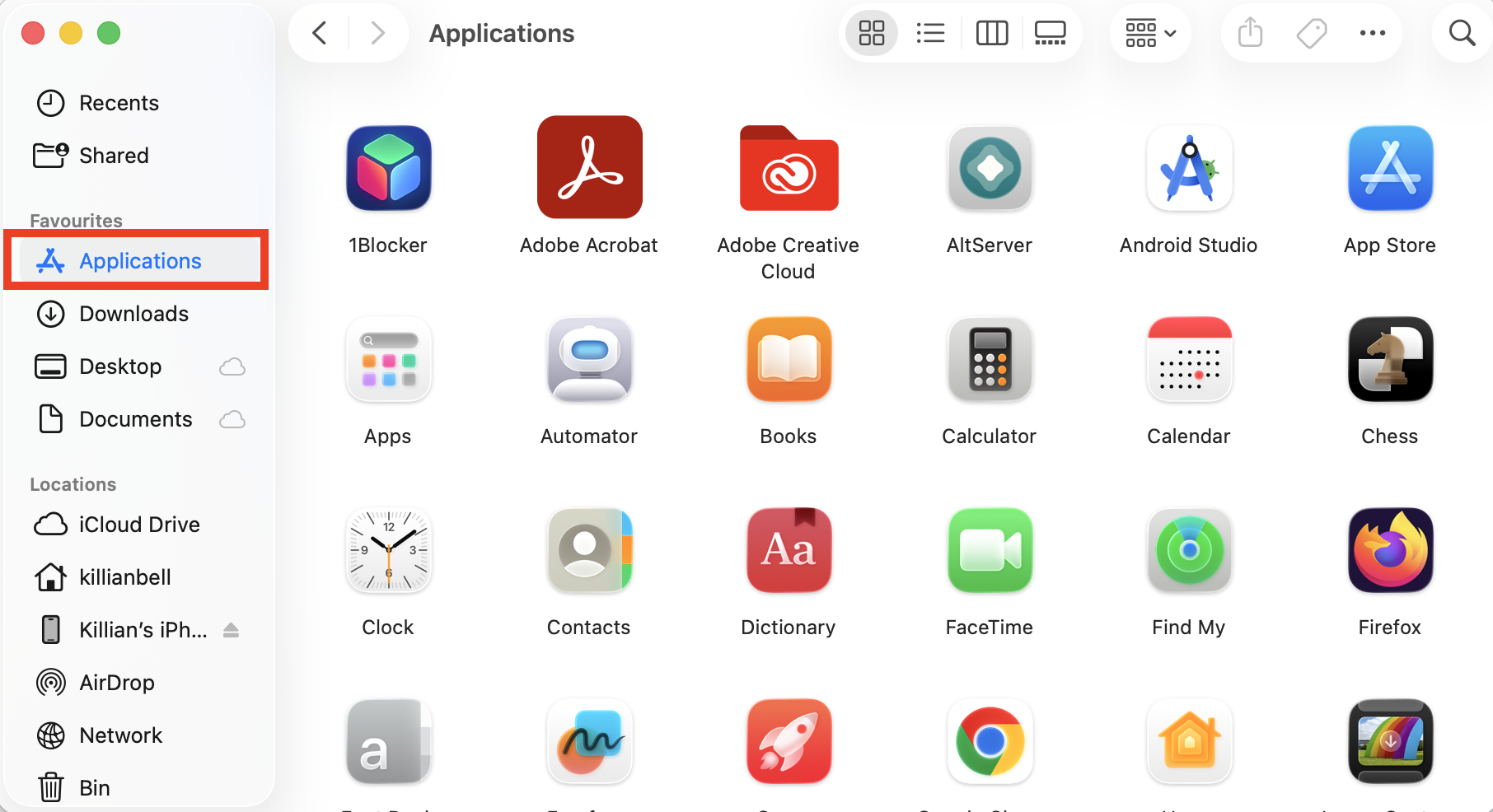
In Finder, go to Applications.
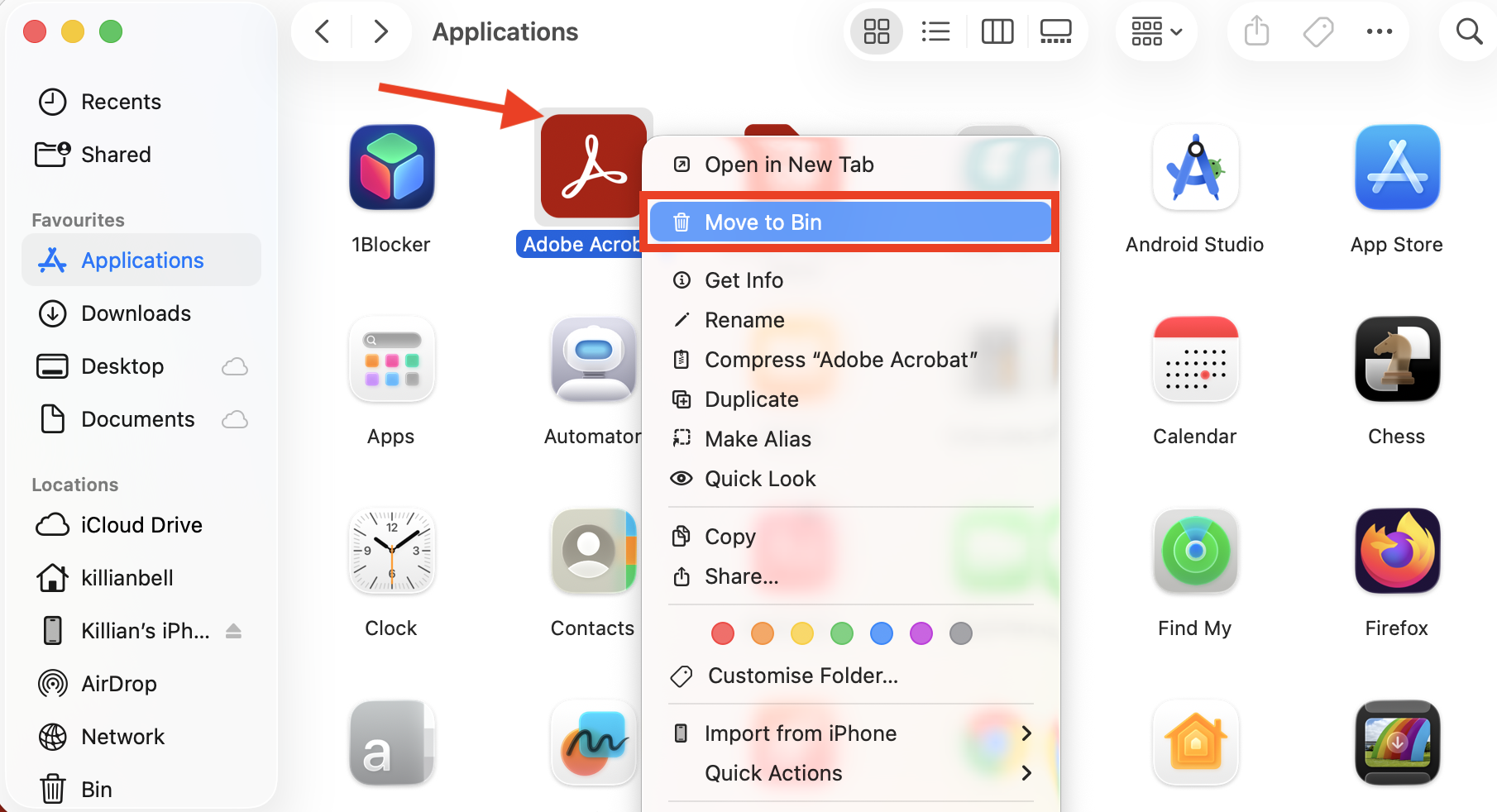
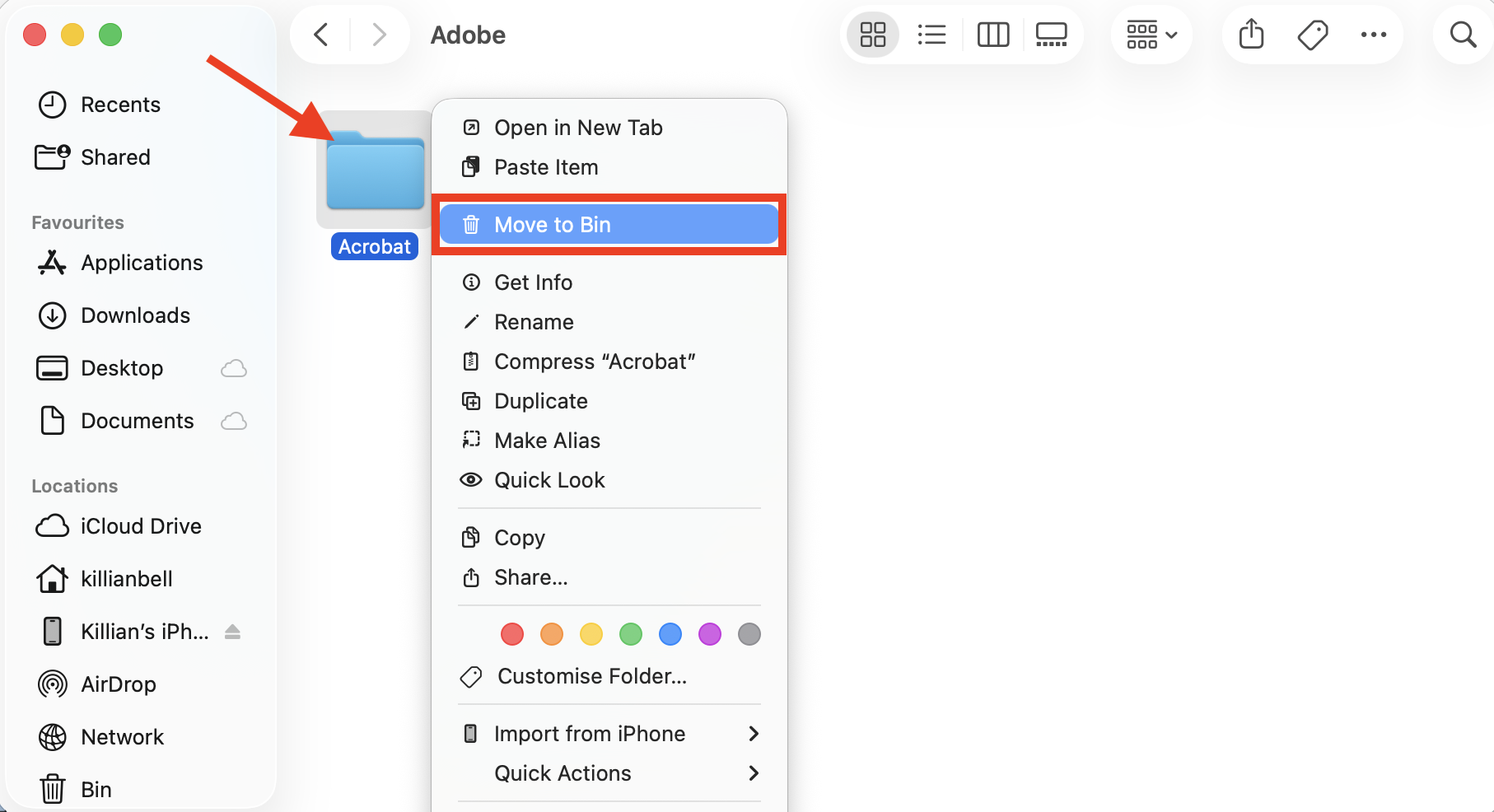
Right-click the Adobe Acrobat folder, then select Move to Trash.
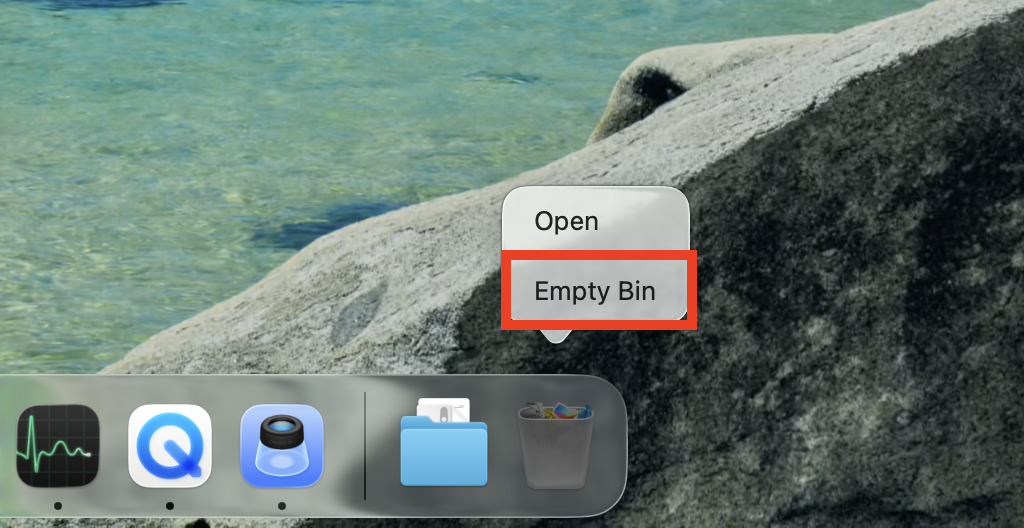
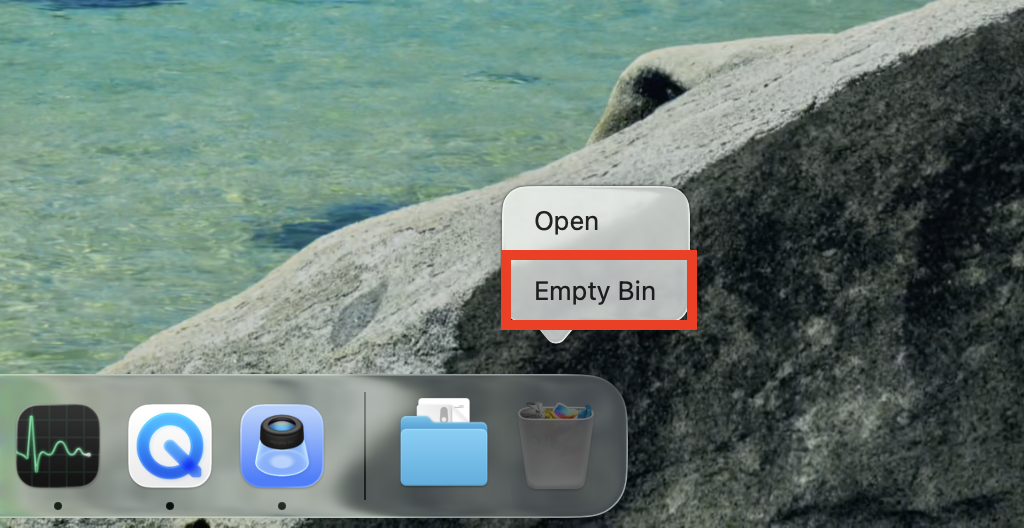
Right-click the Trash icon and select Empty Trash to uninstall Acrobat.
Step 1. In Finder, go to ApplicationsStep 2. Right-click the Acrobat folder and then select Move to TrashStep 3. Empty the Trash
3. Remove Adobe Acrobat leftover files
If you choose to uninstall Adobe Acrobat manually, it’s also important to delete any leftover files, which will sit taking up space on your system for no reason. Here’s how to get rid of them:
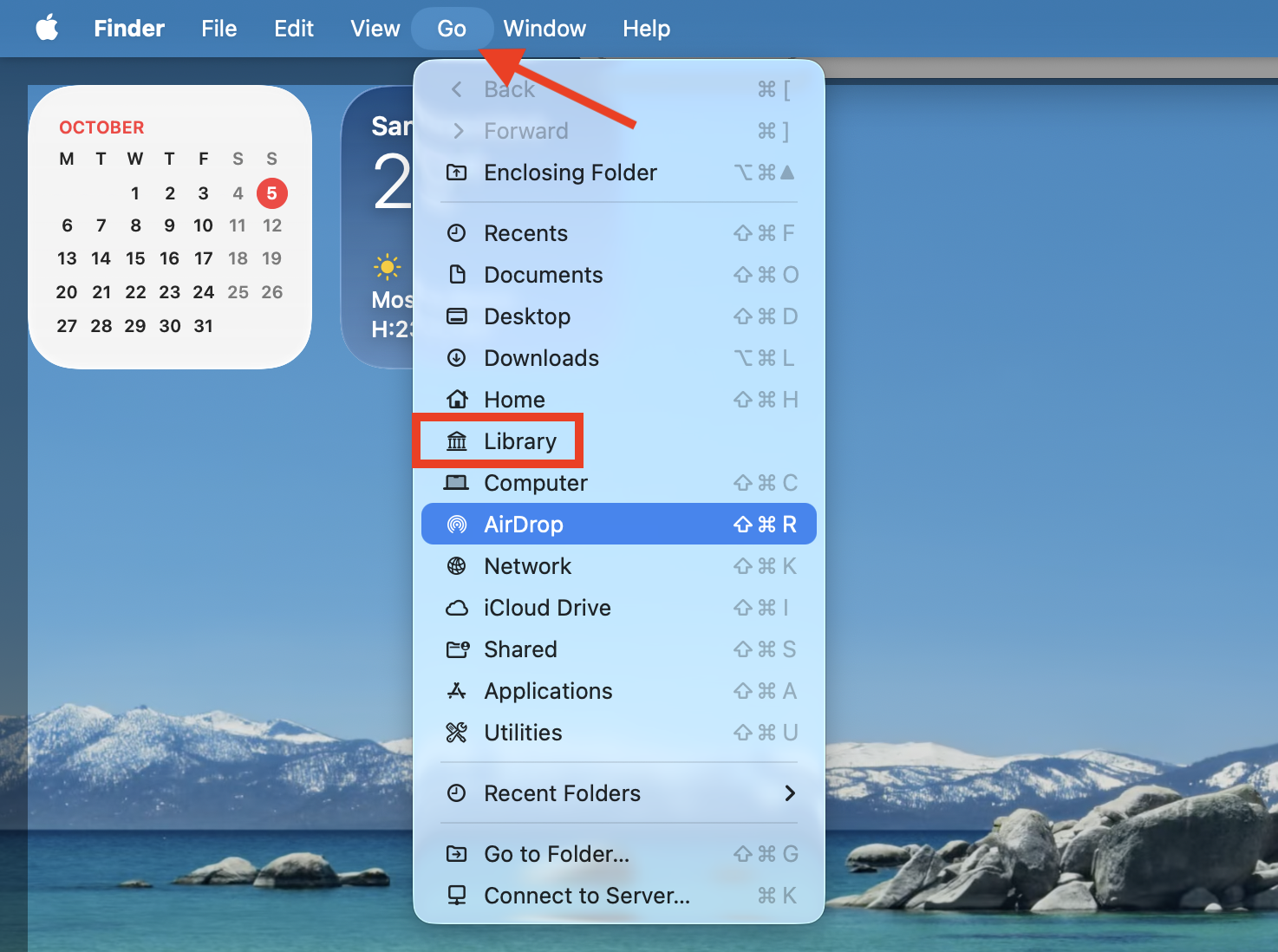
In Finder, while holding down the Option key, select Go > Library in the menu bar.
Navigate to the following folders, then right-click any Acrobat folders and select Move to Trash.
~/Library/Application Support/Adobe
~/Library/Caches/Adobe
~/Library/Preferences/Adobe
Right-click the Trash and choose Empty Trash.
Step 1. In Finder, go to Go > LibraryStep 2. Delete any Acrobat folders from the locations listedStep 3. Empty the Trash
If you don’t use any other Adobe software on your MacBook, it’s safe to delete the Adobe folders from the locations listed above. However, if you do use other Adobe apps, only remove files within the Adobe folders that contain Acrobat in their names, otherwise you may make other programs unstable.
Interested in removing all Adobe apps from your Mac? Before you delete the Adobe folders, we suggest familiarizing yourself with how to remove Creative Cloud from Mac first.
4. Use third-party uninstaller tools
Another super simple way to remove Adobe Acrobat and other unwanted software from Mac is to use a third-party uninstaller. We’ve tested many and found that one of the most effective is MacKeeper’s Smart Uninstaller from Clario Tech, which clears apps and any associated file in just a few clicks.
Choose Applications, then pick any programs you want to remove.
Click Remove Selected to uninstall all your unwanted software.
Step 1. Select Smart Uninstaller, then click Start ScanStep 2. Select apps you want to delete, then click Remove Selected
You’ll notice that Smart Uninstaller doesn’t just remove Mac apps, but also widgets, plugins, preferences, and more. It’s a great way to clear unwanted content and free up space quickly.
5. Use Adobe Creative Cloud app
Creative Cloud on Mac isn’t just good for installing Adobe apps; you can also use it to uninstall them. Try this:
Open Creative Cloud and go to Apps.
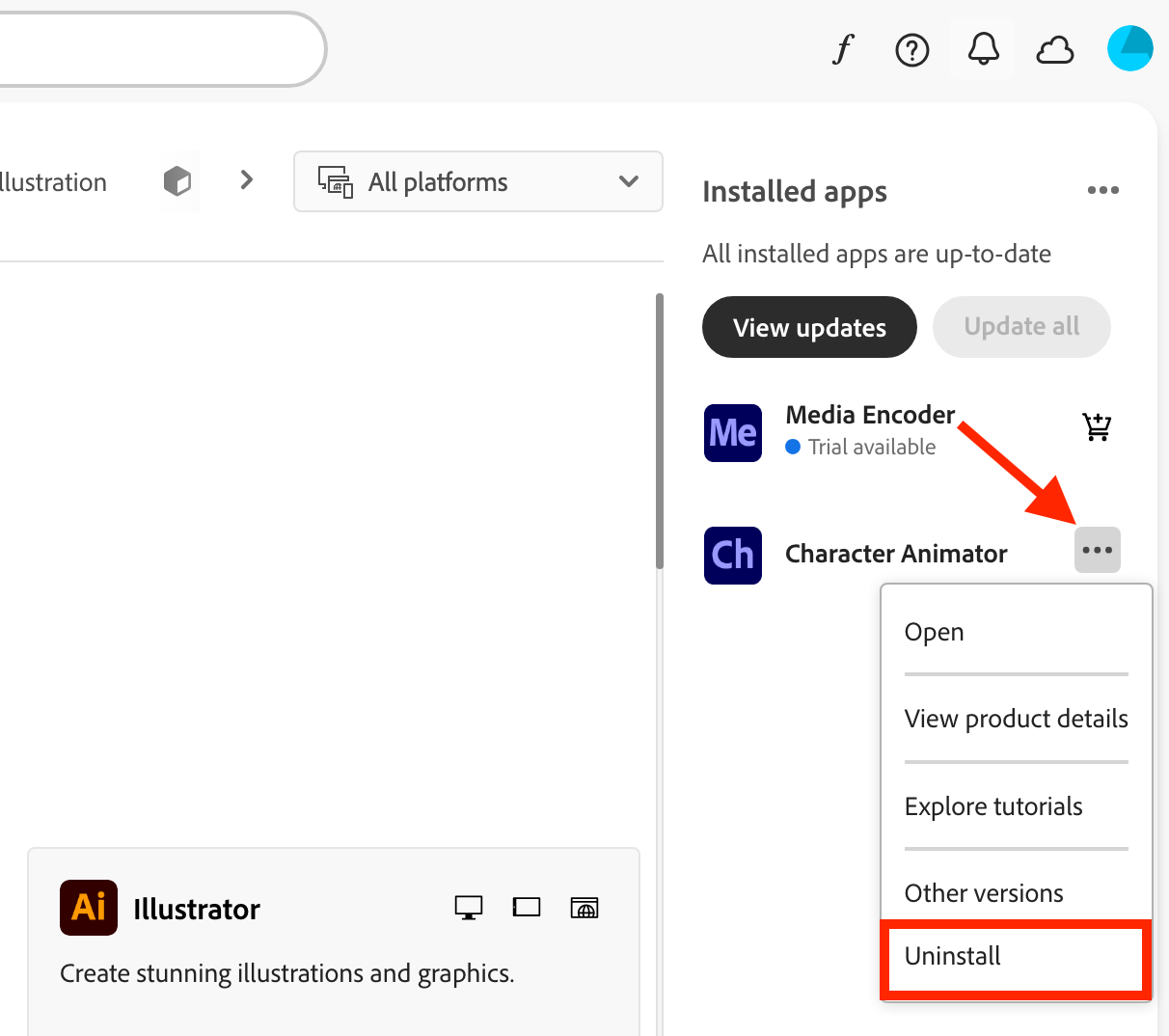
On the right-side, you’ll see a list of all installed software. Click the three dots under Acrobat, then choose Uninstall.
Follow the prompts on screen to delete Adobe Acrobat from Mac.
Step 1. In Creative Cloud, select AppsStep 2. Next to Acrobat, select Uninstall
Conclusion
When you’re ready to remove Adobe Acrobat from Mac, there are several effective solutions you can use, like employing the Acrobat Uninstaller, manually deleting Acrobat via Finder, or uninstalling the app from within Adobe Creative Cloud.
Alternatively, we’ve found the best way to remove unwanted apps on Mac is to use a third-party software uninstaller. MacKeeper’s Smart Uninstaller lets you clear programs and all associated folders quickly and easily, without getting rid of important files that macOS and other apps rely on.
We respect your privacy and
use cookies
for the best site experience.
Privacy Preferences Center
We use cookies along with other tools to give you the best possible experience while using the
MacKeeper website. Cookies are small text files that help the website load faster. The cookies we
use don’t contain any type of personal data meaning they never store information such as your
location, email address, or IP address.
Help us improve how you interact with our website by accepting the use of cookies. You can change
your privacy settings whenever you like.
Manage consent
All cookies
These cookies are strictly necessary for enabling basic website functionality (including page
navigation, form submission, language detection, post commenting), downloading and purchasing
software. The website might malfunction without these cookies.