Drag and drop on a Mac should feel effortless, but a laggy system, cluttered storage, or Finder hiccups can turn a simple move into a frustrating routine. From what our team sees in real troubleshooting, MacKeeper’s Safe Cleanup helps by clearing junk, caches, and outdated leftovers, giving you more free space and a smoother baseline before you start organizing files again.
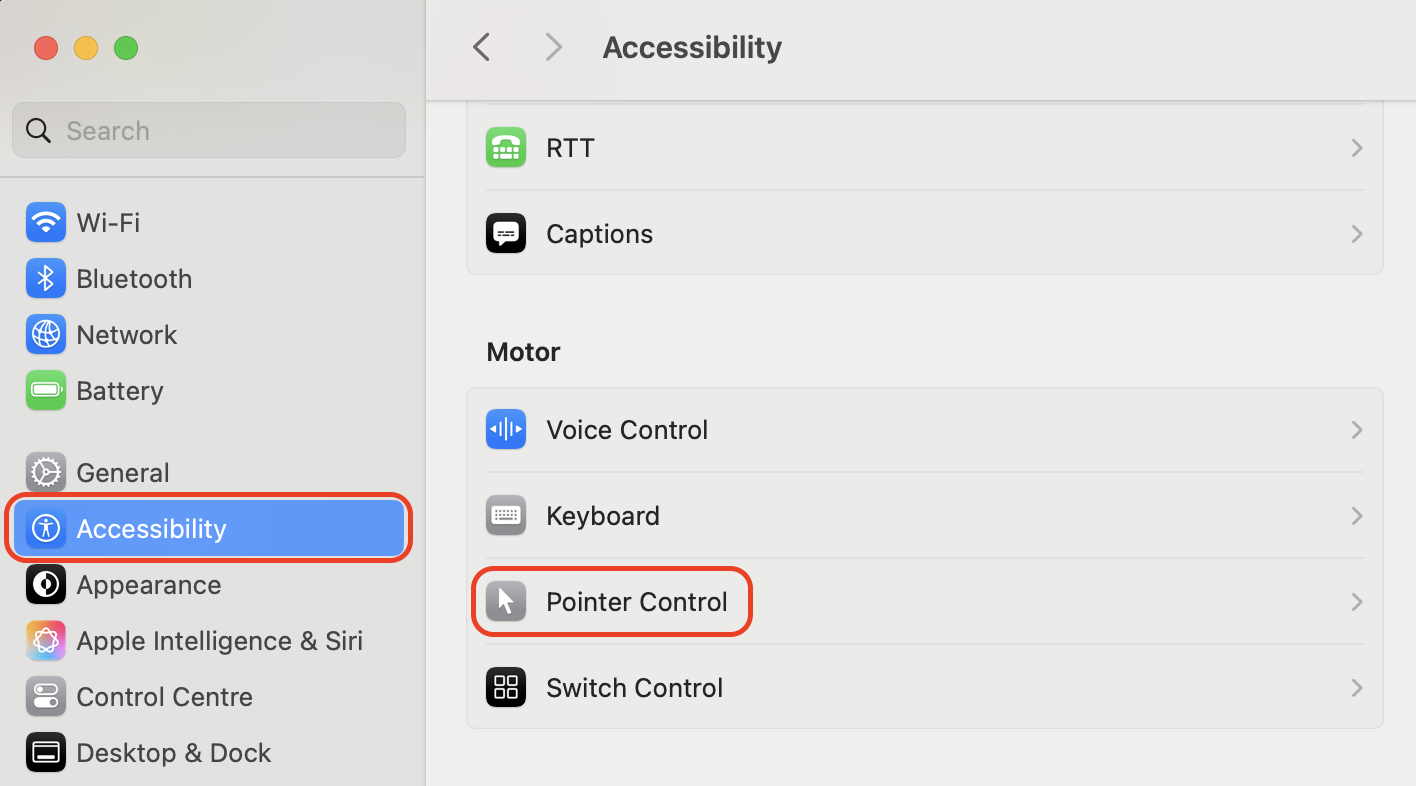
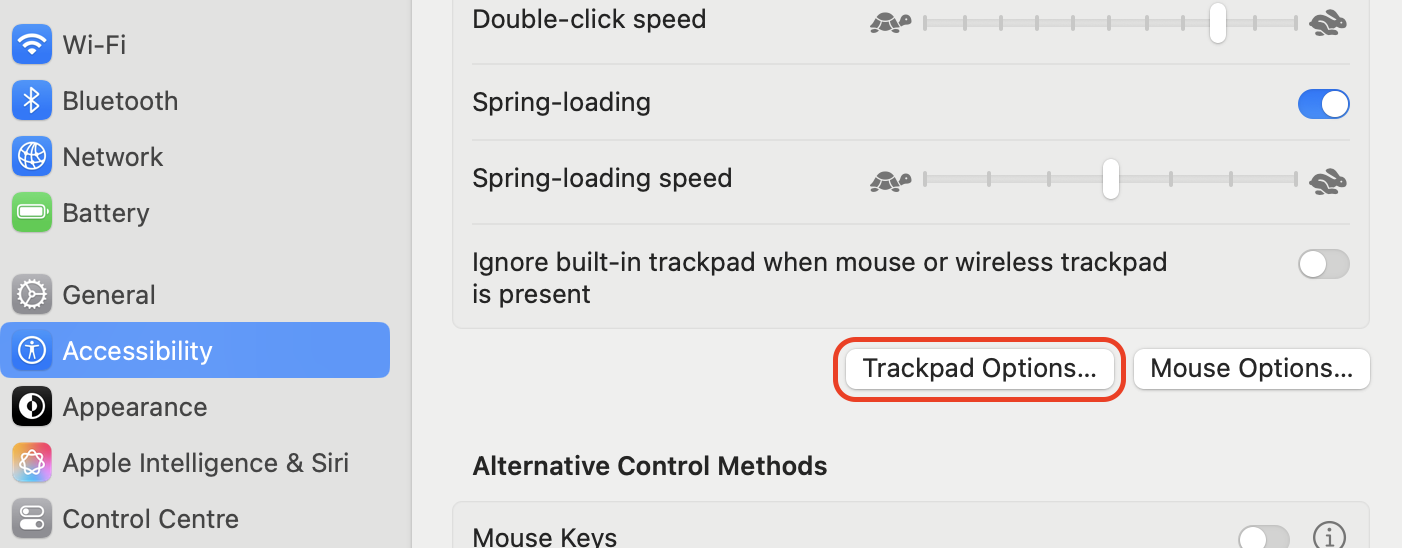
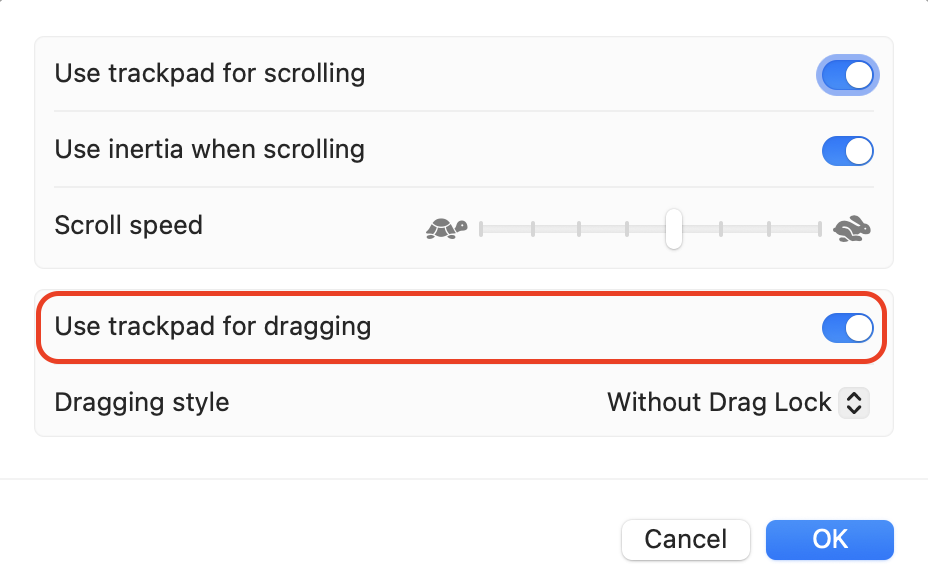
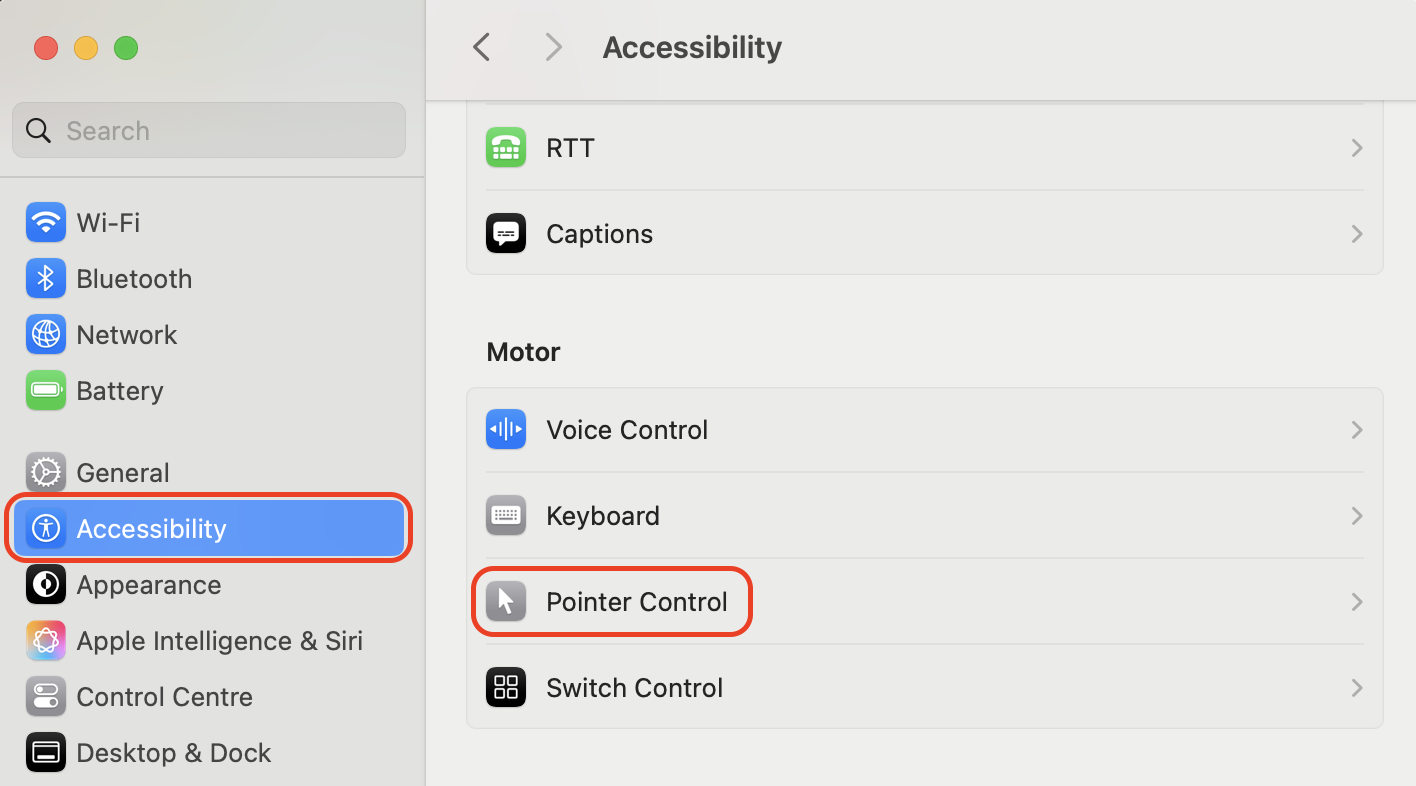
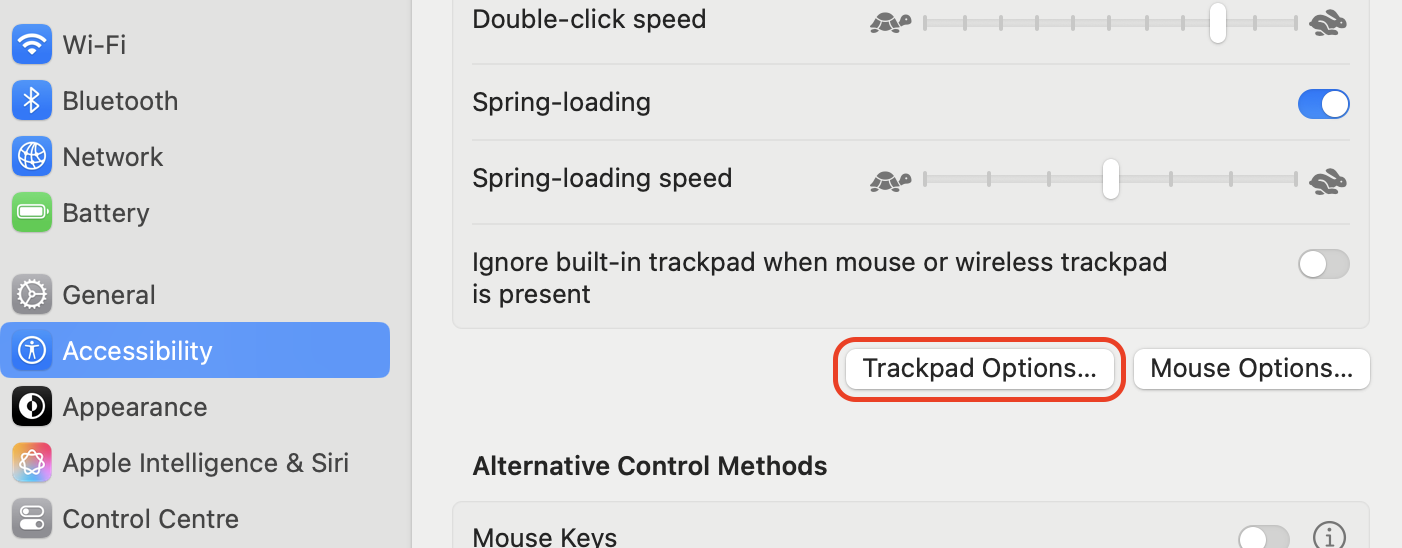
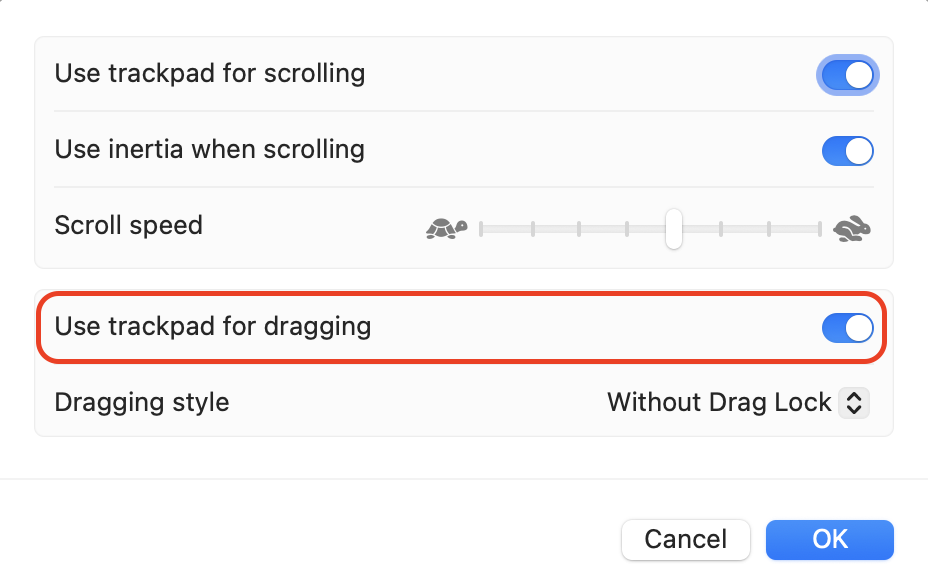
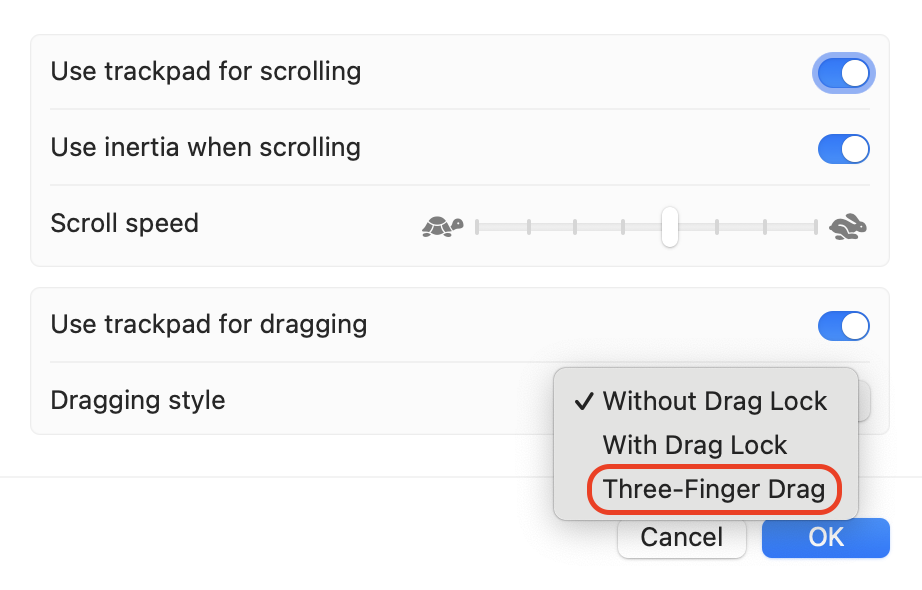
To drag and drop on a Mac, click a file or text, we hold the trackpad or mouse button, move it to the target spot, then release. For easier dragging, open System Settings > Accessibility > Pointer Control > Trackpad Options, enable Use trackpad for dragging, and pick Three-Finger Drag there on macOS systems.
Step 1. Open System Settings > Accessibility > Pointer ControlStep 2. Click on Trackpad OptionsStep 3. Enable Use trackpad for dragging
Methods to drag and drop on Mac
On a Mac, you can drag and drop using a mouse or trackpad by clicking and holding an item, then moving it to a new location. macOS also supports Drag Lock and Three-Finger Drag, which can be enabled in System Settings under Accessibility.
1. Basic drag and drop (click–hold–move–release)
Basic drag-and-drop is what you use dozens of times a day, often without thinking about it.
Here’s the simplest way to perform the classic drag action:
Click the file, folder, or item you want to move.
Keep the mouse button or trackpad pressed.
Move the item to the target location.
Watch macOS highlight valid drop areas.
Release to place the item.
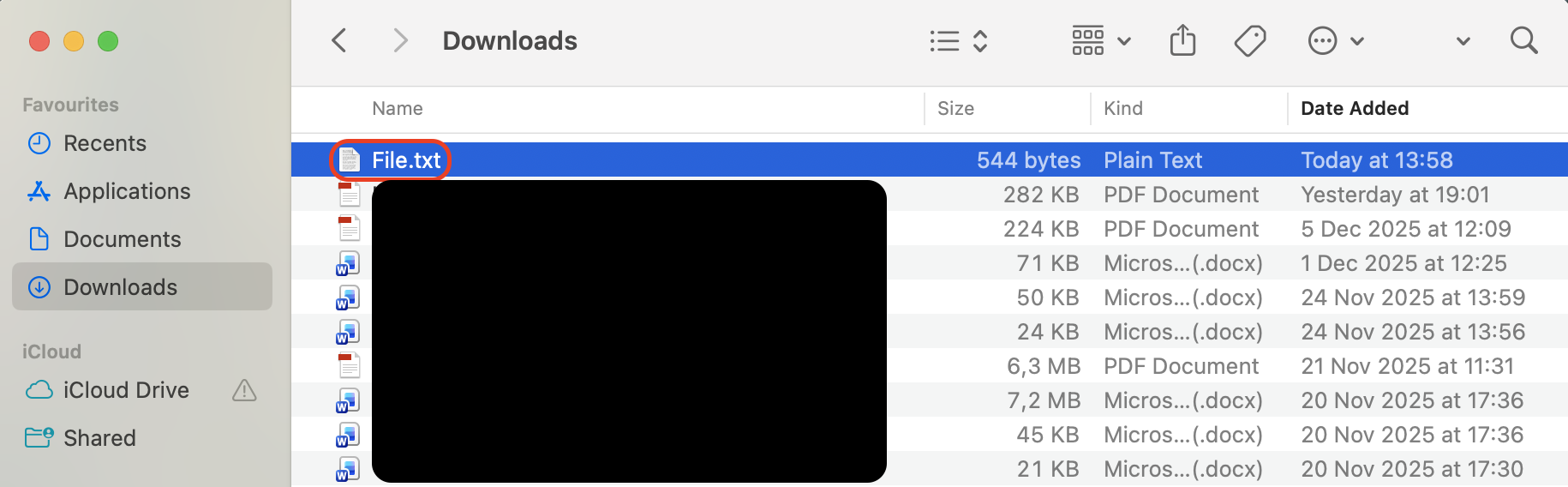
Click the file, folder, or item you want to move, keep the mouse button or trackpad pressed, and move the item to the target location
2. Copying items using the Option key
Sometimes you want the same file in two places, not a move. That’s where copying with the Option key comes in.
To duplicate items while dragging, do the following:
Select a file or folder in Finder.
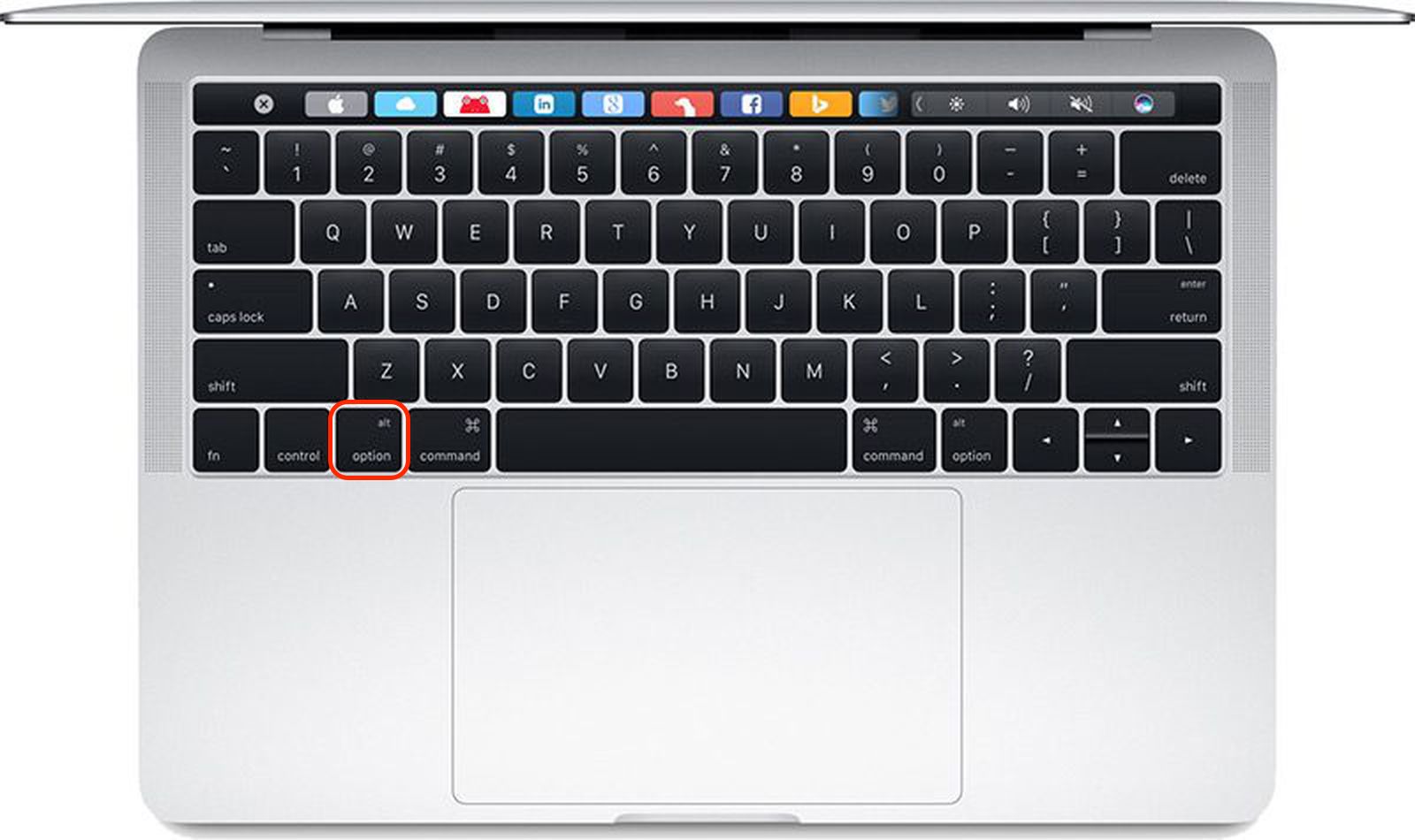
Press and hold Option on the keyboard.
Click and drag the item to a new location.
Look for the small plus icon during the drag.
Release to create a copied version.
Step 1. Select a file or folder in FinderStep 2. Press and hold Option on the keyboard, then click and drag the item to a new location
3. Advanced: Three-finger drag gesture
Our tech specialists often suggest enabling it if clicking feels uncomfortable or slows you down during frequent drag actions.
To turn it on and start using it, walk through this setup:
Open System Settings on your Mac.
Go to Accessibility and select Pointer Control.
Click Trackpad Options.
Enable Use trackpad for dragging.
Choose Three-Finger Drag from the list.
Drag items by moving them with three fingers.
Step 1. Open System Settings > Accessibility > Pointer ControlStep 2. Click on Trackpad OptionsStep 3. Enable Use trackpad for draggingStep 4. Choose Three-Finger Drag from the list
A note from our experts:
Before you start reorganizing files or moving content around, we recommend you to free up space and remove clutter that slows everything down. MacKeeper is Apple-notarized and optimized for macOS, making it a reliable choice for safely clearing unnecessary files before any drag-and-drop work. Using Safe Cleanup first means you work only with files that still matter, avoid duplicates, and reduce errors during file management.
Here are the exact steps to follow:
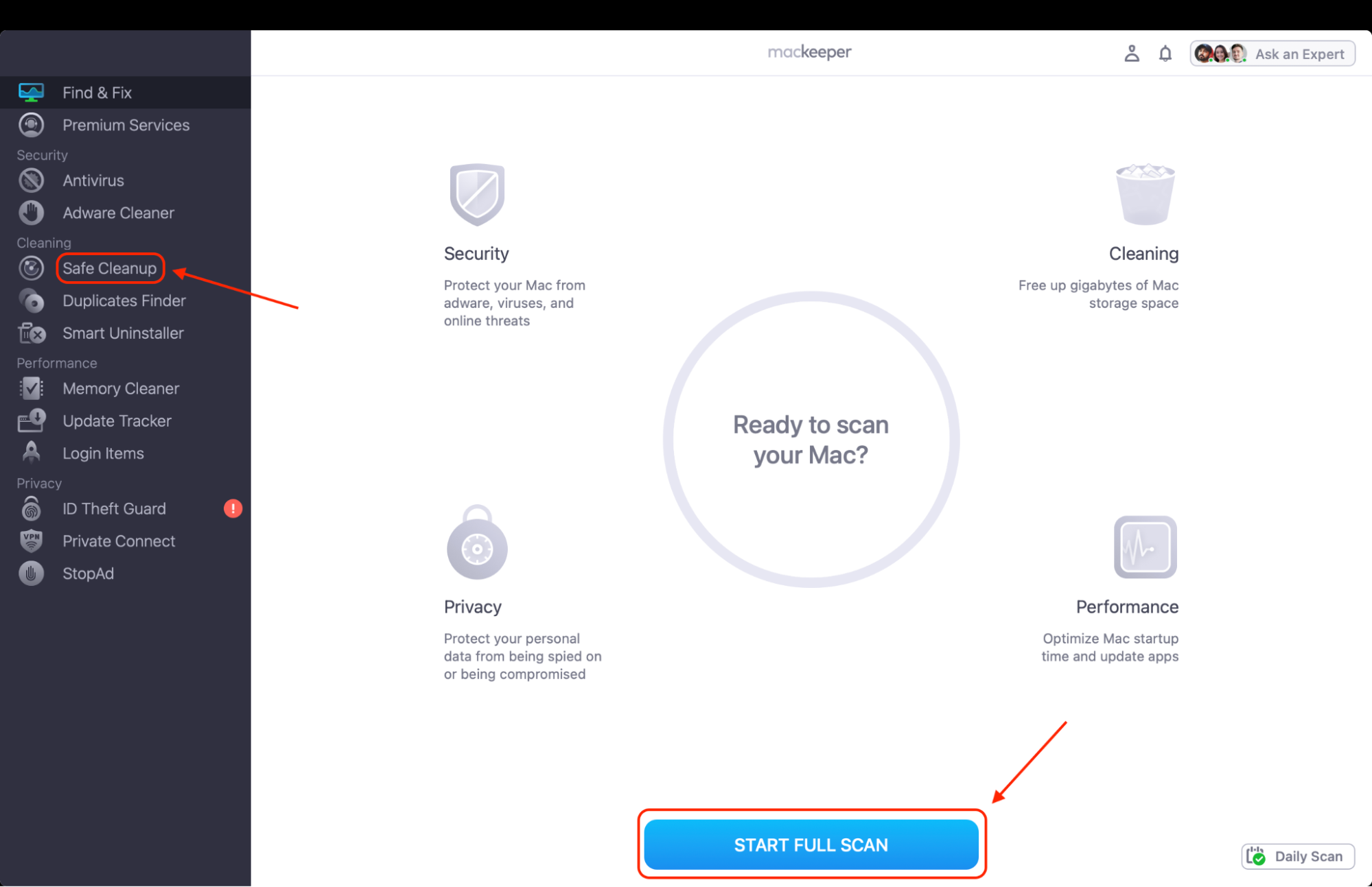
Open MacKeeperand select Safe Cleanup. Launch the app, go to the Safe Cleanup section, and let it scan your Mac for junk files, caches, and leftovers.
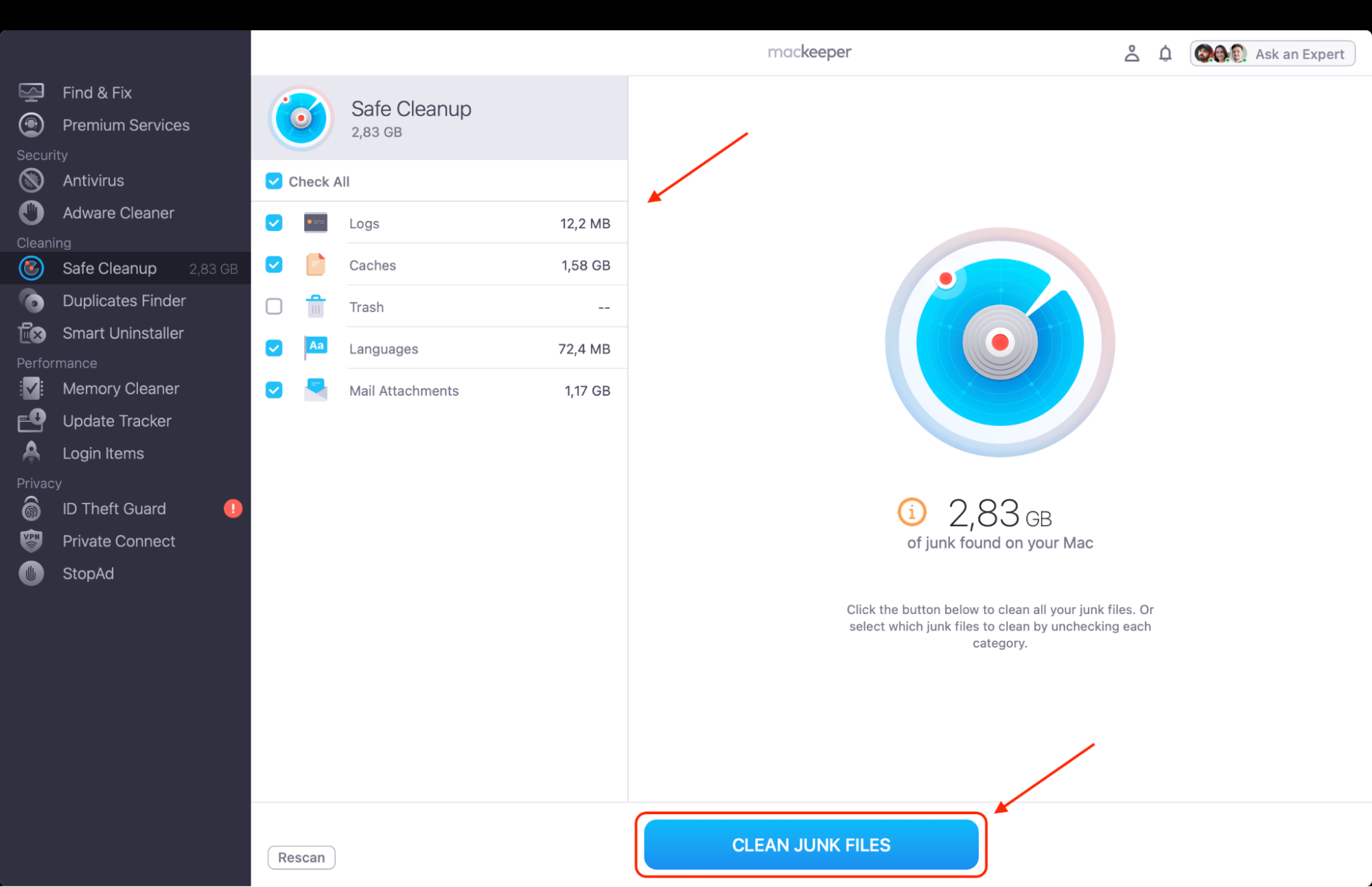
Review old and unnecessary files. Check categories such as caches, logs, and unused system files to stay in control of what gets removed.
Remove selected items. Click Clean Junk Files to safely delete them and instantly reclaim storage space.
Step 1. Select Safe Cleanup and click the Start Full Scan buttonStep 2. Choose the files you’d like to remove and click Clean Junk Files
Drag & Drop in real-use scenarios on macOS
Select and drag on a Mac is used far beyond basic file movement. You rely on it to organize folders in Finder, attach files to emails, insert images into documents, reorder pages in PDFs, and move content between apps like Mail, Notes, and Photos.
1. Dragging files and folders in Finder
Dragging files and folders in Finder is the most common way to organize storage and shows how to move files on a Mac without opening menus. You can visually confirm destinations, rearrange folder structures, and quickly clean up clutter.
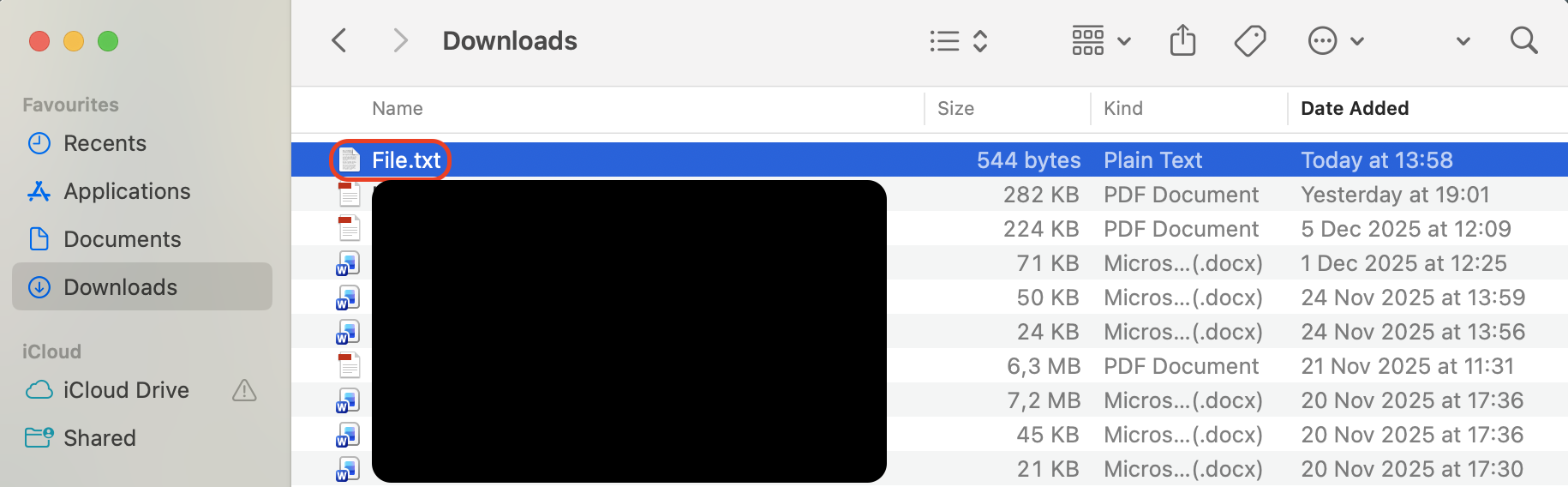
Use our steps to drag files and folders in Finder:
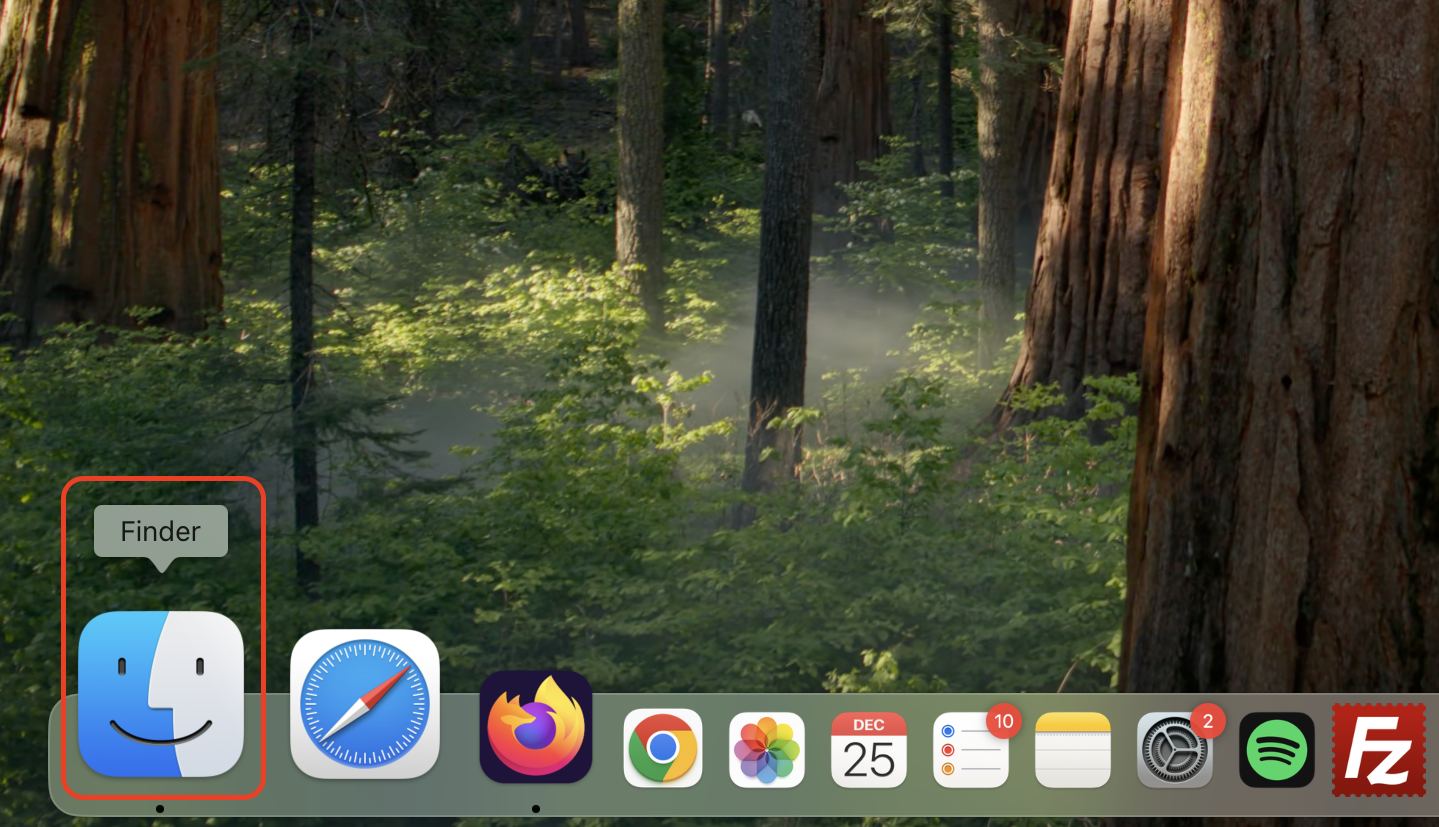
Open Finder from the Dock.
Locate the file or folder you want to move.
Click and hold the item using your mouse or trackpad.
Drag it to a destination folder or the Finder sidebar.
Release to move the item.
Hold Option while dragging to copy instead of moving.
Hold Command to force a move between drives.
Step 1. Open Finder from the DockStep 2. Locate the file or folder you want to move, then click and hold the item using your mouse or trackpad
2. Dragging text, images, and media between apps
You can pull images from Safari into Notes, drop text into Mail, or move media into editing apps.
Follow these steps:
Open the source app and the destination app.
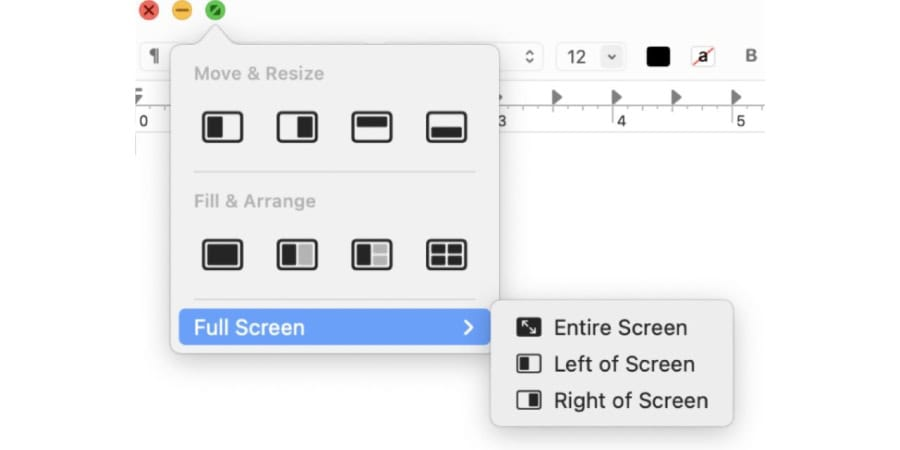
Arrange windows side by side or enable Split View.
Select the text, image, or media you want to move.
Click and hold the selected content.
Drag it into the destination app window.
Open the source app and the destination app, then arrange windows side by side or enable Split View
3. Dragging to Dock, sidebar, and menu
macOS highlights valid drop zones during the action, while right-clicking on a Mac allows you to manage or remove pinned items later without affecting the original files.
Use the steps below:
Locate the file, folder, or app in Finder.
Click and hold the item.
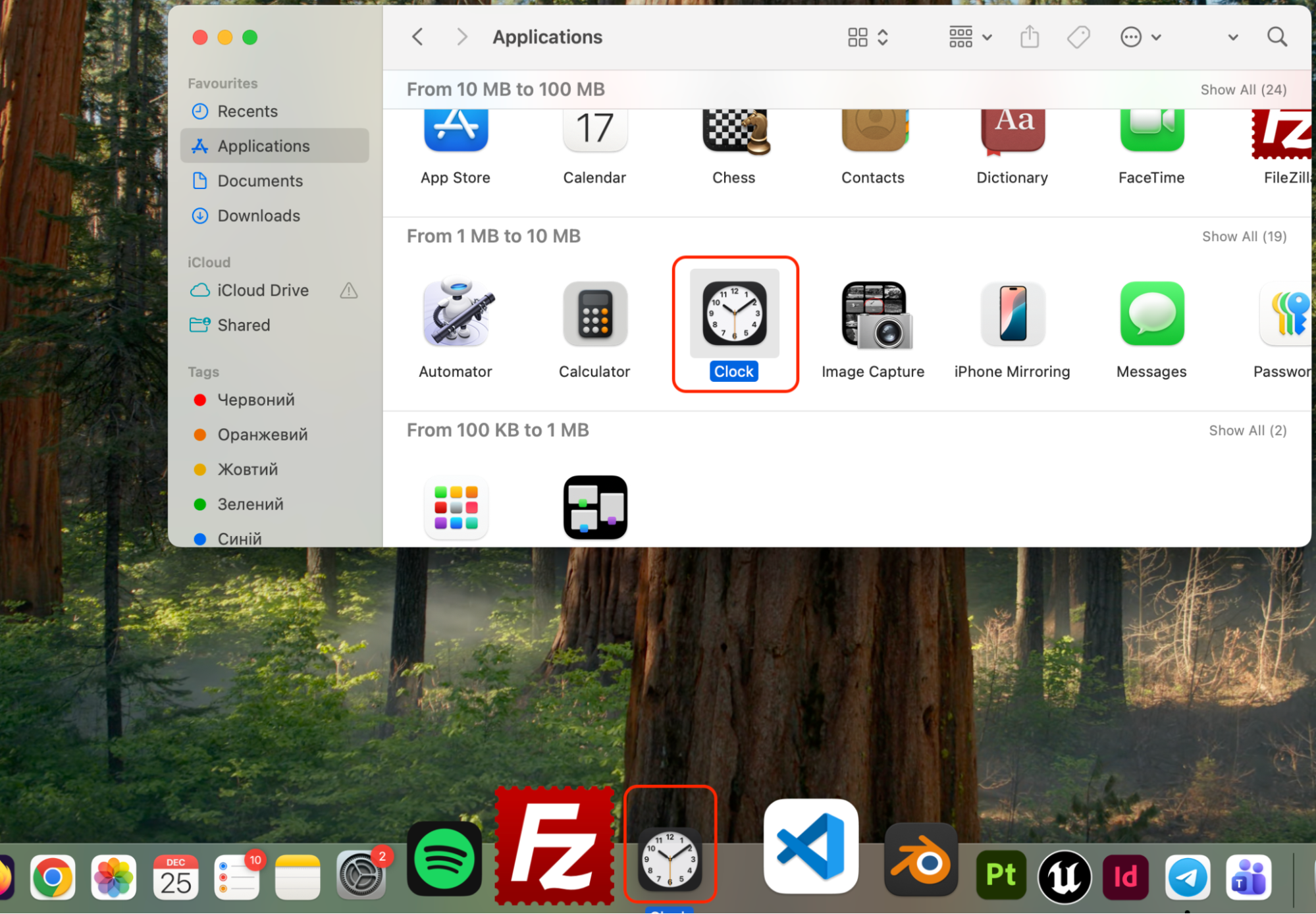
Drag it toward the Dock, Finder sidebar, or menu area.
Pause until macOS highlights a valid drop location.
Release to add the item.
Use right-click on Mac to remove or customize it later.
Locate the file, folder, or app in Finder, then click and hold the item, drag it toward the Dock, Finder sidebar, or menu area
4. Cross‑device and universal control drag and drop
Cross-device drag and drop becomes possible on macOS through Universal Control, which lets you move files, images, and text between nearby Apple devices using a single cursor.
Follow these steps to drag and drop between devices:
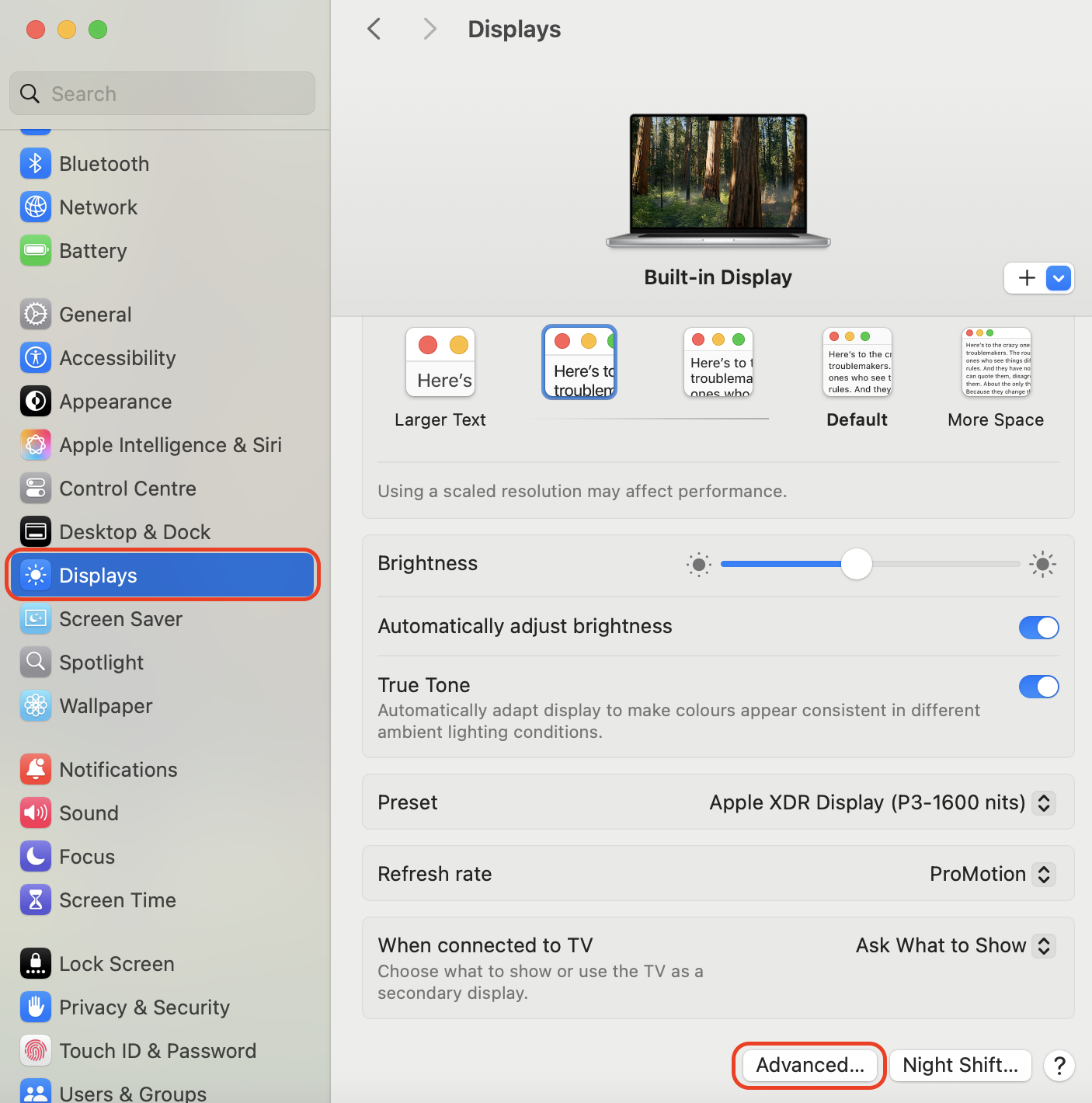
Open System Settings on your Mac.
Select Displays from the sidebar.
Click Advanced at the bottom of the window.
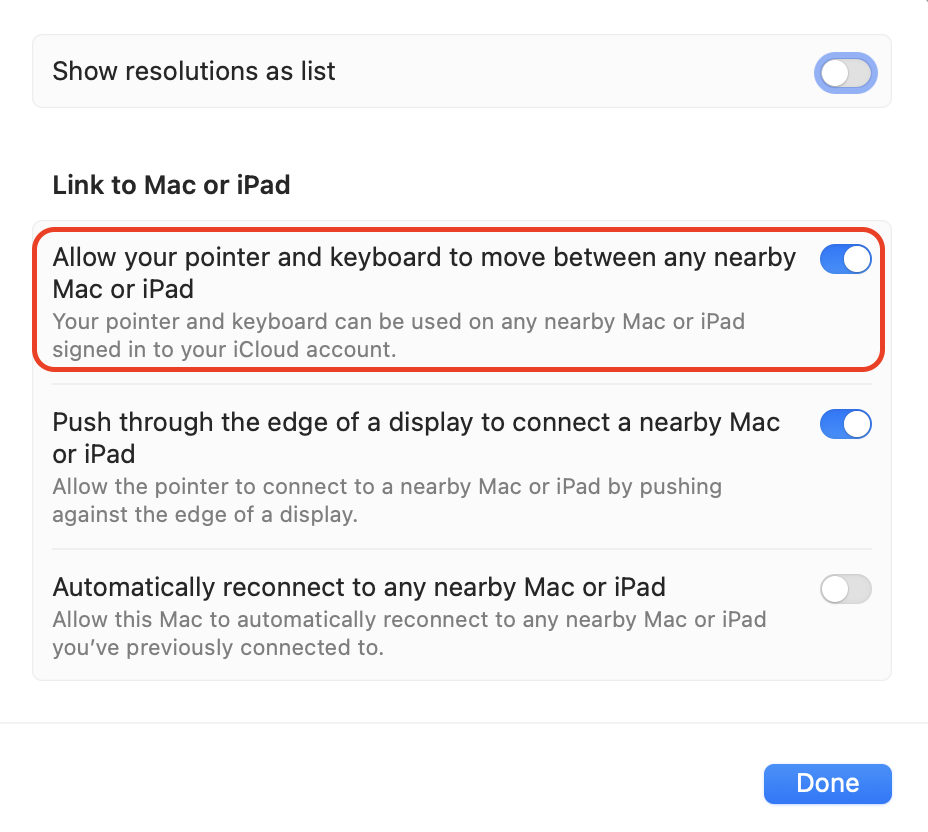
Enable Allow your pointer and keyboard to move between any nearby Mac or iPad.
Sign in to all devices with the same Apple ID.
Drag files, images, or text across screens and release to drop.
Step 1. Open System Settings, select Displays, and click AdvancedStep 2. Enable Allow your pointer and keyboard to move between any nearby Mac or iPad
5. Working with multiple spaces/desktops
We can also move files, windows, or content while keeping tasks separated, answering how to copy and paste on a Mac through direct visual movement instead of clipboard-based actions.
Follow these steps:
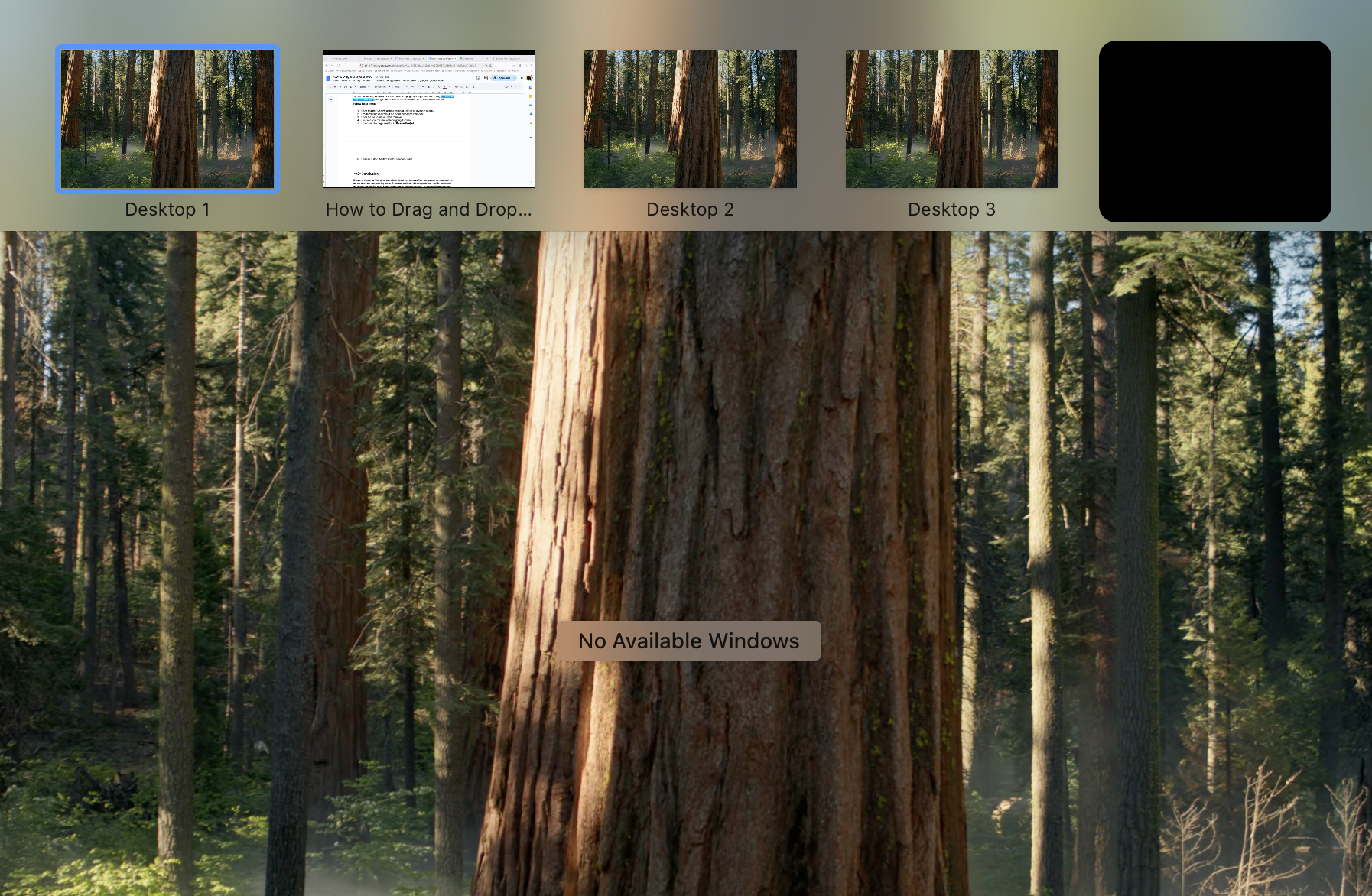
Open Mission Control using a trackpad gesture or keyboard shortcut.
Create multiple desktops at the top of the screen if needed.
Open the file or app you want to move.
Click and hold the item while dragging it upward.
Hover over the target desktop in Mission Control.
Release to drop the item into the selected Space.
Open Mission Control using a trackpad gesture or keyboard shortcut
Conclusion
Drag and drop on a Mac gives you a fast, visual way to move files, reorganize content, and work across apps without breaking focus. Before reorganizing your data, we suggest freeing up space first. MacKeeper is a macOS utility software optimized for macOS that helps remove outdated and unnecessary files with Safe Cleanup, so every drag-and-drop action works with a cleaner, more responsive system.
We respect your privacy and
use cookies
for the best site experience.
Privacy Preferences Center
We use cookies along with other tools to give you the best possible experience while using the
MacKeeper website. Cookies are small text files that help the website load faster. The cookies we
use don’t contain any type of personal data meaning they never store information such as your
location, email address, or IP address.
Help us improve how you interact with our website by accepting the use of cookies. You can change
your privacy settings whenever you like.
Manage consent
All cookies
These cookies are strictly necessary for enabling basic website functionality (including page
navigation, form submission, language detection, post commenting), downloading and purchasing
software. The website might malfunction without these cookies.