Updated to macOS Tahoe, and now your familiar app grid is gone? You’re not alone. Apple removed Launchpad from macOS 26 Tahoe and replaced it with a new Spotlight-based app launcher. You can get a Launchpad-style experience back without downgrading. MacKeeper’s Premium Services team can walk you through every step if you need help.
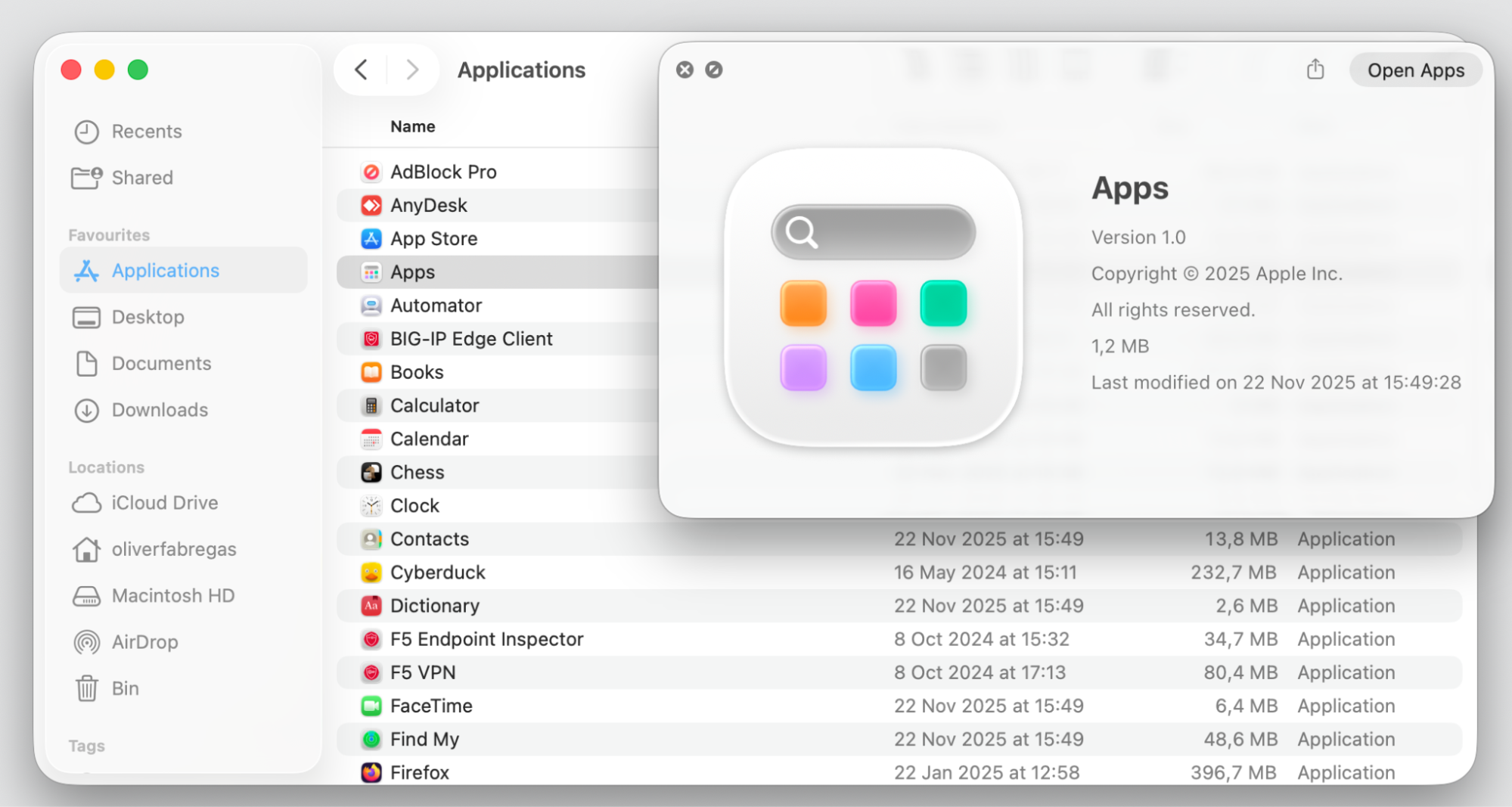
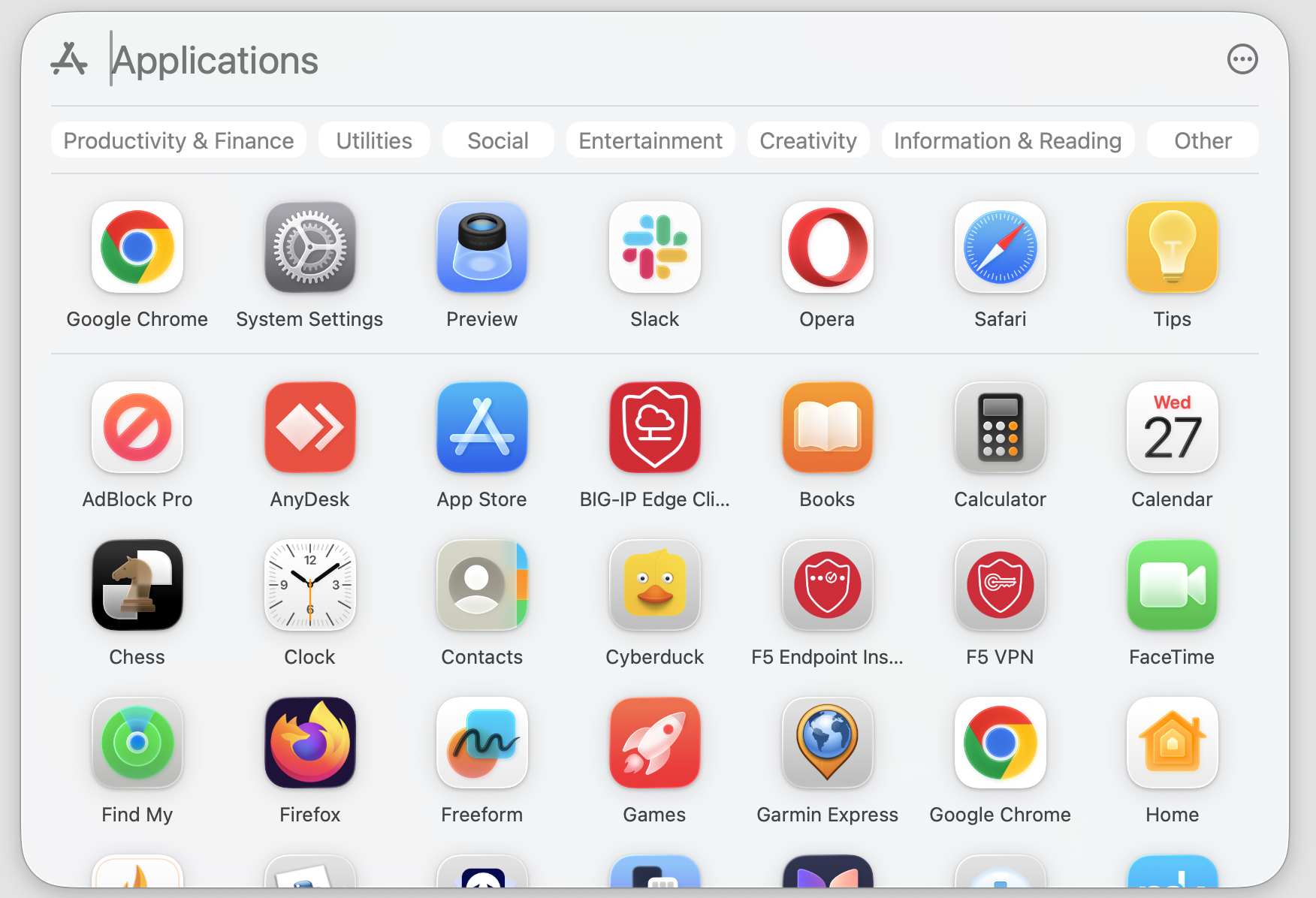
Apple has been moving macOS closer to the iOS experience for years, and Launchpad was one of the last holdovers from that original vision. In macOS 26 Tahoe, Apple replaced it with a new Apps window built directly into Spotlight—a smarter, search-first launcher that shows your most-used apps at the top and lists everything else in alphabetical order below.
The change is tied to Tahoe’s redesigned Spotlight, which now offers app browsing, clipboard history, and action shortcuts in a single interface. Apple sees the new Apps window as a direct upgrade, not a removal. We advise you to check for macOS Tahoe compatibility if you haven’t upgraded yet.
Can you get Launchpad back in macOS Tahoe?
Not in its original form—Apple hasn’t provided a native way to restore the classic full-screen grid. The old Terminal command that worked during the macOS 26 beta was blocked in the official release, so it’s no longer a reliable option.
That said, there are several solid ways to bring back a Launchpad-style experience on macOS 26 Tahoe. You can use a built-in Dock workaround, a Spotlight-based approach, or a lightweight third-party app. We’ll cover all three methods below.
Method
Effort level
Closest to the original Launchpad?
Applications folder in Dock
Very easy
Partial—no custom order
Spotlight App Search
Easy
Search-only, no grid
Third-party app (AppGrid, Launchie)
Easy
Yes—full grid and folders
A note from our experts:
Sometimes adjusting to new apps and changes in the daily Mac routine can be effortful. We, at MacKeeper, understand it completely and lend you a helping hand with our tech support assistance.
To use MacKeeper’s Premium Services, just do the following:
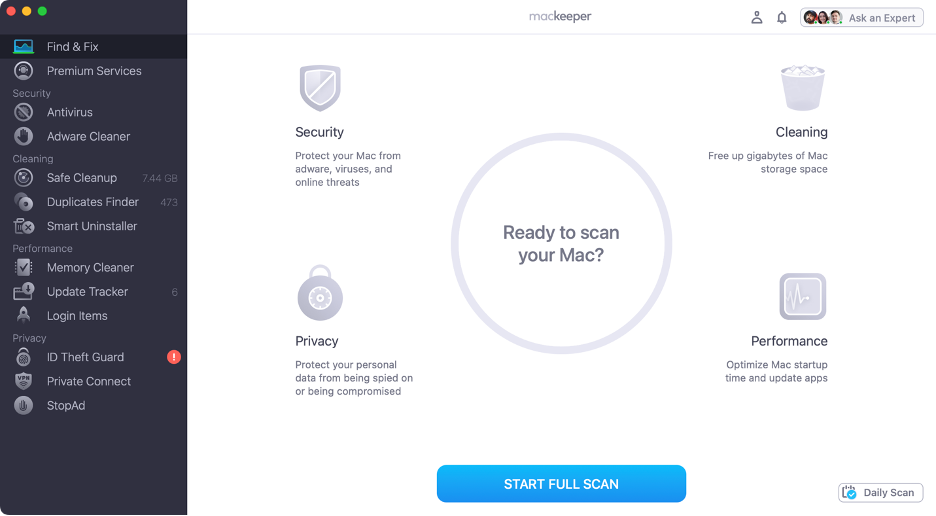
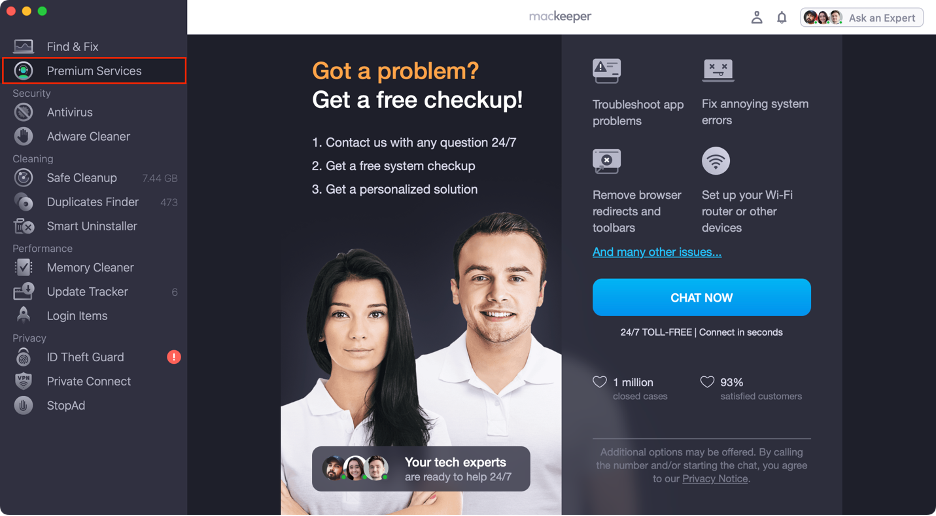
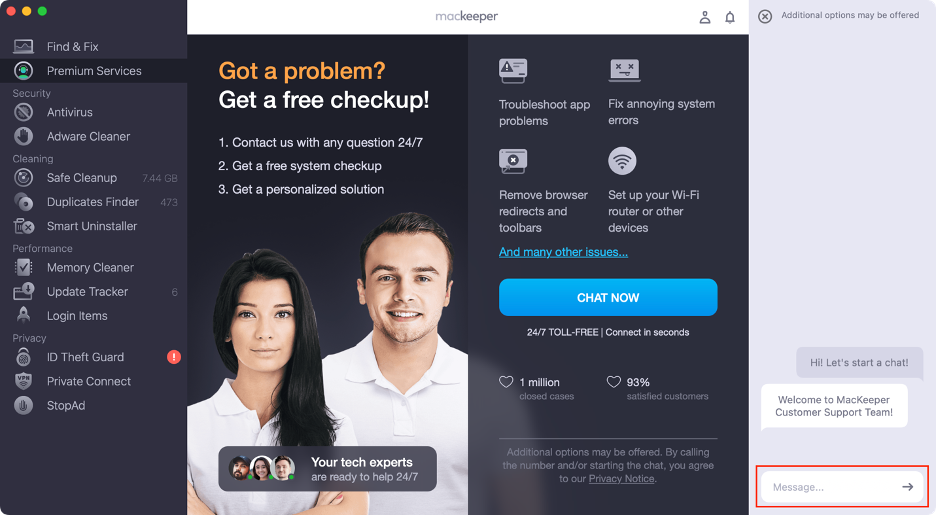
Step 1. Launch the MacKeeper app after installationStep 2. Find Premium Services and click on itStep 3. Click on Chat Now to start the dialogueStep 4. Discuss your issue with our tech support agent
How to bring back Launchpad in macOS 26 Tahoe?
Below, we’ll guide you through the best ways to bring back the Launchpad in your Tahoe macOS version.
1. Get Launchpad back using Apple built-in tools
The quickest no-download workaround to get Launchpad back is pinning your Applications folder to the Dock. It doesn’t restore the full-screen grid, but it opens a scrollable, large-icon view of every app on your Mac—all from a single click.
Here’s how to set it up:
Open a Finder window.
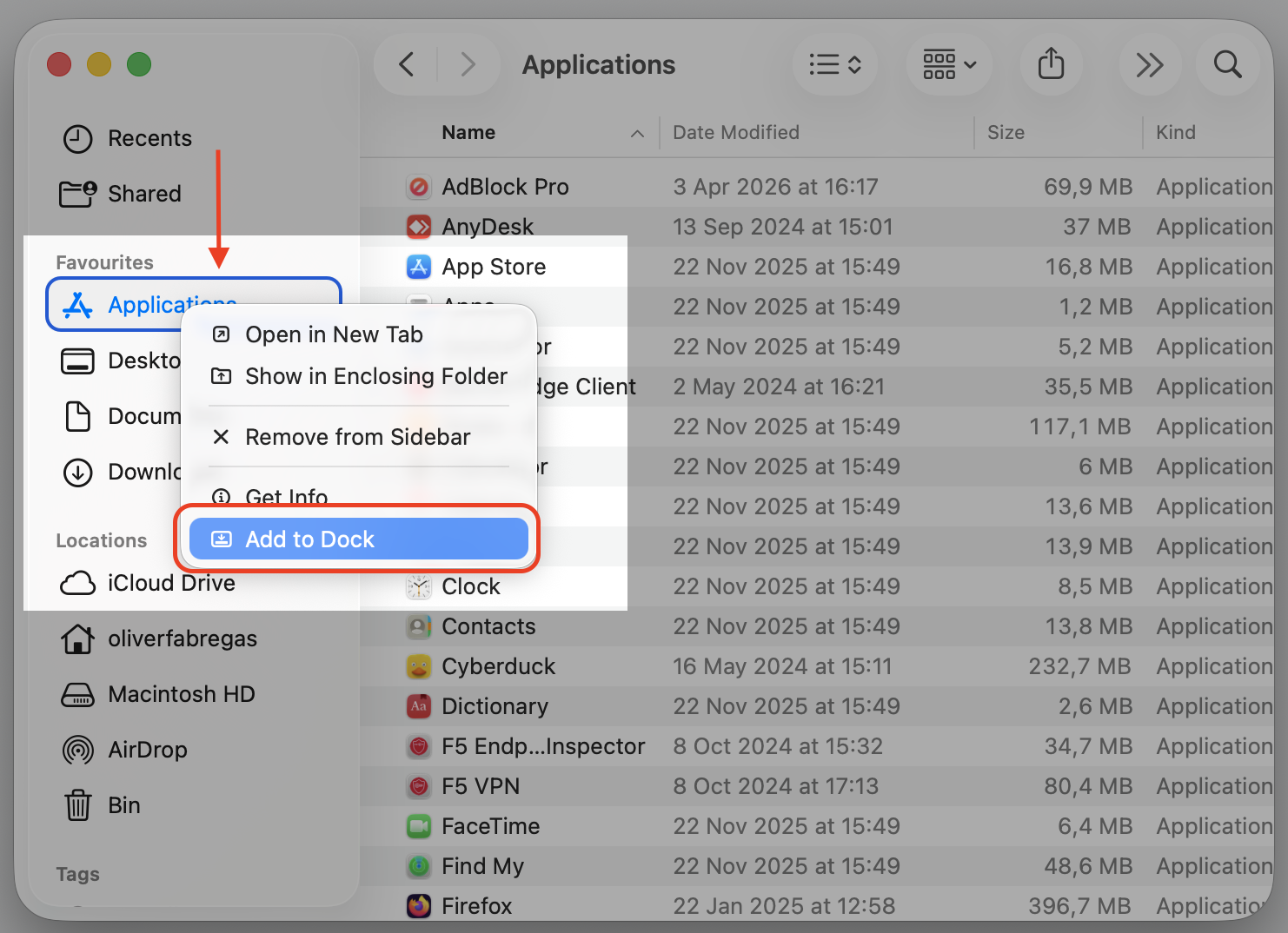
In the left sidebar, control-click Applications.
Select Add to Dock.
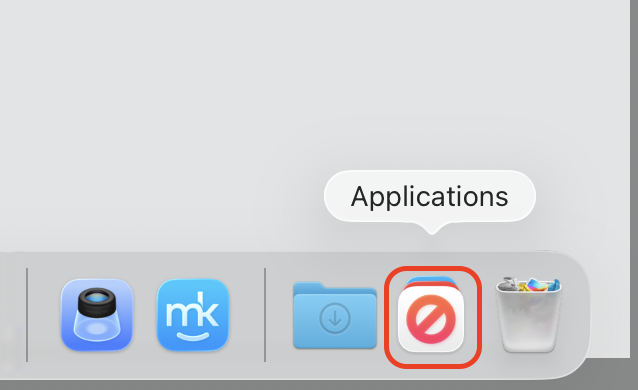
The Applications folder appears at the right end of your Dock.
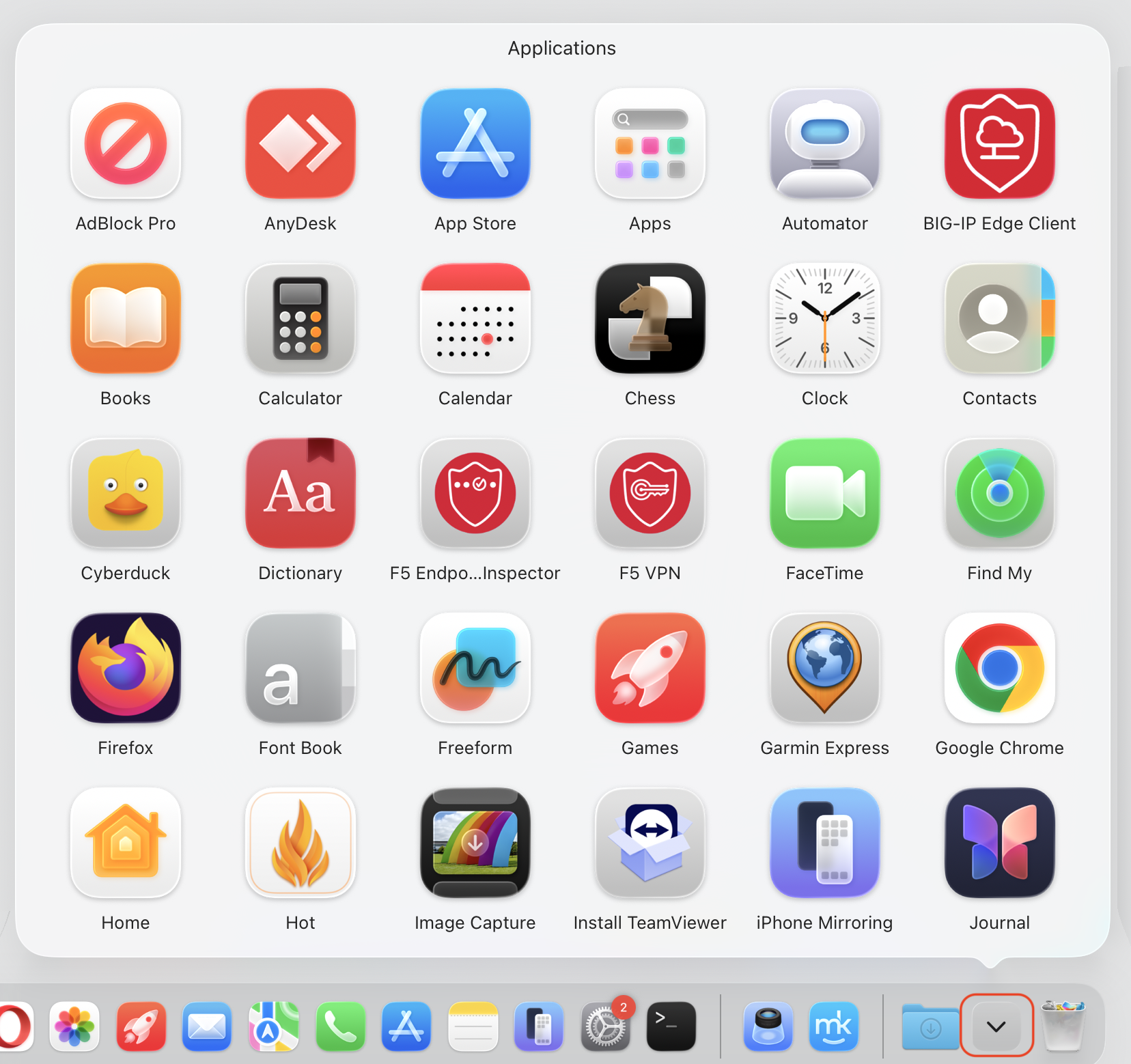
Click it to open a pop-up grid of all your apps.
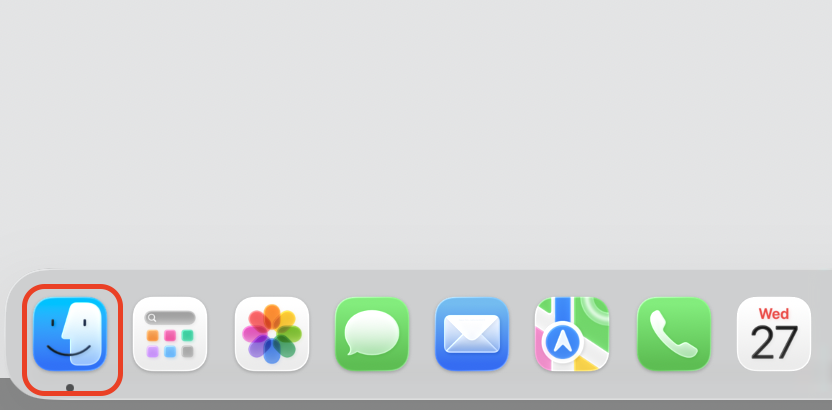
Step 1. Go to FinderStep 2. Control-click on Applications and select Add to DockStep 3. Go to the Applications folder at the right end of your DockStep 4. Click it to open a pop-up grid of all your apps
A few helpful hints from our team:
You can’t drag this icon to a different spot in the Dock in macOS Tahoe, and it won’t support custom app order or folders. The icon also displays the app that appears first alphabetically in your Applications folder. Still, it’s fast, clean, and requires no extra installation.
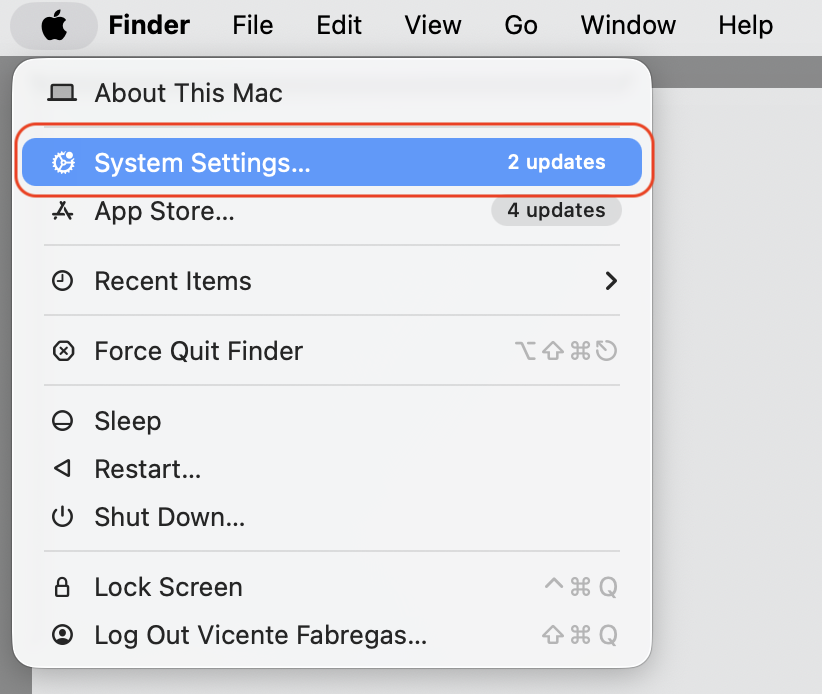
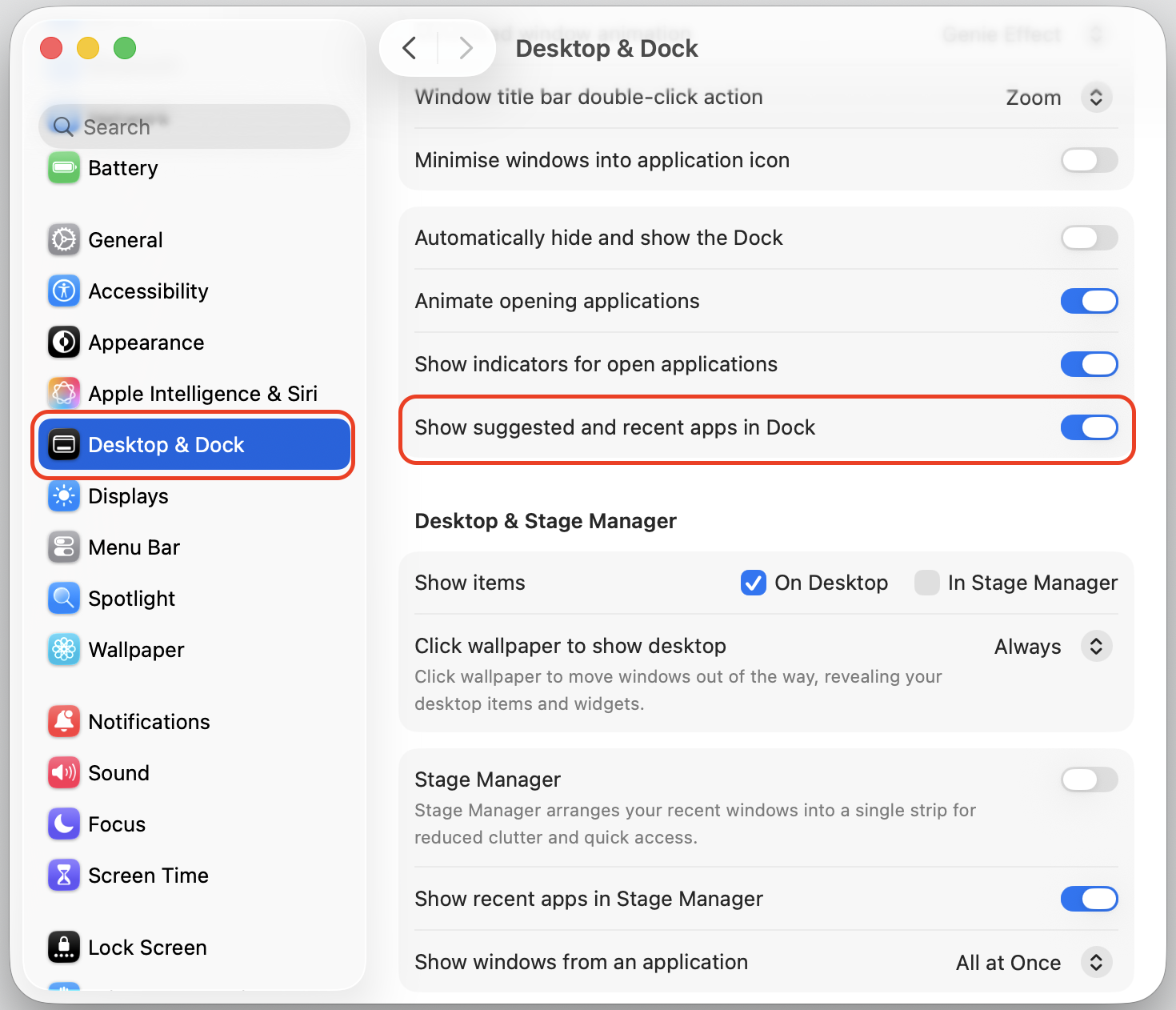
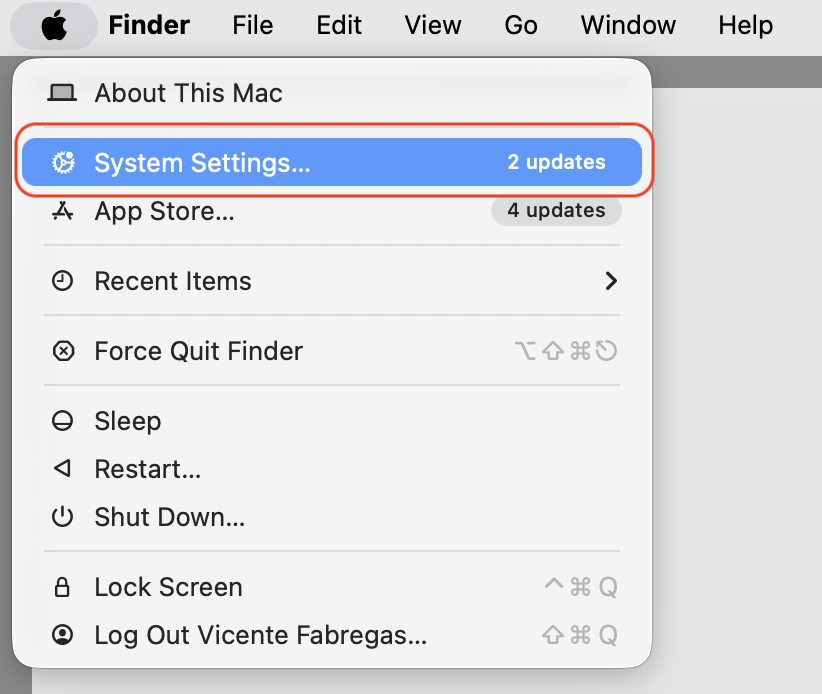
If you don’t see the folder in your Dock after adding it, go to System Settings → Desktop & Dock and make sure Show suggested and recent apps in Dock is turned on. Follow our visual guidelines to accompany you.
Step 1. Go to Apple logo > System SettingsStep 2. Select Desktop & Dock and turn on Show suggested and recent apps in Dock
2. Find and bring back Launchpad via Spotlight Search
Apple’s redesigned Spotlight in macOS Tahoe can double as your app launcher—and it’s faster than the old Launchpad for users who prefer to search on Mac rather than browse visually.
Here’s how to open apps quickly through Spotlight:
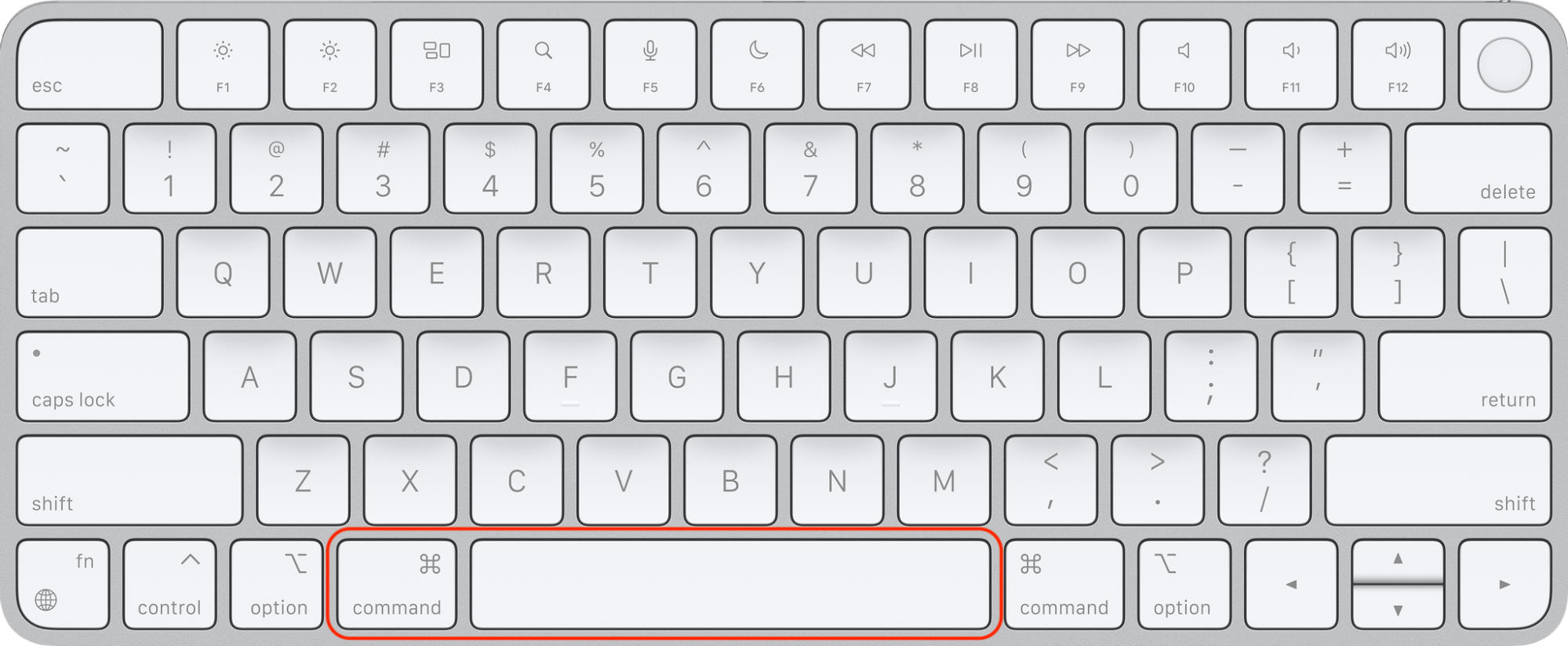
Press Command + Space to open Spotlight.
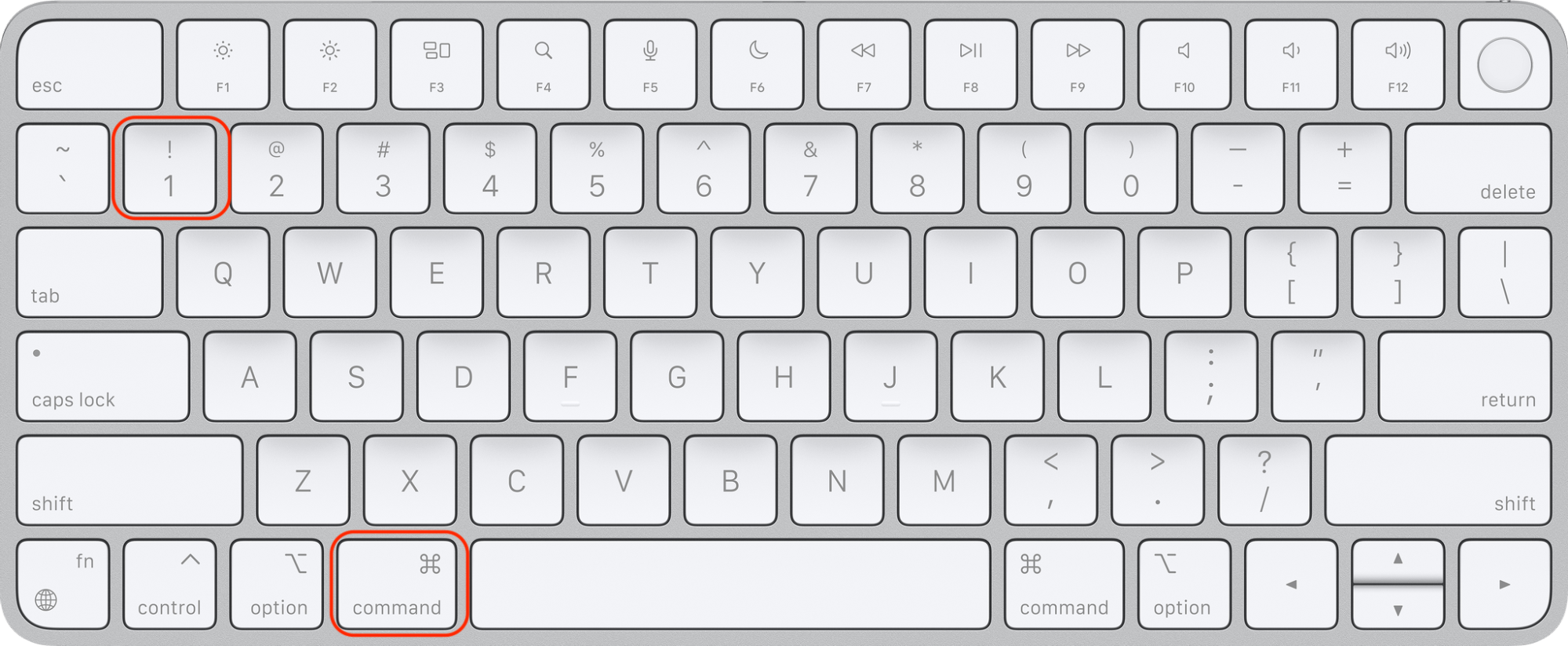
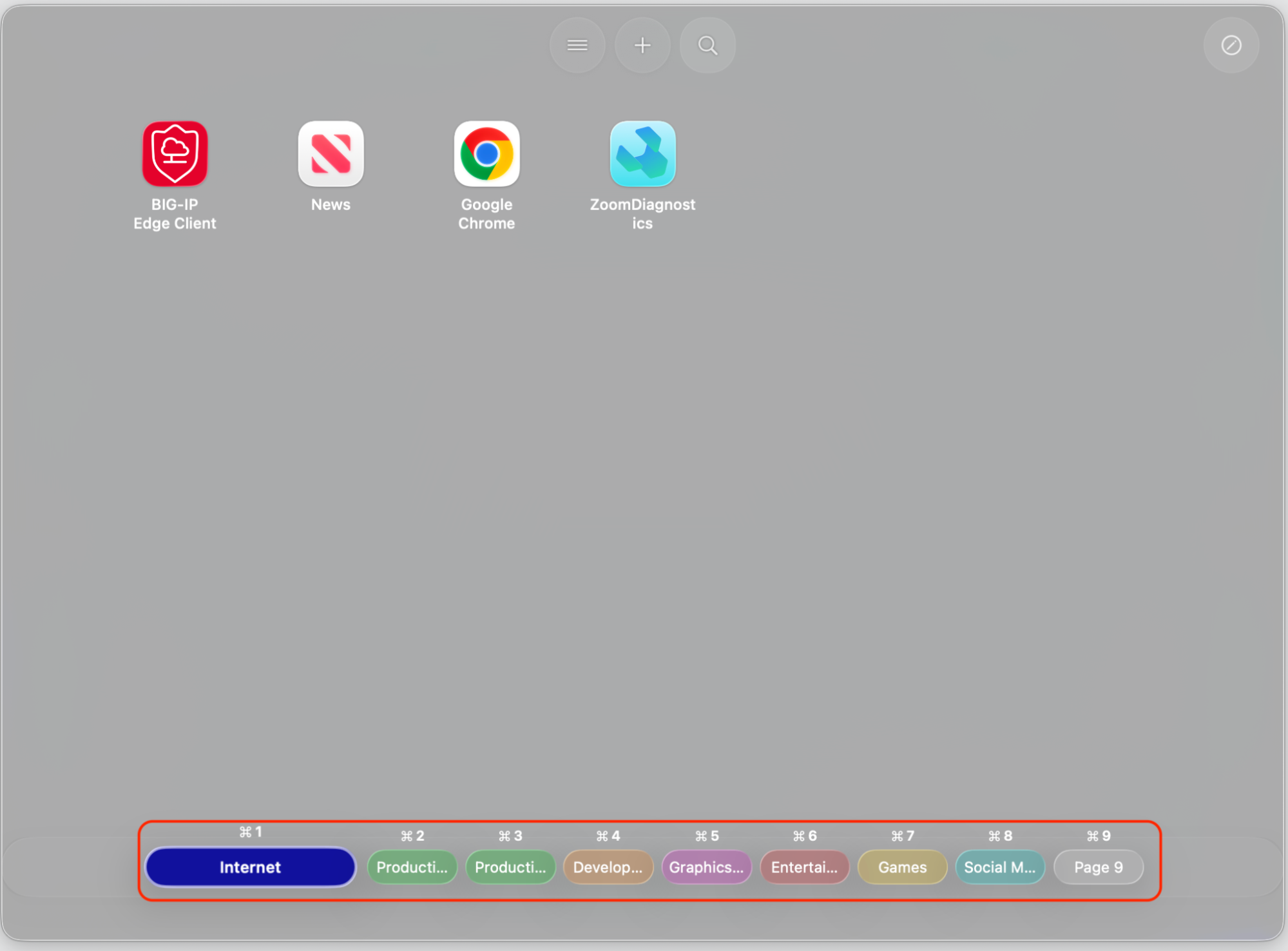
Press Command + 1 to switch to the Apps view.
Browse or type to find any app on your Mac.
Press Return to launch it.
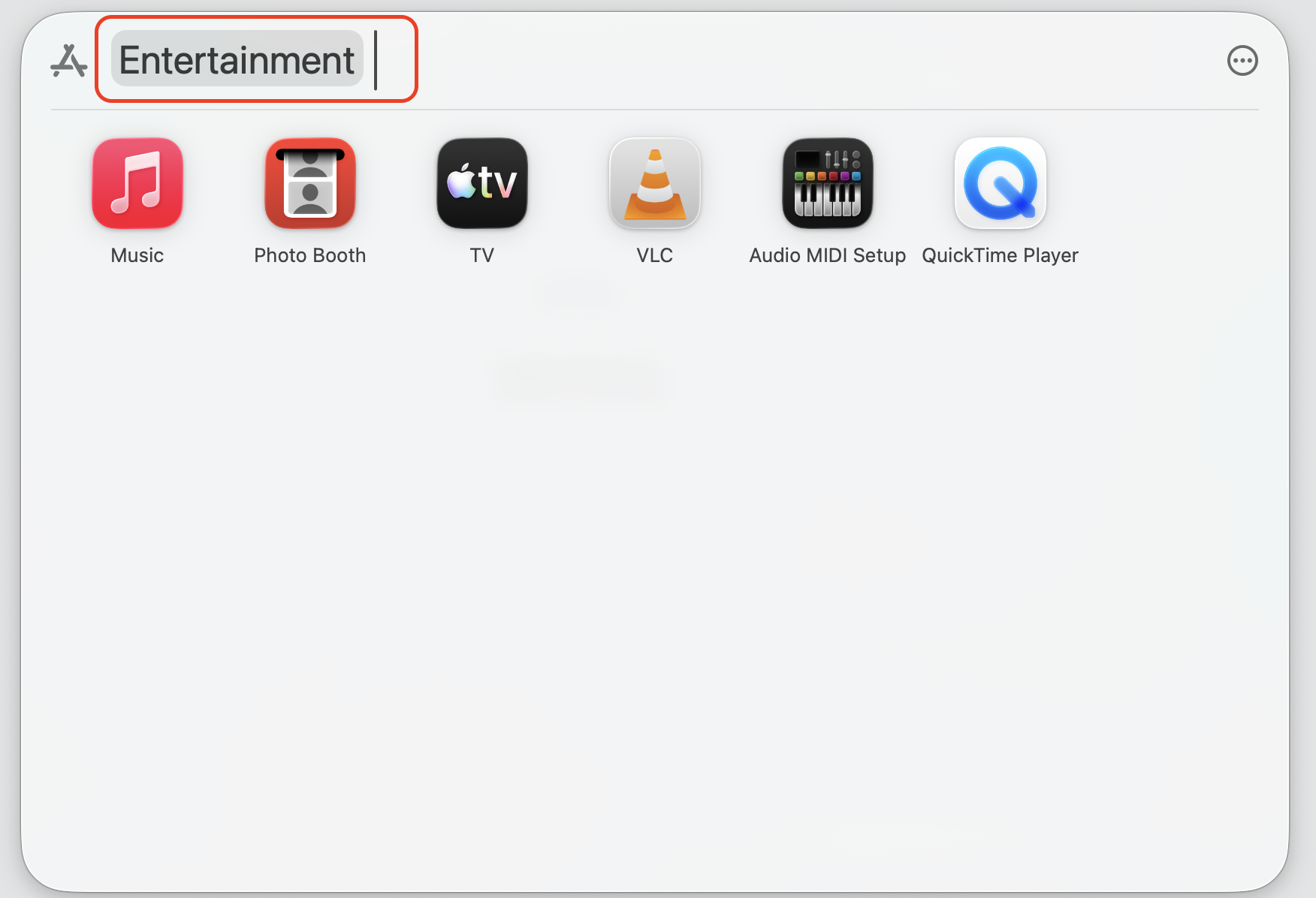
Step 1. Press Command + Space to open Spotlight SearchStep 2. Press Command + 1 Step 3. See the Applications view Step 4. Type your app name or use fast search by choosing category
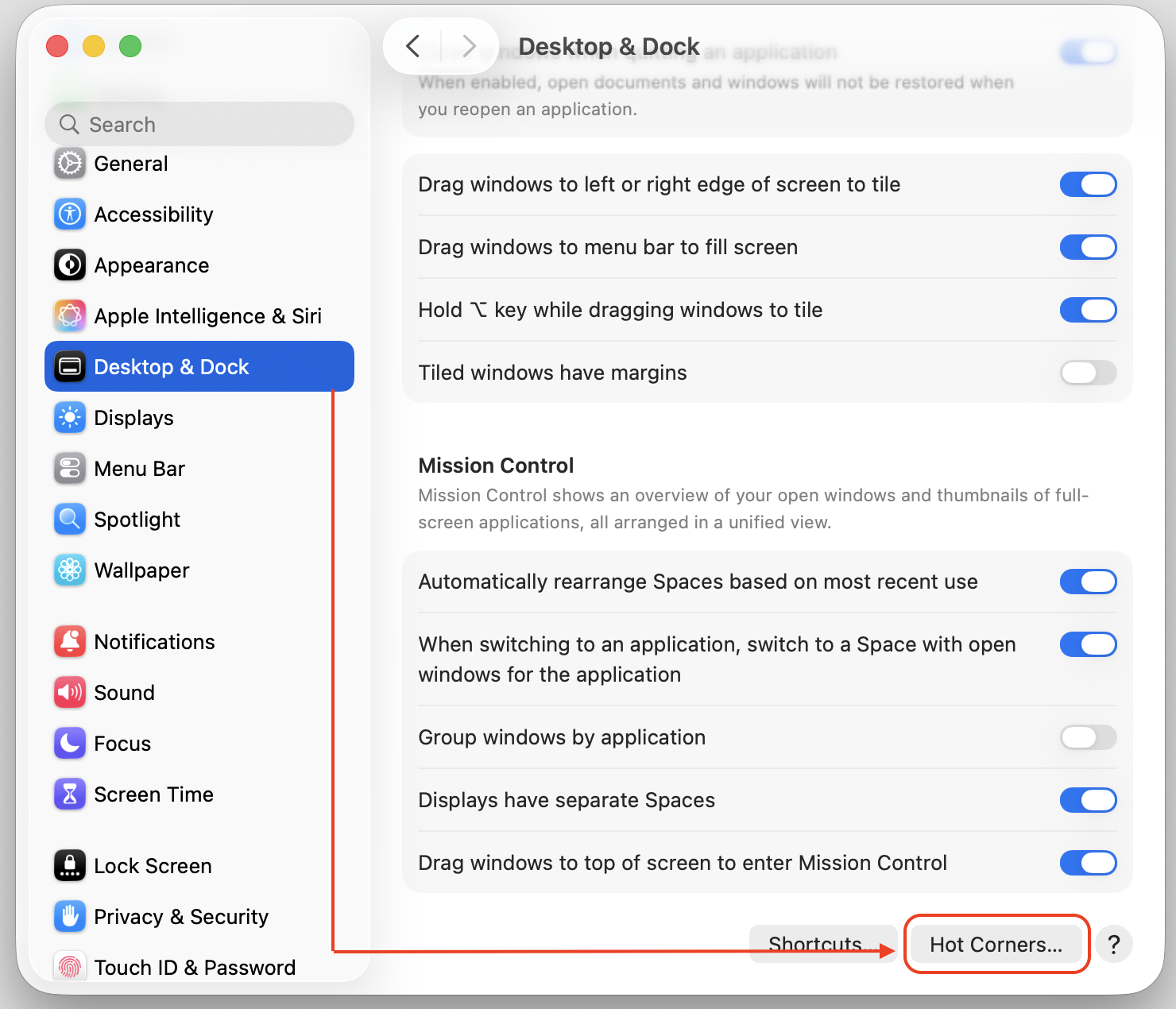
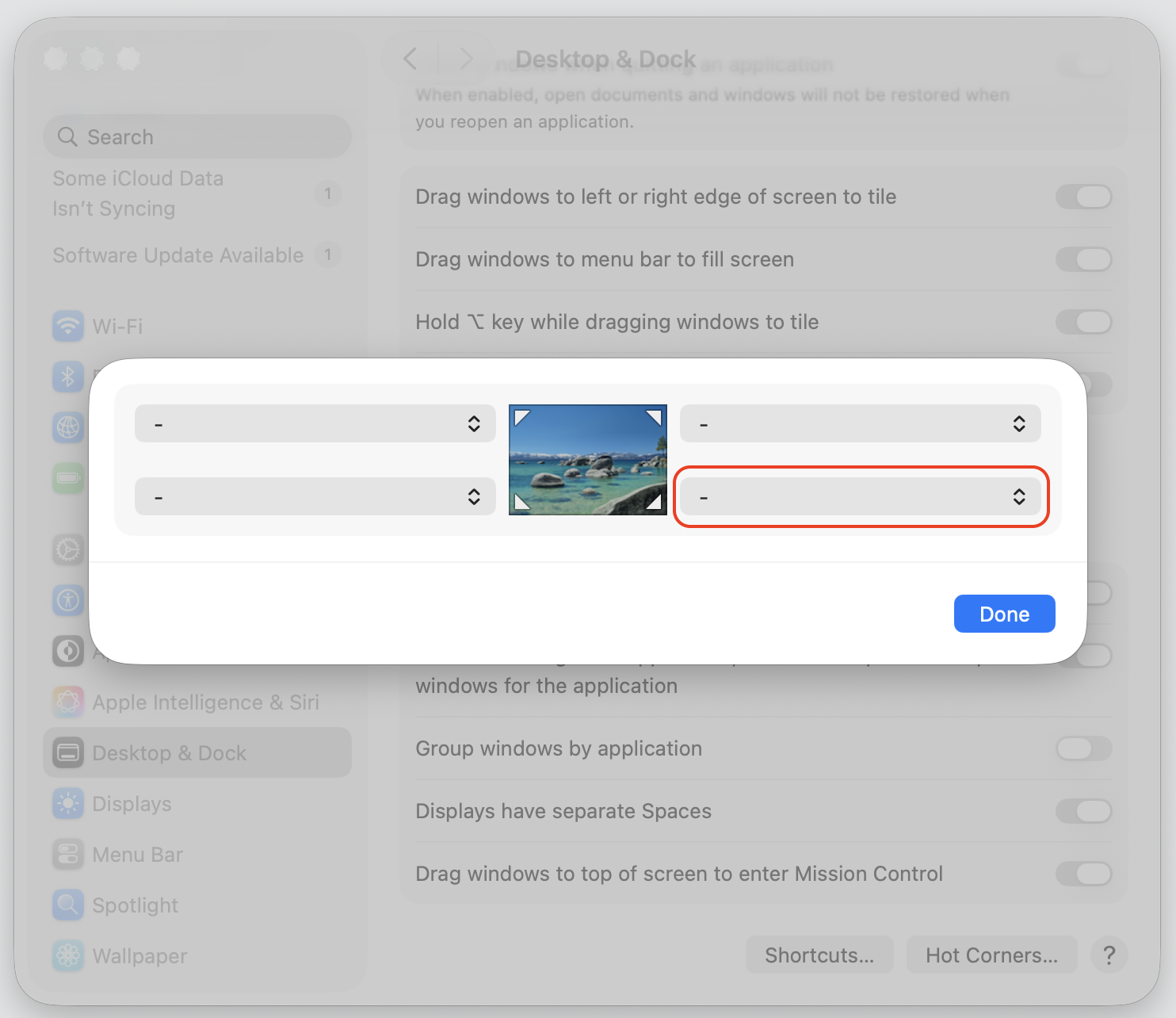
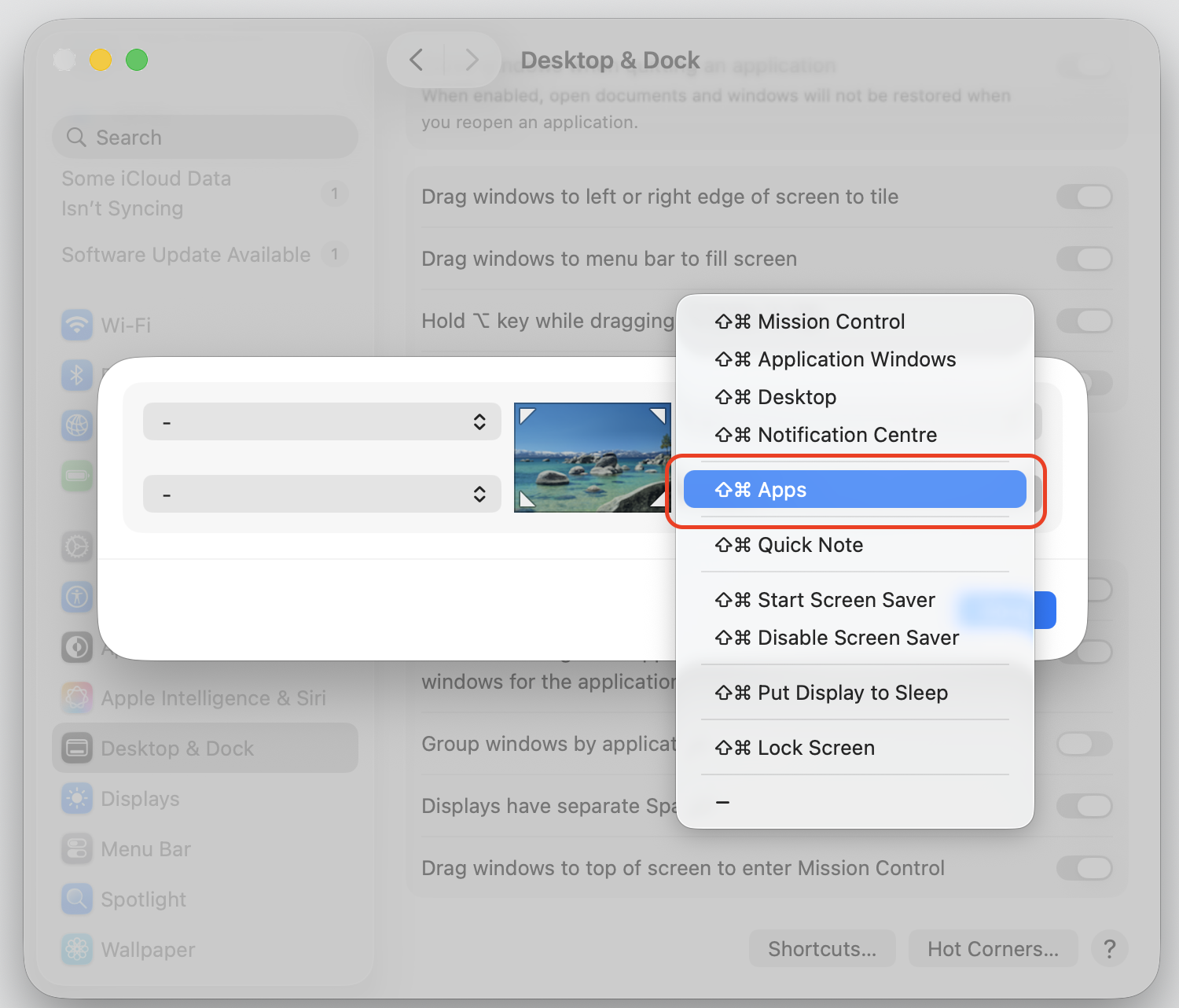
You can also set up the app search in Spotlight directly or assign Spotlight to a Hot Corner, so it opens with a mouse move—with no keyboard needed. Go to System Settings → Desktop & Dock → Hot Corners and assign any corner to an app. See how to do it below.
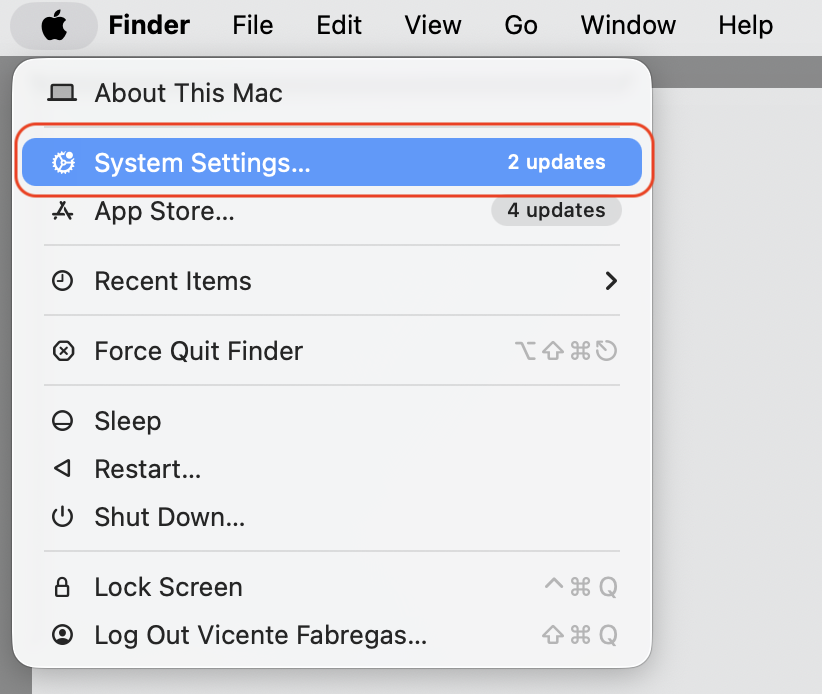
Step 1. Go to Apple logo > System SettingsStep 2. Choose Desktop & Dock from the sidebar and go to Hot CornersStep 3. Select the corner you wantStep 4. Select the apps and confirm by pressing the Continue button
💡 The main trade-off: Spotlight’s app view doesn’t support custom folders, drag-to-reorder, or the familiar full-screen look. If those things matter to you, method three is worth exploring.
3. Use third-party tools to get Launchpad back on macOS 26
Several well-regarded third-party apps have been built specifically to replace Launchpad on macOS Tahoe. They bring back the grid layout, custom folders, drag-and-drop reordering, and even the option to import your old Launchpad setup.
Here are the most popular options we’d recommend for you to try:
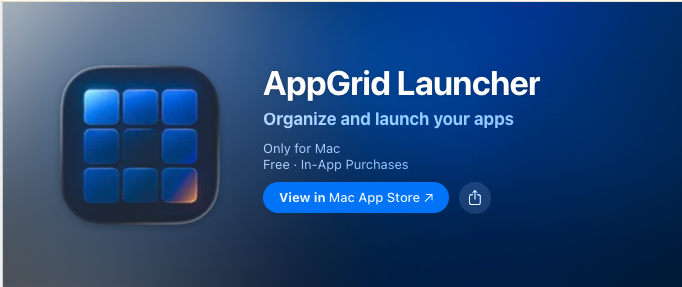
AppGrid Launcher—free core version, supports Launchpad layout import, custom folders, and alphabetical sorting; Pro adds bulk reordering and grouping.
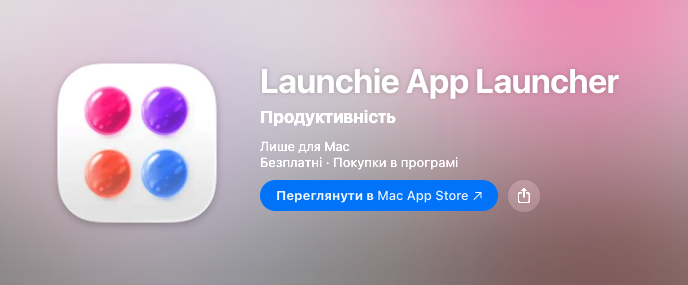
Launchie—free, Apple Silicon only, purpose-built for Tahoe; includes drag-and-drop, custom hotkeys, and a fast search bar.
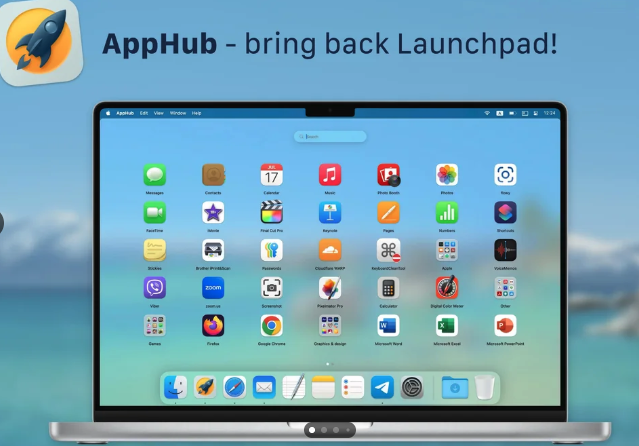
AppHub(no longer available in the App Store, but you can still get it)—offers a design close to the original Launchpad, with smooth animations, dark mode, and grid customization.
Option 1Option 2Option 3
💡 Not sure which one fits your Mac or how to set it up? MacKeeper’s Premium Services team can help. Available exclusively to Premium users, the 24/7 Help Center connects you with a real person who can walk you through installing and configuring a Launchpad replacement—so you don’t have to figure it out alone.
4. Set up Launchpad on macOS Tahoe
Once you’ve chosen your Launchpad replacement, a little configuration goes a long way. Here’s how to get it working the way you want:
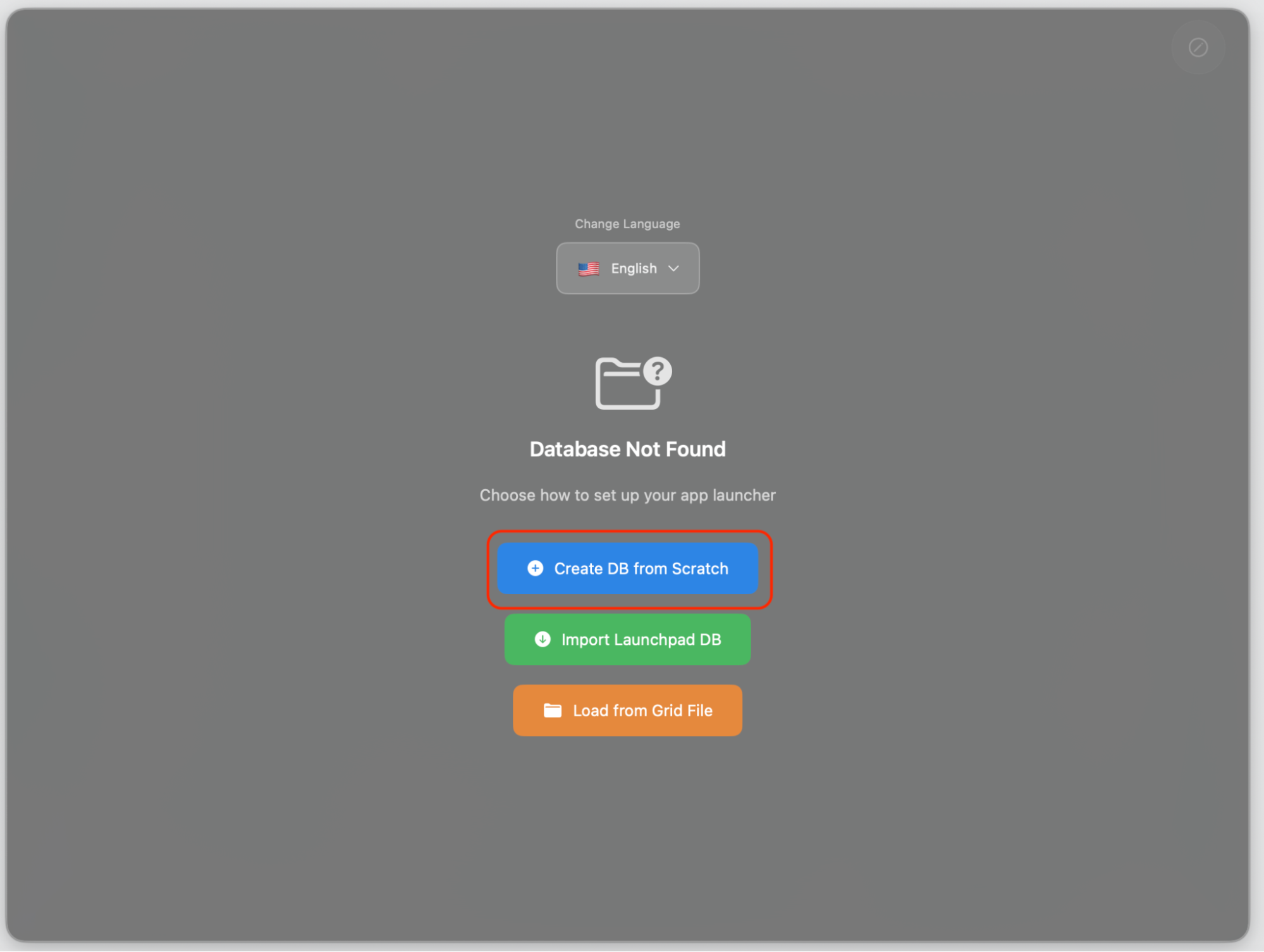
Open AppGrid Launcher and choose Create New Dashboard or select one of the available templates.
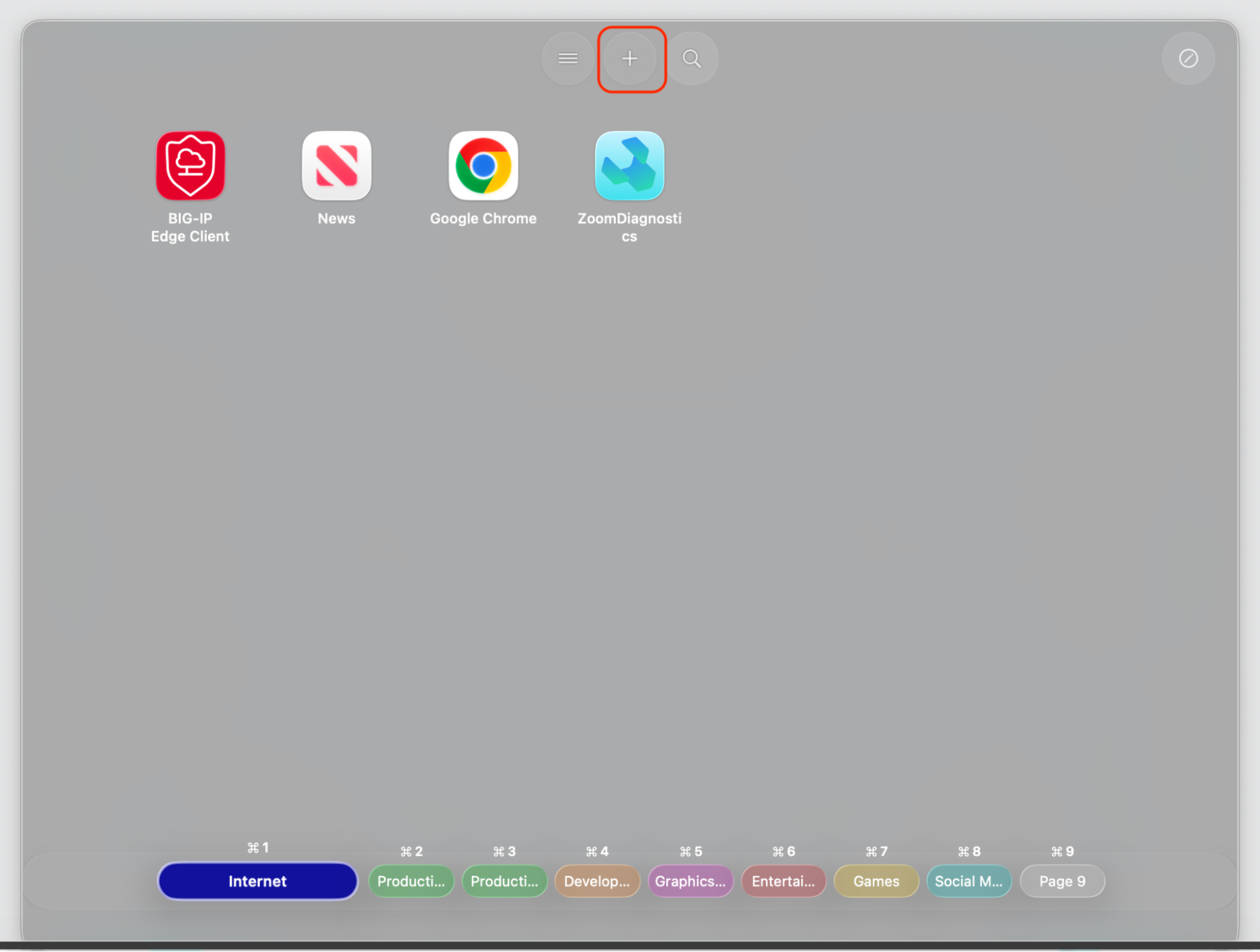
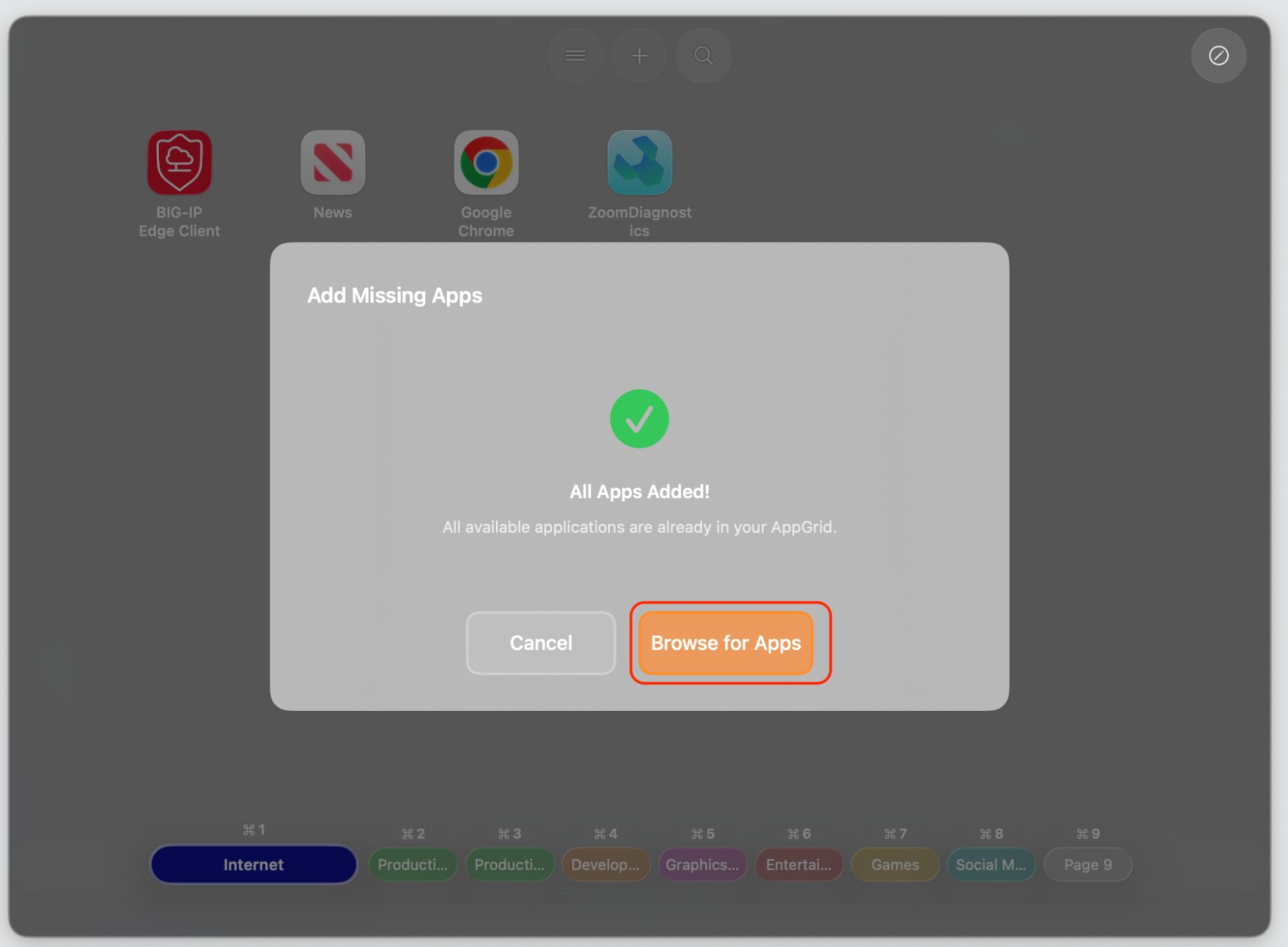
Add apps manually one by one or quickly populate the dashboard using a predefined category. Optionally, drag the AppGrid icon to your Dock for one-click access anytime.
Create folders by dragging one app icon on top of another—just like the original Launchpad.
Assign a keyboard shortcut or trackpad gesture in the app’s settings so you can open it instantly.
Optionally, drag the app’s icon into your Dock so it’s always one click away.
Step 1. Open your AppGrid Launcher and select Create DB from ScratchStep 2. Go to the top of the App screen and choose PlusStep 3. Browse for Apps > customize your dashboard (*from here, you need to use the paid version of the app)Step 4. Also, you can use the predefined dashboard
Important:
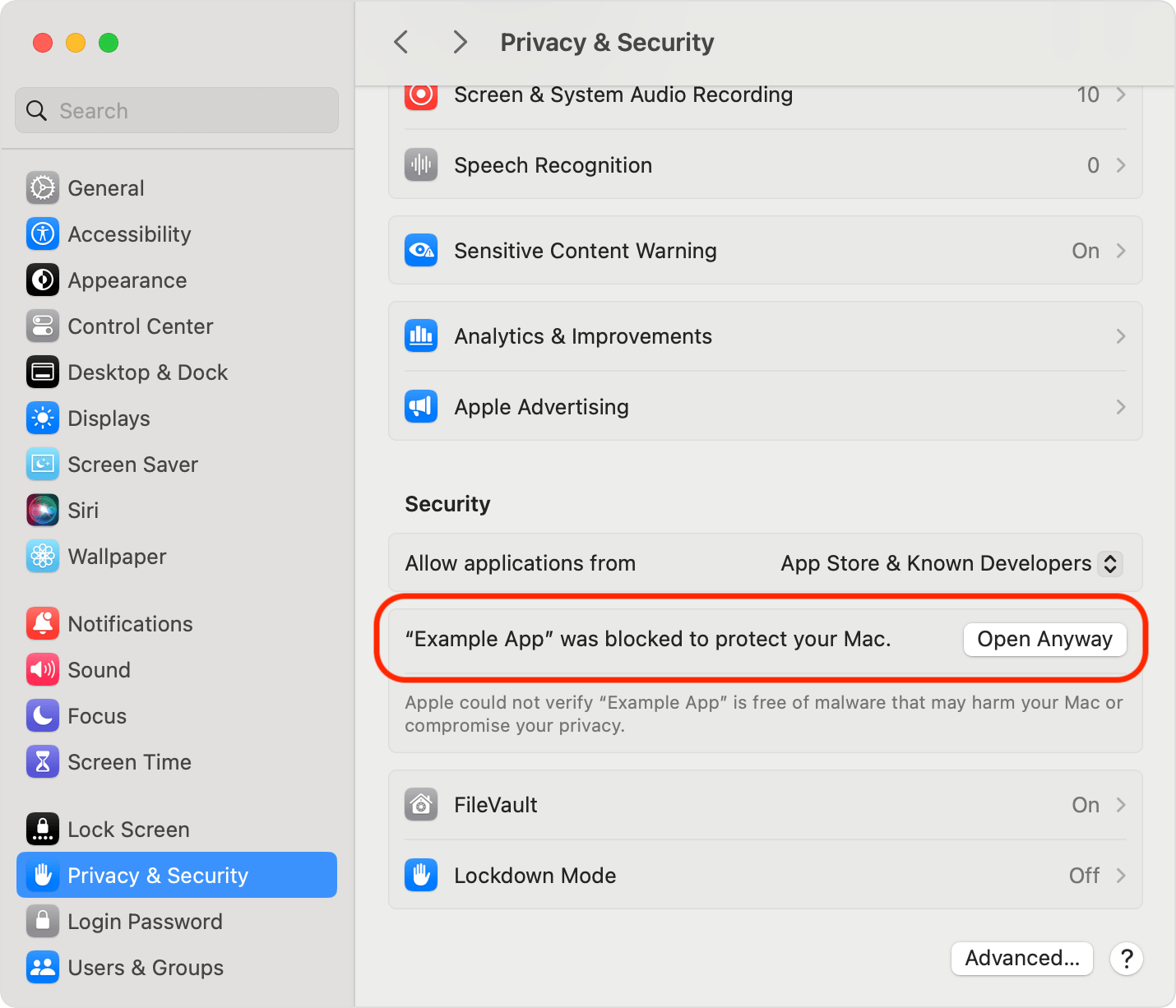
If your launcher isn’t opening after setup, check that it has permission to access your Applications folder under System Settings → Privacy & Security. For more troubleshooting steps, see our guide on Launchpad not opening on Mac.
If your launcher isn’t opening after setup, follow our visual hints below:
Step 1. Go to Apple logo > System SettingsStep 2. Go Privacy and Security > Security Section > your app > Open Anyway
Conclusion
Losing Launchpad in macOS 26 Tahoe is frustrating, especially if it was part of your daily Mac routine. You can’t switch back to the old launchpad layout in macOS Tahoe, but you can get back to launching apps your way without major hassle with some workarounds.
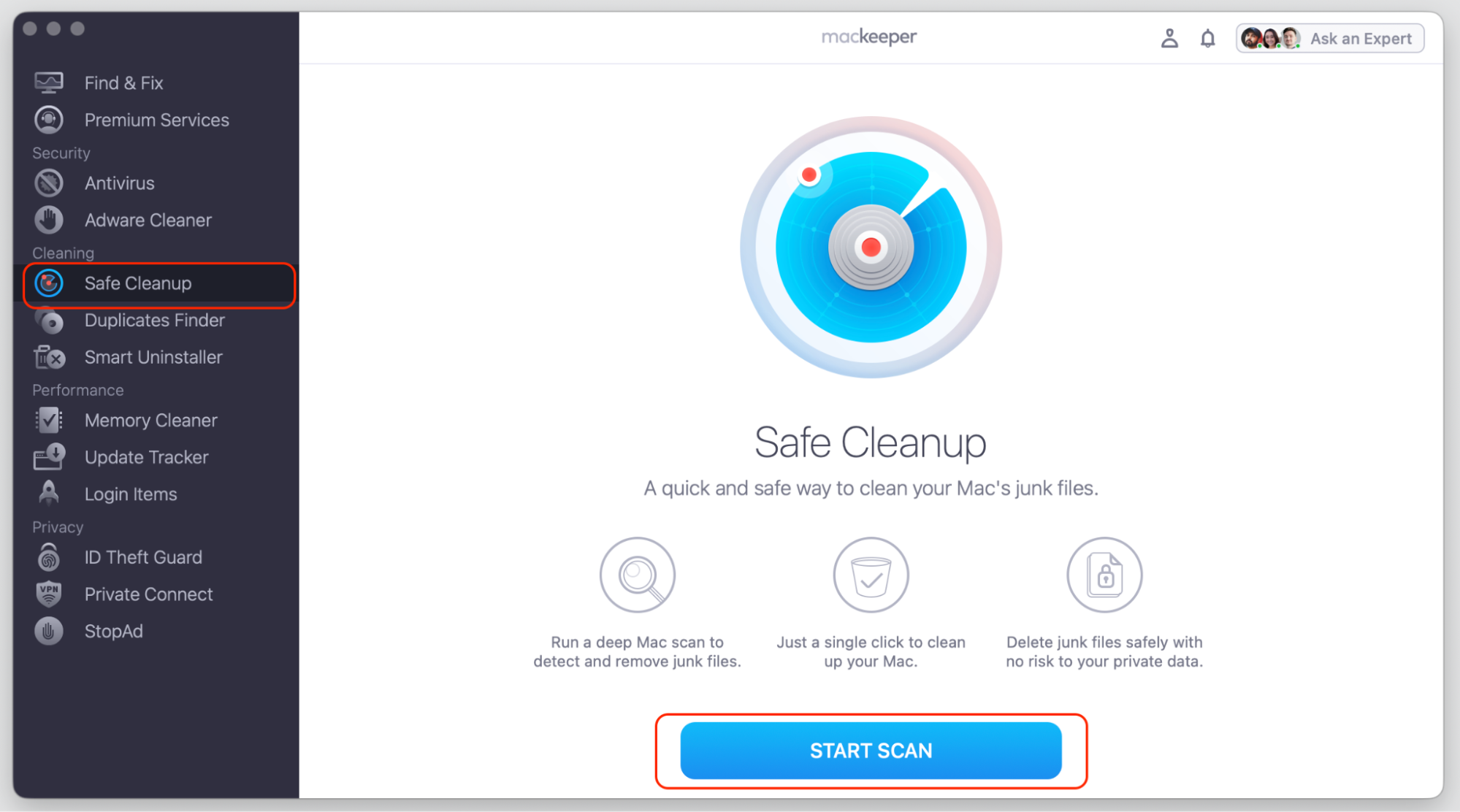
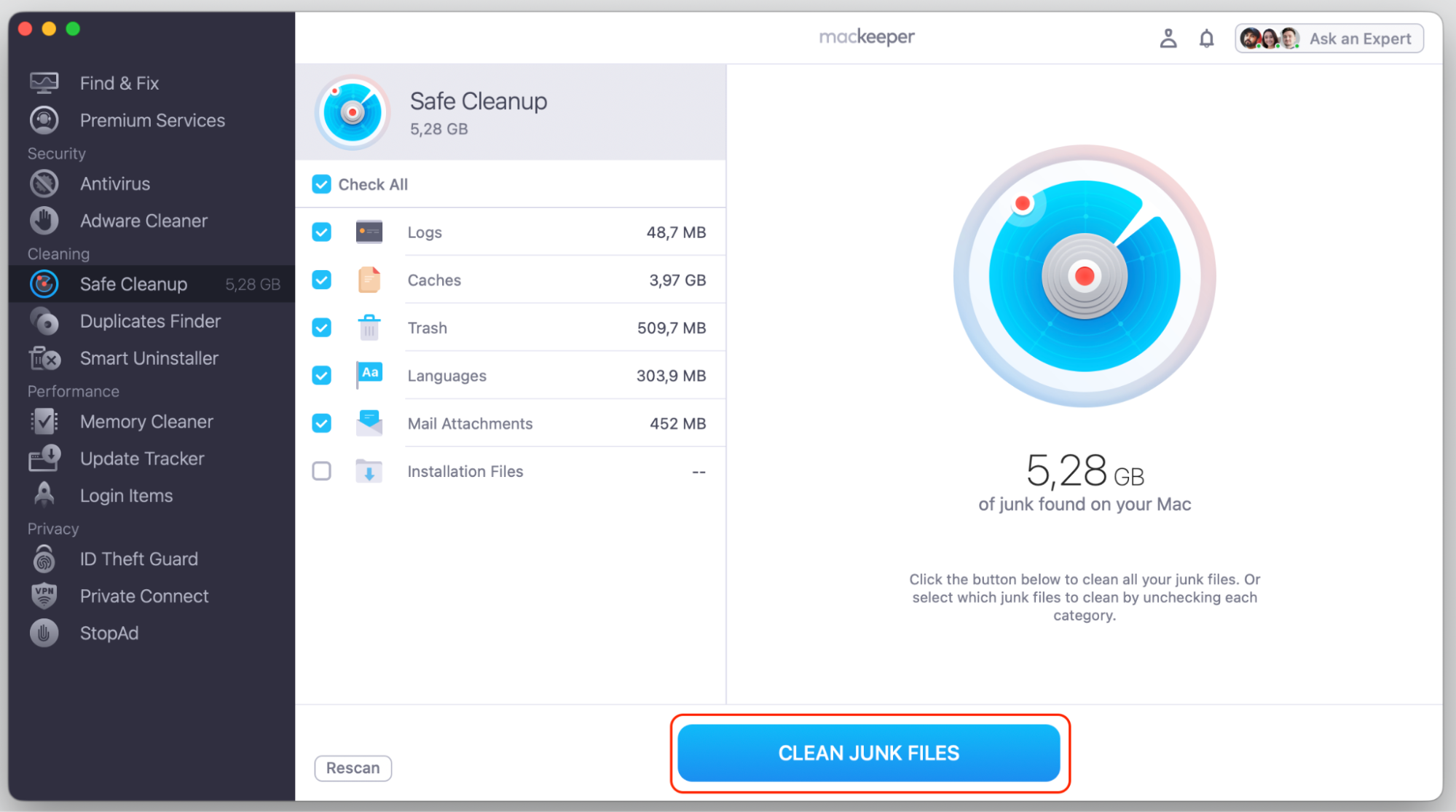
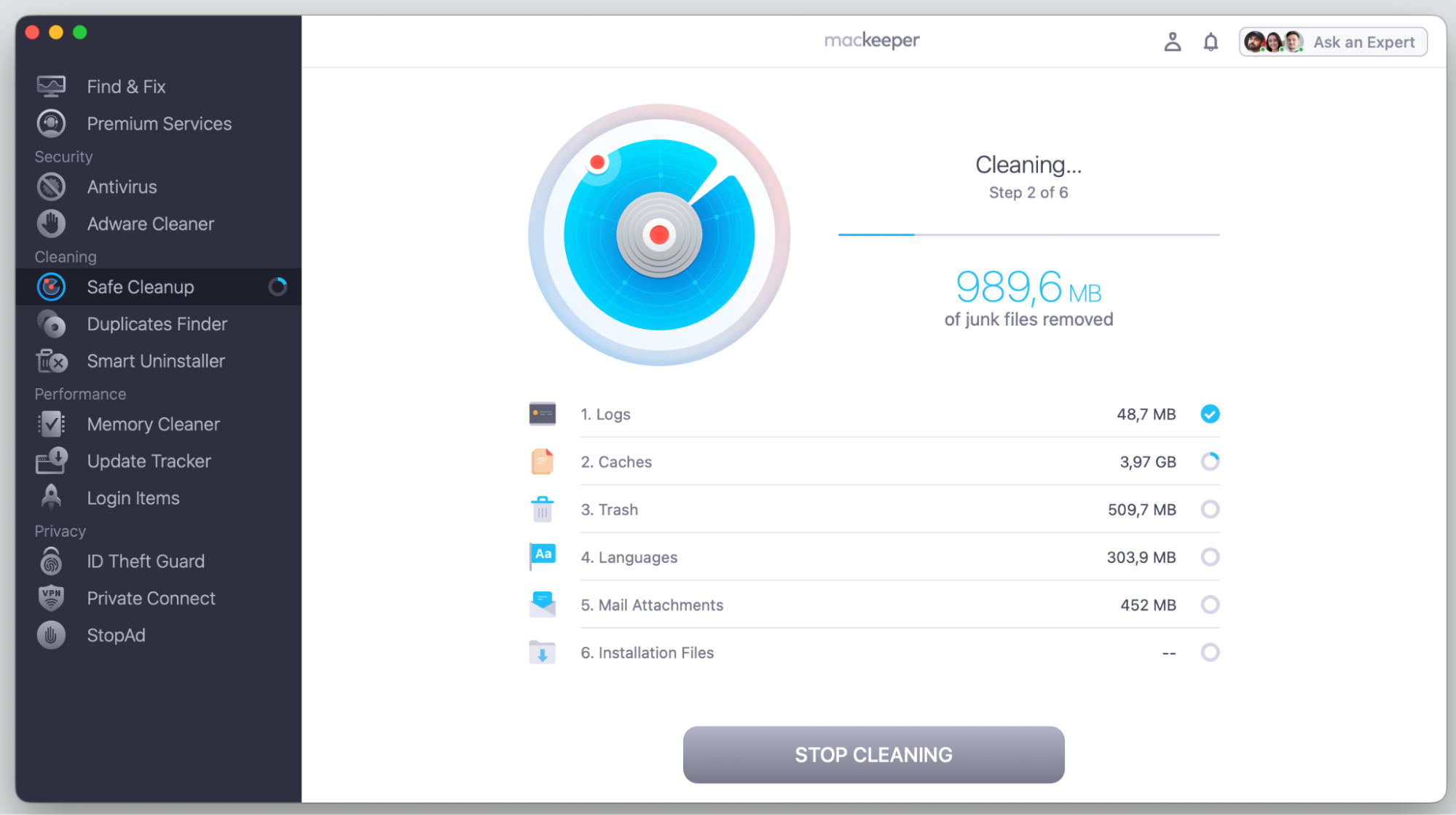
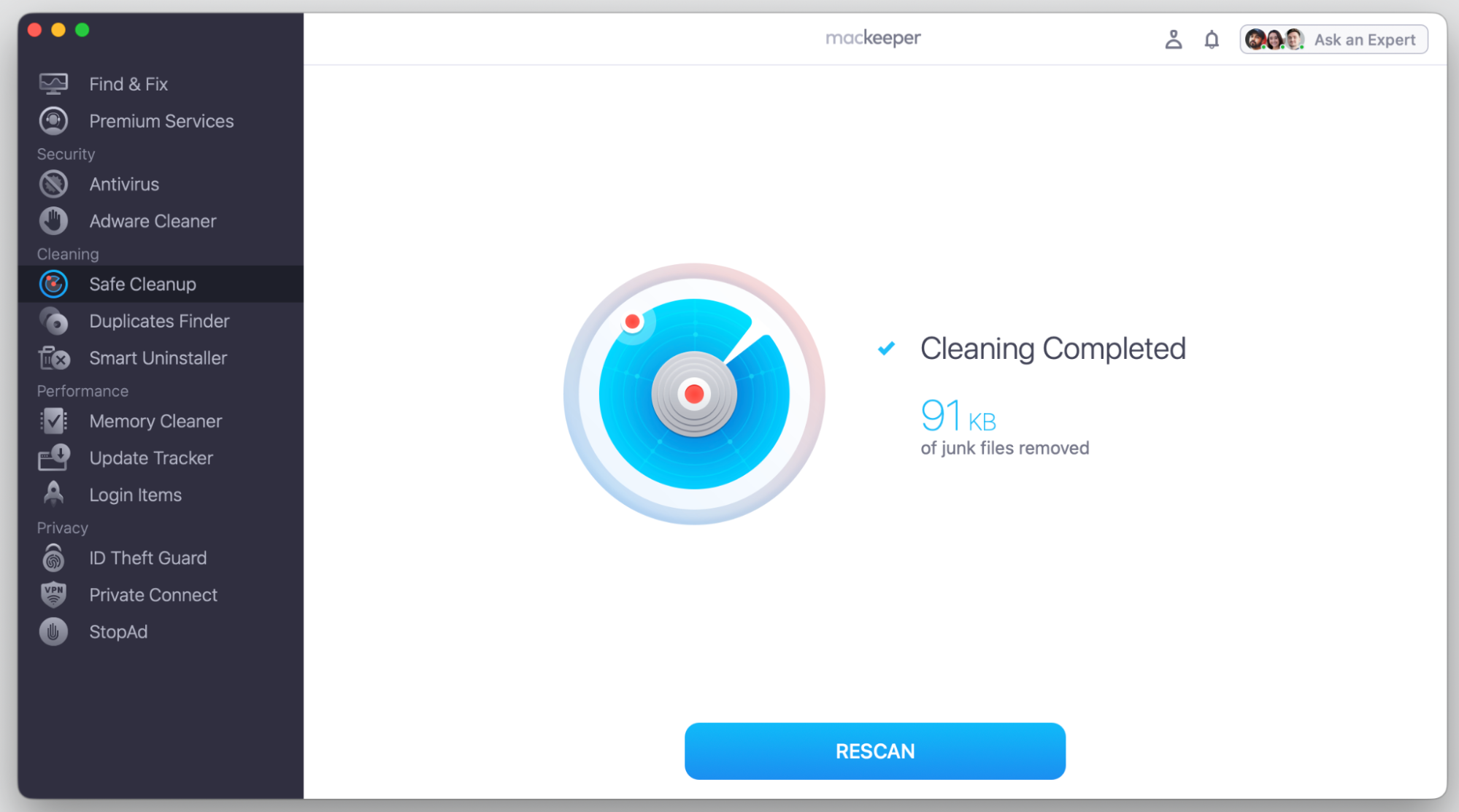
One more thing worth mentioning: macOS Tahoe is a large update, and installing it on a nearly full drive can slow things down or cause issues. MacKeeper’s Safe Cleanup can free up storage space by removing junk files, old caches, and system logs—without touching your personal files. That means more room for the new OS and the apps you’re about to reorganize.
Step 1. Go to MacKeeper > Safe Cleanup and click Start ScanStep 2. Choose Clean Junk FilesStep 3. Wait until MacKeepr finishes cleaningStep 4. See the confirmation
Also, if you run into anything tricky along the way, MacKeeper’s Premium Services team is available around the clock to help.
We respect your privacy and
use cookies
for the best site experience.
Privacy Preferences Center
We use cookies along with other tools to give you the best possible experience while using the
MacKeeper website. Cookies are small text files that help the website load faster. The cookies we
use don’t contain any type of personal data meaning they never store information such as your
location, email address, or IP address.
Help us improve how you interact with our website by accepting the use of cookies. You can change
your privacy settings whenever you like.
Manage consent
All cookies
These cookies are strictly necessary for enabling basic website functionality (including page
navigation, form submission, language detection, post commenting), downloading and purchasing
software. The website might malfunction without these cookies.