You open one of your notes in your Mac’s Notes app, only to find that your recent edits weren’t saved. What could be the reason, and is there any way to resolve it? Before you jump into the solutions, try the easiest fix—tap into MacKeeper’s vast network of tech experts through its Premium Services feature, and they’ll sort it out for you.
The most common culprits of a faulty Notes app are system glitches, outdated software, and iCloud sync issues. However, we’ve noted other reasons as well, including low disk space and the use of VPNs and proxies. You could also be viewing the wrong account, or you may have switched Apple IDs.
Why is my Notes app glitching on Mac?
Anytime the Notes app starts freezing, jumping, not saving your edits, crashing, or lagging, it often points to iCloud sync or software update issues. iCloud may fail to sync large volumes of data. If you’re running low on disk space, that could be the reason.
How to fix the Notes app not working on Mac?
To fix the Notes app not opening on Mac, force quit and reset the app. Restart Mac. Check iCloud sync. Update macOS. Check your Apple ID. Boot Mac into Safe mode. Check storage space on Mac. Change view settings. Check recently deleted. Try the web version of the Notes app.
A note from our experts:
Troublesome apps are common on MacBook devices. But whether you’re a novice or a seasoned Mac owner, fixing Mac-related issues can be daunting. That’s where MacKeeper comes in. Its Premium Services feature gives you access to a vast network (150+) of expert technicians who can safely fix the problem by troubleshooting it. Use Premium Services to get your Notes app up and running in no time.
Follow the steps below to fix your Notes app using MacKeeper’s Premium Services solution:
Select the Premium Services option from the left sidebar, followed by the Chat Now option.
In the text box, describe the issues you’re experiencing with the Notes app and follow the expert technician’s advice.
1. Force quit and reset app
As efficient as Macs are, their apps can become faulty. Force quitting an app is the simplest way to reset it. That’s why we start with this fix before trying anything else—and you should, too.
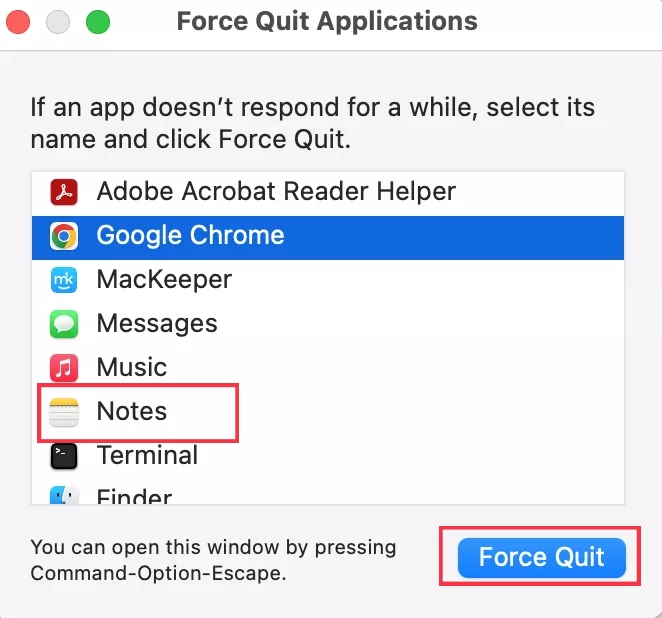
To force quit the Notes app on your Mac, do this:
From the Apple menu, click on Force Quit.
Select the Notes app and click the Force Quit button.
2. Restart Mac
Restarting the MacBook is another easy fix. We always get it out of the way, as it often does the trick and eliminates the need for more complex solutions.
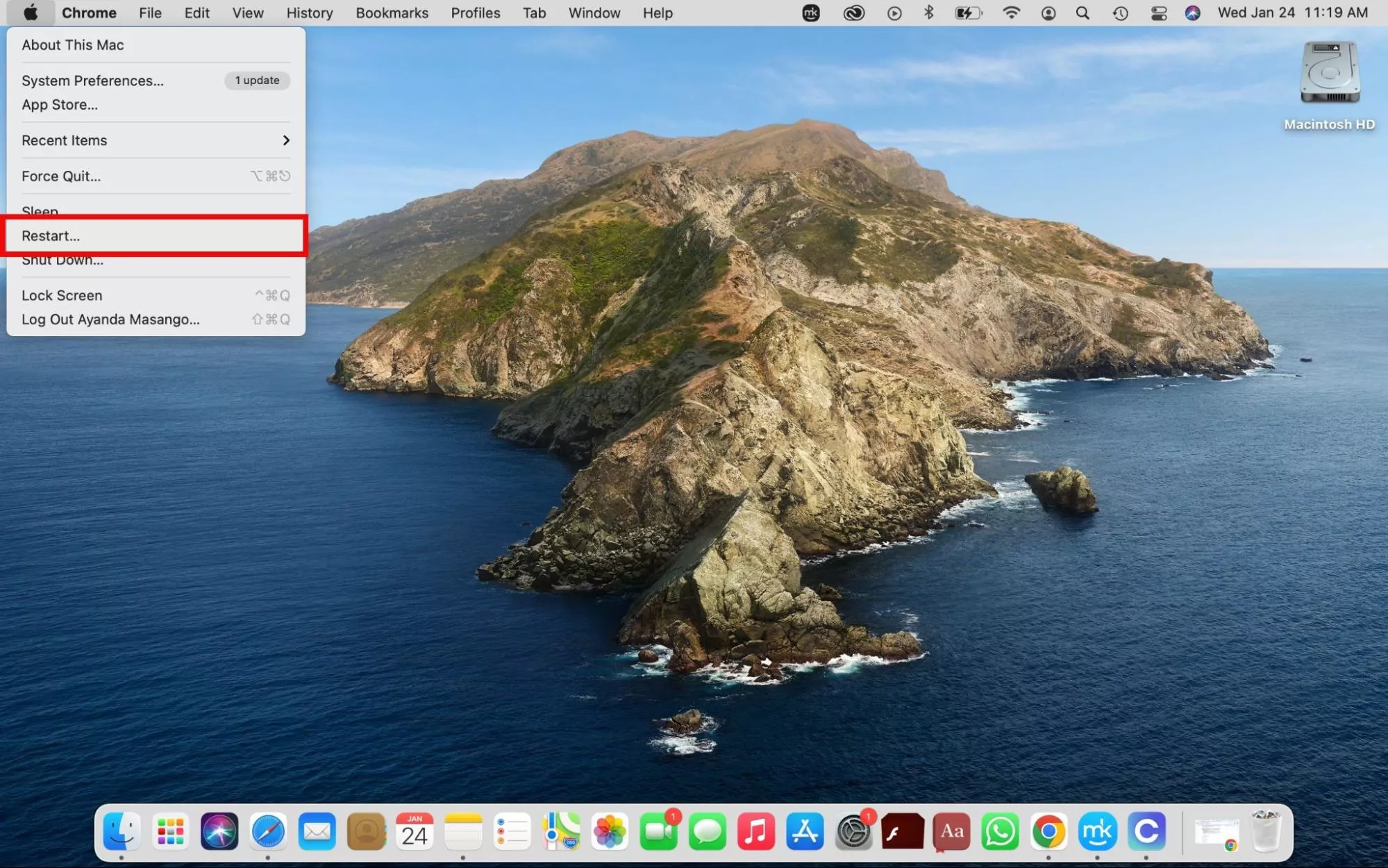
Here’s how to restart your Mac:
Click on the Apple menu in the upper-left corner of the screen.
Select the Restart option and wait for your laptop to switch off and back on again.
3. Check iCloud sync
Checking if iCloud Sync is enabled helps us isolate the cause of app glitches because it acts as the middleman between our cloud data and local device. If iCloud sync is disabled, our Mac can’t download new changes or upload local edits.
Confirm that iCloud sync is enabled like this:
Open System Settings and select Apple Account > iCloud > See All > Notes.
Enable Notes (if it’s already enabled, disable it and enable it again after 20 seconds).
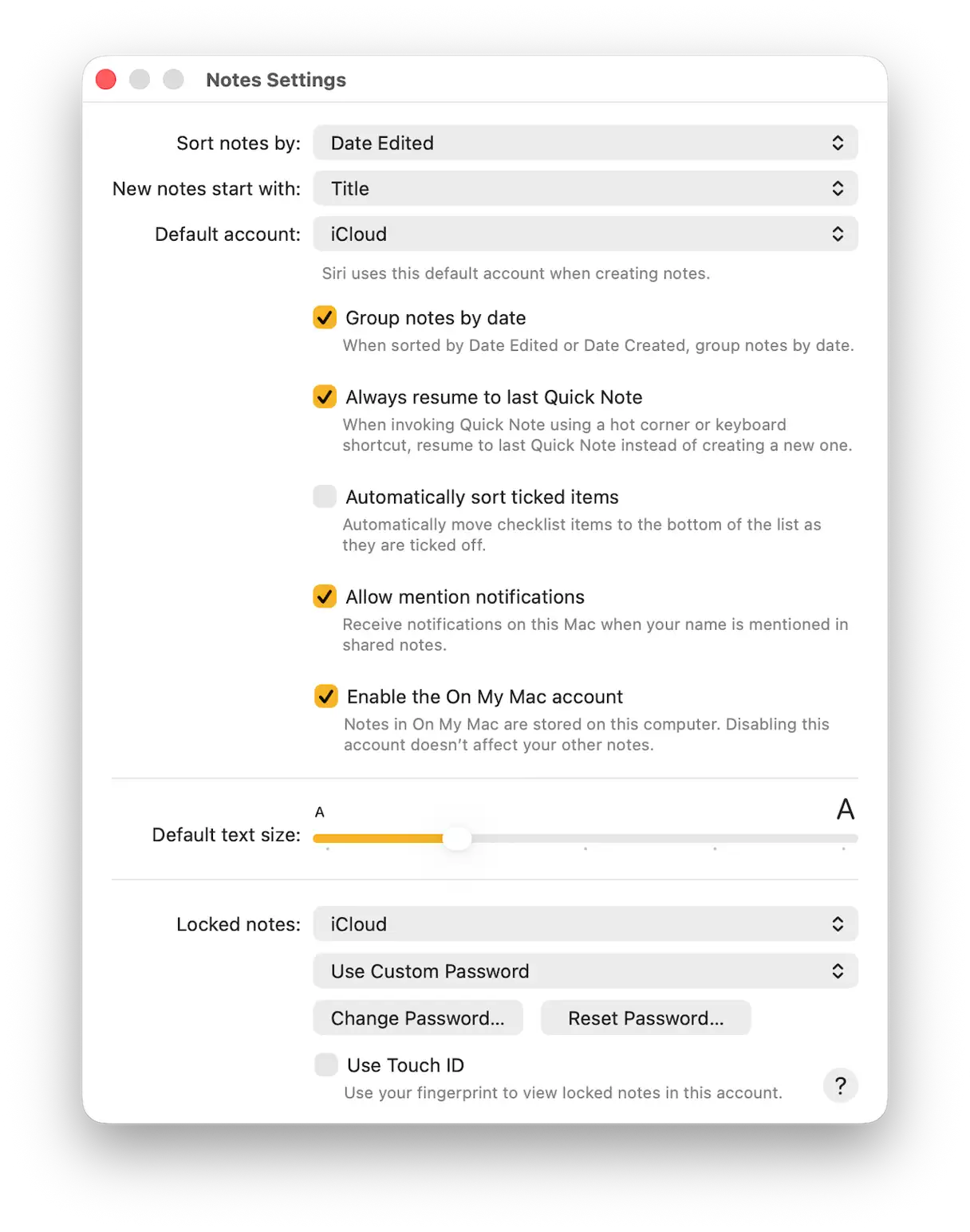
Launch the Notes app, select Settings, and check which Default account is selected.
Finally, ensure the Enable On My Mac Account setting is selected if you want local-only notebooks visible.
Just in case bug issues are the reason our Notes app is not responding on our Mac, we always update the OS on our Mac to implement patches and fixes. This also allows us to take advantage of any performance enhancements included with new software releases.
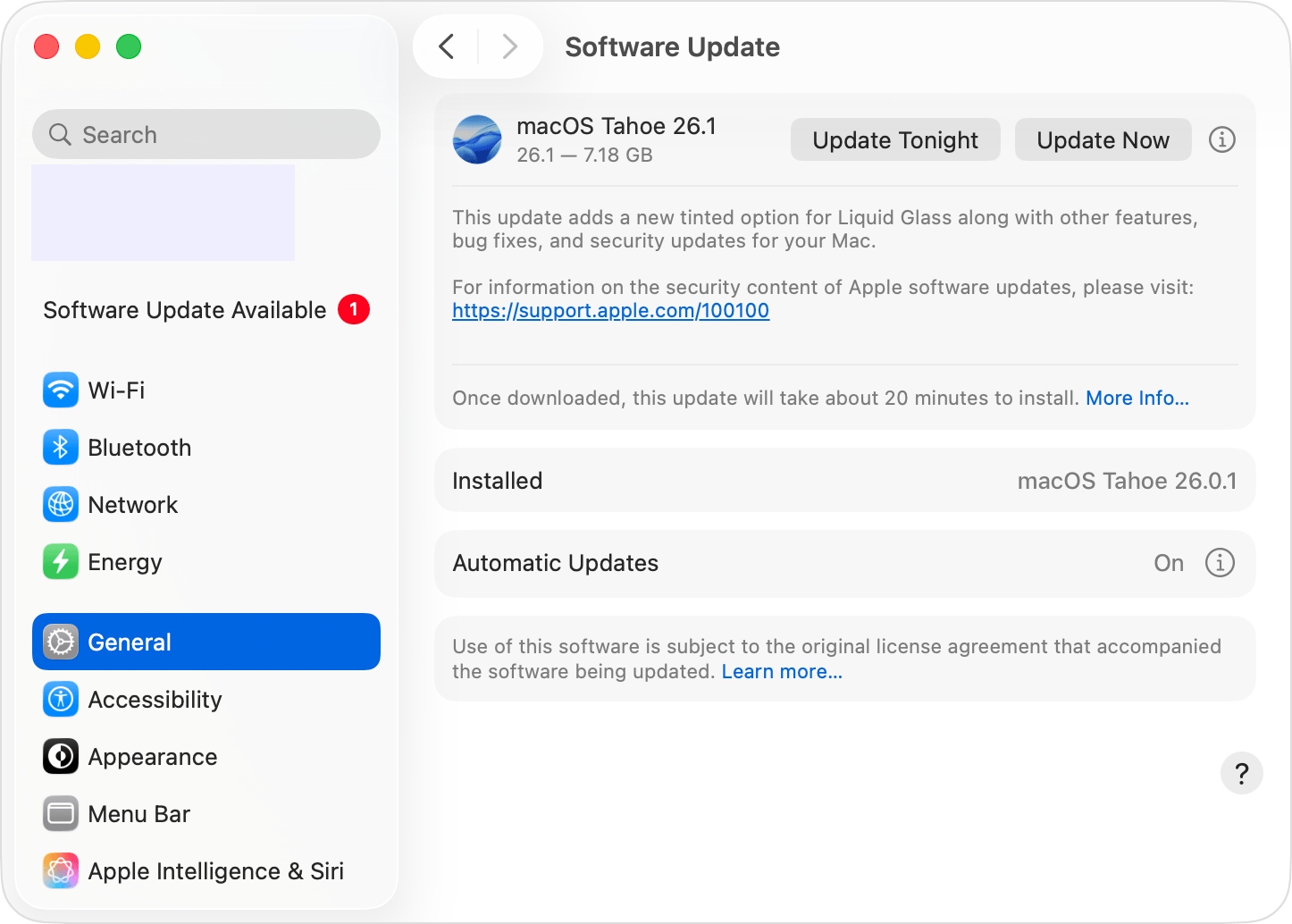
Follow the approach below to update macOS.
Open System Settings and select General > Software Update.
If your Mac found new software, click the Update, Upgrade, or Restart Now button to install it.
5. Check your Apple ID
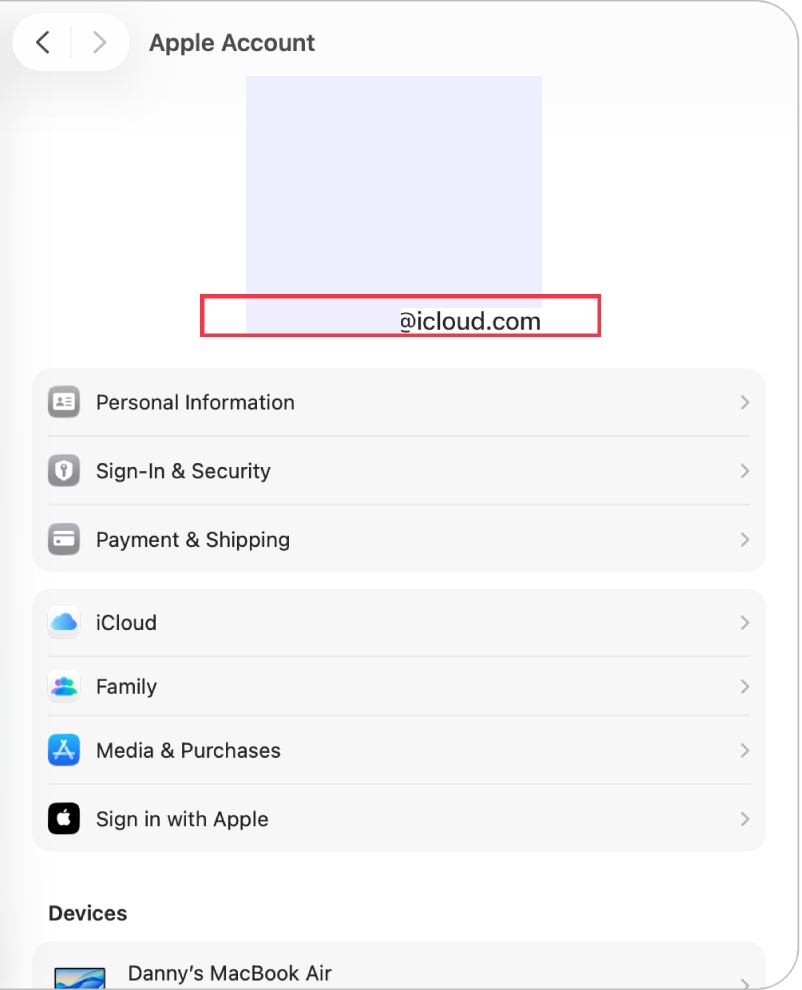
Since we use the Notes app on multiple devices, it’s always worth checking that we’re signed in to the same Apple ID on our Mac as on our other devices. If we’re signed in to a different account, our notes won’t match up.
Here’s how to check which Apple account you’re signed in to:
Open System Settings > Apple Account.
Check that the right email appears.
6. Boot Mac into safe mode
We boot Mac into safe mode to determine whether third-party software or corrupted files are the reasons the Notes app keeps crashing.
Follow the steps below to reboot your Mac in Safe Mode.
Intel Macs:
Shut down your Mac.
Turn it on, quickly hold down the Shift key, and let it go when you see the login screen.
Apple Silicon Macs:
Shut down your Mac.
Hold down the power button until Startup options appear on the screen.
Pick your startup disk, hold down the Shift key, and select Continue in safe mode.
Let go of the Shift key when you see the Login screen.
7. Check storage space on Mac
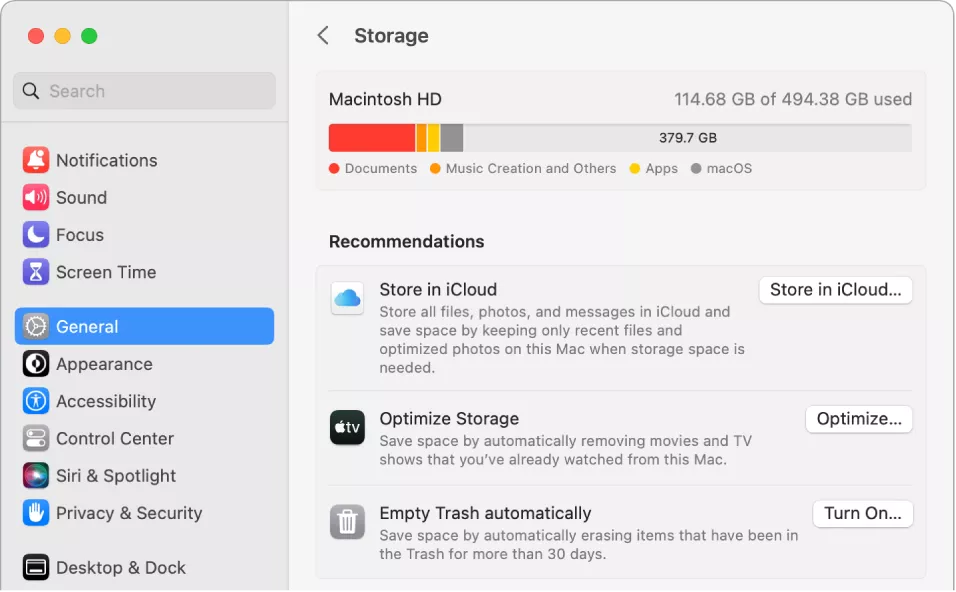
Low Mac storage can also lead to poor app performance, like a glitchy or freezing Notes app. To rule this out, we check our Mac’s storage space. And if needed, we free up storage space on Mac to improve app performance.
Follow this approach to check your Mac’s storage:
Launch the Apple menu and choose System Settings > General > Storage.
Take a look at your available space in the breakdown.
8. Change view settings
If the app opens but is sluggish or blank, switching the view sometimes does the trick, as it forces the app to change how it displays the data.
How to change your Notes app’s view settings:
From the Notes app, navigate to View in the top menu bar.
Choose either as List or as Gallery.
9. Check recently deleted
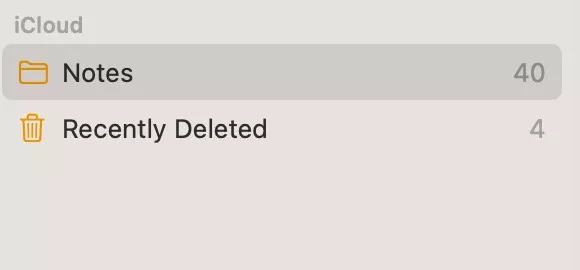
If we can’t find certain notes, chances are we accidentally deleted them or got rid of them and forgot about it. The good news is that Apple keeps recently deleted notes for up to 30 days, which means we can recover them if that time hasn’t lapsed.
Here’s how to recover recently deleted Notes:
In the Notes app, click on Recently Deleted in the sidebar.
Restore any notes you want to keep or edit.
Having trouble finding your notes? Find out where notes are stored on a Mac.
10. Try the web version of the Notes app
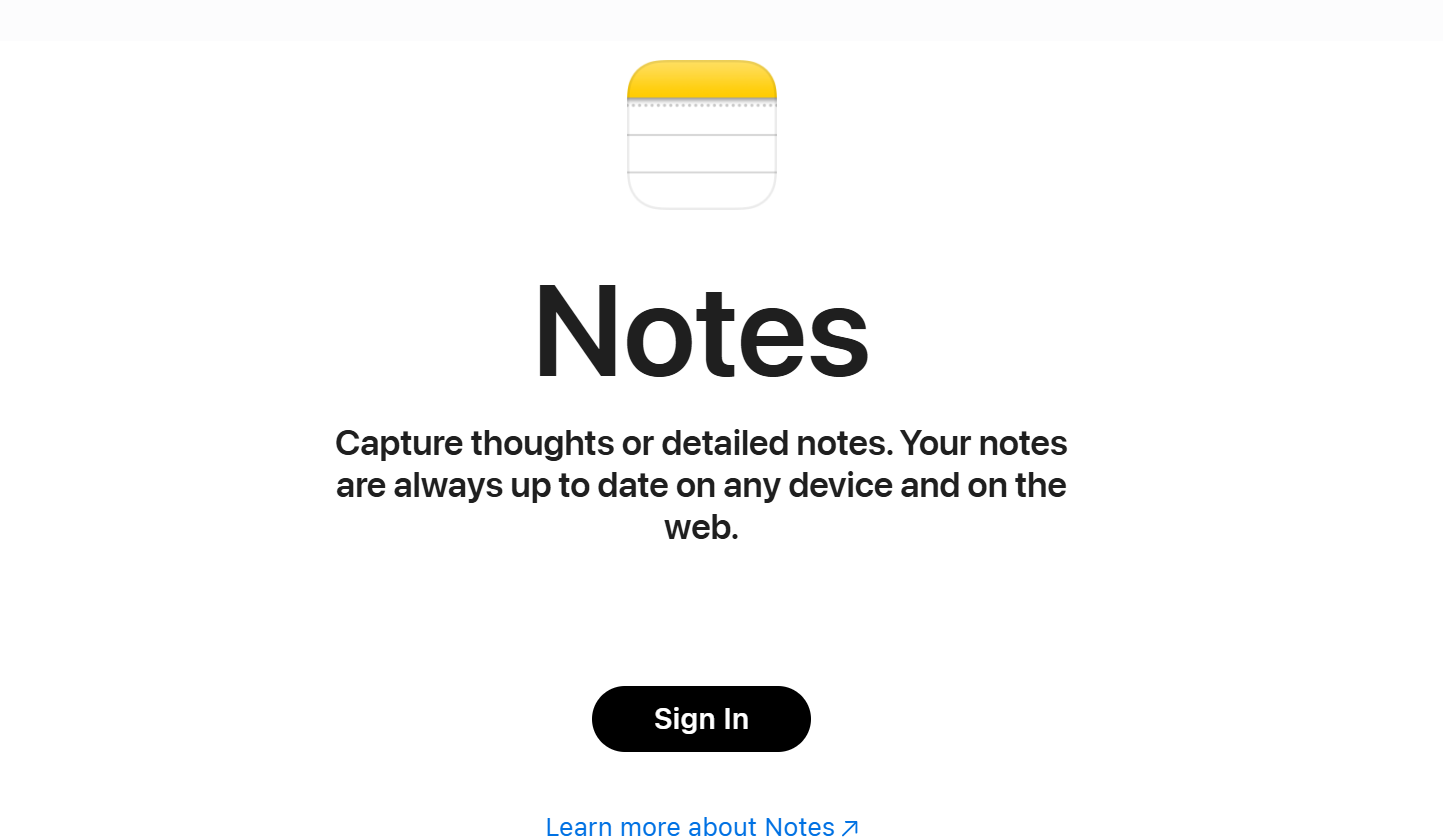
When we need to access our notes urgently, we turn to the web version of the Notes app. This is also a good trick to check if our notes data is still safe or has been erased.
Use the method below to access the Notes app on the web:
No matter why your Notes app has stopped working, frozen, or gotten stuck on your Mac, there are countless ways to fix it—from restarting your Mac device to switching to a different Notes view and everything in between.
Not up for getting to the root of the problem yourself? Get an expert technician to do it. Use MacKeeper’s Premium Services and access professional help at no additional cost.
We respect your privacy and
use cookies
for the best site experience.
Privacy Preferences Center
We use cookies along with other tools to give you the best possible experience while using the
MacKeeper website. Cookies are small text files that help the website load faster. The cookies we
use don’t contain any type of personal data meaning they never store information such as your
location, email address, or IP address.
Help us improve how you interact with our website by accepting the use of cookies. You can change
your privacy settings whenever you like.
Manage consent
All cookies
These cookies are strictly necessary for enabling basic website functionality (including page
navigation, form submission, language detection, post commenting), downloading and purchasing
software. The website might malfunction without these cookies.