Struggling with installing Xcode command line tools on a Mac? But before you discover how to do that, please note that they may require gigabytes of storage. So we advise you to always start with cleaning your Mac with MacKeeper’s Safe Cleanup before installing anything new.
A Mac is a powerful device, and with a little know-how, your Max can be used as a software developer tool. Using Mac’s native Terminal with command line tools allows you to program away, whether you’re designing software for an app, for iOS, for OS X, Big Sur, Catalina, or a number of other Mac operating systems.
Mac’s command line developer tools are part of a complete development environment for programmers named Xcode, but for most developers working on Mac, the full Xcode application isn’t necessary. It's good news to hear as the app takes up more than 40GB of disk space! When you install Xcode command line tools, you’ll only use about 1GB of space, on the other hand, so that’s the right move for most Mac coding.
Now, if you’re wondering which is the best Mac for coding, know that just about any newer Mac with cleanly functioning macOS will work fine. It’s more important that you update your Mac and clear all the junk files off your computer so it works well rather than having the very newest physical hardware. So make sure you know how to update Mac and consider using helpful tools to clean clutter off your computer. Then you can open Terminal, install those command tools, and get to the programming.
Don’t worry, we’re here to talk you through those steps!
A note from our experts:
Before installing new software on your Mac, ensure there is sufficient free space. Removing junk files increases available memory for new apps. Fortunately, MacKeeper’s Safe Cleanup does it for you and saves your time.
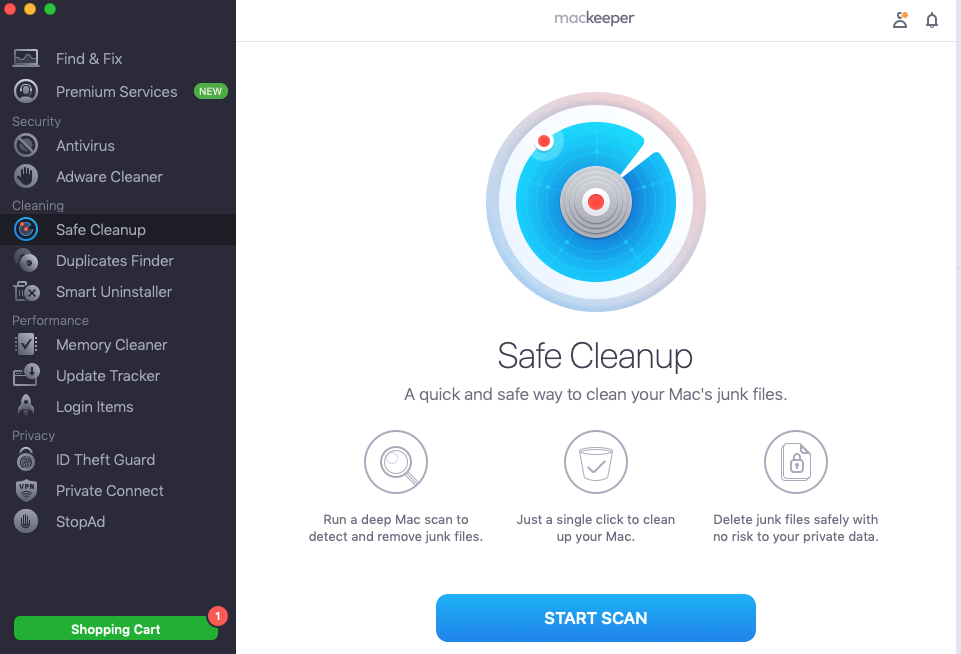
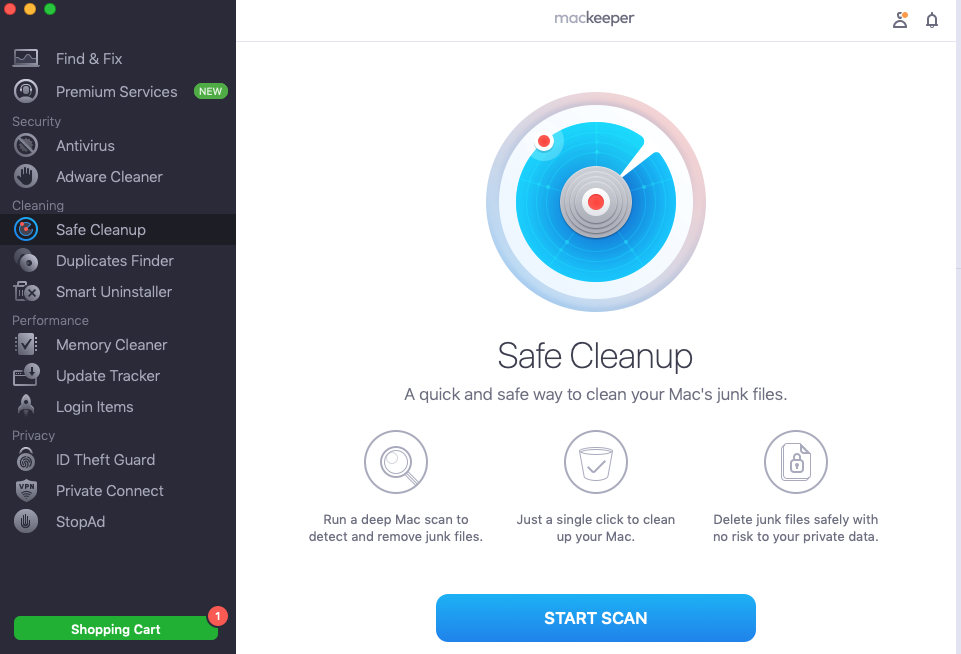
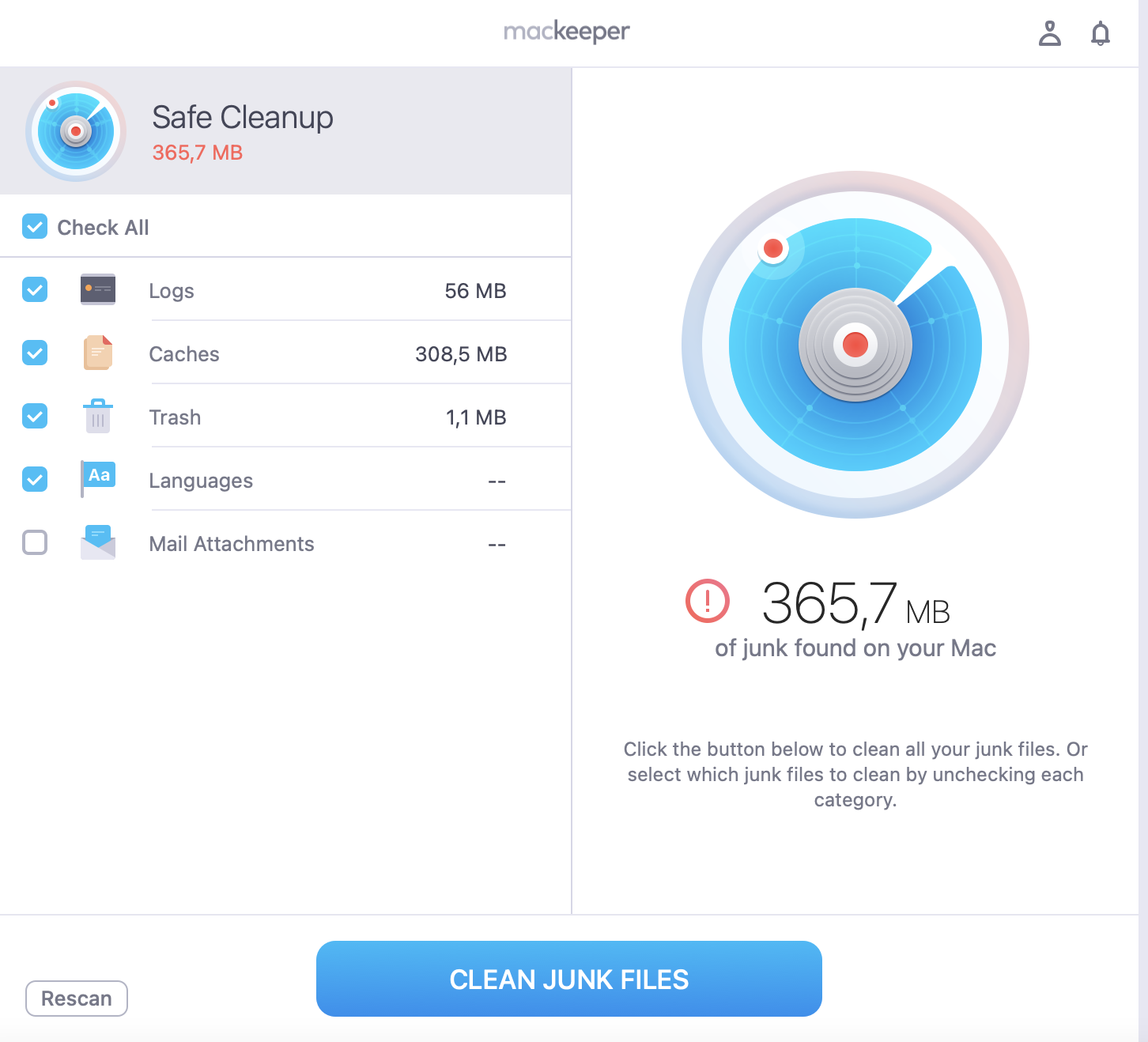
Go to the menu and select Safe Cleanup from the Cleaning section.
Click Start Scan to run the process.
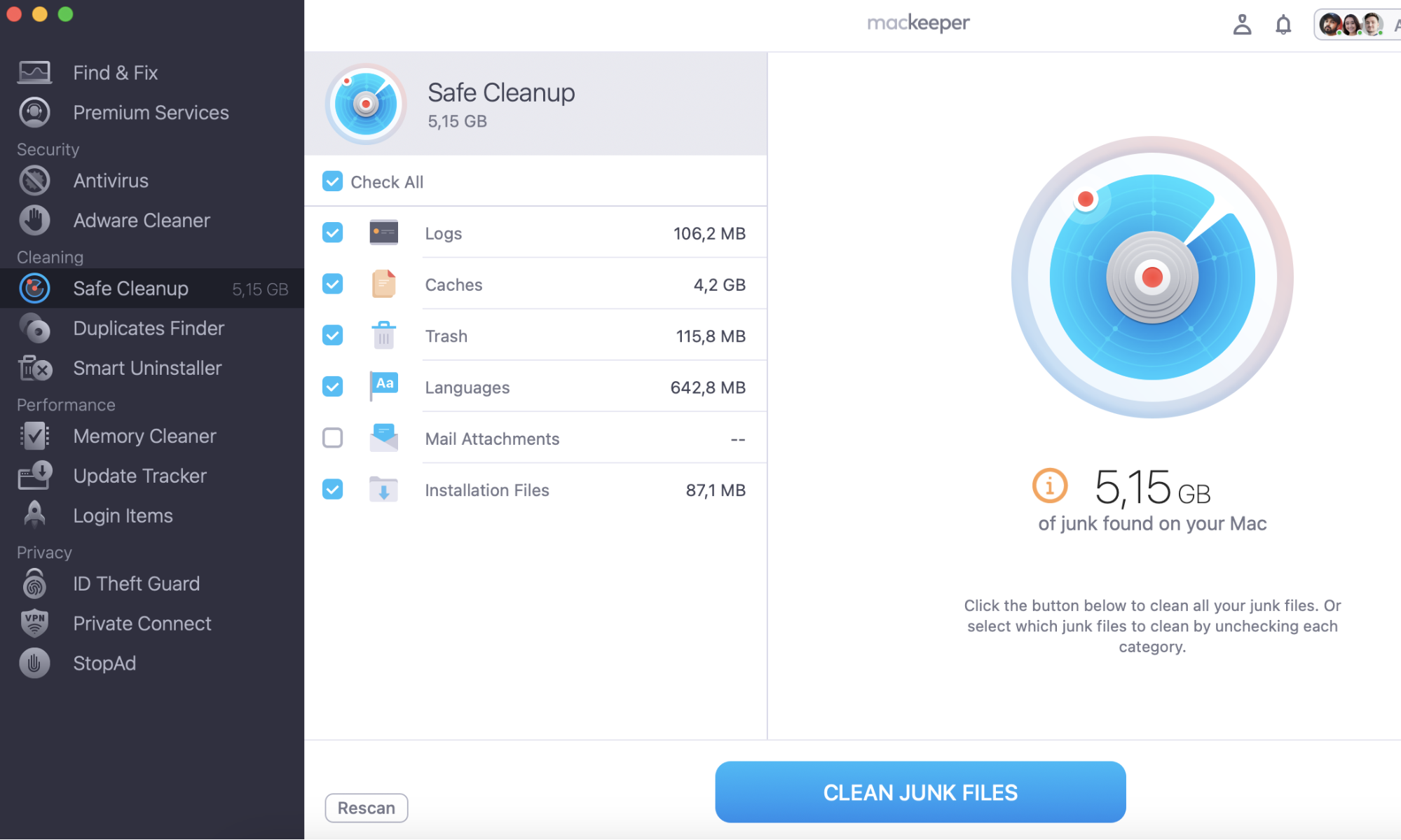
Choose the items you don't need anymore and click Clean Junk Files.
Step 1. MacKeeper > Safe Cleanup > Start ScanStep 2. Select the files to remove > Clean Junk Files
Pave your way to installing Xcode package to your Mac
The easiest way to start downloading command line tools onto your Mac is to simply open the Terminal application and put it to work. Terminal lets you get Xcode command line tools with just a couple of steps.
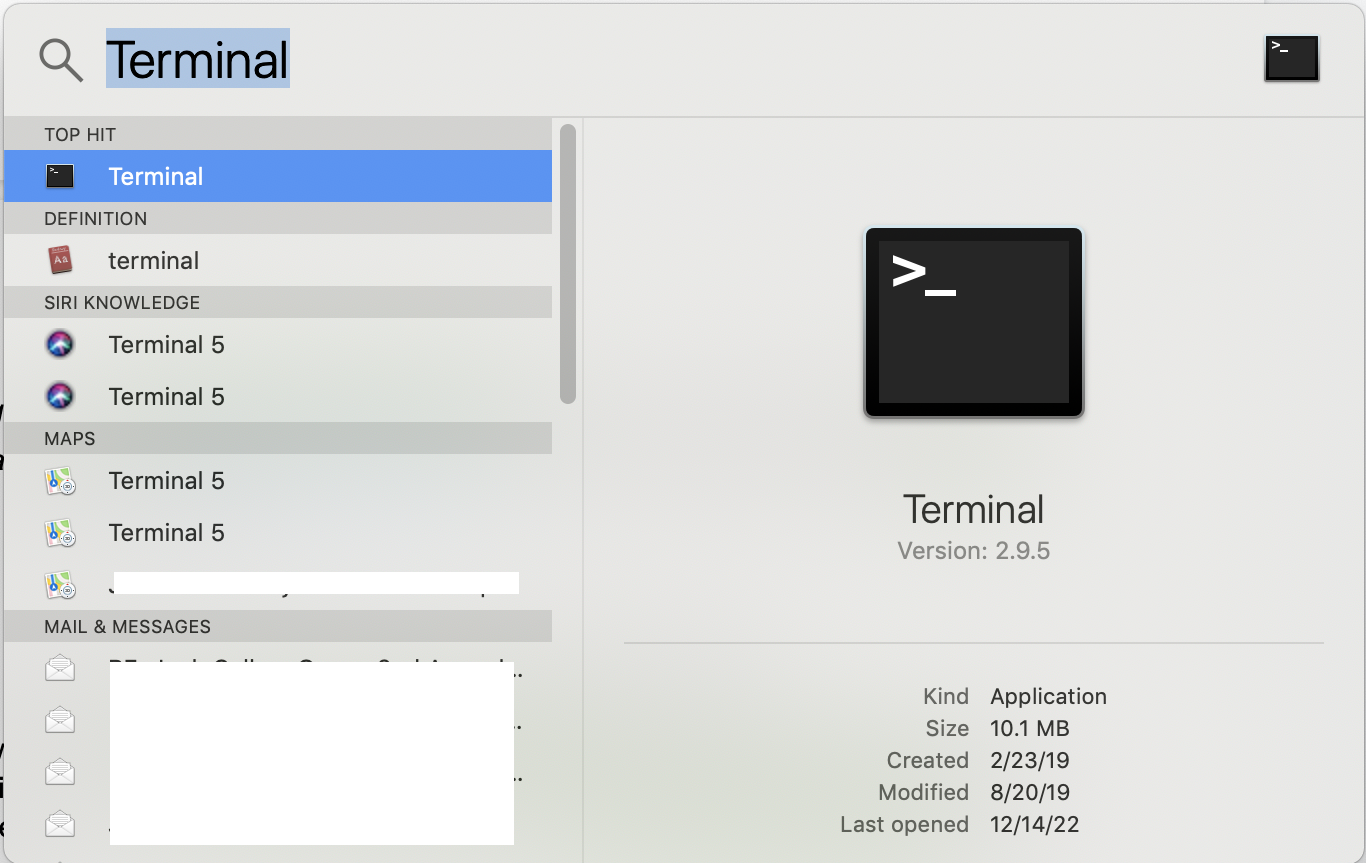
Use Spotlight Finder to open Terminal by pressing Command + Enter at the same time.
Type the word “Terminal” into the search bar that pops up.
Hit Enter to open Terminal.
And that’s it, you’re now in the application you will use to install Xcode tools and later to use these tools for programming on a Mac.
Downloading command line tools in Terminal on Mac
To go ahead and set Xcode command line tools up on your Mac, follow these steps.
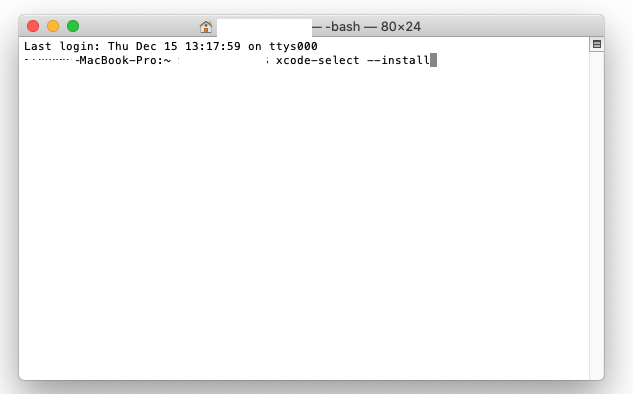
With Terminal open type this exact command into the space to the right of your username: “xcode-select --install".
Hit Enter once you have typed in that command.
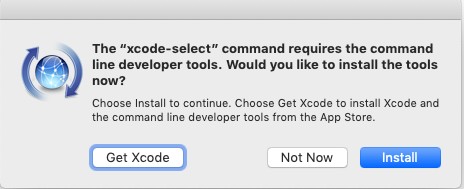
When the popup box populates asking if you want to install the tools needed for the command, select Install, then select Agree on the next popup—you can, of course, read the terms if you wish
Step 1. Open Terminal, type the command and hit EnterStep 2. Click on Install in the pop-up window
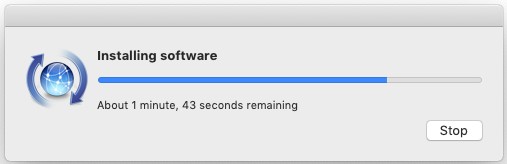
And just like that, the command tool installation will begin. The process should only take a couple of minutes, provided your Mac has enough space and is running properly thanks to minimized junk files.
In a moment, you’ll see a box reading “The software was installed.” Click Done and you’re then ready to begin developing software within Terminal on your Mac.
Are Xcode command line tools a true benefit, or a or a junk generator?
Some people may see command line tools as just one more thing to take up space on a Mac, whereas others may see them as insufficient for their programming needs and will opt for the full Xcode package. For most nonprofessional developers, however, command line tools are all you need for programming on Macs.
Just make sure to take the step of using MacKeeper’s SafeCleanup tool to declutter and remove junk files before you begin working on developing your own apps and software.
To do that, follow these steps:
Open MacKeeper and select Safe Cleanup from the left-hand toolbar.
Click the Start Scan button at the bottom of MacKeeper.
Confirm to Clean Junk Files.
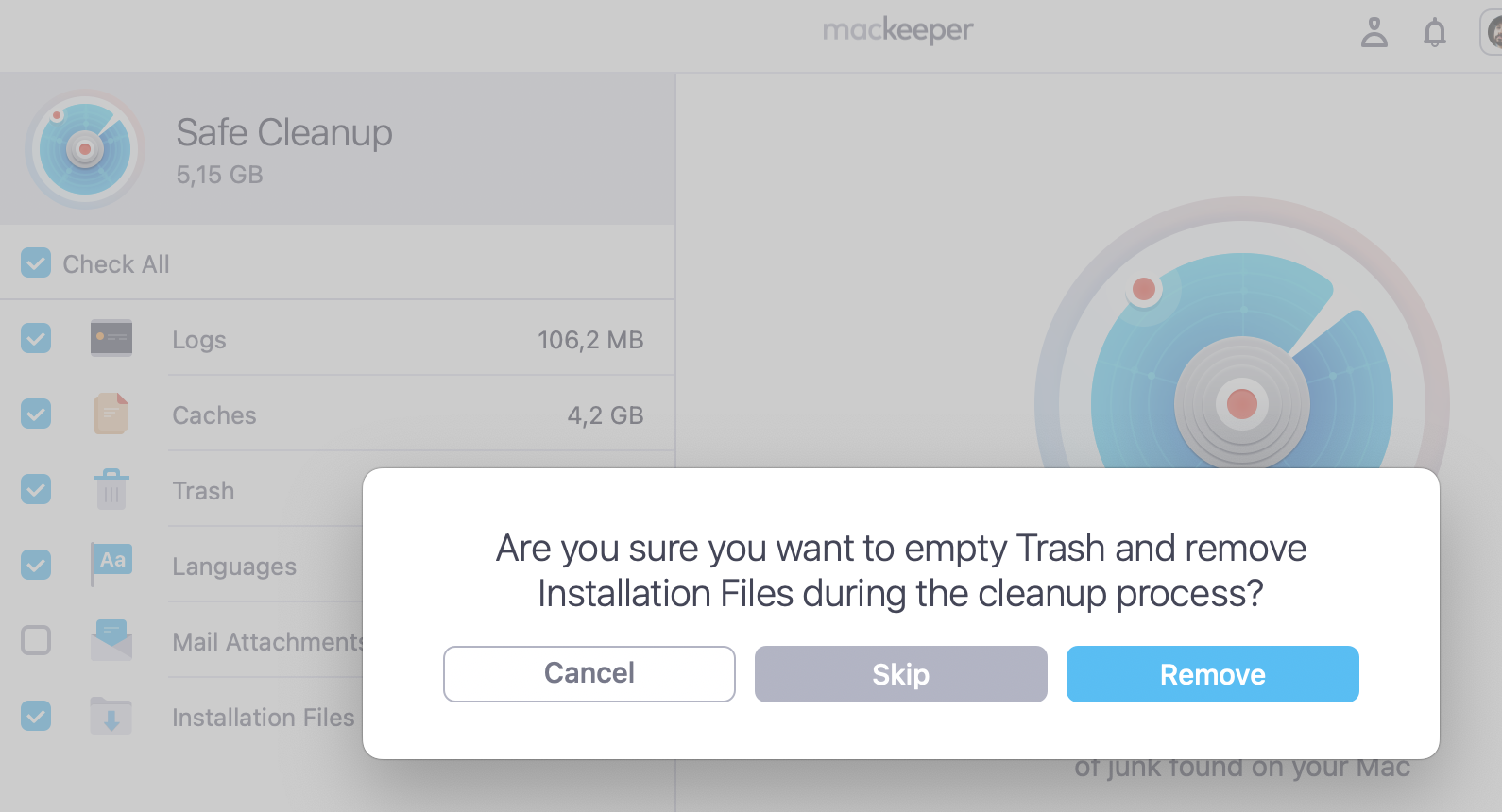
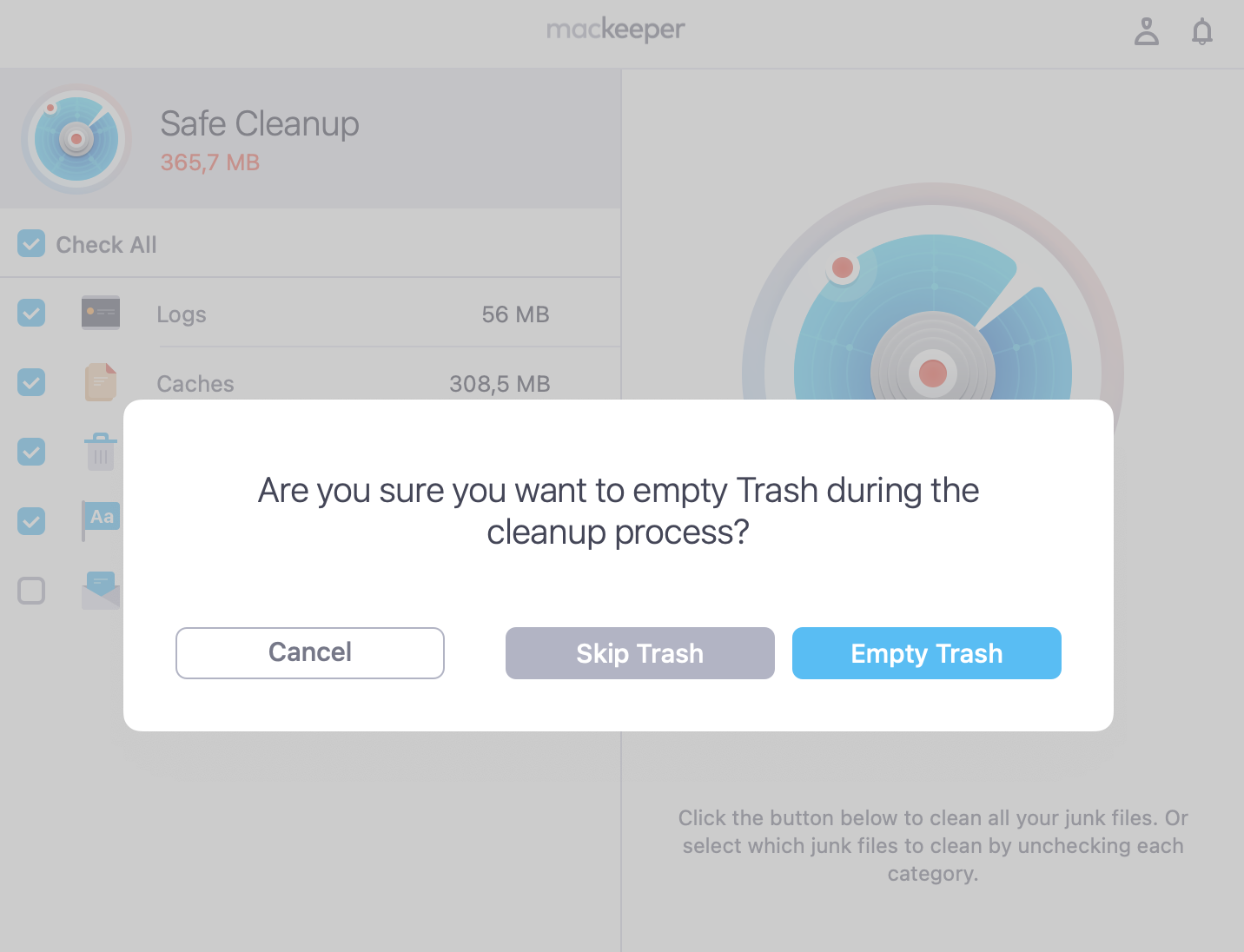
Click Empty Trash if you’re interested in making it part of the cleanup process.
When the scan is done, you’ll see the notification about it—”Cleaning Completed.”
Step 1. Open MacKeeper and go to Safe CleanupStep 2. Start scan and once completed click on Clean Junk FilesStep 3. Click Empty Trash if you want to completely remove deleted files
Final tips for using Xcode smartly
Xcode command line tools are about the easiest possible way to start programming on Mac. Xcode command tools allow developers to create great applications for Mac, iPhone, iPad, Apple TV, and Apple Watch.
Learn the language of your Mac and add command line tools. Then add the open source development tool of your choice, and you can soon be developing software that will work on many OS platforms.
We respect your privacy and
use cookies
for the best site experience.
Privacy Preferences Center
We use cookies along with other tools to give you the best possible experience while using the
MacKeeper website. Cookies are small text files that help the website load faster. The cookies we
use don’t contain any type of personal data meaning they never store information such as your
location, email address, or IP address.
Help us improve how you interact with our website by accepting the use of cookies. You can change
your privacy settings whenever you like.
Manage consent
All cookies
These cookies are strictly necessary for enabling basic website functionality (including page
navigation, form submission, language detection, post commenting), downloading and purchasing
software. The website might malfunction without these cookies.