We understand how frustrating it can be when your MacBook keeps trying to open links in the wrong browser; that’s why we recommend setting Safari as your default browser on Mac. While using Safari, you can rely on MacKeeper’s StopAd to keep you protected from intrusive ads and tracking software for a more secure browsing experience.
If your Mac keeps opening links in a browser you don’t want to use, it can be frustrating. The good news is the fix is simple—open your System Settings, head to Desktop & Dock, and make Safari the default browser on Mac for distraction-free browsing.
Can I use Safari on all Mac devices?
If you’re not sure whether you can change the search engine on Mac, due to the type of device you have, there’s no need to worry. All Macs support Safari as it’s the official Apple browser. Safari is likely to already be the default option on most MacBook Air, Pro, Mini, and iMac devices. If not, changing your browser to run with Safari is easy enough.
How to set Safari as the default browser on Mac?
Want to set the default browser on Mac to Safari? You can update your device's default browser in the Desktop & Dock tab via System Settings or with a SpotlightSearch. These two methods come highly recommended by our Clario Tech experts for ease and convenience.
A note from our experts:
When your browser won’t stop annoying you with pop-up ads or random notifications, it can make it difficult to focus on what is important. Thankfully, this nuisance can be resolved with MacKeeper’s StopAd. It’ll stop you from being bogged down by intrusive ads and alerts while browsing on Safari. Our macOS-supported tool works silently in the background, limiting distractions, allowing you to get on with your MacBook activities in peace.
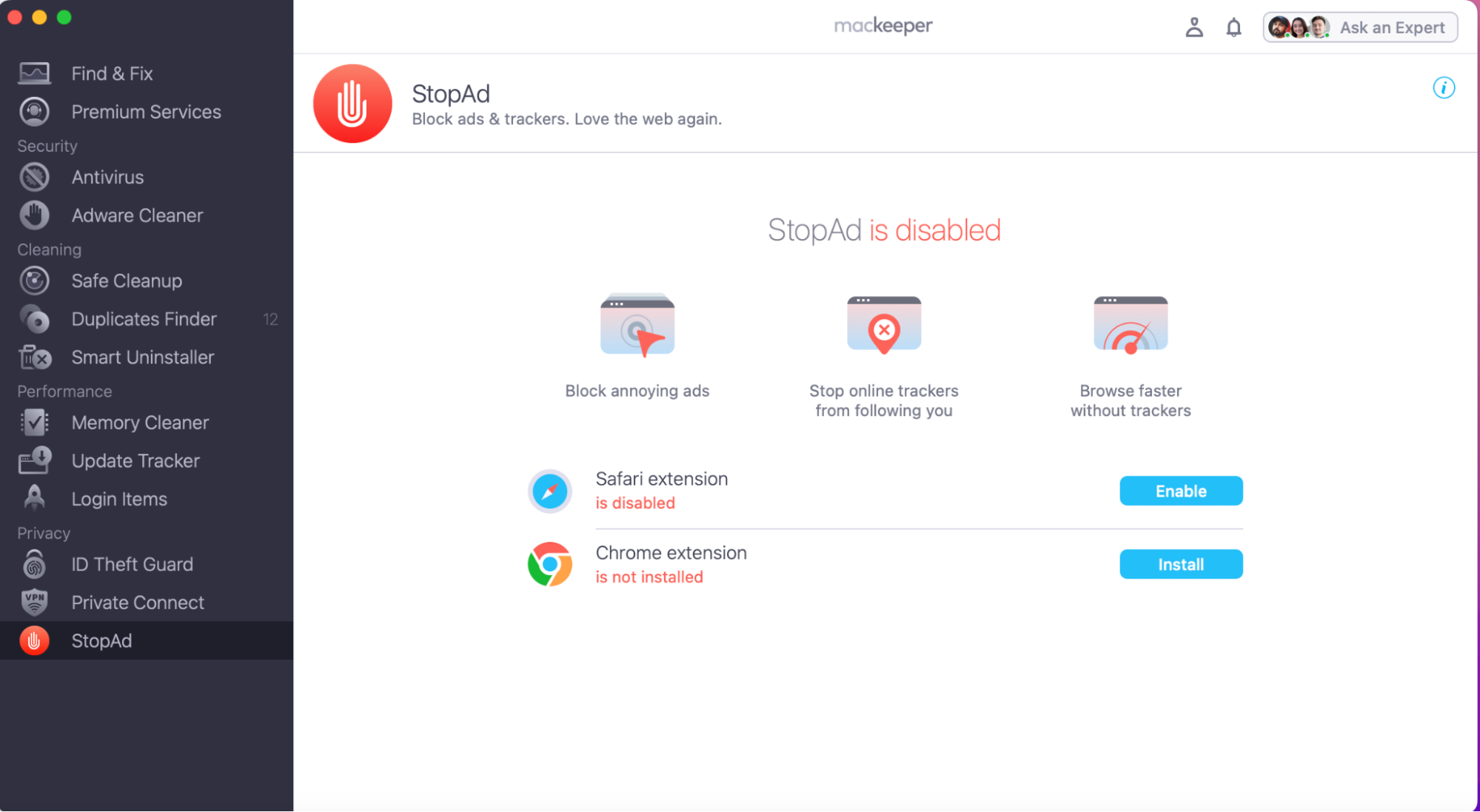
Here’s how to enable MacKeeper’s StopAd on Safari:
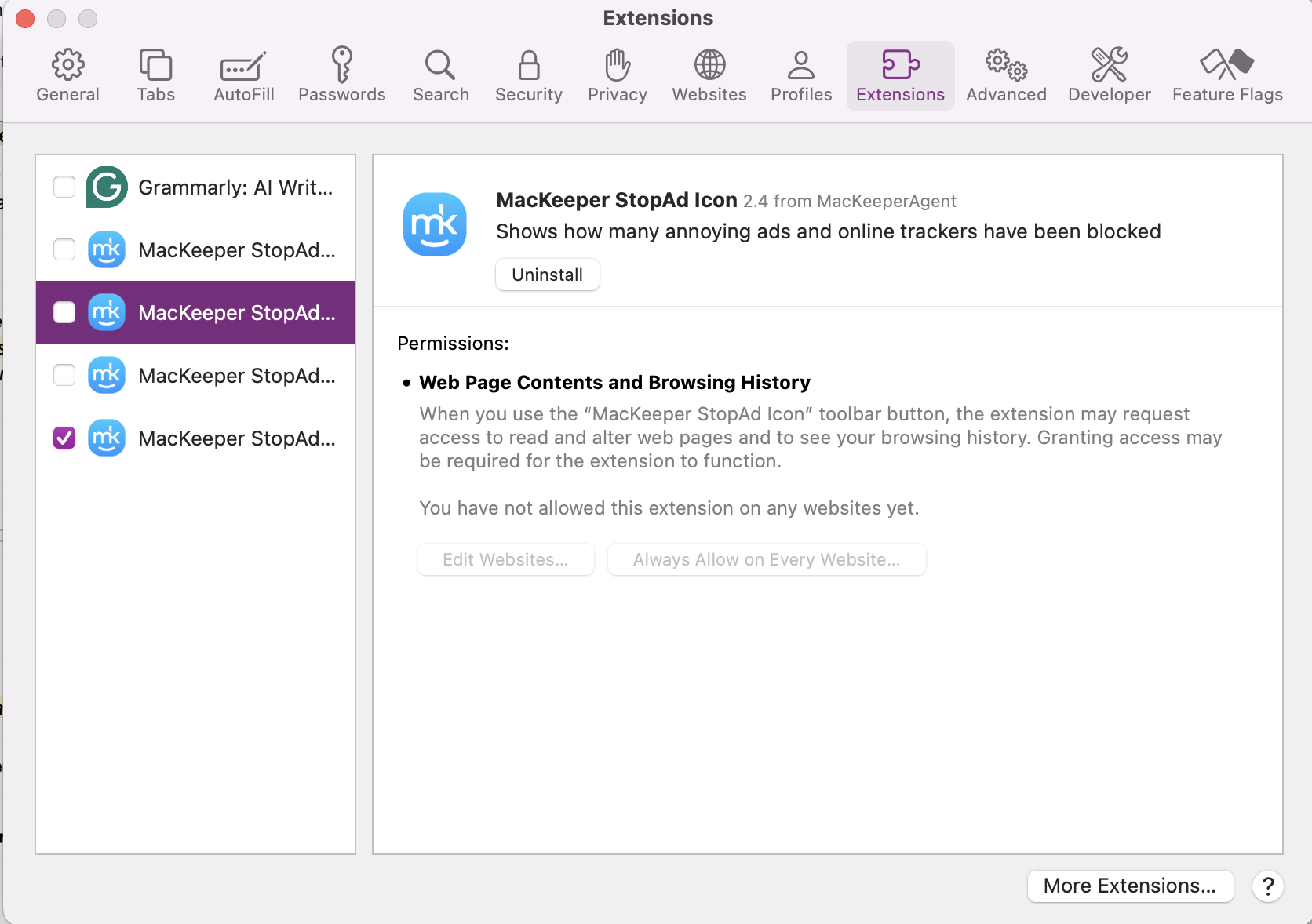
Then follow the on-screen instructions to add the extension to your browser.
Step 1. In the MacKeeper app, go to StopAd and press Enable next to SafariStep 2. Follow the onscreen instructions to add the StopAd extension to Safari
1. Make Safari the default browser via System Settings
If you want to make Safari the default browser on Mac, you can change it directly in your System Settings. This method also allows you to change Safari settings for personalization. In case you want to change your default browser to something other than Safari, our steps below will show you how to do that too, in case you prefer Google Chrome or Edge over Safari.
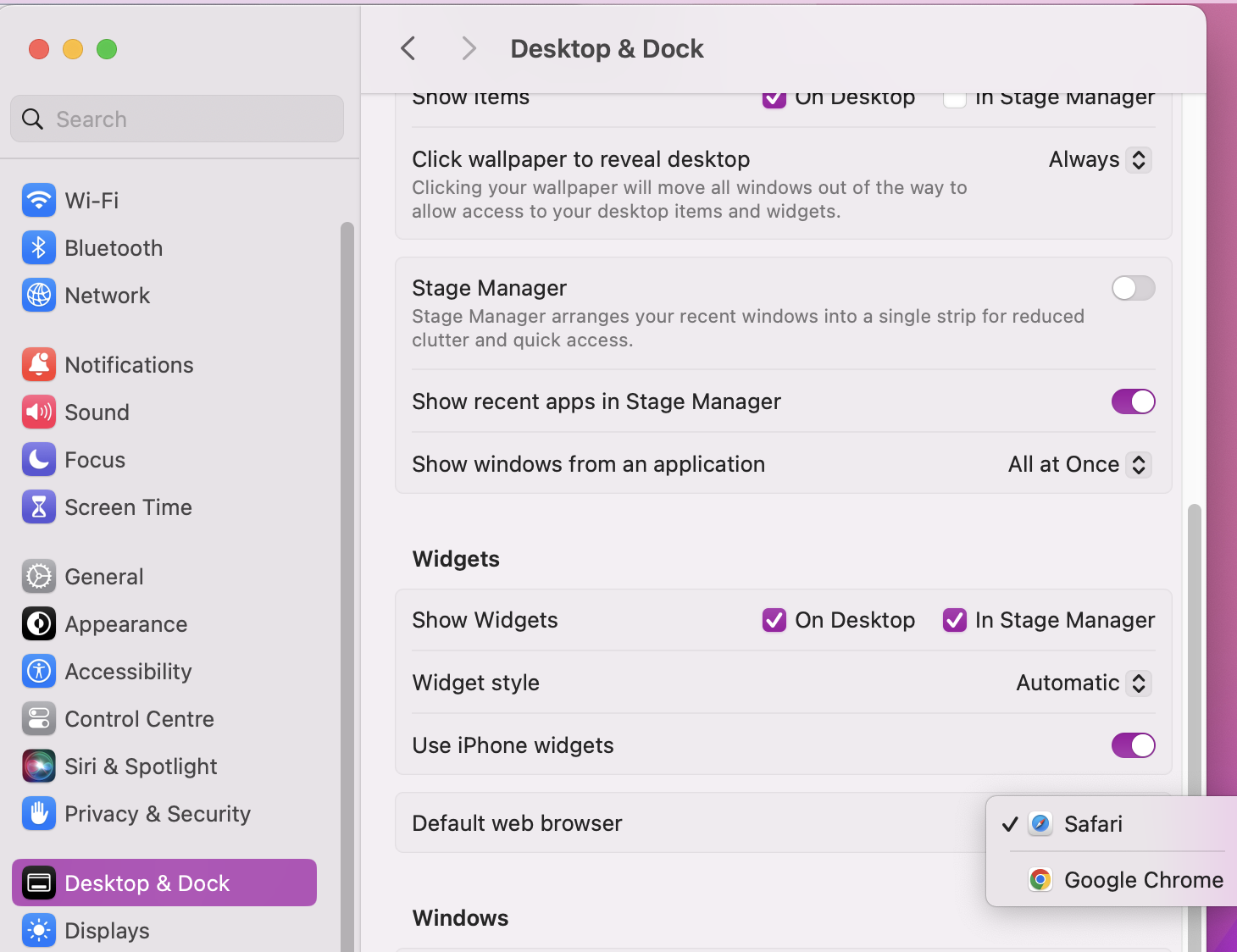
Here’s how to set Safari as your go-to browser via System Settings:
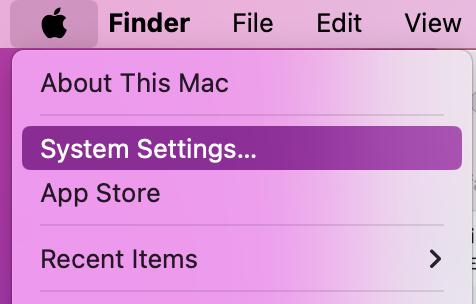
Click on the Apple Icon.
Open System Settings.
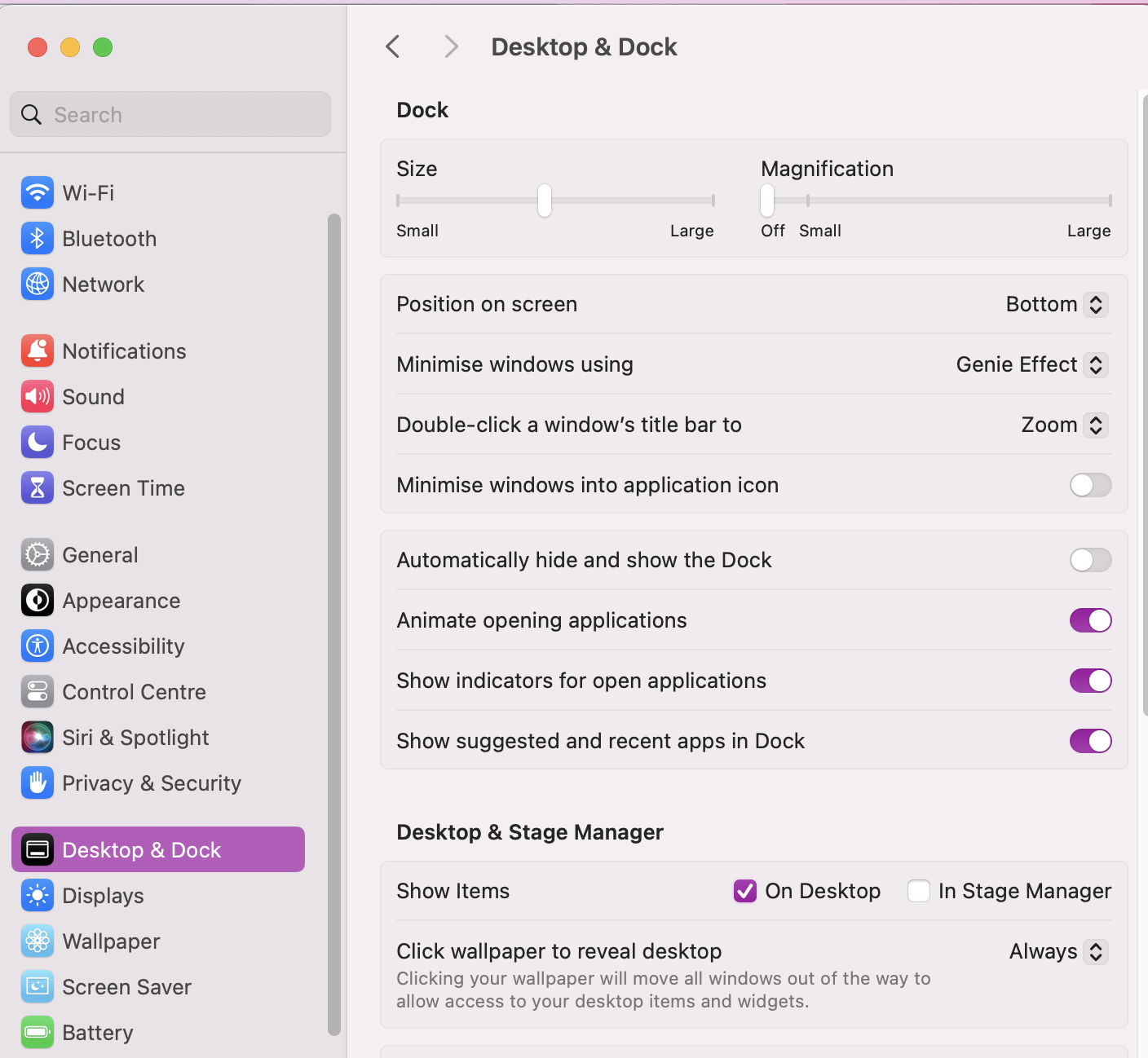
Go to Desktop & Dock.
Scroll down until you see Default Web Browser and change it to Safari.
Step 1. Open System SettingsStep 2. Go to Desktop & DockStep 3. Scroll until you see Default Web Browser and change it to Safari
2. Set Safari as the default browser using Spotlight Search
Want an even easier way to set Safari as your go-to browser on Mac? You can bypass a bunch of extra steps just by using the Spotlight Search function instead. A quick keyboard shortcut will make changing your browser even easier.
Here’s how to use the Spotlight Search shortcut to set Safari as your web browser:
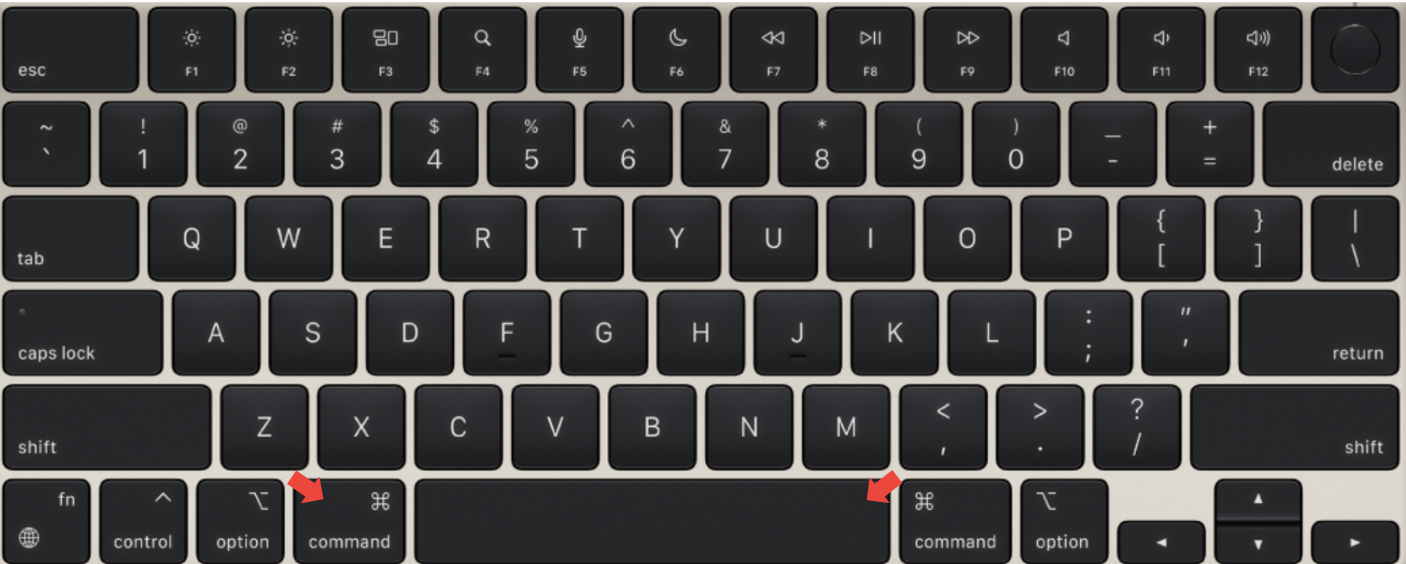
Press Command + Space on your keyboard.
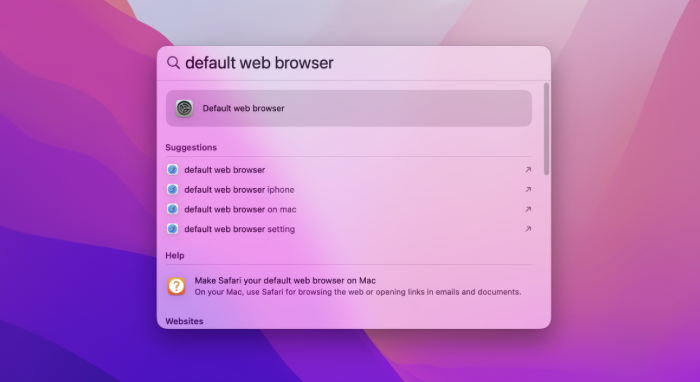
Type in Default Web Browser. This will take you directly to your Settings, where you can change it instantly to Safari.
Step 1. On your keyboard, press Command and Space to bring up Spotlight SearchStep 2. Type in Default web Browser into the Spotlight Search to be taken directly to settings
How to customize the default Safari browser on Mac?
Even though Safari is the top choice for most Apple users, we often see people tailoring the browser to suit what works best for them. Whilst it works well as it is, some small customisation can make it suit your work, school, or personal needs better. For instance, you can change Safari wallpapers on Mac or create bookmark lists for quick access to your favourite or frequently visited websites.
Extra advice from us:
Customisation doesn’t stop with choosing what browser is your default one. For more tips on how to customise Safari, you can check out the steps in our supporting blog article, where we show you how to personalise backgrounds and change your Safari toolbar for a more unique browser experience.
Allow the Safari browser to work for you
Now you know how simple it is to set Safari as the default browser on Mac, especially when you update it in System Settings. The best thing is that Safari works seamlessly across all Apple devices, but you can still personalize it to make your experience unique.
Better yet, with MacKeeper’s StopAd, you can browse the internet knowing your experience is protected and distraction-free. You’ll finally be able to say goodbye to annoying ads and pesky pop-ups, reclaiming control of your web browser.
We respect your privacy and
use cookies
for the best site experience.
Privacy Preferences Center
We use cookies along with other tools to give you the best possible experience while using the
MacKeeper website. Cookies are small text files that help the website load faster. The cookies we
use don’t contain any type of personal data meaning they never store information such as your
location, email address, or IP address.
Help us improve how you interact with our website by accepting the use of cookies. You can change
your privacy settings whenever you like.
Manage consent
All cookies
These cookies are strictly necessary for enabling basic website functionality (including page
navigation, form submission, language detection, post commenting), downloading and purchasing
software. The website might malfunction without these cookies.