Knowing whether your Mac is Intel or Apple Silicon is important for everything from app compatibility to ongoing maintenance. Whichever model you have, make sure it’s running free of junk with MacKeeper’s Safe Cleanup.
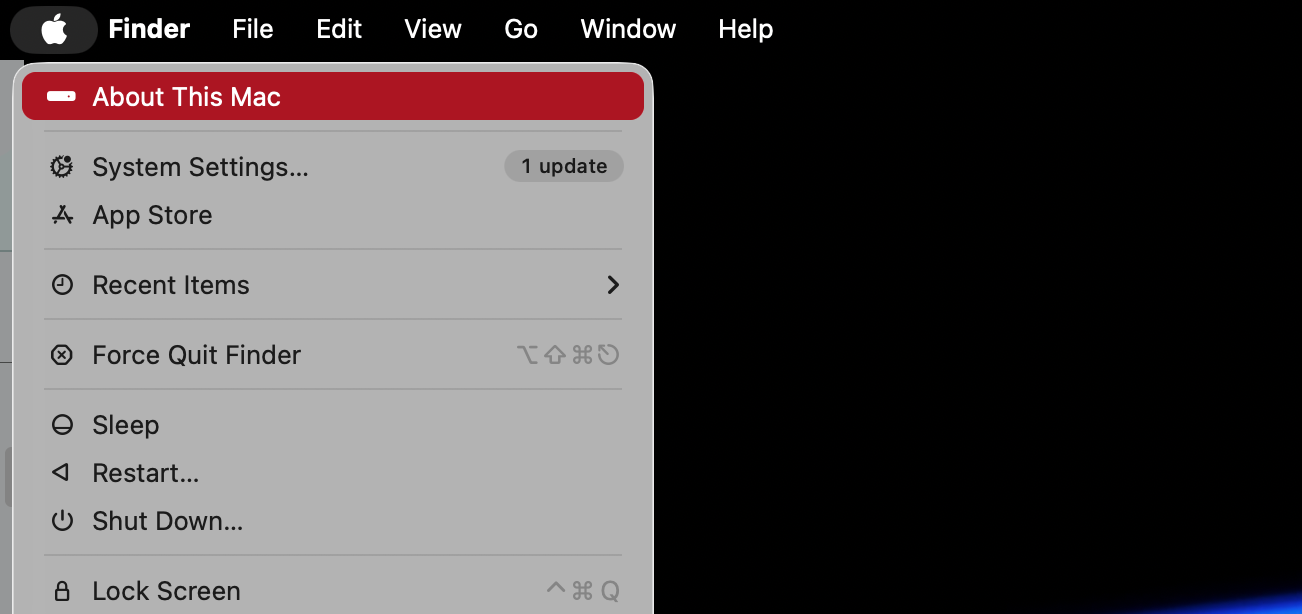
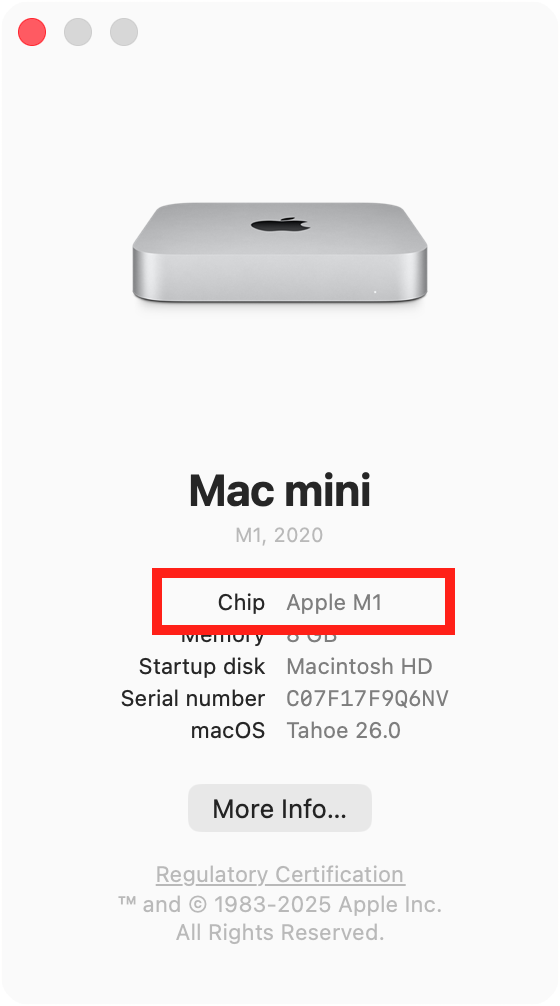
To check if your Mac has an Intel or Apple Silicon processor, click the Apple icon in the top left of your screen, and select About This Mac. Where it says Chip, you’ll see which type of processor you have. This will either be an Intel chip or Apple chip (M1, M2, M3, M4).
How to tell if a Mac is Intel or Apple Silicon?
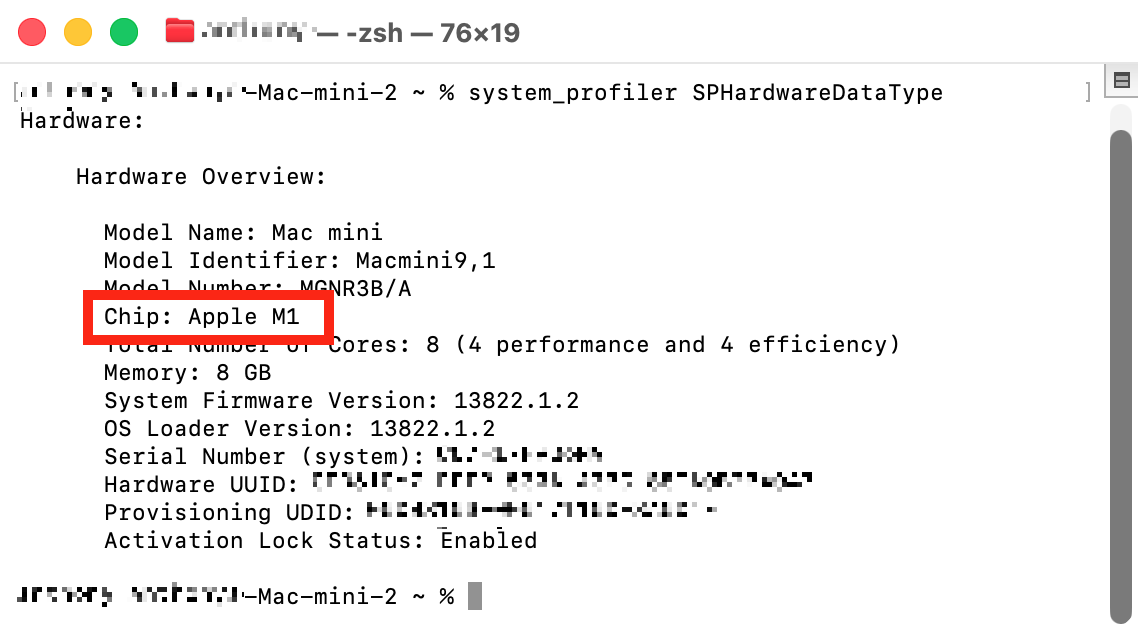
macOS offers a few different ways to check if your Mac is an Intel or Apple Silicon version. First of all, you can use the About This Mac panel, your System Settings, or System Information. It’s also possible to bring up this information using the Terminal command line tool.
A note from our experts:
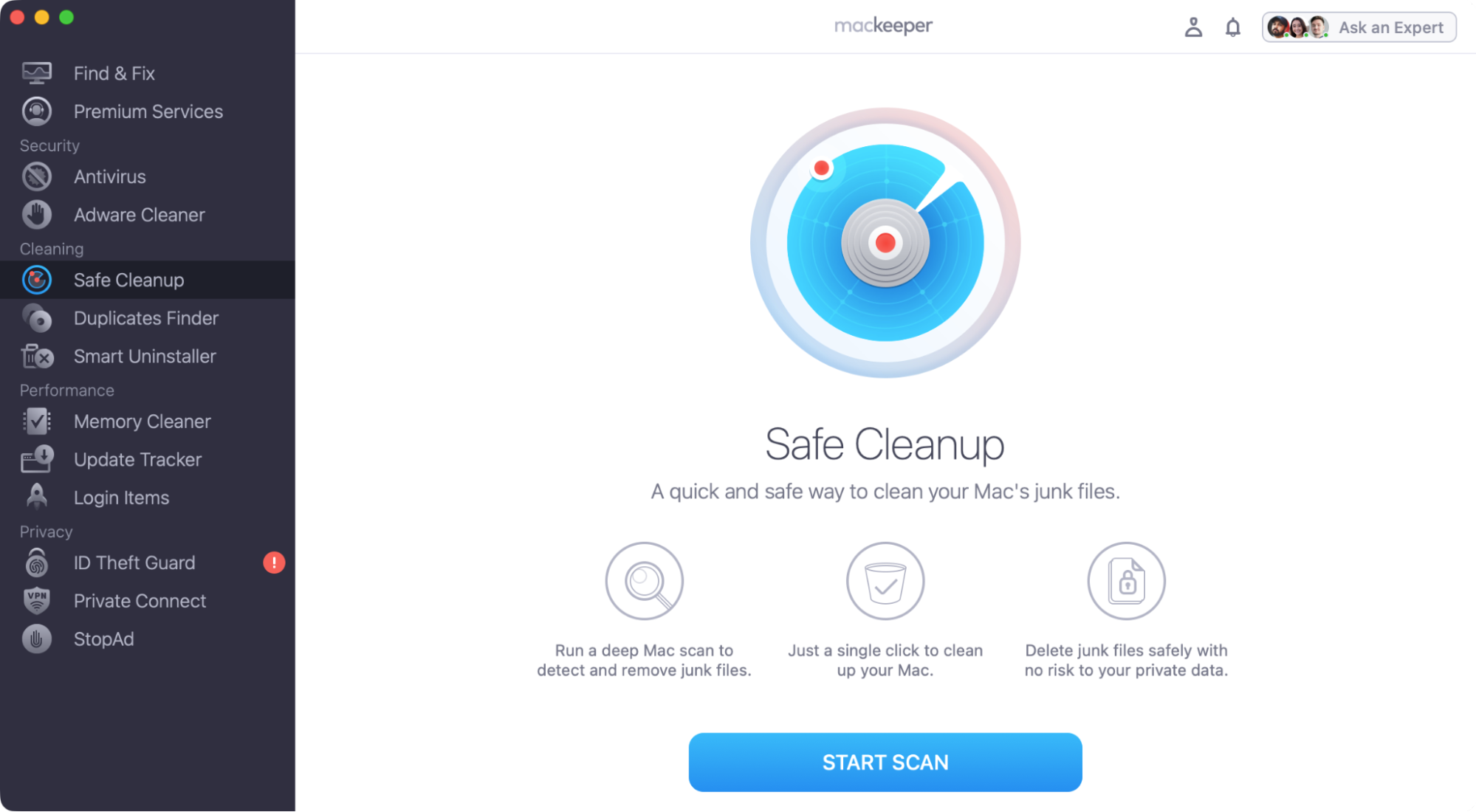
Whether you have an Intel or Apple Silicon Mac, you can clean out junk files and save space on your laptop with MacKeeper’s Safe Cleanup tool.
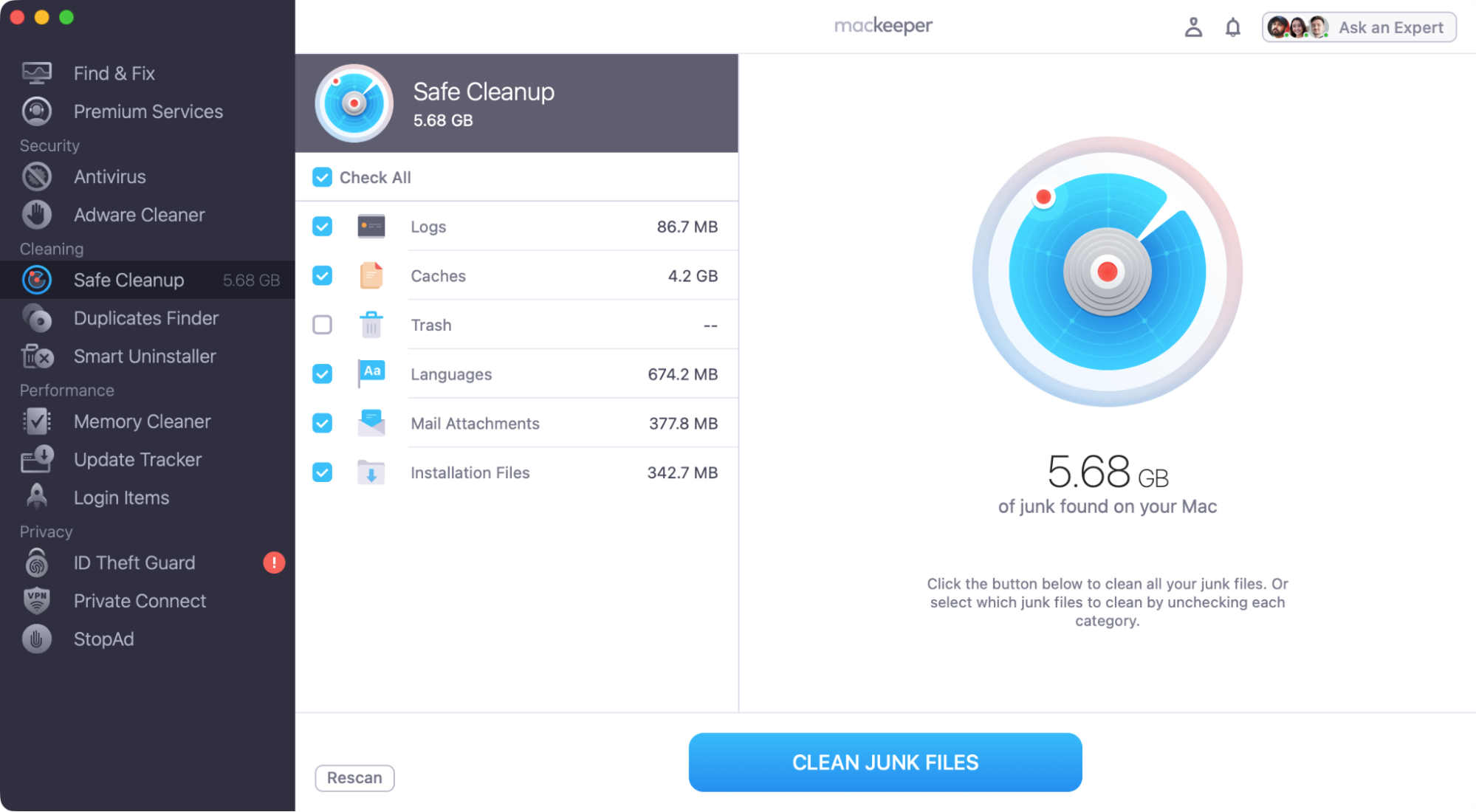
When the scan is finished, select what to delete, and click Clean Junk Files.
Step 1. Select Safe Cleanup, and click Start ScanStep 2. Select what to delete, then click Clean Junk Files
1. Using “About this Mac”
We often use the About This Mac panel to get a quick summary of our Macs and macOS versions. Here’s how to check your Mac processor to see if it’s an Intel or Apple Silicon model using About This Mac:
Click the Apple icon in the top left of your screen.
Select About This Mac.
In the About This Mac panel, look where it says Chip.
Your Mac will either have an Intel or Apple Silicon processor.
Step 1. Click the Apple icon, then select About This MacStep 2. Check which type of processor your Mac has
macOS also includes a system report function, which gives you a detailed view of your Mac’s hardware and software. Here’s how to tell if your Mac is Intel or Apple Silicon using System Information:
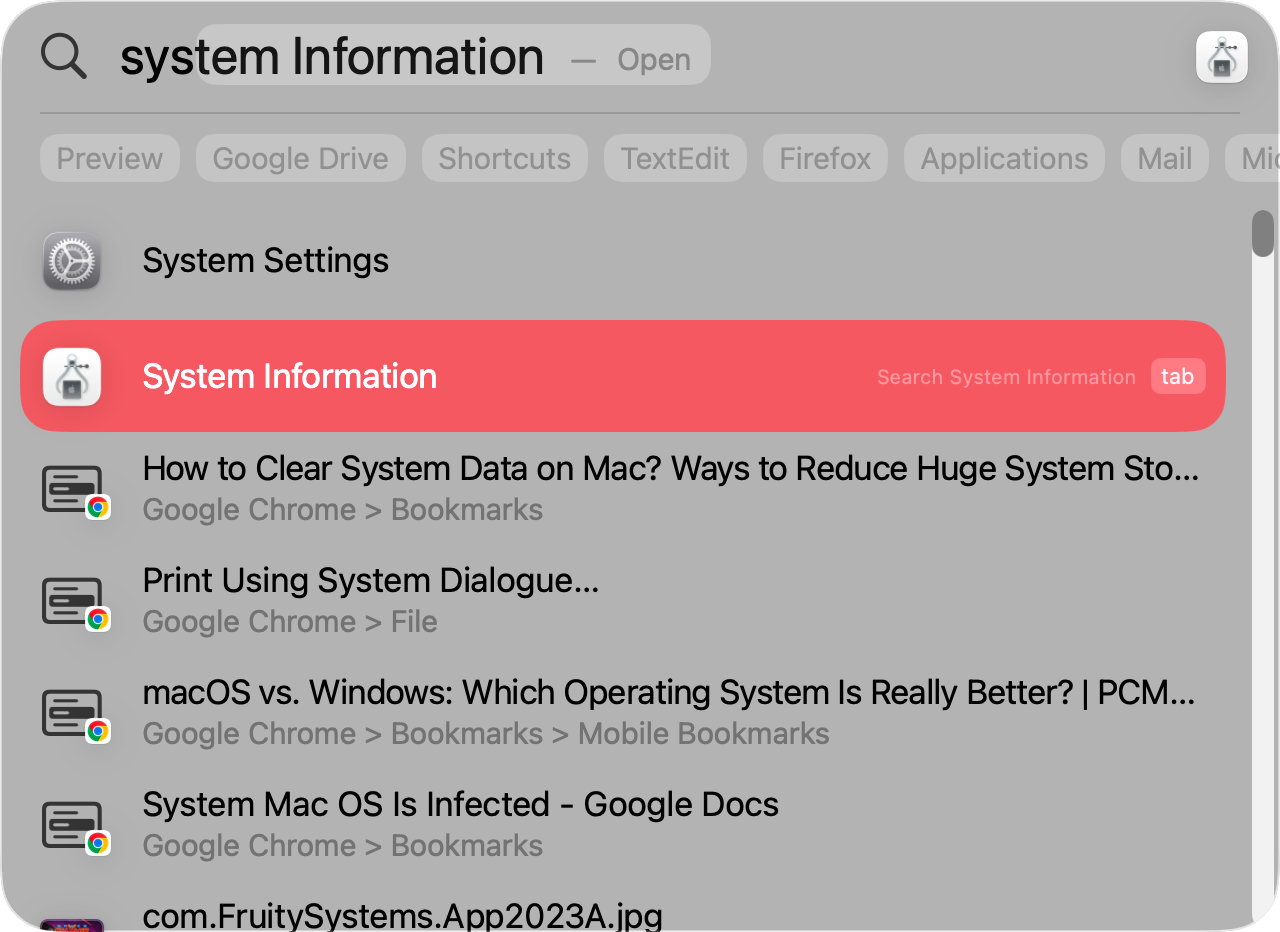
Press Cmd+Spacebar to open Spotlight.
Search for and open System Information.
Select Hardware from the side menu.
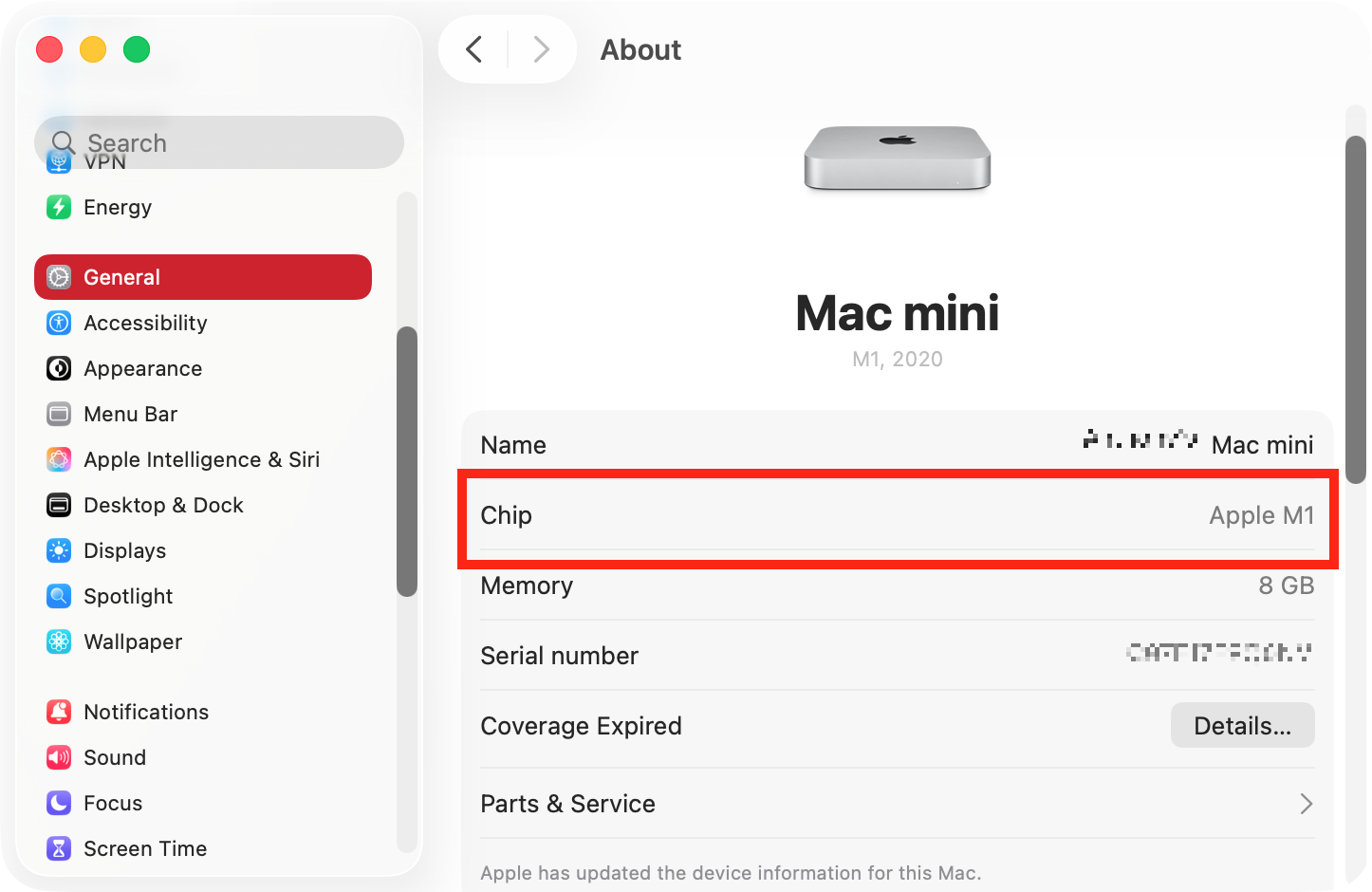
Check where it says Chip to see what type of processor you have.
Step 1. Use Spotlight to open System InformationStep 2. Check where it says Chip to see what type of Mac you have
You can also see what version of macOS you have—useful if you want to know how to downgrade macOS.
3. Through System Settings
A lot of important information can be found in your Mac’s settings. Here’s how to know if you have an Apple Silicon or Intel machine using System Settings:
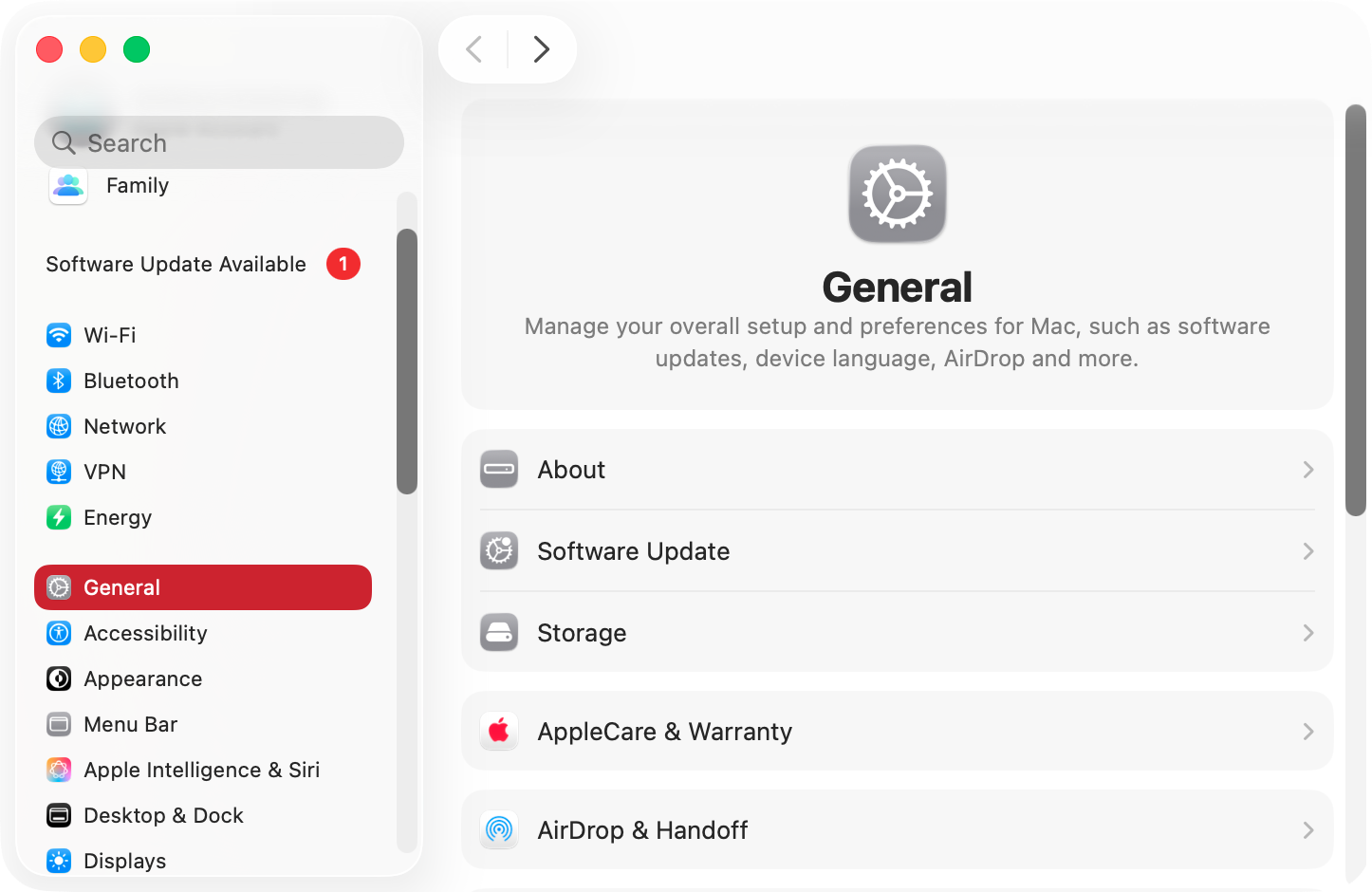
Open System Settings.
Select General from the menu on the side.
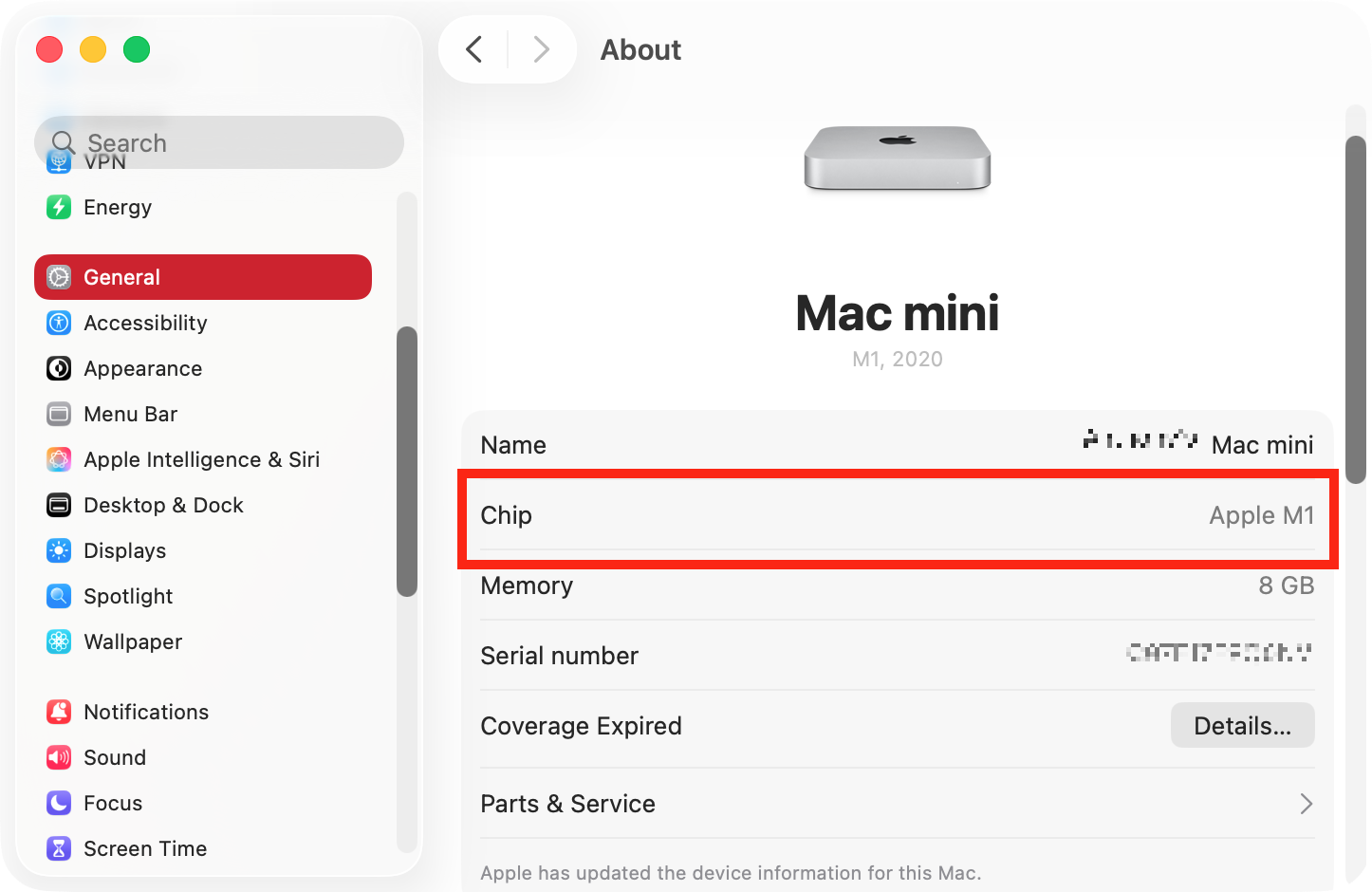
Select About. You’ll see a summary of your Mac or MacBook on the right.
Where it says Chip, you’ll see what type of processor you have.
Step 1. In System Settings, select General > AboutStep 2. Look where it says Chip to check your processor type
Apple Silicon and Intel Macs use completely different processors, based on different chip architectures. Older Macs use Intel chips, like those in Windows PCs, which is why Boot Camp lets you run Windows on your Mac. Apple Silicon chips (M1, M2, and so on) are newer, and they offer much better performance and power efficiency than the old Intel processors. Apple has already stopped making Intel Macs and will eventually only support Apple Silicon.
All Macs deserve great performance
As you’ve seen, there are several ways to check whether you have an Intel or Apple Silicon Mac. For sheer speed and simplicity, we prefer the About This Mac option. If we need to see more detailed information, we can always look in System Settings too, or bring up a system report.
Whatever type of Mac you have, make sure it’s free of unnecessary data junk files. Simply scan your computer with MacKeeper’s Safe Cleanup, and you can save a ton of space in just a few moments.
We respect your privacy and
use cookies
for the best site experience.
Privacy Preferences Center
We use cookies along with other tools to give you the best possible experience while using the
MacKeeper website. Cookies are small text files that help the website load faster. The cookies we
use don’t contain any type of personal data meaning they never store information such as your
location, email address, or IP address.
Help us improve how you interact with our website by accepting the use of cookies. You can change
your privacy settings whenever you like.
Manage consent
All cookies
These cookies are strictly necessary for enabling basic website functionality (including page
navigation, form submission, language detection, post commenting), downloading and purchasing
software. The website might malfunction without these cookies.