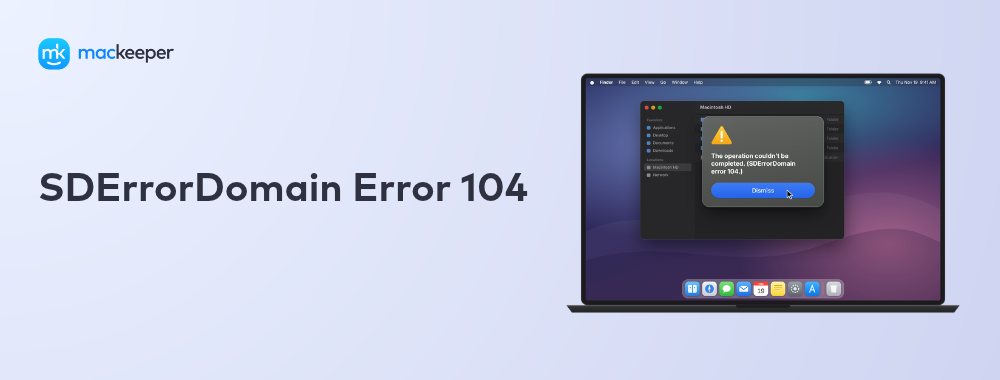
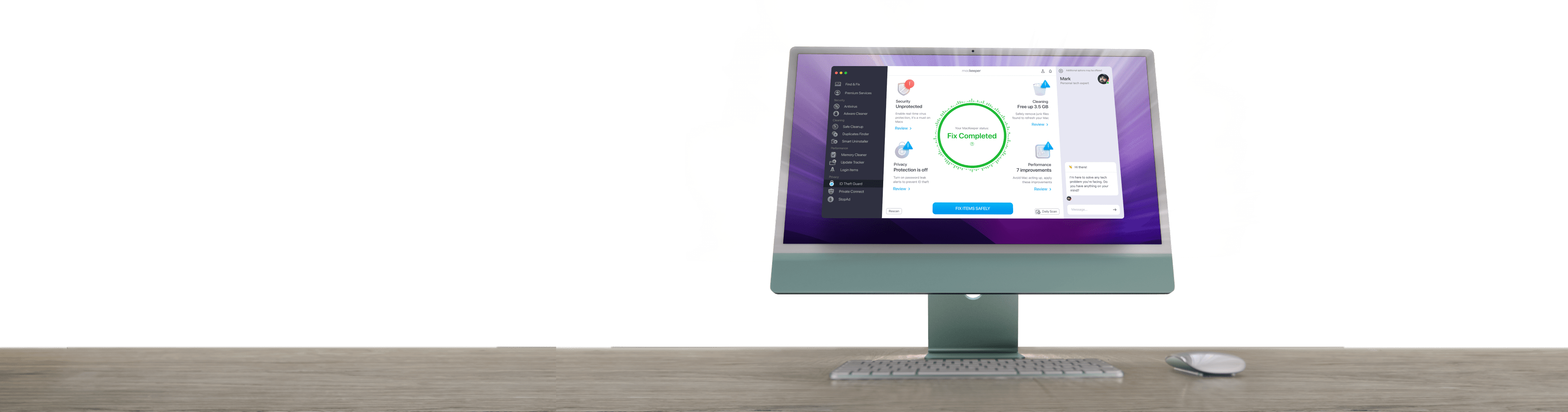
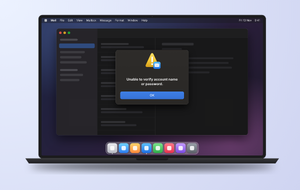
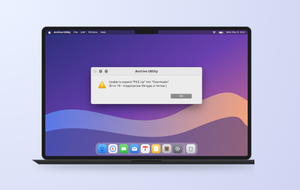
Trying to boot your Mac and hitting the SDErrorDomain error 104 instead? It means your startup disk won’t cooperate. MacKeeper is an all-in-one Mac maintenance app, and its Premium Services put you in touch with real specialists who guide you through repair. Chat with our team today and get your Mac running again.
What does SDErrorDomain error 104 mean and what causes it?
The SDErrorDomain error 104 usually shows up when macOS can’t set a specific drive—internal or external—as the active startup disk. You’ll see this error code during boot selection or while installing a new operating system. In plain terms, your Mac can access the disk but won’t hand it the keys to start up.
A few common triggers sit behind the SDErrorDomain startup disk error 104:
Security settings that block external or removable media
A loose cable, faulty USB port, or unreliable hub
A disk formatted in a file system macOS doesn’t support
A corrupted volume or damaged directory structure
A damaged or incomplete macOS installer
A note from our experts:
If your Macintosh reports no startup disk on Mac, some of the above-mentioned underlying causes often apply. However, this doesn’t make things easier, right? To help you, we have a team of tech experts who can support you with your daily Mac experience within the MacKeeper app.
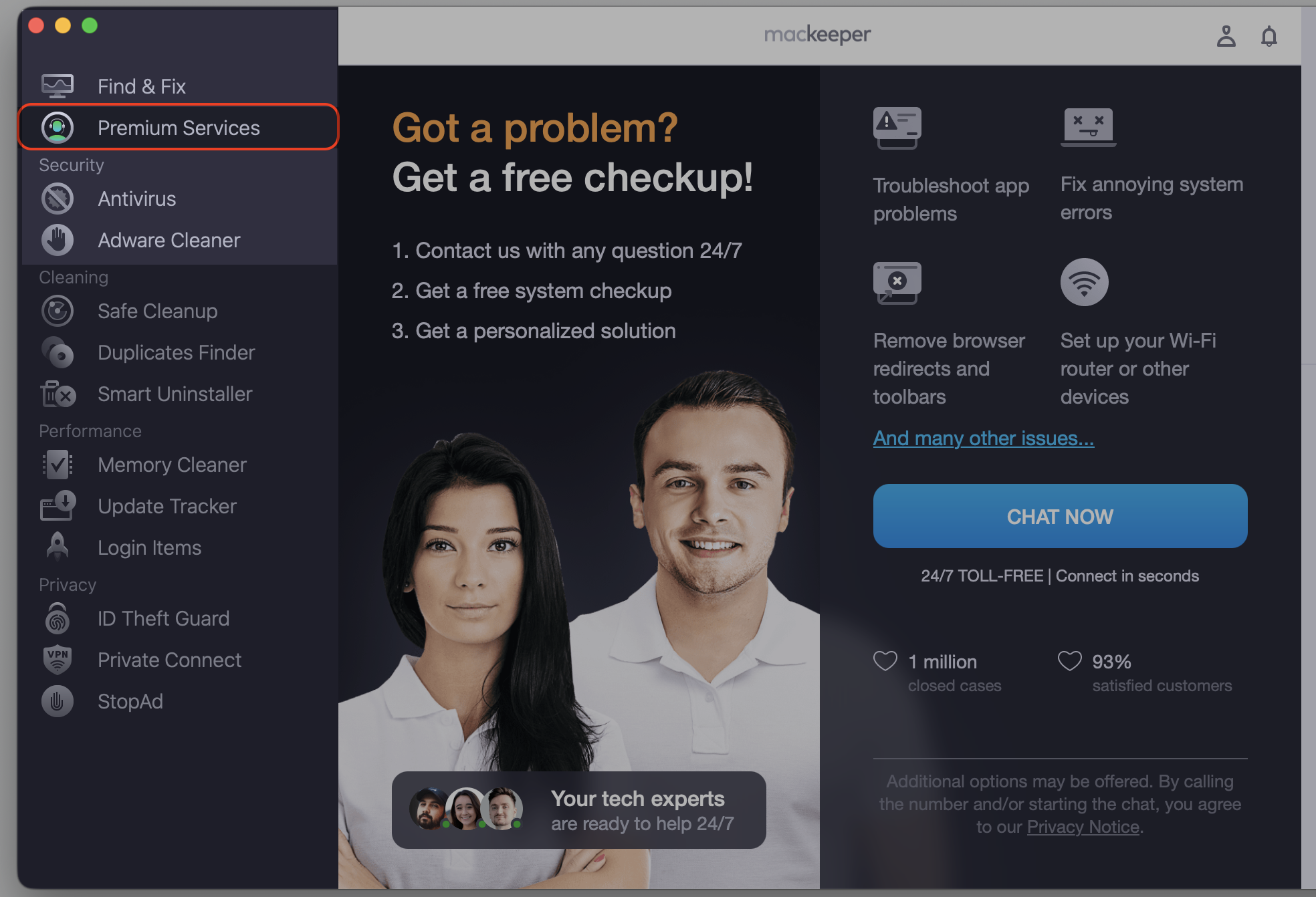
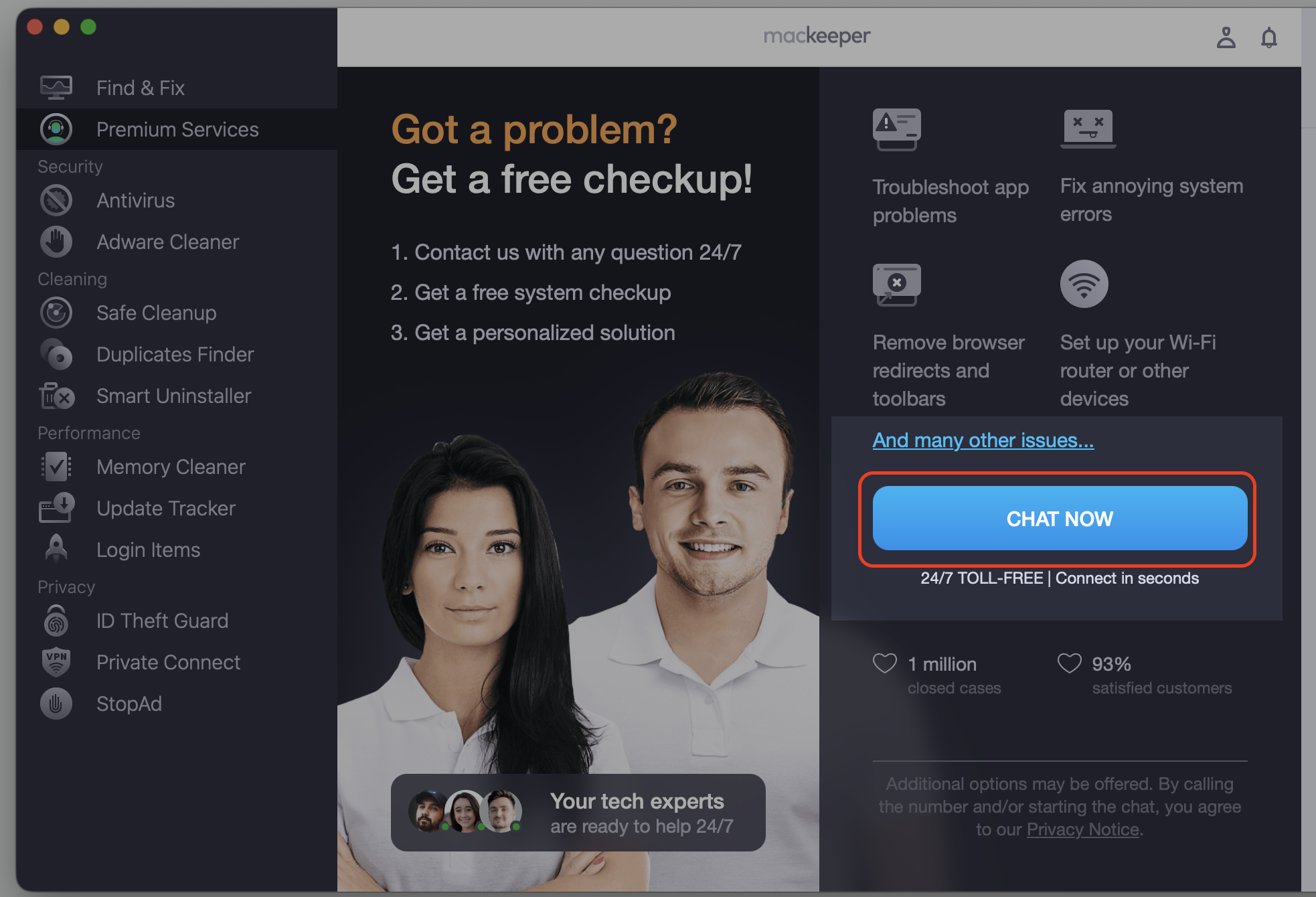
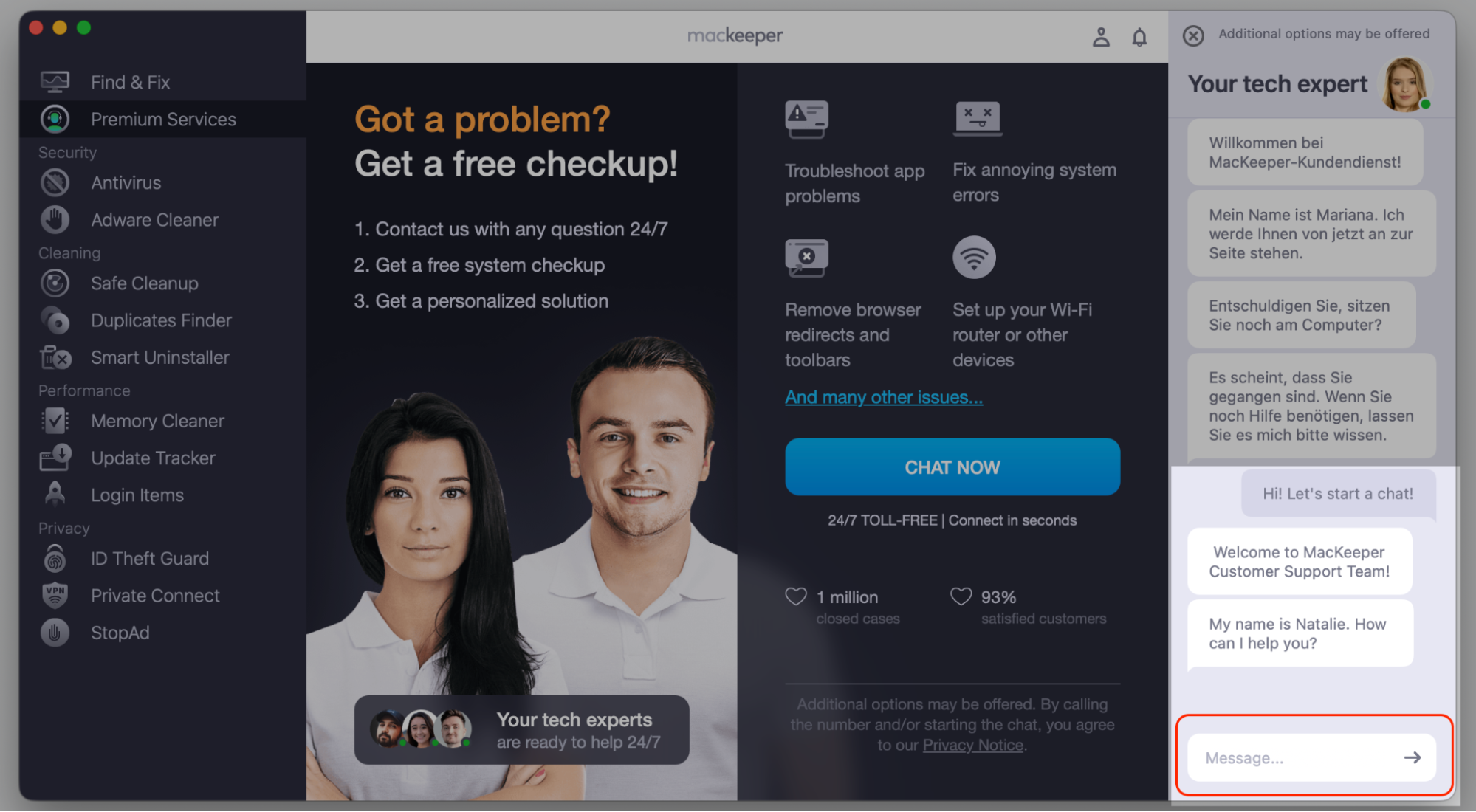
Step 1. Go to MacKeeper and choose Premium Services Step 2. Click Chat NowStep 3. Type in your message to explain the problem
How to fix SDErrorDomain error 104 on Mac?
There’s no single cause, so we’ll work through the fixes from simplest to most involved. We’ll start with security and hardware checks, then move to disk repair and, if needed, reinstalling macOS. Most people resolve the SDErrorDomain error 104 on Mac well before the last method.
Read through our methods below and try them in order—the earlier fixes are quicker and safer.
1. Startup security utility permissions and external boot settings
Apple Silicon and T2-based Macs ship with strict security that can block booting from external or removable media. If you’re installing from a USB drive, we often find this setting alone triggers the error.
Here’s how to loosen the boot policy in recovery mode:
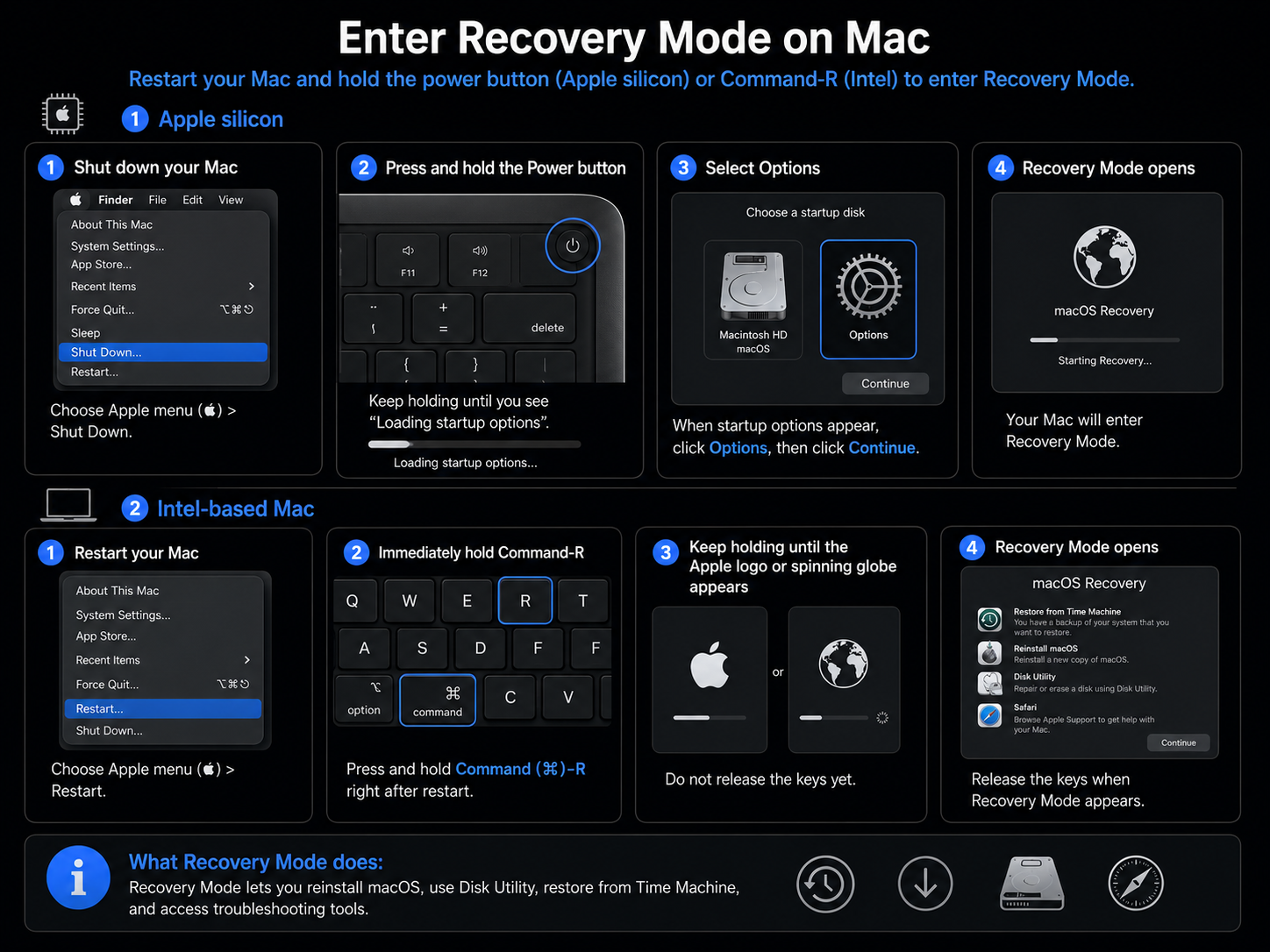
Restart your Mac and hold the power button until the startup options and Apple logo appear (on Intel Macs, hold the Command and R keys instead).
Select Options, then choose Continue.
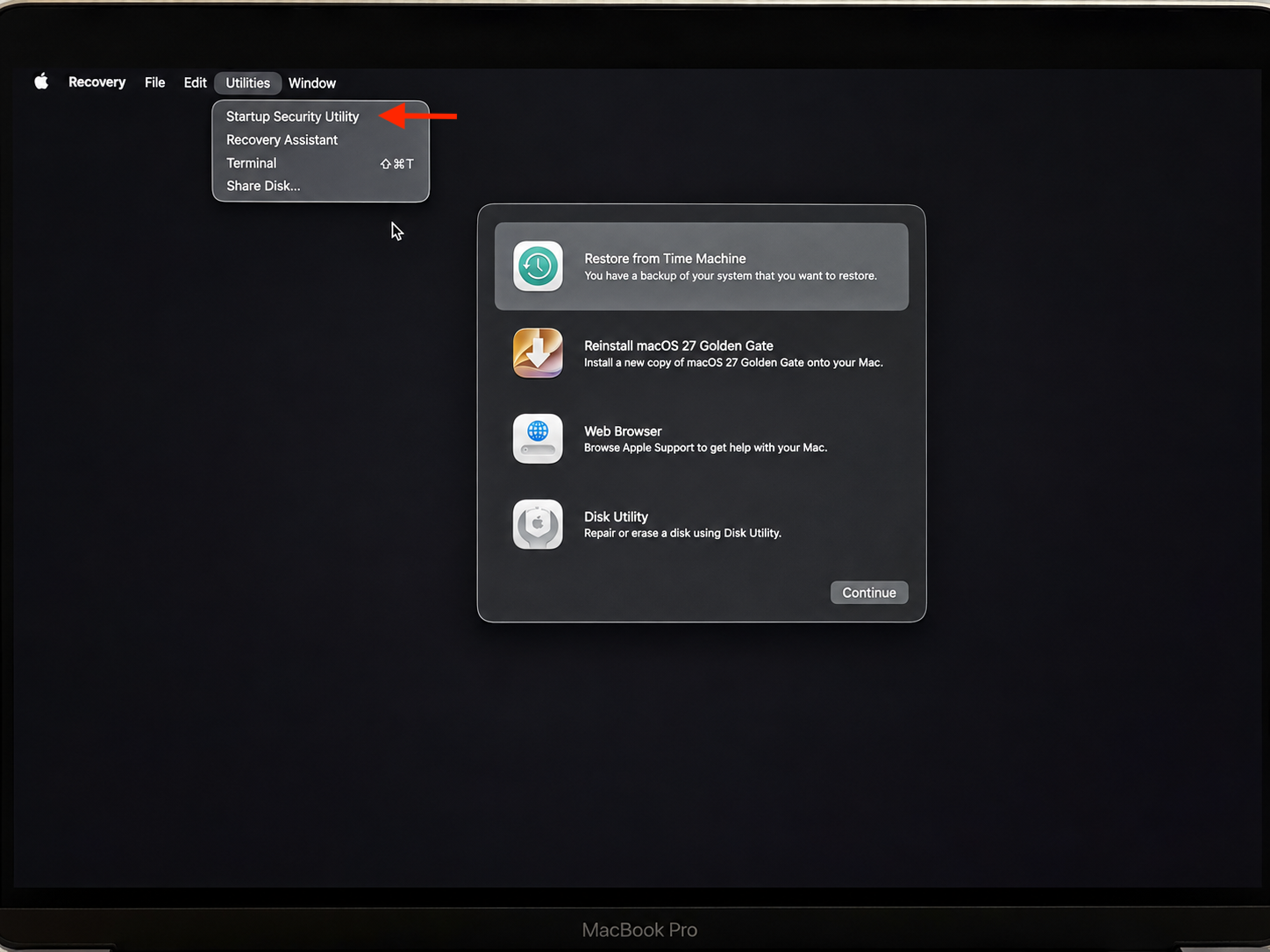
From the menu bar, open Utilities → Startup Security Utility.
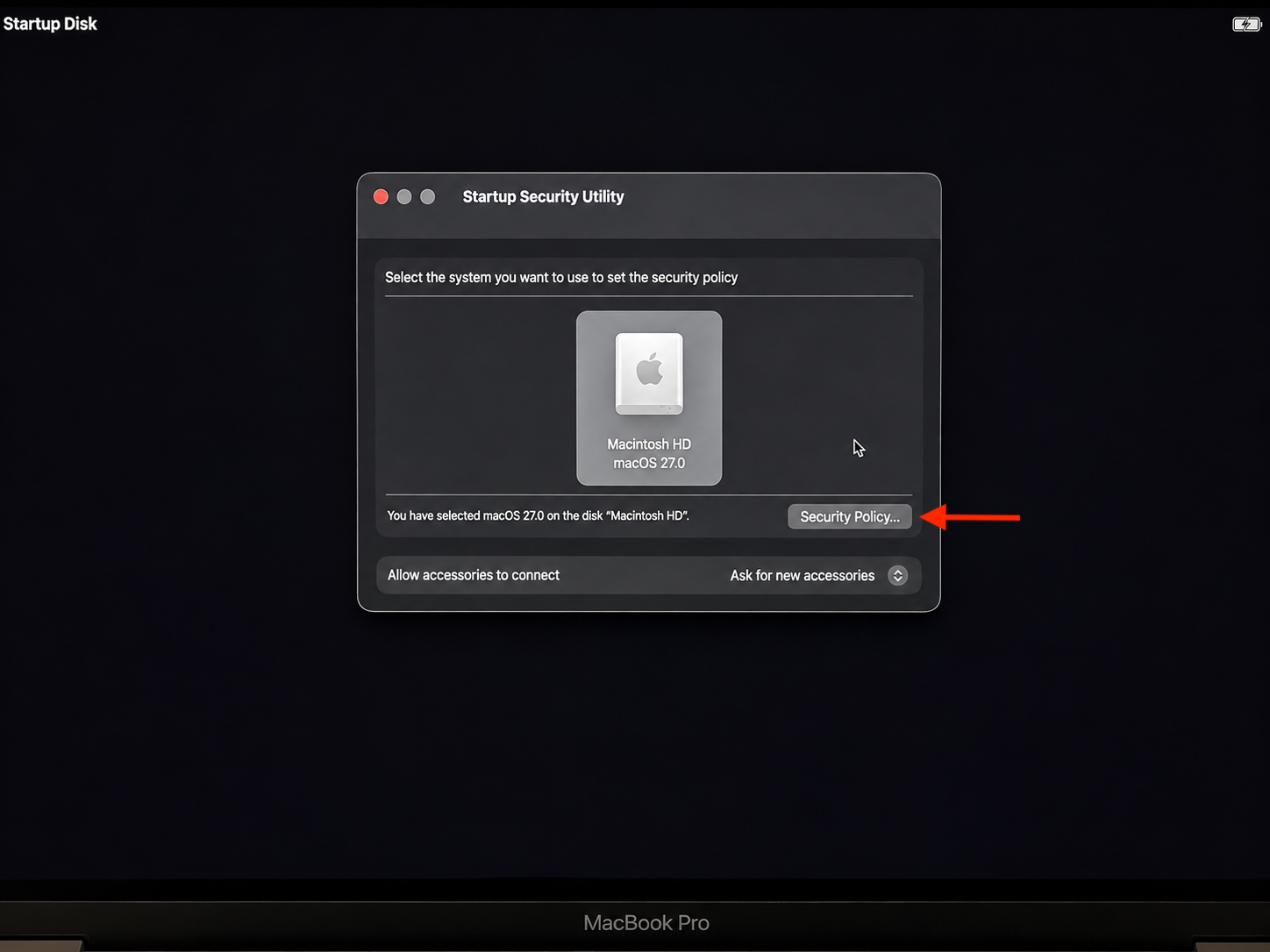
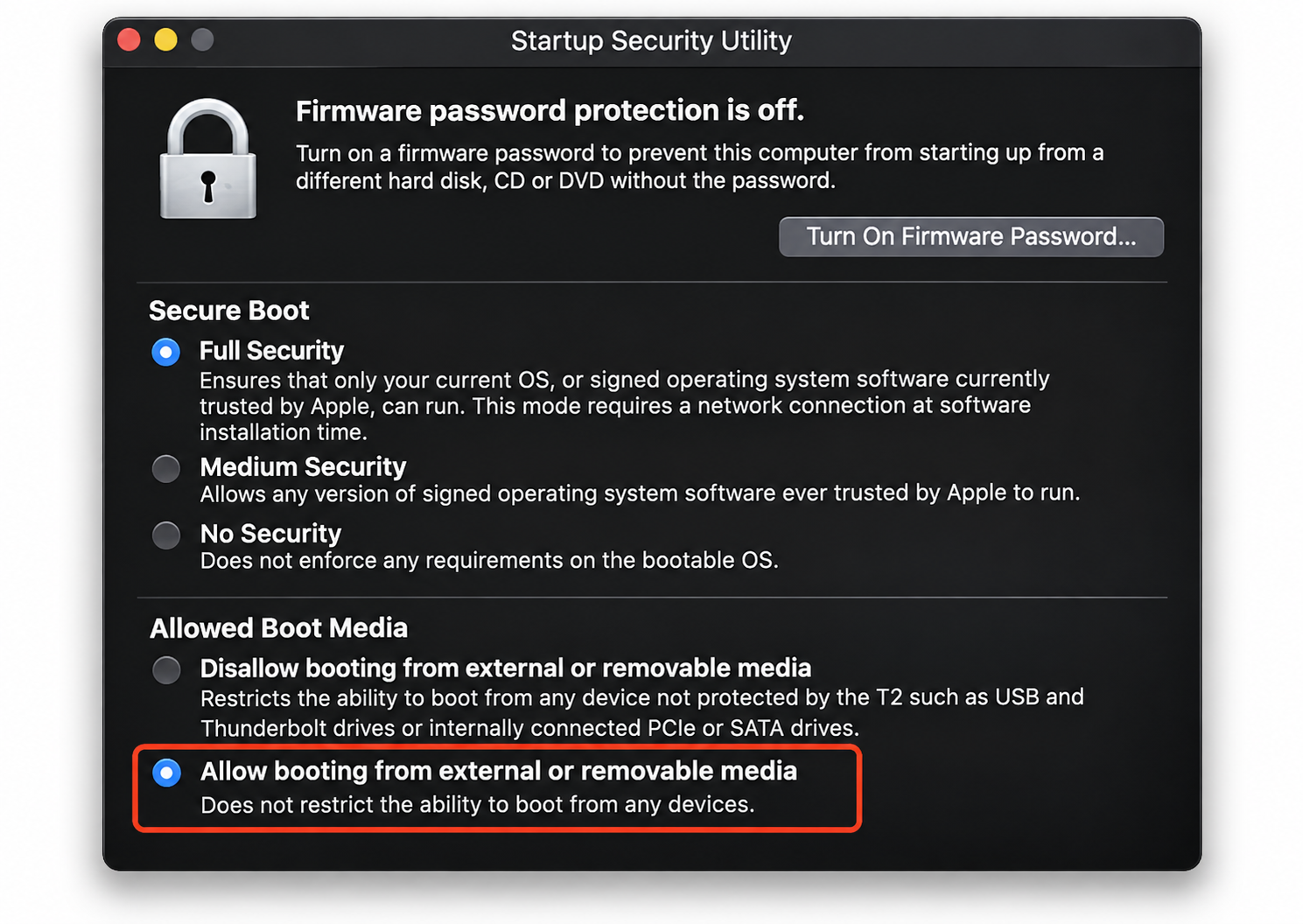
Select your system disk, activate Reduced Security, and allow booting from external media.
Reboot and try selecting your startup disk again.
Step 1. Boot in to the Recovery ModeStep 2. From the menu bar, open Utilities, then choose Startup Security UtilityStep 3. Proceed with the Security PolicyStep 4. Activate the Allow booting from external media option
2. External drive connection and hardware integrity
Sometimes the issue is physical, not software. A dropped connection during install can cause the SDErrorDomain error 104, and it’s often the same loose link behind the an error occurred while preparing the installation message—in our experience, the drive itself is usually fine.
Let’s rule out the hardware first:
Connect the drive straight to your Mac, skipping any hub or enclosure.
Swap to a different USB or USB-C port.
Try another cable, since worn cables are a common culprit.
Test the drive on a second Mac or MacBook if you have one available.
3. Drive formatting and file system compatibility
Your Mac can only boot from a drive with a supported file system. If your disk is formatted for Windows or set up through Boot Camp, macOS may refuse to make it the startup disk.
Before you designate a drive as bootable, we suggest checking that it uses APFS or Mac OS Extended. You can confirm and change the format in Disk Utility, though reformatting erases everything on the disk, so back up first.
4. Disk Utility first aid and volume repair
A corrupted volume or damaged directory can stop your Mac from recognizing a bootable disk. In our experience, Apple’s built-in Disk Utility clears these logical errors without erasing your data.
Follow these steps to run First Aid from macOS Recovery:
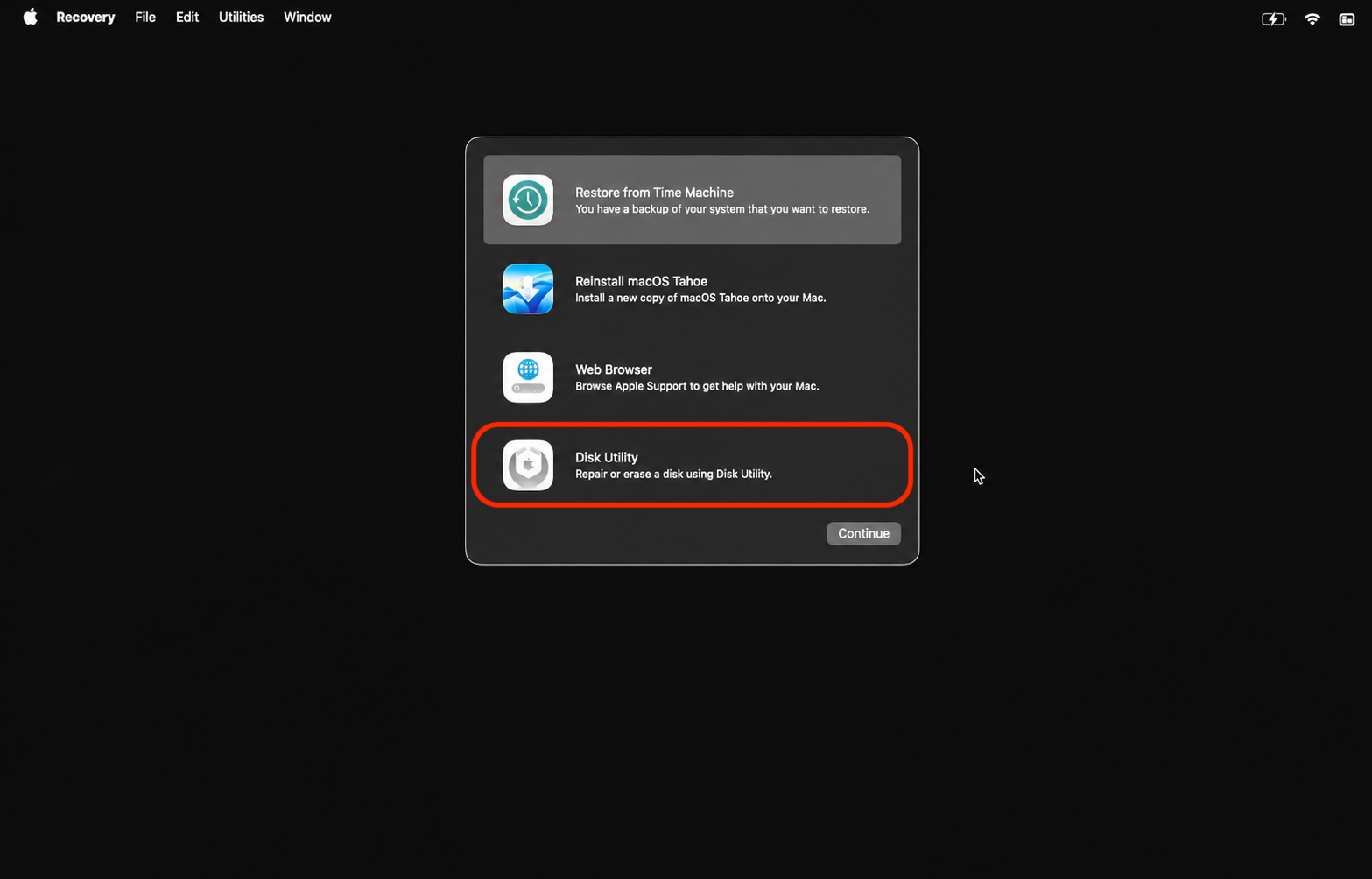
Restart and reboot into macOS Recovery.
Open Disk Utility from the Recovery window.
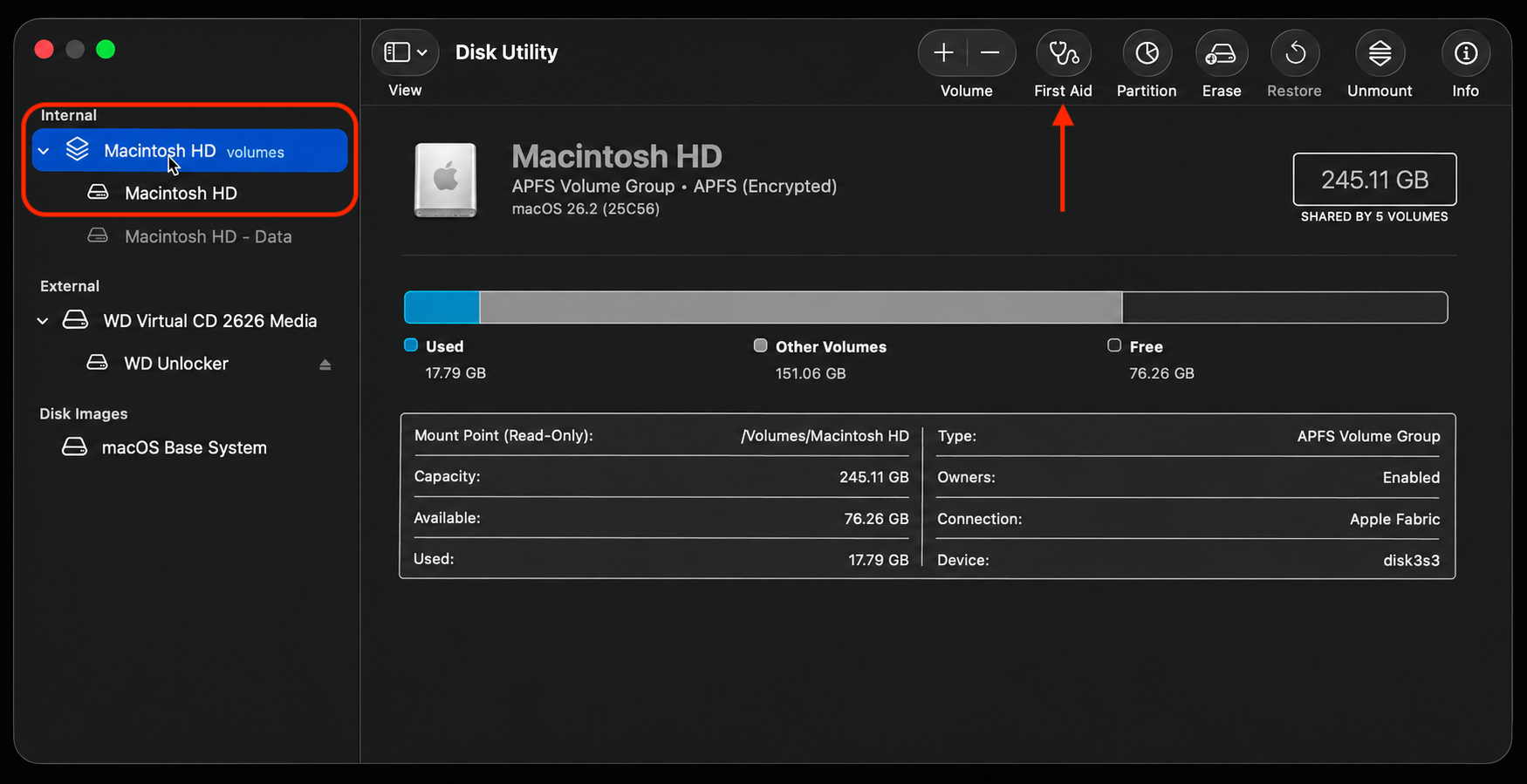
Select your startup disk in the sidebar.
Click First Aid, then confirm to start the repair.
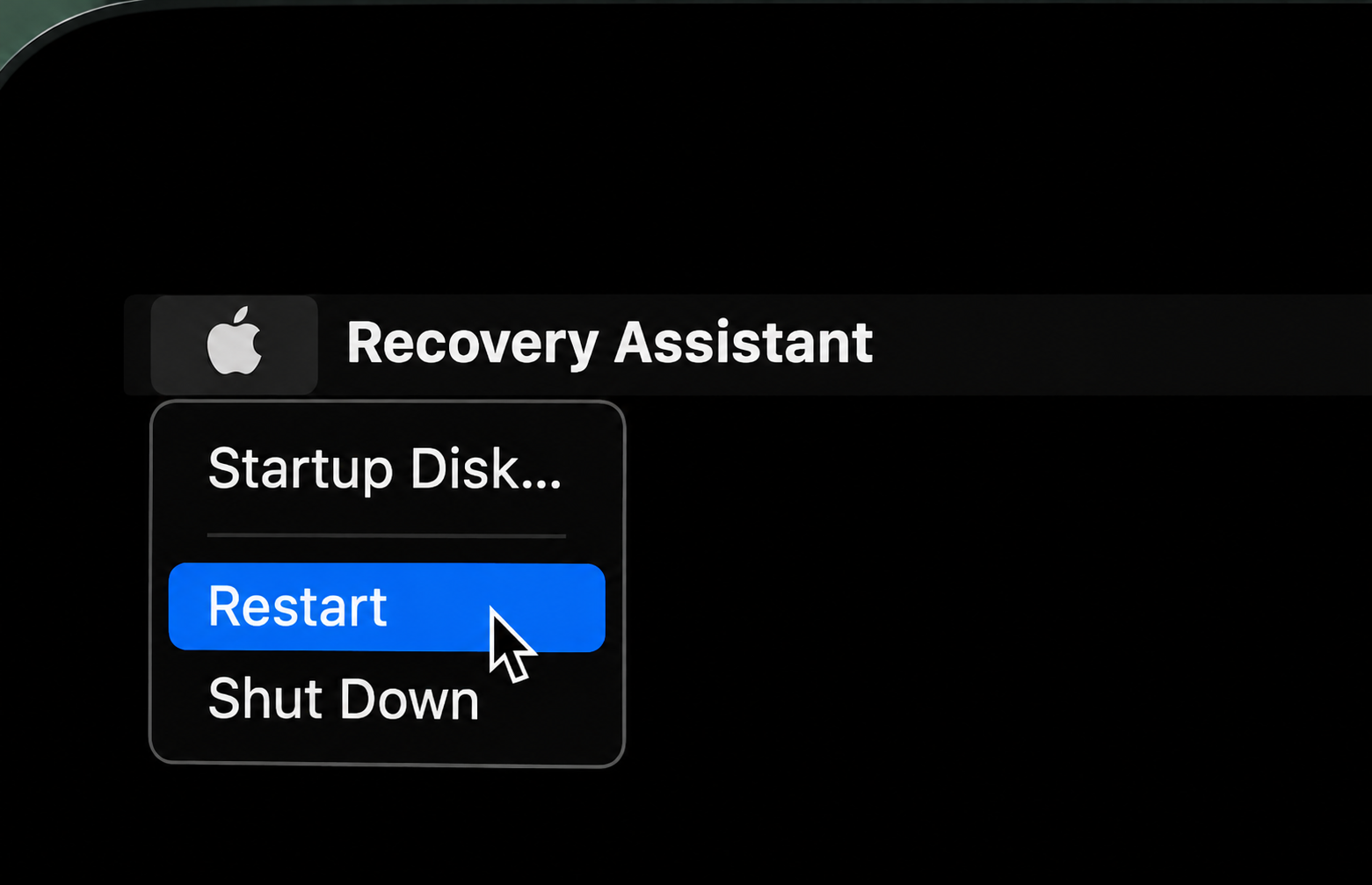
Once it finishes, restart your Mac and check whether the error is gone.
Step 1. Select Disk Utility in Recovery ModeStep 2. Select your Startup Disk in the sidebar and run First Aid Step 3. Once it's done, restart your Mac
5. Startup disk selection through macOS settings
If your Mac boots normally but won’t hold your chosen startup disk, we can set it from within the system instead of the boot manager screen.
Set it through System Settings like this:
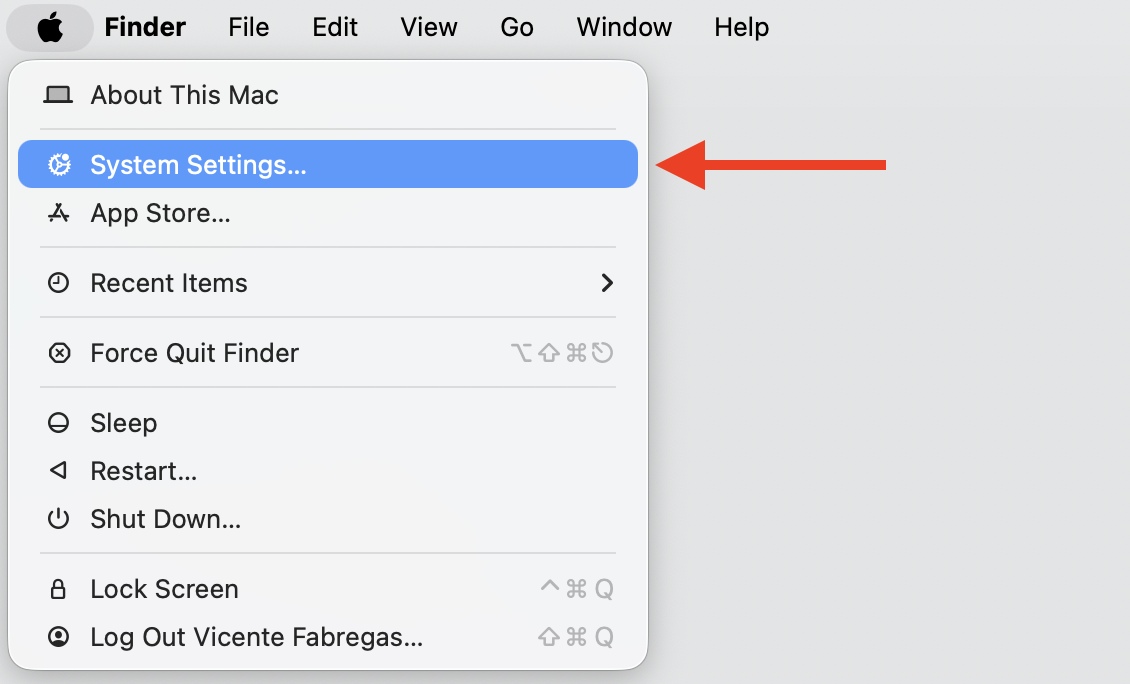
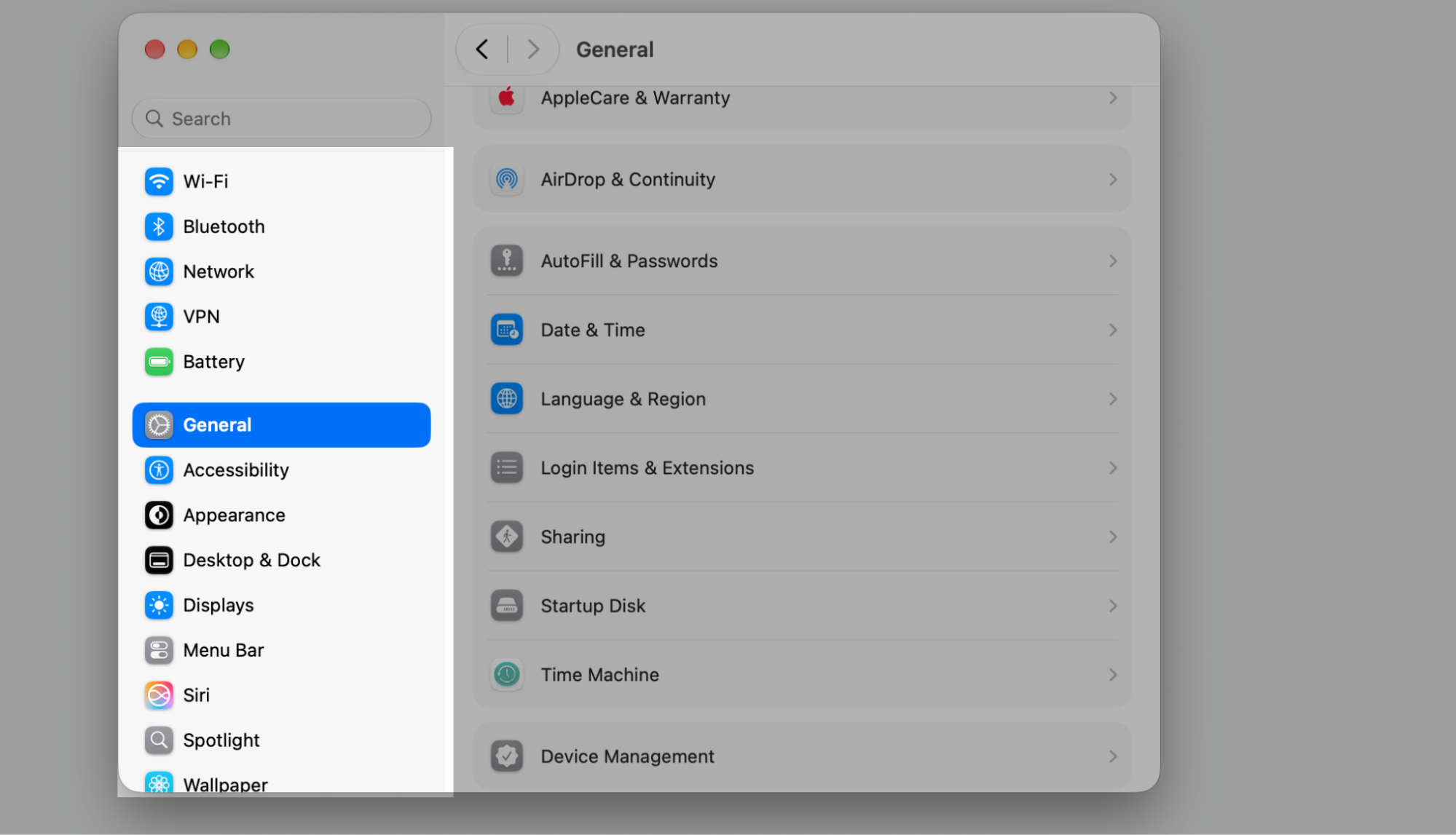
Open the Apple menu and choose System Settings.
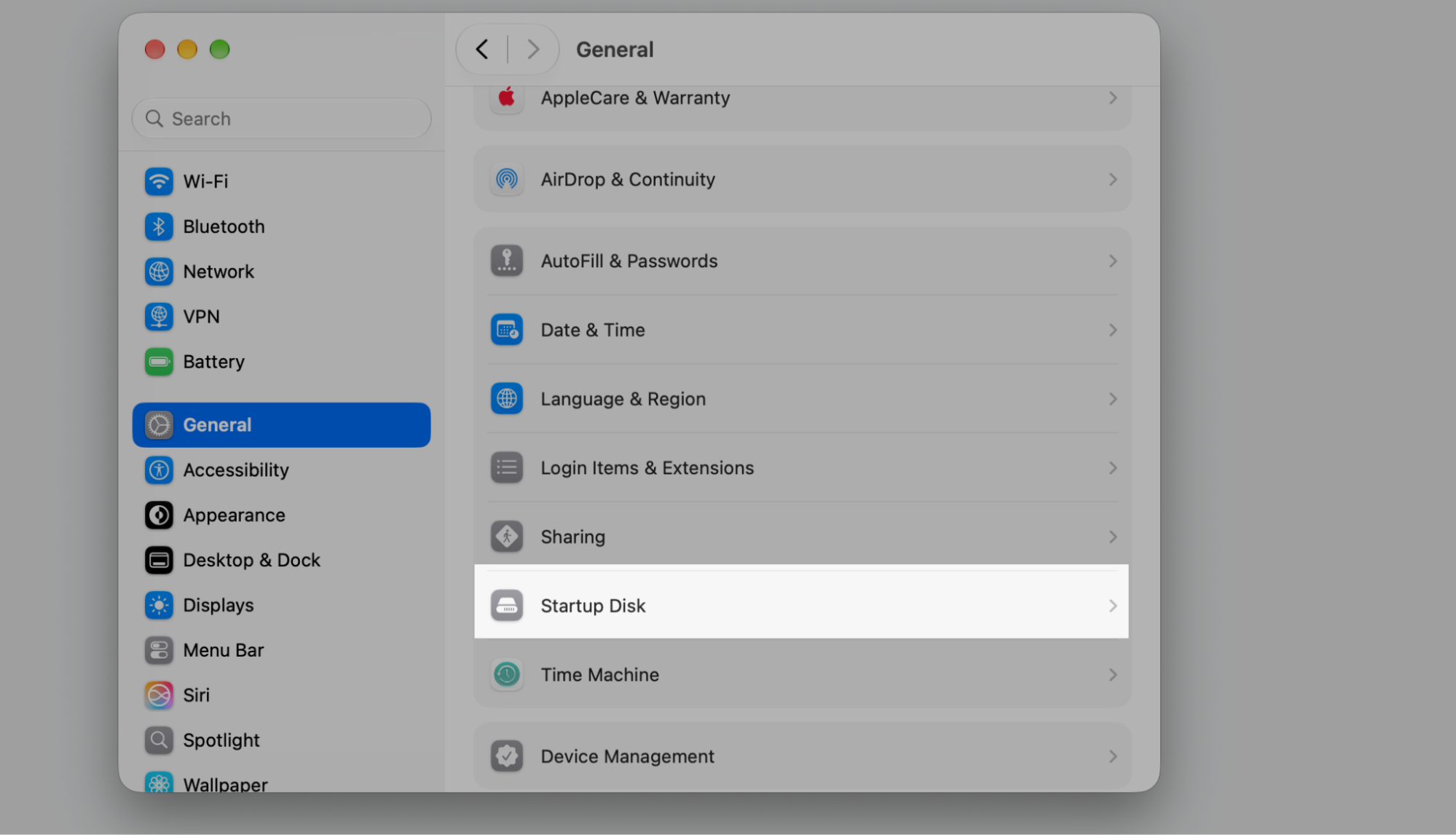
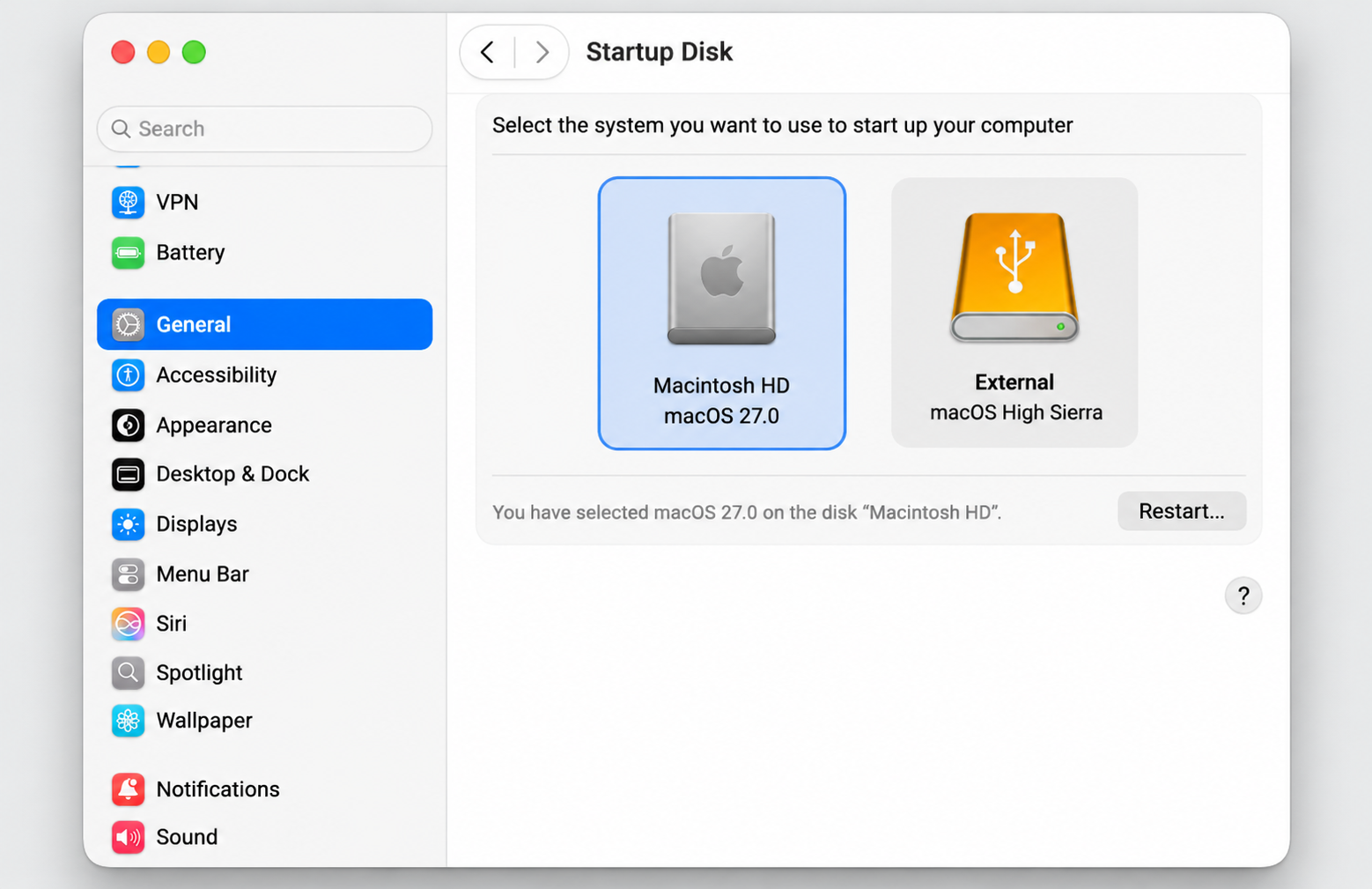
Go to General → Startup Disk.
Click the lock and enter your password if prompted.
Select the disk you want, then click Restart.
Step 1. Go to Apple Menu > System SettingsStep 2. Go to the General sectionStep 3. Select Startup DiskStep 4. Select the disk you want, then click Restart
6. Operating system reinstallation and alternative installer images
Damaged installer packages or cached setup files can cause the error even when your hardware is fine. We’ve seen a fresh copy clear it up on its own.
If a clean installer doesn’t help, a different macOS version might. You can reinstall macOS with a standard reinstall or by grabbing a new installer image and starting fresh.
7. Complete disk reformatting and clean installation
When nothing else works, a full reformat and clean setup give you a fresh start. This erases the disk, so we recommend backing up your files first.
Once your backup is safe, you can re-partition the drive and run a clean install macOS from scratch. This clears out corrupted data and stubborn formatting that earlier methods can’t reach.
Conclusion
The SDErrorDomain error 104 looks alarming, but it usually comes down to three things—security settings, disk formatting, and disk health. Work through them in order, and your Mac should recognize its startup disk again.
If you’d rather not troubleshoot alone, MacKeeper is an all-in-one Mac maintenance app that bundles cleanup, security, optimization, and privacy tools into a single, user-friendly interface. Its Premium Services connect you with real specialists who can walk you through the SDErrorDomain startup disk error 104 step by step, so you stay secure the whole way. Reach out to our team and get your Mac back to normal today.
We respect your privacy and
use cookies
for the best site experience.
Privacy Preferences Center
We use cookies along with other tools to give you the best possible experience while using the
MacKeeper website. Cookies are small text files that help the website load faster. The cookies we
use don’t contain any type of personal data meaning they never store information such as your
location, email address, or IP address.
Help us improve how you interact with our website by accepting the use of cookies. You can change
your privacy settings whenever you like.
Manage consent
All cookies
These cookies are strictly necessary for enabling basic website functionality (including page
navigation, form submission, language detection, post commenting), downloading and purchasing
software. The website might malfunction without these cookies.