Does your MacBook keep saying it’s unable to verify the account name or password in Mail? It’s a common login hiccup, and it’s fixable. MacKeeper’s Premium Services pairs you with a real expert who can walk you through it around the clock. Let’s sort this out together.
What does ‘unable to verify account name or password’ mean, and what causes it?
When Mail shows this message, it means macOS can’t confirm your login with your email server. Your Mac stores your email name and password locally, then hands them to the server each time it checks your inbox. If those saved details no longer match what the server expects, the server responds with a "no"—and the alert appears on your screen.
That’s exactly what’s happening when it says unable to verify account name or password on your display. It’s the same reason a Mac unable to verify account name or password message keeps coming back, and why so many people run into Mac Mail unable to verify account name or password after everything worked fine yesterday. A few everyday things trigger it:
A recent password change on the account that your Mac hasn’t caught up with yet
A keychain sync glitch that leaves an old or duplicate password stored
A short server disruption or outage on your provider’s side
Incorrect incoming or outgoing connection settings
If Mail is playing up in other ways too, you may be looking at Mac Mail not working more broadly, which usually traces back to the same handful of causes. Whether you’re on a new MacBook or an older Macintosh, the causes—and the fixes—are the same.
A note from our experts:
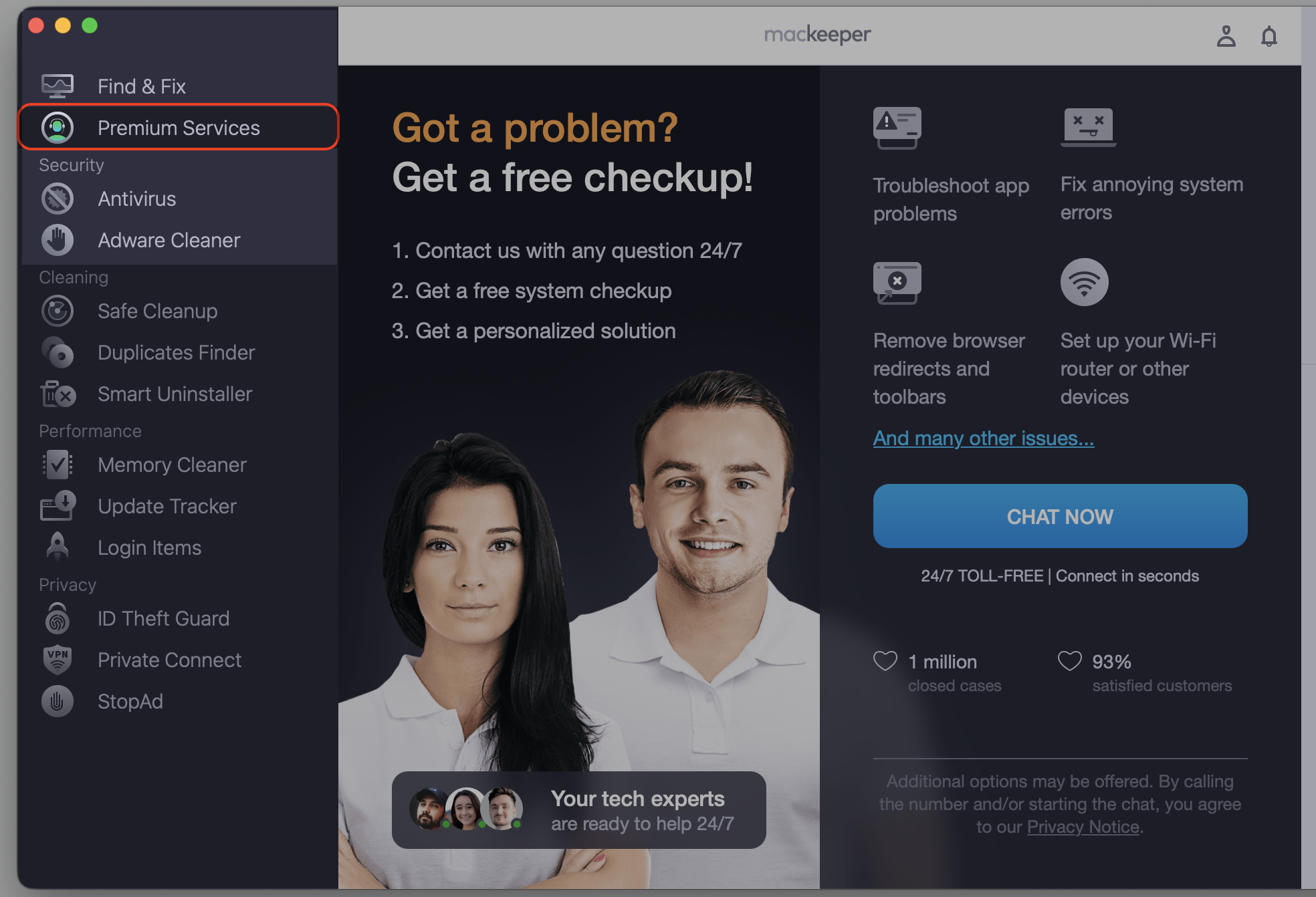
Before trying the numerous solutions in this guide, pause and try our tech support assistance through MacKeeper’s Premium Services. With our help, you’ll fix the “unable to verify account name or password” issue more quickly and much more safely.
Step 1. Go to MacKeeper and choose Premium Services Step 2. Click Chat NowStep 3. Type in your message to explain the problem
How to check whether the issue is on your Mac or with your email provider?
Before we change anything, let’s work out where the fault sits. A couple of quick checks will tell us whether your Mac is the culprit or your provider is simply having a moment:
Open a browser and sign in to your provider’s webmail (Gmail, iCloud, Outlook, and similar). If your name and password work there, the fault is on your Mac.
Test the same login on another device, such as an iMacKeeper Premium Services chat open on an Apple computer with the message field highlighted to describe the account verification problemPhone or iPad. If mail flows there, the provider is fine, and we can focus on your Mac.
If the login has failed everywhere, your credentials or the provider’s servers need attention first.
How to fix ‘unable to verify account name or password’ on Mac?
Now for the repairs. We’ll start with the gentlest, quickest checks and only move toward a full account reset if the earlier steps don’t stick. Work through them in order and test Mail after each one—there’s a good chance you’ll be done before the list runs out.
Below, we’ll walk through eight methods to fix unable to verify account name or password, so read on and stop as soon as your Mail loads again.
1. Updating password in System Settings
If Apple Mail can't connect to your email account, you may be able to restore the connection by signing in again directly from the Mail app.
Here's how to do it:
Open the Mail app on your Mac.
In the left sidebar, find All Inboxes or the affected email account.
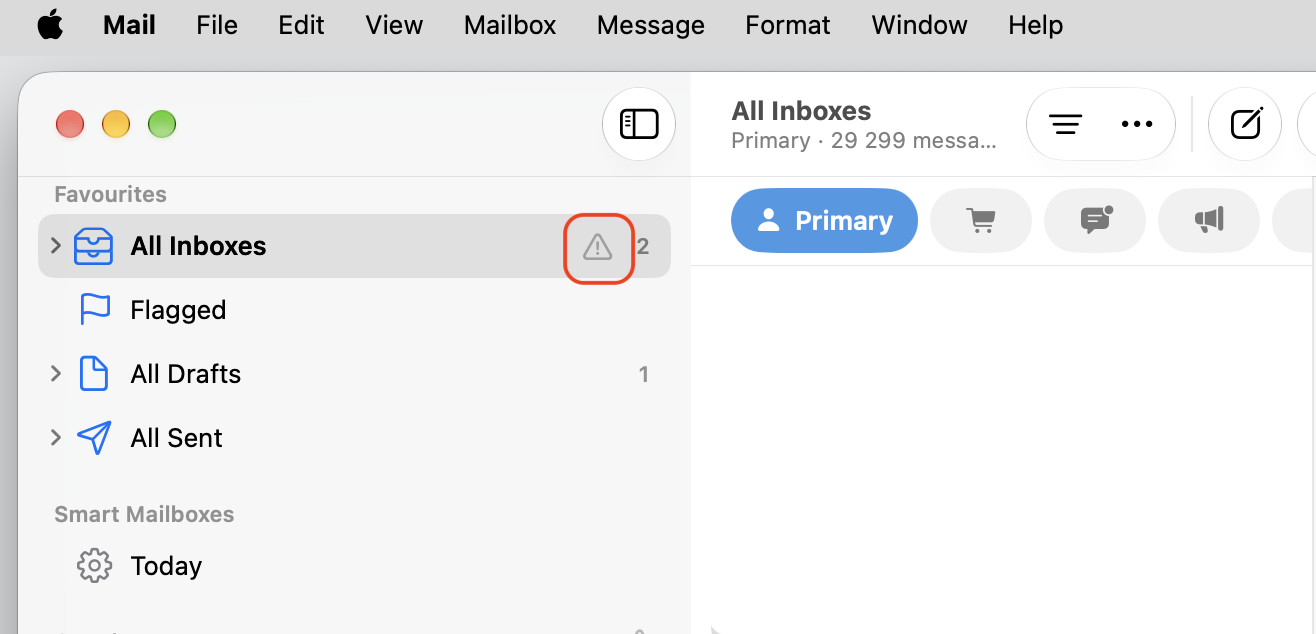
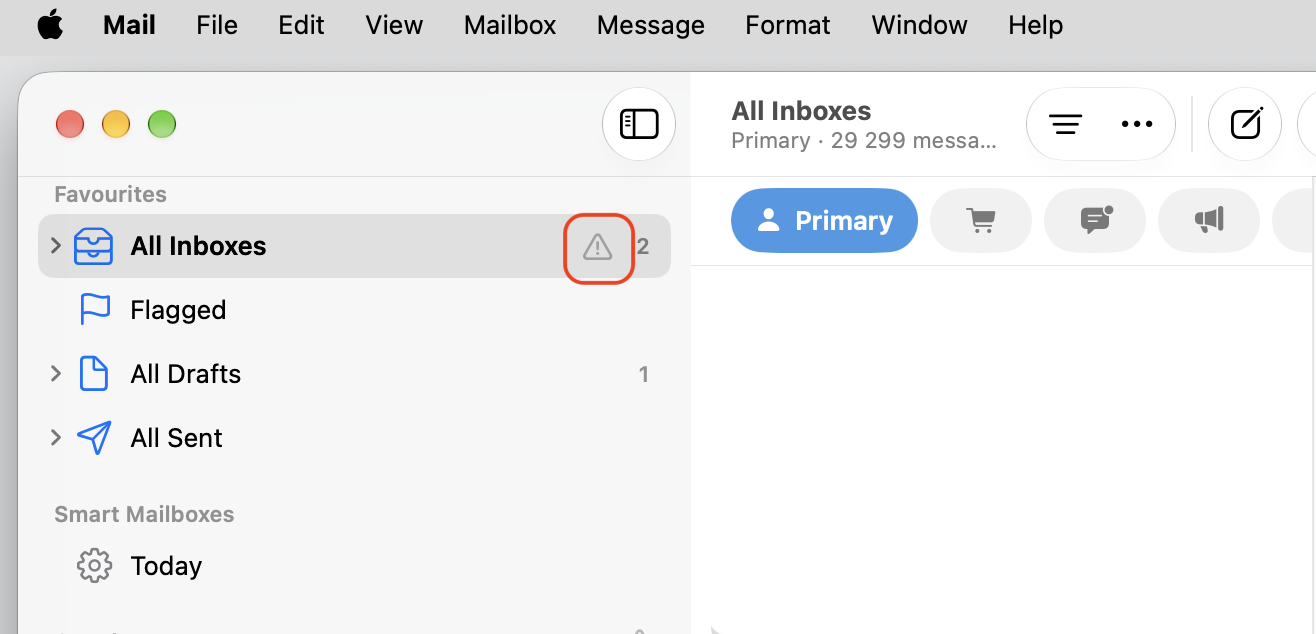
Click the warning triangle (⚠) next to the mailbox.
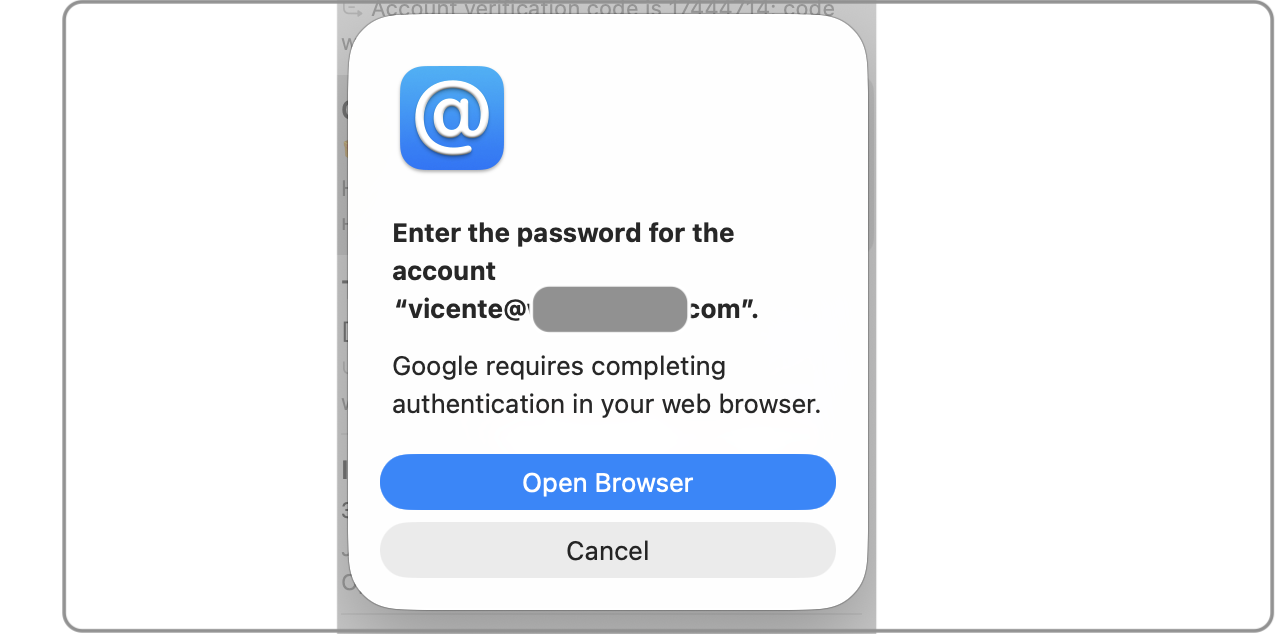
If prompted, click Open Browser to continue the sign-in process.
Enter your current email address and password or complete the sign-in process in your browser.
Follow any additional verification prompts and wait for Mail to reconnect.
Not sure if your Mac password is correct? It only takes a moment to find Mac password and type it in again here.
Step 1. Open the Mail app and click the warning triangle (⚠) next to All Inboxes Step 2. If prompted, click Open Browser to continue the sign-in processStep 3. Enter your current email address and password
2. Deleting old credentials from Keychain Access
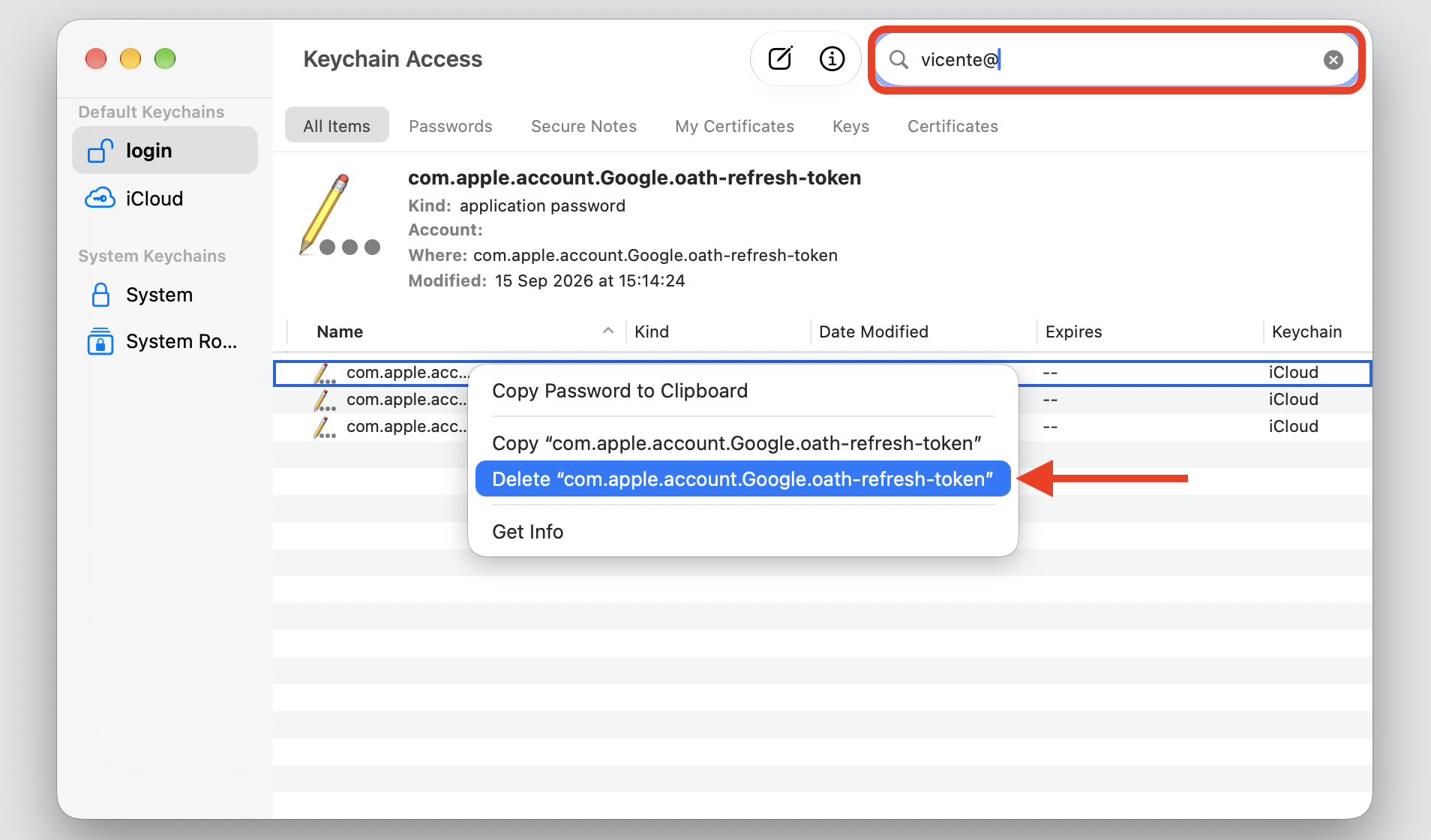
Your Mac keeps saved passwords in Keychain Access, and an outdated or duplicate entry can trip Mail up. Being able to manage passwords in Keychain Access lets us remove the stale one so the system stores a fresh, valid password.
Try this:
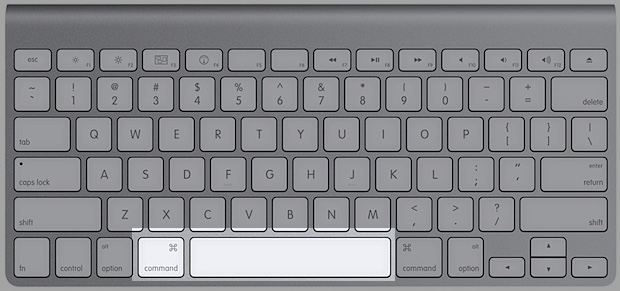
Open Spotlight by pressing Command (⌘) + Space.
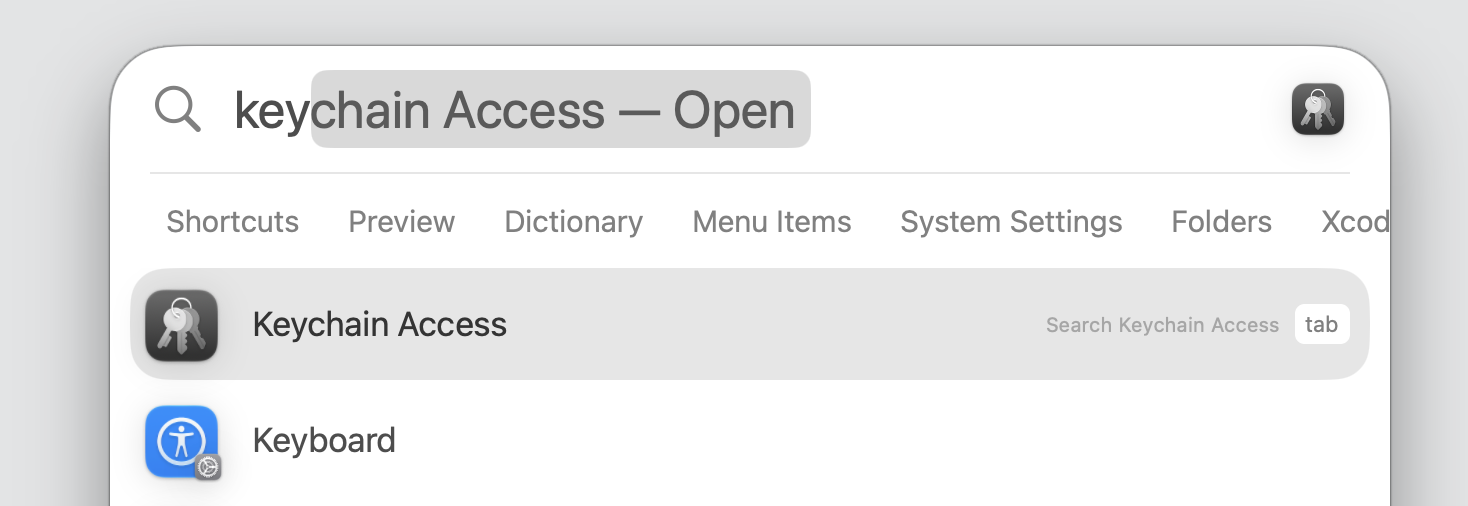
Type Keychain Access, and press Return to open it.
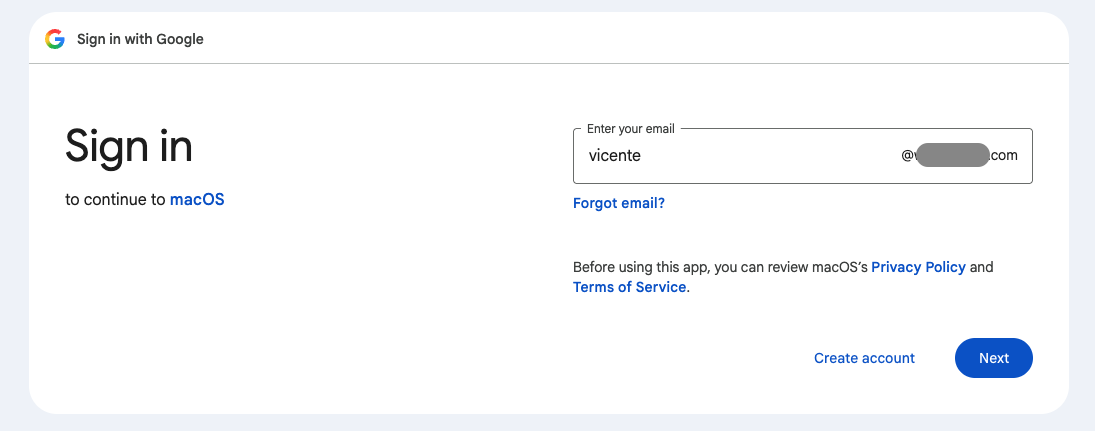
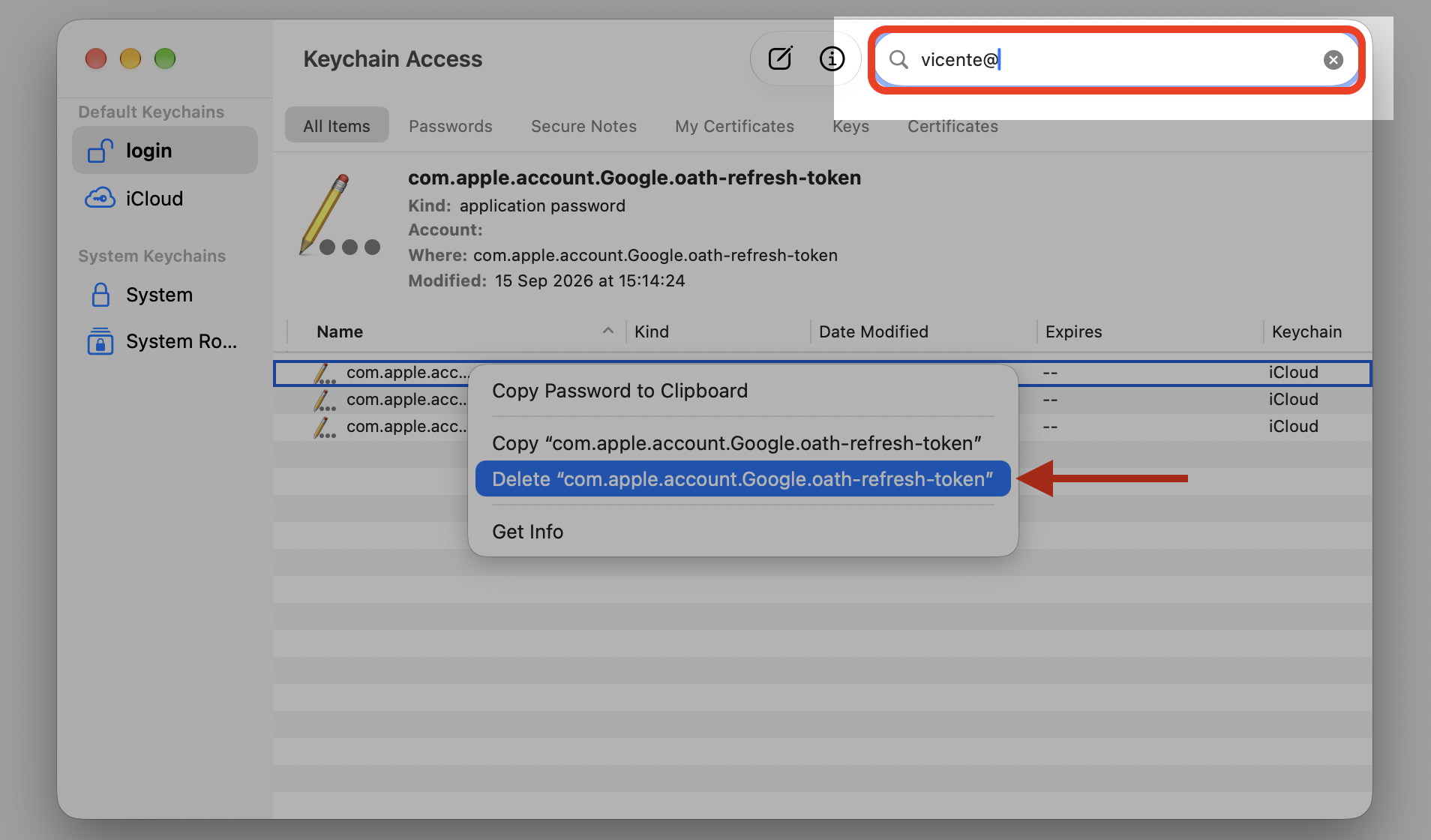
Type your email address in the search field.
Delete any old or duplicate entries and expired certificates tied to that account.
Open Mail and enter your password again when prompted.
Step 1. Open Spotlight by pressing Command (⌘) + SpaceStep 2. Type Keychain Access, and press Return to open itStep 3. Type your email account in the search field and hit ReturnStep 4. Select the account, Control-click it, and choose Delete from the context menu
3. Disabling and re-enabling email account
When we toggle the account off and on, Mail drops the stuck session and builds a clean connection to the server—without deleting a single message.
Give this a go:
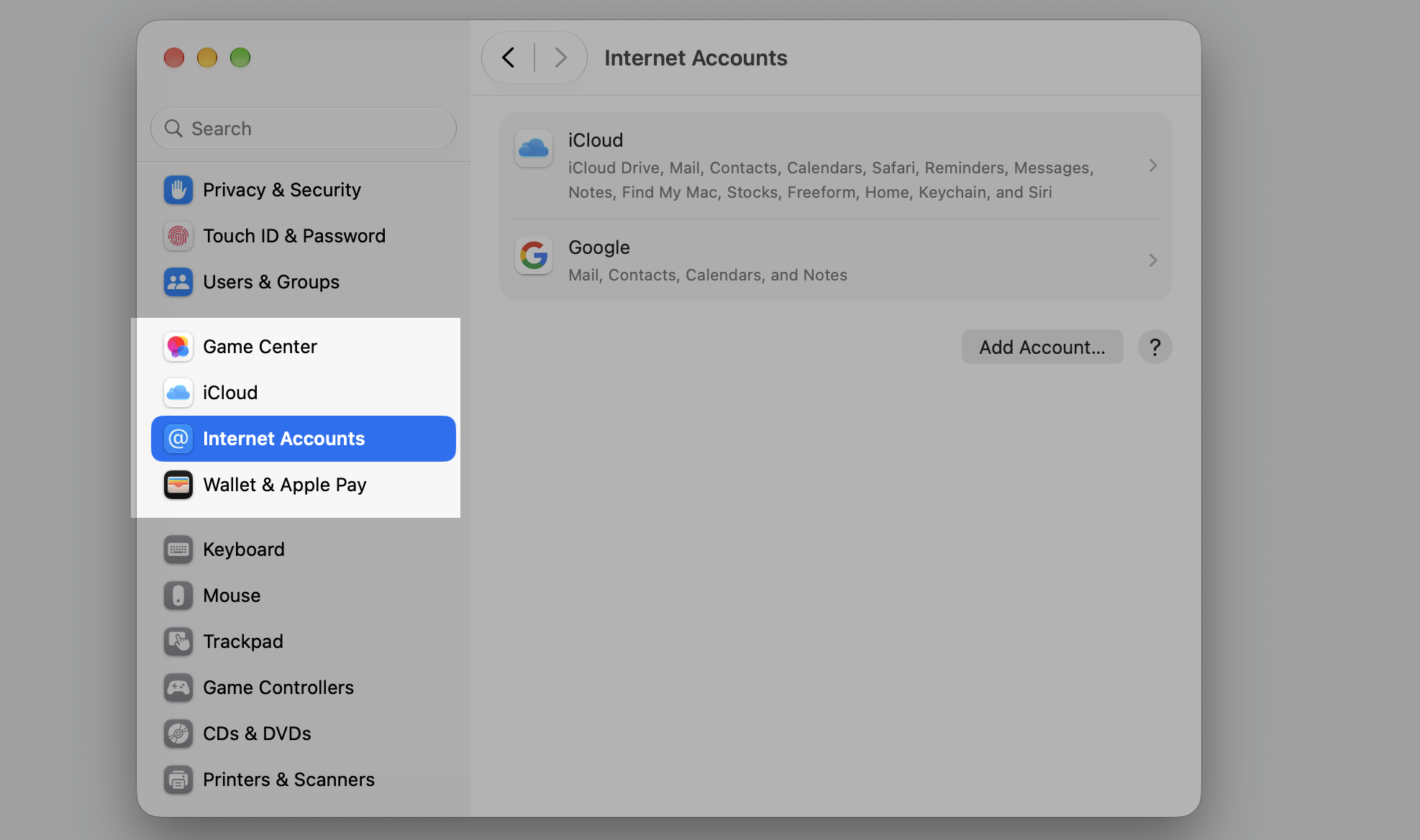
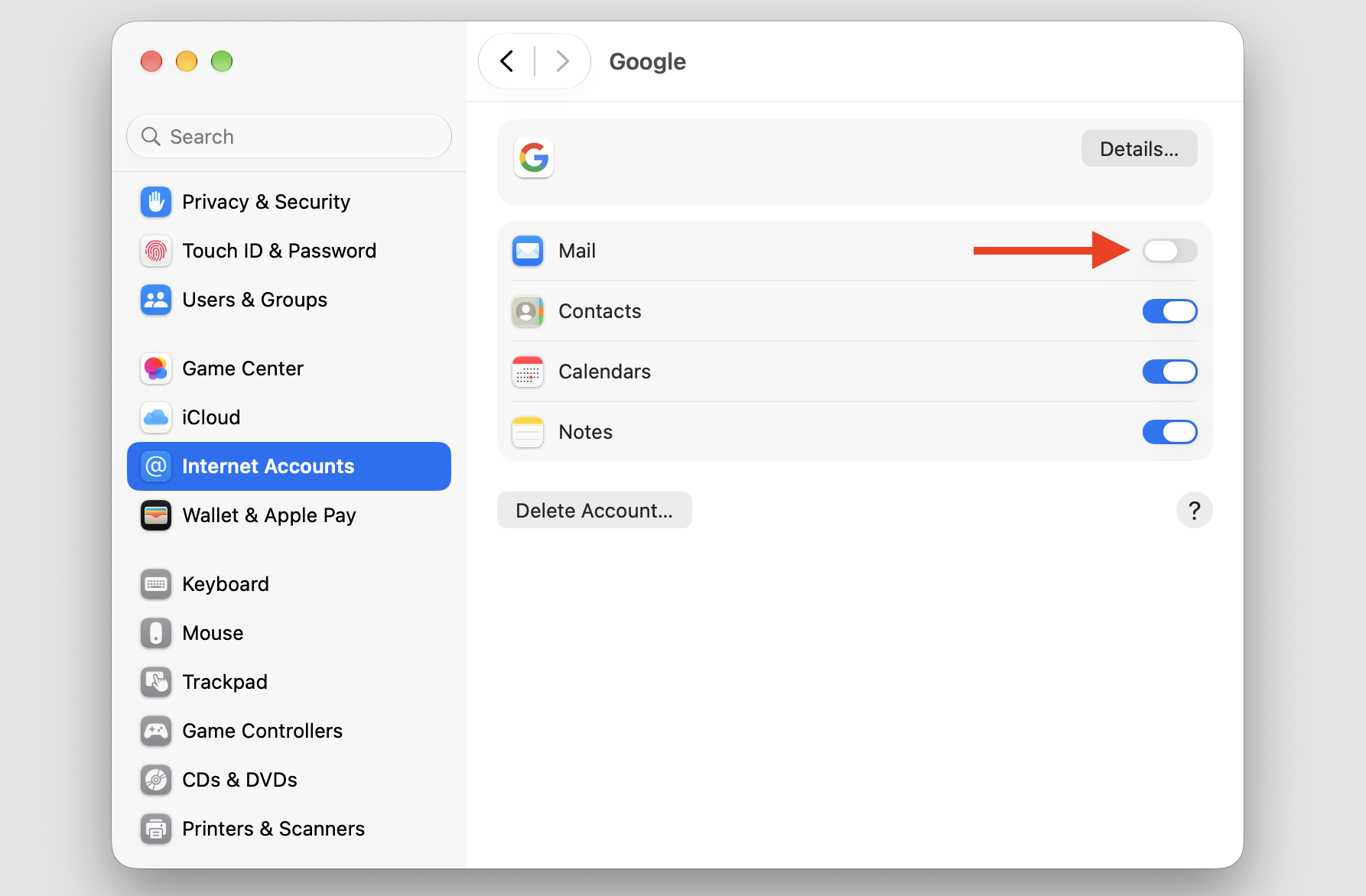
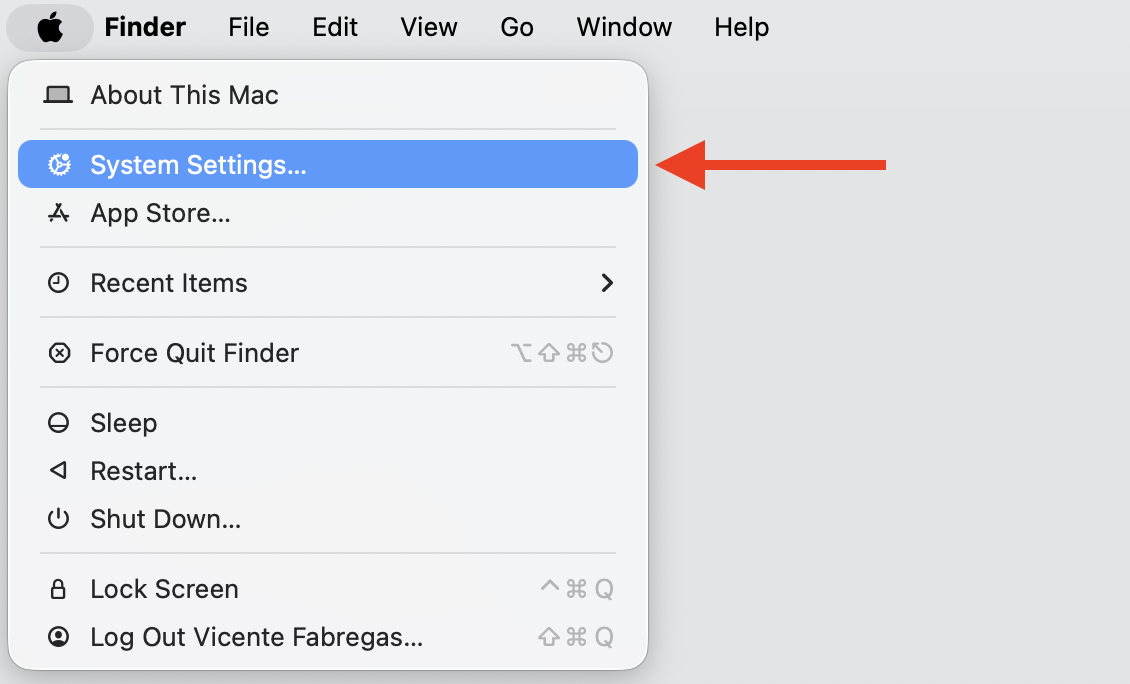
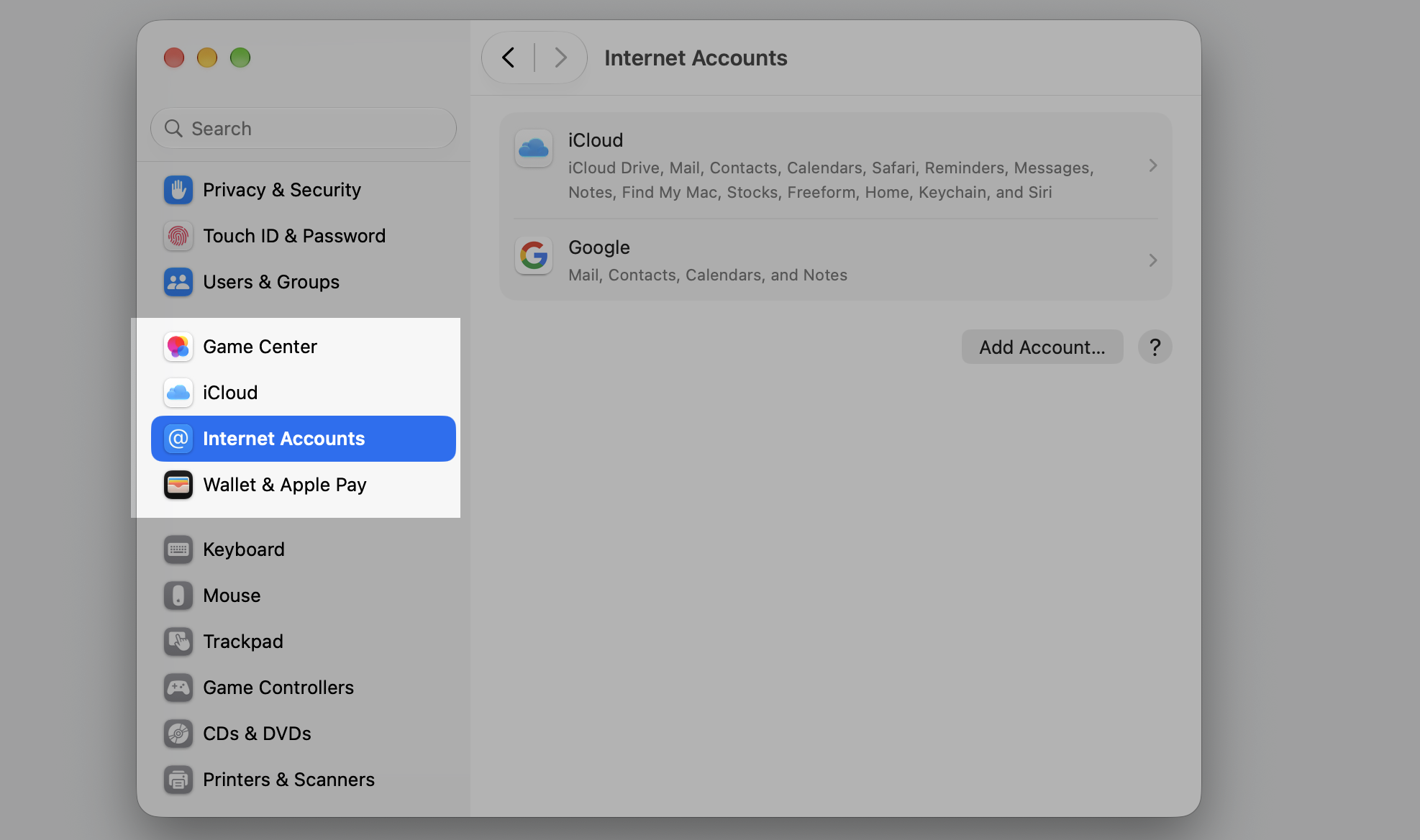
Open System Settings ▸ Internet Accounts.
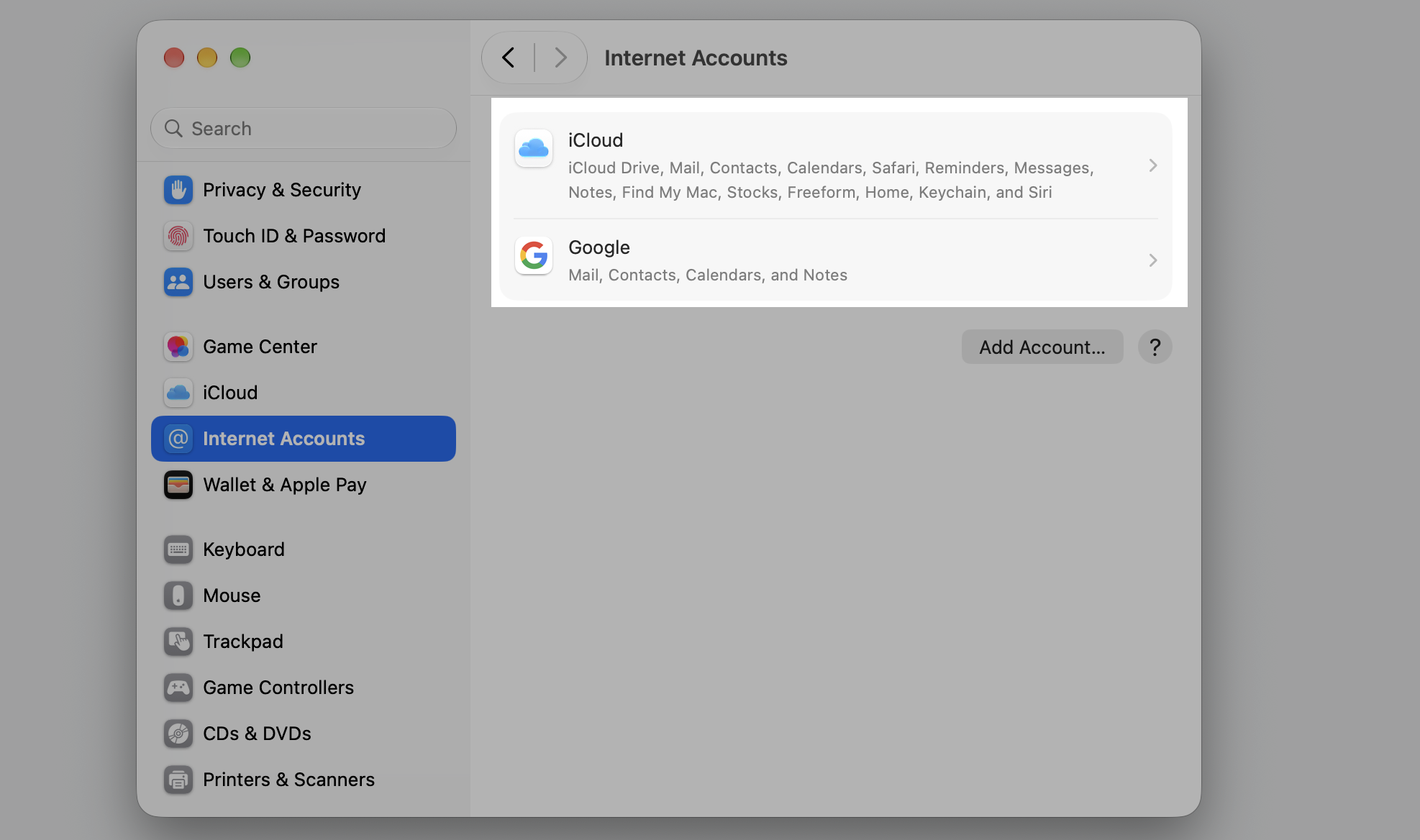
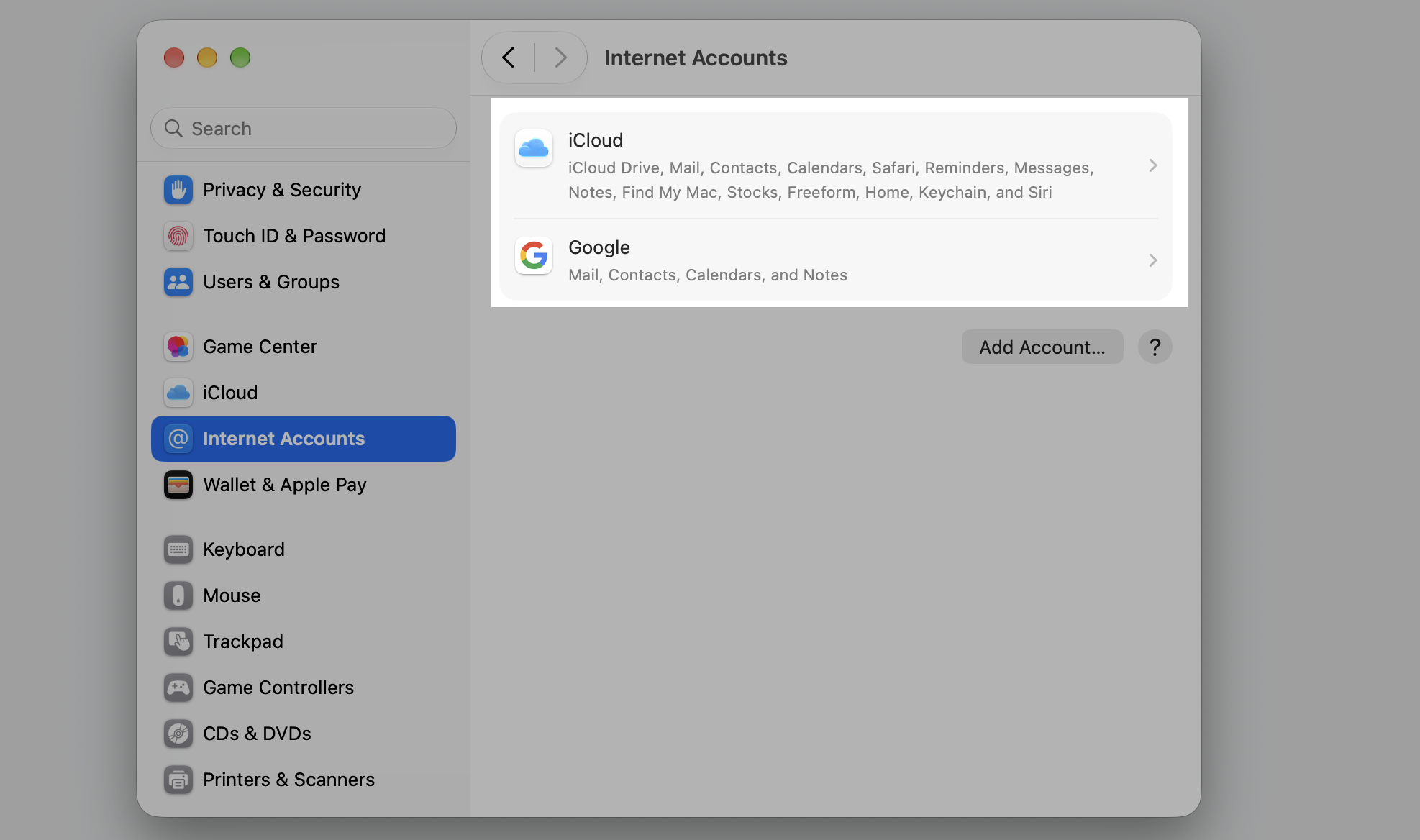
Select the affected account.
Turn off Mail for that account.
Wait a few seconds, then switch Mail back on.
Reopen the Mail app and check whether the message clears.
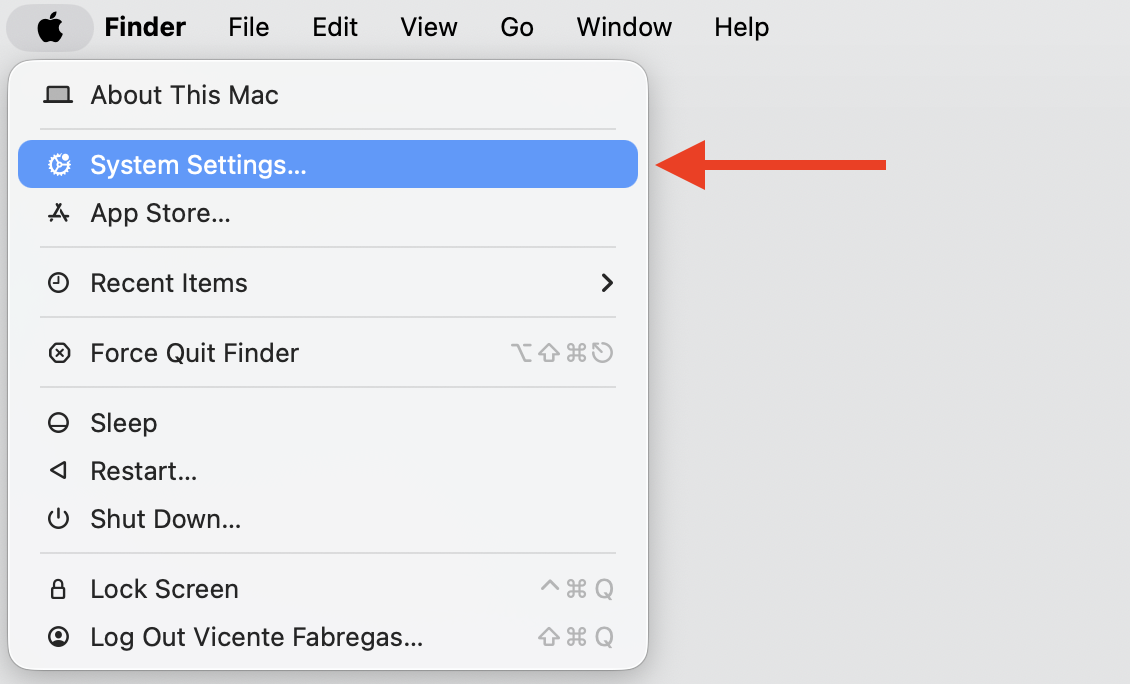
Step 1. Go to System Settings from the Apple MenuStep 2. Select Internet Accounts from the sidebarStep 3. Select the affected accountStep 4. Turn off the toggle for the account, wait a few seconds, then turn it back on
4. Removing and re-adding the email account
If a quick toggle didn’t help, a full removal and fresh setup usually does the trick for us. It wipes the old configuration and lets macOS connect using your provider’s current, modern authentication.
Here’s the process:
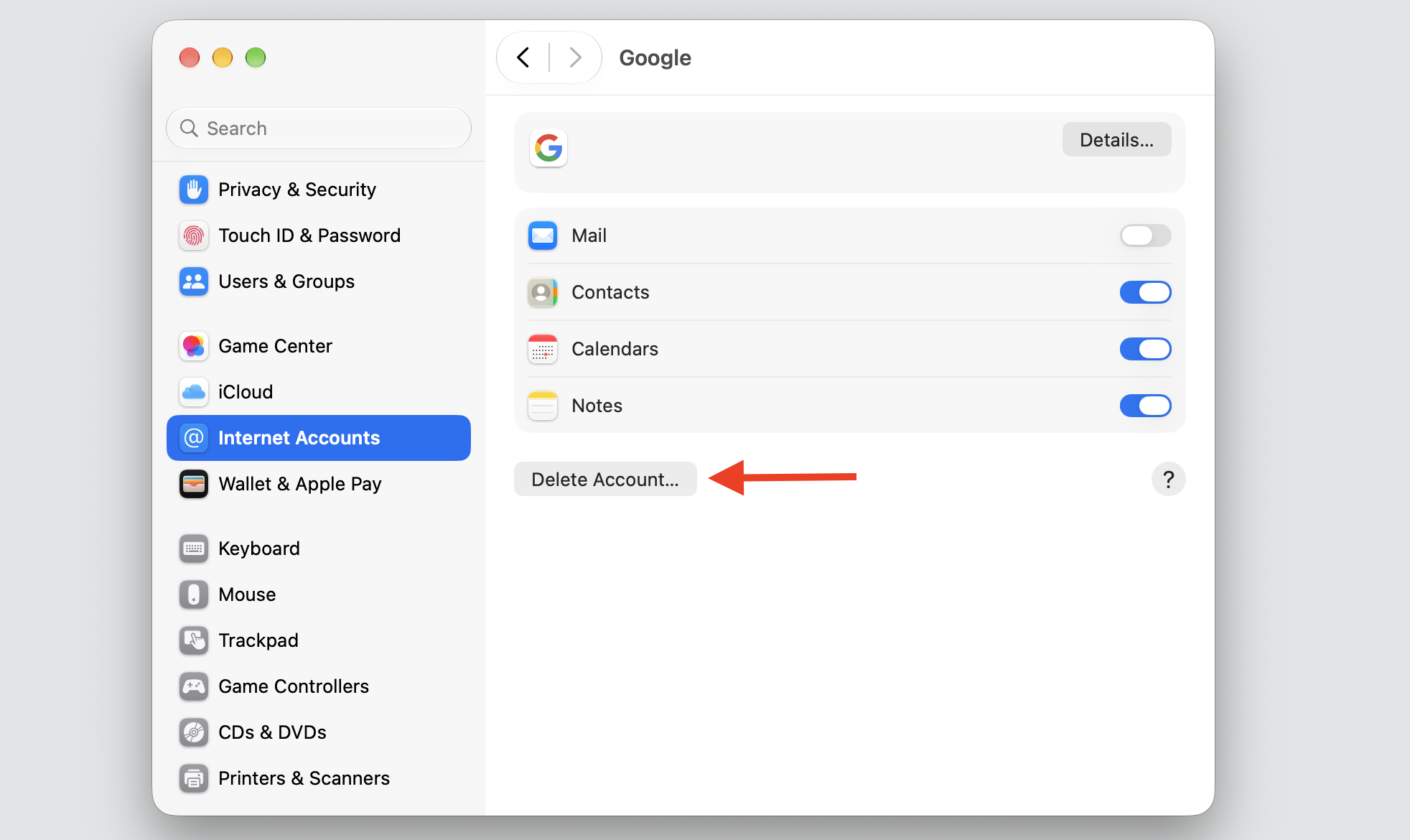
Open System Settings ▸ Internet Accounts.
Select the problem account, then click Delete Account.
Confirm the removal.
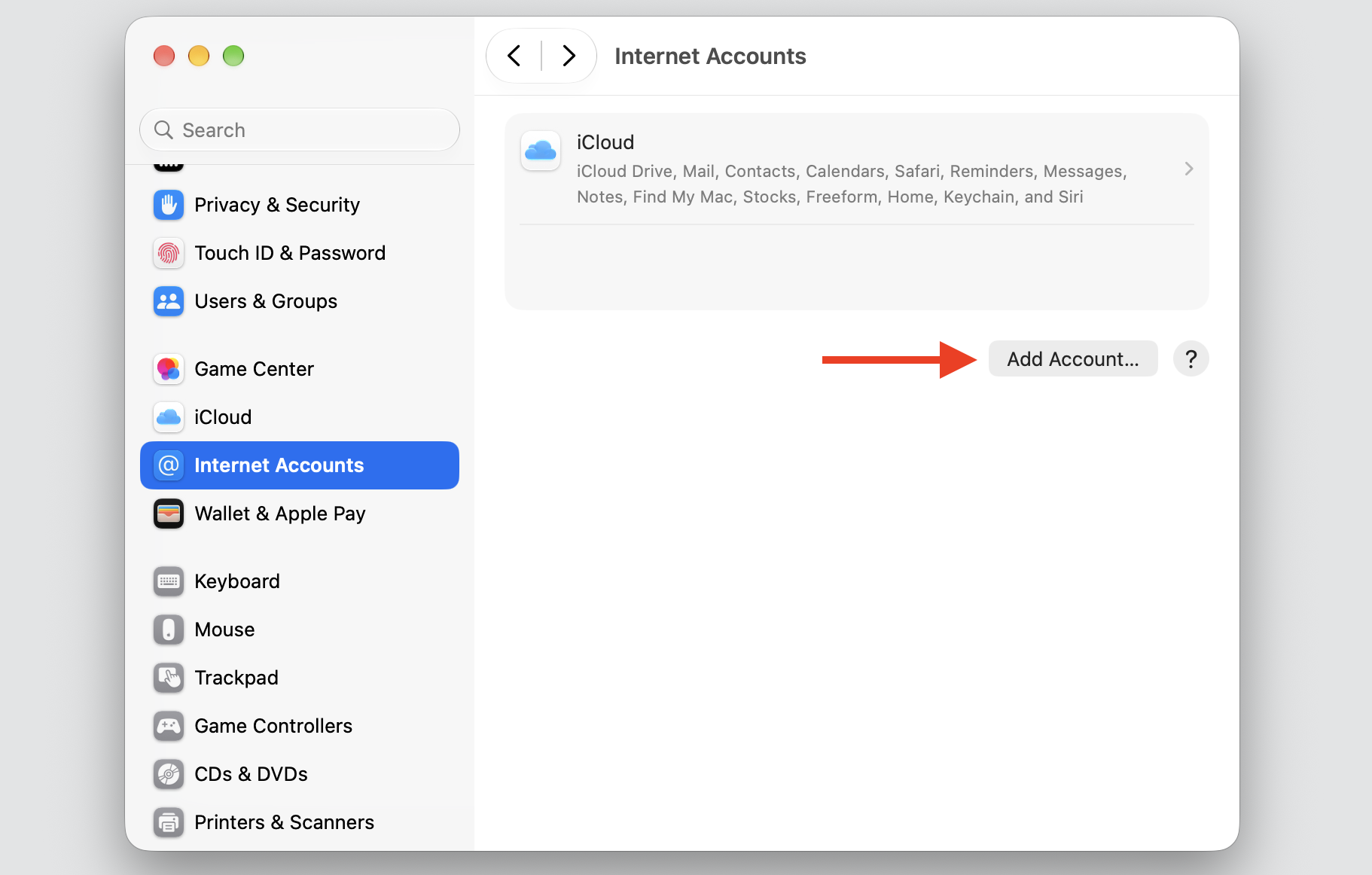
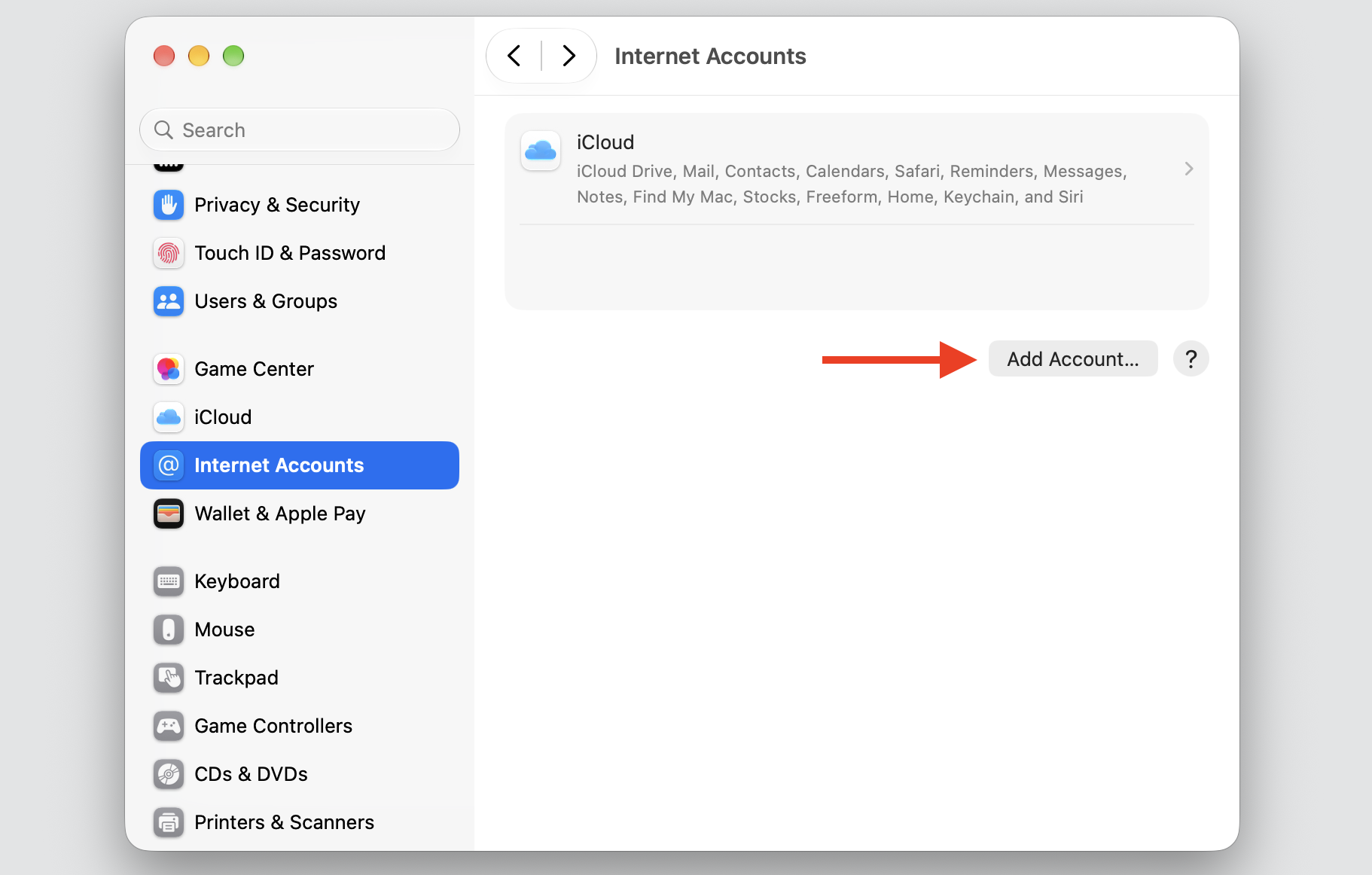
Click Add Account and pick your provider.
Sign in with your name and password, then follow the on-screen prompts.
Step 1. Go to System Settings from the Apple MenuStep 2. Select Internet Accounts from the sidebarStep 3. Select the affected accountStep 4. Delete the accountStep 5. Go back to Internet Accounts and select Add Account
5. Quiting Mail completely
Damaged cache files and stale offline data can keep Mail stuck in a failed login loop. When we clear Mail cache on Mac, we give the app a clean slate and let it fetch everything fresh.
Do the following:
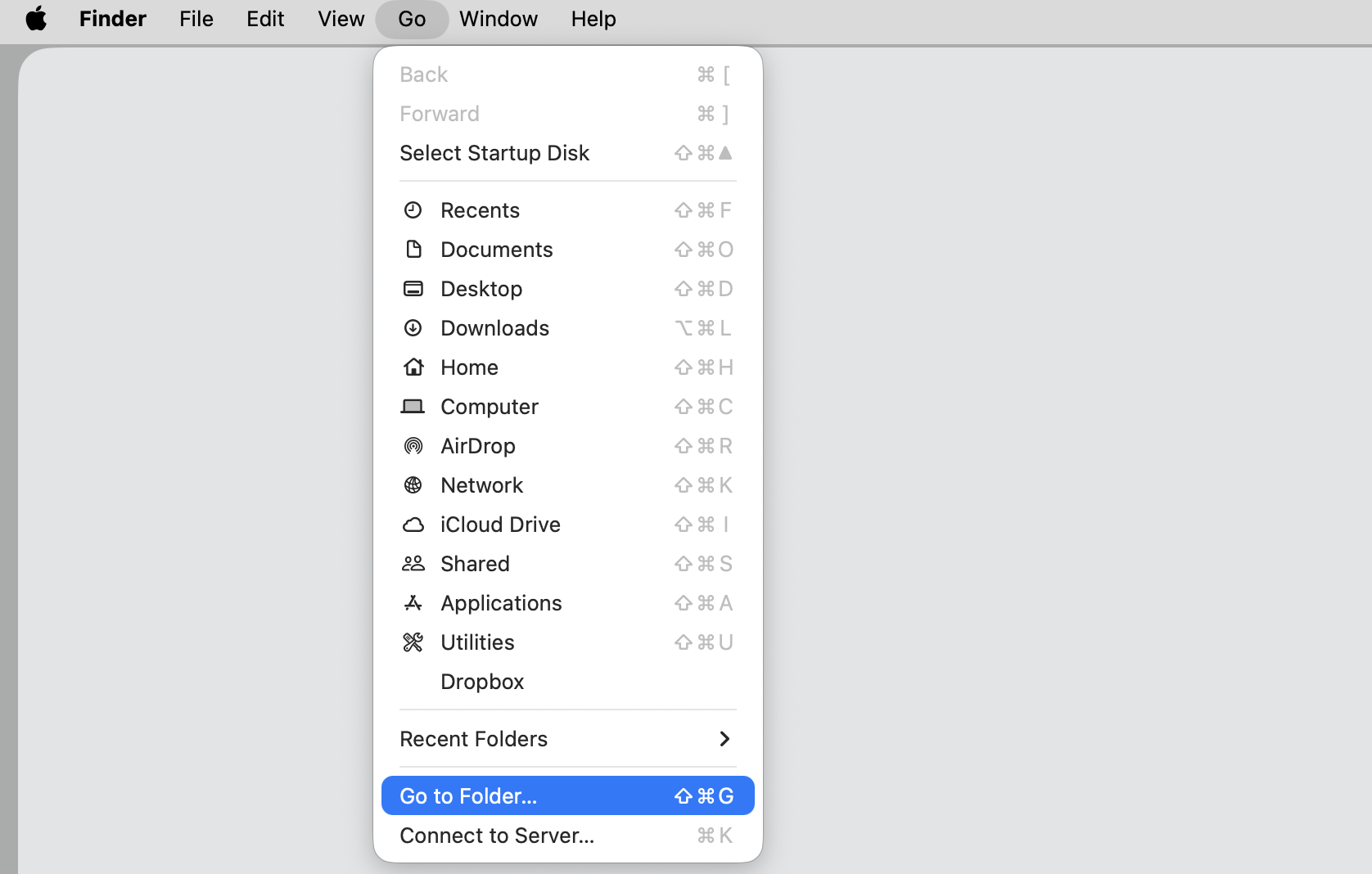
Open Finder, then select Go → Go to Folder.
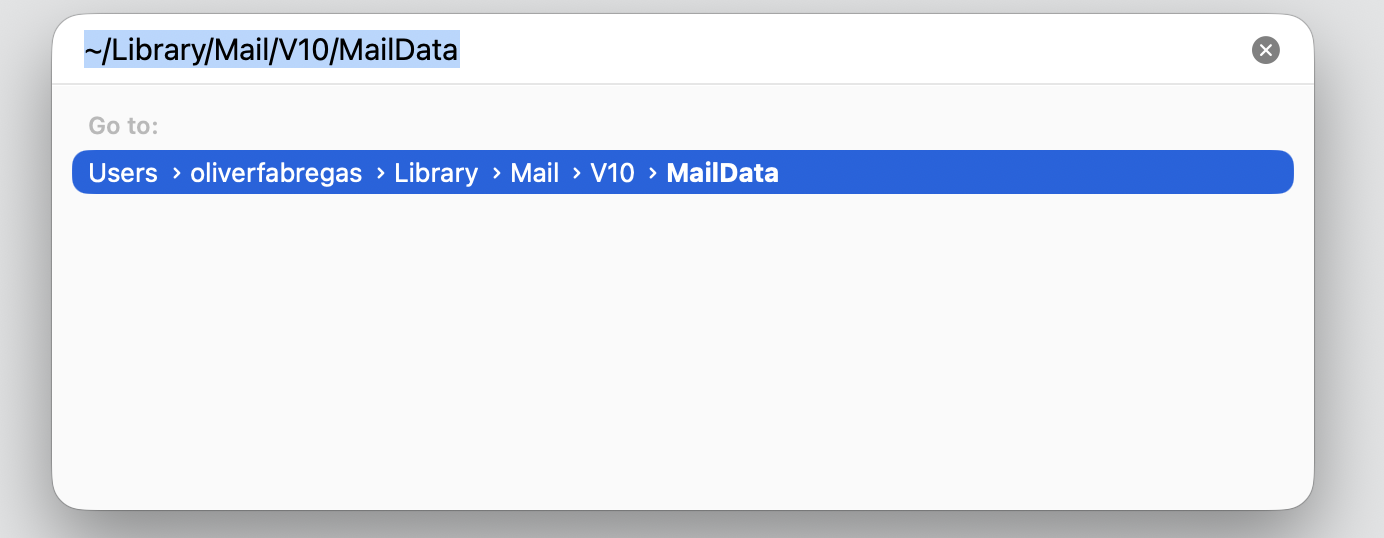
Enter ~/Library/Mail/V10/MailData and press Return.
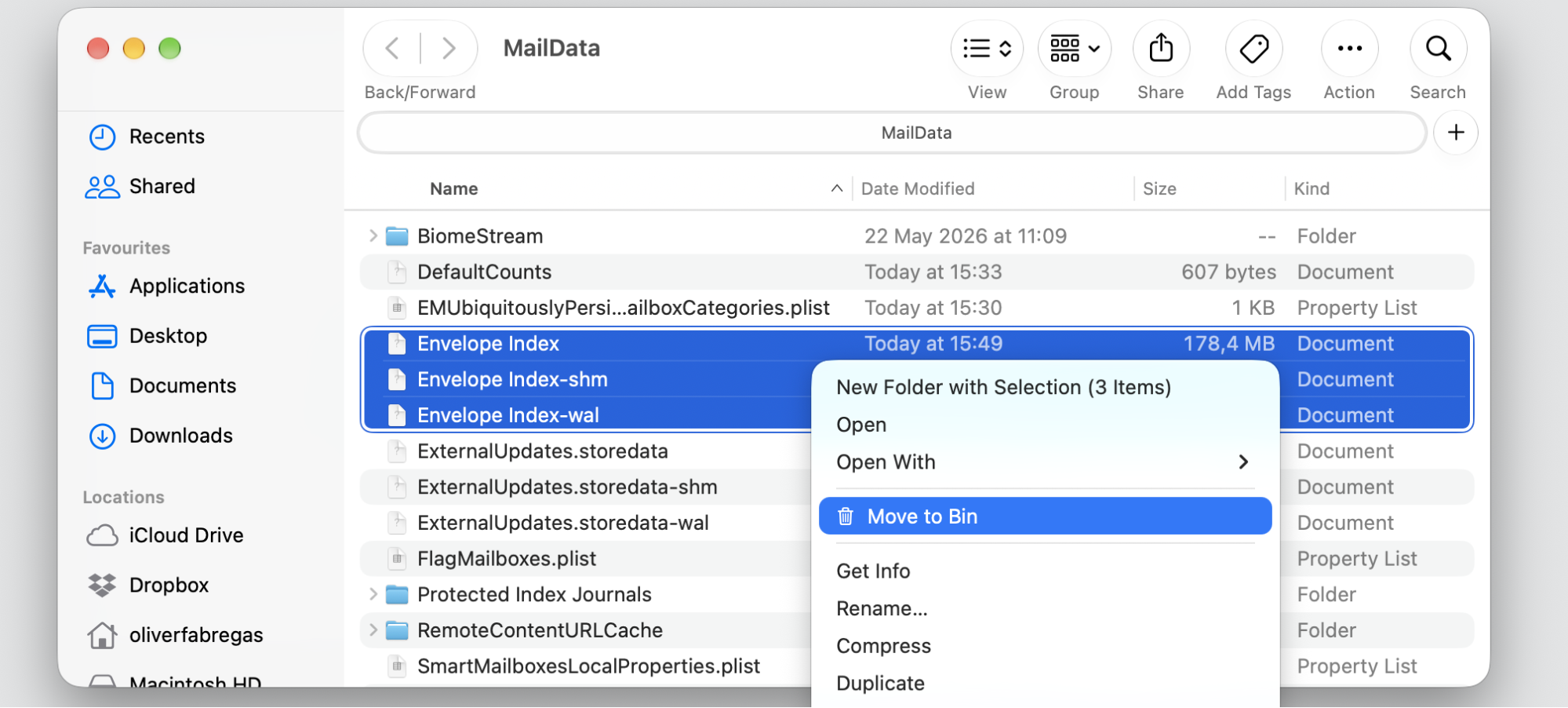
Find the following files:
Envelope Index
Envelope Index-shm
Envelope Index-wal
Select these files, Control-click them, and choose Move to Bin (or save on the Desktop). Don’t delete any other files or folders.
Reopen Mail and allow it to rebuild the index automatically.
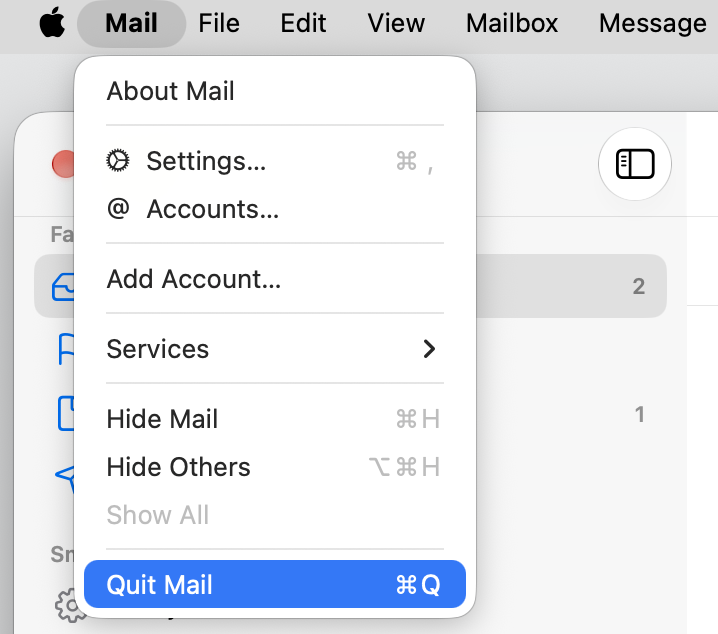
Step 1. Select Quit Mail from the app preferencesStep 2. Select Go to Folder from Finder > GoStep 3. Type ~/Library/Mail/V10/MailData then hit ReturnStep 4. Move to Bin the shown types of files
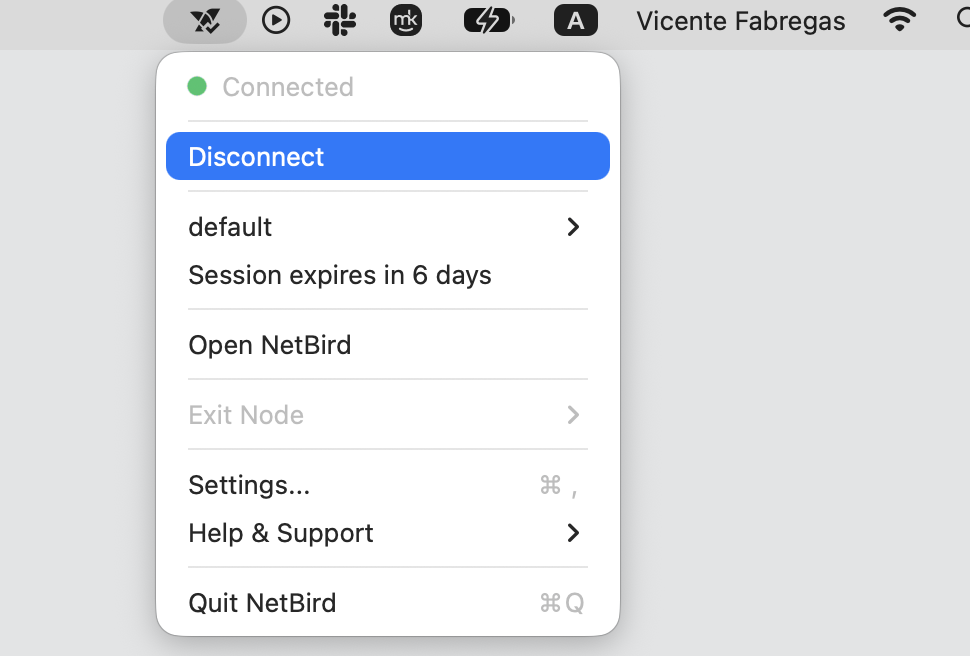
6. Temporarily turning off VPN and security software
A VPN, firewall, or third-party security app can sometimes sit between Mail and the server and quietly block the handshake. Pausing it briefly tells us whether one of them is the cause. It’s a safe test, and it’s easy to reverse—just remember to switch protection back on afterward, since it helps protect your Mac from malware.
Here’s what to try:
Pause any active VPN connection.
Temporarily turn off third-party antivirus or firewall shields.
Open Mail and check whether the account verifies.
Turn every security tool back on once you’re done testing.
Disable any VPN connections
A hint from us:
A reliable tool such as MacKeeper’s Antivirus rarely gets in the way here, but pausing whatever you use is still a helpful way to rule it out. Try its magic today.
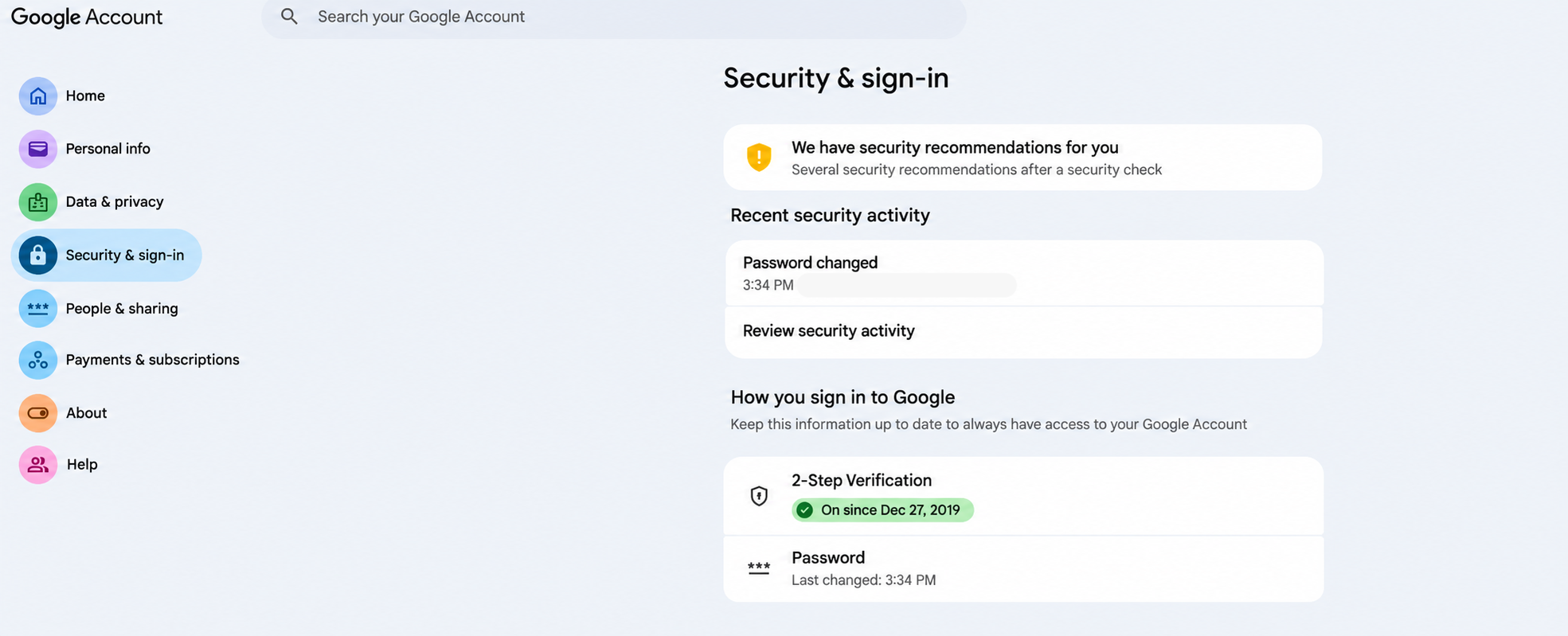
7. Setting up app-specific passwords for two-factor authentication
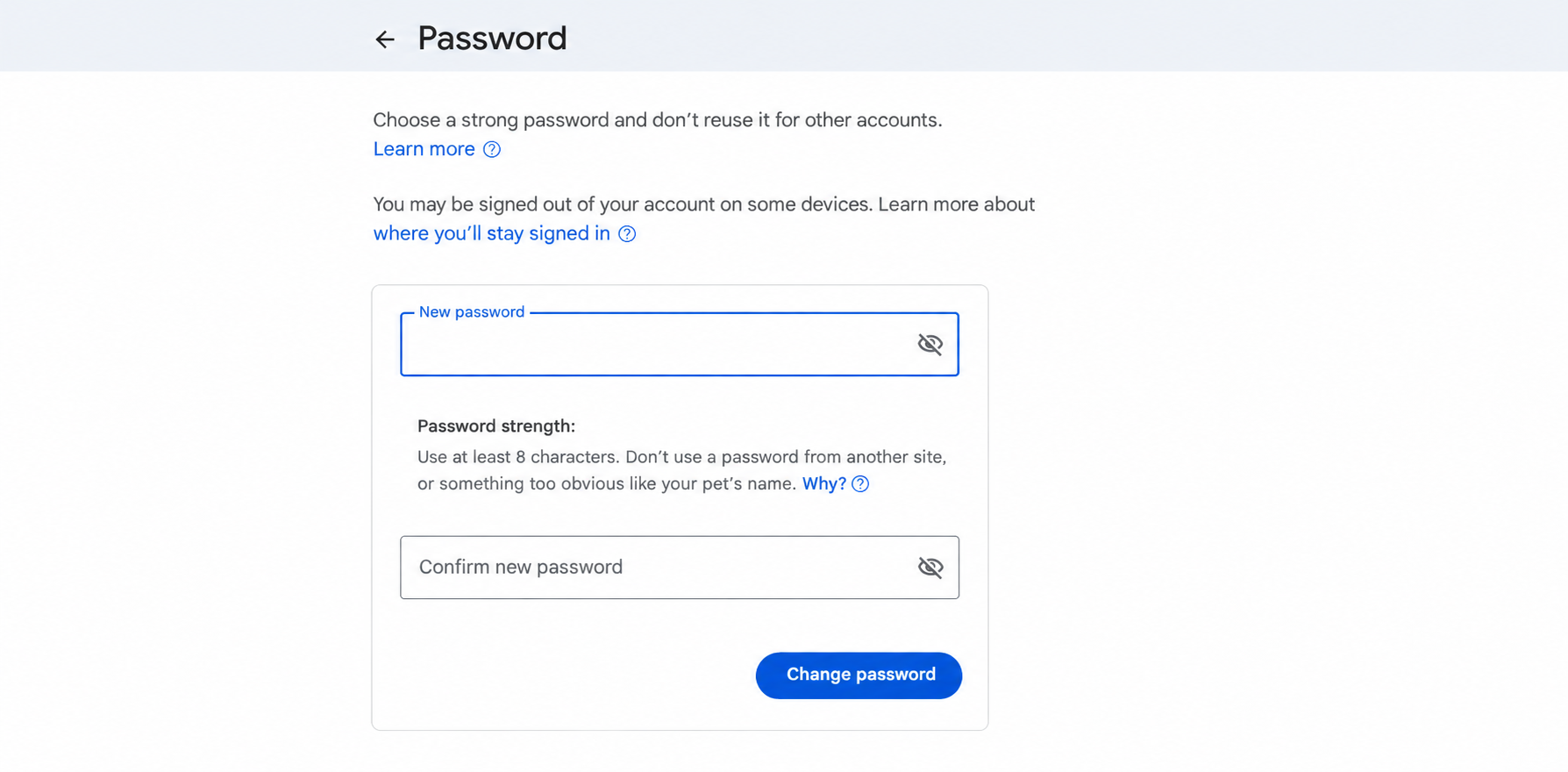
If your provider uses two-factor authentication, your usual password often won’t work in Mail on its own. Instead, we generate a one-off, app-specific password just for the app.
Follow these steps:
Sign in to your email provider’s account security page in a browser.
Find the app-specific passwords (or app passwords) section.
Generate a new password for Mail.
Open Mail, then paste that password in place of your usual one.
Step 1. Open your email account settings in a web browser and locate the app passwords sectionStep 2. Change the passwordStep 3. Go back to Internet Accounts and select Add Account and apply new passwordStep 4. Alternatively, click the warning triangle (⚠️) and sign in with your new password
What to do if your account still won’t verify?
Still stuck? Don’t worry—a few final moves usually settle it:
Check your provider’s official service status dashboard to rule out an ongoing outage.
Reset your default keychain if saved passwords keep failing across several apps.
Contact Apple Support, or reach out to your email provider, for account-specific help.
Lean on MacKeeper’s Premium Services, where a real expert can jump on your case any time of day.
Get back to a calm, working inbox
A message that says you’re unable to verify the account name or password on MacBook looks scary, but it’s almost always a simple mismatch between your saved login and your email server.
Work through our checks from top to bottom—confirm where the fault sits, refresh your password, tidy your keychain, and verify your server settings—and you’ll usually clear it within minutes. That same calm, step-by-step approach is how you remove the "unable to verify account name or password” error for good and keep your mail flowing.
If you’d rather have a hand, MacKeeper is an all-in-one Mac maintenance app that bundles cleanup, security, optimization, and privacy tools into one friendly interface—and its Premium Services connect you with a real expert. Give MacKeeper’s Premium Services a try today. We’ll help you fix the "unable to verify account name or password” error quickly and efficiently.
We respect your privacy and
use cookies
for the best site experience.
Privacy Preferences Center
We use cookies along with other tools to give you the best possible experience while using the
MacKeeper website. Cookies are small text files that help the website load faster. The cookies we
use don’t contain any type of personal data meaning they never store information such as your
location, email address, or IP address.
Help us improve how you interact with our website by accepting the use of cookies. You can change
your privacy settings whenever you like.
Manage consent
All cookies
These cookies are strictly necessary for enabling basic website functionality (including page
navigation, form submission, language detection, post commenting), downloading and purchasing
software. The website might malfunction without these cookies.