When your shared album is not showing up on Mac, it’s frustrating to open the Photos app and not see the images you expect. This issue is often linked to settings or sync errors, but with MacKeeper’s Premium Services, our experts can help you identify what exactly is preventing your iCloud Shared Albums from showing.
The Shared Album is located in iCloud Photos and lets you share selected photos and videos with other people, so everyone can view or add content in one shared space. It works across different Apple devices, like iPhone, iPad, and Macs, and it won't eat away at your iCloud storage.
Why is your Shared Album not showing up on your Mac?
Is the Shared Album missing from your Photos app? There are many reasons why it might not be visible, the most likely being that it's just been disabled in your Settings–enabling it should make it appear. Although there’s a chance that a poor internet connection could also be stopping the album from appearing in your Photos. That’s why we recommend checking your Settings, Permissions, and connection before continuing.
A note from our experts:
Troubleshooting a missing Shared Album on your Mac often means manually checking your photo sharing settings and testing everything yourself. This process can quickly become frustrating, but with MacKeeper’s Premium Services, we can help make the process pain-free. Simply connect with one of our experts, explain your problem, and we’ll provide steps to help you resolve your issues quickly.
In the chat, tell our advisor about the missing album, and they’ll walk you through personalized steps to help you bring it back on Mac.
Step 1. Open the MacKeeper app, choose Premium Services, and click on Chat NowStep 2. You can use the chat function to get advice on bringing back the Shared Album
How to fix Shared Album that isn’t showing up on Mac?
To fix your missing Shared Album, we recommend the following troubleshooting methods:
Check Shared Albums setting on Mac
Force sync via iCloud sign-out / sign-in
Restart Photos app or Mac
Inspect your Internet connection
Confirm or re-invite to Shared Album
Free up disk space if needed
Update macOS and Photos app
Attention:
Before you start altering any settings, if you’re still wondering where are photos stored on Mac, we strongly urge you to read our supporting guide first. It shows you exactly where to find images in case they’re not in the app or folder you expected.
1. Check Shared Albums setting on Mac
You wouldn’t believe how often the Shared Album is not showing simply because the feature has been unknowingly turned off on your Mac or iPhone. That’s why we suggest starting here, before moving on to our advanced fixes.
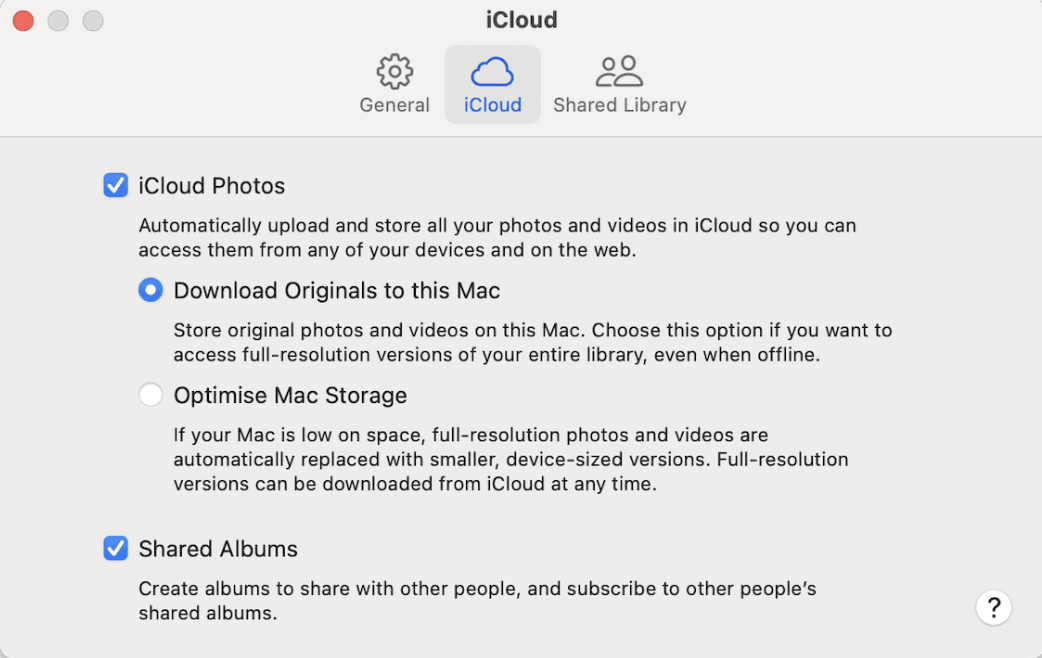
Here’s how you can check your Shared Albums settings:
Open the Photos app.
In the Menu bar, click on Photos > Settings.
Click on iCloud.
Look for a Tick next to Shared Albums.
Open your Photo app Settings, click on iCloud, and look for a tick next to Shared Albums
2. Force sync via iCloud sign-out / sign-in
If you suspect your issue is down to iCloud not syncing on Mac, then we recommend forcing it to sync by signing out and back into your iCloud account.
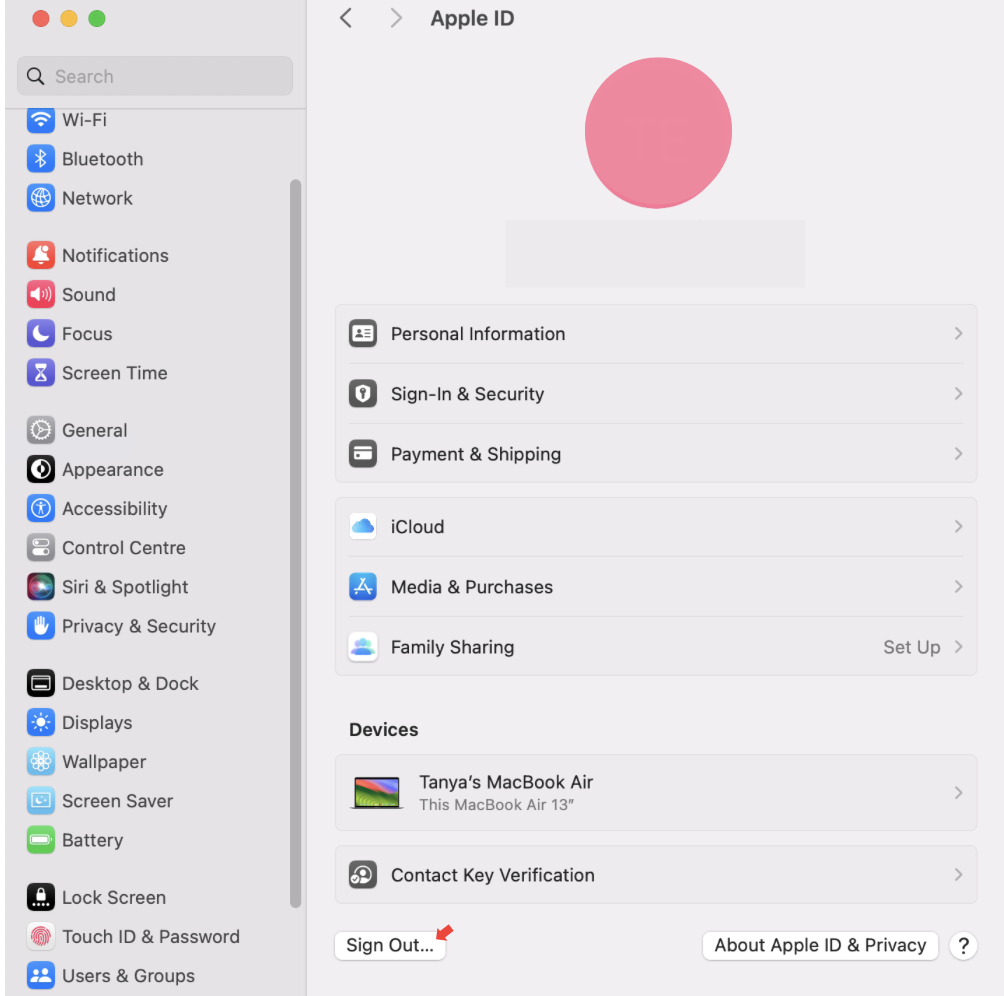
Here’s how to force iCloud syncing:
Open System Settings.
Click on Apple Account > Sign Out.
Wait a couple of minutes and sign back into your iCloud account.
Open your Apple ID Account Settings, sign out of iCloud, and then sign back in
3. Restart Photos app or Mac
In case you’re still having no luck, now is a good time to try the close-reopen method and force-quitting the Photos App makes the process even quicker.
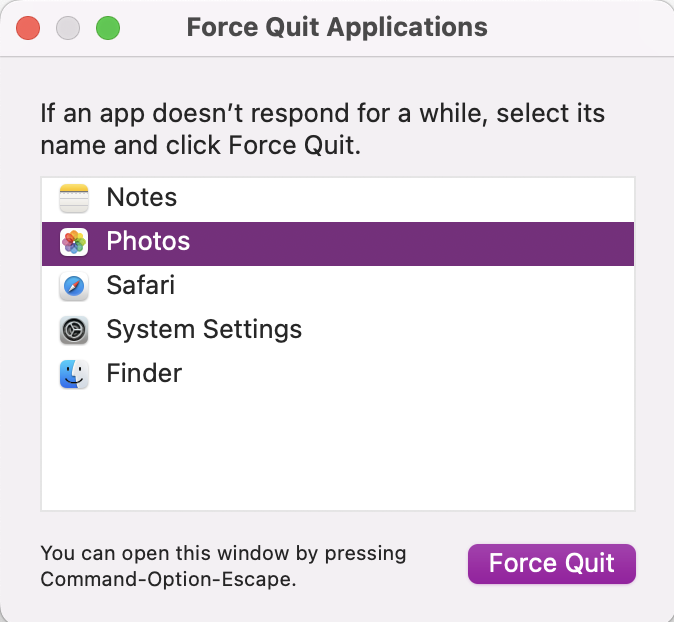
Here’s how to Force Quit the Photos app on your Mac:
Click on the Apple Icon.
Select Force Quit.
From the list, highlight the Photos app and click the Force Quit button.
Open the Force Quit pop-up menu, highlight Photos, and press Force Quit
4. Inspect your Internet connection
To allow iCloud to sync correctly, a stable internet connection is vital–without a steady connection, you can run into a whole host of issues like missing photos, duplicates, and bugs.
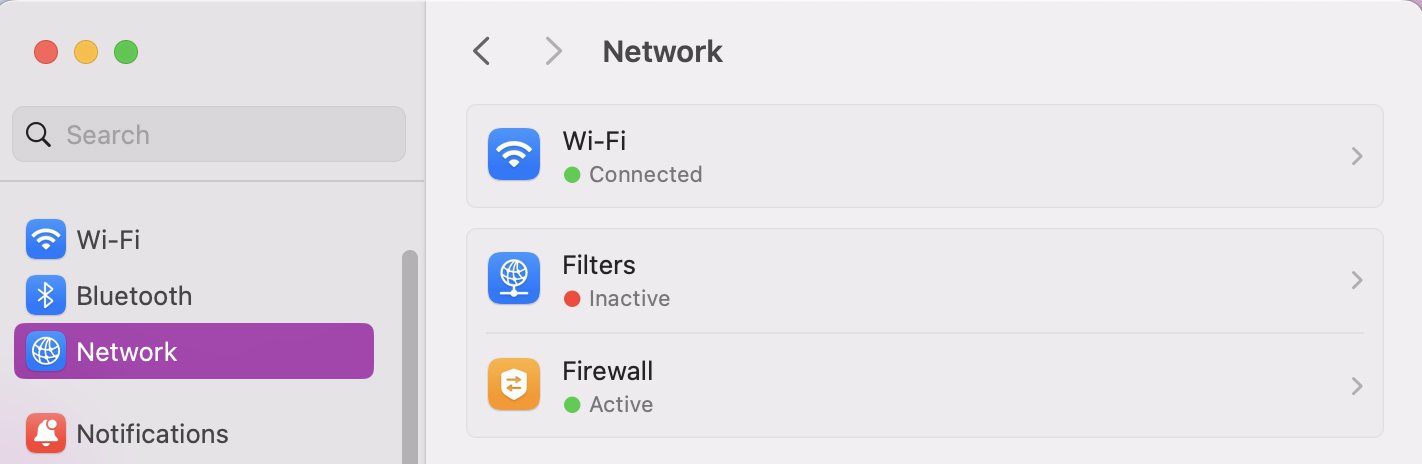
Here’s how to check your connection:
Open System Settings.
Click on Network and look for a green dot next to Wi-Fi or wired-connection.
In System Settings, go to Network and look for a Green dot next to Wi-Fi
5. Confirm or re-invite to Shared Album
Still having no luck at bringing back the shared album that’s not showing up on Mac? We’ve had feedback from many iPhone and Mac users who got a new album invite and had no further missing album issues.
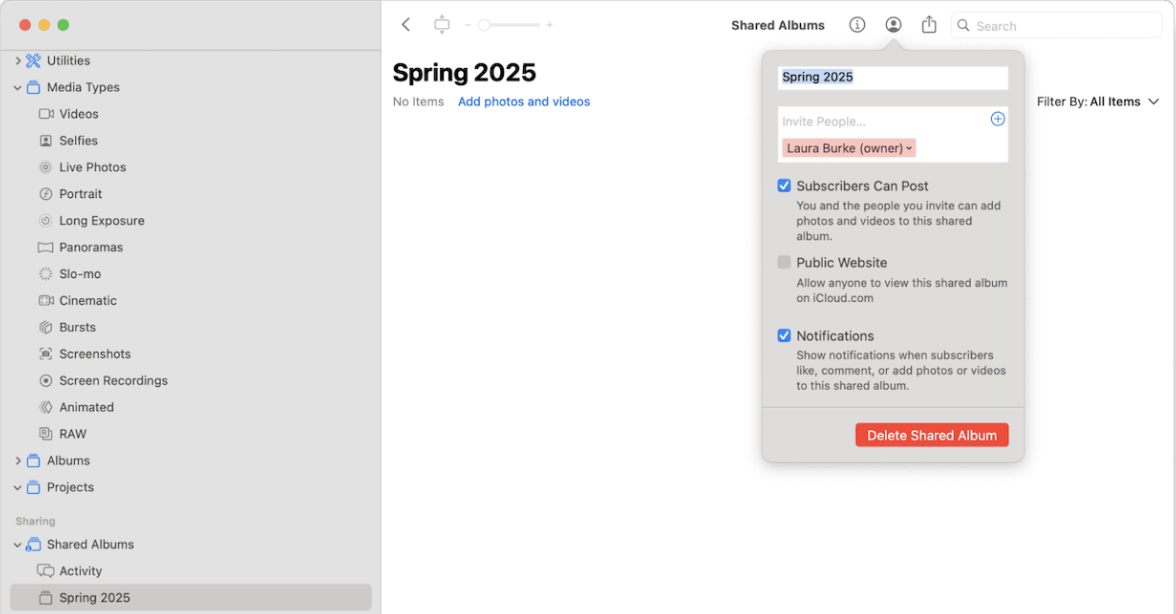
Here’s how to get a new link to the Shared Album:
Ask them to click on the Person Icon in the Shared Album.
Press on your Name > Remove Subscriber.
Then get them to re-add you, which will then send you a new invite.
In the Shared Album, the owner can remove your access and resend you a new invite
6. Free up disk space if needed
We’ve spoken with many Apple users who’ve shared how common the Shared Album goes awol when it’s full. Their device is flagged as low on available space and therefore hides the content.
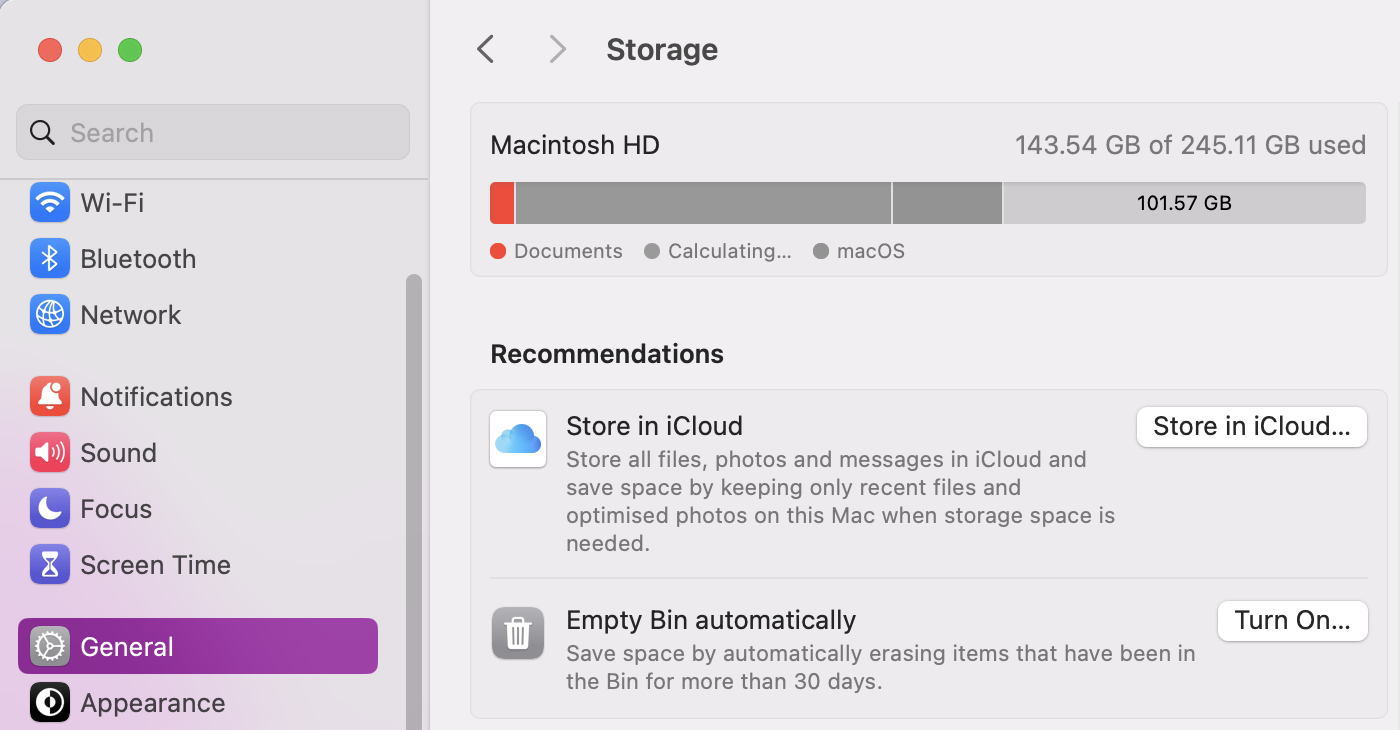
Here’s how to check your free space and make more room:
In System Settings, go to General > Storage.
Look at the coloured chart for your usage.
Scroll down for your Recommendations to help you free up space.
Go to Storage in your System Settings, and look at your Recommendations for ways to free up space
7. Update macOS and Photos app
All that’s left to try now is to check for macOs and Photo app updates–if either has pending updates or upgrades, then our team of Clario Tech experts encourages you to download them before trying to access your Shared Album folder.
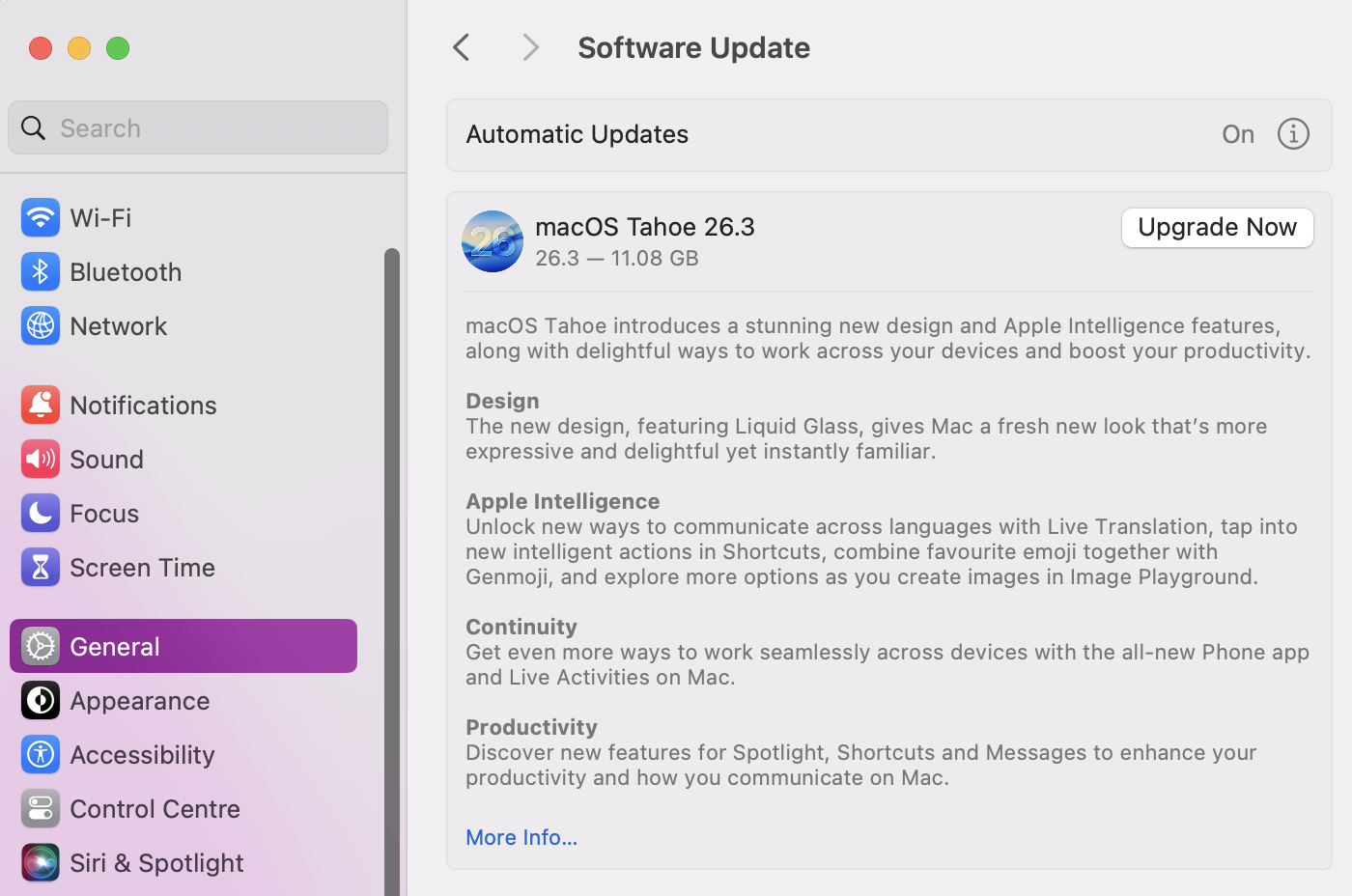
Check for macOS updates:
Open System Settings > General > Software Updates.
If any updates are available, click on Update Now.
Follow the on-screen instructions.
In Software Updates, click on Update or Upgrade now to install the latest macOS
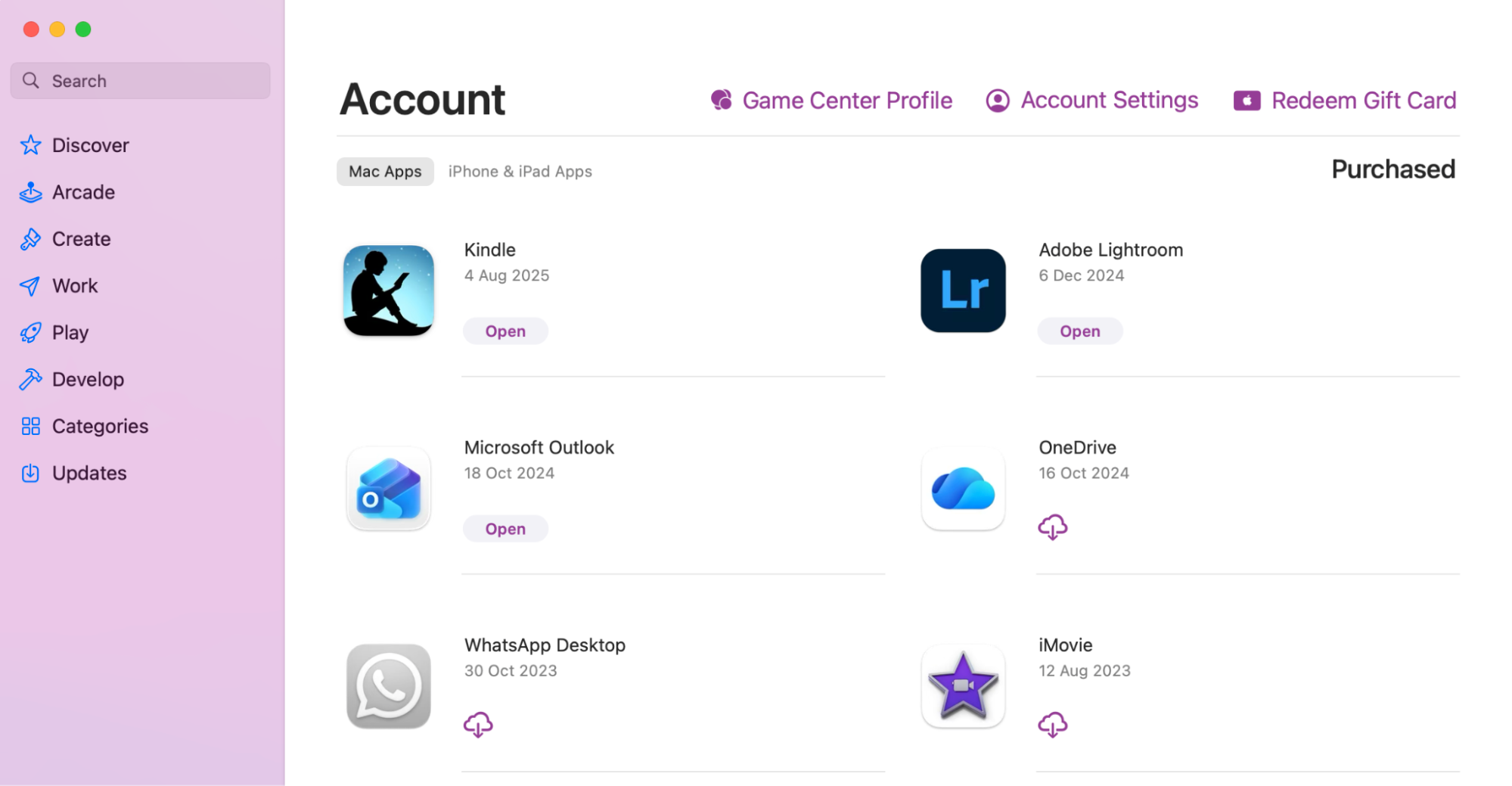
Check for Photo app updates:
Open the App Store.
Go to My Apps and look for pending updates for the Photo app.
Click Update if available.
Open the App Store, go to My Apps, and look for any pending updates
Final hint from us:
While a Shared Album makes it easier to download your photos and videos, you don’t want to overload your library. Take a look at our guide on how to organize photos on Mac to keep your disk space and performance under control. We’ll show you how to manage images and use iCloud to keep your Mac responsive and clutter-free.
Getting your Shared Album back on Mac
In case your Shared Album decides to hide again, it’s worth checking the basics first, like confirming your Photos settings, installing any pending macOS updates, and ensuring your iCloud syncing is enabled. In many cases, it’s the small overlooked settings that can stop your content from appearing where you expect it.
If you’d prefer to avoid manually searching for your technical issue, MacKeeper’s Premium Services is here to assist. You’ll be connected with one of our Clario Tech experts who can help you diagnose your MacBook problem and provide actionable steps to get your issues resolved. Soon, you’ll be back to sharing your photos in no time.
We respect your privacy and
use cookies
for the best site experience.
Privacy Preferences Center
We use cookies along with other tools to give you the best possible experience while using the
MacKeeper website. Cookies are small text files that help the website load faster. The cookies we
use don’t contain any type of personal data meaning they never store information such as your
location, email address, or IP address.
Help us improve how you interact with our website by accepting the use of cookies. You can change
your privacy settings whenever you like.
Manage consent
All cookies
These cookies are strictly necessary for enabling basic website functionality (including page
navigation, form submission, language detection, post commenting), downloading and purchasing
software. The website might malfunction without these cookies.