We understand how frustrating it is when some icloud data isn't syncing properly–causing error messages to arise on your Mac or iOS device. The likely culprit is a poor connection, but if you’re unsure, you can reach out to our team of Clario Tech Experts via MacKeeper’s Premium Services–we’ll help you find the culprit behind your iCloud syncing and fix this issue promptly.
If your iCloud data isn’t syncing as it should, we recommend opening your System Settings and checking for the ‘Resume Data Sync’ prompt. Click on this option and enter your admin password when prompted. This troubleshooting measure should fix your iCloud syncing. In case it doesn’t, we encourage you to log out of your iCloud account on all your devices, including iPad, iPhone, and MacBook, so you can restart the entire connection fresh.
How does iCloud sync work?
Not sure how iCloud syncing works? To put it simply, it’s all linked to the cloud’s central hub. If you’ve multiple Apple devices or share data with other iOS users, iCloud allows you to easily cloud share your documents, images, and audio files. Uploading and exporting via the Cloud makes content sharing easier as it can be automatically distributed to all your paired devices. However, if you encounter an issue like your photos not syncing from iPhone to Mac, it’s likely a syncing fault that needs troubleshooting to fix.
Reasons why some iCloud data isn’t syncing
There are many reasons why some of your iCloud data might not have synced correctly, the most common reason being due to insufficient storage on the device waiting to receive the content. The issue can sometimes be just down to poor Wi-Fi, outdated software, or even temporary service glitches. You might also wonder why is iCloud greyed out–that’s another sign that something is affecting your MacBook’s automatic cloud sharing.
A note from our experts:
Finding the source of your iCloud syncing issues can become a real pain when there are no visible barriers that should be getting in your way. You have plenty of space, and your connection is strong–so what’s the issue? To help you get to the bottom of it, you can connect with our team of Clario Tech experts via the MacKeeper’s Premium Services feature in our app. One of our team will offer virtual support to help you get your iCloud syncing back on track.
Here’s how to access MacKeeper’s Premium Services to get help with iCloud syncing errors:
In the chat, tell our helper about your syncing issues, and they’ll walk you through tailored steps to get you back on track.
Step 1. For iCloud support, open the MacKeeper app and choose Premium ServicesStep 2. You can use the chat function to get expert advice on troubleshooting iCloud
How to fix some iCloud data that isn't syncing?
To fix some iCloud data that isn't syncing, we first recommend finding out if your problem is linked to insufficient storage space, as it's the most likely culprit. If it’s not, here our alternative steps we recommend:
Check internet
Investigate date & time
Verify iCloud toggles and settings
Restart devices
Sign out and sign back into iCloud
Toggle sync for specific apps
Reset end-to-end encrypted data
Full reset and restore from backup
Before you start:
If you suspect insufficient space is your issue, we recommend reading our supporting guide on how to remove photos from Mac, but not iCloud. It’ll walk you through our recommendations to help free up space but still keep your iCloud content untouched–avoiding accidental deletions or lost data.
1. Check your internet
Believe it or not, but a poor Wi-Fi connection is a common culprit for some icloud data isn't syncing, as signal can drop without you noticing.
Here’s how to check you’re connected:
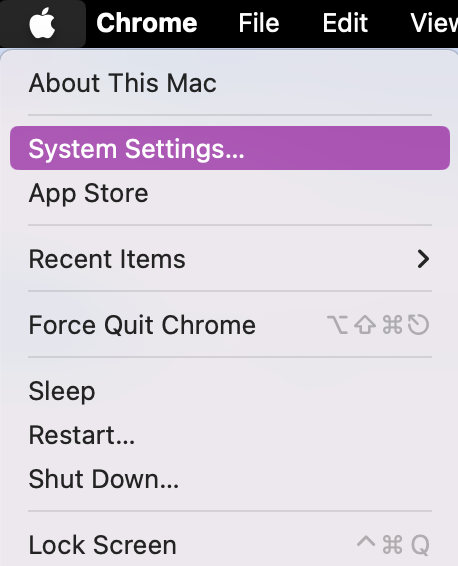
Open System Settings.
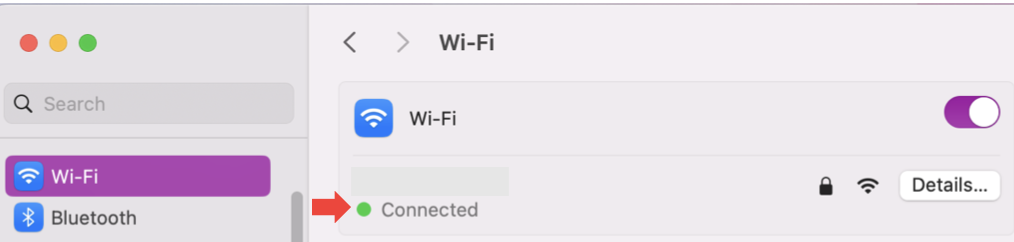
Click on Wi-Fi and look for a green dot.
Step 1. Open System SettingsStep 2. Click on Wi-Fi and look for a green dot next to your provider
2. Investigate date & time
The date and time on your macOS device, no matter whether it's your phone or your laptop, must always be correct–failing to have them right can throw off iCloud syncing.
Here’s how to check that your date & time are accurate:
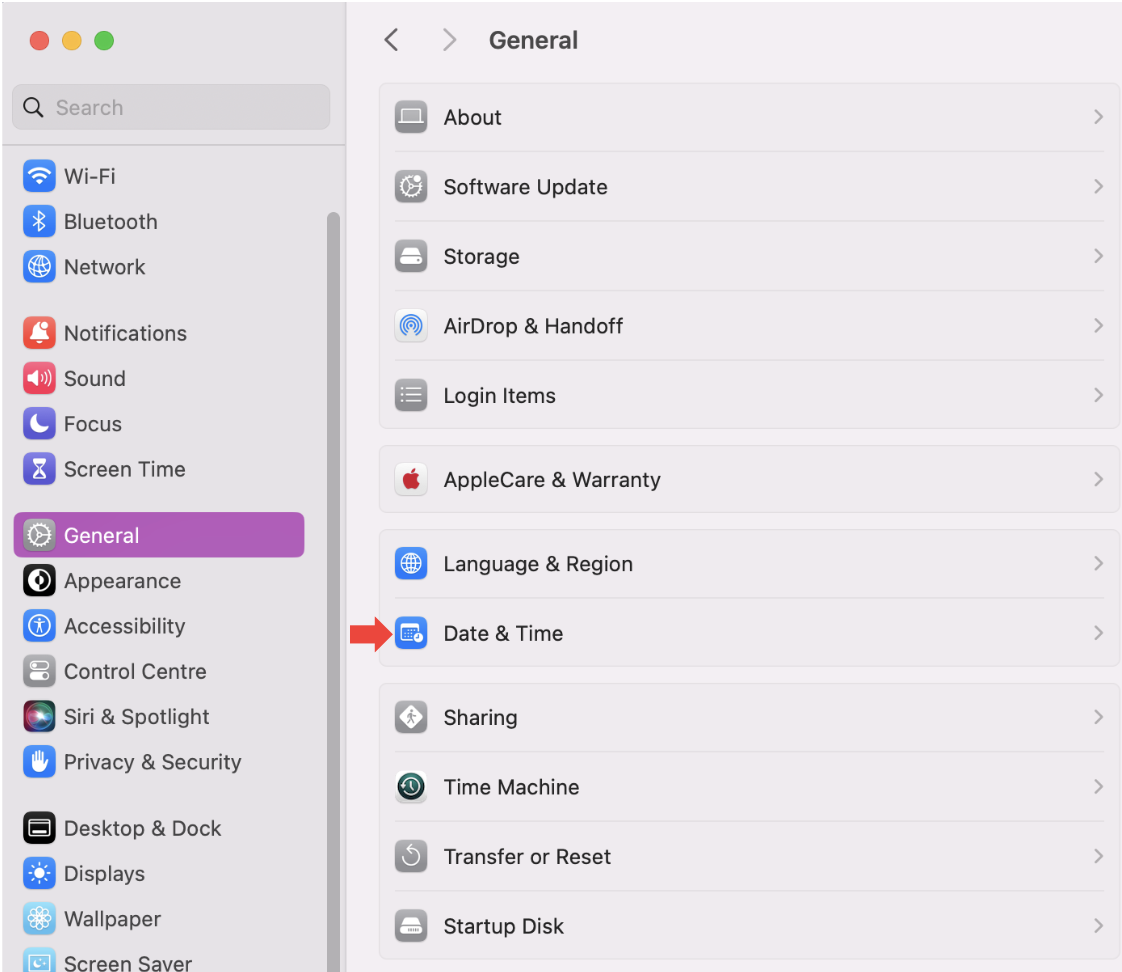
In Settings, click on General > Date & Time.
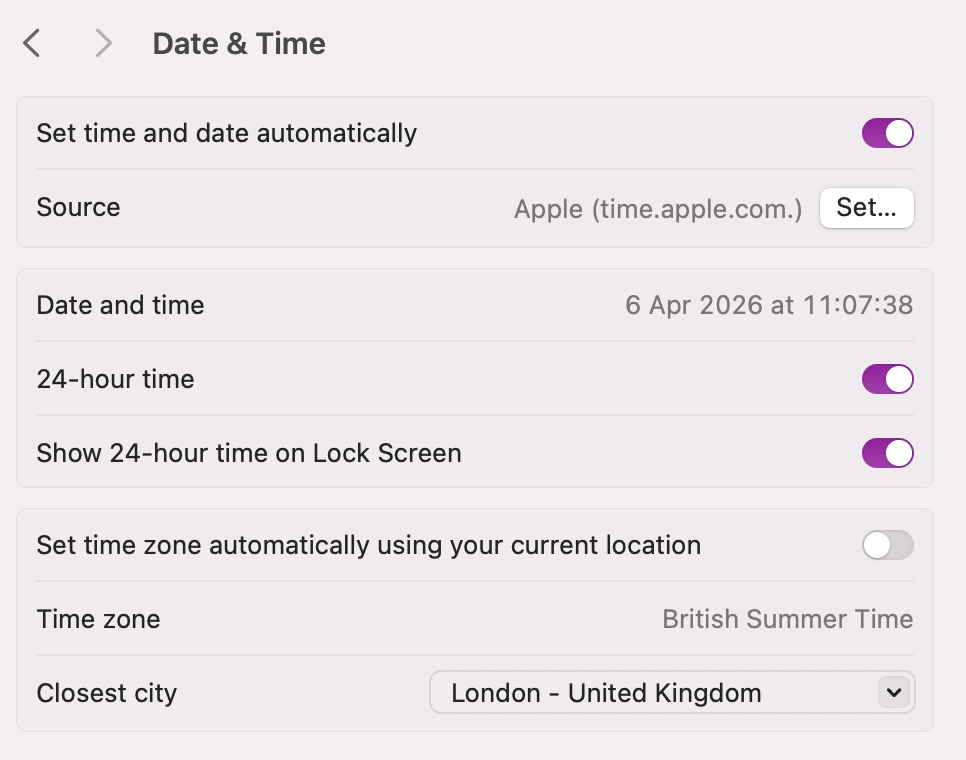
Tick Set time and date automatically to ensure it’s correct.
Step 1. In Settings, go to General > Date & TimeStep 2. Tick Set time and date automatically
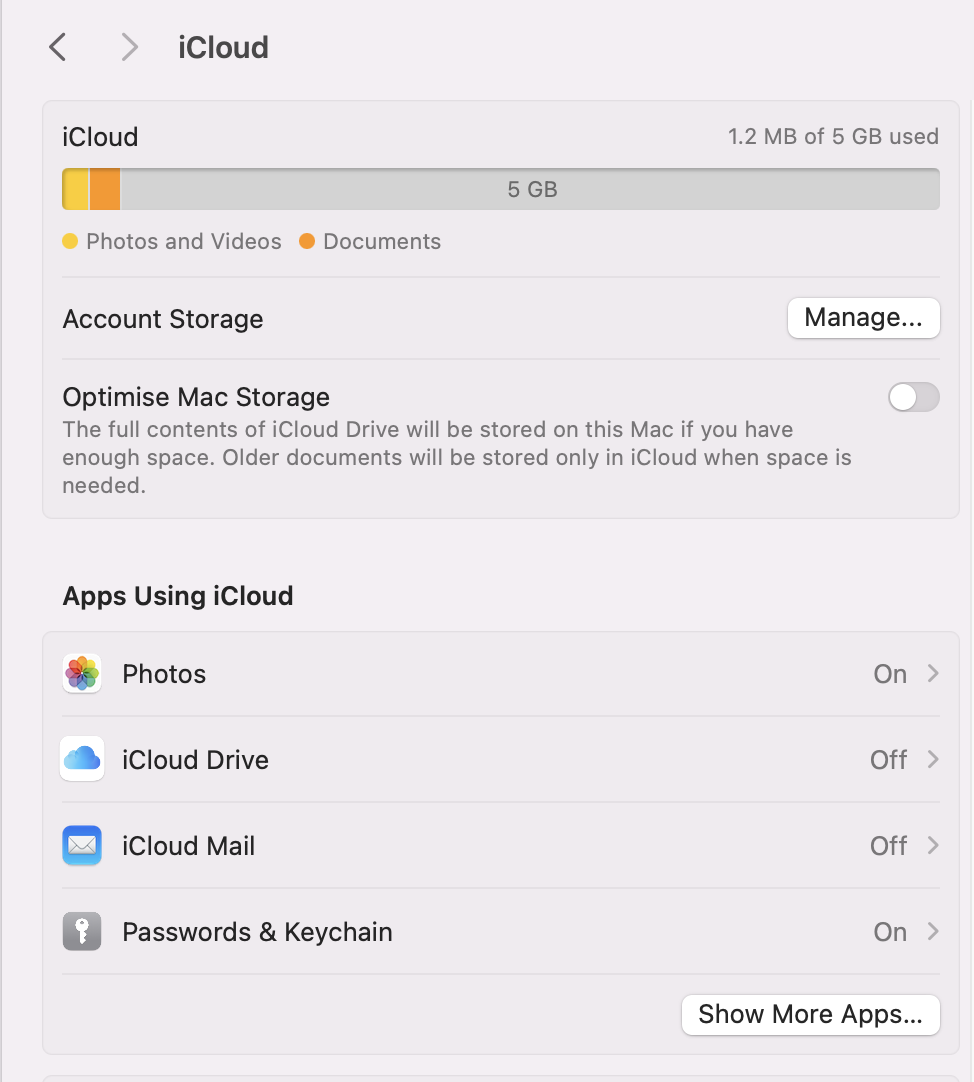
3. Verify iCloud toggles and settings
If you’re seeing syncing with iCloud paused on your MacBook, one of the most common causes is incorrect or disabled settings. Before trying more advanced fixes, we urge you to check and adjust your iCloud toggles to ensure everything is set up correctly.
Here’s how:
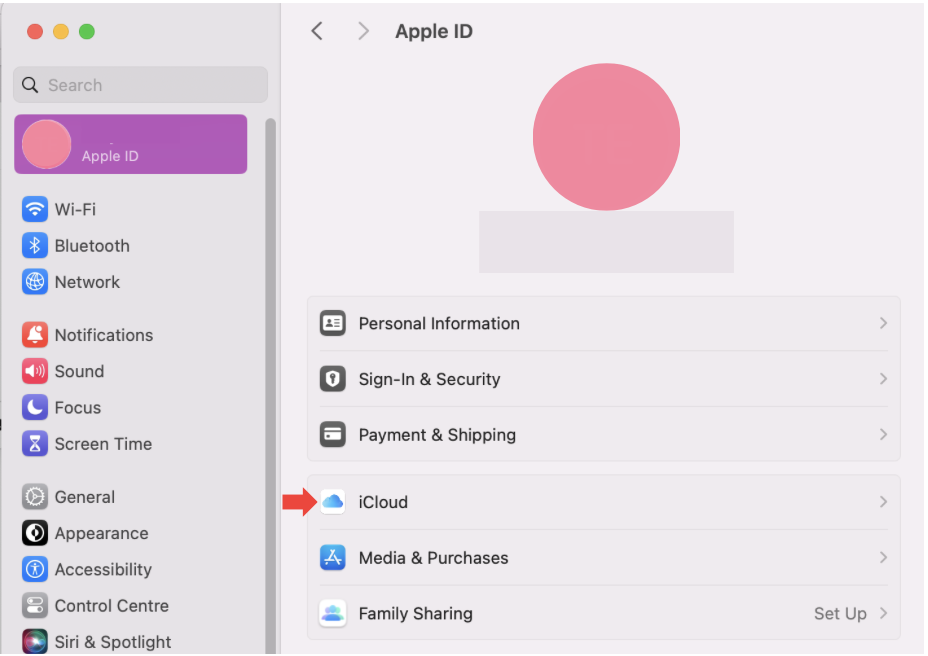
In Settings, click on your Apple ID > iCloud.
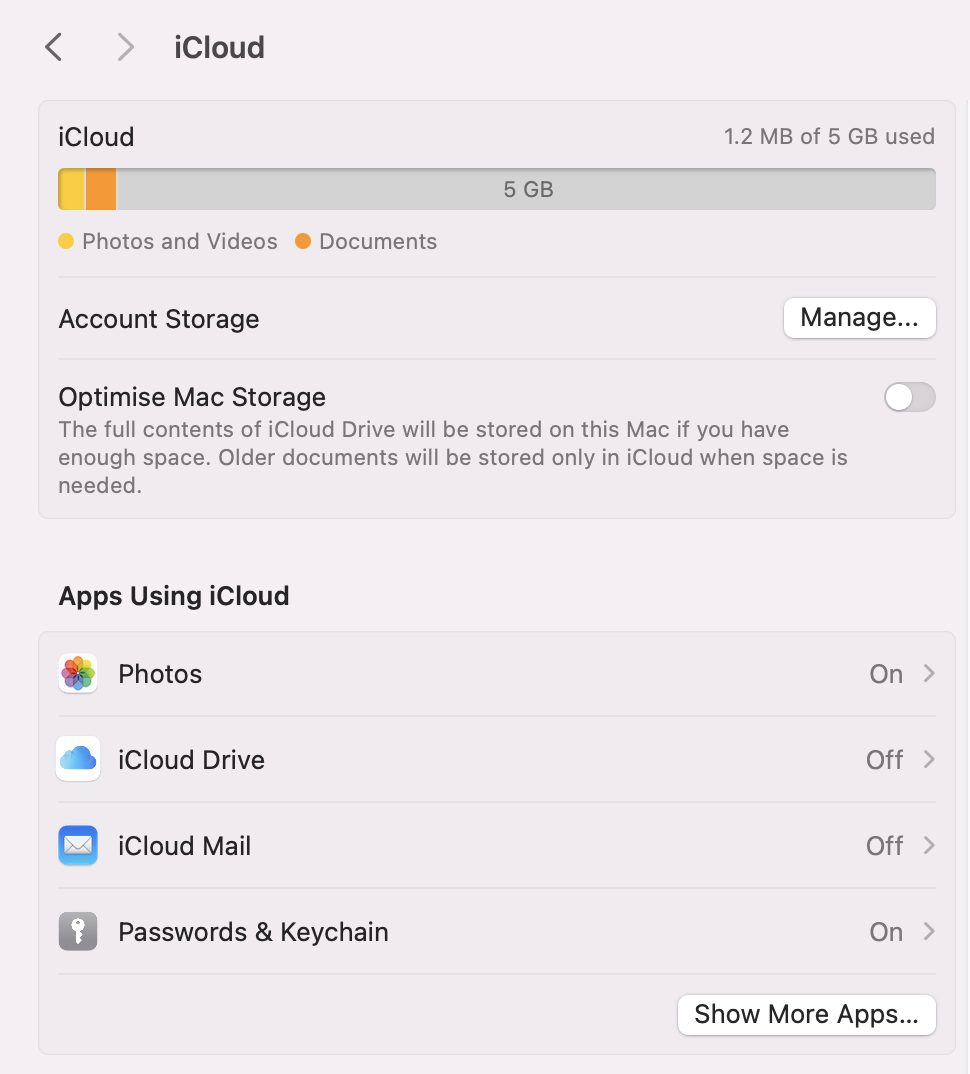
Click On next to the apps you want to sync.
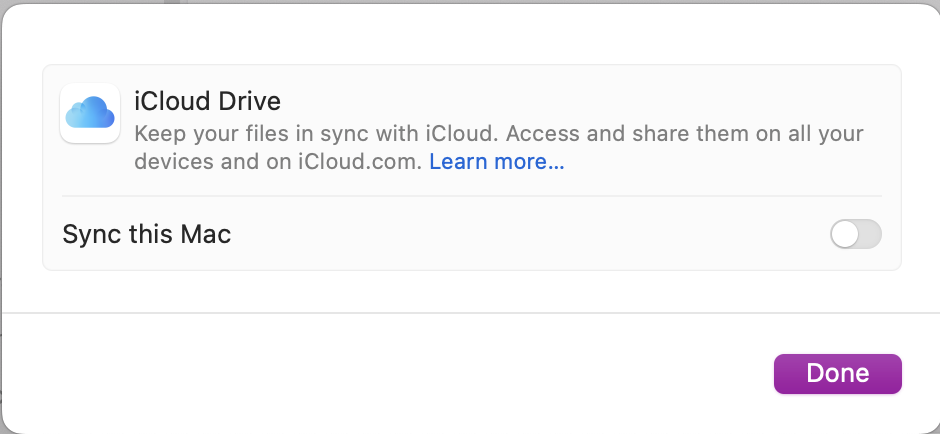
Tick Sync this Mac to enable syncing.
Step 1. Open System Settings, click on Apple ID > iCloudStep 2. Under Apps Using iCloud, click ON next to your preferred appStep 3. Confirm by allowing Sync this Mac
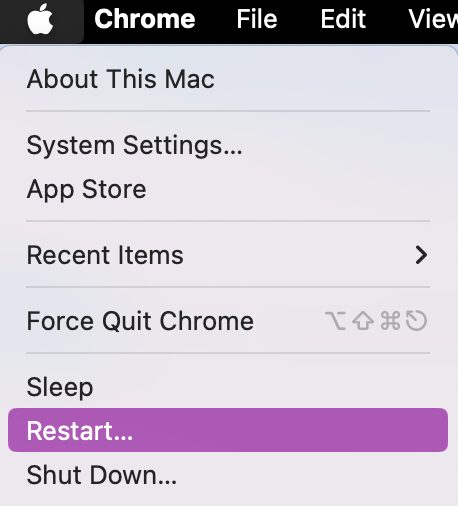
4. Restart devices
We’ve seen complex system errors be resolved with a simple device restart. It shuts down all active processes and reopens them like new, many times fixing app and software glitches. Just press Restart on your iPhone, iPad, or Mac and allow it some time to power back up.
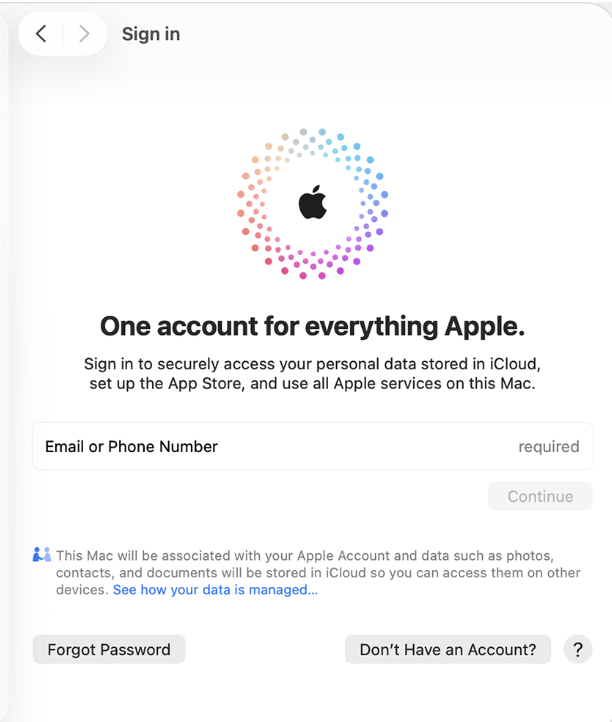
5. Sign out and sign back into iCloud
Just like restarting your device, signing out and back-in to your iCloud account can work in a similar way, as it too can close old processes and reopen the app like new.
Here's how to sign out of your iCloud account:
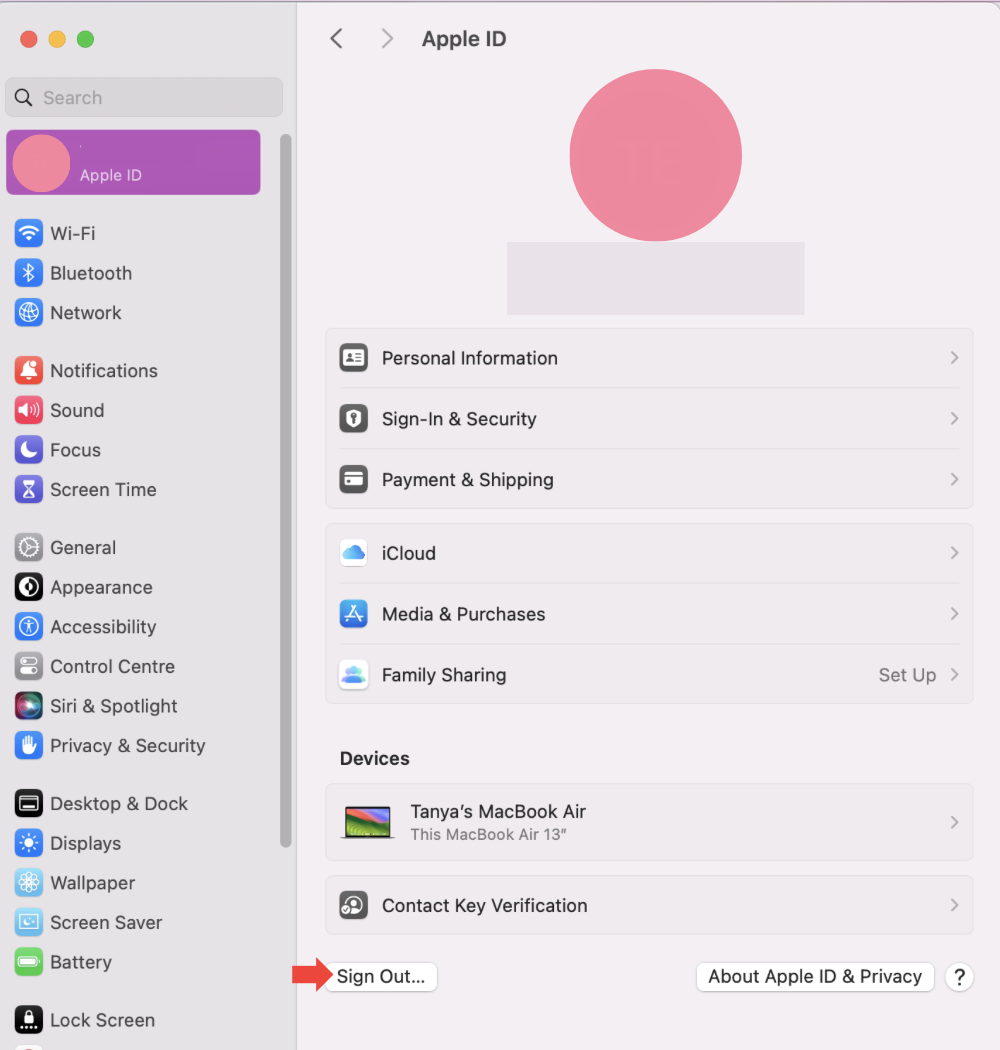
In Settings, click on your Name andSign Out.
Restart your device.
Sign back in with your Apple ID.
Step 1. Sign out of your account in SettingsStep 2. Restart your deviceStep 3. Sign in with your Apple ID
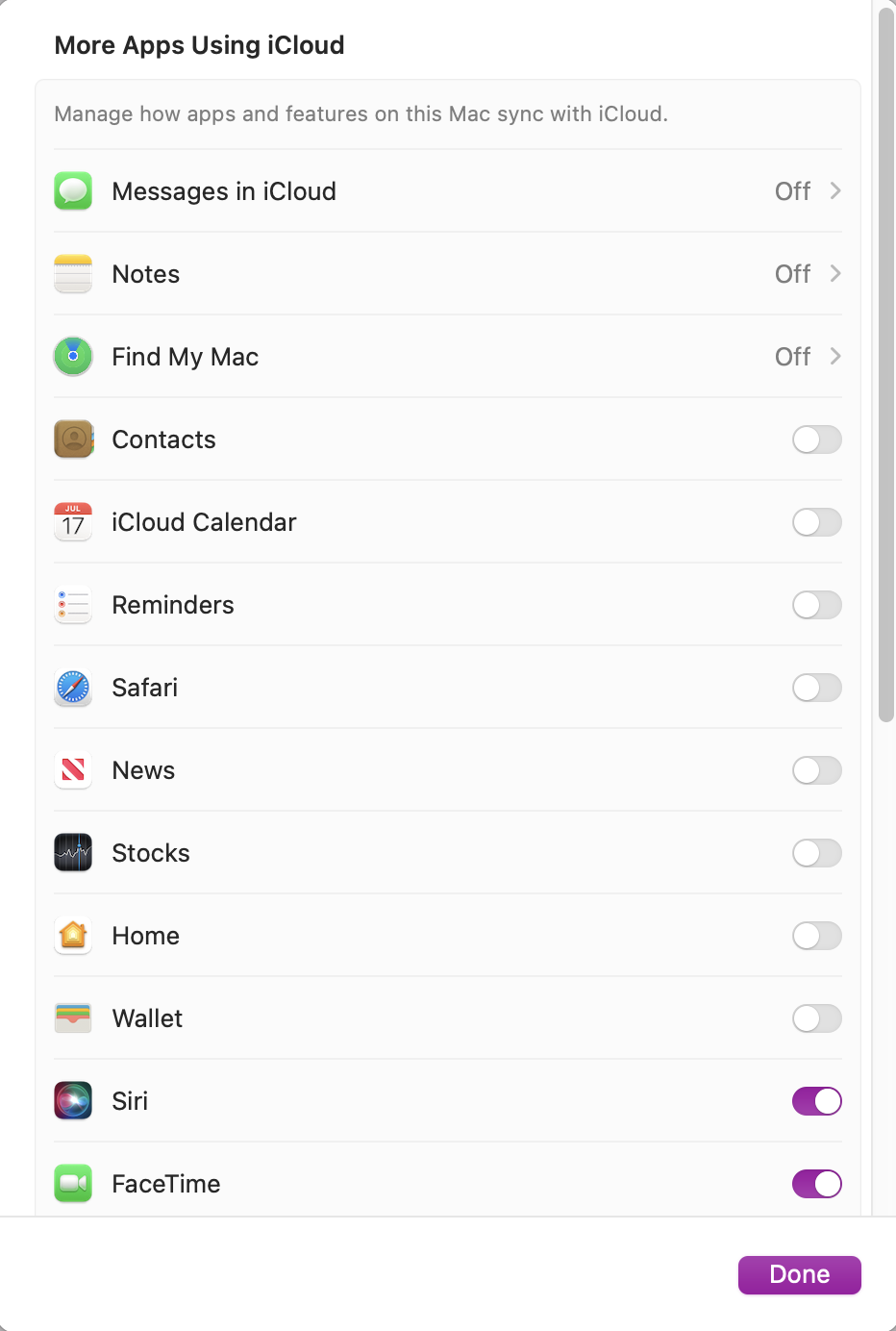
6. Toggle sync for specific apps
We’ve shown you how to toggle on syncing across your apps, but if you want to check it for a specific app you're having syncing issues with, the process is a little different.
Here’s how to toggle sync for a specific app:
Open iCloud in your Settings and click on Show More Apps.
Untick the app that isn’t syncing.
After a few seconds, toggle it back on.
Step 1. In your iCloud settings, click on Show More Apps to find the one app that’s not syncing correctlyStep 2. Toggle next to the app you're having issues with to stop and restart new syncing
7. Reset end-to-end encrypted data
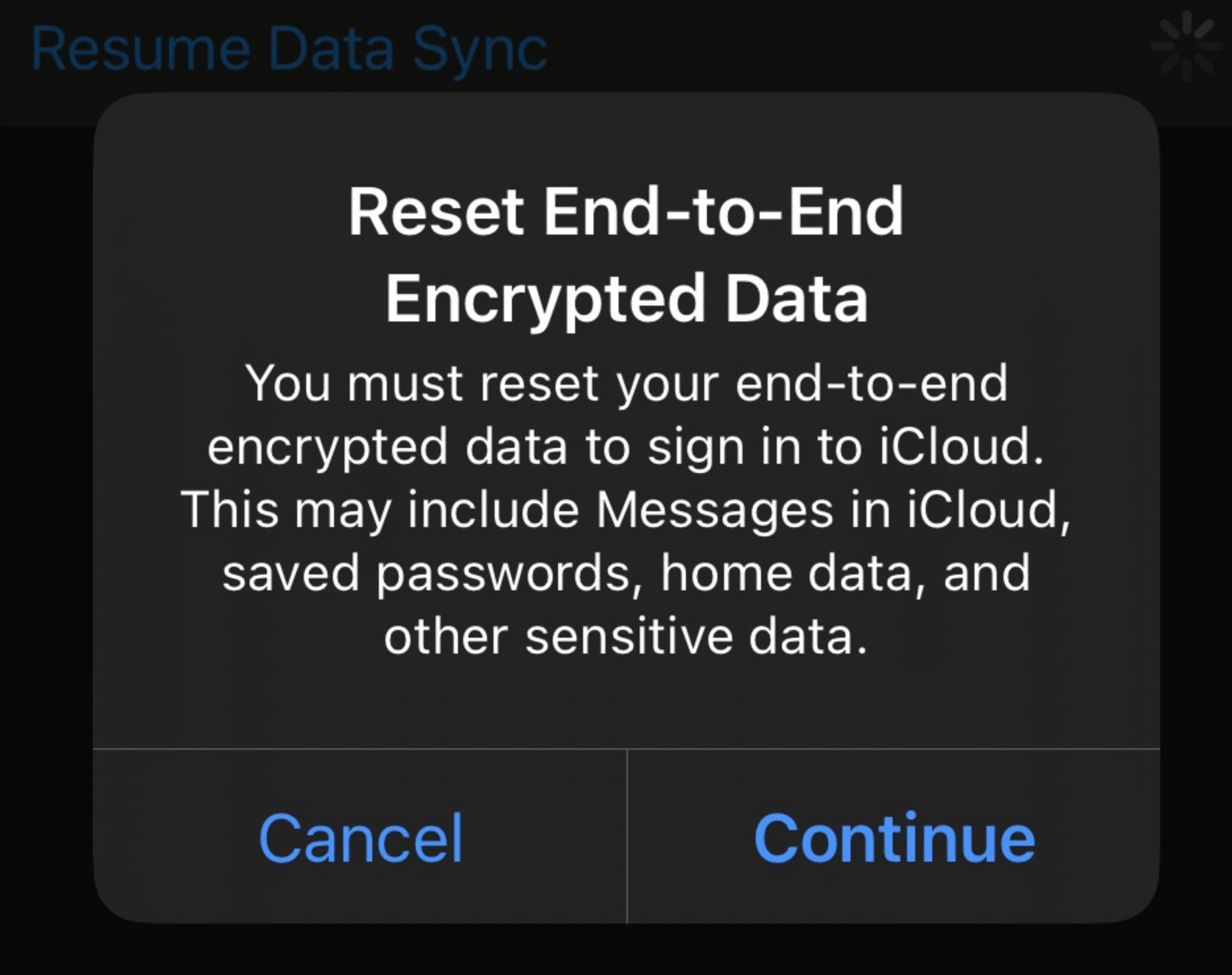
If syncing with iCloud still isn’t fixed, you'll likely see the error message ‘Some iCloud data isn’t syncing’ when you open your Apple ID Settings tab. You’ll want to click on this error message, and when you see the Reset End–End encrypted data pop-up, press Continue.
If you see the error message, double-tab and press Continue when the Reset End-to-End pop-up appears
8. Full reset and restore from backup
If none of the above steps have worked to resolve the some icloud data isn't syncing issue on Mac, then it’s time for a full reset. Just make sure you have backed up your device with Time Machine first.
Here's how to initiate a full reset:
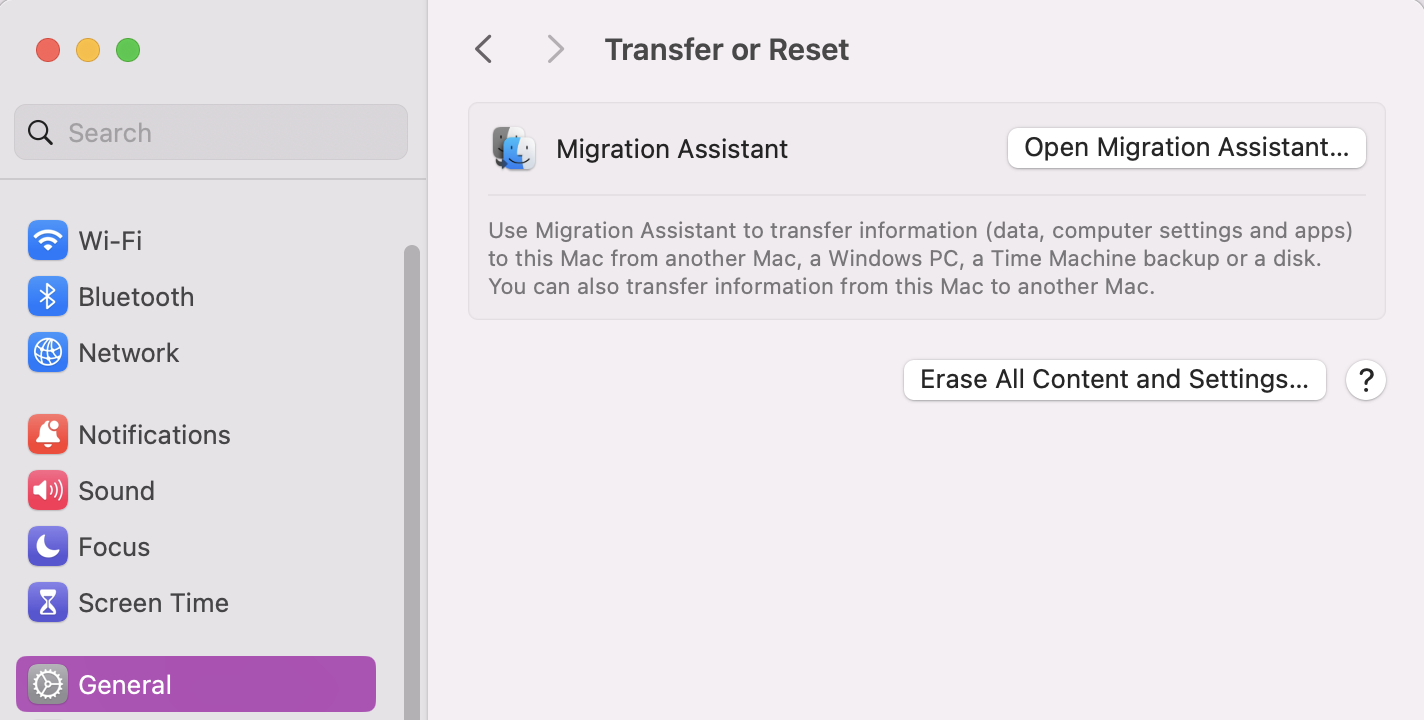
In Settings, click on General >Transfer or Reset > Erase All Content and Settings.
Restart your Mac and follow the on-screen instructions to restore data from your backup.
In Settings, go to General > Transfer or Reset and press Erase All Content and Settings
Fixing your iCloud glitches with MacKeeper
Unfortunately, iCloud can be temperamental with even the smallest error causing the apps' syncing to halt without any clear reasoning. That makes fixing the problem harder as you’re unsure why it’s happening. If some iCloud data isn't syncing, we recommend following our list of steps–starting with verifying your connection and then trying ou troubleshooting solutions until iCloud is in recovery.
You can also call on the help of our trusted team of Apple experts. Just open the MacKeeper app and head to Premium Services to access the chat function. They’ll offer their support and help you remotely to get you back to sharing your content via the Cloud, uninterrupted.
We respect your privacy and
use cookies
for the best site experience.
Privacy Preferences Center
We use cookies along with other tools to give you the best possible experience while using the
MacKeeper website. Cookies are small text files that help the website load faster. The cookies we
use don’t contain any type of personal data meaning they never store information such as your
location, email address, or IP address.
Help us improve how you interact with our website by accepting the use of cookies. You can change
your privacy settings whenever you like.
Manage consent
All cookies
These cookies are strictly necessary for enabling basic website functionality (including page
navigation, form submission, language detection, post commenting), downloading and purchasing
software. The website might malfunction without these cookies.