The Item “Grammarly Desktop” Can’t Be Moved to the Trash Because It’s Open
If your Mac tells you the item ‘Grammarly Desktop’ can’t be moved to the Trash because it’s open, we’ve got some tips that can stop this annoying behaviour. But if you need more help, try MacKeeper’s Premium Service, and get expert support when you need it.
To delete Grammarly from your Mac when it says it's open, you need to find a way to stop it running. Try quitting the app as normal, but if that doesn’t work, start Activity Monitor and force close the Grammarly app from there.
What does it mean that the item "Grammarly Desktop" cannot be moved to the Trash because it is open?
When you see the error message “the item ‘Grammarly Desktop’ can’t be moved to the Trash because it’s open”, it means the Grammarly Desktop app is still running in the background. macOS prevents you from deleting apps if they’re currently running, so you need to quit the app first.
A note from our experts:
Removing Grammarly from your Mac should be easy, but if you’re struggling with it, try MacKeeper’s Premium Services.
Click Chat Now, and explain your issue to the agent.
How to delete Grammarly from Mac when it says it's open?
If you find Grammarly cannot be deleted because it’s open, you need to close the app. Closing the Grammarly app window probably won’t be enough, because it will continue to run in the background. You may have to force quit Grammarly to uninstall the application on your Mac.
1. Restart your Mac and try again
In our experience, restarting your Mac can fix all kinds of issues, including not being able to uninstall Grammarly.
Simply do as follows:
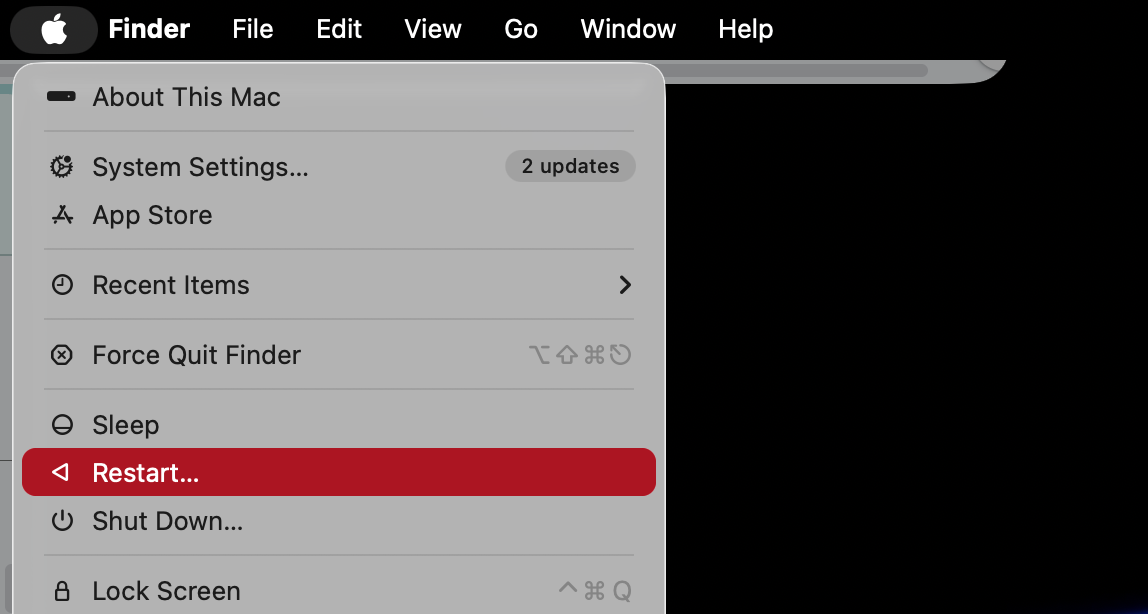
Click the Apple icon in your menu bar.
Select Restart.
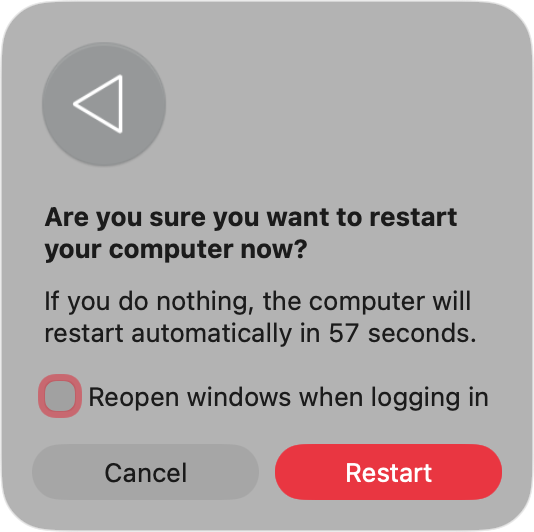
Make sure Reopen windows when logging backin isn’t selected.
Click Restart.
When your Mac has restarted, try deleting Grammarly.
Step 1. Click the Apple icon and select RestartStep 2. Make sure windows aren't set to reopen
You might be able to delete Grammarly Desktop after you’ve quit the app from your menu bar.
This is what you need to do:
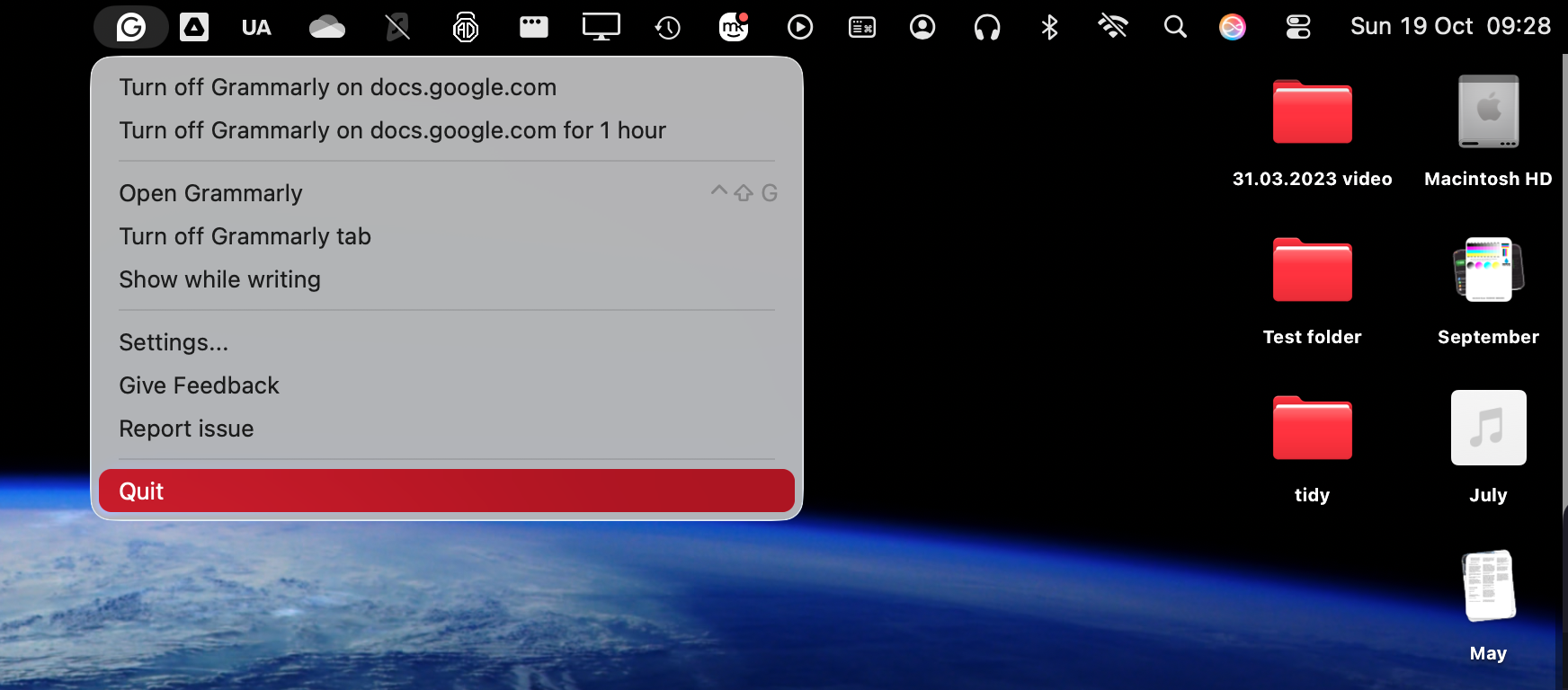
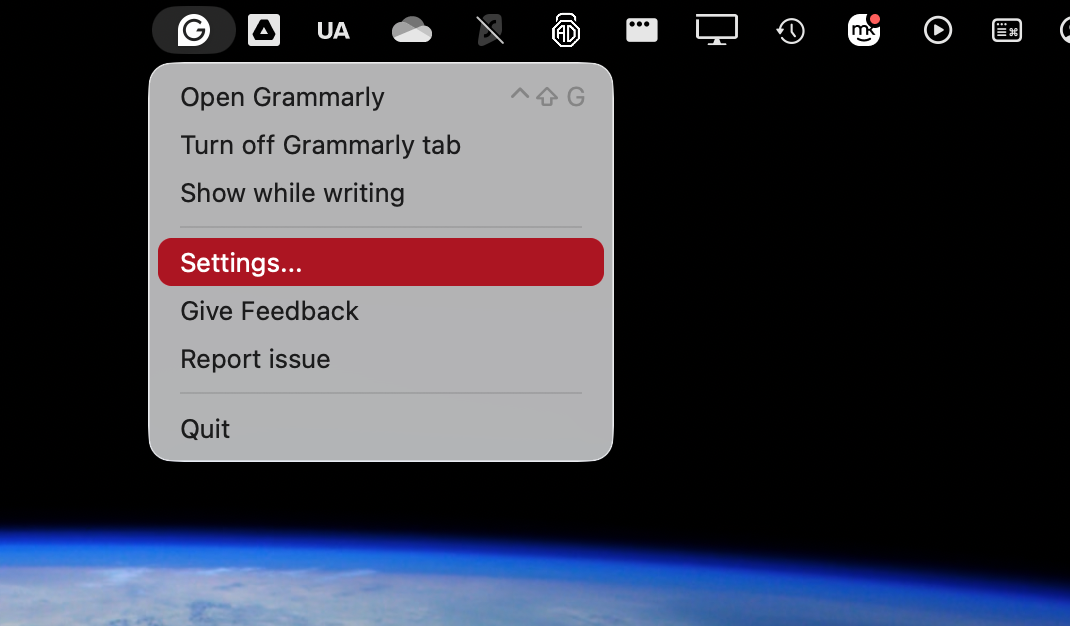
Click the Grammarly icon in your menu bar.
Select Quit Grammarly.
Try deleting the Grammarly app.
Click the Grammarly icon and select Quit
3. Force quit Grammarly using Activity Monitor
Still finding that Grammarly cannot be deleted because it’s open? Then move on to our next tip—forcing quitting the Grammarly app with Activity Monitor:
Open Activity Monitor from Applications > Utilities.
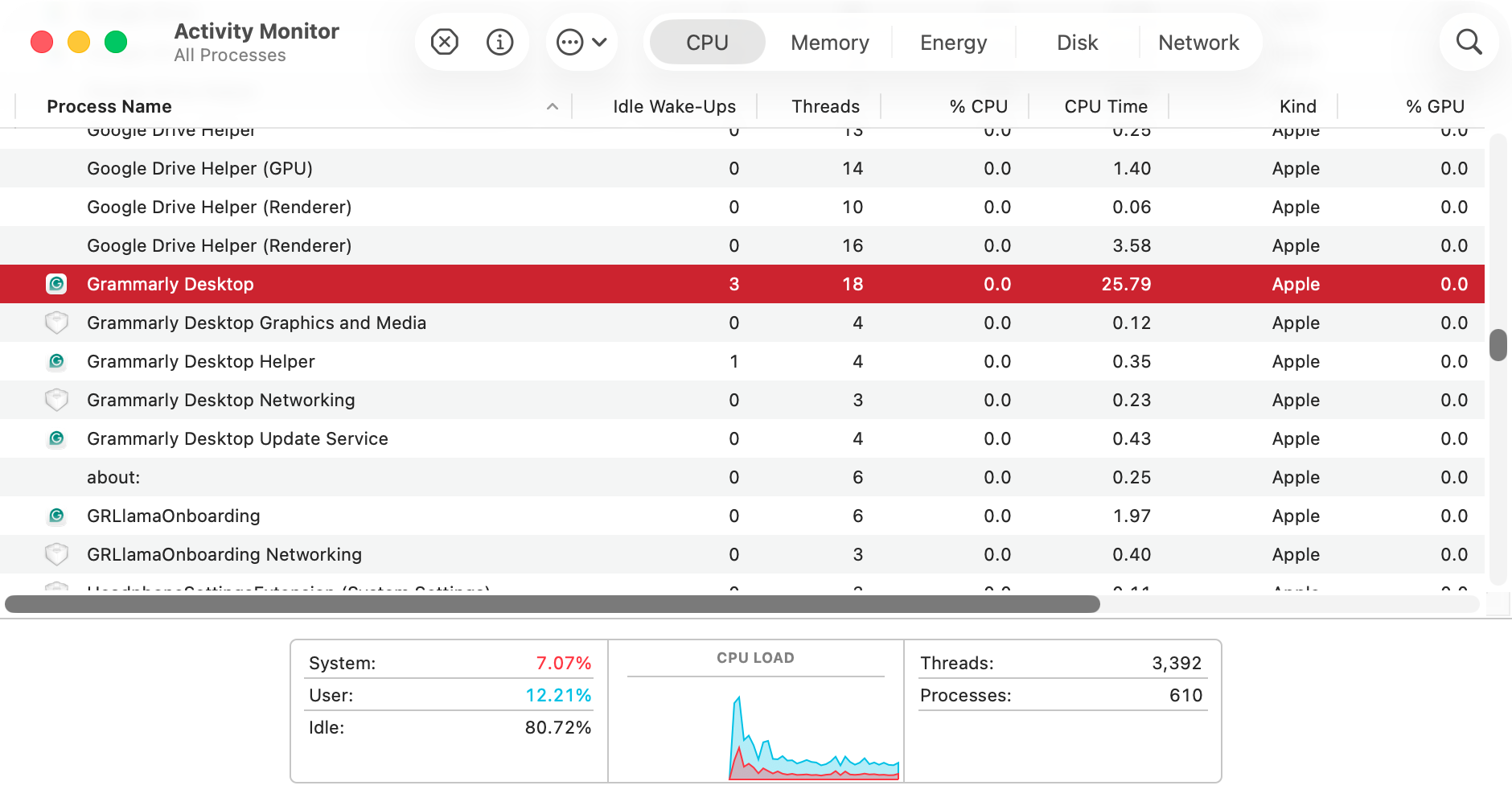
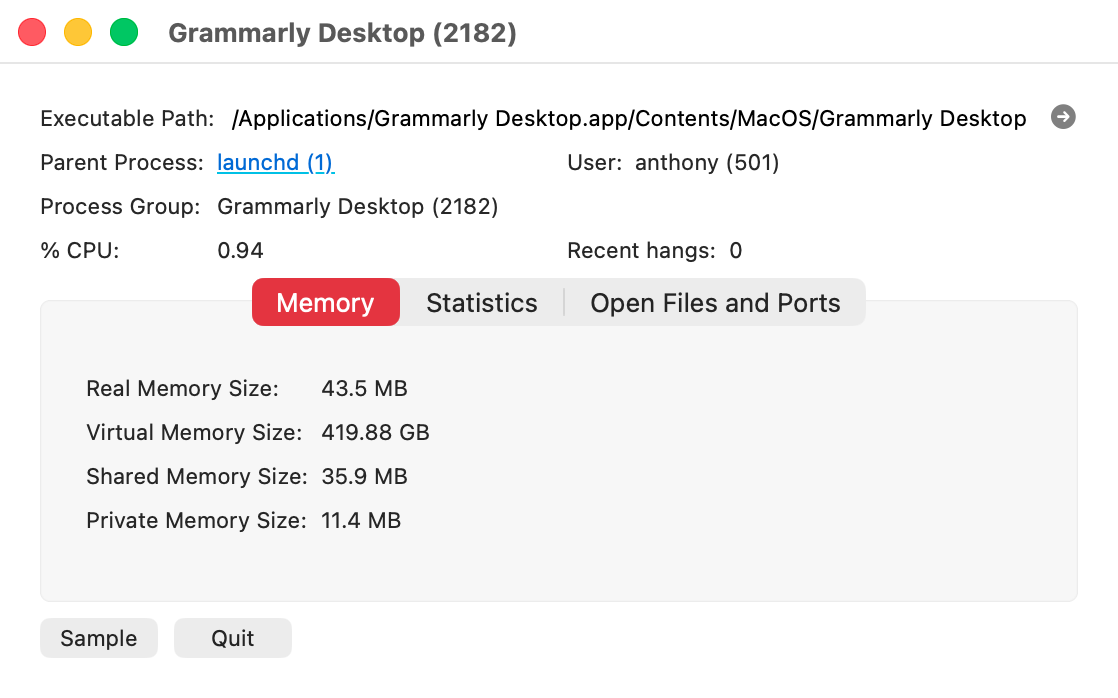
Select the CPU section, find the Grammarlyapp, and double-click it.
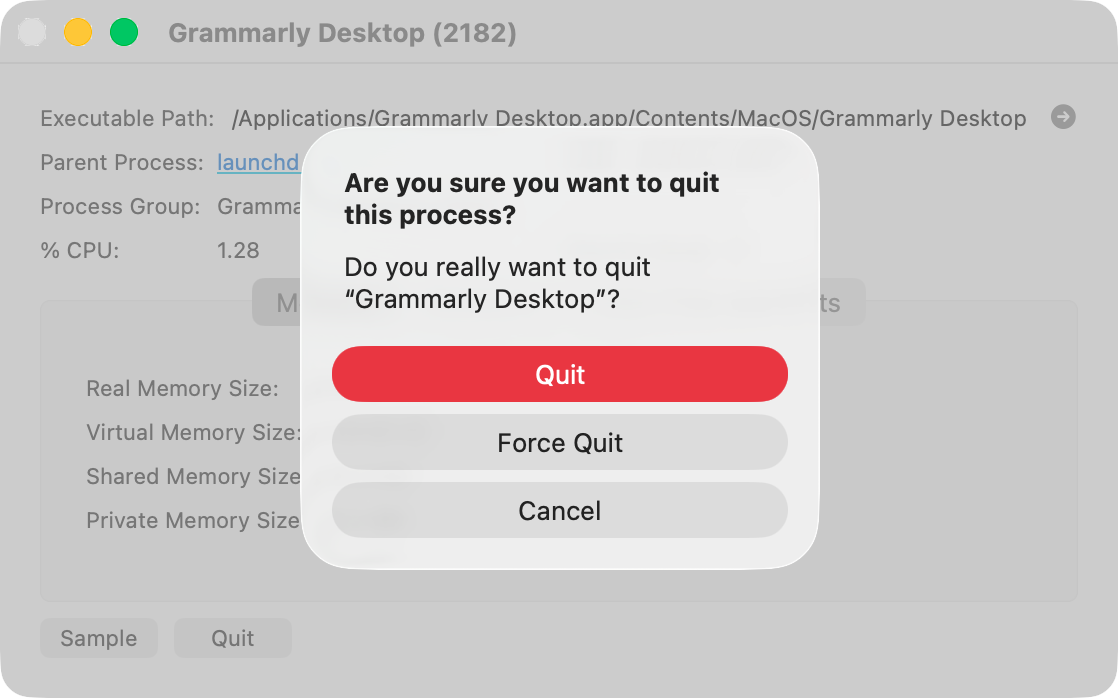
In the panel that opens up, click Quit, then Force Quit.
Now try deleting the Grammarly app from your Mac.
Step 1. Double-click the Grammarly Desktop app in Activity MonitorStep 2. Click the Quit buttonStep 3. Now select Force Quit
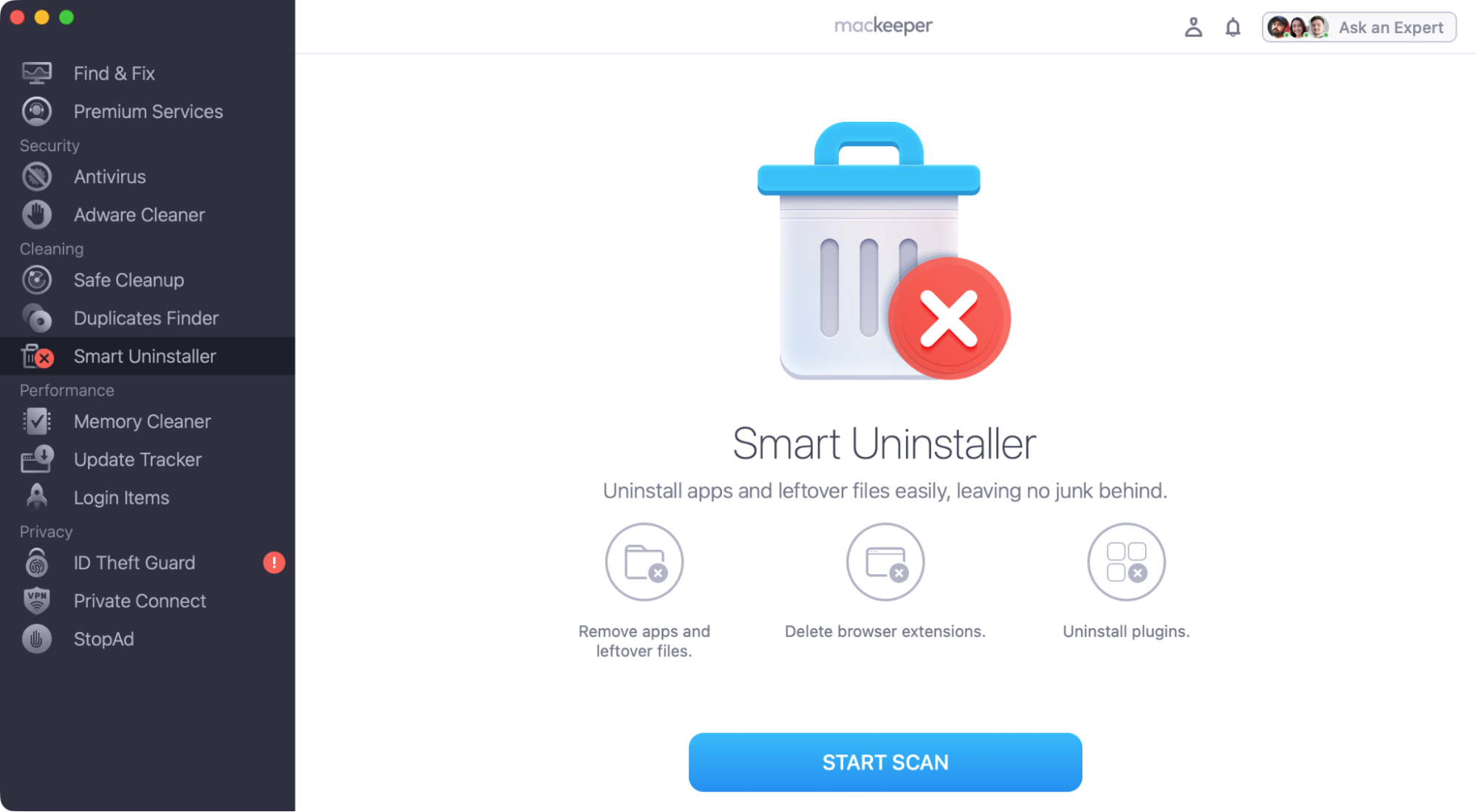
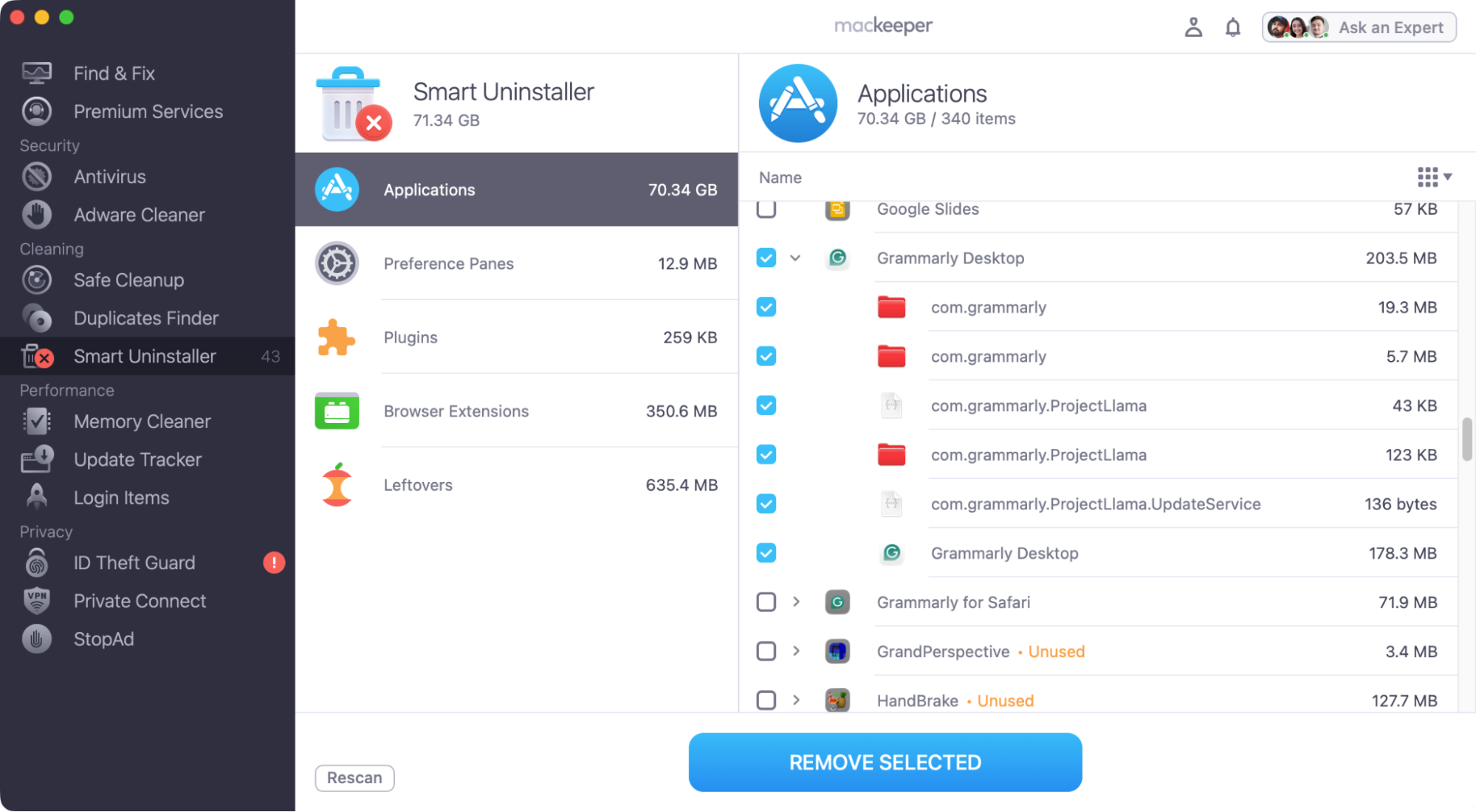
Select the Grammarly app, and click Remove Selected.
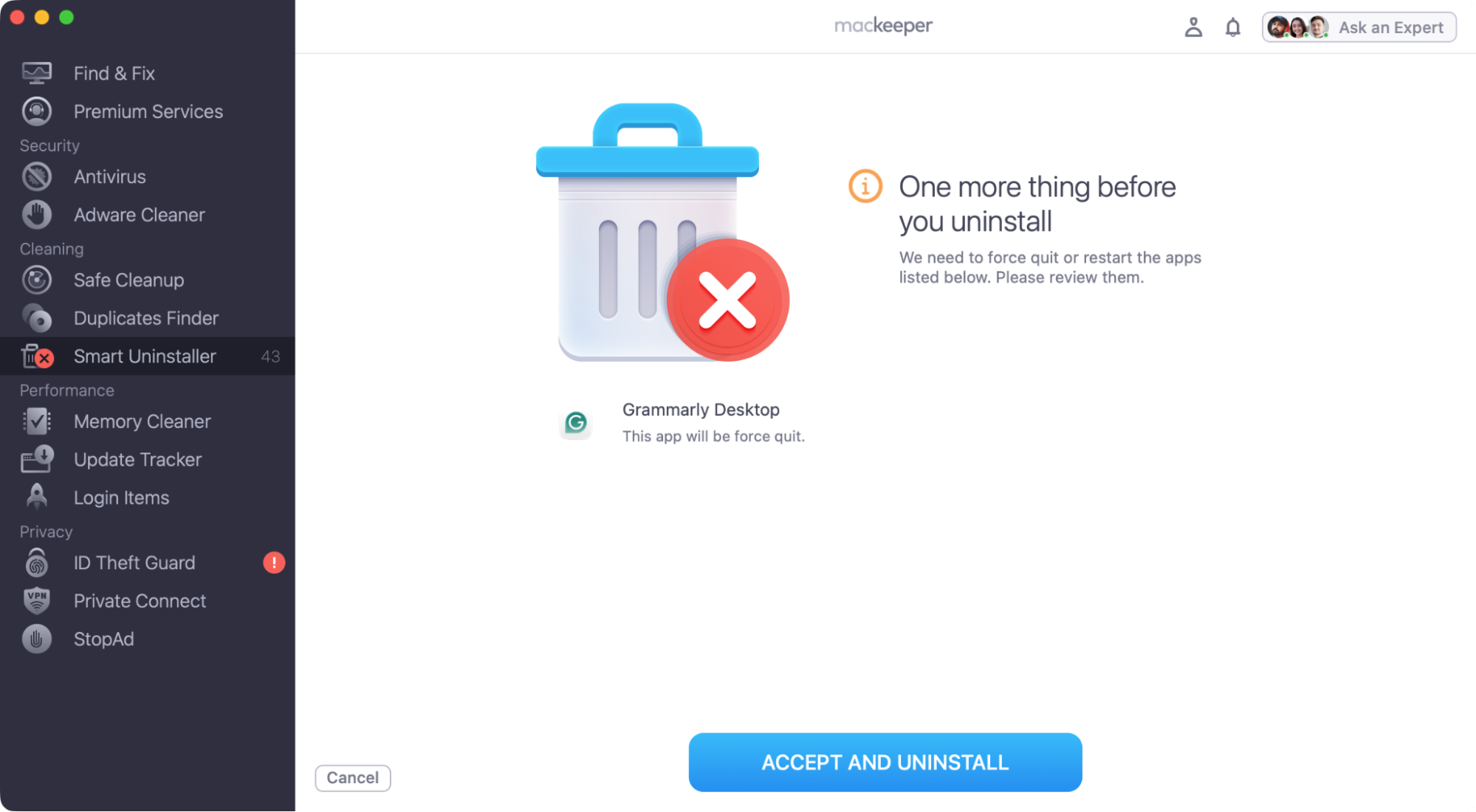
Click Accept and Uninstall, and MacKeeper will close and delete Grammarly.
Step 1. Open Smart Installer and click Start ScanStep 2. Click Application, select Grammarly Desktop, and click Remove SelectedStep 3. Click Accept And Uninstall
Say goodbye to Grammarly
In most cases, to delete Grammarly from your Mac when it says it's open, you just need to quit or force quit the app, and then try deleting the app again. There are a few ways to do this, and we also suggest trying safe mode if the Grammarly app stubbornly refuses to go. Read how to delete apps on Mac that won't delete to learn more.
But if none of the above-mentioned tips here do the trick, reach out to the MacKeeper’s Premium Services team. They know macOS like the backs of their hands, and they can help you solve your Mac problems in no time.
We respect your privacy and
use cookies
for the best site experience.
Privacy Preferences Center
We use cookies along with other tools to give you the best possible experience while using the
MacKeeper website. Cookies are small text files that help the website load faster. The cookies we
use don’t contain any type of personal data meaning they never store information such as your
location, email address, or IP address.
Help us improve how you interact with our website by accepting the use of cookies. You can change
your privacy settings whenever you like.
Manage consent
All cookies
These cookies are strictly necessary for enabling basic website functionality (including page
navigation, form submission, language detection, post commenting), downloading and purchasing
software. The website might malfunction without these cookies.