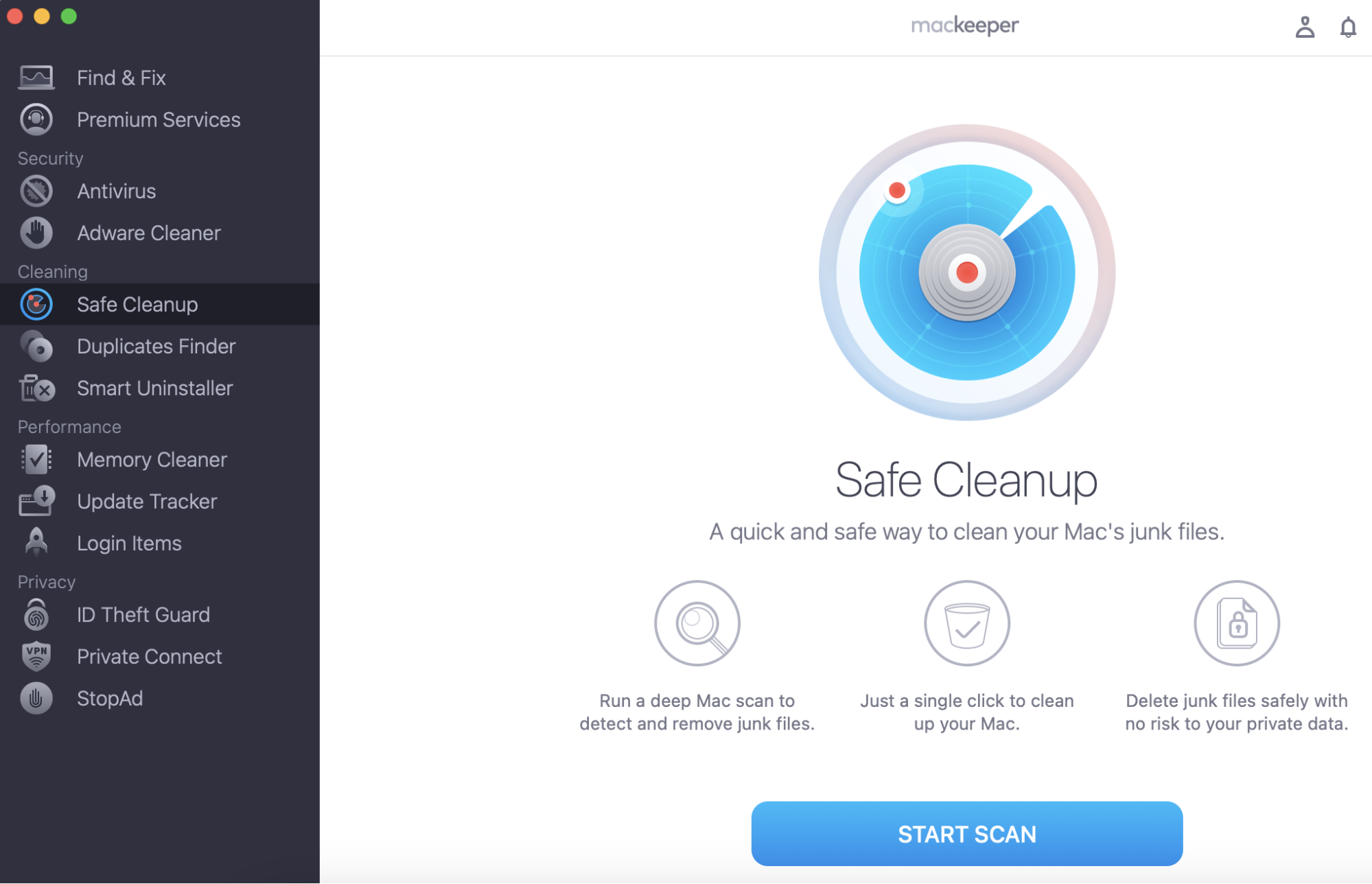
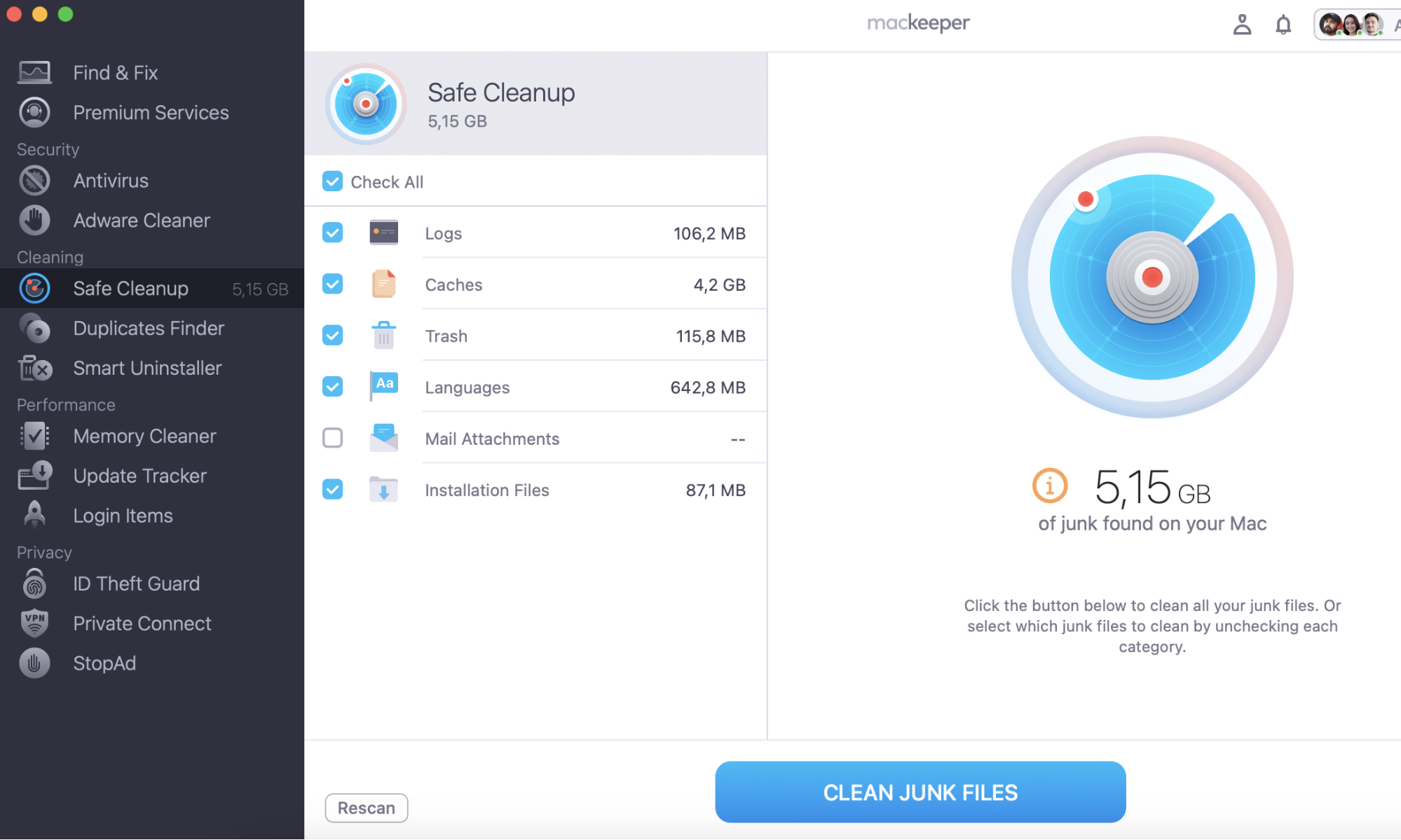
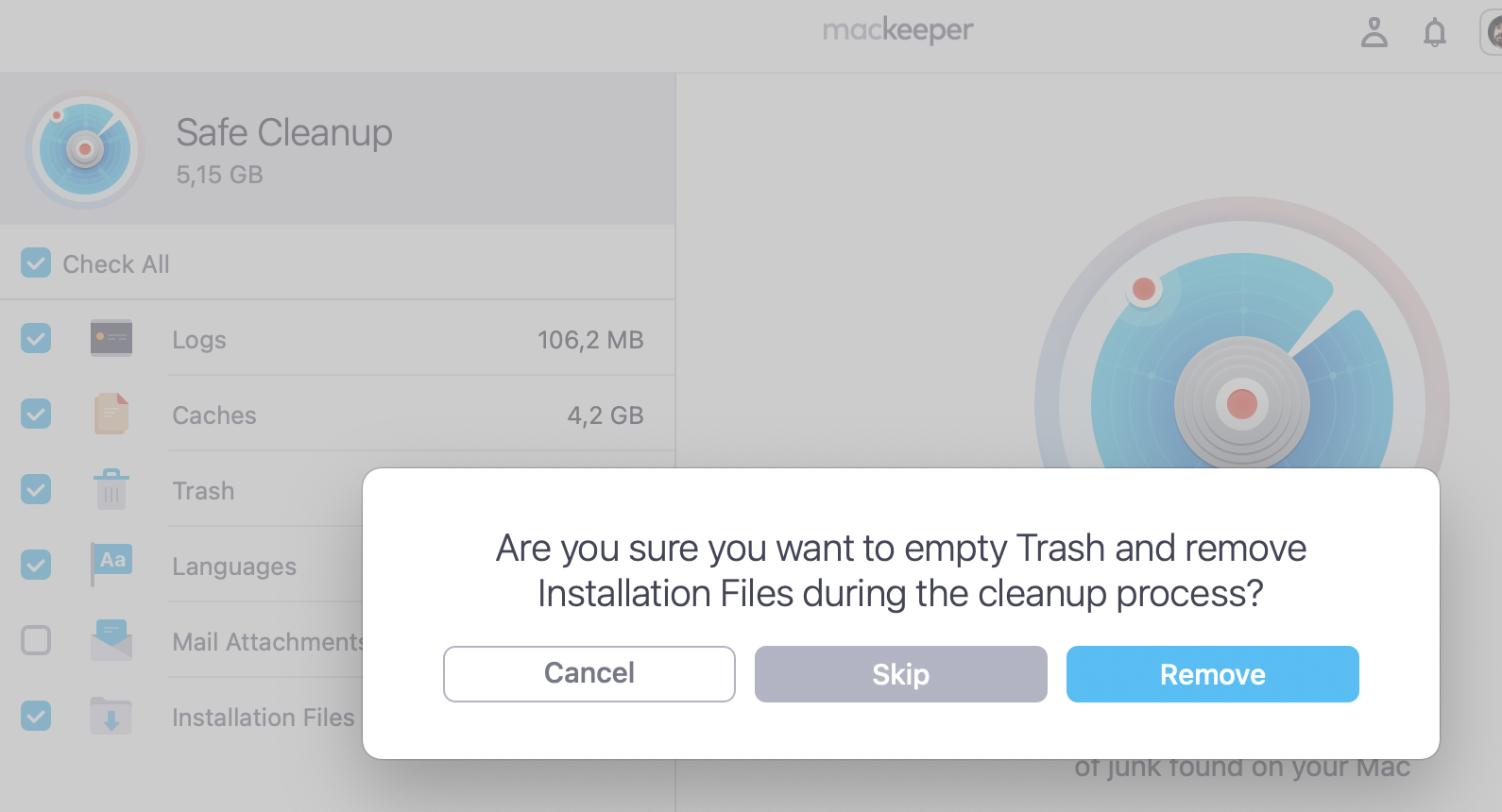
Before upgrading a Mac to macOS Monterey, make sure you have enough storage and won’t transfer junk files to your new system. MacKeeper’s Safe Cleanup can quickly help you remove junk, logs, cache, and other useless files to reclaim your storage for the upgrade.
Upgrading to macOS Monterey requires a minimum of 26GB of disk space to install. There’s a dedicated app that can help you free up some space. MacKeeper’s Safe Cleanup removes digital junk from your Mac in a few clicks.
Use MaceKeeper Safe Cleanup to free up valuable space:
macOS Monterey compatibility & system requirements
This is a full list of Macs able to run Monterey:
MacBook Pro (2015 or later)
MacBook Air models (2015 or later)
MacBook models (2016 or later)
Mac Pro models (2013 or later)
iMac models (from autumn 2015 or later)
iMac Pro (all models)
Mac mini models from autumn 2014 or later
This list has dropped off a number of the Macs able to the last release, Big Sur. If you have one of these Macs, unfortunately, you cannot upgrade from Big Sur:
2013/14 MacBook Air
2013/14 MacBook Pro
2014 iMac
2015 MacBook
If you're upgrading from macOS Sierra, you'll need a minimum of 26GB of storage remaining on your hard drive. If you're upgrading from an earlier OS, you'll need at least 44GB. However, for your Mac to continue to run well, it's not advisable to install the upgrade if you only have enough space remaining.
macOS Monterey release date
macOS Monterey was released on the 25th of October 2021. However, the macOS Monterey public beta test system remains available to allow testing of new updates as they are released.
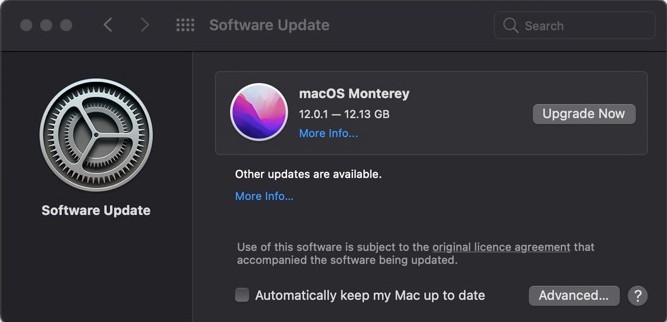
If your Mac is running macOS 10.14 (Mojave) or later, go to the Apple icon in the top left of your screen and select System Preferences.
The screen that appears will show Monterey as available. Click Upgrade Now.
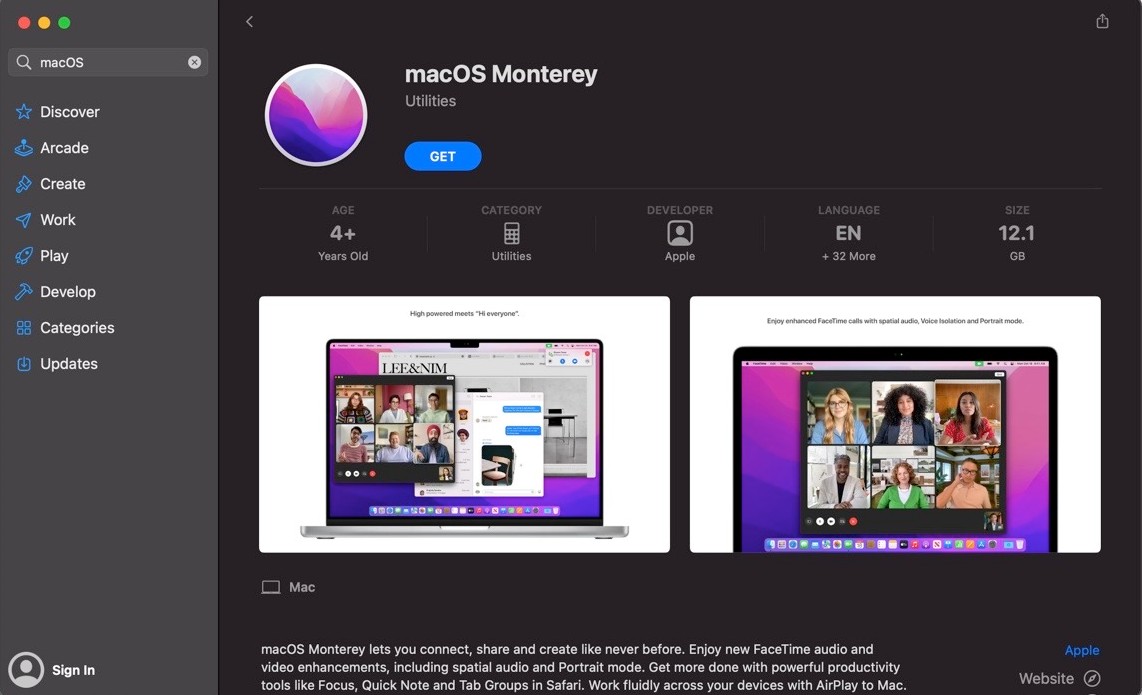
If your Mac is using an older, but still compatible, version of macOS, you will need to download Monterey from the App Store.
Click on the App Store icon (a blue square with a white A) and search for macOS.
The search should bring up Monterey as one of the first results. Click on it and choose Getor Download, depending on your version of the App Store.
Enter yourApple IDand password if prompted.
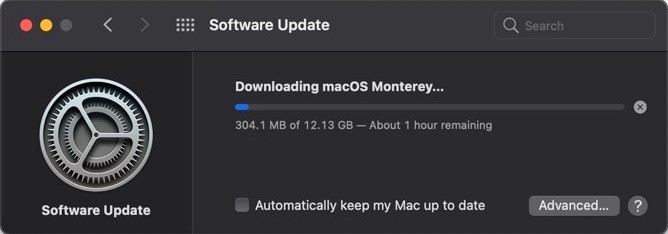
The download will start at this point, whichever way you access the new version. Depending on your current version of macOS, the download can be anywhere from 20 GB to 40 GB. It’s likely to take several hours to download in full. If possible, you may want to consider starting the download before you go to bed and leaving it running overnight.
Once the download completes, the installer will launch automatically.
Click Continueto begin the installation. Please be aware that this process could take over an hour to complete.
Step 1. Open System Preferences go to Software Update and click Upgrade Now Step 2. On older Macs open App Store search for the macOS and click GetStep 3. Wait for the update to download
Note: This process can take anywhere from a few minutes to a couple of hours so make sure your laptop is plugged in.
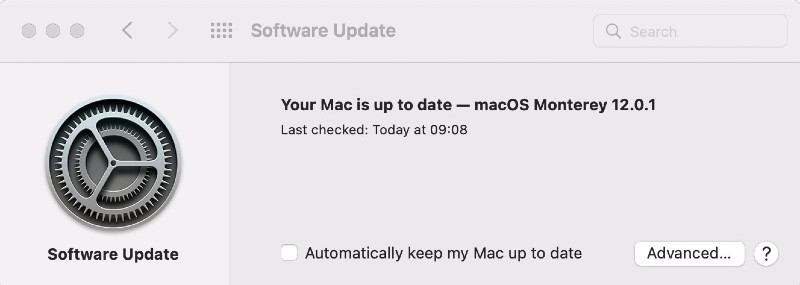
Once the install completes, you’ll be asked to log back onto the Mac, and you will see this screen.
You have now successfully upgraded to macOS Monterey.
macOS 12 Monterey: new features
AirPlay to Mac. You can now send music from your iPhone or iPad directly to your Mac using AirPlay. As the new iMac has had a speaker upgrade, this is a really useful feature.
FaceTime and Messages. This function improves the level of interaction during a FaceTime chat quite dramatically. It will allow multiple users in a FaceTime conversation to watch a movie together, listen to music or look at an app window together. All members of the chat will be able to control the media, and it will even be possible to build an in-chat playlist. This feature has not been implemented at launch, however, and is expected to be released in a future update.
Focus. Focus allows you to set personalized focus modes. Monterey will come with a range of focus modes preloaded, but you can also create your own. These modes will dictate which notifications you receive while in that state. So, for example, during work time, you can set it to allow work-related notifications but block any from social media to prevent distractions.
Low Power Mode. This is a function more often seen on mobile devices. If your MacBook detects it’s low on power, it will reduce its screen brightness and the system clock speed to save power.
Quick Notes. This functionality is already a part of iOS 15. It allows you to create notes without opening the Notes app. You can add images and links to the notes, which will open directly in Safari. Your notes will copy automatically to the Notes app and be available on all your devices. There’s also a new Activity function in notes which allows you to see revisions made by other users in a shared note.
Reset Without Reinstall. An option added to System Preferences will allow you to erase all user data and apps while leaving the macOS intact.
Revamped Safari. Safari is one of the key apps used by all Apple devices. It's had an upgrade for Monterey, which includes a new look with more rounded corners. It also has a streamlined tab bar allowing users to view more of the screen, which color matches the page you're on. Safari now also offers an integrated smart search which allows you to search from your current tab.
Shortcuts. Shortcuts have been a part of iOS for a while, and now they’re coming to macOS. This app allows you to set up customized shortcuts on your iMac or MacBook. You can run them using the Finder, Siri, and the Dock.
Universal Control. The feature Apple fans seem most excited about is universal control. When you put your iPad next to a machine running Monterey, you can move your mouse to the corner of the screen nearest the iPad. The cursor image will change, and if you keep pushing, it should disappear from your Mac and appear on the iPad. You will then be able to use your Mac’s keyboard and mouse on your iPad.
Wrapping up
These features sound like they will add a lot of functionality to the Mac, particularly in FaceTime and Safari. Don’t let that push you to rush to upgrade, though. Make sure your Mac is compatible with Monterey and has enough space to run without slowing your Mac down too much. You should also check if any vital apps have an update ready.
Once you’re ready to upgrade, follow the guide above in full to ensure a pain-free upgrade to Monterey.
We respect your privacy and
use cookies
for the best site experience.
Privacy Preferences Center
We use cookies along with other tools to give you the best possible experience while using the
MacKeeper website. Cookies are small text files that help the website load faster. The cookies we
use don’t contain any type of personal data meaning they never store information such as your
location, email address, or IP address.
Help us improve how you interact with our website by accepting the use of cookies. You can change
your privacy settings whenever you like.
Manage consent
All cookies
These cookies are strictly necessary for enabling basic website functionality (including page
navigation, form submission, language detection, post commenting), downloading and purchasing
software. The website might malfunction without these cookies.