Are you struggling with a VTDecoderXPCService Mac problem? If this background process is slowing down your Apple computer, then read on for expert advice—but first, try MacKeeper’s Memory Cleaner for a super-quick speed boost.
The VTDecoderXPCService Mac process is a standard element of macOS. It’s part of the Apple Video Toolbox, which your Mac’s operating system uses for video and audio compression and decompression, as well as conversion between raster image formats. Under normal operating conditions, VTDecoderXPCService shouldn’t cause your Mac any problems, but it can cause CPU spikes, which slow down your system. Fixes include restarting your Mac, updating macOS, and clearing browser caches.
Why does VTDecoderXPCService have high CPU and memory usage on Mac?
The VTDecoderXPCService Mac high memory problem can be caused by many different factors. If you’re doing anything that uses video processing, including editing video or playing movie files, you might notice VTDecoderXPCService using CPU on your Mac more than usual. High CPU usage can also be caused by bugs in macOS or third-party software, corrupt web browser caches, dynamic wallpapers, and even malware.
A note from our experts:
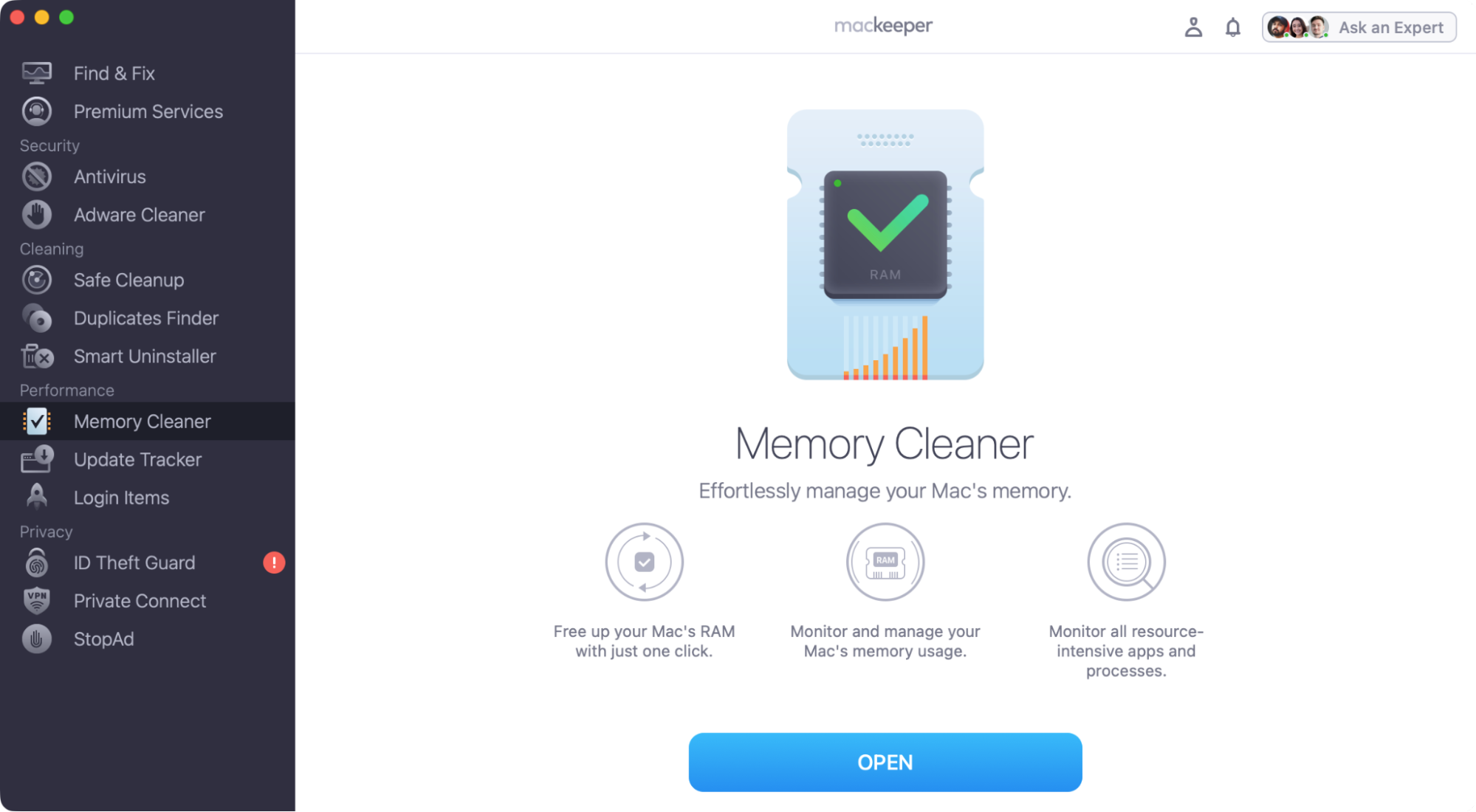
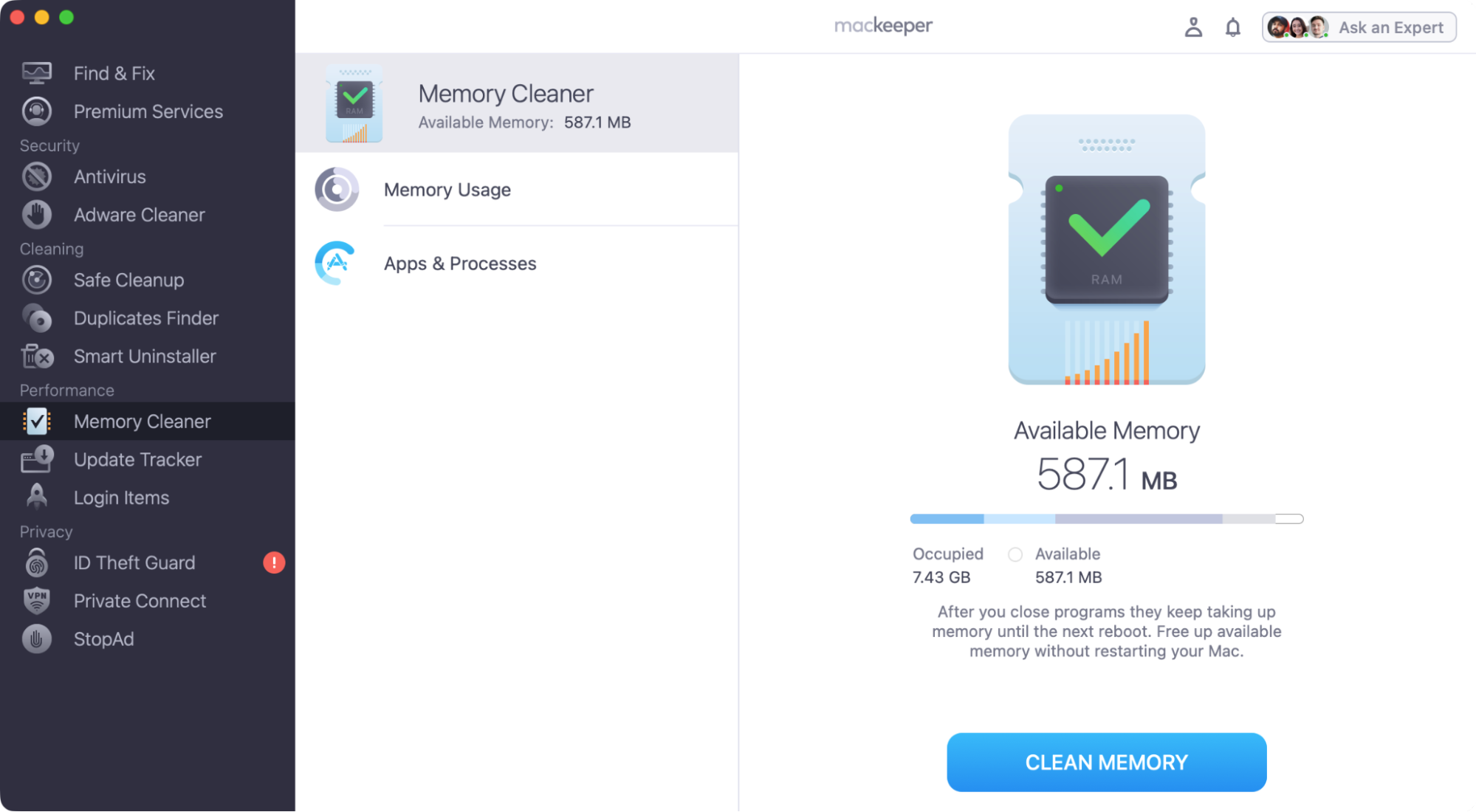
If you’re looking for a quick way to solve your VTDecoderXPCService problem, try MacKeeper’s Memory Cleaner. In a couple of clicks, it will shut down unnecessary background processes, freeing up RAM and CPU resources, so you can get on with using your Mac.
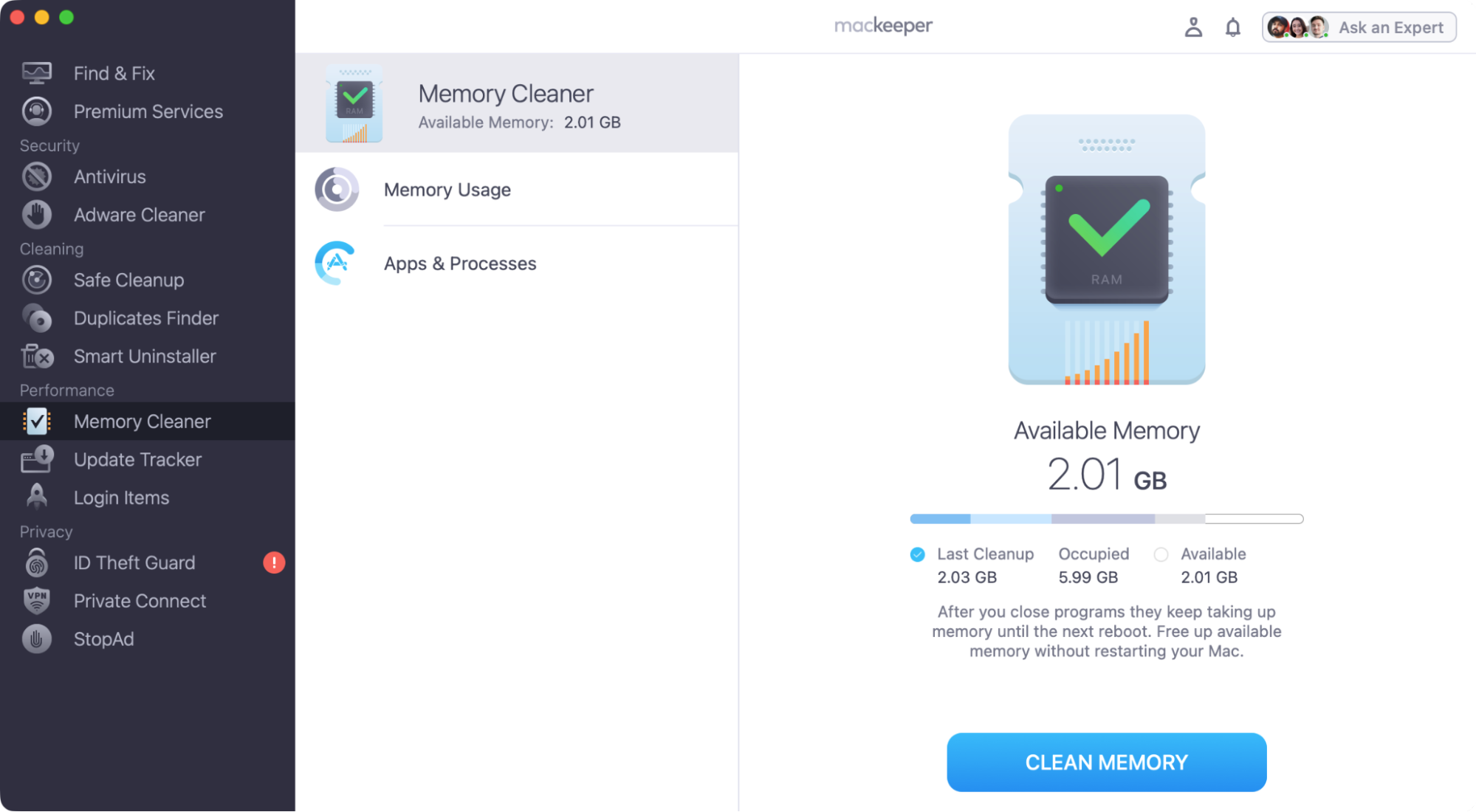
Click Clean Memory, and Memory Cleaner will instantly free up RAM for you.
Step 1. Open the MacKeeper Memory Cleaner toolStep 2. Click Clean MemoryStep 3. Enjoy your free RAM space
How to fix VTDecoderXPCService high CPU?
Fixing VTDecoderXPCService high memory issues usually involves working through a series of potential fixes. First of all, try closing down any audio or video apps you currently have running, including QuickTime player, iMovie, GarageBand, and iTunes. Fully shut down your web browsers too, and clear their cache data. Also, make sure that macOS and all your third-party apps are up to date, and run a malware scan.
1. Close audio and video-related apps
First of all, we suggest shutting down any video or audio applications, which could be using the VTDecoderXPCService process.
The kind of apps you should close include:
Audio-visual apps such as QuickTime Player, VLC, and Plex.
Video-editing software, like iMovie and Final Cut Pro.
Web browsers, including Safari, Firefox, and Chrome.
Music apps like iTunes and Spotify.
Audio-editing software like GarageBand and Audacity.
Dynamic screensavers.
Messaging apps, including Messages and WhatsApp.
File management apps, such as Asana.
Apps like QuickTime may be using the VTDecoderXPCService process
A warning from our team:
The above-mentioned method won’t necessarily close apps running in the background on your Mac, but it’s a good start. After shutting these things down, see if your Mac runs any faster.
2. Restart your Mac
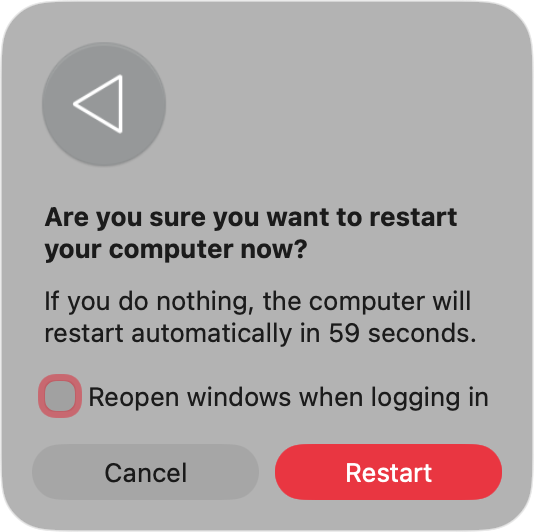
With many Mac performance-related issues, we advise a simple restart. If an app is frozen or malfunctioning, or if you’re running out of RAM, a restart can be enough to fix the problem and get your computer running smoothly again.
To restart your Mac:
Click the Apple icon at the top of your screen.
Select Restart.
Make sure Reopenwindows when logging in isn’t selected, and click Restart.
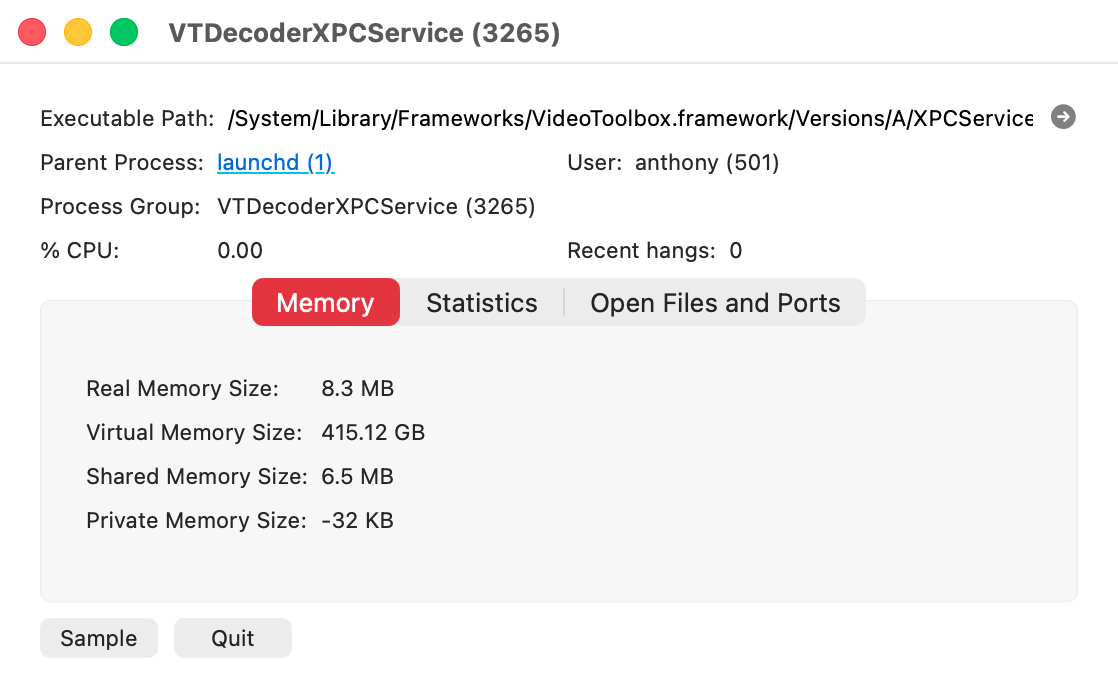
The macOS Activity Monitor app gives you an easy way to check Mac CPU usage, as well as RAM and network usage. You can also use Activity Monitor to shut down VTDecoderXPCService, like this:
Open Activity Monitor from Applications > Utilities.
Find VTDecoderXPCService in the list of services, and double-click it.
Click the Quit button.
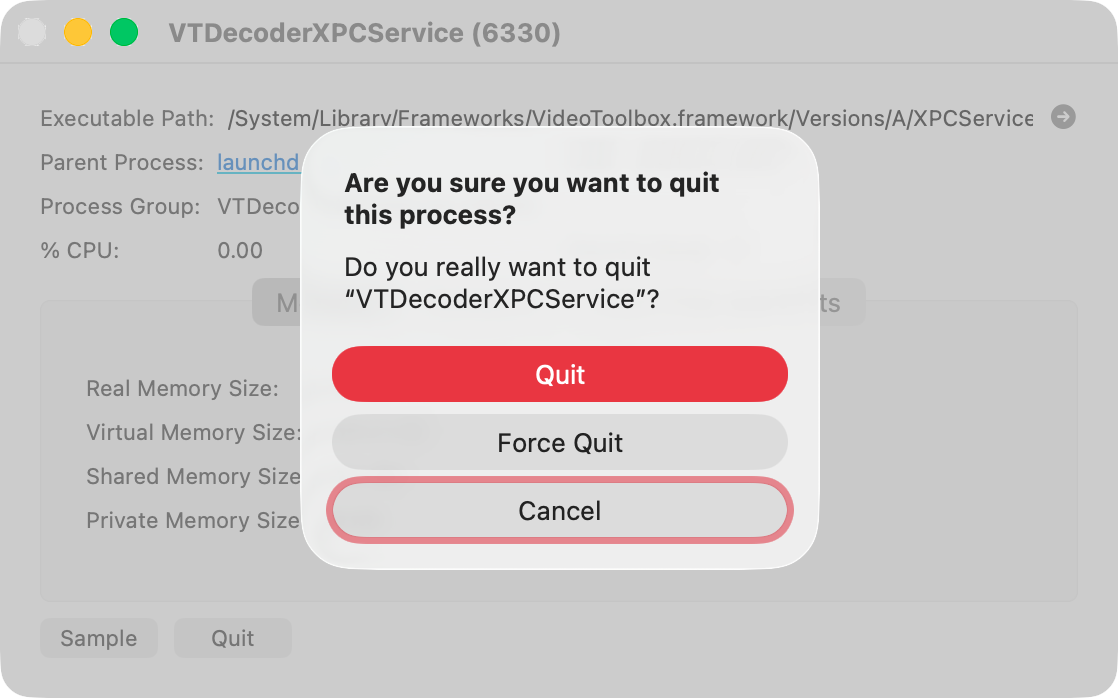
In the pop-up dialog, click Quit or Force Quit.
Now check if your Mac is running any faster.
Step 1. Double-click VTDecoderXPCService in Activity MonitorStep 2. Click the Quit buttonStep 3. Click Quit or Force Quit
We advise keeping an eye on Activity Monitor for a few more minutes to see if VTDecoderXPCService starts itself up again and how it behaves.
4. Update macOS
VTDecoderXPCService problems can also be caused by bugs in macOS, so it’s important to keep your Mac’s OS up to date. Here’s how to check for and apply updates:
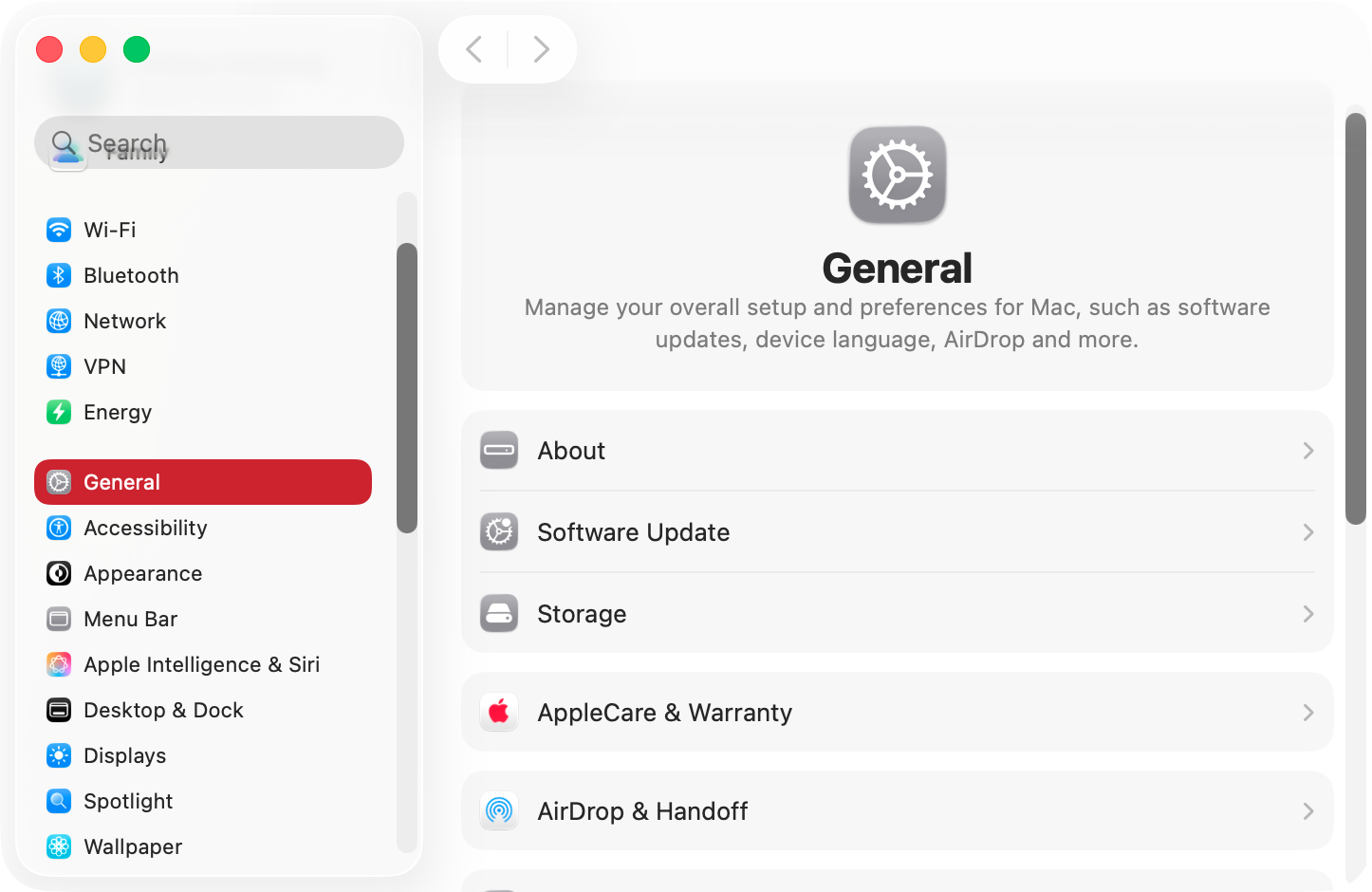
In your Mac’s System Settings, select General > Software Update.
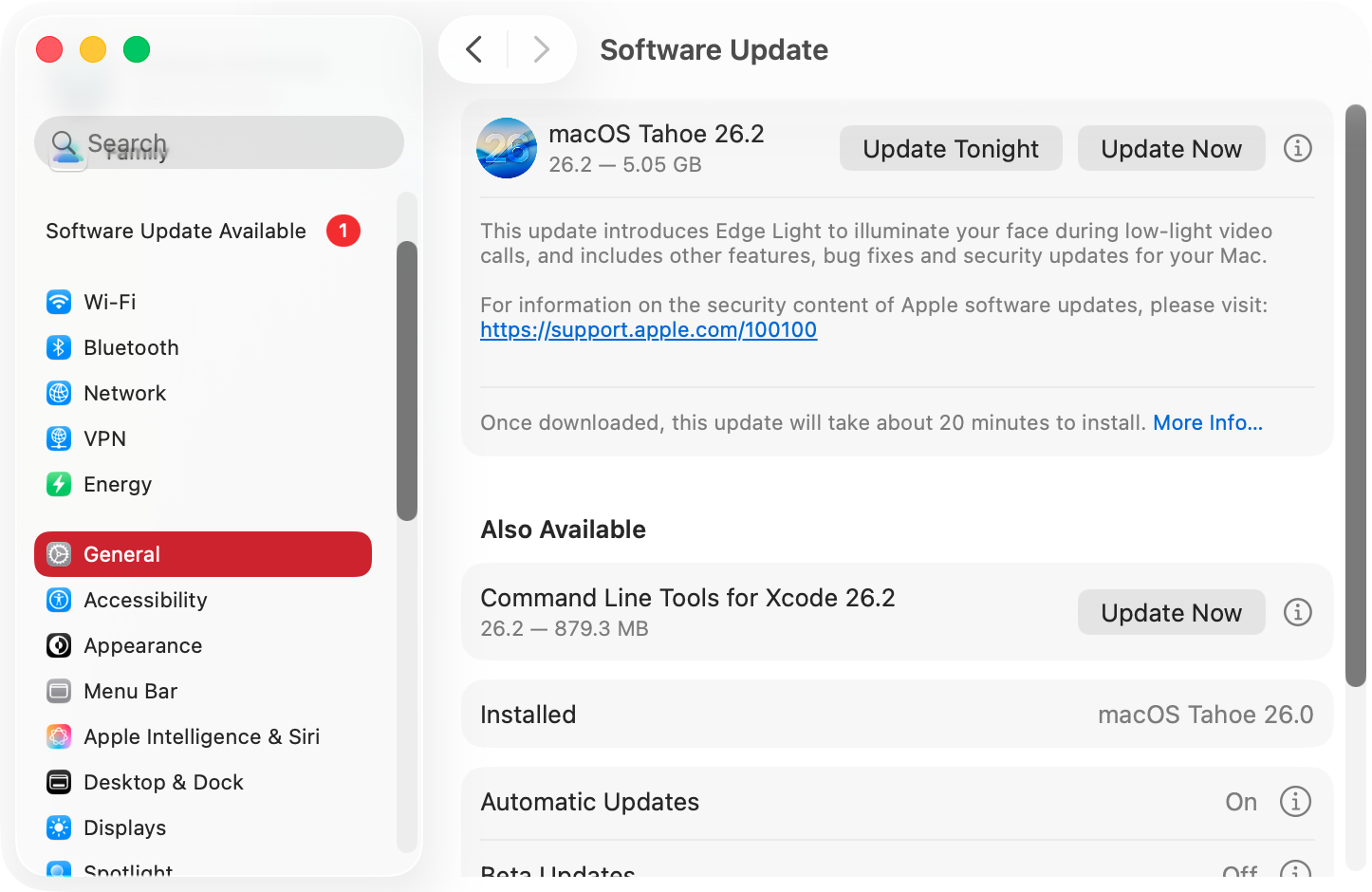
If an update is available, click Update Now.
Follow the on-screen prompts to install the update.
When the update is finished, check to see if VTDecoderXPCService is still using a lot of CPU cycles.
Step 1. In System Settings, select General > Software UpdateStep 2. If there's an update available, click Update NowStep 3. Apply the macOS update
5. Clear browser cache
If you clear out temporary browser cache data, you might remove what’s causing your VTDecoderXPCService issue. Clearing cached files can also give your Mac a speed boost. Let’s look at how to do it for different web browsers.
5.1. Safari
To clear Safari’s cached files, do as follows:
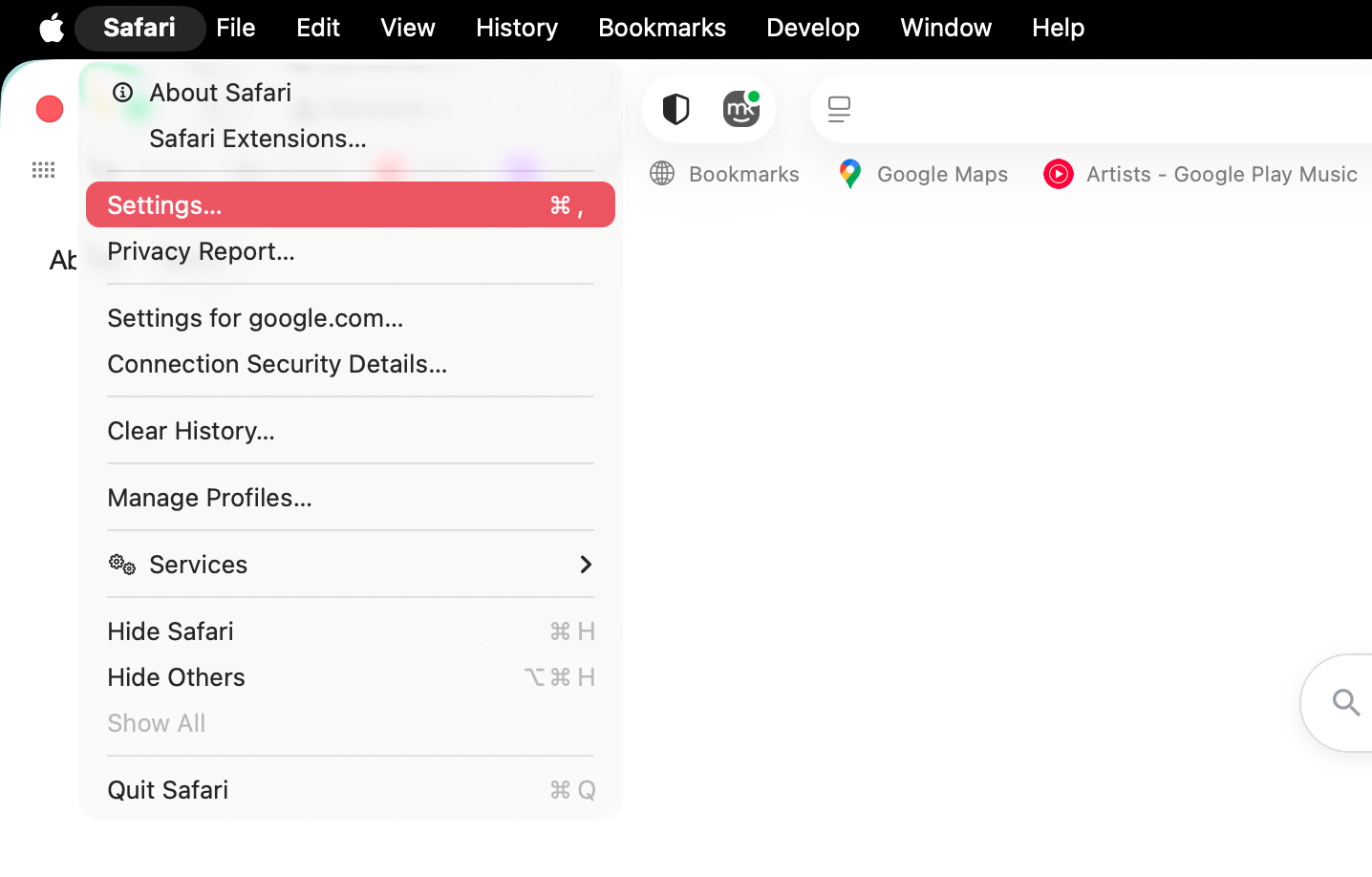
In Safari, select Safari > Settings from the menu bar.
Open the Advanced section of Safari’s settings.
Enable Show features for web developers.
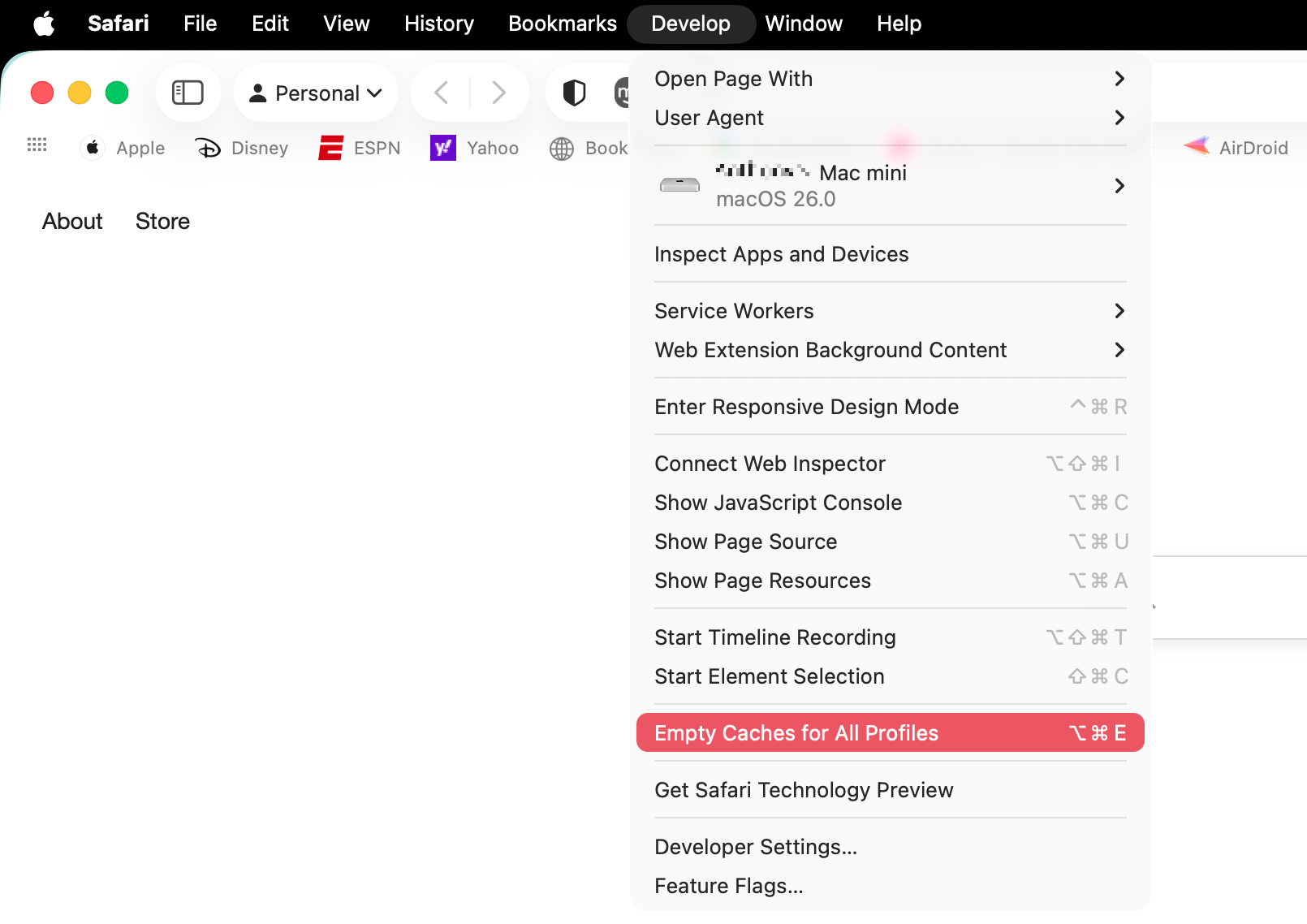
Return to Safari, and from the menu bar, select Develop > Empty Caches for All Profiles.
Step 1. Open your Safari settingsStep 2. Activate the developer menuStep 3. Choose Empty Caches for All Profiles
5.2. Chrome
If you want to delete Chrome’s cached data, here’s what to do:
Click the three dots in the top right of Chrome, and select Delete browsing data.
Use the drop-down menu at the top to choose All time.
Click Delete data.
Step 1. Select Delete browsing data
5.3. Firefox
Erasing your Firefox cache is easy. Just follow our process here:
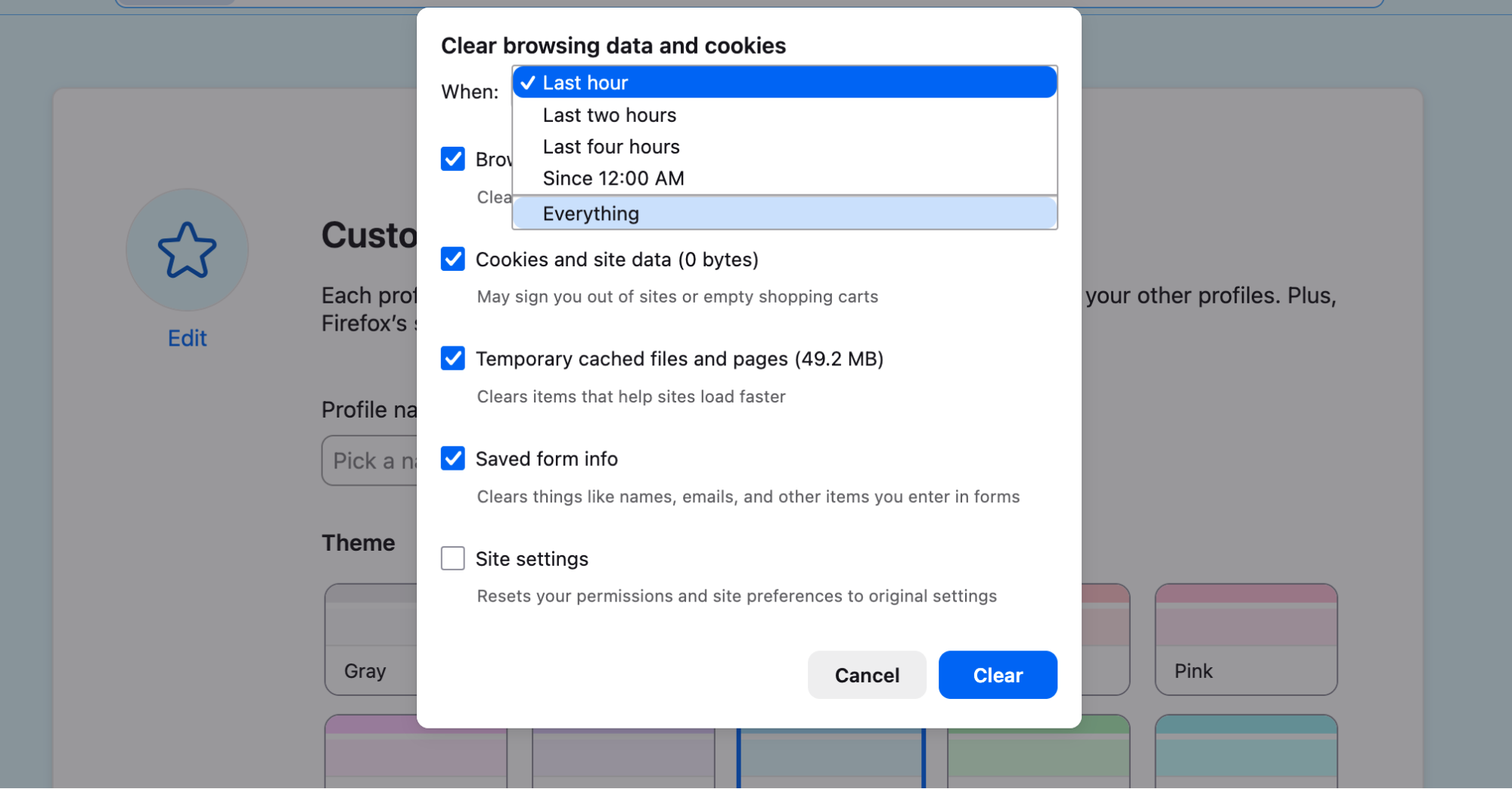
While in Firefox, press Cmd+Shift+Del to bring up the Clear browsing data and cookies menu.
Use the drop-down menu to choose Everything.
Click the Clear button.
6. Update applications
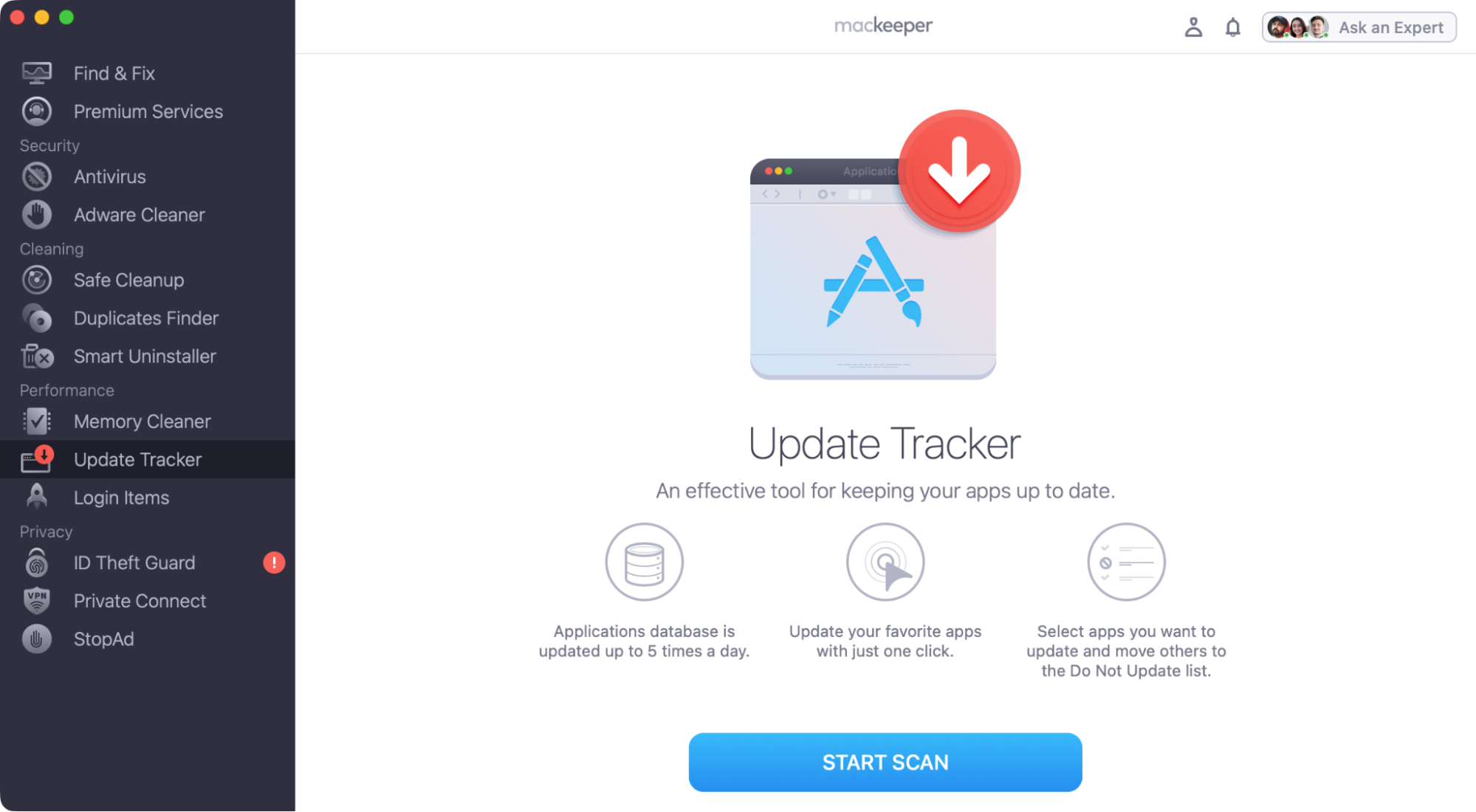
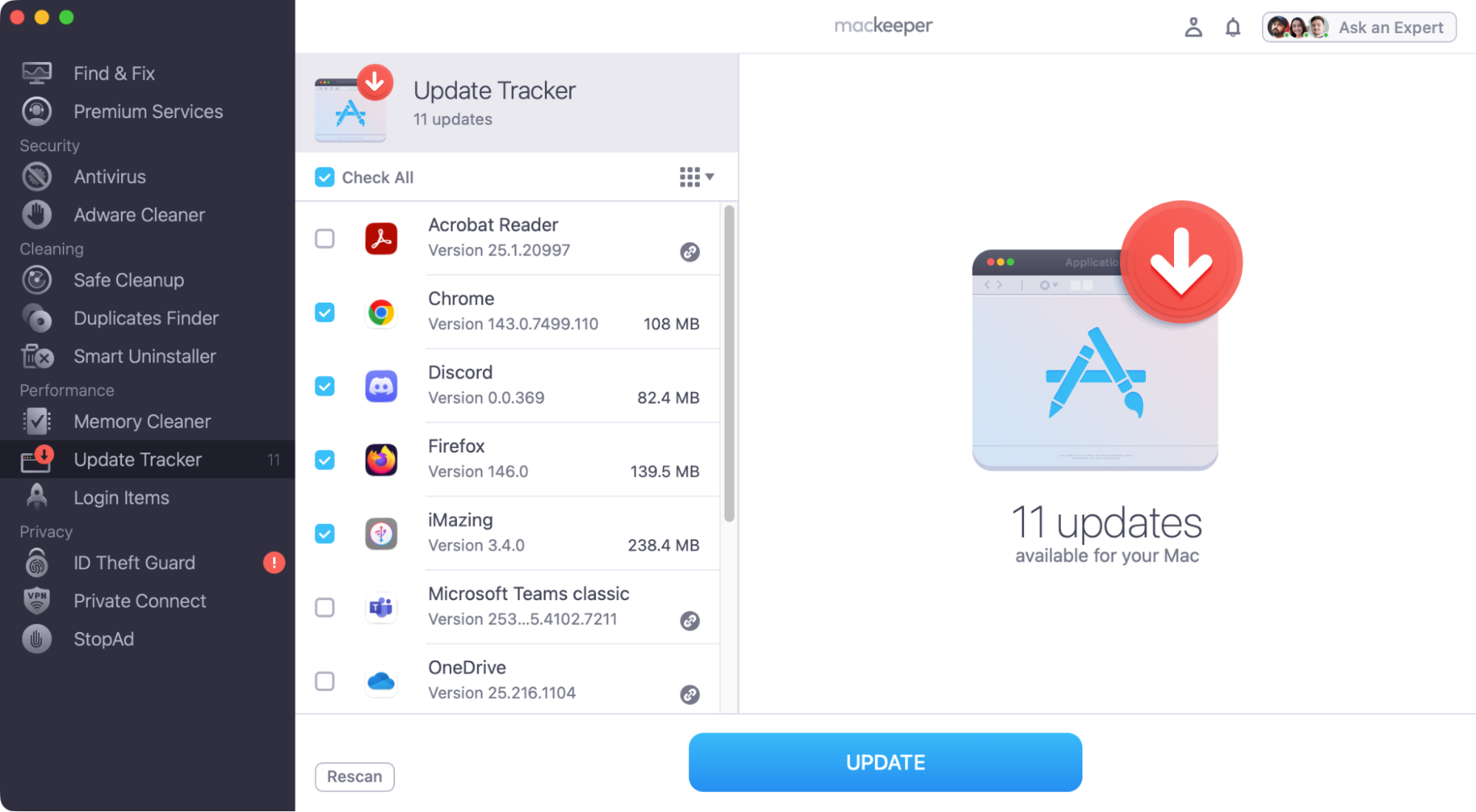
You should keep all your third-party apps up to date, but particularly video and audio apps if you’re having VTDecoderXPCService CPU issues. You can manually check all your apps, but if you want to save time, use MacKeeper’s Update Tracker:
Choose Update Tracker from the MacKeeper side menu.
Click Start Scan.
When the scan is done, select everything you want to update, and click Update.
If any of the apps are running, click Quit All.
Step 1. Open Update Tracker, and click Start ScanStep 2. Choose what to update and click the Update button
7. Check for malware
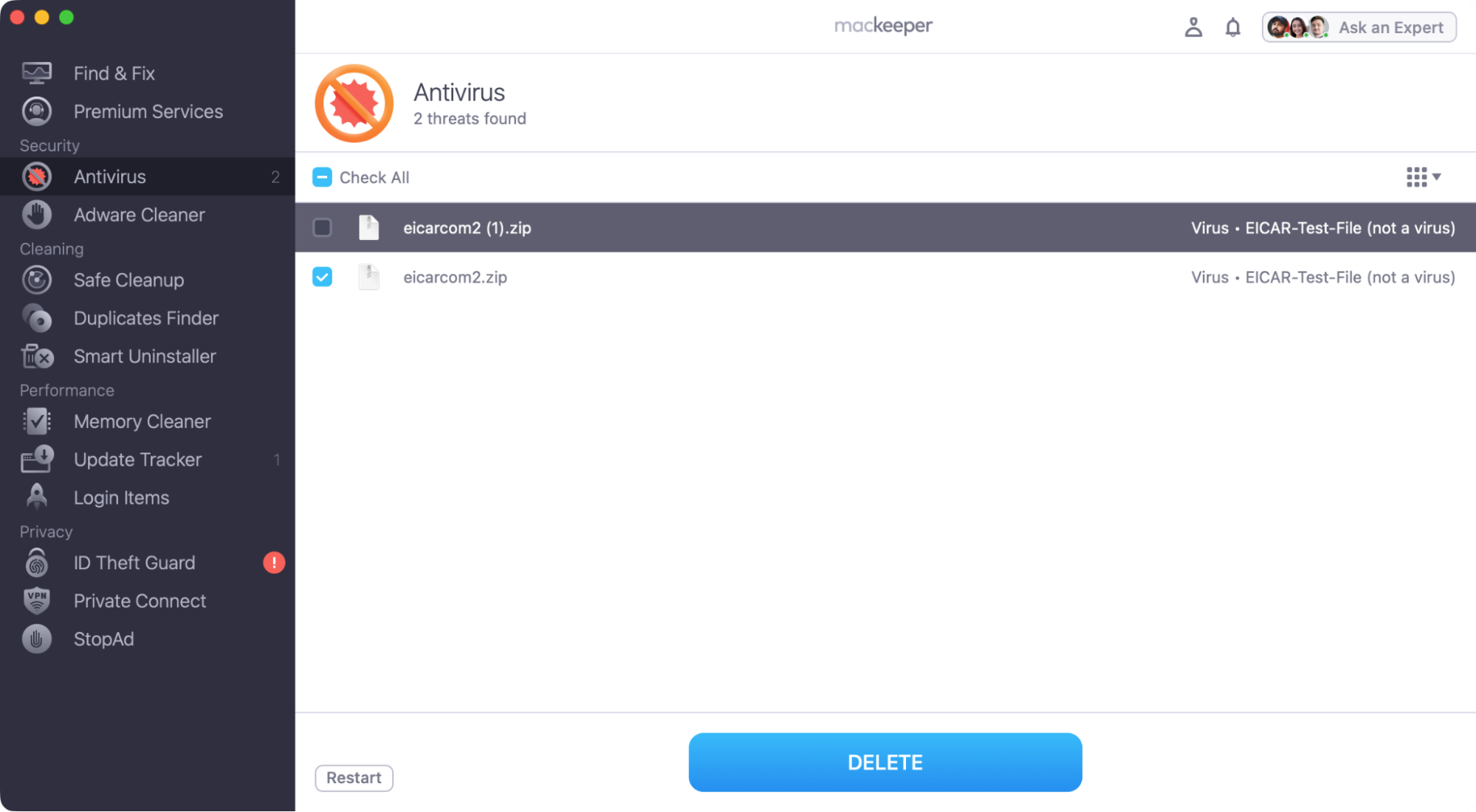
Although macOS has some basic security features, you need a dedicated antivirus tool to check for malware. We use MacKeeper’s Antivirus feature for this:
Click Start Scan, and wait for the scan to finish.
If Antivirus finds anything malicious, select it from the list and click Delete.
Restart your Mac, and see if VTDecoderXPCService is still causing slowdowns.
Step 1. Open MacKeeper's Antivirus, and click Start ScanStep 2. If Antivirus finds anything, select it and click Delete
8. Replace dynamic wallpapers or disable animated screensavers
There’s an outside chance that your Mac’s dynamic wallpaper could be causing VTDecoderXPCService to hog CPU resources, so we recommend replacing or disabling yours.
Here’s how:
In System Settings, choose Wallpaper from the side menu.
First, try choosing a different dynamic wallpaper.
If your VTDecoderXPCService issue persists, select a static image wallpaper, and see if it makes a difference to the VTDecoderXPCService process.
9. Boot into safe mode
Putting your Mac in safe mode makes it start without any third-party apps or drivers. We recommend giving this a try if VTDecoderXPCService is slowing your computer down.
Putting an Apple Silicon Mac in safe mode:
Turn your Mac off, then press and hold the Power button.
Keep holding the Power button until you see Loading Startup Options.
Select your system disk.
Press and hold Shift, then click Continue in Safe Mode.
Now log into macOS and see if VTDecoderXPCService is still causing issues.
To put an Intel-based Mac in safe mode:
Turn off or restart your Mac.
As soon as your Mac restarts, press and hold Shift.
When you see the login screen, let go of the Shift key.
Log into your Mac, and check if your VTDecoderXPCService has been resolved.
10. Optional: Check for hardware acceleration issues (older codecs)
Video codecs can be encoded and decoded by software or by your Mac’s hardware. If you use hardware decoding, it will often lead to smoother video and fewer problems.
However, with older codecs, you might experience compatibility issues with your hardware—and that can lead to the dreaded VTDecoderXPCService high CPU problem.
To switch between software and hardware acceleration, you need to make a choice in each individual app that supports it. If you’re using Adobe Premiere, find the hardware acceleration option in the settings and turn it off, then see if VTDecoderXPCService still spikes.
Streamline your Mac for better performance
When the VTDecoderXPCService Mac process slows down your computer, it can be a highly frustrating experience. System slowdowns can cause freezing and stuttering, making your Mac unusable. In this guide, we’ve shown you how to check RAM usage on Mac using Activity Monitor, and how quitting the VTDecoderXPCService can give you a speed boost. It’s also important to check for malware and to make sure your Mac’s operating system and third-party apps are all up to date, too.
But if you need a quick speed boost, we recommend MacKeeper’s Memory Cleaner tool. In just a few seconds, it can close down all kinds of unnecessary background processes, including VTDecoderXPCService, giving your Mac a quick and much-needed speed boost. Give it a try today, and see what it can do for you.
We respect your privacy and
use cookies
for the best site experience.
Privacy Preferences Center
We use cookies along with other tools to give you the best possible experience while using the
MacKeeper website. Cookies are small text files that help the website load faster. The cookies we
use don’t contain any type of personal data meaning they never store information such as your
location, email address, or IP address.
Help us improve how you interact with our website by accepting the use of cookies. You can change
your privacy settings whenever you like.
Manage consent
All cookies
These cookies are strictly necessary for enabling basic website functionality (including page
navigation, form submission, language detection, post commenting), downloading and purchasing
software. The website might malfunction without these cookies.