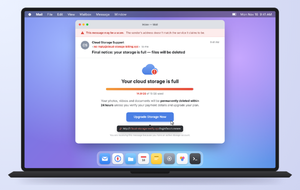
The 5-billionth search scam pretends to be harmless while it exploits your trust to make you share personal information and payment details. Protect your Mac with MacKeeper’s Antivirus, which detects malware, adware, and other potentially harmful files, and provides Real-Time Protection alerting you to any suspicious activity in advance.
What is "You've made the 5-billionth search" pop-up?
You've made the 5-billionth search notification is a deceptive popup designed to convince users they have been randomly selected to receive a prize. One of its tricks is to imitate Google’s branding and logos to gain users' trust. Although it isn’t a sophisticated trick, it can still be effective.
This pop-up shows congratulations on being the 5-billionth search visitor and promises a reward. Typical prizes include smartphones, tablets, gift cards, or other valuable things. The message usually claims that the reward is available only to the selected winner and requires only a few steps to claim it. The 5-billionth search scam is intended to encourage users to click suspicious links, provide personal info, or payment details. This is simply a form of phishing that pretends to be an official platform to convince users.
What to do if you clicked "5 Billionth Search" link?
If you accidentally clicked the Google 5-billionth search notification, don’t panic. Clicking this link doesn’t automatically mean your Mac is infected and your personal info is stolen. The real risk appears if you follow the instructions. Taking immediate action to get rid of adware can help to minimize the potential damage.
Follow these steps to protect your Mac and personal info:
Disconnect your Mac from the Internet.
Update passwords and secure online accounts.
Monitor bank statements and credit activity.
Disconnect your Mac from the internet
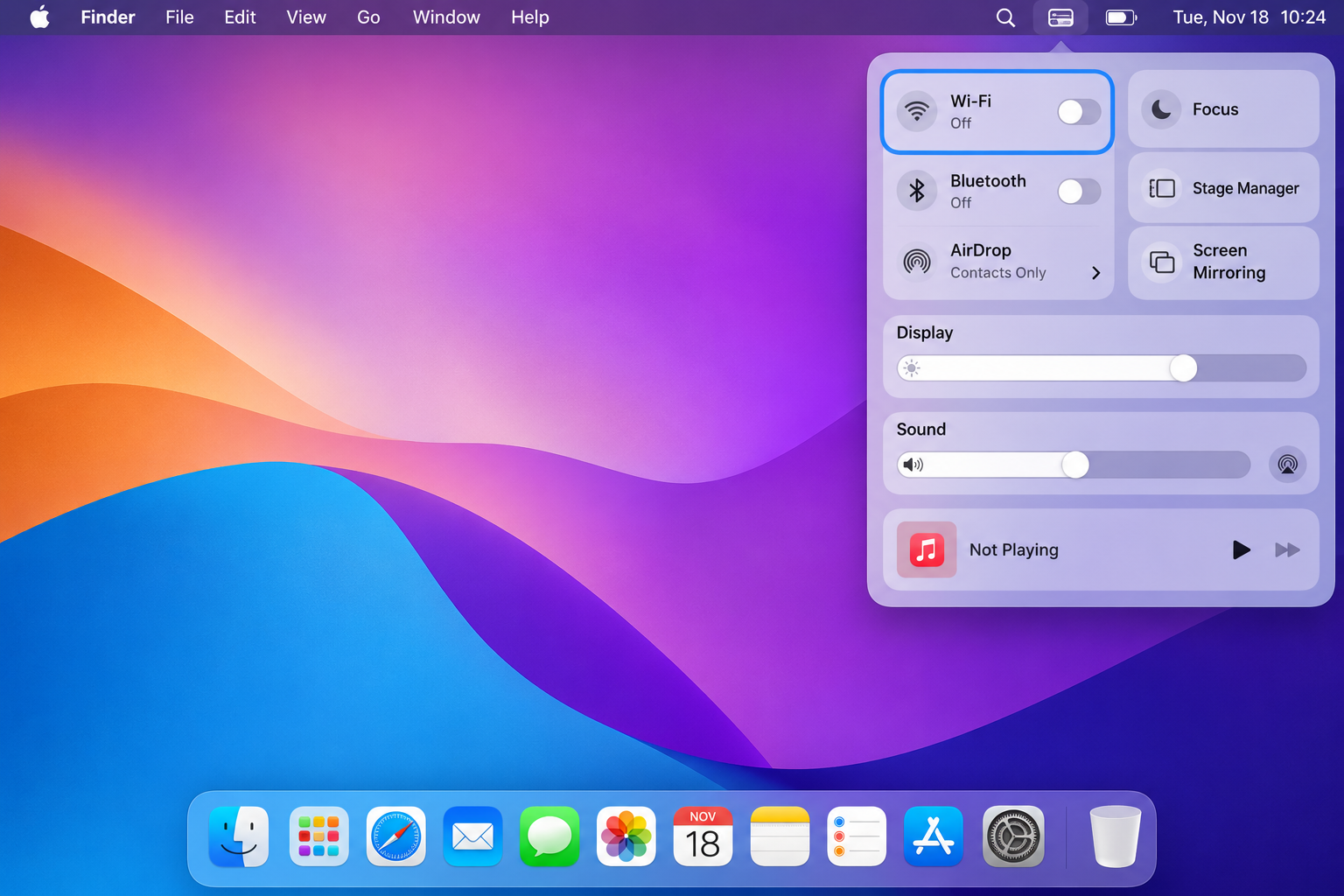
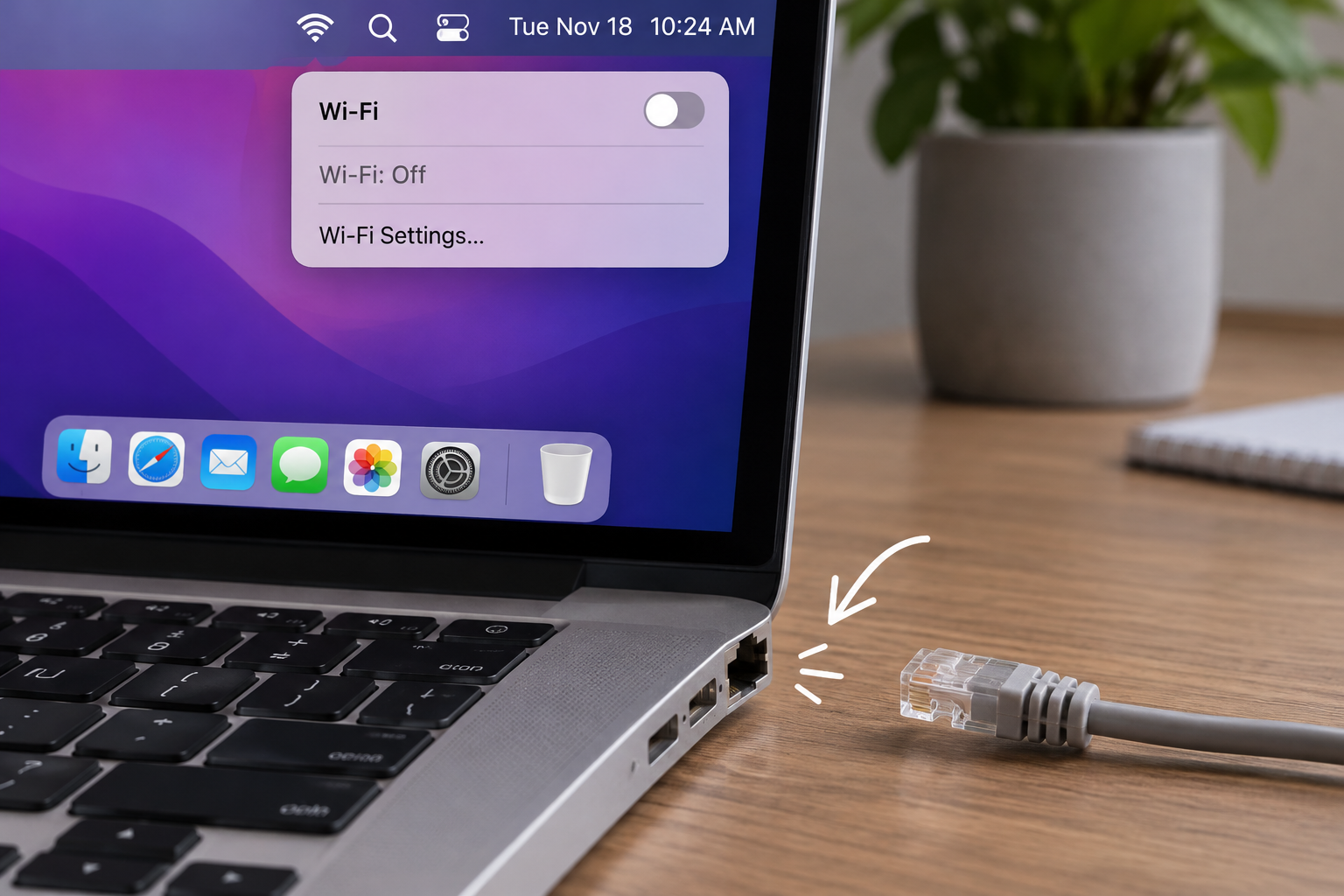
If you opened the 5-billionth search prize link, first disconnect your Mac from the Internet immediately. You can do it by turning off Wi-Fi or unplugging the Internet cable. These simple actions can sever the connection between potential malicious scripts and remote servers, preventing them from collecting your personal data or payment details. Keep your Mac offline until you complete the necessary security checks.
Turn Off Wi-FiUnplug the Internet cable
Update passwords and secure online accounts
The next step is to change your password to prevent scammers from accessing your accounts. Pay particular attention to the most important services, like your email, online banking, social media platforms, and cloud storage.
Besides, while changing passwords, don’t follow links from emails or messages. Instead, use trusted websites or official apps. Create a strong and unique password for each account to reduce the risk. Don’t hesitate to add two-factor authentication wherever it’s available to add more protection to your data.
Another important thing is to sign out of unfamiliar sessions and remove devices you don’t recognize.
Monitor bank statements and credit activity
If you shared your bank details trying to get the fake gift, contact your bank and explain that your payment information may have been compromised. Ask a bank representative whether you need to freeze your card, block further transactions, or request a replacement. Do not wait for suspicious transactions before reporting the incident.
In any case, check your recent transactions for any unfamiliar payments or withdrawals. Report any suspicious activity to your bank immediately. Even if you don’t see any unauthorized transactions, continue checking your bank account, as scammers may try to use your stolen payment details later.
How to remove "5 Billionth Search" scam?
5 Billionth Search is more than just an annoying pop-up. If it keeps appearing, it redirects your searches, opens unfamiliar websites, and interferes with all your browsing activities. Unfortunately, closing this pop-up isn't enough to solve the issue.
To remove the “5 Billionth Search” scam and reduce the risk of it returning, you need to clean your browser check your macOS for malicious software, and scan your Mac for suspicious files. Taking these steps will help you remove harmful components and reduce the chances of its return.
You can also learn more about malware pop-ups and how they affect your Mac’s performance, disrupting your everyday browsing.
A note from our experts:
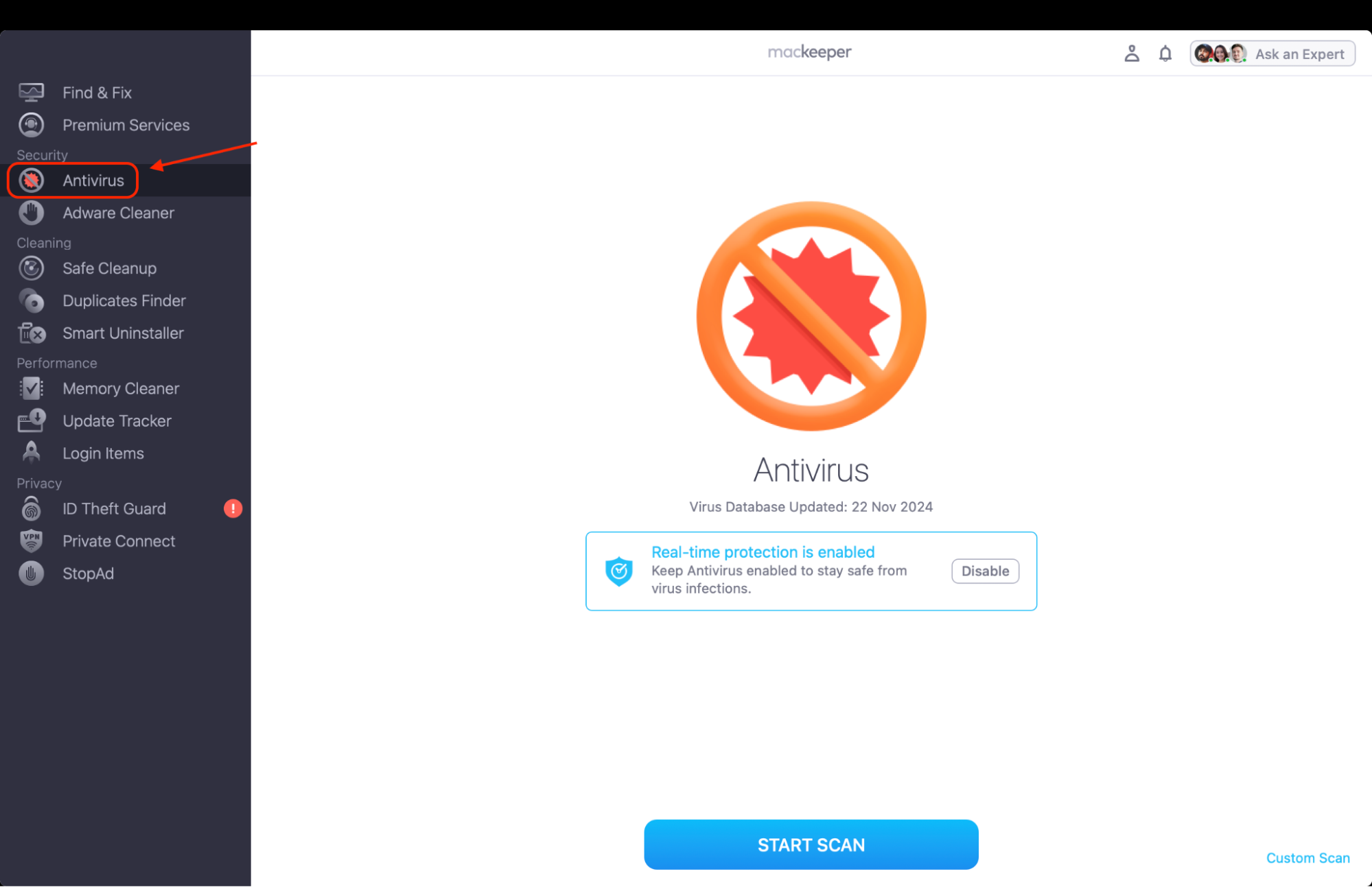
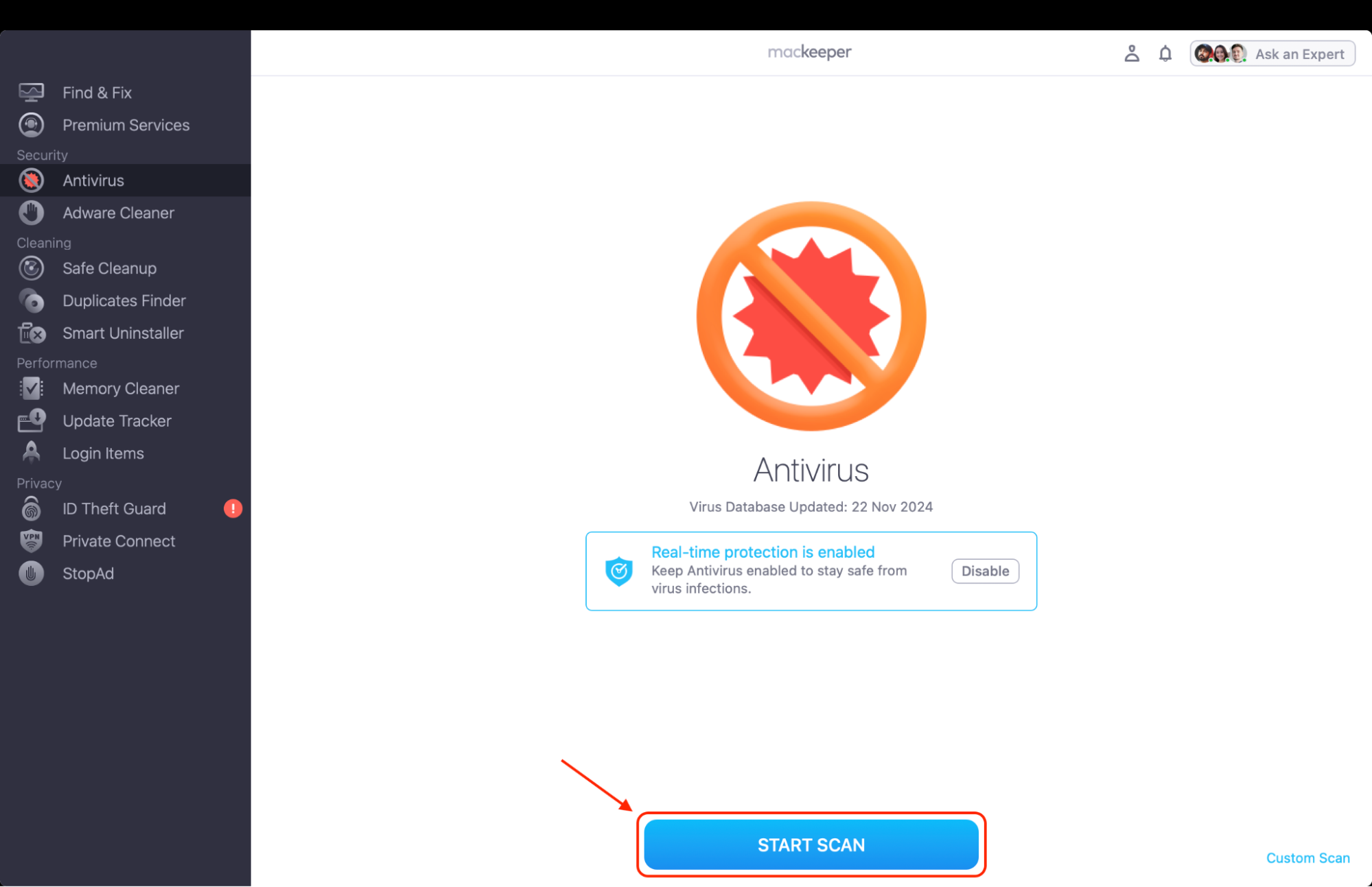
Removing the 5 Billionth Search scam is a good step to protecting your Mac. However, manual cleanup can’t detect every harmful component. Suspicious files and background processes may remain in your system, affecting its performance and security. To make the cleanup process easier and more efficient, I recommend using MacKeeper’s Antivirus, which provides malware scanning and real-time protection. This feature checks all your files in the background and alerts you about any suspicious activity before it can affect your system. MacKeeper’s Antivirus doesn’t interfere with your everyday routine while maintaining your Mac’s security and protecting your personal information and important data.
Follow these steps to check your Mac for malware with MacKeeper’s Antivirus:
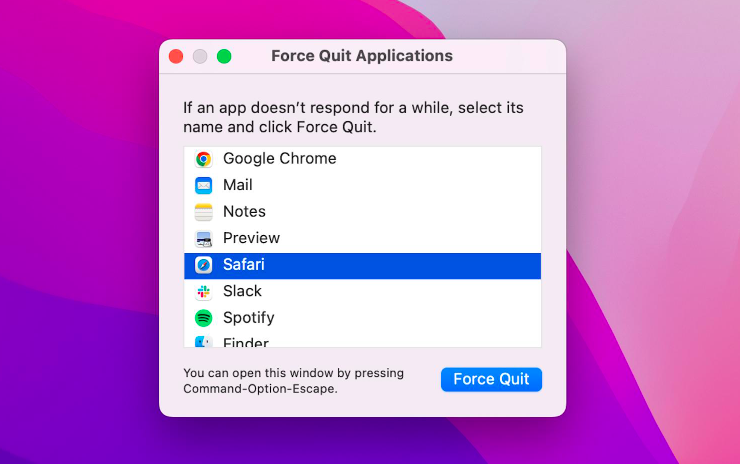
If the 5 Billionth search pop-up keeps appearing, try to force quit an affected browser. This allows you to close the browser without clicking the suspicious links or opening fake messages.
Here’s how to force quit a browser with a keyboard shortcut:
Press the Command + Option + Esc combination on your Mac.
Choose an affected browser from the list ➙ click Force Quit.
Command + Option + Esc > Choose the Browser > Force Quit
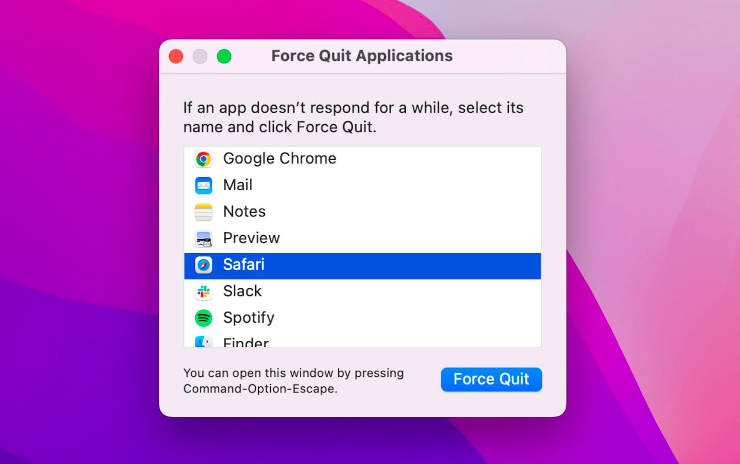
Here’s how to force quit a browser via Finder:
Click the Apple menu in the upper left corner of your screen ➙ choose the Force Quit option.
Choose an affected browser from the list ➙ click Force Quit.
Step 1. Apple Menu > Force QuitStep 2. Choose the browser > Force Quit
Remove suspicious extensions from your browsers
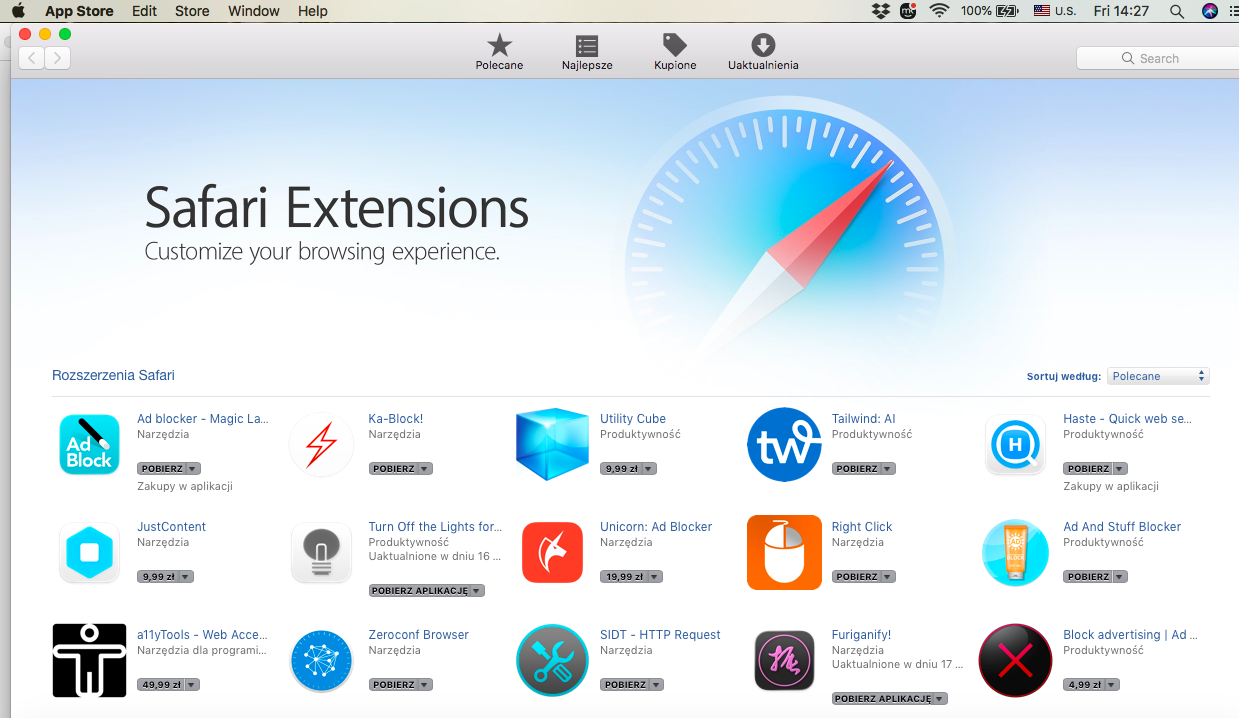
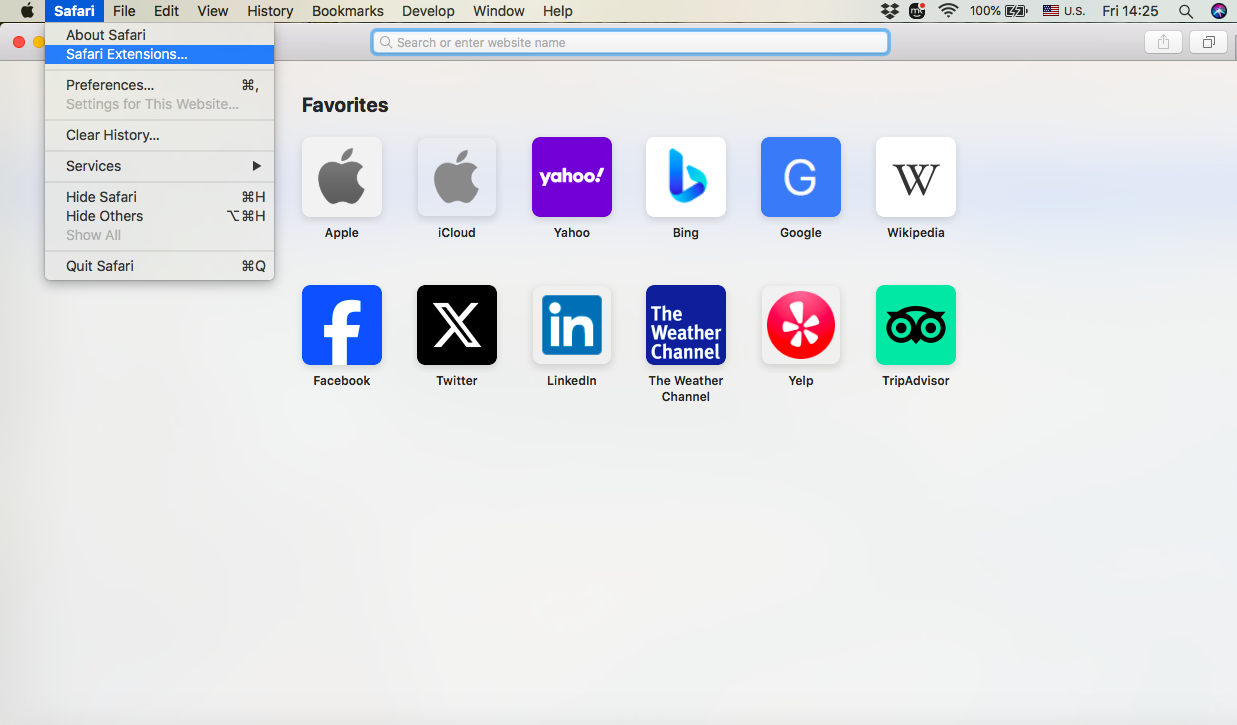
Sometimes Browser extensions are responsible for unwanted pop-ups. Some scam adware installs its extensions almost unnoticed, so it’s hard to prevent it. That’s why you shouldn’t forget to review extensions in every browser on your Mac and remove the ones you don’t recognize.
Here are instructions on how to remove suspicious extensions from Safari:
I’m not threatening you, but even after removing suspicious extensions, malicious pop-ups may still appear. It happens because your browser stores cached files, cookies, and other website data, which help websites remember your browsing sessions, as well as information connected with suspicious pages.
Follow my instructions to clear your browsing data in Safari:
Open Safari ➙ click Safari Menu ➙ choose Preferences.
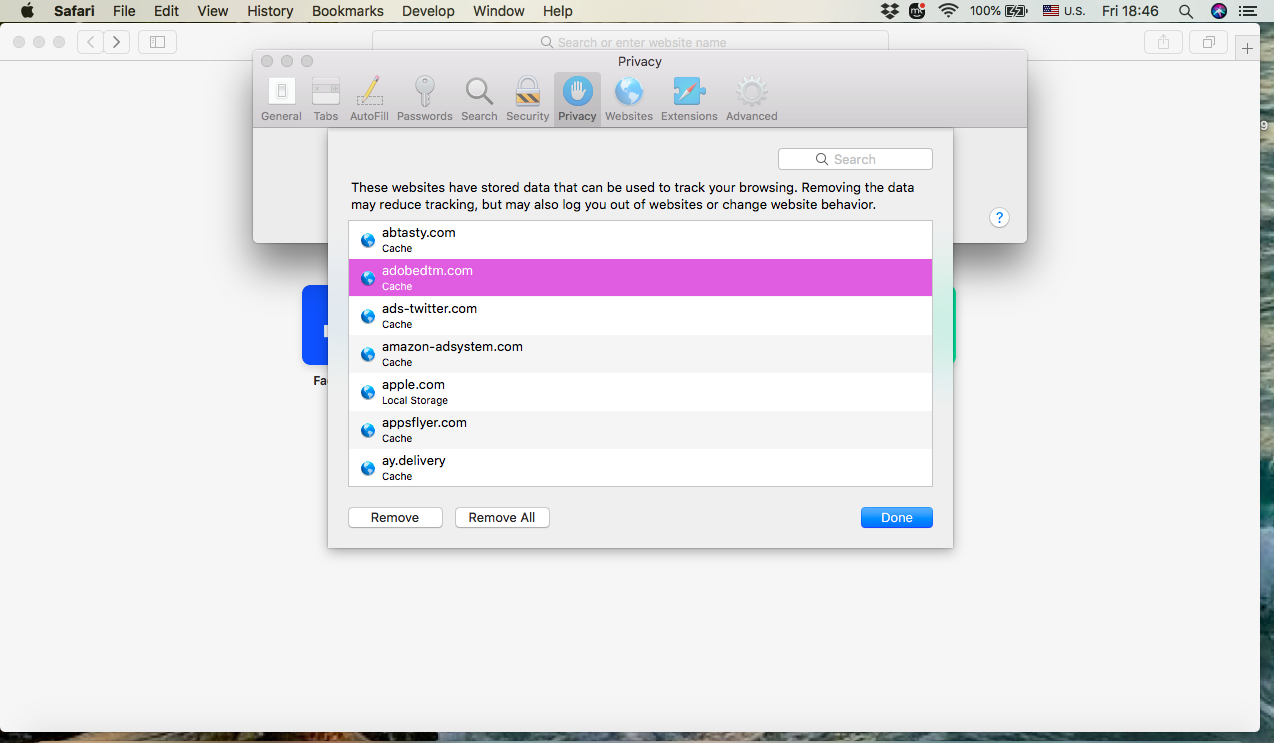
Click Privacy ➙ select Manage Website Data.
Review the list of website information ➙ select suspicious data ➙ click Remove. Alternatively, you can click Remove All to clear all stored data.
For more detailed instructions, check how to clear cookies on your Mac.
Delete shady apps and unfamiliar profiles from macOS
Sometimes the 5 Billionth Search scam is accompanied by unwanted apps or unfamiliar profiles that change your Mac’s settings without your permission. These components are also harmful to your system. That’s why I suggest you check not only your browser data, but also your apps and profiles installed on macOS.
Here’s how to detect shady apps on your Mac:
Open Finder ➙ choose Applications from the sidebar.
Review your installed apps ➙ choose an unfamiliar app and check it ➙ drag it to Trash if it’s unnecessary one.
Step 1. Finder > ApplicationsStep 2. Choose an unfamiliar app > Move it to Trash
Do the following to remove unfamiliar profiles on your macOS:
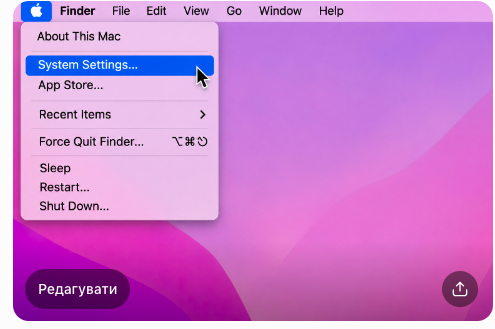
Go to the Apple menu ➙ open System Settings.
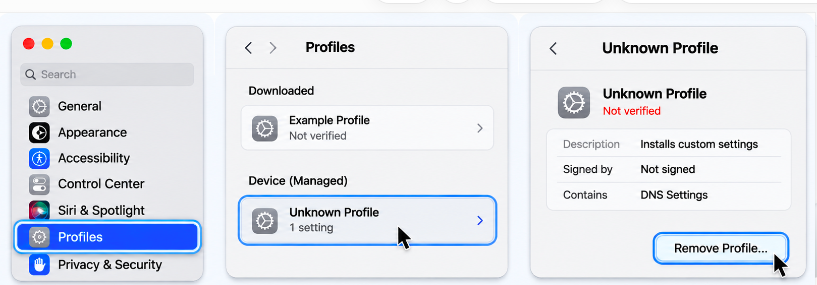
Choose Profiles ➙ review available profiles ➙ Remove unfamiliar profiles.
Step 1. Apple Menu > System SettingsStep 2. Profiles > Unknown Profile > Remove
Clear malicious leftovers from Library folders
After removing suspicious browser extensions, clearing temporary sites’ data, and deleting shady apps, some malicious leftovers may remain hidden in your Library folders. These leftovers include background processes, launch agents, and supporting services that allow unwanted software to run automatically when you start your Mac or open your browser.
Take these steps to clear malicious leftovers from Library folders:
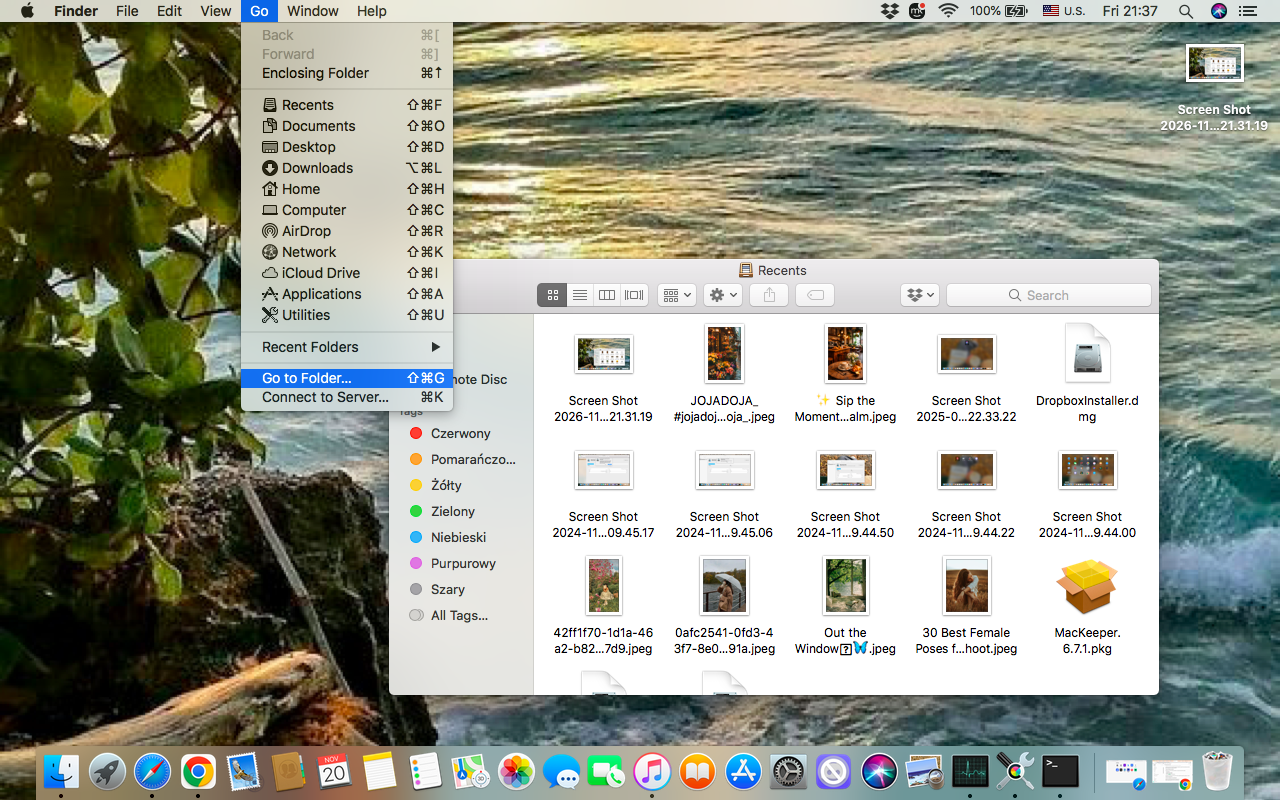
Open Finder ➙ click Go in the menu bar ➙ choose Go to Folder.
Enter ~/Library ➙ press Enter.
Check the Library folder ➙ select suspicious files ➙ move them to Trash.
Step 1. Finder > Go > Go to FolderStep 2. ~/Library > EnterStep 3. Select suspicious files > Move it to Trash
Scan and remove adware using reliable antivirus software
Manual cleanup helps remove suspicious browser extensions, temporary website data, and shady apps, but it can’t protect your Mac from deeply hidden adware or malicious background files, and it can’t remove every threat automatically. That’s why using reliable antivirus software is an important security measure.
MacKeeper’s Antivirus is definitely worth your attention, as it can detect any harmful malware that can easily escape from your manual check. It also offers Real-Time Protection, which monitors files in the background and warns you about any suspicious activity.
Find out how to scan your Mac and identify potentially harmful files with MacKeeper’s Antivirus in the section above. If you still have questions, check how to remove adware virus and protect your data.
How to protect your Mac from 5 Billionth Search pop-up scams?
Preventing the 5 Billionth Search scam is easier than dealing with its consequences. Though this pop-up may appear unexpectedly while browsing legitimate websites, there are several preventative habits you can use to strengthen your browser and system security.
Remember these habits to keep your Mac secure:
Keeping built-in browser security and pop-up blocking tools active. Today's browsers have built-in security features to block potentially dangerous content. Make sure these features remain enabled.
Being cautious with software downloads, avoiding untrusted sources or pirated content. When installing apps, extensions, or other software, make sure you use official websites or the App Store.
Keeping macOS and installed browsers updated to current versions. Outdated operating systems and browsers may be more vulnerable to malware.
Using real-time security protection to intercept malicious websites and downloads. Real-Time Protection is able to detect potentially harmful activities and alert you in advance.
If you want to dive deeper into the topic, check how to protect your Mac from viruses and reduce the risk of potential threats to your Mac.
Conclusion
The 5-billionth search prize pop-up is just a deceptive scam you should never trust. Scammers often promise free prizes to get users to click suspicious links and share personal information and payment details. If these messages continue appearing, your Mac may also have unwanted browser extensions and other harmful software.
Protect your Mac by ignoring suspicious notifications, avoiding unfamiliar links, using only trusted sources for downloads, and regularly updating your system. If you’ve already interacted with the scam, clean your browser, remove unwanted apps, and scan your system for any infection.
If you don’t want to do it manually, let MacKeeper’s Antivirus do it for you. This tool scans your Mac quickly and safely for malware. Its Real-Time Protection monitors files in the background and alerts you to any threats before they can cause problems. Protect your Mac with MacKeeper’s Antivirus and stay alert to potentially harmful data.
We respect your privacy and
use cookies
for the best site experience.
Privacy Preferences Center
We use cookies along with other tools to give you the best possible experience while using the
MacKeeper website. Cookies are small text files that help the website load faster. The cookies we
use don’t contain any type of personal data meaning they never store information such as your
location, email address, or IP address.
Help us improve how you interact with our website by accepting the use of cookies. You can change
your privacy settings whenever you like.
Manage consent
All cookies
These cookies are strictly necessary for enabling basic website functionality (including page
navigation, form submission, language detection, post commenting), downloading and purchasing
software. The website might malfunction without these cookies.