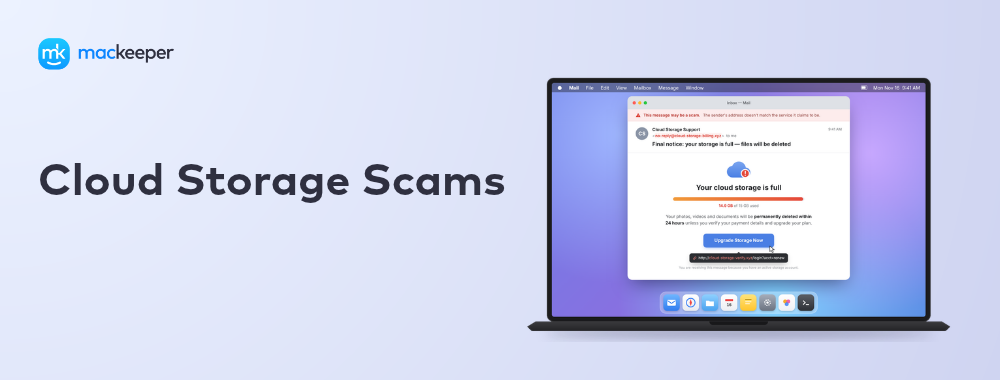
It's easy to get tricked by sneaky scams involving cloud storage, especially the "Cloud storage full’ phishing message that scammers have used to mimic a real macOS communication in their attempts to steal your passwords. Instead, deploy MacKeeper’s ID Theft Guard to check that any macOS service notifications you receive are safe and legitimate.
Many Apple users report that they’ve been targeted with suspicious scams regarding cloud storage–being asked to click on links to unfamiliar sites or platforms. These scams can be hard to spot at first, but there are warning signs to look out for to help you spot a phishing email. If a message or pop-up does not look like it originated from a verified or trusted provider like iCloud, Google, OneDrive, or Dropbox, then it’ll likely be a phishing scam trying to redirect you to steal your payment details or passwords. A real storage device notification would not include strange links or ask you to enter any card or billing information.
A note from our experts:
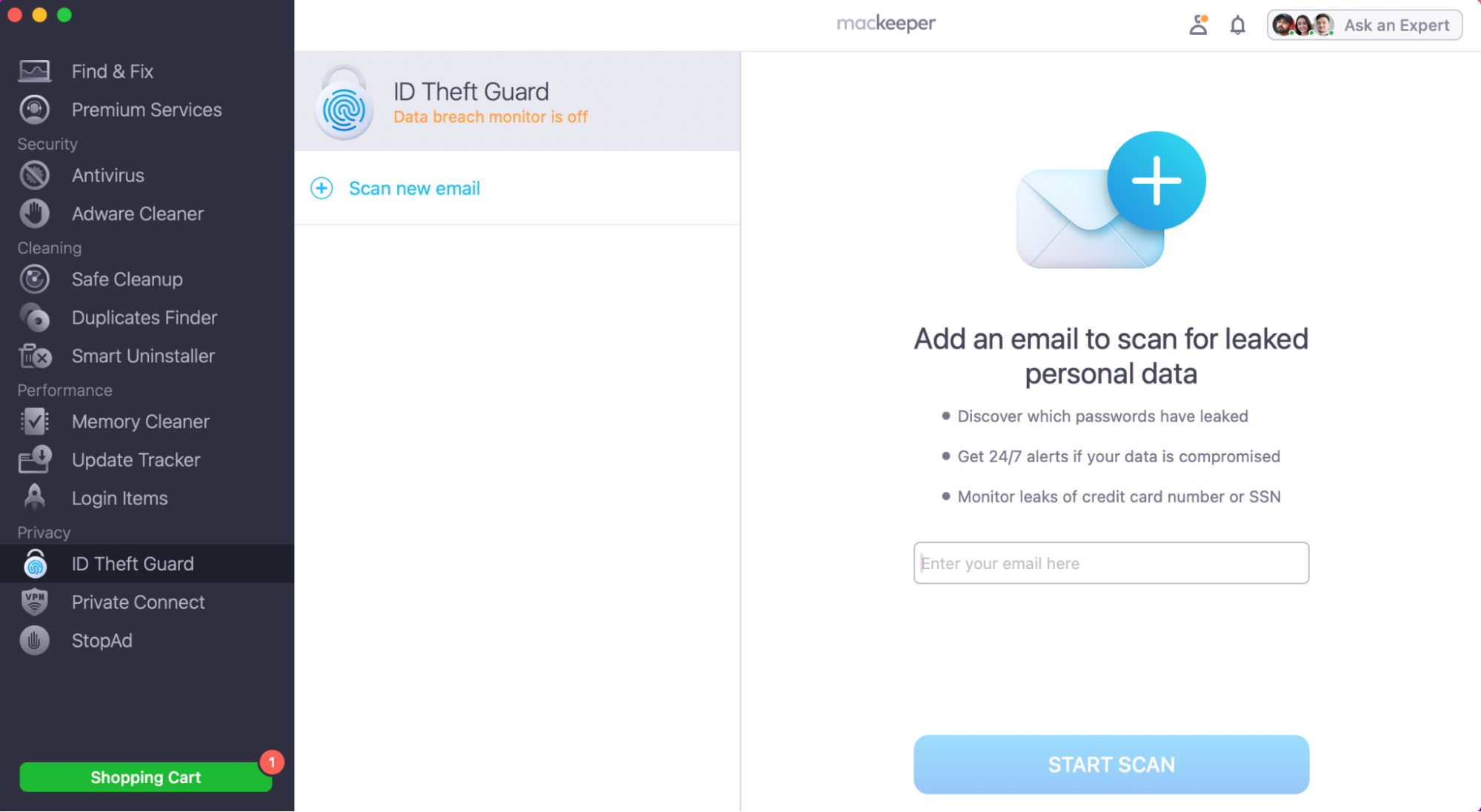
If you do get a suspicious email that you think could be a cloud storage phishing scam, never click on an@y links or share any personal data. Instead, you can take advantage of MacKeeper’s ID Theft Guard feature. Our software safeguards your Mac from risks and suspected scams by automatically blocking any malicious threats.
Here’s how MacKeeper’s ID Theft Guard keeps your Mac activities secure:
In the MacKeeper app, click on ID Theft Guard, enter your email, and press Start Scan
Common types of cloud storage scams
Unfortunately, cloud storage scams are becoming harder to spot. Scammers try to be sneaky with their communications by keeping the email content vague but official-looking. They use Macintosh service email addresses but slightly misspelled, hoping you don’t notice. These scams commonly mimic a failed subscription notification that asks you to confirm billing information. These are all examples of online scam trends you should be aware of.
1. Fake "storage full" alerts
One of the most common scams about cloud storage is the ‘storage full’ alert that many Mac users have been exposed to. The urgency and potential warnings manipulate people into thinking they need to act fast. However, these are just ways to get you to drop your guard. Don’t fall victim to urgency in suspicious emails, as they’ve been designed to confuse you on purpose.
2. Deceptive subscription and billing renewals
“Your iCloud subscription could not be taken; please click the link to re-authorize payment.” Now that looks like a legitimate message you might expect to receive from a trusted service, like iCloud or Gmail, but unless the sender’s address is official, this is just a deceptive email to try and scam you. We urge you to never enter card or bank details via links in emails that appear suspicious.
3. Phishing links masquerading as shared files
Phishing links and spam can also masquerade as fake shared files or albums from Google Drive or OneDrive. To know if an email is truly legitimate, check that the sender's email address is correctly spelt and official.
4. Rogue cloud apps and unrealistic lifetime offers
Another piece of advice from our Clario Tech experts–if something sounds too good to be true, then it probably is. Emails about free unlimited cloud storage or lifetime deals are designed to be malicious. These hackers want you to think these offers are real so you interact with the links while your data is unknowingly stolen.
Key warning signs of cloud storage scams
There are many red flags to be on the lookout for if you suspect an email is nefarious. Even the iforgot.apple.com scam still confuses many Apple users, so here are some signs to look out for:
Artificial urgency and threats of data deletion
Mismatched sender addresses and spoofed domains
Generic greetings and unusual formatting
1. Artificial urgency and threats of data deletion
It’s very rare that a trusted service would threaten to wipe or remove your account within a number of hours, but this kind of spam does work. Scared people click on phishing links, as the fear-inducing language is used to manipulate them into acting fast.
2. Mismatched sender addresses and spoofed domains
An email sent to you from a trusted application or service would always be spelled correctly, include proper certification, and use trusted coding. If anything appears incorrect or mismatched, confirm the sender's email address is authentic before responding.
3. Generic greetings and unusual formatting
Got an email on your MacBook from Apple Support, but they’ve spelt half the email wrong or just addressed it with a generic Dear Customer greeting? Chances are this is phishing. Mistakes and impersonal emails are how hackers operate, and unfortunately they do still trick many people.
How to avoid cloud storage scams?
To protect against cybercrime and phishing spam, we highly recommend that all Apple users download safe, trusted protection software onto their device. That way, there is a barrier between threats and risks–the dedicated software prevents and reports issues so you don’t have to worry about legitimacy or acting fast under pressure.
What to do if you have fallen for cloud storage scam?
Worried you might have fallen for sneaky cloud storage phishing spam? We urge you to act quickly to re-establish your personal and online security. Our experts recommend that you:
Change passwords and terminate active sessions
Secure linked financial accounts and recovery accounts
Run a comprehensive malware scan
Report phishing attempts
1. Change passwords and terminate active sessions
If you think you’ve fallen for a cloud storage scam, the first thing we recommend is to change your passwords and log out of all active sessions immediately. Here’s how:
Change password like this:
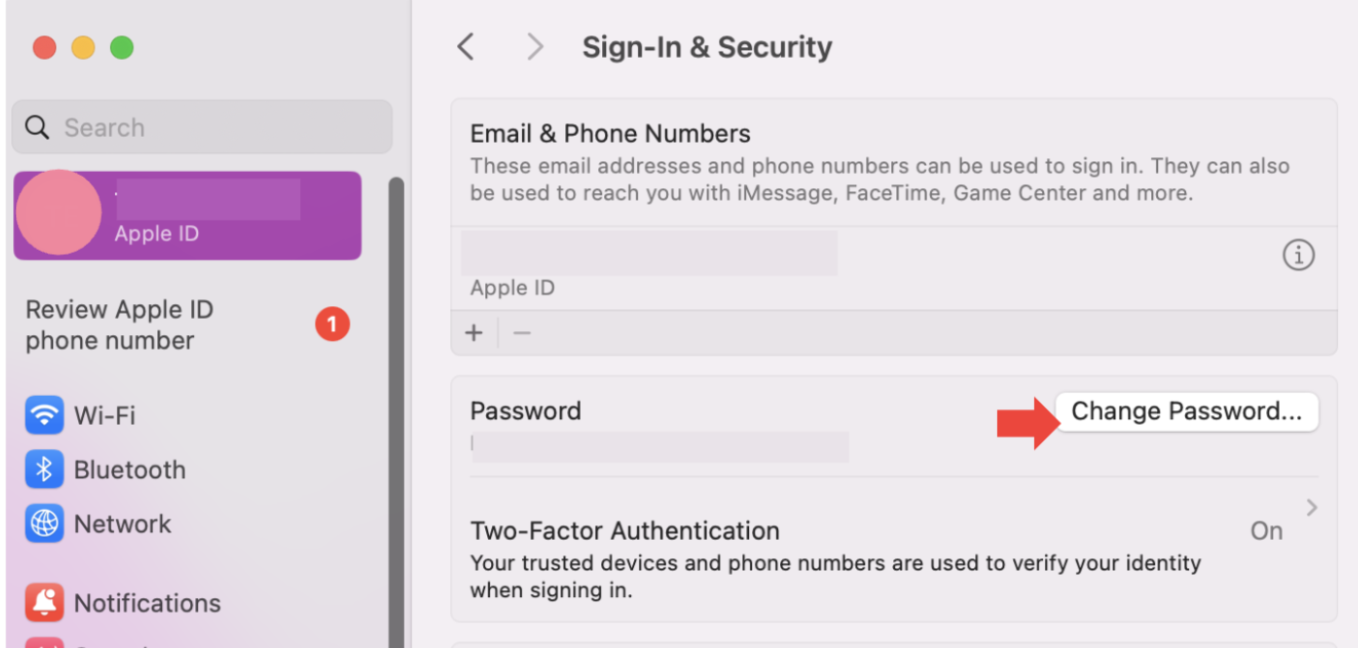
In System Settings, click on Apple Account.
Click Sign-In & Security.
Click Change Password.
Open System Settings, click on Apple ID, and in Sign-In & Security, press Change Password…
To terminate active sessions:
In your Security Settings, look for Your Device > Active Sessions.
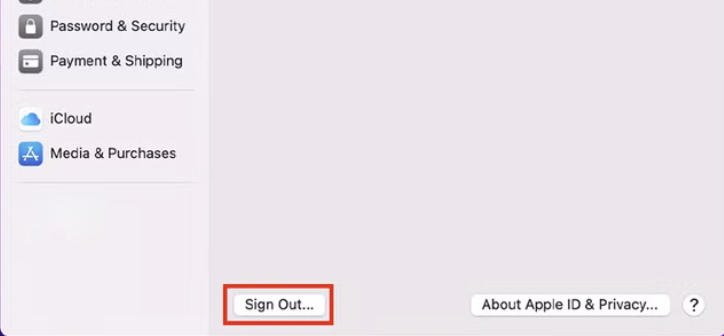
Press Sign out of all sessions.
In Security Settings, go to Your Devices > Active Sessions and Sign out of all sessions
2. Secure linked financial and recovery accounts
After a suspected phishing scam, securing your payment details and account recovery information is essential to prevent further unauthorised access or financial loss. Here’s what we advise:
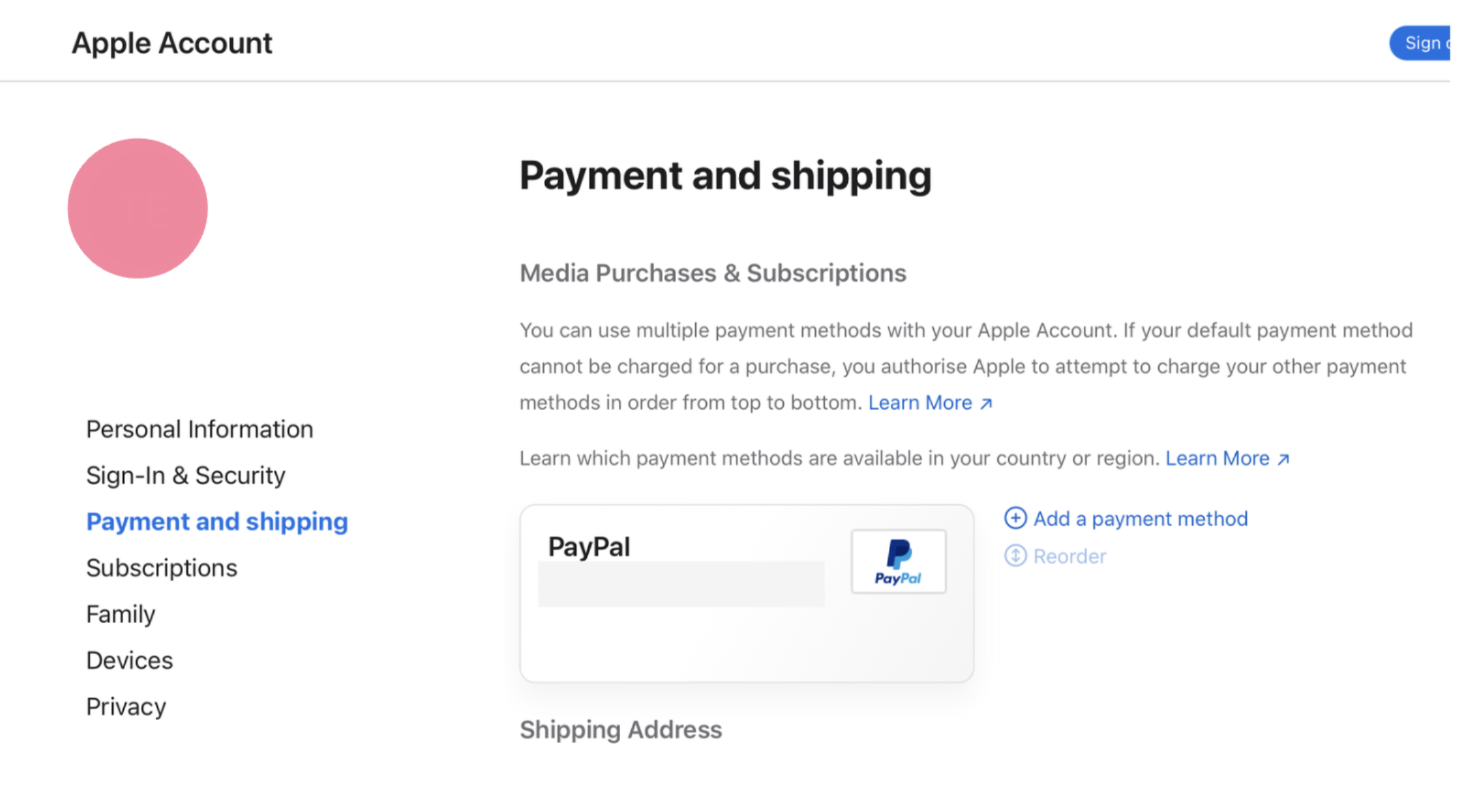
Review Connected Credit Cards: Check your billing information linked to your cloud account for any unauthorised or unfamiliar charges via your online cloud account.
Freeze payment methods:If you spot a suspicious transaction, contact your bank immediately to freeze and resecure your account.
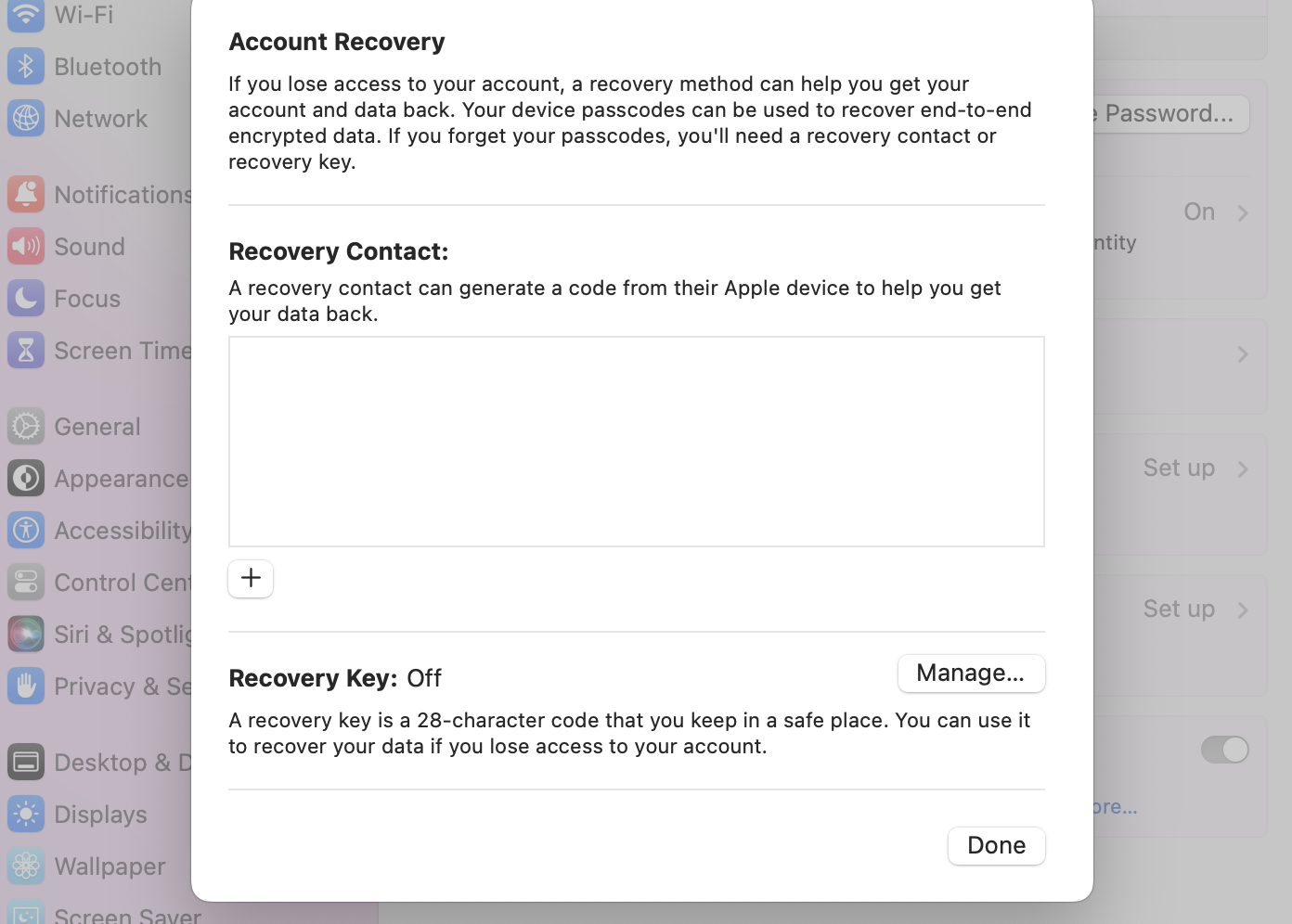
Check your recovery email address: Confirm your recovery security settings have not been changed without your permission.
Step 1. Open your Apple Account online, go to Payment and shipping, and review your connected cardsStep 2. In System Settings, go to Apple ID and click on Account Recovery
3. Run a comprehensive malware scan
If everything so far appears normal, our advice would still be to run a malware scan on your device to ensure no keylogger software is tracking your actions. Just make sure to only download trusted malware scanning software directly from a legitimate website.
4. Report phishing attempt
The last thing to do is to report any phishing scams or attempts to the relevant service provider. So if you received a suspicious cloud storage full email, report it to the certified cloud provider. Just forward the email or take a screenshot and send it to reportphishing@apple.com.
Securing your cloud account with MacKeeper’s help
You must act quickly if you have unknowingly interacted with a potential phishing scam relating to cloud storage, as waiting too long puts your information at risk. Make sure to check your billing details and change all your passwords immediately.
Scams are becoming too clever at tricking people, but acting fast is critical. Having good defences against phishing is our top recommendation; a solution like MacKeeper’s ID Theft Guard is a great defensive tool. It’ll block and filter out threats for you. Download and try it for yourself.
We respect your privacy and
use cookies
for the best site experience.
Privacy Preferences Center
We use cookies along with other tools to give you the best possible experience while using the
MacKeeper website. Cookies are small text files that help the website load faster. The cookies we
use don’t contain any type of personal data meaning they never store information such as your
location, email address, or IP address.
Help us improve how you interact with our website by accepting the use of cookies. You can change
your privacy settings whenever you like.
Manage consent
All cookies
These cookies are strictly necessary for enabling basic website functionality (including page
navigation, form submission, language detection, post commenting), downloading and purchasing
software. The website might malfunction without these cookies.