Yes, unfortunately, even a PDF can have a virus on a Mac. Hackers often use this popular file type to sneak in malware and create security threats on macOS. To keep your Apple device safe from that (and any other malicious content), use MacKeeper’s Antivirus today and download PDFs without a worry.
You can get a virus from a PDF on a Mac, and that’s because, despite what many people think, Macs can get viruses, too. So, why does this happen? PDFs are everywhere and used for just about everything, which makes them a great hiding spot for hackers looking to sneak in malware. Apple does have strong built-in security for macOS, but nothing is foolproof, especially when it comes to phishing scams or downloading infected files.
How does malicious code hide inside PDF files?
Believe it or not, just opening a PDF can cause a virus on a Mac. Some PDFs contain hidden scripts or malicious links and QR codes that activate as soon as you open the file. Sometimes this means malware is installed immediately, just as it does with an email virus. Other times, clicking a link in the PDF can trigger a malware download that can damage your Mac.
Hackers often exploit features such as dynamic fields or digital signatures to conceal harmful software. These include Trojans, spyware, adware, scamware, or even ransomware, each designed to disrupt your system or steal sensitive information.
Signs that a PDF file might be dangerous for your Mac
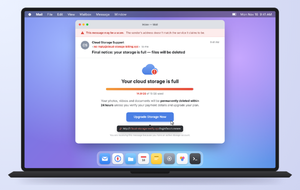
So, PDF files can have viruses on Mac, but how can you tell if they actually do? You should always be extra careful with PDFs from unknown senders, especially those found in your email’s spam folder, as these files are often designed to hide common Mac viruses. We also recommend paying close attention to files with odd or suspicious names, those sent without any accompanying messages, or those that don’t reference the file’s contents at all.
A note from our experts:
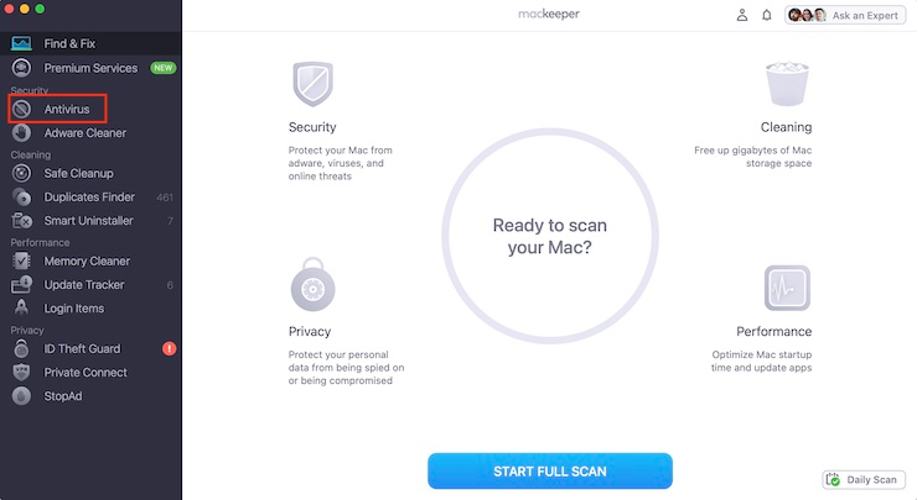
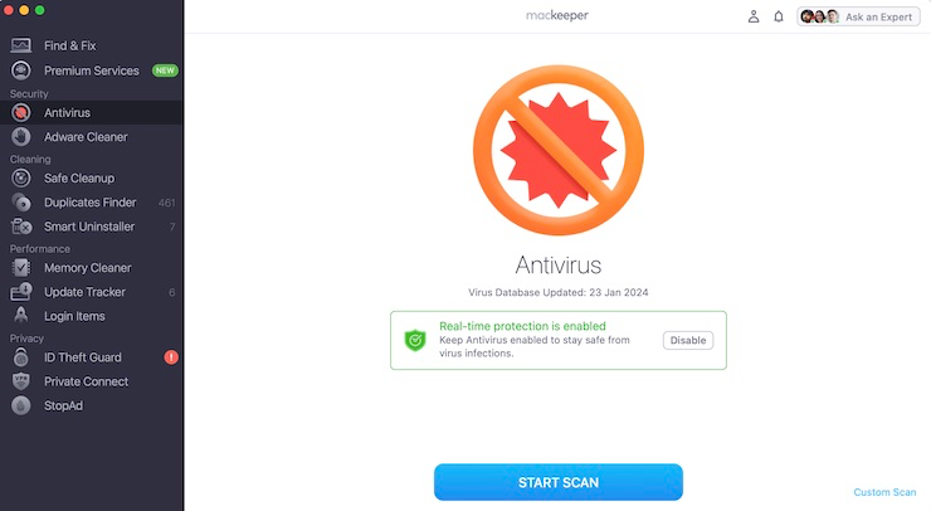
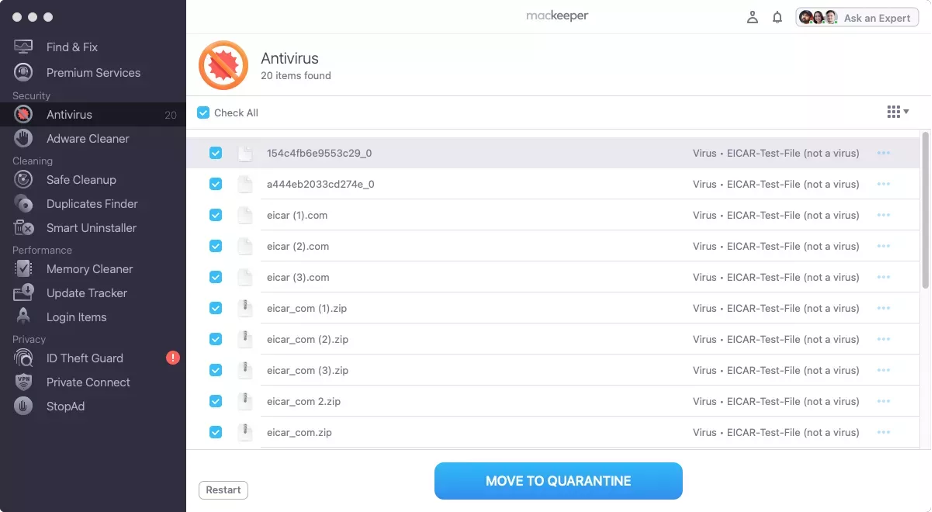
If you’ve already opened an infected PDF on a macOS device, there’s no need to panic. MacKeeper’s Antivirus can help. Trusted by thousands of users worldwide, this powerful tool from Clario Tech is built to detect, block, and remove even the most sophisticated cybersecurity threats, helping you restore your Mac’s safety and peace of mind.
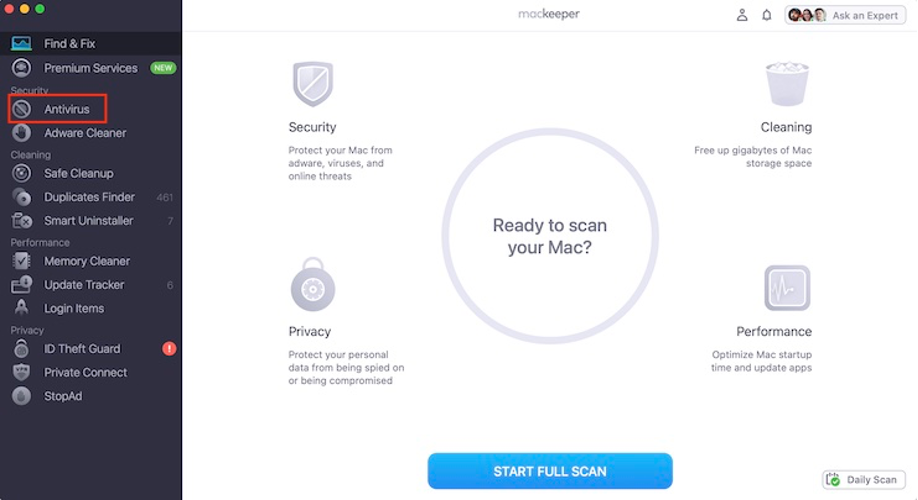
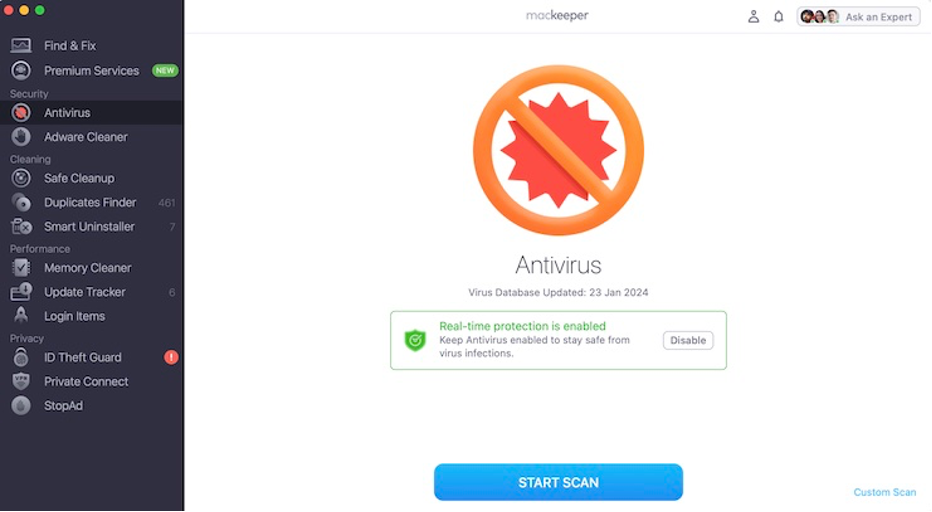
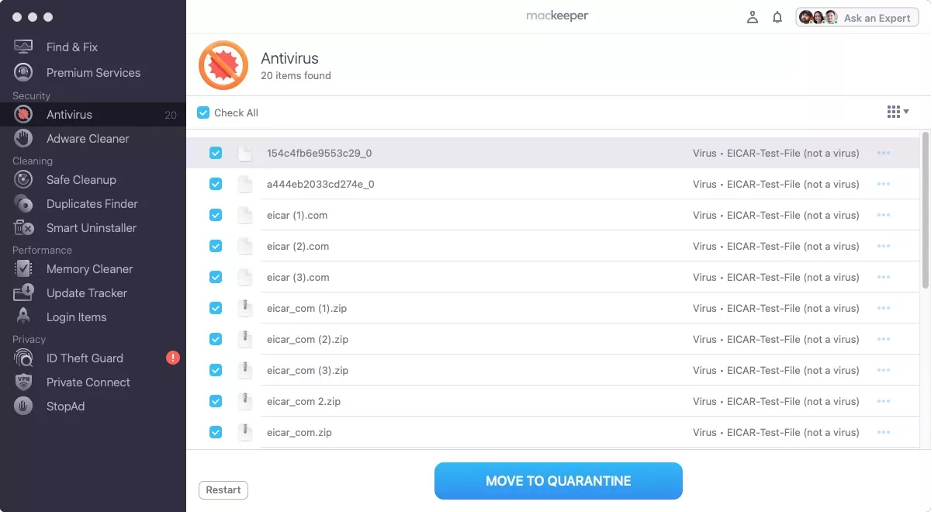
Step 1. Launch MacKeeper’s Antivirus on your MacStep 2. Click Start ScanStep 3. Select the malware and delete it
What to do if you opened a suspicious PDF on a Mac?
If you think you’ve fallen for a phishing scam or accidentally downloaded an infected PDF, don’t worry. There are effective steps you can take right now to limit any potential harm. We’ll guide you through each step to help you quickly regain control and protect your Mac.
1. Disconnect your Mac from network connections
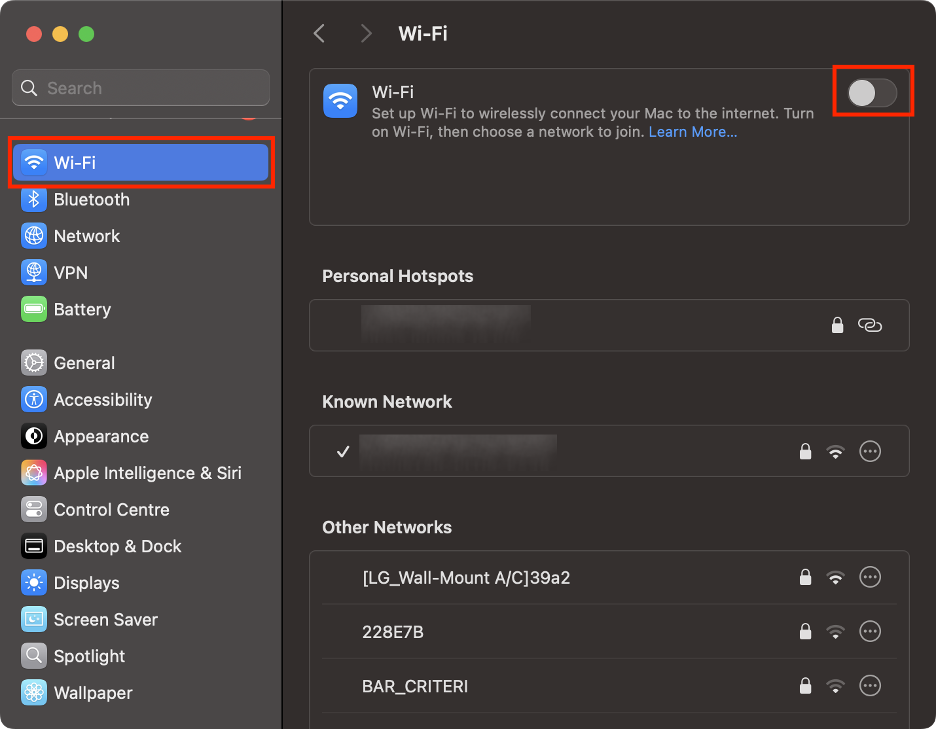
The very first step we recommend is to disconnect your Mac from the internet, whether you’re on Wi-Fi or using a cable. This immediately blocks any potential data transfers and helps stop malware in its tracks.
Here’s how to do it:
If you’re connected to the internet with an Ethernet cable, simply unplug it from your Mac to disconnect immediately.
If you’re connected via Wi-Fi, click the Wi-Fi icon in the menu bar at the top right of your screen.
Then, switch the Wi-Fi toggle off.
Alternatively, go to System Settings and select Wi-Fi.
There, disable the Wi-Fi toggle.
System Settings > Wi-Fi
2. Update passwords and secure sensitive accounts
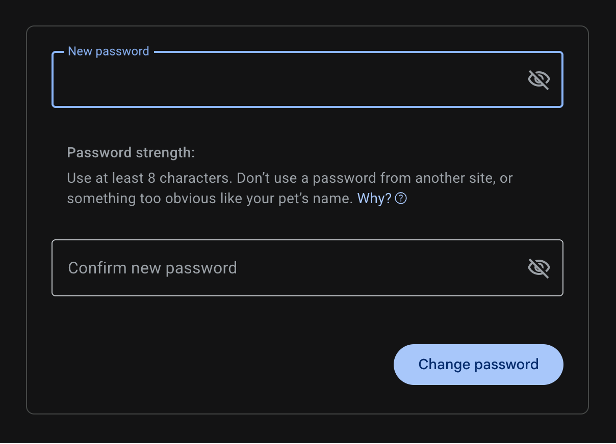
Next, our security experts recommend changing the passwords for your most sensitive accounts, including your email and online banking accounts. After that, boost your security even further by enabling additional layers of protection, such as setting up an authenticator app.
Follow these steps to protect your online accounts:
Go to your account’s settings and select Change password.
Follow the on-screen steps and choose a high-security password.
Next, download an authenticator app on your phone, such as Google Authenticator.
Use it for two-factor authentication when signing into your accounts.
Step 1. Change your account’s passwordStep 2. Install an authenticator app on your phone
3. Check for recent system changes and active processes
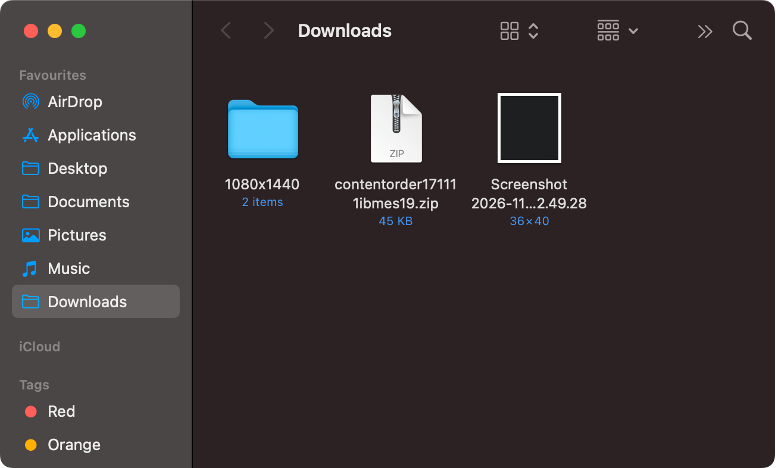
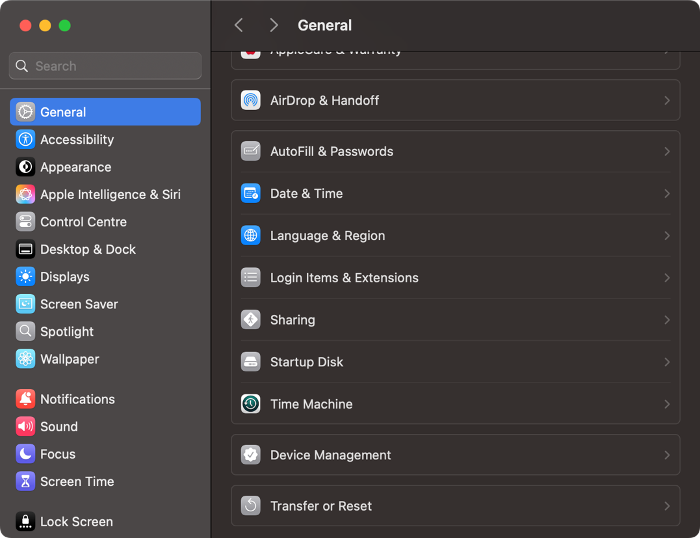
Finally, we suggest doing a quick health check on your Mac to spot anything out of the ordinary. Look through your Downloads folder, review your Mac’s settings, and see what is running on Mac to catch unusual background activity before it becomes a bigger issue.
We explain how to check for recent system changes below:
Review your recent downloads in the Downloads folder.
Go to System Settings and check for suspicious changes.
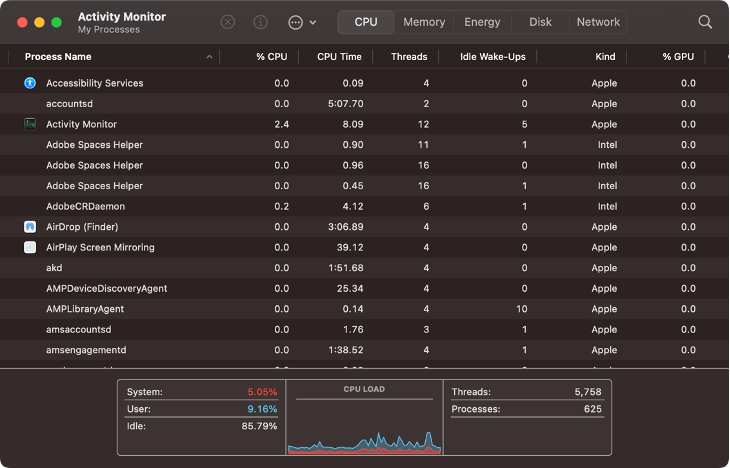
Next, open Activity Monitor and make sure you recognize all processes.
Step 1. Check your recent downloadsStep 2. Check System Settings for unusual preferencesStep 3. Check active processes in Activity Monitor
How to check PDF for viruses on Mac?
So far, we’ve covered what to do if you suspect your Mac is already infected, but prevention is always better than cure. Don’t wait until a suspicious PDF causes trouble. We suggest taking action beforehand. Use your Mac’s built-in features or scan the file with a trusted third-party app to detect threats early and stop potential damage before it happens. Here’s how.
1. Verify files using built-in Mac security features
Apple’s built-in macOS security features do a great job of automatically scanning downloaded documents and blocking those that appear suspicious or unsafe. This includes XProtect, which can’t be disabled or installed to protect your Mac.
However, other features can be turned off, including FileVault. However, we encourage you to have them on, especially before opening any file you’re unsure about.
Here’s what to do to make sure these built-in features are enabled:
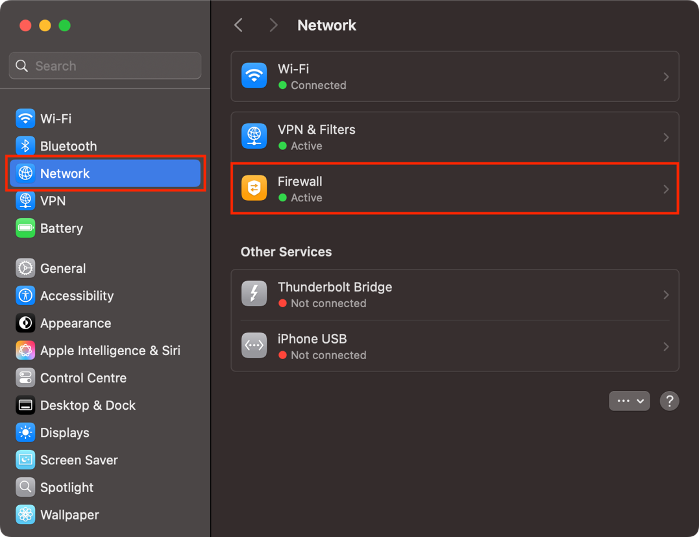
Go to System Settings.
Select Network, then click Firewall.
Make sure it’s enabled to prevent unauthorized connections.
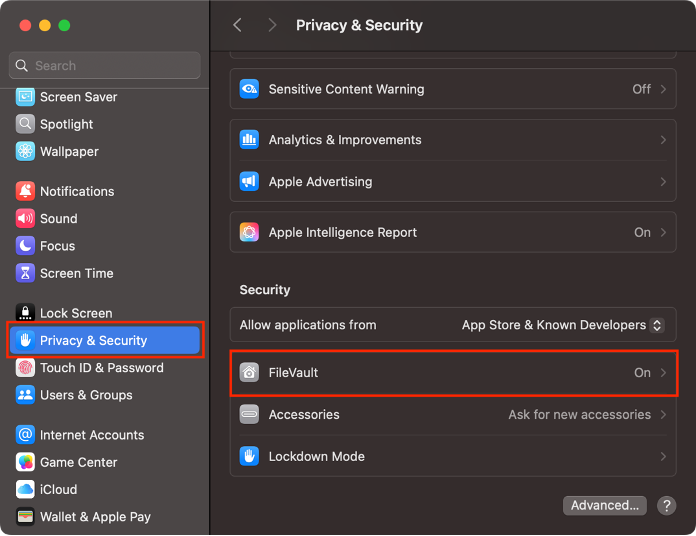
Next, select Privacy & Security from the sidebar.
Scroll down and select FileVault.
Turn it on to make your data unreadable for anyone without your password.
Step 1. System Settings > Network > FirewallStep 2. System Settings > Privacy & Security > FileVault
2. Scan your system with dedicated antivirus software
For even stronger protection, our experts suggest installing a trusted antivirus program on your Mac. While background or automatic scans add ongoing security, it’s still wise to run a manual full-device scan every so often. This helps you catch, quarantine, and remove hidden threats that might slip through regular checks.
Install reputable antivirus software on your Mac and schedule regular scans to catch threats early.
Avoid interacting with suspicious emails or their contents (including attachments and links), even if the message seems to come from a trusted sender.
Use a reliable, up-to-date PDF reader to open documents safely.
Keep your macOS updated to ensure you have the latest security features from Apple.
Protect your online accounts by using a password manager and enabling two-factor authentication wherever possible.
Regularly back up your most important files so you’re protected if malware strikes.
Keep JavaScript disabled in PDFs, turning it on only if you’re sure the document is safe.
When possible, preview files in your browser instead of downloading them to reduce the risk of infection.
PDFs can contain viruses on Mac: here’s how to stop them
Can a PDF have a virus on Mac? Absolutely, and that’s a legitimate concern for anyone who values their data and privacy. The good news is you can protect yourself from these threats by following smart security practices. Always keep your macOS and PDF reader up to date, and make sure you have reliable antivirus protection installed to safeguard your Mac.
A great option is MacKeeper’s Antivirus, which has earned a strong reputation for eliminating all types of malware on macOS. Not only is it notarized by Apple, but MacKeeper also offers a vast suite of features in one place. You can boost your Mac’s performance, protect your online privacy with its built-in VPN, and effortlessly clean up duplicate files and unused apps, all while protecting your device from malware.
We respect your privacy and
use cookies
for the best site experience.
Privacy Preferences Center
We use cookies along with other tools to give you the best possible experience while using the
MacKeeper website. Cookies are small text files that help the website load faster. The cookies we
use don’t contain any type of personal data meaning they never store information such as your
location, email address, or IP address.
Help us improve how you interact with our website by accepting the use of cookies. You can change
your privacy settings whenever you like.
Manage consent
All cookies
These cookies are strictly necessary for enabling basic website functionality (including page
navigation, form submission, language detection, post commenting), downloading and purchasing
software. The website might malfunction without these cookies.