When contacts not syncing to Mac keep interrupting your workflow, it becomes hard to trust that your data will update when you actually need it. Based on our experience helping users with similar sync issues, MacKeeper's Premium Services give you fast, expert-led troubleshooting that fixes the problem without guesswork and keeps your Mac running smoothly.
Contacts may not be syncing to your Mac when iCloud Contacts is disabled on either device, the Apple ID doesn't match, or your internet connection isn't stable enough for real-time updates. From our tests, syncing also fails when macOS or iOS is outdated, VPNs interfere with iCloud traffic, or the Contacts database becomes temporarily corrupted. So, checking iCloud settings, confirming your Apple ID, and updating both devices usually restores proper syncing.
A note from our experts:
When contacts stop syncing, troubleshooting can turn into a long cycle of toggling iCloud, checking IDs, and restarting devices. MacKeeper is a macOS utility software developed by Clario Tech, and our Premium Services team uses professional diagnostic tools to identify contact-sync failures much faster than manual trial and error.
Here's how to use Premium Services to troubleshoot the issue quickly:
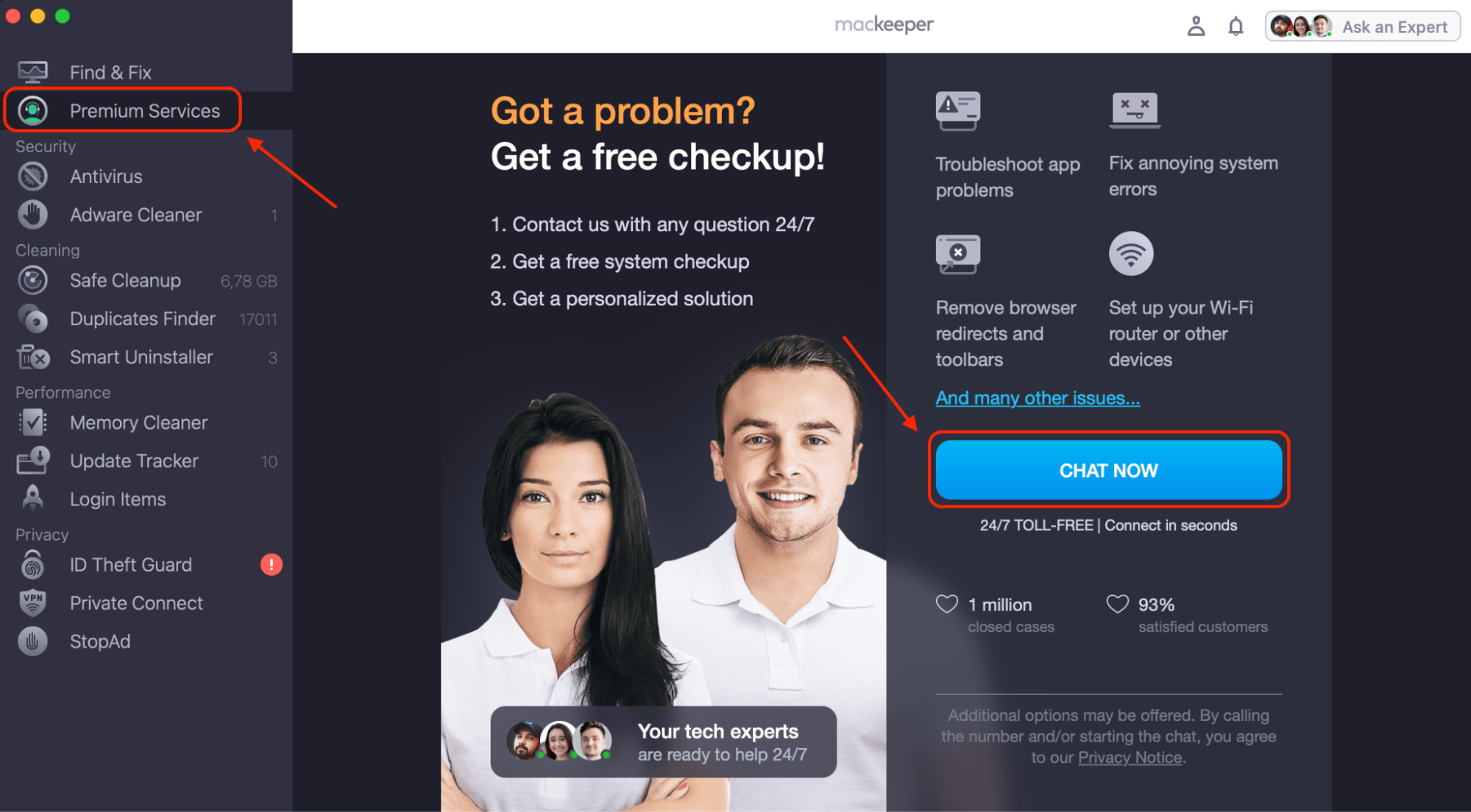
OpenMacKeeper and choose Premium Services from the left sidebar.
ClickChat Now to connect with a certified expert trained in macOS and iCloud troubleshooting.
Describe the contacts syncing issue, including any steps you've already tried—our specialist will guide you through the exact fix that applies to your setup.
Follow the personalized, real-time instructions until your contacts sync correctly again.
Open MacKeeper, click Premium Services in the sidebar, then choose Chat Now
How to fix contacts not syncing to Mac?
If contacts not showing up on your Mac is the issue, start by confirming iCloud Contacts is enabled on both devices and that you're signed in with the same Apple ID. To do it, we suggest to check your internet connection, toggle iCloud Contacts off and back on, and restart both devices to force a fresh sync.
1. Ensure your Mac connected to internet
When contacts won't sync to Mac, we advise starting by confirming your device is actually online.
Do this to check your connection:
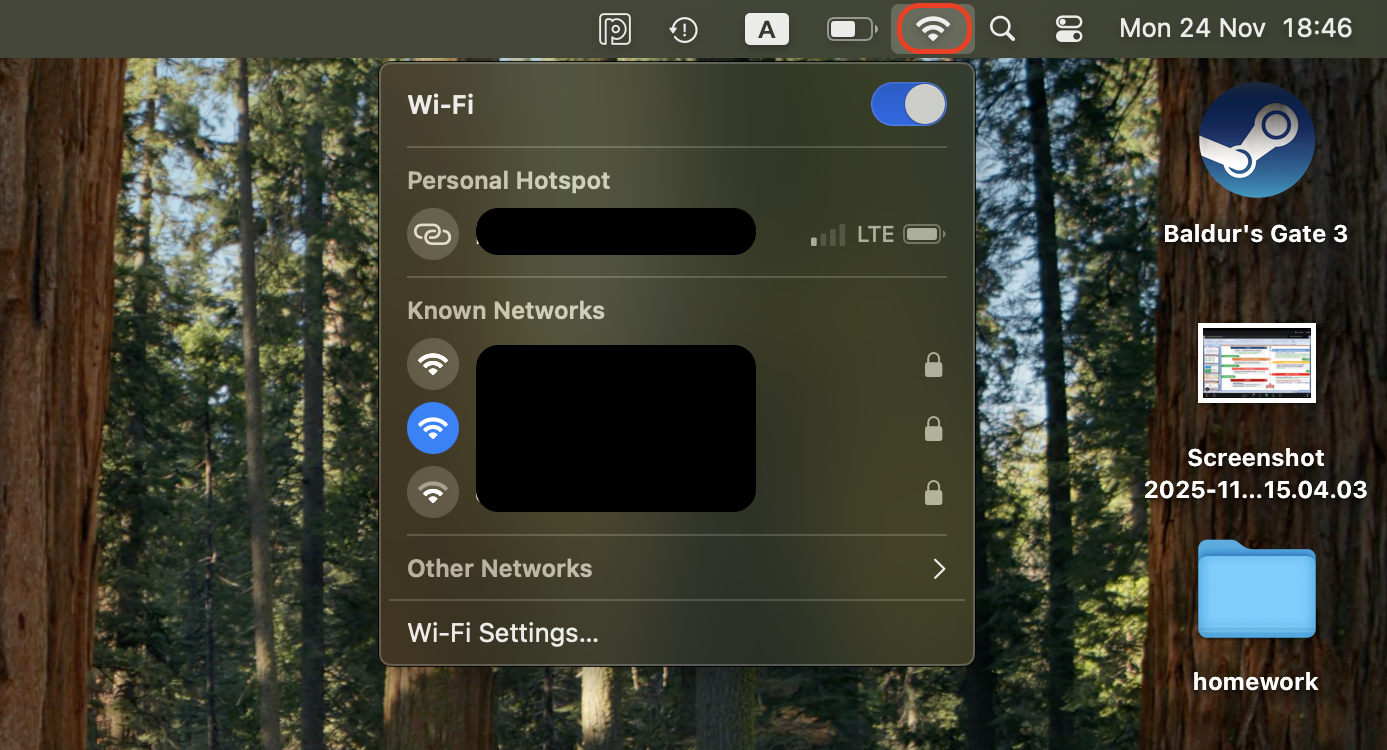
Click the Wi-Fi icon in the top-right menu bar and make sure your network is selected.
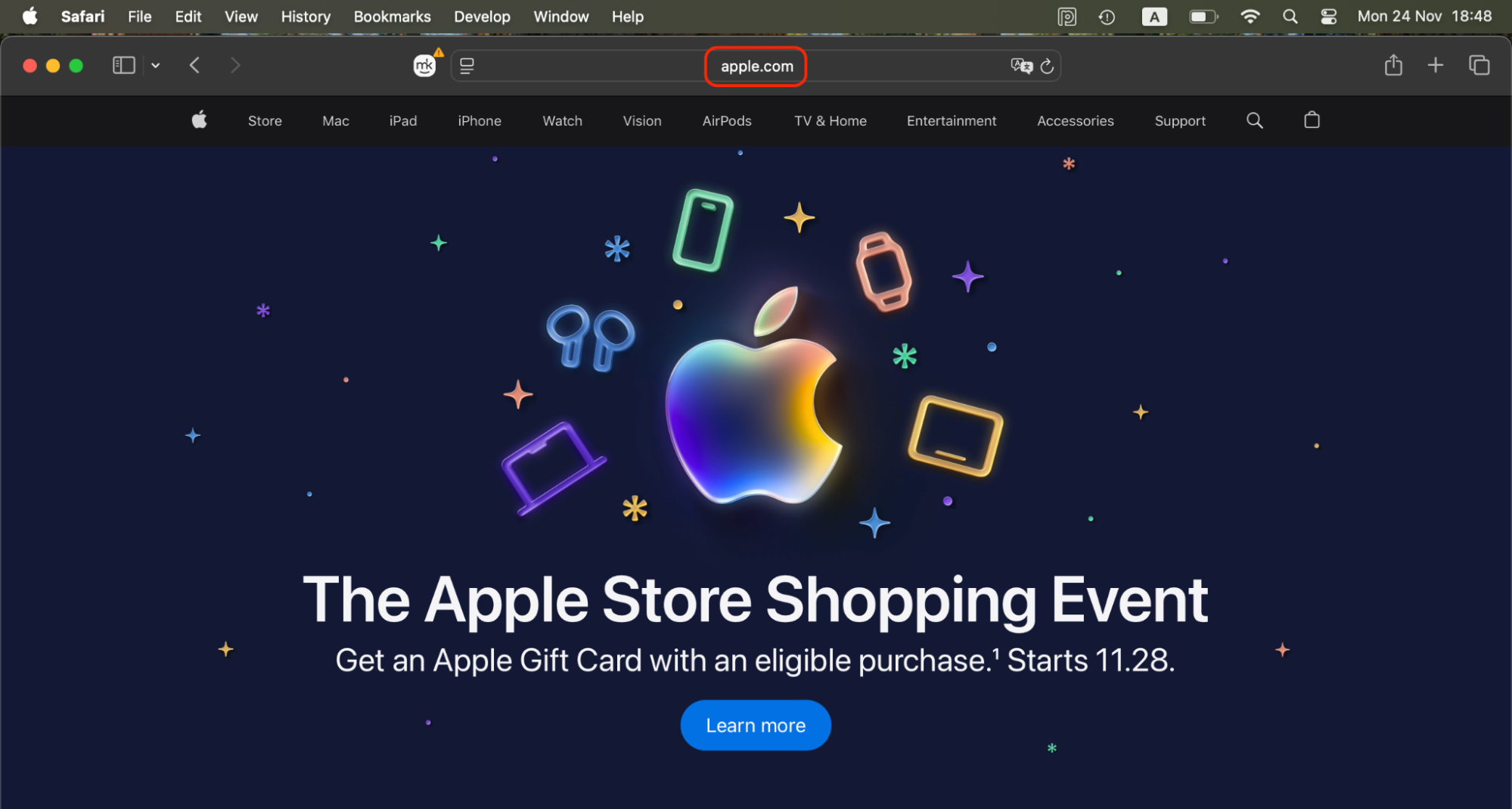
Open Safari and load apple.com to confirm traffic is working.
Go to System Settings > Network and look for a green dot next to Wi-Fi.
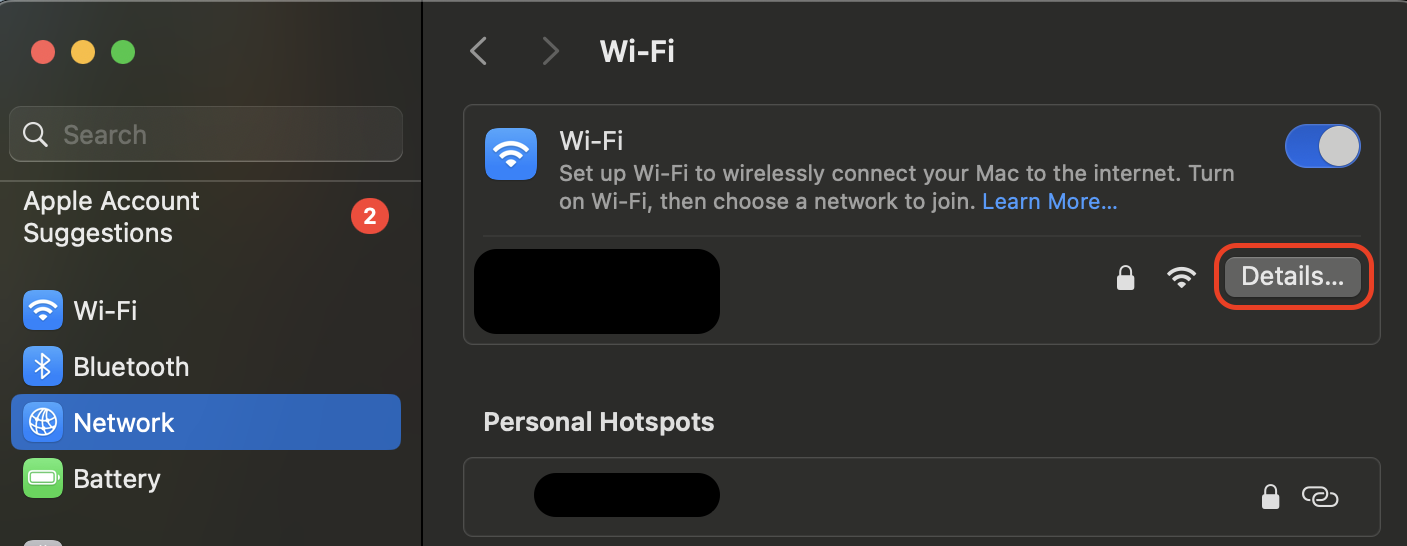
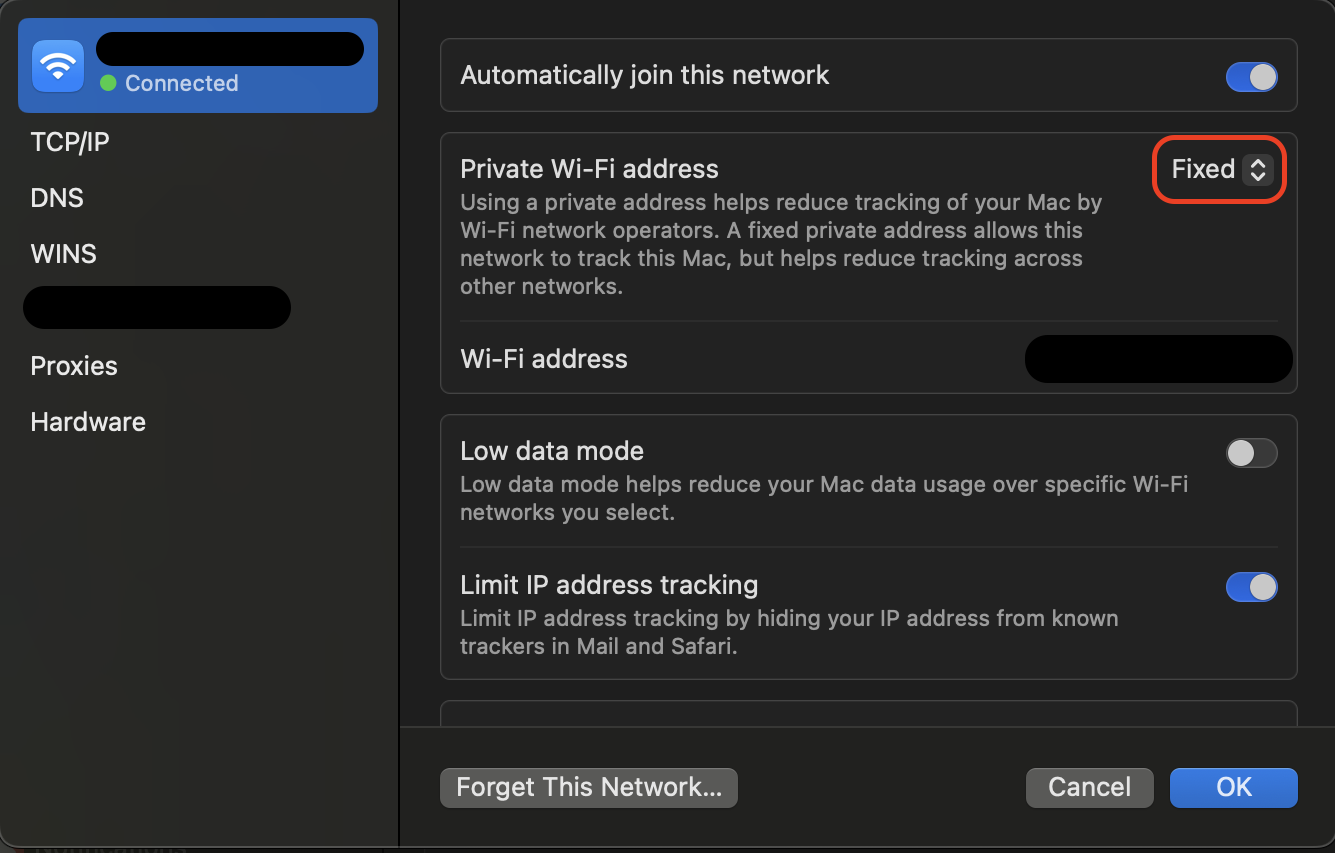
Select your network, click Details, and toggle Private Wi-Fi Address off/on.
Restart your router if the Network shows "No Internet Connection."
Step 1. Click the Wi-Fi icon in the top-right menu bar and make sure your network is selectedStep 2. Open Safari and load apple.com to confirm traffic is workingStep 3. Go to System Settings > Network and look for a green dot next to Wi-FiStep 4. Select your network, click Details, and toggle Private Wi-Fi Address off/onStep 5. Toggle Private Wi-Fi Address off/on
2. Restart your Mac
Restarting helps when some contacts not syncing to the Mac fail to update even though iCloud is enabled.
Restart correctly using these steps:
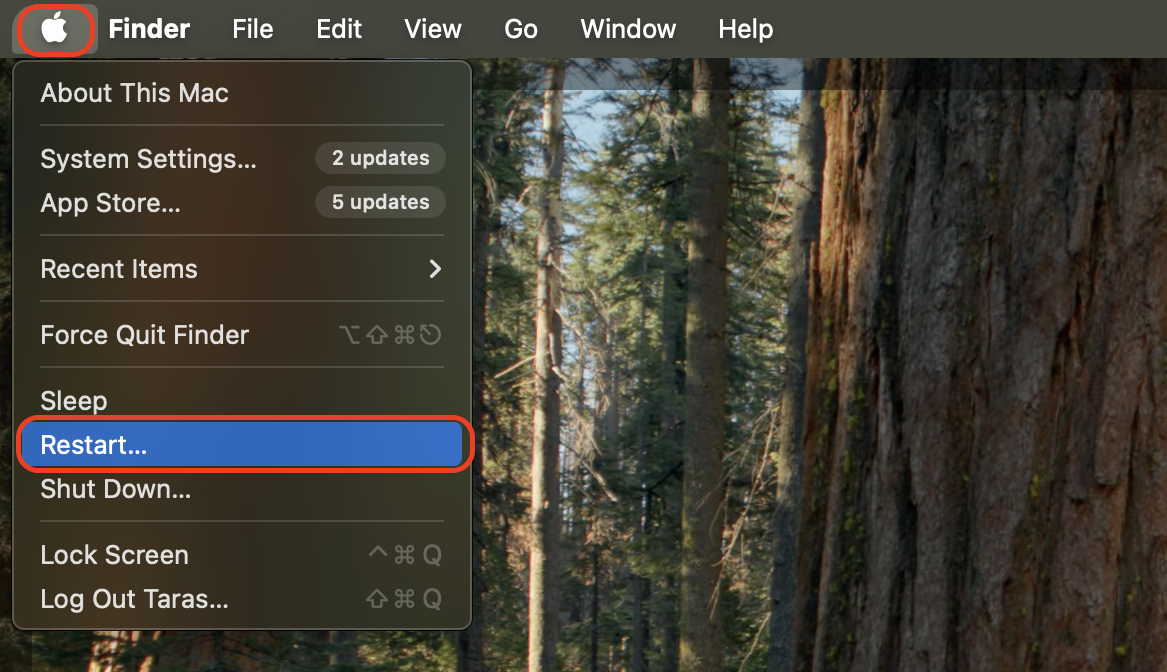
Click the Apple menu and choose Restart.
When prompted, click Restart again to close all apps.
After reboot, open Contacts from Spotlight to reload the database.
Go to System Settings > Apple ID > iCloud and confirm Contacts is toggled on.
Step 1. Click the Apple menu and choose RestartStep 2. After reboot, open Contacts from Spotlight to reload the databaseStep 3. Go to System Settings > Apple ID > iCloud and confirm Contacts is toggled on
Look for a green dot (normal), yellow (degraded), or red (outage).
Refresh the page after a few minutes if the dot isn't green.
Open Safari and go to https://www.apple.com/support/systemstatus/. Find iCloud Contacts in the list and ensure the dot is green
6. Force quit Contacts app
Sometimes the Contacts app becomes unresponsive, and based on our experience, restarting it forces a fresh reload from iCloud.
Do the following:
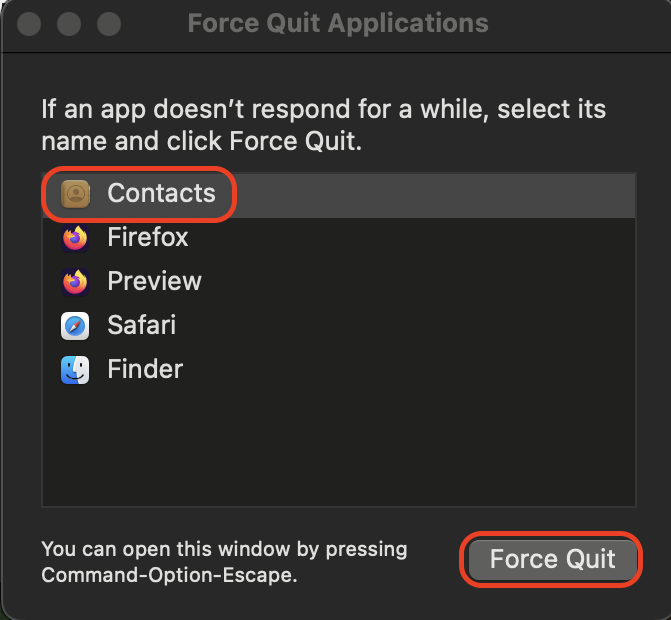
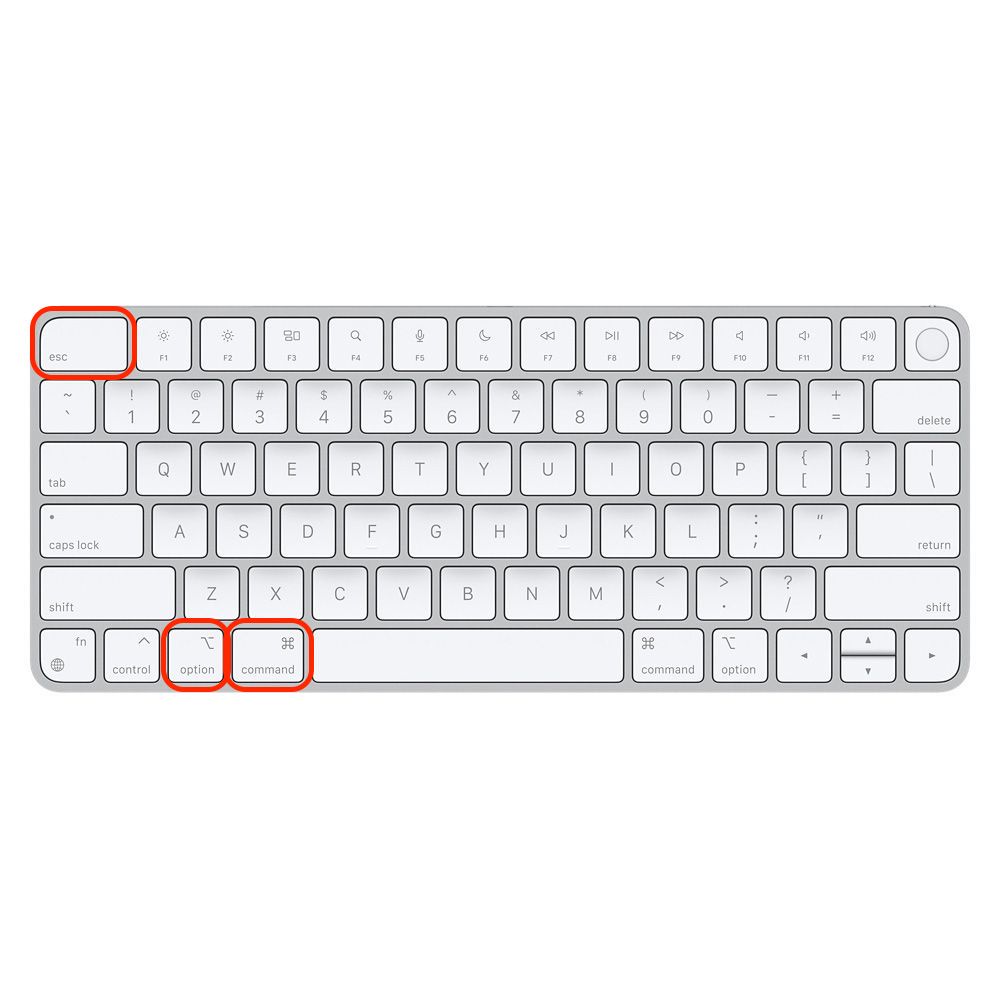
Press Command + Option + Esc to open the Force Quit window.
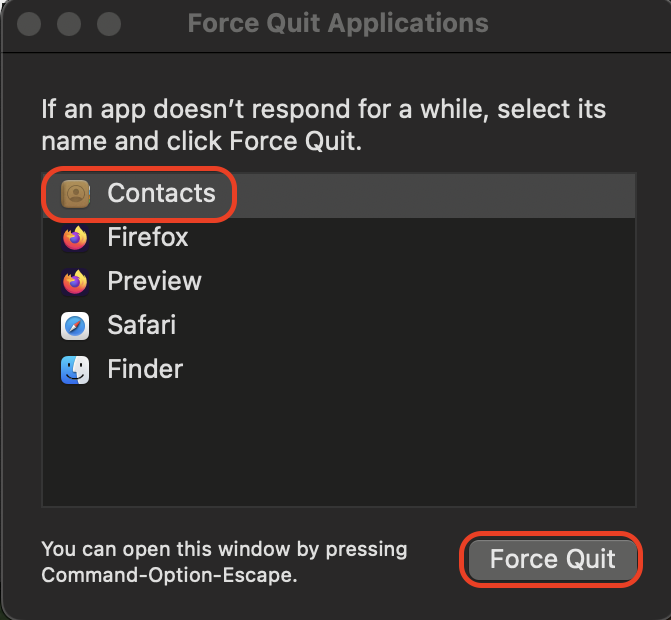
Select Contacts from the list.
Click Force Quit.
Reopen Contacts using Spotlight by pressing Command + Space and typing "Contacts."
Step 1. Press Command + Option + Esc to open the Force Quit windowStep 2. Select Contacts from the list and click Force Quit
7. Re-enable iCloud contacts
Toggling iCloud Contacts off and back on can refresh a stalled sync, which we've seen help in many real cases. This setting is located in the same area that many users check when learning how to block someone on your MacBook, so it's easy to find.
Re-enable iCloud Contacts like this:
Open System Settings from the menu bar.
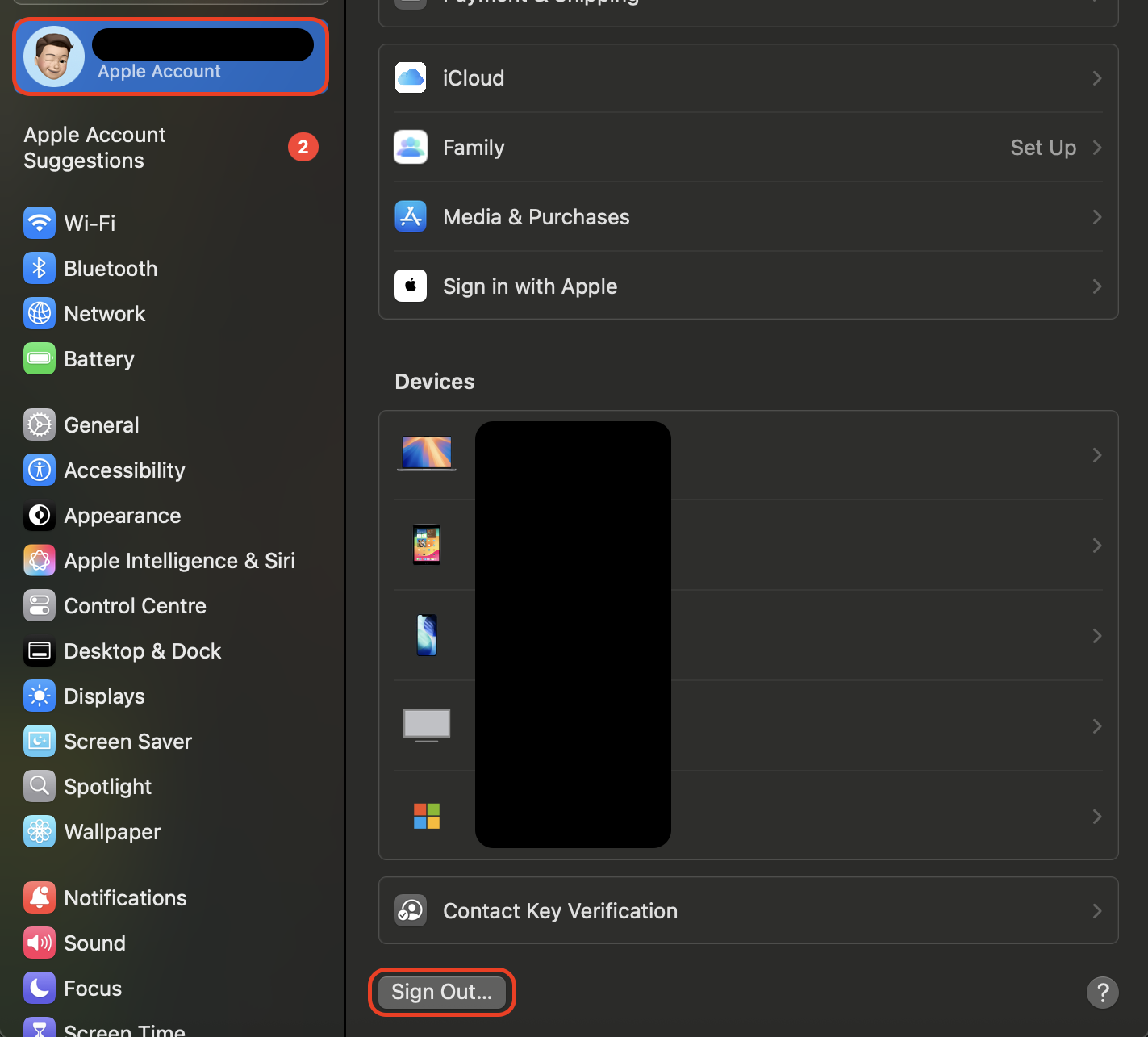
Click Apple Account at the top of the sidebar.
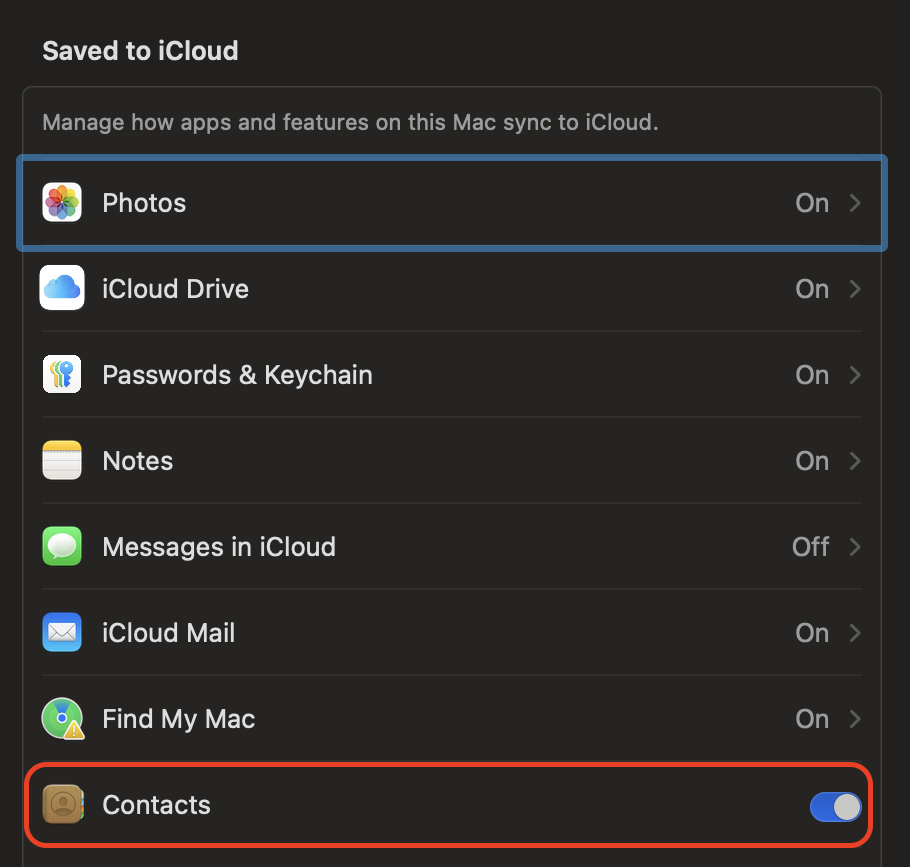
Select iCloud.
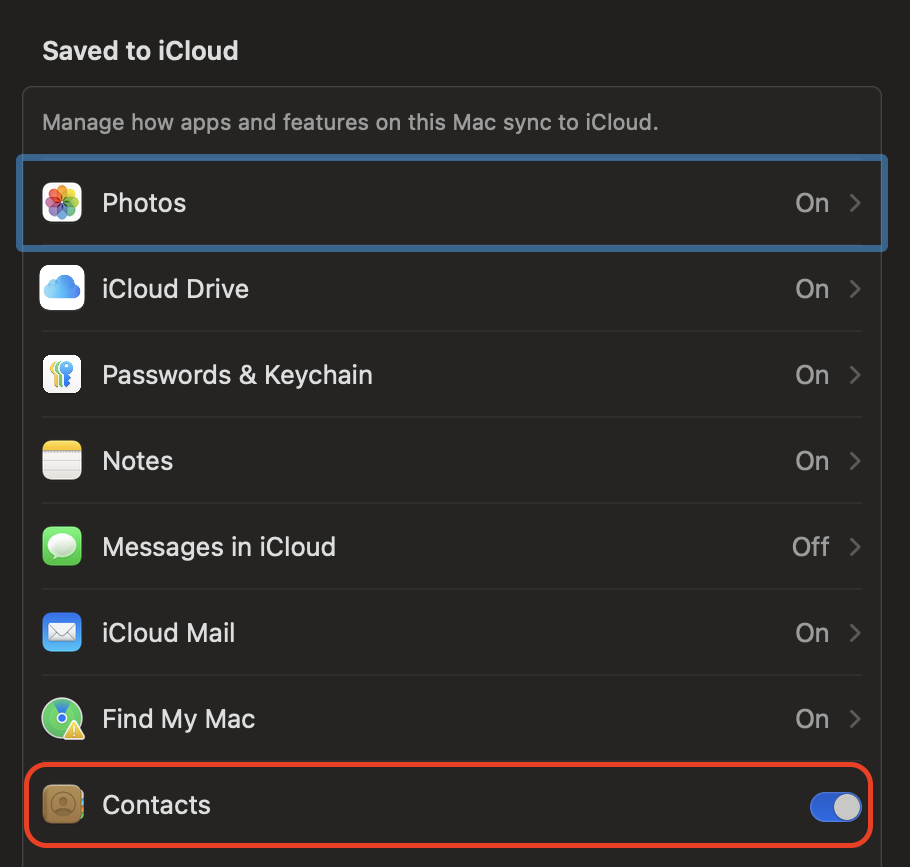
Turn Contacts off.
Wait a few seconds, then turn Contacts back on.
Open System Settings from the menu bar. Click Apple Account at the top of the sidebar and select iCloud, then turn Contacts off
8. Re-sync your AddressBook
When iCloud stalls, manually forcing the Contacts app to rebuild its local AddressBook folder often helps.
Re-sync it safely:
Quit Contacts if it's open.
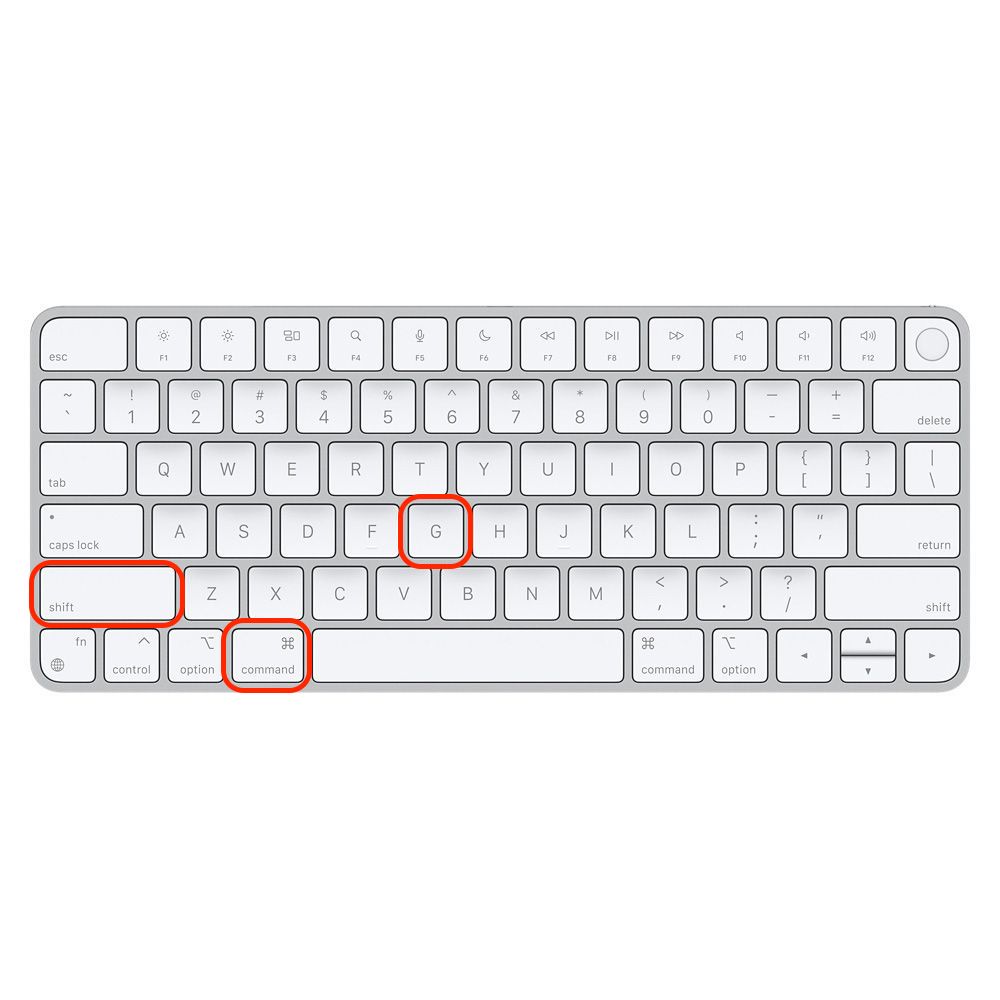
Open Finder and press Shift + Command + G.
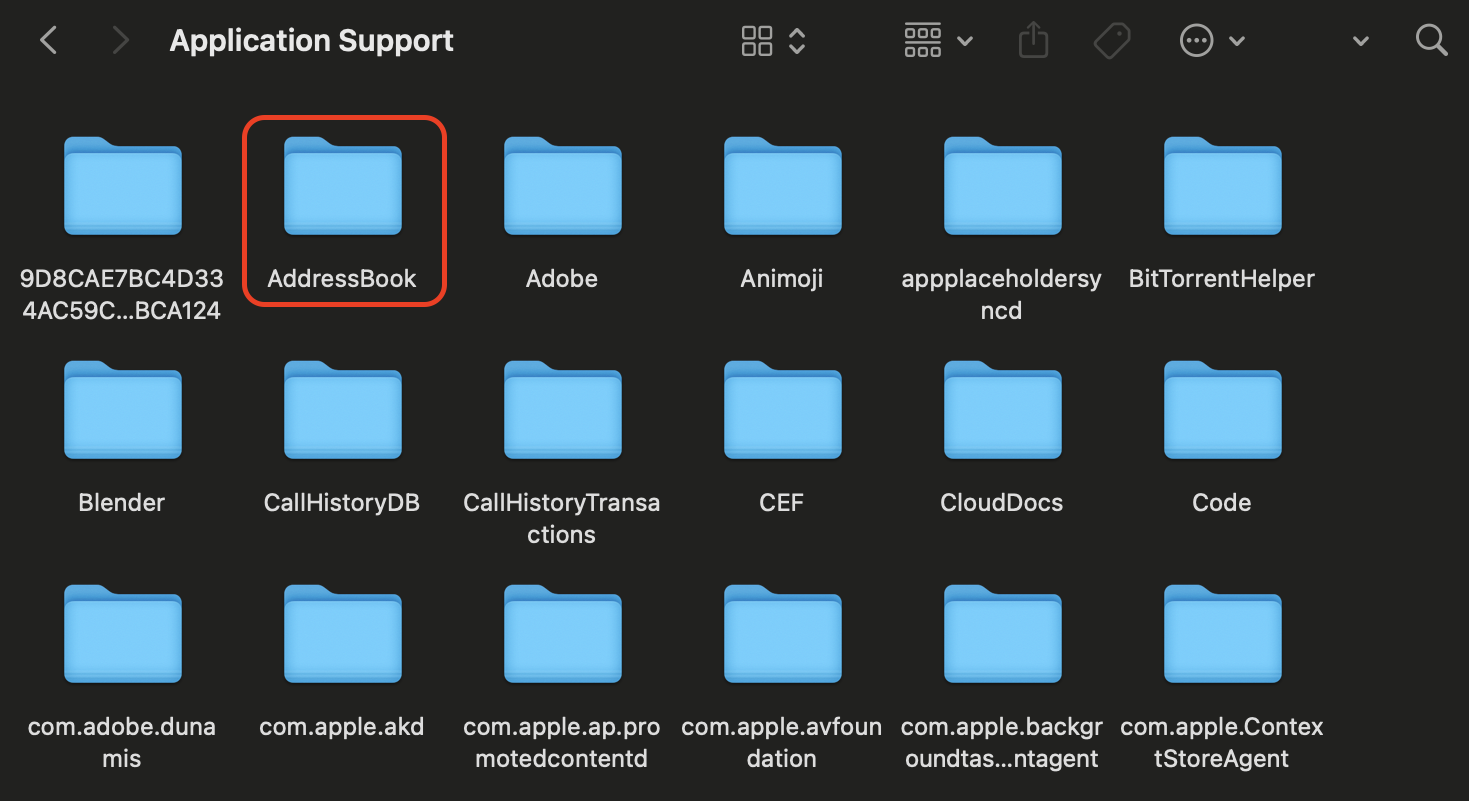
Type ~/Library/Application Support and press Return.
Find the AddressBook folder.
Rename it to AddressBook-old.
Reopen Contacts to trigger creation of a new AddressBook folder.
Step 1. Open Finder and press Shift + Command + GStep 2. Type ~/Library/Application Support and press ReturnStep 3. Find the AddressBook folder and rename it to AddressBook-old
9. Download from iCloud.com and add to Contacts app on Mac
If syncing still fails, manually downloading your contacts from iCloud can restore your entire list, which many users rely on before more advanced fixes.
Import contacts manually:
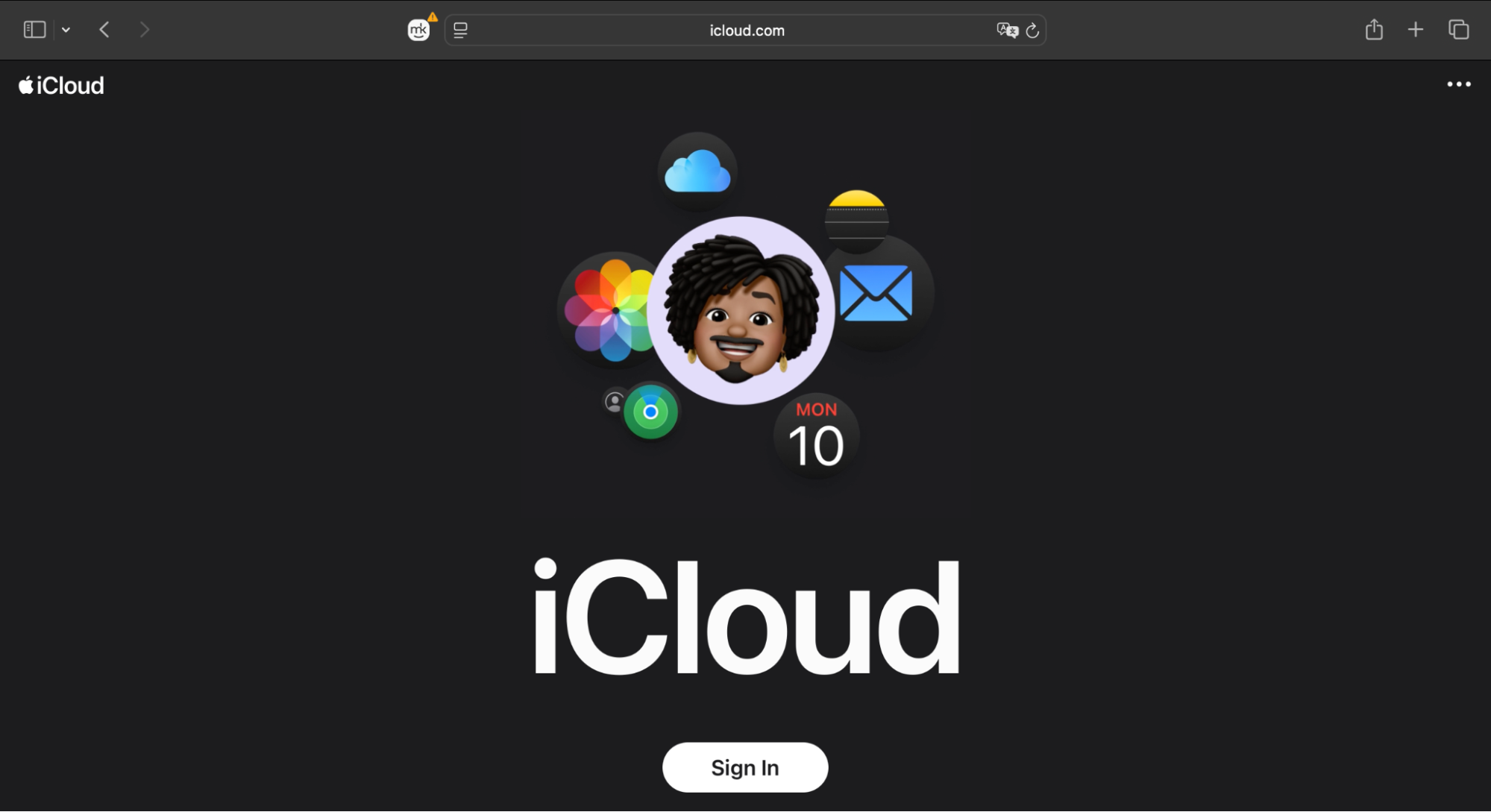
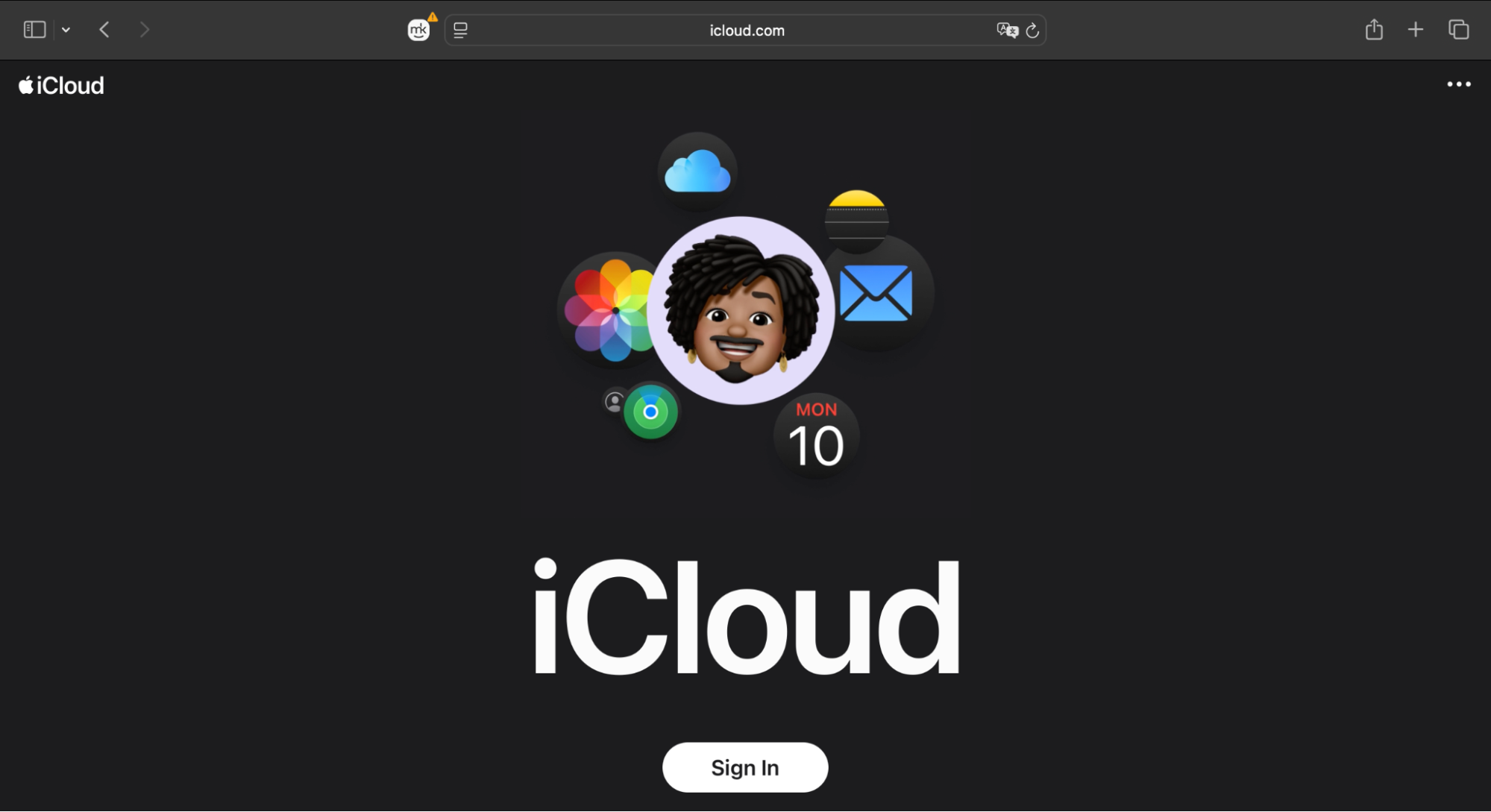
Open Safari and go to iCloud.com.
Sign in with your Apple ID.
Click Contacts.
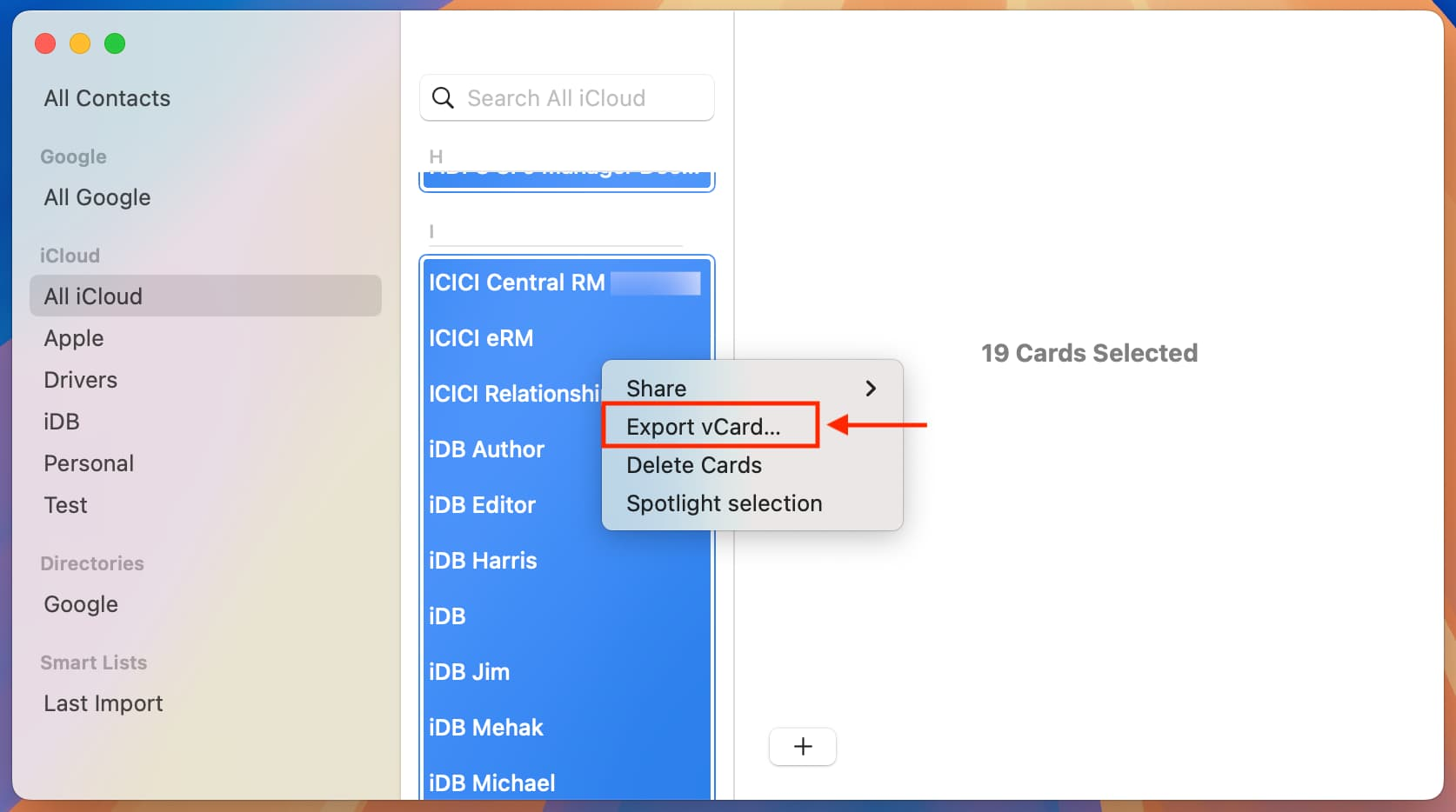
Press Command + A to select all contacts.
Click the gear icon and choose Export vCard.
Open the downloaded .vcf file to automatically import contacts into the Mac Contacts app.
Step 1. Open Safari and go to iCloud.comStep 2. Press Command + A to select all contacts. Then click the gear icon and choose Export vCard
10. Restore deleted contacts from iCloud.com
Restoring a previous version of your contacts can help if items disappeared unexpectedly. This method is handled entirely online, so you don’t need to access any system tools or figure out where the Mac Control Center is.
Restore deleted contacts this way:
Open Safari and go to iCloud.com.
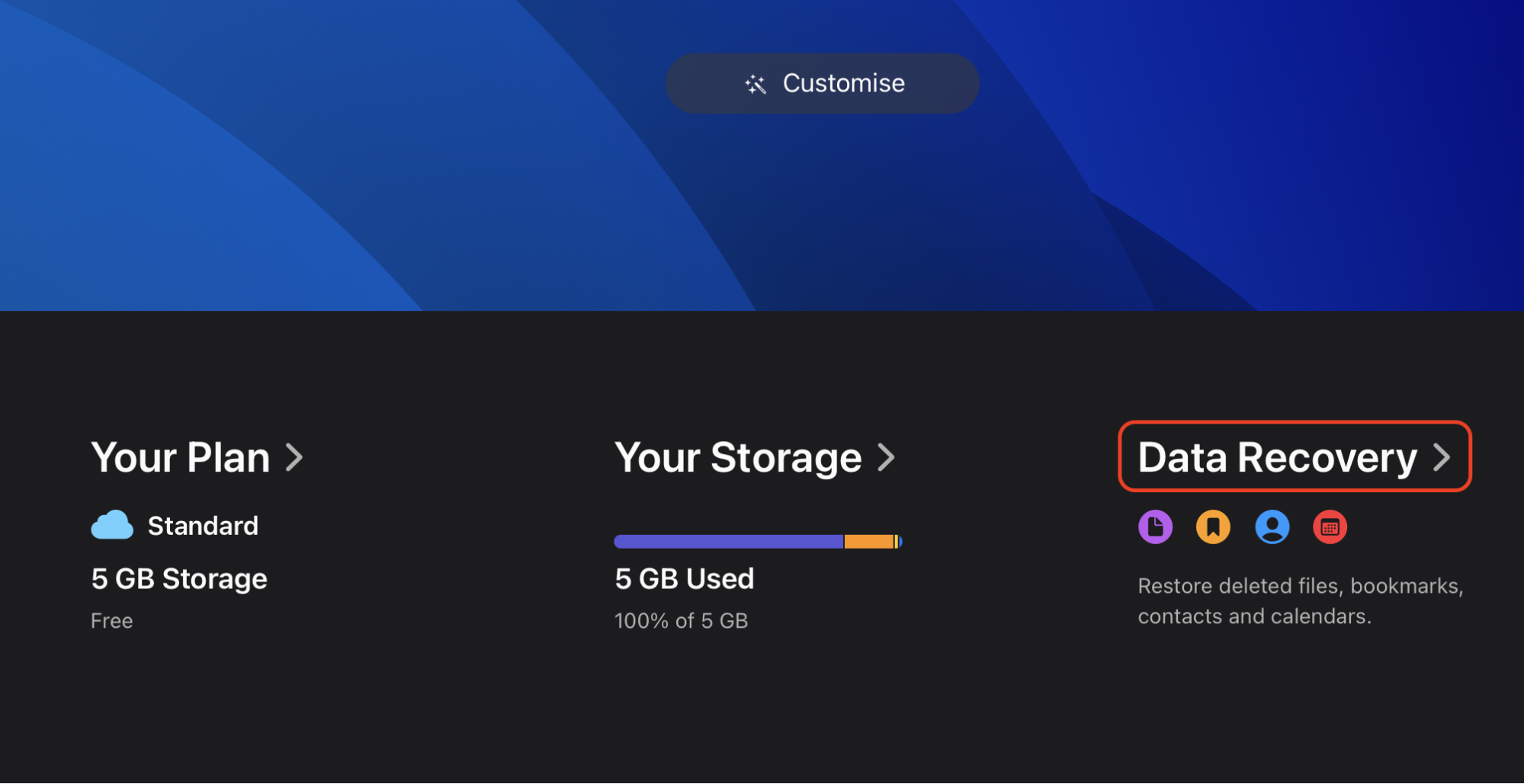
Sign in and click your account menu (name in the corner).
Select Data Recovery.
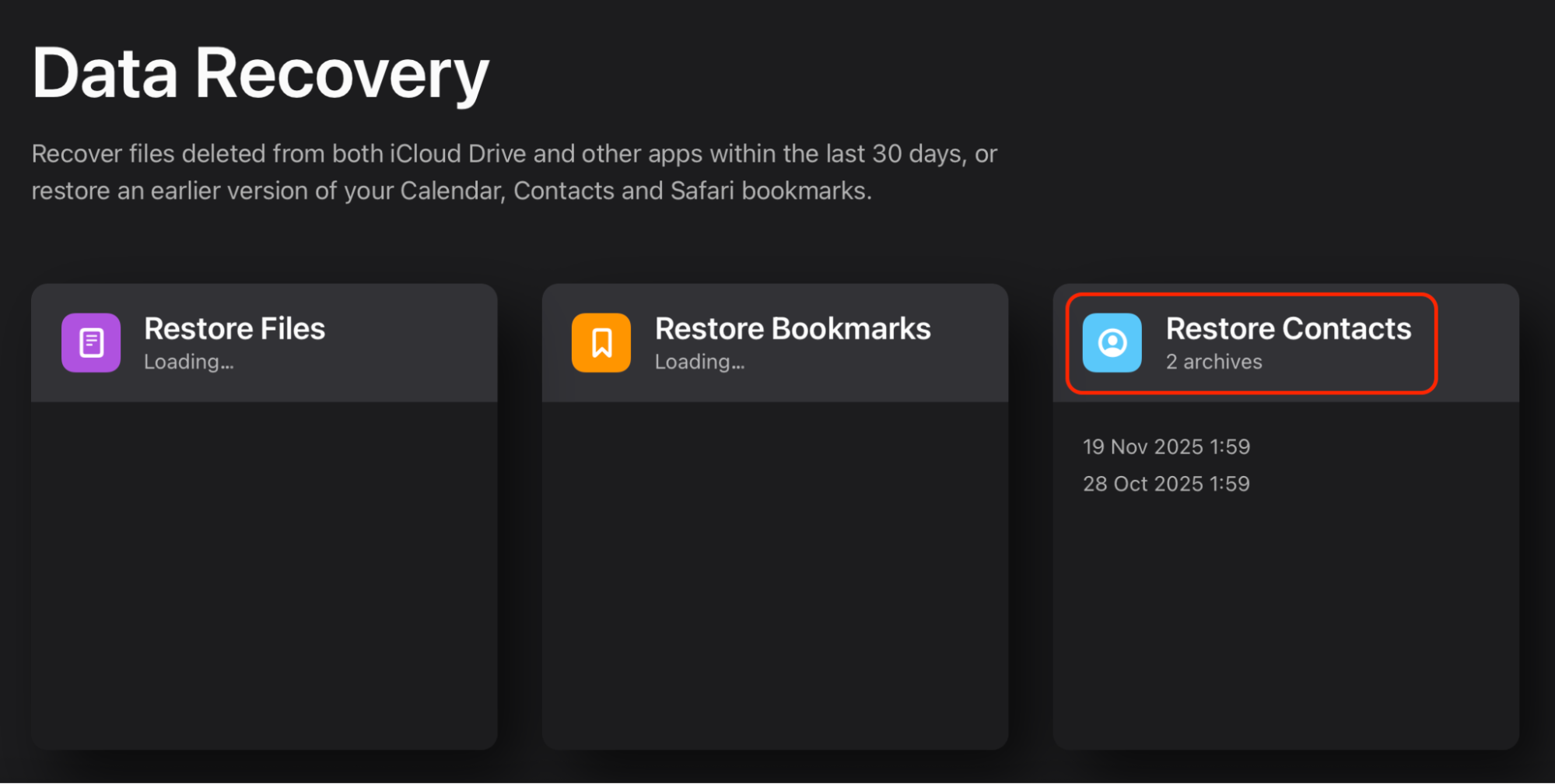
Click Restore Contacts.
Choose an earlier archive and click Restore.
Step 1. Open Safari and go to iCloud.comStep 2. After signing in, select Data RecoveryStep 3. Click Restore Contacts
Conclusion
Fixing contacts not syncing on Mac usually comes down to refreshing iCloud, checking your internet connection, and resetting key settings like Apple ID or the AddressBook folder. Once you follow the essential steps, most syncing issues resolve without the need for deeper system intervention.
For users who want a faster, guided solution, MacKeeper's Premium Services provide expert-led troubleshooting tailored to your device. MacKeeper is trusted by millions of users, which makes its live assistance a reliable way to fix syncing problems quickly and avoid the frustration of trial-and-error fixes. Try it yourself!
We respect your privacy and
use cookies
for the best site experience.
Privacy Preferences Center
We use cookies along with other tools to give you the best possible experience while using the
MacKeeper website. Cookies are small text files that help the website load faster. The cookies we
use don’t contain any type of personal data meaning they never store information such as your
location, email address, or IP address.
Help us improve how you interact with our website by accepting the use of cookies. You can change
your privacy settings whenever you like.
Manage consent
All cookies
These cookies are strictly necessary for enabling basic website functionality (including page
navigation, form submission, language detection, post commenting), downloading and purchasing
software. The website might malfunction without these cookies.