If you need to disable SIP on Mac, you’re probably running into frustrating restrictions that temporarily stop you from modifying files, installing tools, or fully controlling your macOS system. We’ll show you how to turn off System Integrity Protection on Mac safely, and use MacKeeper’s Antivirus to ensure your computer remains protected while experiencing fewer limitations.
Do you need to close SIP on Mac? Our team of Clario Tech experts encourages you to disable it first–a temporary fix, but easy to re-enable later on. To do this, you’ll first need to reboot your Mac in Recovery Mode. Then open the Terminal app and type in the command csrutil disable, followed by y and Enter. Then restart your device.
Can you disable SIP on Mac?
Yes, you can absolutely disable system integrity protection Mac. In many cases, we’d recommend this over trying to turn it off, as it’s fairly easy to disable and remedy SIP.
Here’s how we would disable SIP on Mac:
Boot your Mac into Recovery Mode.
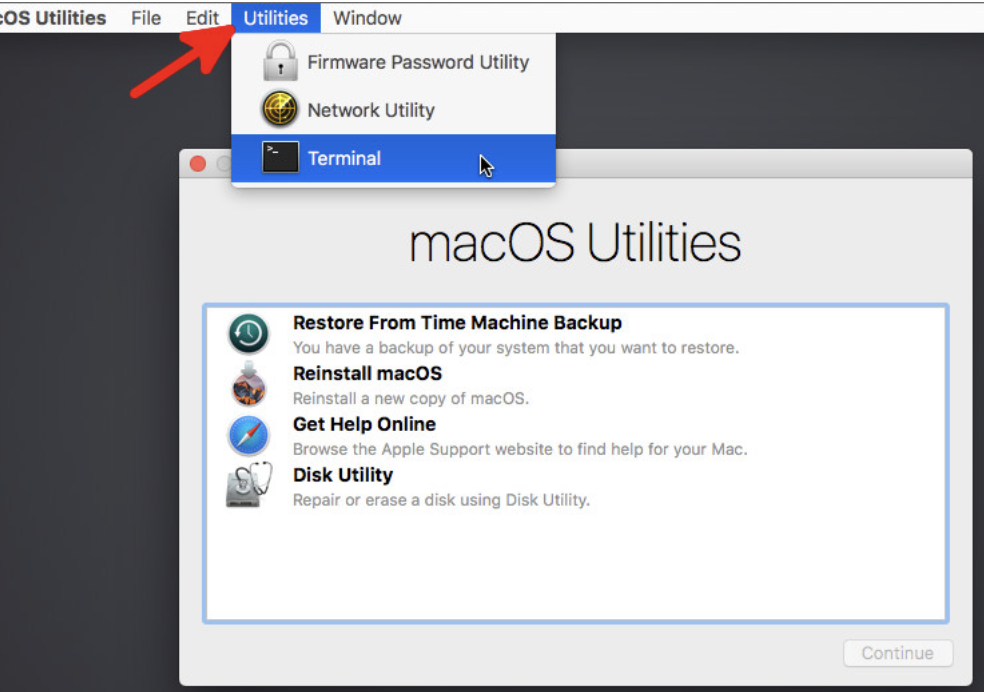
In Utilities, select Terminal.
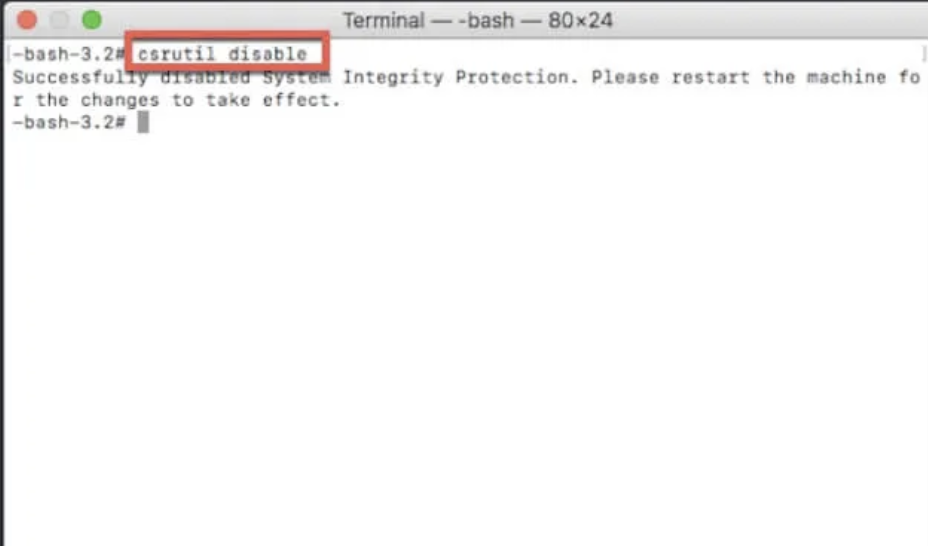
Enter csrutil disable.
Restart the device.
Step 1. Boot Mac into Recovery ModeStep 2. In Terminal, enter csrutil disable to disable SIP
How to turn off SIP on Mac?
Ready to turn off SIP Mac? Then we can definitely help you out. We’ll walk you through the process step-by-step–to ensure it's turned off or disabled properly to avoid causing os errors on your Apple computer.
This is how we’d turn off SIP on a MacBook:
Restart Mac in Recovery mode.
Open Terminal from the Utilities menu.
Enter the csrutil disable command.
Restart your Mac.
A note from our experts:
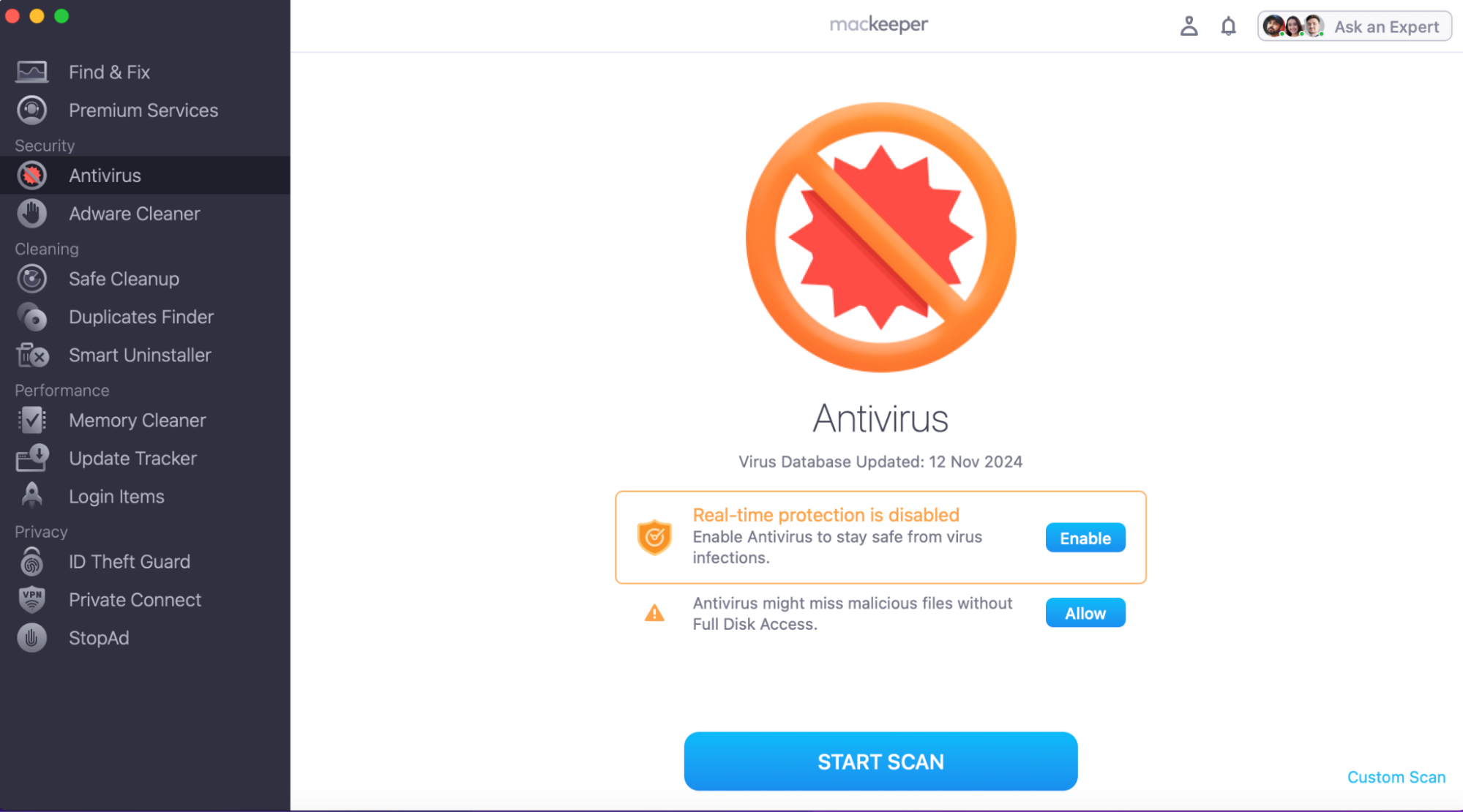
When you disable SIP you’re turning off a key feature that restricts access to important system files across your computer—whether you’re using a MacBook Air, Mac mini, or MacBook Pro running macOS (formerly OS X) on Apple silicon or Intel. That’s why we highly recommend MacKeeper’s Antivirus, as it helps enable real-time protection and keeps your data safe while you install tools or make changes with fewer restrictions.
Press Start Scan to detect any threats and Move to Quarantine.
Step 1. Open the MacKeeper app, enable real-time protection, and press Start ScanStep 2. If any threats are found, you'll be able to move them to Quarantine
1. Restart Mac into Recovery mode
In case you’re scratching your head, wondering what is Recovery Mode Mac, it’s a virtual troubleshooting environment that allows you to repair and modify your settings when something goes wrong. To disable SIP, restarting Mac into Recovery Mode can help isolate the issues so it can be fixed.
Below, we’ll guide you on how to restart your Mac in Recovery Mode—stay with us.
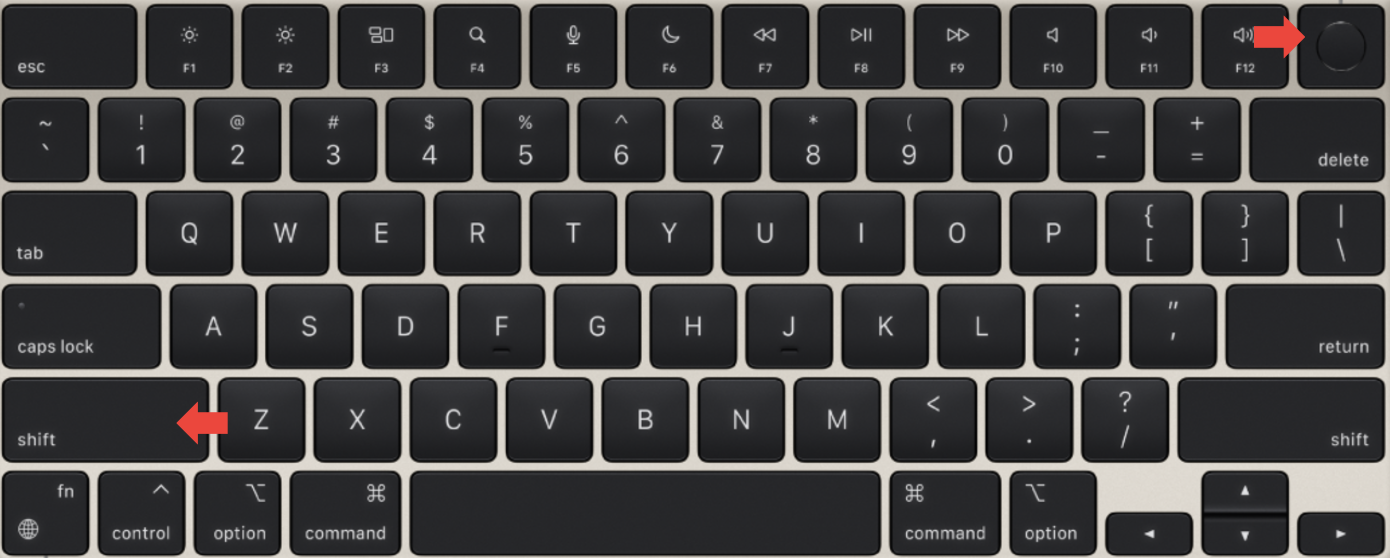
For Intel-based Macs:
Turn off your Mac.
Press the power button while holding down Shift.
Release when you see the login window.
Turn off, then back on your Mac, holding the power button and Shift until you see the login window
For Apple Silicon Mac:
Shut down your Mac.
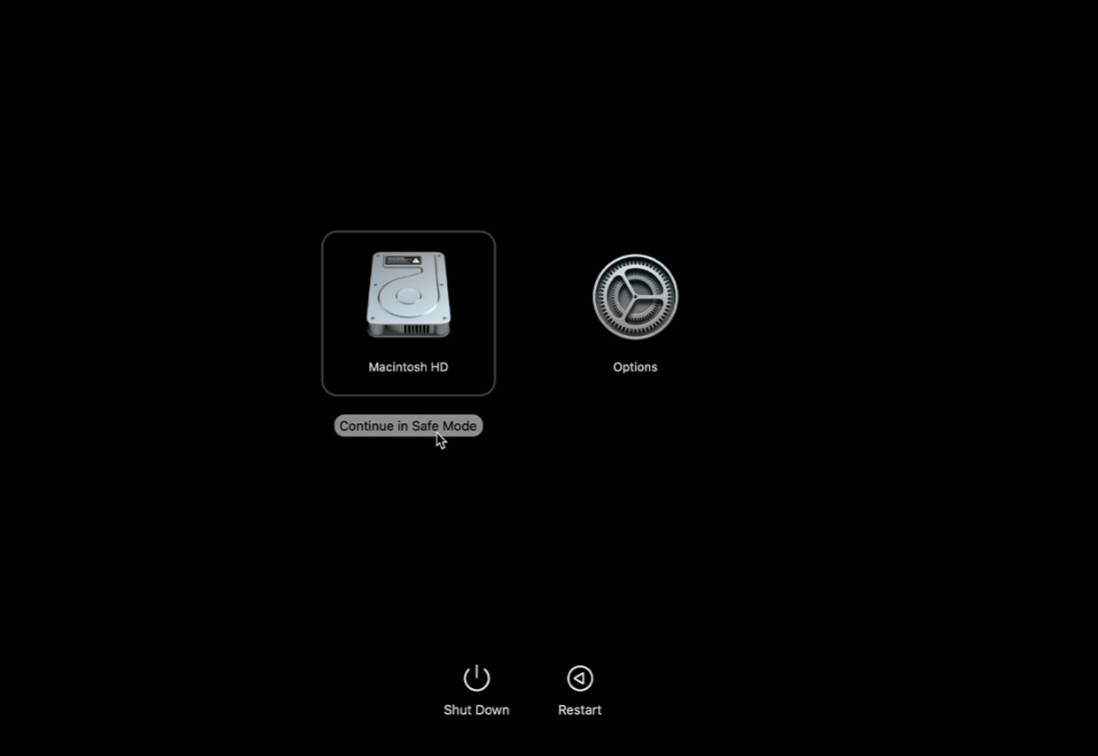
Press the power button until you see the startup options.
Click on Options.
Choose your startup disk.
Hold down Shift and click Continue in Safe Mode.
Then release Shift.
Turn on the Mac while holding the Power button until you see the Startup Options to boot into Safe Mode
2. Open Terminal from the Utilities menu
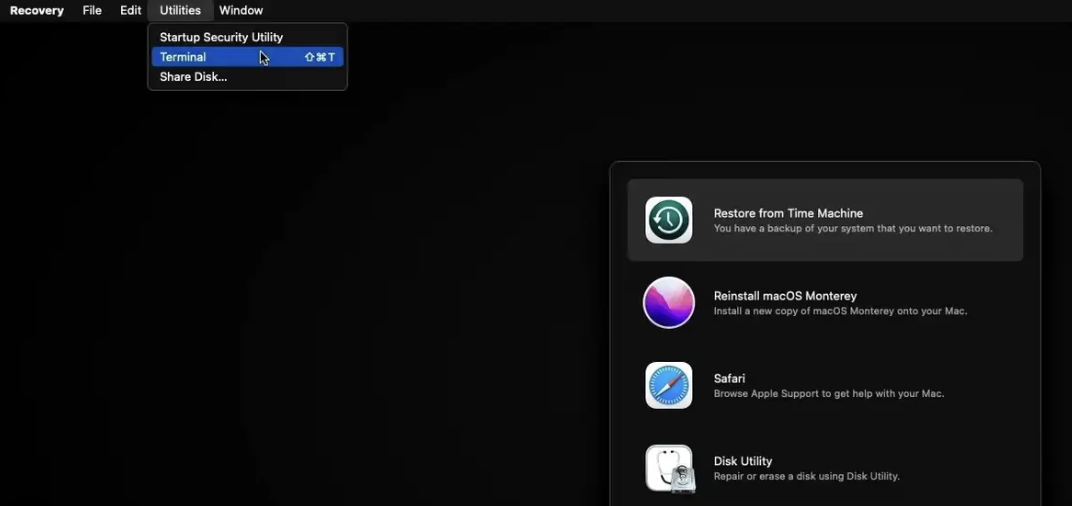
Once you’ve booted your Mac into Recovery Mode, you’ll be able to see a Utilities menu–this is where you’ll be able to access and open Terminal to continue with turning off SIP on Mac.
Here’s how to open Terminal in Recovery Mode:
Look for Utilities.
Click on Terminal.
In Recovery Mode, click on Utilities and select Terminal
3. Enter command
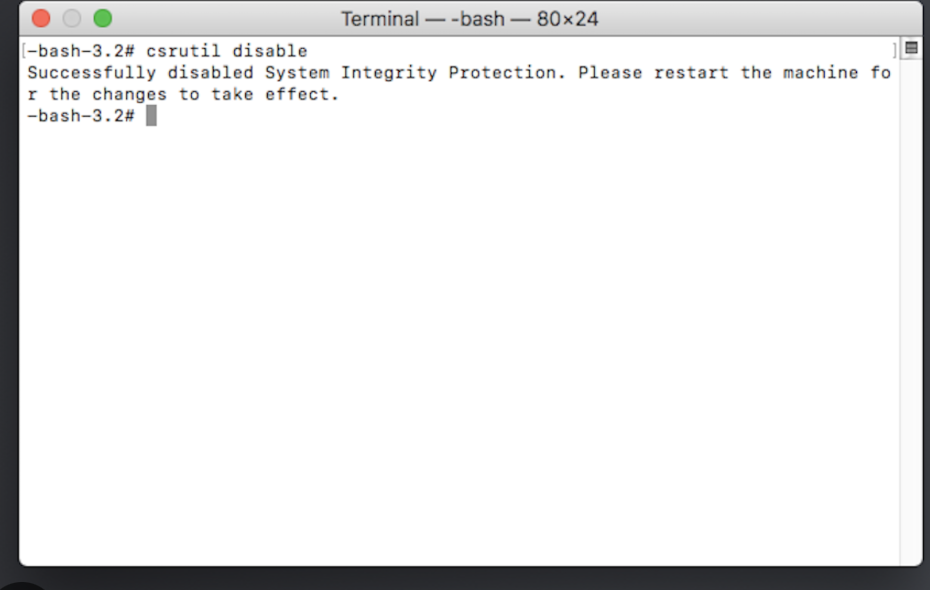
Once you’ve opened Terminal in OS Recovery Mode, the next step is to enter the correct command. It must be entered correctly; otherwise, the command will fail.
Here’s how to enter the disable SIP command in Terminal:
In Terminal, type in the csrutil disable command.
Hit Enter.
In Terminal, type in: csrutil disable and press Enter
4. Restart your Mac
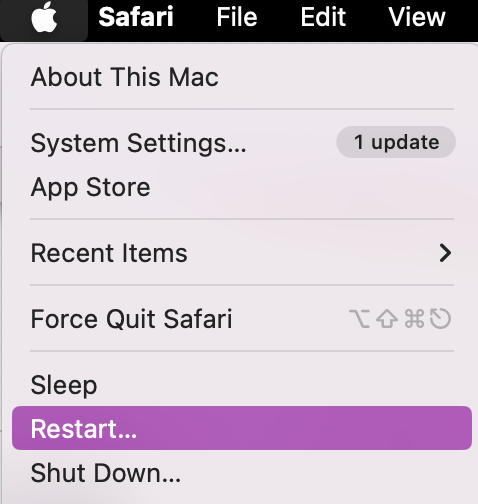
Now all that is left is to restart your Mac as this step finalizes the SIP turn off.
Here’s how to restart your Mac:
After quitting Terminal, click on the Apple Icon.
Select Restart.
Click on the Apple Icon and Restart your Mac
How to enable SIP on Mac?
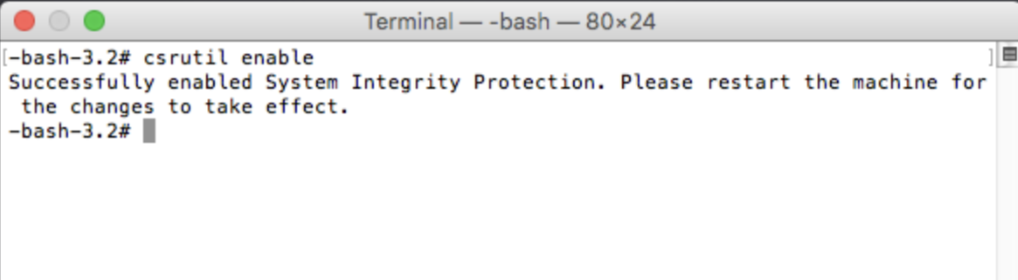
Ready to re-enable SIP on Mac? It’s the same process but with a slightly different Terminal command.
Here’s how we recommend enabling SIP on Mac:
Restart Mac into Recovery Mode.
Open Terminal.
Enter the csrutil enable command.
Restart computer.
Launch Mac into Recovery Mode, open Terminal, and enter the command:csrutil enable
Take control of SIP on your Mac
Now you know how easy it is to disable SIP on Mac should you ever need to fix system restrictions and regain control of your operating system. As we’ve shown you, booting your computer into Recovery Mode and opening up Terminal is the easiest way to disable System Integrity Protection–just make sure you follow our steps carefully to avoid further issues.
To support you, we recommend utilizing MacKeeper’s Antivirus. In the app, you can enable Real-time protection and regularly scan for threats. That way, your data will be kept safe when you start downloads or search the internet. With MacKeeper by your side, your device will remain secure and protected.
We respect your privacy and
use cookies
for the best site experience.
Privacy Preferences Center
We use cookies along with other tools to give you the best possible experience while using the
MacKeeper website. Cookies are small text files that help the website load faster. The cookies we
use don’t contain any type of personal data meaning they never store information such as your
location, email address, or IP address.
Help us improve how you interact with our website by accepting the use of cookies. You can change
your privacy settings whenever you like.
Manage consent
All cookies
These cookies are strictly necessary for enabling basic website functionality (including page
navigation, form submission, language detection, post commenting), downloading and purchasing
software. The website might malfunction without these cookies.