Sometimes the only way to install trusted software, run developer tools, or troubleshoot performance hiccups without your security app stepping in to block legitimate processes is to turn off antivirus on Mac. With MacKeeper’s Antivirus, you can pause real-time protection in a single click, finish what you need to do, and switch it right back on without losing your scan history or peace of mind.
To turn off antivirus on Mac, you should open your antivirus app, go to its preferences, and toggle off real-time protection. For browser-based extensions, disable them through your browser’s settings. Always re-enable antivirus once your task is finished to keep your Apple device protected.
Why to turn off antivirus on Mac?
You may want to deactivate antivirus on Mac when it interferes with installing trusted apps, blocks software updates by mistake, or slows down resource-heavy tasks. Beyond installation issues, third-party antivirus apps can sometimes clash with macOS system updates, slow down virtual machines, or interfere with developer tools like Xcode.
How to disable antivirus on Mac?
To disable antivirus on Mac, open your antivirus app, head to the main settings panel, and toggle off real-time protection. To stop antivirus on Mac in your browser, switch off any antivirus extensions through your browser’s settings. For built-in macOS Gatekeeper, use Terminal commands carefully.
A note from our experts:
Worried that turning off antivirus will leave your MacBook exposed during the gap? We suggest using MacKeeper, an Apple-notarized cybersecurity tool, which detects malware, viruses, and Trojans in real time and quietly blocks malicious files before you open them. The app runs in the background without slowing your system down, and you can pause antivirus on Mac instantly when you need a clean install or a testing session, then bring it back online with one click.
Here’s how to scan and protect your Mac with MacKeeper’s Antivirus:
Download MacKeeper from the official website and open the app on your MacBook.
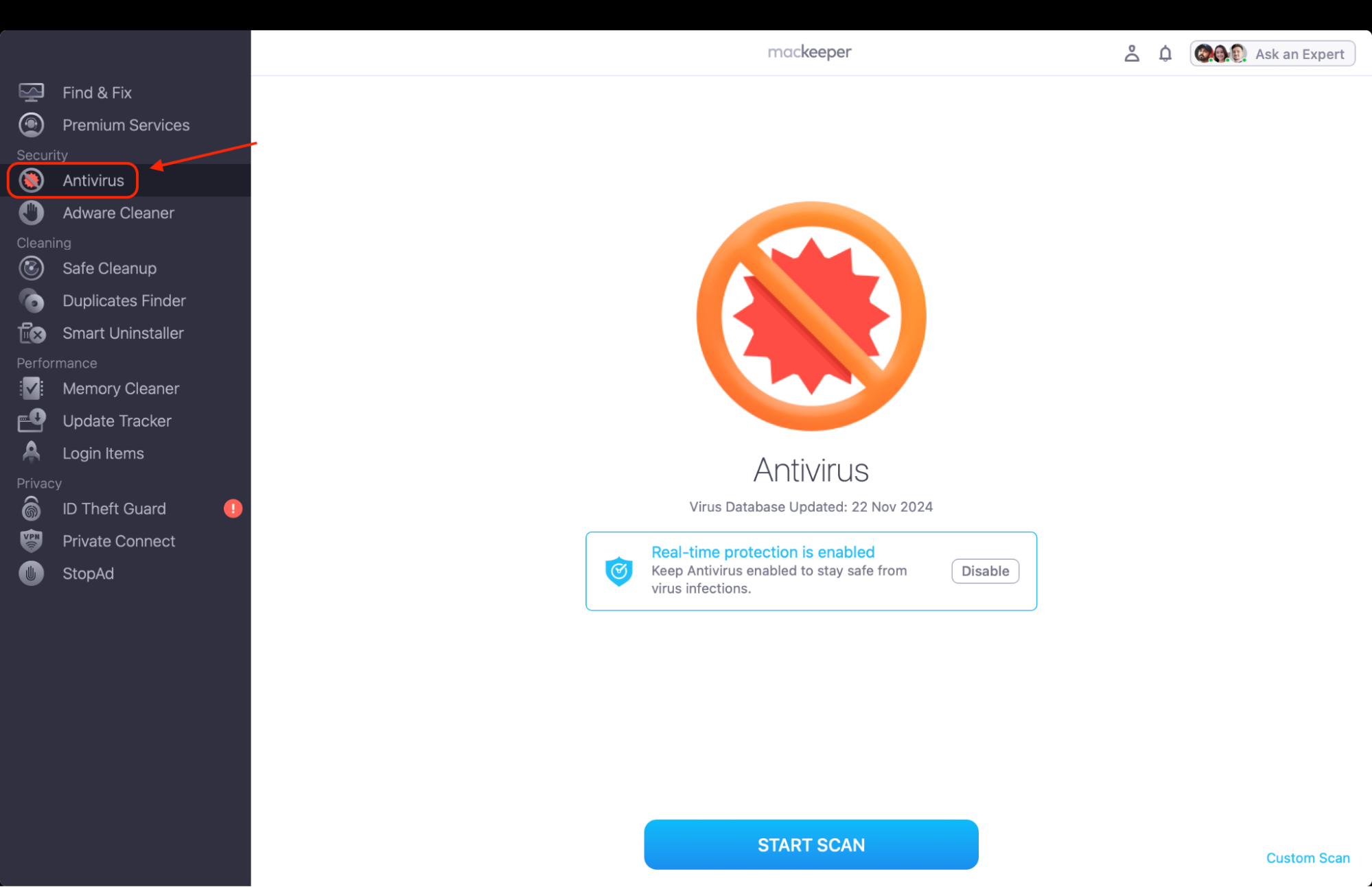
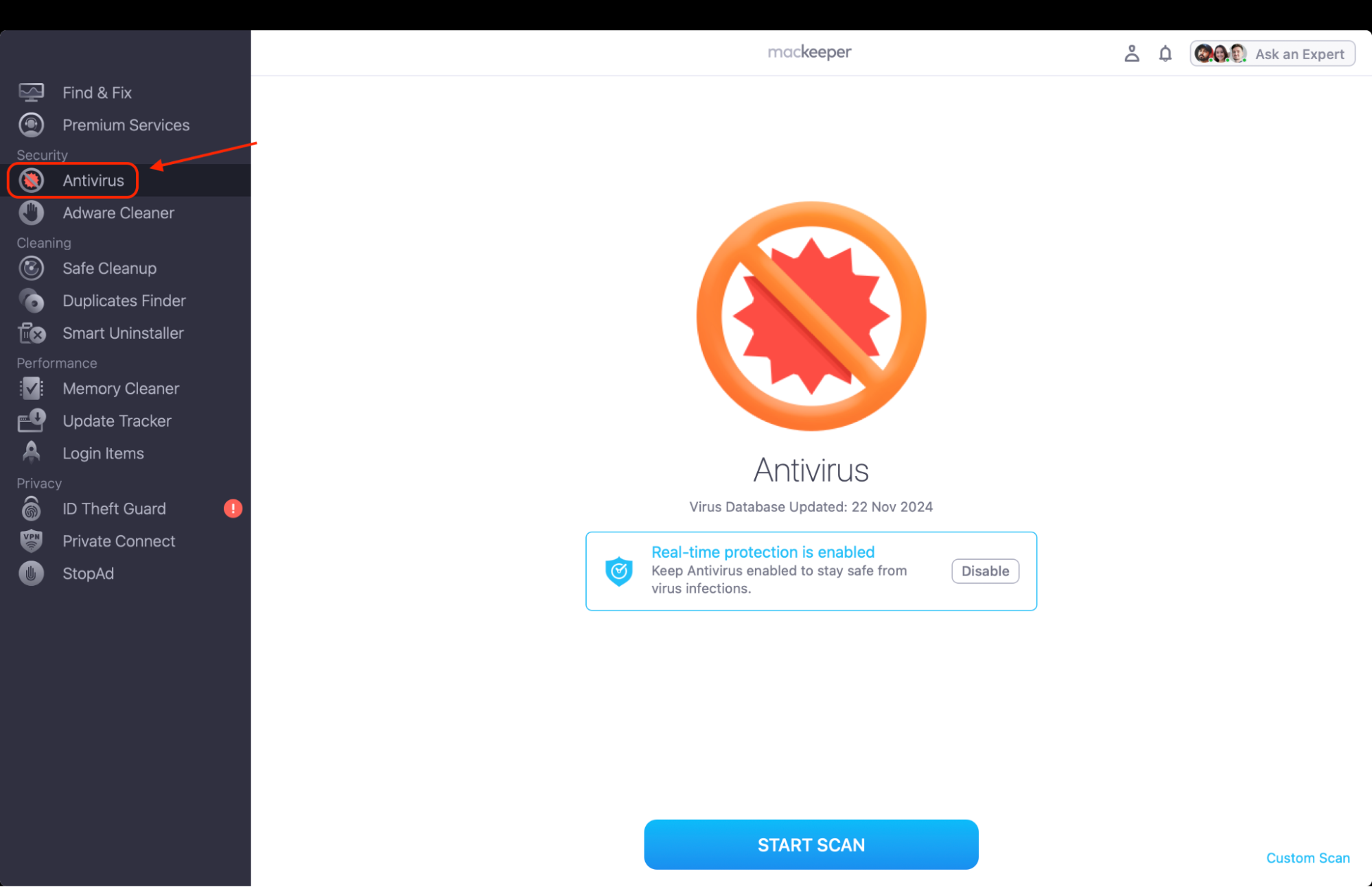
Select Antivirus from the sidebar under the Security section, then click Open.
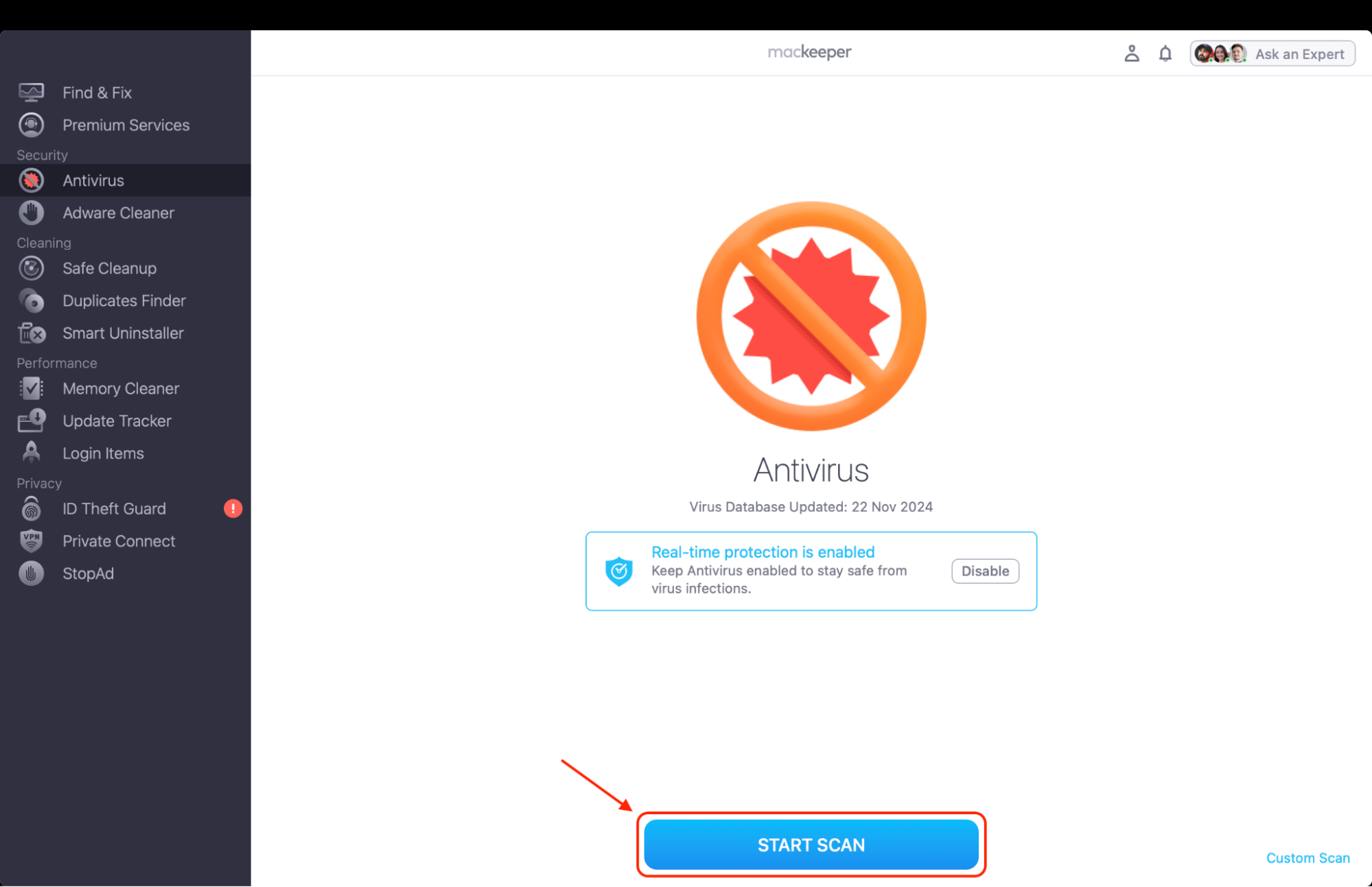
Click Start Scan to run a full malware check, or use the Real-Time Protection toggle to pause and resume background scanning whenever you need.
Step 1. Find the Antivirus section in the left-side menu barStep 2. Click the Start Scan button to launch the scanning process
1. Disable antivirus software with MacKeeper
If you have MacKeeper installed and need to pause its protection temporarily, you can toggle off real-time scanning in just a few clicks without uninstalling anything. We’ve found this method especially handy when you’re running unsigned developer apps or testing scripts that trigger false positives. Your scan history, schedules, and threat database stay intact, so flipping protection back on takes seconds whenever you’re ready.
Steps to disable MacKeeper’s Antivirus on your Mac:
Open MacKeeper from your Applications folder or Launchpad.
Click Antivirus in the sidebar under the Security section.
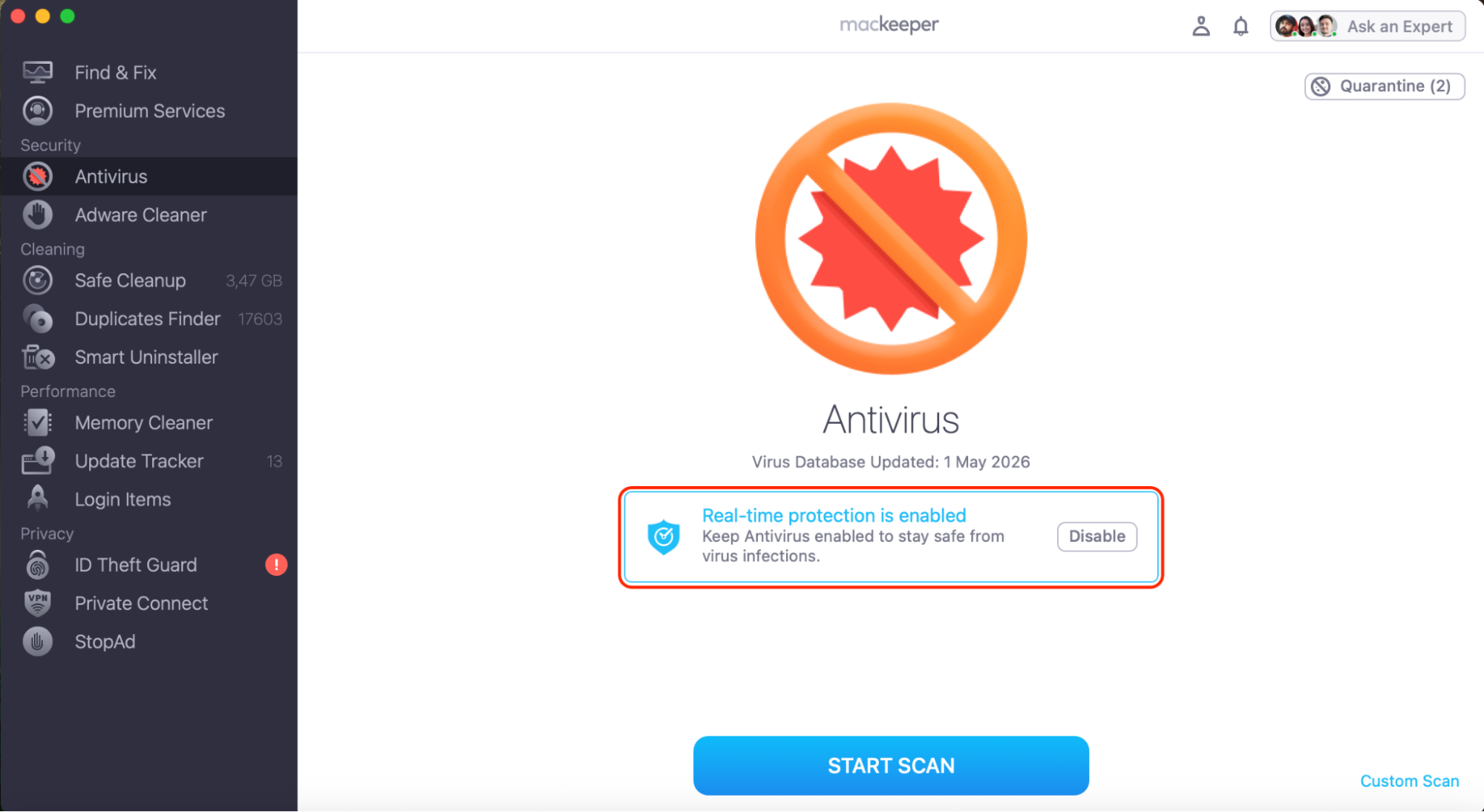
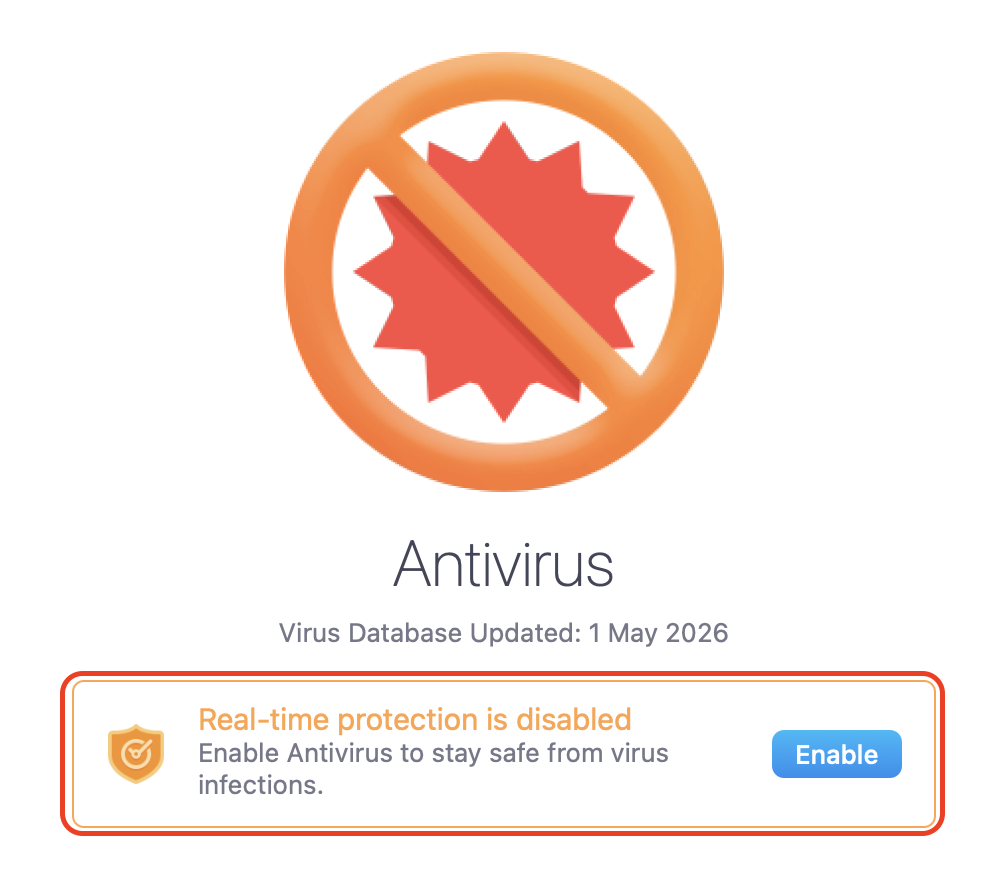
Locate the Real-Time Protection toggle in the main panel.
Switch the toggle to the Off position to pause active scanning.
Confirm any system prompt that appears, and your antivirus will stay disabled until you switch it back on.
Step 1. Open MacKeeper and click Antivirus in the sidebarStep 2. Switch the Real-Time Protection toggle to the Off position
2. Turn off antivirus manually
If you’re using a third-party antivirus app that isn’t MacKeeper, the menu bar icon is usually the fastest way in. In our experience, it gives you a quick toggle without digging through preferences. Note your existing settings before you change anything so you can restore them precisely, and brush up on how to protect Mac from viruses without active scanning, just so you stay safe during the gap.
Find below our instructions on how tto deactivate antivirus manually on your Apple device:
Click the antivirus icon in the top menu bar to open the dropdown.
Select Disable Protection or Pause Protection from the list.
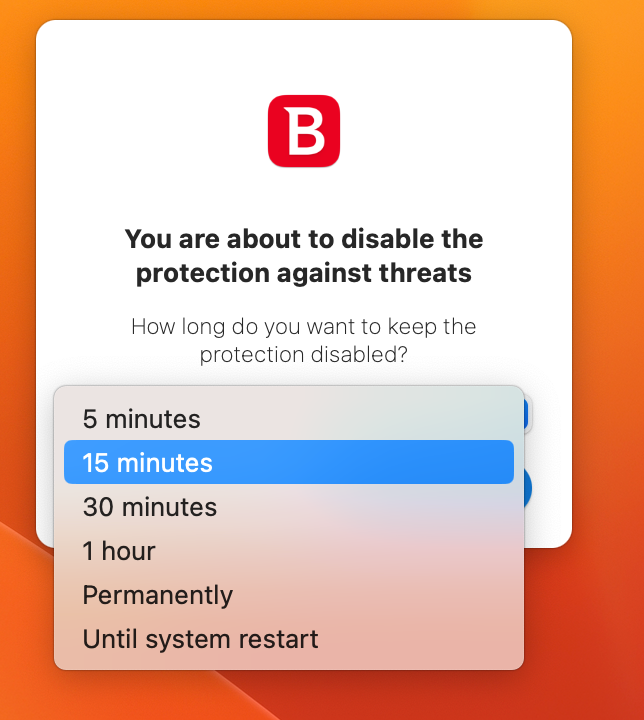
Choose how long you’d like protection paused, such as 15 minutes, 1 hour, or Until Restart.
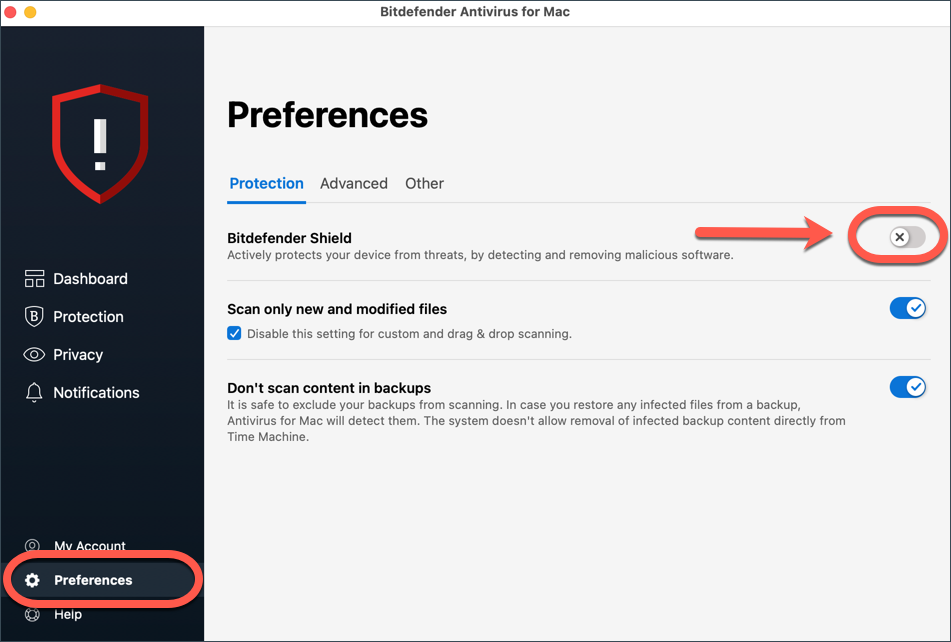
For full deactivation, open the antivirus app and go to Settings or Preferences.
Find the section labeled Real-Time Protection, Shield Settings, or Auto-Protect.
Toggle each option off, then quit the app to stop background scanning entirely.
Step 1. Click the antivirus icon in the menu bar and select Disable ProtectionStep 2. Choose how long protection should stay paused
3. Stop antivirus in browser
Browser-based antivirus extensions add an extra layer of protection while you surf, but they can also block trusted downloads, mute legitimate notifications, or interfere with web apps you rely on. Our preferred approach is disabling these extensions individually rather than removing them, so you keep your settings ready for when you flip them back on.
Here’s our guide to stop antivirus extensions in your browser:
Open your browser of choice on your Mac.
Then choose the path, depending on your browser:
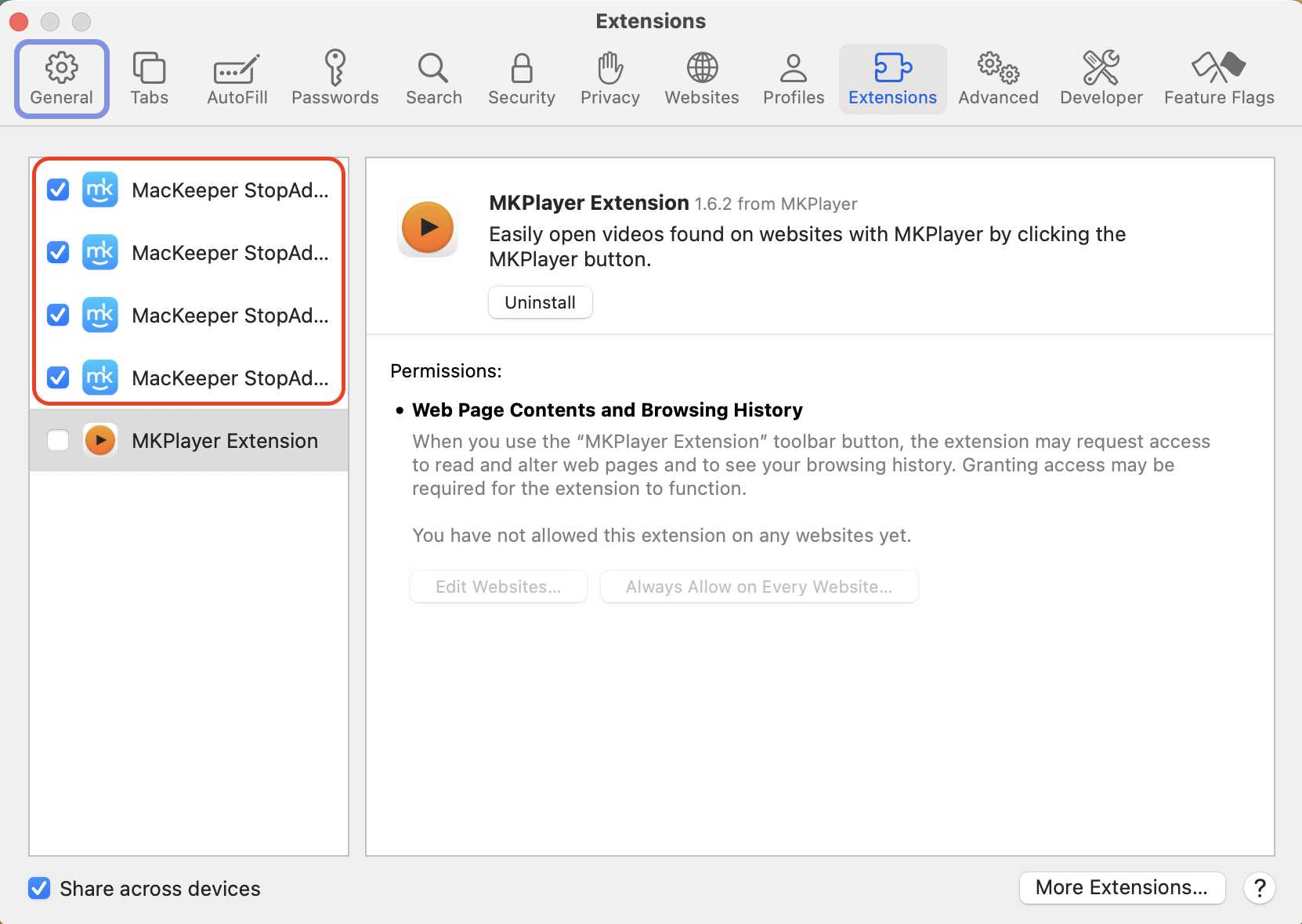
For Safari, go to Safari > Settings > Extensions.
For Chrome, type chrome://extensions in the address bar and press Return.
For Firefox, choose Firefox > Add-ons and Themes > Extensions.
Find the antivirus extension in your list of installed add-ons.
Switch thetoggle off next to the extension’s name to disable it.
Reload any open tabs so the change takes effect immediately.
Open your browser settings and head to the Extensions section. Toggle the antivirus extension off and refresh your tabs
4. Re-enable antivirus
We recommend running a quick scan immediately after re-enabling protection, just to confirm nothing slipped through. If you’d rather know how to check for virus on Mac free of any third-party tools, MacKeeper’s built-in logs make it easy to spot anything unusual.
Steps to re-enable antivirus on your MacBook:
Open MacKeeper or the antivirus app you previously disabled.
Navigate to the Antivirus or Real-Time Protection section in the sidebar.
Switch the toggle back to the On position to resume active scanning.
If you disabled a browser extension, return to the Extensions menu and toggle it on.
Run a full system scan to confirm no threats were introduced while protection was off.
Restart your Mac if the antivirus prompts you to apply the change.
Open MacKeeper and switch Real-Time Protection back on. Then run a full system scan to verify your Mac is clean
Is it safe to disable antivirus on Mac?
Disabling antivirus is safe for short windows, especially if you stay offline or only browse trusted sites while protection is off. The risk grows the longer you leave it disabled—malware can land through email attachments, sketchy downloads, or compromised pages within minutes.
If you’ve ever asked—do Macs need antivirus—the answer is yes for most users: Apple’s built-in defenses help, but they don’t catch everything a dedicated app would, especially if you regularly download apps from outside the App Store.
What's the difference between disabling and uninstalling antivirus on Mac?
To disable antivirus on Mac, you toggle off real-time protection while keeping the app installed, your scan history intact, and your settings ready for a quick reactivation. Uninstalling removes the app entirely, including its preference files, scheduled scans, and any quarantined items.
We usually recommend disabling first because it's reversible in seconds and doesn't leave your Mac unprotected longer than needed. Uninstall only when you're switching to a different antivirus solution, troubleshooting deep conflicts, or freeing up storage.
If you do uninstall, run the app's official uninstaller rather than dragging it to the Trash, since some background services and login items may remain. That extra cleanup step matters for system performance and future installs.
What to do if the antivirus won't turn off on Mac?
Sometimes the toggle refuses to stick, the antivirus app reactivates after a restart, or scheduled scans keep firing despite your changes. The first thing we try when we can't turn off antivirus on Mac is a fresh restart, since some toggles only apply after a reboot.
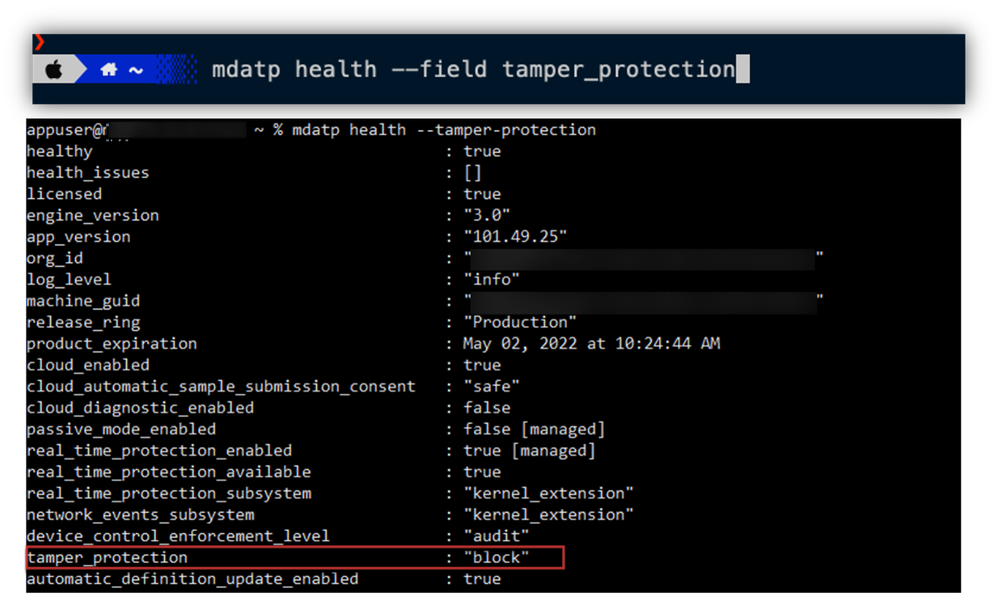
For personal devices, open the app's preferences and look for an option labeled Tamper Protection or Self-Defense, which can prevent disabling. Disable that first, then retry the main toggle. As a last resort, boot into Safe Mode by pressing Shift at startup, sign in, disable the antivirus, then restart normally.
For personal devices, open the app's preferences and look for an option labeled Tamper Protection or Self-Defense
How do you verify your antivirus is fully off on Mac?
After flipping the toggle, it's worth confirming nothing is still scanning in the background, especially if your Mac feels sluggish during installs. If you've tried to deactivate antivirus on Mac, run through these quick checks to confirm protection is fully paused:
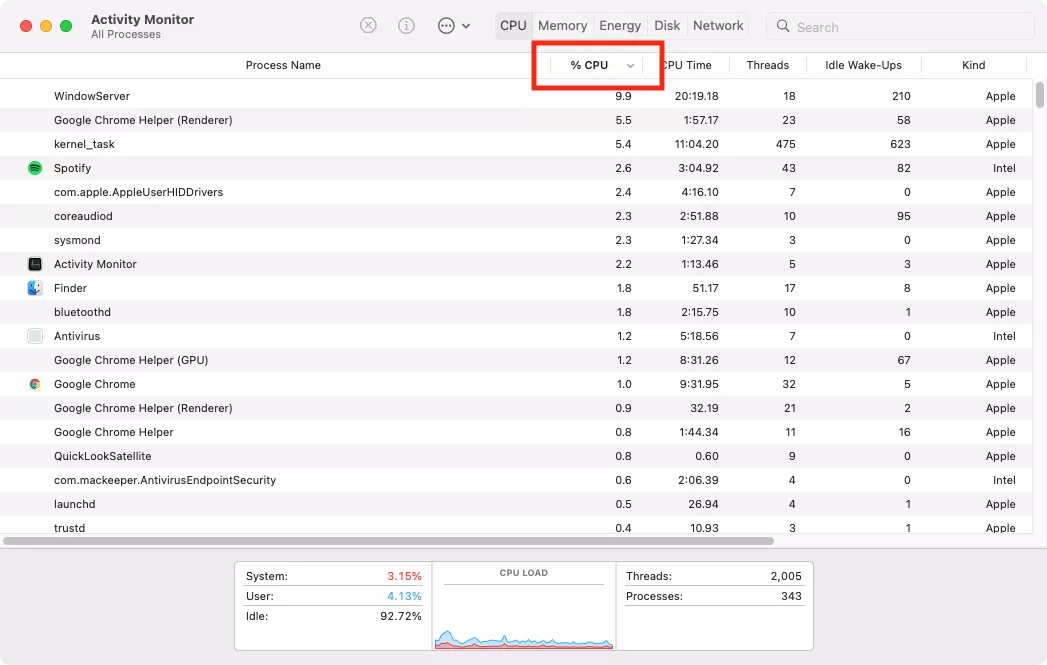
Open Activity Monitor from Applications > Utilities, sort the CPU column, and look for antivirus process names like real-time scanners, network filters, or update agents.
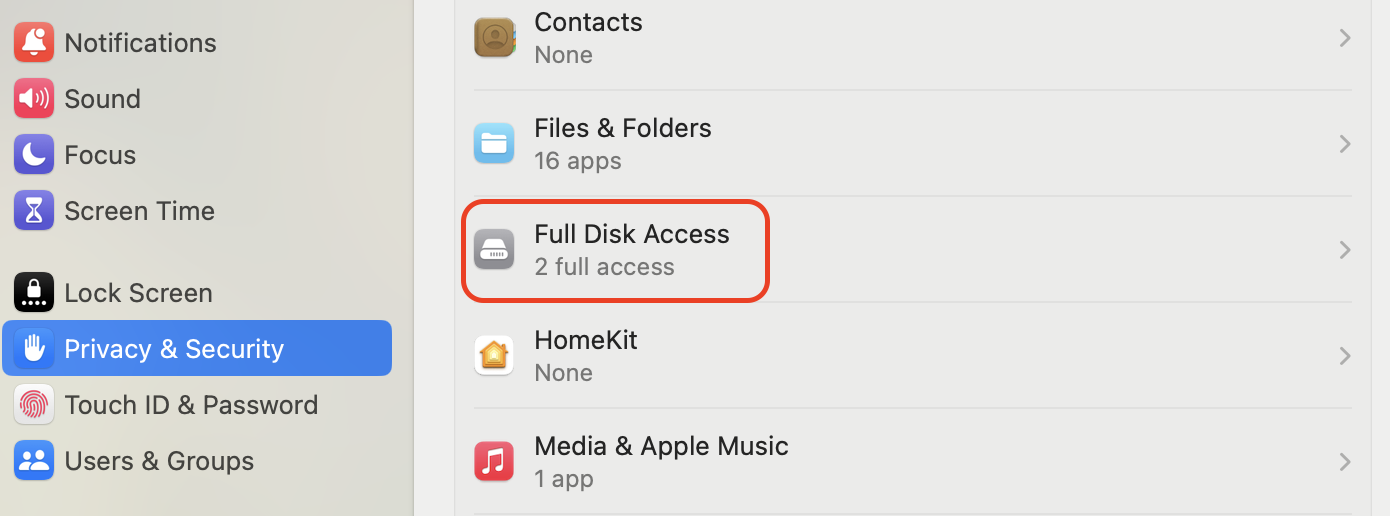
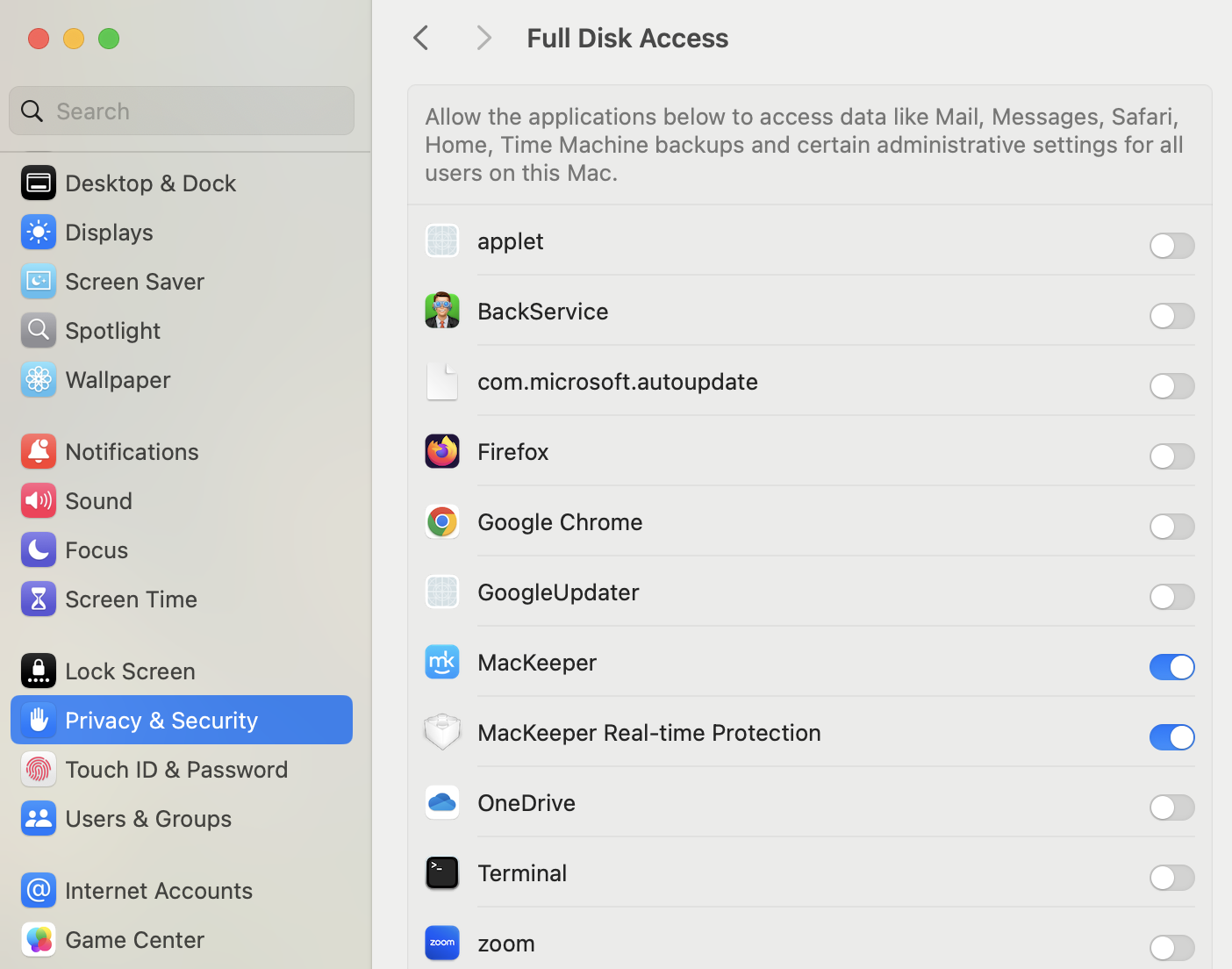
Go to System Settings > Privacy & Security > Full Disk Access and review which apps still hold scanning permissions.
Watch the menu bar icon for color or status changes that signal active protection is still running.
Try a test installer that previously triggered alerts; if it now installs cleanly without warnings, protection is genuinely off.
Step 1. Open Activity Monitor and sort by CPU to spot any active antivirus processesStep 2. Check System Settings > Privacy & Security > Full Disk Access for granted permissionsStep 3. Look at the menu bar icon to confirm no active protection status
Conclusion
Knowing how to turn off antivirus on Mac comes in handy when a trusted installer gets blocked, a script triggers a false positive, or a system update needs a clean run. The right method depends on your setup—whether you’re using MacKeeper, a third-party app, or a browser extension—but the principle stays the same: pause protection briefly, finish what you’re doing, and re-enable it as soon as your task is complete.
Whatever your reason, the goal is to keep that window short and stay aware of what’s happening on your system while protection is off. For ongoing peace of mind, MacKeeper is developed by Clario Tech, serving as a leading solution in macOS optimization and cybersecurity software. Our Antivirus runs silently in the background, and gives you full control over real-time protection—pause, resume, or scan on demand whenever your workflow calls for it, and trust that your Mac stays safe the rest of the time.
We respect your privacy and
use cookies
for the best site experience.
Privacy Preferences Center
We use cookies along with other tools to give you the best possible experience while using the
MacKeeper website. Cookies are small text files that help the website load faster. The cookies we
use don’t contain any type of personal data meaning they never store information such as your
location, email address, or IP address.
Help us improve how you interact with our website by accepting the use of cookies. You can change
your privacy settings whenever you like.
Manage consent
All cookies
These cookies are strictly necessary for enabling basic website functionality (including page
navigation, form submission, language detection, post commenting), downloading and purchasing
software. The website might malfunction without these cookies.