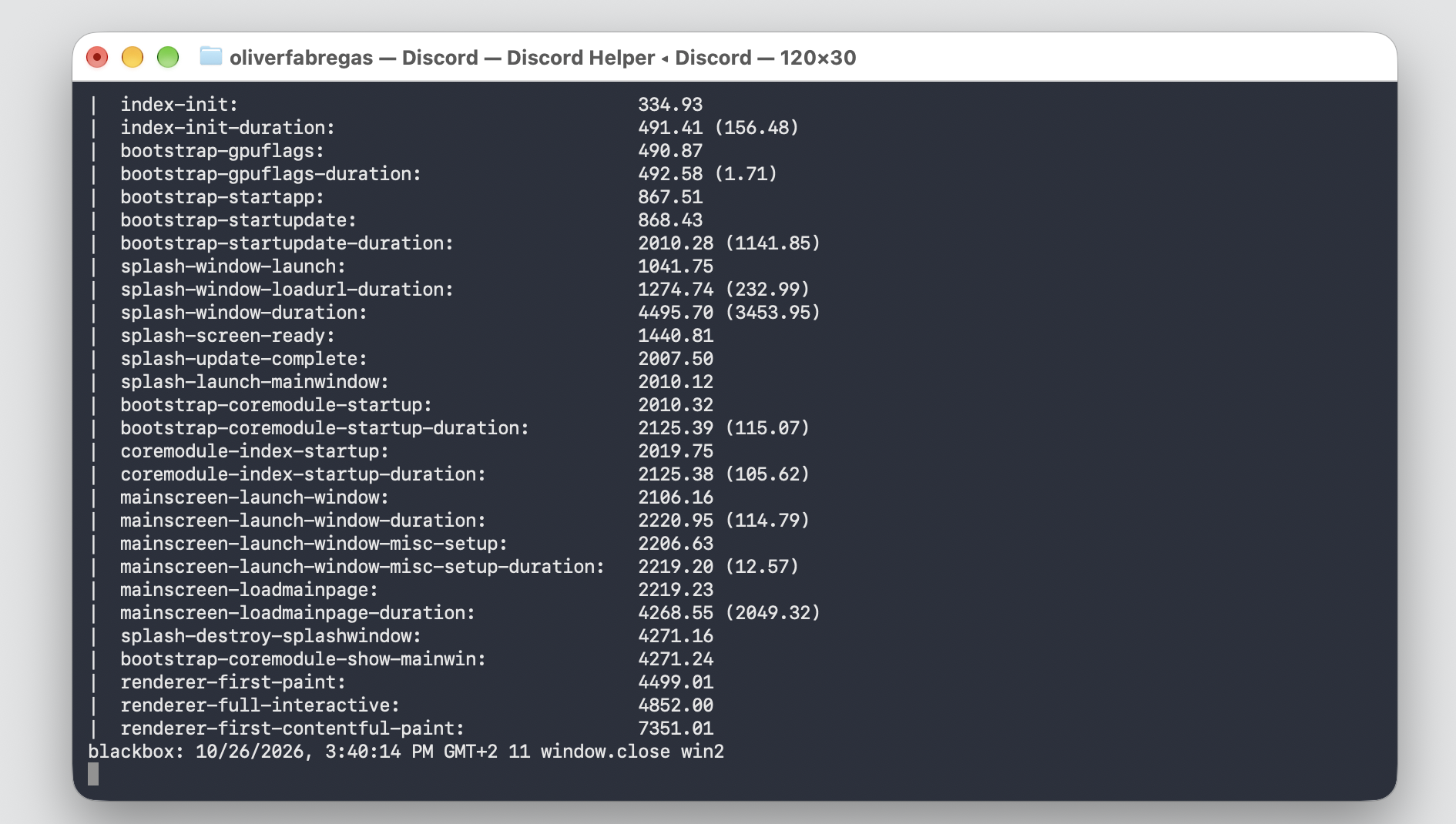
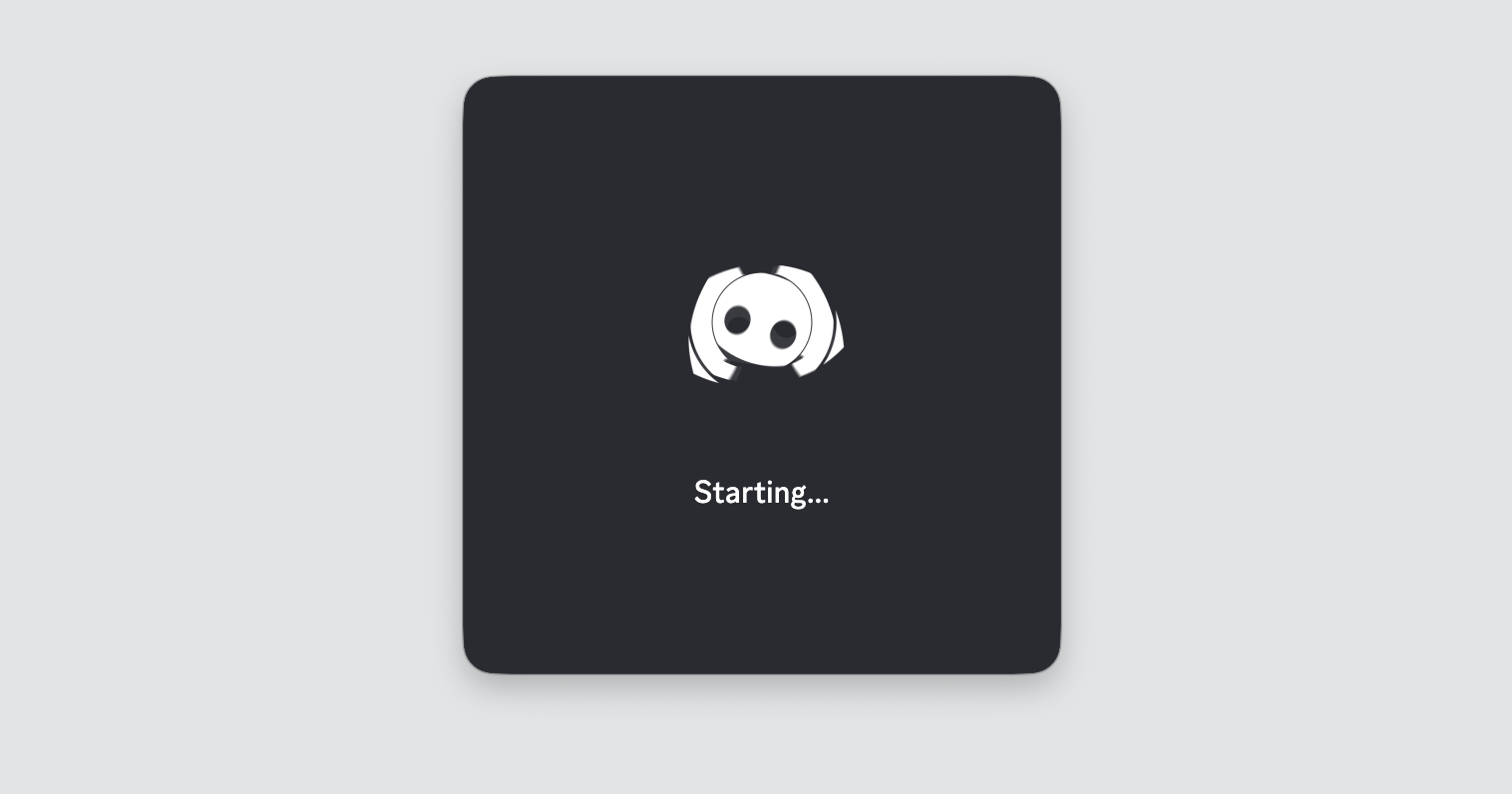
Watching Discord stuck on downloading update 1 of 1 Mac screen with no end in sight? Use MacKeeper’s Premium Services to connect you with Apple-savvy experts who’ll walk you through the fix, one calm step at a time. It’s a reliable way to get your Mac working again.
Why is Discord stuck on downloading update 1 of 1 on Mac?
You quit Discord, open it again, and the same progress bar appears — sometimes the window even closes on its own or the app crashes before it loads. No matter how many times you relaunch, Discord keeps downloading update 1 of 1 and never gets past it. Below, we’ll explain why that happens so the right fix is easy to spot.
Every time Discord launches, it checks for a new version and pulls it down during installation, before the app finishes opening on macOS. When that hand-off stalls — on a MacBook, an iMac, or any modern Macintosh — the download loops and Discord keeps saying downloading update 1 of 1. A few common causes are usually behind it.
Corrupted cache files — old, damaged update files confuse the installer, so the download never finishes.
Network or firewall interference — a strict firewall, VPN, or proxy can block the update server partway through.
Missing administrative privileges — without the right permissions, Discord can’t save the files it just downloaded.
A temporary server outage — sometimes the item isn’t your Mac at all, and Discord’s update servers are simply down.
Occasionally the app doesn’t even reach this stage. If Discord keeps checking for updates without moving on, that’s a slightly different bug worth ruling out first.
A note from our experts:
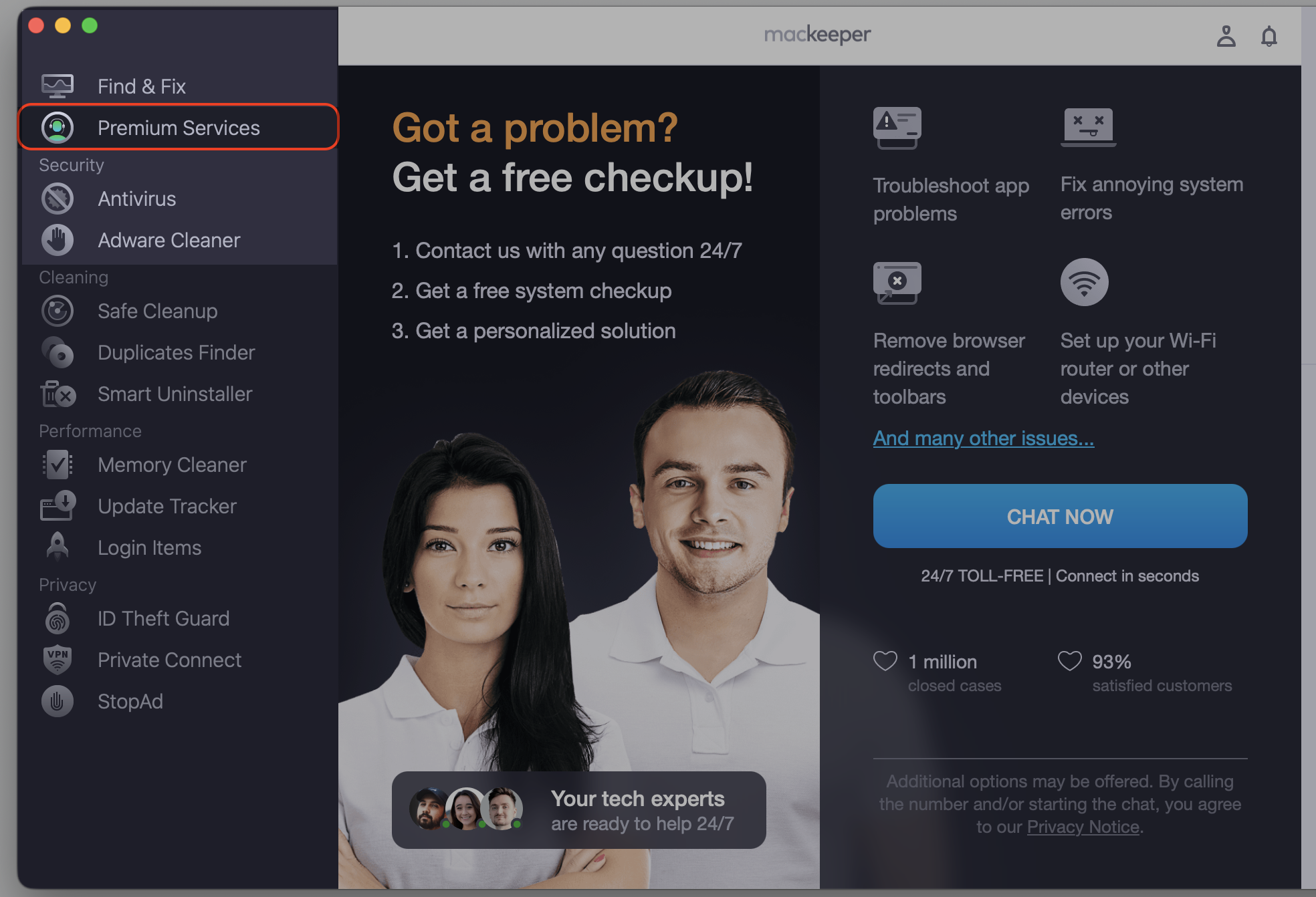
If you've read this far, you're probably having trouble with Discord downloading update 1 of 1. You might continue reading our guide and try all the provided instructions, or contact our tech experts right now and solve your issue immediately. MacKeeper’s Premium Services provide you with professional support for Mac users 24/7.
Step 1. Go to MacKeeper and choose Premium Services Step 2. Click Chat NowStep 3. Type in your message to explain the problem
How to fix Discord downloading update 1 of 1 on Mac?
Here’s the reassuring part — most update loops clear up with a handful of simple checks, from a quick network test to clearing system files and reinstalling the app. You don’t need to be a Mac expert to work through any of them.
We’ll start with the easiest steps and move toward the more thorough ones, so try them in order and stop the moment Discord opens normally. If you also run into Discord not starting on Mac afterward, that’s a related item worth a quick look.
Take a look at our five methods below, and try each one in turn until the loop lets go.
1. Check Discord server status and internet connection
Before changing anything on your Mac, it’s worth confirming the basics. A brief server outage or a weak connection can stall the download without any real fault on your side.
We know how to rule out the simplest causes first:
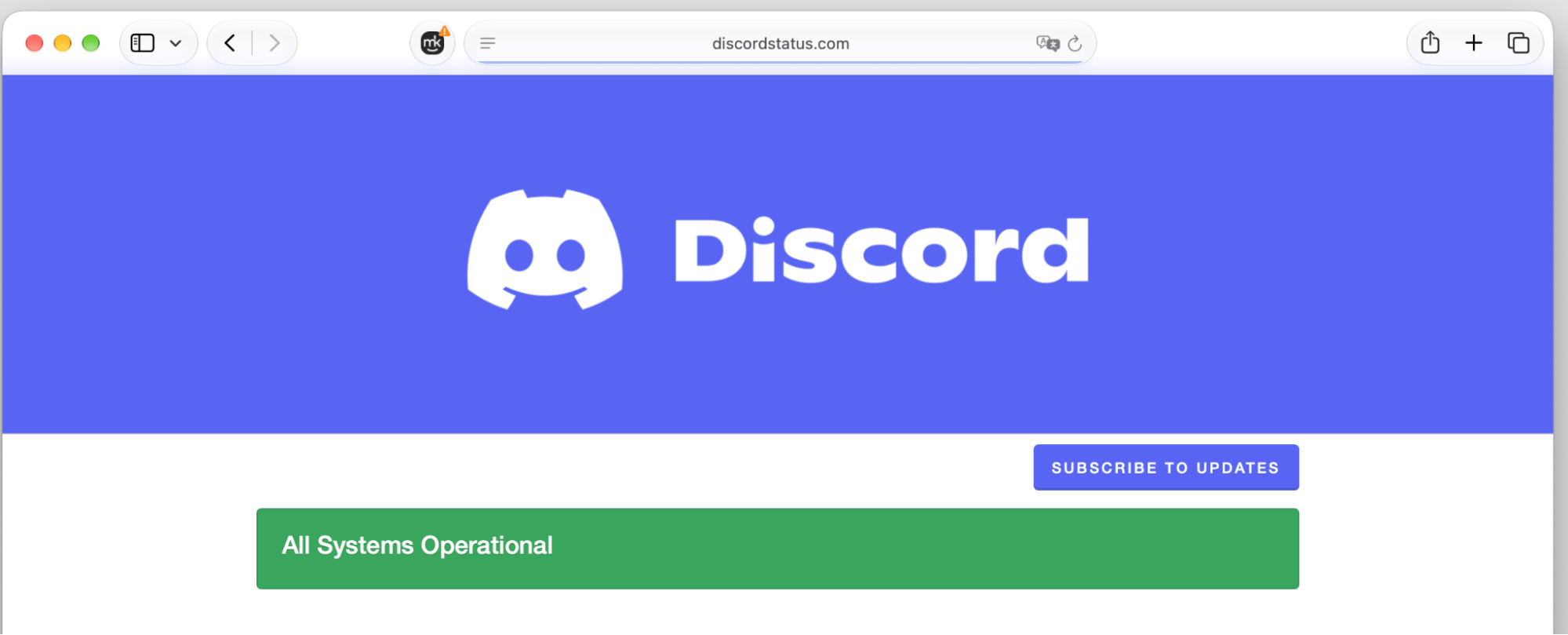
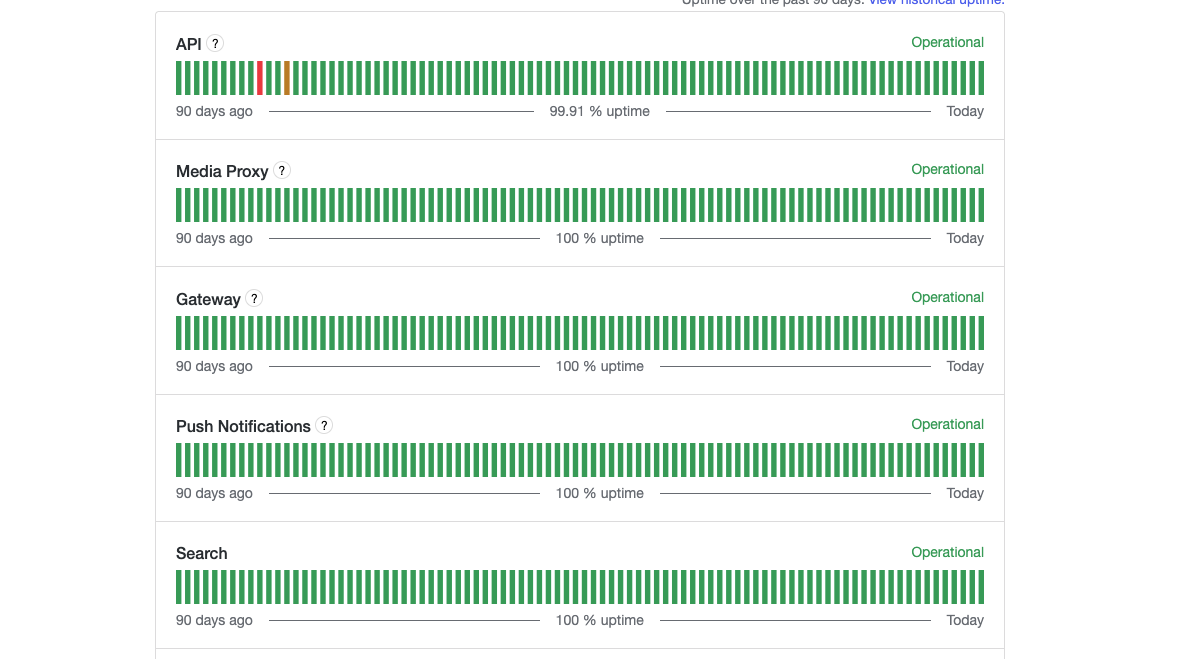
Open a browser and check Discord’s official status pageto confirm the update servers are working.
Load any other website to make sure your internet connection is stable.
Restart your Wi-Fi router, then wait about a minute for it to reconnect.
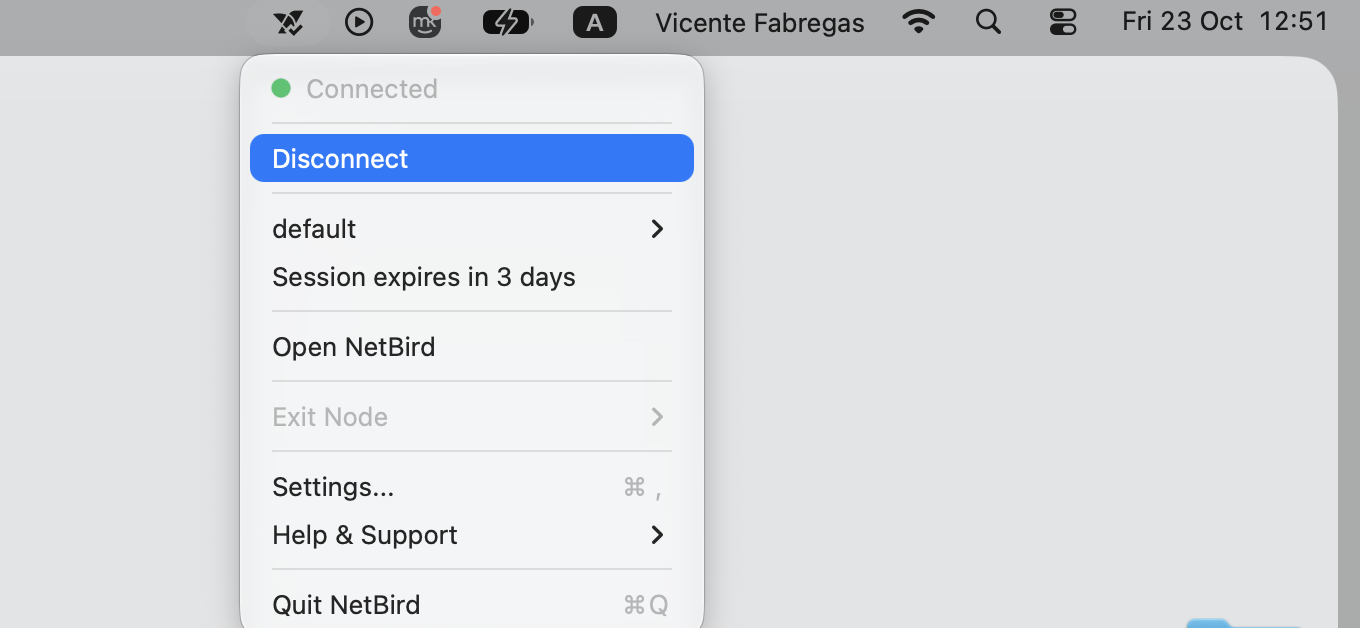
Turn off any active VPN or proxy, since these can block the download.
Reopen Discord and watch whether the update moves past 1 of 1.
Step 1. Navigate to https://discordstatus.com/ in your browser searchStep 2. Check all systems' operation statusStep 2. Disconnect any VPN connections (on your menu bar)
2. Force quit Discord and restart Mac
A stalled download often keeps running in the background even after the window disappears. Knowing the usual way to force quit an app on Mac helps here, though a full reboot is the surer reset for a stubborn glitch.
We made a list of steps for you to clear it out completely:
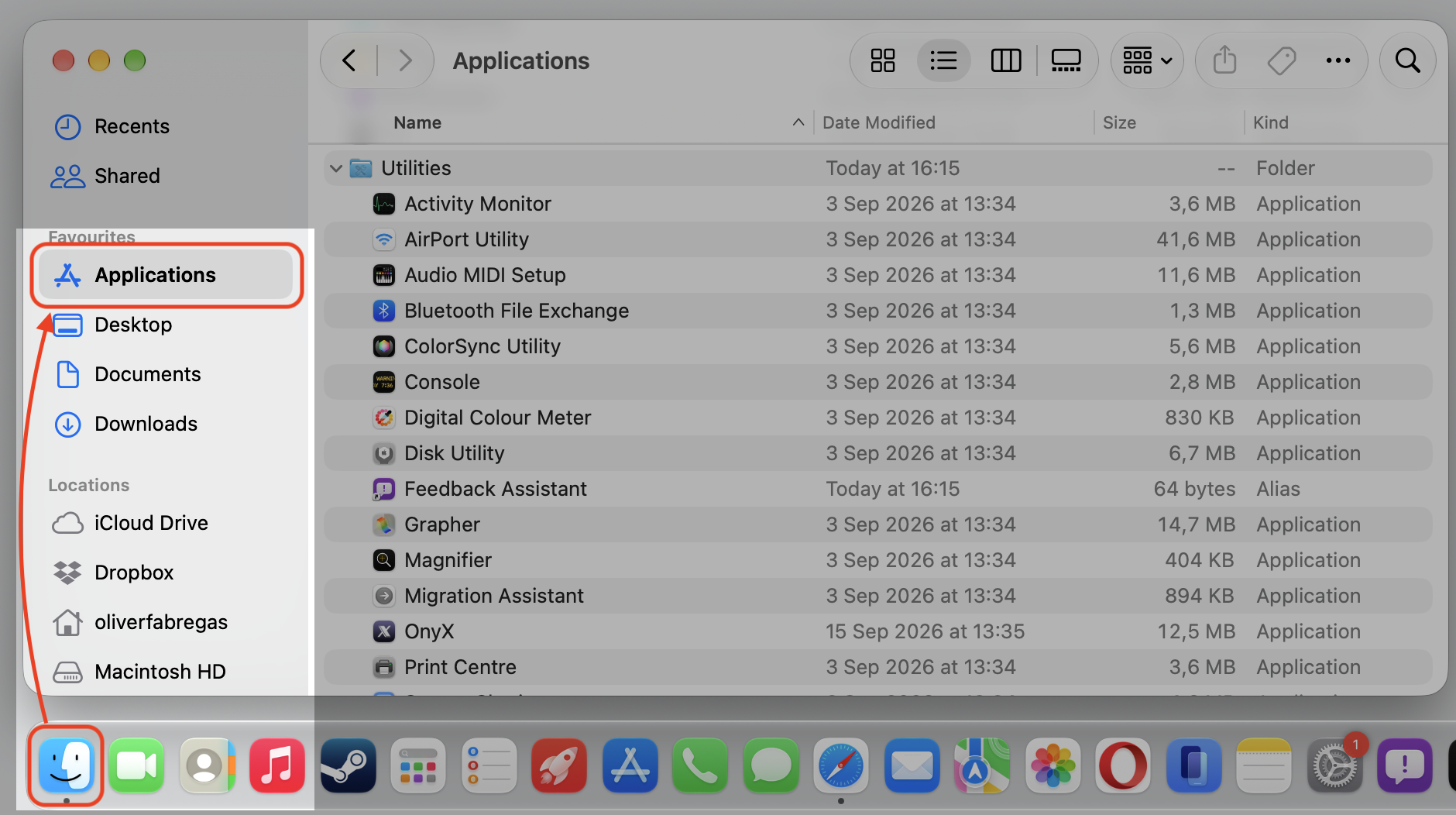
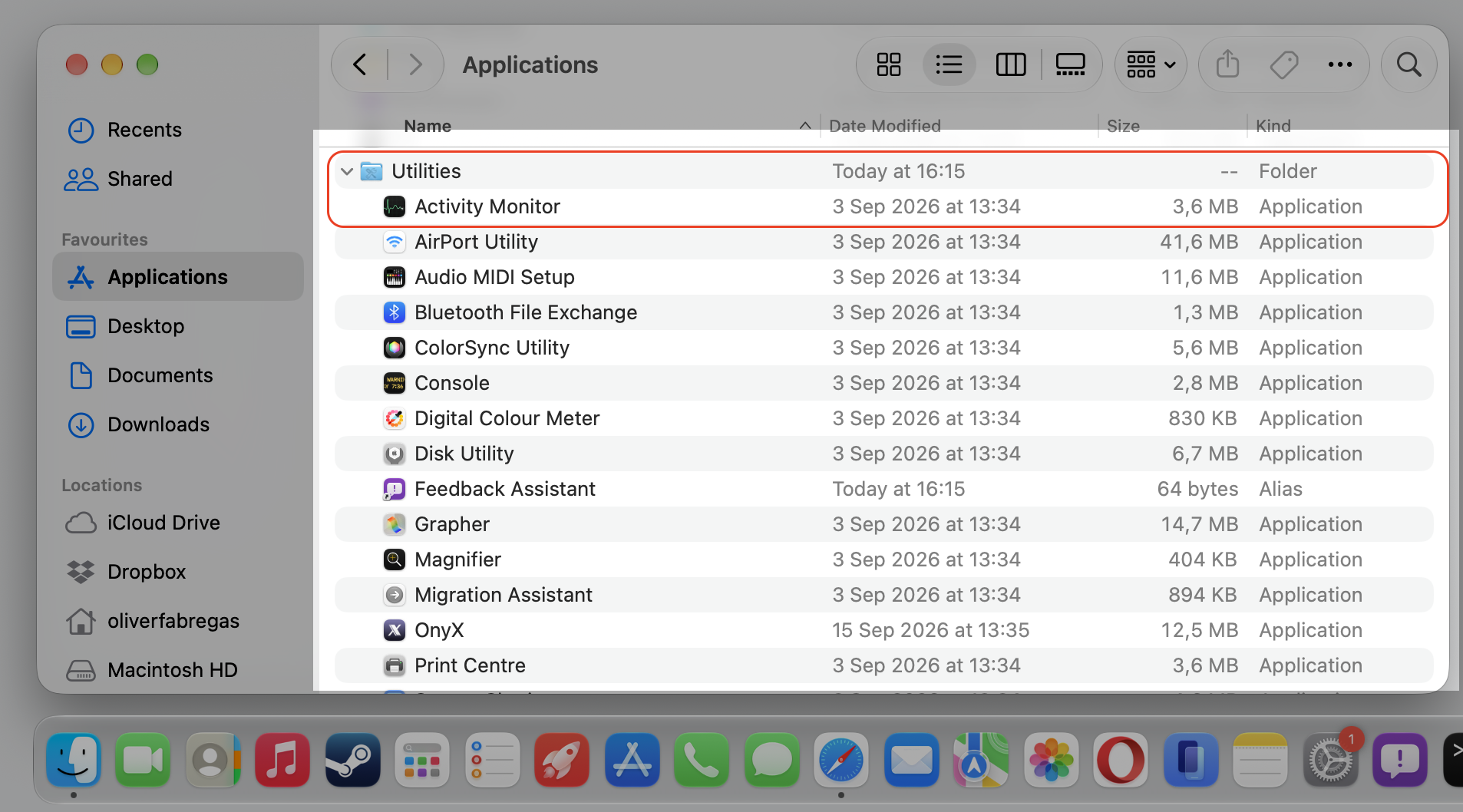
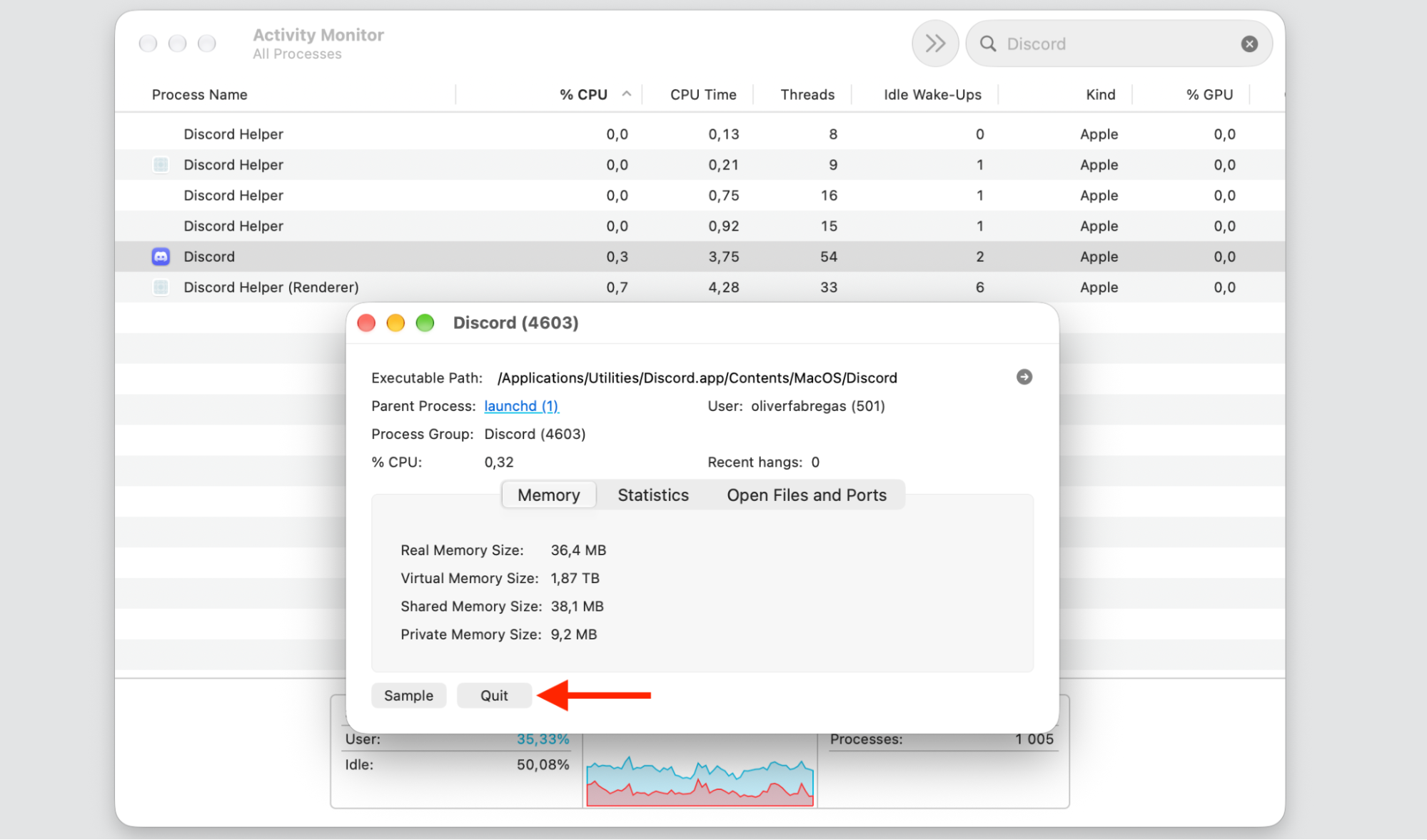
Open Activity Monitor from Applications > Utilities, or find it with Spotlight.
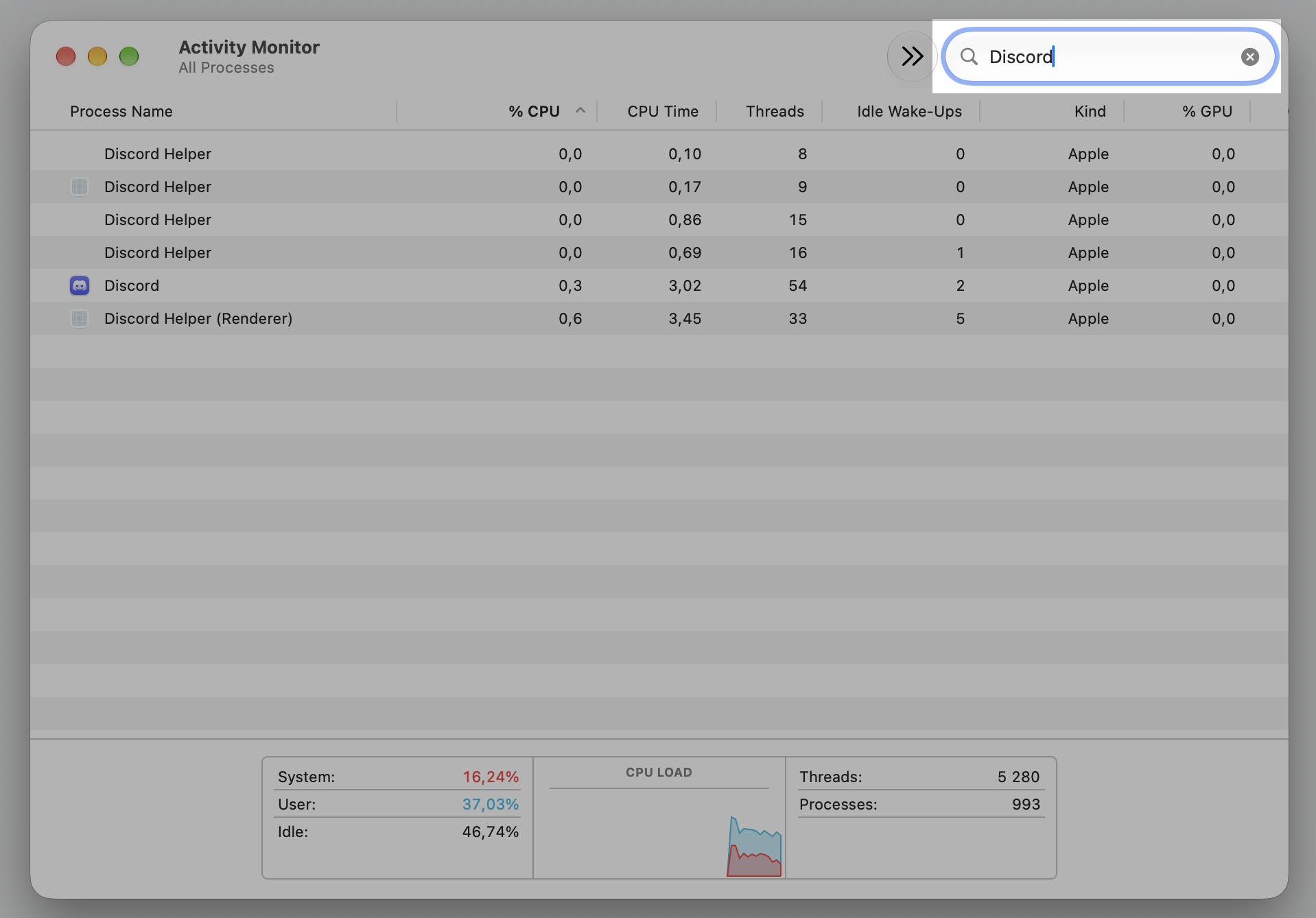
Type Discord in the search field to reveal every related process.
Double-click Discord in the process list, then click Quit to terminate the process.
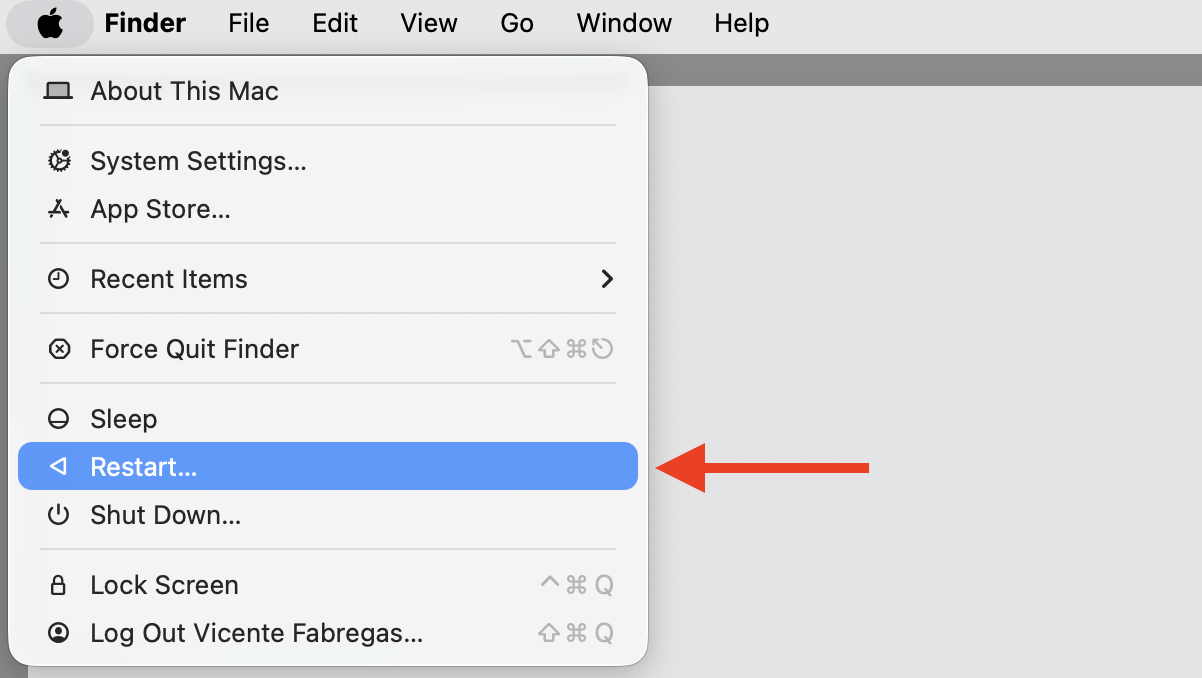
Restart your Mac from the Apple menu > Restart.
Reopen Discord once your Mac finishes the reboot.
Step 1. Go to Finder > ApplicationsStep 2. Select Activity Monitor from the Utilities folderStep 3. Type Discord in the search fieldStep 4. Double-click Discord in the process list, then click Quit to terminate the processStep 5. Restart your Mac from Apple menu
3. Clear Discord cache and update files
Corrupted cache is the most common reason a download stalls, so clearing it resolves the loop more often than anything else. These files live in ~/Library/Application Support/Discord and ~/Library/Caches/com.hnc.Discord.
You can delete Discord cache on Mac in a couple of ways, and the steps are right below. First, quit Discord fully and confirm no Discord process is still running in Activity Monitor — removing these files while the app is open can cause fresh errors.
Once Discord is fully quit, work through the list:
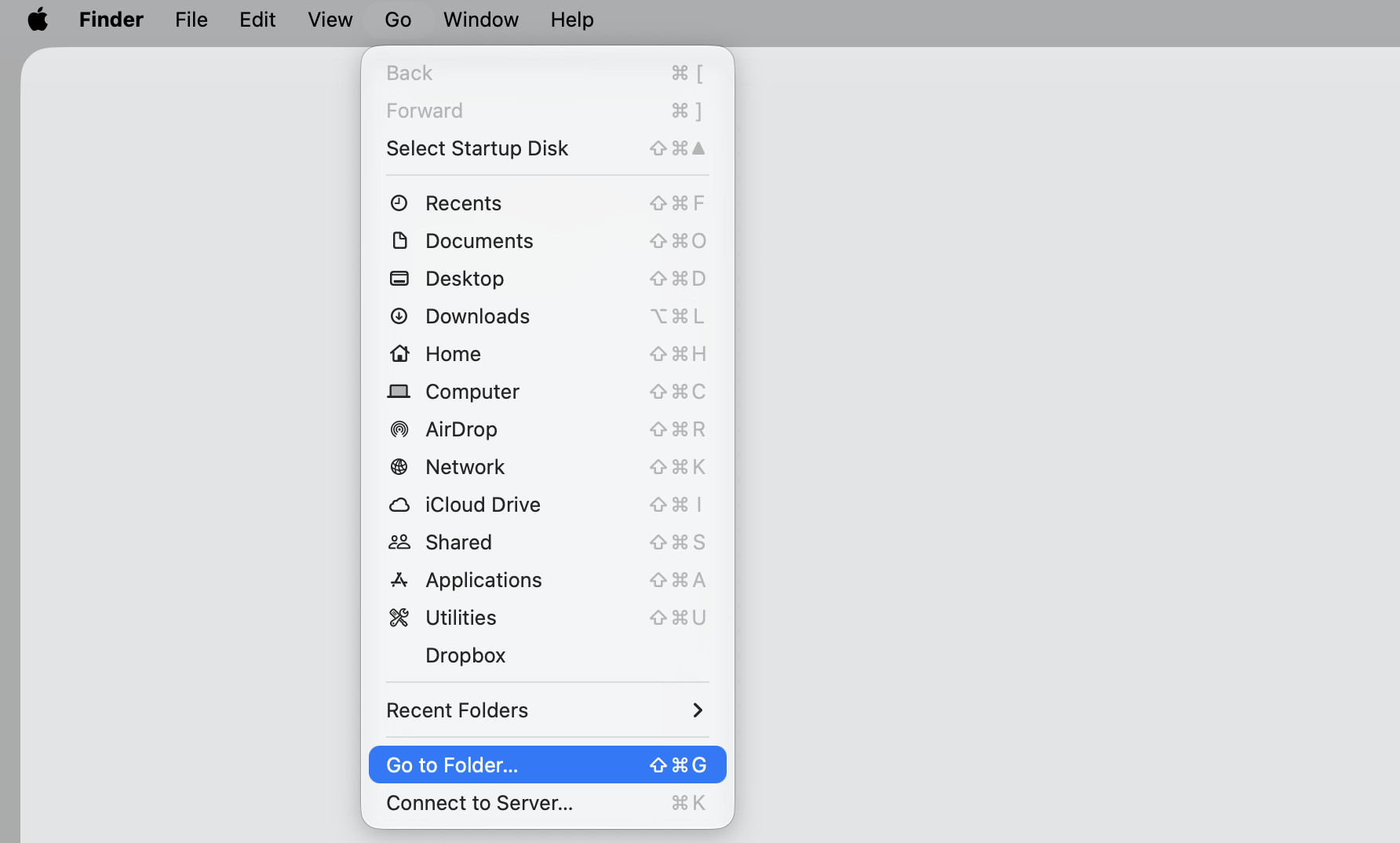
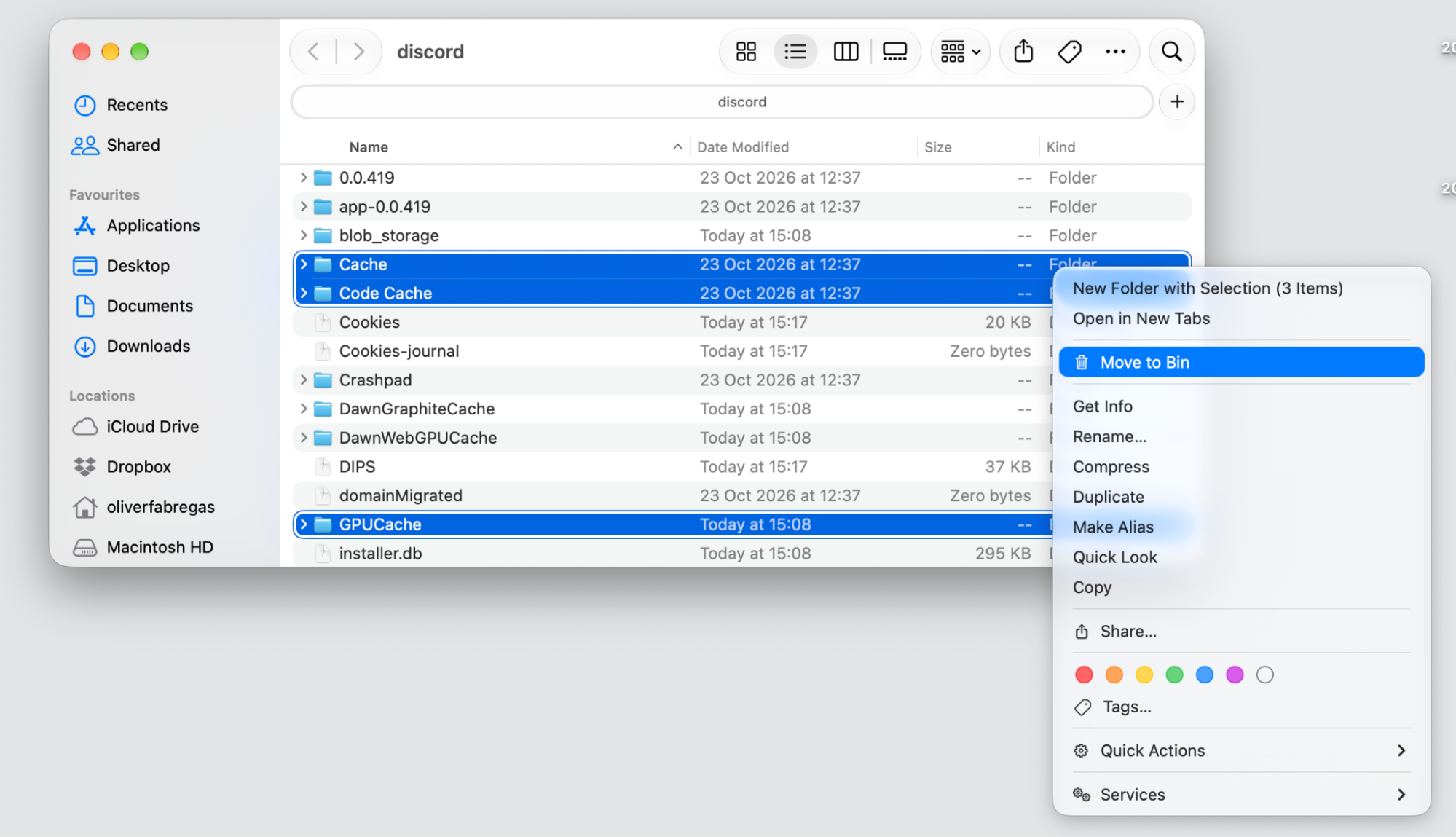
Go to Finder > Go > Go to Folder.
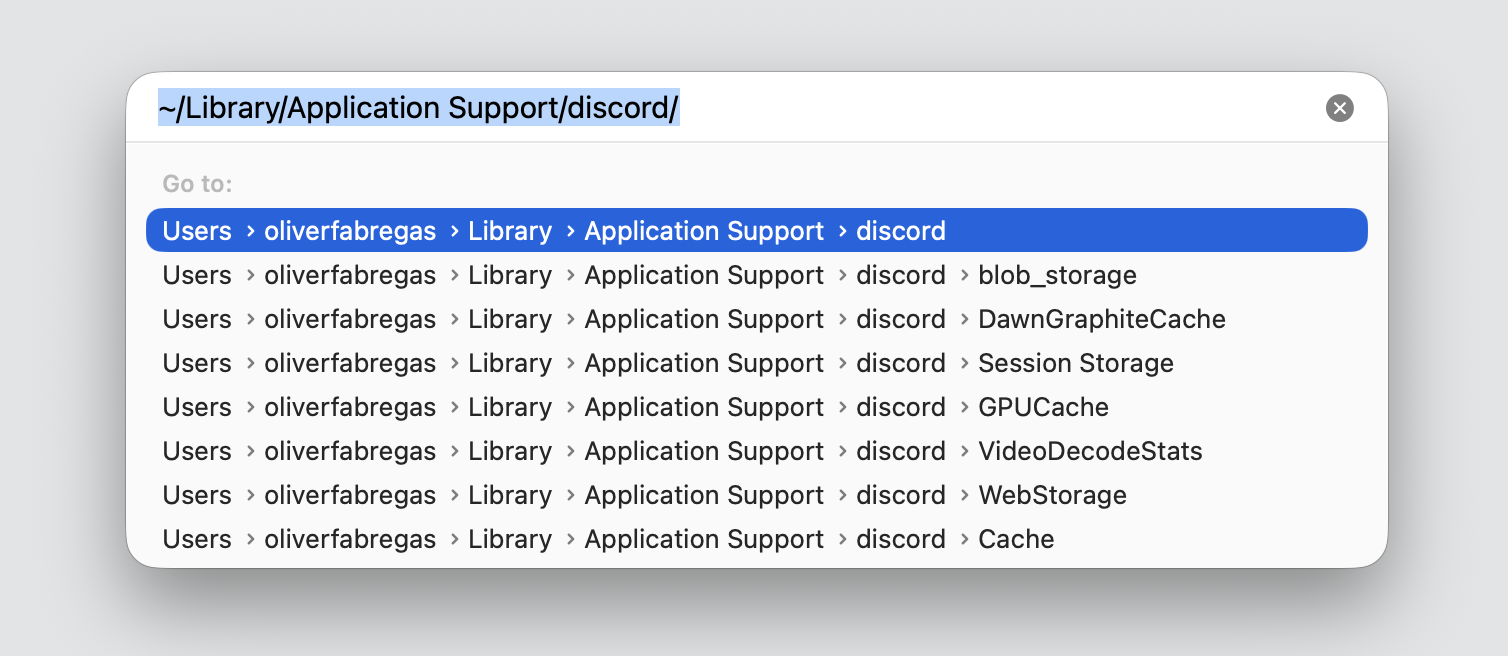
Type ~/Library/Application Support/discord/ and hit Return.
Select Cache, Code Cache, GPUCache and move to the Bin with Control-click.
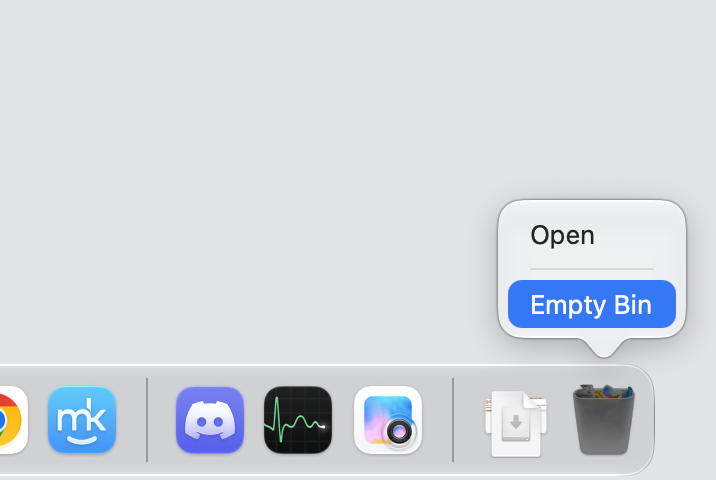
Empty the Trash to clear the old files for good.
Reopen Discord and let it download a clean update.
Step 1. Go to Finder > Go > Go to FolderStep 2. Type ~/Library/Application Support/discord/ and hit ReturnStep 3. Select Cache, Code Cache, and GPUCache, and move them to the Bin with Control-clickStep 4. Empty the Bin and reopen the Discord app
4. Launch Discord with administrative privileges
Sometimes the download finishes, but Discord can’t apply the update without extra permission, so the installing step never completes. Starting the app straight from inside its package can sidestep that block.
Give this a try if the loop keeps returning:
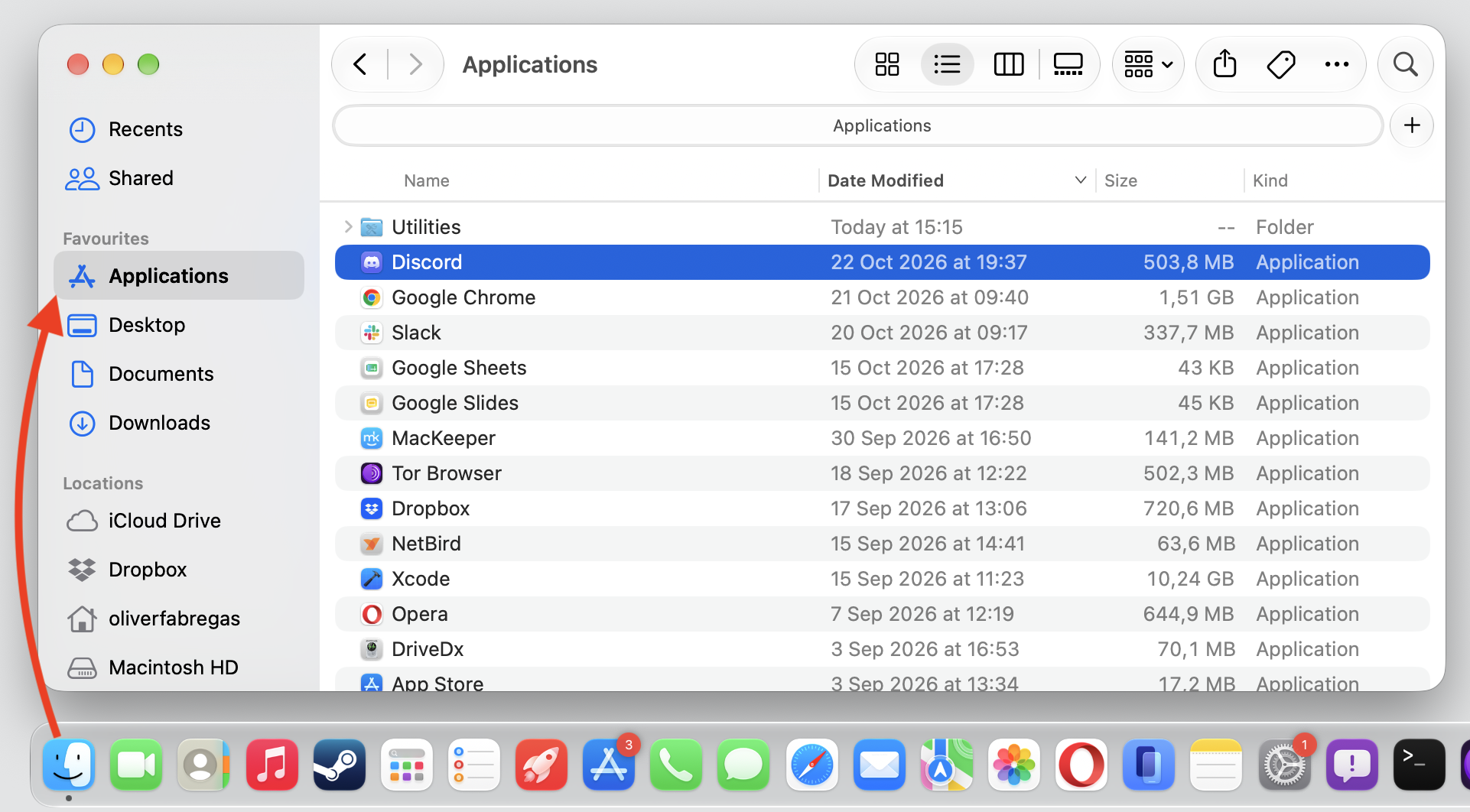
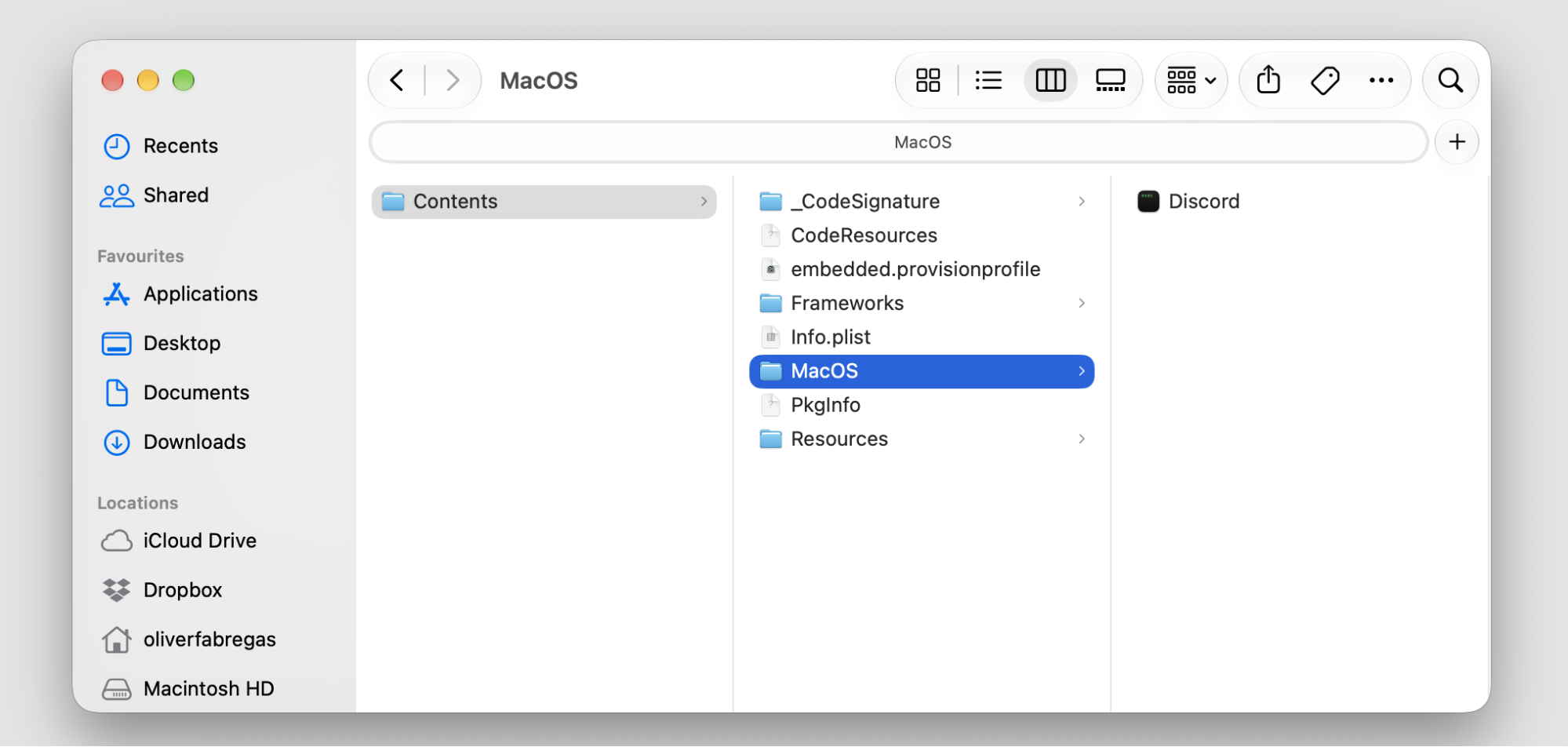
Open Finder and go to your Applications folder.
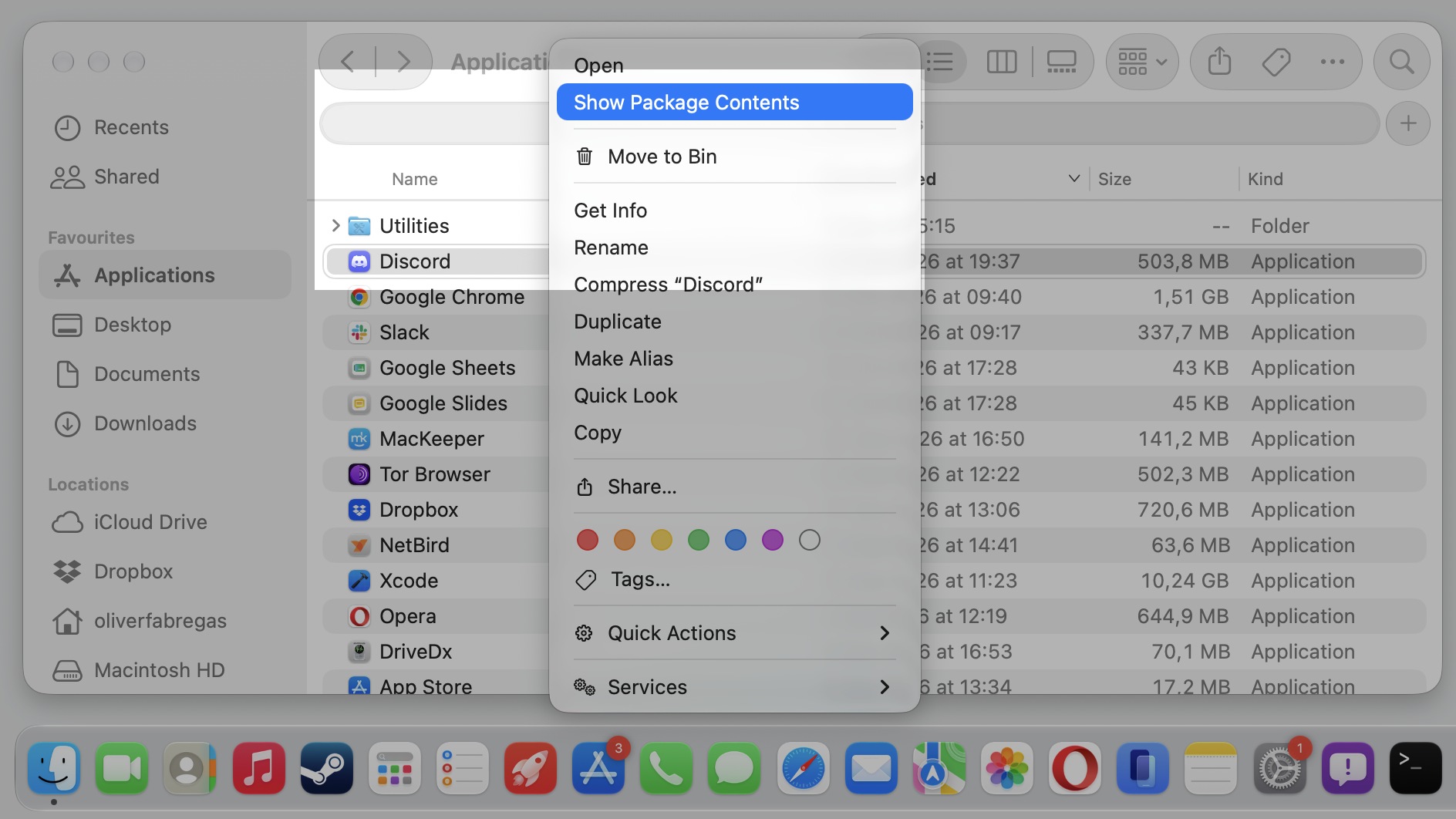
Right-click Discord and choose Show Package Contents.
Open the Contents ▸ MacOS folder.
Double-click the Discord executable file to launch the app directly.
Let the update load, then open Discord the usual way next time.
Step 1. Go to Finder > Applications > DiscordStep 2. Control-click on Discord and select Show Package ContentsStep 3. Open Discord from Contents> MacOSStep 4. Wait for the process to finishStep 5. Discord should be opened at the end
5. Perform clean reinstallation of Discord
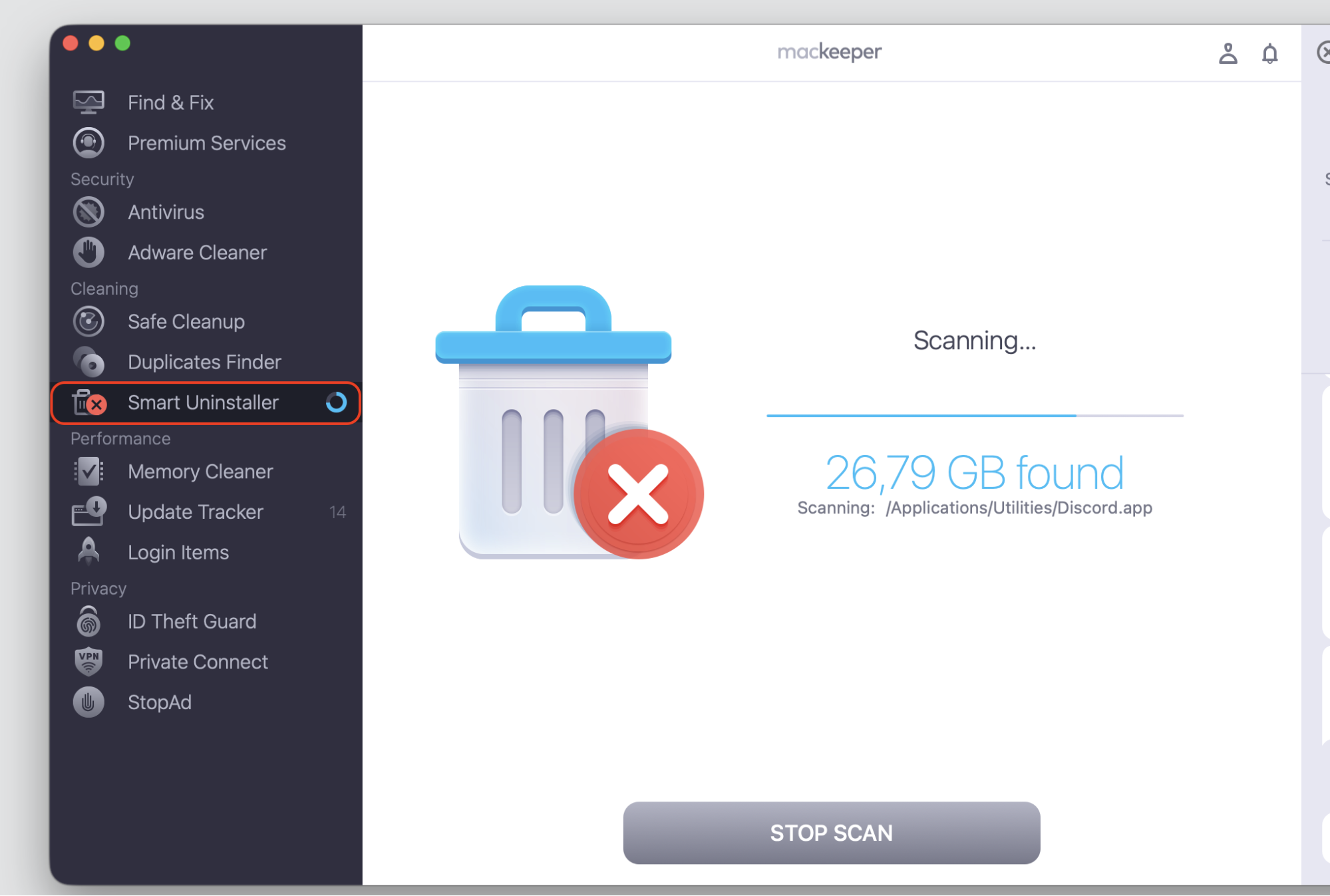
When nothing else breaks the cycle, a fresh install almost always clears a failed update. We’ll remove Discord along with its leftover files using MacKeeper’s Smart Uninstaller, then grab a clean copy when you download Discord for Mac.
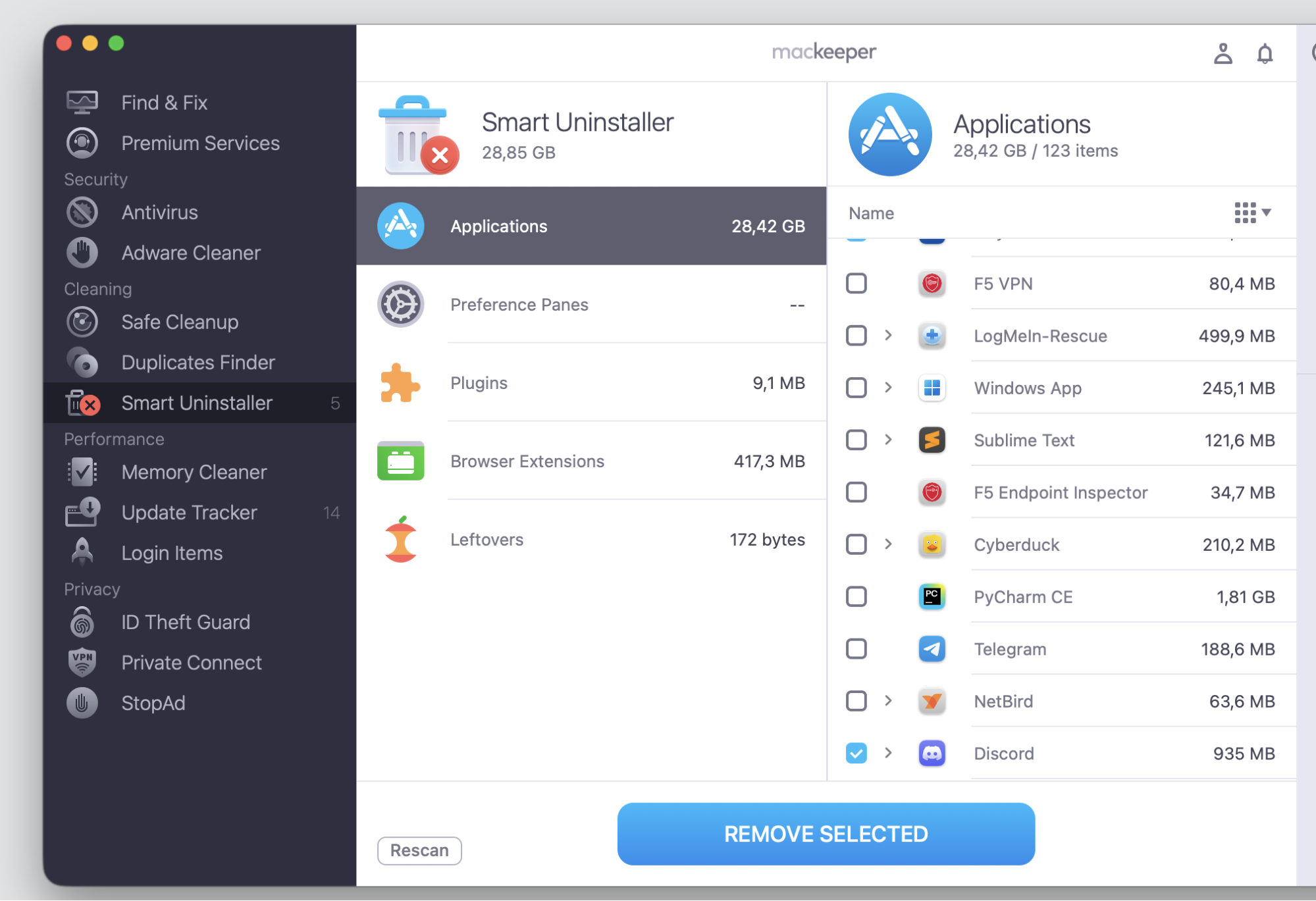
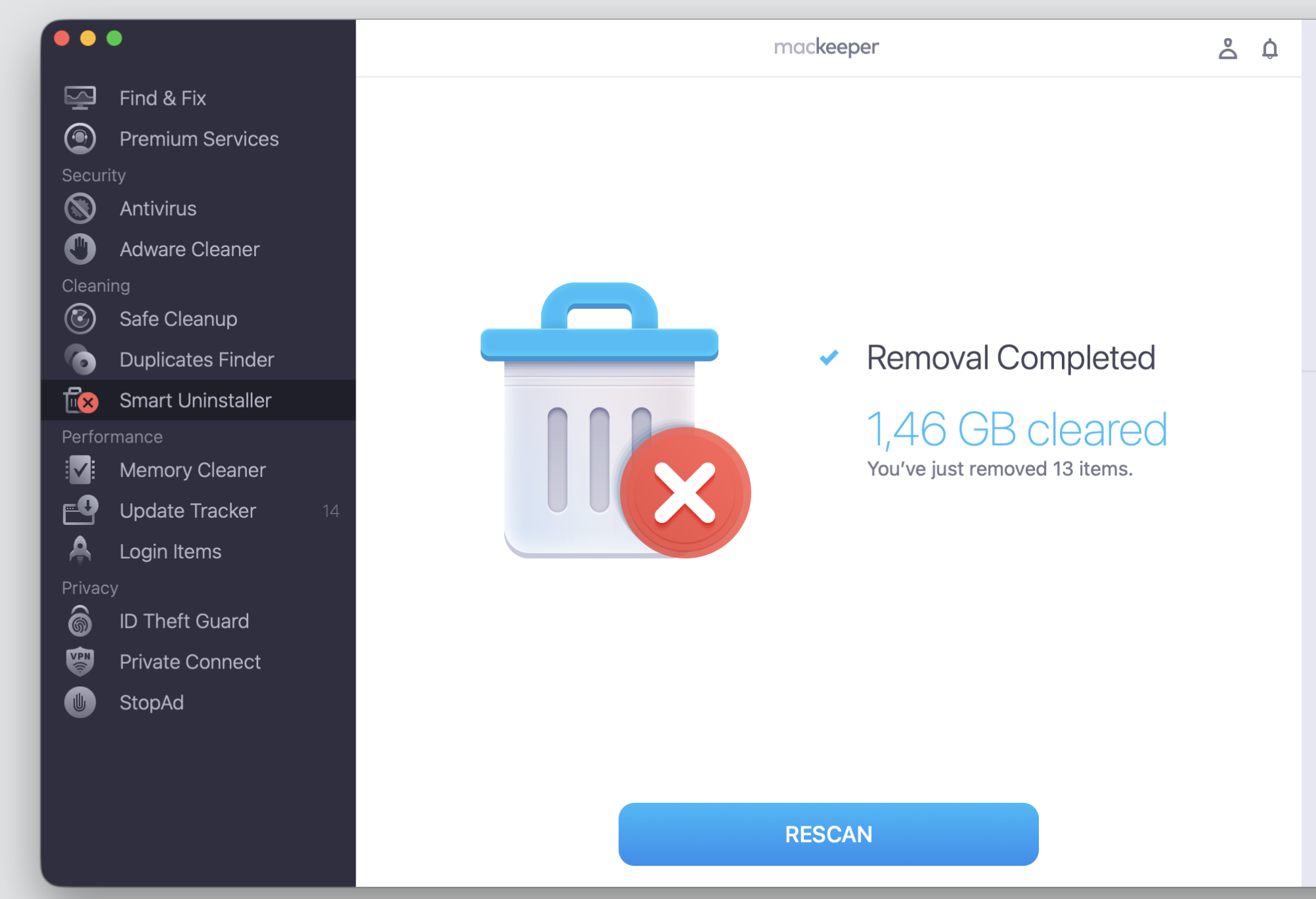
Step 1. Go to MacKeeper > Smart Uninstaller > Start ScanStep 2. Select Discord from Applications and click Remove SelectedStep 3. Check the result
Conclusion
A stuck update is frustrating, but it’s rarely anything serious. Whether Discord update 1 of 1 taking forever came down to a cached file, a blocked server, or a permission snag, one of the five methods above should get you back to chatting.
Keeping your Mac and your apps updating on schedule, plus tidying app caches now and then, keeps these loops from returning and leaves Discord and your other apps room to update cleanly.
And if you’d rather not troubleshoot alone, MacKeeper’s Premium Services put a friendly expert on your side for setup help and everyday support — no jargon, no guesswork. Tap below to get started with reliable help whenever your Mac needs it.
We respect your privacy and
use cookies
for the best site experience.
Privacy Preferences Center
We use cookies along with other tools to give you the best possible experience while using the
MacKeeper website. Cookies are small text files that help the website load faster. The cookies we
use don’t contain any type of personal data meaning they never store information such as your
location, email address, or IP address.
Help us improve how you interact with our website by accepting the use of cookies. You can change
your privacy settings whenever you like.
Manage consent
All cookies
These cookies are strictly necessary for enabling basic website functionality (including page
navigation, form submission, language detection, post commenting), downloading and purchasing
software. The website might malfunction without these cookies.