You’re trying to format a disk drive on your Mac, but you keep getting the error message ‘Erase process has failed’. We’ve got some tips to fix it, but if you need more help, reach out to MacKeeper’s Premium Services team—expert support at any time.
If you see ‘Erase process has failed’ on your Mac when trying to format an external or internal disk, it could be caused by issues such as data corruption, incorrect user permissions, and physical damage to your disk. You can use built-in and third-party tools to diagnose and fix many of these issues.
Reasons why ‘Erase process has failed’ on Mac
You can get the ‘Erase process has failed’ error on Apple Macs for all kinds of reasons. Common causes include corrupted files, an outdated version of macOS, user permission issues, and even malware. In some cases, you might be dealing with hardware problems, including loose cables, power disconnection, or disk failure. However, this is not related to the problem where your trash won't empty on Mac.
A note from our experts:
The ‘Erase process has failed’ error on Mac can be a sign of a serious and possibly complex problem. If you’re unsure what to do, try MacKeeper’s Premium Services:
Preparation before fixing ‘Erase process has failed’ on Mac
Before you even think about fixing the ‘Erase process has failed’ error on your Mac, you should make sure you’ve backed up everything you need on the disk you’ll be erasing. We also highly recommend you to try putting your Mac in Recovery mode, and then see if you can use Disk Utility to format your disk from there.
1. Back up your data
You’ve got a few main ways to back up your data. They are:
Move files and folders to another external or system drive.
Store your files online in a web service like iCloud.
Create a backup with Time Machine.
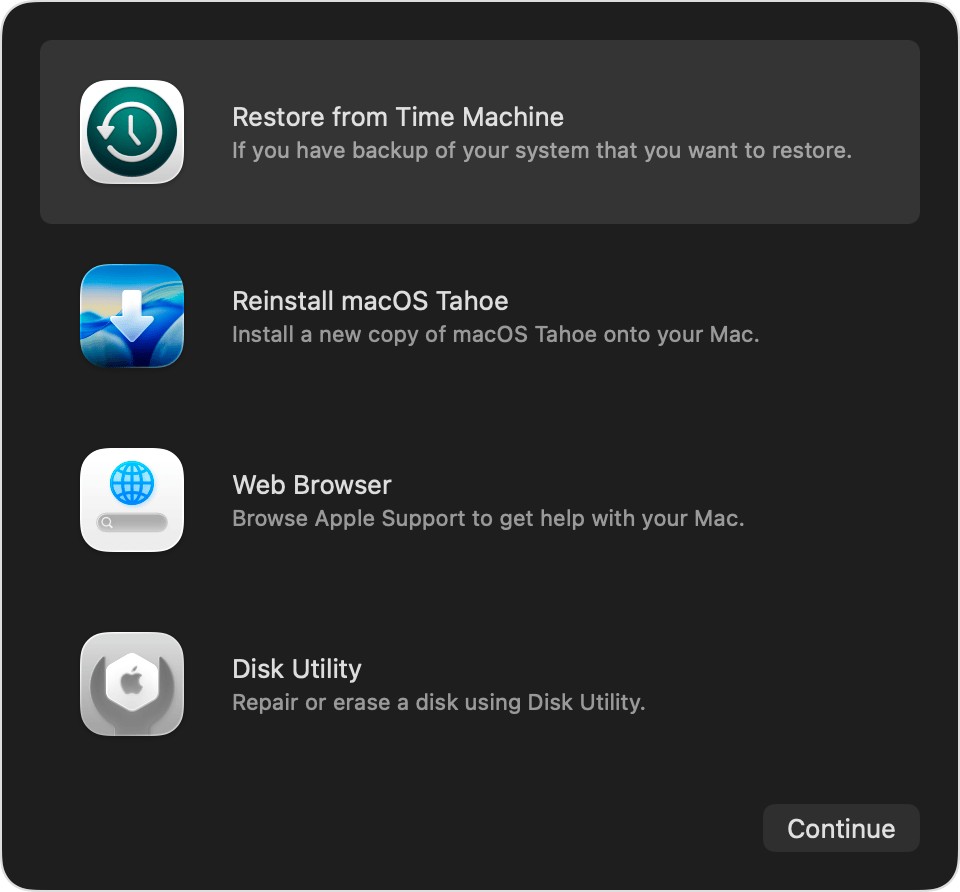
2. Boot into Recovery mode if needed
By putting your Mac in Recovery mode, you can stop it from loading system and third-party drivers. You might find the fixes we’re about to suggest work better in this mode.
To put an Apple Silicon Mac into Recovery mode:
Power down your Mac.
Press and hold the power button, until you see Loading startup options.
Click Options > Continue.
Enter your admin password if you’re asked for it. You should now be in Recovery mode.
To put your Intel Mac in Recovery mode:
Restart your Mac, and as soon as it restarts, press and hold Cmd+R.
Release the keys when you see the Apple logo.
Your Mac should now start in Recovery mode.
If you launch your Mac in Recovery mode, you might be able to erase your drive
How to fix ‘Erase process has failed’ on Mac?
Okay, let’s get on to some solutions. We’ve considered some of the most common fixes for the ‘Erase process has failed’ error, from First Aid scans to resetting your hardware.
1. Run Disk Utility First Aid
Running First Aid will check for signs of file system corruption. If this tool finds anything, you can also use it to repair the damage.
Here’s how to use First Aid on your Mac:
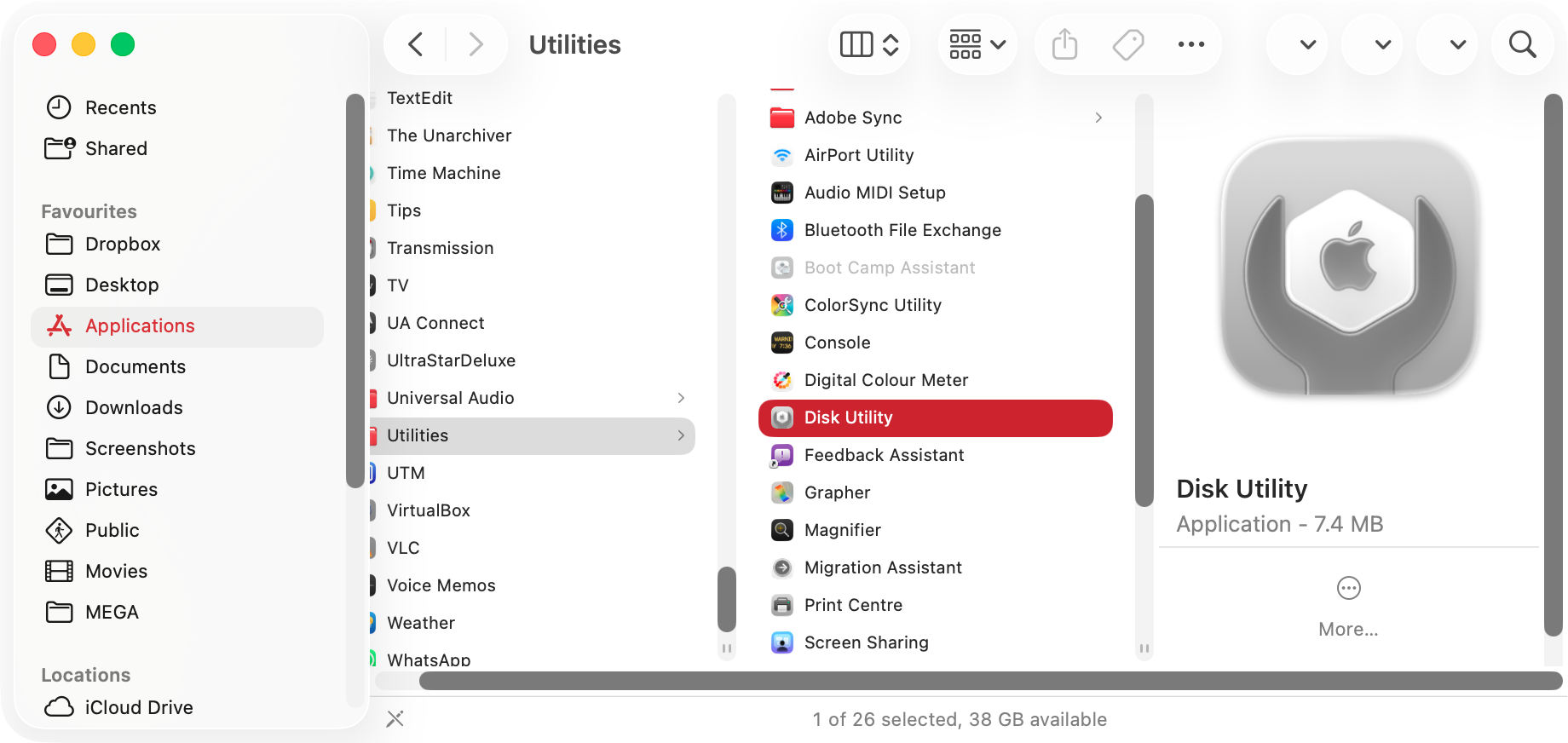
Open Disk Utility from Applications > Utilities.
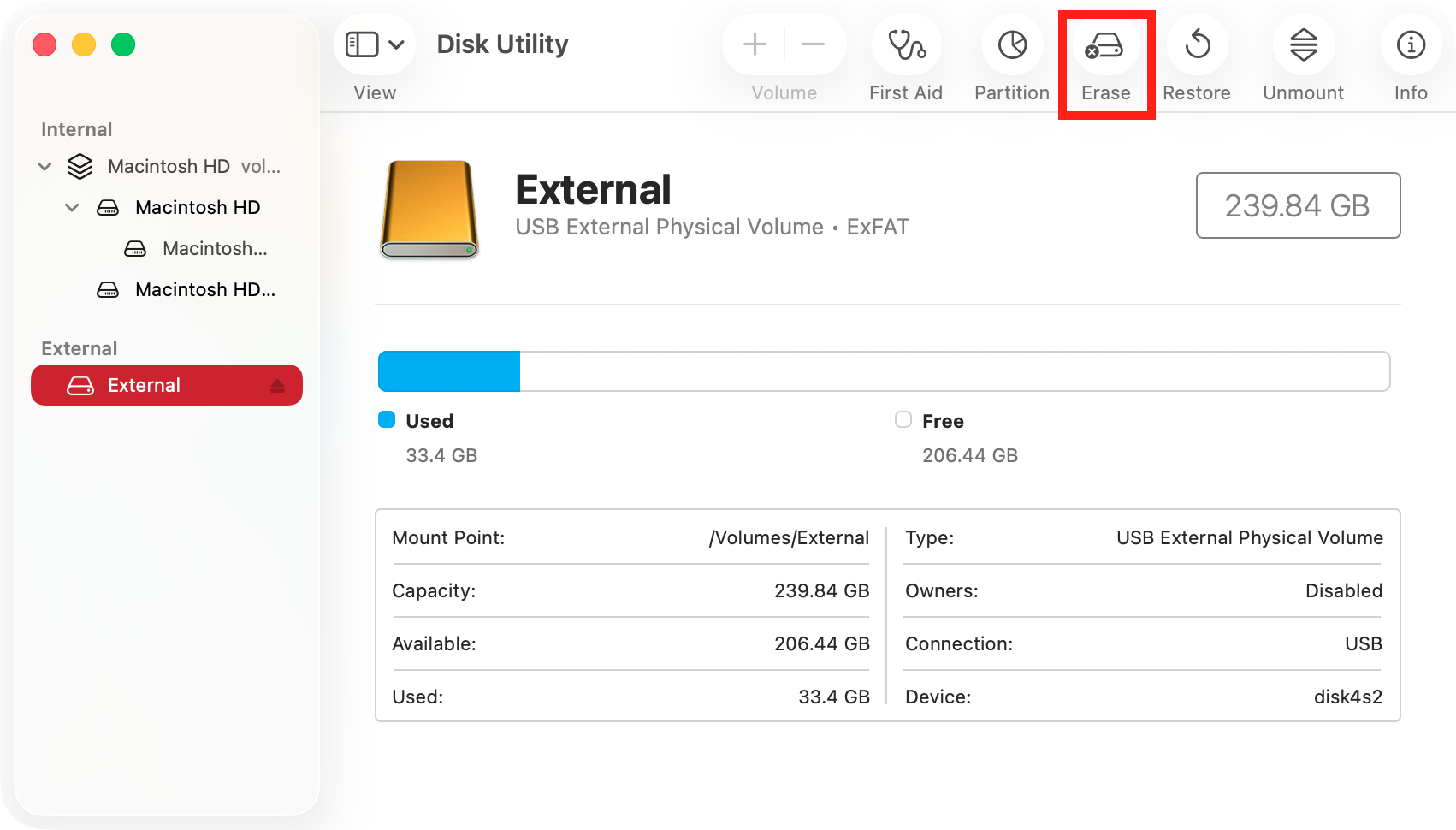
Select the device you want to format from the menu on the left.
Click First Aid at the top.
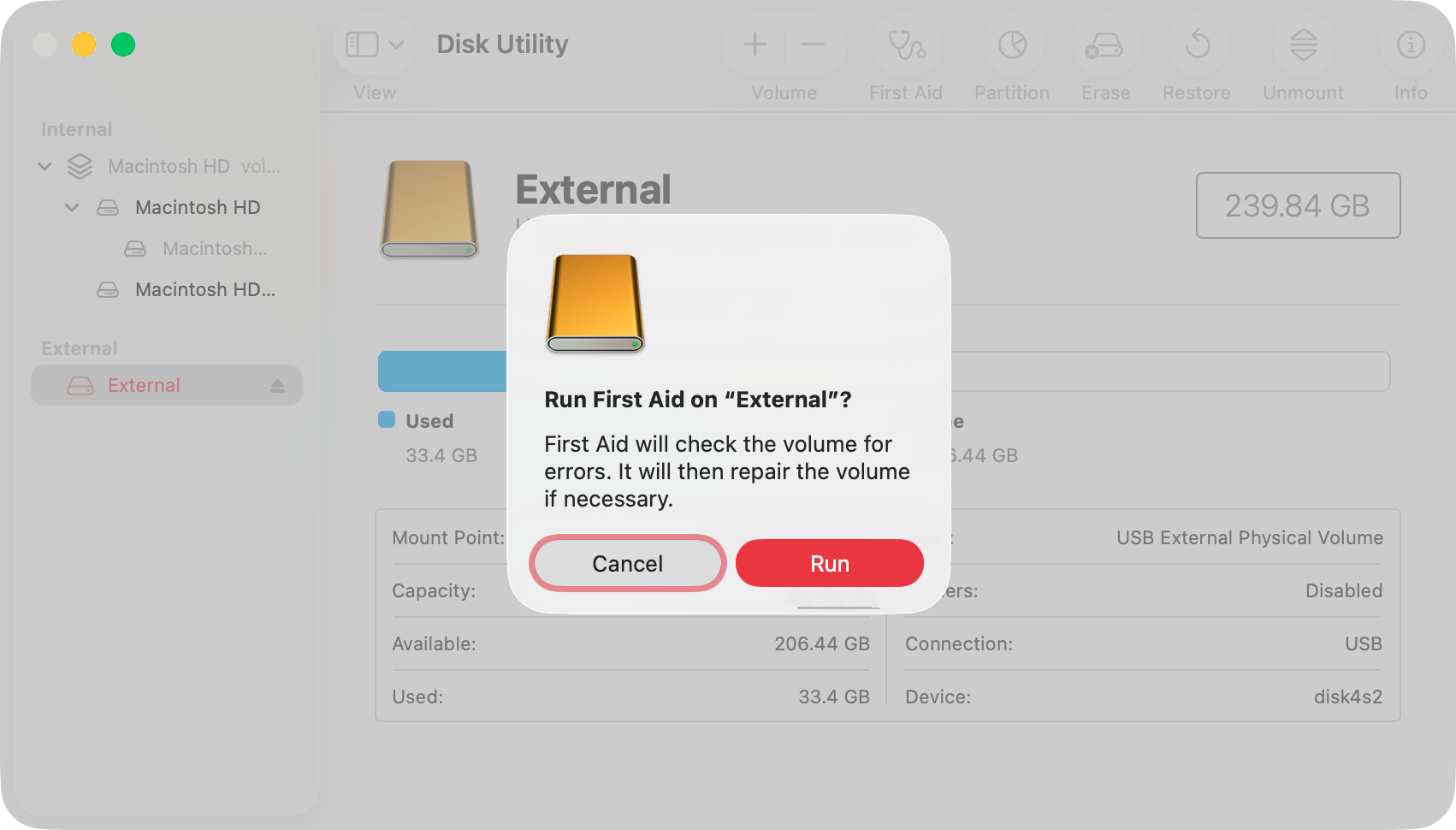
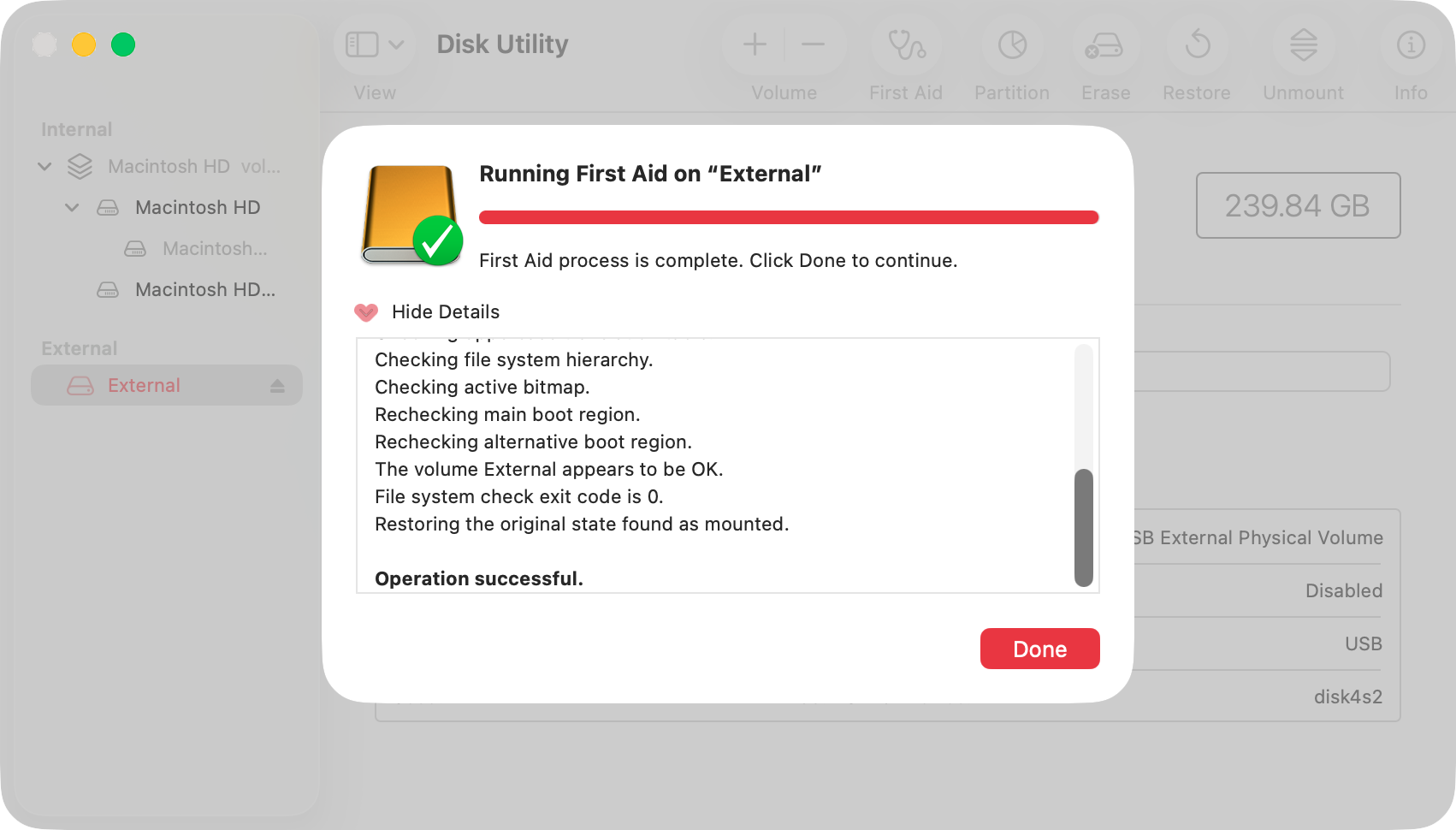
In the pop-up dialog, click Run.
Wait for the scan to finish. If anything needs fixing, First Aid will let you know.
Step 1. Launch Disk UtilityStep 2. Select your drive and click EraseStep 3. Click the Run buttonStep 4. When the scan is done, click Done
It’s possible the error is caused by a bug in macOS, which Apple might have fixed in an update.
You can check for macOS updates like this:
Open System Settings.
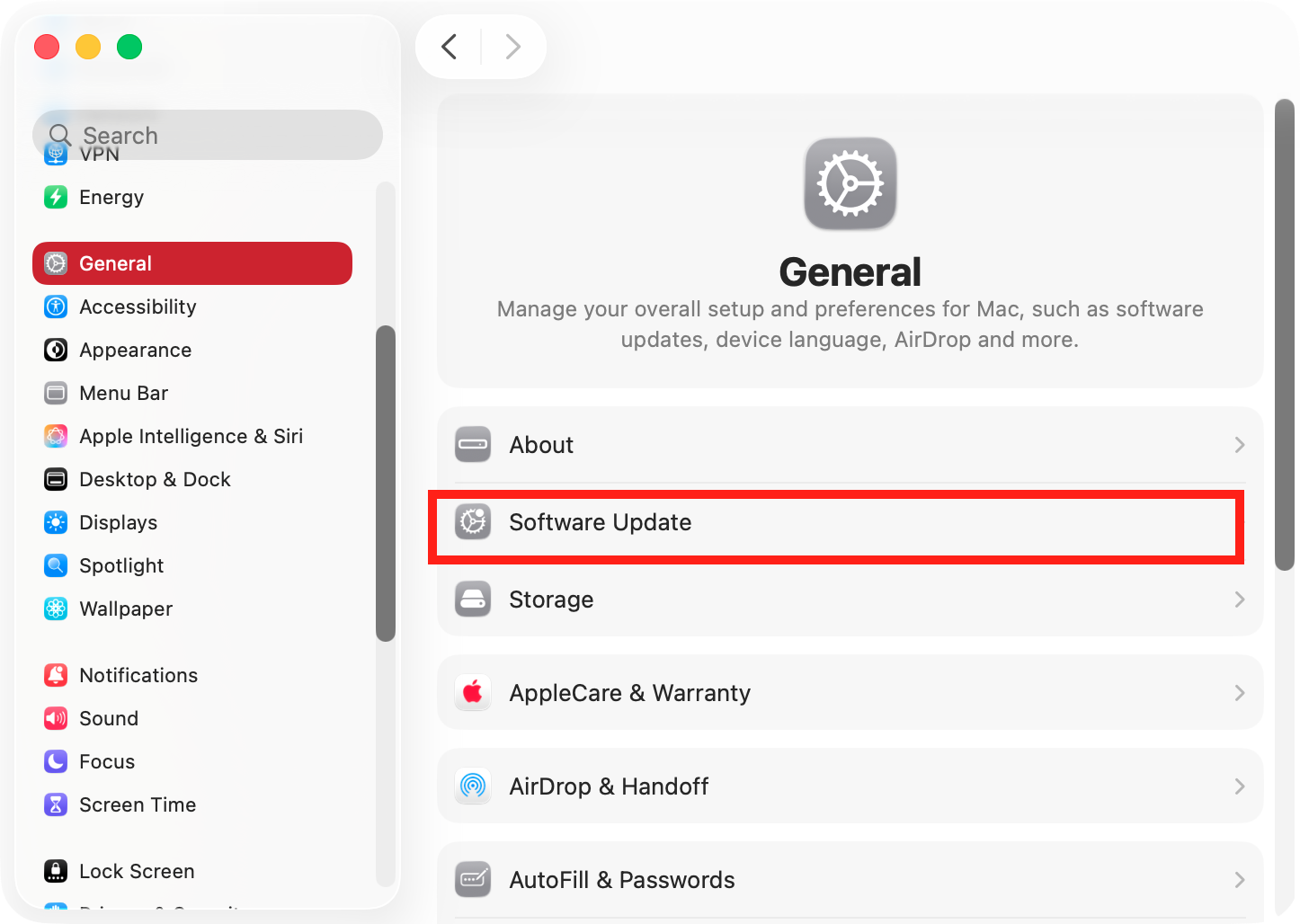
Select General > Software Update.
If any updates are available, download and install them.
When your Mac is updated, see if you can format your disk.
Step 1. Select General > Software Update
3. Use Terminal
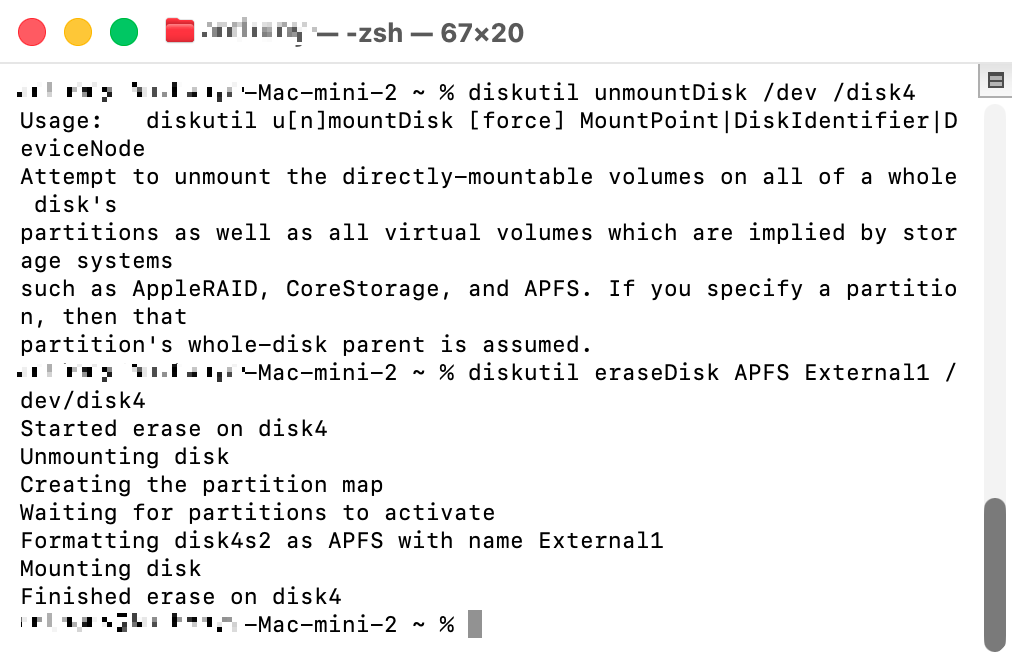
You can also use the macOS command line tool, Terminal, for formatting hard drives and SSD devices.
Here’s how to use Terminal to erase a disk:
Open Terminal from Applications > Utilities.
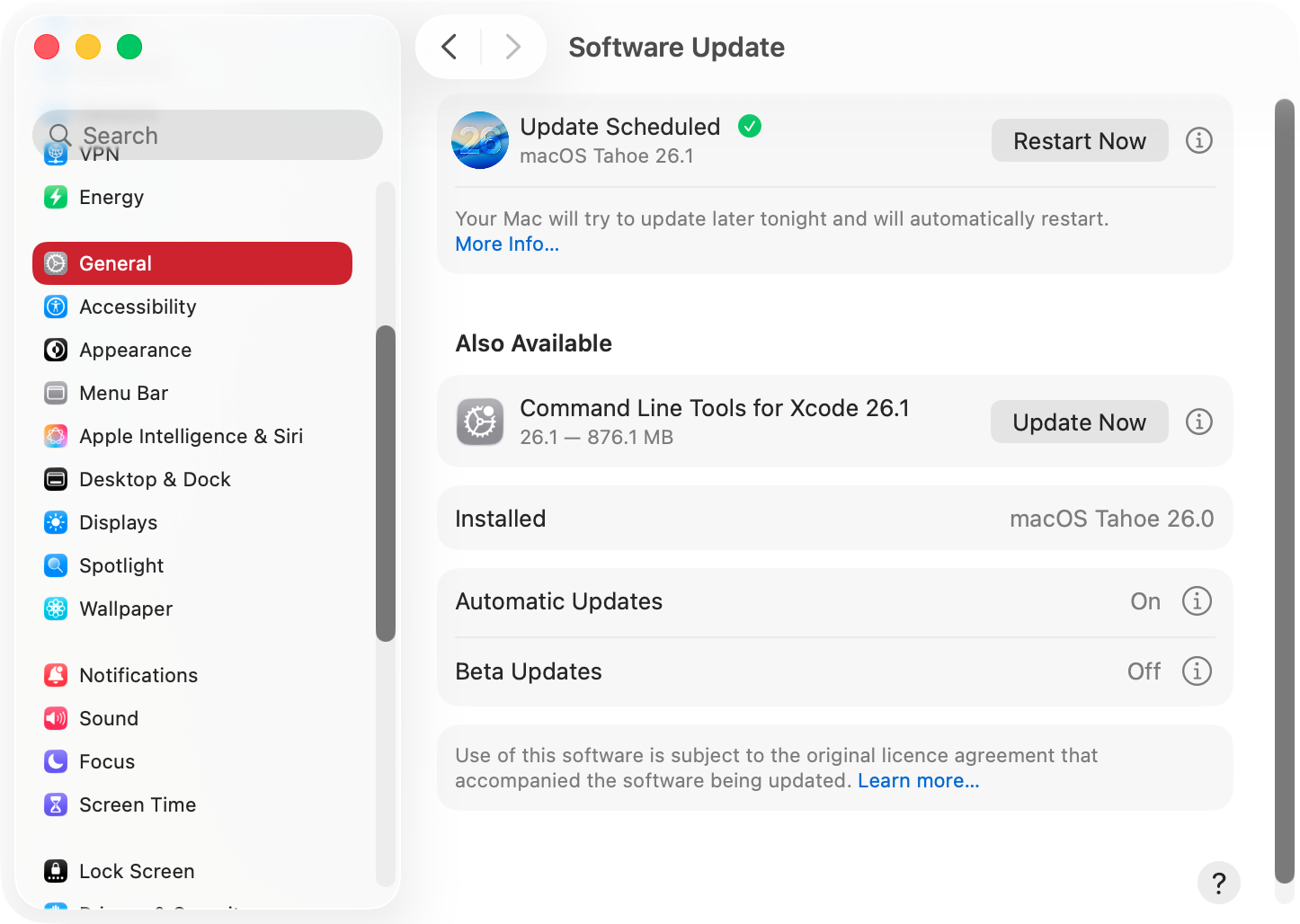
Type diskutil list and press Return. This will give you a list of all your drives.
Note the number of the drive you want to erase. Then type diskutil unmountDisk /dev/diskX, replacing the X with the relevant disk number. Press Return.
Enter diskutil eraseDisk APFS DriveName /dev/diskX. Replace APFS and DriveName with whatever disk format and name you want, and replace the X with the right disk number. Press Return, and Terminal should erase your drive.
Step 1. Use the diskutil list commandStep 2. Erase your disk with Terminal
4. Erase individual volumes instead of the entire disk
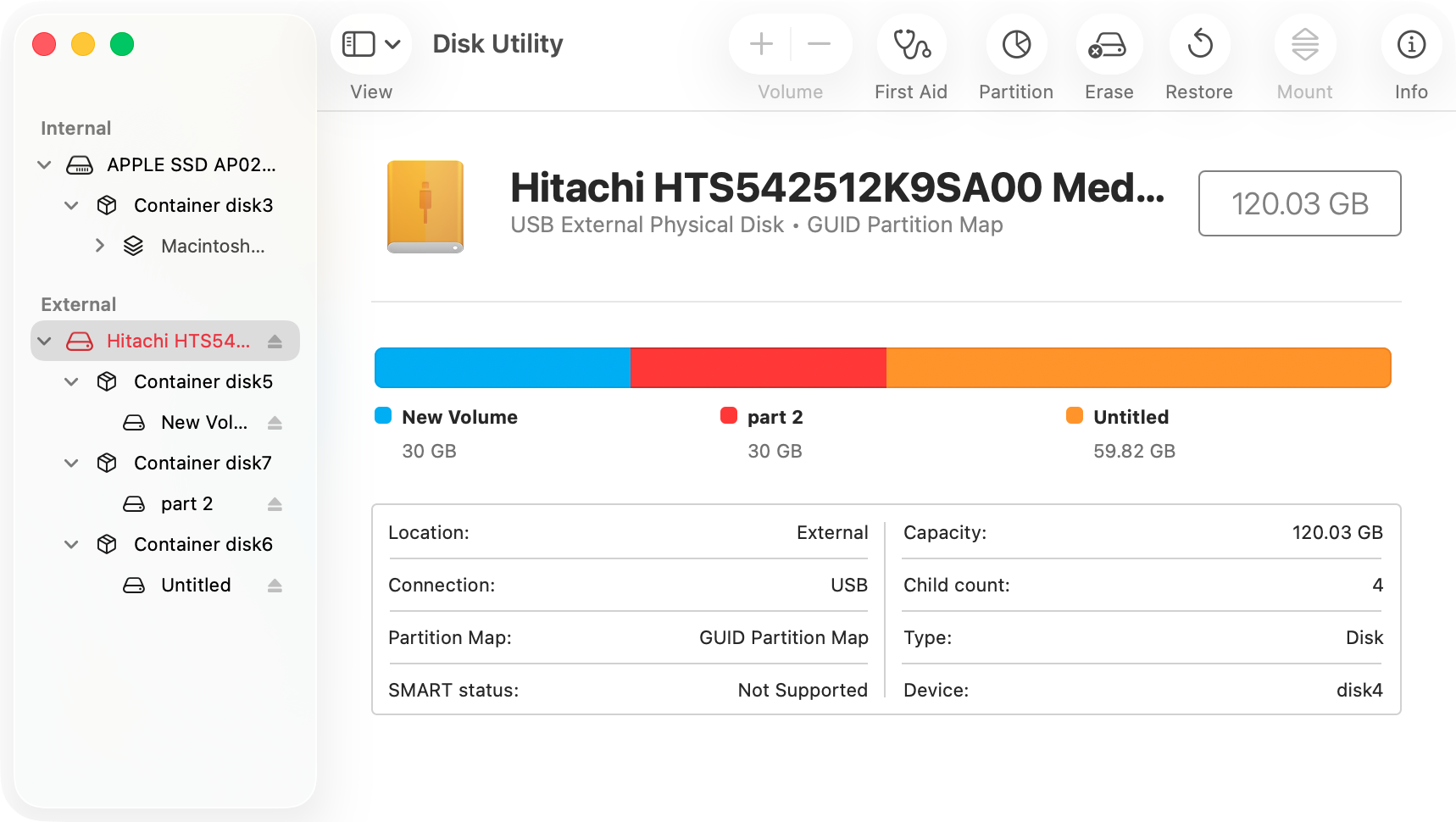
Rather than erasing your entire drive, you can format individual volumes or partitions within the drive instead.
You can erase selected volumes like this:
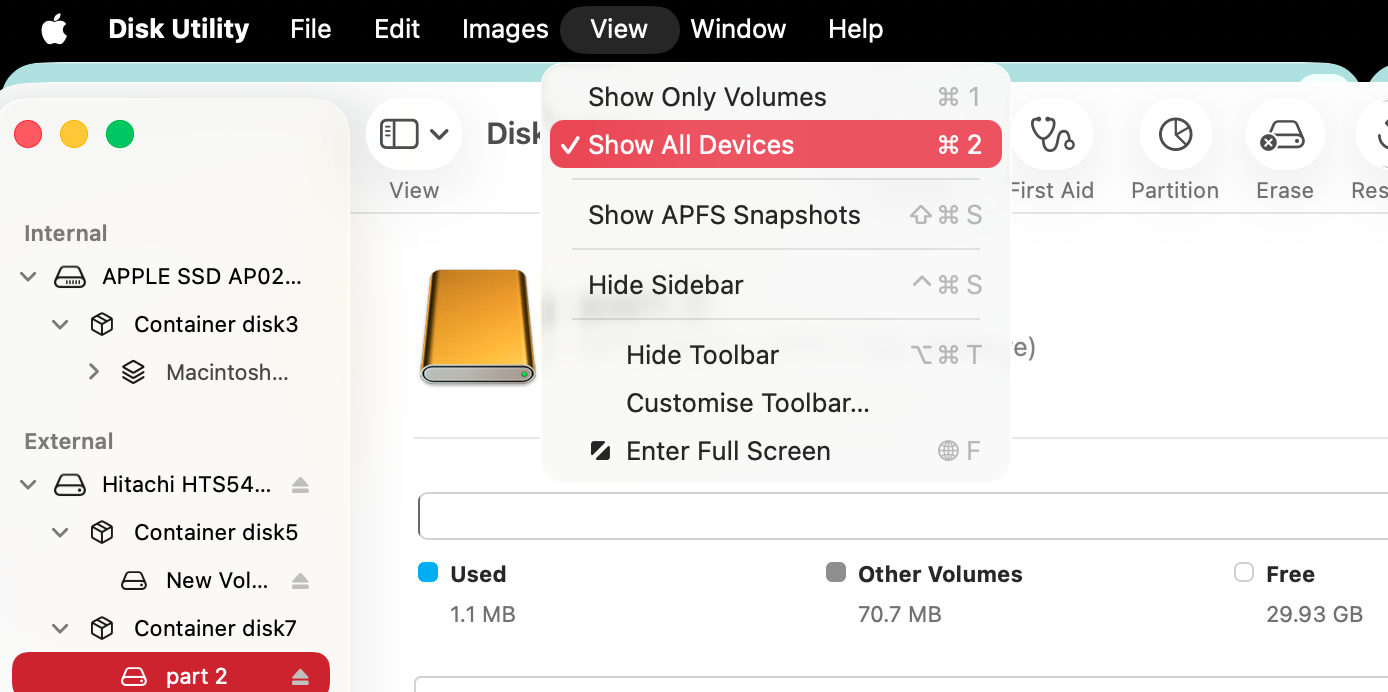
Open Disk Utility, and select View > Show All Devices from the menu bar.
You’ll now see all your disk drives on the left, along with any volumes within them.
Select an individual volume, then click Erase, and delete it as normal.
Step 1. Choose Show All Devices in Disk UtilityStep 2. Choose a volume, then erase its contents
5. Run maintenance tasks
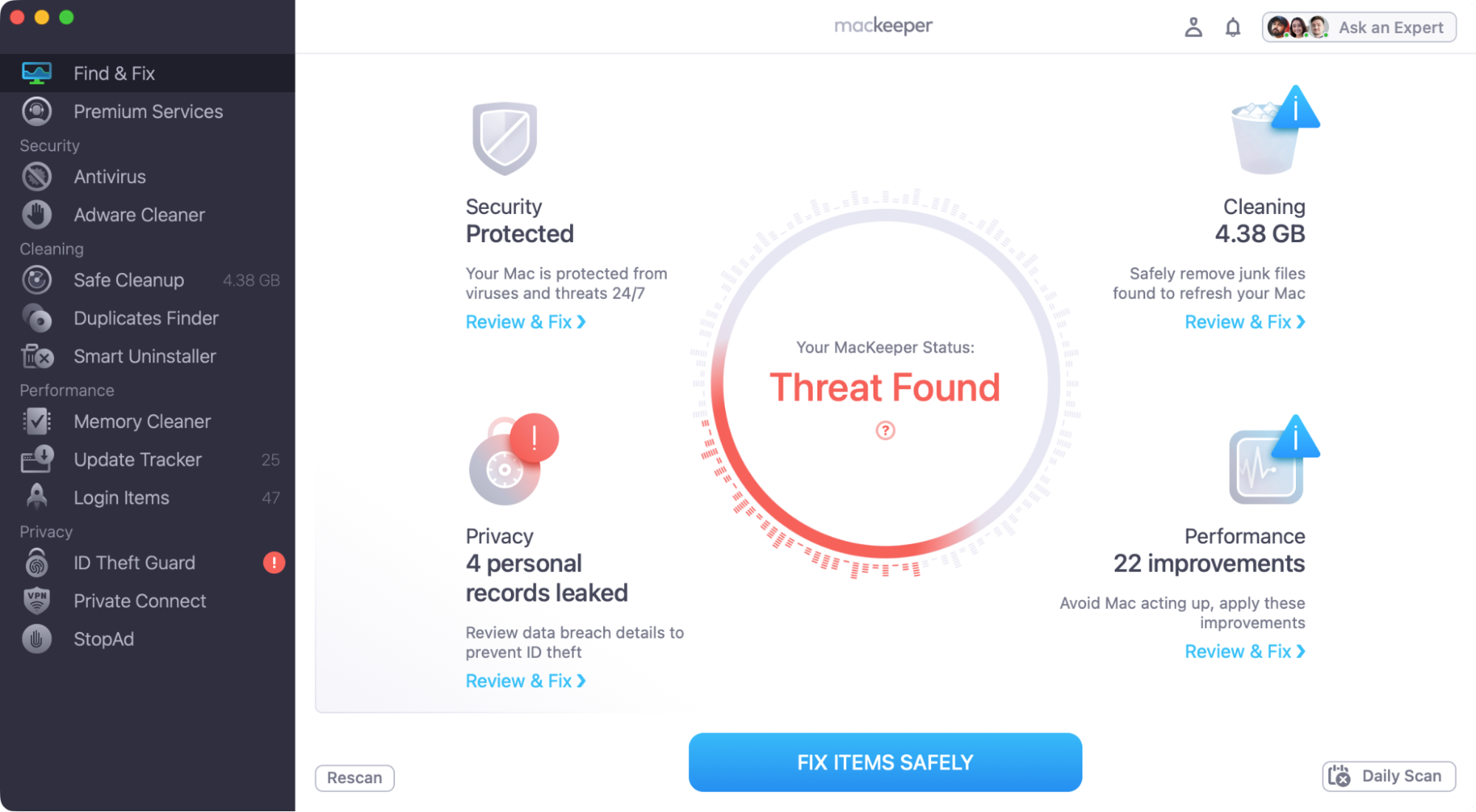
You can fix a variety of problems with MacKeeper, including security issues, junk files, memory shortages, and out-of-date software. This may help with your ‘Erase process has failed’ error.
Just follow our advice:
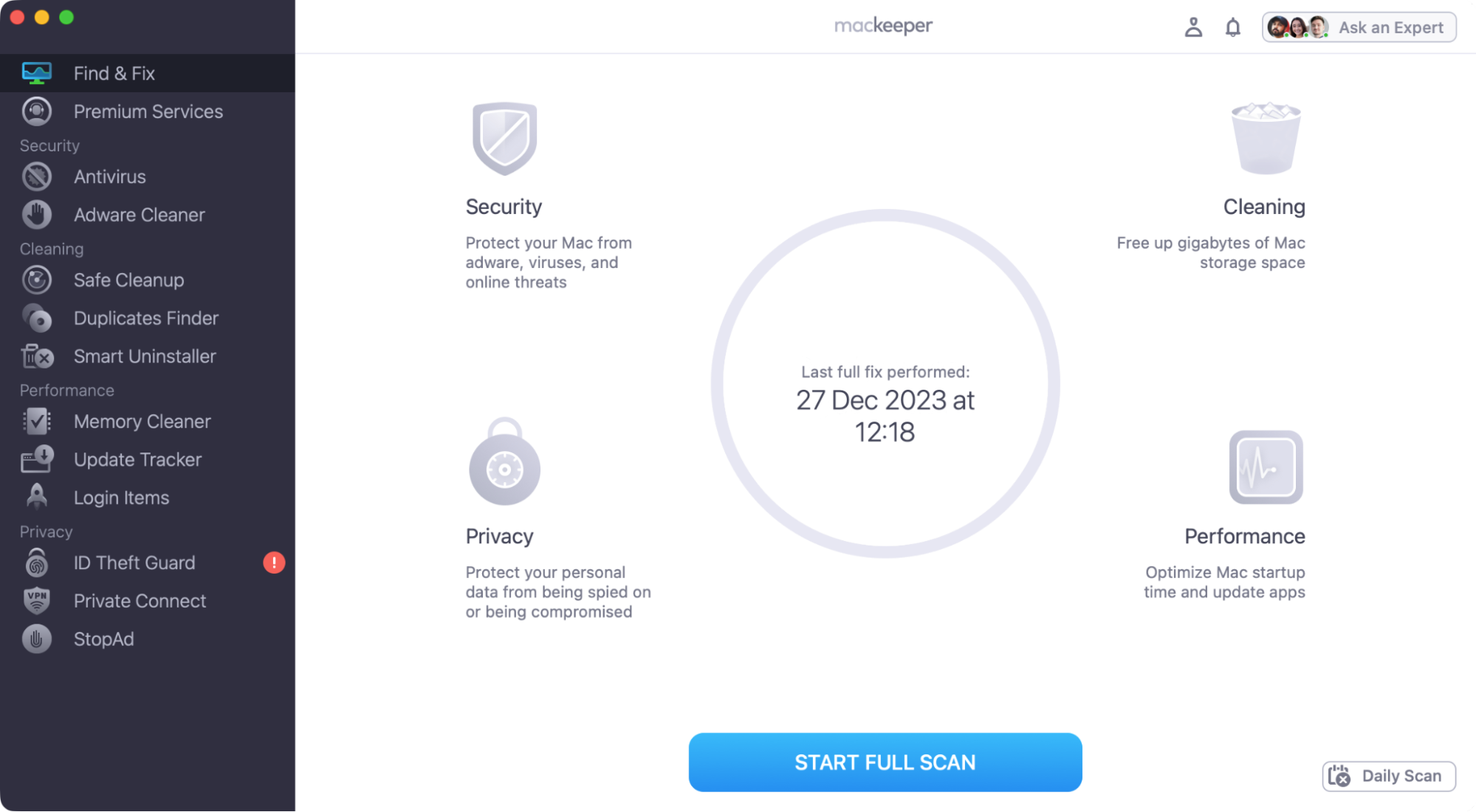
Start MacKeeper and select Find & Fix from the sidebar.
Click Start Full Scan.
When the scan is finished, click Fix Items Safely.
Now try erasing your disk again.
Step 1. Select Find & Fix, and click Start Full ScanStep 2. When the scan is done, click Fix Items Safely
An extra tip from us:
If you see a deleted process on Mac (in Activity Monitor), check out our dedicated guide for advice.
6. Reset NVRAM / SMC
This only works with Intel Macs, resetting various hardware features of your Mac. If you have one of these models, we suggest trying this.
To reset your Mac’s NVRAM:
Turn off your Mac, then power it back on.
Immediately press and hold Opt+Cm+P+R. Release after about 20 seconds. You might hear your Mac restarts a few times.
When finished, launch Disk Utility again and see if the error has been fixed.
To reset the SMC on an Intel desktop Mac:
Turn off your Mac, and unplug the power cable.
Wait for 15 seconds, then plug the cable back in.
Wait for another five seconds, then turn on your Mac.
To reset the SMC on a MacBook with a T2 security chip:
Shut off your Mac. Press and hold the power button for 10 seconds.
Wait a few seconds, then turn your Mac back on again.
Turn off your Mac again, and press and hold Left Ctrl+Left Opt+Right Shift+Power for seven seconds.
If your Mac is on, it’ll turn off. Hold the keys for another seven seconds.
Wait a few seconds and turn your Mac back on.
To reset the SMC on a MacBook without a T2 chip:
Turn off your MacBook Pro or MacBook Air.
Press and hold Left Ctrl+Left Opt+Left Shift+Power for 10 seconds.
Release all the keys and then turn your Mac on.
Deal with disk issues fast
There are many potential solutions for the ‘Erase process has failed’ problem, and we’ve covered the most common ones here—including how to repair a Mac disk with Disk Utility. You should also make sure your disk drives are plugged in correctly, that your USB cables and ports work properly, and that you have permissions to erase drives.
If you try all our tips and the problem persists, let MacKeeper’s Premium Services come to the rescue. Available 24/7, our experts have extensive experience in diagnosing and fixing Mac issues, including disk-related problems.
We respect your privacy and
use cookies
for the best site experience.
Privacy Preferences Center
We use cookies along with other tools to give you the best possible experience while using the
MacKeeper website. Cookies are small text files that help the website load faster. The cookies we
use don’t contain any type of personal data meaning they never store information such as your
location, email address, or IP address.
Help us improve how you interact with our website by accepting the use of cookies. You can change
your privacy settings whenever you like.
Manage consent
All cookies
These cookies are strictly necessary for enabling basic website functionality (including page
navigation, form submission, language detection, post commenting), downloading and purchasing
software. The website might malfunction without these cookies.