Formatting an external hard drive on a Mac may be hard if you’re not a tech-savvy person. So if you feel you need help, contact MacKeeper’s Premium Services. They would be happy to help you deal with almost any tech issues 24/7.
Curious to learn how to format external hard drive for Mac? Follow these steps:
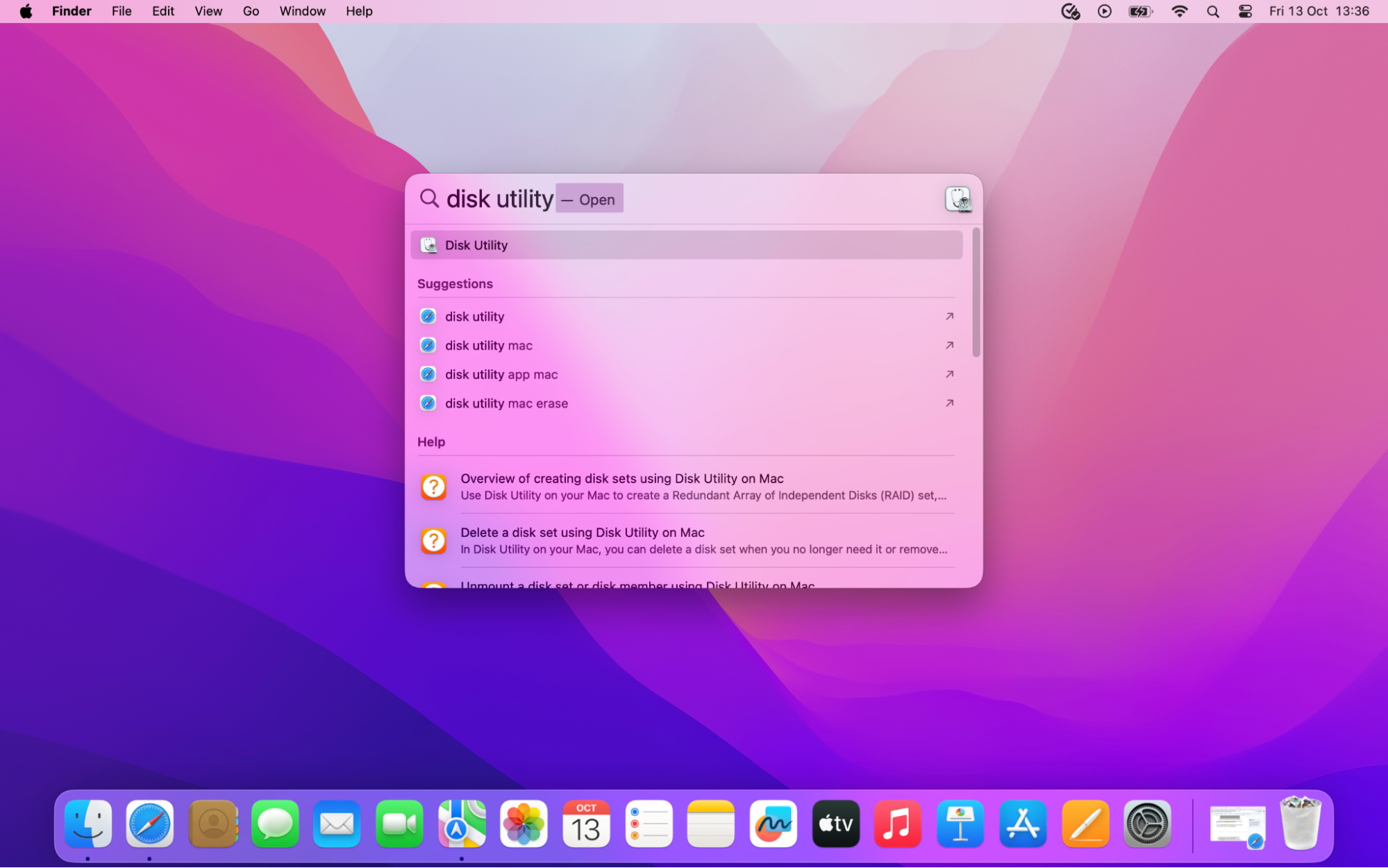
On your Mac, search for and open Disk Utility.
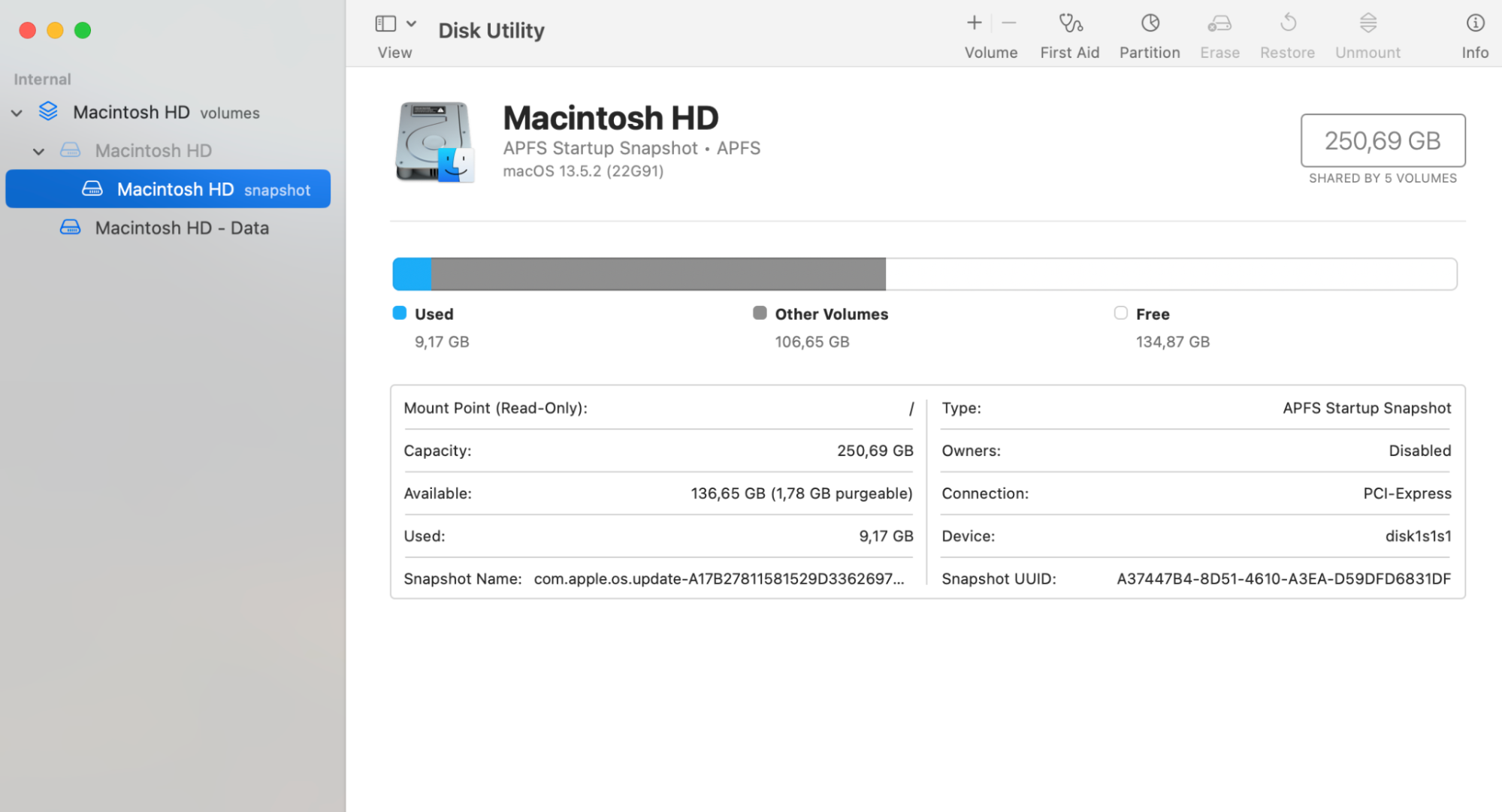
Locate and choose the external drive you want to format from the left panel.
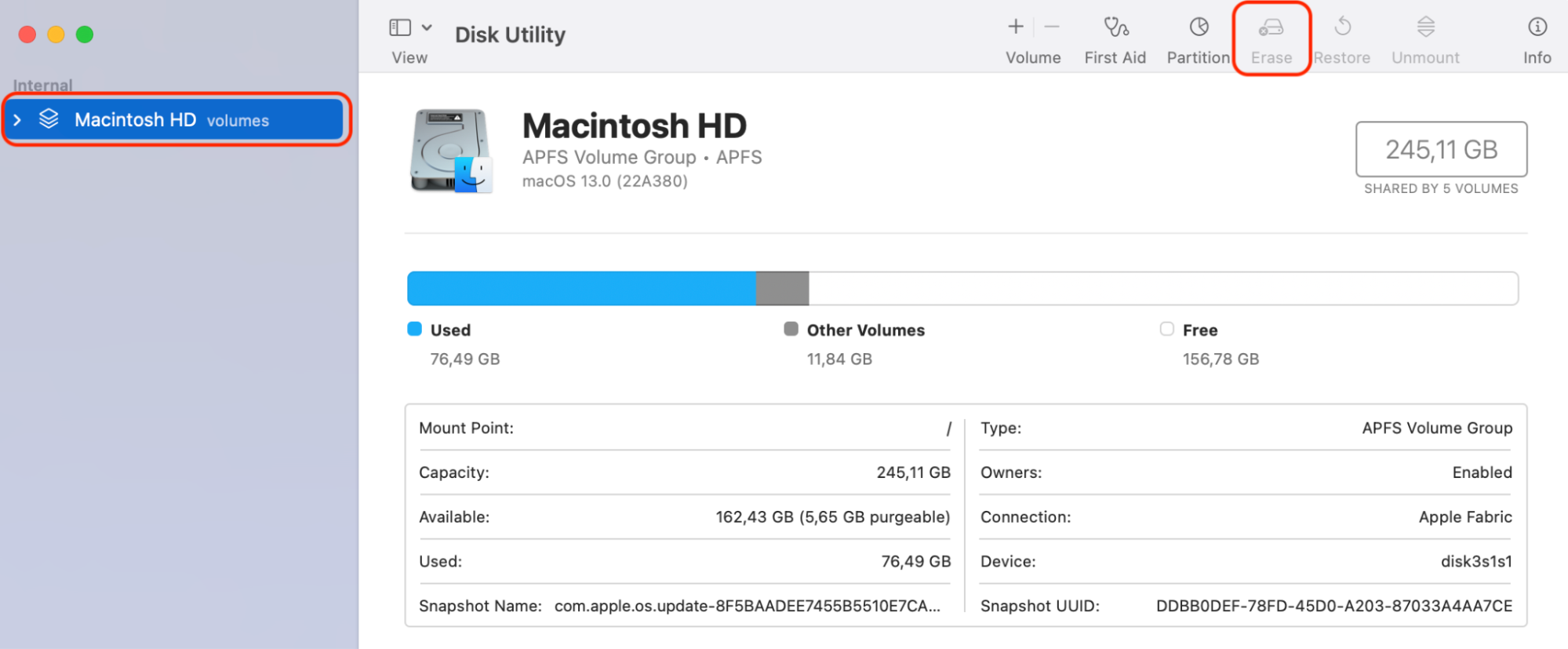
Initiate the erasing process by clicking the Erase option.
Opt for either the FAT32 or exFAT format.
Click Erase again and proceed as instructed.
Are you grappling with the chaos of a cluttered external hard drive on your Mac? The struggle to find files, sluggish performance, or the ever-present fear of losing important data becomes overwhelming. Many Mac users face these concerns, and the easiest solution may be to reformat your external hard drive. In this article, we'll delve into the reasons behind this common issue and guide you toward a clean and organized storage solution.
Which is the best format for an external hard drive on Mac
For Mac users seeking peak performance, the format of your external hard drive is pivotal. When it comes to the best options, you'll want to consider the efficiency of APFS, also known as Apple File System or even Mac OS Extended. APFS is particularly well-suited for macOS Mojave, macOS Sierra, and newer versions, but you probably are interested in how it works.
Hint from our team: Given that formatting can cause data to be lost, it's essential that you back up any important files in advance to avoid the frustration of losing precious data. Even if you want to erase an external hard drive on Mac, we advise on creating backups of files first.
If you're interested in data safety and efficient backup strategies, then our in-depth guide on how to clone Mac hard drive to external drive offers detailed step-by-step instructions that you may want to familiarize yourself with.
A note from our experts:
Formatting an external hard drive may require additional knowledge. Ask for help from our tech experts. MacKeeper’s Premium Services provide qualified support 24/7.
To use MacKeeper’s Premium Services on a Mac device:
Launch the app, choose Premium Services from the sidebar, and click Chat Now.
Share your issues and follow the instructions.
Step 1. MacKeeper > Premium Services > Chat NowStep 2. Type in the details of the issue
Ways to reset external hard drive on Mac
The most commonly used method to reset an external hard drive on a Mac device is
through Disk Utility:
Connect a compatible external hard drive to your Mac.
Open Spotlight Search, type Disk Utility, and select the first option.
Click View in the top-left corner of the window and choose Show All Devices.
Select the external hard drive you want to wipe or reset.
Finally, from the top menu, click Erase.
There are various options when it comes to formatting an external hard drive on your Mac, each offering unique advantages for different situations.
How to reformat an external hard drive with Disk Utility on Mac
How to format an external hard drive using Terminal on Mac.
Besides, to avoid the external hard drive not showing up on Mac error, our team suggests you check out our comprehensive guide with troubleshooting steps to help you combat any compatibility issues.
1. How to reformat external hard drive with Disk Utility on Mac
To reformat an external hard drive on Mac using Disk Utility:
Open Disk Utility using Spotlight Search or going to Finder > Applications > Utilities.
Select the external hard drive you want to format from the list.
Go to the toolbar and click Erase.
Now choose either FAT32 or exFAT Format from the drop-down menu.
To confirm, click Erase again and follow the on-screen prompts to complete the formatting of your external hard drive.
Step 1. Open Disk Utility through Finder > Applications > Utilities or Spotlight searchStep 2. Select an external HD you want to formatStep 3. Click Erase
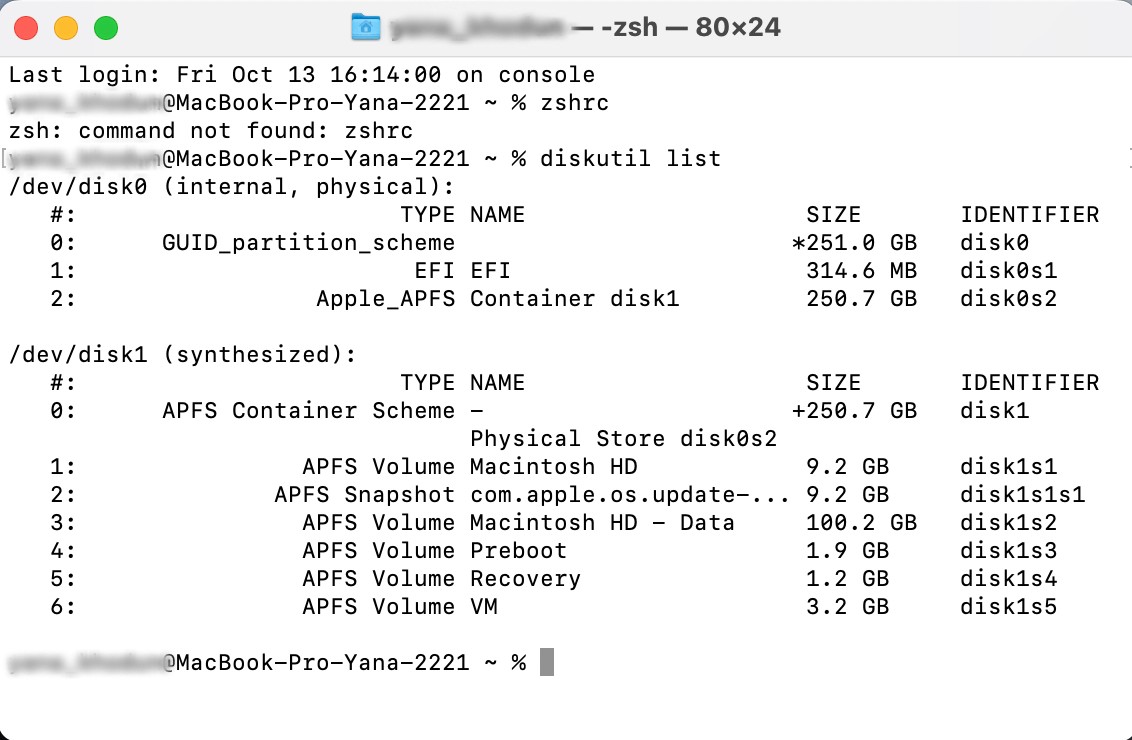
2. How to format an external hard drive using Terminal on Mac
Alternatively, to reformat external hard drive on Mac using Terminal, follow these steps:
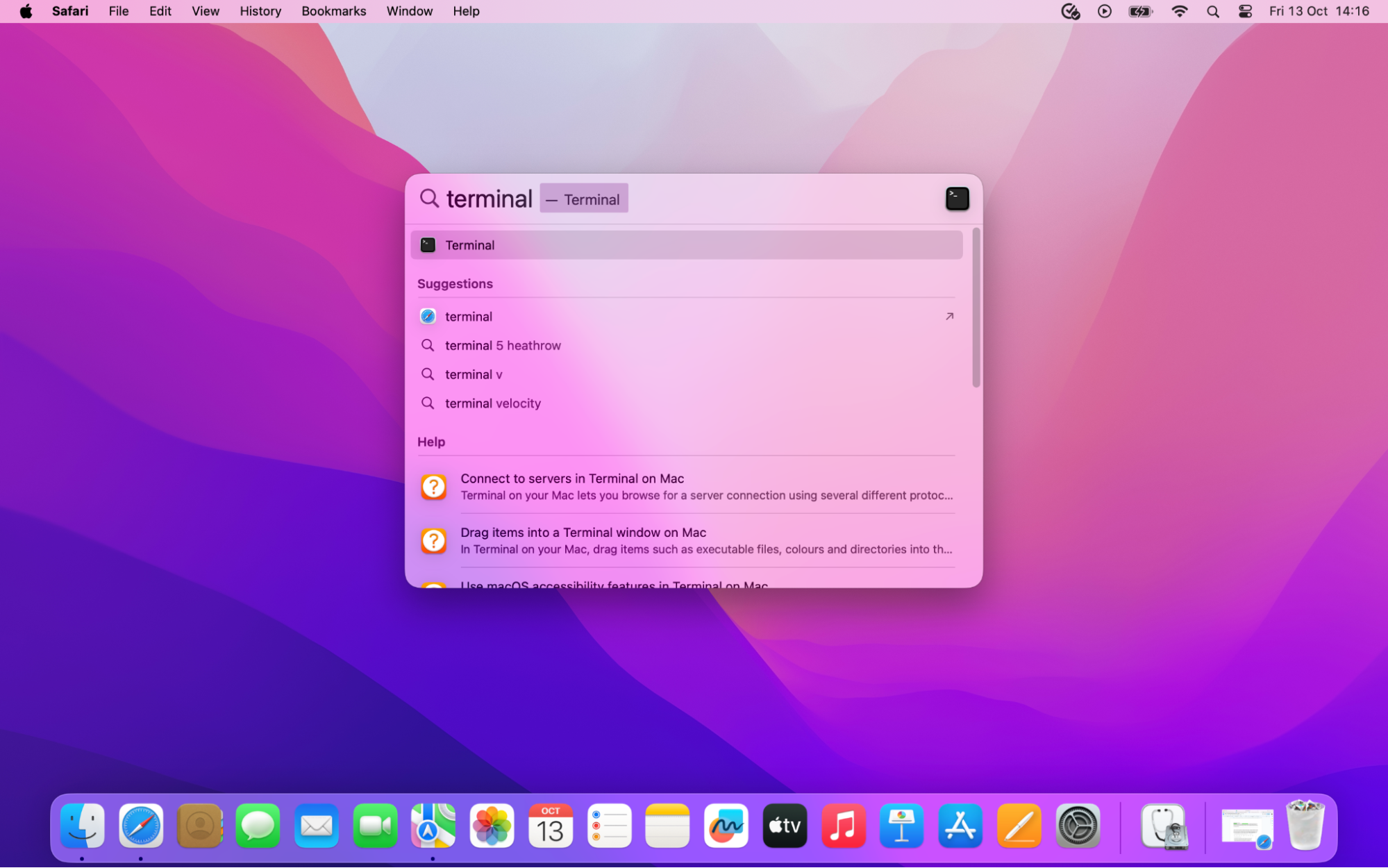
Open Terminal on your Mac.
Use diskutillist to identify your external drive.
Format it with the command diskutil eraseDisk format name /dev/identifier, replacing format, name, and identifier with your external hard drive preferences.
Review and execute the command to initiate formatting.
Step 1. Open Terminal on your MacStep 2. Use diskutil list to identify your external driveStep 3. Type the command diskutil eraseDisk format name /dev/identifier
Why you should always backup before formatting an external hard drive on Mac
We should clarify that formatting an external hard drive often means the process will erase all its contents. To safeguard your valuable files, always save backups of the hard drive onto another device before proceeding. Additionally, ensure your external drive is always properly connected to your MacBook to avoid the risk of potential data loss.
If you need further support, we encourage you to explore our blog post on how to back up your Mac. Here you’ll find valuable insights to help you transfer and secure your data before formatting an external hard drive on a Mac computer.
Mastering external hard drive formatting on Mac
In the realm of Mac maintenance, mastering the skill of formatting an external hard drive is crucial. Below, we’ve compiled our top tips worth remembering when it's time to format your external hard drive:
Always protect your vital files from data loss during formatting by creating backups
Opt for a file system format that suits your needs, like APFS for modern Macs or exFAT for cross-platform compatibility
Check if your external hard drive is correctly connected to your Mac to prevent interruptions during formatting.
As you embark on the journey to reformat an external hard drive on Mac, keep in mind our trusted ally—MacKeeper’s Premium Services. Our tech experts will accompany you every step of the way. Good luck formatting your external hard drives!
We respect your privacy and
use cookies
for the best site experience.
Privacy Preferences Center
We use cookies along with other tools to give you the best possible experience while using the
MacKeeper website. Cookies are small text files that help the website load faster. The cookies we
use don’t contain any type of personal data meaning they never store information such as your
location, email address, or IP address.
Help us improve how you interact with our website by accepting the use of cookies. You can change
your privacy settings whenever you like.
Manage consent
All cookies
These cookies are strictly necessary for enabling basic website functionality (including page
navigation, form submission, language detection, post commenting), downloading and purchasing
software. The website might malfunction without these cookies.