The Home key on Mac offers convenient ways to get to the start of documents and web pages—but many Mac keyboards don’t have these keys. Before we look at solutions, if you want to put some zip back into your machine, keep it junk-free with MacKeeper’s Safe Cleanup tool.
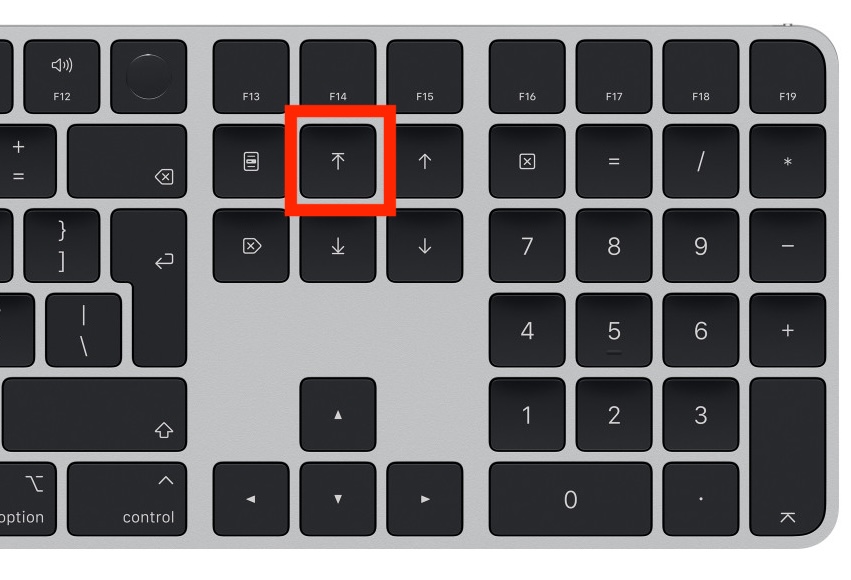
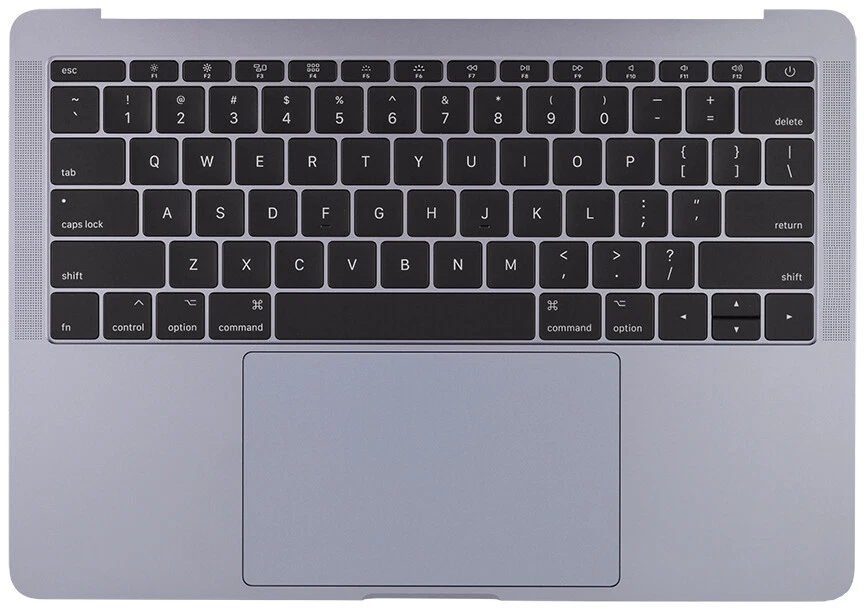
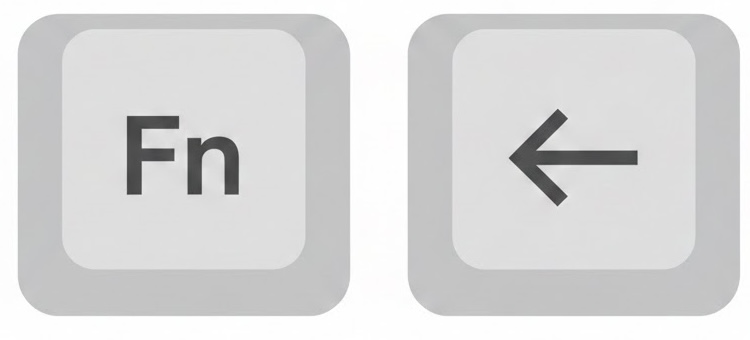
Most Apple keyboards, including Magic Keyboards and MacBook keyboards, don’t have either Home or End keys. Only Apple’s full-size Magic Keyboard has Home and End keys, next to the numpad on the right-hand side. Instead of these keys, you can use a combination of the Fn key and the left and right arrow keys to go to the start or end of a page.
Full-size Apple keyboards have a dedicated Home button
What is the “Home” key function?
The Home key on a Mac can do a few different things, depending on what app you’re using when you press it. In web browsers, the Home key will return you to the start of the page. In some word processors, the Home key will move the cursor to the start of the current line, but in others, it will go to the top of the document.
Difference between Mac and Windows “Home” key
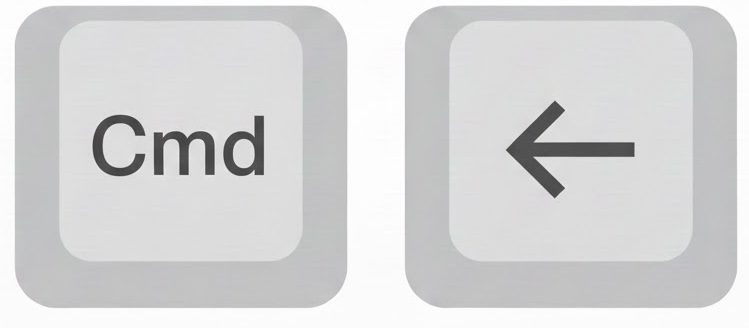
In many cases, the Home button on Mac will behave just like it does in Windows. If you press the Home key in Apple Pages, for example, you’ll leap to the top of the document, but the cursor will stay where it was. To move to the start of a line, you need to press Cmd+Left Arrow.
Why don't Macs have a dedicated “Home” key?
The lack of a Home key on Mac keyboards is purely a stylistic and space-saving decision by Apple. The full-size Apple Magic Keyboard has a Home key, and third-party keyboards with Home keys work perfectly well with macOS, moving you quickly around documents and web pages. If you don’t have a Home key, you can access all the same shortcuts on your Mac simply by pressing Fn+Left Arrow.
MacBooks and smaller Mac keyboards don't have a Home key
A note from our experts:
If you notice your Mac is sluggish as you’re navigating files and web pages with the Home key, try MacKeeper’s Safe Cleanup tool. It lets you find and delete all kinds of junk data from your Mac, giving it a speed boost.
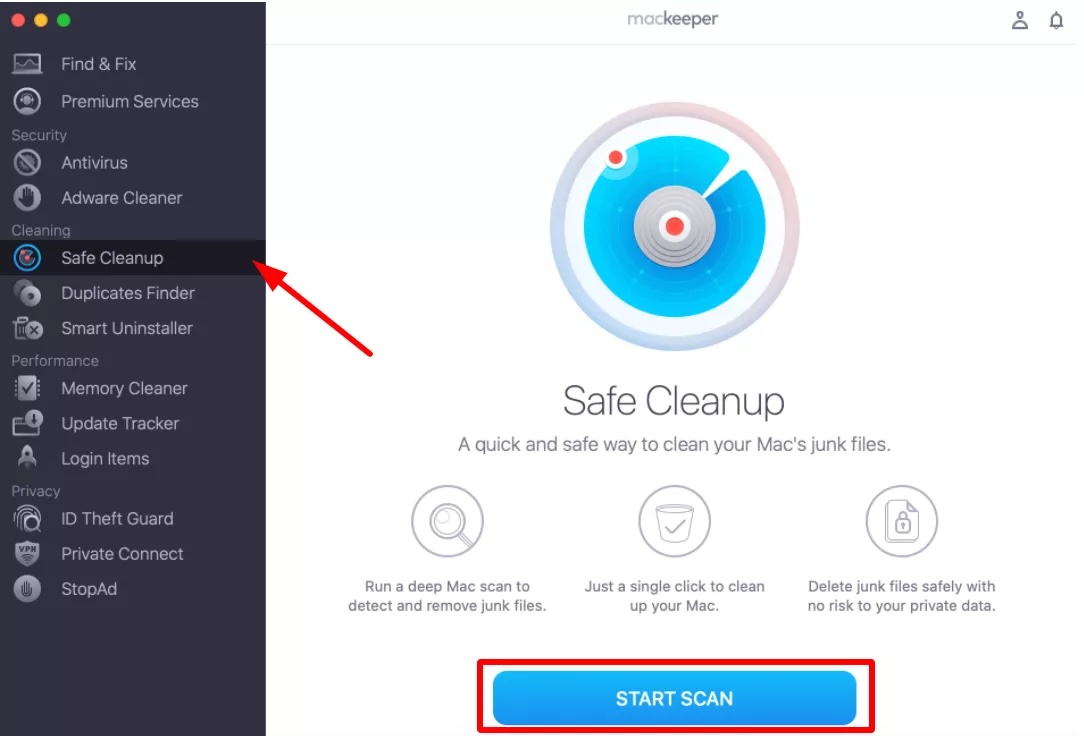
Select Safe Cleanup from the side menu, and click Start Scan.
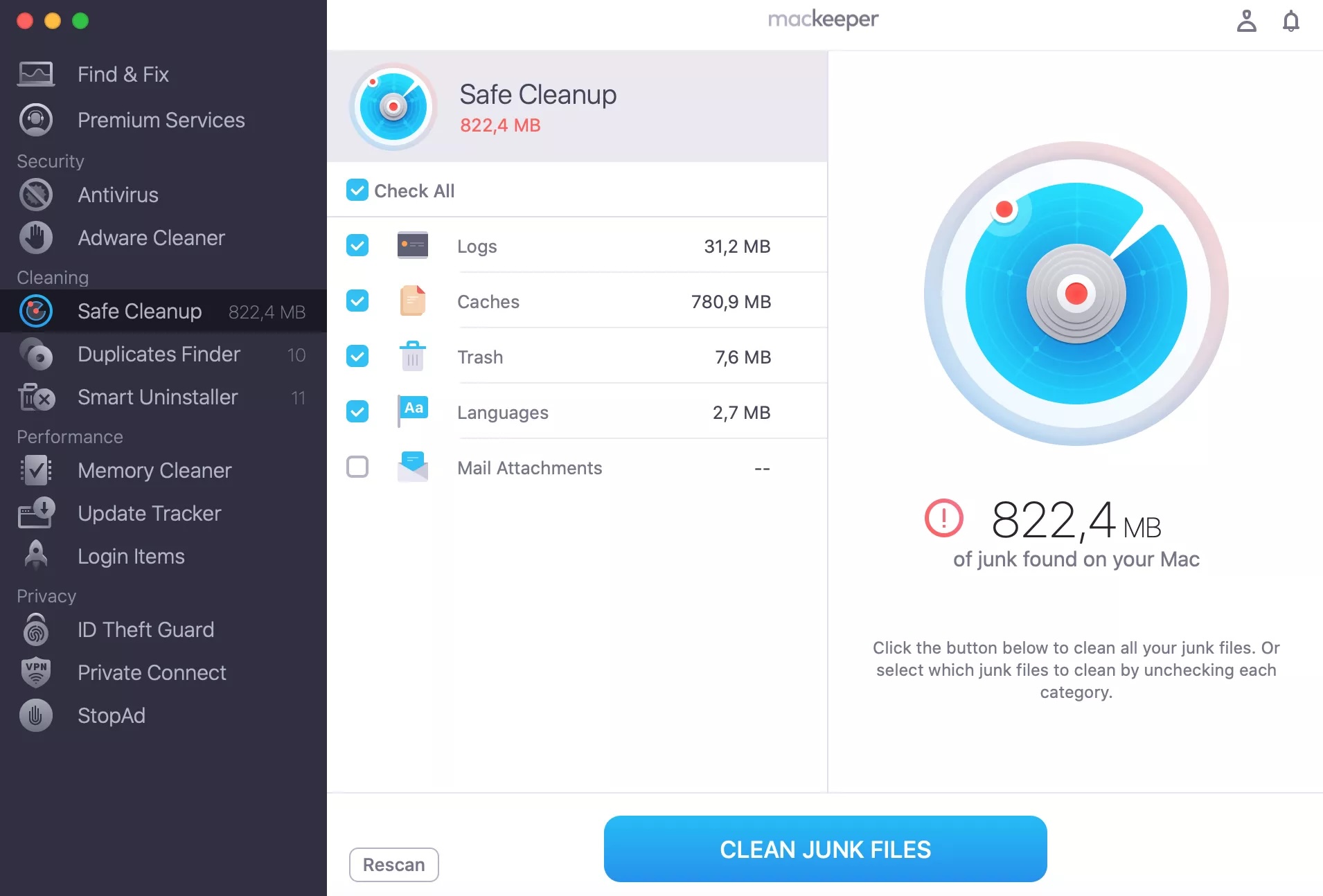
When the scan is done, select what to remove and click Clean Junk Files.
Step 1. Select Safe Cleanup from the MacKeeper menuStep 2. Choose what to remove, and click Click Junk Files
How to use the “Home” button function on Mac?
If you press the Home button on Mac while using a web browser or Apple Pages, you’ll return to the top of the page. But if you’re using other software, like Microsoft Word or Google Docs, the Home button will move your cursor to the start of the current line. If you don’t have a Home key, pressing Fn+Left Arrow will have the same effect.
1. Keyboard shortcuts on Mac for “Home”
We used a small Apple Magic Keyboard without a Home key, and we discovered very different results depending on which app we were using at the time. If you don’t have a Home key, there are two main ways to reproduce its functionality.
1.1. Fn + Left Arrow
Pressing Fn+Left Arrow is the main way to access the Home button function on Macs without a Home key. In Apple Pages, we found this scrolled to the top of the document without moving the cursor. In Word and Google Docs, Fn+Left Arrow simply took us to the beginning of the line. In our web browser, this keyboard combo took us to the top of the page.
If you find that the Home key or Fn+Left Arrow don’t work as expected, try Command+Left Arrow instead. When we used this keyboard combination in Word, Pages, and Google Docs, it moved our cursor to the beginning of the current line. In browsers like Safari and Chrome, Cmd+Left Arrow navigates to the previous page.
We also tried the Home key on an external keyboard, designed for Windows. For us, the Home key worked exactly the same as Fn+Left Arrow on our Apple Magic Keyboard. So did Cmd+Left Arrow, but because Windows keyboards don’t have a Cmd key, we had to use our Win key instead.
Our Windows keyboard had an Fn key too, but Fn+Left Arrow didn’t work at all.
The Home button on Mac gives you an easy way to get to the start of a document, a web page, or just the current line of a text document. Similarly, the End key will take you to the end. If you don’t have a Home key, you can get the equivalent functionality with Fn+Left Arrow. Read our MacBook user guide for more useful tips, covering everything from System Settings to security.
If you notice some sluggishness while using the Home key, MacKeeper’s Safe Cleanup tool can help. Let it scan your machine, and in just a few seconds, it will find all kinds of junk data you can quickly and safely remove—clearing disk space and giving you a speed boost.
We respect your privacy and
use cookies
for the best site experience.
Privacy Preferences Center
We use cookies along with other tools to give you the best possible experience while using the
MacKeeper website. Cookies are small text files that help the website load faster. The cookies we
use don’t contain any type of personal data meaning they never store information such as your
location, email address, or IP address.
Help us improve how you interact with our website by accepting the use of cookies. You can change
your privacy settings whenever you like.
Manage consent
All cookies
These cookies are strictly necessary for enabling basic website functionality (including page
navigation, form submission, language detection, post commenting), downloading and purchasing
software. The website might malfunction without these cookies.