You search for a new hit TV show on Netflix, only to find that it’s not available in your region. Before you turn to shady websites that could compromise your data, consider changing your location in Safari on your Mac. And for smoother browsing in Safari, use MacKeeper’s StopAd—it speeds up browsing by blocking annoying online trackers.
Safari uses data from several sources to determine your location, though it’s not 100% accurate. These sources include your GPS coordinates and IP address. It also sources the approximate location using data from local Wi-Fi networks. When the data from your GPS and Wi-Fi signals is either less accurate or unavailable, Safari triangulates your position based on the strength and proximity of nearby cell towers.
Why change location on Safari on a Mac?
Changing your location in Safari gives you access to region-restricted content, including content on streaming platforms. Likewise, switching your location can help you bypass restrictions on certain websites, apps, and platforms. Amending your location can also help you customize search results in Safari, making it easier to access local news and services. Another key reason is protecting your privacy by switching to a different location.
A note from our experts:
No one wants to be interrupted by ads and other annoying pop-ups while browsing, which is why more and more internet users are turning to ad blockers for a more seamless browsing experience. Of the 42% of customers who use ad-blocking tools in the US, 37% use them on laptops. If you’re tired of closing ads and pop-ups every few seconds, MacKeeper’s StopAd can help. It improves your browser’s speed and helps you navigate webpages smoothly by restricting annoying notifications in your browser, whether you use Safari or Chrome. MacKeeper is developed by Clario Tech, a trusted cybersecurity software company that develops user-friendly apps for privacy and digital security.
Take advantage of MacKeeper’s StopAd extension by following the steps below.
Select the StopAd option in the left menu and press the blue Open button.
Now click the Install button next to the Safari browser option and follow the on-screen prompts to add the extension.
How to change Safari location on Mac?
There are several ways to change your Safari location on a MacBook computer. The first and most common method for setting a different location on any device is using a VPN. This helps you hide your real whereabouts and evade detection online, so you can steer clear of bad actors and possibly access restricted sites and content. Secondly, you can disable your Safari location via System Preferences or System Settings on a Mac (depending on your MacBook model). Finally, you can set different location-sharing permissions for individual sites in Safari.
1. Use a VPN
VPN services enable us to change our VPN location and IP address on a Mac by routing our internet connection through servers located around the world. This makes us appear as though we’re in a different location. There are hundreds of VPN solutions to choose from. Just ensure you find a reliable one.
Another way we customize our Safari location is in System Preferences. Unlike using a VPN service, which is a third-party tool, we’ve found that disabling location sharing for Safari in System Preferences is the quickest, most straightforward solution.
Here’s how to stop Safari from sharing your location via Mac’s System Preferences:
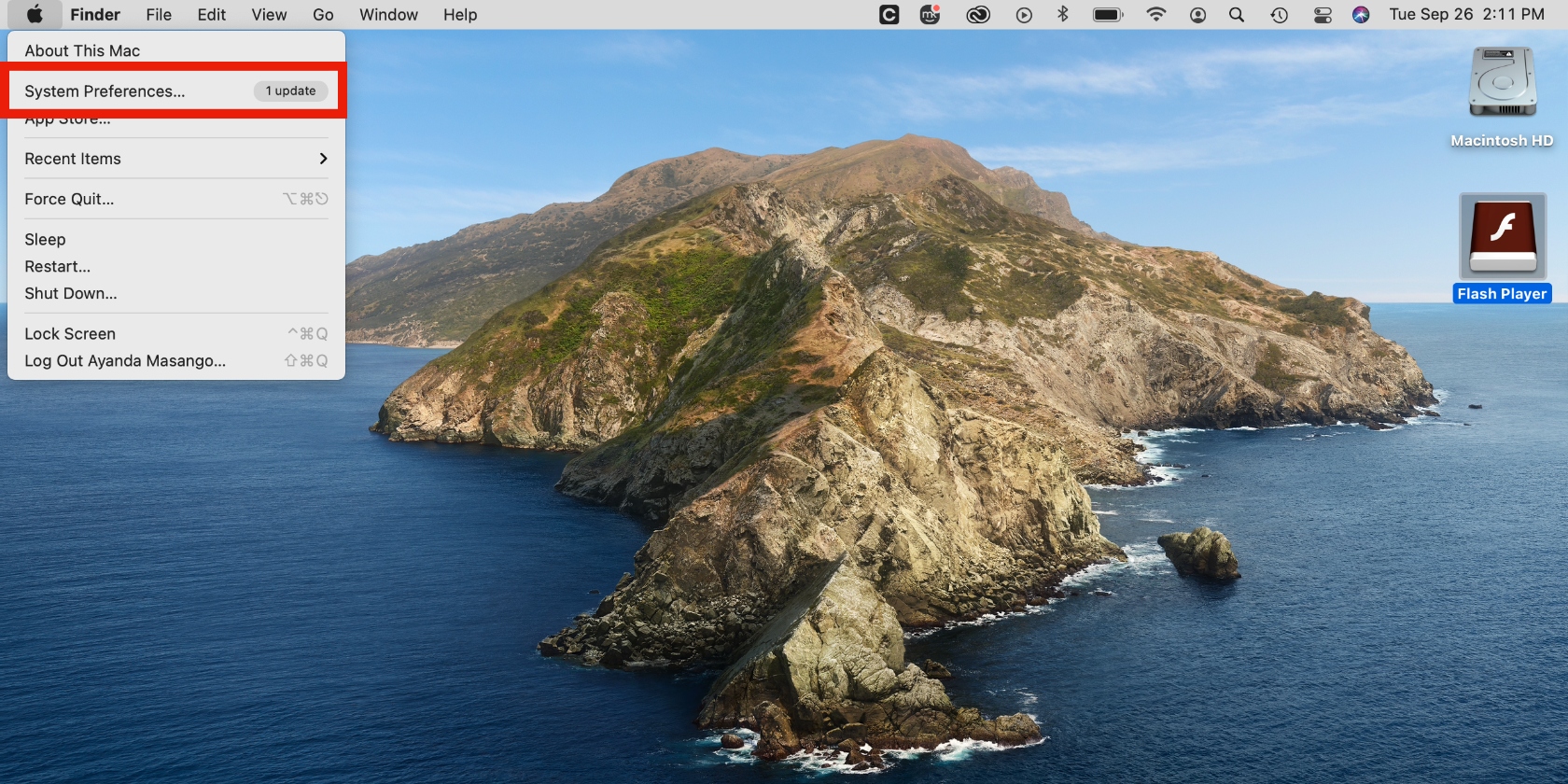
Open System Preferences via your Mac’s Apple menu.
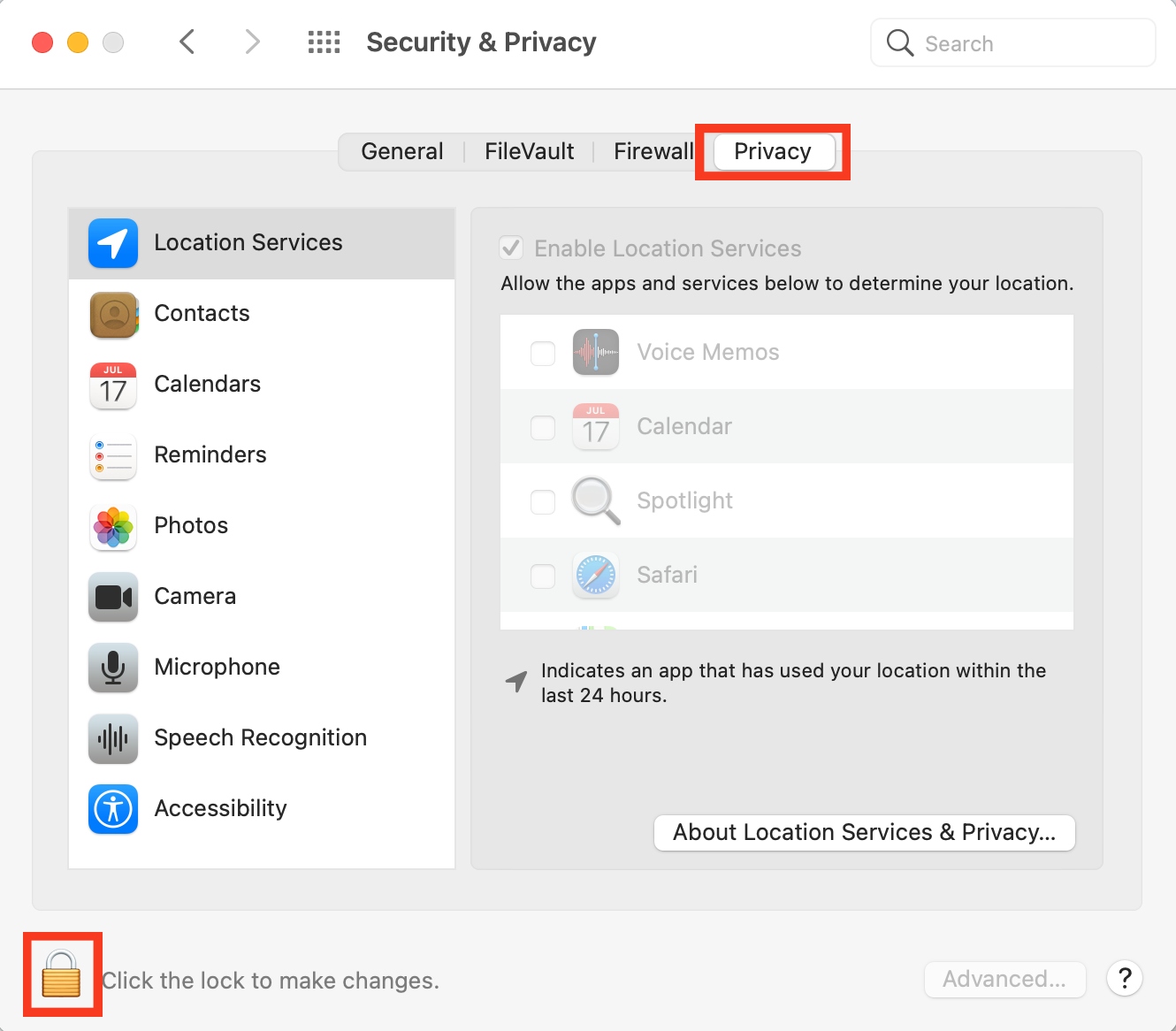
Select Security & Privacy > Privacy, click on the padlock icon in the lower-left corner of the window, and enter your device password.
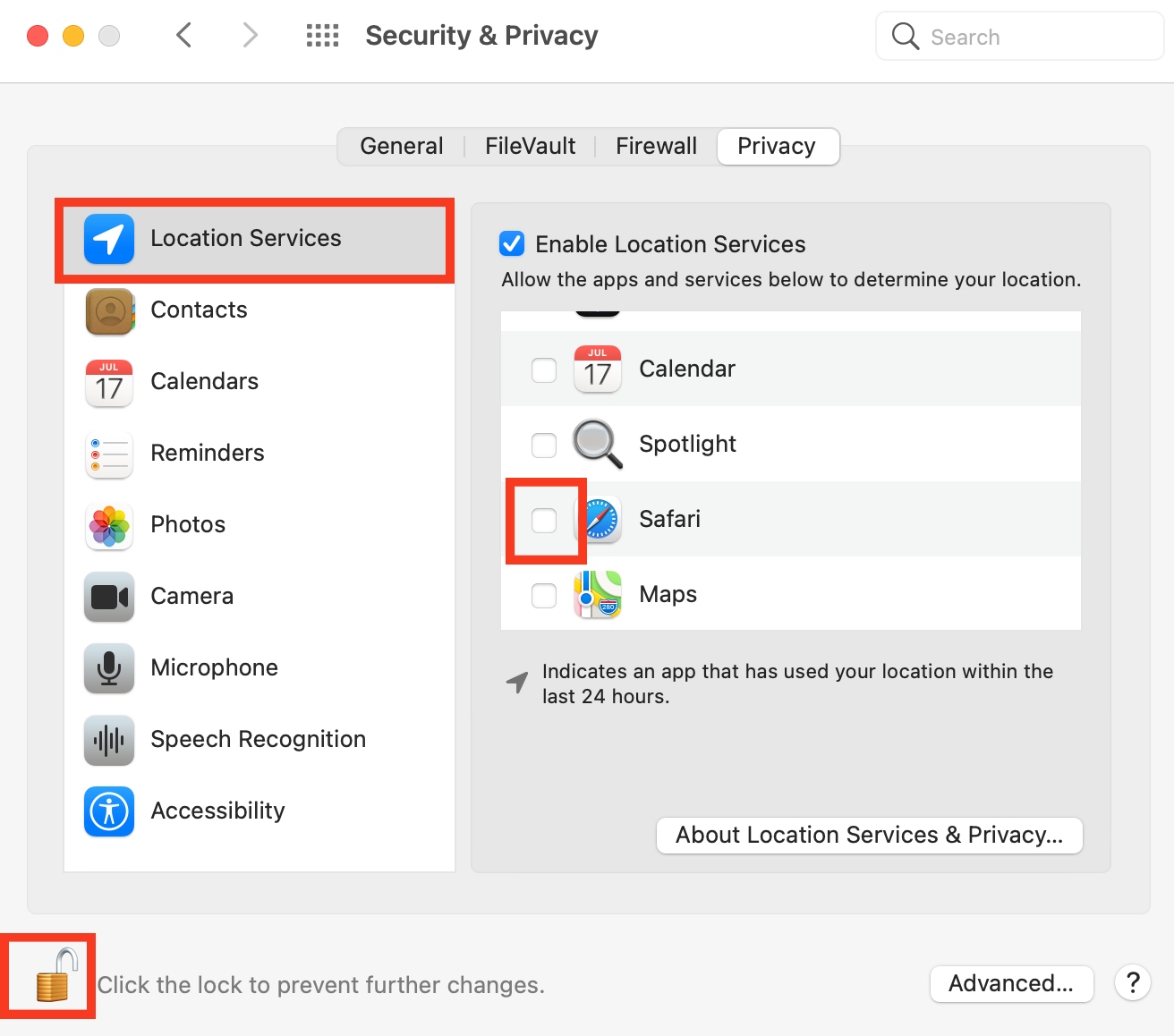
Click on Location Services in the sidebar, make sure the box next to the Safari option on the main screen is unchecked, and click on the padlock icon again to lock your Privacy settings.
Step 1. Select System Preferences via the Apple menuStep 2. Select Security & Privacy > PrivacyStep 3. Click on Location Services > Safari > padlock icon
3. Setting location for individual sites in Safari
Customizing Safari is also an option when we want to set location-sharing rules for specific websites. This allows us to choose the websites we’re comfortable sharing our location with, typically those we trust and are familiar with, and you can do the same.
To allow specific websites to access your location in Safari, follow these steps:
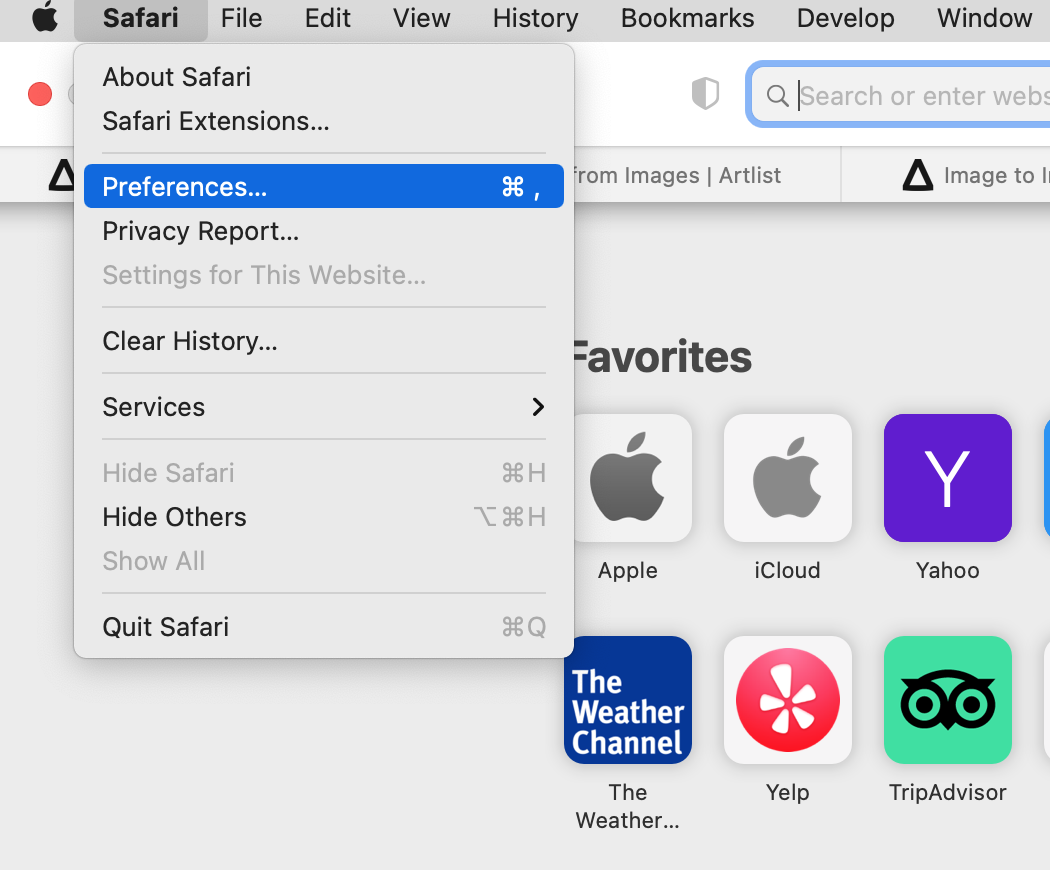
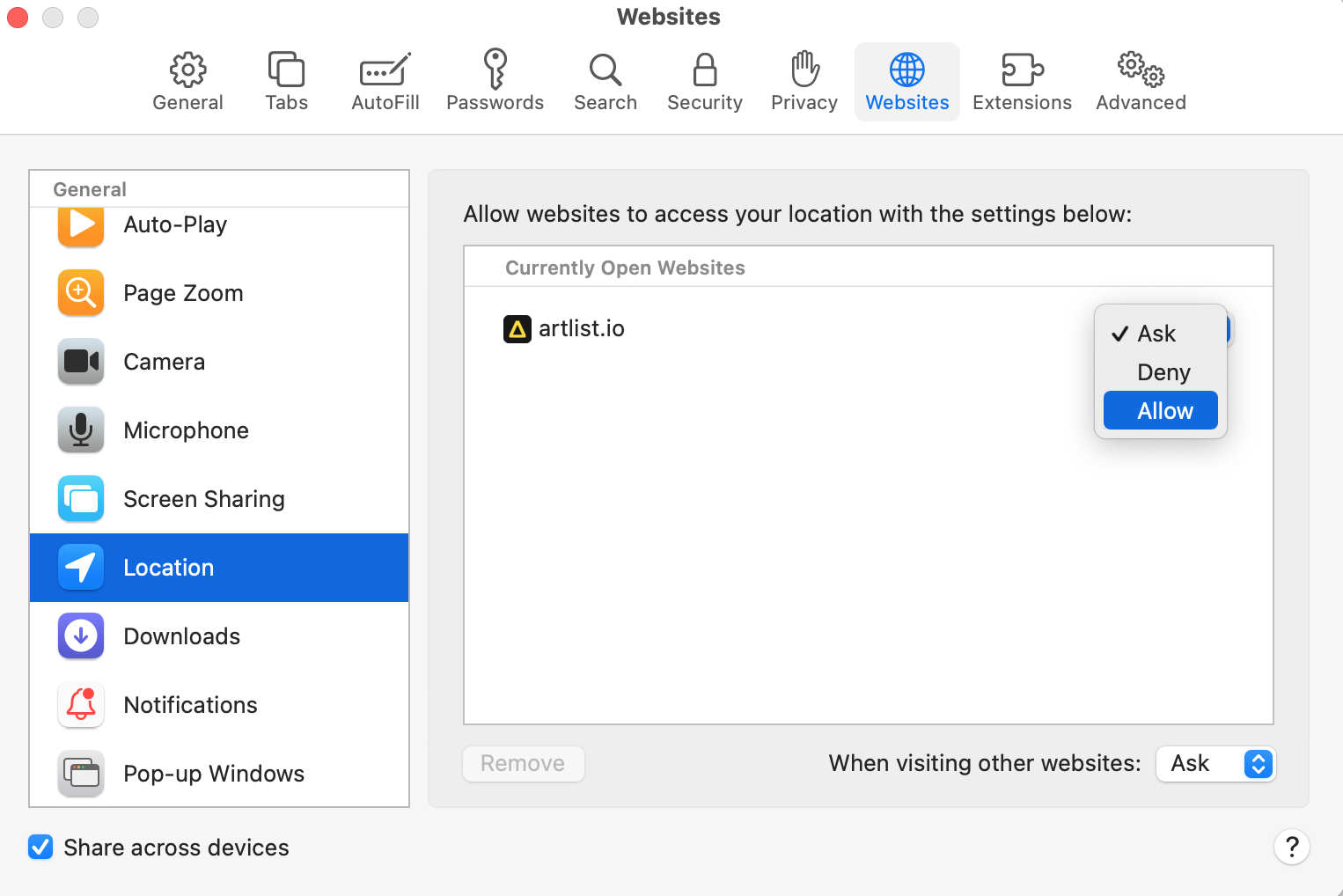
Open Safari, navigate to the menu bar, and click on Safari > Preferences from the Safari menu.
Click on the Websites tab and select the Location feature from the left sidebar.
Now, expand the drop-down menu next to the website you want to grant access to your location and choose the Allow option.
Step 1. Click on the Safari app > Safari in the menu bar > PreferencesSteps 2-3. Click on Websites > Location > choose a website > Allow
Change your Safari location on your MacBook Pro or MacBook Air
Whether you’re concerned about your privacy or want to access location-specific content on websites and streaming platforms, you can easily change your location in Safari on your Mac. In this helpful article, we shared three simple solutions for achieving this, including using a VPN, disabling your Safari location via System Preferences, and allowing location-sharing for individual sites in Safari.
As a regular internet user, we advise you to try MacKeeper’s StopAd tool. It blocks ads and trackers that disrupt your browsing experience, preventing issues like Safari not responding on Mac or performing slowly.
We respect your privacy and
use cookies
for the best site experience.
Privacy Preferences Center
We use cookies along with other tools to give you the best possible experience while using the
MacKeeper website. Cookies are small text files that help the website load faster. The cookies we
use don’t contain any type of personal data meaning they never store information such as your
location, email address, or IP address.
Help us improve how you interact with our website by accepting the use of cookies. You can change
your privacy settings whenever you like.
Manage consent
All cookies
These cookies are strictly necessary for enabling basic website functionality (including page
navigation, form submission, language detection, post commenting), downloading and purchasing
software. The website might malfunction without these cookies.