After AirDropping a bunch of photos to your Mac, you can’t find them and don’t know where to start looking. Don’t worry, they haven’t disappeared, and we’ll soon show you how to see your AirDropped photos on your MacBook. Already resent them? Simply use MacKeeper’s Duplicates Finder to get rid of unnecessary duplicates and save space.
Your AirDropped photos are saved in the Downloads folder on your MacBook device. To locate them, go to Finder in the Dock and click on the Downloads tab in the left sidebar. Now browse the list of downloaded files to find your photos.
What is AirDrop, and how does it work on Mac?
AirDrop is Apple’s built-in file-sharing feature for macOS, iOS, iPadOS, and visionOS. It’s a free, quick, and easy solution for easily sharing files across supported devices. For example, using AirDrop, you can wirelessly download photos from iPhone to Mac, provided the devices are in close proximity, you’ve set it to be discoverable by your iPhone, and your Mac has enough storage. AirDrop simplifies the task of sending files such as photos—no USB or email needed.
Where do AirDrop photos go on a Mac?
Mac saves your AirDropped photos in the Downloads folder located in Finder, along with all your other file downloads, including documents, videos, and more. You can find them by clicking on Finder in the Dock and going into the Downloads folder (you’ll find it in the sidebar). From here, you can move all your photos to a different location on your Mac for your convenience.
How to access your Airdropped content?
There are three ways to access your AirDropped content, including your favorite photos. The first method involves using Finder to navigate to the Downloads folder. If you’re a years-long Mac user, you’re probably familiar with this step. The second method involves using a keyboard shortcut. Lastly, you can view AirDropped photos directly via Open in Photos.
Take a look at the in-depth guides below to learn how to find your AirDropped content after you’ve AirDropped from iPhone to Mac.
1. Using Finder to navigate to the Downloads folder
When you send photos to your MacBook computer from your iPhone, your Mac saves them in the Downloads folder by default. So to access those photos, you’ll have to browse through your Downloads via Finder.
Still not sure how to find your AirDropped photos? Follow the steps below to access the Downloads folder:
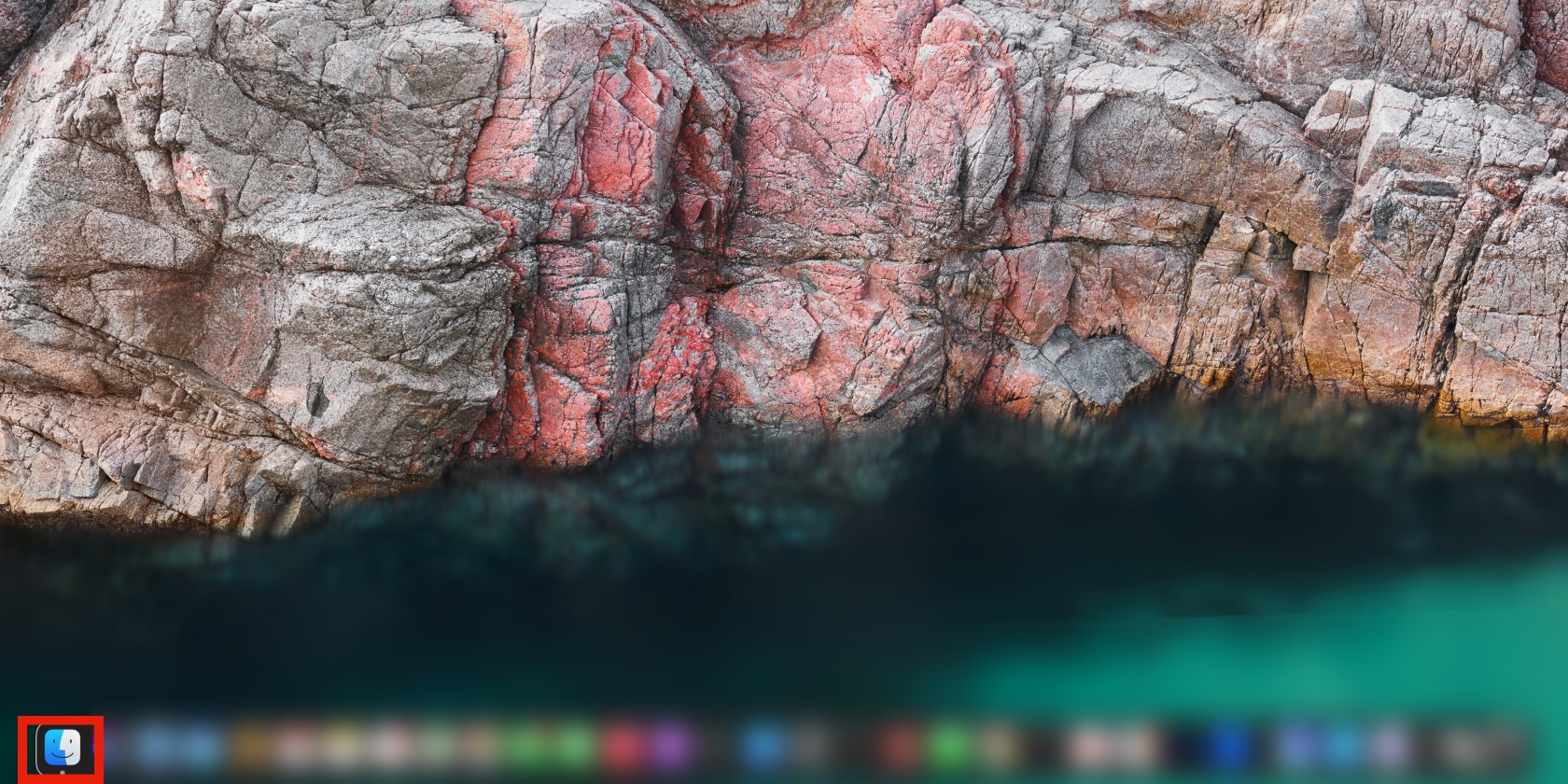
Navigate to Finder in the lower-left corner of the Dock.
Click on the Downloads folder in the left sidebar and browse all downloads to find your AirDropped images.
Step 1. Click on Finder in the DockStep 2. Click on the Downloads folder in the left sidebar
2. Using a keyboard shortcut
Keyboard shortcuts are a fast and convenient way to navigate your MacBook. Fortunately, Mac has a keyboard shortcut that helps you find the Downloads folder faster than using Finder.
Here’s how to bring up Mac’s Downloads folder using a simple keyboard shortcut:
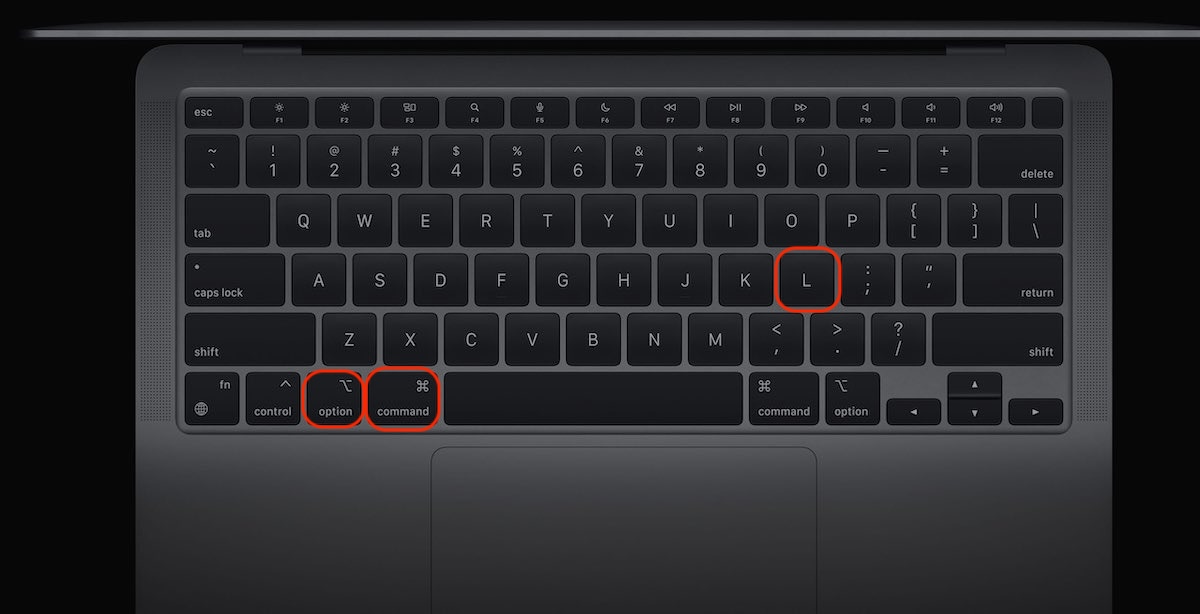
Press the Option + Command + L keys.
Now open the Downloads folder and go through it.
Step 1. Press the Option + Command + L keysStep 2. Open the Downloads folder and go through it
3. Viewing AirDropped photos directly via “Open in Photos”
Even though your Mac automatically stores your AirDropped photos in Finder’s Downloads folder, you can still open them directly in the Photos app. Want to learn how?
Follow this approach to view your AirDropped photos directly in the Photos app on a Mac:
Open the Downloads folder from Finder in the Dock.
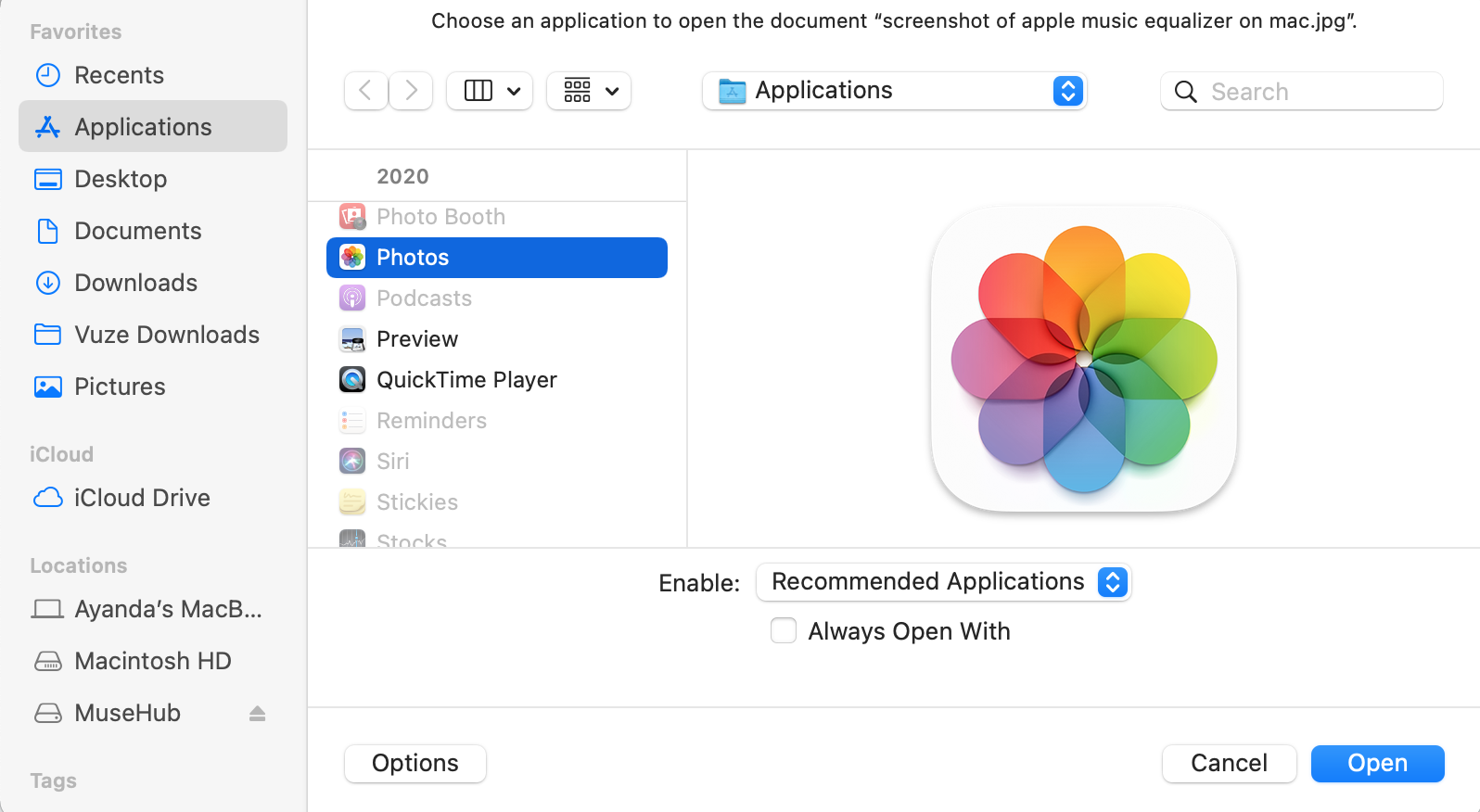
Right-click on the photo you want to open (if you don’t, it will open in the Preview app by default) and choose the Open with > Photos options (if the Photos option doesn’t appear on the pop-up, select Other > Photos > Open on the next screen).
Step 1. Open the Downloads folder from Finder in the DockStep 2. Right-click on the photo you want to open and select Open with > Photos
A note from our experts:
If you don’t know where to find your AirDropped photos on a Mac, chances are you repeatedly AirDropped them in the hopes that they’d eventually show up. But that means you’re now stuck with a bunch of duplicate photos you don’t need, which could present a storage issue very soon. Why not use MacKeeper’s Duplicates Finder to fix it? It’s a reliable software solution for managing duplicate photos (and other files) on a Mac by safely deleting all redundant copies. MacKeeper is owned by cybersecurity experts Clario Tech and has been trusted by Mac owners to protect and manage their Mac devices for years.
Join the many Mac owners using MacKeeper’s Duplicates Finder to safely get rid of duplicate photos by following these easy steps:
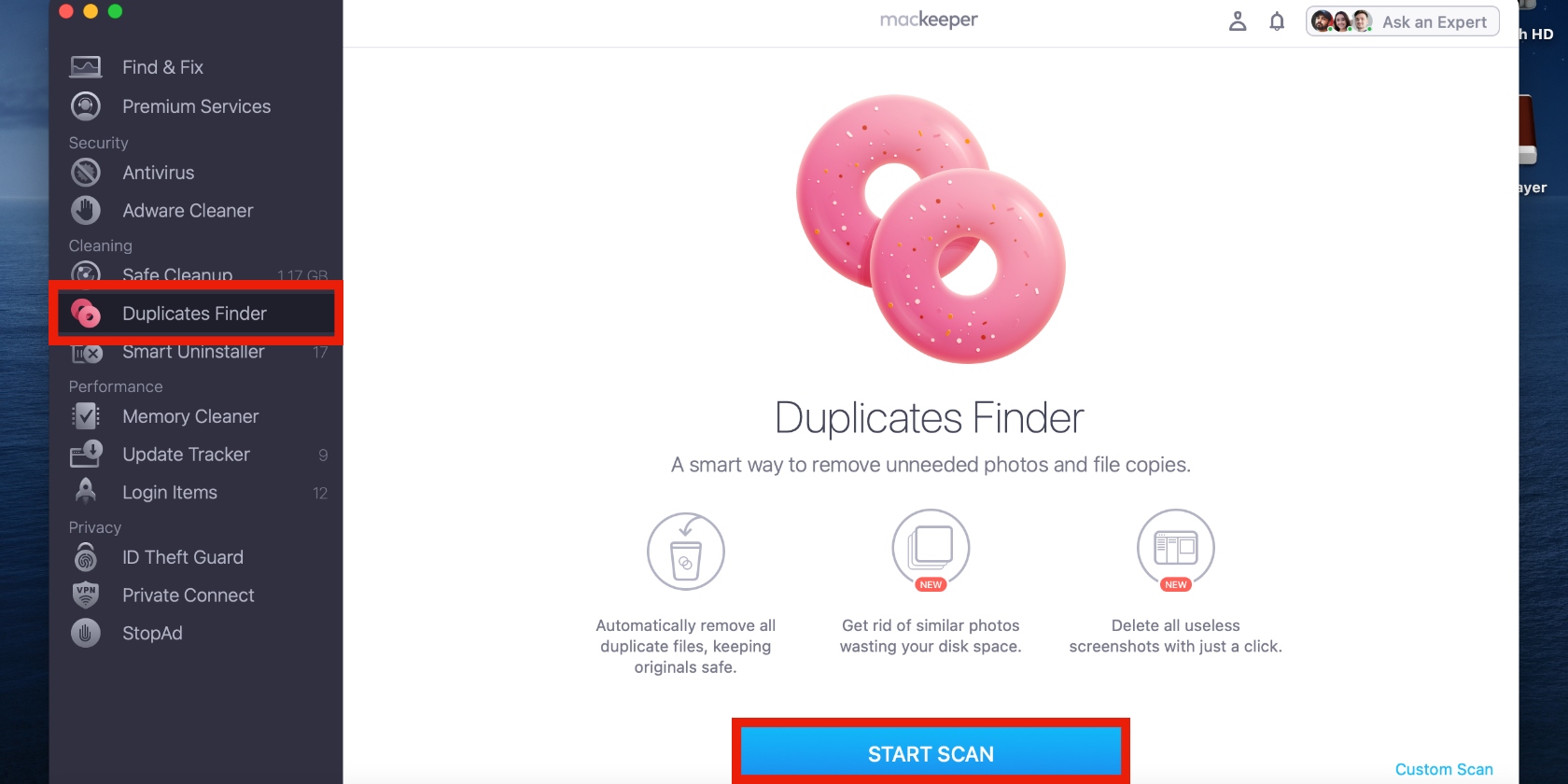
Head to the sidebar and click on Duplicates Finder, followed by Start Scan on the main screen.
MacKeeper will find all duplicate files on your Mac. After the scan is finished, either press Remove Selected or check the box next to Similar Photos and then click on Remove Selected to clear duplicate images.
Step 1. Open MacKeeper and click on Duplicates Finder > Start ScanStep 2. Ensure the Similar Photos option is selected and click on Remove Selected
What should you do when you can’t find Airdropped files?
Can’t find your AirDropped files on your Mac? Look for them in the Downloads folder first, as that’s where Mac stores them by default. For pictures, you can search the Photos folder—perhaps they’ll show up there. Otherwise, it’s worth checking if you had enough storage to receive your AirDropped files in the first place when Airdrop isn’t working on MacBook. It’s also worth confirming if Wi-Fi and Bluetooth are enabled on your MacBook.
View AirDropped photos on a Mac more easily
Have your AirDropped photos gone missing on your Mac? Don’t worry, you can easily find them using the tips and tricks in our guide. You can achieve this using Finder’s Downloads folder, a keyboard shortcut, or the Photos app.
If you’ve annoyingly ended up with multiple copies of the same photos because AirDrop was slow, you’ll be pleased to know you don’t have to spend hours getting rid of them. Just use MacKeeper’s Duplicates Finder to automatically identify them and quickly delete them—all within a few moments.
We respect your privacy and
use cookies
for the best site experience.
Privacy Preferences Center
We use cookies along with other tools to give you the best possible experience while using the
MacKeeper website. Cookies are small text files that help the website load faster. The cookies we
use don’t contain any type of personal data meaning they never store information such as your
location, email address, or IP address.
Help us improve how you interact with our website by accepting the use of cookies. You can change
your privacy settings whenever you like.
Manage consent
All cookies
These cookies are strictly necessary for enabling basic website functionality (including page
navigation, form submission, language detection, post commenting), downloading and purchasing
software. The website might malfunction without these cookies.