Finding your downloads in Safari on Mac can be quite confusing, as these files can get lost or pile up among your folders. In this case, MacKeeper’s Duplicates Finder, which is a handy tool to track down duplicate downloads automatically and remove them quickly and safely, freeing up valuable storage.
There are several ways to find Downloads on Mac Safari. First, you can click the Downloads button in the top-right corner of the Safari window, which appears when the downloading starts, open the Downloads folder, or check your downloads via Finder. Don’t forget the keyboard shortcuts: press the Command+Shift+L combination to check Safari downloads.
How to check downloads on Safari Mac?
It’s quite easy to access downloads on Mac Safari. First, try to click the Downloads button (a downward arrow) in the top-right corner of the Safari toolbar to review recent items. You can also go to the View menu and choose Show Downloads from the menu or press the Command+Shift+L combination. When the download is finished, the browser automatically saves files in the Downloads folder, but you can change the location.
1. Use Safari Downloads button
When I’m searching for how to find downloads on Mac, the first thing that comes to mind is the Safari Downloads button. To my eyes, it’s one of the easiest ways to find downloads on Mac Safari.
Do the following to see the folder with a list of all recent downloads on Mac Safari:
Start the downloading process and wait until the Downloads button appears.
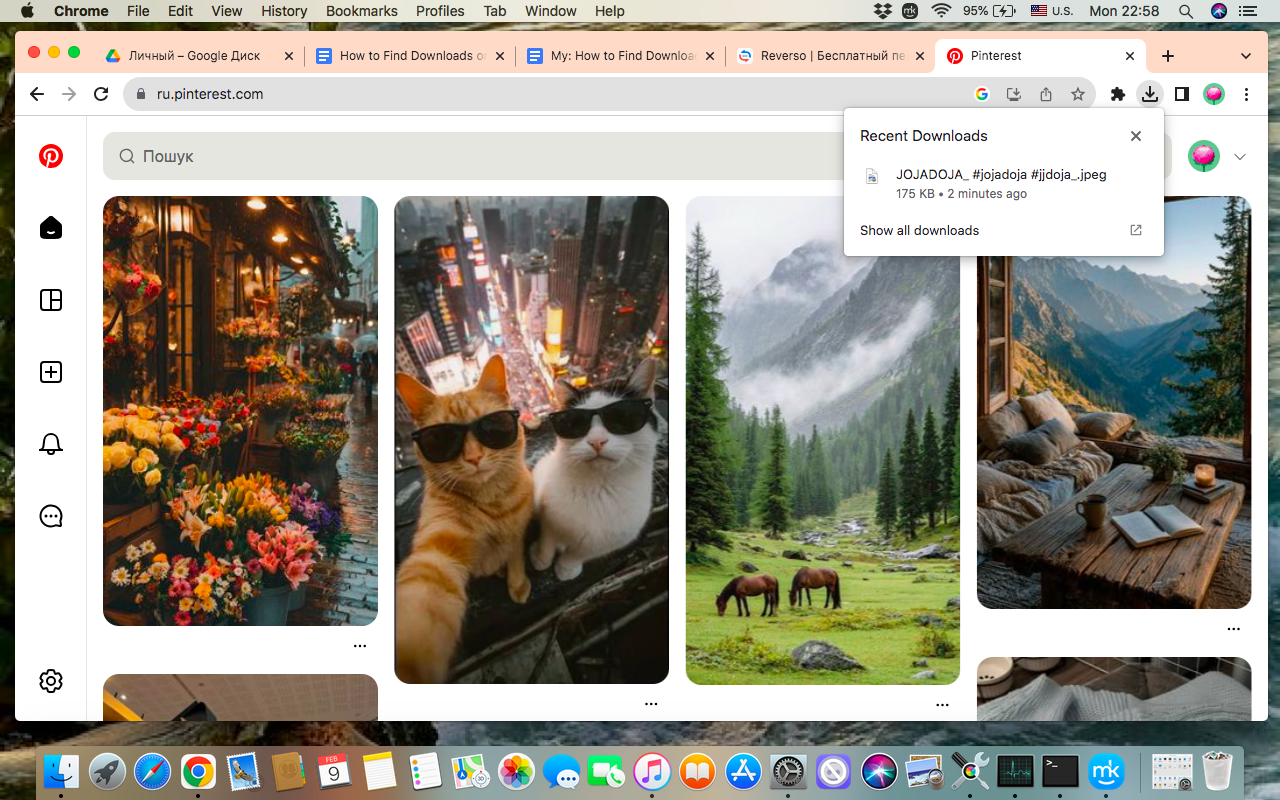
Click the Downloads button (a download arrow in the top-right corner of the Safari window) > Show All Downloads.
Click the Downloads button > Show All Downloads
An extra explanation from me: The Downloads folder shows how much time is left till the full download, and whether the download process is paused or active. You can open the downloaded file simply by clicking its name in the folder. The browser will open it using the appropriate app.
2. Try keyboard shortcut
When I plunge into work on my MacBook, the world stays behind me, as I jump through dozens of links, open several folders simultaneously, and complete multiple tasks perfectly and quickly. If I break my focus to do some mid-term operations, like finding Safari downloads on Mac, I lose my train of thought along the way. If you share my pain, I suggest you use simple keyboard shortcuts in Safari, not to get distracted from your essential workflow.
To use the keyboard shortcut to check Safari downloads on your Mac:
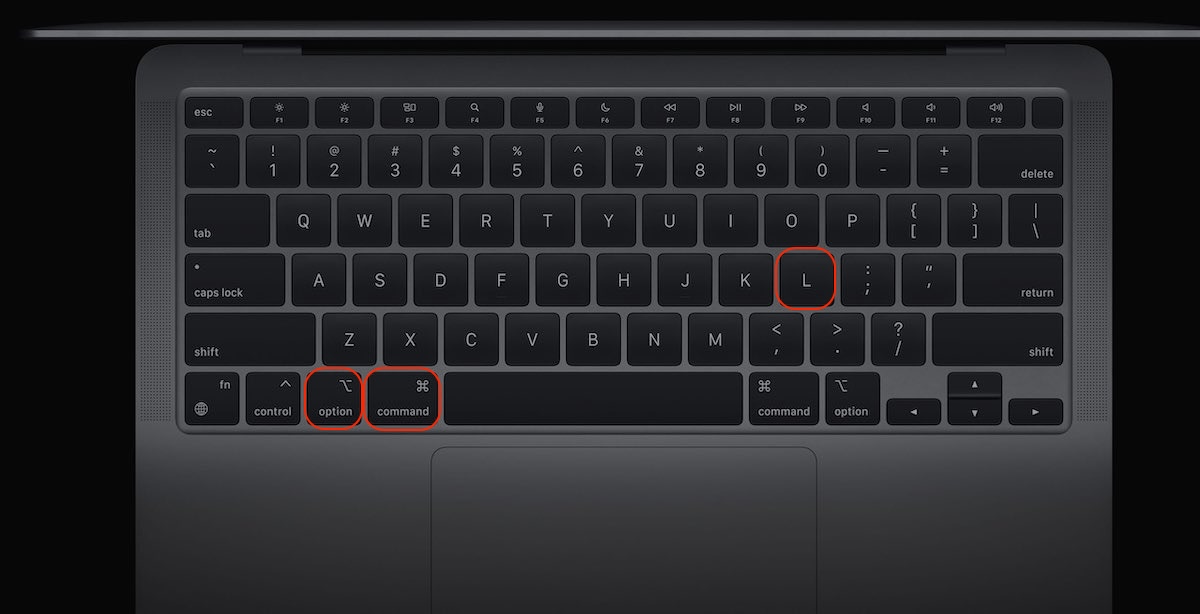
Download the file ➙ Click the Option + Command + L combination.
Find the downloaded file in the Downloads folder.
Click the Option + Command + L Combination > You’ll Get Directly to the Downloads folder
This keyboard shortcut provides you with the same access as the method described above: you’ll be able to open the downloaded file, check the progress, and delete old downloads. Believe me, after a few days, this shortcut becomes automatic. Except for unnecessary or accidental downloads, learn how to clear Safari cache on Mac, as all these files overload your system, preventing it from performing smoothly.
3. Check downloads via Finder
If you can’t find downloads in Safari, don’t fight the browser - go directly to the Finder. From my experience, there are several benefits of using Finder when you need to view downloads on Mac Safari:
It doesn’t disappear when the downloaded files are cleared, like the download panel, so you won’t lose files or redownload them.
It provides you with the full picture of downloads: sizes, names, dates, and home folders.
It allows you to manage downloaded files, like renaming or moving.
Here’s a detailed guide on how to check Safari downloads via Finder:
Download the file ➙ Launch Finder.
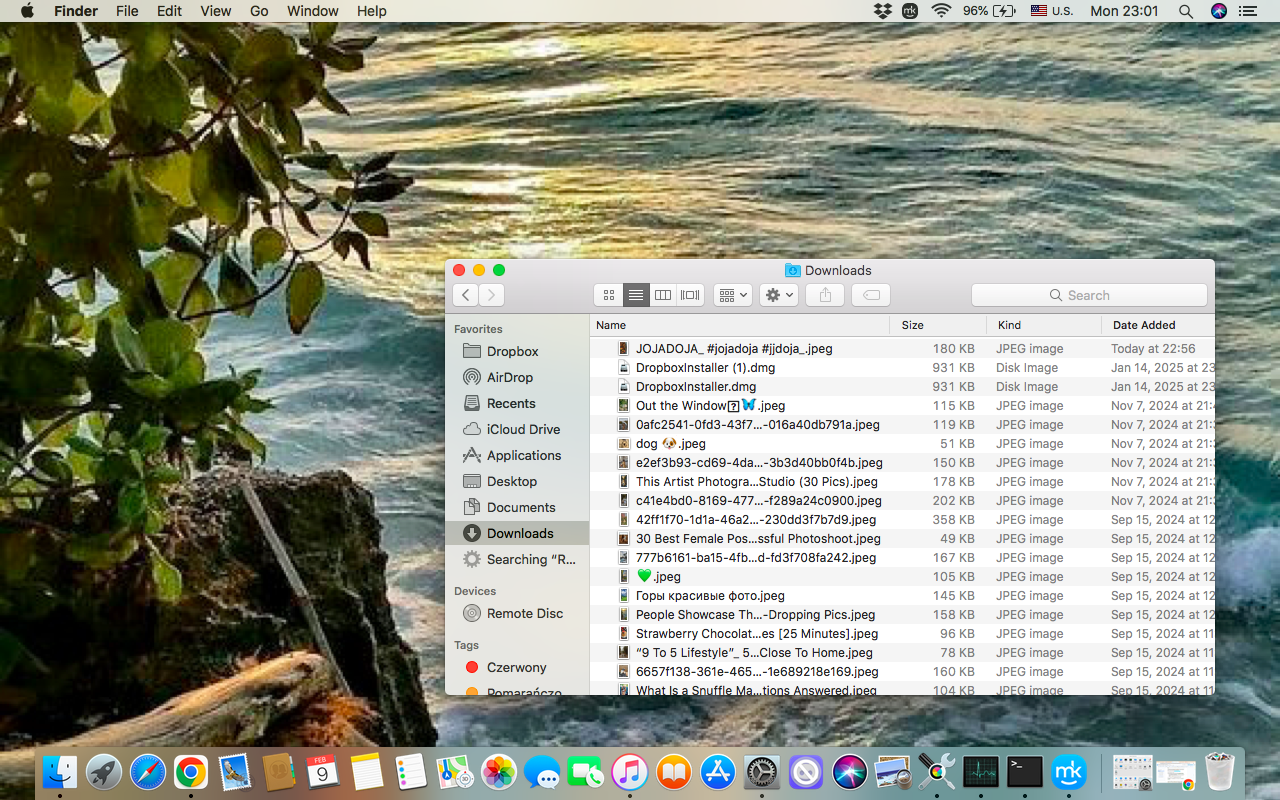
Find the Downloadsfolder in the left sidebar ➙ you’ll see all downloads on Safari Mac.
Open Finder > Click Downloads
A note from our experts:
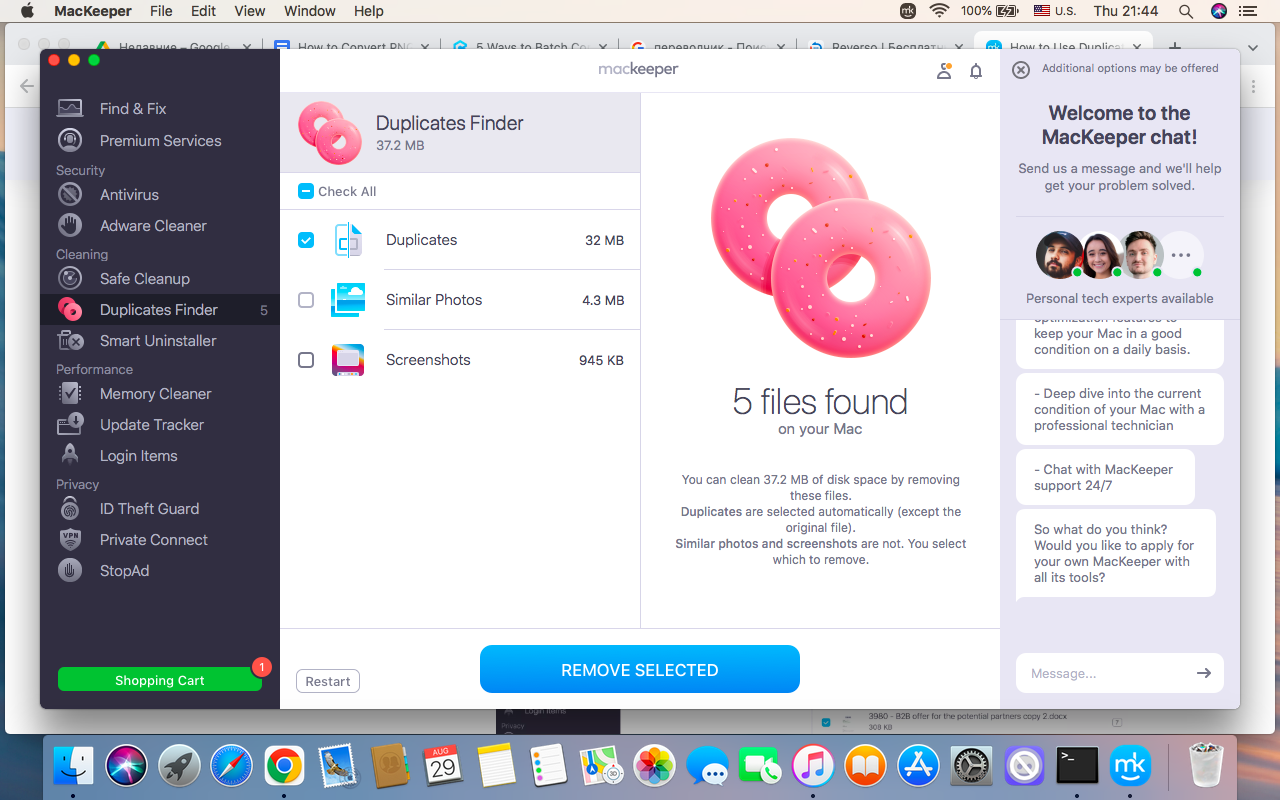
While discussing downloading, the most common issue you may encounter is space clutter, as users often download the same file multiple times. You can easily overcome this issue with MacKeeper’s Duplicates Finder—an Apple-notarized tool that removes the accidentally downloaded file copies and cleans up the space on your Mac.
Here’s an explanation of how to use MacKeeper’s Duplicates Finder:
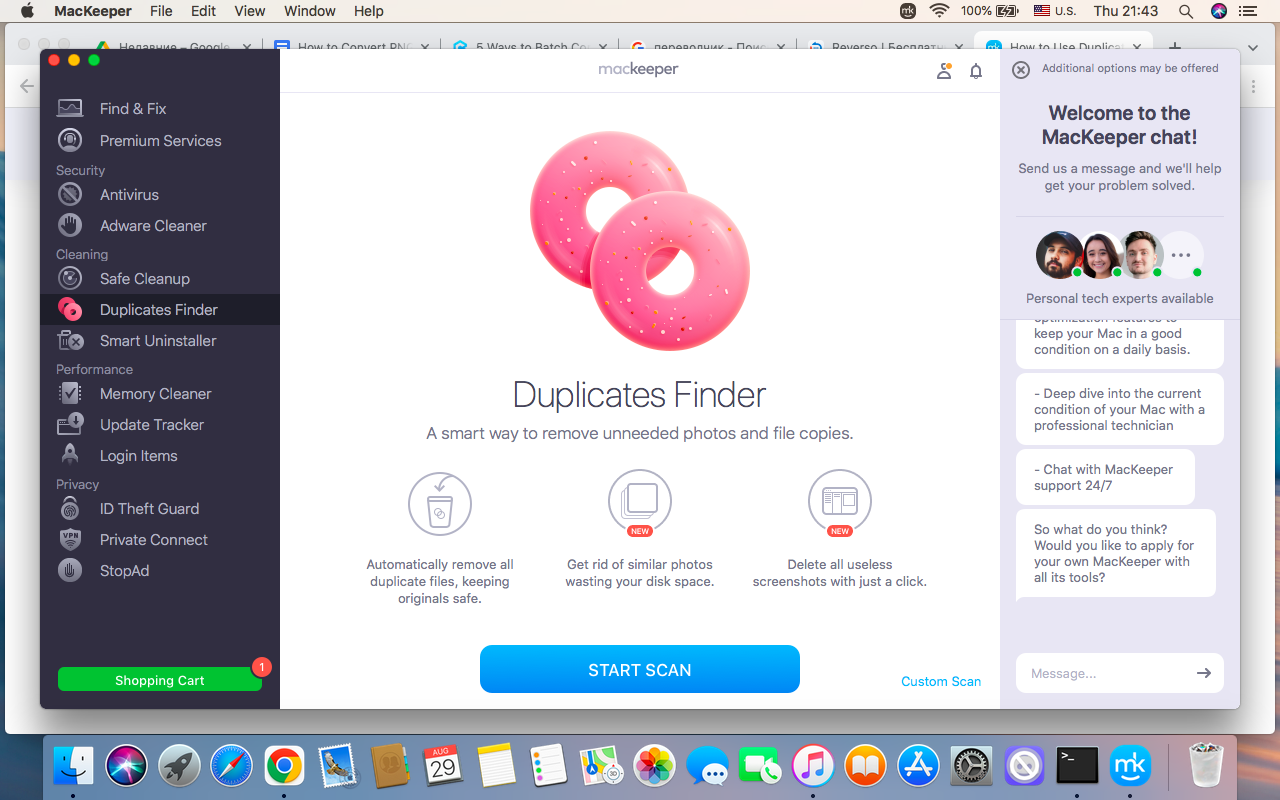
Find the Duplicates Finder feature on the left sidebar.
Click the Start Scan button to find the duplicates on your Apple laptop.
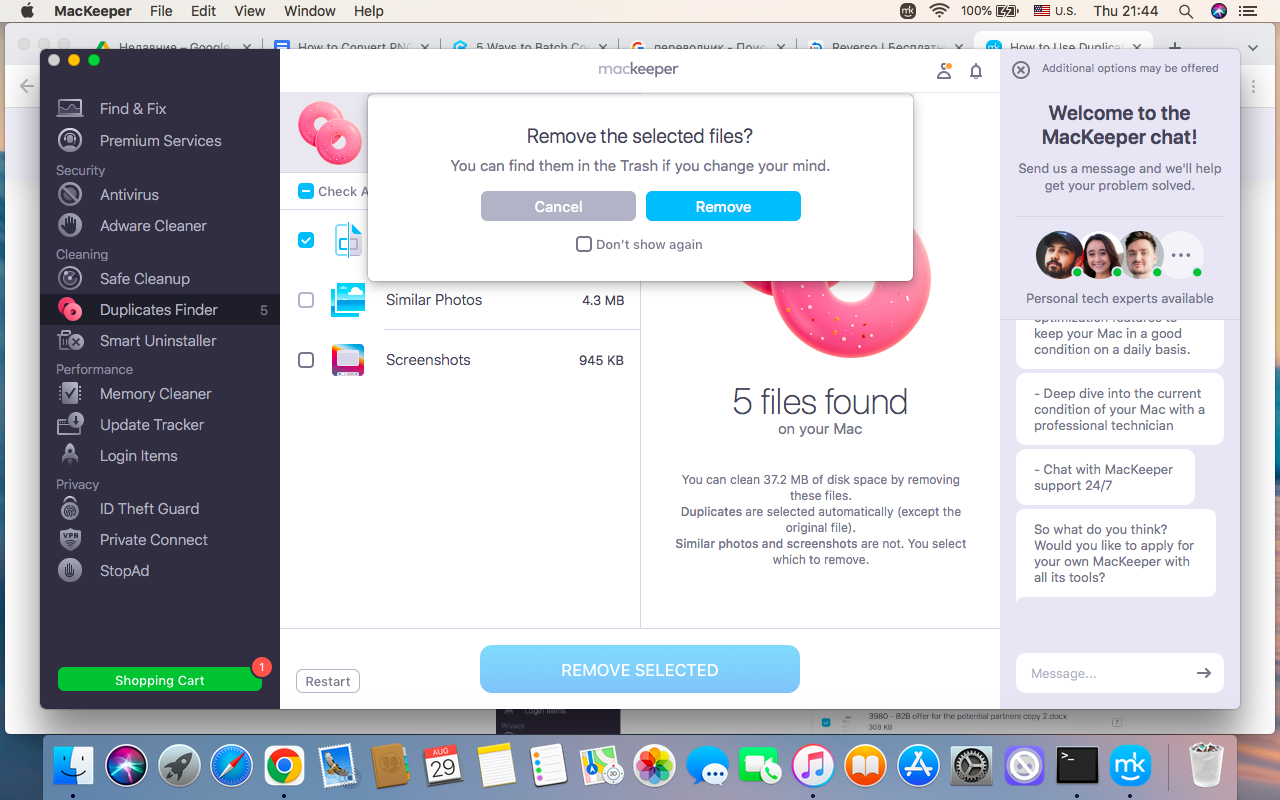
Wait for the results ➙ click the Remove Selected button to delete unnecessary copies ➙ confirm deletion.
Step 1. Launch MacKeeper app > Choose Duplicates Finder > Click Start ScanStep 2. Select categories >Click Remove SelectedStep 3. Confirm to delete unnecessary duplicates by choosing Remove
How to manage downloads on Safari Mac?
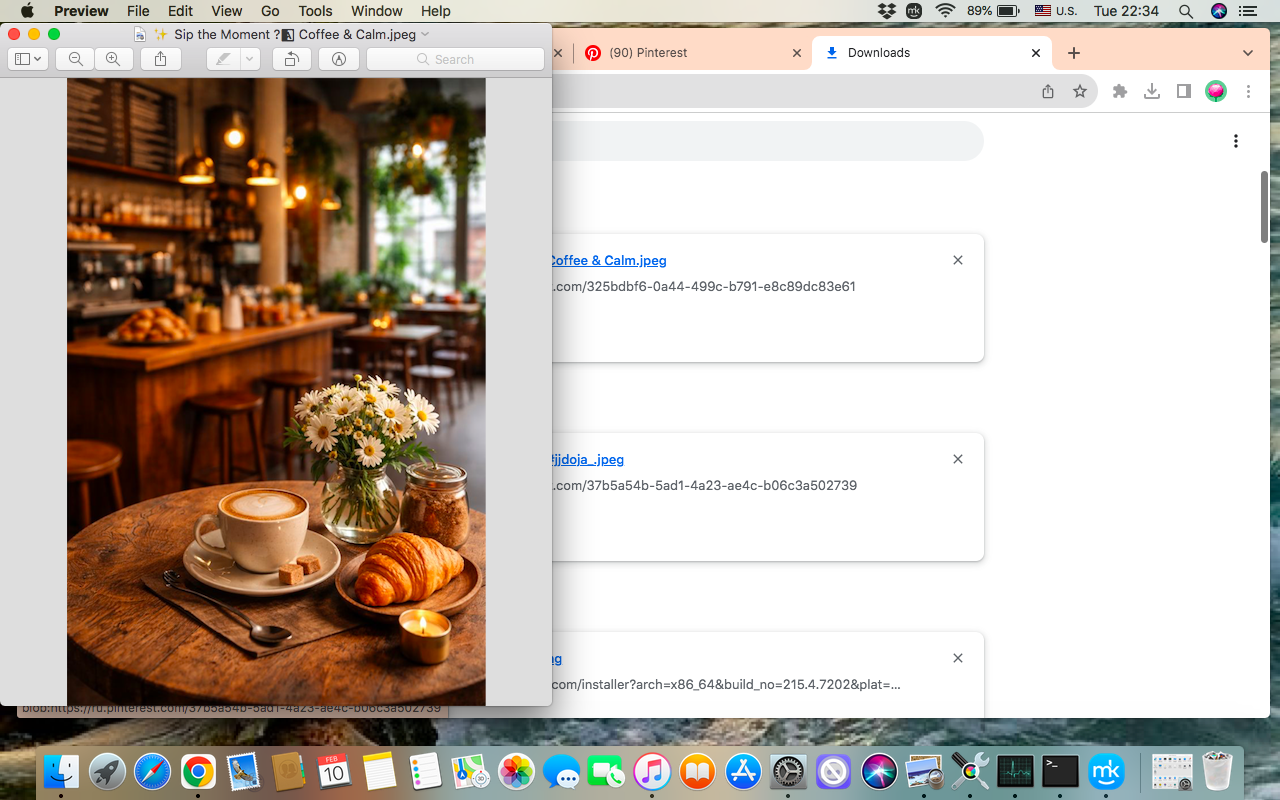
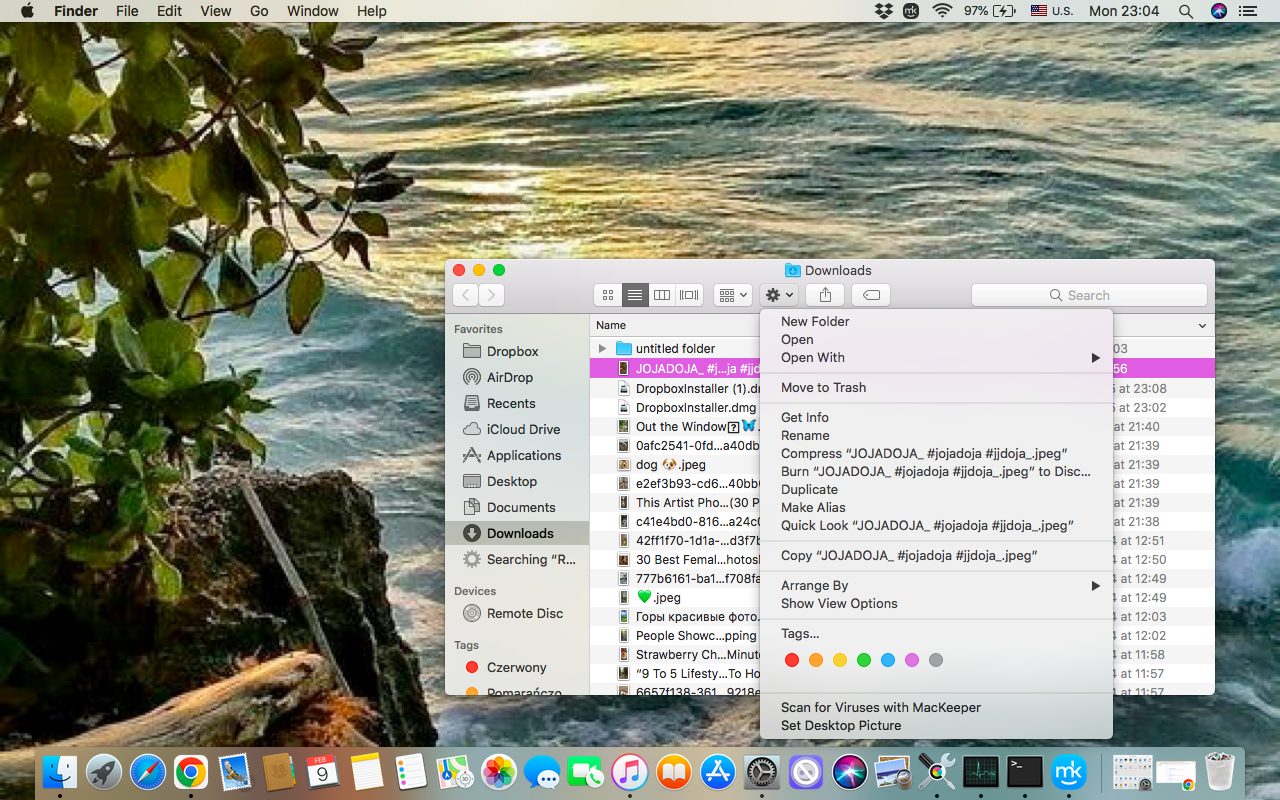
If you need to manage downloads, open downloads on Mac Safari by clicking the Downloads button in the toolbar to see progress or completed files. Here you can pause, resume, delete, or open downloads. Right-click the particular file for some additional options. Also, you can change downloads in the Downloads folder in Finder. For some deeper control, go to Safari Settings ➙ General, where you can change the download location.
Downloads Button > Show All Downloads > Right-Click the FileLaunch Finder > Open Downloads > Right-Click the File
As a bonus tip, we, at MacKeeper, have an additional guide for you with working solutions if downloads not working on Mac. Read on for more information on this topic.
How to remove Safari downloads on Mac?
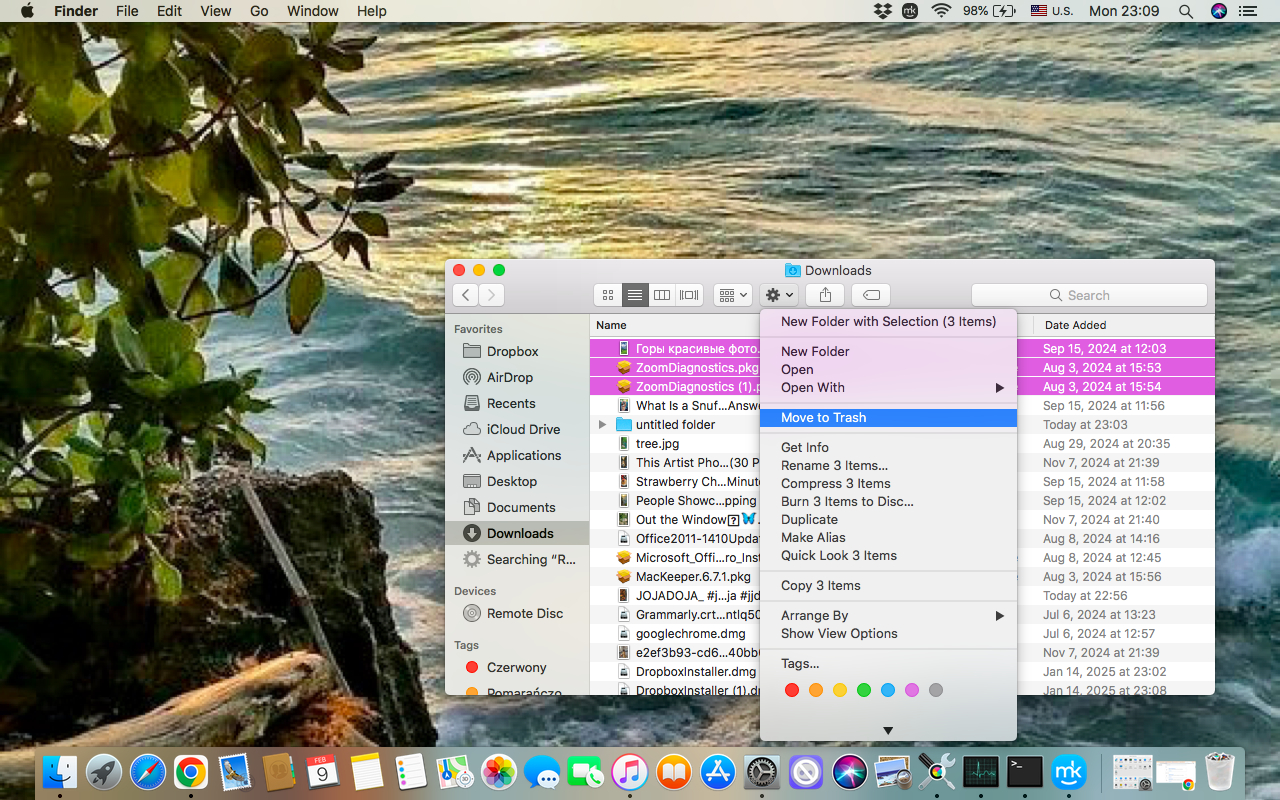
Removing Safari downloads on Mac is an essential process for keeping your system clean and tidy. You can do it by going to Downloads in Safari, where you can clear your downloading history or delete separate files. Remember that here you can remove the items from history, not from your device. To delete the downloads completely, go to Finder ➙ open Downloads folder ➙ select files ➙ move them to Trash.
Finder > Downloads >Select Unnecessary Files > Move Them to Trash
If your everyday activity involves downloading a large number of files, it’s important to know how to delete downloads on Mac to keep enough storage on your laptop.
Conclusion
Understanding how to find downloads on your Mac Safari makes your workflow smooth and efficient. By using the Downloads button, checking downloads via Finder, or using keyboard shortcuts, you can always manage what you’ve saved and avoid clutter.
Still, downloading is a tricky thing, especially if you’re an active user of this feature, as it’s often followed by duplicates, which mess up your system over time. Use MacKeeper’s Duplicates Finder to remove repeated Safari downloads, freeing up space and helping your Mac run smoothly.
We respect your privacy and
use cookies
for the best site experience.
Privacy Preferences Center
We use cookies along with other tools to give you the best possible experience while using the
MacKeeper website. Cookies are small text files that help the website load faster. The cookies we
use don’t contain any type of personal data meaning they never store information such as your
location, email address, or IP address.
Help us improve how you interact with our website by accepting the use of cookies. You can change
your privacy settings whenever you like.
Manage consent
All cookies
These cookies are strictly necessary for enabling basic website functionality (including page
navigation, form submission, language detection, post commenting), downloading and purchasing
software. The website might malfunction without these cookies.