Downloading Chrome means installing another app on your Mac computer. To avoid clogging your device with redundant apps, consider using MacKeeper’s Smart Uninstaller. Our solution makes this process a breeze, enabling you to get rid of unwanted apps with the click of a button.
Yes, you can install Google Chrome on your MacBook, provided you have macOS Catalina 10.15 or later installed. You can download Chrome from the Google website, which will detect you’re using a Mac and serve you the right download. Chrome offers a native ARM version for systems powered by an Apple silicon chip, plus a traditional X86 release for those still running a Mac with an Intel processor.
In addition to macOS Catalina 10.1, Chrome supports the following OS X versions:
Big Sur
Monterey
Ventura
Sonoma
Sequoia
Tahoe
Chrome doesn’t support these macOS versions:
Jaguar
Panther
Tiger
Leopard
Snow Leopard
Lion
Mountain Lion
Mavericks
Yosemite
El Capitan
Sierra
High Sierra
Mojave
Keep in mind that Chrome has its pros and cons, as do other browsers. One of the issues you may experience is when Chrome keeps freezing on Mac, which can dampen your experience. However, effectively managing your tabs and keeping your Mac maintained can greatly improve Chrome’s efficiency and minimize the number of freezes you encounter due to a lack of system resources.
Why you can’t download Google Chrome on Mac?
When we run into issues downloading Google Chrome on Mac, the first thing to check is that the internet connection is active and fast enough to download the program. The installer isn’t a particularly large file, but it’s large enough that we need a stable broadband connection to get Google Chrome on Mac without experiencing download failures.
If you’re able to download and install Chrome but you can’t open Chrome on Mac, there could be a number of reasons for this. Check that you’re running macOS 10.15 Catalina or later as earlier versions of Apple’s operating system aren’t supported, and confirm that your system is configured to allow apps acquired from third-party sources—not just those downloaded from the App Store.
Should you get Google Chrome on Mac?
Yes, if it has the features you are looking for. Customizing your browser with extensions is one of the reasons you may want to get Google Chrome on Mac. Browser speed may be another motivation for downloading Chrome. Additionally, you may be interested in the convenience that comes with syncing your Google account with other online accounts and apps.
Regardless of your reasons for choosing Chrome, it’s essential to clear your cache as part of your Mac maintenance routine to ensure the browser stays snappy and doesn’t become unstable. Learn how to clear cache on Mac Chrome to support your computer’s performance using our simple guide.
Is it OK to use Chrome on Mac?
Yes, it is safe to use Chrome on macOS. Chrome’s built-in privacy and security features provide a safe browsing experience to protect you from malicious sites that can steal your data and compromise your privacy. Its Incognito mode lets you browse privately, deleting your browsing history after you close your windows to prevent anyone with whom you share a laptop from knowing the contents of your searches.
Since its initial release way back in 2008, Google Chrome has become the world’s most popular browser with a market share of over 71% as of November 2025. In comparison, Apple’s Safari browser holds a share of less than 15%. This is a great indicator that it's OK to use Chrome on macOS—and any other device you might browse the web on (you can also get Chrome on Windows, Linux, Android, and iOS).
How to download Chrome on Mac?
Follow this approach to get Google Chrome on Mac, iMac, or Mac mini device:
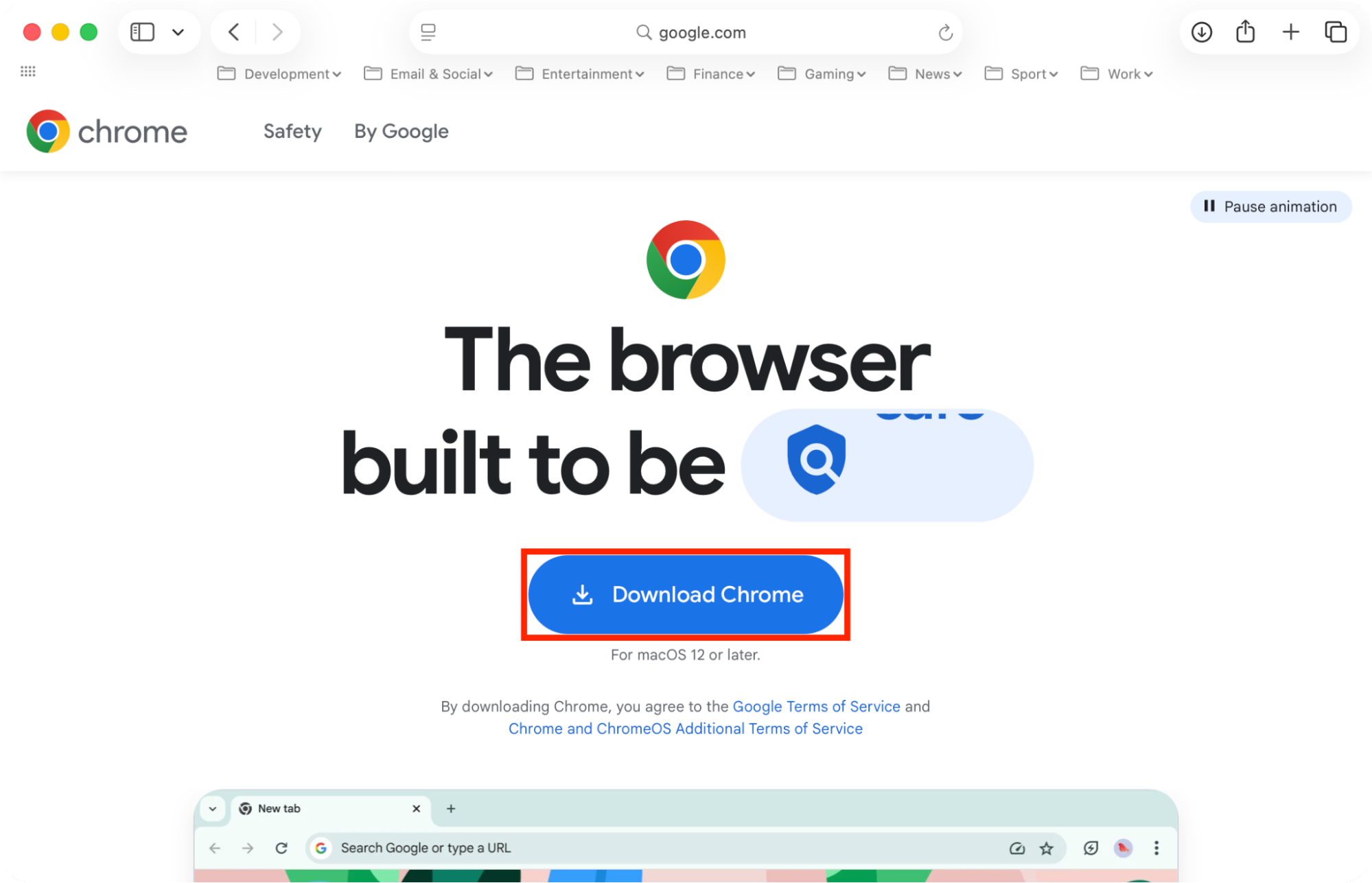
Select the Download Chrome button. The website will automatically detect you’re using a Mac and give you the macOS version of the installer.
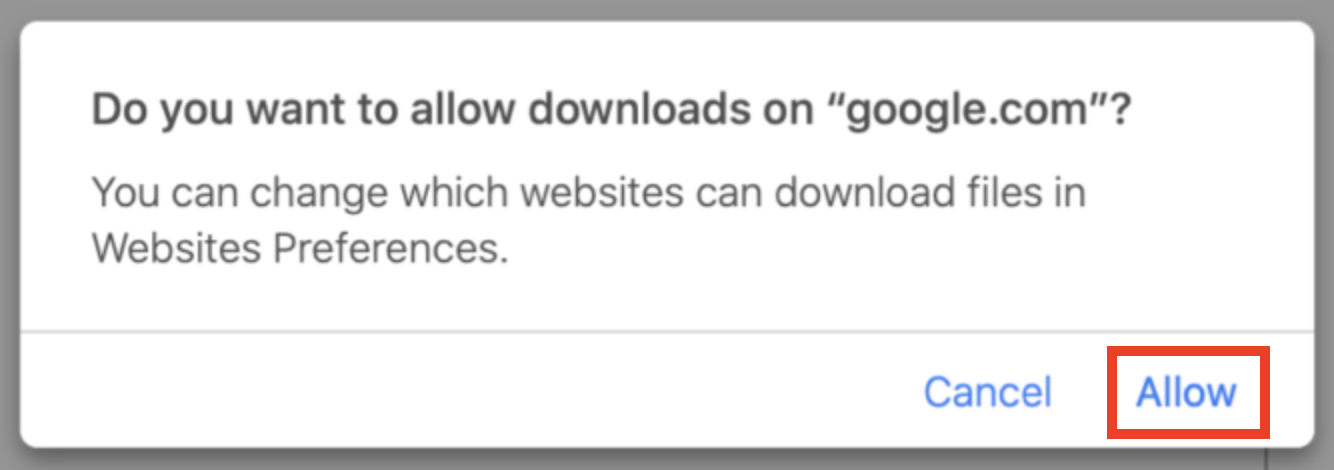
If prompted, click Allow to confirm you want to proceed with the download.
Step 1. Select Safe Cleanup, then click Start ScanStep 2. Select the fles to delete > click Clean Junk Files
A note from our experts:
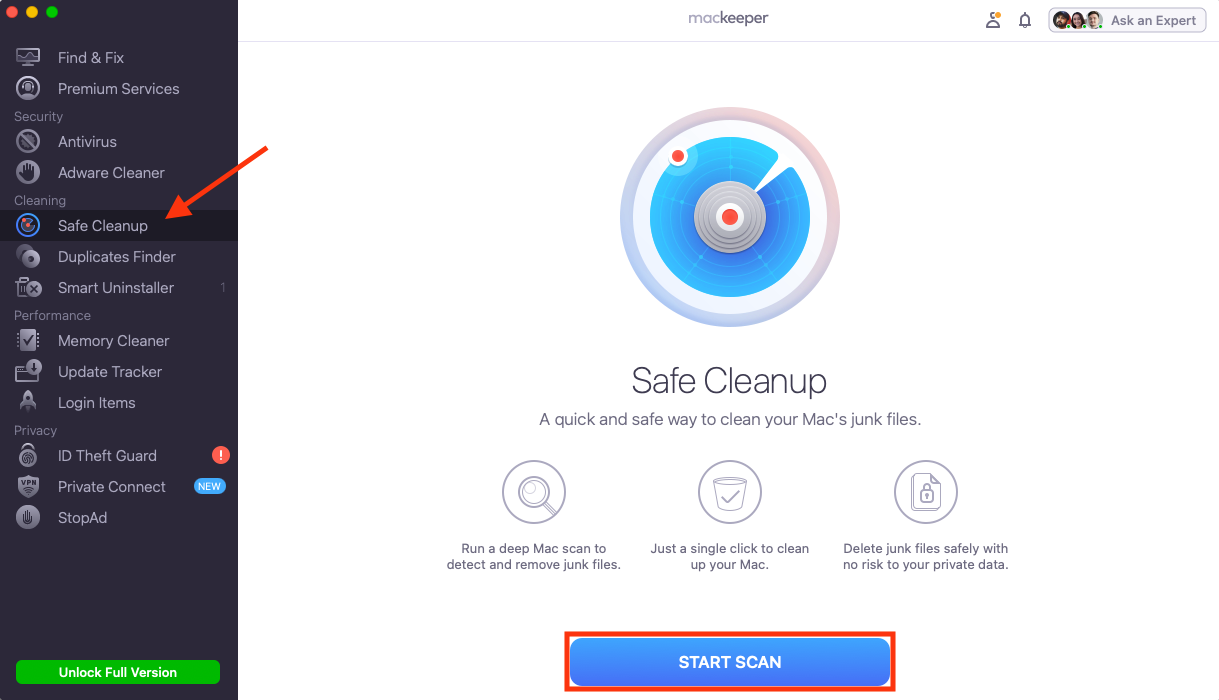
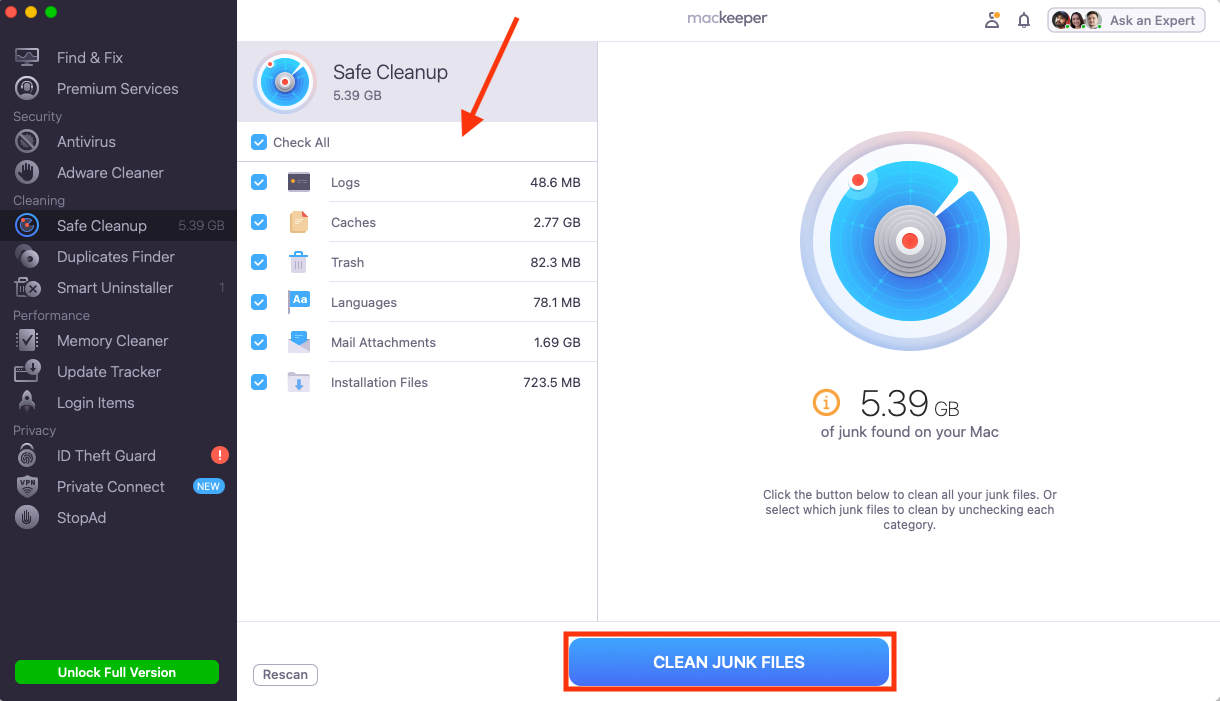
Before installing Google Chrome on your Mac, we recommend freeing up space and clearing old system junk that could interfere with the app and cause instability. The easiest and most effective way to do this is with MacKeeper’s Safe Cleanup, developed by Clario Tech. It safely removes old log and cache files, undeleted Trash files, unwanted Mail attachments, and more. Try this:
Select Safe Cleanup in the MacKeeper sidebar, then click Start Scan.
Choose the junk you want to remove, then select Clean Junk Files.
Step 1. Select Safe Cleanup, then click Start ScanStep 2. Select the fles to delete > click Clean Junk Files
How to install Chrome on Mac?
Installing Chrome on a Mac is a straightforward process that takes little time and effort. Follow these steps to install Chrome on Mac:
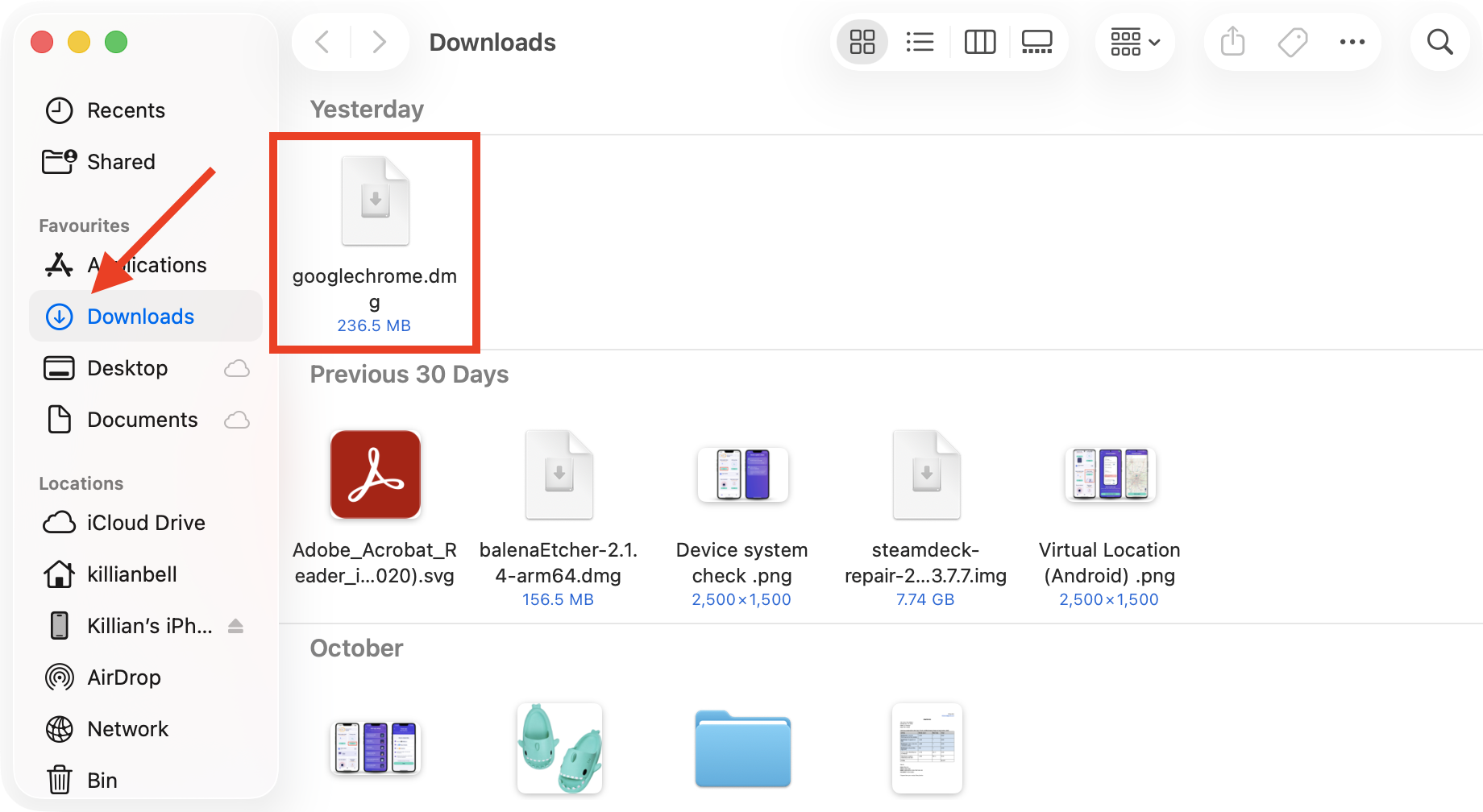
Open your Downloads folder and double-click the file named googlechrome.dmg to open it.
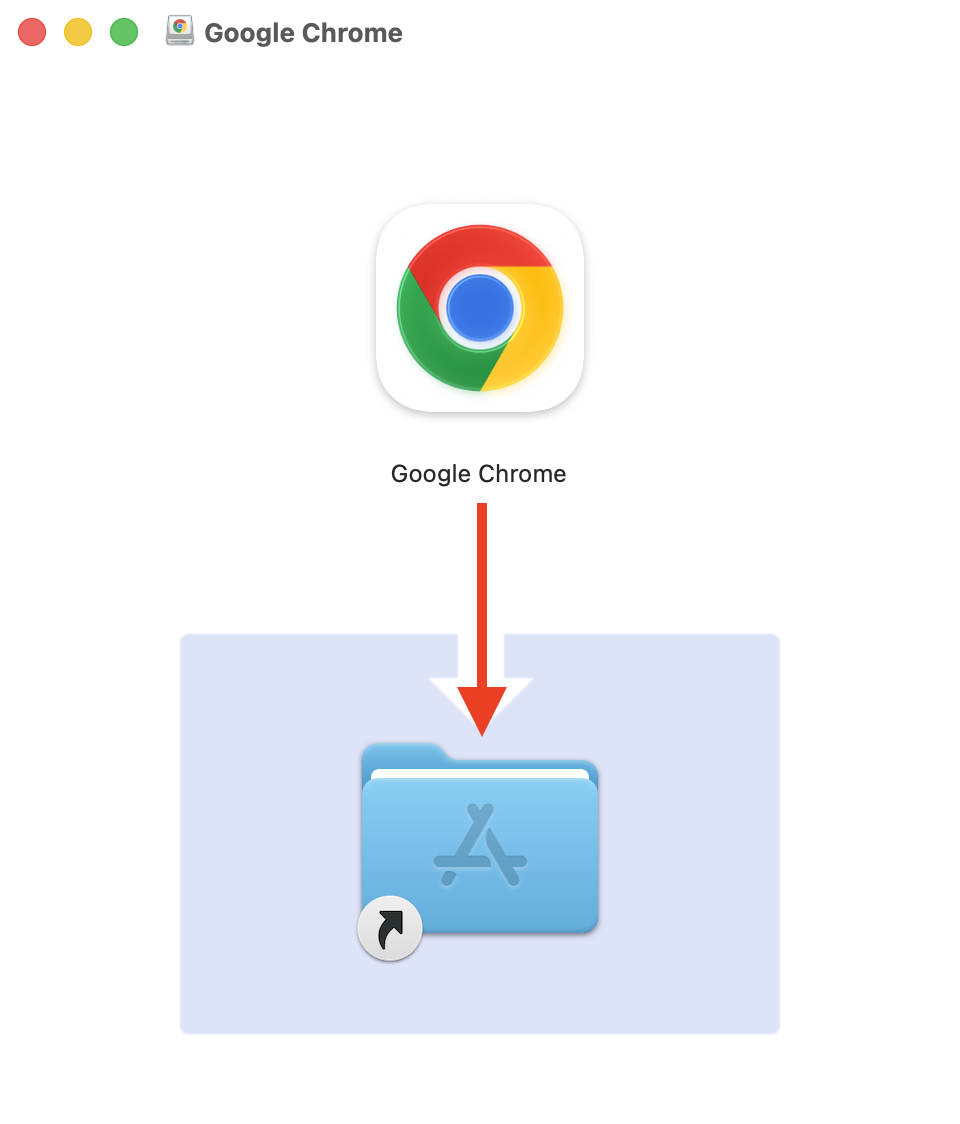
Drag Chrome to the Applications folder.
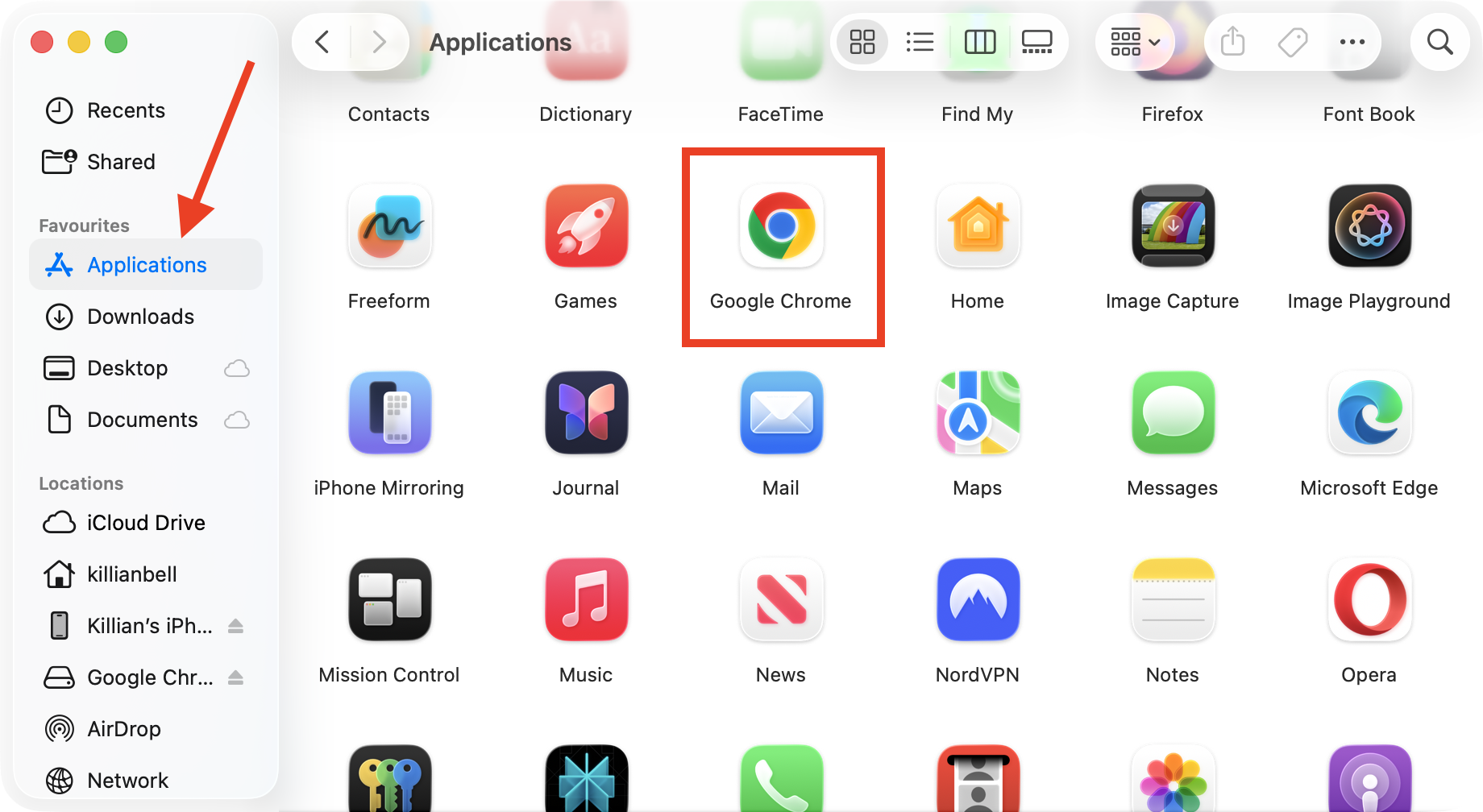
Go to the Applications folder in Finder and run Chrome to complete the installation.
Step 1. Launch the Chrome installer from DownloadsStep 2. Drag Chrome into ApplicationsStep 3. Drag Chrome into Applications
How to use Google Chrome for Mac?
Using Google Chrome on a Mac desktop is a breeze. In the following sections, we’ll demonstrate how to create a more seamless and convenient Chrome experience:
Set Chrome as your default browser
Sign in and sync your data (if you already have a Google Account)
Manage extensions or themes in Chrome
Use hotkeys for Google Chrome
Switch Google Chrome to Incognito mode
How to update Chrome on a MacBook
1. Set Chrome as your default browser
Setting Chrome as your default browser ensures that the links you click on open in Chrome rather than Safari. Here’s how to do it:
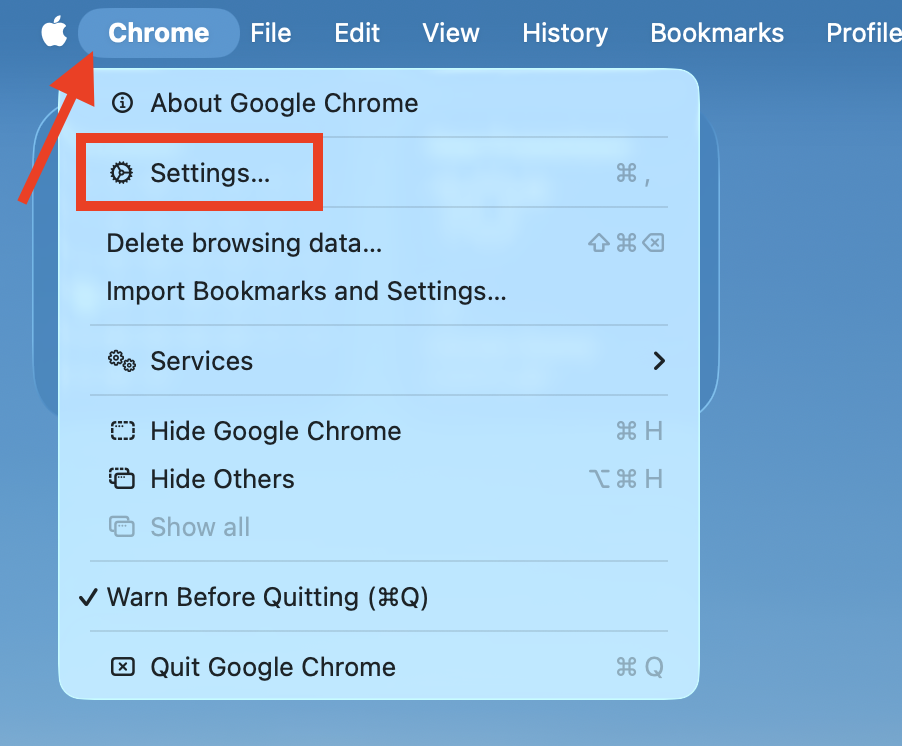
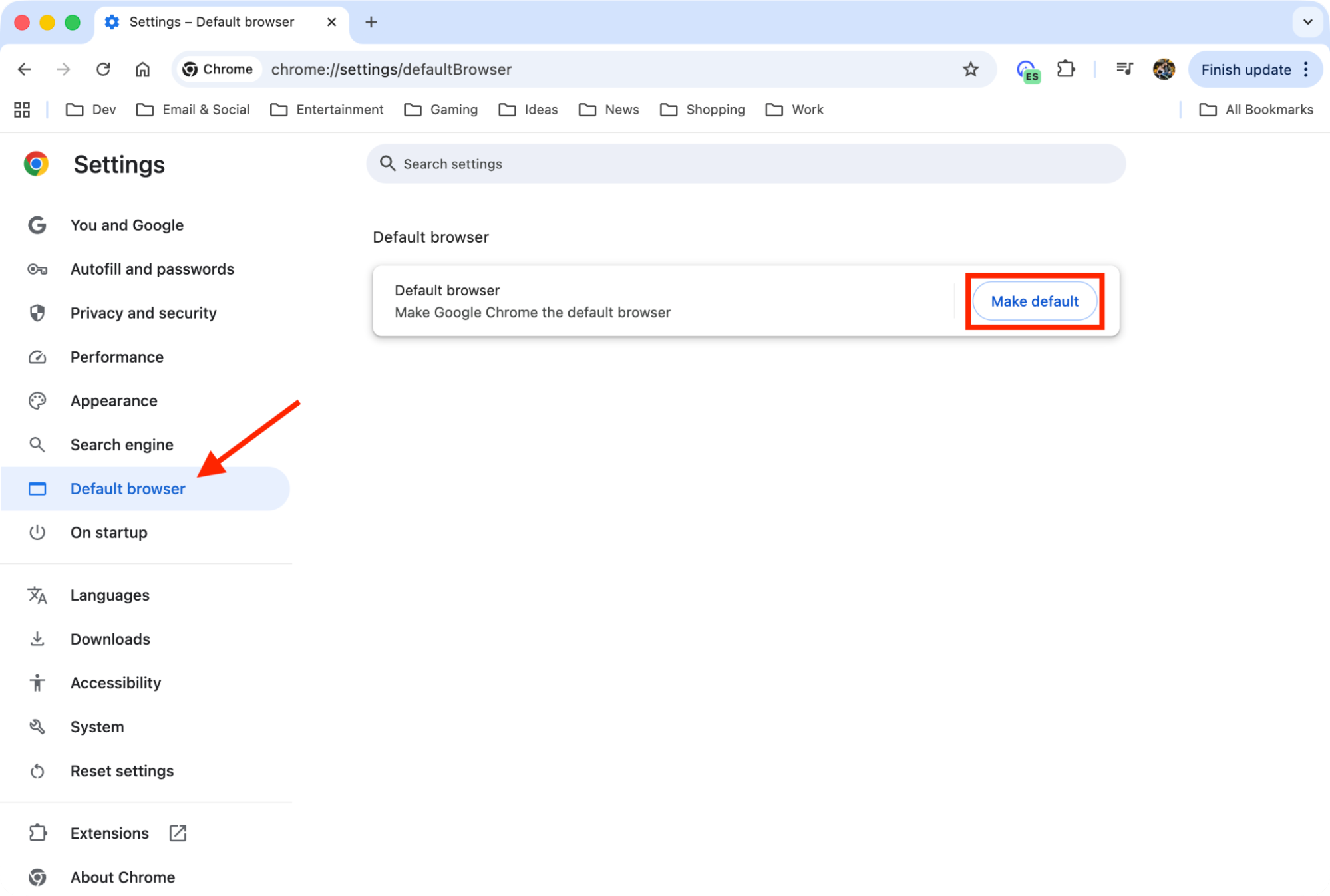
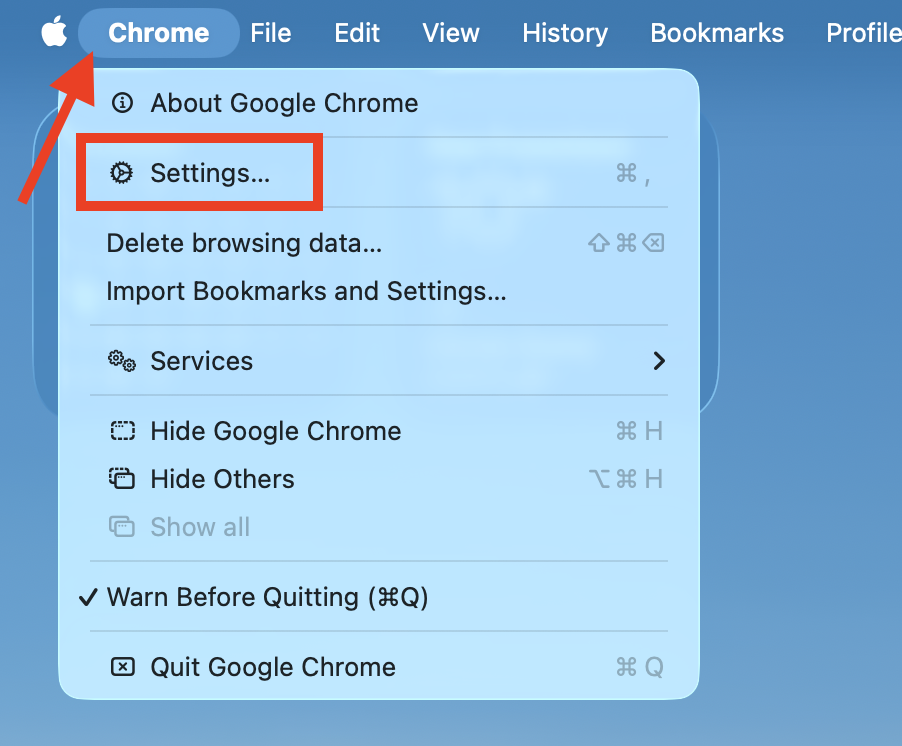
Open Google Chrome and go to Chrome > Settings in the menu bar.
Select Default browser in the sidebar, then click Make default.
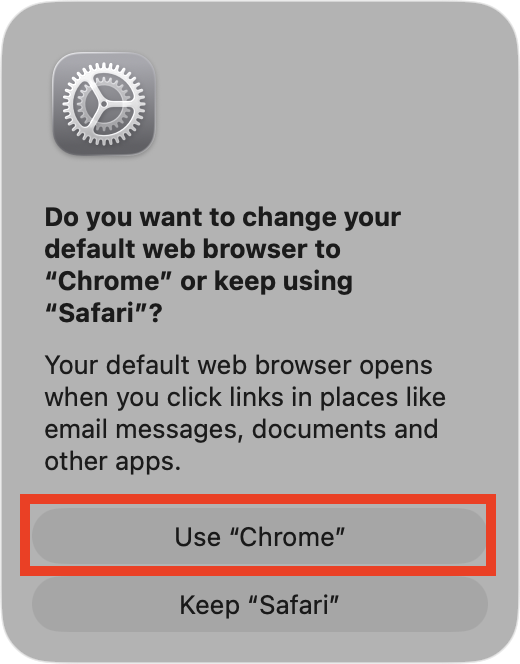
Click Use Chrome to confirm.
Step 1. Go to Chrome > SettingsStep 2. Click Default browser > Make defaultStep 3. Click Use Chrome
2. Sign in and sync your data (if you already have a Google Account)
Syncing your data speeds up Chrome’s performance by auto-filling your online passwords. This allows you to quickly sign in to your apps and websites on the devices you’re signed in to if you already have a Google account.
Follow this approach to sign in to your Google account:
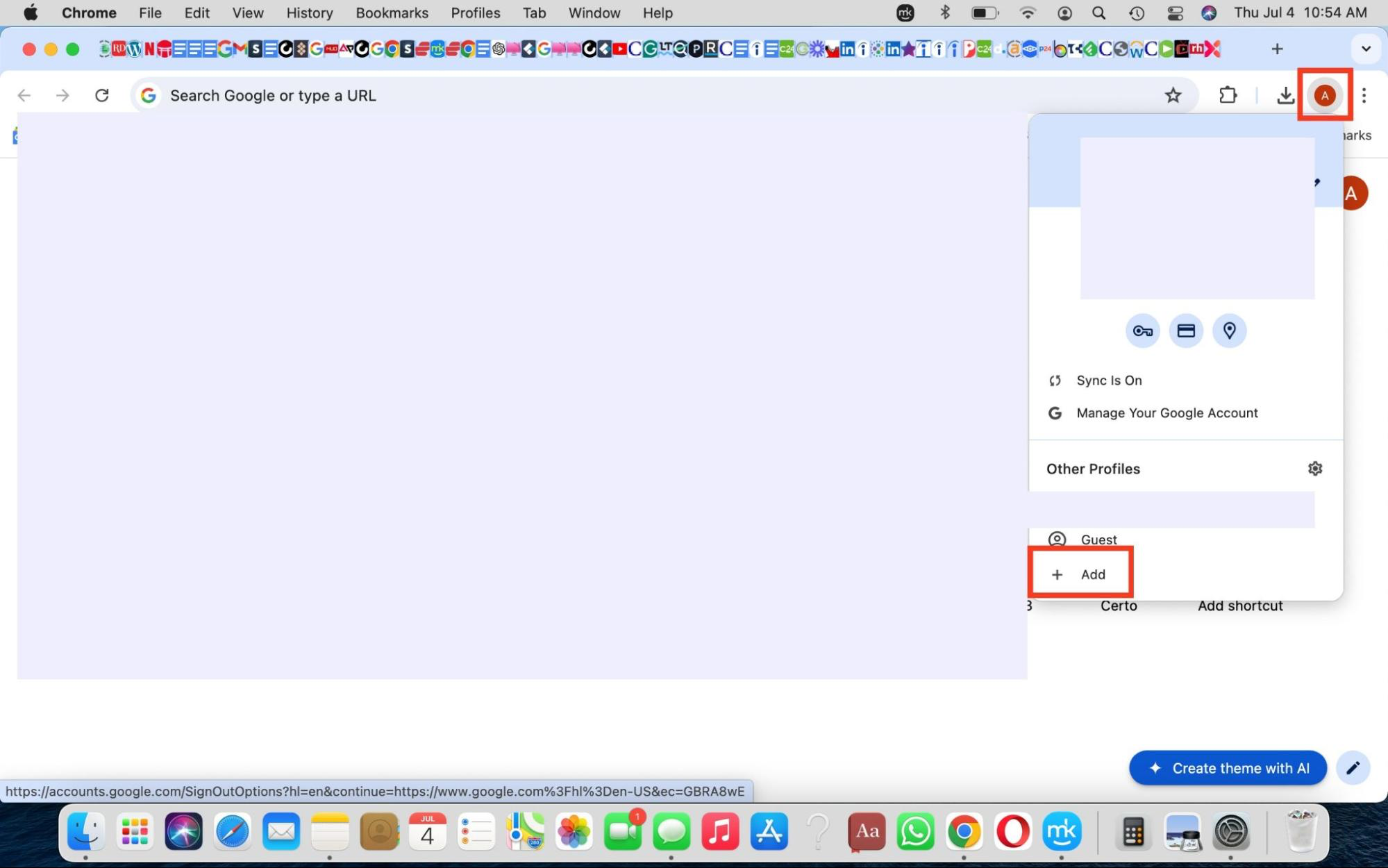
Launch Google Chrome, click your profile icon, and select Add > Sign in.
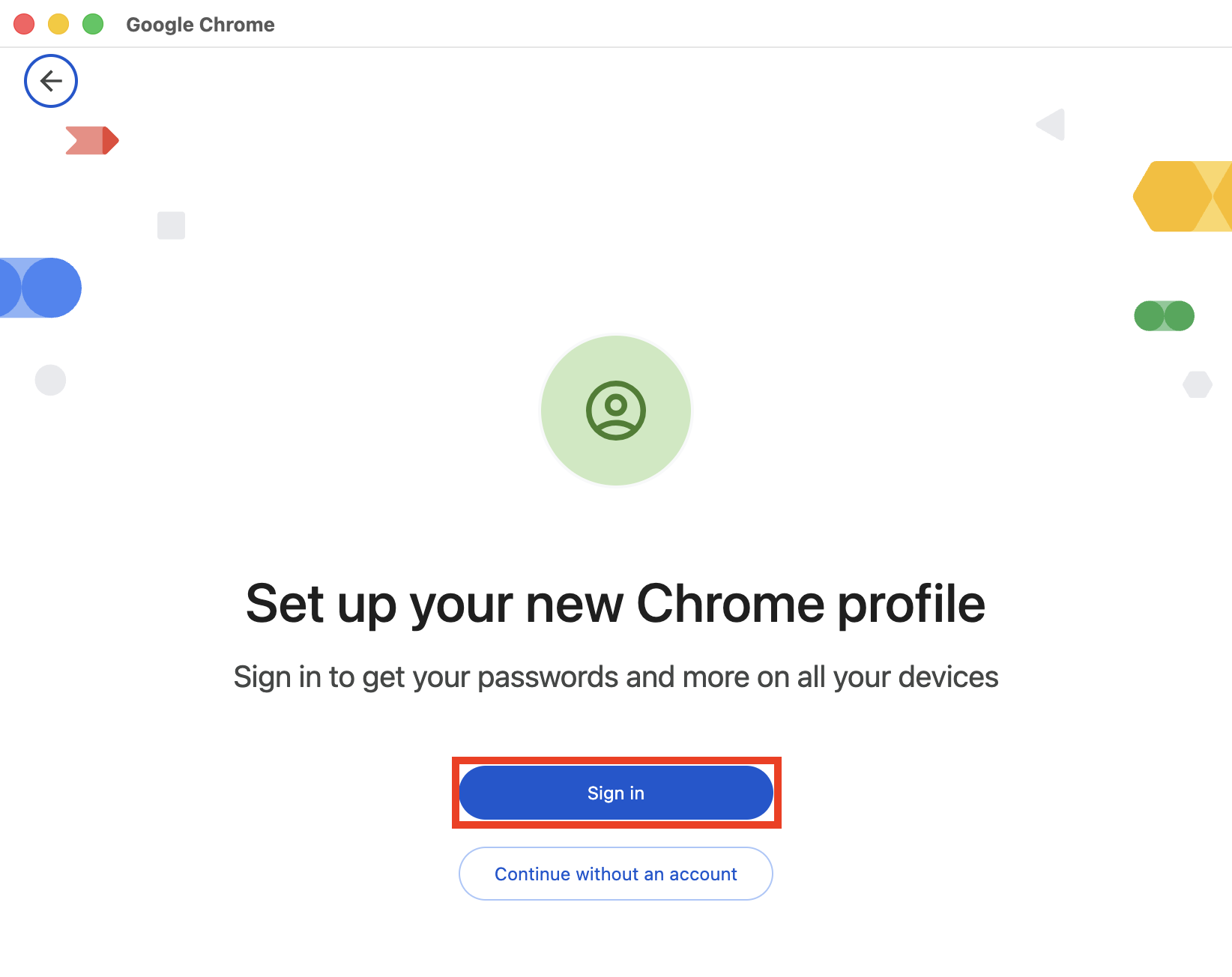
Click Sign in and then follow the steps on screen to log into your Google account..
Step 1. Click your profile, then choose AddStep 2. Choose Sign in, then follow the steps
3. Manage extensions or themes in Chrome
Customizing Chrome gives it a personal feel and enhances your overall experience. Follow these steps to manage your extensions and themes in Chrome:
In Chrome, go to Chrome > Settings in the menu bar.
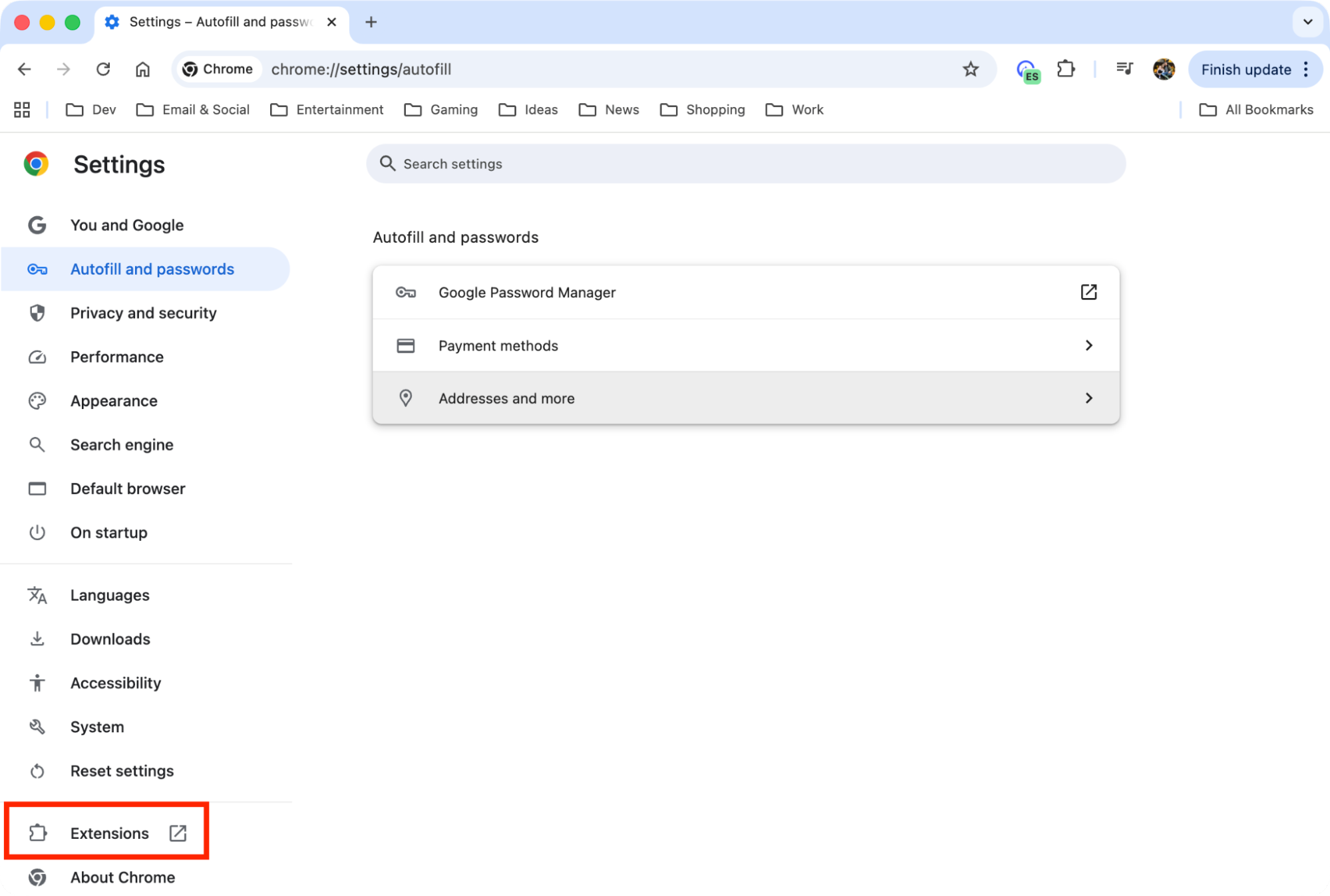
Select Extensions.
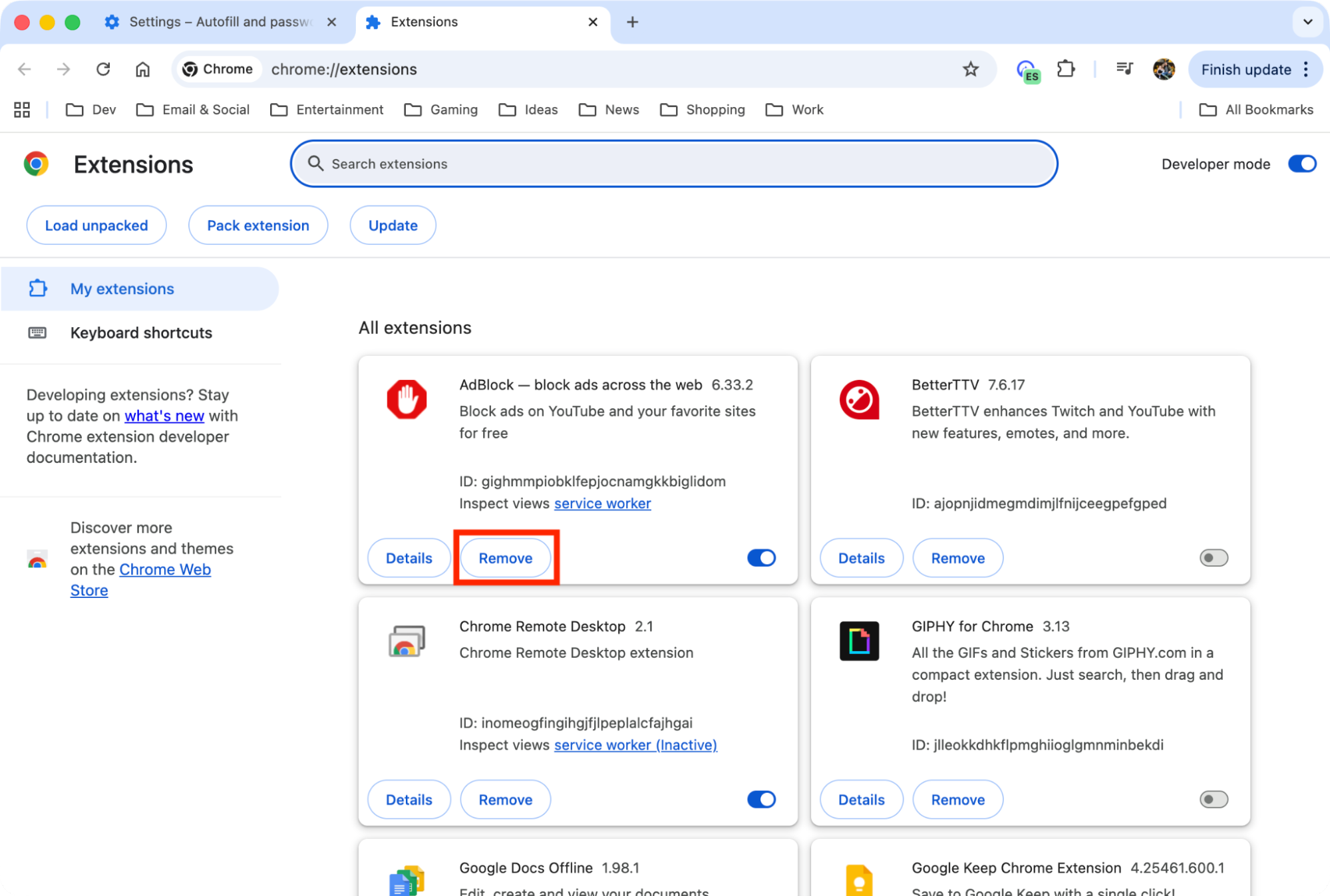
Go through the list of installed extensions and click Remove to uninstall any you don’t want.
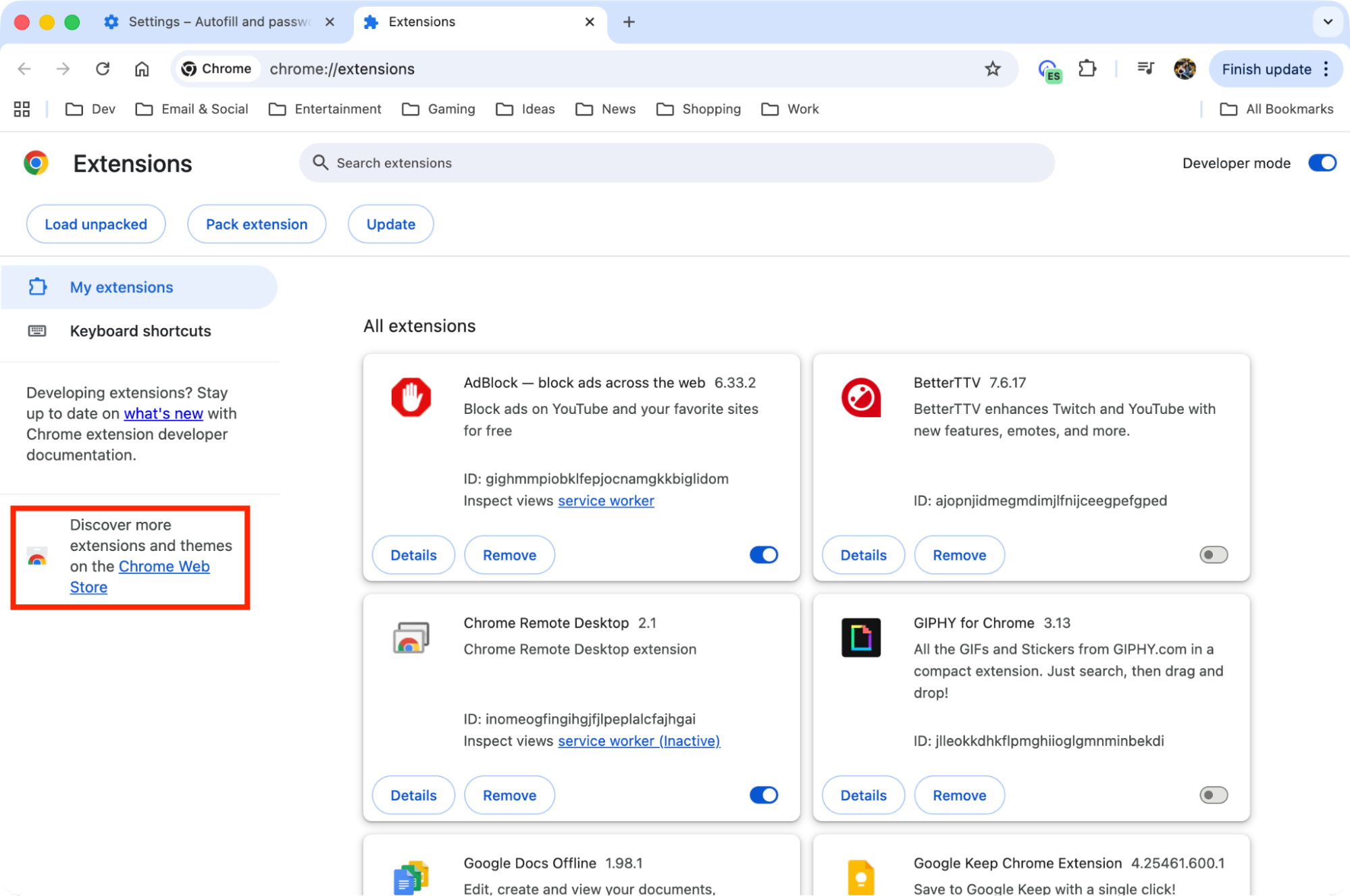
Click the Chrome Web Store shortcut in the sidebar to find and install new extensions.
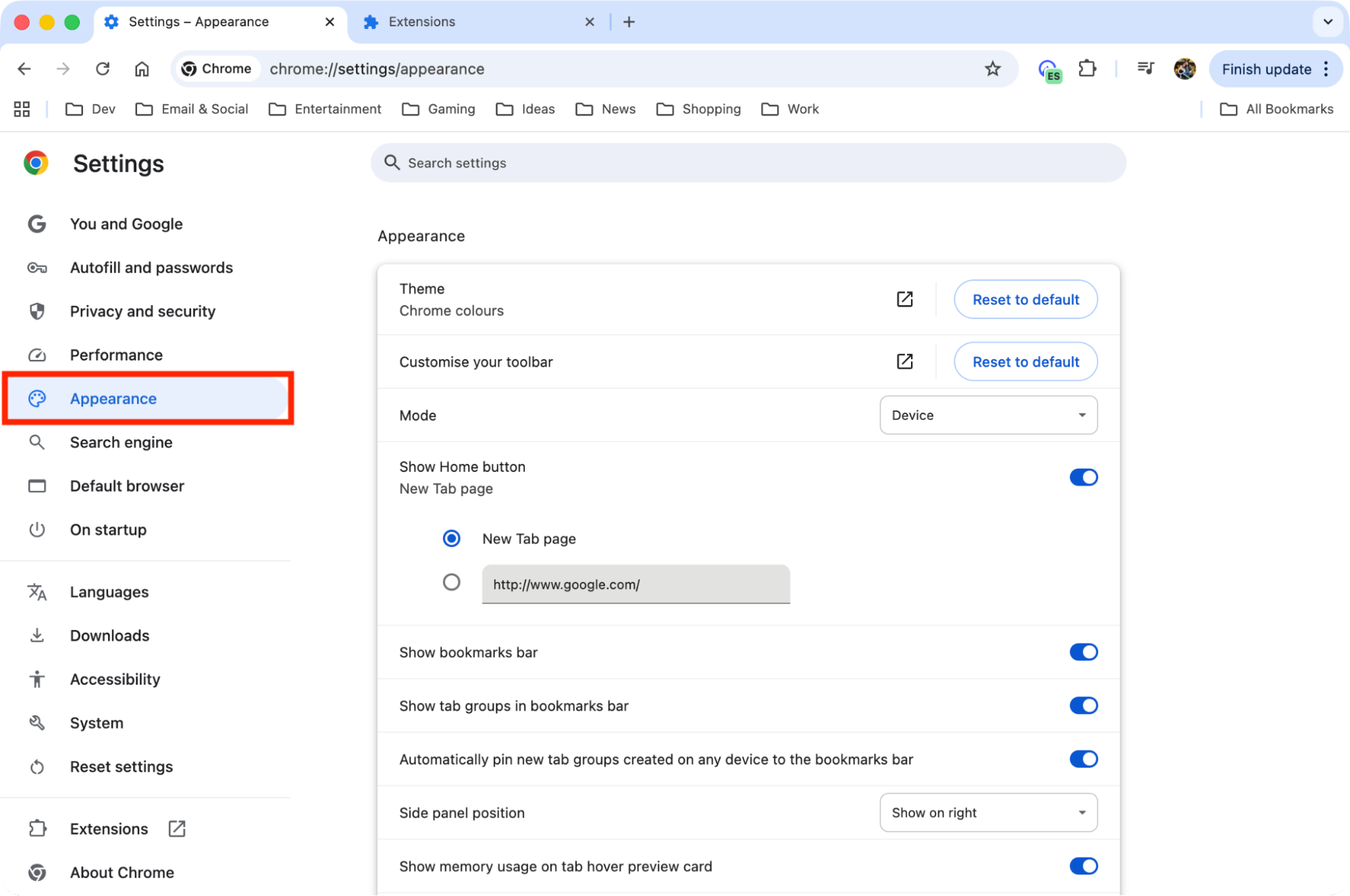
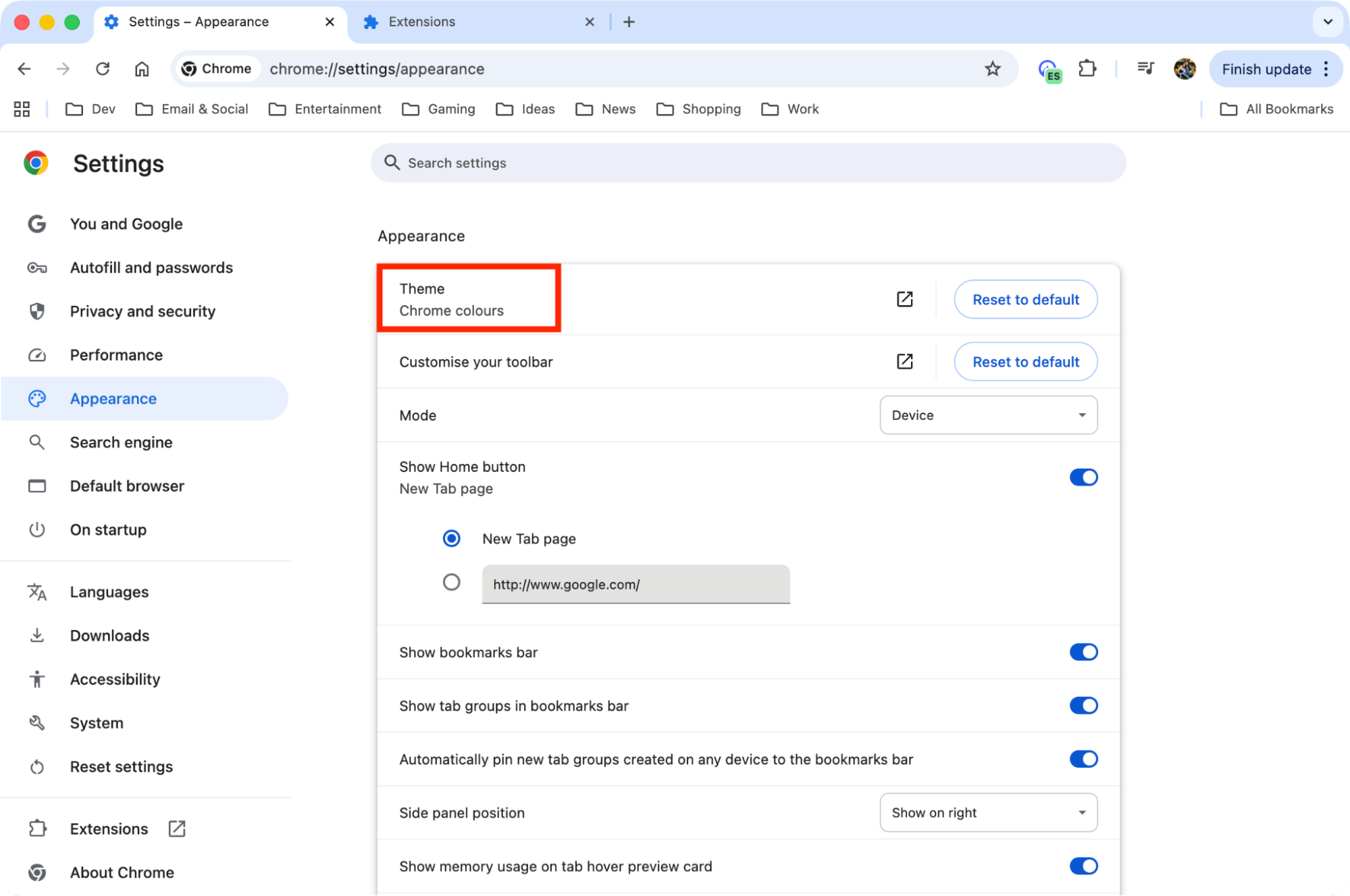
To manage themes, go to Chrome > Settings and select Appearance.
Click Theme and then choose how you want Chrome to look.
Step 1. Go to Chrome, then choose SettingsStep 2. Click ExtensionsStep 3. Click Remove to uninstall unwanted extensionsStep 4. Click the Chrome Web Store shortcutStep 5. Click AppearanceStep 6. Click Theme, then choose your look
4. How to use keyboard shortcuts in Google Chrome on Mac
Using hotkeys or keyboard shortcuts in Chrome is a productivity hack. Here are common combinations you can try to amp up your productivity levels:
Refresh the current page: Command + R
Open a new tab: Command + T
Open a new Incognito tab: Command + Shift + N
Close the current tab: Command + W
Reopen the last closed tab: Command + Shift + T
Go to the homepage: Command + Option + H
Show or hide the Bookmarks Bar: Command + Shift + B
Go to the settings menu: Command + ,
Go to the address bar: Command + L
Zoom in or out of a page: Command + or Command -
Find something specific on the current page: Command + F
Open specific tabs: Command + [number of the tab from the left] (for example, press command + 3 to jump to the third tab).
5. Switch Google Chrome to Incognito mode
Switching to Incognito mode helps keep your browsing activity hidden from your family members or anyone else using your Mac. To switch to Incognito mode, do this:
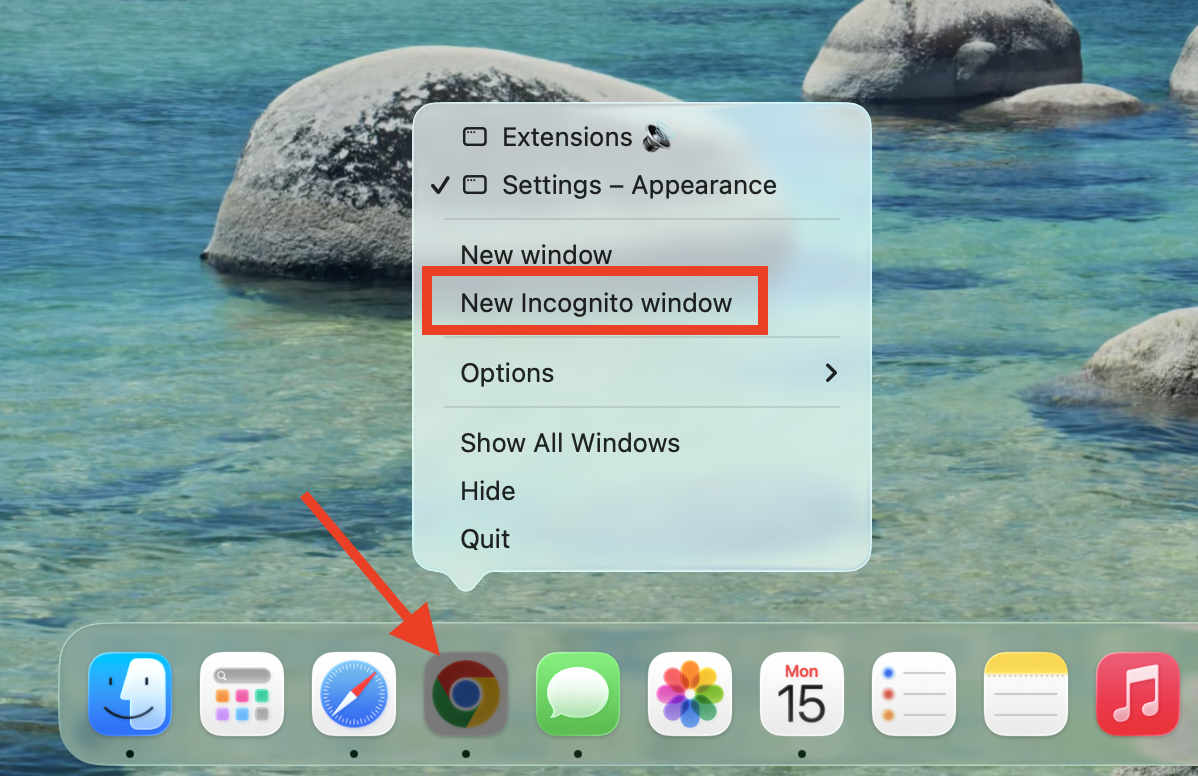
Right-click the Chrome icon from the icons in the Dock.
Select New Incognito window from the list.
Right-click Chrome and select New Incognito window
Alternatively, you can go to File > New Incognito window while Chrome is active, or press the Command + Shift + N shortcut on your keyboard.
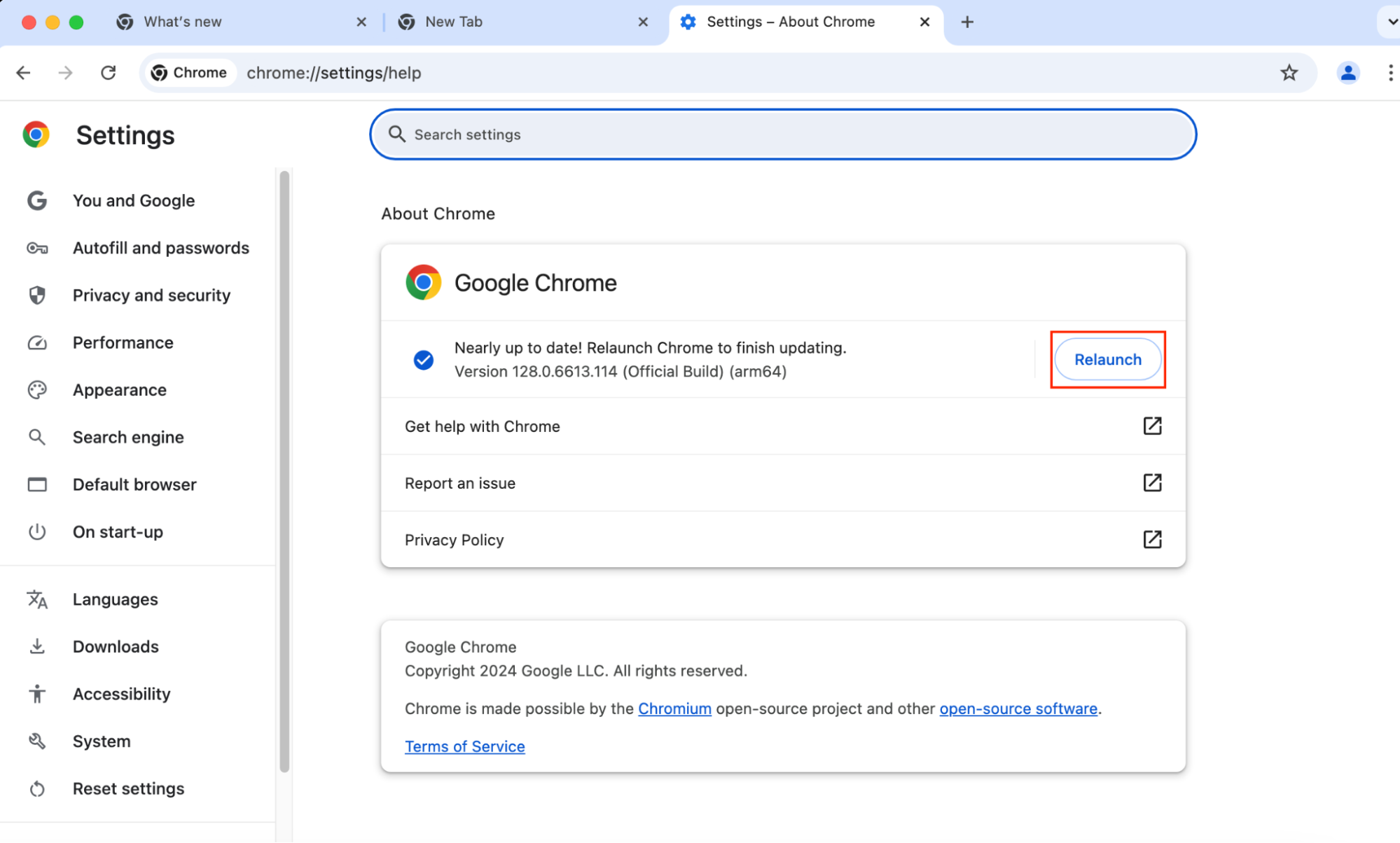
6. How to update Chrome on a MacBook
For the best performance and to improve reliability, we recommend keeping Google Chrome up to date. Here’s how to update Chrome for Mac:
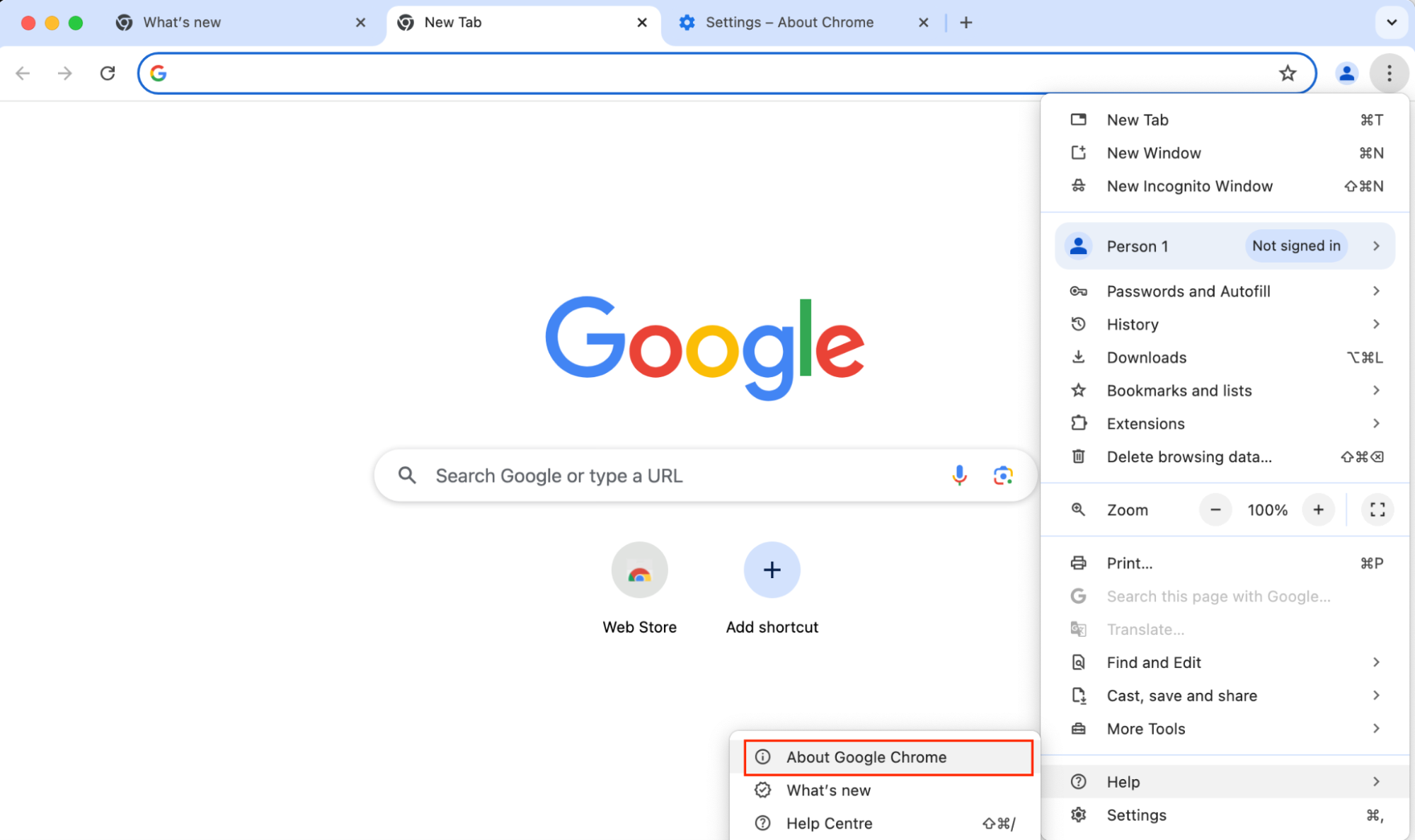
Go to the menu (three dots) > Help > About Google Chrome.
Wait for Chrome to search for updates.
Click the Relaunch button to finish updating Chrome.
Step 1. In the Chrome menu, choose About Google ChromeStep 2. Click Relaunch to install the update
It’s important to update apps regularly. Outdated apps may pose a security risk—newer versions may have had vulnerabilities patched, and hackers may know how to exploit older versions.
When the app in question is your web browser, privacy and security are especially critical. After all, your browser has access to your usernames and passwords—and maybe even your online banking details. You want to ensure that they’re as safe as possible.
In addition, it just makes sense to keep your apps updated. Developers may release useful new features, and you want to be able to enjoy them.
Fortunately, it’s easy to make sure Chrome is updated on your MacBook. Every time you open the app, it will automatically check for updates. However, if you don’t often close your web browser, you can also update Chrome for Mac manually.
Enjoy continuity when you get Google Chrome on Mac
Chrome is the preferred browser for billions of users globally, making it the most popular browser in the world by quite a margin. When you’re looking to add Chrome to Mac, this guide will help you download and install it, set it as your default browser, log into your Google account to sync settings, and more.
Before you start using Chrome, it’s advisable to rid your Mac of junk files that could make your browsing experience slow and cause crashes. MacKeeper’s Safe Cleanup tool from Clario Tech lets you delete log and cache files, unused language packs, old Mail attachments and more in just a few clicks.
We respect your privacy and
use cookies
for the best site experience.
Privacy Preferences Center
We use cookies along with other tools to give you the best possible experience while using the
MacKeeper website. Cookies are small text files that help the website load faster. The cookies we
use don’t contain any type of personal data meaning they never store information such as your
location, email address, or IP address.
Help us improve how you interact with our website by accepting the use of cookies. You can change
your privacy settings whenever you like.
Manage consent
All cookies
These cookies are strictly necessary for enabling basic website functionality (including page
navigation, form submission, language detection, post commenting), downloading and purchasing
software. The website might malfunction without these cookies.