If your Mac starts acting up, upgrading to macOS Sequoia might be a good idea. You’ll have access to new features and benefit from a faster and safer MacBook. However, MacKeeper's Safe Cleanup offers similar improvements without requiring a full software update.
The easiest way to install macOS Sequoia on your Mac is to navigate to System Settings > General > Software Update, where you can easily download and install the update. Alternatively, you can get the installer from the Mac App Store. Before proceeding, make sure your Mac is compatible and that you have enough disk space for the upgrade.
What is macOS Sequoia?
macOS Sequoia (version 15) is a major update Apple released in 2024 for Mac computers. The headline feature is Apple Intelligence, introducing advanced AI capabilities to Siri, Writing Tools, and Mail. Additional enhancements focus on boosting productivity, with standout features such as iPhone Mirroring and a dedicated Passwords app, along with major updates to core apps, including Calculator, Notes, and Safari.
So, should you update to Sequoia? Read on to find our expert insights to help you make an informed choice.
Benefits of installing macOS Sequoia
Upgrading to macOS Sequoia unlocks a range of advantages, most notably the cutting-edge Apple Intelligence tools that enhance your typing and browsing experience. You’ll also enjoy seamless iPhone integration with iPhone Mirroring, a streamlined window management system, the all-new Passwords app for secure password management, and valuable updates to core apps, including Safari, Notes, and Calculator.
However, before upgrading, we encourage you to also review our guide to macOS Sequoia known issues and potential drawbacks.
Preparation before installing macOS Sequoia
Before we tell you how to download and install macOS Sequoia, you should prepare your Mac. Start by backing up your machine to prevent data loss if something goes wrong. Next, verify that your Mac is compatible, ensure you have enough free space, and have your Apple ID ready.
A note from our experts:
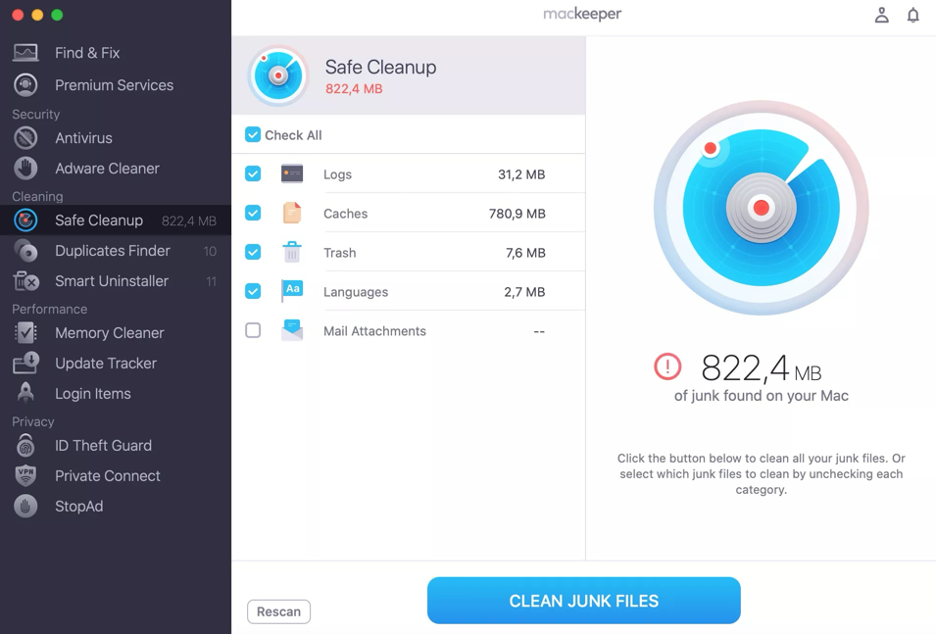
Updating to the latest version of macOS Sequoia is an effective way to address performance issues on your MacBook. If you prefer to skip the installation process, consider using MacKeeper’s Safe Cleanup. Developed by Clario Tech and trusted by millions, MacKeeper stands out as a top tool for Mac optimization, memory management, and performance monitoring.
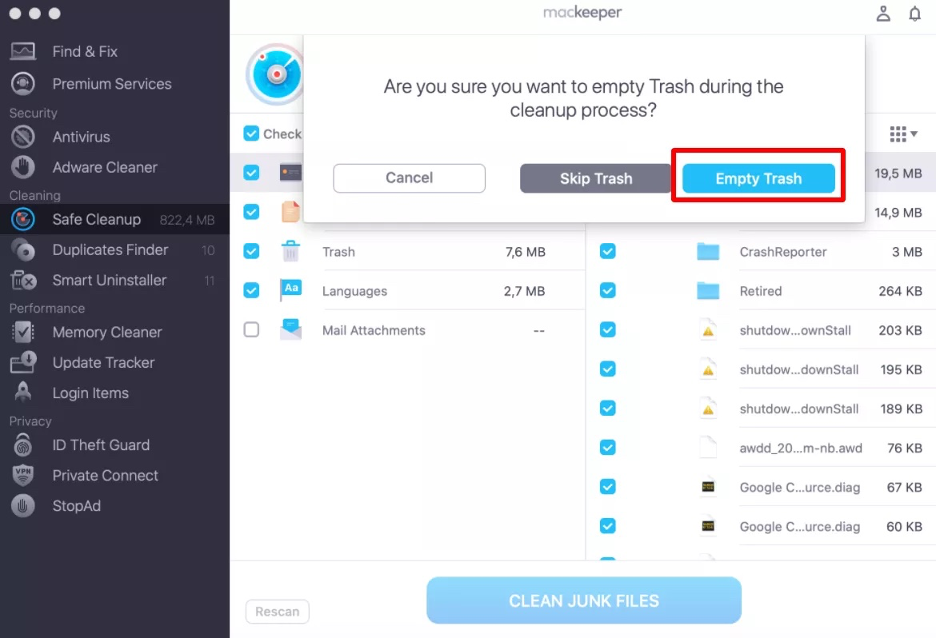
Here’s how to benefit from MacKeeper’s Safe Cleanup on your Mac:
Step 1. Safe Cleanup > Start ScanStep 2. Wait until the scan is completeStep 3. Select foldersStep 5. Click Clean Junk FilesStep 6. Click Empty Trash
1. Check system compatibility
Before learning how to install macOS Sequoia, we recommend ensuring your Mac is compatible with it first. Below is the complete list of Macs and MacBooks that support macOS Sequoia, so you can check whether your device is included.
MacBook Air models from 2020 to 2025
MacBook Pro models from 2018 to 2024
iMac models from 2019 to 2024
All iMac Pro models
Mac mini models from 2018 to 2024
Mac Studio models from 2022 to 2025
Mac Pro models from 2019 to 2023
Follow these steps to identify your Mac model:
Launch Finder.
Select the Apple logo in the menu bar.
Choose About This Mac from the dropdown menu.
Check the macOS installed on your device.
Step 1. Finder > Apple logo > About This MacStep 2. Check the About This Mac window
2. Back up your data
We highly recommend backing up all your data before proceeding. This precautionary step is crucial in case you encounter issues during installation, such as the macOS Sequoia update getting stuck. You can create backups manually using external hard drives or cloud services like iCloud. For the smoothest and most convenient experience, our experts advise using Time Machine, Apple’s built-in backup solution.
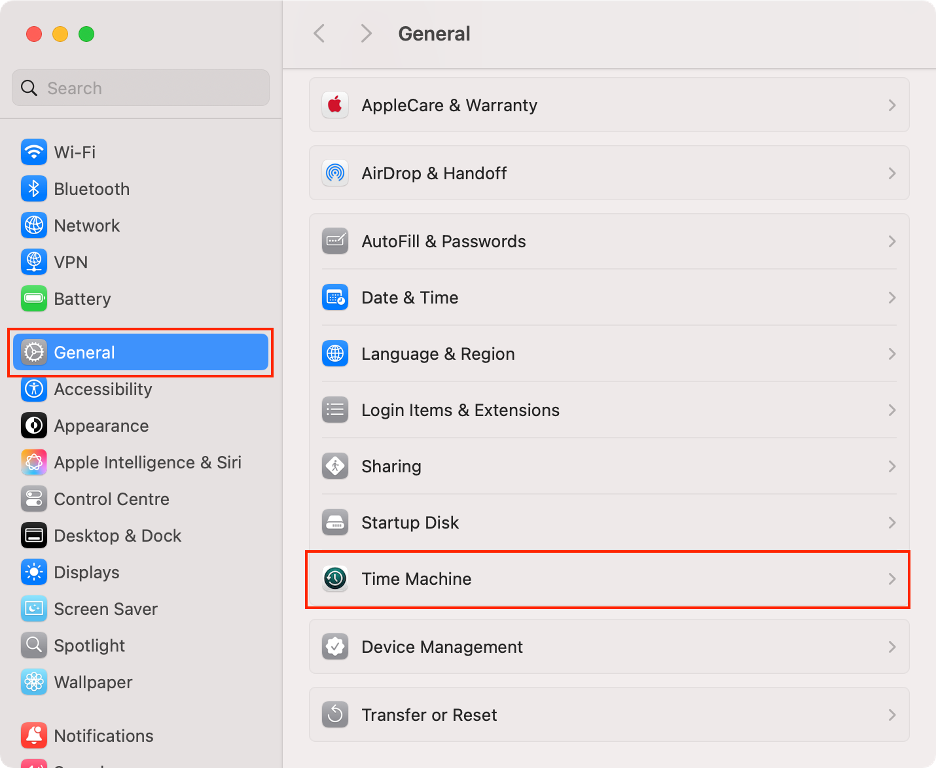
Here’s how to back up your data using Time Machine:
Connect an external drive to your Mac or MacBook.
Click the Apple logo in the menu bar.
Select System Settings.
Click General and select Time Machine.
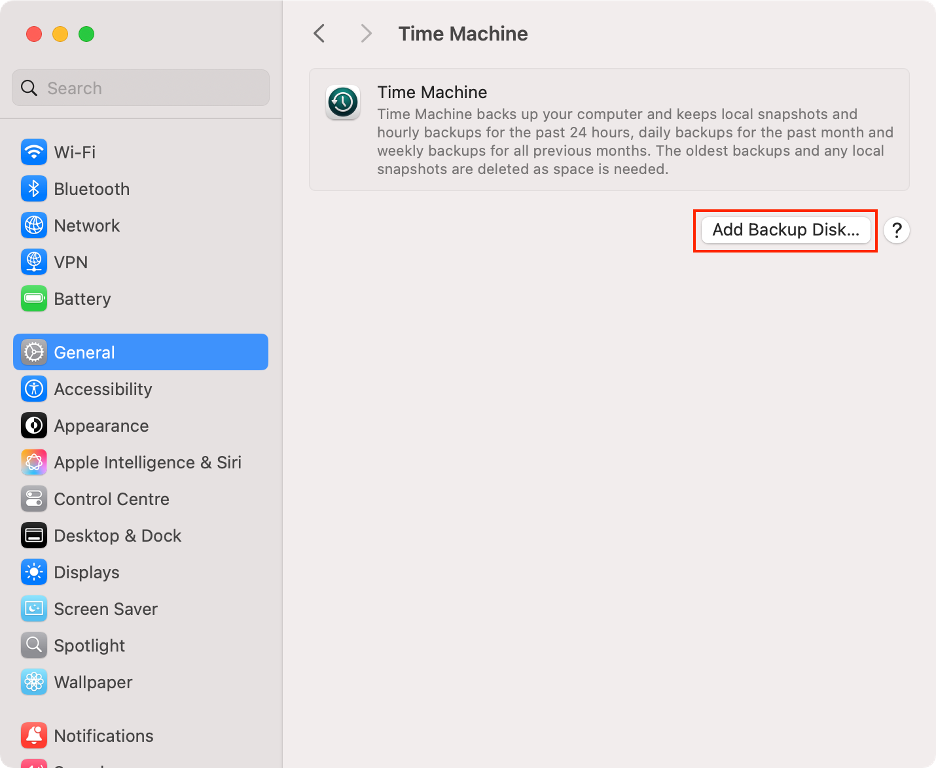
Click Add Backup Disk.
Choose the location for your backup, then click Set Up Disk.
Wait until the Time Machine backup is complete.
Step 1. Apple logo > System SettingsStep 2. General > Time MachineStep 3. Click Add Backup DiskStep 4. Click Set Up Disk
3. Deactivate software licenses
Certain third-party apps limit the number of activations of your license, which may become an issue if reactivation is required after updating your operating system. To avoid potential problems, we recommend deactivating your app licenses during installation preparation.
While the exact process varies from software to software, most apps let you manage your license in their settings menu. Typically, you’ll find a section for licenses or subscriptions, where you can deactivate, sign out, or temporarily suspend your subscription as needed.
How to download macOS Sequoia?
There are several ways to download and install macOS Sequoia on your Mac. Our preferred method is using the Software Update feature in System Settings. Alternatively, you can install it through the Mac App Store. For advanced users, creating a bootable USB drive offers another installation option.
1. Download via System Settings
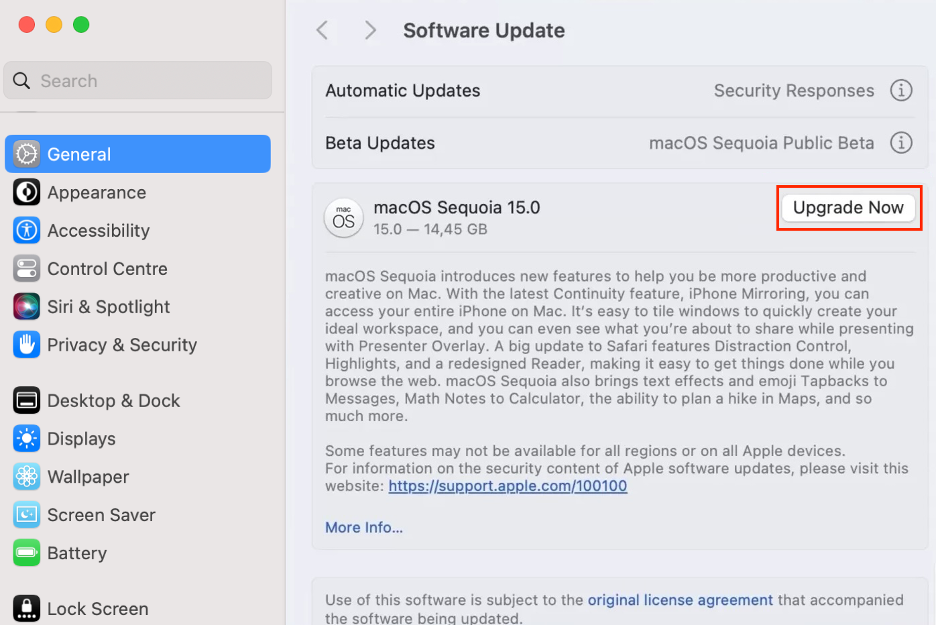
The simplest and most reliable way to install macOS Sequoia is via Software Update in System Settings on your Mac. We recommend this method because it uses the standard macOS interface and requires no special technical skills. If you’re unfamiliar with these steps, don’t worry, as we provide clear, step-by-step instructions below.
Here’s how to download macOS Sequoia via System Settings:
Open the System Settings app.
Click General in the left sidebar.
Select Software Update.
Click Upgrade Now.
Read the Software License Agreement and click Agree.
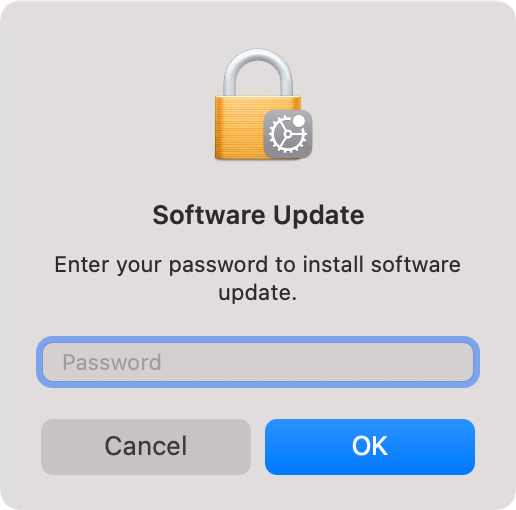
Enter your password.
Wait for the macOS Sequoia update to download.
Follow the on-screen instructions to complete the installation.
Step 1. System Settings > General > Software UpdateStep 2. Click Upgrade NowStep 3. Enter your password
2. Download via App Store
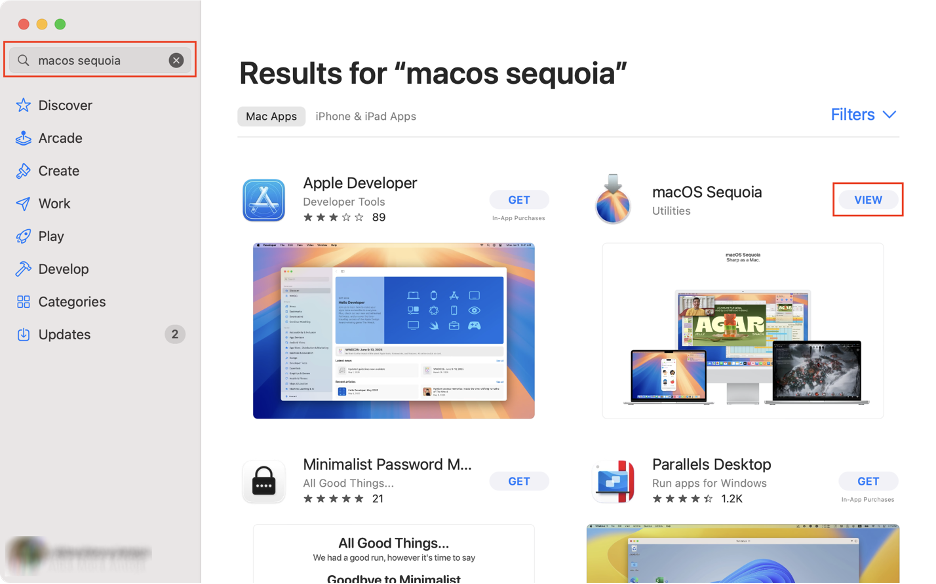
Another straightforward option is to download macOS Sequoia directly from the Mac App Store, which lets you manage all your updates in one place. We love that this method is user-friendly and provides key details about the update, such as its main features, file size, and version history, before you proceed with installation.
To install macOS Sequoia from the Mac App Store, follow these steps:
Launch the Mac App Store.
Find “macOS Sequoia” using the search tool.
Click View next to macOS Sequoia, then click Get.
Click Download to download the installer.
Follow the on-screen instructions to complete the installation.
Step 1. Launch Mac App Store > Search “macOS Sequoia” > Click ViewStep 2. Click GetStep 3. Click Download
3. Obtain full installer for Bootable USB
A third option for installing macOS Sequoia is to create a bootable USB installer. We particularly like this method because it allows you to install versions other than the latest release. We also find it handy when updating multiple Macs or if your Internet connection is unreliable.
Check our guide to creating a macOS Sequoia USB installer below:
Launch the Mac App Store.
Search “macOS Sequoia.”
Click View next to macOS Sequoia.
Click Get, then click Download to download the macOS installer.
Follow the instructions to complete the download.
Launch Mac App Store > Get macOS Sequoia
How to clean install macOS Sequoia?
A macOS clean install involves erasing all data and settings from your Mac before installing a fresh copy of Apple’s operating system. While this approach may seem drastic, based on our experience, it can be a highly effective solution for optimizing performance, resolving persistent technical issues, or when other installation methods have failed.
1. Erase your Mac
After backing up your data (as outlined above), your next step is to erase all data and settings from your Mac. We’d like to remind you that this step is especially important if you plan to sell or give away your device. The exact process will depend on your Mac’s technical specs.
1.1 Apple Silicon and T2-Chip Macs
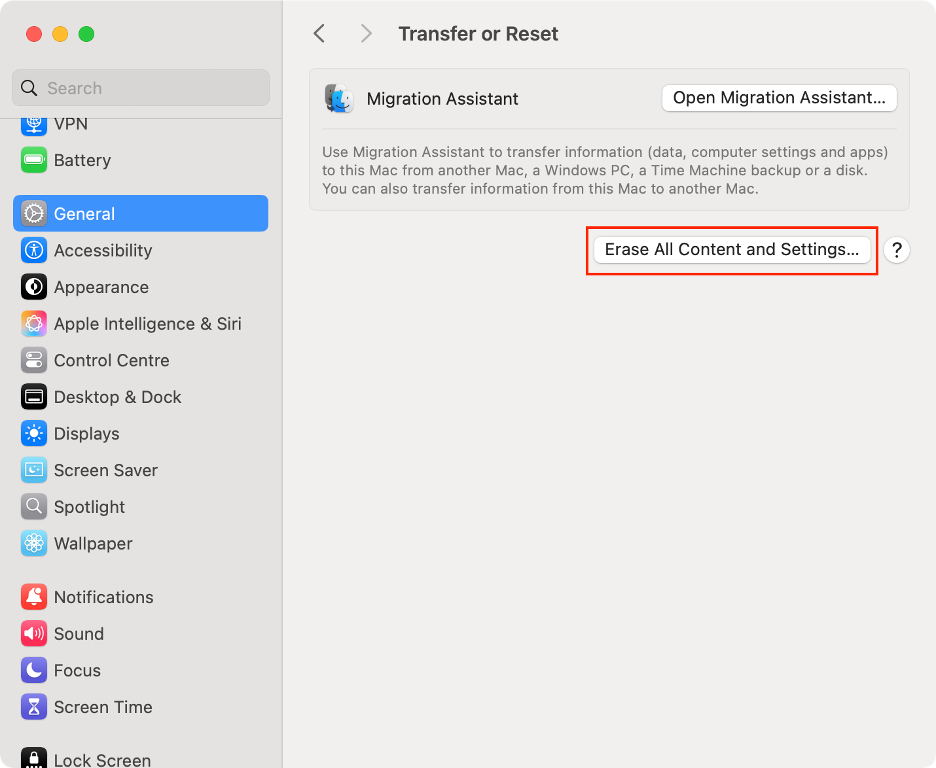
If your Mac has Apple Silicon or the Apple T2 Security Chip and is running macOS Monterey 12 or later, you can use the Erase All Content and Settings feature. In our experience, this option greatly simplifies the erasing process.
Follow the steps below to erase your Apple Silicon Mac:
Launch System Settings.
Click General from the left sidebar.
Scroll down and click Transfer or Reset.
Click Erase All Content and Settings.
Enter your password, then click Unlock.
In the Erase Assistant, select the items to delete.
Click Continue.
Wait until the process is done.
Set up your Mac.
Step 1. System Settings > GeneralStep 2. Click Transfer or ResetStep 3. Click Erase All Content and SettingsStep 4. Enter your admin passwordStep 5. Select itemsStep 6. Set up your Mac
1.2 Other Intel Macs using Recovery mode
However, if your Mac doesn’t support the Erase All Content and Settings feature, you’ll need to use Recovery Mode to erase your device. While we understand this method may seem intimidating if you haven’t tried it before, our step-by-step guide will make the process straightforward.
Here’s how to erase your Intel-based Mac:
Click the Apple logo in the menu bar.
Select Shut Down to turn off your Mac.
Press and hold Command and R keys.
Press the Power button to boot into Recovery Mode.
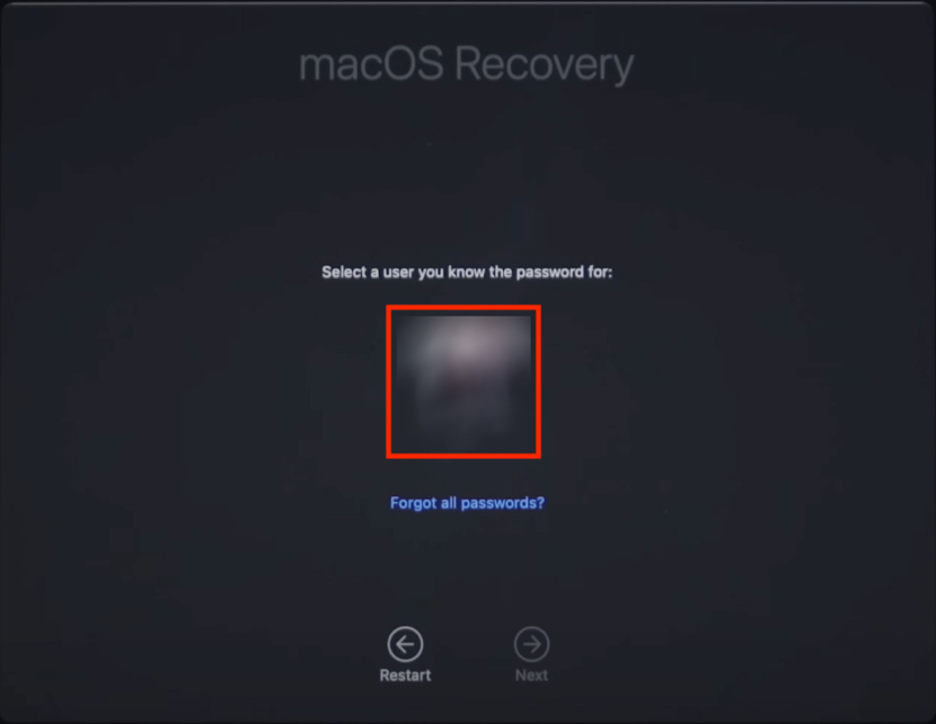
Select your user and type your password.
Choose Disk Utility and click Confirm.
Select your main startup drive, click Erase, then confirm.
Step 1. Hold down Command + R > Press Power buttonStep 2. Select your user and type your passwordStep 3. Select Disk UtilityStep 4. Erase your disk
2. Install macOS Sequoia from USB
Earlier, we covered how to create a bootable USB installer. Now, we’ll walk you through the steps to install macOS Sequoia from your USB drive in order to get a clean version of Apple’s operating system.
Here’s everything you need to know to install macOS Sequoia from a bootable USB:
Connect an external drive to your Mac.
Open Finder, go to Applications, then select Utilities.
Launch Disk Utility.
Select your external drive from the left sidebar.
Click Erase.
Rename your disk as “MacInstaller.”
Choose Mac OS Extended (Journaled).
Hit Erase, then click Done.
Close Disk Utility.
Go back to Utilities and launch Terminal.
Then, to create a bootable installer, enter the sudo /Applications/Install\ macOS\ Sequoia.app/Contents/Resources/createinstallmedia --volume /Volumes/MacInstaller command.
Click the Apple logo in the menu bar and select Restart.
Hold down the Power button until you see the startup options.
Choose the Install macOS Sequoia disk.
Select Reinstall macOS Sequoia, and follow the on-screen instructions.
Step 1. Applications > UtilitiesStep 2. Select your external disk > Click EraseStep 3. Rename your disk > Select the formatStep 4. Type in the command in TerminalStep 5. Apple logo > RestartStep 6. Hold down the Power buttonStep 7. Select Install macOS SequoiaStep 8. Choose Reinstall macOS Sequoia
The ultimate guide on how to install macOS Sequoia
Installing macOS Sequoia is straightforward, especially when using System Settings or the Mac App Store. Even if it’s not the newest macOS release, Sequoia remains a smart choice for Macs that aren’t compatible with macOS Tahoe. You’ll still gain valuable features like Apple Intelligence, the new Passwords app, and iPhone Mirroring.
If your main goal is to improve your Mac’s performance, consider using MacKeeper’s Safe Cleanup. Notarized by Apple, MacKeeper is a trusted tool for removing adware and malware, as well as for system monitoring and optimization.
We respect your privacy and
use cookies
for the best site experience.
Privacy Preferences Center
We use cookies along with other tools to give you the best possible experience while using the
MacKeeper website. Cookies are small text files that help the website load faster. The cookies we
use don’t contain any type of personal data meaning they never store information such as your
location, email address, or IP address.
Help us improve how you interact with our website by accepting the use of cookies. You can change
your privacy settings whenever you like.
Manage consent
All cookies
These cookies are strictly necessary for enabling basic website functionality (including page
navigation, form submission, language detection, post commenting), downloading and purchasing
software. The website might malfunction without these cookies.