We understand how frustrating it can be when you’re trying to update your Apple devices' operating system, only to find that your actions have been halted as you see the can’t install macOS Tahoe on unsupported Mac message. Whether you own an old Mac or suspect a possible software glitch, MacKeeper’s Premium Services team is on hand to help you find the cause behind your macOS Tahoe installation problems–and provide a solution to fix your predicament.
You cannot download macOS Tahoe on unsupported Mac’s as the Open Core Legacy Patcher doesn’t yet support macOS 26 Tahoe on older devices. Are you wondering, is my Mac too old to update? Read our compatibility guide for installation support.
A note from our experts:
Trying to run macOS Tahoe on an unsupported Mac can quickly become frustrating, especially when compatibility errors, failed installs, or missing patches get in the way. If you’re unsure whether your Mac meets the specific macOS Tahoe system requirements, MacKeeper’s Premium Services can connect you to our virtual team of Apple experts who’ll help diagnose your issues and guide you through the download faster and more safely.
Here’s how MacKeeper’s Premium Services can help you fix stuck macOS updates:
In the chat box, tell our advisor about the compatibility or installation issues you're dealing with, and they’ll share useful advice and tips on what you can do to best support your device.
Step 1. For macOS 26 Tahoe installation advice, open MacKeeper and choose Premium ServicesStep 2. You can use the chat function to get expert advice to help you upgrade to macOS 26 Tahoe
What Macs are compatible with macOS Tahoe?
macOS Tahoe only supports Silicon MacBooks from 2020 or newer, and Intel laptops from 2019 onward, including Mac mini, Studio Pro, and Air models. From our tests, old Macs may struggle here, so try to clean up storage on Mac to free up resources and improve performance while waiting for future updates to bring compatibility.
How to check if macOS Tahoe is available via System Settings
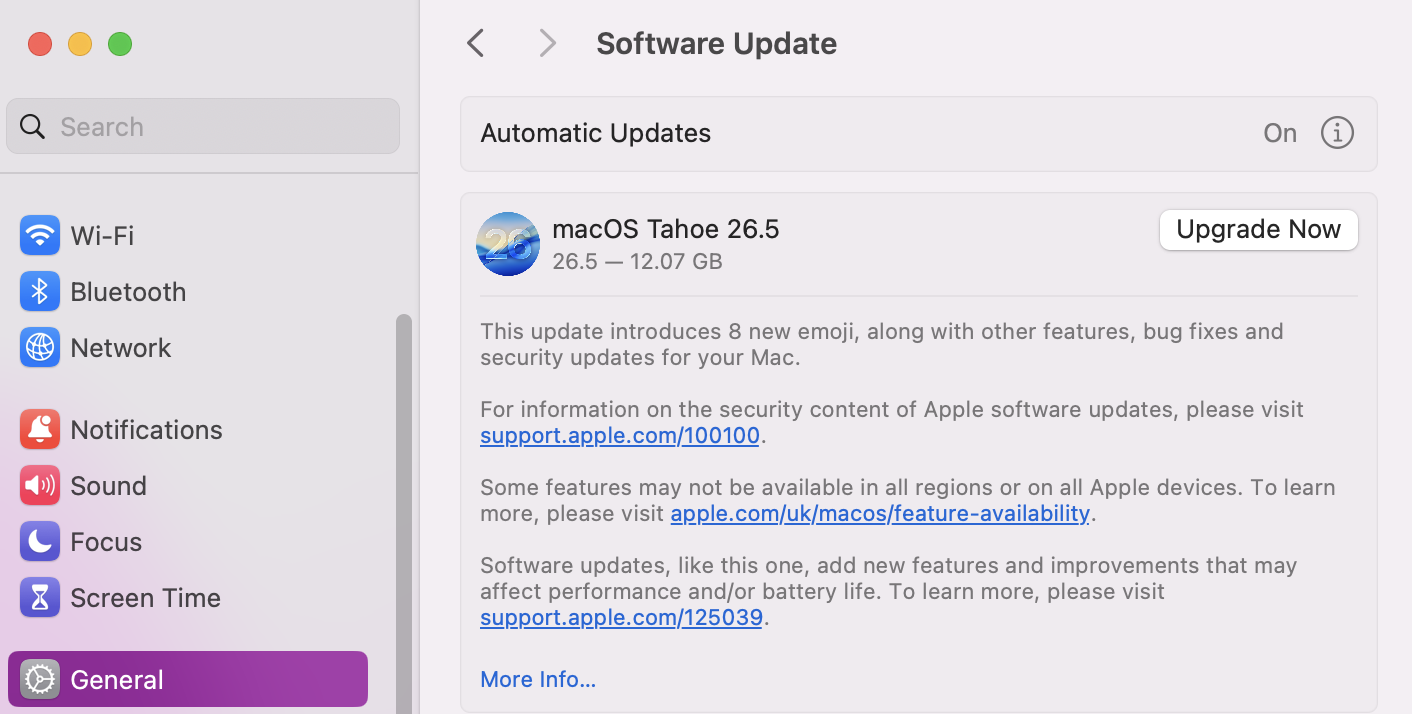
If you think your device should support the latest version of macOS, the easiest way to check is to go to the Software Update tab in your System Settings.
Here is how to check if macOS Tahoe is available to install via System Settings:
Open System Settings.
Go to General > Software Update.
Look for macOS Tahoe, and if it’s available, click on Upgrade Now.
In System Settings, navigate to Software Update and look to see if Tahoe is available to download
Should you install macOS Tahoe on an unsupported Mac?
We don’t recommend trying to get macOS Tahoe on an unsupported Mac, even if you rely on the Open Core Legacy Patcher (OCLP). It could potentially harm the integrity of the laptop or the computer’s hardware. You’d soon start to notice your Mac running slow after update, and that’s just the start of it.
Risks of installing macOS Tahoe on an unsupported Mac
If you’ve somehow been able to download macOS Tahoe on an unsupported Mac, it’s incredibly risky for both your device's software and hardware. This can trigger missing drivers, login-screen crashes, possible data loss, and unbootable systems when you download the OS on an unsupported device.
How to get macOS Tahoe on an unsupported Mac?
Installing macOS Tahoe on an unsupported Mac using Open Core Legacy Patcher is possible, but we don’t recommend it due to the significant risks involved in modifying system firmware and creating a bootable USB installer to force an unofficial macOS version. Expect issues like data loss, unstable performance, missing features, and general instability when running legacy and OS software on an unsupported device.
Here’s the safe way to get macOS Tahoe on an unsupported Mac if you’re adamant:
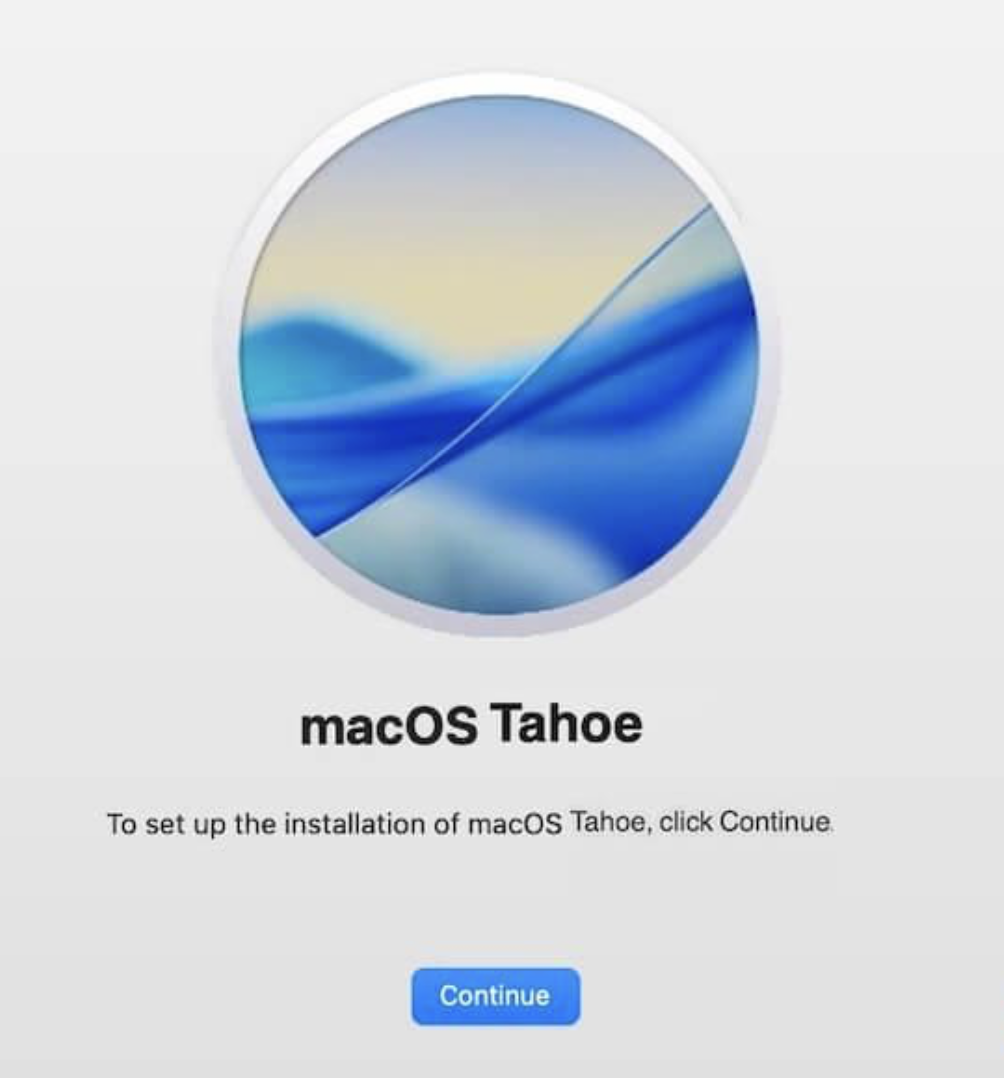
Go to Apple’s official installer to download macOS Tahoe.
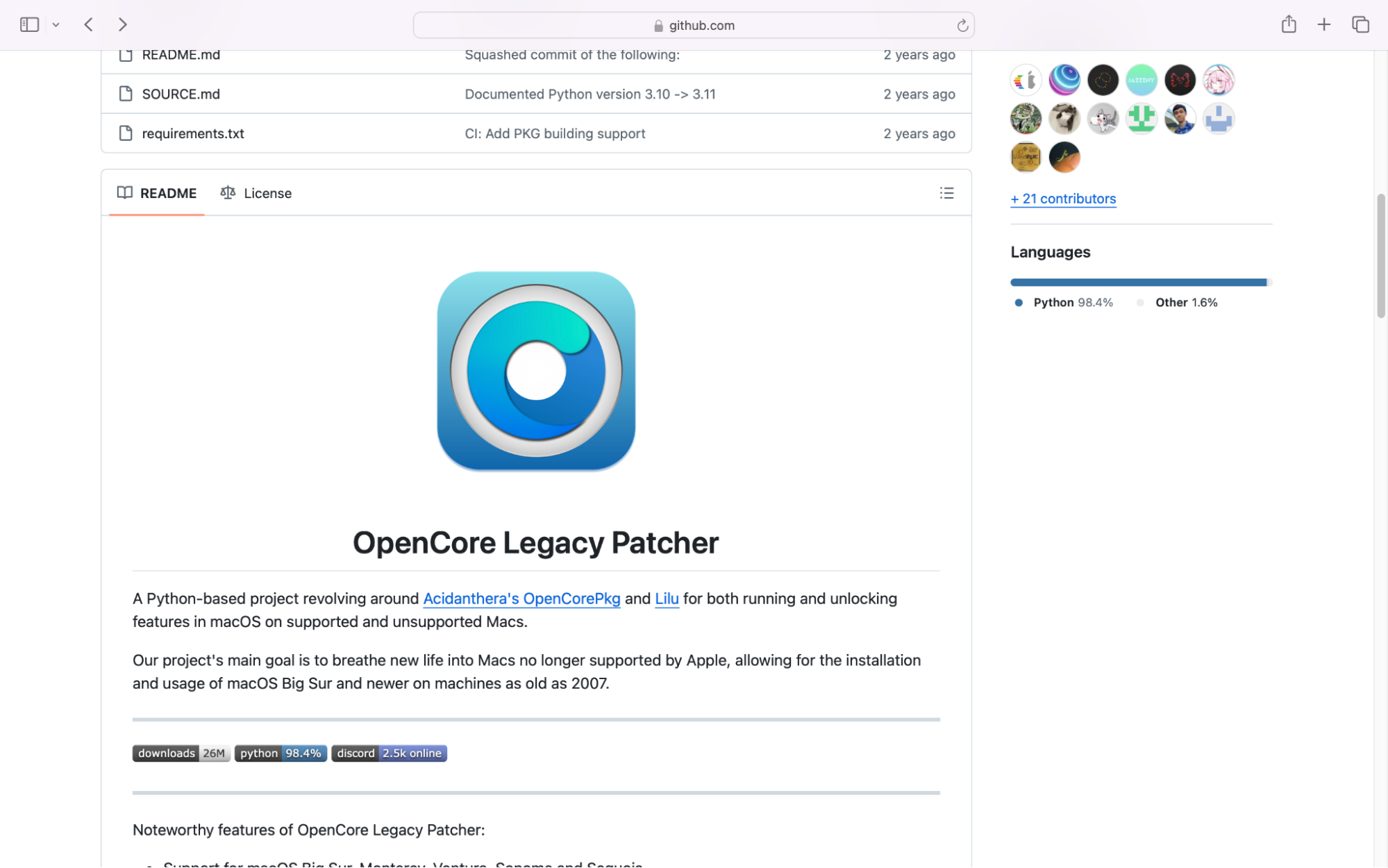
Open the official Dortania GitHub release page and downloadOpenCore Legacy Patcher.
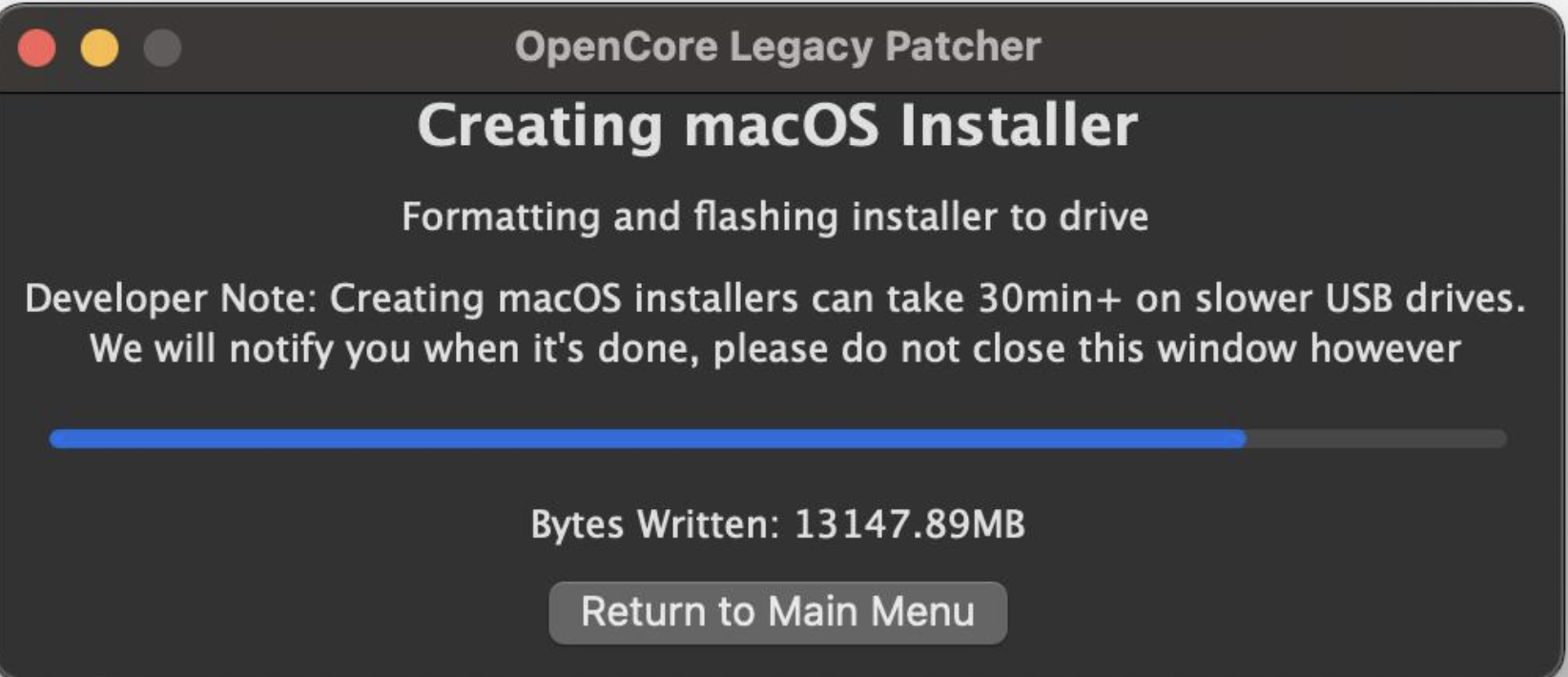
Create a bootable USB installer with at least 16GB and install it onto the USB.
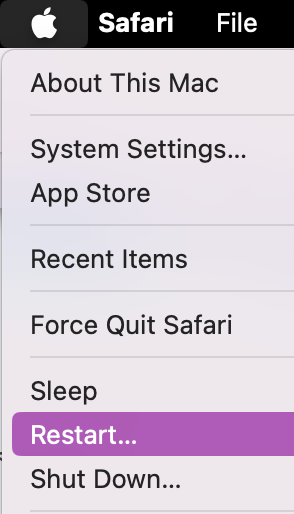
Restart your Mac while holding down Option.
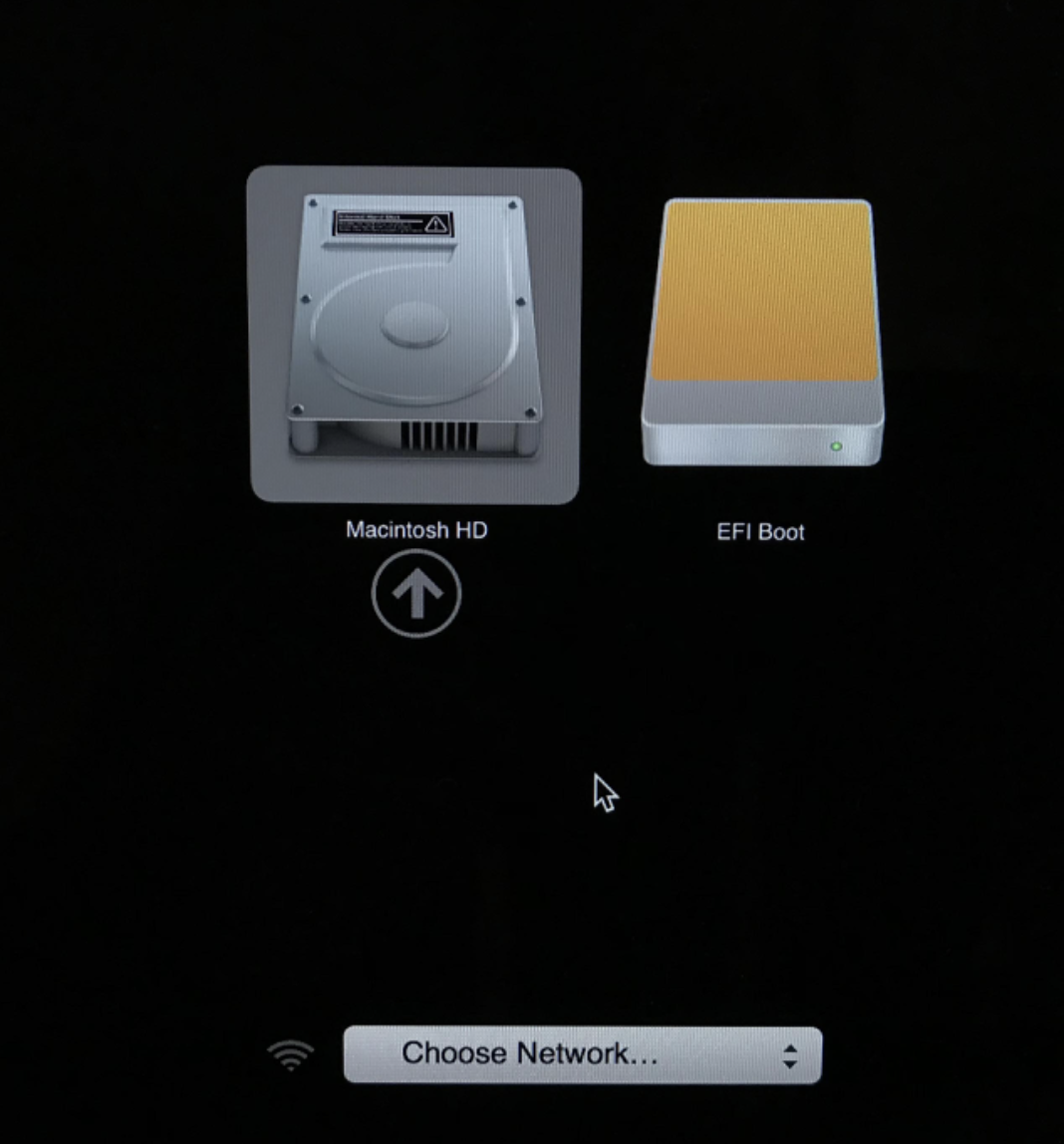
Choose the EFI Boot drive and run the macOS Tahoe installer.
Apply any post-installation patches in OCLP for drivers and additional hardware support.
Step 1. Go to Apple’s official installer to download macOS TahoeStep 2. Open the official Dortania GitHub release page and download OpenCore Legacy PatcherStep 3. Create a bootable USB installer with at least 16GB and install it onto the USBStep 4. Restart your MacStep 5. Choose the EFI Boot drive and run the macOS Tahoe installerStep 6. Finalise the macOS Tahoe installation by following any on-screen instructions that you see
Why installing macOS Tahoe on unsupported Mac isn’t advised
Installing macOS Tahoe on an unsupported Mac is not recommended, as it’s an unofficial process that involves using a bootable USB and unsupported Apple software just to get the latest version of macOS onto your device. We understand that you might want to have the latest OS on your Mac, even if your device is pre-2019, but right now, until there is a safe solution, we don’t recommend installing Tahoe on an unsupported device. If you process, you can expect many problems to arise, including hardware instability and software glitches.
To keep your device safe, it’s best to only update your MacBook software when it’s officially available to do so. You can check this by opening up the Software Updates tab–if Tahoe is readily available for your Mac, you’ll be able to upgrade your OS right away. If it’s not, but your device is underperforming, we encourage you to chat with the MacKeeper’s Premium Service team. Our Apple experts can help you find the cause of any issues you’re facing and provide a suitable alternative solution. That way, you won’t need to risk your device's stability with unofficial OS downloads just to keep it running smoothly.
We respect your privacy and
use cookies
for the best site experience.
Privacy Preferences Center
We use cookies along with other tools to give you the best possible experience while using the
MacKeeper website. Cookies are small text files that help the website load faster. The cookies we
use don’t contain any type of personal data meaning they never store information such as your
location, email address, or IP address.
Help us improve how you interact with our website by accepting the use of cookies. You can change
your privacy settings whenever you like.
Manage consent
All cookies
These cookies are strictly necessary for enabling basic website functionality (including page
navigation, form submission, language detection, post commenting), downloading and purchasing
software. The website might malfunction without these cookies.