You’re browsing Safari on your Mac when, out of the blue, it displays the message: “The application is not open anymore.” Don’t panic. There are several effective solutions you can try, including contacting the MacKeeper’s Premium Services team, available 24/7.
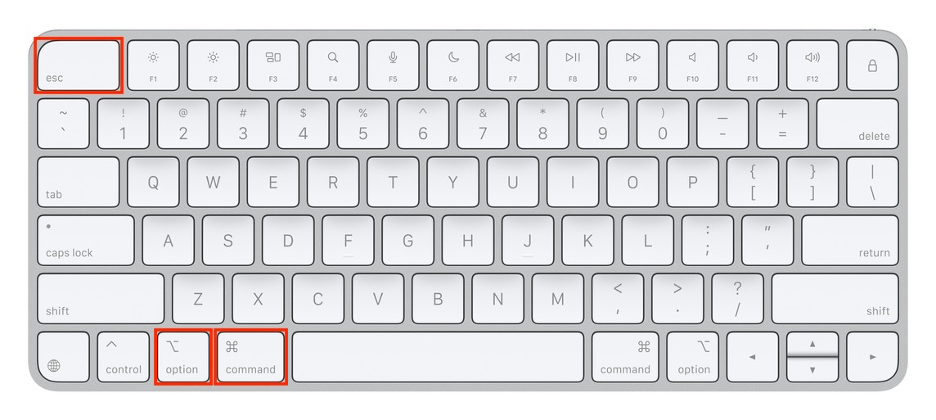
If you come across the “Safari application is not open anymore” error on your Mac, start by using the Option + Command + Esc shortcut to force quit Safari. If that doesn’t fix the issue, try clearing Safari’s cache, disabling any potentially problematic extensions, or, as a last resort, restarting your Mac in safe mode.
What “application Safari is not open anymore” means?
The message “The Safari application is not open anymore” may appear on your Mac when Apple’s popular browser has frozen, crashed unexpectedly, or refuses to launch. From our experience, common causes include excessive cache and cookies, outdated software, or problematic extensions.
How to fix “application Safari is not open anymore”?
There’s no single fix for the “The Safari application is not open anymore” error, from simply restarting Safari to booting your Mac in safe mode. Additionally, we recommend clearing the browser cache and data and disabling or removing extensions to resolve the issue.
Safari not loading pages on Mac? For detailed solutions to this particular problem, we suggest checking out our separate troubleshooting guide.
A note from our experts:
Dealing with a glitchy Safari is far from ideal. Fortunately, whenever you run into technical issues on your Mac or MacBook, the team at MacKeeper’s Premium Services is ready to help you find the best solution. Developed by Clario Tech, MacKeeper boasts a 93% satisfaction rating and has resolved issues for more than 332,000 Macs.
Follow our tips to benefit from MacKeeper’s Premium Services:
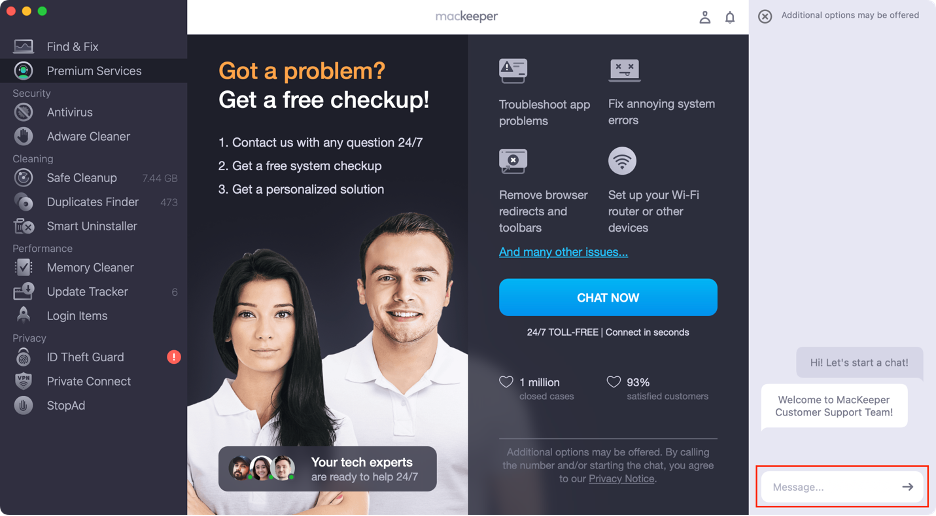
Type in your message and let our team know what you need.
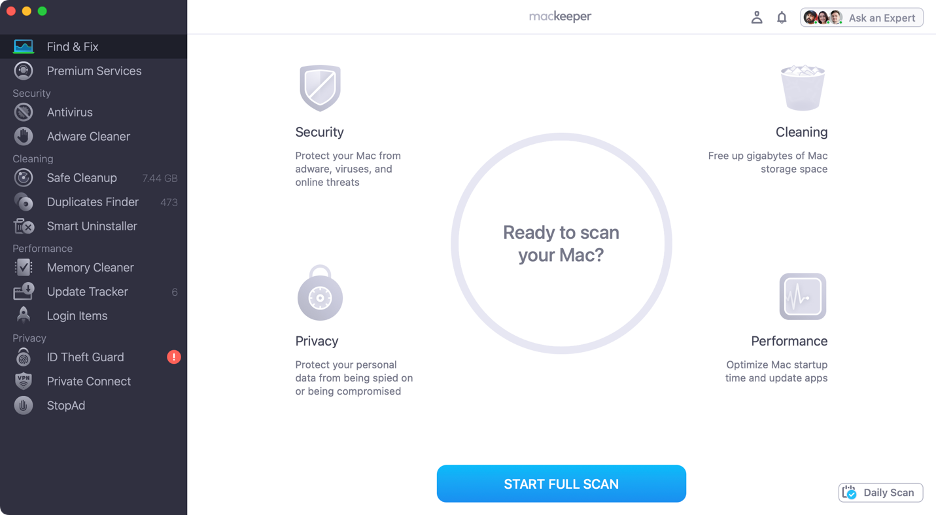
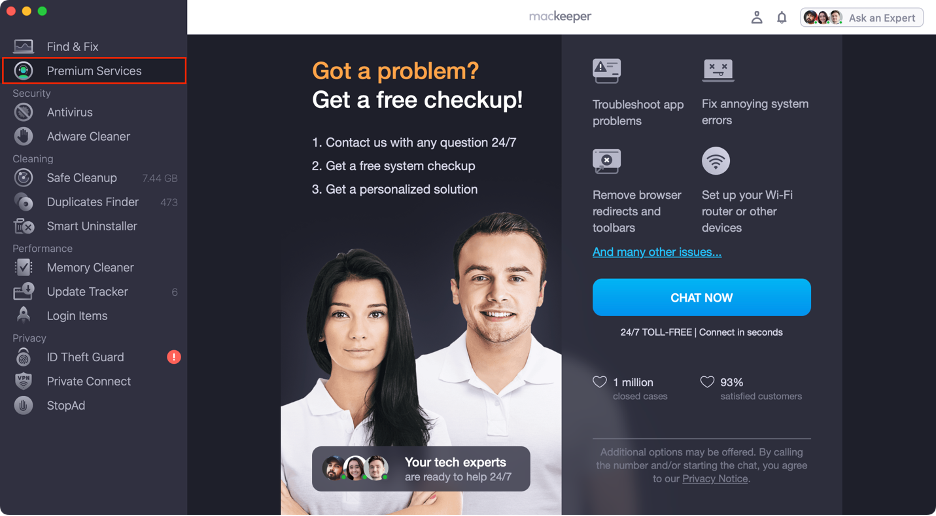
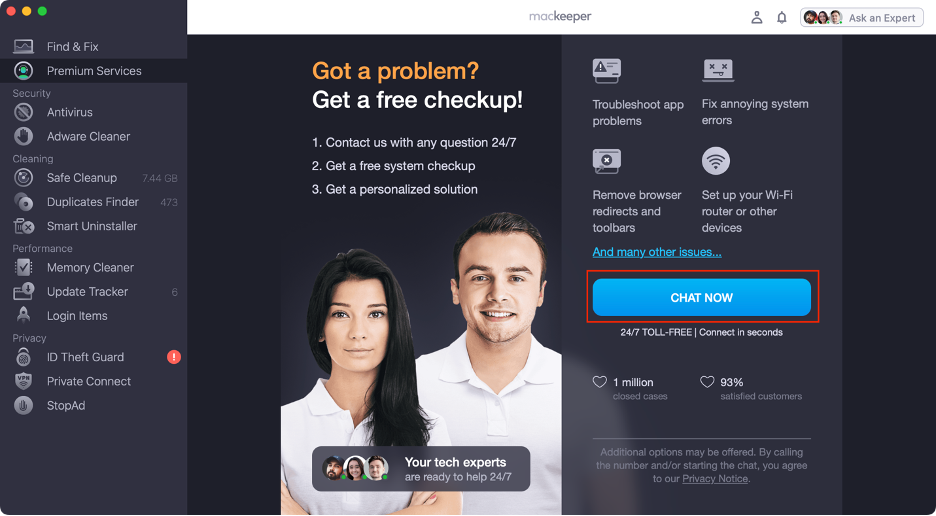
Step 1. Launch MacKeeperStep 2. Select Premium ServicesStep 3. Click Chat NowStep 4. Type in your message
1. Restarting Safari on your Mac
Safari won’t open on Mac? The first step to resolve this issue is simply to restart Safari. Our team of experts consistently recommends this approach when troubleshooting app problems, as many issues stem from temporary glitches that can often be fixed by force-quitting the app.
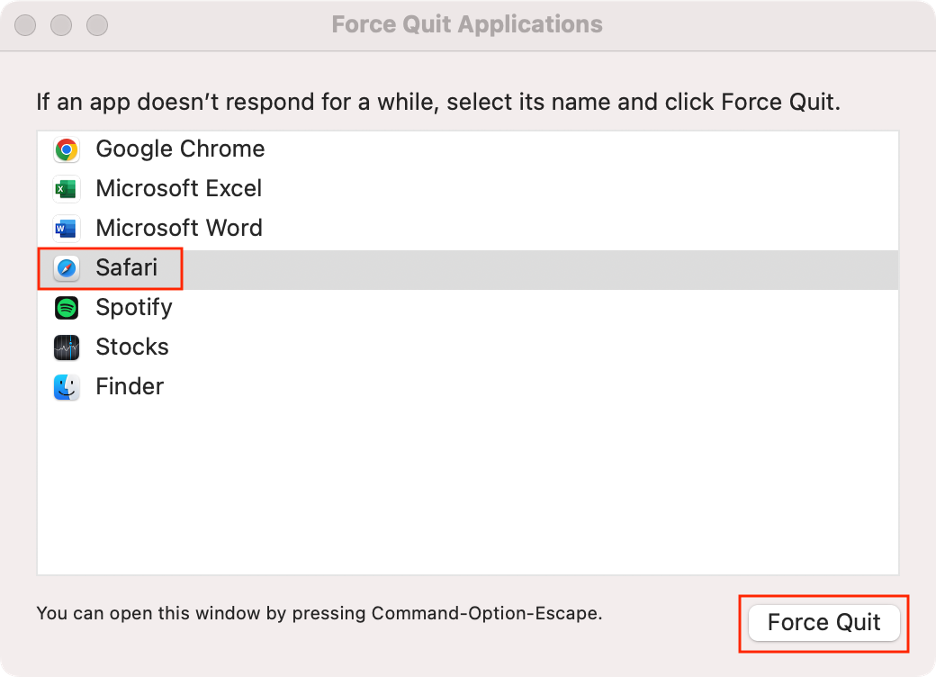
Here’s how you can force-quit Safari (or any app) on your Mac:
Press Option + Command + Esc on your keyboard.
In Force Quit Applications, select Safari from the list.
The message “The Safari application is not open anymore” often appears when Safari has accumulated too many files, updates, or a large browsing history. To address this, we recommend clearing your cache, cookies, and browsing data, as these steps can help resolve underlying issues that may be causing the problem.
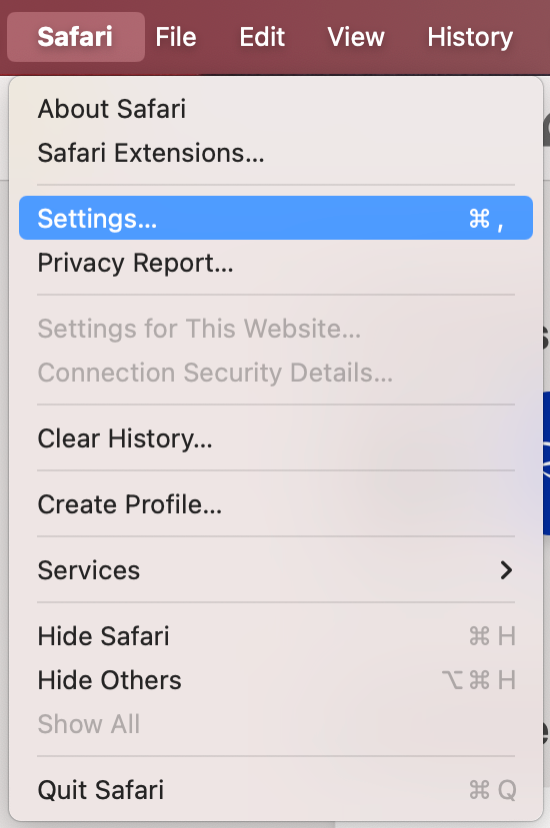
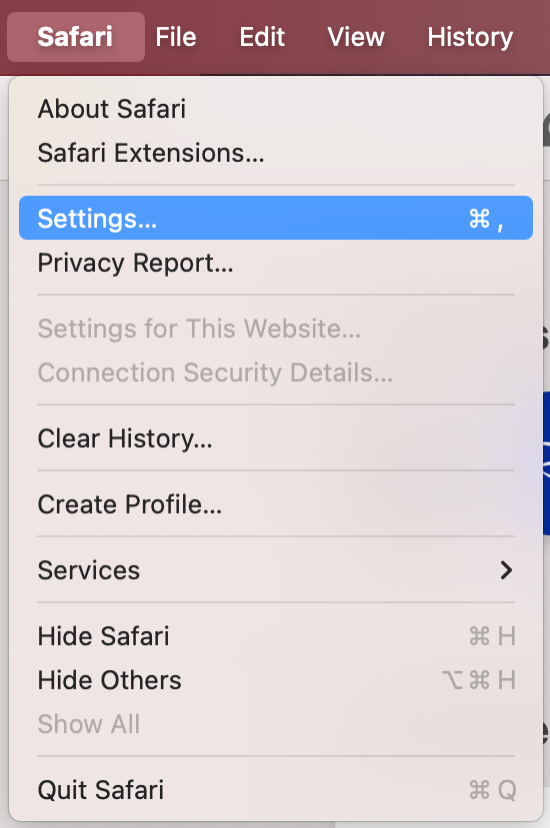
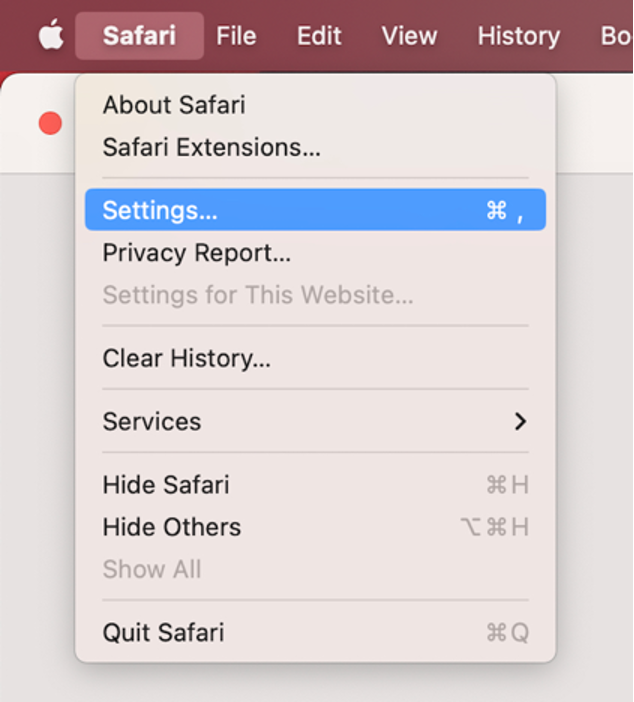
Go to Safari in the menu bar, then select Settings.
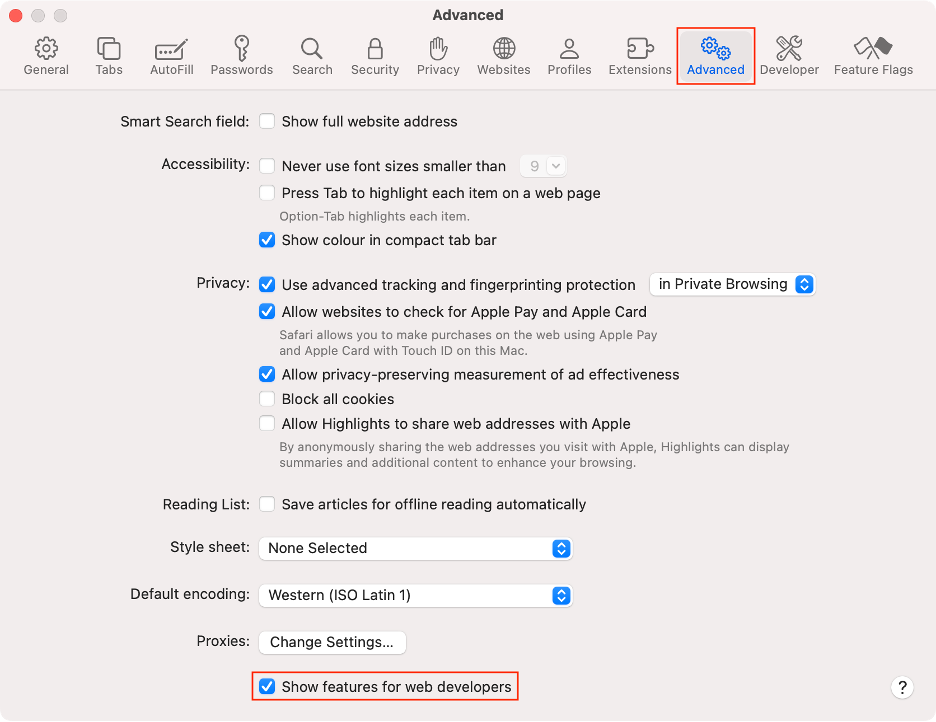
In the Advanced tab, select Show features for web developers.
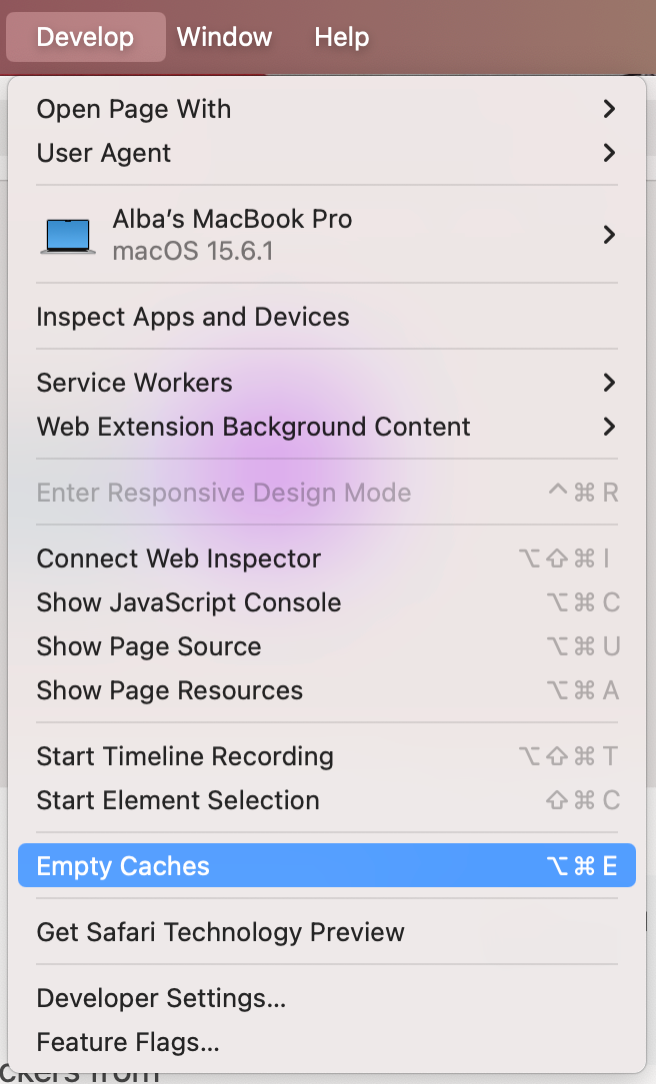
In the menu bar, click Develop.
Choose Empty Caches in the dropdown menu.
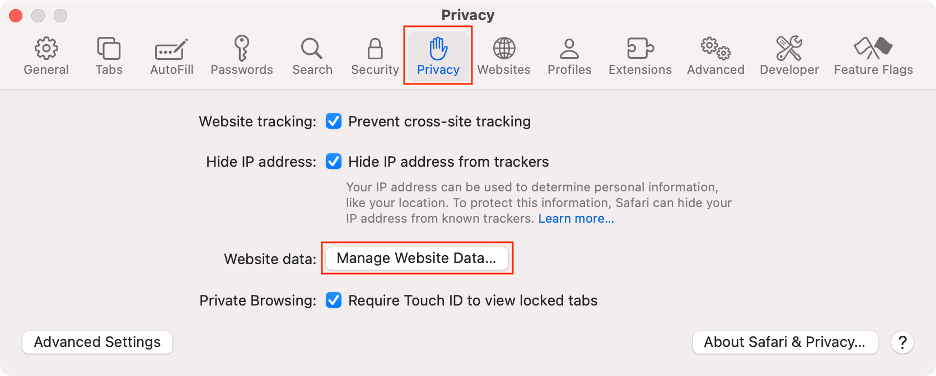
Next, go back to Safari > Settings and select the Privacy tab.
Click Manage Website Data.
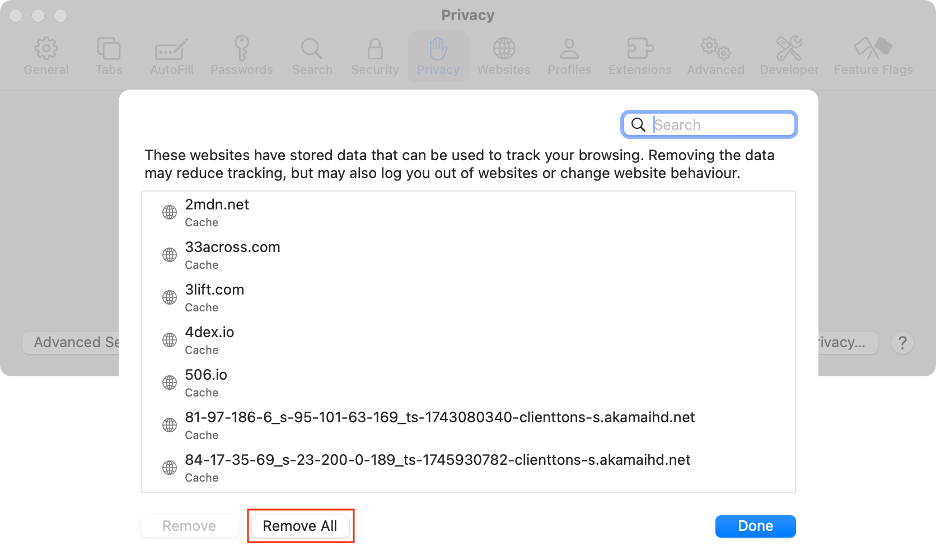
Click Remove All.
Step 1. Safari > SettingsStep 2. Advanced > Show features for web developersStep 3. Develop > Empty CatchesStep 4. Safari > SettingsStep 5. Privacy > Manage Website DataStep 6. Click Remove All
3. Disabling or removing extensions
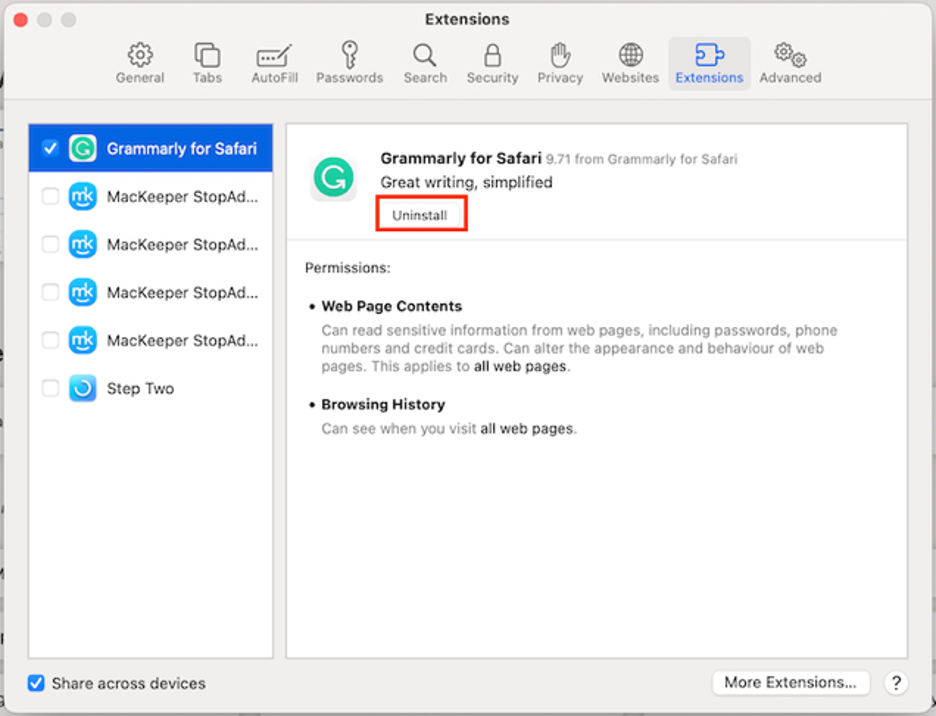
In our extensive experience, a common cause of the “Safari application is not open anymore” error is problematic extensions. If you’ve recently installed a new extension, we believe it could be triggering Safari to crash unexpectedly. Similarly, having too many extensions may also lead to instability.
If none of the previous solutions have resolved the issue, it may be time to consider a more radical approach. While reinstalling is typically recommended for third-party apps, this option isn’t available for built-in macOS applications like Safari due to Apple’s system protections. Instead, you can reset Safari to remove all associated files, including the one likely responsible for the problem.
Follow these steps to reset Safari via Finder:
Launch Finder.
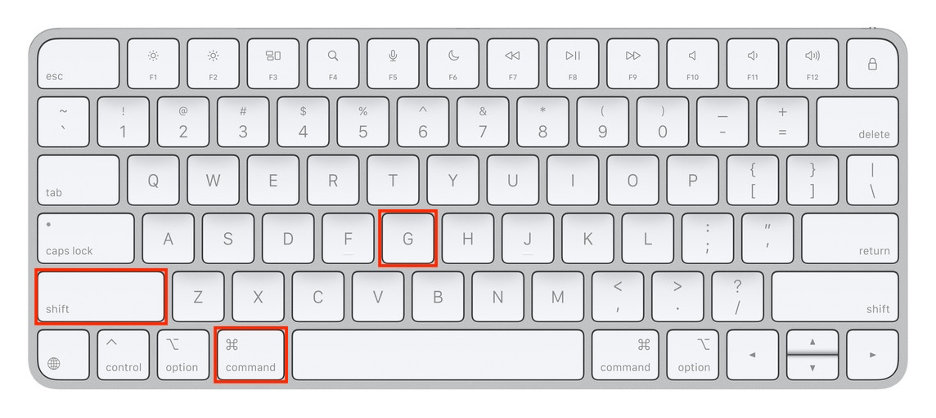
Press the Shift + Command + G keys on your keyboard.
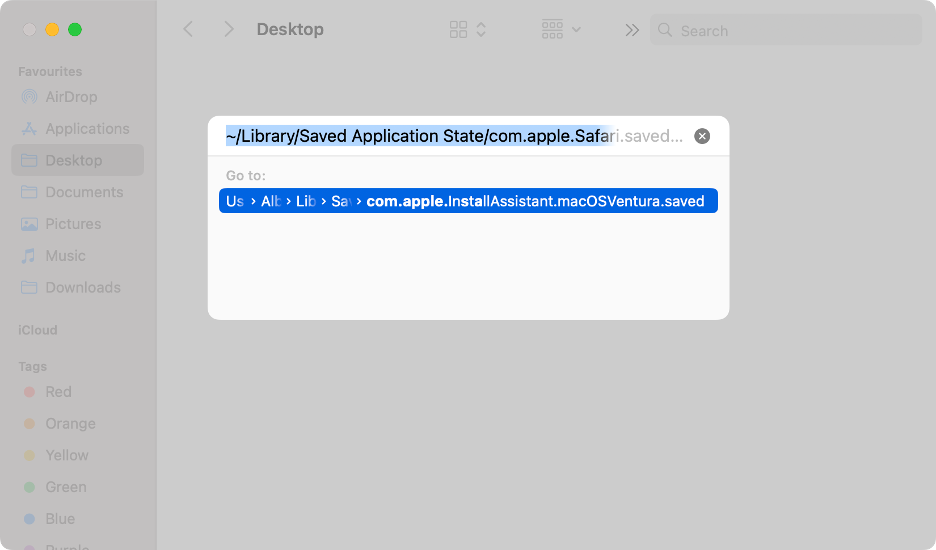
Copy and paste the following address: ~/Library/Saved ApplicationState/com.apple.Safari.savedState.
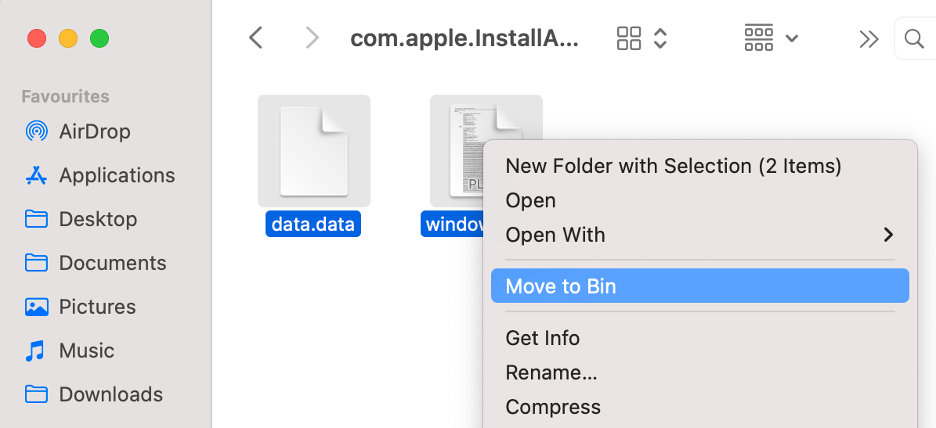
To delete the contents, select and right-click on them, then click Move to Trash.
Step 1. Launch Finder > Press Shift + Command + GStep 2. Paste ~/Library/Saved Application State/com.apple.Safari.savedStateStep 3. Delete the contents
5. Using safe mode and alternate user accounts
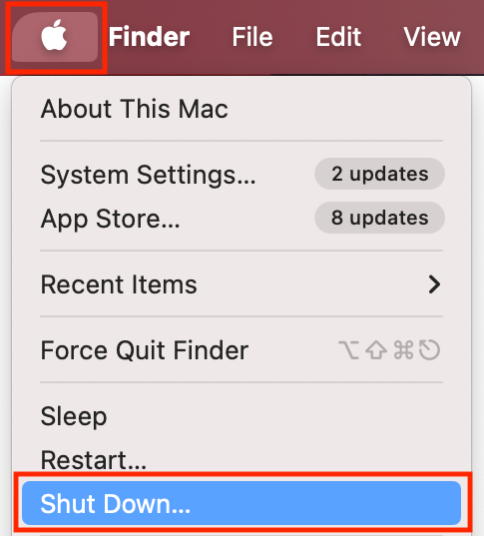
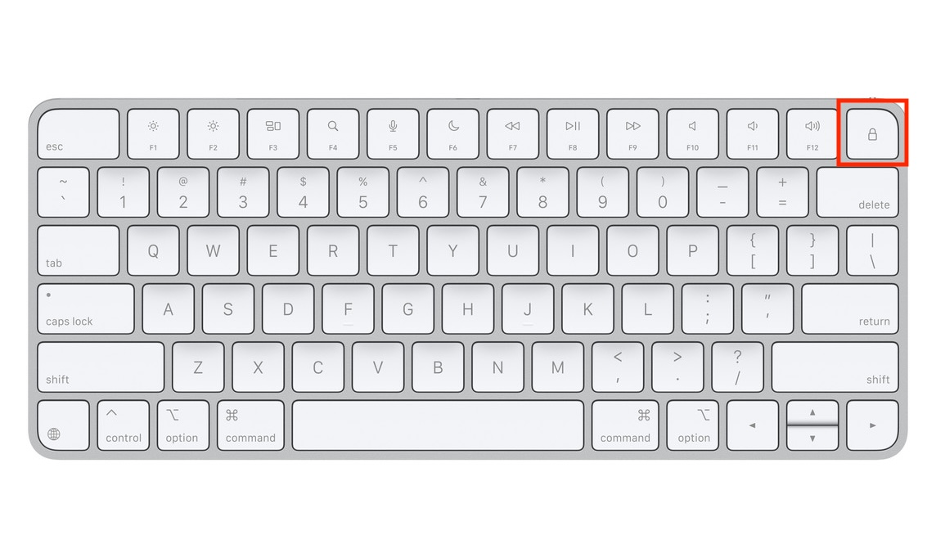
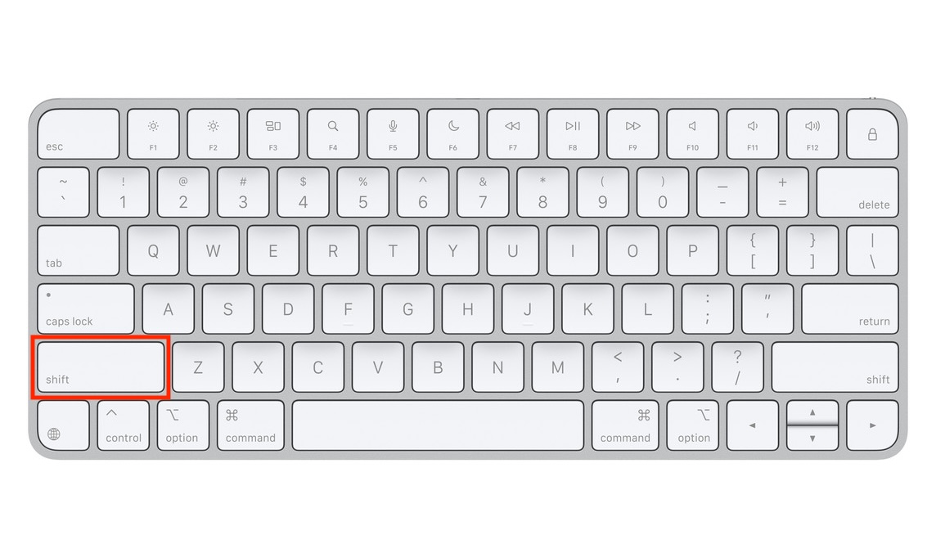
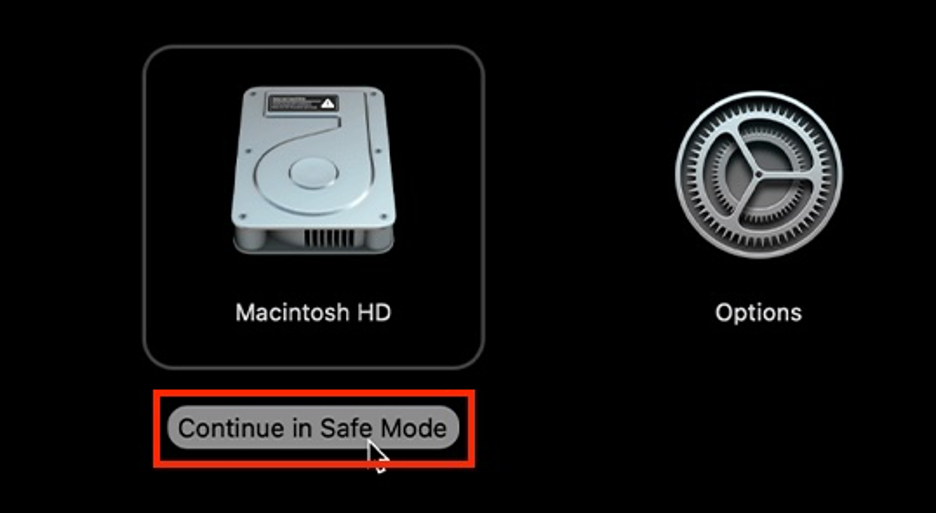
Our final recommendation for resolving the “application Safari is not open anymore” error is to restart your Mac in safe mode. This straightforward step can often resolve basic system issues. In safe mode, your Mac starts with a clean cache, making it easier to identify and address problems that affect app loading and launching.
Step 1. Apple logo > Shut DownStep 2. Press and hold the Power buttonStep 3. Press and hold the Shift keyStep 4. Click Continue in Safe Mode
All you need to know to fix the application Safari is not open anymore error
The “application Safari is not open anymore” error typically isn’t a sign of a serious problem on your Mac and is often straightforward to resolve. In most cases, simply force-quitting or restarting Safari will fix the issue. When that doesn’t work, try clearing the cache, removing problematic extensions, or restarting your Mac in safe mode.
If these steps don’t resolve the problem, we suggest contacting MacKeeper’s Premium Services, which is always available to help with your Mac’s technical issues. Downloading MacKeeper provides additional benefits. Notarized by Apple, it’s an industry-leading app that protects your Mac from viruses, optimizes performance, and ensures private browsing with a built-in VPN.
We respect your privacy and
use cookies
for the best site experience.
Privacy Preferences Center
We use cookies along with other tools to give you the best possible experience while using the
MacKeeper website. Cookies are small text files that help the website load faster. The cookies we
use don’t contain any type of personal data meaning they never store information such as your
location, email address, or IP address.
Help us improve how you interact with our website by accepting the use of cookies. You can change
your privacy settings whenever you like.
Manage consent
All cookies
These cookies are strictly necessary for enabling basic website functionality (including page
navigation, form submission, language detection, post commenting), downloading and purchasing
software. The website might malfunction without these cookies.