When the left click on a Mac stops responding or feels inconsistent, simple tasks like selecting text or opening menus become frustrating and slow, especially when you rely on quick interactions to get work done. MacKeeper's Login Items helps you remove unnecessary startup processes that interfere with input responsiveness, giving your Mac a cleaner launch environment and more stable click behavior from the moment it powers on.
To left-click on a MacBook, press down on the trackpad or enable Tap to Click in System Settings for a lighter touch. You can also use a Bluetooth or USB mouse by clicking its left button, or turn on Mouse Keys in Accessibility to perform left-clicks using your keyboard when needed.
Step 1. Enable Tap to Click in System SettingsStep 2. Turn on Mouse Keys in Accessibility->Pointer Control
A note from our experts:
When you learn how to left-click confidently, it also makes sense to teach your MacBook to start smart and light. Extra startup apps slow down clicks, menus, and everyday actions before you even open a browser. MacKeeper is trusted by millions of users for handling these background items, and we ourselves often start troubleshooting sluggish input by cleaning login processes with our Login Items tool first.
Follow these steps to control startup apps with MacKeeper's Login Items:
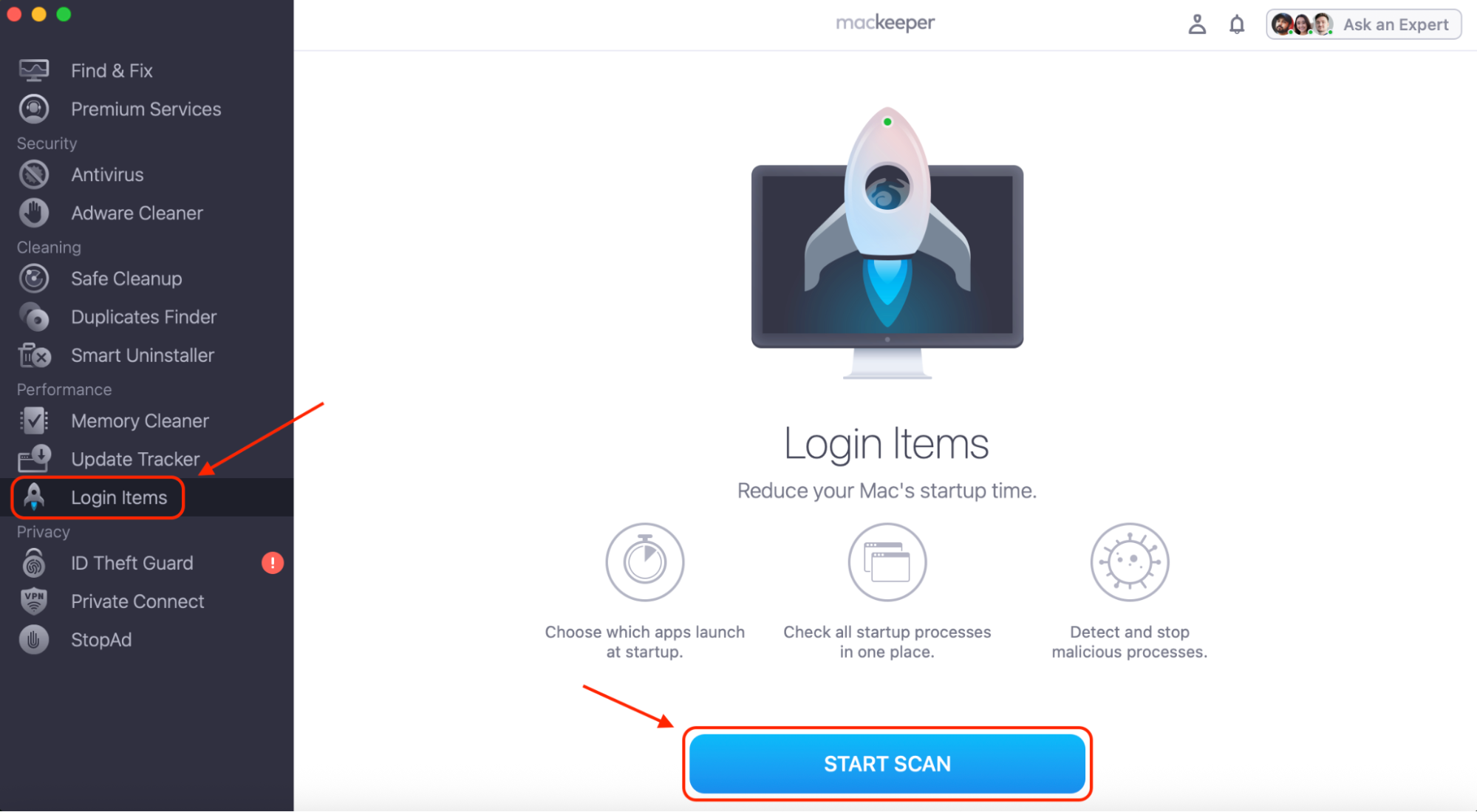
Open MacKeeper, choose Login Items in the sidebar, and click Start Scan to see everything that runs at startup.
In the results, review Login items, Launch items, and Cron jobs; focus on apps you recognize and do not need to launch automatically.
Select any nonessential app entries by ticking their checkboxes and keep system-related items unchecked.
Click Remove Selected Items to clean unnecessary startup processes in one move.
Restart your MacBook so the next boot loads only essential services, giving you faster clicks and a more responsive desktop.
Step 1. Open MacKeeper, choose Login Items in the sidebar, and click Start ScanStep 2. Review Login items and then click Remove Selected Items
1. Left-click on a Mac with mouse
Using a mouse is often the most direct way to left-click on a Mac, and it works consistently whether you use a third-party accessory or an Apple model. You simply perform a left-click on an Apple mouse by pressing the left side, and you can also adjust settings that influence how you right-click on a Mac, which helps when you want a predictable input setup.
Follow these steps to set it up correctly:
Open System Settings and select Mouse from the sidebar.
Look at the Primary click behavior and confirm that the left area triggers the click.
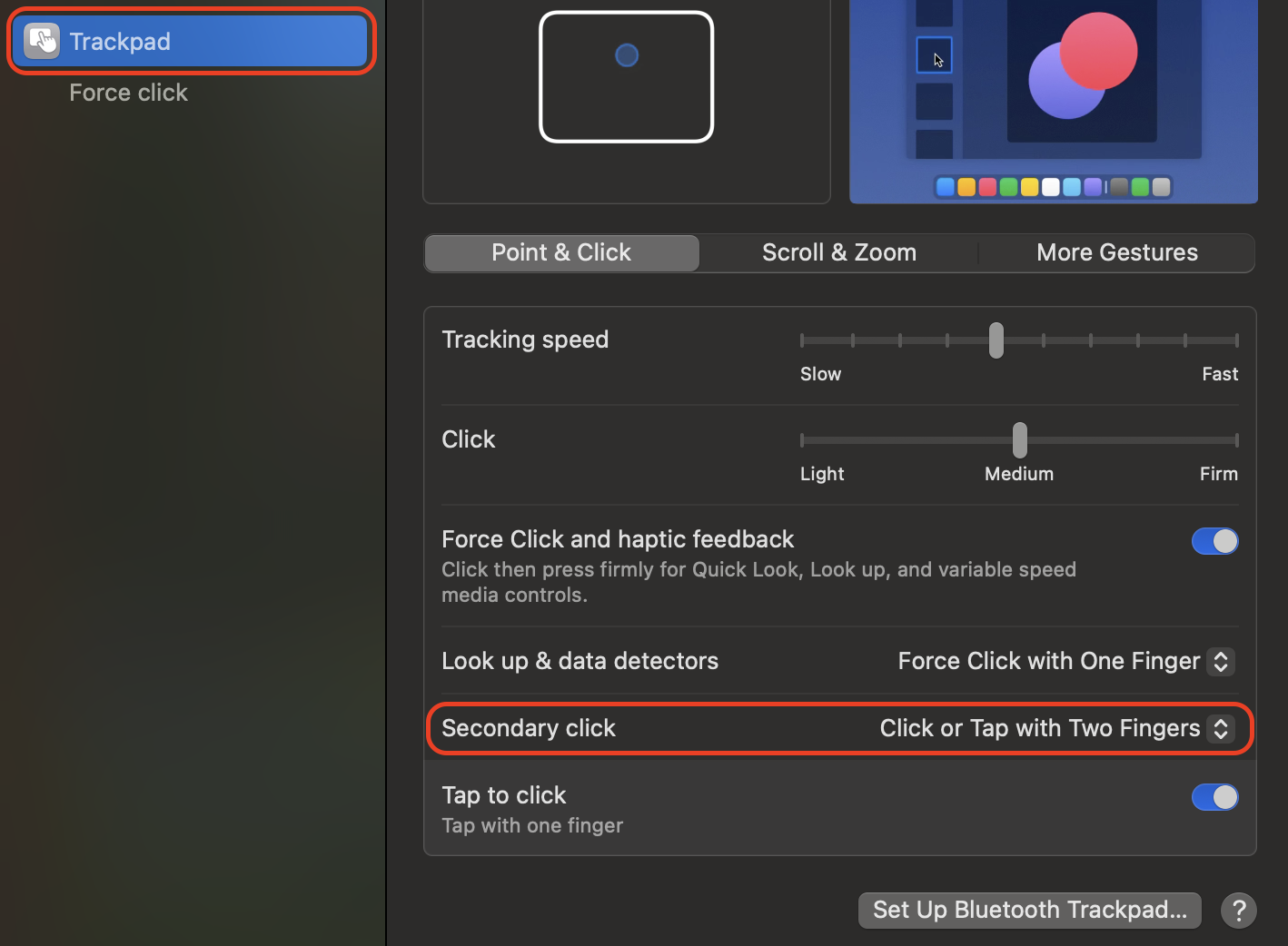
Enable Secondary click options to refine how you right-click on Mac.
Restart macOS to refresh mouse input if recognition feels delayed.
Open System Settings and enable Secondary click
2. Use Trackpad to left click on Mac
If you prefer navigating without external accessories, the built-in trackpad makes left-clicking intuitive. It's also the ideal method when an Apple mouse not working interrupts your workflow. You can rely on this approach whenever you need a left click on a Mac without a mouse, especially during travel or while working in compact spaces.
Set up your trackpad using these steps:
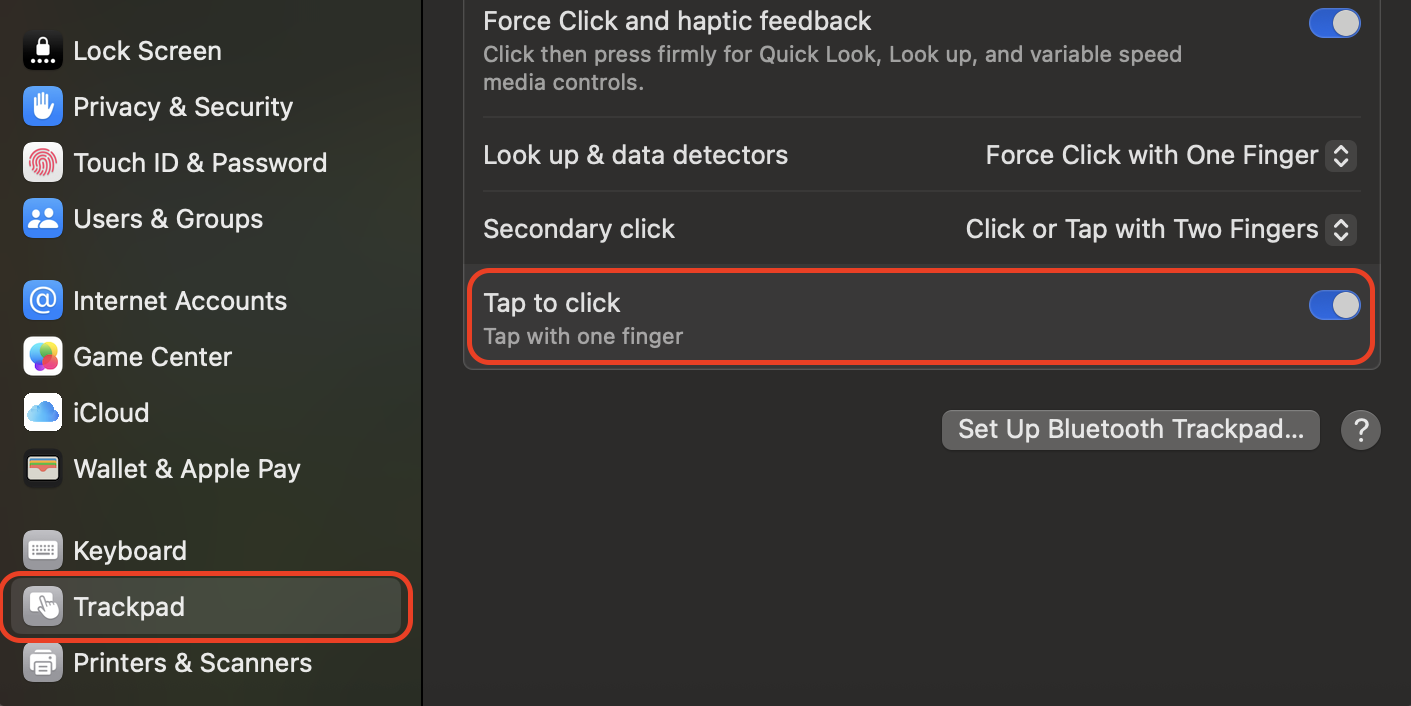
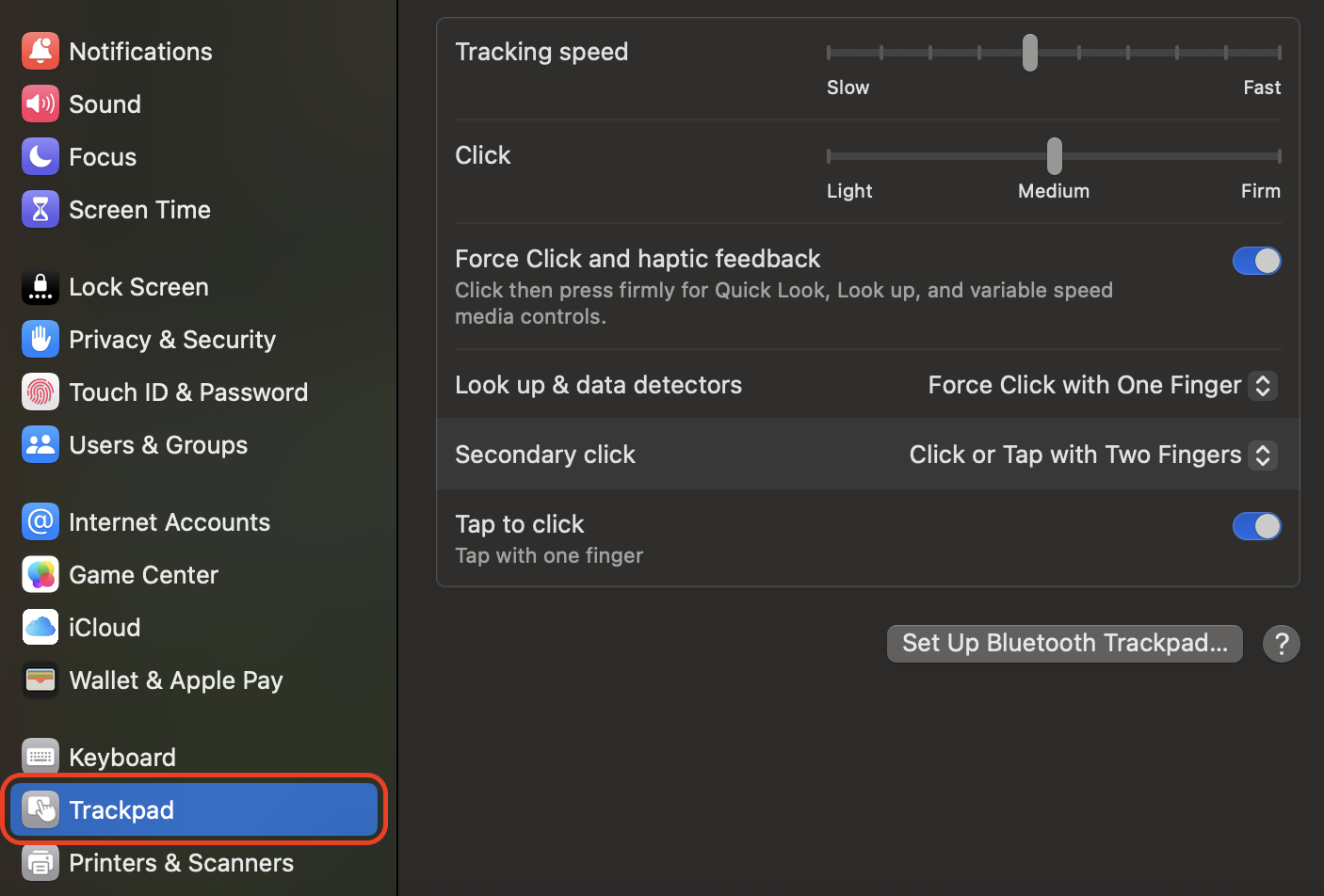
Open System Settings and choose Trackpad from the sidebar.
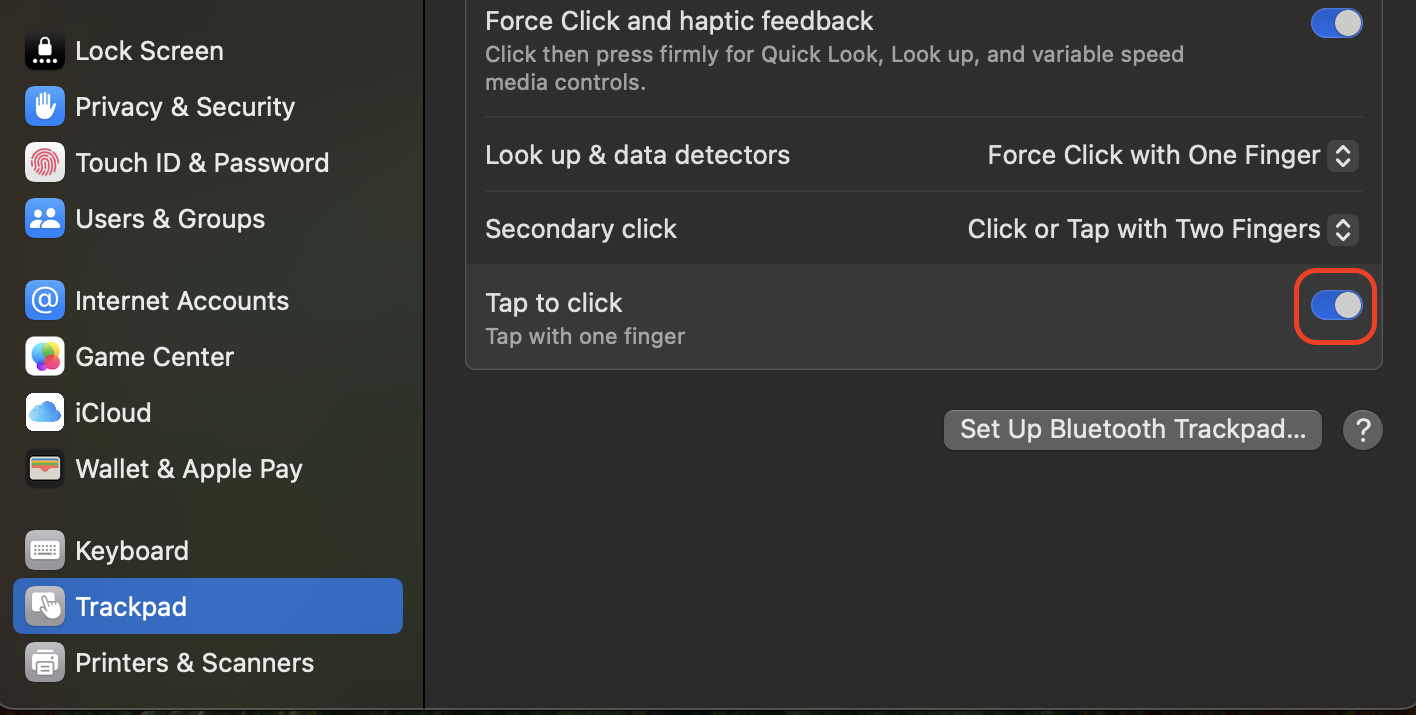
Enable Tap to Click if you prefer tapping instead of pressing.
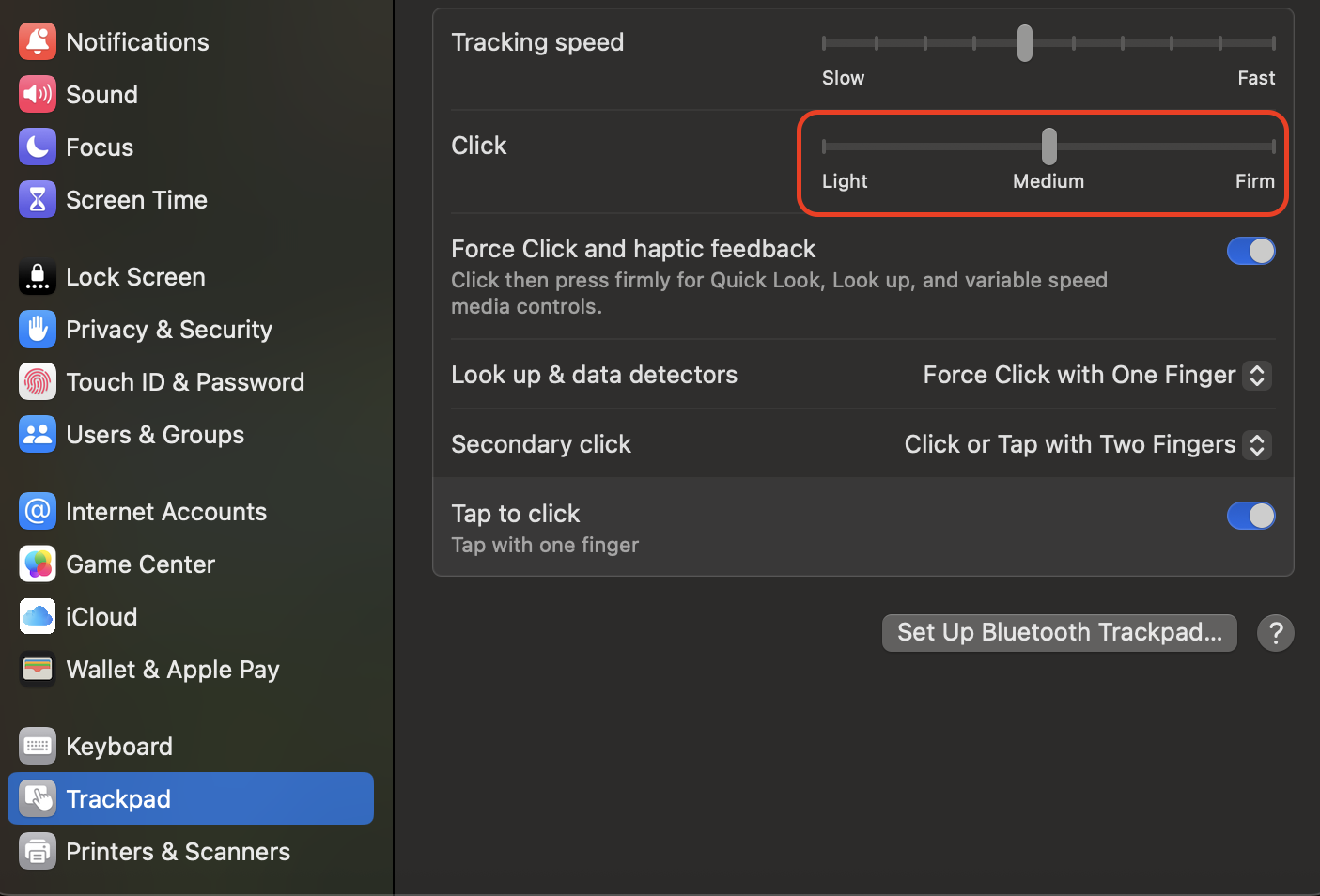
Adjust the Click Pressure to lighten or firm the physical click.
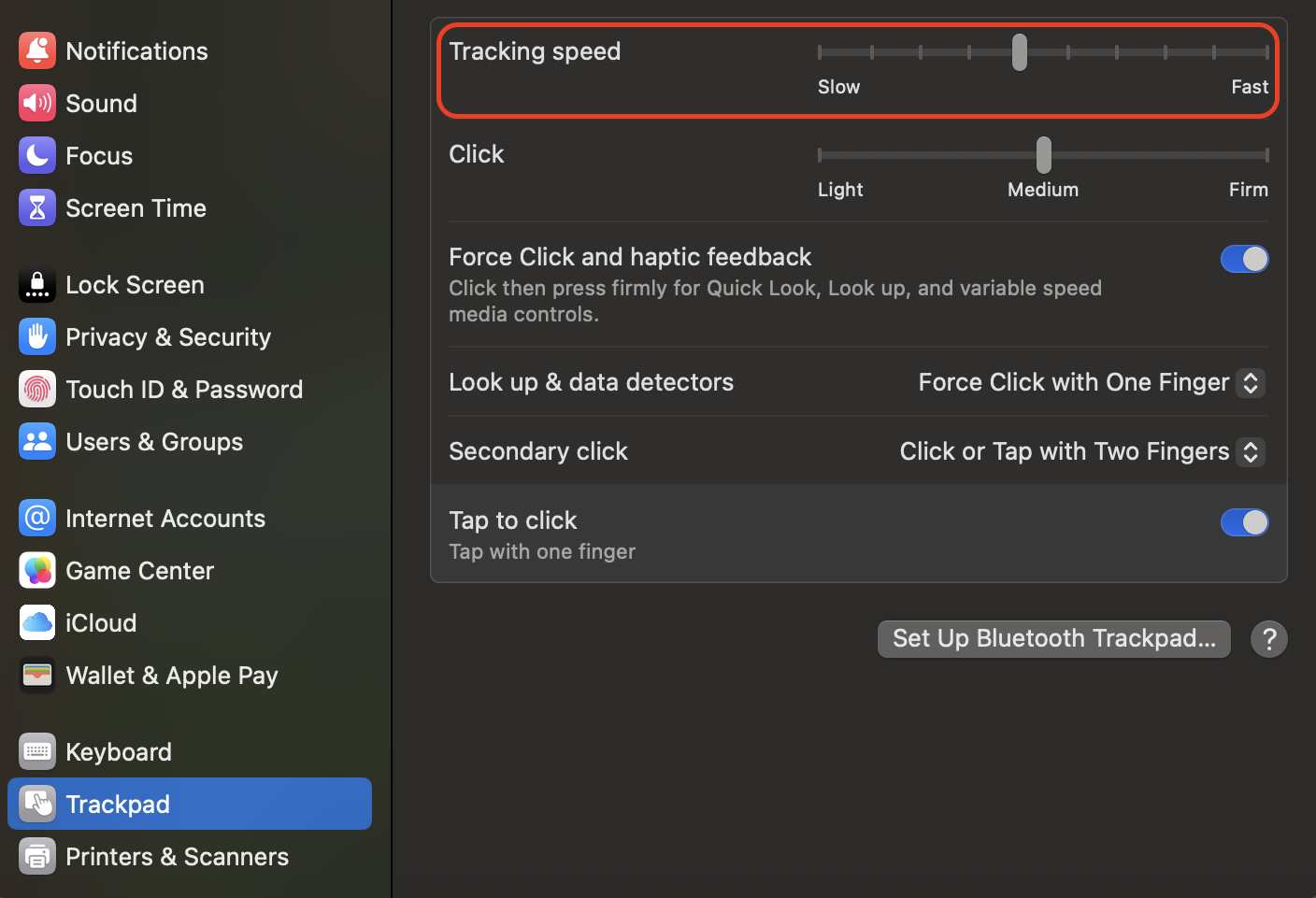
Modify Tracking Speed for smoother pointer movement.
Restart your Mac if gestures feel unresponsive after changes.
Step 1. Open System Settings and choose TrackpadStep 2. Enable Tap to ClickStep 3. Adjust the Click PressureStep 4. Modify Tracking Speed
3. Via Mac Keyboard
When the MacBook touchpad isn’t working, the keyboard becomes a reliable fallback. We've found this method to be especially helpful when performing actions that require precision during unexpected hardware issues.
Activate and use keyboard clicking with these steps:
Open System Settings and go to Accessibility.
Select Pointer Control in the left sidebar.
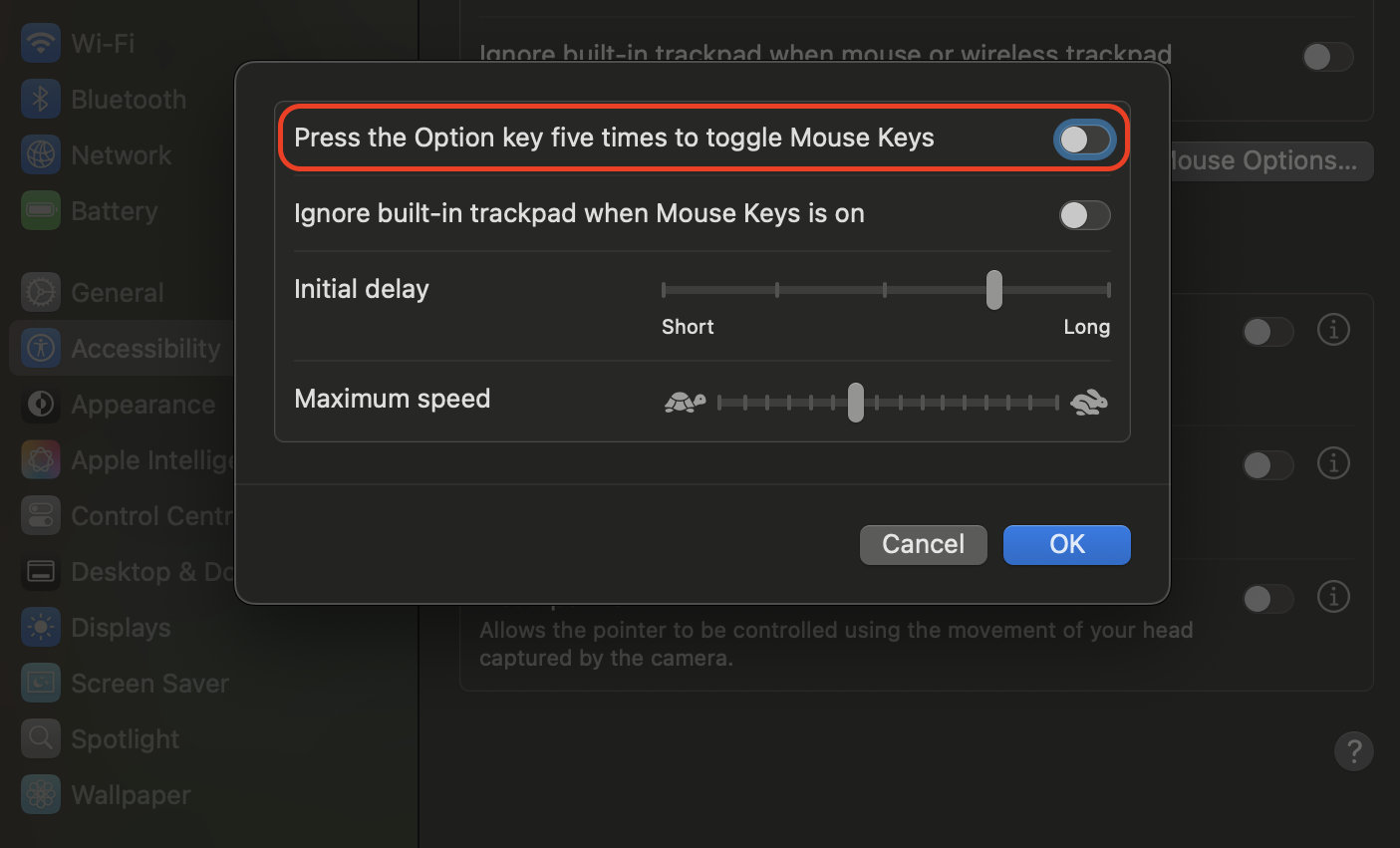
Turn on Mouse Keys to enable keyboard-based pointer input.
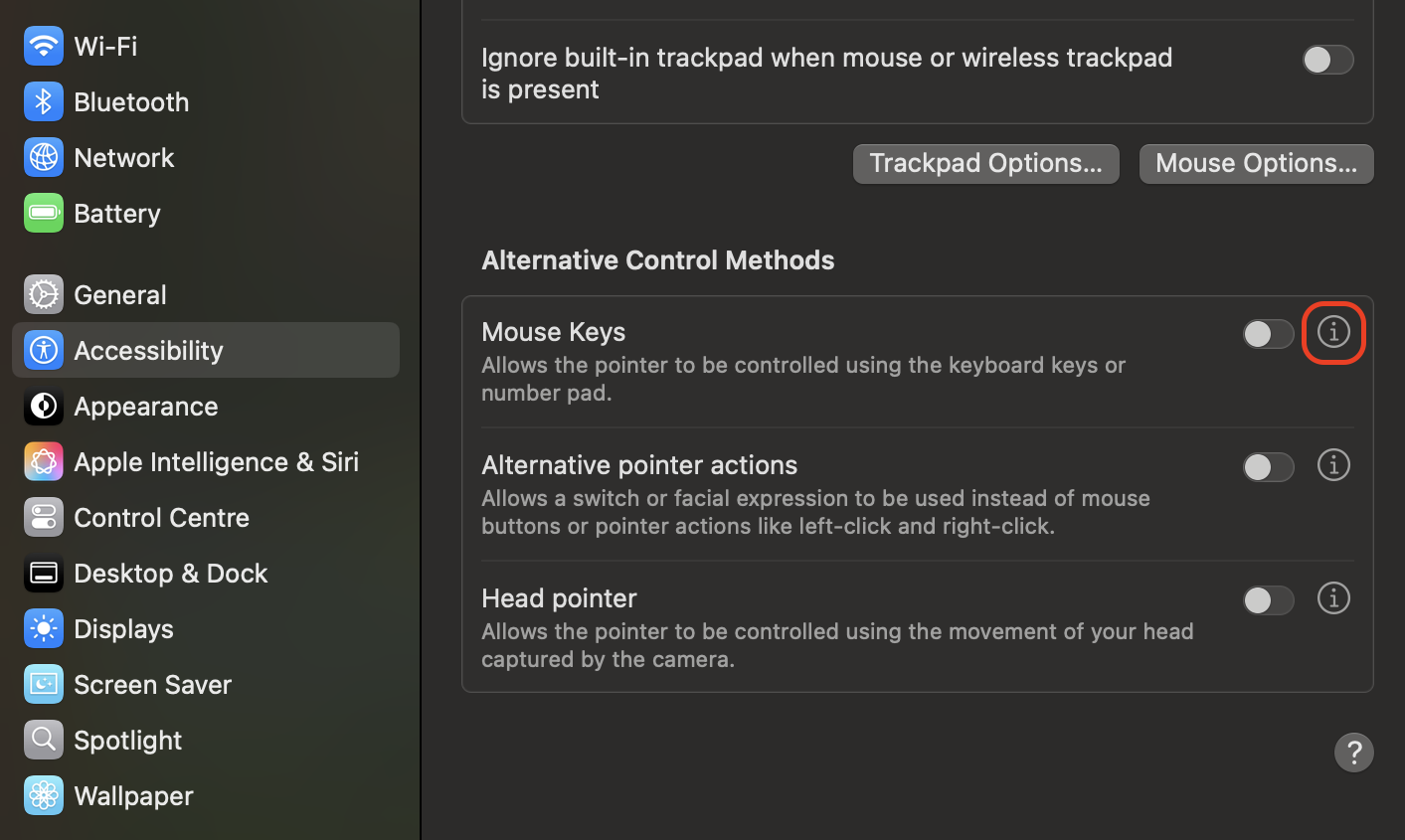
Click the info button to reveal additional customization options.
Enable the Option-key shortcut for quick toggling.
Press I or 5 on the keyboard to perform a left-click action.
Adjust Pointer Speed if cursor movement feels too slow.
Step 1. Open System Settings, go to Accessibility, select Pointer Control, and turn on Mouse KeysStep 2. Click the info button to reveal additional customization optionsStep 3. Enable the Option-key shortcut for quick toggling
4. Adjust system settings that influence click behavior
You might not always notice it, but a few macOS settings can influence how your left click responds, especially when gestures or timing feel a bit off.
Try refining these settings to improve consistency:
Open System Settings and select Accessibility to review pointer-related adjustments.
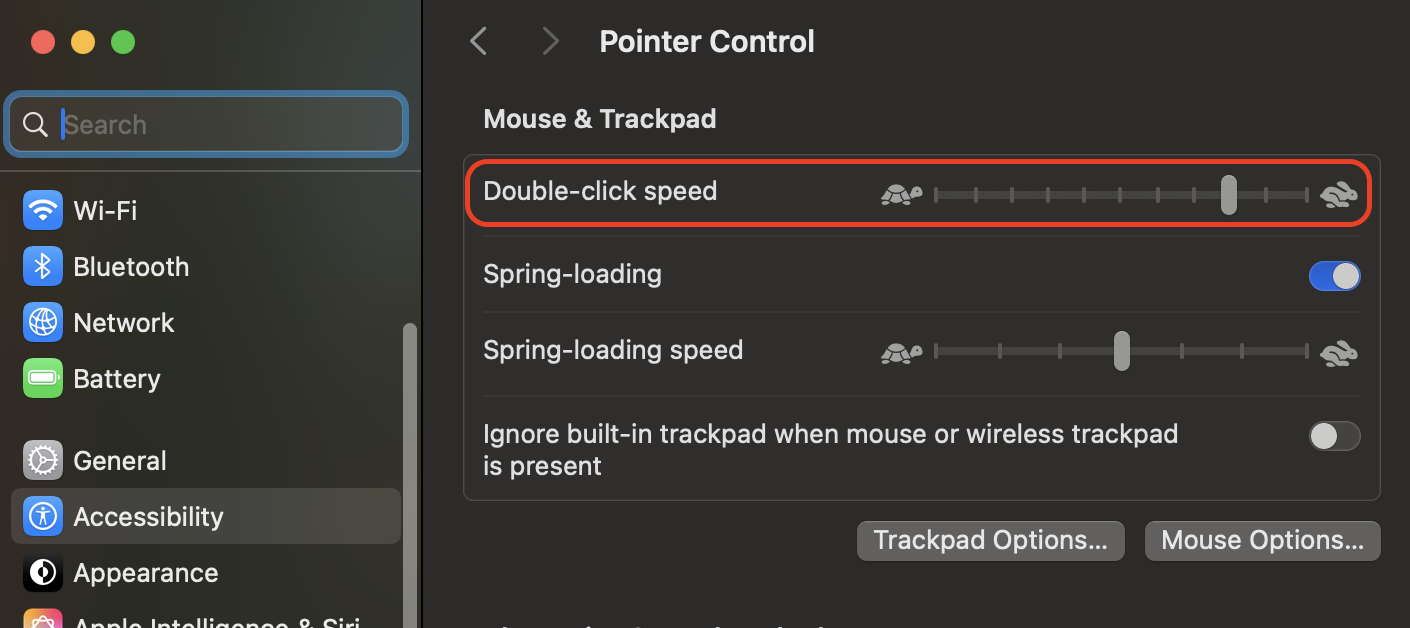
Go to Pointer Control and adjust the Double-click speed for better accuracy.
Modify Tracking Speed under Mouse or Trackpad to match your hand movement.
Enable Tap to Click if light tapping suits your workflow better.
Turn off conflicting gesture options that delay pointer actions.
Restart your Mac to lock in the updated behavior.
Step 1. Go to Pointer Control and adjust the Double-click speedStep 2. Modify Tracking Speed under Mouse or Trackpad
5. Check external factors that may affect clicking
You may be surprised by how much external factors affect left-click responsiveness, especially when the issue appears out of nowhere. Wireless interference, poor surface contact, or minor hardware conflicts can all trigger momentary click failures.
Run through these checks to rule out environmental problems:
Place your mouse or trackpad on a stable, non-reflective surface.
Move Bluetooth devices away from routers, speakers, or crowded wireless zones.
Replace or recharge batteries in wireless accessories to prevent weak signals.
Disconnect hubs or adapters that occasionally interrupt USB input.
Test clicking behavior after removing external drives or dongles.
Conclusion
Learning how to left-click on a Mac becomes simple once you understand the differences between mouse input, trackpad gestures, and keyboard-based alternatives. Each option gives you a dependable way to navigate menus, select items, and control apps, even when hardware issues appear.
Since MacKeeper offers performance monitoring, its StopAd tool can help with smoother clicking by blocking resource-heavy ads that interfere with cursor responsiveness. A cleaner browsing environment often results in more consistent input behavior, making StopAd a practical companion for everyday Mac use.
We respect your privacy and
use cookies
for the best site experience.
Privacy Preferences Center
We use cookies along with other tools to give you the best possible experience while using the
MacKeeper website. Cookies are small text files that help the website load faster. The cookies we
use don’t contain any type of personal data meaning they never store information such as your
location, email address, or IP address.
Help us improve how you interact with our website by accepting the use of cookies. You can change
your privacy settings whenever you like.
Manage consent
All cookies
These cookies are strictly necessary for enabling basic website functionality (including page
navigation, form submission, language detection, post commenting), downloading and purchasing
software. The website might malfunction without these cookies.