Record Audio on a Mac Using macOS Voice Recording Apps
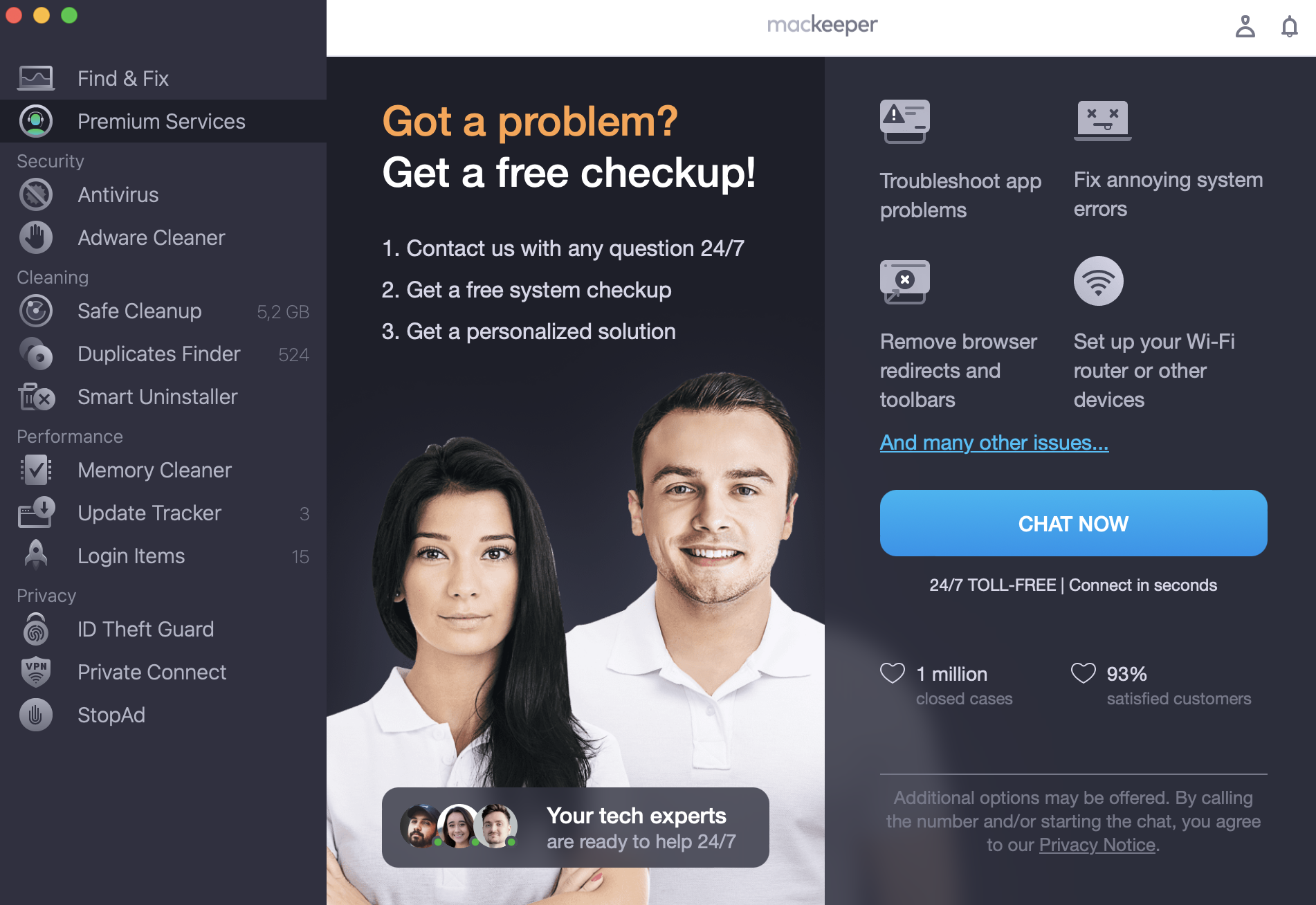
Recording audio on a Mac using macOS voice recording apps may require some tech skills. So if you want to quickly explore the new functionality and ace voice recording, contact MacKeeper’s Premium Services. Their team of experts can help you deal with almost any possible tech issue.
You might want to record sound on a Mac for many reasons: from documenting your thoughts to creating music to live streaming. Although the uses for a Mac as an audio recording device are as numerous as they are varied, the built-in tools at your disposal are scarce: Voice Memos and QuickTime Player.
Of course, you can record audio on a Mac using a third-party utility, but that’s the subject of another article. Here, we will focus on voice recording with your Mac’s native tools.
A note from our experts:
Your Mac comes with several built-in tools for recording voice. If you feel you can’t manage this on your own, the experts at MacKeeper Premium Services are on hand to help you 24/7. Our team comprises over 150 consultants.
Select Premium Services from the sidebar and click Chat Now.
Type in the details and follow the provided instructions.
Step 1. MacKeeper > Premium Services > Chat NowStep 2. Enter the details of the issue
How to record audio on a Mac using Voice Memos
The Voice Memos app allows you to record voices on a Mac using the built-in mic, a headset, or an external microphone. The subsequent M4A file can then be synchronized across your Apple devices.
Here’s how to use Voice Memos:
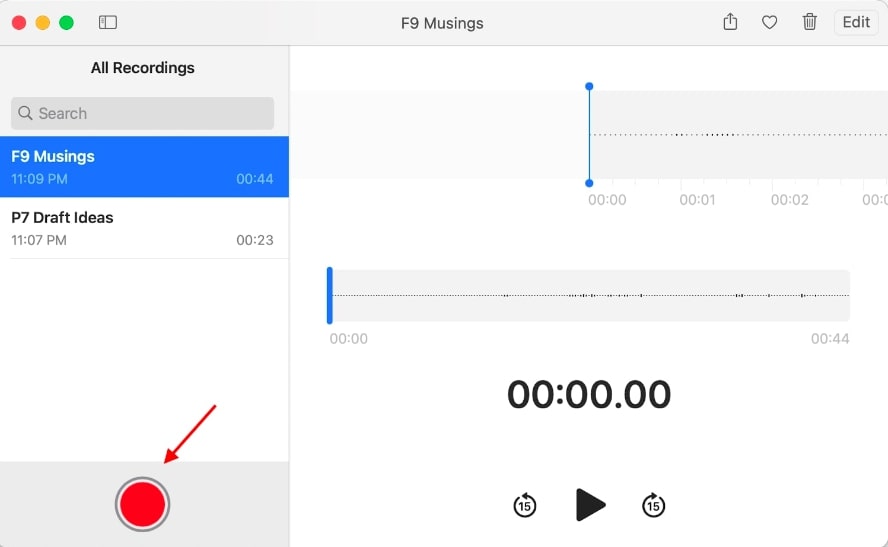
In the Applications folder, open Voice Memos.
When prompted, enable or disable iCloud syncing.
To start creating an audio file, click the Record button.
During the recording process, you have the options to pause or continue recording using the Pause button.
To complete the recording, click the Done button in the bottom-right corner.
That’s it. You’ve just created a voice recording on a Mac. Click the Trash icon to delete the file or the Share icon to spread your message.
How to record audio on a Mac using QuickTime Player
Designed for playing and editing video, QuickTime Player also allows you to record audio. It can be done using the built-in mic or an external headset.
Follow these steps to record audio with QuickTime Player:
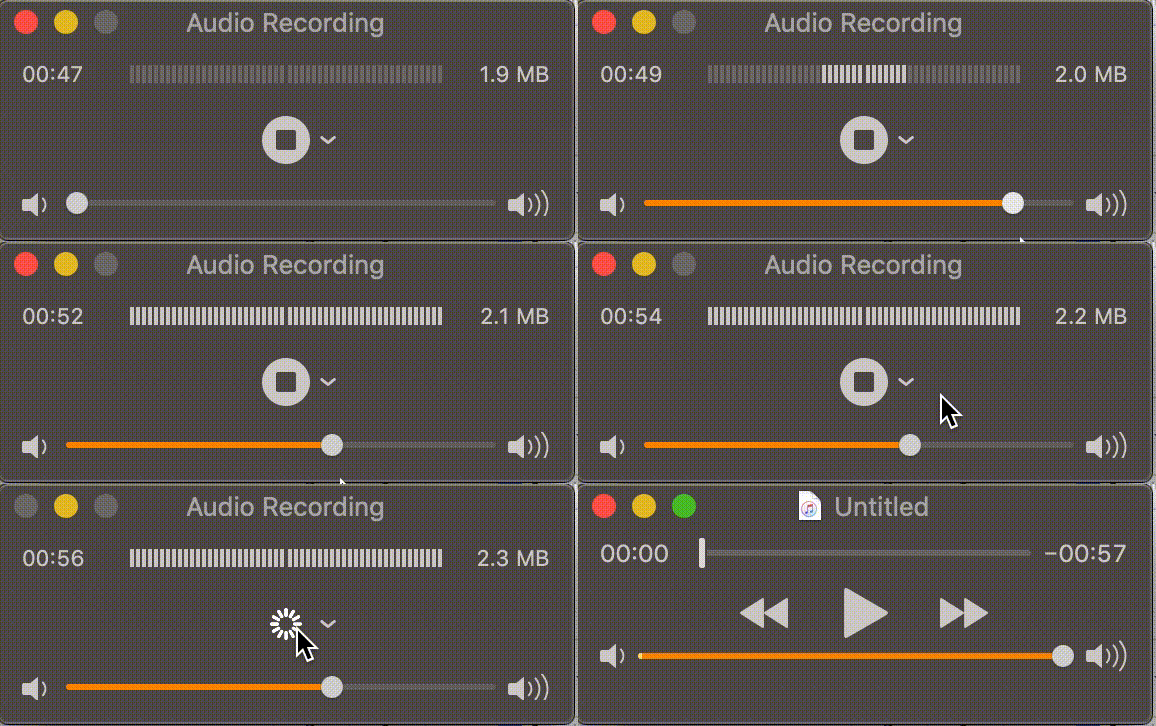
In the Applications folder, open QuickTime Player.
In the File menu at the top of your screen, select New Audio Recording.
Select the arrow next to the Record button to configure the audio. Choose the microphone that will be used and the recording quality.
Click theRecord/Stopbutton to start recording. If necessary, control the sound in the process using the volume sliders.
To stop recording, click the Record/Stop button again.
Now you know how to record voices on a Mac.
Let’s seehow to edit your audio:
Click the Pause button to stop the recording.
In the Edit menu at the top of your screen, select an editing option. For example, Trim.
Drag the yellow sliders to select the part of the recording you want to leave.
Click Trim to cut the recording.
In the File section at the top of your screen, select Save to save your recording in M4A audio format.
Summary
To record voices on a Mac, use its native apps: Voice Memos and QuickTime Player. Both apps work perfectly well with the Mac’s built-in microphone. The only thing that’s missing to start a recording is a smidgen of inspiration. Hopefully, our blog can help you with that.
We respect your privacy and
use cookies
for the best site experience.
Privacy Preferences Center
We use cookies along with other tools to give you the best possible experience while using the
MacKeeper website. Cookies are small text files that help the website load faster. The cookies we
use don’t contain any type of personal data meaning they never store information such as your
location, email address, or IP address.
Help us improve how you interact with our website by accepting the use of cookies. You can change
your privacy settings whenever you like.
Manage consent
All cookies
These cookies are strictly necessary for enabling basic website functionality (including page
navigation, form submission, language detection, post commenting), downloading and purchasing
software. The website might malfunction without these cookies.