You can remove a password from a PDF on your Mac by exporting an unlocked copy in Preview, Acrobat, or even your browser, so you stop retyping the same password every time you open the file. MacKeeper’s Safe Cleanup helps your Mac stay responsive while you handle PDFs by clearing junk data like caches, logs, and outdated attachments, so you get more free space and less background clutter slowing you down.
To remove a PDF password on a Mac, start with opening the file in Preview, then enter the password and use File > Export or Print > Save as PDF to create an unlocked copy. As our tests show, Adobe Acrobat offers an alternative via Remove Security when advanced controls are required professionally.
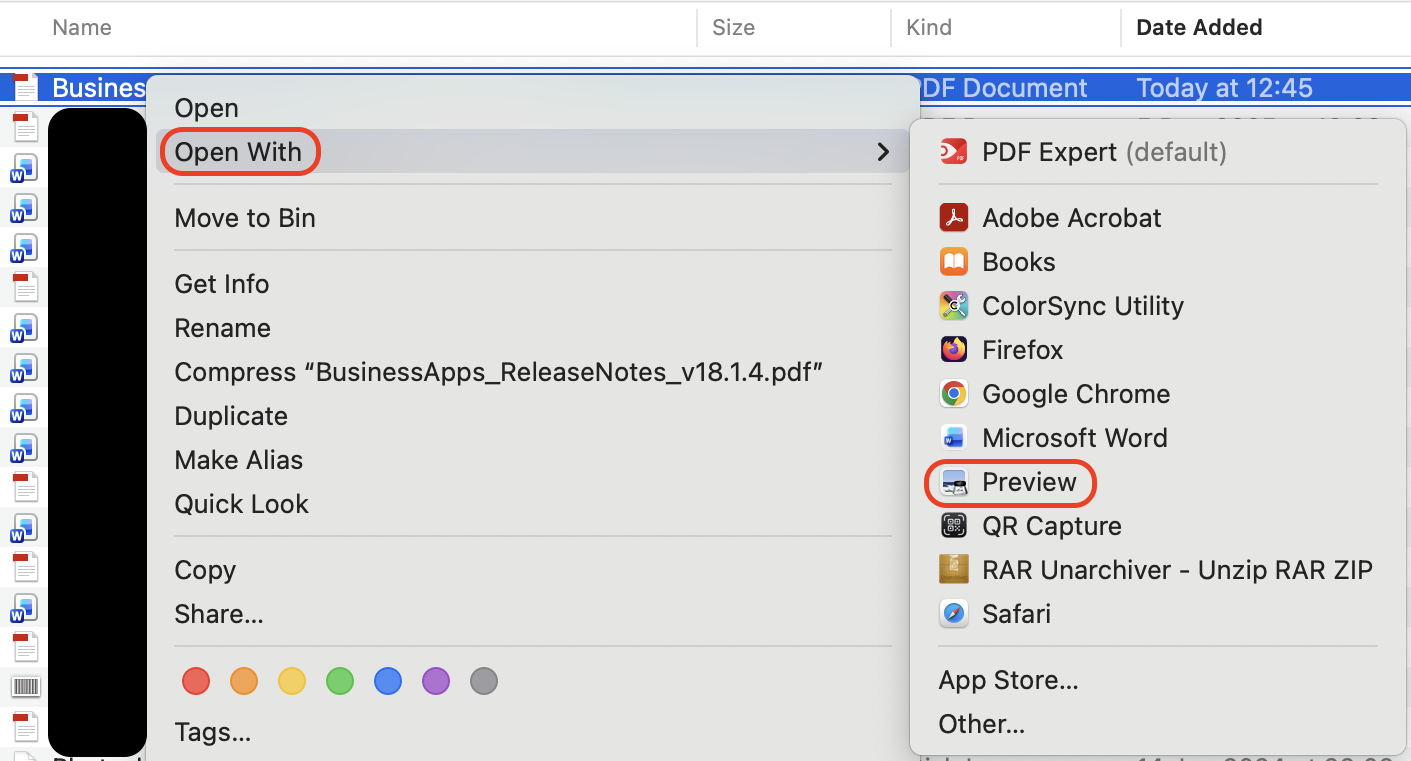
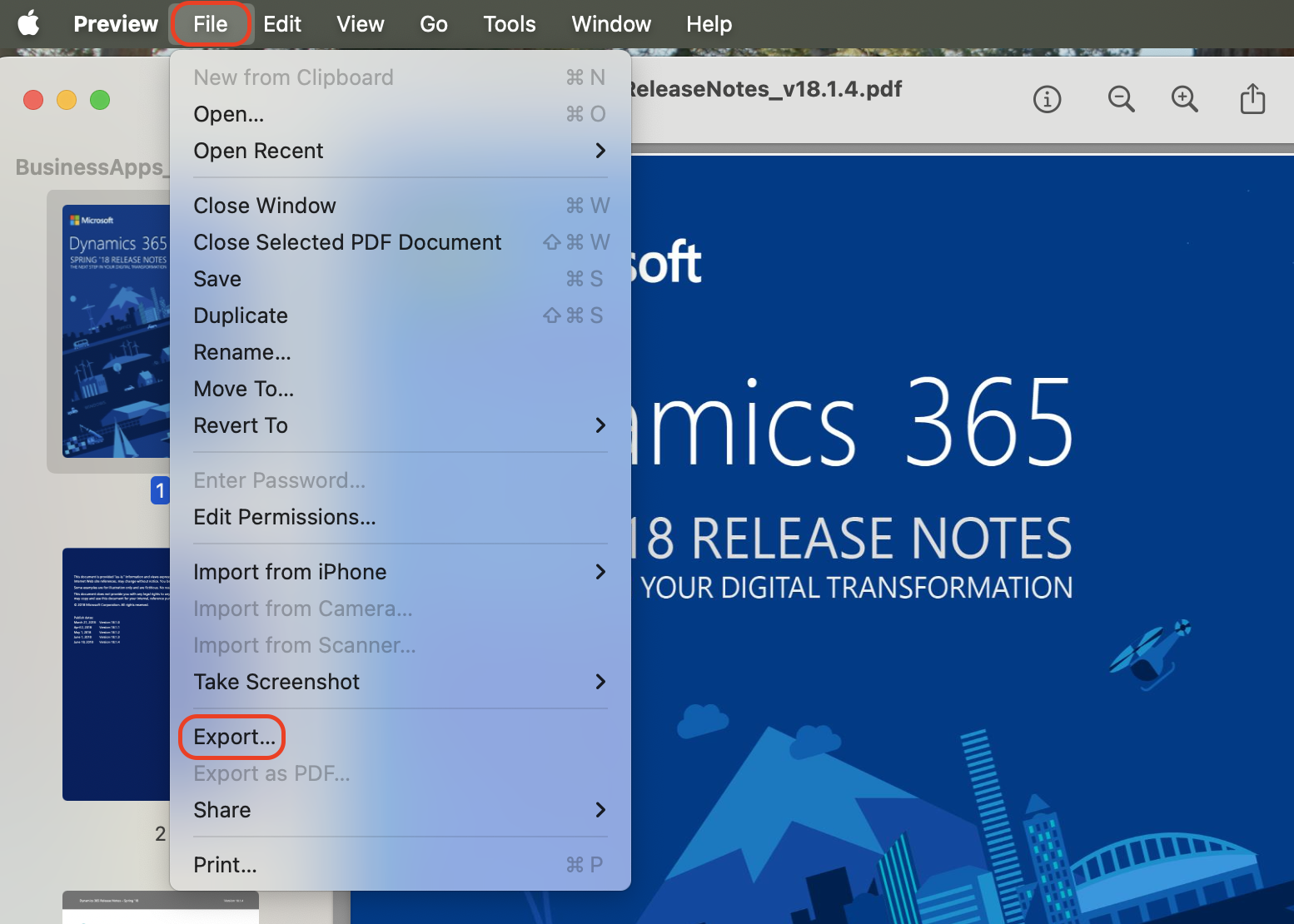
Step 1. Start with opening the file in PreviewStep 2. Use File > Export or Print > Save as PDF to create an unlocked copy
Why remove password from PDF on Mac?
Many users delete the password from PDF on Mac to avoid repeated prompts when files need constant access, sharing, editing, or printing. Based on our experience, passwords often stay active after documents stop being sensitive. Removing protection reduces friction, prevents login errors, and speeds up everyday work, especially when PDFs move between teammates, apps, and macOS workflows or are opened dozens of times daily in real projects.
A hint from us: All methods require opening the PDF first, so you must already know the password to remove it.
How to get rid of password from PDF on Mac?
To get rid of a password on a PDF on a Mac, open the file in Preview, enter the password, then choose File > Export or Print > Save as PDF to create an unlocked copy. Based on our experience, this method works fastest for everyday use. You can also rely on Adobe Acrobat to remove protection through its security settings when you need more control over permissions.
A note from our experts:
We’ve noticed that clearing storage before working with locked PDFs prevents failed exports and slow system responses. MacKeeper is a macOS utility software optimized for macOS, so Safe Cleanup removes old, unnecessary files safely and creates extra space before you start modifying documents.
Before you proceed with any PDF actions, we recommend cleaning your Mac first:
Download, install, and open MacKeeper on your Mac.
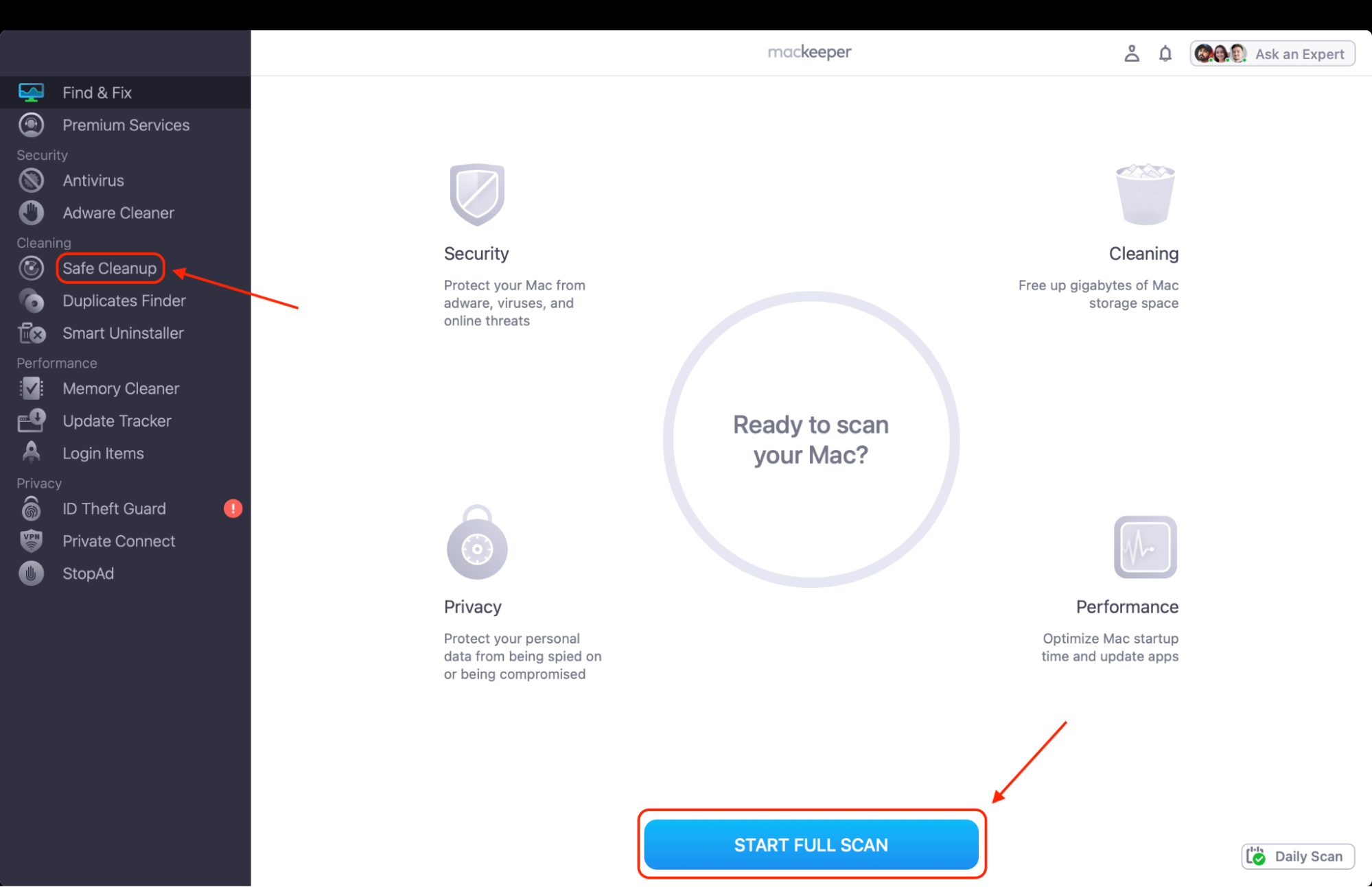
Select Safe Cleanup from the left sidebar.
Click Start Scan and let the tool analyze junk files, caches, and logs.
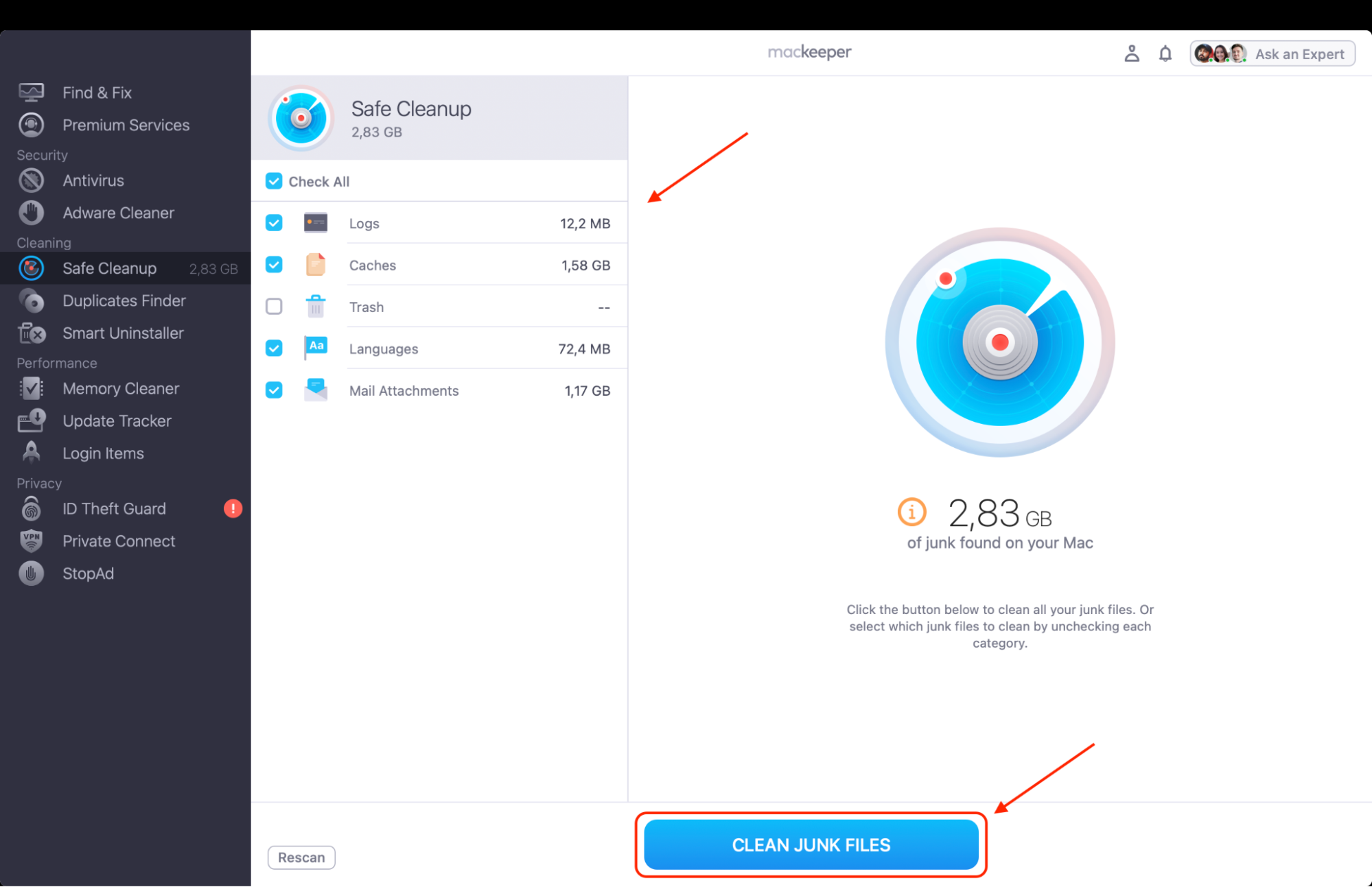
Review the detected items and press Clean Junk Files to free up storage.
Confirm the cleanup, then proceed with PDF actions, knowing your Mac has enough space.
Step 1. Choose Safe Cleanup and hit the Start Full Scan buttonStep 2. Select the files you want to delete and click Clean Junk Files
1. Get rid of password via Adobe Acrobat
From our observation, this method fits teams that already use Acrobat for editing, signing, or tasks like how to compress PDF on Mac, since everything stays inside one ecosystem and nothing breaks during export.
To remove the password using Adobe Acrobat, follow these steps in order:
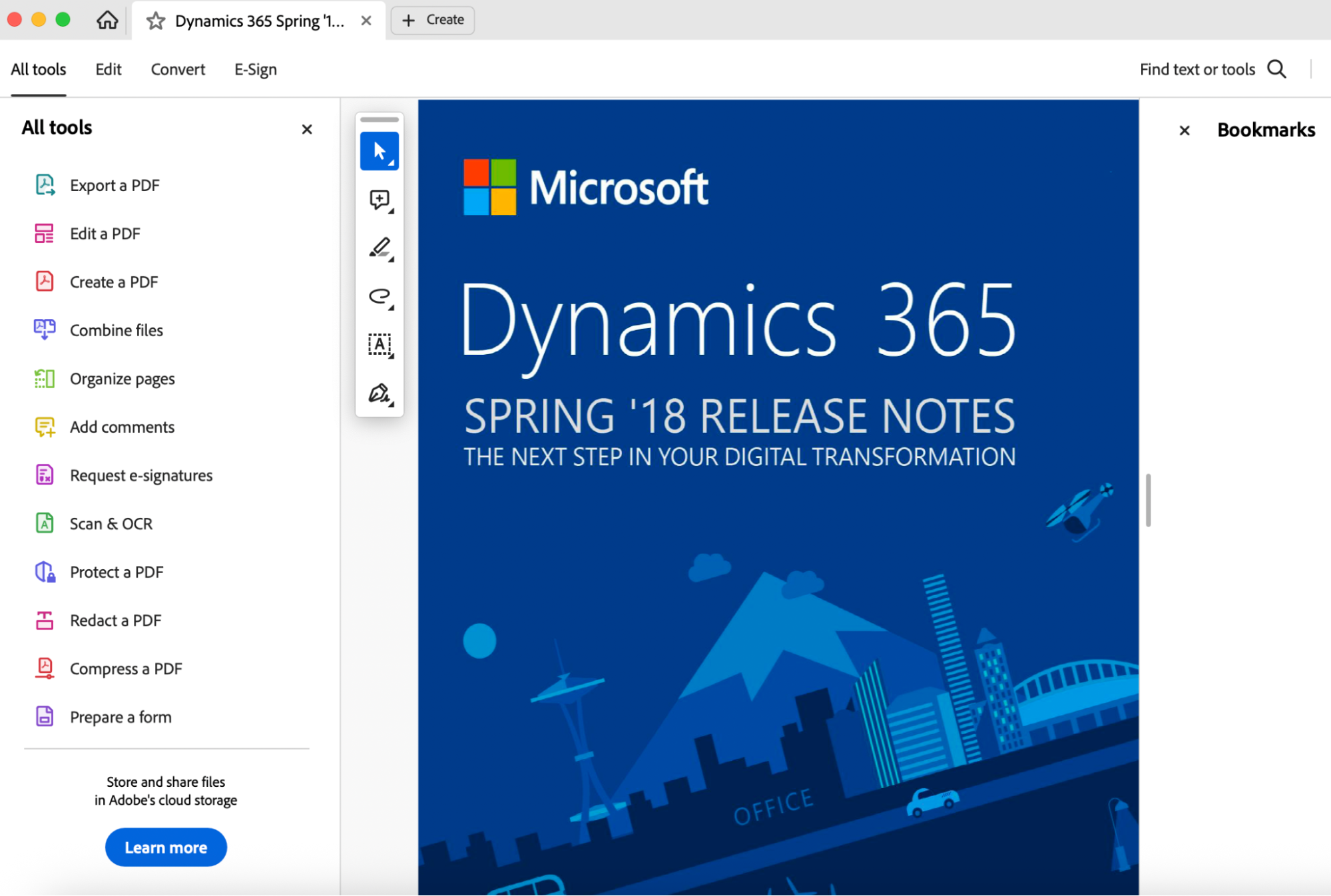
Launch Adobe Acrobat on your Mac and open the protected PDF file.
Enter the existing password to unlock editing and security settings.
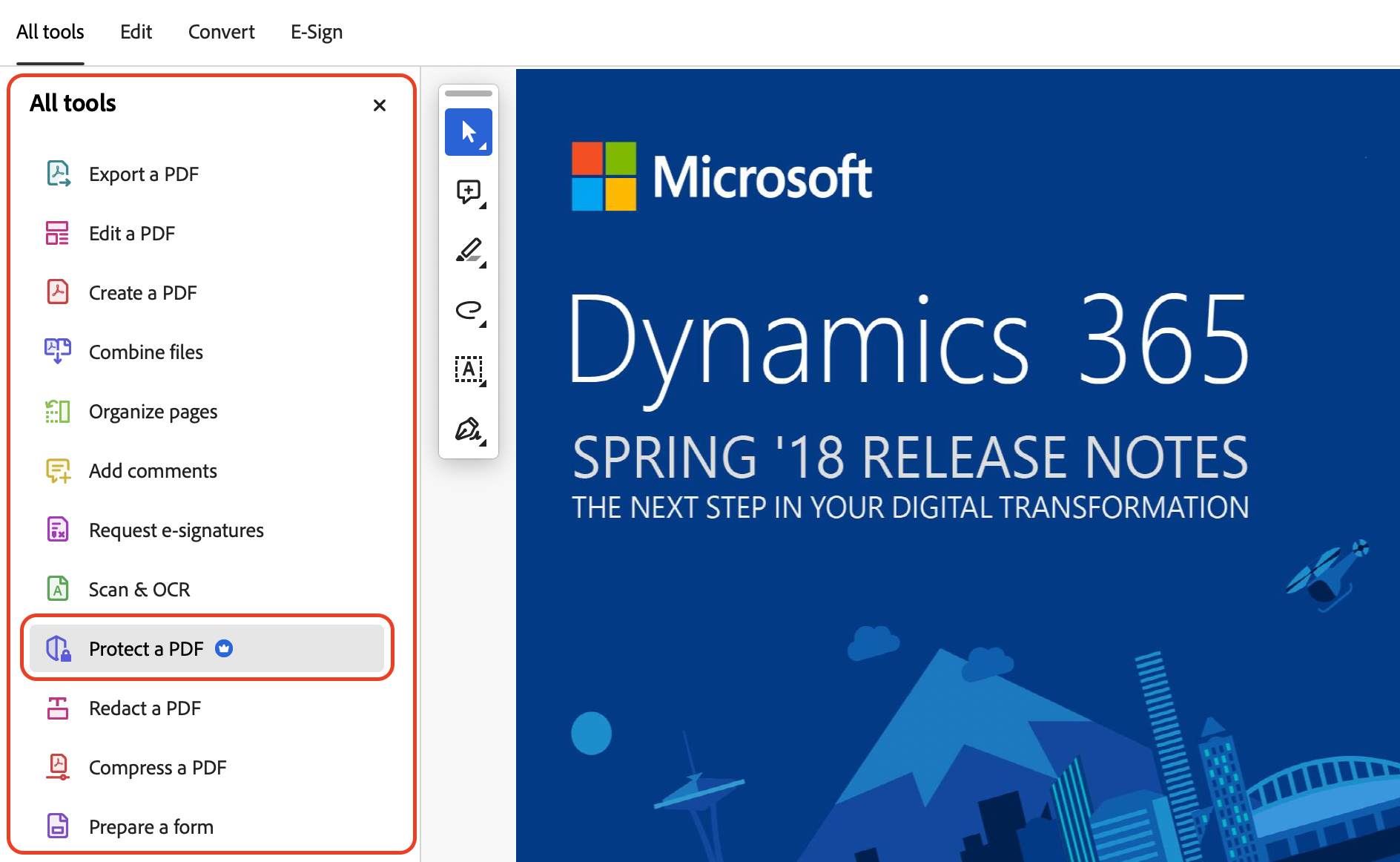
Find Tools in the left navigation bar.
Select Protect to access document security options.
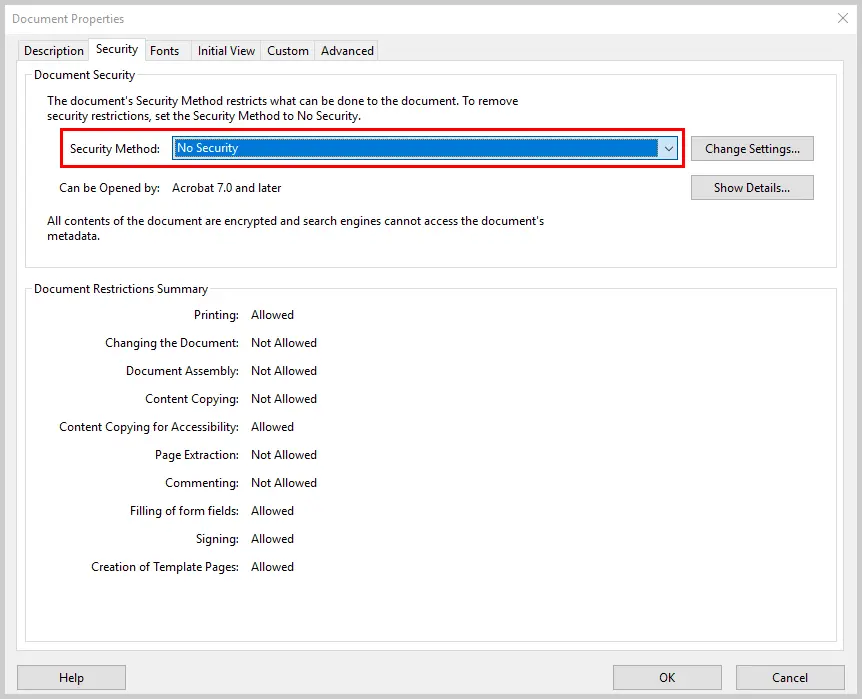
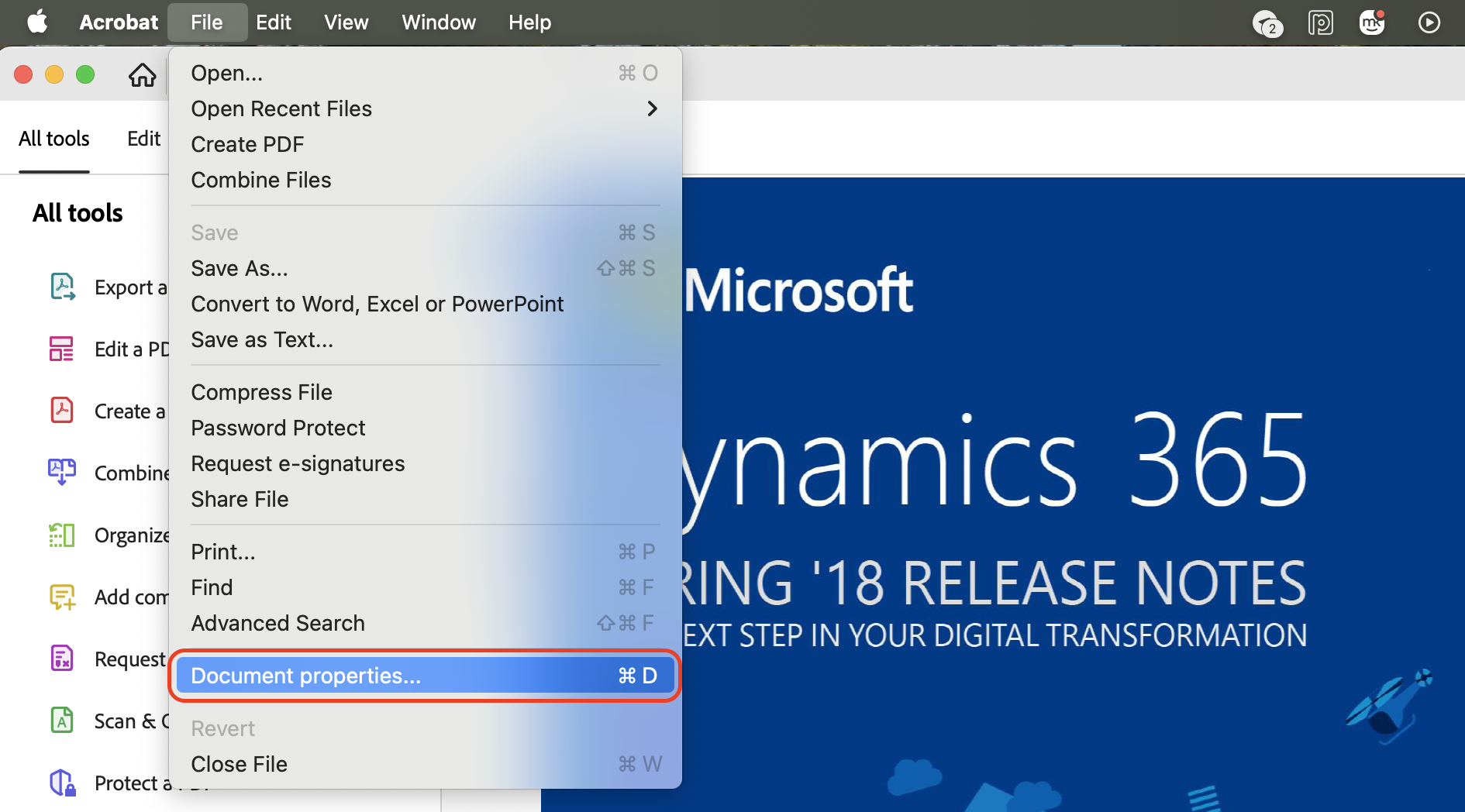
Choose Set Security Properties to open the detailed permissions dialog.
Locate the Security Method dropdown menu.
Select No Security to disable password protection completely.
Step 1. Launch Adobe Acrobat on your Mac and open the protected PDF fileStep 2. Find Tools in the left navigation bar and select Protect to access document security optionsStep 3. Choose Set Security Properties, locate the Security Method dropdown menu, and select No Security
2. Remove password from PDF with Preview (default macOS method)
Removing a password from a PDF with Preview is the simplest macOS-native option when speed matters more than advanced controls, especially if you already understand how to encrypt files on Mac using built-in tools.
Before starting, make sure you already know the PDF password. Then, do the following:
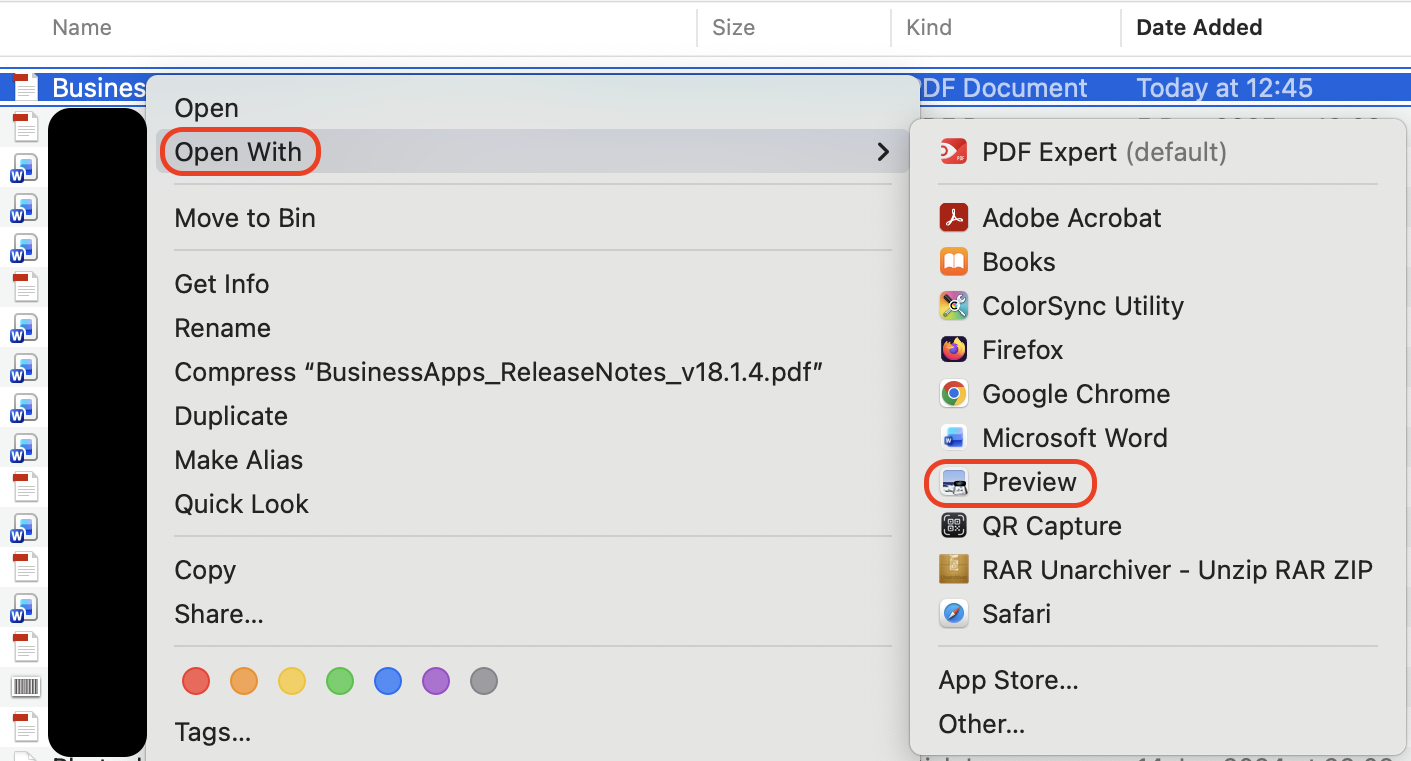
Open the protected PDF file using Preview on your Mac.
Enter the password to unlock the document for viewing.
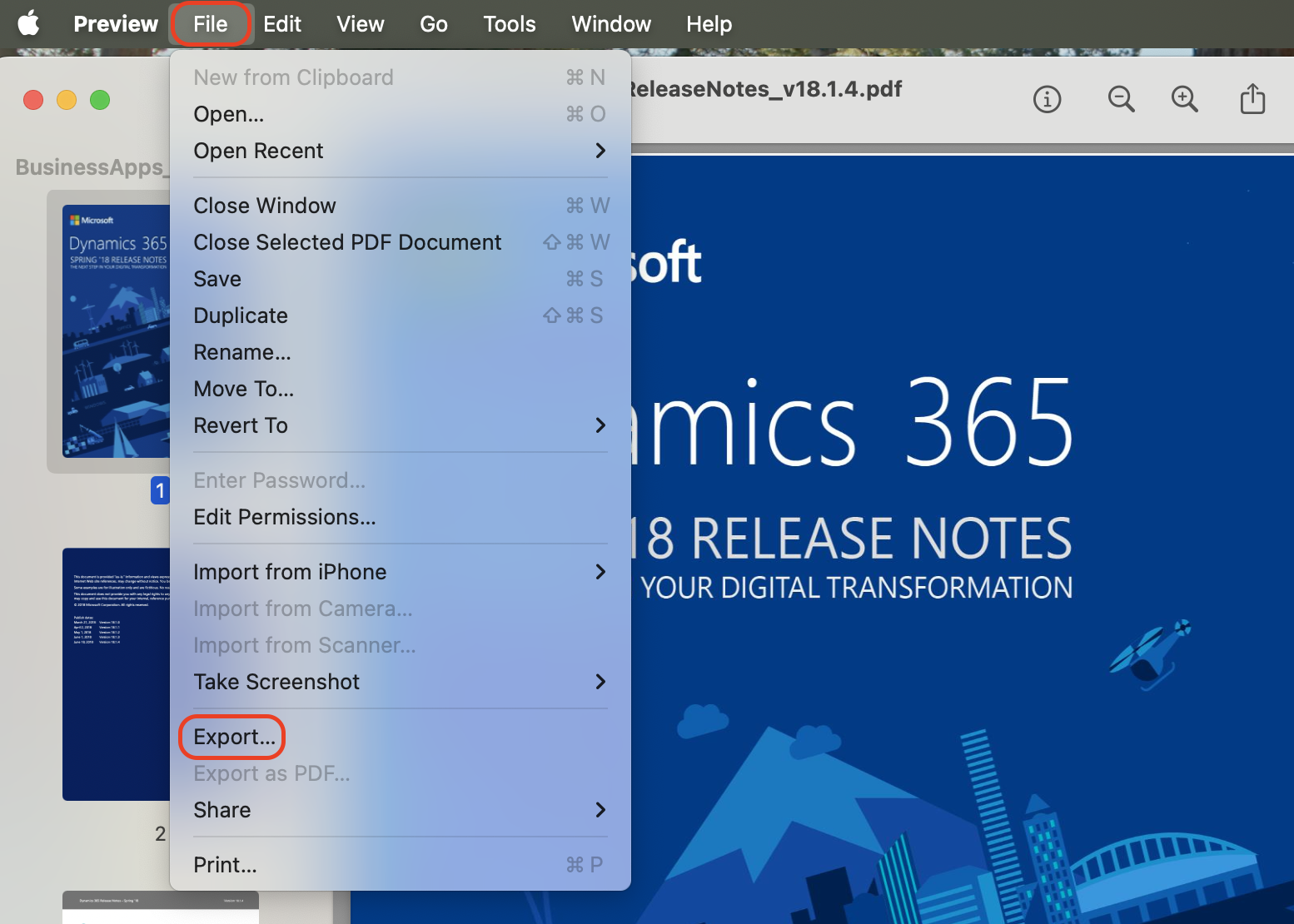
Click File in the top menu and choose Export.
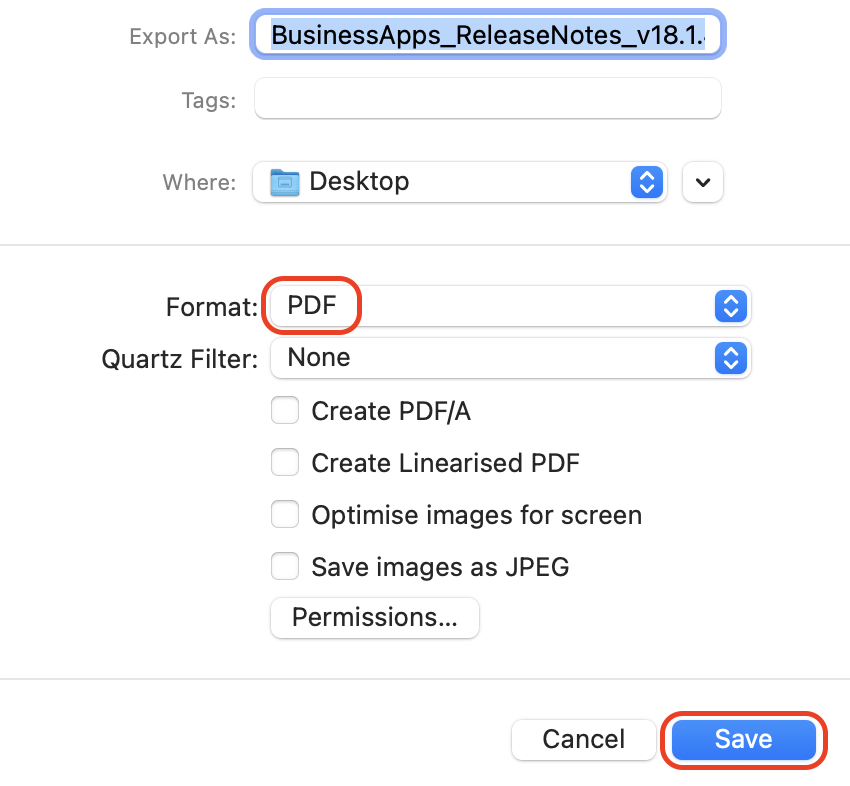
Select PDF as the export format.
Choose a new file name and save location.
Click Save to create a new PDF without a password.
Step 1. Open the protected PDF file using Preview on your MacStep 2. Click File in the top menu and choose ExportStep 3. Select PDF as the export format and click Save
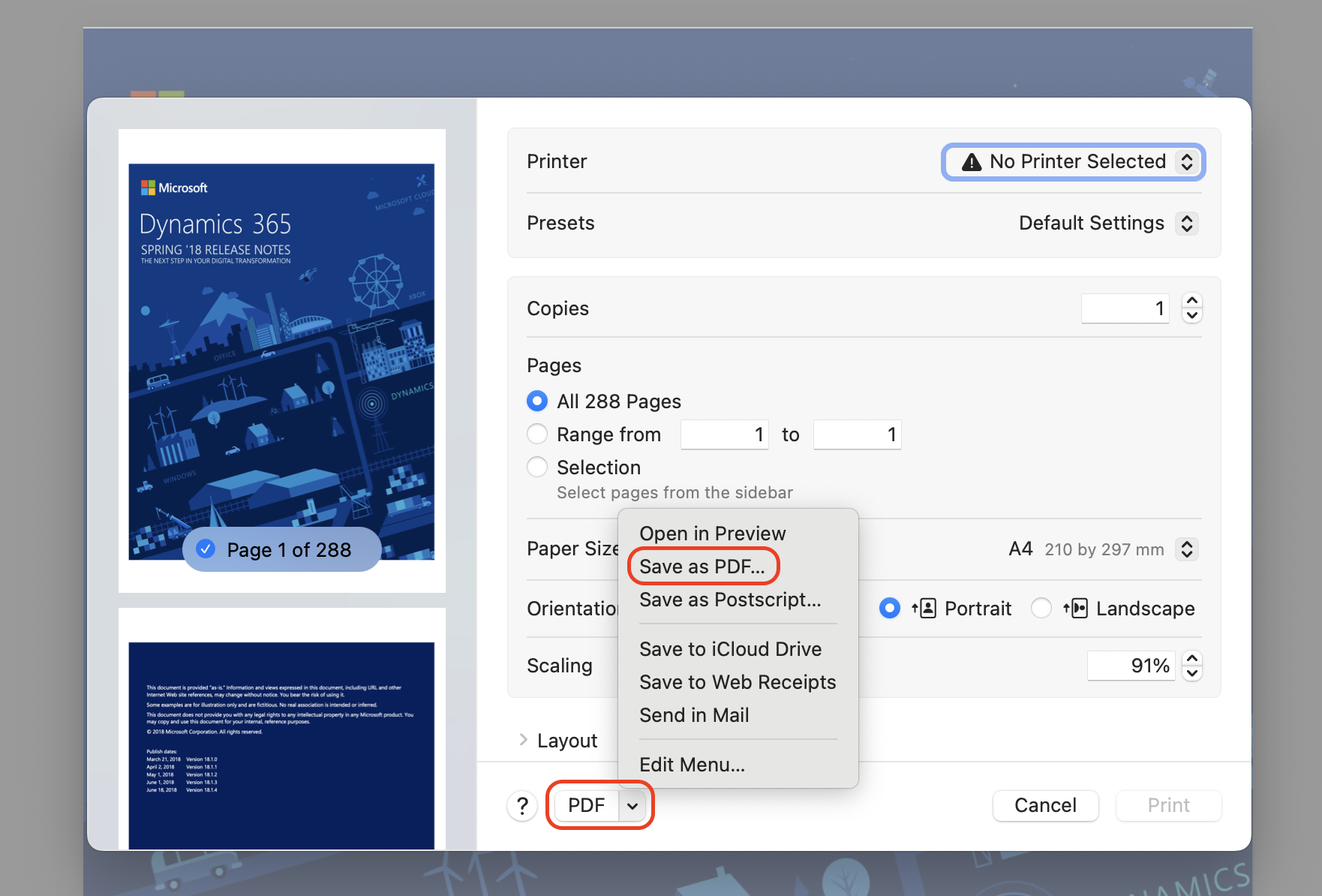
If export is unavailable, use the print-based workaround instead:
With the PDF open in Preview, click File.
Select Print or press Command + P.
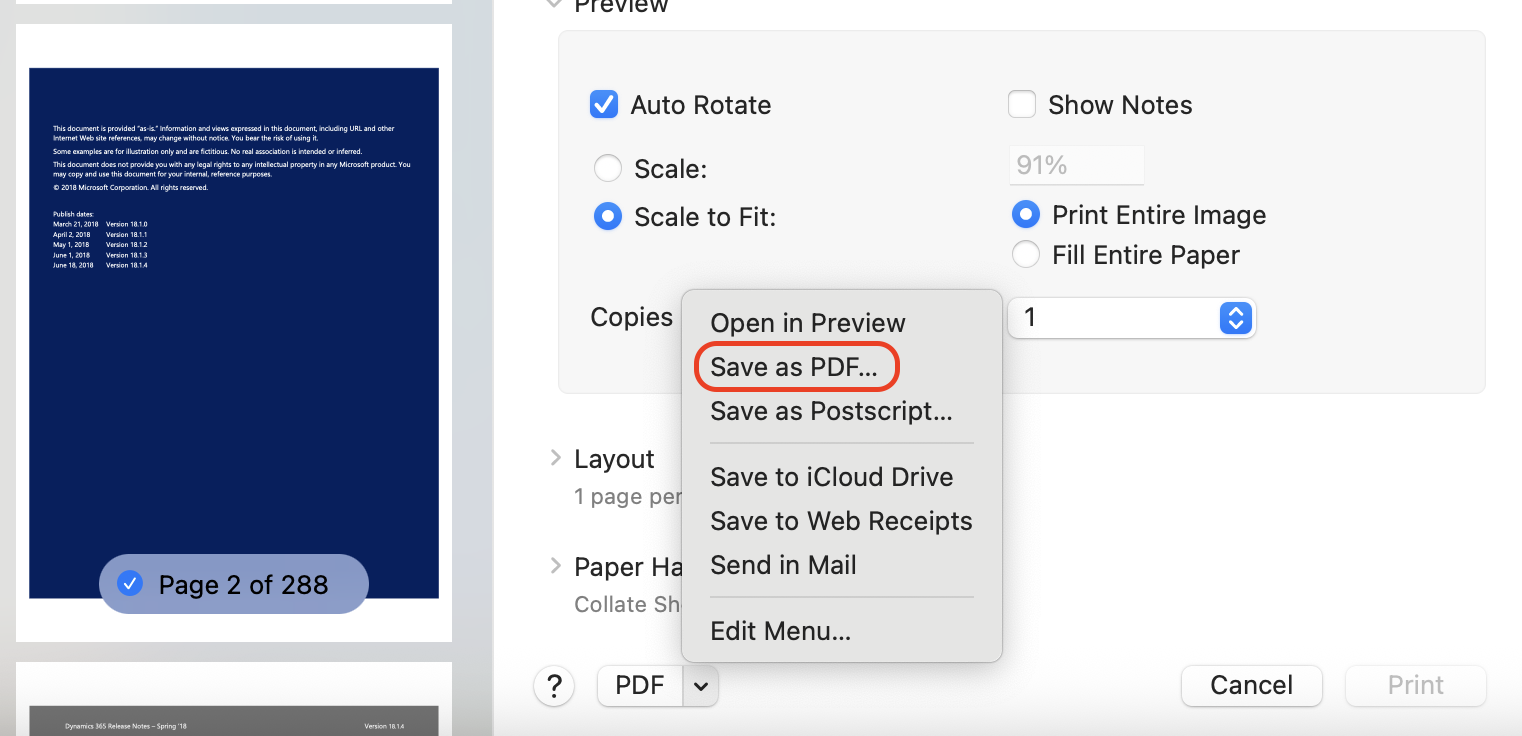
Click the PDF button in the lower-left corner.
Choose Save as PDF from the menu.
Save the newly created file to your Mac.
With the PDF open in Preview, click File, select Print, click the PDF button, and choose Save as PDF
3. Delete password from PDF using Terminal
Working with Terminal to remove a PDF password relies on direct command execution instead of menus or dialog windows, which clearly separates it from app-based solutions and often aligns with routines such as scanning a Mac for malware during broader system checks.
Complete the steps below carefully and in order:
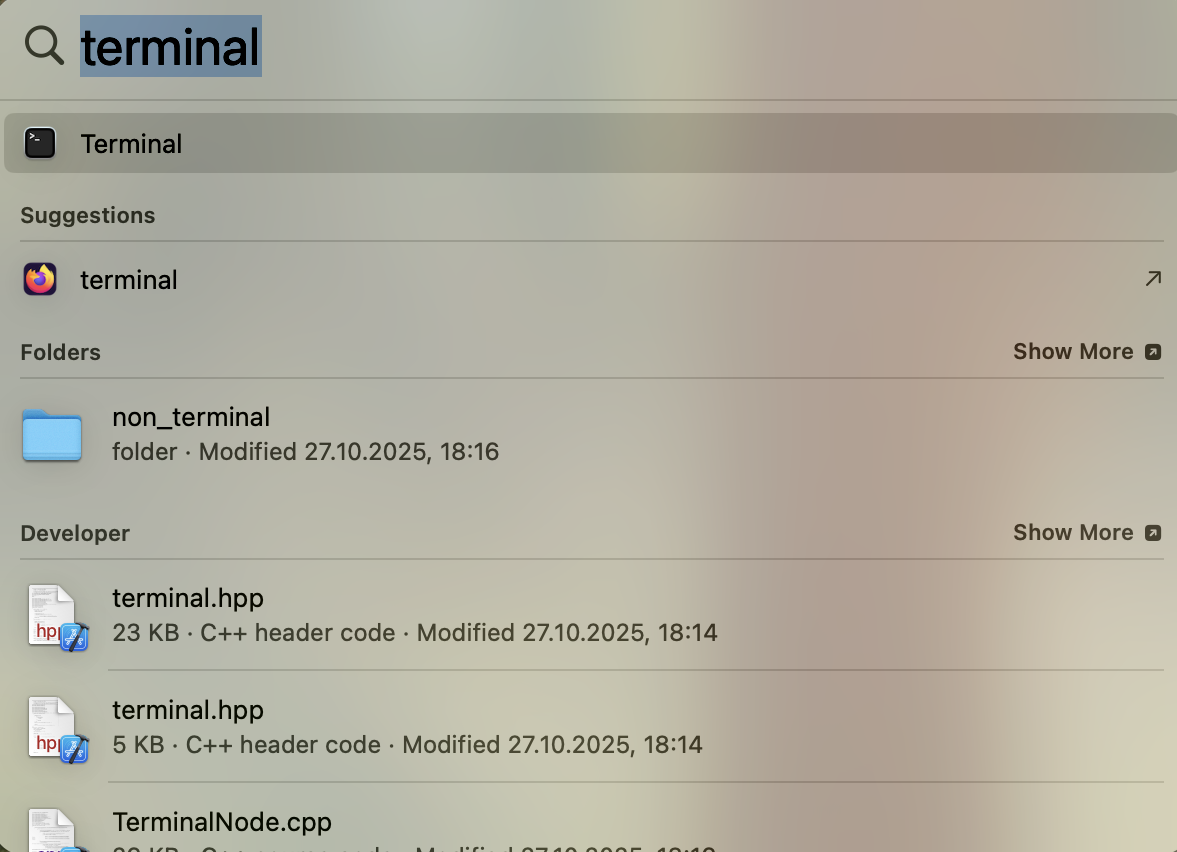
Open Terminal from Applications > Utilities or through Spotlight search.
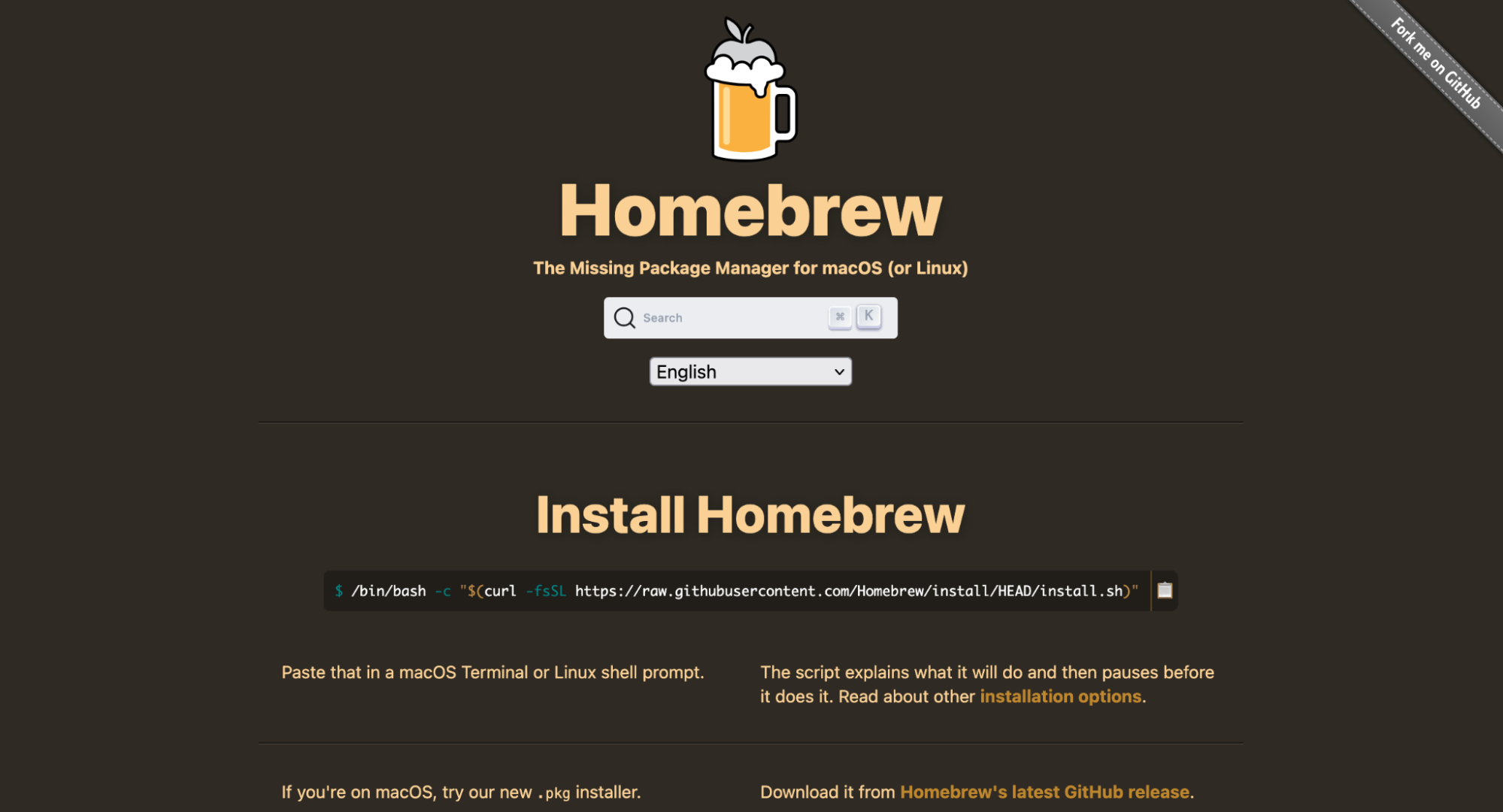
Install Homebrew if it is not already present on the system.
Follow the on-screen prompts to finalize the Homebrew setup.
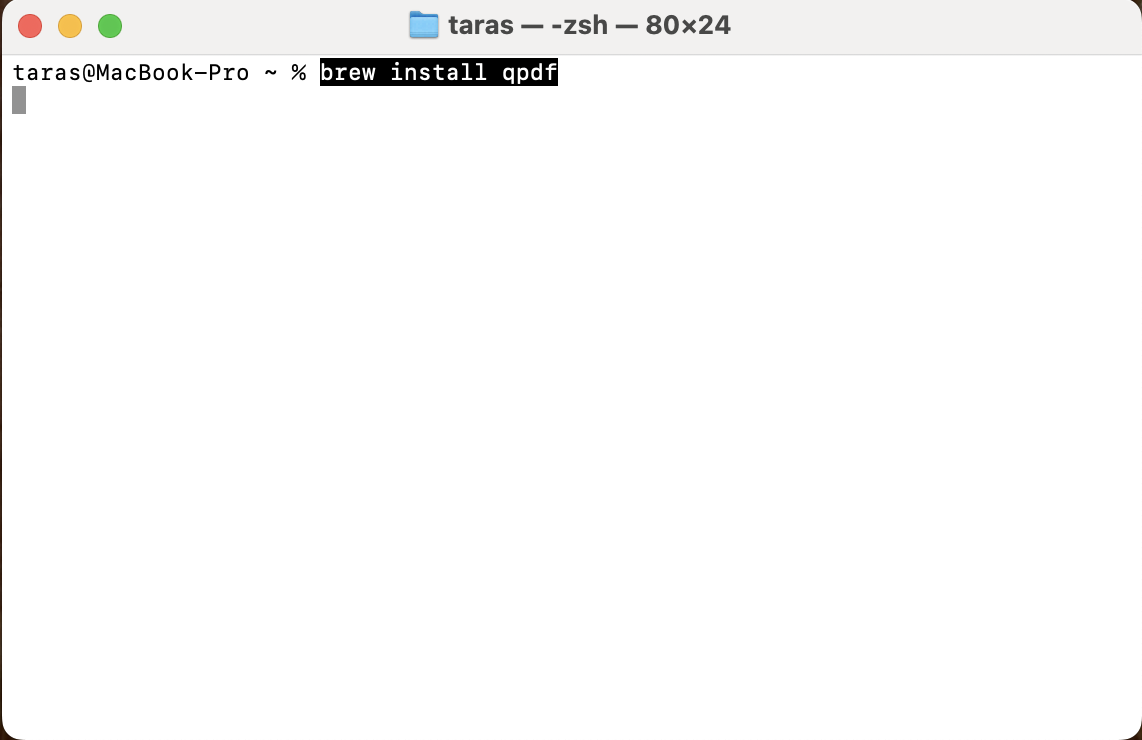
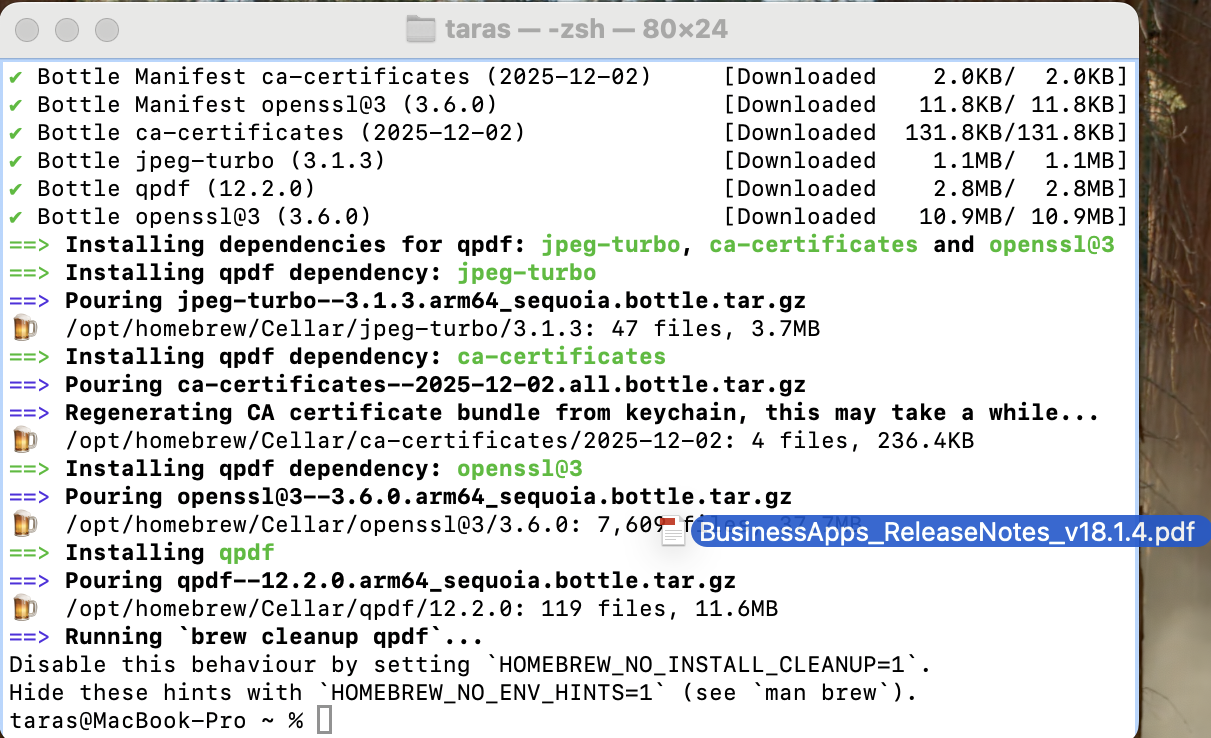
Use Homebrew to install the qpdf package with this command: brew install qpdf.
Confirm the installation by checking the qpdf version output.
Locate the password-protected PDF file in Finder.
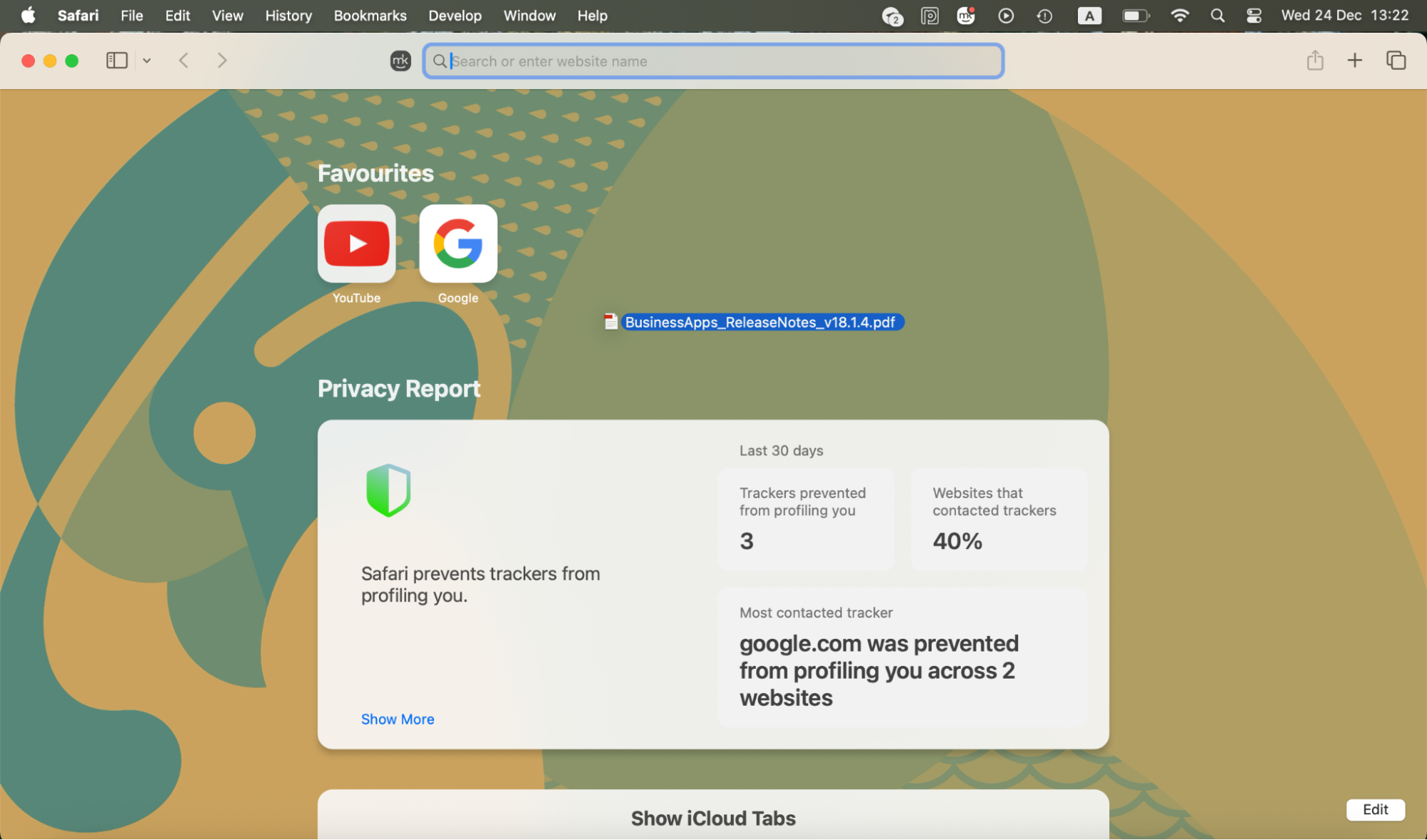
Drag the PDF file into the Terminal window to insert its full file path.
Enter the qpdf command with the current password specified.
Execute the command and wait until processing completes.
Open the newly generated PDF to verify that the password prompt no longer appears.
Step 1. Open TerminalStep 2. Install Homebrew if it is not already present on the systemStep 3. Use Homebrew to install the qpdf package with this commandStep 4. Drag the PDF file into the Terminal window and enter the qpdf command with the current password specified
4. Remove password from PDF via Browser
Browser-based handling works well when you want to avoid installing additional software and rely only on tools already available on macOS. We consider it especially practical on shared machines or restricted environments.
4.1. Safari
Safari works seamlessly with macOS printing, which makes it a natural choice for handling password-protected PDFs.
Follow these steps to unlock a PDF using Safari:
Open Safari and drag the protected PDF into the browser window.
Enter the password to display the document.
Press Command + P to open the print dialog.
Review page layout or scaling settings if required.
Click the PDF button in the lower-left corner.
Choose Save as PDF from the dropdown menu.
Select a new file name and save location.
Save the file to create an unlocked copy.
Step 1. Open Safari and drag the protected PDF into the browser windowStep 2. Press Command + P, review page layout, click the PDF button, and choose Save as PDF
4.2. Chrome
Chrome offers consistent PDF handling across platforms, which makes it convenient in mixed-device workflows.
Use Google Chrome by following these steps:
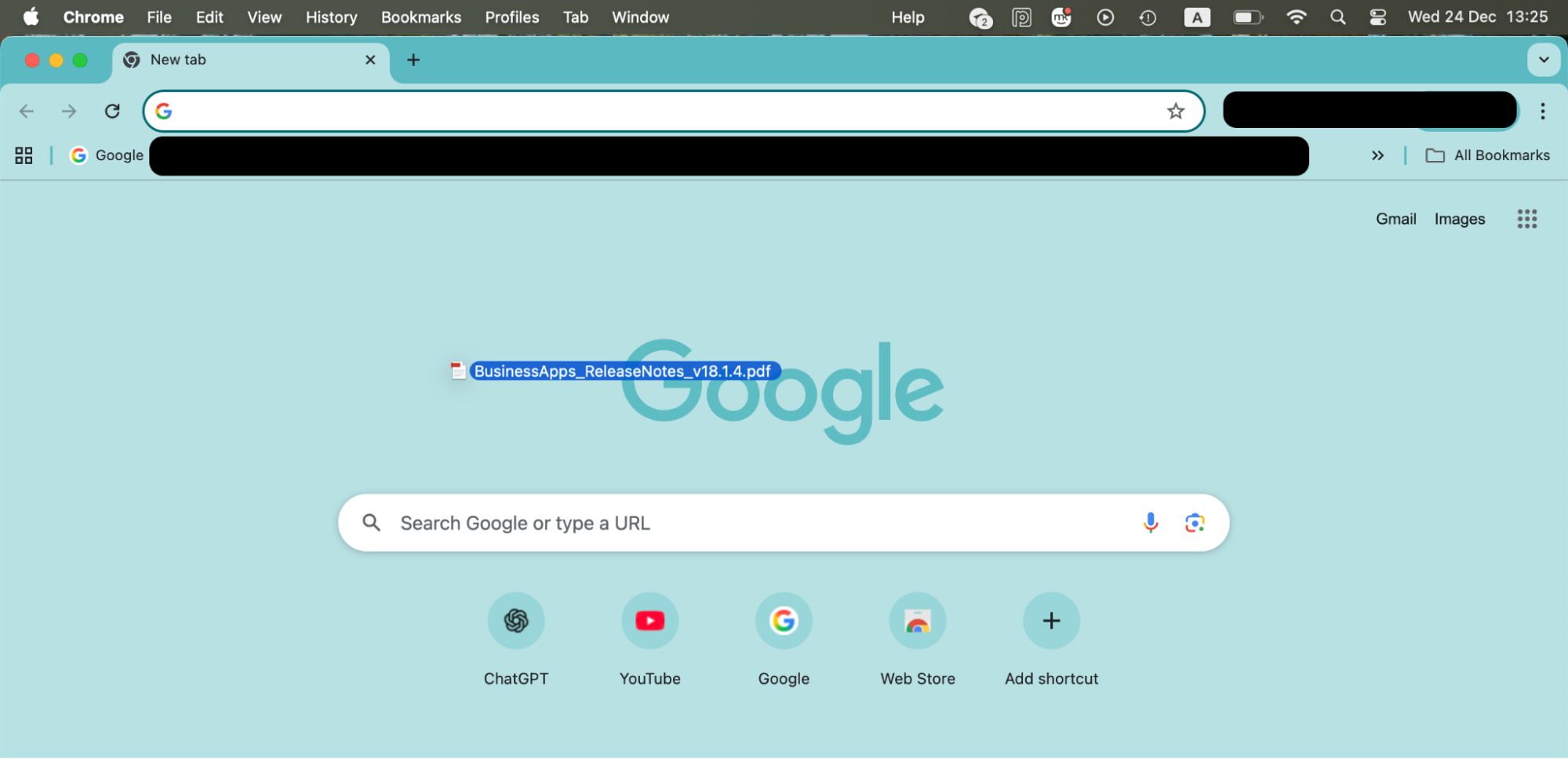
Open Chrome and drag the PDF into a new tab.
Enter the password when prompted.
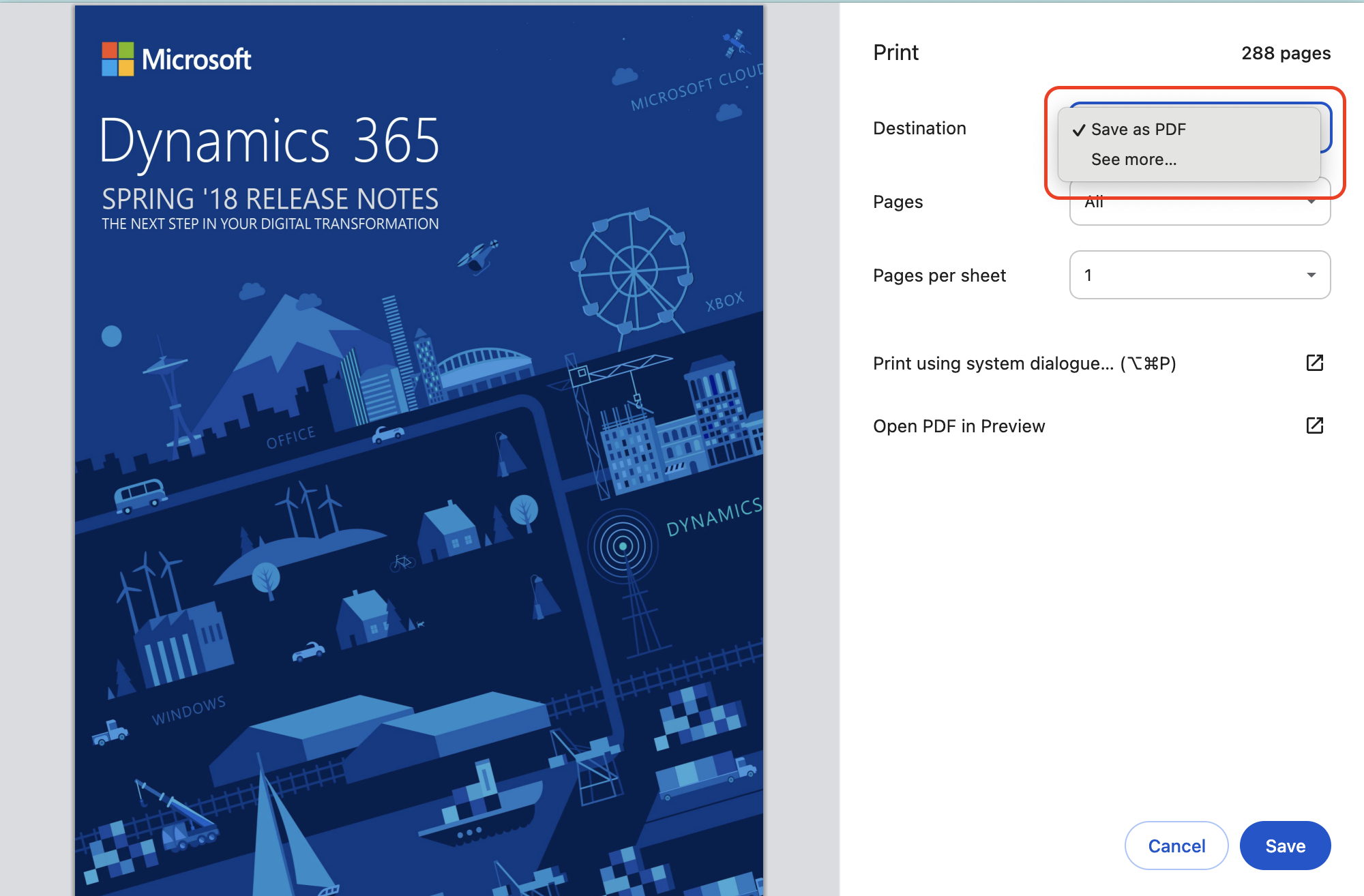
Click the printer icon or press Command + P.
Set Save as PDF as the destination.
Adjust page range or layout if needed.
Click Save and choose where to store the file.
Step 1. Open Chrome and drag the PDF into a new tabStep 2. Press Command + P, click the PDF button, and select Save as PDF
4.3. Firefox
Firefox can sometimes bypass permission limits that block printing in other browsers.
Unlock a PDF using Firefox with these steps:
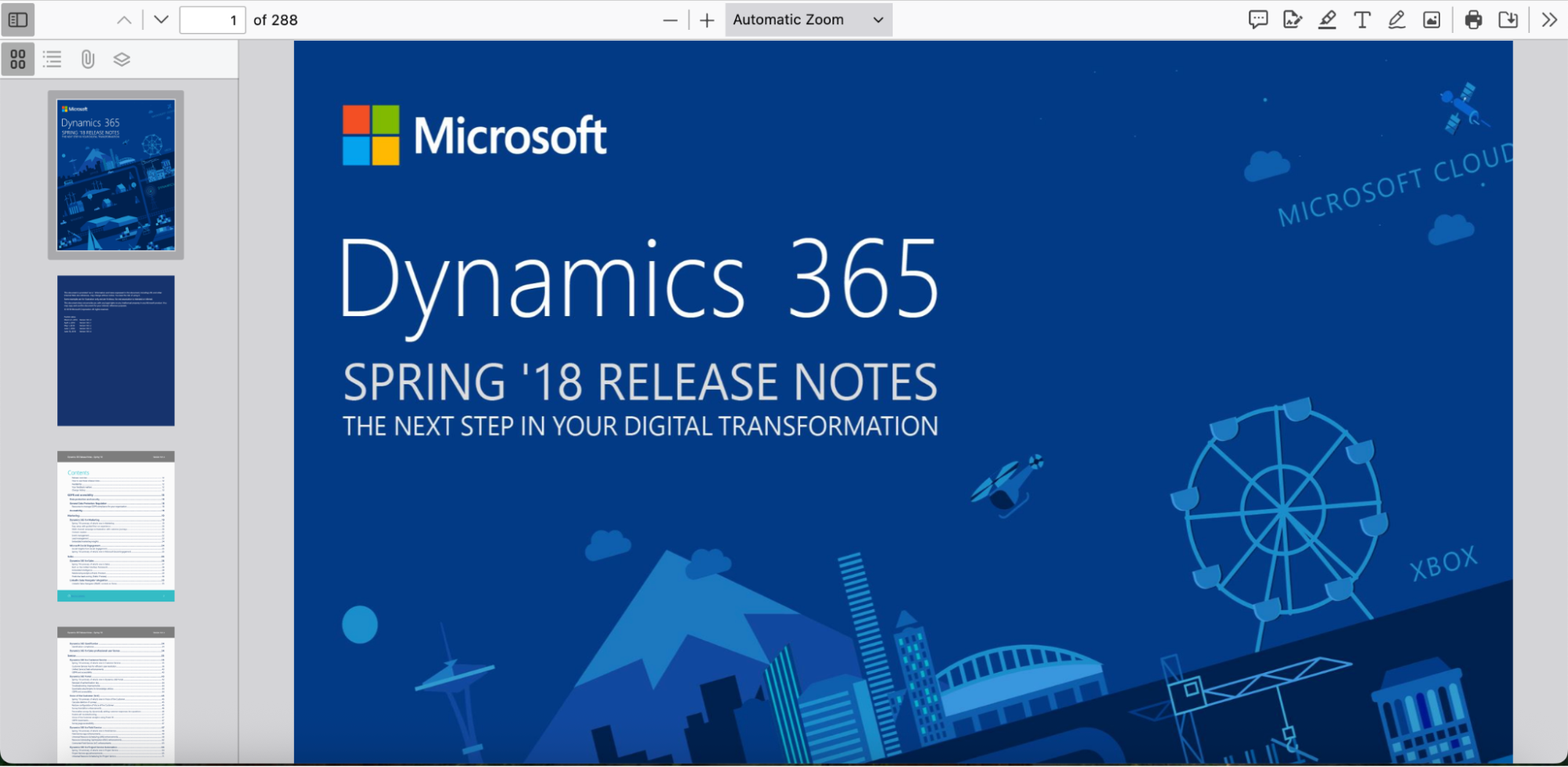
Launch Firefox and drag the PDF into a browser tab.
Enter the password to open the document.
Click the print icon in the toolbar.
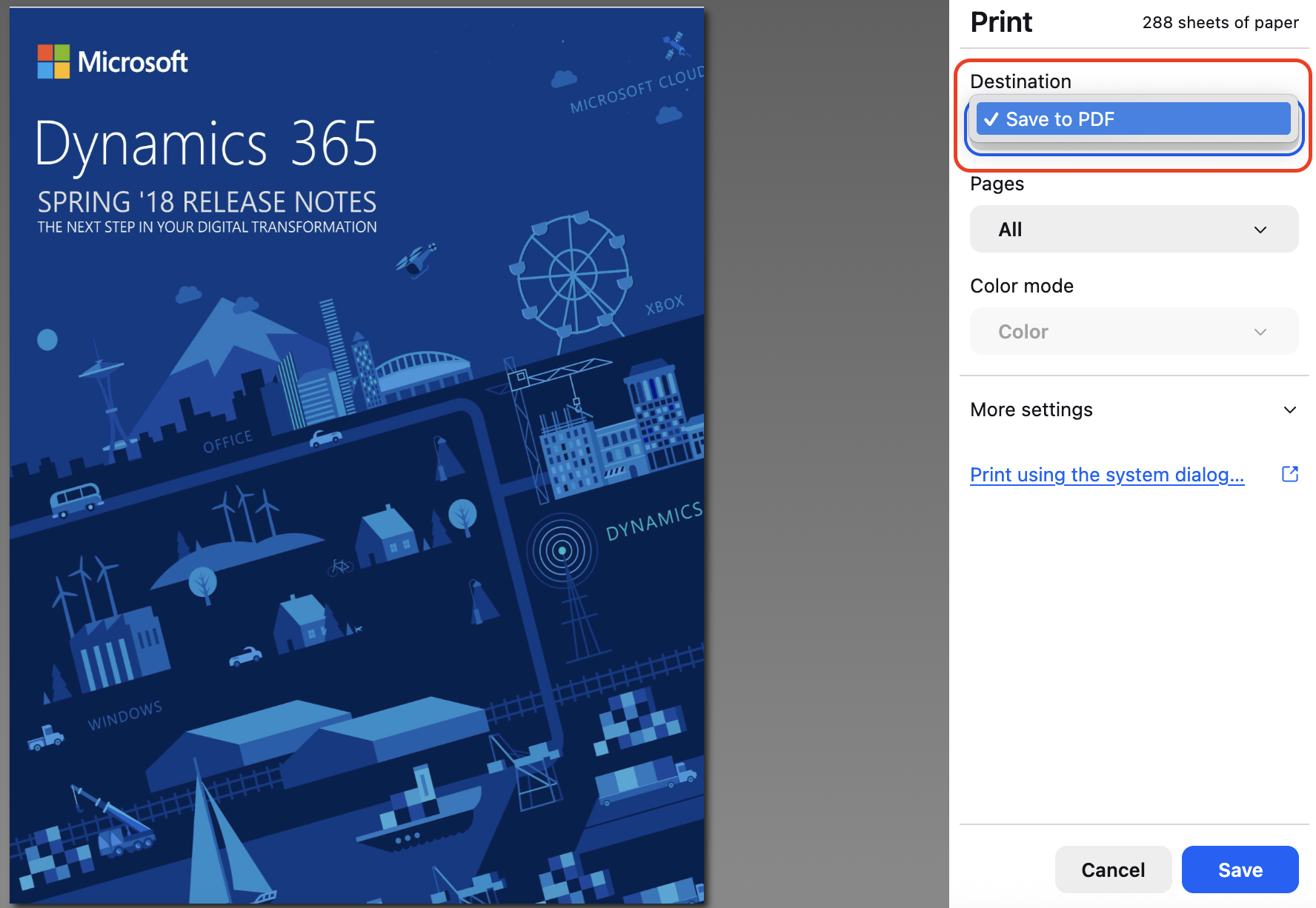
Select Save to PDF as the destination.
Choose a file name and confirm the save.
Step 1. Launch Firefox and drag the PDF into a browser tabStep 2. Click the print icon in the toolbar and select Save to PDF as the destination
5. Remove password using third-party PDF app
Third-party PDF software gives you a broader set of controls when built-in macOS tools feel restrictive. One pattern we have repeatedly observed is that dedicated PDF tools handle security changes more gracefully after system recovery scenarios, including cases where users forgot their Mac password and restored documents from backups or migrations.
Before you proceed, choose a trusted PDF application:
Download and install a reputable third-party PDF app on your Mac.
Launch the app and open the password-protected PDF file.
Enter the current password to unlock document access.
Navigate to the Security, Permissions, or Document Settings section.
Locate options related to password protection or encryption.
Disable the password requirement or set permissions to unrestricted.
Step 1. Download and install a reputable third-party PDF app on your MacStep 2. Navigate to the Document Settings section, locate options related to password protection or encryption, and disable the password requirement
Conclusion
Removing a password from a PDF on a Mac can be done in several reliable ways, depending on your workflow and comfort level. Preview handles quick everyday needs, browsers provide fast workarounds, Terminal suits technical users, and third-party apps offer deeper control.
Before applying any of the above-mentioned steps, we advise you to prepare your system. MacKeeper, developed by Clario Tech, is optimized for macOS performance. Using its Safe Cleanup feature clears old caches, logs, and leftovers, giving you extra space and smoother conditions before exporting or saving unlocked PDFs.
We respect your privacy and
use cookies
for the best site experience.
Privacy Preferences Center
We use cookies along with other tools to give you the best possible experience while using the
MacKeeper website. Cookies are small text files that help the website load faster. The cookies we
use don’t contain any type of personal data meaning they never store information such as your
location, email address, or IP address.
Help us improve how you interact with our website by accepting the use of cookies. You can change
your privacy settings whenever you like.
Manage consent
All cookies
These cookies are strictly necessary for enabling basic website functionality (including page
navigation, form submission, language detection, post commenting), downloading and purchasing
software. The website might malfunction without these cookies.